본문으로 바로가기

Kimi K2.6 API Tutorial: Building an AI Job Search Assistant

Build an AI agent with Kimi K2.6, Olostep, and the OpenAI Agents SDK that reads your CV, finds live roles, filters noise, and tells you exactly where to apply.
2026년 5월 7일  · 11분 읽다

Kimi K2.6 is Moonshot AI’s latest open-source model, designed for coding, long-horizon execution, tool use, and agent workflows. The model is available through Kimi.com, the Kimi app, Kimi Code, and the API, making it useful for building practical AI applications that need reasoning, tool calling, and structured outputs.

In this tutorial, you will build JobFit AI, an AI-powered job search assistant that reads a candidate’s CV, searches for live job postings, checks selected job pages, and generates a ranked job-fit report. Kimi K2.6 is a good fit for this project because it supports long-context workflows, tool calling, and both thinking and non-thinking modes through the Kimi API platform.

The project uses:

  • Kimi K2.6 as the reasoning model
  • Olostep for live web search and job page scraping
  • pypdf to extract text from the candidate’s CV
  • OpenAI Agents SDK to build the tool-using agent
  • Gradio to turn the workflow into a simple web app

By the end of this tutorial, you will have a working app that lets users upload a CV, describe their job preferences, and generate a ranked report of relevant jobs in under a minute.

If you are just getting started with agentic AI, I highly recommend enrolling in our AI Agents Fundamentals skill track. It covers all the basics of design patterns, MCP, and multi-agent systems.

Tutorial Prerequisites

Before starting, make sure you have:

  • Python 3.11+
  • A Kimi API key
  • At least $5 credit in your Moonshot AI account
  • An Olostep API key
  • A PDF CV
  • Basic Python knowledge

1. Set Up Your Python Environment

Create a new project folder:

mkdir JobFit-AI
cd JobFit-AI

Then install the required packages:

pip install gradio openai pypdf openai-agents

The main packages are:

  • gradio: creates the web interface

  • openai: connects to OpenAI-compatible APIs

  • pypdf: extracts text from PDF files

  • openai-agents: creates the tool-using AI agent

Next, create accounts and generate your API keys:

  • Create a free Olostep account and generate an API key from the Olostep dashboard. You can also sign up for the Starter plan at $9/month, which includes 5,000 requests. This gives you enough requests to test and deploy your app.
  • Go to the Kimi platform, add at least $5 credit, and generate your API key.

Set your Kimi and Olostep API keys as environment variables. The MOONSHOT_API_KEY is used to access the Kimi K2.6 API, while the OLOSTEP_API_KEY is used to search and scrape live job pages.

Introduction to AI Agents

Learn the fundamentals of AI agents, their components, and real-world use—no coding required.
Explore Course

2. Define the Project Configuration 

Launch Jupyter Notebook, create a new cell, and add the required imports and project configuration.

import json
import os

import requests
from agents import Agent, AsyncOpenAI, ModelSettings, OpenAIChatCompletionsModel, RunConfig, Runner, function_tool, set_tracing_disabled
from IPython.display import Markdown, display
from pypdf import PdfReader

Now define the model name, API endpoints, maximum agent turns, CV path, and job preferences.

KIMI_MODEL = "kimi-k2.6"
KIMI_BASE_URL = "https://api.moonshot.ai/v1"
OLOSTEP_SEARCH_URL = "https://api.olostep.com/v1/searches"
OLOSTEP_SCRAPE_URL = "https://api.olostep.com/v1/scrapes"
MAX_AGENT_TURNS = 25


cv_path = "abid-resume.pdf"
preferences = """
Remote data science, AI writer, or technical writer roles in AI, machine learning, data science, or cloud.
Prefer technical content, tutorials, developer education, research writing, and AI product storytelling.
""".strip()


set_tracing_disabled(True)

The KIMI_MODEL and KIMI_BASE_URL values tell the app to use Kimi K2.6 through Moonshot AI’s OpenAI-compatible API endpoint. The Olostep URLs are used for live job search and page scraping.

The cv_path variable points to the candidate’s resume PDF. Make sure the PDF is saved in the same project folder, or update the path if it is stored somewhere else.

The preferences variable tells the agent what type of jobs to search for. You can update this based on the target role, industry, location, seniority level, or preferred work style.

We disable tracing with set_tracing_disabled(True) because tracing is an OpenAI Agents SDK feature that is enabled by default. Since this project uses Kimi through an OpenAI-compatible endpoint, disabling tracing keeps the local setup simple and avoids tracing-related issues with a third-party model provider.

3. Connect to the Kimi K2.6 API

Then, set up the Kimi client using the API key you saved earlier as an environment variable.

kimi_client = AsyncOpenAI(
   api_key=os.environ["MOONSHOT_API_KEY"],
   base_url=KIMI_BASE_URL,
)

This creates the API client for Kimi. The api_key is loaded from MOONSHOT_API_KEY, and the base_url points to Moonshot AI’s OpenAI-compatible endpoint.

Next, wrap the Kimi model so it can be used inside the OpenAI Agents SDK:

kimi_model = OpenAIChatCompletionsModel(
   model=KIMI_MODEL,
   openai_client=kimi_client,
)

Now define the model settings:

model_settings = ModelSettings(
   tool_choice="auto",
   parallel_tool_calls=True,
   extra_body={"thinking": {"type": "disabled"}},
)

The tool_choice="auto" setting lets the agent decide when to call tools. The parallel_tool_calls=True setting allows the agent to run multiple tool calls simultaneously when needed.

We also disable Kimi’s thinking mode using extra_body={"thinking": {"type": "disabled"}}. This keeps the output cleaner and better suited to a structured job-fit report.

Finally, create the run configuration:

run_config = RunConfig(
   workflow_name="JobFit AI Kimi Search",
   tracing_disabled=True,
)

The workflow_name gives this run a clear label. We also keep tracing disabled here because this project uses Kimi through an OpenAI-compatible endpoint, not OpenAI’s tracing backend.

4. Extract Text From the Candidate’s CV

Next, use PdfReader to load the candidate’s CV and extract the text from each page.

reader = PdfReader(cv_path)
cv_text = "\n".join(page.extract_text() or "" for page in reader.pages)[:12000]
print(f"Loaded {len(cv_text):,} characters from {cv_path}")

This code reads the PDF file defined in cv_path, extracts the text from every page, and combines it into one string.

The [:12000] limit keeps the CV text short enough to fit comfortably inside the agent prompt while still giving the model enough context about the candidate’s experience, skills, and preferences.

The output will look similar to this, depending on the name and the length of your CV file:

Loaded 2,946 characters from abid-resume.pdf

This confirms that the CV was loaded successfully and shows how many characters were extracted from the PDF.

5. Create the Agent Instructions 

Next, define the instructions that control how the agent should search, use tools, and format the final report.

AGENT_INSTRUCTIONS = """
You are JobFit AI, a focused job-search agent.

Tool plan:
- Call search_jobs exactly once with limit 8.
- Read at most 3 direct job pages with read_job_page.
- After reading up to 3 pages, stop using tools and write the report.
- Search again only if the first search returns zero usable jobs.
- Avoid broad search pages, expired jobs, and LinkedIn unless no better source exists.

Report rules:
- Keep the report simple, clear, and practical.
- Use short bullets.
- Do not use em dashes.
- Do not use contractions.
- Do not add text before or after the report.
- End after the final Job Notes entry.
- Include at least 5 ranked jobs if the search results contain at least 5 usable jobs.
- If only 3 pages were scraped, use backup jobs from search results when they look usable.
- Every job must include a clickable Markdown link.
- Every job must have one apply decision: Apply, Maybe, or Do not apply.

Use exactly this Markdown structure:

# JobFit AI Report

## Best Match

- **Role:** <job title>
- **Company:** <company>
- **Apply decision:** Apply / Maybe / Do not apply
- **Fit score:** <score>/100
- **Link:** [Apply here](<job url>)

**Why this is the best match:**

- <specific reason>
- <specific reason>
- <specific reason>

## Ranked Jobs

| Rank | Role | Company | Apply? | Fit | Link |
| --- | --- | --- | --- | --- | --- |
| 1 | <role> | <company> | Apply / Maybe / Do not apply | <score>/100 | [Apply here](<url>) |

## Job Notes

### 1. <Role> at <Company>

- **Apply decision:** Apply / Maybe / Do not apply
- **Fit score:** <score>/100
- **Link:** [Apply here](<job url>)

**Why it fits:**

- <bullet>
- <bullet>

**Concerns:**

- <bullet>
- <bullet>

**Application angle:**

- <how the person should position their CV/application>
""".strip()

These instructions keep the agent focused. They limit the workflow to one job search, up to three job page reads, and a fixed Markdown report structure.

The report rules also make the output easier to scan by requiring short bullets, clickable links, fit scores, and a clear apply decision for each role.

6. Build the Runtime Prompt

After defining the agent instructions, create the prompt template that will be passed to the agent during each run.

RUN_PROMPT_TEMPLATE = """
Find current job postings for this candidate and rank them by fit.

Keep the run simple:
- one search
- up to three page reads
- final report

The final report must follow AGENT_INSTRUCTIONS exactly.
Use simple wording. Do not use em dashes. Do not use contractions.

Candidate CV:
{cv_text}

Preferences:
{preferences}
""".strip()

This prompt combines the candidate’s CV text and job preferences at runtime.

The cv_text placeholder is filled with the extracted CV content, while the preferences placeholder is filled with the target role preferences defined earlier. Together, they give the agent enough context to search for relevant jobs and rank them by fit.

7. Add Live Web Search With Olostep

Now that the agent instructions and runtime prompt are ready, add two tools that allow the agent to search the web and read job pages using Olostep.

The first tool searches the web for job listings and returns a compact list of results.

@function_tool
def search_jobs(query: str, limit: int = 8) -> str:
    """Search the web for job listings and return compact JSON results."""
    response = requests.post(
        OLOSTEP_SEARCH_URL,
        headers={"Authorization": f"Bearer {os.environ['OLOSTEP_API_KEY']}", "Content-Type": "application/json"},
        json={"query": query},
        timeout=60,
    )
    response.raise_for_status()
    links = response.json().get("result", {}).get("links", [])[:limit]
    results = [
        {"title": item.get("title", "Untitled"), "url": item.get("url"), "description": item.get("description", "")}
        for item in links
        if isinstance(item, dict) and item.get("url")
    ]
    return json.dumps(results, ensure_ascii=False)

The @function_tool decorator makes this Python function available to the agent as a callable tool.

When the agent needs job listings, it calls search_jobs with a search query. The function sends the query to the Olostep search endpoint, collects the top results, and returns them as JSON.

Each result includes:

  • job title
  • job URL
  • short description

The second tool lets the agent open and read a specific job page.

@function_tool
def read_job_page(url: str) -> str:
    """Scrape one job listing URL and return markdown text."""
    response = requests.post(
        OLOSTEP_SCRAPE_URL,
        headers={"Authorization": f"Bearer {os.environ['OLOSTEP_API_KEY']}", "Content-Type": "application/json"},
        json={"url_to_scrape": url, "formats": ["markdown"]},
        timeout=120,
    )
    response.raise_for_status()
    markdown = response.json().get("result", {}).get("markdown_content") or ""
    return markdown[:8000]

This function sends a job URL to the Olostep scrape endpoint and returns the page content in Markdown format.

The [:8000] limit keeps the scraped page short enough for the agent to process while still capturing the most useful job details, such as responsibilities, requirements, and company information.

8. Create the JobFit AI Agent

Now create the agent and connect all the pieces you defined earlier: the Kimi model, model settings, Olostep tools, and agent instructions.

agent = Agent(
   name="JobFit AI",
   model=kimi_model,
   model_settings=model_settings,
   tools=[search_jobs, read_job_page],
   instructions=AGENT_INSTRUCTIONS,
)

The Agent object is the main controller for this workflow.

It uses:

  • kimi_model as the reasoning model
  • model_settings to control tool use and output behavior
  • search_jobs to find live job listings
  • read_job_page to scrape selected job pages
  • AGENT_INSTRUCTIONS to follow the exact search and report rules

At this point, the agent is ready to search for jobs, compare them against the candidate’s CV, and generate a structured JobFit AI report.

9. Run the Agent Workflow

Now run the JobFit AI agent using the extracted CV text and the job preferences defined earlier.

First, format the runtime prompt:

prompt = RUN_PROMPT_TEMPLATE.format(cv_text=cv_text, preferences=preferences)

This fills the prompt template with the candidate’s CV and target job preferences.

Next, start the streamed agent run:

print("Starting agent run")


result = Runner.run_streamed(
   agent,
   prompt,
   max_turns=MAX_AGENT_TURNS,
   run_config=run_config,
)

The Runner.run_streamed() method starts the agent workflow and streams events as they happen. This makes it easier to see when the agent calls a tool, receives tool output, and creates the final message.

Now add the streaming loop:

async for event in result.stream_events():
   if event.type == "agent_updated_stream_event":
       print(f"Agent: {event.new_agent.name}")
   elif event.type == "run_item_stream_event":
       item = event.item
       if event.name == "tool_called":
           raw = item.raw_item
           tool_name = raw.get("name") if isinstance(raw, dict) else getattr(raw, "name", "tool")
           arguments = raw.get("arguments") if isinstance(raw, dict) else getattr(raw, "arguments", "")
           arguments = str(arguments).replace(chr(10), " ")[:500]
           print(f"Tool call: {tool_name}")
           if arguments:
               print(f"Parameters: {arguments}")
       elif event.name == "tool_output":
           print(f"Tool output: {len(str(item.output)):,} chars")
       elif event.name == "message_output_created":
           print("Final message ready")

This loop prints useful progress updates while the agent runs. For example, it shows when the agent searches for jobs, reads a job page, or finishes generating the report.

Finally, save the final output to a variable called report:

report = result.final_output
globals()["report"] = report


print("Run complete")
print(f"Model responses: {len(result.raw_responses)}")
print(f"Run items: {len(result.new_items)}")
print(f"Final output: {len(str(report)):,} chars")

The report variable stores the final JobFit AI report, which you can display, save, or use inside the Gradio app.

The output looks something like this:

Starting agent run
Agent: JobFit AI
Tool call: search_jobs
Parameters: {"query":"remote data science writer technical writer AI machine learning content editor","limit":8}
Tool output: 2,445 chars
Tool call: read_job_page
Parameters: {"url":"https://www.indeed.com/q-data-science-writer-jobs.html"}
Tool output: 8,000 chars
Tool call: read_job_page
Parameters: {"url":"https://www.builtinnyc.com/jobs/remote/data-analytics/data-science"}
Tool output: 8,000 chars
Tool call: read_job_page
Parameters: {"url":"https://www.virtualvocations.com/jobs/q-data+scientist+remote+jobs/c-writing/d-336"}
Tool output: 5,075 chars
Final message ready
Run complete
Model responses: 5
Run items: 13
Final output: 5,931 chars

This output confirms that the agent searched for jobs, read selected pages, and successfully generated the final report.

10. Display the Generated JobFit Report

After the agent run is complete, display the final report in Markdown format.

display(Markdown(report))

This renders the generated JobFit AI report directly inside the notebook, making it easier to read than plain text.

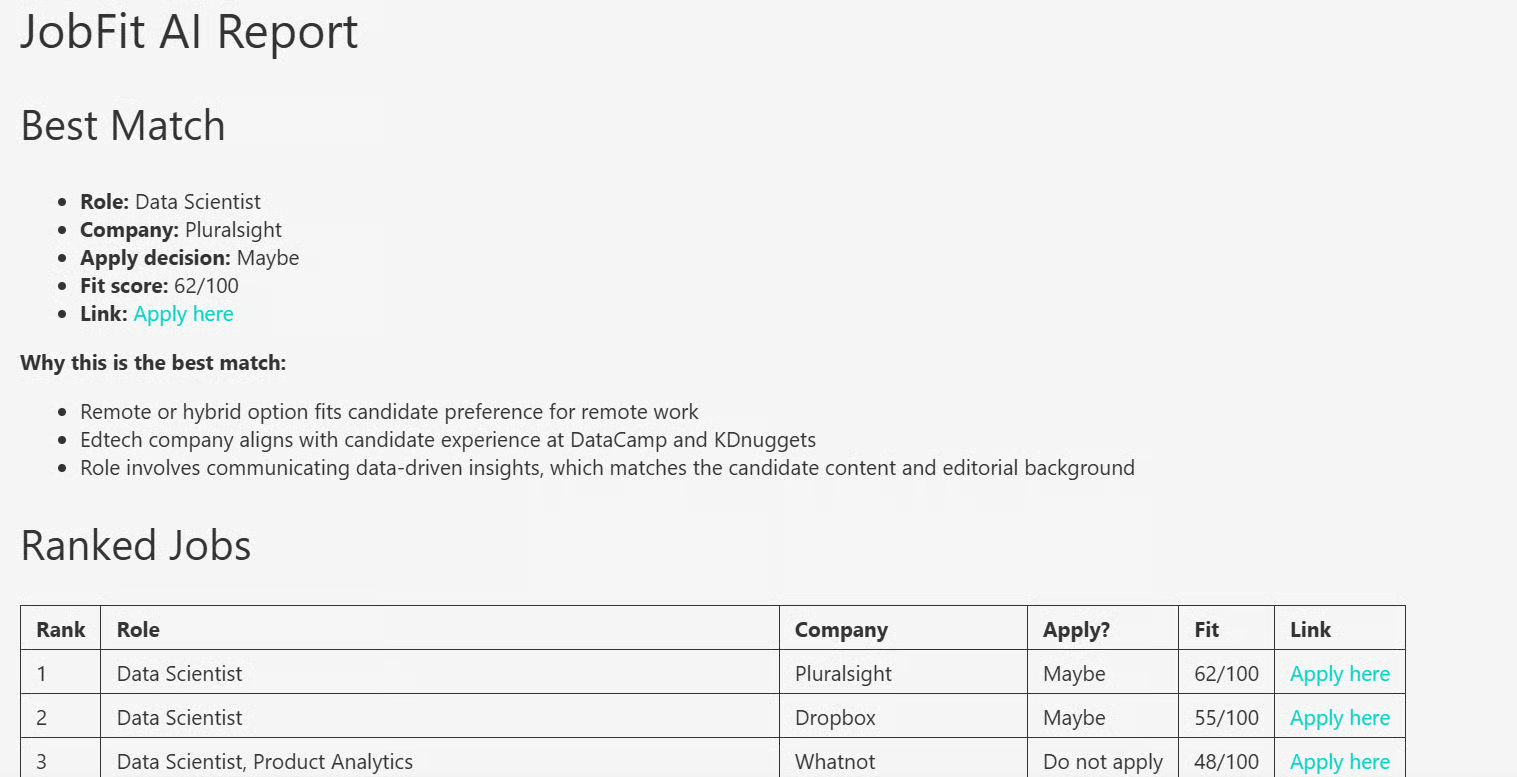
The report includes the best job match, ranked jobs, fit scores, apply decisions, concerns, and application angles.

Generated JobFit Report with Kimi k2.6

11. Turn the Workflow Into a Gradio Web App

After testing the workflow in the notebook, you can turn it into a simple Gradio web app. Create an app.py file, then copy the code from the JobFit-AI/app.py file in the GitHub project and paste it into your local file.

Run the app with:

python app.py

Gradio app running locally

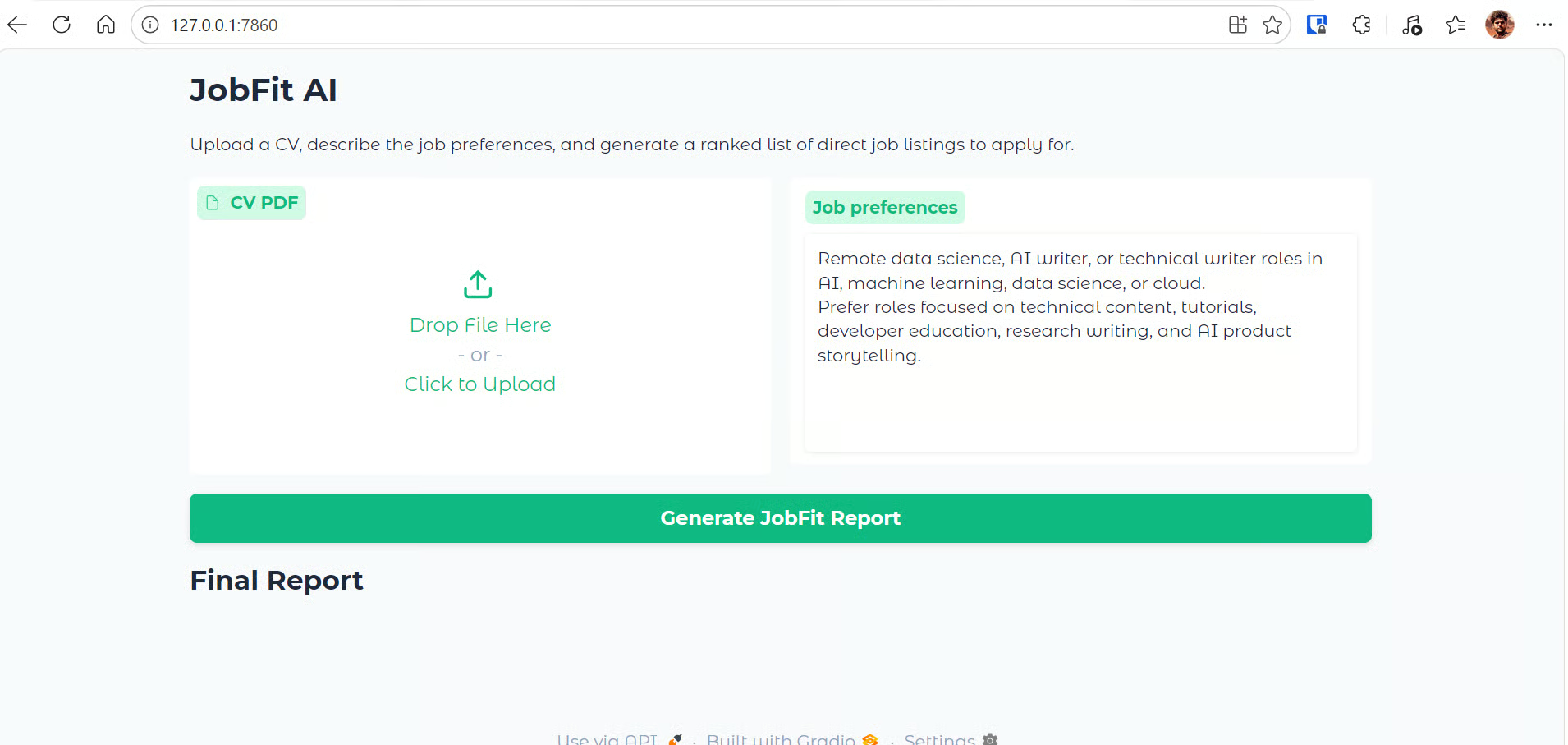
Then open the local app in your browser at the local URL displayed (in this case, http://127.0.0.1:7860/):

Jobfit AI Gradio web UI

The Gradio app provides a simple interface for generating job-fit reports. It includes:

  • A CV PDF upload field where users can upload their resume.
  • A job preferences text box where users can describe the type of roles they want, including role type, industry, location, seniority, and preferred topics.
  • A Generate JobFit Report button to start the agent workflow.
  • A hidden progress log that appears during the run and shows what the app is doing, such as reading the CV, calling tools, and receiving tool outputs.
  • A final Markdown report area that displays the ranked job-fit report once the agent finishes.

Behind the scenes, the app reads the uploaded CV, extracts the text, sends the CV and preferences to the JobFit AI agent, and searches live job listings with Olostep. It reads up to three job pages and returns a structured Markdown report with ranked roles, fit scores, apply decisions, concerns, and application angles.

12. Upload a CV and Generate a Report

Now test the web app by uploading a CV or resume PDF and clicking Generate JobFit Report.

For this example, I uploaded a CV with around three years of experience to see whether the app could find relevant jobs based on the candidate's profile and preferences. The report was generated in less than a minute.

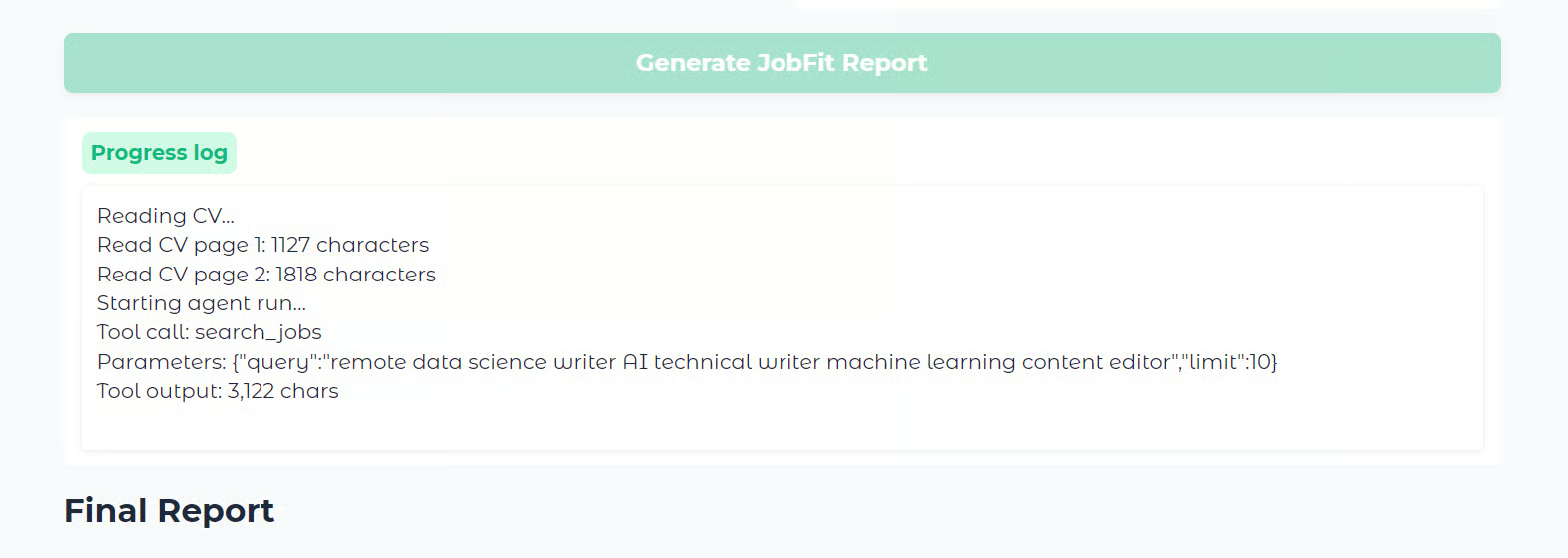
While the app runs, the progress log shows each step of the workflow, including:

  • reading the CV
  • extracting text from each page
  • starting the agent run
  • calling the job search tool
  • returning the tool output

JobFit AI Progress Logs

Once the run is complete, the app displays the final report in Markdown format.

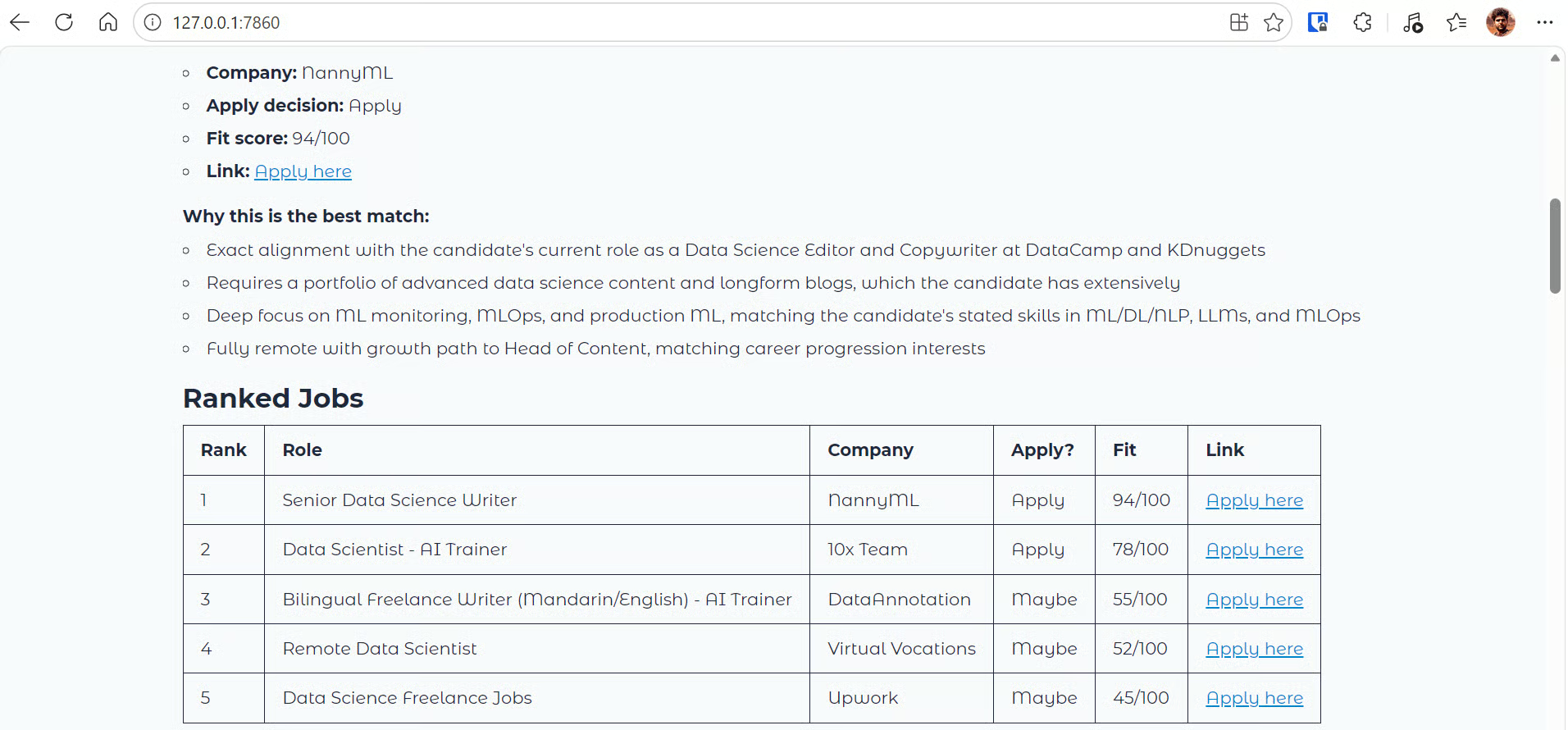
The report starts with the best match, followed by a ranked jobs table. It then provides more detailed notes for each role, including the fit score, apply decision, reasons the role fits, possible concerns, and an application angle.

Generated JobFit AI Report

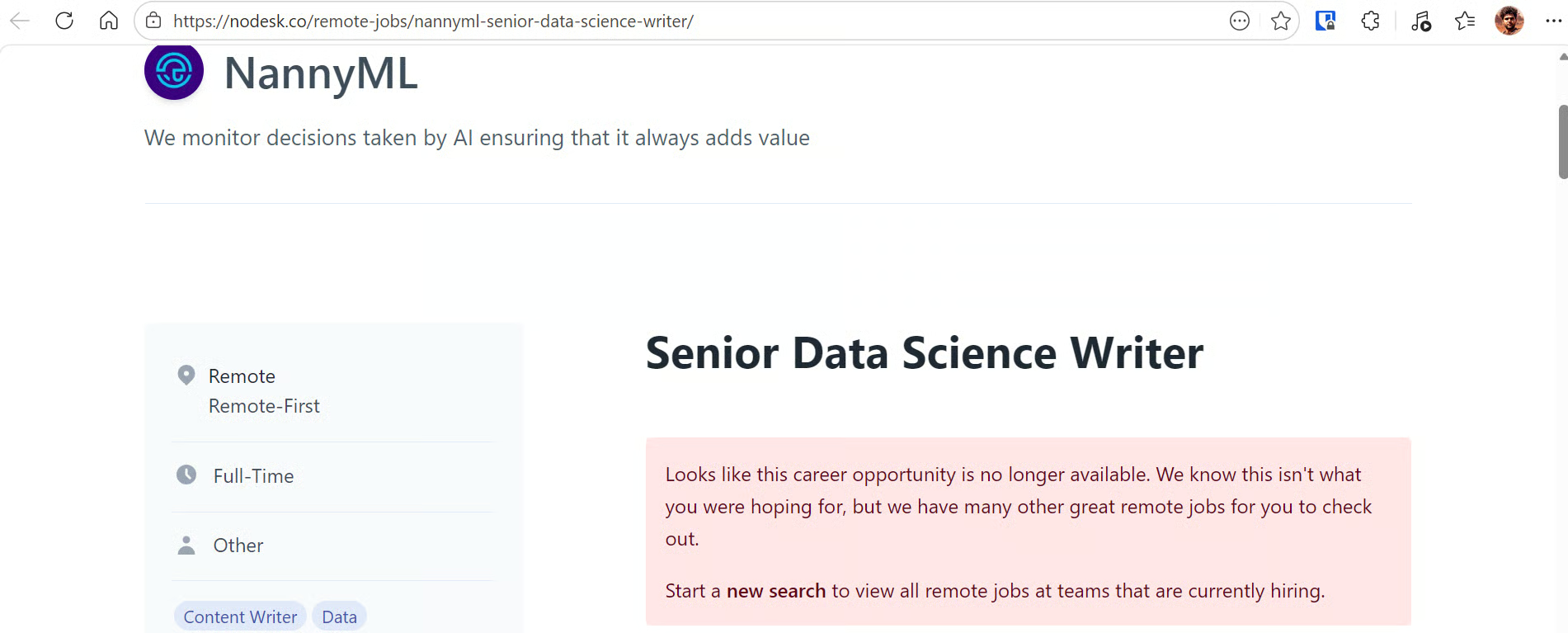
In this example, the top result was a Senior Data Science Writer role at NannyML. Since the role matched the candidate’s background in data science, technical writing, and AI content, it looked like a strong fit.

You can click the Apply here link in the report to open the job page and review the full listing before deciding whether to apply.

NannyML Job Posting

Note: If you face any issues running the project locally, check the GitHub repository: kingabzpro/JobFit-AI. It includes the notebook, app.py file, and setup instructions to help you install the dependencies and run the project locally. 

Final Thoughts

JobFit AI uses Kimi K2.6, Olostep, and the OpenAI Agent SDK to solve two common problems for people who are switching roles or actively applying for jobs.

The first problem is knowing where to apply. There are many job boards, platforms, and company career pages, but it is not always clear which roles are worth your time. This app helps narrow that down by using the candidate’s CV and preferences to find jobs that are more relevant to their experience.

The second problem is filtering through too many job listings. Instead of manually checking every job board, the agent searches live listings, reads selected job pages, and creates a structured report with the best match, ranked jobs, fit scores, concerns, and application angles. This makes it easier to focus on roles that are actually worth applying for.

The Kimi K2.6 API also performed well in this agent-based workflow. It was fast, reliable, and effective at following structured instructions. During testing, when the agent was allowed up to 25 turns, it searched and scraped multiple pages in more depth, but the run took around five minutes. To balance quality and speed, I restricted the workflow to one search and up to three page reads, which helped generate the report in less than a minute.

You can improve the quality of the job report by increasing the number of allowed steps, search results, or page reads. For example, if you increase the agent limit to 30 turns and allow it to read more job pages, it can produce a deeper report with more roles and stronger recommendations. However, this will also increase runtime and API usage.

If you’re interested in creating similar agentic tools, check out our other API tutorials on building: 

Kimi K2.6 FAQs

What is Kimi K2.6?

Kimi K2.6 is Moonshot AI's latest open-weight agentic model, released in April 2026. It is built on a Mixture-of-Experts (MoE) architecture with ~1 trillion total parameters, activating 32 billion per forward pass, and is optimized for coding, tool use, and long-horizon agent tasks.

What is Kimi K2.6's context window?

Kimi K2.6 supports a 262,144-token (256K) context window. This makes it well-suited for processing entire codebases, long documents, or multi-step agent runs in a single session.

How much does Kimi K2.6 cost via API?

Direct through the Kimi API, input tokens are priced at $0.95/1M (cache miss) and $0.16/1M (cache hit), with output at $4.00/1M tokens. Third-party providers partly offer lower rates, starting around $0.60/1M input and $2.80/1M output.

Does Kimi K2.6 support a thinking mode?

Yes, Kimi K2.6 supports both a thinking mode (extended reasoning) and an instant mode (faster, non-thinking responses). In the tutorial, thinking mode is explicitly disabled via extra_body={"thinking": {"type": "disabled"}} to keep outputs cleaner and faster.

How does Kimi K2.6 perform on agentic coding benchmarks?

Kimi K2.6 scores 80.2 on SWE-Bench Verified, making it the strongest open-source model at that level with a performance just behind closed models like Claude Opus 4.6 (80.8%) and Gemini 3.1 Pro (80.6%). On BrowseComp, it scores 83.2, rising to 86.3 with Agent Swarm mode, placed just behind GPT-5.5 Pro (90.1) and the unpublished Claude Mythos Preview (86.9).


Abid Ali Awan's photo
Author
Abid Ali Awan
LinkedIn
Twitter

As a certified data scientist, I am passionate about leveraging cutting-edge technology to create innovative machine learning applications. With a strong background in speech recognition, data analysis and reporting, MLOps, conversational AI, and NLP, I have honed my skills in developing intelligent systems that can make a real impact. In addition to my technical expertise, I am also a skilled communicator with a talent for distilling complex concepts into clear and concise language. As a result, I have become a sought-after blogger on data science, sharing my insights and experiences with a growing community of fellow data professionals. Currently, I am focusing on content creation and editing, working with large language models to develop powerful and engaging content that can help businesses and individuals alike make the most of their data.

주제

Learn Agentic AI with DataCamp!

courses

OpenAI API 다루기

3
126K
OpenAI API로 인공지능 기반 애플리케이션 개발 여정을 시작하세요. ChatGPT와 같은 인기 있는 AI 애플리케이션의 기반이 되는 기능을 알아보세요.
자세히 보기Right Arrow
강좌 시작
더 보기Right Arrow
관련된

tutorials

Kimi Claw Tutorial: A Guide With Practical Examples

Learn how to use Kimi Claw to build AI workflows with scheduling, skills, and multi-step automation through hands-on experiments.
Aashi Dutt's photo

Aashi Dutt

tutorials

Kimi K2 Thinking: Open-Source LLM Guide, Benchmarks, and Tools

Hands-on tutorial to run Kimi K2 Thinking, build tool-calling workflows, view transparent reasoning, and benchmark against GPT-5 and Claude 4.5.
Bex Tuychiev's photo

Bex Tuychiev

tutorials

Kimi K2.5 and Agent Swarm: A Guide With Four Practical Examples

Learn what Moonshot’s Kimi K2.5 is, how Agent Swarm works, and see it in action through four hands-on, real-world experiments.
Aashi Dutt's photo

Aashi Dutt

tutorials

Kimi K2: A Guide With Six Practical Examples

Learn what Moonshot's Kimi K2 is, how to access it, and see it in action through six practical examples you can use.
Aashi Dutt's photo

Aashi Dutt

tutorials

How to Run Kimi K2.5 Locally

Learn how to run a top open-source model locally with llama.cpp, connect it to the Kimi CLI, and one-shot an interactive game using vibe coding.
Abid Ali Awan's photo

Abid Ali Awan

tutorials

OpenAI AgentKit Tutorial With Demo Project: Build an AI Agent

Learn how to use OpenAI AgentKit to automate GitHub issue reviews with AI agents that classify, detect duplicates, and summarize reports.
Aashi Dutt's photo

Aashi Dutt

더 보기더 보기