Hoppa till huvudinnehåll

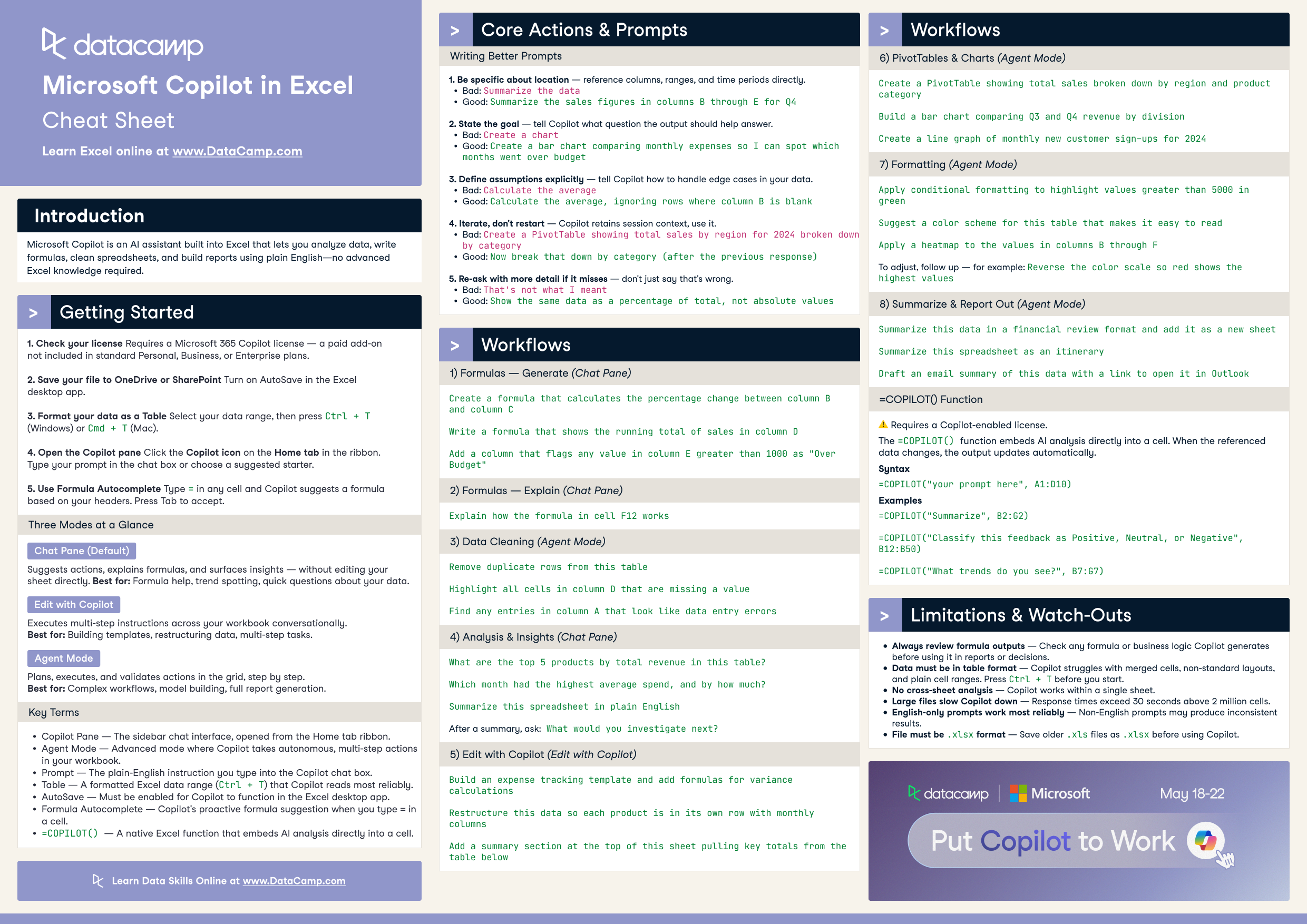
Microsoft Copilot in Excel Cheat Sheet

Use Microsoft Copilot in Excel to analyze data, write formulas, and build reports with plain English. This cheat sheet covers the Copilot modes, prompting principles, =COPILOT() function, and core actions across analysis, formatting, and reporting.
22 maj 2026  · 5 min läsa

Microsoft Copilot in Excel (1).png

Have this cheat sheet at your fingertips

Download PDF

Microsoft Copilot is an AI assistant built into Excel that lets you analyze data, write formulas, clean spreadsheets, and build reports using plain English — no advanced Excel knowledge required. This cheat sheet covers the modes, prompting principles, core actions, and the =COPILOT() function.

Getting started

  1. Check your license. Requires a Microsoft 365 Copilot license — a paid add-on not included in standard Personal, Business, or Enterprise plans.
  2. Save your file to OneDrive or SharePoint. Turn on AutoSave in the Excel desktop app.
  3. Format your data as a Table. Select your data range, then press Ctrl + T (Windows) or Cmd + T (Mac).
  4. Open the Copilot pane. Click the Copilot icon on the Home tab in the ribbon. Type your prompt in the chat box or choose a suggested starter.
  5. Use Formula Autocomplete. Type = in any cell and Copilot suggests a formula based on your headers. Press Tab to accept.

Three modes at a glance

  • Chat Pane (default) — suggests actions, explains formulas, and surfaces insights without editing your sheet directly. Best for formula help, trend spotting, and quick questions about your data.
  • Edit with Copilot — executes multi-step instructions across your workbook in a conversational back-and-forth. Best for building templates, restructuring data, and multi-step tasks.
  • Agent Mode — plans, executes, and validates actions directly in the grid, showing each step as it works. Best for complex workflows, model building, and full report generation.

To enable Agent Mode: in the Copilot sidebar, click the Tools icon (two slider controls) → select Agent Mode.

Key terms

  • Copilot Pane — the sidebar chat interface, opened from the Home tab ribbon.
  • Agent Mode — advanced mode where Copilot takes autonomous, multi-step actions in your workbook.
  • Prompt — the plain-English instruction you type into the Copilot chat box.
  • Table — a formatted Excel data range (Ctrl + T) that Copilot reads most reliably.
  • AutoSave — must be enabled for Copilot to function in the Excel desktop app.
  • Formula Autocomplete — Copilot's proactive formula suggestion when you type = in a cell.
  • =COPILOT() — a native Excel function that embeds AI analysis directly into a cell.

Writing better prompts

1. Be specific about location

Reference columns, ranges, and time periods directly.

Bad: Summarize the data
Good: Summarize the sales figures in columns B through E for Q4

2. State the goal

Tell Copilot what question the output should help answer.

Bad: Create a chart
Good: Create a bar chart comparing monthly expenses so I can spot which months went over budget

3. Define assumptions explicitly

Tell Copilot how to handle edge cases in your data.

Bad: Calculate the average
Good: Calculate the average, ignoring rows where column B is blank

4. Iterate, don't restart

Copilot retains session context, so use it.

Bad: Create a PivotTable showing total sales by region for 2024 broken down by category
Good: Now break that down by category (after the previous response)

5. Re-ask with more detail if it misses

Don't just say "that's wrong."

Bad: That's not what I meant
Good: Show the same data as a percentage of total, not absolute values

Core actions and prompts

Adjust column names and ranges to match your data.

Formulas — generate (Chat Pane)

Create a formula that calculates the percentage change between column B and column C

Write a formula that shows the running total of sales in column D

Add a column that flags any value in column E greater than 1000 as "Over Budget"

Formulas — explain (Chat Pane)

Explain how the formula in cell F12 works

Data cleaning (Agent Mode)

Remove duplicate rows from this table

Highlight all cells in column D that are missing a value

Find any entries in column A that look like data entry errors

Analysis and insights (Chat Pane)

What are the top 5 products by total revenue in this table?

Which month had the highest average spend, and by how much?

Summarize this spreadsheet in plain English

After a summary, follow up with: What would you investigate next?

Edit with Copilot

Build an expense tracking template and add formulas for variance calculations

Restructure this data so each product is in its own row with monthly columns

Add a summary section at the top of this sheet pulling key totals from the table below

PivotTables and charts (Agent Mode)

Create a PivotTable showing total sales broken down by region and product category

Build a bar chart comparing Q3 and Q4 revenue by division

Create a line graph of monthly new customer sign-ups for 2024

Formatting (Agent Mode)

Apply conditional formatting to highlight values greater than 5000 in green

Suggest a color scheme for this table that makes it easy to read

Apply a heatmap to the values in columns B through F

To adjust, follow up — for example: Reverse the color scale so red shows the highest values

Summarize and report out (Agent Mode)

Summarize this data in a financial review format and add it as a new sheet

Summarize this spreadsheet as an itinerary

Draft an email summary of this data with a link to open it in Outlook

The =COPILOT() function

Requires a Copilot-enabled license.

The =COPILOT() function embeds AI analysis directly into a cell. When the referenced data changes, the output updates automatically.

Syntax

=COPILOT("your prompt here", A1:D10)

Examples

=COPILOT("Summarize", B2:G2)

=COPILOT("Classify this feedback as Positive, Neutral, or Negative", B12:B50)

=COPILOT("What trends do you see?", B7:G7)

Limitations and watch-outs

  • Always review formula outputs. Check any formula or business logic Copilot generates before using it in reports or decisions.
  • Data must be in table format. Copilot struggles with merged cells, non-standard layouts, and plain cell ranges. Press Ctrl + T before you start.
  • No cross-sheet analysis. Copilot works within a single sheet.
  • Large files slow Copilot down. Response times exceed 30 seconds above 2 million cells.
  • English-only prompts work most reliably. Non-English prompts may produce inconsistent results depending on your version and region.
  • File must be .xlsx format. Save older .xls files as .xlsx before using Copilot.
Ämnen

Continue your Excel and AI journey

track

Excel-grunderna

16 timmar
Få de viktigaste färdigheterna du behöver för att använda Excel, från att förbereda data till att skriva formler och skapa visualiseringar. Ingen tidigare erfarenhet krävs.
Se detaljerRight Arrow
Starta kursen
Se merRight Arrow
Släkt

blog

Copilot in Excel: A Full Review With Real Examples

Learn how to use Copilot in Excel to analyze data, automate formulas, and generate insights using natural language—all within your spreadsheet.
Josef Waples's photo

Josef Waples

10 min

cheat-sheet

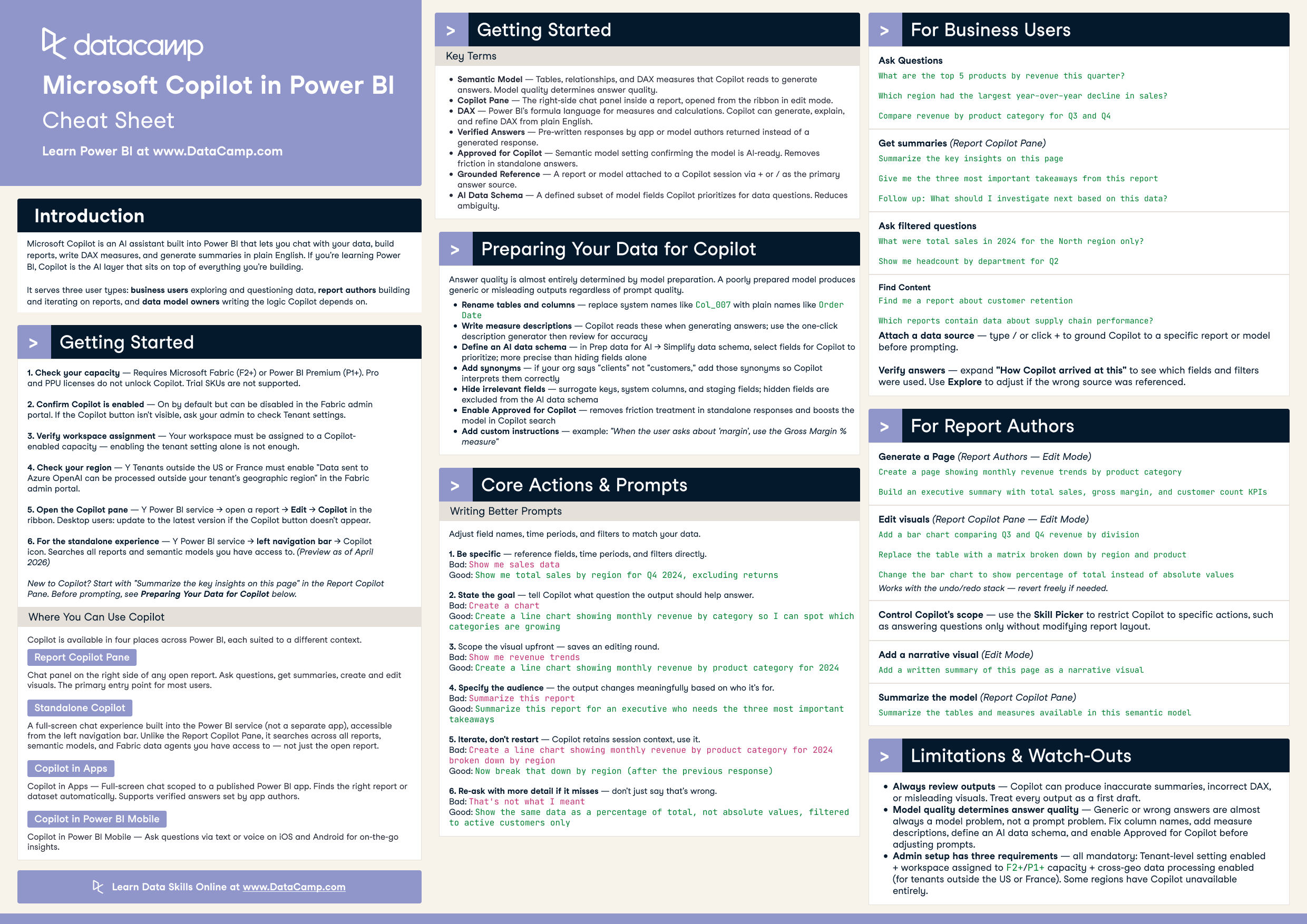
Microsoft Copilot in Power BI Cheat Sheet

Use Microsoft Copilot in Power BI to chat with your data, build reports, write DAX, and generate summaries. This cheat sheet covers setup, the four places Copilot appears, model preparation, prompting principles, and core actions for business users, report authors, and data model owners.
DataCamp Team's photo

DataCamp Team

Excel Cheat Sheet.png

cheat-sheet

Excel Formulas Cheat Sheet

Learn the basics of Excel with our quick and easy cheat sheet. Have the basics of formulas, operators, math functions and more at your fingertips.
Richie Cotton's photo

Richie Cotton

tutorial

Excel Copilot: A Tutorial with Examples

Learn step-by-step how to activate Copilot in Excel, use AI prompts to analyze, visualize, and automate your data, and apply ready-made examples to real-world spreadsheet tasks.
Laiba Siddiqui's photo

Laiba Siddiqui

tutorial

Copilot in Word: A Step-by-Step Tutorial with Real Examples

Master Microsoft Word’s AI assistant, from setup to drafting, editing, summarizing, formatting, and prompt strategies.
Laiba Siddiqui's photo

Laiba Siddiqui

code-along

Excel Copilot for Data Cleaning & Analytics

David Benaim, Data Consultant at Xlconsulting Asia, guides you through using Copilot in Excel to perform real-world analytics tasks.
David Benaim's photo

David Benaim

Se merSe mer