

강의
Excel로 하는 데이터 분석
3시간
155.3K
실습 문제하고 트랙하세요.
Google로 계속하기The ROUNDUP() function is unique among Excel’s rounding options because it always rounds away from zero. This means the result is always greater in magnitude (more positive or more negative) than the original number, no matter what the digit is after the rounding position.
In this article, I will walk through the syntax of the ROUNDUP() function, explore examples, and compare it to other Excel rounding methods to help you decide when and how to use it effectively. If you are unfamiliar with some basics, I recommend you take our Introduction to Excel and Data Preparation in Excel courses to build a solid foundation.
Here is a quick example, if you're busy: The following function rounds up 76.345 to 77 as the nearest whole number.
=ROUNDUP(76.345, 0)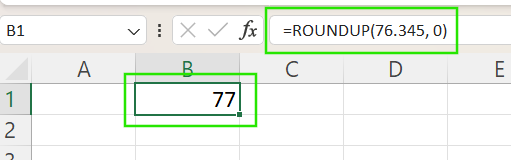
Here are the arguments that are used with the ROUNDUP() function:
=ROUNDUP(number, num_digits)Where:
number: The value you want to round up.
num_digits: Sets how many decimal places or digits to the left of the decimal to round to.
A little more about that num_digits argument: It controls how the numbers are rounded up.
When it's positive: Rounds up to a specified number of decimal places. For example, =ROUNDUP(3.14159, 2) returns 3.15.
When it's zero: Rounds up to the nearest whole number. For example, =ROUNDUP(3.14159, 0) returns 4.
When it's negative: Rounds up to the left of the decimal, such as tens, hundreds, etc. For example:, =ROUNDUP(314.159, -2) returns 400.
While Excel’s ROUND() function rounds numbers up if the digit being dropped is 5 or greater, and down if it is less than 5 (this is known as round half up), ROUNDUP() always rounds away from zero.
Use ROUNDUP() when precision demands rounding upward regardless of value, such as:
It is important to note that, unlike ROUND(), ROUNDUP() ignores whether the digit is 5 or greater, thus increasing the number value.
Now that we have learned how the ROUNDUP() function works, let’s explore the following examples to understand its practical applications.
Use ROUNDUP() to ensure you never underestimate amounts like prices or costs. The function below rounds up the number to 45.13.
=ROUNDUP(45.126, 2)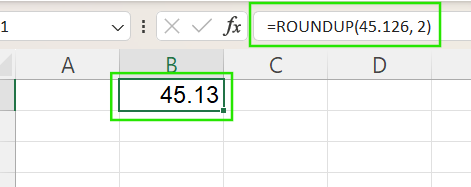
The ROUNDUP() function rounds quantities, inventory, or other integers to the next multiple of 10. For example, the function below rounds up 67 to 70.
=ROUNDUP(67, -1)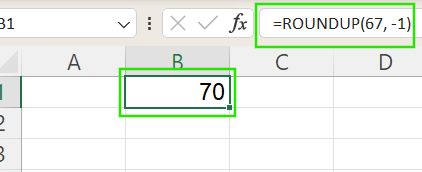
Excel offers several rounding functions, each with distinct behavior. The table below summarizes how ROUNDUP() compares to other commonly used rounding functions:
The ROUNDUP() function becomes even more useful when combined with other Excel functions. Here are some common ways you can use it in dynamic formulas.
Use ROUNDUP() within a formula to ensure results are always rounded up during calculations, such as when calculating pricing, taxes, or commissions. For example, the formula below rounds the product of A2 and B2 up to 2 decimal places.
=ROUNDUP(A2 * B2, 2)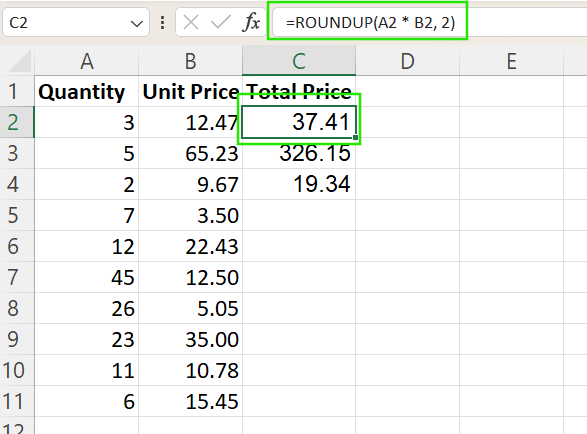
And in case you are wondering, like I was: Using the function in this way rounds the final result; it doesn't round each element before multiplying them together. This next example will show you how to round each value before multiplying.
=ROUNDUP(A2,2) * ROUNDUP(B2, 2)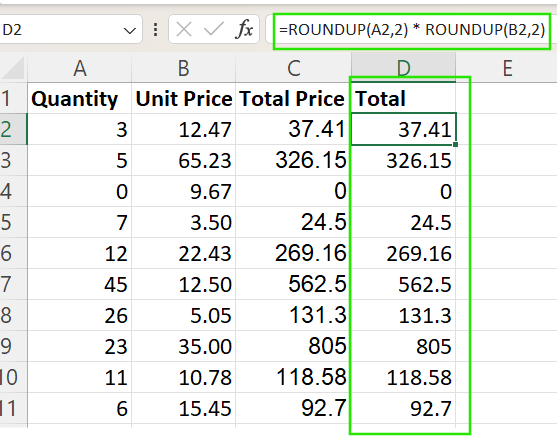
You can also apply rounding only under certain conditions using the IF() function. For example, the formula below rounds A2 up to the nearest whole number only if it's positive; otherwise, it returns a blank.
=IF(A2 > 0, ROUNDUP(A2, 0), "")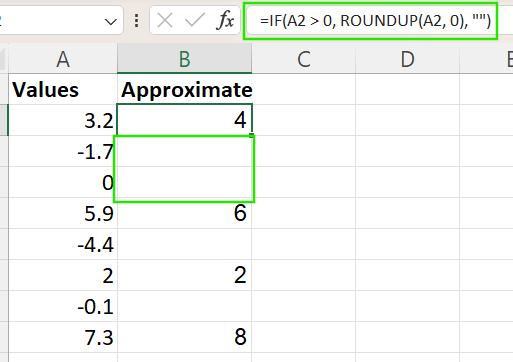
In modern Excel versions (365 or Excel 2019+), ROUNDUP() can be applied to arrays using dynamic formulas. For example, the formula below returns an array of each value in A2:A9 rounded up to the nearest whole number. This method is useful for bulk adjustments without helper columns.
=ROUNDUP(A2:A9, 0)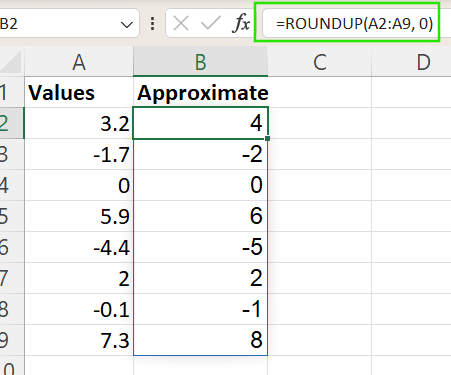
I recommend taking our Advanced Excel Functions course to learn more about Excel functions to maximize your efficiency when handling complex datasets.
When using the ROUNDUP() function in Excel, it’s important to be aware of several practical considerations to avoid unexpected results.
Negative numbers round further from zero: ROUNDUP() always rounds away from zero, which means for negative numbers, the function rounds down to a more negative value. For example, =ROUNDUP(-2.3, 0) results in -3, not -2. This behavior can affect calculations where negative values represent losses or deductions, so always double-check your logic when dealing with negatives.
Rounding inflation in calculations: When applied repeatedly across large datasets or financial models, ROUNDUP() can introduce rounding inflation, where values are consistently biased higher than needed. To avoid this issue, use ROUNDUP() only where necessary and consider rounding at the final stage instead of every intermediate step.
Similar to CEILING(), but not the same: For positive numbers, ROUNDUP() and CEILING() often produce the same result by rounding up to the nearest integer. Only use CEILING() when rounding to a specific increment, like multiples of 5 or 10, and ROUNDUP() when you want to round based on decimal places.
The ROUNDUP() function is your go-to tool in Excel when values must always round upward, regardless of their decimal value. It ensures you never underestimate figures, making it useful in budgeting, pricing, quotas, and financial forecasting.
I recommend taking our Data Analysis with Excel Power Tools and Excel Fundamentals skill tracks to learn advanced Excel techniques, including Power Query, Power Pivot, and the dynamic M Language.
Learn Excel with DataCamp
강의
강의
실습 문제하고 트랙하세요.
Google로 계속하기튜토리얼
Allan Ouko
7분
튜토리얼
Josef Waples
4분
튜토리얼
Vinod Chugani
9분
튜토리얼
Laiba Siddiqui
9분
튜토리얼
Laiba Siddiqui
10분
튜토리얼
Laiba Siddiqui
9분