Kursus
Pengembangan Kode dengan Bantuan AI untuk Developer
1 Hr 30 Min
10.3K
AI agents have moved well beyond simple text generation. They can now write code, run commands, work with files, fix errors, and complete multi-step tasks on their own.
But LLMs are not always predictable.
Even with clear instructions, an agent can generate an unexpected command or modify something it was not supposed to. Running that code directly on your local machine or application server can, therefore, introduce unnecessary risk.
In this tutorial, I will use an OpenAI-hosted sandbox to build a secure AI financial analyst. We will upload a financial dataset, connect an agent to the isolated environment, let it perform the analysis and generate artifacts there, and then download the resulting reports, charts, and data files.
The financial analyst is only an example. The main goal is to understand how to give an AI agent a controlled environment where it can safely run code and work with files.
A sandbox is an isolated environment where code can run without having unrestricted access to the system hosting your application.
This is especially useful for AI agents because their behavior is not completely predictable.
An agent may be instructed to modify one file but generate a command that affects another directory, install an unexpected dependency, or execute something you did not anticipate.
Instead of allowing those commands to run directly on your laptop or server, you can place the agent inside a sandbox.
OpenAI provides its own hosted sandbox environment for this purpose.
It gives an agent a real Linux workspace with a filesystem and shell, while keeping that execution separate from your local system.
Inside the sandbox, the agent can:
You can also control what the sandbox has access to.
For example, you can upload only the files required for a task and disable network access when the agent does not need external information.
OpenAI gives you a few different ways to run agents or models inside isolated environments. The main difference is how much of the execution and agent workflow you want OpenAI to manage.
The Shell tool is the simplest option. It lets a model run shell commands inside an OpenAI-hosted container through the Responses API.
response = client.responses.create(
    model=MODEL,
    tools=[{
        "type": "shell",
        "environment": {"type": "container_auto"}
    }],
    input="Analyze the files in /mnt/data."
)
This is a good choice when you mainly need code execution, file processing, or command-line tasks.
The Agents API is a more managed option. OpenAI handles both the agent session and the hosted environment.
stream = client.beta.agents.sessions.create(
    agent={
        "model": MODEL,
        "instructions": "Analyze the data and create a report."
    },
    environment={"type": "openai_hosted"},
    input="Analyze the files in the workspace.",
    stream=True,
)
This is useful when you want OpenAI to manage more of the agent runtime and sandbox lifecycle for you.
SandboxAgent is part of the Agents SDK and is designed for agents where the sandbox workspace is a core part of the application.
from agents.sandbox import SandboxAgent
from agents.sandbox.capabilities import Shell

agent = SandboxAgent(
    name="Financial Analyst",
    model=MODEL,
    capabilities=[Shell()],
)
This works well when you need persistent workspaces, files, artifacts, or flexibility over which sandbox provider you use.
This is the approach we use in this guide.
We create the OpenAI-hosted container ourselves and then connect the agent to that specific environment using ShellTool.
sandbox_shell = ShellTool(
    environment={
        "type": "container_reference",
        "container_id": container.id,
    }
)
We chose this approach because it gives us a good balance between simplicity and control.
OpenAI manages the sandbox infrastructure, while we still control the container, files, network access, agent instructions, tools, and execution flow.
Let’s explore how to use the OpenAI-hosted sandbox to create a secure financial analyst agent.
We will use a Jupyter Notebook to set up and test the workflow.
The notebook will handle tasks such as installing the required SDKs, uploading the dataset, creating the sandbox, starting the agent, and downloading the final artifacts.
However, the important distinction is that the financial analysis itself will not run inside Jupyter.
Once the agent is connected to the OpenAI sandbox, its code execution, shell commands, validation, calculations, and artifact generation will happen inside the hosted sandbox environment.
Think of Jupyter as the control layer, while the sandbox is the execution environment.
Start by installing the OpenAI Python SDK and the OpenAI Agents SDK:
%pip install -q -U openai openai-agentsYou also need an OpenAI API key available through the OPENAI_API_KEY environment variable.
For this tutorial, we will use a fictional company dataset stored at:
financial_data/northstar_cloud_financial_statements.csvNext, import the required libraries and define the model, input CSV, local output directory, and the files we expect the agent to generate.
import json
import os
from pathlib import Path

from IPython.display import Markdown, SVG, display


MODEL = os.getenv("OPENAI_MODEL", "gpt-6-luna")

STATEMENT_CSV = Path(
    "financial_data/northstar_cloud_financial_statements.csv"
)

OUTPUT_DIR = Path("financial_analysis_output")
OUTPUT_DIR.mkdir(exist_ok=True)

EXPECTED_ARTIFACTS = [
    "analyze_financials.py",
    "calculated_metrics.csv",
    "unusual_movements.csv",
    "financial_trends.svg",
    "investment_analysis.md",
    "analysis_run.json",
]

assert os.getenv("OPENAI_API_KEY"), \
    "Set OPENAI_API_KEY before continuing."

assert STATEMENT_CSV.exists(), \
    f"Missing input: {STATEMENT_CSV.resolve()}"

print(f"Model: {MODEL}")
print(
    f"Input: {STATEMENT_CSV} "
    f"({STATEMENT_CSV.stat().st_size:,} bytes)"
)
Output:
Model: gpt-6-luna
Input: financial_data\northstar_cloud_financial_statements.csv (1,480 bytes)
The assertions provide a quick sanity check before we create any OpenAI resources. If the API key is missing or the dataset cannot be found, the notebook stops immediately instead of failing later in the workflow.
OUTPUT_DIR is a local Jupyter directory where we will eventually save the files downloaded from the sandbox.
EXPECTED_ARTIFACTS, on the other hand, defines the files that we expect the agent to create inside the sandbox.
Before the sandbox can work with our financial data, we first need to upload the CSV to OpenAI.
The Jupyter Notebook handles this step. It reads the local file and sends it through the OpenAI Files API.
from openai import OpenAI

client = OpenAI()

with STATEMENT_CSV.open("rb") as handle:
    uploaded_input = client.files.create(
        file=handle,
        purpose="user_data",
    )

print(f"Uploaded raw statements: {uploaded_input.id}")
Output:
Uploaded raw statements: file-C6Pb6RhZrVPR4Fiq9tZ6HnYour file ID will be different.
The returned file ID is important because we will use it when creating the sandbox. Instead of copying the contents of the CSV into a prompt, we can attach the original file directly to the agent's working environment.
At this point, the Northstar financial statements are stored with OpenAI, but the agent still does not have an execution environment.
We will create that next.
Now we can create the hosted environment where the agent will actually perform the financial analysis.
Use the Containers API to create a new sandbox and attach the uploaded CSV using its file ID:
container = client.containers.create(
    name="northstar-financial-analysis",
    file_ids=[uploaded_input.id],
    memory_limit="4g",
    network_policy={"type": "disabled"},
)

print(f"OpenAI sandbox: {container.id}")
Output:
OpenAI sandbox: cntr_6ab7a1080b4081938d8d08ab67ac963c084798905ec997e9The sandbox is created with 4 GB of memory, and the uploaded financial statements are made available inside it from the start.
We also disable network access:
network_policy={"type": "disabled"}Our financial analysis does not require information from the internet, so there is no reason to give the agent external network access. Everything it needs is already contained in the CSV.
The sandbox gives the agent a secure place to work, but we still need to define exactly what we want it to do.
Instead of giving the model a vague instruction such as "analyze this company," we provide a detailed task that describes the calculations, validation checks, files to generate, and how the agent should verify its own work.
ANALYST_INSTRUCTIONS = """
You are a skeptical senior buy-side financial analyst preparing an investment-committee memo.

Every analytical operation must occur in the hosted shell container under /mnt/data. Do not
estimate results mentally or ask the caller to calculate anything.

Find the uploaded Northstar statement CSV. Write analyze_financials.py using only the Python
standard library and execute it. Validate required columns, numeric values, unique ordered years,
and total_assets = total_liabilities + equity for every row. Calculate revenue growth, gross/
operating/net margins, current and quick ratios, total-liabilities-to-equity, average-balance ROA
and ROE, interest coverage, free cash flow, FCF margin, cash conversion, receivables growth, and
inventory growth. Leave a ratio blank when its denominator makes it undefined.

Flag absolute year-over-year movements of at least 15%, operating-margin moves of at least two
percentage points, and receivables growth exceeding revenue growth by at least ten points. Create
calculated_metrics.csv, unusual_movements.csv, financial_trends.svg, investment_analysis.md, and
analysis_run.json in /mnt/data. The SVG must contain four readable chart panels without external
packages.

The report must cover Executive view, KPI table, Profitability, Liquidity and leverage, Cash flow
and earnings quality, Unusual movements, Bull case, Bear case, Diligence questions, Data
limitations, and Conclusion. Tie receivables, deferred revenue, stock compensation, capex, and
interest expense to evidence; separate facts from hypotheses and cite filenames and years.

analysis_run.json must contain input_filename, row_count, year_range, validation_results,
generated_filenames, and execution_directory='/mnt/data'. validation_results must include
accounting_equation_passed_every_row=true. Run the script, inspect every artifact, independently
recompute at least three 2025 metrics in a second command, and fix discrepancies. Do not finish
until all six required files exist and are non-empty.
"""
There is an important design choice here.
We are not asking the model to reason through the financial analysis only in its response.
The instructions explicitly tell it to write code, execute that code, inspect the results, verify selected calculations, and correct any discrepancies.
We also tell the agent that every analytical operation must happen under /mnt/data inside the hosted sandbox.
This gives the agent a clear workflow:
Find the data → validate it → write the analysis script → run it → generate artifacts → inspect the results → verify calculations → fix errors if needed.
That turns the sandbox into an actual working environment rather than just temporary file storage.
Next, we connect an OpenAI agent to the container we created earlier.
We do this using ShellTool.
from agents import Agent, ModelSettings, Runner, ShellTool

sandbox_shell = ShellTool(
    environment={
        "type": "container_reference",
        "container_id": container.id,
    }
)

analyst = Agent(
    name="Sandbox Financial Analyst",
    model=MODEL,
    instructions=ANALYST_INSTRUCTIONS,
    tools=[sandbox_shell],
    model_settings=ModelSettings(tool_choice="required"),
)
The important part is:
"type": "container_reference",
"container_id": container.id,
This tells ShellTool to connect the agent to the sandbox we already created instead of creating or using a different execution environment.
We also set:
tool_choice="required"This forces the agent to use a tool during the run rather than completing the task only with a normal text response.
For this tutorial, that is exactly what we want.
The agent should not simply explain how to calculate the financial metrics. It should use the shell, execute code inside the sandbox, and produce the requested files.
With the dataset uploaded, sandbox running, and agent connected through ShellTool, we can now start the analysis.
result = await Runner.run(
    analyst,
    "Analyze Northstar entirely inside the sandbox and produce every required artifact.",
    max_turns=30,
)

display(Markdown(result.final_output))
This starts the financial analyst agent and gives it access to the sandbox we created earlier.
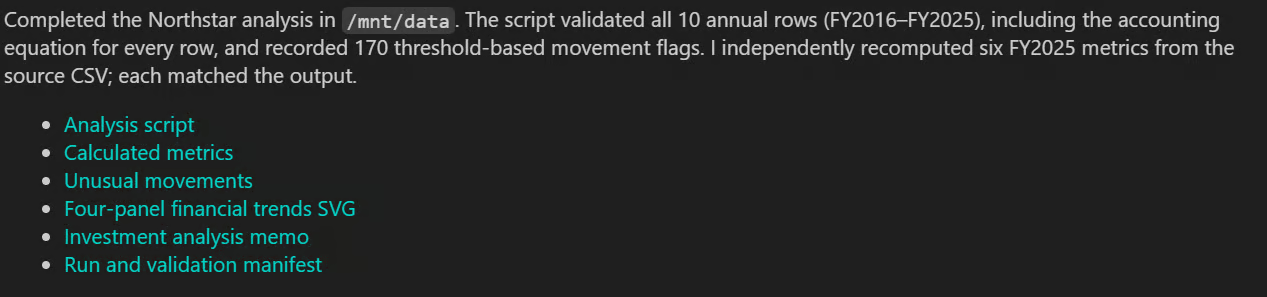
The agent’s final output confirms that the analysis completed successfully inside /mnt/data, including data validation, metric checks, and the creation of all six required artifacts.
The analysis is complete, but the generated files still live inside the OpenAI sandbox.
Next, we list the files in the container, check that all expected artifacts were created, and download them into our local directory.
remote_files = {
    Path(item.path).name: item
    for item in client.containers.files.list(container.id)
}

missing = [
    name for name in EXPECTED_ARTIFACTS
    if name not in remote_files
]

assert not missing, f"Sandbox did not create: {missing}"

for name in EXPECTED_ARTIFACTS:
    remote = remote_files[name]
    destination = OUTPUT_DIR / name

    client.containers.files.content.retrieve(
        remote.id,
        container_id=container.id,
    ).write_to_file(destination)

    assert destination.stat().st_size > 0, \
        f"Empty artifact: {destination}"

    print(
        f"Downloaded {name}: "
        f"{destination.stat().st_size:,} bytes"
    )
Output:
Downloaded analyze_financials.py: 22,778 bytes
Downloaded calculated_metrics.csv: 3,740 bytes
Downloaded unusual_movements.csv: 25,405 bytes
Downloaded financial_trends.svg: 13,846 bytes
Downloaded investment_analysis.md: 12,159 bytes
Downloaded analysis_run.json: 1,522 bytes
At this point, you can open the local financial_analysis_output directory and inspect everything the agent created.
The folder contains the analysis script, calculated metrics, unusual-movement flags, the full investment memo, the validation manifest, and an SVG visualization of the financial trends.
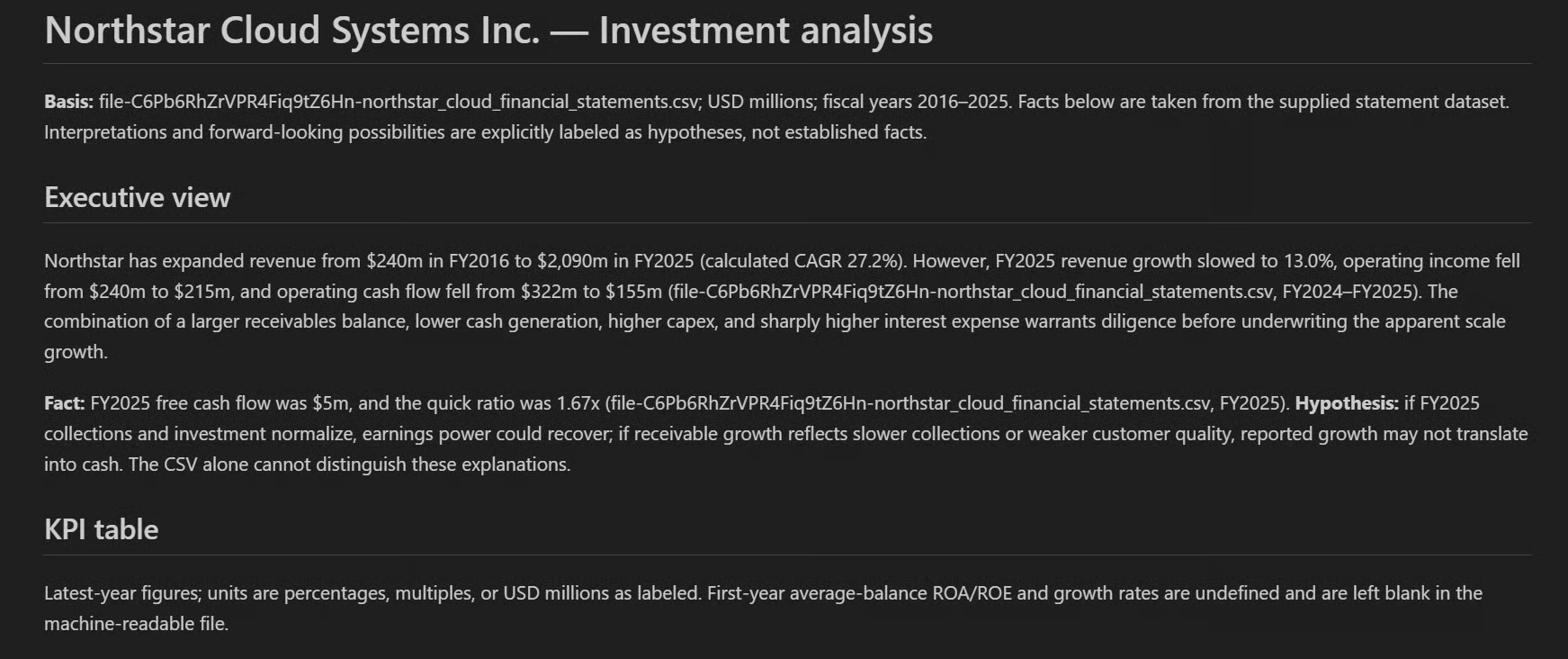
The investment_analysis.md file contains the main written analysis, including the executive view, profitability, liquidity, leverage, cash flow, unusual movements, and the bull and bear cases.
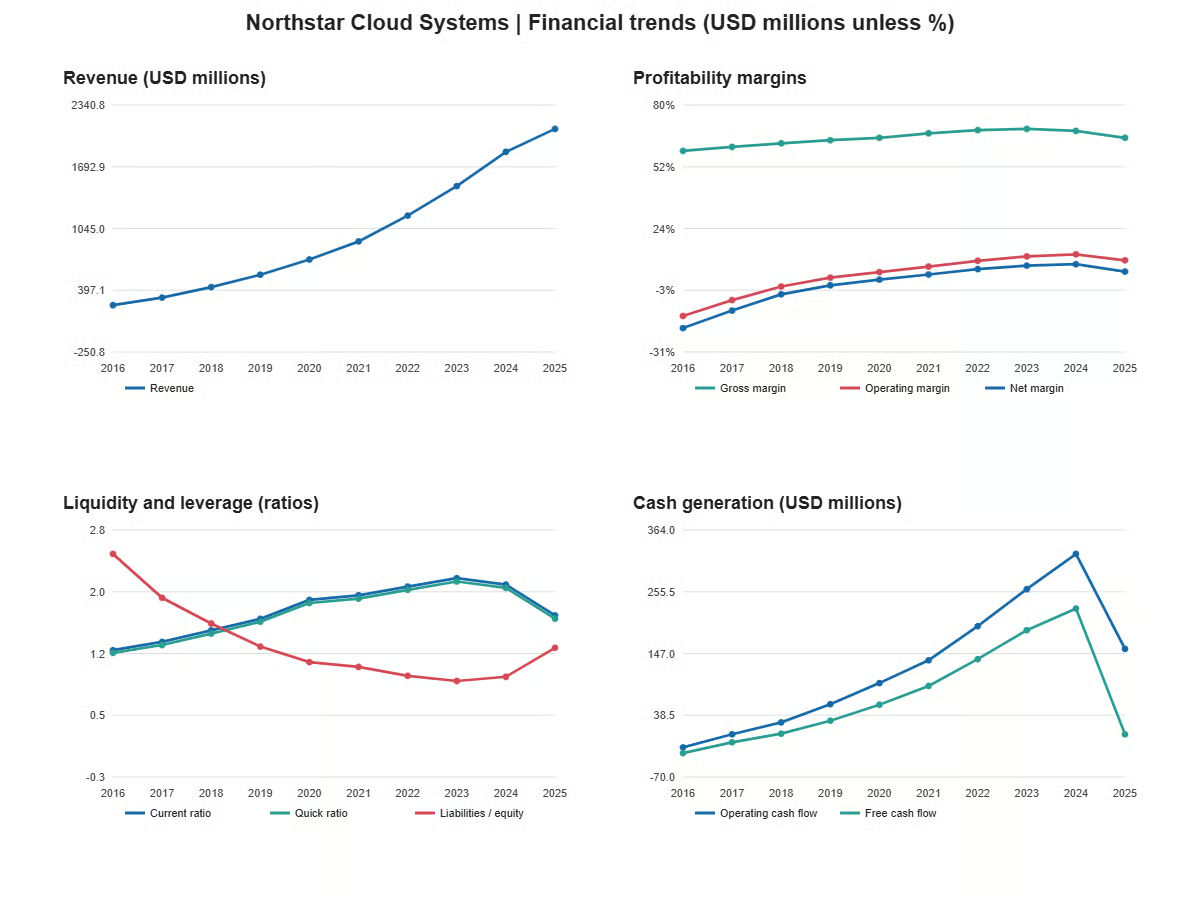
You can also open financial_trends.svg to inspect the visual results.
It gives you a quick view of the major financial trends, such as revenue, profitability, margins, and other key metrics, without having to read through the full report first.
One important detail is that we do not simply download whatever files the agent happens to create.
The notebook first compares the sandbox contents against EXPECTED_ARTIFACTS.
If one of the required files is missing, the assertion fails. We also check that every downloaded file is non-empty.
This gives us a simple verification step before accepting the agent's output.
Once the files have been downloaded and verified, we no longer need the temporary sandbox or the uploaded source file.
Delete both resources:
client.containers.delete(container.id)
client.files.delete(uploaded_input.id)
This removes the hosted container and the uploaded financial dataset after the workflow is complete.
Cleaning up temporary resources is a good final step, especially when you are creating sandboxes regularly as part of an agent workflow.
The biggest advantage of OpenAI-hosted sandbox is that the entire workflow stays inside one ecosystem.
You do not need to connect a separate sandbox provider, provision your own cloud environment, or build and maintain your own container infrastructure.
You can create a sandbox, attach files, control network access, let the agent work inside it, retrieve the results, and delete the environment when you are finished, all through the OpenAI platform.
That makes the workflow much simpler to manage.
In this tutorial, I used the OpenAI Agents SDK with ShellTool because it gives me a straightforward way to connect an agent to an existing container while still keeping control over the instructions, files, tools, and execution flow.
There are other ways to build the same kind of workflow within OpenAI's ecosystem, including more direct agent APIs and higher-level sandbox abstractions.
For this example, however, the Agents SDK felt like the right balance between simplicity and control.
The main takeaway is that you can now give an AI agent a real execution environment without leaving the OpenAI ecosystem:
Create the sandbox → attach the data → connect the agent → run the task → retrieve the artifacts → delete the sandbox.
For agent applications that need to run code, manipulate files, generate reports, or perform multi-step analysis, that is a very useful pattern.
Top DataCamp Courses
Kursus
Kursus
Kursus
Tutorials
Abid Ali Awan
10 mnt
Tutorials
Abid Ali Awan
12 mnt
Tutorials
Abid Ali Awan
8 mnt
Tutorials
Abid Ali Awan
15 mnt
Tutorials
Aashi Dutt
12 mnt
code-along
Jayeeta Putatunda