Course
Building Scalable Agentic Systems
1 hr 30 min
22.4K
OpenAI’s newer Agents sandbox workflow changes how agent execution is structured. Instead of keeping the agent, files, tools, and runtime inside one messy loop, the framework separates the trusted orchestration layer from the execution environment.
This means your application can handle the agent logic, model calls, and decision-making, while the actual work happens inside a sandboxed workspace with access to files, commands, and generated outputs.
This setup is especially useful when your agent needs to do more than respond from prompt context alone. For example, it can inspect a project, write or modify files, run code, test outputs, and generate artifacts in a controlled environment.
In this guide, we will learn how to combine the OpenAI Agents framework with Modal Sandboxes to build a practical agentic application. The agent will be able to run inside an isolated Modal environment, execute commands safely, work with files, and return useful outputs back to the main application.
For an introduction without using sandboxes, I also recommend reading our OpenAI Agents SDK Tutorial.
The newer OpenAI Agents SDK adds a cleaner way to build agents that can work with real files, tools, and execution environments. Instead of keeping everything inside one prompt loop, the SDK now separates the agent orchestration layer from the sandbox where the work happens.
Key updates include:
Together, these updates make it easier to build agentic apps that can inspect projects, run code, edit files, and return generated outputs from a controlled workspace.
In this demo project, we will build a small support ticket triage example using the OpenAI Agents SDK and Modal Sandboxes. The app will create a sandboxed workspace, add a few project files to it, and then ask a GPT-5.4-mini agent to inspect those files before answering.
Start by installing the required packages in your environment:
pip install "openai-agents[modal]" modalBefore running the project, you need two accounts:
Next, add your OpenAI API key to your local environment.
export OPENAI_API_KEY="your_openai_api_key"$env:OPENAI_API_KEY="your_openai_api_key"Then authenticate Modal locally:
modal setupThis will open a browser window and ask you to sign in to Modal. After signing in, approve the token generation request. Modal will automatically add the credentials to your local environment.
Once everything is set up, you should see a success message in your terminal confirming that Modal authentication is complete.
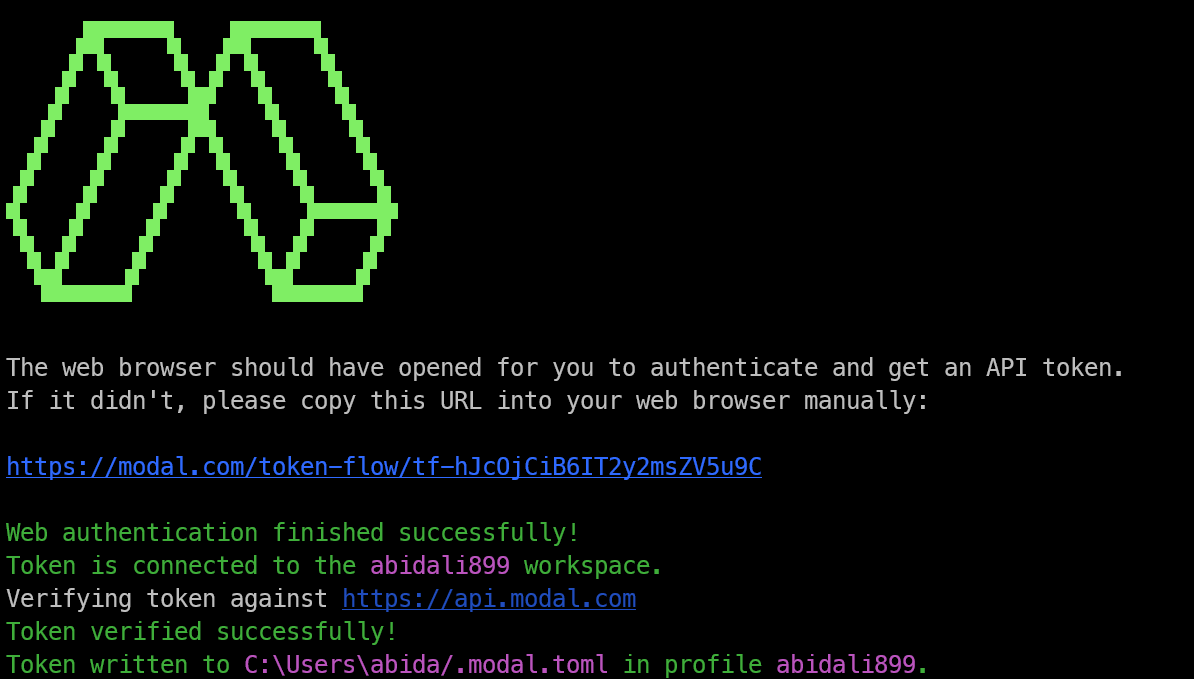
Next, create a Python file such as main.py and add the required imports. These imports bring in the OpenAI Agents SDK, sandbox configuration classes, and the Modal sandbox client.
import asyncio

from agents import ModelSettings, Runner
from agents.run import RunConfig
from agents.sandbox import Manifest, SandboxAgent, SandboxRunConfig
from agents.sandbox.entries import File
from agents.extensions.sandbox import ModalSandboxClient, ModalSandboxClientOptions
Now we need to define the sandbox workspace. In this example, the workspace includes a small support ticket triage project with a README.md, an app file, and a release checklist.
manifest = Manifest(
    entries={
        "README.md": File(
            content=(
                b"# Support Ticket Triage\n\n"
                b"Small service that labels customer tickets by urgency and team.\n"
            )
        ),
        "src/app.py": File(
            content=(
                b"def route_ticket(subject: str, customer_tier: str) -> dict:\n"
                b"    urgent = customer_tier == \"enterprise\" or \"outage\" in subject.lower()\n"
                b"    return {\n"
                b"        \"priority\": \"high\" if urgent else \"normal\",\n"
                b"        \"team\": \"support-ops\" if urgent else \"customer-care\",\n"
                b"    }\n"
            )
        ),
        "docs/release-checks.md": File(
            content=(
                b"# Release Checks\n\n"
                b"- Confirm routing rules match the current support escalation policy.\n"
            )
        ),
    }
)
The Manifest tells the agent what files exist inside the sandbox. This gives the agent a real project structure to inspect, edit, and reason about, rather than relying only on the text in the prompt.
In this case, the agent will be able to review the support ticket routing logic, check the documentation, and make changes inside the sandboxed workspace.
Once the workspace is defined, create the sandbox-backed agent. A SandboxAgent is designed to work with a real workspace, which means it can inspect files, understand the project structure, and respond based on what exists inside the sandbox.
agent = SandboxAgent(
    name="Modal Sandbox Assistant",
    model="gpt-5.4-mini",
    instructions=(
        "You are a coding assistant reviewing a small production service. "
        "Inspect the sandbox workspace before answering. "
        "Keep the answer short and practical."
    ),
    default_manifest=manifest,
    model_settings=ModelSettings(tool_choice="required"),
)
Here, we are naming the agent Modal Sandbox Assistant and using the gpt-5.4-mini model for faster responses. The instructions tell the agent to inspect the sandbox workspace before answering, which is important when the response depends on the actual files in the project.
The default_manifest=manifest connects the agent to the workspace we created earlier. The tool_choice="required" setting encourages the agent to use the available sandbox tools instead of answering only from memory or prompt context.
Next, create the Modal sandbox client. This is the connection between the OpenAI Agents workflow and the Modal sandbox, where the actual file and command execution will happen.
client = ModalSandboxClient()
options = ModalSandboxClientOptions(
    app_name="openai-agents-modal-demo",
    workspace_persistence="tar",
)
The ModalSandboxClient() tells the agent to use Modal as the sandbox provider. This means the agent can run inside an isolated Modal environment instead of running directly on your local machine.
The ModalSandboxClientOptions controls how the Modal sandbox is configured. Here, app_name gives the Modal app a clear name, while workspace_persistence="tar" tells Modal how to package and persist the workspace files during the run.
Now that the client and options are ready, create the sandbox from the manifest and start the session.
sandbox = await client.create(
    manifest=manifest,
    options=options,
)

await sandbox.start()
The client.create() call creates a new Modal sandbox using the files we defined in the Manifest. This means the sandbox starts with the same project structure, including the README.md, src/app.py, and docs/release-checks.md.
Then, await sandbox.start() starts the sandbox session. At this point, you have a live isolated workspace running on Modal, ready for the agent to inspect files, run commands, and work with the project.
Once the sandbox is active, run the agent against it by passing the live sandbox session through SandboxRunConfig. This tells the OpenAI Agents SDK that the agent should use the Modal sandbox workspace during the run.
result = await Runner.run(
    agent,
    (
        "Explain what this service does and name one production check "
        "before release. Keep it under 3 sentences."
    ),
    run_config=RunConfig(
        sandbox=SandboxRunConfig(session=sandbox),
        workflow_name="Modal sandbox example",
    ),
)

print(result.final_output)
This is where everything comes together. The model handles the reasoning, while the sandbox gives it access to the real workspace files.
In this example, the agent can inspect the support ticket triage project, understand what the service does, check the release notes, and return a short answer based on the files inside the Modal sandbox.
After the agent run finishes, delete the sandbox so you do not leave unused sessions running in Modal.
await client.aclose(sandbox)This removes the sandbox session after the work is complete. It is a good habit because sandbox sessions can use compute resources while they are active.
In a real project, you should place this inside a finally block. That way, the cleanup still runs even if the agent call fails or the script hits an error.
Here is the complete script in one place. It creates the workspace, starts a Modal sandbox, runs the agent inside it, prints the final output, and then cleans up the sandbox session.
import asyncio

from agents import ModelSettings, Runner
from agents.extensions.sandbox import ModalSandboxClient, ModalSandboxClientOptions
from agents.run import RunConfig
from agents.sandbox import Manifest, SandboxAgent, SandboxRunConfig
from agents.sandbox.entries import File


async def main():
    manifest = Manifest(
        entries={
            "README.md": File(
                content=(
                    b"# Support Ticket Triage\n\n"
                    b"Small service that labels customer tickets by urgency and team.\n"
                )
            ),
            "src/app.py": File(
                content=(
                    b"def route_ticket(subject: str, customer_tier: str) -> dict:\n"
                    b"    urgent = customer_tier == \"enterprise\" or \"outage\" in subject.lower()\n"
                    b"    return {\n"
                    b"        \"priority\": \"high\" if urgent else \"normal\",\n"
                    b"        \"team\": \"support-ops\" if urgent else \"customer-care\",\n"
                    b"    }\n"
                )
            ),
            "docs/release-checks.md": File(
                content=(
                    b"# Release Checks\n\n"
                    b"- Confirm routing rules match the current support escalation policy.\n"
                )
            ),
        }
    )

    agent = SandboxAgent(
        name="Modal Sandbox Assistant",
        model="gpt-5.4-mini",
        instructions=(
            "You are a coding assistant reviewing a small production service. "
            "Inspect the sandbox workspace before answering. "
            "Keep the answer short and practical."
        ),
        default_manifest=manifest,
        model_settings=ModelSettings(tool_choice="required"),
    )

    client = ModalSandboxClient()
    options = ModalSandboxClientOptions(
        app_name="openai-agents-modal-demo",
        workspace_persistence="tar",
    )

    sandbox = await client.create(
        manifest=manifest,
        options=options,
    )

    await sandbox.start()

    try:
        result = await Runner.run(
            agent,
            (
                "Explain what this service does and name one production check "
                "before release. Keep it under 3 sentences."
            ),
            run_config=RunConfig(
                sandbox=SandboxRunConfig(session=sandbox),
                workflow_name="Modal sandbox example",
            ),
        )

        print(result.final_output)

    finally:
        await sandbox.aclose()

if __name__ == "__main__":
    asyncio.run(main())
This script follows the current OpenAI sandbox structure and uses Modal as the execution backend. The agent logic stays in your Python app, while the actual workspace runs inside a Modal sandbox.
The finally block is important because it closes and deletes the sandbox even if the agent run fails. This helps keep your Modal environment clean and avoids leaving unused sessions running.
Once your script is ready, run it locally from a terminal in the same folder where main.py is saved:
python main.pyIf everything is configured correctly, the script will create a Modal sandbox, load the manifest into it, run the OpenAI agent against the workspace, print the response, and then clean up the sandbox.
You should see an output similar to this:
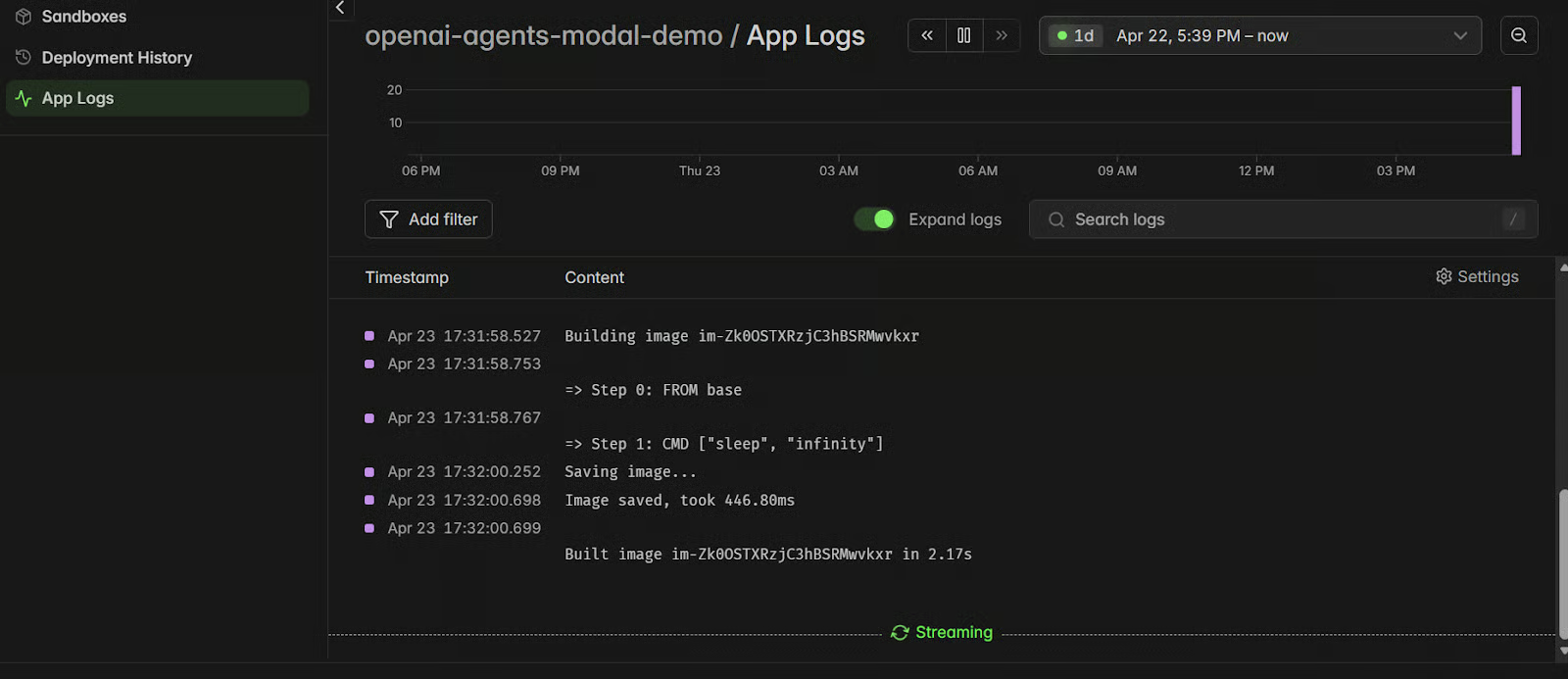
This service triages customer support tickets by assigning urgency and routing them to the right team. One production check before release is to confirm the routing rules still match the current support escalation policy.The run may take a few seconds to complete. While it is running, open your Modal dashboard, click on the openai-agents-modal-demo app, and check the logs. This is a useful way to confirm that the sandbox was created, started, used by the agent, and cleaned up successfully.
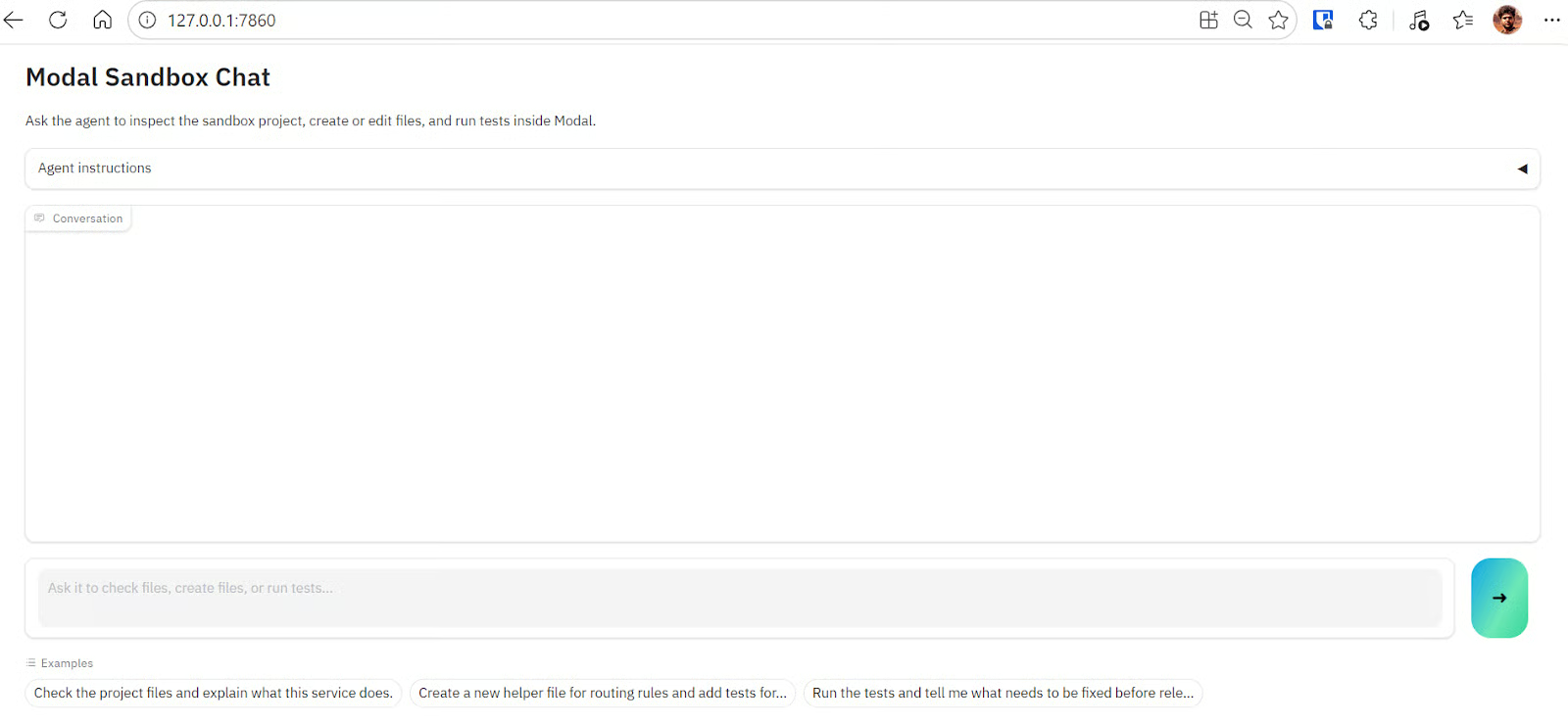
The first script is static, which means we can only send one request, get one response, and stop. To make the project easier to use, we can turn it into an interactive web app using Gradio. This lets us chat with the sandbox agent, ask follow-up questions, create or edit files, and run tests from a simple browser interface.
First, install the latest version of Gradio:
pip install gradioThen create a new file called app.py and copy the Gradio app code (OpenAI-Agents-in-Modal/app.py) into it. This app uses the same OpenAI Agents and Modal Sandbox setup, but wraps it inside a chat interface. The code also reuses the sandbox session when possible, so every message does not need to create a completely new sandbox from scratch.
Run the app with:
python app.pyYou should see a local URL in your terminal:
* Running on local URL:  http://127.0.0.1:7860
* To create a public link, set share=True in launch().
Open the local URL in your browser to use the chat app. You can ask the agent to inspect the project, explain what the service does, create new helper files, edit existing files, or run tests inside the Modal sandbox.
For example, I first asked it to explain what the project service does, and within a few seconds, it returned a detailed response based on the sandbox files.
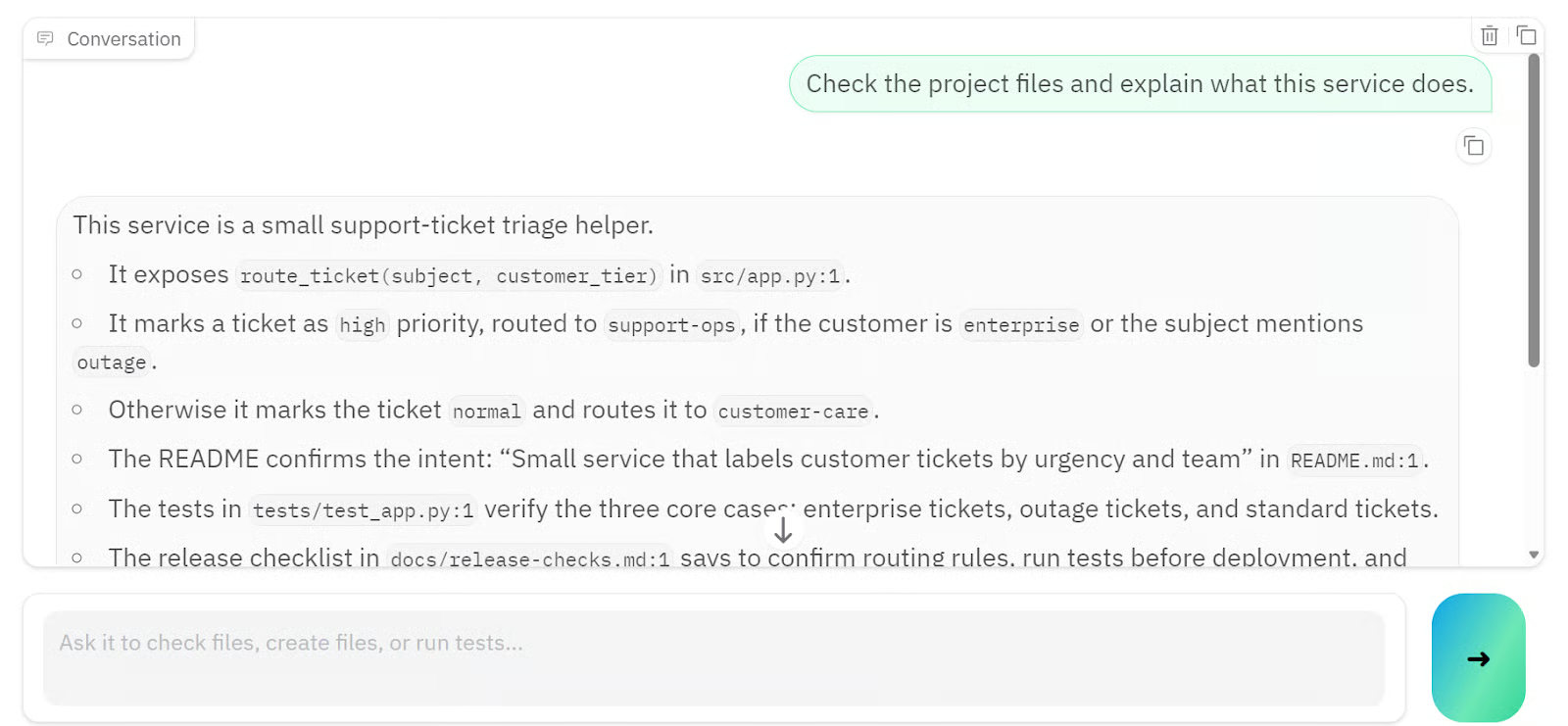
Then I asked the agent to create a new routing helper file. This request took a little longer because the agent had to modify the sandbox workspace, add tests, and run the test suite.
The agent created src/routing_rules.py, added a new test file at tests/test_routing_rules.py, and verified the changes with pytest. All 6 tests passed, confirming that the new helper worked correctly and the existing ticket routing logic was still intact.
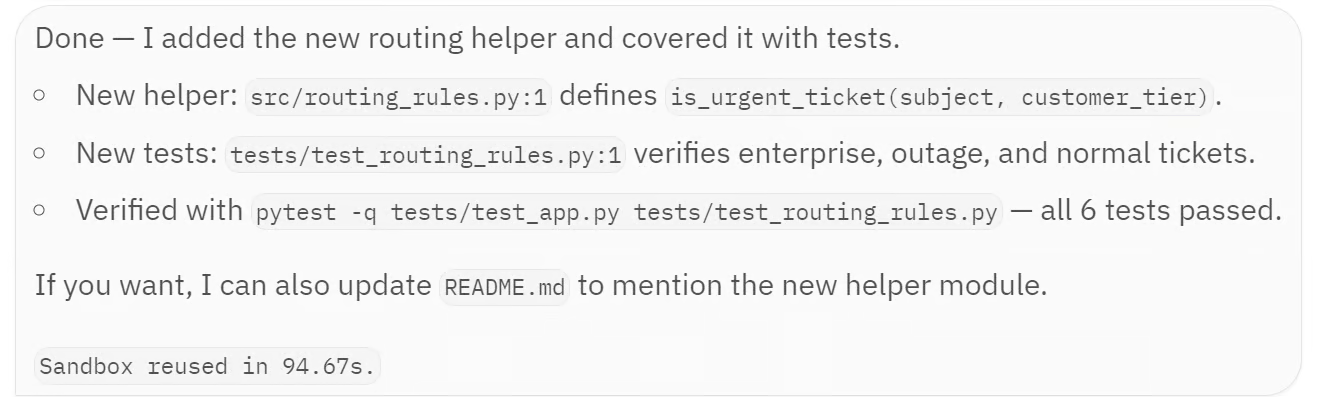
At a high level, this Gradio app gives you a simple frontend for working with a Modal-backed OpenAI agent. The user sends a message through the browser, the app passes it to the SandboxAgent, the agent works inside the Modal sandbox, and the final response is shown back in the chat interface.
OpenAI Agents with Modal Sandboxes gives us a clean way to build agentic apps that can work with real files, run commands, and return useful outputs from an isolated environment.
The setup process for Modal was smooth, and creating the sandbox itself was straightforward. Once everything was connected, the agent was able to inspect the project, create a new routing helper file, add tests, and confirm that all 6 tests passed.
That said, building the interactive app and configuring the model took more work than expected. The file creation and testing steps also took longer because the Modal sandbox sometimes timed out. I had to increase the sandbox timeout from 300 seconds to 600 seconds to give the agent enough time to complete the full workflow.
Another pain point was logging and visibility. While waiting for the agent to finish, it was not always clear what the Agents SDK was doing in the background. Even the Modal logs did not always show enough detail to understand whether the agent was inspecting files, editing code, or running tests.
In the future, it would be helpful to have more verbose agent logs, similar to what you see when working with tools like Claude Code, where you can follow each step more clearly.
Overall, this is a strong workflow for building sandboxed agent apps, especially if your agent needs to work with files, code, and generated outputs. You can find the full project on GitHub, clone it locally, and run it yourself: kingabzpro/OpenAI-Agents-in-Modal.
If you want to learn the ins and outs of building advanced AI systems, I recommend taking our Building Scalable Agentic Systems course.
Top AI Courses
Course
Track
Course
Tutorial
Bexruz (Bex) Tuychiev
12 min
Tutorial
Aashi Dutt
6 min
Tutorial
Abid Ali Awan
9 min
Tutorial
Benito Martin
14 min
Tutorial
François Aubry
12 min
code-along
Korey Stegared-Pace