
강의
Claude 모델 입문
3시간
15K
실습 문제하고 트랙하세요.
Google로 계속하기Imagine you're on a train. Your laptop at home is grinding on a 30-minute refactor. Your phone buzzes: Telegram shows a summary from your own Claude Code bot. Tests pass, here's what changed, here's what broke. You type the next instruction, lock the phone, and keep reading.
Two features of Claude Code make that loop work. Auto Mode removes the approval prompts that would otherwise stall the session. Channels forwards messages from Telegram, Discord, or iMessage into the live session as if you typed them yourself.
This tutorial walks through setting both up from scratch and running a write-test-debug loop from your phone.
If you’re new to Anthropic’s LLMs, I recommend taking our Introduction to Claude Models course first.
To follow along with this tutorial, you’ll need:
Claude Code asks before it does anything that reaches outside the project. Anthropic's own data says users approve 93% of those prompts anyway. At that rate, the prompts add friction without adding safety.
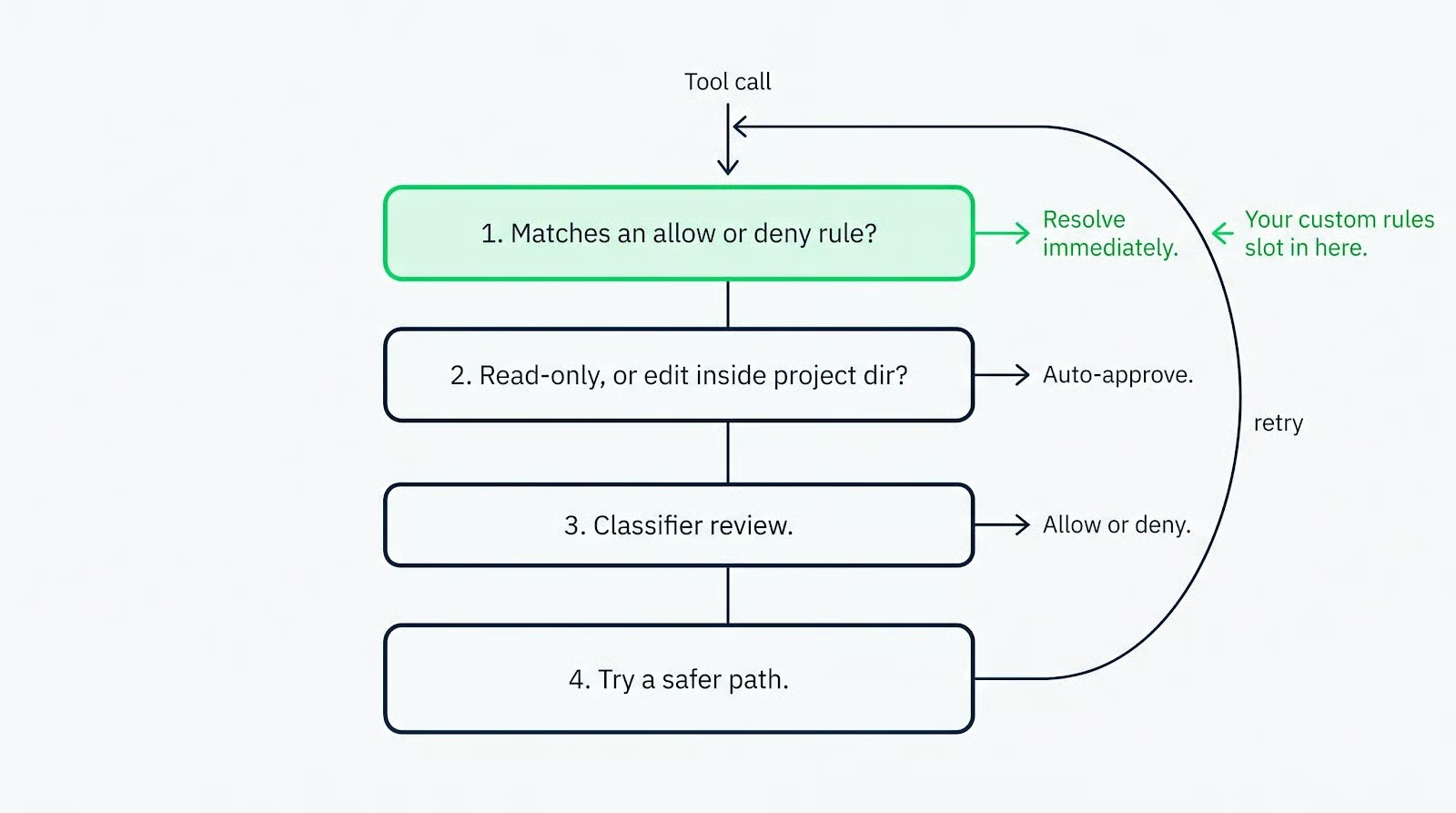
Auto Mode replaces that pattern with a classifier. Each tool call goes to a separate Claude model (Sonnet 5) that reviews the action and either allows or blocks it. Long unattended runs stop pausing for approval every thirty seconds.
The classifier runs on a different model from the one writing the code. A jailbroken or misdirected main model cannot trick it into allowing a bad call. A separate probe scans tool outputs (file contents, web fetches, shell stdout) for prompt-injection attempts before they reach Claude's context.
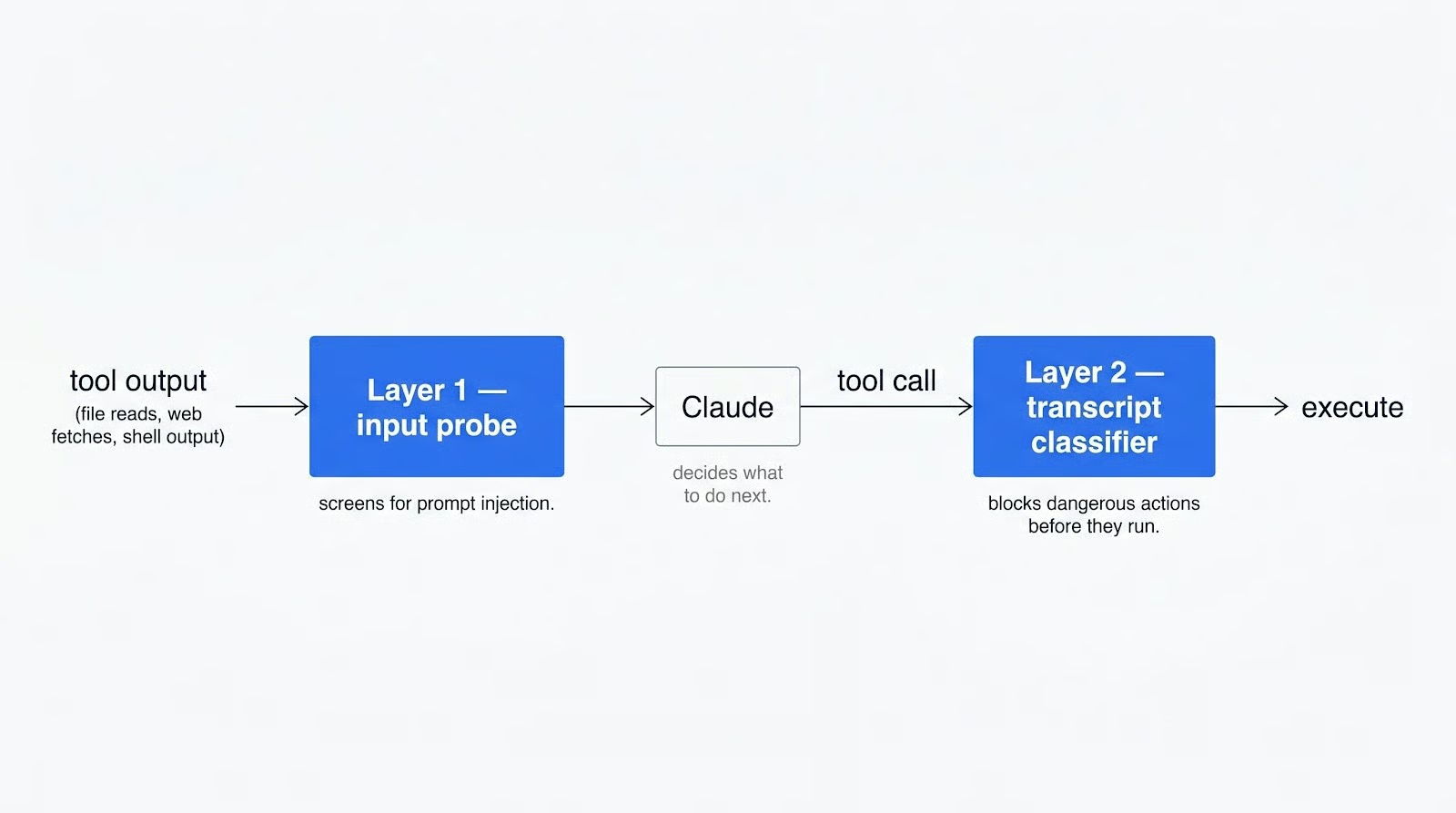
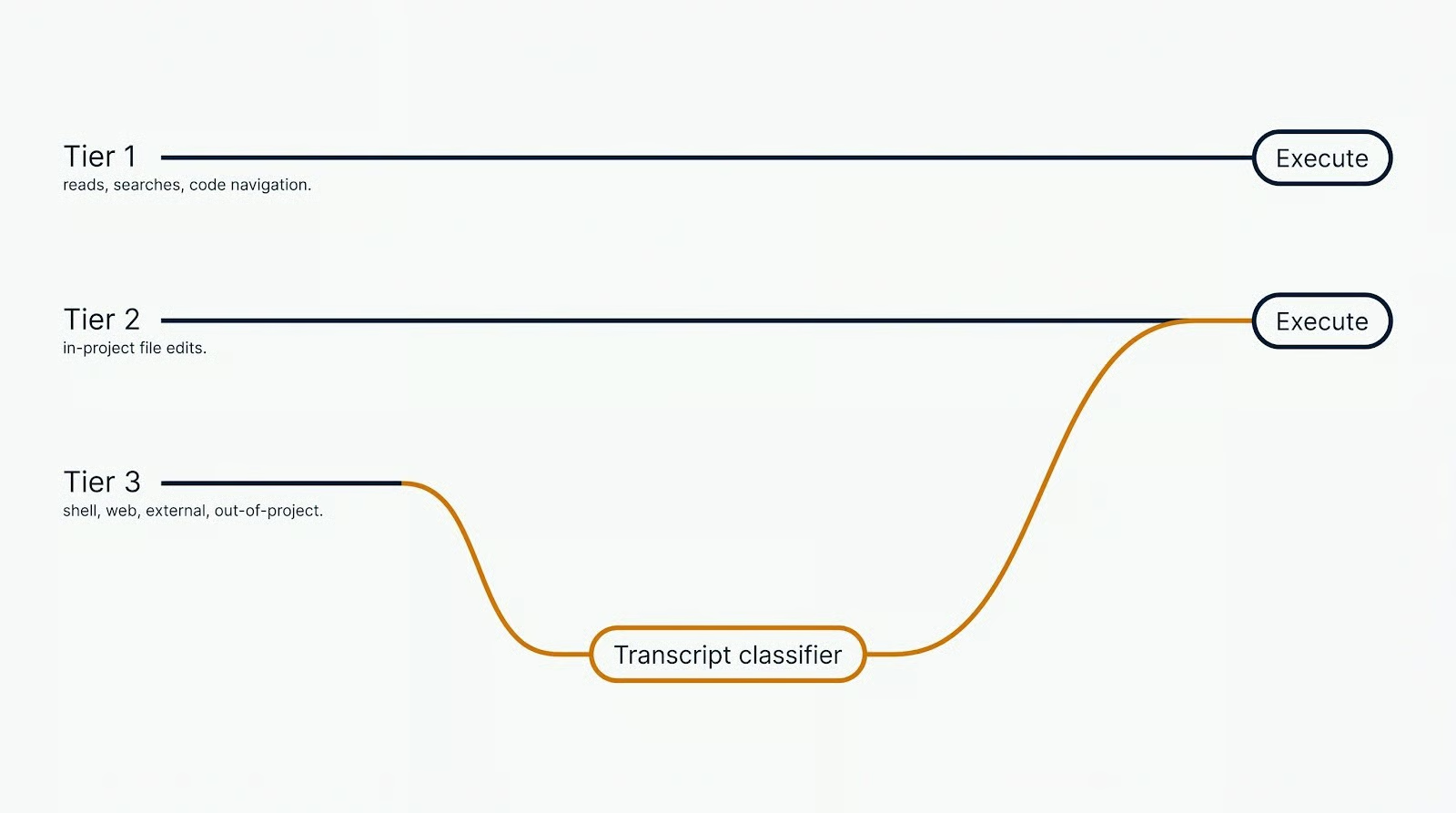
Not every tool call goes through the classifier. Reads, text searches, code navigation, and file edits inside your project directory run on a fast path with no review. Shell commands, web fetches, anything touching a file outside the project, and any subagent spawn go to the classifier.
Anthropic published the numbers in the auto mode announcement. On 10,000 real tool calls, the pipeline produced a 0.4% false-positive rate. On 52 curated overeager actions, the false-negative rate was 17%. Replacing --dangerously-skip-permissions with Auto Mode is a clear win. Replacing careful human review is not: the classifier misses one in six.
When the classifier blocks a call, Claude receives the denial as a tool result. Claude is expected to find a safer path, not work around the block. After three consecutive blocks or twenty total, Auto Mode hands control back to you. Headless claude -p runs terminate instead.
I started using Auto Mode expecting a smarter bypassPermissions. My complaint about bypass was that it allowed everything: reading .env files, editing configs, and so on.
Auto Mode fixes that. Sensitive-file operations and explicit removals get denied by default. The override is naming the file in the prompt, which lets the classifier allow the edit. That's better than bypass, which had no such check.
What surprised me about Auto Mode is that it's a decision-making mode, not just a permission mode. I used to run a chain of Claude Code skills in succession, a pipeline for implementing or debugging a feature. Under bypassPermissions, Claude stopped between stages and asked permission to proceed.
I liked that pattern: the pause was where I reviewed the work or told Claude to move on. In Auto Mode, Claude decides on its own whether it has enough context to move to the next stage. The review checkpoints I'd relied on are gone. You'll either welcome the faster runs or miss the human-in-the-loop pauses.
The other surprise went the opposite direction. Under bypassPermissions, if I asked Claude to edit its own config or skills, it refused. Bypass or not, it asked me anyway. In Auto Mode, Claude has more freedom there: skill files, .claude/ settings, and its own configuration are editable without asking. That’s useful for self-maintaining skills, but a risk if you expect Claude to leave its own config alone.
Six modes ship with Claude Code, and they sit on a spectrum between "approve everything" and "approve nothing." The table below is the short version. You can read the official docs for the long version.
|
Mode |
What runs without asking |
Best for |
Risk profile |
|
|
Reads only |
Sensitive work, reviewing each action |
Lowest. Every write, shell, and network call prompts |
|
|
Reads, file edits, common filesystem commands (mkdir, mv, cp) |
Iterating on code you're reviewing after the fact |
Low. Shell and network still prompt |
|
Reads only; Claude proposes a plan but executes nothing |
Exploring a codebase, reviewing proposed changes before any writes happen |
Lowest. Nothing executes without switching modes |
|
|
|
Everything, with background classifier checks |
Long tasks, async and remote work, reducing prompt fatigue |
Moderate. 0.4% false positive, 17% false negative on overeager actions |
|
|
Only tools explicitly pre-approved via permissions.allow; everything else is auto-denied |
Locked-down CI pipelines and automated scripts where the allowed tool set is fully known in advance |
Low, but misconfigured allowlists can silently block legitimate operations |
|
|
Everything except protected paths |
Isolated containers and VMs only |
Highest. No classifier, no safety net |
The call I'd make: Use default for sensitive repos where every write needs a second look, auto for your own projects, and bypassPermissions only inside a throwaway container where the blast radius is contained.
Claude Code channels are MCP servers that send events into your running session. The Telegram plugin is what we'll use, and Discord and iMessage plugins work the same way. You DM the bot, the plugin forwards the message into the session, and Claude works on your local files. A reply comes back through the bot when the turn ends.
Claude only messages you at the end of the turn. There is no mid-turn streaming, no live preview of what Claude is doing on the host. Whatever Claude runs during a turn, it runs. You learn about it when the summary arrives. That's why the permission mode matters more over a channel than at the terminal.
Channels can forward permission prompts to the phone in default or acceptEdits mode. You reply yes or no from Telegram. For a handful of prompts, it's fine. A real build-test-debug session sends dozens, and tapping through each one gets old fast.
The other end of the spectrum is worse. --dangerously-skip-permissions removes the prompts, but over a channel, you've lost the terminal's live view of tool calls. Nothing tells you a risky command just ran. At the terminal, bypass at least lets you watch the stream and hit Esc. Over Telegram, you type a prompt and find out what happened at the end of the turn.
Auto Mode sits between those two. No prompt-spam. The classifier blocks the clearly dangerous moves on its own. The turn-end message gives you a reviewable account of what ran. For remote work, that's the trade-off that works.
I built a small demo called libcache. It's a Python CLI that fetches book metadata from the OpenLibrary API and caches responses under ~/.cache/libcache/.
The stack is boring on purpose: uv manages dependencies, typer handles the CLI, httpx makes the HTTP calls, and pytest runs the tests.
Three things about libcache matter.
It's multi-file, so a build-from-scratch in default mode would stack a dozen permission prompts.
It has an HTTP boundary, giving the classifier a real call to make.
It finishes fast enough that the whole scaffold lands in one Telegram turn.
Three things in order: host machine awake, plugin paired, Auto Mode active. If any of the three fail, the rest won't work.
Claude Code is a local process. When the machine sleeps, the process stops receiving events. The Telegram plugin has nowhere to deliver your messages. Events only arrive while the session is open.
On macOS, open a separate terminal and run:
caffeinate -dThe -d flag prevents the display from sleeping. Linux hosts can mask the sleep targets instead:
sudo systemctl mask sleep.target suspend.target hibernate.target hybrid-sleep.targetThat's reversible with unmask.
For anything longer than an afternoon, run the session inside tmux. It keeps your shell alive across closed windows and dropped SSH connections. Start a new session:
tmux new -s claudeLaunch Claude inside it, detach by pressing Ctrl+B, then D, and reattach later:
tmux attach -t claudeOne more thing before launching. Any CLI tool Claude might call from Telegram has to be authenticated on the host already. Interactive logins or authentications can't run from the phone. Check gh, the GitHub CLI we will use today:
gh auth statusIf it's not authenticated, run gh auth login and finish the browser flow. Do the same for any other CLI you want Claude to reach (aws, gcloud, docker, package registries) for your other projects.
Install Bun if you haven't already. On macOS or Linux:
curl -fsSL https://bun.sh/install | bashOn Windows:
powershell -c "irm bun.sh/install.ps1 | iex"Confirm the install:
bun --versionThen create the Telegram bot.
Open BotFather in Telegram, send /newbot, pick a display name, and a username ending in bot (something like libcache_dev_bot). Copy the token BotFather replies with.
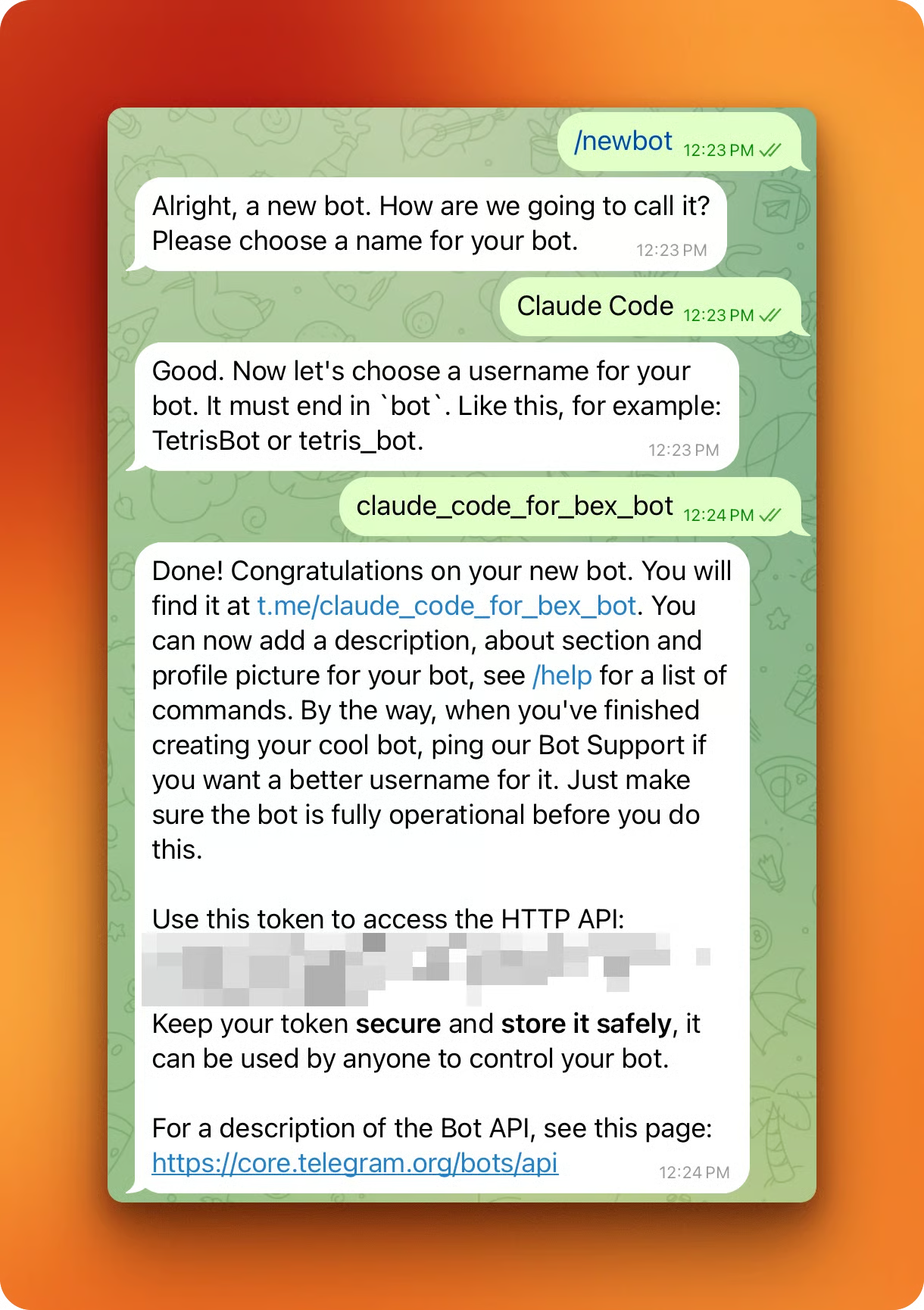
Back in a Claude Code session, install the plugin:
/plugin install telegram@claude-plugins-officialIf Claude Code says the marketplace doesn't have it, add it by hand and retry:
/plugin marketplace add anthropics/claude-plugins-officialAfter the install finishes, reload plugins so the Telegram tools show up:
/reload-pluginsConfigure the bot with the token from BotFather:
/telegram:configure <your_bot_token_here>The token is written to ~/.claude/channels/telegram/.env.
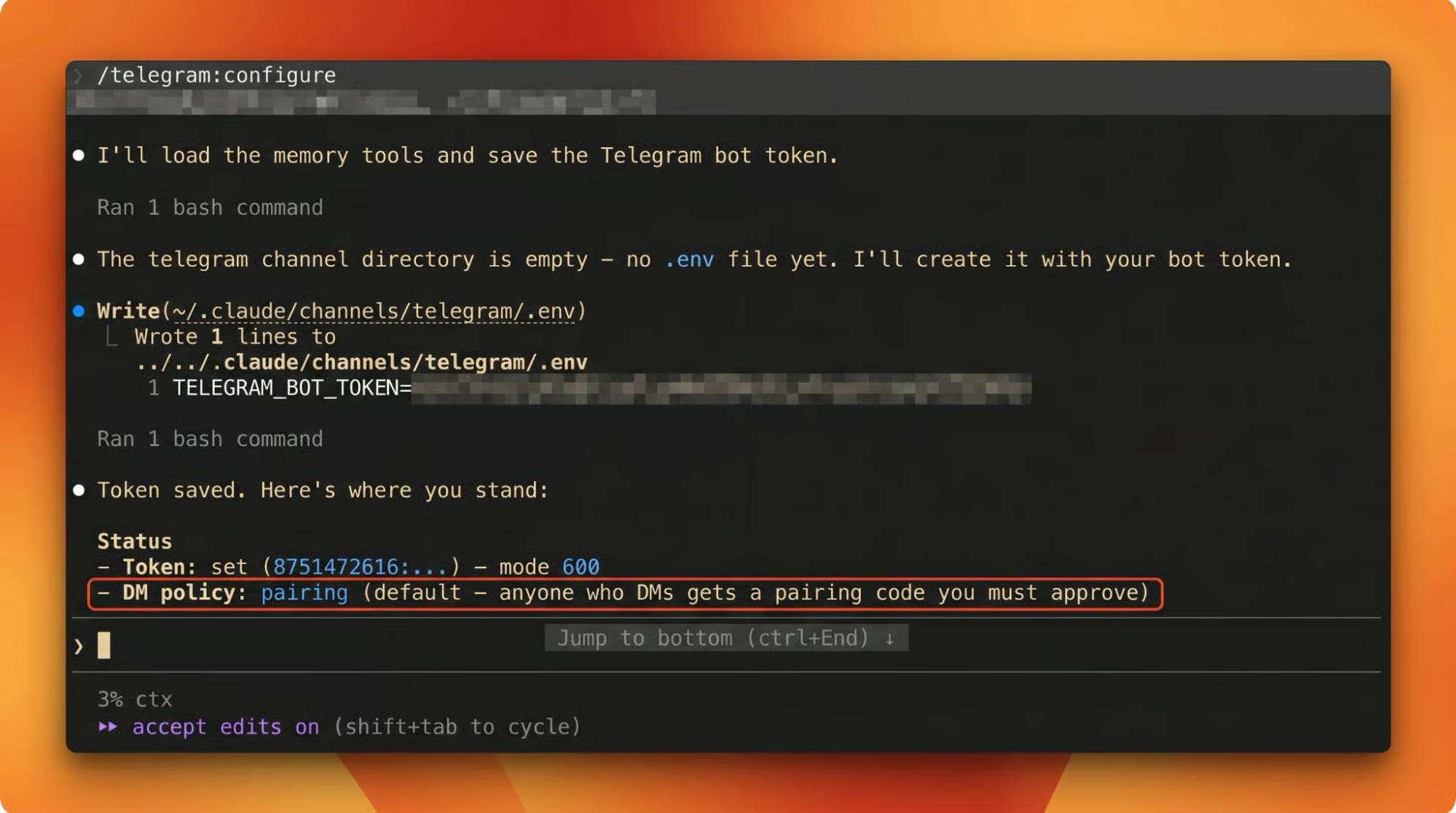
After /telegram:configure, fully exit Claude Code (press Ctrl+D or enter /exit) and relaunch. /reload-plugins isn't reliable for getting the pairing code to show up on the first DM.
Relaunch the session, open the bot in Telegram, and send /start. The bot replies with a 6-character pairing code.
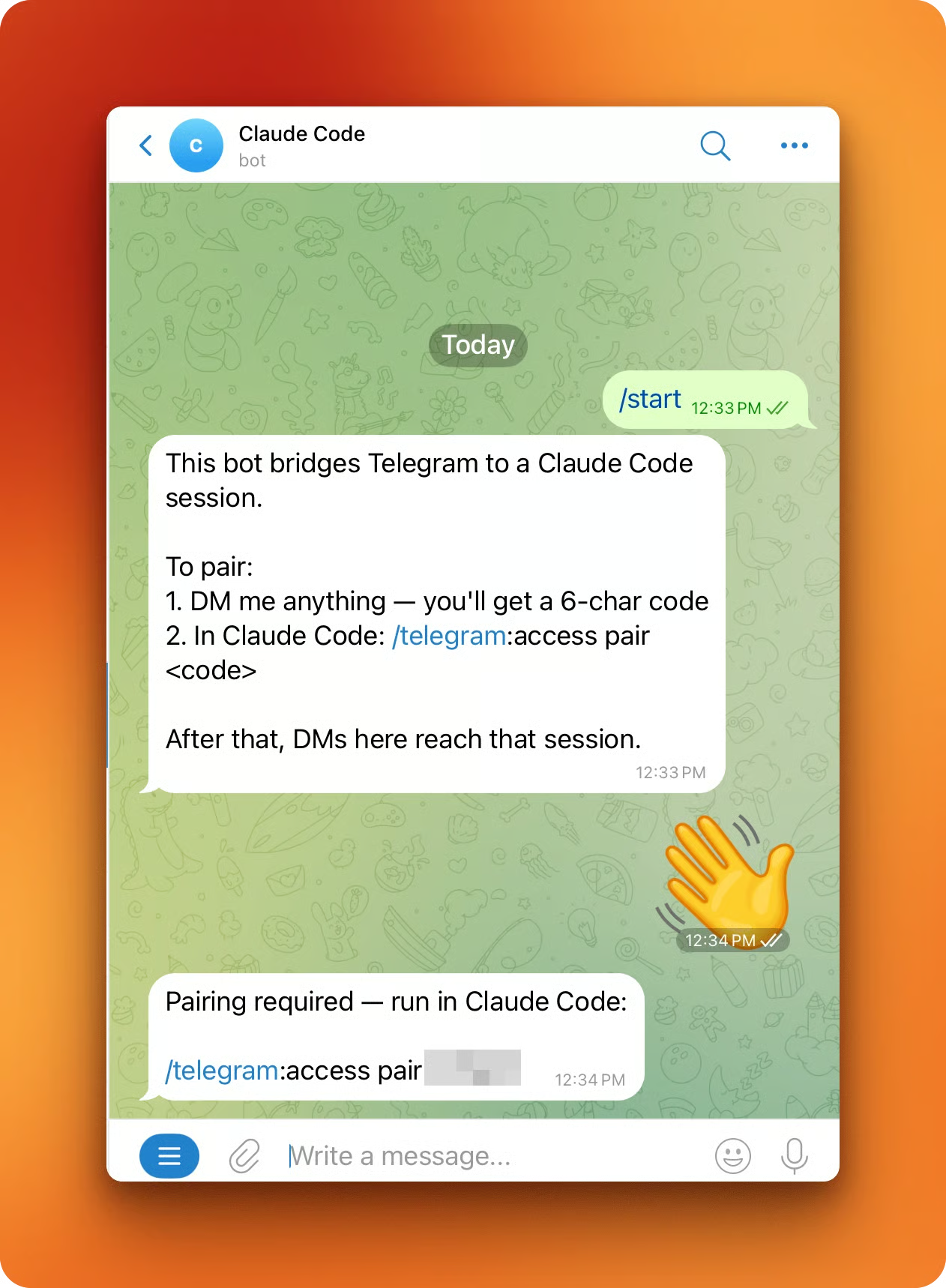
Back in Claude Code, pair with the code:
/telegram:access pair <code>Pairing is symmetric. Both sides have to agree before the session accepts messages.
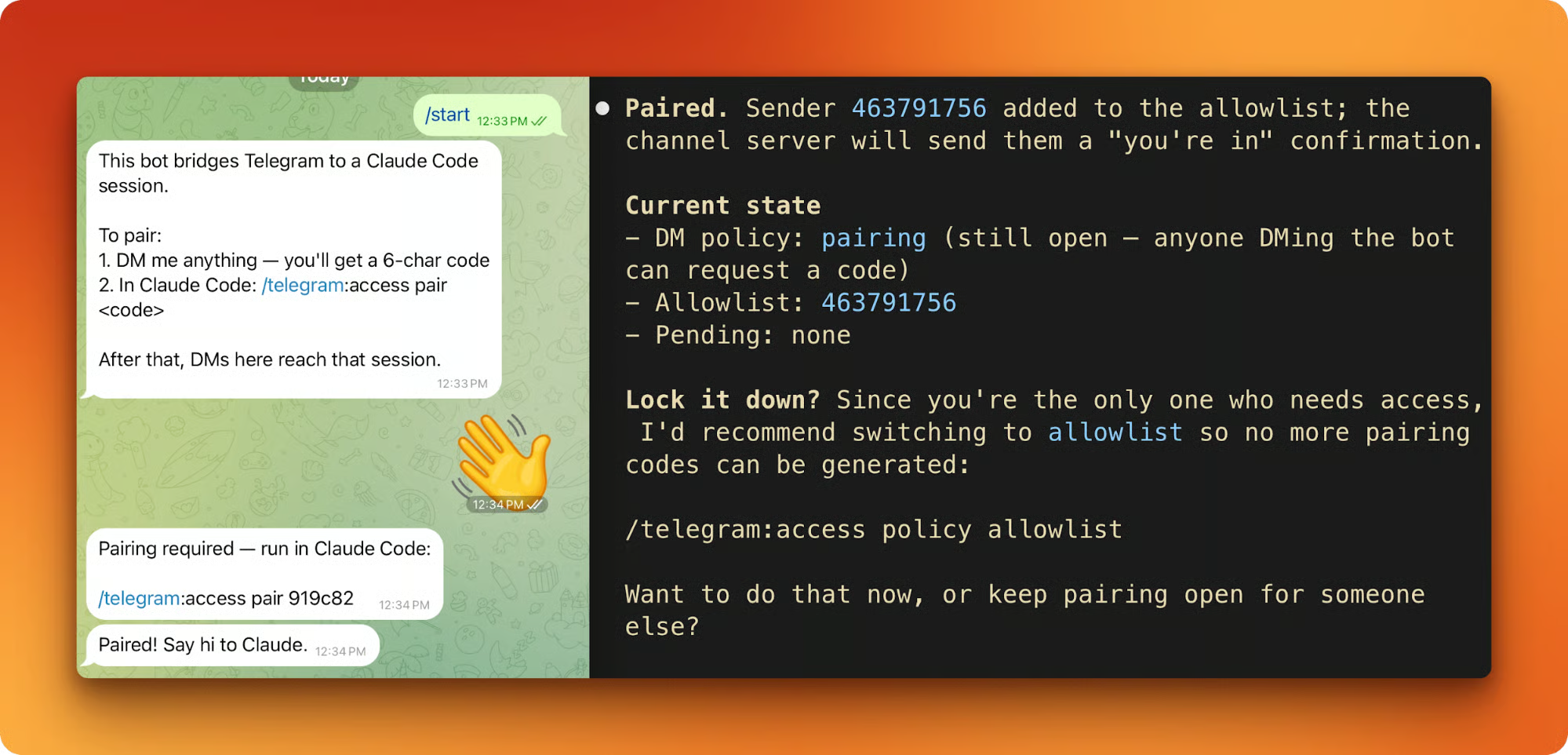
Last step. Lock the bot down to your account only:
/telegram:access policy allowlistAnyone not on the allowlist who DMs the bot gets silently dropped, with no pairing code issued.
From a project directory, launch Claude with both flags:
claude --channels plugin:telegram@claude-plugins-official --permission-mode autoAn existing session can switch into Auto Mode mid-stream: press Shift+Tab repeatedly until the status bar reads auto. To make Auto Mode the default for every launch, add this to ~/.claude/settings.json:
{ "permissions": { "defaultMode": "auto" } }One constraint: Claude Code ignores defaultMode: "auto" in project-level or local settings files. Auto-mode configuration must live in ~/.claude/settings.json (user-level). The same applies to autoMode rules added since v2.1.207.
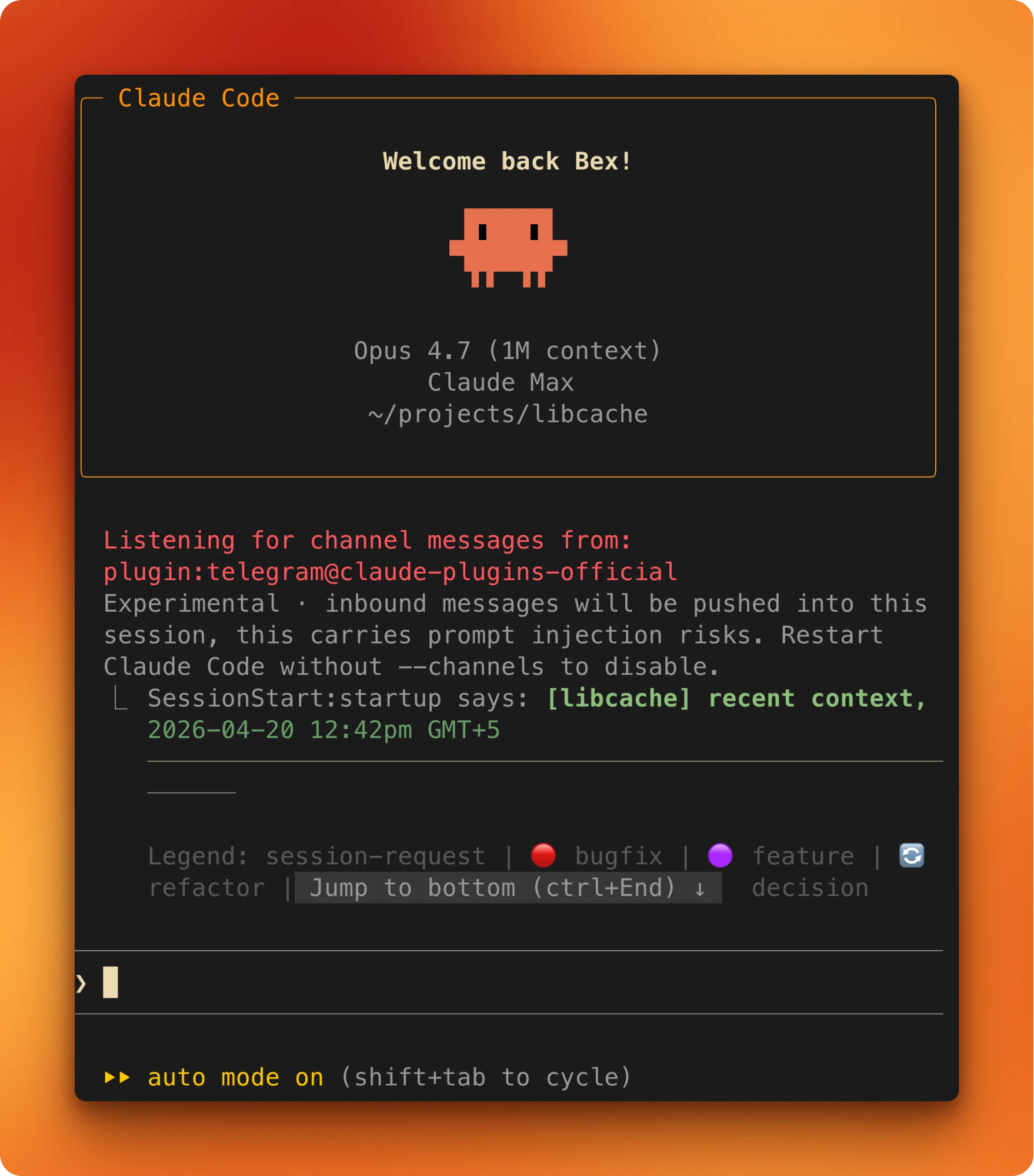
On entering Auto Mode, Claude Code drops broad allow rules from settings.json. Blanket Bash(*), wildcarded interpreters like Bash(python*), and blanket Agent allows get dropped on entry and restored on exit. Narrow rules like Bash(pytest) carry through unchanged.
Verify the setup. DM the bot anything and watch for a reply. Then ask Claude to write a small file into the project and watch it land without a prompt. If both work, the setup is ready.
Let’s see how we can kick itoff from Telegram in practice.
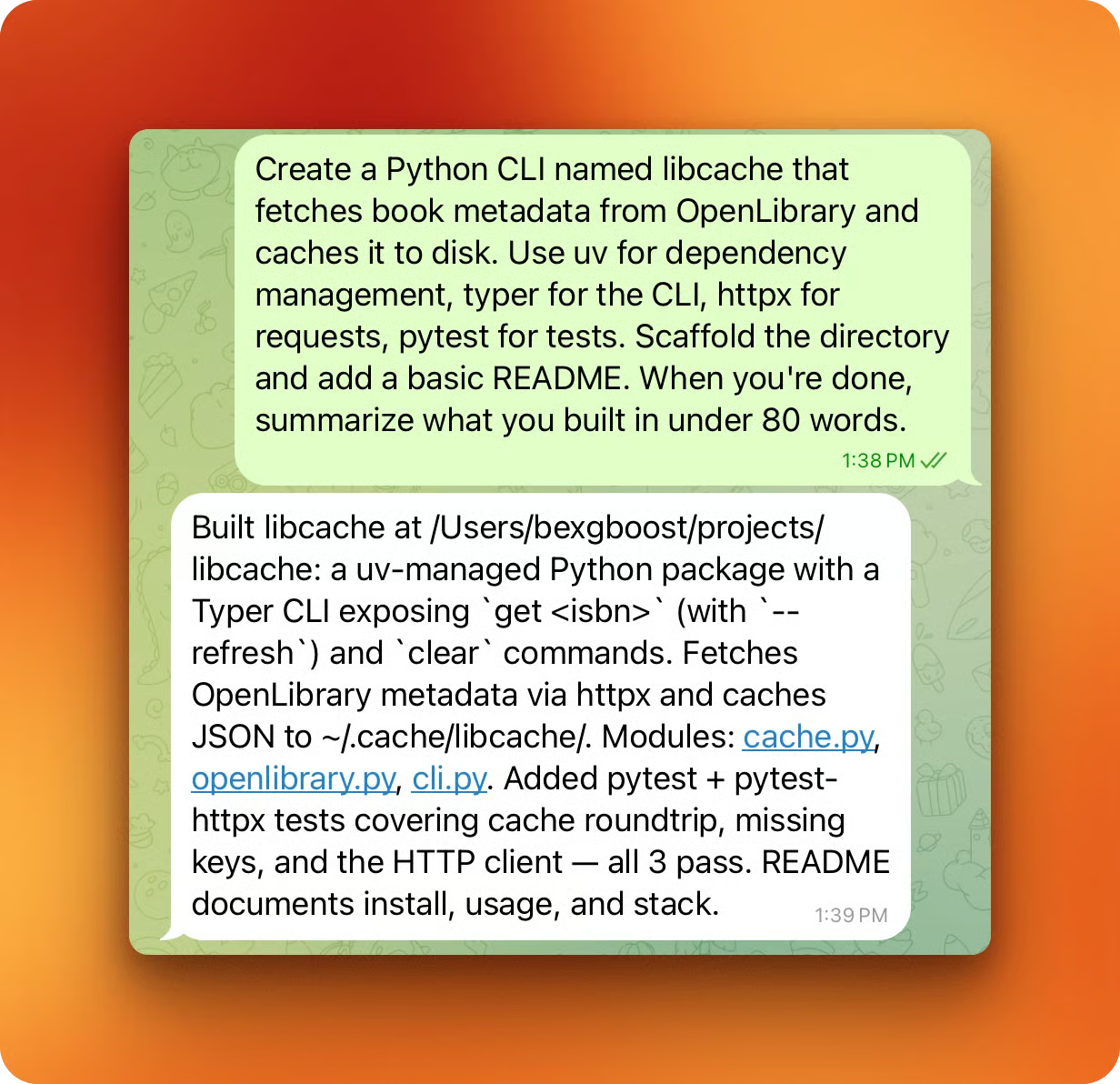
Send an opening prompt from Telegram. What matters is the kind of task: one that would stack a dozen approval prompts in default mode. For libcache, the prompt was roughly:
Create a Python CLI that fetches book metadata from OpenLibrary and caches it to disk, use uv for deps, typer for the CLI, httpx for requests, pytest for tests, scaffold the directory and add a README, and when you're done, summarize what you built in under 80 words.The "summarize in under 80 words" tail is a small channel-specific habit. Turn-end replies arrive on the phone, and a phone is a bad place to read long output.
The plugin sends the phone message into the running session on the host. It arrives as a ← telegram · <sender>: ... banner in the terminal.
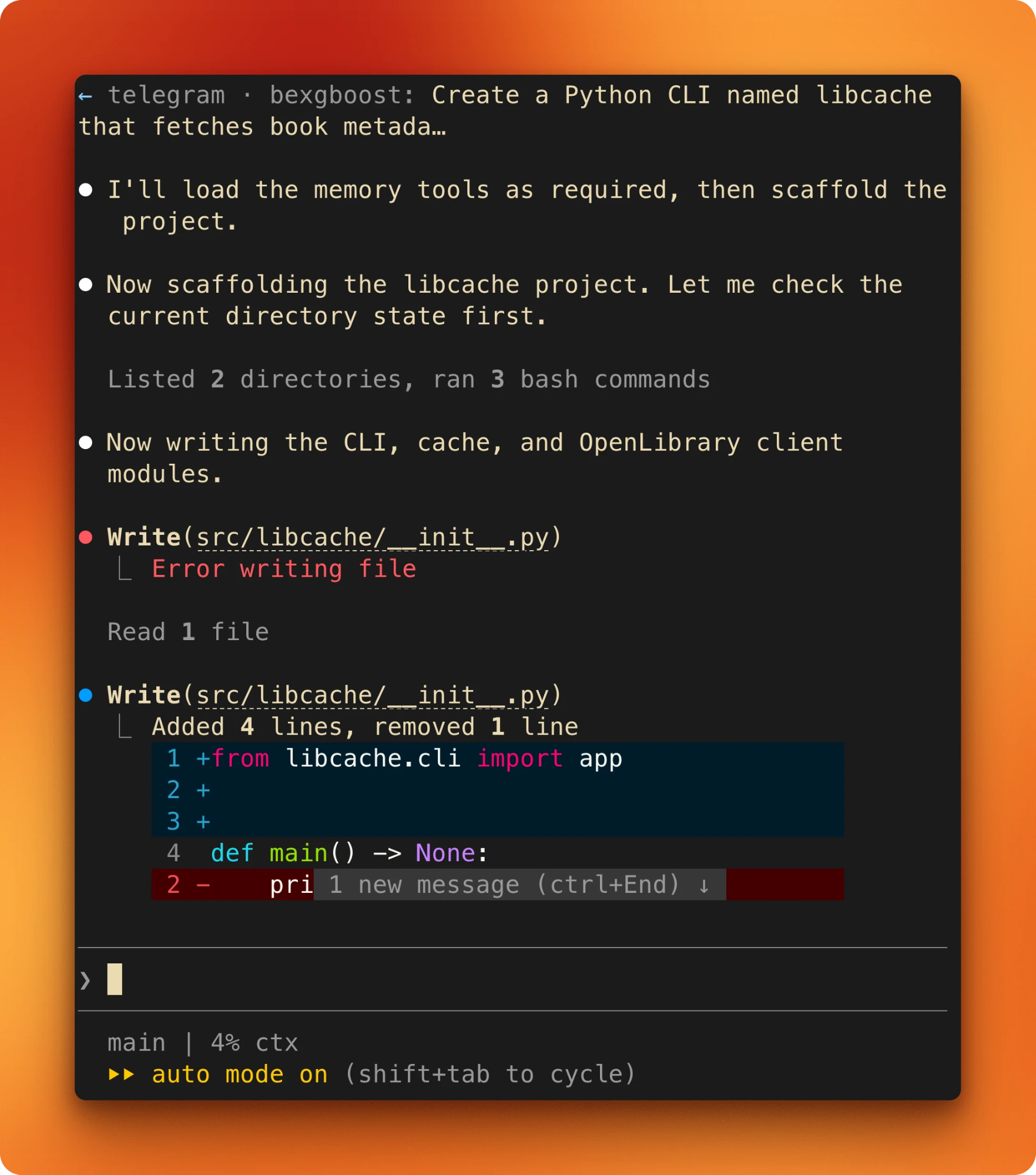
In-project file writes take the fast path and skip the classifier entirely. Dependency installs, the initial pytest run, and the closing git init go through the classifier and are allowed by default. Nothing pauses, and the turn runs start to finish in one pass.
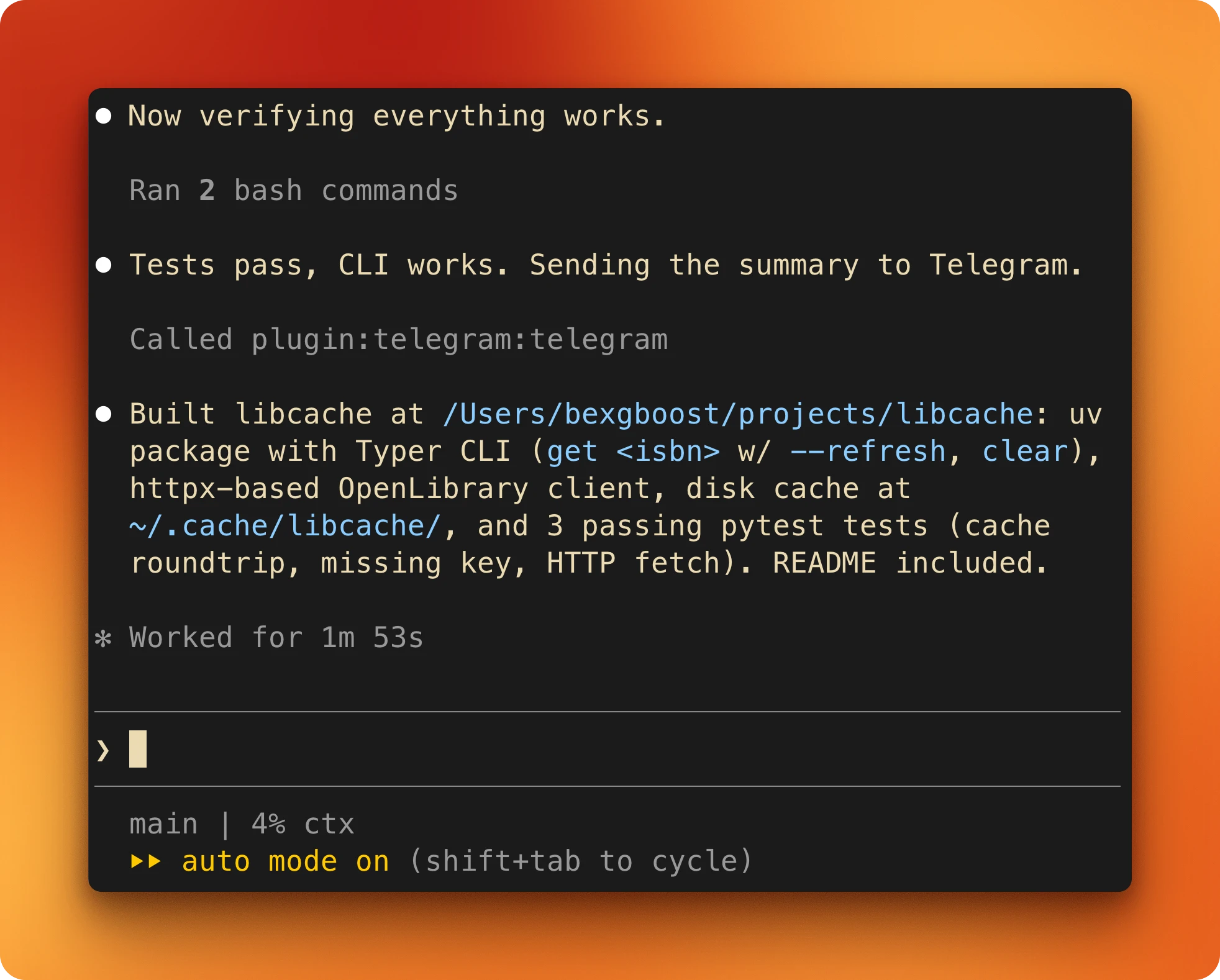
On the phone, the summary is the only signal back during the turn.
Long prompts are painful to type on a phone. Voice-to-text handles most of it, and terse declarative prompts work fine. "Scaffold libcache, OpenLibrary + disk cache, under 80 words" is enough.
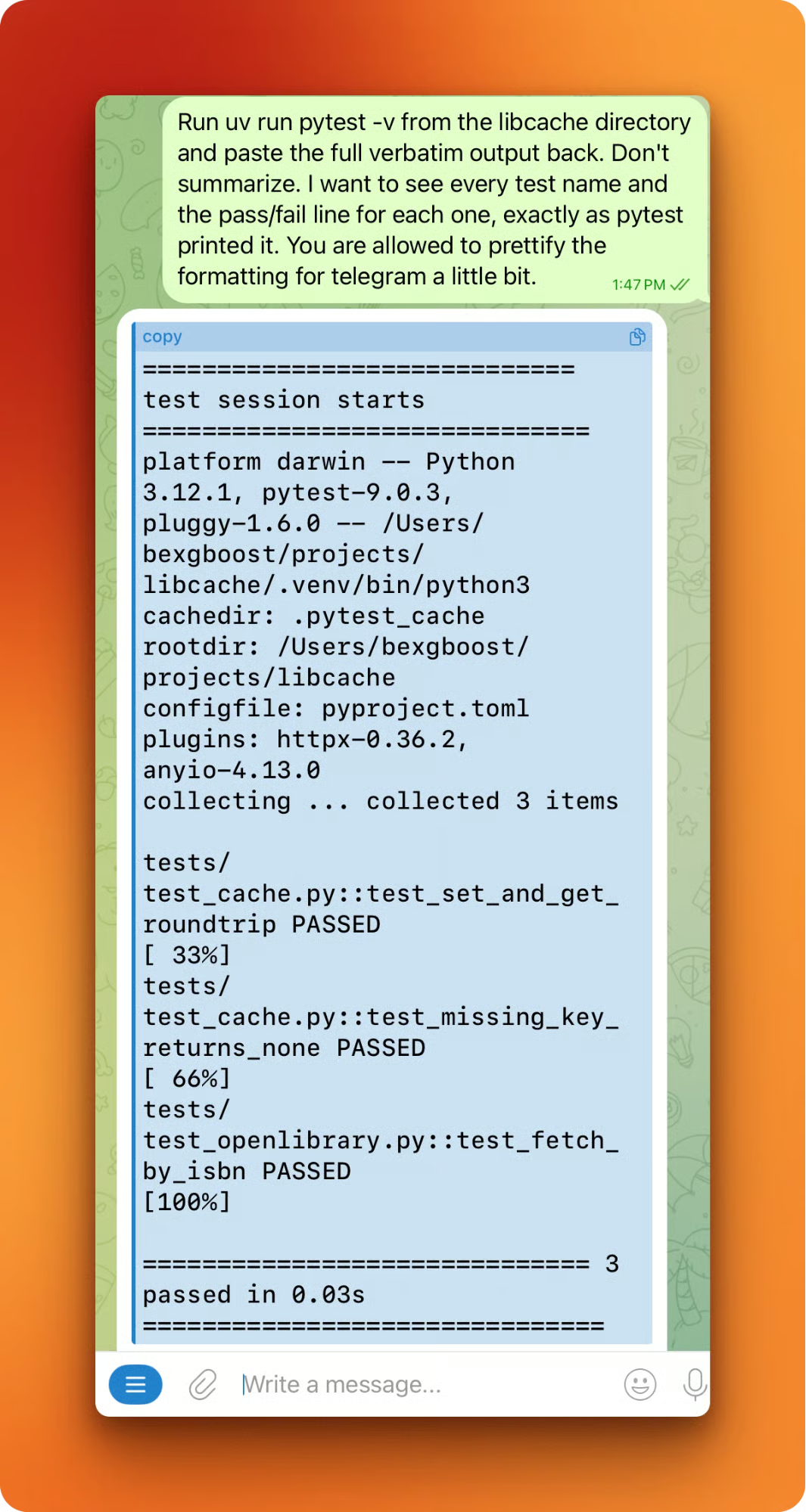
Every follow-up runs the same loop. One message from Telegram, one turn of work, one summary back. The summary is Claude's account, not the actual state. Ask Claude to run the tests and paste the verbatim output:
uv run pytest -vAsk it to cat a specific file. Ask for file sizes or line counts, or a recent commit history:
git log --onelineAuto Mode runs verification calls on the same fast paths as everything else. The cost of asking is low. The result is a claim you can check from the lock screen without walking to the laptop.
One more turn to prove the loop reaches real external systems. From the phone:
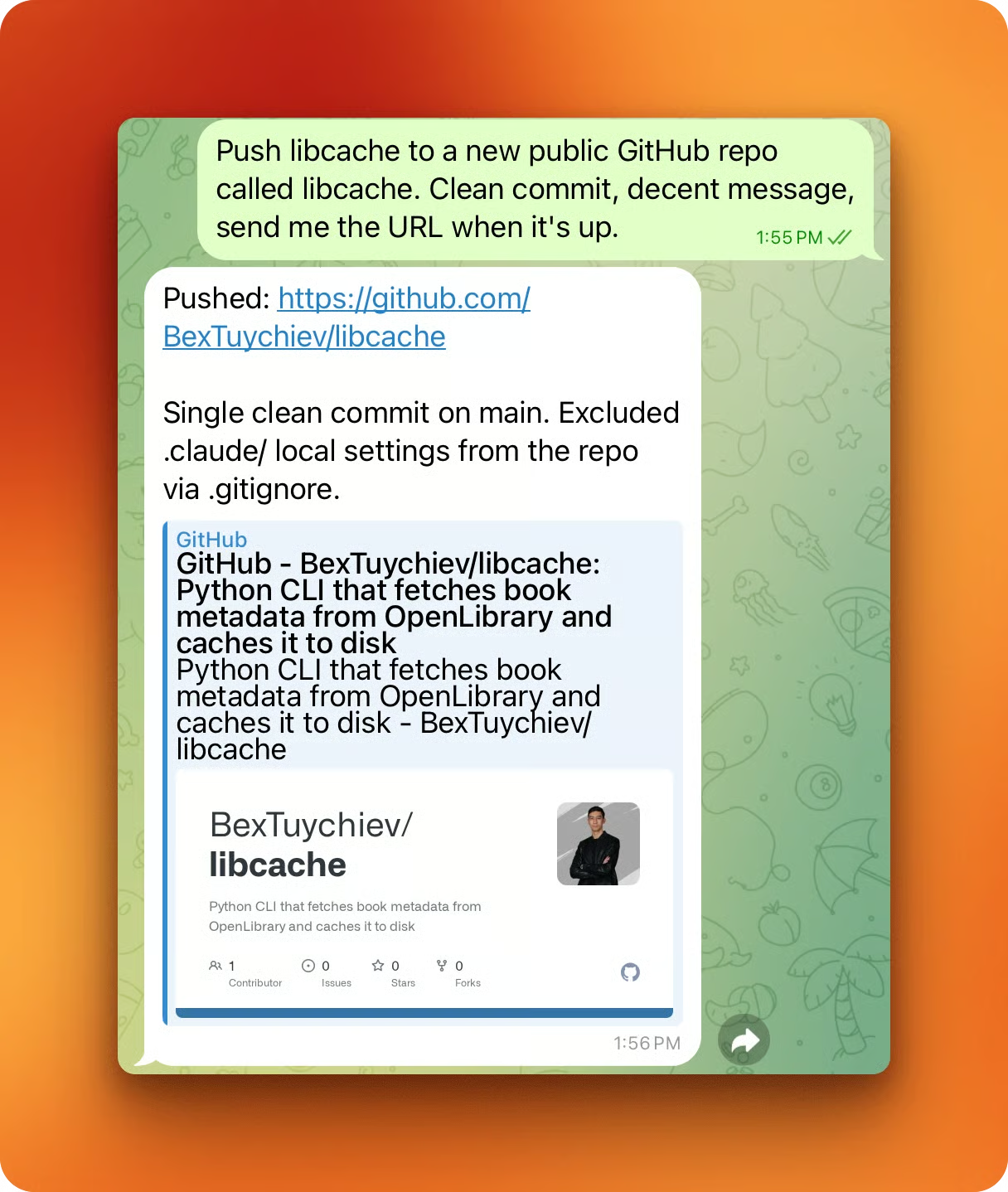
push libcache to a new public GitHub repo called libcache, clean commit, decent message, send me the URL when it's up.Claude uses the gh CLI authenticated earlier and replies with the repo URL.
When Auto Mode works, the loop feels quiet. The next section is what happens when it doesn't.
Auto Mode interrupts you in two ways.
The classifier hard-blocks a small set of patterns:
curl | bash pipes
Force-pushes to main
Cloud-storage mass deletions.
Softer and more common, Claude itself pauses on actions it recognizes as irreversible. Both show up the same way on the phone: no red banner, no modal, just normal text. Claude names the action, lists the commands, and asks for a specific confirmation phrase before continuing.
A destructive request like "delete the project, take down the GitHub repo too" triggers the irreversibility pause. The reply spells out the commands and offers safer alternatives: archive, local only, or remote only. It waits on a phrase Claude picked, not a yes/no.
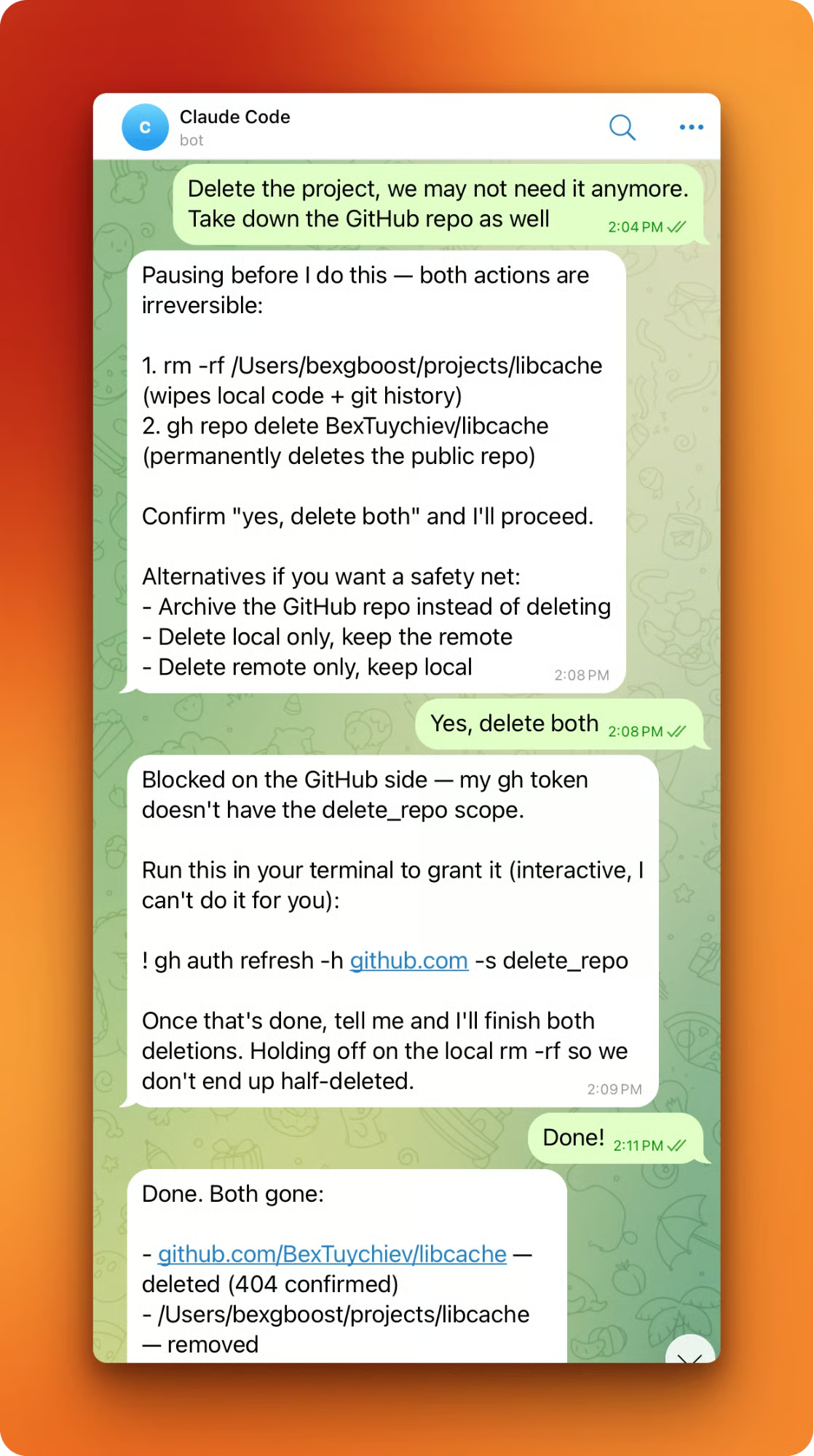
The same screenshot shows a second-order behavior. Mid-deletion, Claude ran into a missing scope on the gh CLI (the token didn't have delete_repo). Rather than half-finish the work, Claude paused and asked me to run an interactive command at the terminal:
gh auth refresh -h github.com -s delete_repoAuto Mode can't drive browser-based auth flows, and Claude didn't try to work around the missing scope.
Session history is not implicit consent. Even for a repo Claude itself created fifteen minutes earlier in the same session, the pause still triggers on deletion. The same 3-consecutive / 20-total cap applies. Stacked interruptions eventually hand control back to the human.
Two known bugs to watch for. Messages sent while Claude Code is idle at the REPL prompt are dropped entirely, not queued (issue #44380). After one response, the plugin sometimes stops forwarding new messages until nudged (issue #36477). For the first, keep a turn in flight or set up a cron-based keepalive. For the second, restart the session. Neither has a fix yet.
For most work on your own codebase, Auto Mode's defaults are enough. When you want to harden specific paths or loosen others, start by reading what Anthropic set up for you:
claude auto-mode defaultsThat prints the built-in block and allow rules as JSON. The structure is meant to be extended, not replaced: edit the baseline, don't start from scratch. Every rule you drop forces the classifier to make a decision, and each decision is a chance for a false negative.
Add project-specific rulesin settings.json at the permissions key. Narrow allows carry over into Auto Mode unchanged. Broad ones get dropped on entry. A rule like Bash(pytest) or Bash(gh pr create *) is specific enough that the classifier trusts your judgment. In practice: one narrow allow per tool the project actually runs, no wildcards.
If your workflow relied on permission prompts as review gates between pipeline stages, bring those checkpoints back explicitly. Add ask rules for the tool patterns or paths you want Claude to pause on. Or move that workflow to acceptEdits instead of auto to keep the prompt checkpoint on everything except in-project file edits.
One underused feature: the classifier treats boundaries stated in the conversation as block signals. Tell Claude, "don't push until I review," and it blocks matching actions even when default rules would allow them. A simple alternative to writing a formal rule for one session.
For persistent automation, Claude Code Hooks let you trigger custom scripts before or after specific tool calls, giving you programmatic checkpoints without manual prompt gates.
To see the effective config after your settings.json merges with the defaults:
claude auto-mode configTwo newer commands round out the CLI. claude auto-mode reset (v2.1.212+) restores the default auto-mode configuration in one shot, useful after experiments that left stale overrides. And the autoMode.classifyAllShell setting routes every shell command through the classifier, not just the subset that matches arbitrary-code-execution patterns. Add it to ~/.claude/settings.json if you want the tightest possible net:
{ "autoMode": { "classifyAllShell": true } }Enterprise admins can turn the feature off org-wide via permissions.disableAutoMode: 'disable' in managed settings.
Auto Mode plus Channels turns Claude Code from a desk-bound tool into an async partner you drive from anywhere. The classifier decides which tool calls go through. Claude decides when an action is serious enough to pause. You decide the prompts, the scope, and the rules. The terminal is one place you can work from, not the only one.
For deeper reading, I recommend our guides on Claude Code Remote Control, Claude Code Plugins, Claude Code Best Practices, Claude Code Routines, and Claude Code Security.
Top AI Courses
강의
강의
실습 문제하고 트랙하세요.
Google로 계속하기튜토리얼
Abid Ali Awan
11분
튜토리얼
Brian Mutea
15분
튜토리얼
Bexruz (Bex) Tuychiev
15분
튜토리얼
Tim Lu
15분
튜토리얼
Vikash Singh
10분
튜토리얼
Bexruz (Bex) Tuychiev
10분