
Course
Introduction to Claude Models
3 hr
14.4K
Claude Code is an agentic coding tool developed by Anthropic that runs directly in your terminal and can also operate through a connected web interface. Instead of working on isolated prompts, Claude Code understands the entire repository, can reason across files, edit code, and run tools.
Compared to earlier versions, which focused primarily on interactive code assistance, Claude Code 2.1 has additional support for agents, hooks, and reusable skills that can actively shape how and when code changes occur.
Claude Code is designed for developers who want AI assistance embedded directly into real workflows, rather than switching back and forth between an editor and a chat UI. Although it is still in research preview, it already demonstrates strong practical utility in real development workflows.
If you want to learn more about the Claude models, I recommend taking the Introduction to Claude Models course. You can also check out our Claude Cowork tutorial.
Claude Code 2.1 builds on the core terminal experience by introducing a set of upgrades that make agent-driven workflows more flexible. These changes extend how Claude Code reasons about a codebase and how developers interact with it during real development tasks.
Some of the most notable additions in Claude Code 2.1 include:
/) skill invocation enables quick access to frequently used actions during interactive sessions.Bash(*-h*), provide finer-grained automation controls.Shift+Enter for multiline input, improving the interactive authoring experience without requiring additional setup.In this guide, we focus on a set of practical experiments that demonstrate how these new capabilities are applied in real-world projects.
Claude Code 2.1 is available as a web-based experience that runs entirely in the cloud. This mode is especially useful for collaborative workflows, pull request reviews, and repository-level automation without requiring a local setup.
To get started, navigate to https://claude.ai/code, and you’ll land on the Claude Code (Research Preview) interface.
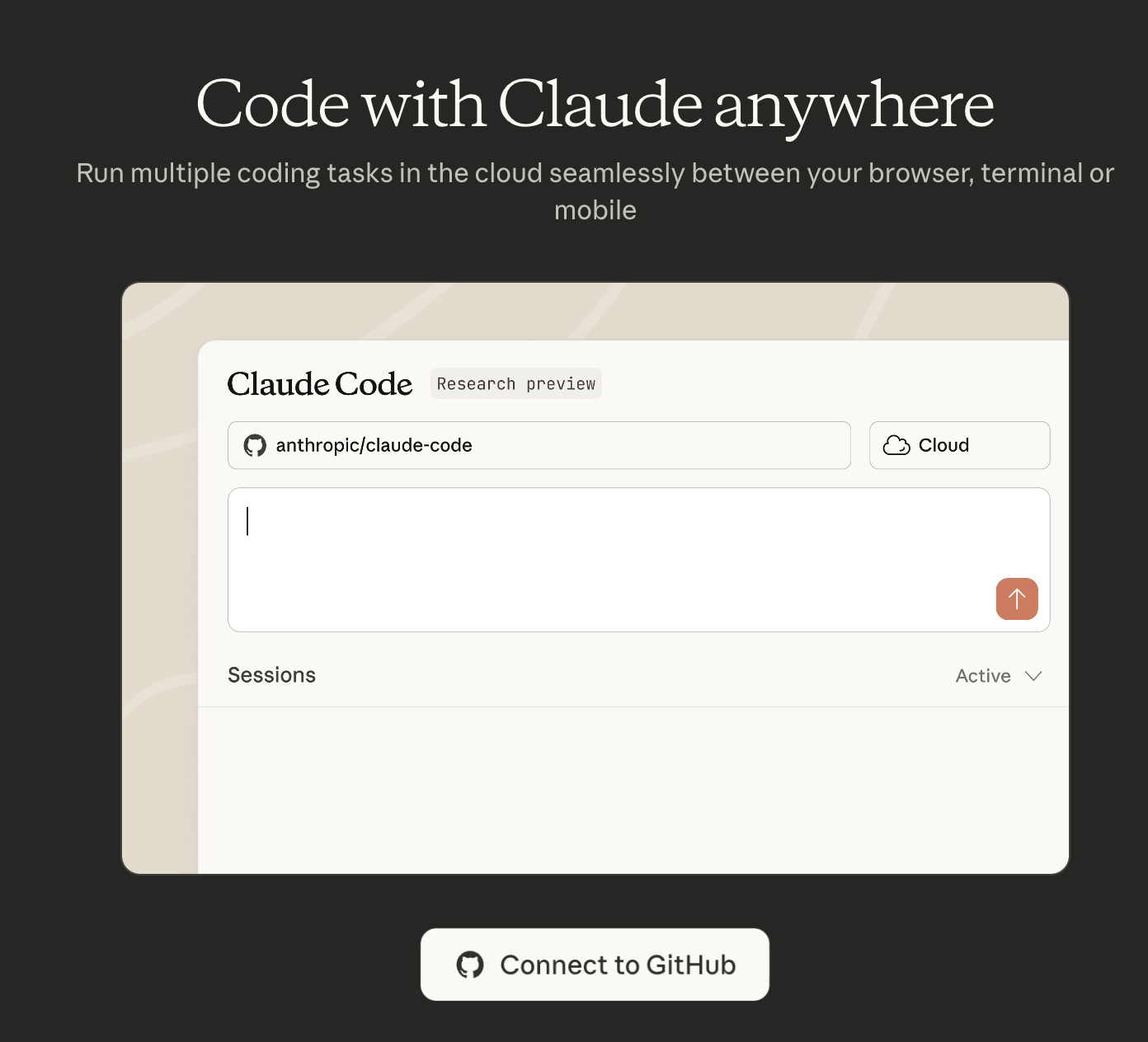
To work with real repositories, Claude Code needs access to GitHub. Click on Connect to GitHub, which installs the Claude GitHub App.
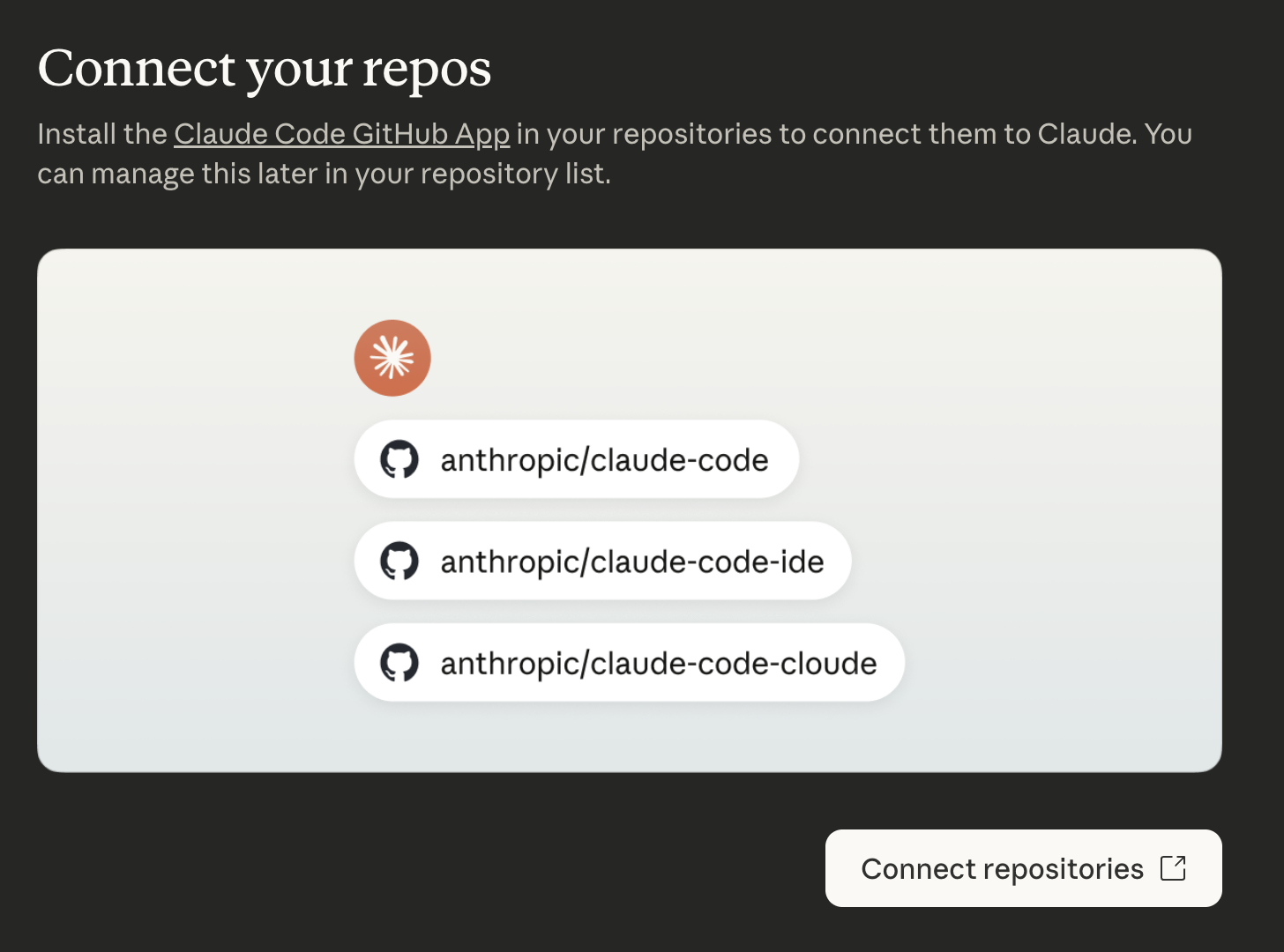
During authorization, GitHub will ask for permission to connect to repositories by:
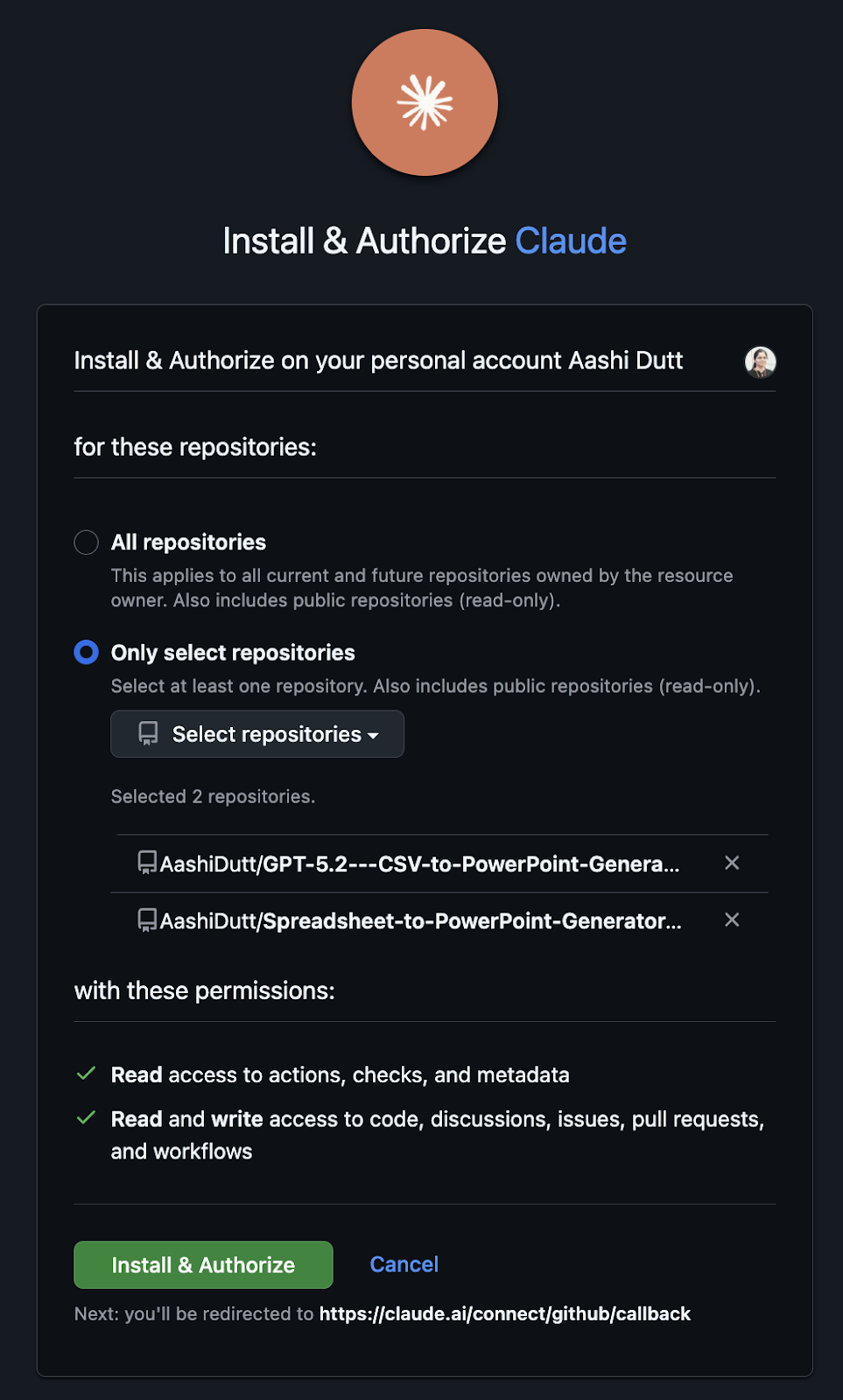
You can choose between:
Typical permissions include:
Click on Install & Authorize, and you can modify or revoke access later directly from GitHub’s app settings. This step is required for Claude Code to read repositories, open pull requests, and push commits when working in the web environment.
Before starting your first session, Claude Code prompts you to create a cloud environment. This environment controls Claude’s network access and execution boundaries.
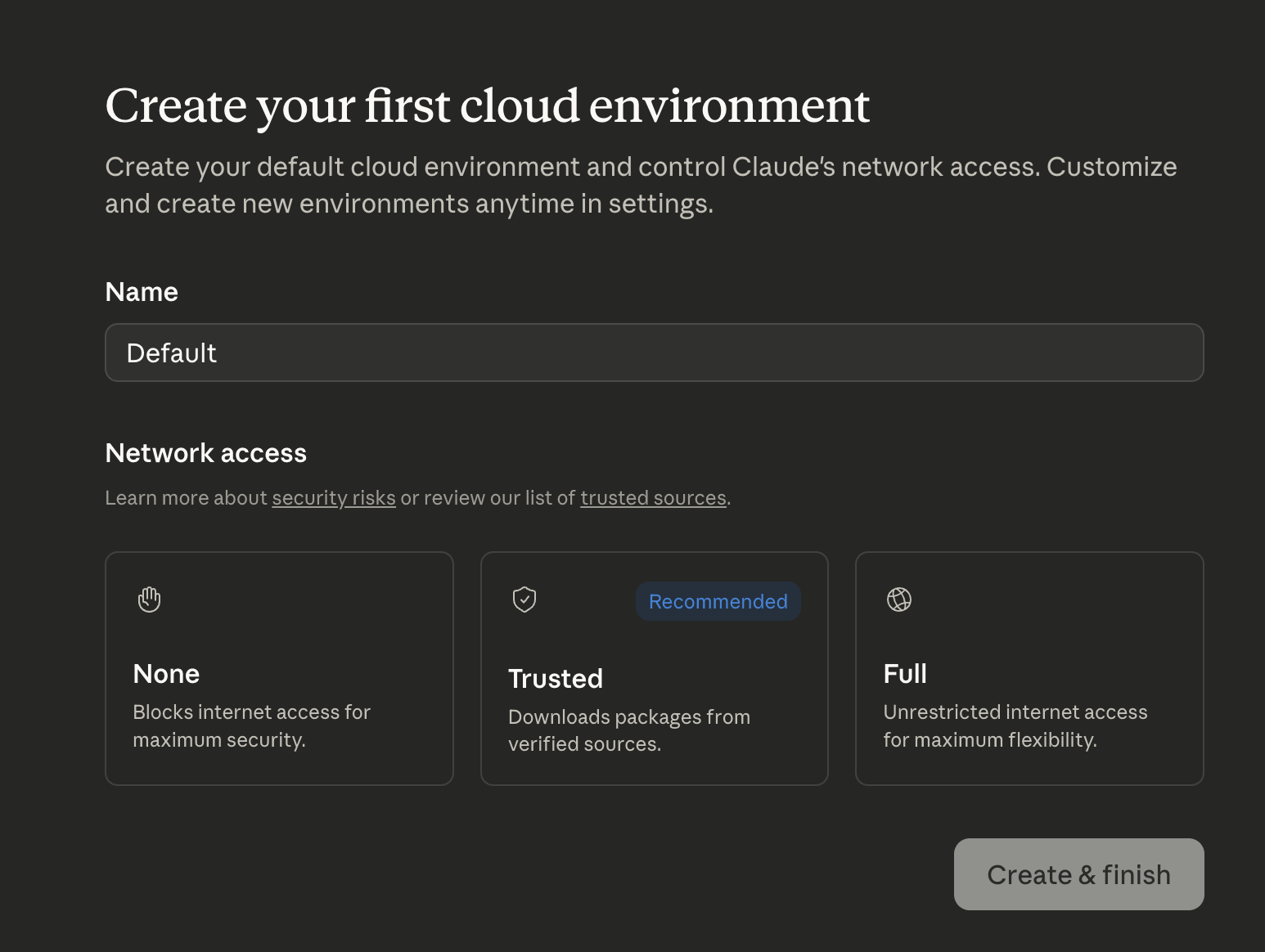
The available options include:
For most use cases, the Trusted option provides the best balance between security and flexibility.
After setup is complete, you’re taken to the Claude Code web editor as shown in the screenshot below.
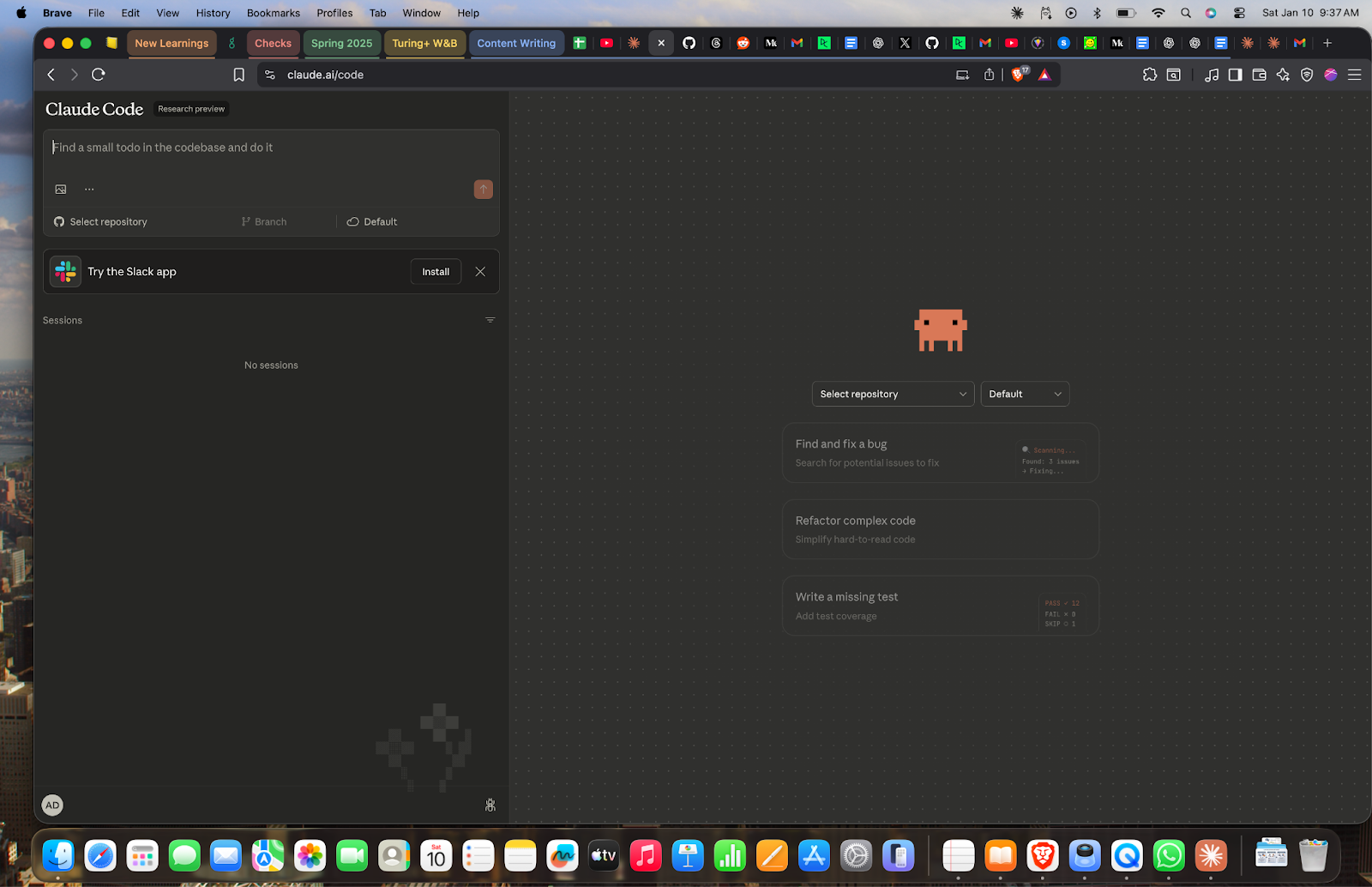
From here, you can:
The CLI is the most direct way to work with Claude Code 2.1. It’s ideal for local development, step-by-step refactors, and situations where you want fine-grained control over what Claude does in your repository.
Claude Code can be installed directly from the terminal using a platform-specific installer.
macOS, Linux, WSL:
curl -fsSL https://claude.ai/install.sh | bash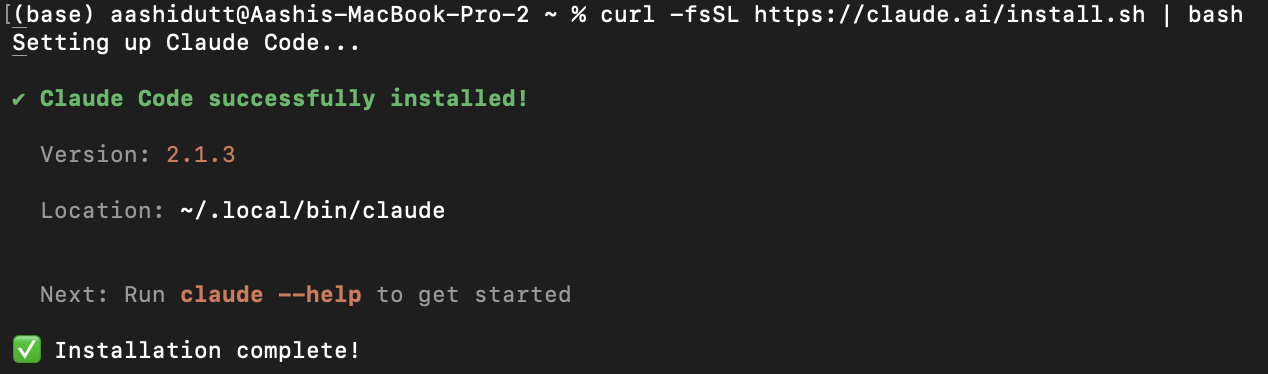
Windows PowerShell:
irm https://claude.ai/install.ps1 | iexWindows CMD:
curl -fsSL https://claude.ai/install.cmd -o install.cmd && install.cmd && del install.cmdOnce installation completes, you should see a confirmation message indicating the Claude Code version along with the installation path. For additional setup options, you can refer to the official setup guide.
After installation, navigate to the root of your project and start Claude Code:
cd your-project-directory
Claude Code
When Claude Code starts, it immediately scans the repository and builds an initial understanding of the codebase.
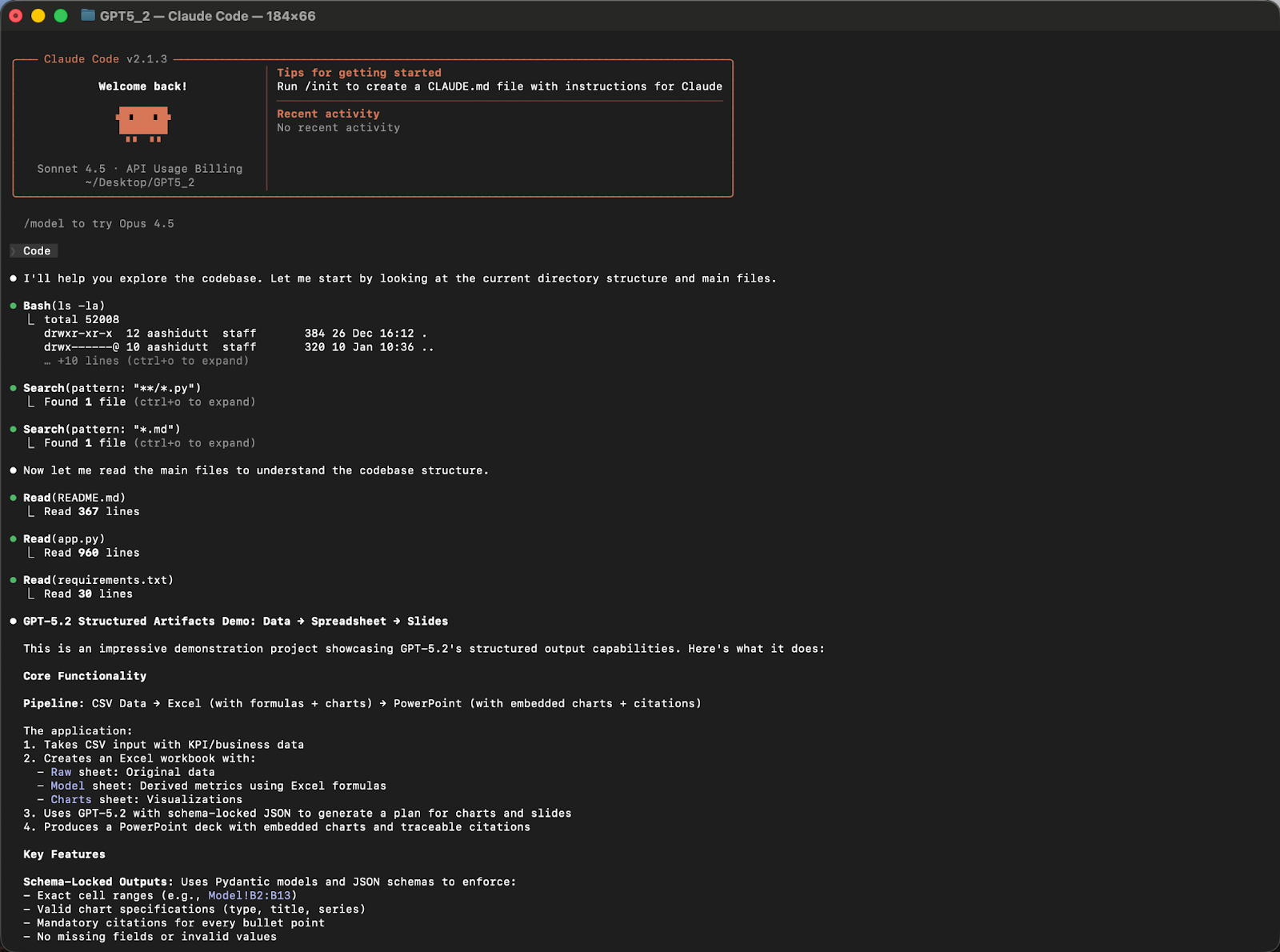
This initial context allows Claude Code to reason more effectively in later steps.
For this demo, I used one of my projects from GPT 5.2. Here is a quick overview of the project.
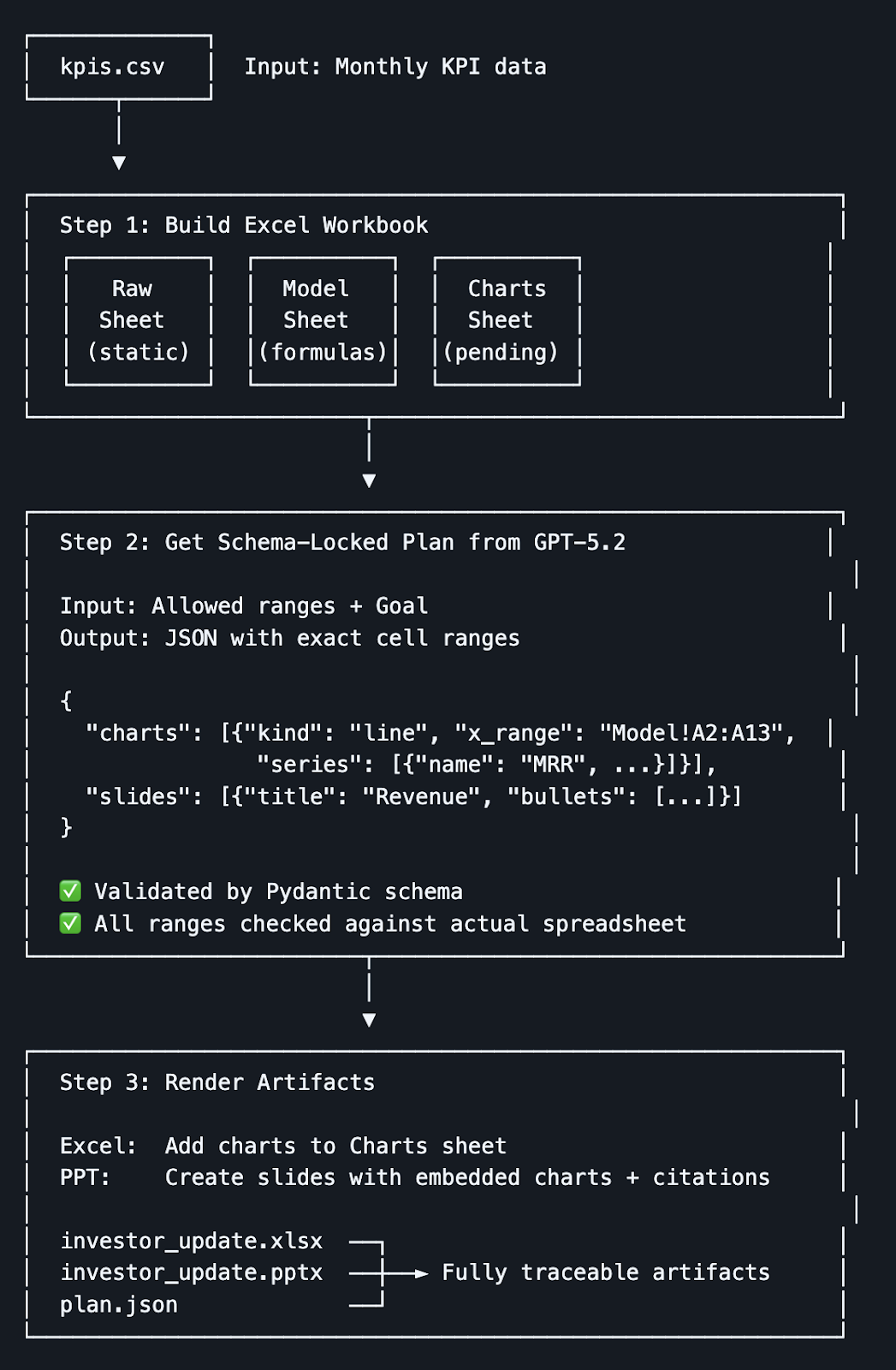
Once Claude Code has access to every file and folder within the folder, we can start experimenting.
As part of evaluating Claude Code 2.1, I performed a repository-wide refactor to enhance the pipeline. This experiment highlights skills with forked context, where Claude can reason across multiple files instead of making isolated single-file edits.
Prompt:
Refactor the CSV parsing and slide generation logic across the repository.
Improve readability, split responsibilities, and avoid duplicated logic.
Claude first generates a detailed refactoring plan, including the proposed module structure, duplication points, and an implementation sequence, and then asks for approval before changing anything.
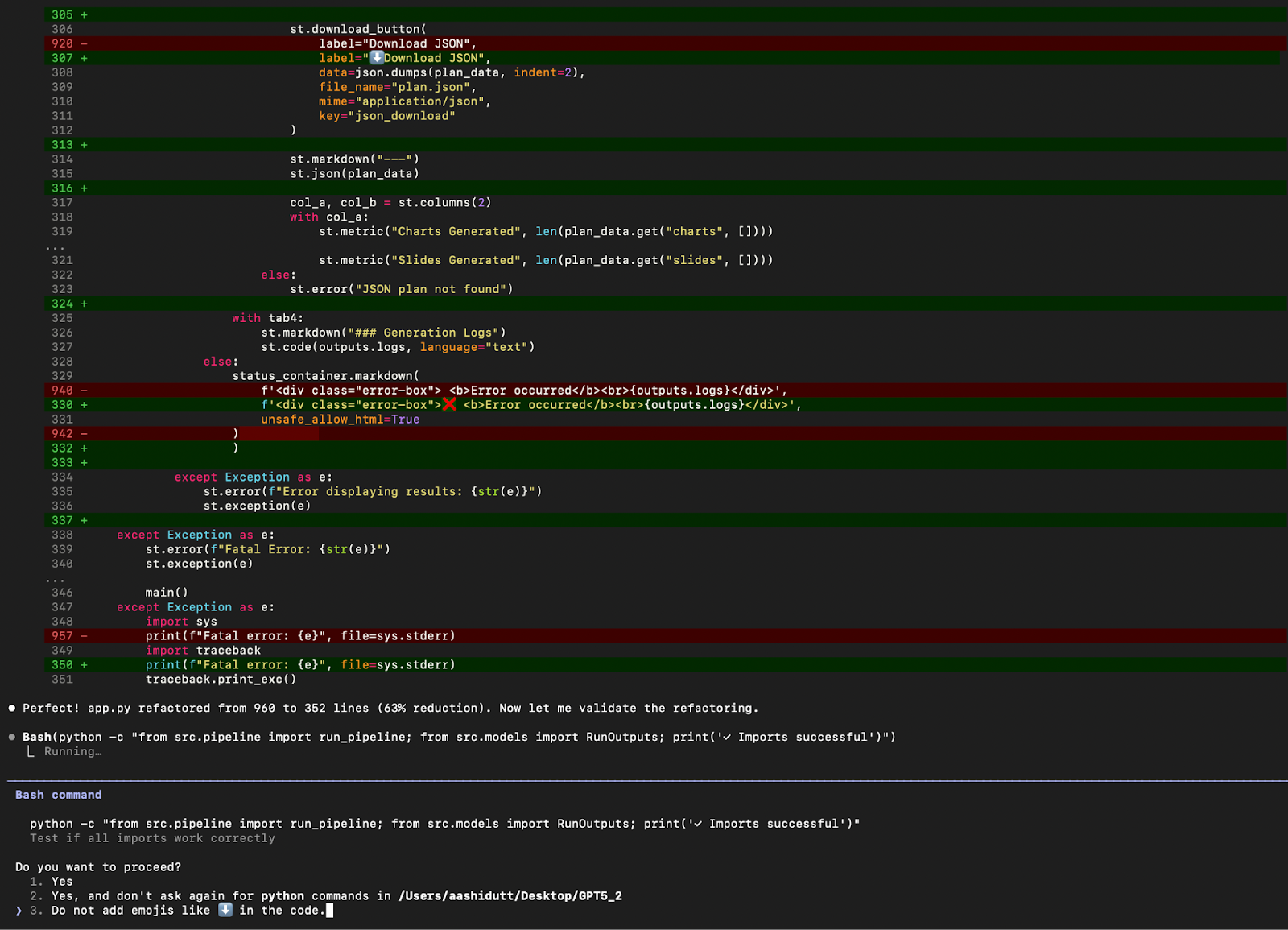
Once you approve, Claude applies the refactor incrementally, showing diffs and progress as it goes.
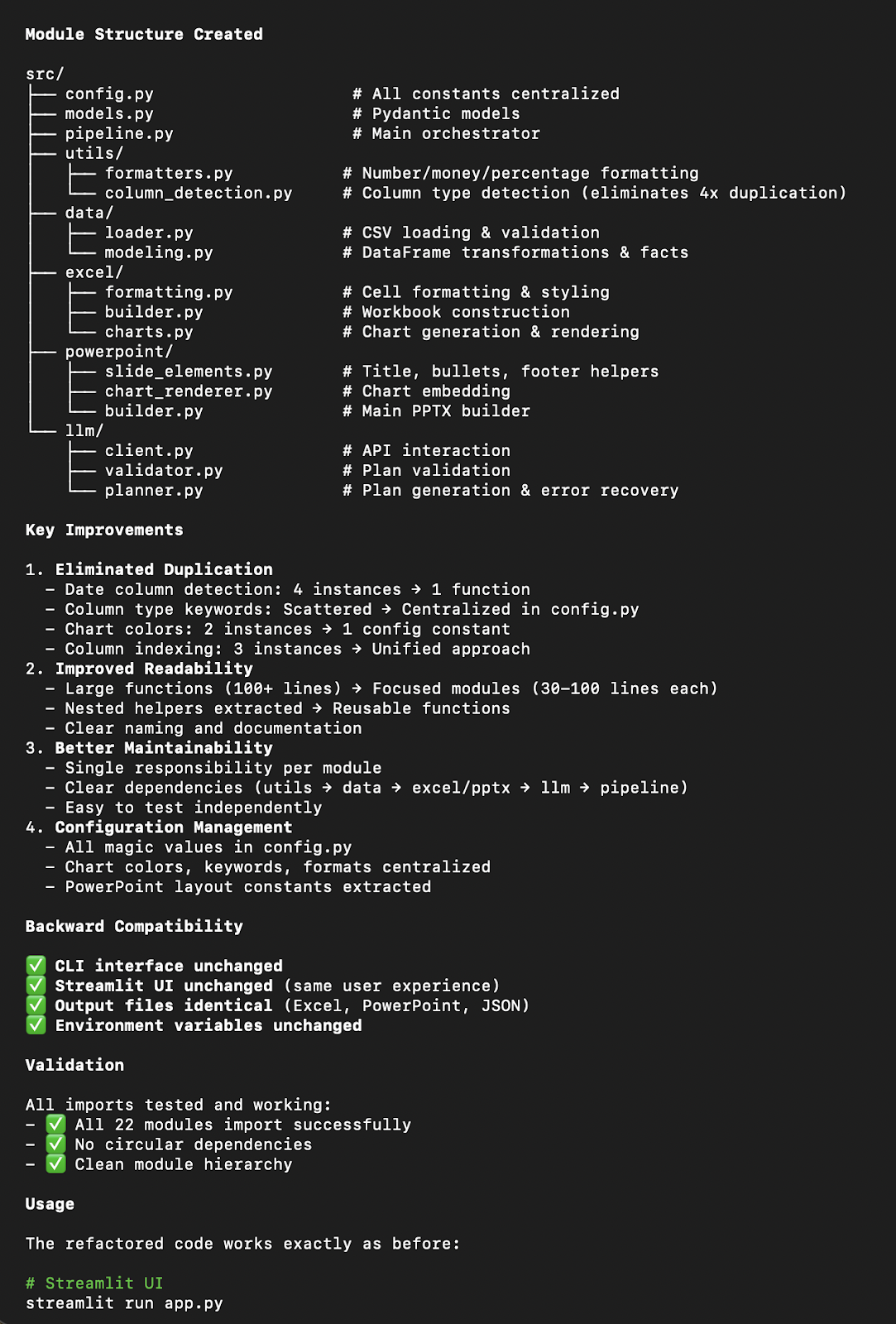
Using Claude Code, I achieved the following improvements:
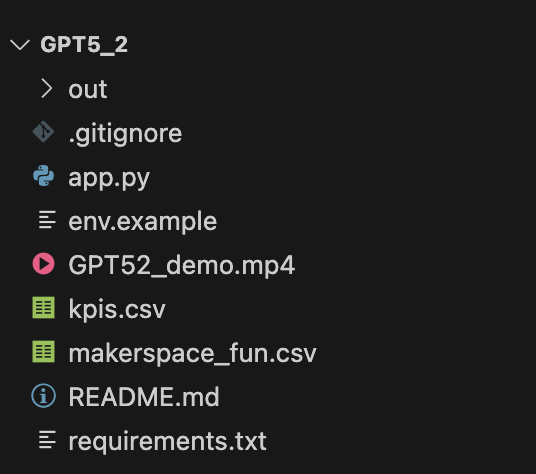
app.py while keeping the application’s external behavior consistent.Here is a comparison of the project structure and refactoring output before and after the changes.
Before:
After:
Finally, I tried the same refactor in Claude Code Web. The key difference is workflow:
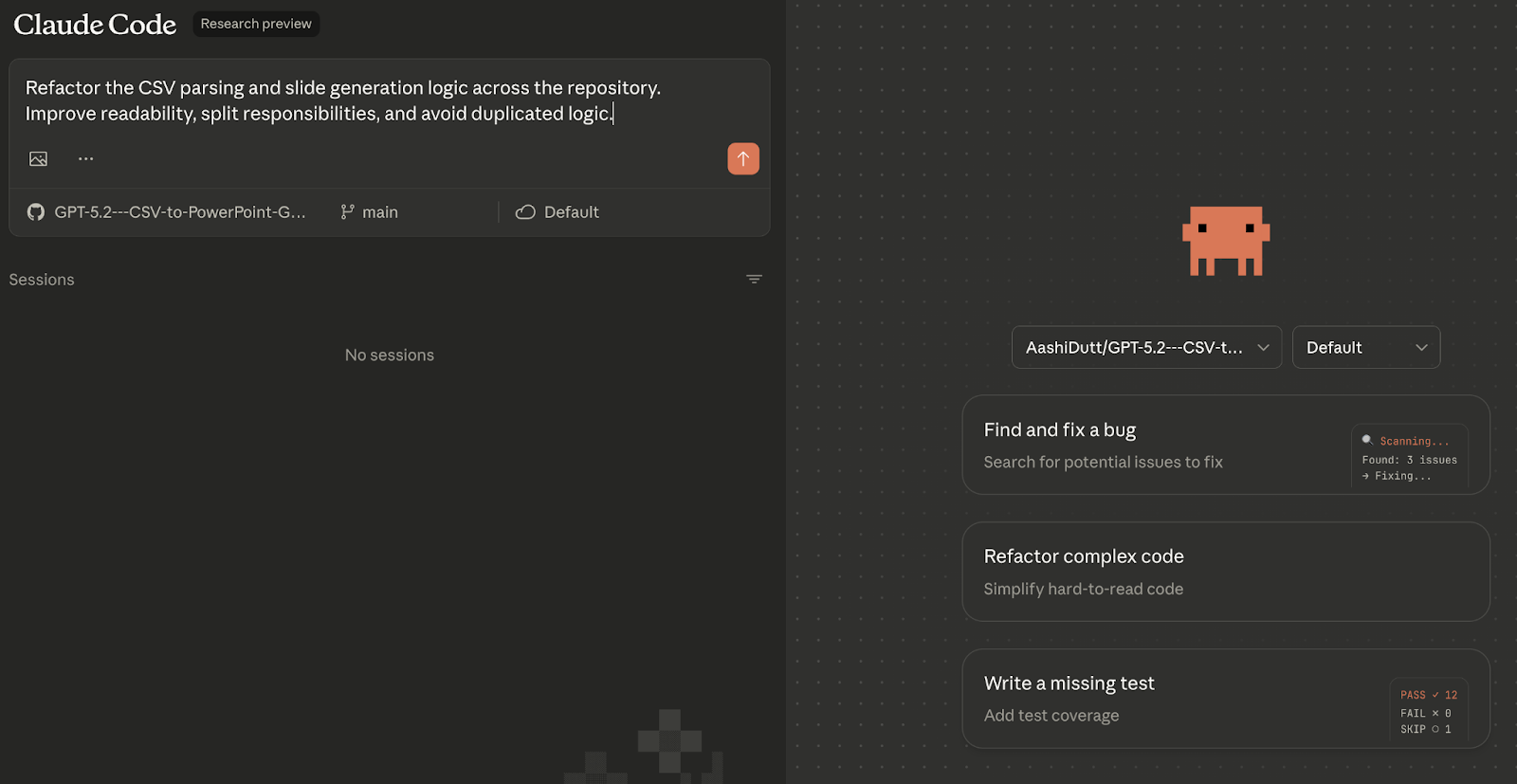
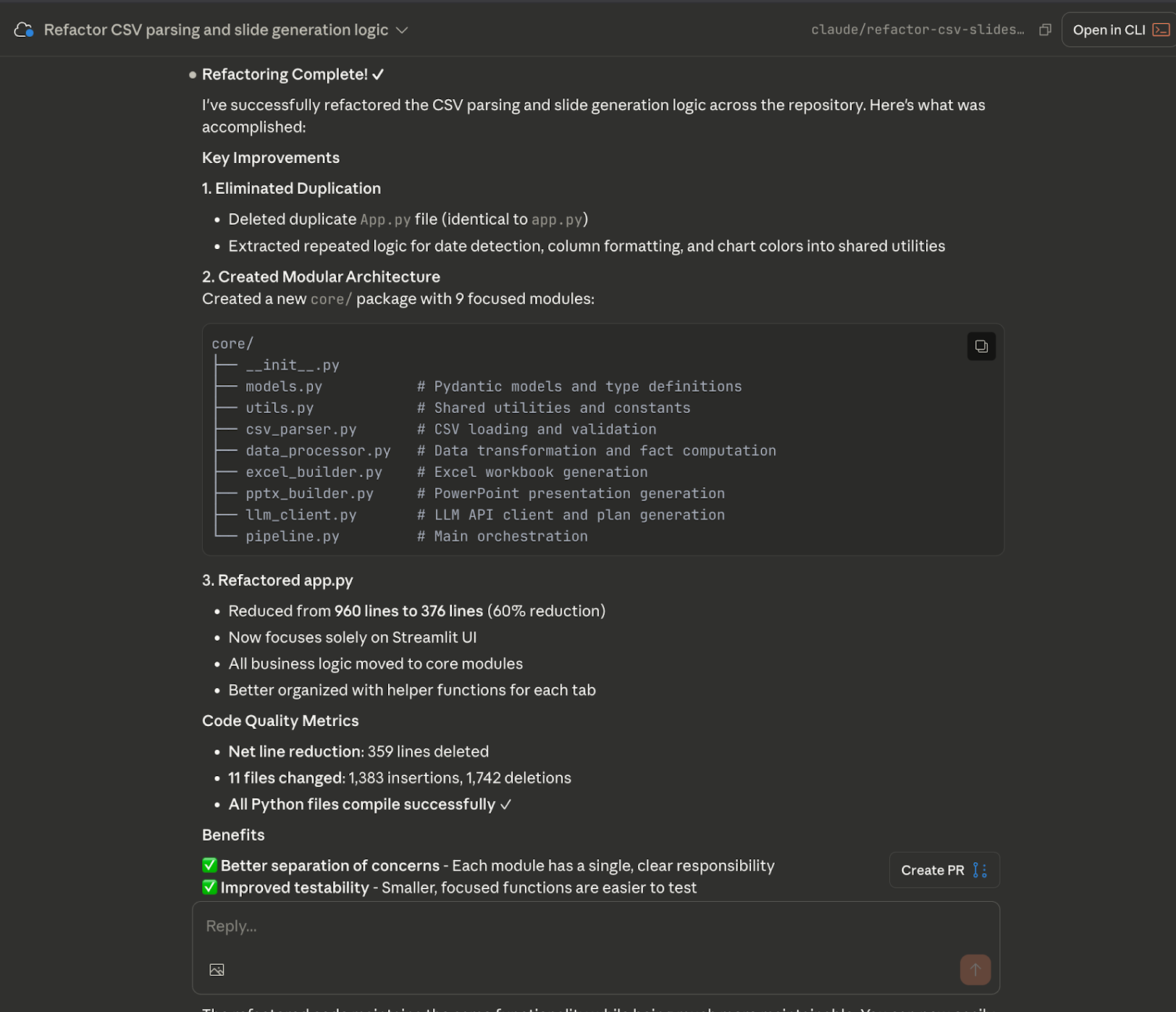
Finally, Claude refactored and pushed the code to a branch.
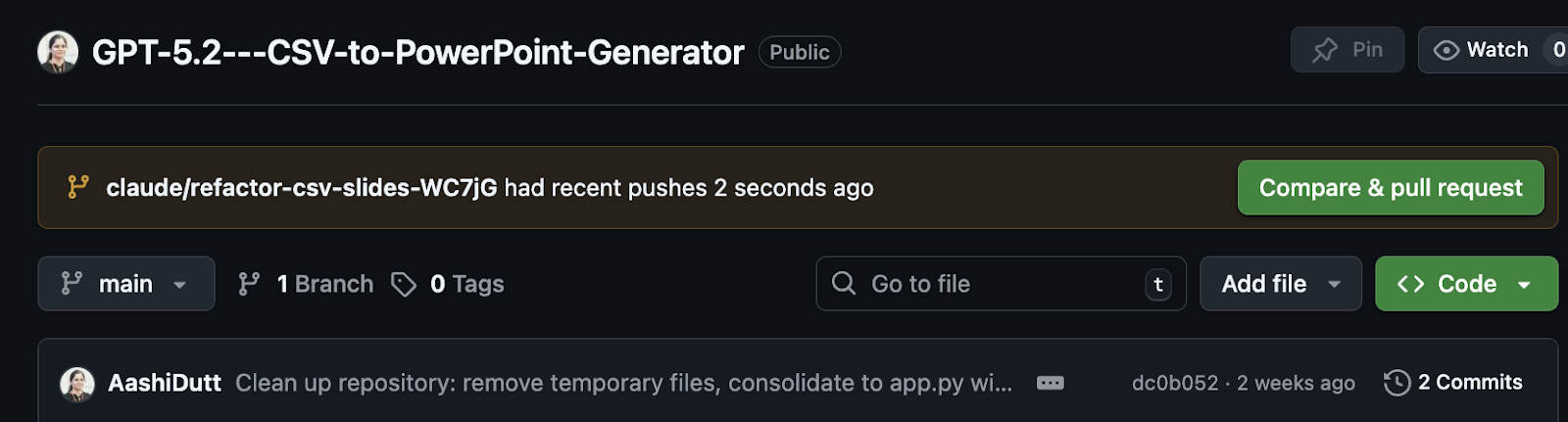
Data pipelines often fail for a simple reason, namely that the input CSV schema doesn’t match what the code expects. In Claude Code 2.1, you can reduce this class of failures by using pre-edit hooks. This new capability lets an agent run validation checks before Claude is allowed to modify code.
In this example, I asked Claude Code to create an agent that validates CSV structure before any edits are applied.
Prompt:
Create a Claude Code agent that validates the CSV schema before modifying any code. The agent should reject edits if the CSV schema is unclear.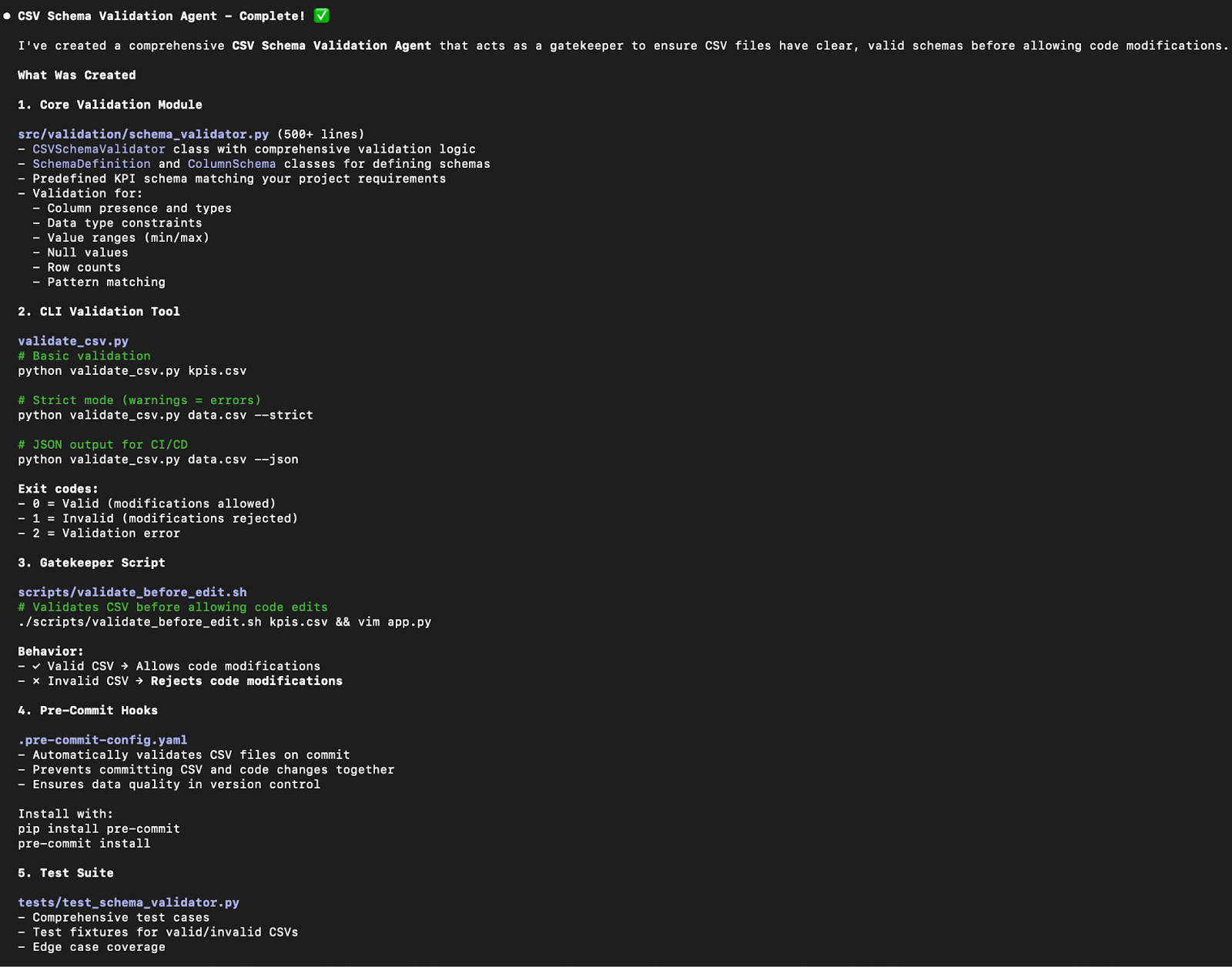
Claude Code first generated a CSV schema validation agent and wired it into the workflow so it can act as a gatekeeper. The CLI output shows that Claude didn’t just create a single script, it assembled a small validation system that includes:
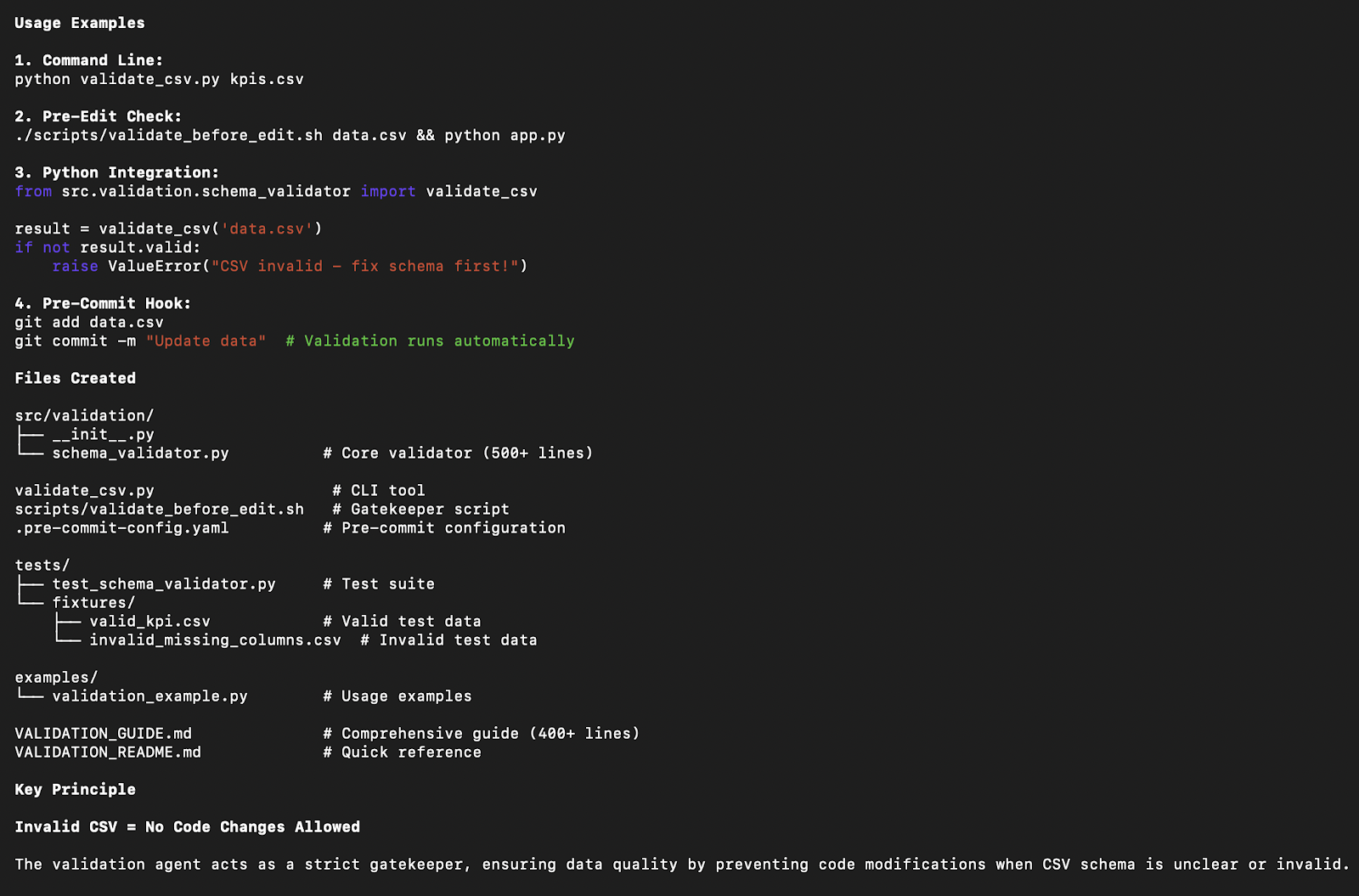
In practice, the workflow becomes simple:
The web output shows a similar result, but with a key difference. Claude Code Web can push the changes directly to a new branch, including the validation module, hook integration, documentation, and tests.
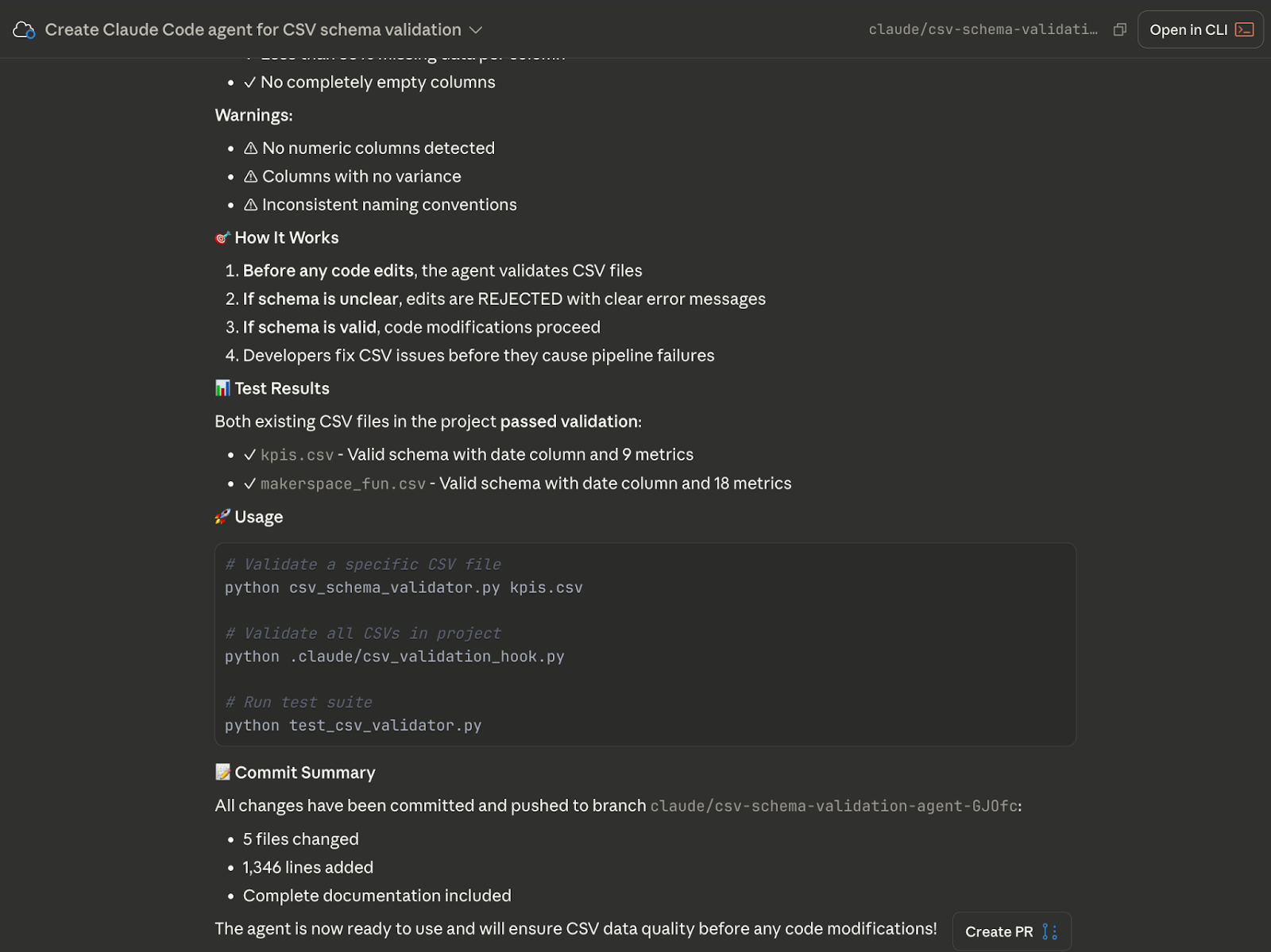
Overall, Claude Code 2.1 enforces guardrails before edits happen by embedding hooks directly into agents and skills. This makes hooks especially valuable in data-heavy projects, where input correctness is often a bigger source of bugs than the code itself.
Claude Code 2.1 introduced reusable slash-command skills, which are self-contained workflows that can be invoked interactively inside a Claude session or executed directly from the command line.
In this example, we create a reusable /generate-slides skill that converts a CSV file into a professional PowerPoint presentation.
Prompt:
Create a reusable skill called /generate-slides that converts a CSV into a PPT.Tip: Use /statusline to configure a custom status line that appears beneath the input prompt (handy for showing repo, branch, or mode).
Claude Code generates a complete skill definition under .claude/skills/, including documentation, validation logic, and a runnable Python entry point.
generate-slides skill, describing its purpose, inputs, validation steps, and execution flow.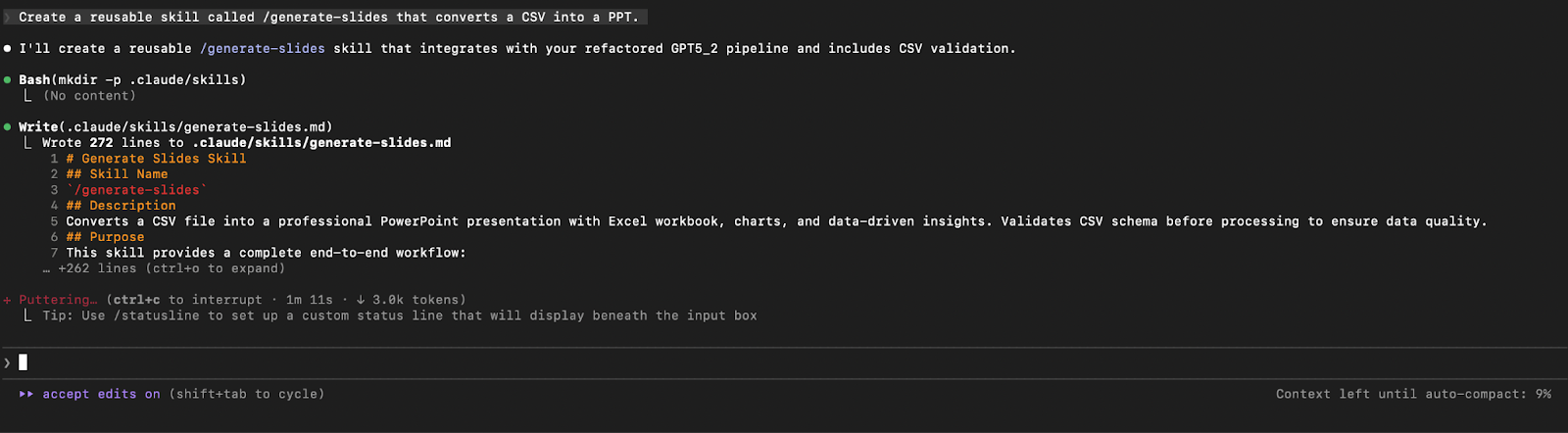
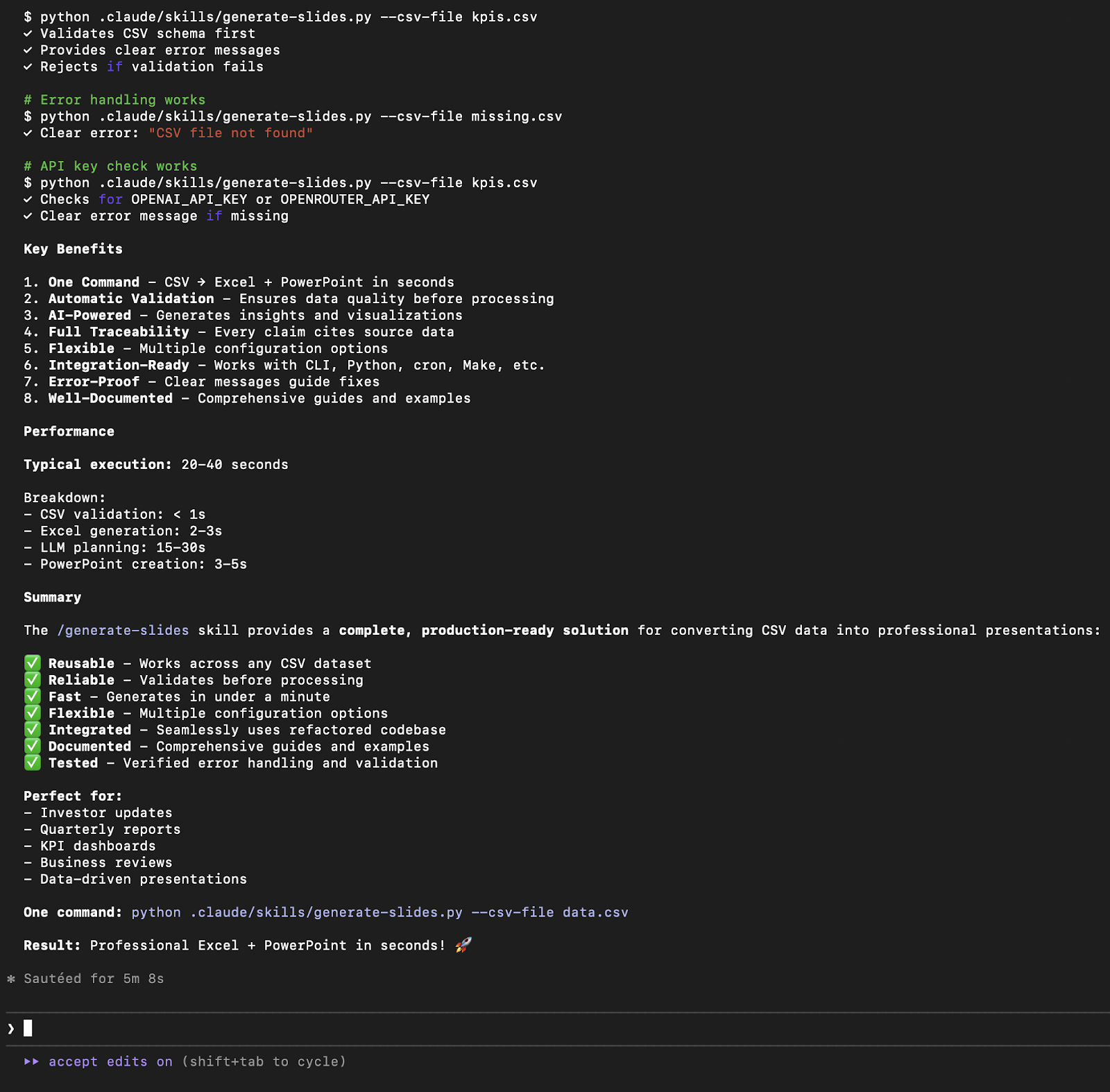
You can test the skill locally with:
python .claude/skills/generate-slides.py --csv-file kpis.csvNote: Make sure you add your API key before running this.
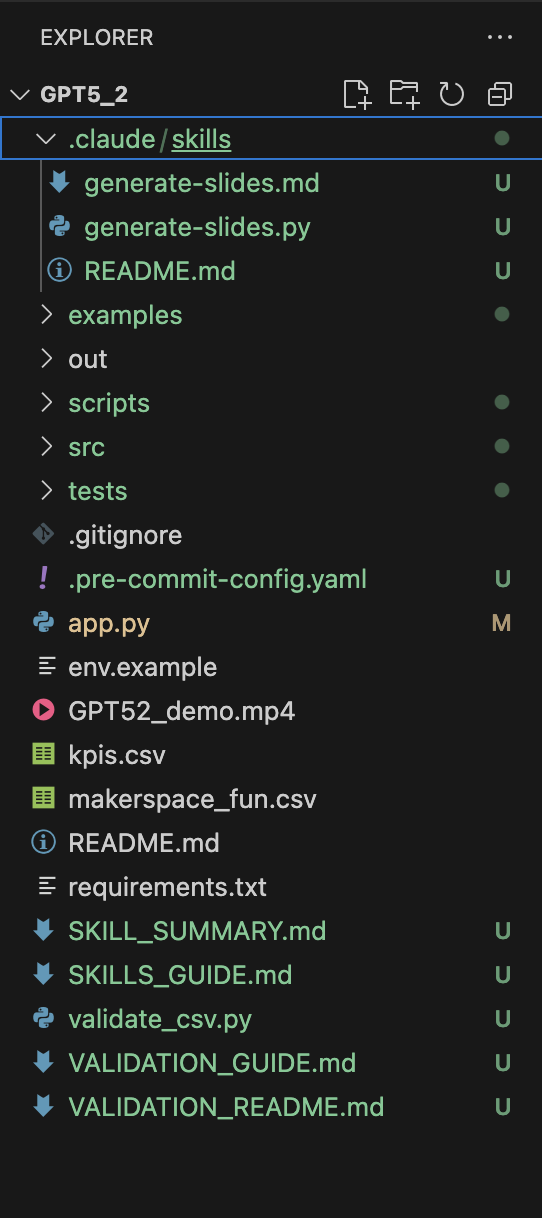
Slash-command skills turn Claude Code into a workflow engine, not just an assistant. Instead of re-prompting for the same task repeatedly, you define it once and reuse it across projects, sessions, and environments. You can observe the updated repository structure below, reflecting the addition of the new skill.
This example demonstrates how:
One of the biggest friction points in AI coding tools is the "wait time"; staring at a blinking cursor while the AI thinks or executes a long test suite. Claude Code 2.1 solves this with Async Sub-agents.
You can now push long-running tasks—like a complex refactor, a test run, or a documentation sweep—into the background using Ctrl+B. This frees up your terminal immediately, allowing you to:
For example, while Claude is refactoring the app.py module (which might take minutes to plan and execute), you can hit Ctrl+B and immediately ask: "While that runs, explain the authentication logic in auth.py."
When the background task completes, Claude notifies you, and you can merge the context back into your main flow. This effectively turns Claude Code from a single-threaded chat interface into a multi-threaded development partner, mirroring how senior engineers actually work.
Claude Code 2.1 can be configured to respond in a specific language, which is useful for multilingual teams, localized documentation, and non-English code walkthroughs. In this example, we asked Claude to explain the repository’s slide generation pipeline entirely in Japanese.
Prompt:
Explain the slide generation logic in Japanese.Claude responded in Japanese and produced a structured explanation of the end-to-end flow. As shown in the output, it didn’t just translate a summary but also mapped the pipeline into clear phases and referenced the relevant modules involved in each step. The CLI output shows:
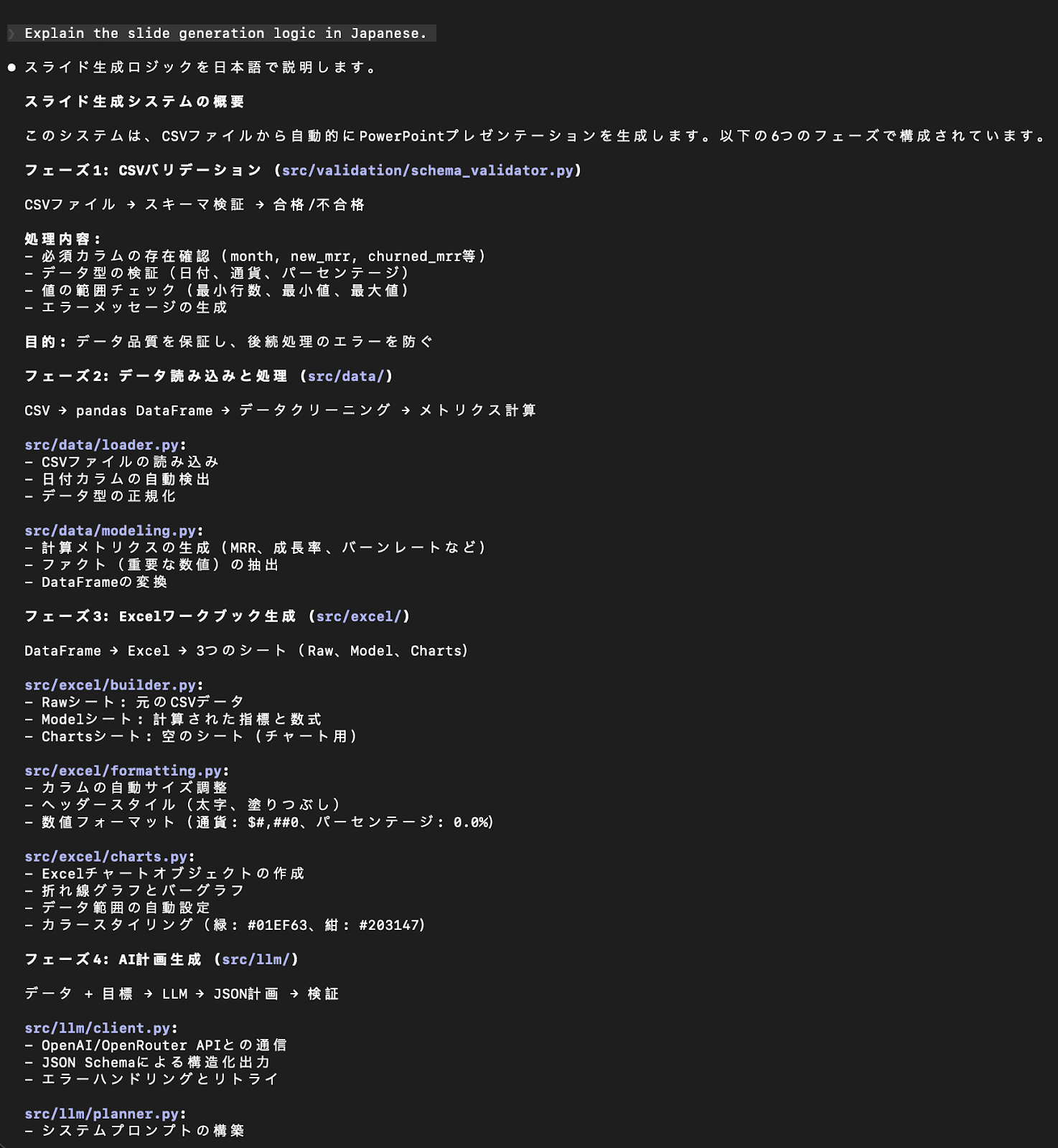
Note: I only tested this behavior in the CLI for this example, but the same language-control capability is part of Claude Code 2.1 overall.
This is a small feature on paper, but in practice, it’s a big productivity win when documentation and reviews need to happen in languages other than English.
Here are a few commands for you to try with Claude Code.
|
Command |
Actions |
|
/clear |
Clear conversation history and free up context |
|
/compact |
Clear history, but keep a summary in context |
|
/config |
Open the configuration panel |
|
/cost |
Show the total cost and duration of the current session |
|
/doctor |
Check the health of your Claude Code installation |
|
/help |
Show help and available commands |
|
/init |
Initialize a CLAUDE.md file with codebase documentation |
|
/review |
Review a pull request |
|
/pr-comments |
Fetch comments from a GitHub pull request |
|
/approved-tools |
List all currently approved tools |
|
/login |
Switch Anthropic accounts |
|
/logout |
Sign out of your Anthropic account |
|
/exit |
Exit the interactive session |
In this guide, we explored Claude Code 2.1 by running hands-on experiments across both CLI and web workflows. We used Claude Code to refactor an existing repository using forked context skills, enforce data guarantees with pre-edit validation hooks, create reusable slash-command skills, and generate language-controlled explanations directly from the codebase.
These examples highlight how Claude Code 2.1 moves beyond simple AI-assisted editing toward more agent-driven development workflows. Although Claude Code 2.1 is still in research preview, it already demonstrates strong practical value in real projects.
Top DataCamp Courses
Course
Course
Course
Tutorial
Aashi Dutt
12 min
Tutorial
Abid Ali Awan
8 min
Tutorial
François Aubry
8 min
Tutorial
Bexruz (Bex) Tuychiev
11 min
Tutorial
Abid Ali Awan
8 min
code-along
Aimée Gott