
Course
Claude Code 101
3 hr
26.9K
Claude Code handles most development tasks out of the box, but every team has specific workflows that the defaults don't cover. You might want a custom command that scaffolds components in your company's preferred structure, or automatic linting before every commit, or quick access to documentation for a framework you use constantly.
Claude Code plugins let you add these features yourself. You can install plugins built by the community or create your own.
If you're new to Anthropic’s agentic coding tool, I recommend starting with the Guide to Claude Code or the Introduction to Claude Models course. This tutorial assumes you have Claude Code installed and have used it for basic tasks.
By the end, you'll know how to:
For an overview of the capabilities of Anthropic's latest model, check out our guide on Claude Sonnet 5.
Claude Code plugins bundle skills, MCP servers, and hooks into shareable packages you install with claude plugin add
Skills load on demand (~100 tokens each); MCP servers preload tool definitions (reduced by Tool Search); hooks run as shell scripts with zero token cost
Use skills for knowledge and workflows, MCP servers for external API access, and hooks for rules that must fire every time
Build a plugin with three files: a .claude-plugin/plugin.json manifest, a skills/ directory, and a SKILL.md instruction file
A plugin is a package that bundles one or more Claude Code extensions together for easy sharing and installation. Rather than manually copying configuration files between machines or teammates, you can wrap everything into a plugin and distribute it as a single unit.
Plugins can contain three types of components:
Skills: Custom commands you invoke with /skill-name, or context-aware prompts that Claude uses automatically when relevant
MCP servers: Connections to external services and APIs that give Claude access to data it wouldn't otherwise have
Hooks: Shell scripts that run automatically on specific events, like before a file is edited or after a commit
A plugin might contain just one of these, or combine several that work together. A "deployment" plugin could include a /deploy skill for manual deployments, an MCP server that checks your staging environment status, and a hook that runs tests before any deployment command executes.
The plugin.json manifest file defines what a plugin contains. It specifies which skills, MCP servers, and hooks to install, along with metadata like the plugin name, version, and author. When you install a plugin, Claude Code reads this manifest and sets up each component in the right location.
This packaging format means you don't need to understand the internal file structure of Claude Code extensions. You install the plugin, and everything lands where it should.
Most plugins live in one of two places. Anthropic's official directory at claude.com/plugins includes plugins built by Anthropic, verified community contributions, and popular third-party extensions. Each listing shows what components the plugin contains, compatibility information, and installation instructions.
The second source is GitHub:
Once you've found a plugin you want, the installation command depends on where it lives:
# From the official directory
claude plugin add @anthropic/deploy-helper

# From a GitHub repository
claude plugin add github:username/repo-name

# From a local directory (useful during development)
claude plugin add ./my-plugin
After installing a few plugins, you'll want to keep track of them. The plugin command handles listing, updating, and removing:
# List all installed plugins
claude plugin list

# Update a specific plugin to the latest version
claude plugin update @anthropic/deploy-helper

# Update all plugins
claude plugin update --all

# Remove a plugin
claude plugin remove @anthropic/deploy-helper
One decision you'll make during installation is the scope. Plugins can live in two places: user scope installs to ~/.claude/plugins/ and works across all your projects, while project scope installs to .claude/plugins/ within a specific repository.
The default is user scope. To install a plugin for just the current project, add the --project flag:
claude plugin add @anthropic/deploy-helper --projectProject-scoped plugins make sense when the extension ties to a specific codebase.
A plugin that knows your company's deployment process belongs in that project. A plugin that formats code according to your personal preferences belongs at the user level. When a plugin exists at both scopes, the project version takes precedence, letting teams enforce project-specific configurations while developers keep their personal plugins active elsewhere.
The three component types serve different purposes and consume context window tokens differently. Understanding these tradeoffs helps you pick the right one for each job.
MCP servers preload every tool definition into your context window at session start. Each tool needs its name, description, and full parameter schema, which typically runs 100-300 tokens per tool. A five-server setup consumes approximately 55,000 tokens before you type a single character:
One analysis found setups with 7+ servers consuming 67,000+ tokens, which is a third of your 200K context window gone before the conversation starts.
Skills take a different approach through progressive disclosure. At session start, Claude only sees each skill's name and one-line description from the YAML frontmatter, around 100 tokens per skill.
The full instructions load only when Claude determines the skill is relevant for the current task. Reference files load only when specifically needed. And scripts never enter the context window at all; Claude runs them externally, and only the output comes back.
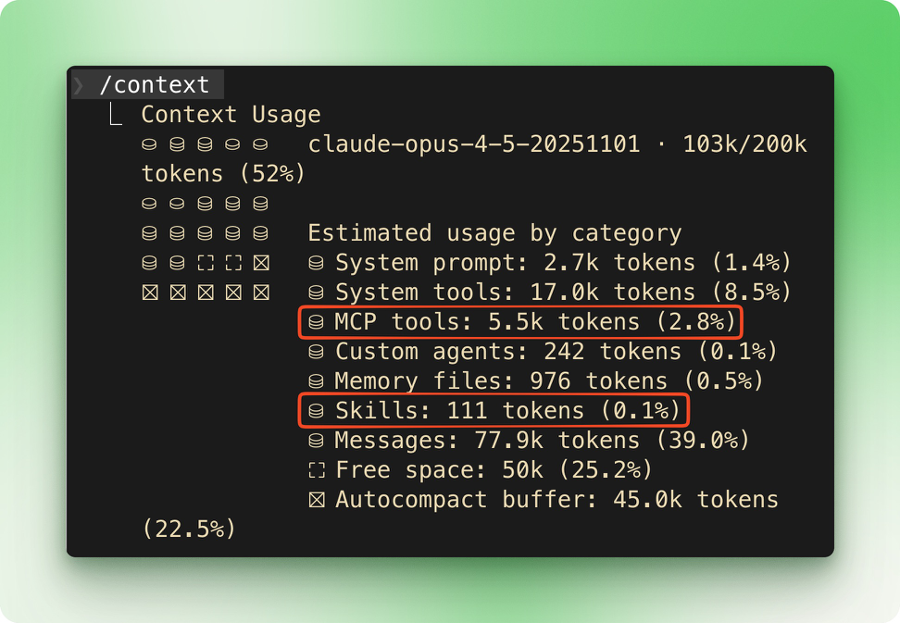
Anthropic addressed this imbalance in late 2025 with Tool Search, a feature that brings lazy loading to MCP servers.
Instead of preloading every tool definition, Claude Code now detects when tool descriptions would consume more than 10% of the available context and switches to on-demand loading.
Internal testing showed context usage dropping from ~134,000 tokens to ~5,000 tokens for large tool libraries. Tool selection accuracy also improved, with Opus 4 jumping from 49% to 74% and Opus 4.5 from 79.5% to 88.1% on MCP evaluations.
Here's how to decide between them.
Skills fit best when you want Claude to have access to knowledge or workflows that it can apply with judgment. A skill describing your team's code review checklist gets loaded when Claude reviews code, but Claude still decides how to apply each item based on context.
Skills also make sense for operations that need scripts for heavy computation, since the script code stays outside the context window.
MCP servers fit best when Claude needs real-time data from external services like Slack messages, GitHub PRs, or database queries. They're also the right choice when multiple AI agents need the same tools, or when you need enterprise features like audit logs and explicit permissions.
Many setups combine both: skills provide the "how" and "when" through natural language instructions, while MCP servers handle the actual API calls.
| Skills | MCP Servers | Hooks | |
|---|---|---|---|
| Trigger | /skill-name or automatic |
Available as tools in session | Auto on lifecycle events |
| Token cost | ~100 per skill (lazy load) | 100–300 per tool (preload; reduced by Tool Search) | Zero |
| Claude decides? | Yes | Yes | No (deterministic) |
| Best for | Knowledge, workflows, team standards | External APIs, real-time data, multi-agent setups | Linting, test gates, protected paths |
| Example | Code review checklist | GitHub PR management | Block commits until tests pass |
You can also read our guide to the top remote MCP servers.
Hooks sit outside the skills-versus-MCP debate entirely. While both skills and MCP servers are Claude-facing (Claude decides when to use them), hooks are system-facing. They fire on events like PreToolUse or PostToolUse, running shell scripts before or after Claude takes specific actions. Claude has no say in whether a hook runs.
This makes Hooks the right choice when something must happen without exception: linting before every commit, blocking writes to protected directories, logging every bash command, or running tests before any deployment.
This developer recommends "block-at-submit" hooks over "block-at-write" hooks. Blocking Claude mid-task confuses the agent and produces worse results. Her team uses a PreToolUse hook that wraps Bash(git commit) and checks for a temp file that only exists if tests pass. No file, no commit. The agent finishes its work, then validation happens at the end.
Hooks add no token overhead since they run as shell scripts outside the context window.
When a skill lives in your personal .claude/ directory, only you can use it. Packaging it as a plugin lets you share it with teammates or reuse it across projects.
We'll build a plugin called session-logger that adds a /session-logger:summarize command. When invoked, Claude reviews the conversation and appends a structured summary to SESSION_LOG.md.
Plugins can live anywhere on your filesystem. For this tutorial, we'll create one in your home directory:
cd ~
mkdir -p session-logger/.claude-plugin
mkdir -p session-logger/skills/summarize
This creates:
~/session-logger/
├── .claude-plugin/
│   └── plugin.json  	# manifest goes here, nowhere else
└── skills/
	└── summarize/   	# folder name becomes the command name
└── SKILL.md # must be named exactly thisCreate ~/session-logger/.claude-plugin/plugin.json:
{
  "name": "session-logger",
  "description": "Log session summaries to a markdown file",
  "version": "1.0.0"
}
The name field becomes the namespace prefix. All commands in this plugin will start with /session-logger:.
Create ~/session-logger/skills/summarize/SKILL.md:
---
description: Log a summary of the current session to SESSION_LOG.md
disable-model-invocation: true
---

When invoked, review the conversation and create a summary with these sections:

- **Date/time**: Current timestamp
- **Tasks completed**: What was accomplished
- **Files modified**: List of files created or changed
- **Decisions made**: Architectural or implementation choices
- **Open questions**: Unresolved items for future sessions

Append the summary to SESSION_LOG.md in the project root. Create the file if it doesn't exist.
The disable-model-invocation: true line tells Claude that only you can trigger this skill. Without this flag, Claude might decide to run the command autonomously if it thinks it helps the conversation. For a logger or deployment tool, you usually want manual control.
Navigate to any project where you want to use the plugin, then start Claude Code with the --plugin-dir flag pointing to your plugin:
cd ~/your-project
claude --plugin-dir ~/session-logger
Type /session-logger:summarize to invoke the command. Note that plugin commands don't appear in the autocomplete suggestions until you type the full name. The text turns blue once Claude Code recognizes it as a valid command.
After doing some work in the session, run the command. Claude reviews the conversation and appends an entry to SESSION_LOG.md in your current project directory.
Push your plugin to GitHub. To distribute it beyond manual cloning, add it to a plugin marketplace. The marketplace guide covers creating your own marketplace or submitting to existing ones.
Plugins turn Claude Code from a general-purpose assistant into something shaped for your specific workflow. The session logger we built took about five minutes and three files. Most useful plugins aren't much more complicated than that.
If you followed along, you now have a working plugin on your machine. Try tweaking it: change the summary format, add new sections, or swap it out for something your team actually needs. The structure stays the same whether you're building a quick personal tool or something you'll distribute to hundreds of developers.
Additionally, browse the community repositories when you get a chance. Seeing how others structure their plugins teaches you patterns that documentation can't.
To go deeper with Claude Code, check out our tutorials on Claude Code best practices, the Superpowers skills framework, slash commands for longer sessions, and security and permissions. If you want to learn more about Claude models, I recommend the Introduction to Claude Models course.
Learn Using Claude Code with DataCamp!
Course
Course
Course
Tutorial
Aashi Dutt
8 min
Tutorial
Abid Ali Awan
8 min
Tutorial
François Aubry
12 min
Tutorial
Bexruz (Bex) Tuychiev
12 min
Tutorial
Khalid Abdelaty
13 min
Tutorial
Dario Radečić
15 min