Stopping containers one by one can slow down your development workflow and lead to errors when juggling microservices or multi-container applications.
In this guide, I’ll cover several methods to help you terminate all running containers.
By the end of this tutorial, you’ll be able to:
- Understand how Docker handles signals and grace periods
- Stop all containers using simple CLI techniques and filters
- Leverage Docker Compose and custom aliases for streamlined workflows
Understanding Docker Container Termination
Before stopping containers in bulk, it helps to understand how Docker orchestrates shutdowns under the hood.
Signal-based process management
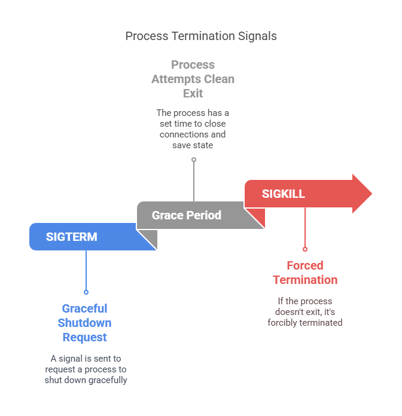
Docker uses Unix signals to request graceful shutdowns before forcing termination. The default behavior of the docker stop command is:
- Send
SIGTERM to the container’s main process.
- Wait up to 10 seconds (configurable with
-t/--time).
- Send
SIGKILL if the process hasn’t exited.
- SIGTERM: Politely asks the process to clean up and exit.
- Grace period: Gives applications time to flush logs, close connections, or save state.
- SIGKILL: Forces immediate termination of any unresponsive process.
Command-line interface (CLI) mechanics
By default, docker stop handles one container at a time. You can extend it to stop multiple containers using shell features.
This sends SIGTERM to my_container and waits the default 10 seconds before issuing SIGKILL if needed.
docker stop $(docker ps -q)
Here, docker ps -q lists the IDs of all running containers; those IDs are passed to docker stop, which shuts down the containers sequentially.
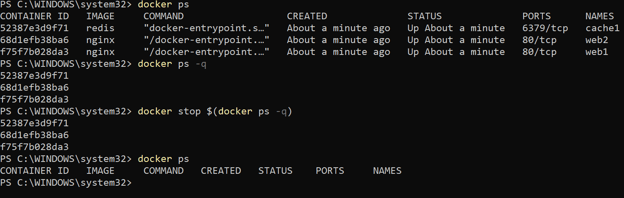
Screenshot of a terminal showing docker ps -q output piped into docker stop
For a more detailed understanding of these concepts, consider exploring Containerization and Virtualization Concepts.
Comparing docker stop and docker kill
Choosing between graceful and forceful termination helps you avoid unintended consequences.
|
Command
|
Signal(s)
|
Behavior
|
Use case
|
|
docker stop
|
SIGTERM → SIGKILL after timeout
|
Graceful shutdown with cleanup time
|
Routine maintenance or updates
|
|
docker kill
|
SIGKILL
|
Immediate termination
|
Emergency remediation of hung containers
|
Signal customization
Both commands support a --signal flag to override defaults:
docker stop --signal=SIGINT my_container
The above lets processes trap SIGINT for custom cleanup.
docker kill --signal=SIGUSR1 $(docker ps -q)
As seen above, you can use custom signals when your application implements specific shutdown hooks.
Advanced Container Stopping Strategies
Filtering and automating container stopping allows for more precise DevOps workflows, especially in large-scale environments.
Once you understand the basics, you can fine-tune which containers you stop and how you automate the process.
Filtered container termination
Filters let you target containers by attributes such as image name, status, or labels:
docker stop $(docker ps --filter "ancestor=my_image:latest" -q)
The above command stops only containers based on my_image:latest, providing targeted control in multi-service projects.
Use cases:
- Halt test containers by image tag (
--filter "ancestor=test:latest")
- Stop containers by label (
--filter "label=env=dev")
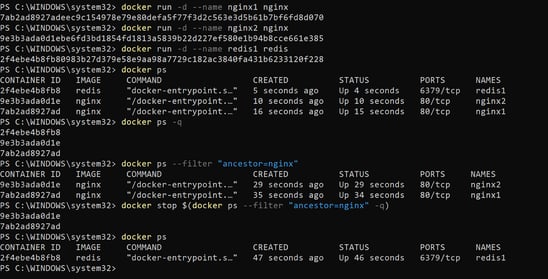
Terminal screenshot of docker ps --filter usage
Automated cleanup with Docker Compose
If your services are defined in a docker-compose.yml file, a single command stops all related containers:
This respects your service dependencies and configured timeouts for a clean shutdown.
For more advanced techniques, you might consider the Intermediate Docker course.
Alias-driven workflow optimization
For repetitive tasks, shell aliases reduce typing and context switching:
alias ds='docker stop $(docker ps -q)'
Once you reload your shell, running ds stops all containers in one keystroke—ideal for quick cleanup.
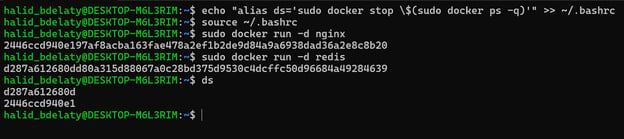
Using the 'ds' alias to stop all running containers in Ubuntu WSL
Operational Best Practices
Implement safe shutdown routines and regular cleanup to keep your environment stable and performant.
- Implement signal handlers in your application code to close connections and flush logs.
- Reserve
docker kill for emergency interventions; avoid data inconsistencies.
- Adjust grace periods (
-t/--time) based on your application’s cleanup needs.
- Automate post-shutdown cleanup with commands like
docker system prune, as detailed in Docker Prune: A Complete Guide with Hands-On Examples.
- Log shutdown events (timestamps and exit codes) to diagnose termination issues.
Troubleshooting Common Issues
Even straightforward commands can run into snags—here’s how to address them.
Zombie processes and orphaned volumes
Forceful terminations may leave behind stale processes or orphaned volumes, consuming host resources and disk space. To clean up:
This deletes all volumes not referenced by any container.
Check for lingering Docker daemon processes:
Manually kill any stray dockerd child processes if they persist.
Real-world case: In one project, I used docker kill on a database container when a migration hung. The abrupt kill prevented the DB from flushing transaction logs, corrupting the InnoDB tables. We had to restore from backups and replay binlogs, costing over 30 minutes of downtime. To avoid this, prefer docker stop with an extended timeout or add proper SIGTERM handlers in your application.
Permission denied errors
Running Docker commands without the proper privileges often triggers errors:
- Prepend commands with
sudo or run as a user in the docker group.
- Add your user to the
docker group and re-login:
sudo usermod -aG docker $USER
After logging out and back in, you can run Docker commands without sudo. In a CI environment, ensure the runner user has Docker group membership to avoid pipeline failures.
Windows-specific considerations
On Windows PowerShell, wrap subcommands in parentheses and run as Administrator:
docker stop (docker ps -q)
Launching PowerShell with elevated rights prevents firewall or access-control issues. If you see TLS handshake errors, verify that Docker Desktop’s daemon configuration matches your PowerShell environment.
Conclusion
Stopping all your Docker containers efficiently saves time, conserves resources, and minimizes human error in your development workflow. You can maintain a clean and predictable environment by understanding Docker’s signal handling, leveraging CLI filters, using Docker Compose, and crafting simple aliases.
Explore the Containerization and Virtualization with Docker and Kubernetes track or the Intermediate Docker course to deepen your containerization expertise.
Happy containerizing—and here’s to clean, efficient Docker workflows!








Stopping containers one by one can slow down your development workflow and lead to errors when juggling microservices or multi-container applications.
In this guide, I’ll cover several methods to help you terminate all running containers.
By the end of this tutorial, you’ll be able to:
Understanding Docker Container Termination
Before stopping containers in bulk, it helps to understand how Docker orchestrates shutdowns under the hood.
Signal-based process management
Docker uses Unix signals to request graceful shutdowns before forcing termination. The default behavior of the
docker stopcommand is:SIGTERMto the container’s main process.-t/--time).SIGKILLif the process hasn’t exited.Command-line interface (CLI) mechanics
By default,
docker stophandles one container at a time. You can extend it to stop multiple containers using shell features.This sends SIGTERM to
my_containerand waits the default 10 seconds before issuing SIGKILL if needed.Here,
docker ps -qlists the IDs of all running containers; those IDs are passed todocker stop, which shuts down the containers sequentially.Screenshot of a terminal showing
docker ps -qoutput piped intodocker stopFor a more detailed understanding of these concepts, consider exploring Containerization and Virtualization Concepts.
Comparing docker stop and docker kill
Choosing between graceful and forceful termination helps you avoid unintended consequences.
Graceful vs. immediate termination
Command
Signal(s)
Behavior
Use case
docker stop
SIGTERM → SIGKILL after timeout
Graceful shutdown with cleanup time
Routine maintenance or updates
docker kill
SIGKILL
Immediate termination
Emergency remediation of hung containers
Signal customization
Both commands support a
--signalflag to override defaults:The above lets processes trap
SIGINTfor custom cleanup.As seen above, you can use custom signals when your application implements specific shutdown hooks.
Advanced Container Stopping Strategies
Filtering and automating container stopping allows for more precise DevOps workflows, especially in large-scale environments.
Once you understand the basics, you can fine-tune which containers you stop and how you automate the process.
Filtered container termination
Filters let you target containers by attributes such as image name, status, or labels:
The above command stops only containers based on
my_image:latest, providing targeted control in multi-service projects.Use cases:
--filter "ancestor=test:latest")--filter "label=env=dev")Terminal screenshot of
docker ps --filterusageAutomated cleanup with Docker Compose
If your services are defined in a
docker-compose.ymlfile, a single command stops all related containers:This respects your service dependencies and configured timeouts for a clean shutdown.
For more advanced techniques, you might consider the Intermediate Docker course.
Alias-driven workflow optimization
For repetitive tasks, shell aliases reduce typing and context switching:
Once you reload your shell, running
dsstops all containers in one keystroke—ideal for quick cleanup.Using the 'ds' alias to stop all running containers in Ubuntu WSL
Operational Best Practices
Implement safe shutdown routines and regular cleanup to keep your environment stable and performant.
docker killfor emergency interventions; avoid data inconsistencies.-t/--time) based on your application’s cleanup needs.docker system prune, as detailed in Docker Prune: A Complete Guide with Hands-On Examples.Troubleshooting Common Issues
Even straightforward commands can run into snags—here’s how to address them.
Zombie processes and orphaned volumes
Forceful terminations may leave behind stale processes or orphaned volumes, consuming host resources and disk space. To clean up:
This deletes all volumes not referenced by any container.
Check for lingering Docker daemon processes:
Manually kill any stray
dockerdchild processes if they persist.Real-world case: In one project, I used
docker killon a database container when a migration hung. The abrupt kill prevented the DB from flushing transaction logs, corrupting the InnoDB tables. We had to restore from backups and replay binlogs, costing over 30 minutes of downtime. To avoid this, preferdocker stopwith an extended timeout or add properSIGTERMhandlers in your application.Permission denied errors
Running Docker commands without the proper privileges often triggers errors:
sudoor run as a user in thedockergroup.dockergroup and re-login:After logging out and back in, you can run Docker commands without
sudo. In a CI environment, ensure the runner user has Docker group membership to avoid pipeline failures.Windows-specific considerations
On Windows PowerShell, wrap subcommands in parentheses and run as Administrator:
Launching PowerShell with elevated rights prevents firewall or access-control issues. If you see TLS handshake errors, verify that Docker Desktop’s daemon configuration matches your PowerShell environment.
Conclusion
Stopping all your Docker containers efficiently saves time, conserves resources, and minimizes human error in your development workflow. You can maintain a clean and predictable environment by understanding Docker’s signal handling, leveraging CLI filters, using Docker Compose, and crafting simple aliases.
Explore the Containerization and Virtualization with Docker and Kubernetes track or the Intermediate Docker course to deepen your containerization expertise.
Happy containerizing—and here’s to clean, efficient Docker workflows!