Tracks
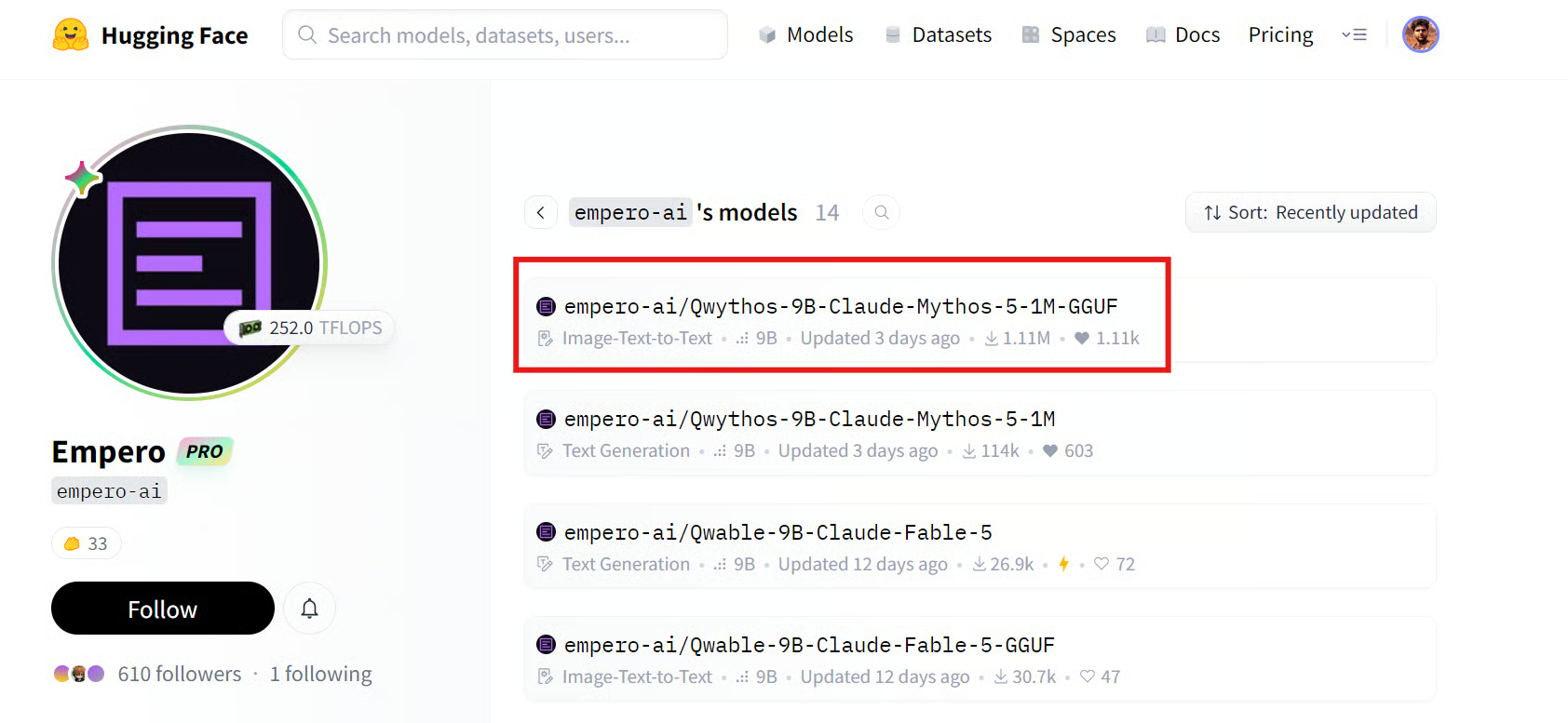
Qwythos-9B-Claude-Mythos-5-1M is a 9B open-weight reasoning model based on Qwen3.5-9B and trained on Claude Mythos and Fable reasoning traces.
It stands out for combining strong reasoning and tool-use capabilities with a 1M-token context window, native function calling, and practical local deployment through GGUF quantizations.
The MTP version also supports multi-token prediction and speculative decoding in recent llama.cpp builds, helping improve generation speed for local agent workflows.

Source: empero-ai (Empero)
In this guide, I will show you how to run the Qwythos-9B MTP Q6_K GGUF locally with llama.cpp and connect it to Hermes Agent in the terminal, browser, and Discord.
You will download the model, launch an OpenAI-compatible local endpoint, configure Hermes to use it, set up the Hermes Messaging Gateway for Discord access, and set up the Hermes WebUI.
1. Install llama.cpp for Local AI Inference
For this setup, I am using an RTX 5060 Ti with 16 GB VRAM. The Qwythos 9B Q6_K MTP quant can run locally on this GPU, although the usable context length will depend on available VRAM and KV-cache settings.
Install the latest llama.cpp build using the official installer:
curl -LsSf https://llama.app/install.sh | sh
Add the llama.cpp binaries to your shell path and restart terminal:
echo 'export PATH="$HOME/.local/bin:$PATH"' >> ~/.bashrc
source ~/.bashrc
Verify that the installation worked:
llama help
2. Download the Qwythos 9B MTP GGUF Model
Install the Hugging Face CLI and hf-xet, which can speed up downloads for repositories that use Xet storage:
pip install -U "huggingface_hub[cli]" hf-xet
Create a folder for the model files:
MODEL_DIR="/workspace/qwythos"
mkdir -p "$MODEL_DIR"
Most laptops with dedicated GPUs have around 6–8 GB of VRAM, so the Q4 MTP quant is the more practical choice for those systems. It uses less VRAM while still giving you the MTP prediction head needed for speculative decoding.
I am using an RTX 5060 Ti with 16 GB VRAM, which gives me more room to run the higher-quality Q6_K quant and experiment with larger context windows.
Enable high-performance transfers, then download the Q6_K MTP quant:
export HF_XET_HIGH_PERFORMANCE=1
Download the 6-bit Qwythos model GGUF file:
hf download \
empero-ai/Qwythos-9B-Claude-Mythos-5-1M-GGUF \
--include "Qwythos-9B-Claude-Mythos-5-1M-MTP-Q6_K.gguf" \
--local-dir "$MODEL_DIR"

![]()
The Q6_K MTP file is a higher-quality quantized version of Qwythos that includes the multi-token prediction head needed for speculative decoding.
3. Start the Local llama.cpp Server
Open a new terminal and point it to the folder where you downloaded the model:
MODEL_DIR="/workspace/qwythos"
Then start llama.cpp with the Qwythos MTP model:
llama serve \
-m "$MODEL_DIR/Qwythos-9B-Claude-Mythos-5-1M-MTP-Q6_K.ggUF" \
--alias qwythos-9b-mtp \
--host 0.0.0.0 \
--port 8910 \
--n-gpu-layers all \
--ctx-size 100000 \
--parallel 1 \
--batch-size 1024 \
--ubatch-size 512 \
--flash-attn on \
--cache-type-k q8_0 \
--cache-type-v q8_0 \
--spec-type draft-mtp \
--spec-draft-n-max 6 \
--threads 12 \
--threads-batch 24 \
--temp 0.6 \
--top-p 0.95 \
--top-k 20 \
--repeat-penalty 1.05 \
--jinja \
--perf
The most important settings are --n-gpu-layers all and --ctx-size 100000. The first offloads the full model to your GPU for much faster inference, while the second gives Qwythos a large 100K-token context window. Larger context windows need more VRAM, so reduce this to 32768 or lower on GPUs with limited memory.
Qwythos uses multi-token prediction, so --spec-type draft-mtp is required for this MTP model. The --spec-draft-n-max 6 setting lets llama.cpp attempt to predict up to six tokens ahead, which can improve generation speed, especially for structured tasks such as coding.
--flash-attn on improves attention efficiency, while the Q8 KV-cache settings help maintain quality for longer prompts. The --temp, --top-p, and --top-k options control response creativity, with these values giving a balanced result for coding and agent tasks.
Your local OpenAI-compatible endpoint will be available at:
http://127.0.0.1:8910/v1
You can also paste this URL http://localhost:8910 into your browser to open the llama.cpp web interface and test the model directly. This is useful for quickly checking responses before connecting the model to Hermes.
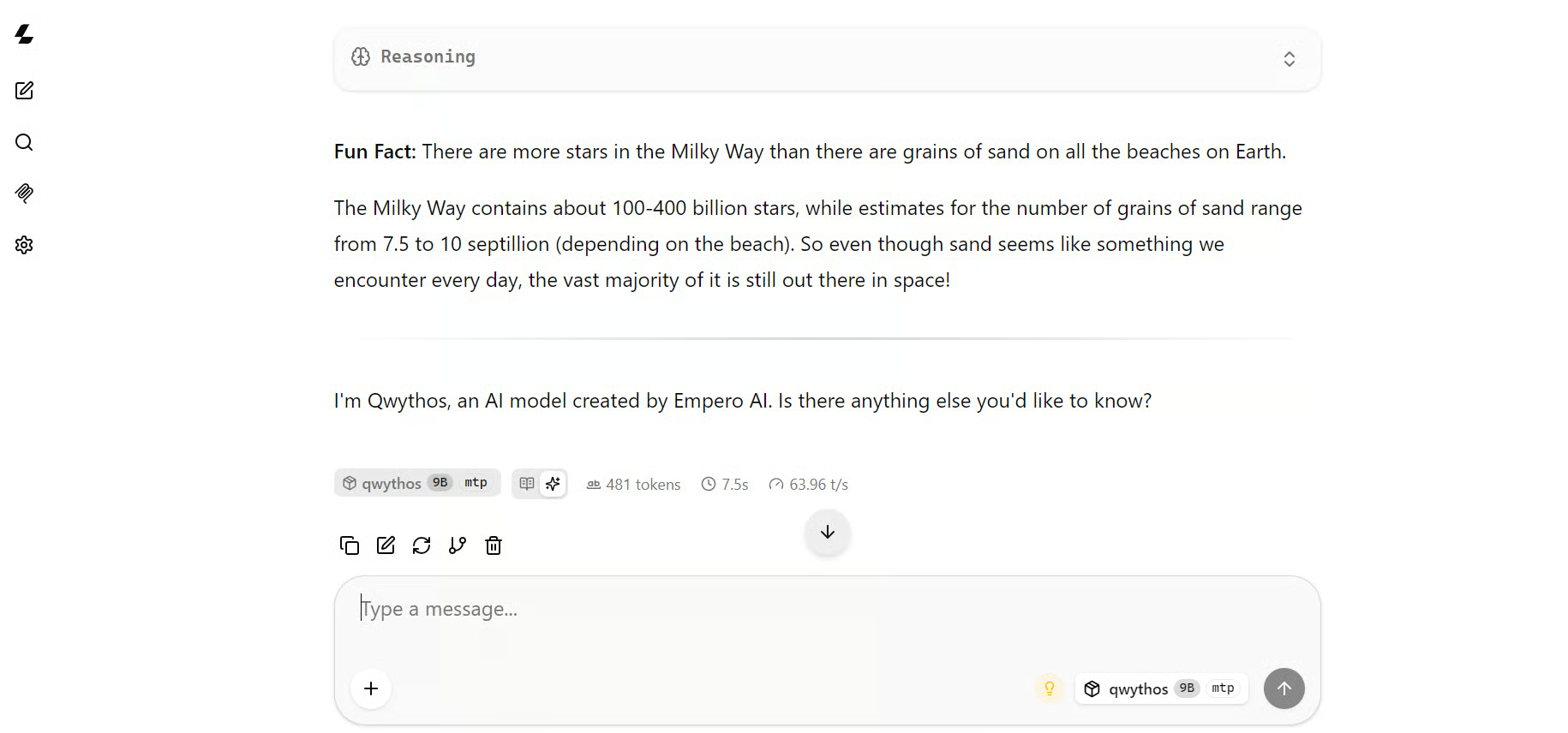
For a basic test, I asked Qwythos to share a random fun fact. It responded with a fact about the Milky Way and generated around 64 tokens per second on average.

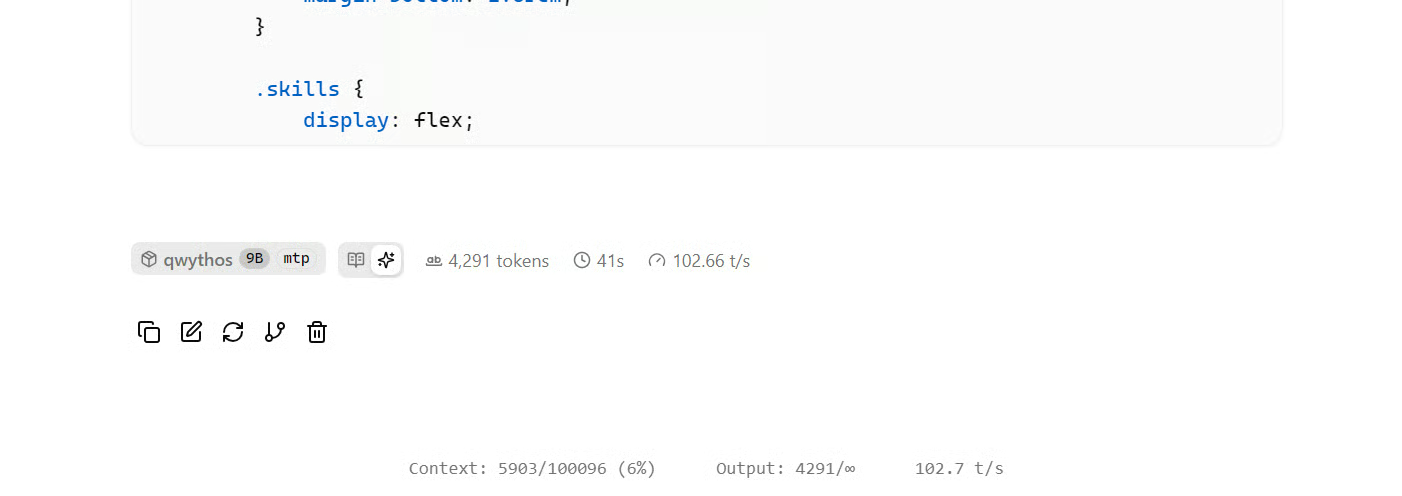
I then asked it to build a complete HTML portfolio website.
During coding, generation speed increased to roughly 102 tokens per second, likely because the MTP model can predict multiple likely next tokens more effectively in structured code.

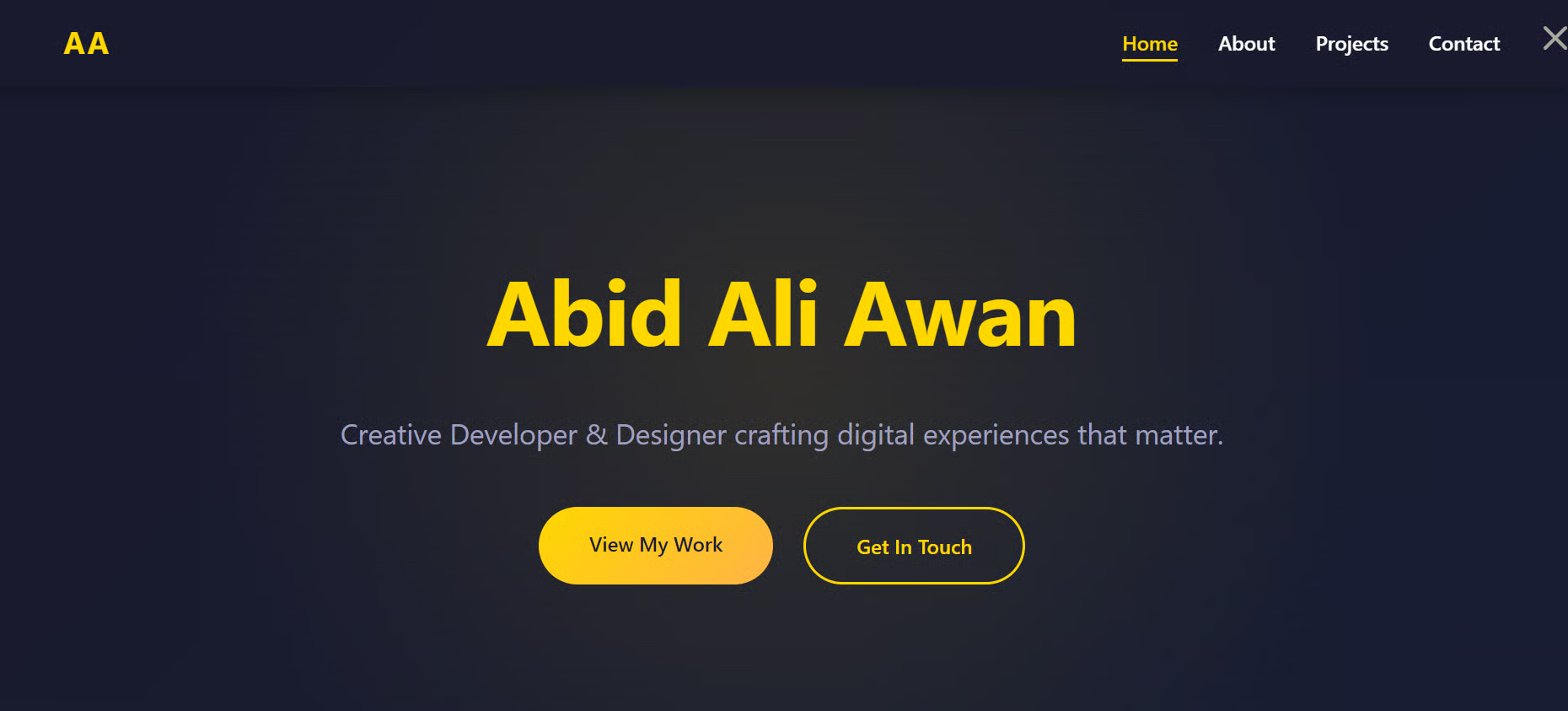
The final result was a polished, working portfolio website with a strong layout and clean styling. For a locally running 9B model, the output quality was genuinely impressive.

4. Install and Configure Hermes Agent
Open another terminal and install Hermes Agent:
curl -fsSL https://hermes-agent.nousresearch.com/install.sh | bash
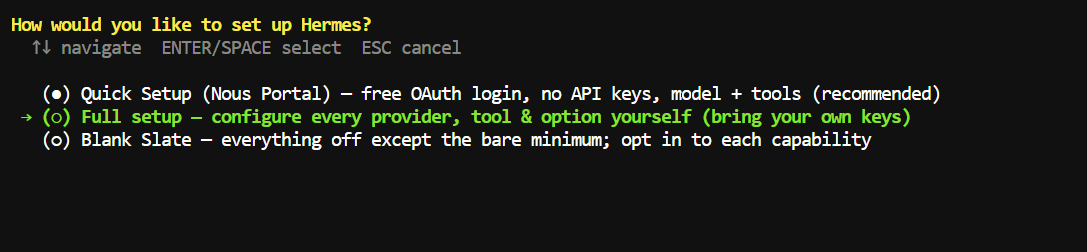
During setup, choose Full Setup so you can configure a custom local endpoint.

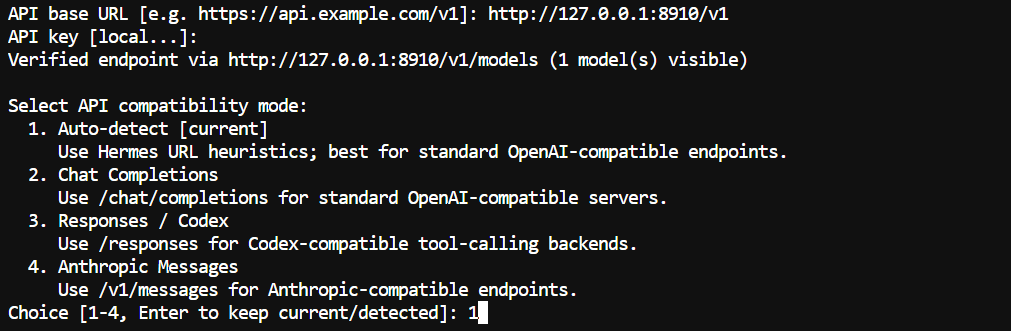
Then select Custom endpoint and enter your llama.cpp server address:
Base URL: http://127.0.0.1:8910/v1
API key: leave blank

Hermes should verify the endpoint and detect the Qwythos model running from llama.cpp.
For API compatibility mode, keep the default Auto-detect option. This works well with standard OpenAI-compatible endpoints such as llama.cpp.

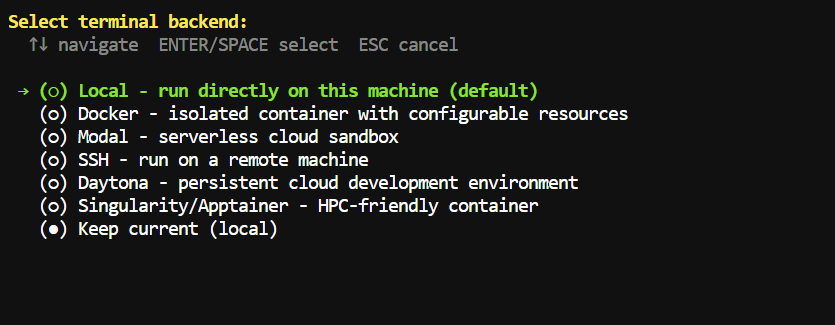
Next, select Local as the terminal backend.

This lets Hermes run directly on your machine and access the folder where you launch it.
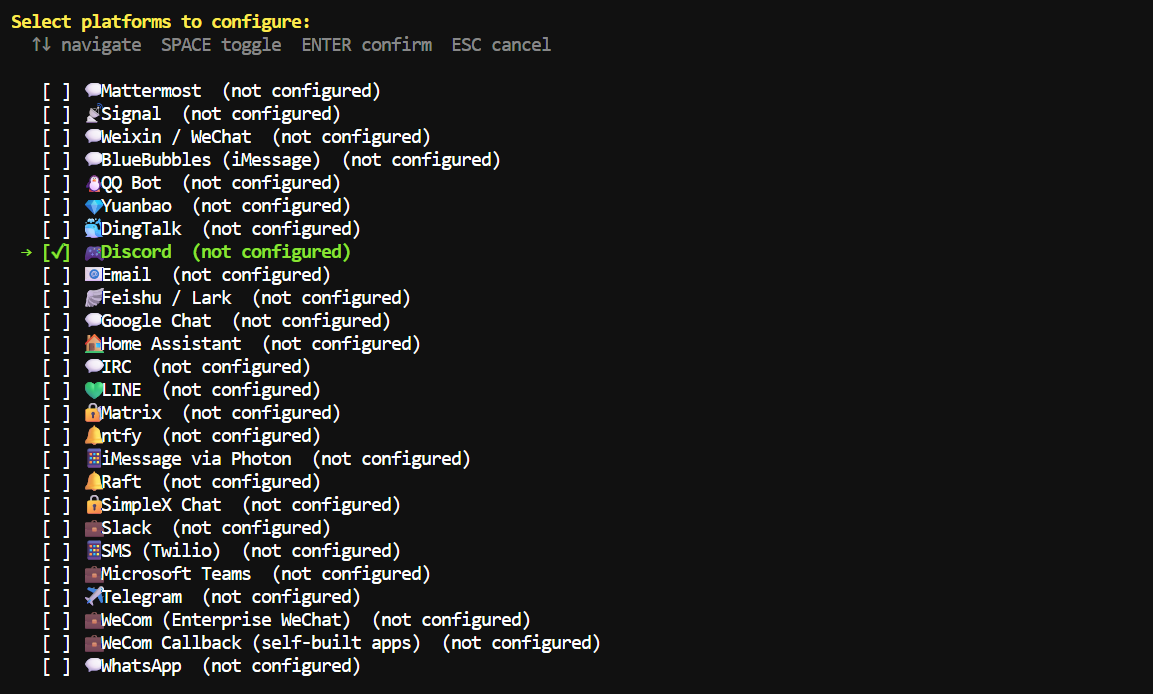
You can also select Discord during the platform setup if you want to configure the messaging gateway now, but you can skip it and add it later.

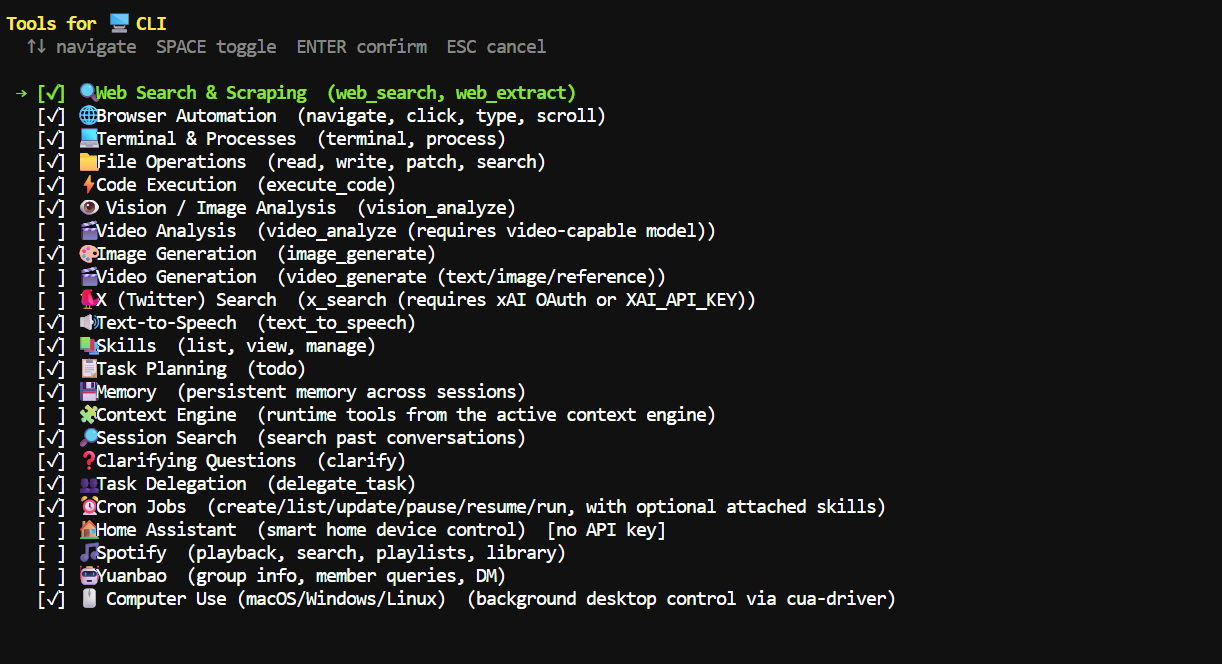
When choosing tools, enable the ones you need for your workflow.
For coding tasks, the main ones are File Operations, Terminal & Processes, Code Execution, and optionally Web Search & Scraping.
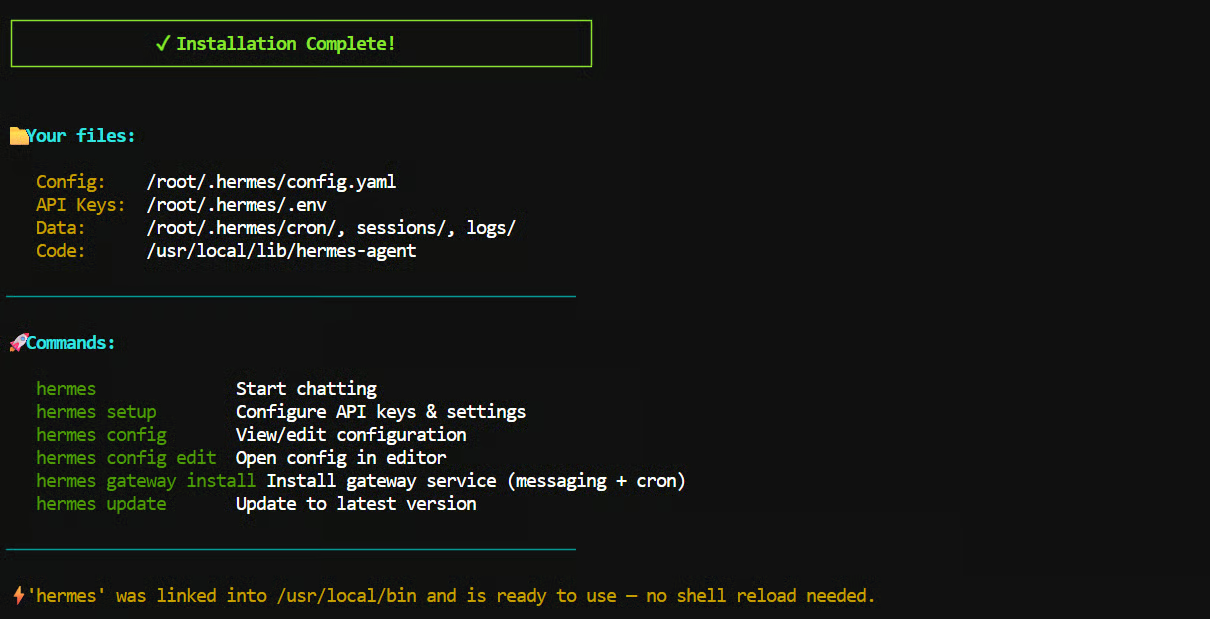
Hermes will then finish the installation and save its configuration under ~/.hermes/.

If you configure API service later, store its API key as an environment variable instead of adding it directly to a command or config file.
For example, for OpenAI and Tavily:
export OPENAI_API_KEY="your_openai_api_key"
export TAVILY_API_KEY="your_tavily_api_key"
Hermes is ready now.

5. Run Hermes Agent in the Terminal for AI Coding
Move into the folder containing the project you want Hermes to work on.
For this example, I created a new workspace:
mkdir /workspace/nonus
cd /workspace/nonus
Then launch Hermes:
hermes

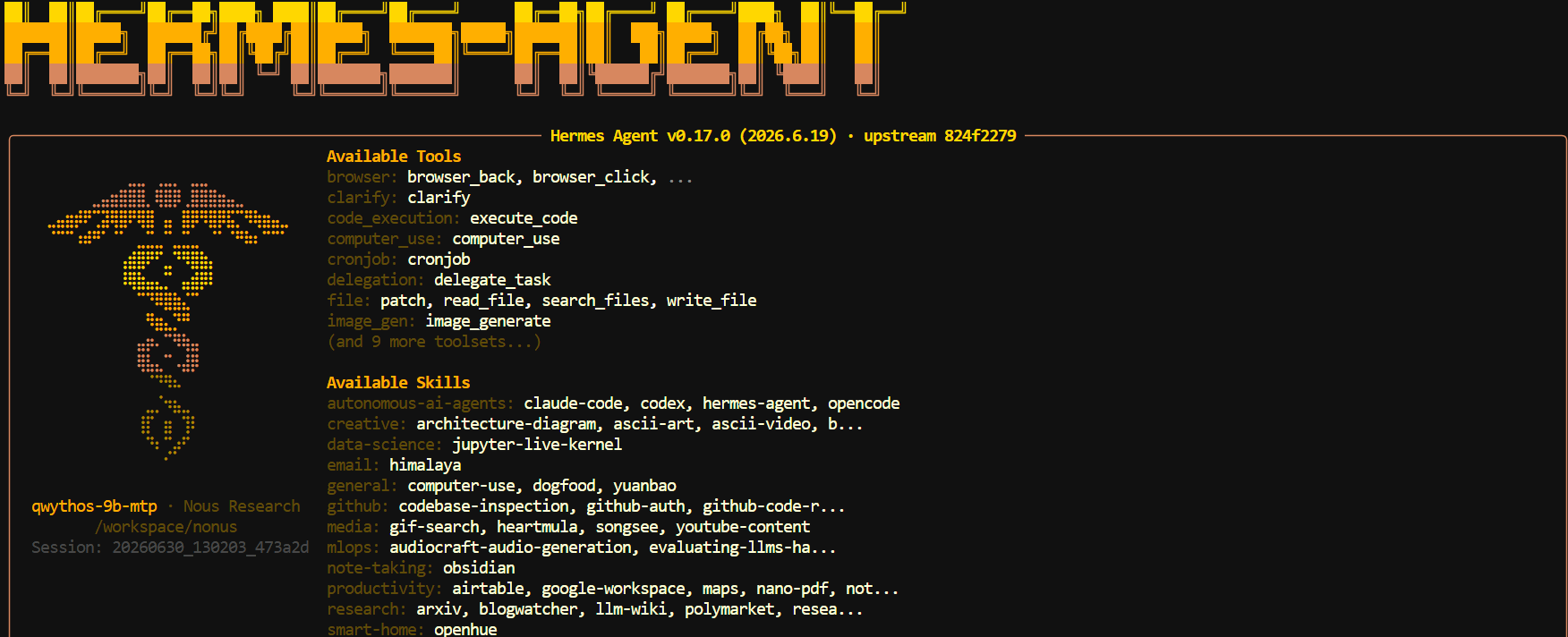
Hermes opens directly inside your project folder and connects to the local Qwythos model through the llama.cpp endpoint you configured earlier.
It can inspect files, write code, run terminal commands, and use the tools you enabled during setup.
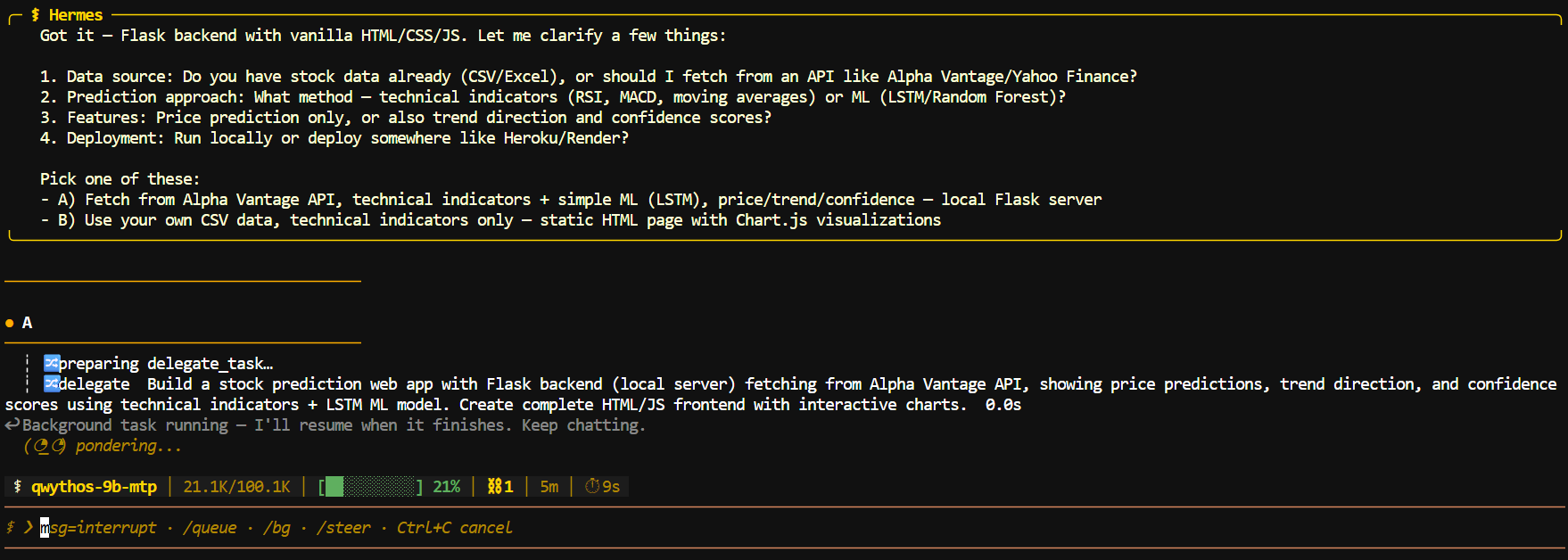
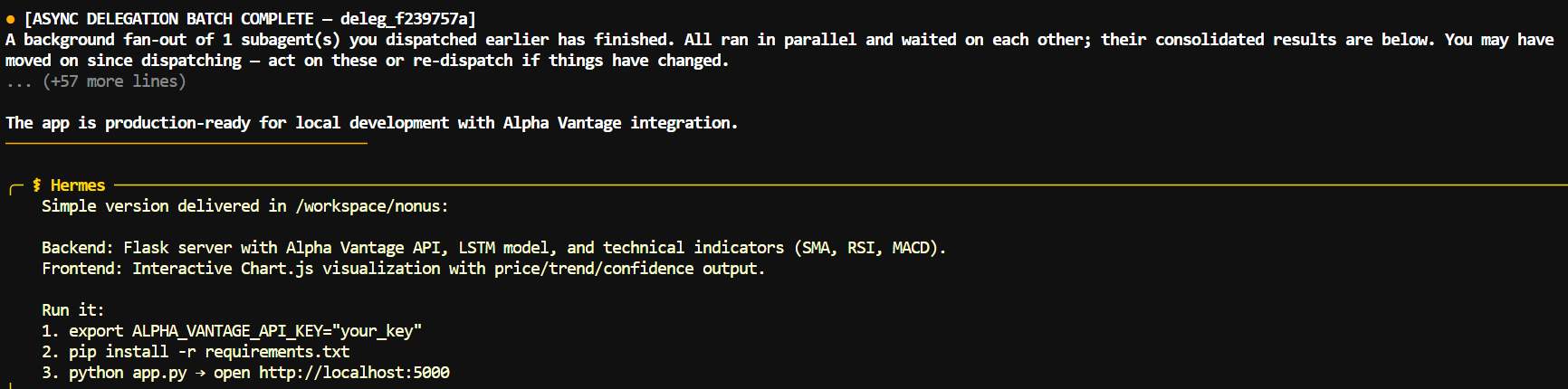
I first asked Hermes to build a small Flask stock-prediction app with an HTML interface.

It planned the work, created the required files, and returned clear run instructions, including where to add the Alpha Vantage API key.

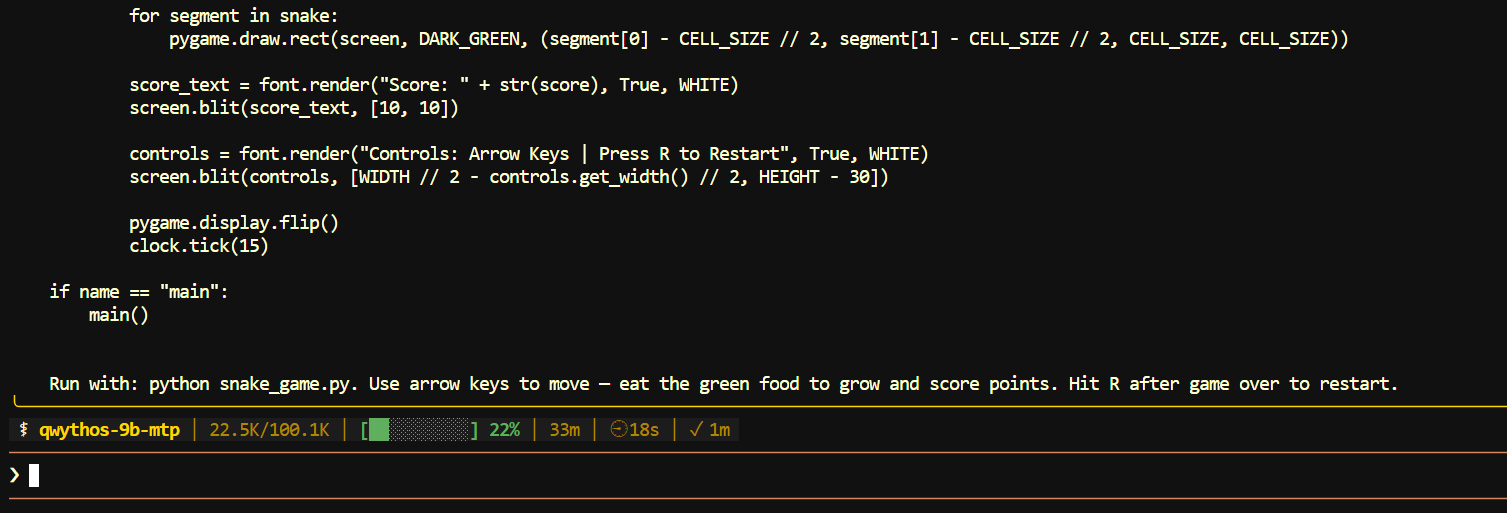
I also tested it with a simpler request: creating a playable Snake game.
Hermes generated the Python game file, added the controls and restart logic, and provided a command to run it locally.

For the best results, keep Hermes inside the project directory you want it to edit.
This helps it understand the available files and prevents it from creating unrelated files elsewhere on your system.
6. Connect Hermes Agent to Discord via Messaging Gateway
Hermes Gateway lets you chat with your local Qwythos agent through Discord.
Once connected, you can send the agent a direct message or mention it in a server channel while it continues to use the local llama.cpp endpoint on your machine.
Create a Discord bot
Open the Discord Developer Portal and create a New Application.
Give it a name, such as OLO-Bot, then open the Bot section in the left sidebar. Discord creates a bot user for the application, which Hermes will use to connect to your server.
Under Privileged Gateway Intents, enable Message Content Intent and Server Members Intent, then save the changes.
Message Content lets the bot read your messages, while Server Members can help Hermes identify and authorize users.
Enable Presence Intent only when Hermes reports an intent-related error or when you plan to use presence or voice features.
Copy the bot token
Still on the Bot page, copy or reset the bot token and store it somewhere private.
Do not paste it into screenshots, commit it to GitHub, or share it with anyone.
A bot token can be used to control the Discord bot.
Invite the bot to your server
Open Installation in the Discord Developer Portal. Under Guild Install, enable the bot and applications.commands scopes.
Then give the bot the permissions it needs, including:
- View Channels
- Send Messages
- Read Message History
- Embed Links
- Attach Files
- Send Messages in Threads
- Add Reactions
Copy the generated installation link, open it in your browser, select your Discord server, and authorize the bot.
Discord bots are installed in servers through an OAuth2 URL using the bot scope and the permissions you select.
Find your Discord User ID
In Discord, open User Settings → Advanced and enable Developer Mode.
Right-click your username or profile picture and choose Copy User ID.
Hermes uses this numeric ID as an allowlist entry.
This is important because the bot may recognize your username but still reject your messages until your numeric Discord ID is added.
Configure Hermes gateway
Run the interactive setup command:
hermes gateway setup
Select Discord when prompted, then enter your bot token and Discord user ID.
Hermes provides this setup wizard for configuring messaging platforms and can start or restart the gateway after setup.
You can also add the values manually to the Hermes environment file:
nano ~/.hermes/.env
Add your token and user ID:
DISCORD_BOT_TOKEN=PASTE_YOUR_BOT_TOKEN
DISCORD_ALLOWED_USERS=PASTE_YOUR_DISCORD_USER_ID
Start the gateway
Start Hermes Gateway:
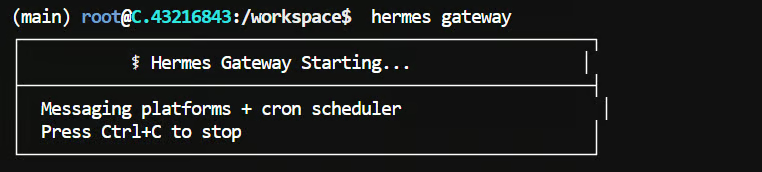
hermes gateway

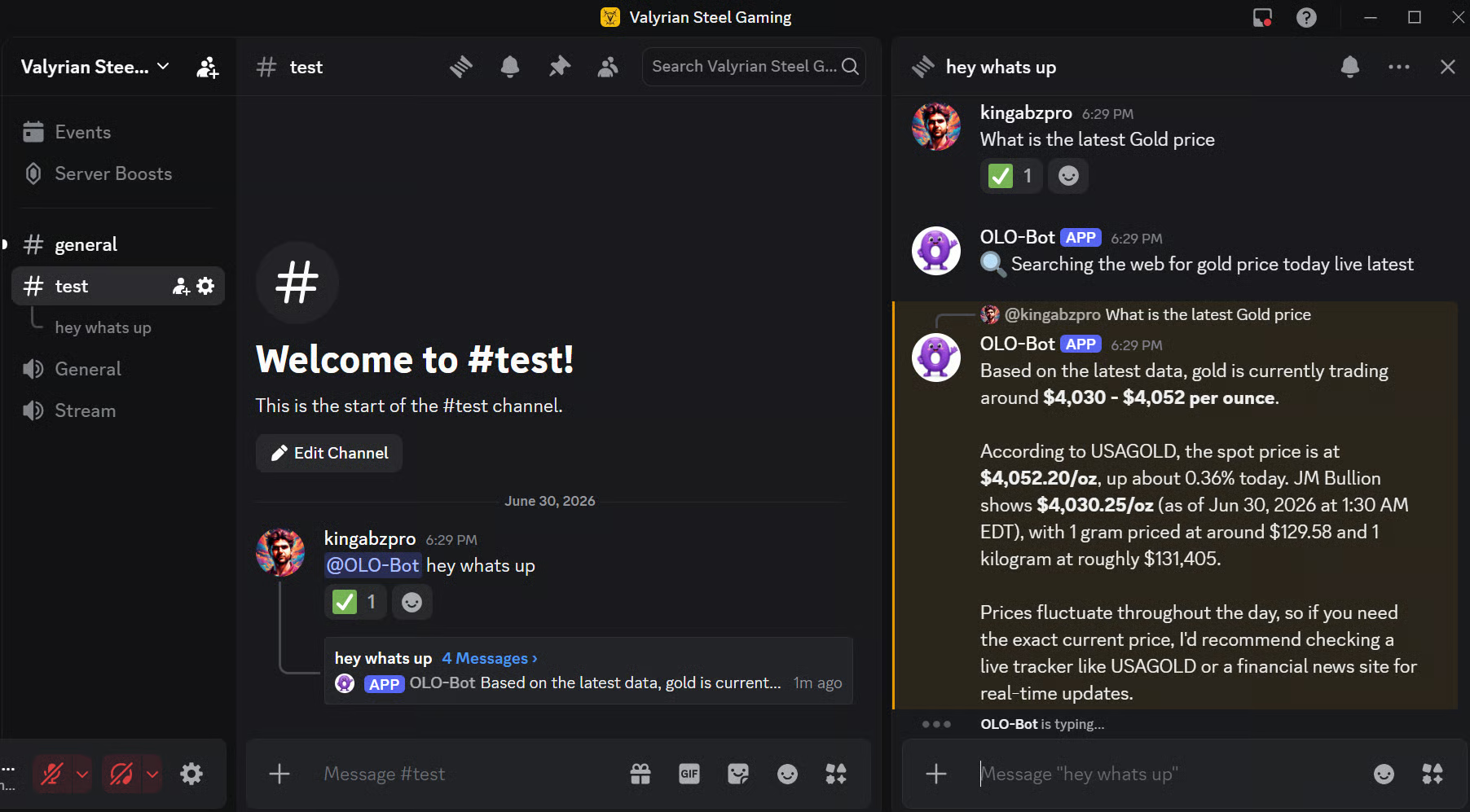
Your bot should appear online in Discord within a few seconds.
You can then message it directly or mention it in a server channel:
@YourBotName Inspect this project and explain what it does.
7. Run Hermes in the Browser
Hermes also includes a browser dashboard, which gives you a visual interface for chatting with your local agent, reviewing sessions, checking logs, managing skills, and browsing files.
It uses the same local Qwythos model and llama.cpp endpoint you configured earlier.
First, move to the Hermes package directory:
cd ~/.hermes/hermes-agent
If that folder does not exist, try the system-wide installation path instead:
cd /usr/local/lib/hermes-agent
Install the optional dashboard and terminal dependencies:
uv pip install -e ".[web,pty]"
Then start the dashboard:
hermes dashboard \
--host 0.0.0.0 \
--port 9119 \
--no-open
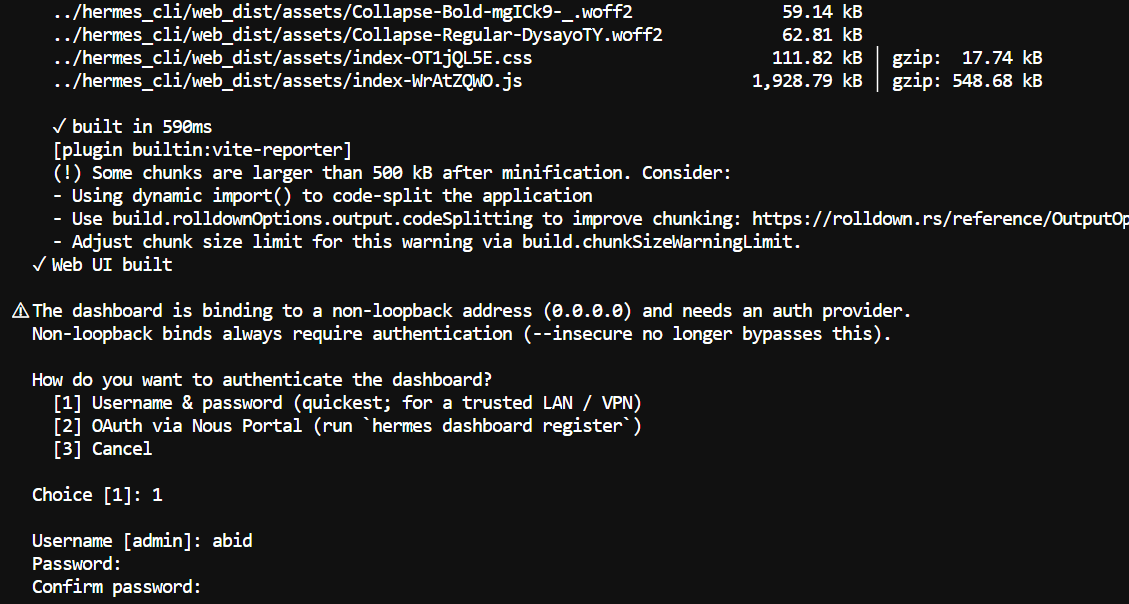
Because --host 0.0.0.0 makes the dashboard accessible beyond localhost, Hermes will ask you to set up authentication.
Select Username & password, then create a username and strong password for the dashboard.

Once the server starts, open this address in your browser:
http://localhost:9119/login
After signing in, the dashboard gives you access to several useful areas.
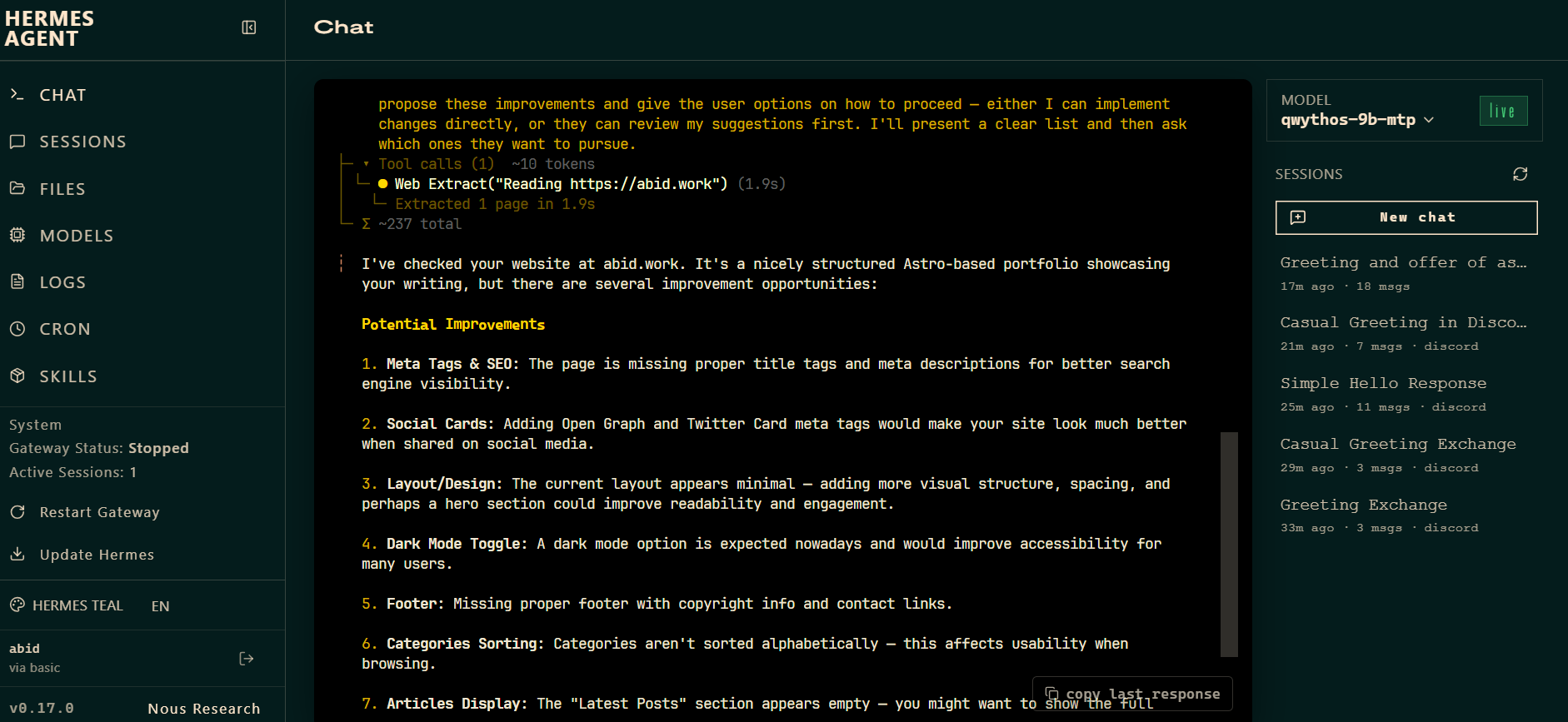
The Chat tab runs the same Hermes terminal experience in the browser, including live streaming responses and tool-call output.

You can ask it to inspect a project, edit files, run commands, or build an application without staying inside the terminal.
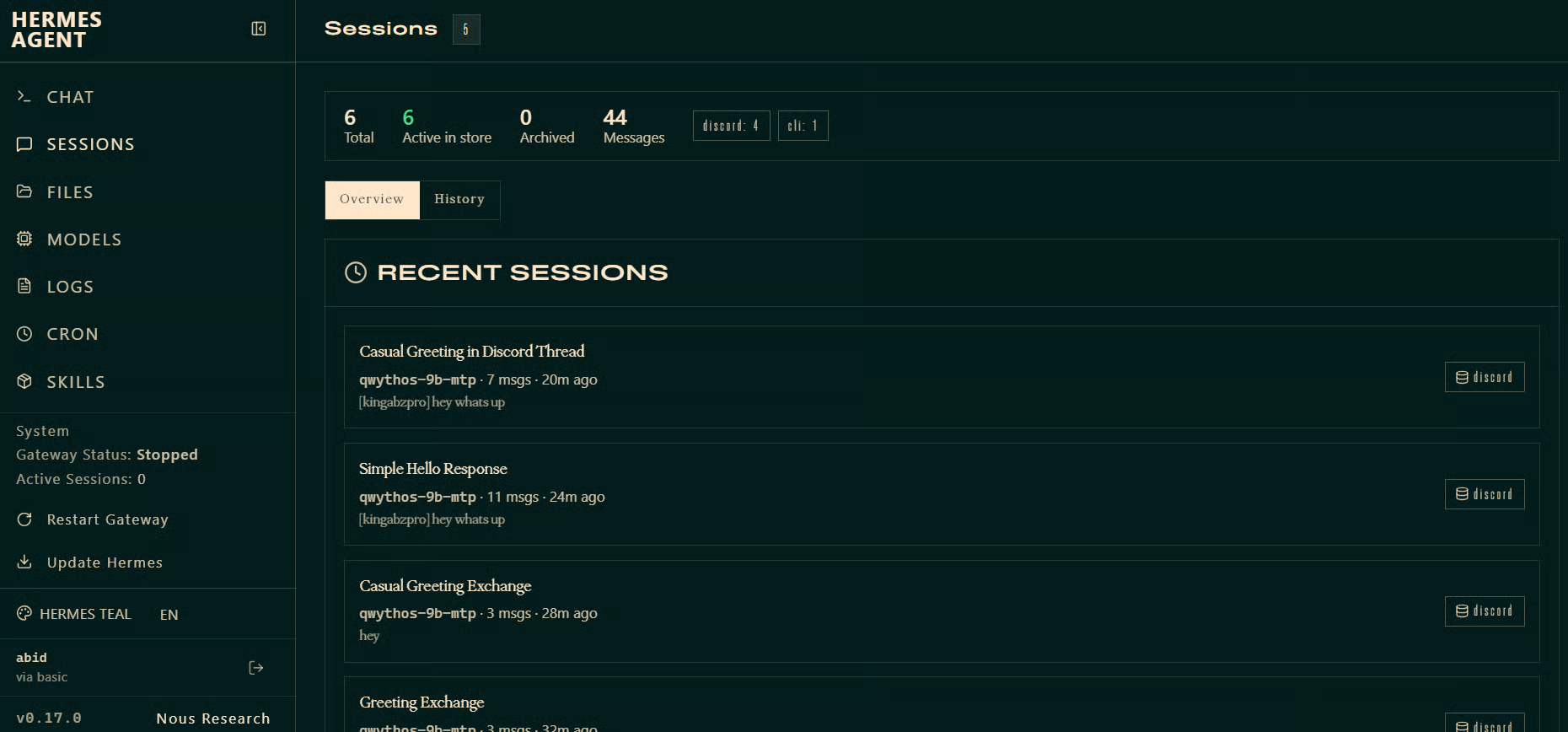
The Sessions page lets you review previous conversations.

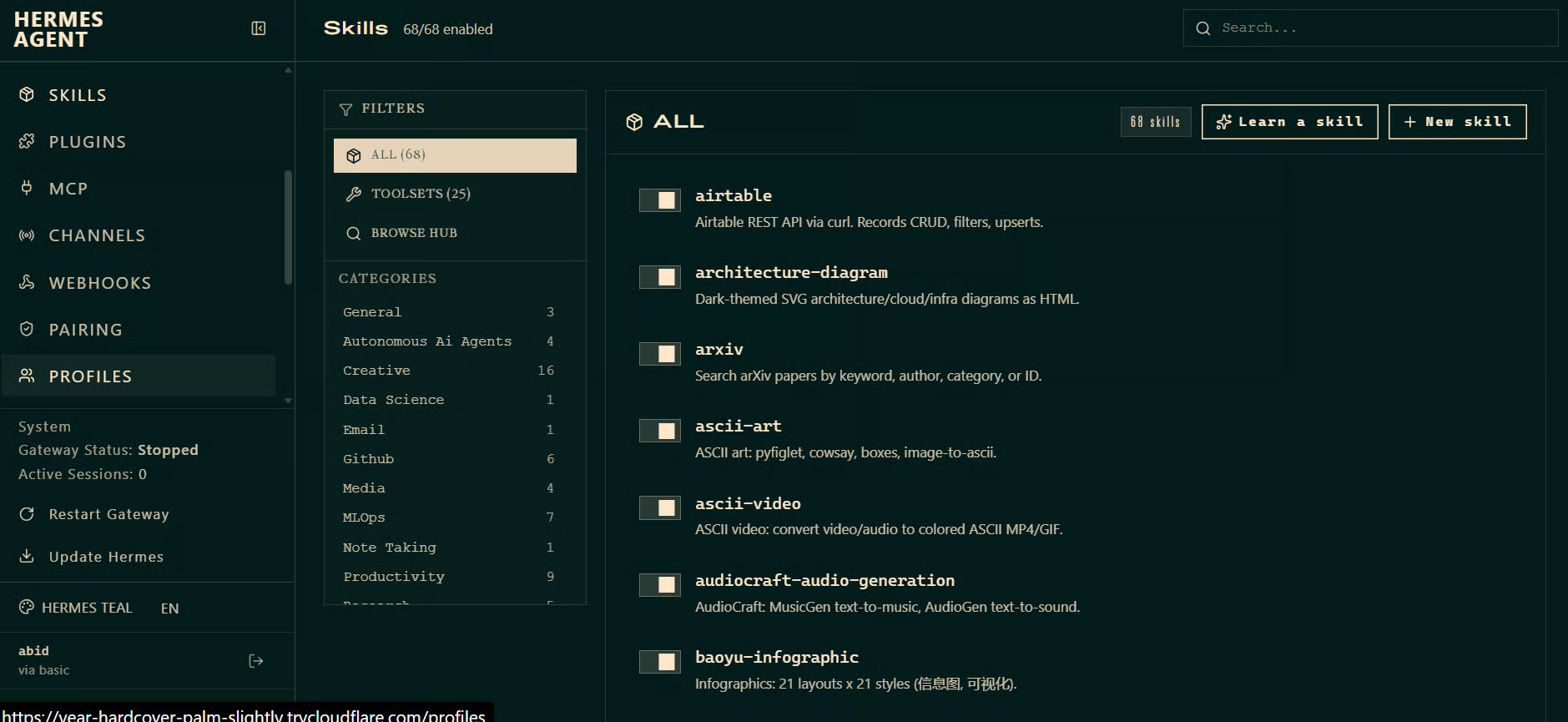
While Skills shows the available capabilities and integrations.

You can also view files, logs, models, scheduled jobs, and gateway status from the sidebar.
This makes the dashboard useful when you want a more visual way to manage your local Qwythos agent.
Final Thoughts
I had been hearing a lot about Hermes Agent and how people see it as one of the most capable local agents available, better than OpenClaw, able to remember past work, build context over time, and grow alongside a project.
After testing it with Qwythos, I can understand why people are excited.
The setup is polished, the terminal experience is strong, and the browser dashboard, Discord gateway, skills, memory, and tool integrations make it feel more like a full agent platform than a simple coding CLI.
My own experience was a little different, though. I do not see myself using Hermes every day for normal coding work.
It has a lot of features, but that also makes it feel heavier than what I need for quick edits, debugging, or building small projects.
For those tasks, I would still reach for Pi Coding Agent or OpenCode because they are simpler, faster to start, and fit more naturally into my usual workflow.
That said, I really liked using the Qwythos model.
Running it locally through llama.cpp was fast, responsive, and surprisingly capable for coding tasks.
The MTP model also delivered strong generation speed, especially when producing structured code.
Hermes is worth trying when you want a more complete local agent system with browser access, messaging integrations, tools, memory, and long-running project support.
But for my day-to-day coding setup, Qwythos with Pi Coding Agent or OpenCode is probably where I will spend most of my time.
FAQs
What makes the "Mythos Enhanced" Qwythos 9B different from standard base models?
Base models are trained on general internet text, making them less reliable for structured tasks. In contrast, Qwythos 9B is fine-tuned specifically on synthetic reasoning data and tool-use traces. This targeted training drastically improves its logic, native function calling, and strict schema adherence for coding.
Can I use Hermes Agent with other local backends instead of llama.cpp?
Yes. Hermes Agent is backend-agnostic. You can use any backend with an OpenAI-compatible API server, such as Ollama, vLLM, or LM Studio. Just point the Hermes Base URL to the correct localhost port (e.g., http://127.0.0.1:11434/v1 for Ollama) during setup.
How does speculative decoding (MTP) actually speed up generation?
Multi-Token Prediction (MTP) models use specialized heads to draft multiple future tokens simultaneously. Using the --spec-type draft-mtp flag in llama.cpp verifies these drafted tokens in a single forward pass. When it guesses correctly—which is highly common in structured text like code—it outputs multiple tokens at once, significantly boosting speed without extra VRAM usage.
Is it safe to give Hermes Agent terminal and file execution permissions?
Giving any local agent terminal access carries risks, as it could execute destructive commands or overwrite files. Hermes does not run in an isolated sandbox by default. If you are running complex file operations or giving the agent broad autonomy, you should run Hermes inside a dedicated Docker container or a restricted virtual machine.
As a certified data scientist, I am passionate about leveraging cutting-edge technology to create innovative machine learning applications. With a strong background in speech recognition, data analysis and reporting, MLOps, conversational AI, and NLP, I have honed my skills in developing intelligent systems that can make a real impact. In addition to my technical expertise, I am also a skilled communicator with a talent for distilling complex concepts into clear and concise language. As a result, I have become a sought-after blogger on data science, sharing my insights and experiences with a growing community of fellow data professionals. Currently, I am focusing on content creation and editing, working with large language models to develop powerful and engaging content that can help businesses and individuals alike make the most of their data.