{count, plural, one {Course} other {Courses}}
Introduction to AI Agents
{hours} hr {minutes} min
144.6K
OpenClaw launched with a lot of hype and security concerns. After that, there were so many copycats claiming to solve different problems related to OpenClaw. Key among them is security due to the size of the repo. Another major problem was the cost of running the agent. From my own experiences, the cost can go up pretty fast, particularly because even the OpenClaw creator recommends using top-tier models such as Claude Opus 4.6 to prevent prompt injection. Opus 4.6 is not a cheap model, particularly when your agent has to send a lot of context in terms of memories and skills. Enter the Hermes Agent.
I have been following the creators of Hermes Agent on X/Twitter, and one of the things they claim is that their agent is better than OpenClaw at using open-source models. They claim that open-source models can be used effectively if they have the right harness. In this article, I will examine these claims by trying out the agent. I will walk you through the installation steps, how to use it with local and online models, and how to use it in a research project.
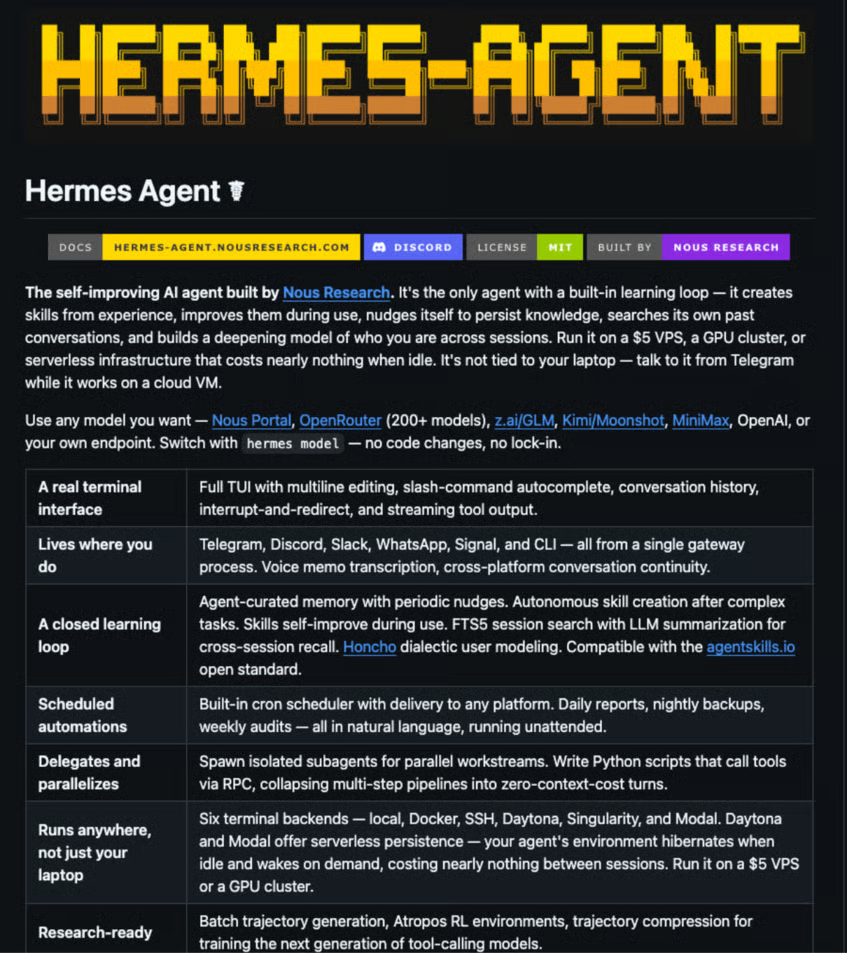
Hermes Agent is an open-source OpenClaw alternative by Nous Research, the lab behind Hermes models. After launch, it became very popular, getting over 30K stars at the time of this writing. Hermes Agent is a bit different from OpenClaw in that it can create skills from experience, improve itself, and persist the knowledge across sessions.
You can learn how to use OpenClaw from our OpenClaw (Clawdbot) Tutorial.
Let’s discuss some of Hermes Agent's key capabilities.
The Hermes Agent has a closed learning loop, meaning that:
Hermes Agent also stores messaging sessions in a SQLite database with FTS5 full-text search. This enables it to retrieve memories from weeks ago, even if they're not currently in memory.
Learn the basics of SQLite databases from SQLite dot commands to an example of their practical applications using the command line interface from our Beginners Guide to SQLite guide.
Hermes also uses an Honcho memory that gives the agent a persistent understanding of users across sessions. This is in addition to the memory.md and user.md files to enhance the agent's understanding of user preferences, goals, communication style, and retain context across conversations.
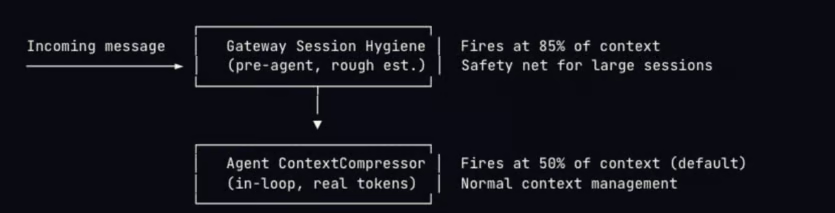
One of the main problems of using these AI assistants is how token-intensive they are. When you pay for each API call, it can quickly become very expensive. Hermes Agent uses dual compression and Anthropics prompt caching to manage context usage across long conversations.
This mechanism also prevents API failures when the context is too big. It works by pruning old results and summarizing conversations using an LLM.
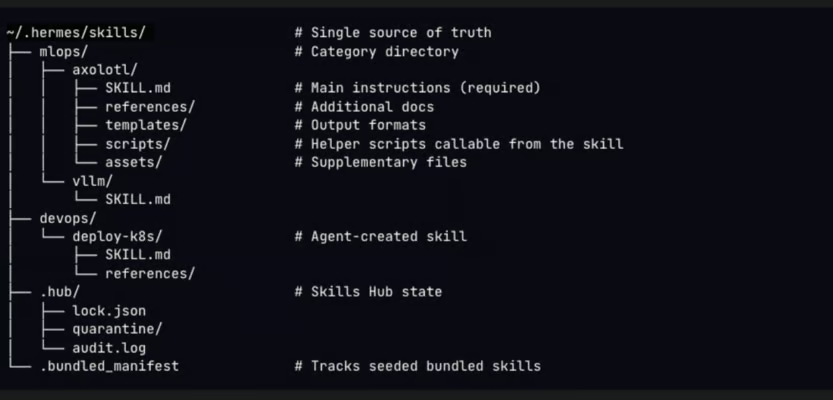
Like OpenClaw, the Hermes Agent supports skills. The skills are compatible with agentskills.io and follow a progressive disclosure pattern to minimize token utilization. It ships with bundled skills and also saves its own skills as you use it. All skills are stored in ~/.hermes/skills/, but you can also point the agent to external skills.
Learn how to build OpenClaw skills from scratch, connect external APIs, configure Docker sandboxing, and publish to ClawHub from our Building Custom OpenClaw Skills tutorial.
The Hermes Agent supports multiple platforms, including Telegram, Discord, Slack, Signal, and WhatsApp. It also supports voice memo transcription. Since sessions go to the same database, it means that you can start a conversation on your terminal and continue it on Telegram.
The Hermes Agent has a delegate_task tool that is used to start multiple subagents. Agents have restricted toolsets and terminal sessions. They start a new conversation and have no information about the conversation history; therefore, you have to provide all the information the agent needs to achieve its goal. You can use this to, for example, research multiple topics at the same time and collect summaries, code review, and fix and refactor multiple files at the same time.
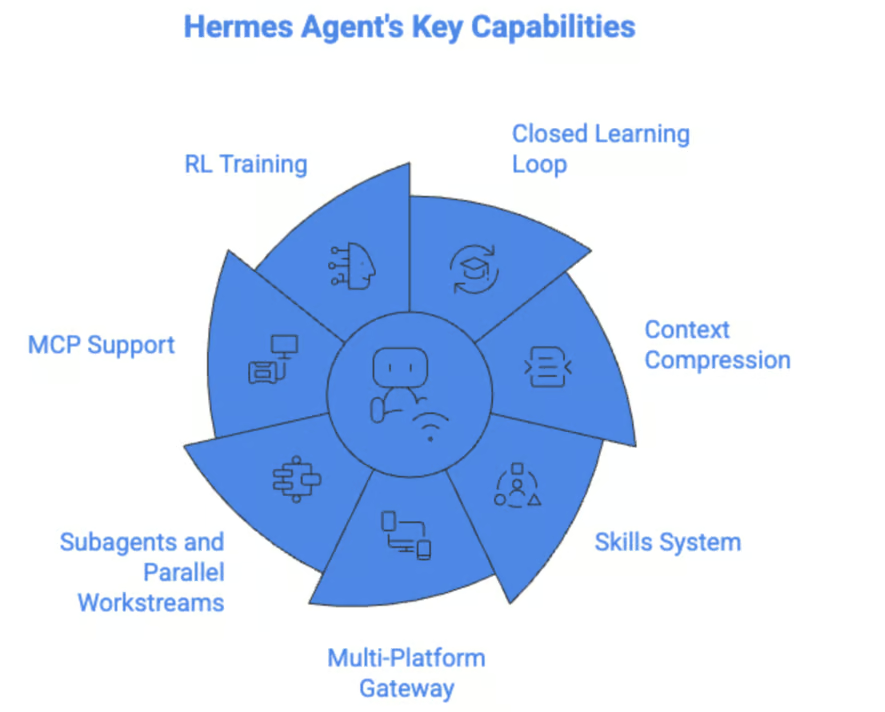
For any tool missing in Hermes, you can connect to MCPs. You can use this for connecting to APIs, a database, or a company system without having to change the Hermes Agent code. You can use them by:
Learn how to build an MCP server using Anthropic's Model Context Protocol to connect Claude with GitHub and Notion from our Model Context Protocol tutorial.
Hermes Agent includes an integrated RL (Reinforcement Learning) training pipeline built on Tinker-Atropos. This enables training of LLMs on a specific environment using GRPO (Group Relative Policy Optimization) with LoRA adapters.

You can explore RL further from our Reinforcement Learning in Python track.
Let’s now discuss how Hermes Agent compares to other AI assistants such as OpenClaw and Nanobot.
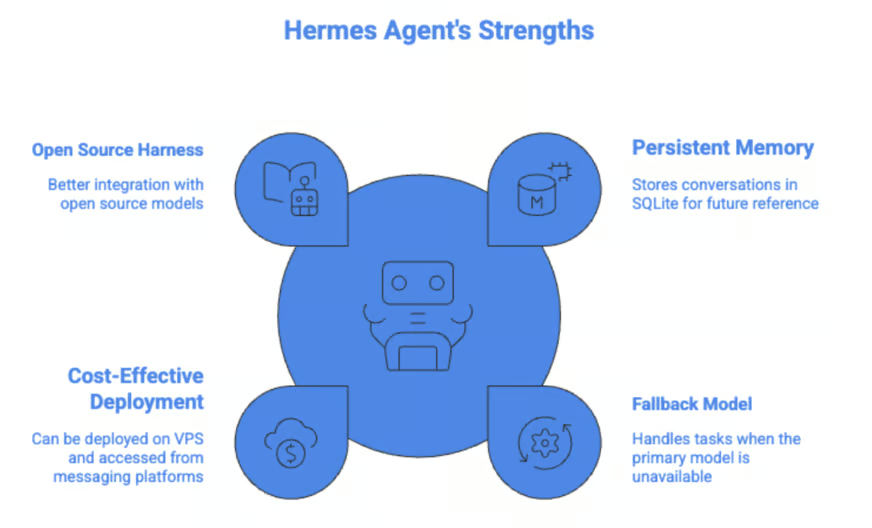
Like other agents, Hermes Agent users memory.md and user.md for persistent memory. It also goes further by storing each session in a SQLite database, making it possible to reference any conversation in the future.
Like OpenClaw, Hermes Agent also supports a fallback model that will handle the tasks when the primary model is not available.
Like most AI assistants, Hermes Agent can also be deployed inexpensively on a VPS and accessed from popular messaging platforms. However, one of its main selling points, according to the team at Nous Research, is that Hermes agent is a better harness for open source models.
You can also explore other AI assistants, such as NanoBot from our Nanobot Tutorial.
The Hermes Agent is model agnostic. Supported models included:
You can also use local models via Ollama.
Discover how to use local AI assistants with Ollama from our OpenClaw with Ollama tutorial.
Hermes runs on Linux, macOS, and WSL2. It also requires Python 3.11 and Node.js, but most of the dependencies are installed automatically during setup.
Let’s now discover how to use Hermes Agent to create a research agent that can search the web and send you a daily briefing on Telegram.
Open your terminal and run the one-line installer:
curl -fsSL https://raw.githubusercontent.com/NousResearch/hermes-agent/main/scripts/install.sh | bash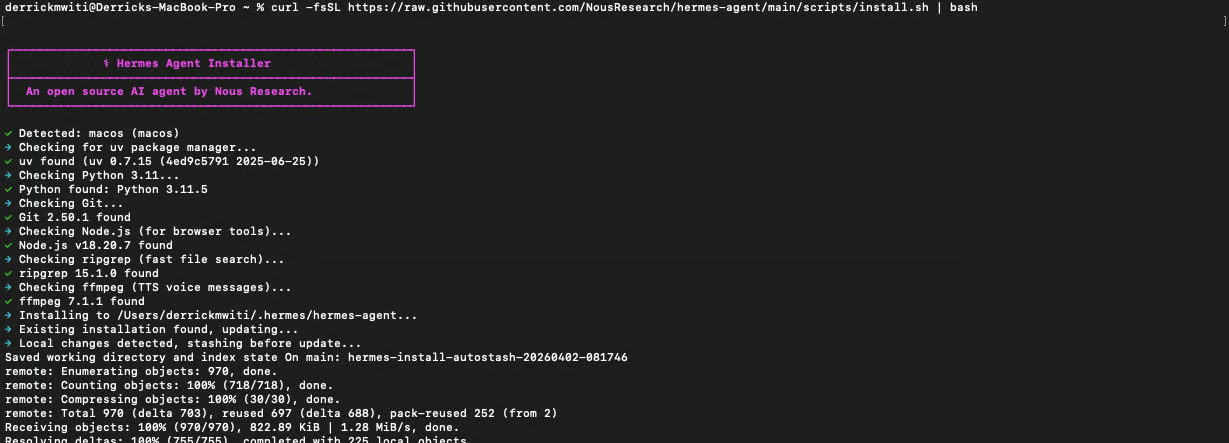
For the Telegram gateway, open Telegram and search for @BotFather. Send it /newbot, follow the prompts to name your bot, and it will give you a bot token that looks like 123456789:AAH. Copy it for the next steps.
Next user the @userinfobot to get your Telegram user ID. You will need so that your bot only talks to you.
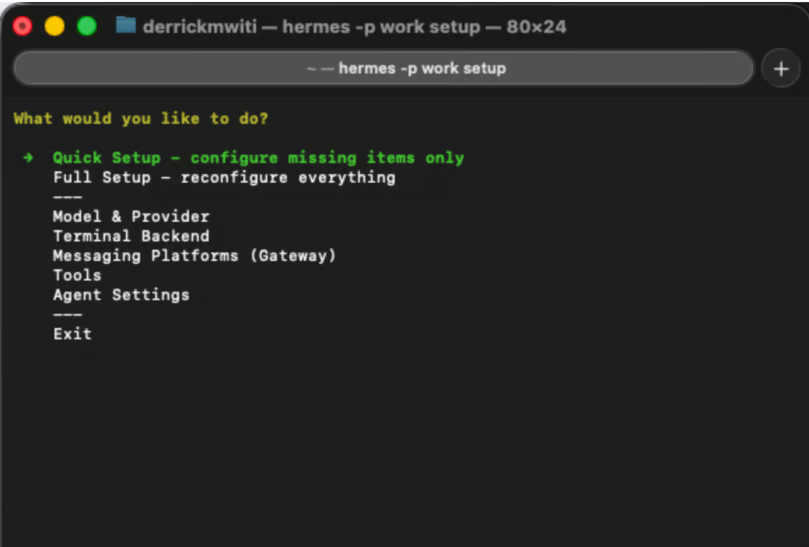
Run the setup wizard:
hermes setupWhen you choose Full Setup, you will be able to configure everything, including API keys and the Telegram bot.
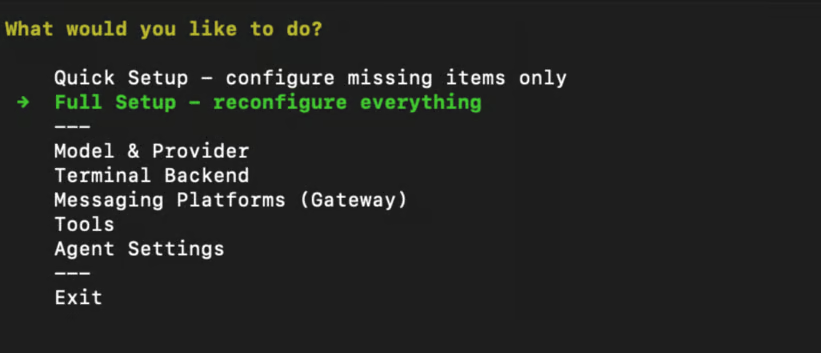
A menu will be provided so that you can configure all the items as shown below:
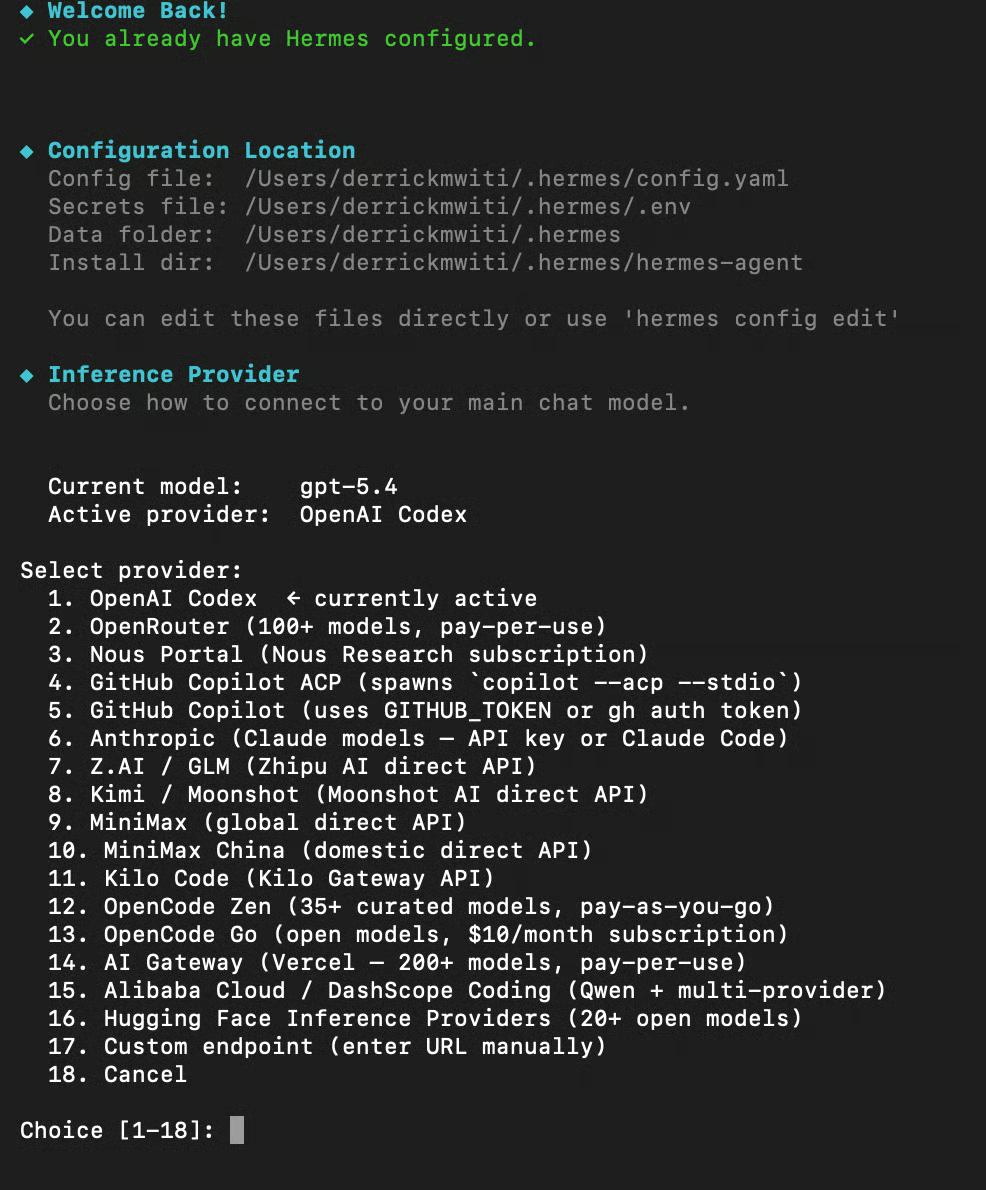
If you have an existing OpenClaw installation, it also allows you to migrate it.
Once setup completes, you can verify everything with:
hermes doctor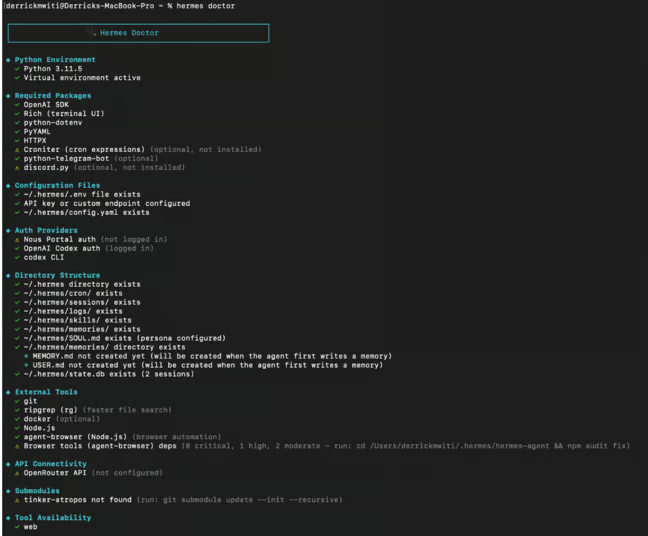
If you followed the steps above, you will already have set up the model, but you can change it anytime by running the command below on the terminal:
hermes model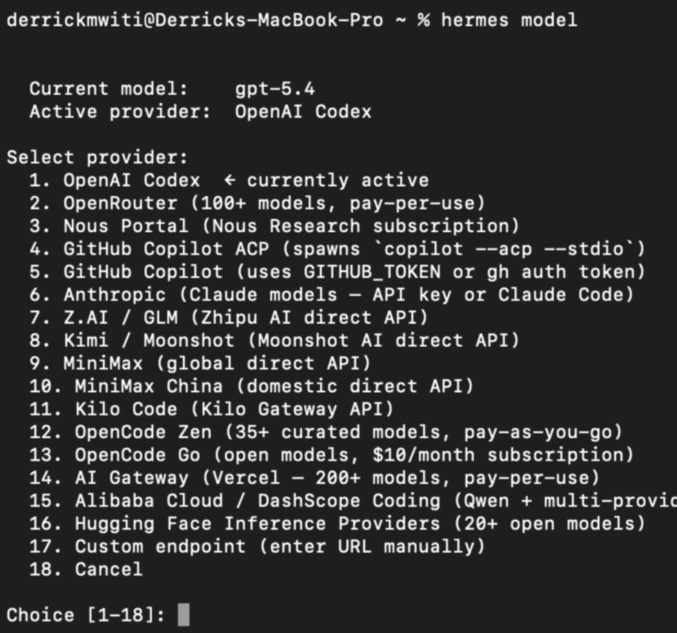
The gateway is what lets Hermes reach you on Telegram instead of requiring you to stay in your terminal. Set it up by running:
hermes gateway setup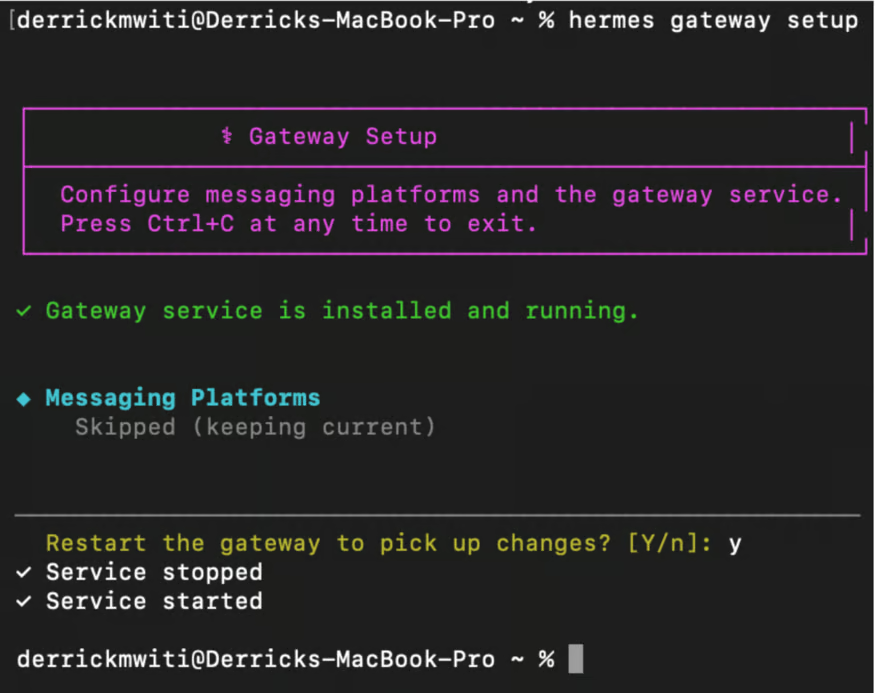
At this point, you should be able to send messages from Telegram and get responses:
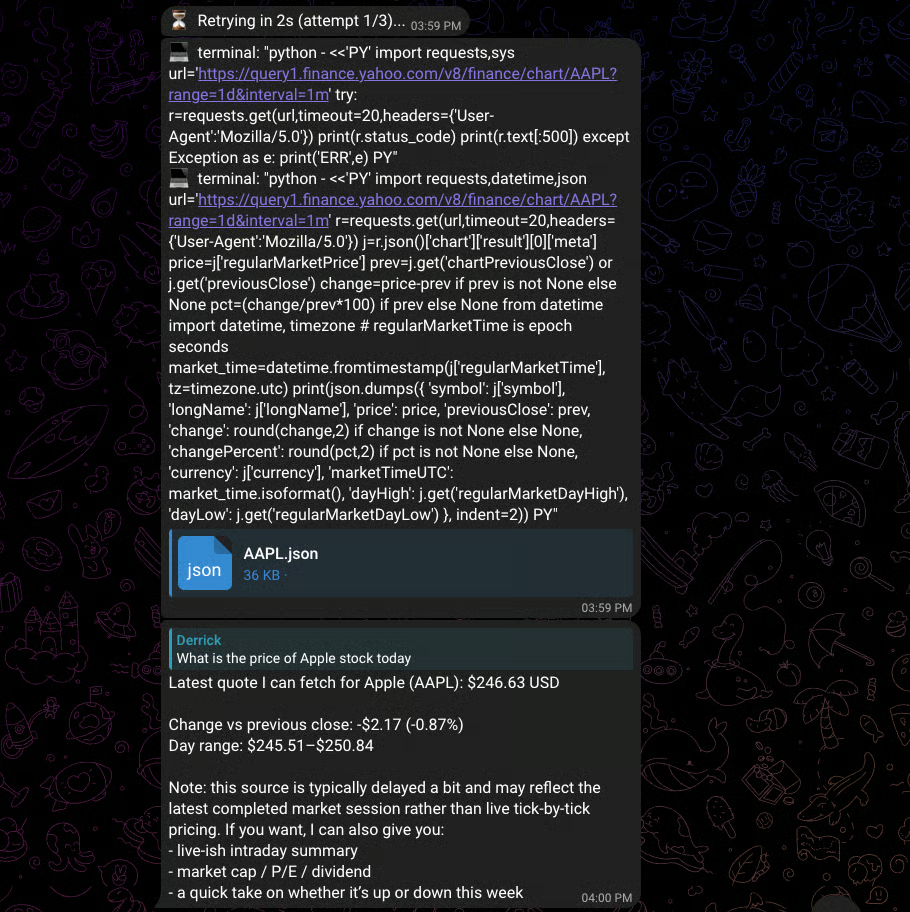
As you can see from the above response, Hermes used the terminal tool to query Yahoo Finance’s public chart API and parse the response. We can improve its web search capabilities by configuring one of the available web search tools; in this case, let’s use FireCrawl. Head over to their website and obtain an AI key for free.
Next, set up the key:
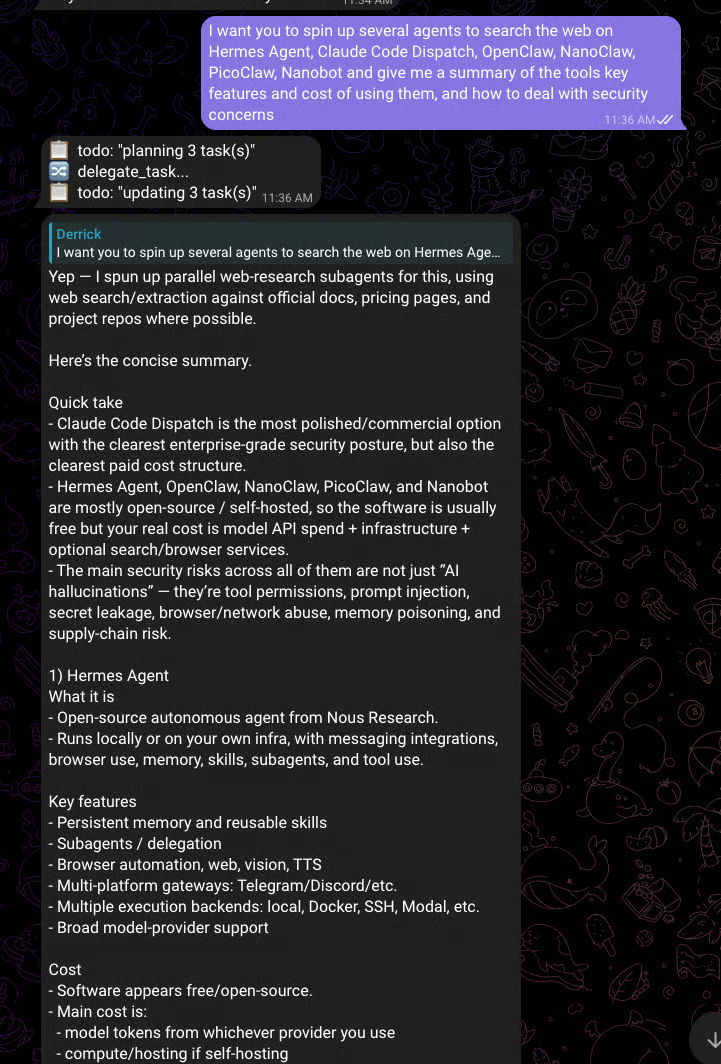
hermes config set FIRECRAWL_API_KEY your_fire-crawl_keyWith that in place, I gave Hermes a task that involved searching multiple pages and summarizing the results. As you can see from the image, it planned 3 tasks and delegeted them.
The other way to run multiple agents with Hermes is to set up profiles. This will allow you to run multiple independent Hermes agents on the same machine, with each getting its own config, API Keys, memory, sessions, gateway, and skills. For example, you can have:
You can create one from scratch or by cloning the existing settings:
hermes profile create work --clone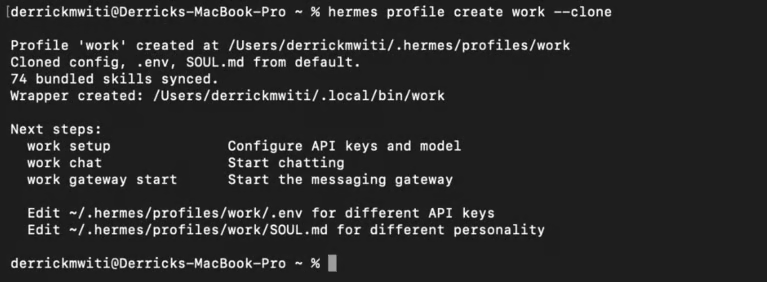
Run work chat to start talking to the bot:
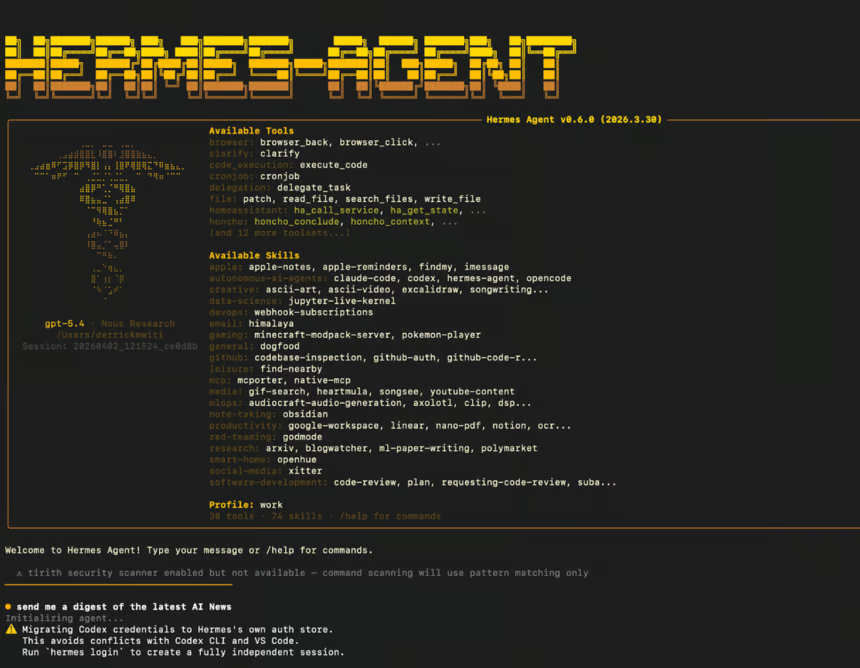
Each agent gets its own .env so you can set up different Telegram bots. You can set up using work setup
Let’s now discover which deployment options exist for running Hermes Agent apart from using it on your laptop.
Other options include:
Even when deploying on a VPS, it's good to follow these best practices:
hermes update root user You can run Hermes Agent offline by setting up a model via Ollama. The code snippet below shows how to run and server qwen2.5-coder:32b via Ollama:
# Install and run a model
ollama pull qwen2.5-coder:32b
ollama serve   # Starts on port 11434
Then configure Hermes to use the model:
hermes model
# Select "Custom endpoint (self-hosted / VLLM / etc.)"
# Enter URL: http://localhost:11434/v1
# Skip API key (Ollama doesn't need one)
# Enter model name (e.g. qwen2.5-coder:32b)
Also, make sure to increase the context window because the model needs to load the system prompt, tools, and return a response.
# Option 1: Set server-wide via environment variable (recommended)
OLLAMA_CONTEXT_LENGTH=32768 ollama serve

# Option 2: For systemd-managed Ollama
sudo systemctl edit ollama.service
# Add: Environment="OLLAMA_CONTEXT_LENGTH=32768"
# Then: sudo systemctl daemon-reload && sudo systemctl restart ollama

# Option 3: Bake it into a custom model (persistent per-model)
echo -e "FROM qwen2.5-coder:32b\nPARAMETER num_ctx 32768" > Modelfile
ollama create qwen2.5-coder-32k -f Modelfile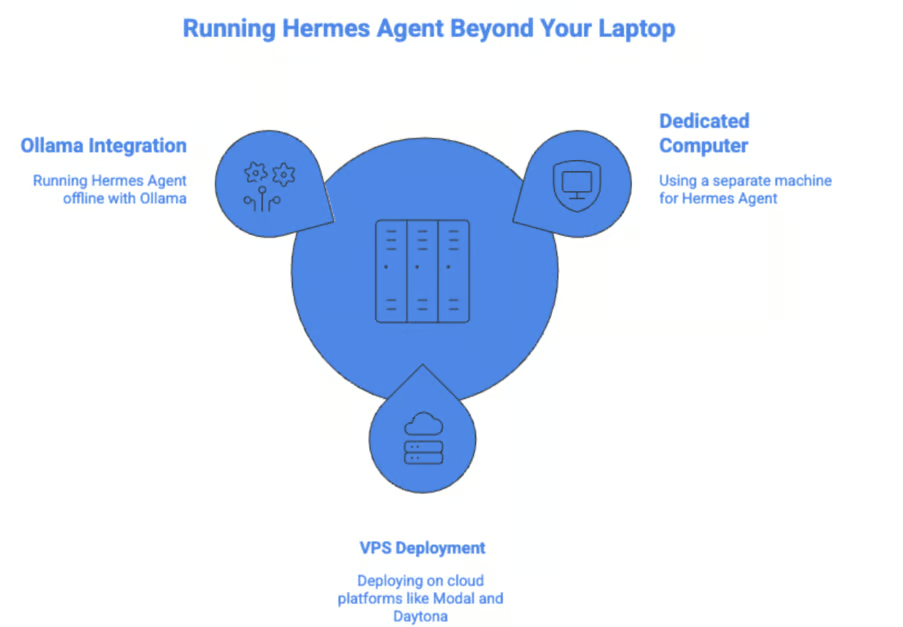
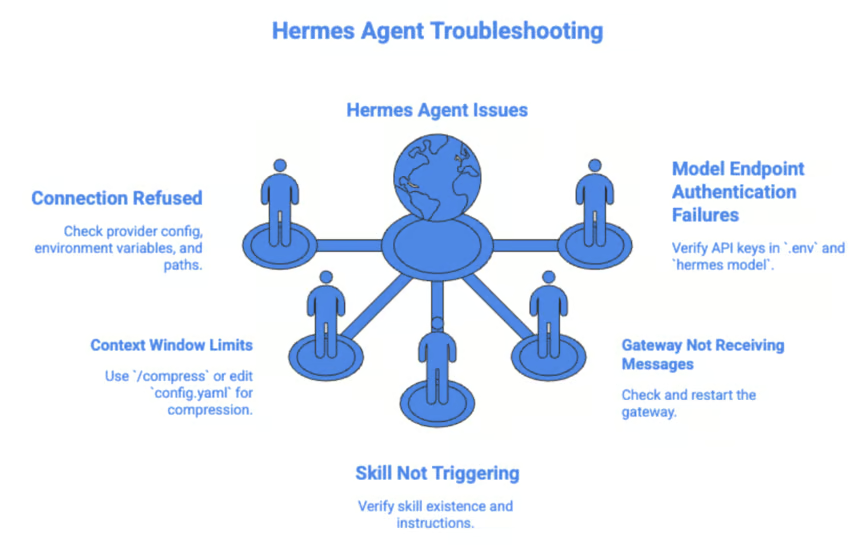
Let’s now talk about some common problems that you may encounter when using the Hermes agent.
Run hermes doctor first. This will tell you if you are missing any provider config, broken environment variables, or misconfigured paths. You can also run the setup command again to enter your API key again because you may have a typo.
Type /compress to trigger manual context compression.
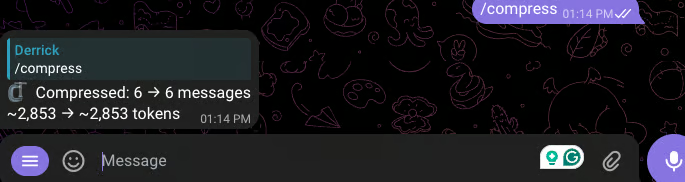
You can also edit ~/.hermes/config.yaml to configure compression defaults.
# In ~/.hermes/config.yaml
compression:
  enabled: true
  threshold: 0.50    # Compress at 50% of context limit by default
summary_model: "google/gemini-3-flash-preview" # Model used for summarizationCheck if the skill exists. Run this command to confirm that the instructions in the skills are being used.
hermes chat --toolsets skills -q "Use the X skill to do Y"Run hermes gateway status to check if it is running.
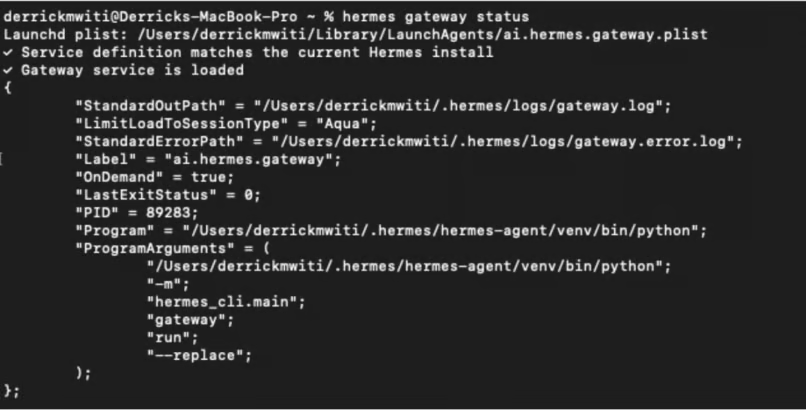
If it has stopped, start it with hermes gateway start.
Check ~/.hermes/.env to verify that your API keys are correct. Run hermes model to ensure that the model selected has the correct API key.
If you have been following the Twitter agents' war, you might have noticed that there are two camps: one is for using agents with APIs, and the other for running agents using local models. The local models camp is very vocal in advocating for Hermes Agent, which they claim is a better harness for local models compared to OpenClaw.
Whichever camp you support, one thing is clear: running agents is not cheap. Therefore, if there is a tool that can run local models and provide performance that is close to a top-tier model, then that tool is worth looking at. Especially now with metered usage across all model providers.
With the current demand for agents, users who want unlimited usage will gravitate towards a tool that can offer the best results. As of this moment, many people on Twitter are claiming that Hermes Agent is that tool. Whether local models actually reduce the demand for APIs remains to be seen, especially because not all users have personal GPUs and are technical enough to set them up for local usage.
Several personal AI assistants have been released recently. The best thing you can do is to study them and determine which one is best for you. Check out the resources below to get up to speed quickly:
To learn more about working with AI tools, check out our guide to the best free AI tools. For broader AI coding skills, try our AI-Assisted Coding for Developers course to develop the skills that make AI assistants more reliable partners in your development workflow.
Learn with DataCamp
{count, plural, one {Course} other {Courses}}
{count, plural, one {Course} other {Courses}}
{count, plural, one {Course} other {Courses}}
{count, plural, one {Tutorial} other {Tutorials}}
Aashi Dutt
12 min
{count, plural, one {Tutorial} other {Tutorials}}
Dr Ana Rojo-Echeburúa
10 min
{count, plural, one {Tutorial} other {Tutorials}}
Dario Radečić
15 min
{count, plural, one {Tutorial} other {Tutorials}}
Abid Ali Awan
10 min
{count, plural, one {Tutorial} other {Tutorials}}
Khalid Abdelaty
12 min
code-along
Nihal Kumar Kadri