Program
Kecerdasan Buatan untuk Rekayasa Perangkat Lunak
7 Hr
Microsoft's MAI model family is built by the Microsoft AI Superintelligence team. These are fully in-house models, trained on Microsoft's own infrastructure, optimized for Microsoft's serving stack, and deployed directly through Azure. MAI-Transcribe-1 and MAI-Voice-1 models run on the same Azure Speech infrastructure that already serves enterprise customers at scale, while MAI-Image-2 uses a flow-matching diffusion architecture with the same training objective behind Stable Diffusion 3, with between 10 and 50 billion non-embedding parameters.
Here's the quick summary of all three:
|
Model |
Task |
Key number |
Price |
|
MAI-Transcribe-1 |
Speech to Text |
3.88% avg WER on FLEURS |
$0.36/hr |
|
MAI-Voice-1 |
Text to Speech |
60s audio in 1s |
$22/1M chars |
|
MAI-Image-2 |
Text to Image |
Elo 1190 overall |
$5/1M text + $33/1M img tokens |
Let's go deeper on each before we build.
MAI-Transcribe-1 is a speech-to-text model supporting 25 languages. Its headline claim is a 3.88% average Word Error Rate (WER) on the FLEURS benchmark, which is lower the better, and this puts it ahead of GPT-Transcribe (4.17%), Scribe v2 (4.32%), Gemini 3.1 Flash-Lite (4.89%), and Whisper-large-v3 (7.60%).
The model is specifically built for messy real-world audio, including noisy environments, mixed accents, and natural speaking styles. Microsoft also claims MAI-Transcribe-1 delivers good accuracy at approximately 50% lower GPU cost than leading alternatives, which is a meaningful advantage for enterprises running transcription at scale.
However, it still lacks real-time transcription, speaker diarization, and context biasing, all of which are listed as "coming soon."
MAI-Voice-1 is Microsoft's high-fidelity TTS model. Its key capability is voice prompting, where you provide a 10-second audio sample, and the model clones that voice without any fine-tuning. However, voice cloning requires gated approval from Microsoft, but the curated voice library (names like en-us-Jasper:MAI-Voice-1, en-us-June:MAI-Voice-1) is available immediately.
The model generates 60 seconds of audio in a single second on a single GPU, supports per-turn emotion control via SSML, and is built for long-form content like audiobooks and podcasts. It already powers Copilot's Audio Expressions and podcast features in Microsoft's own products.
One drawback to this model is that it is “English-only”, with 10+ languages coming soon.
MAI-Image-2 uses a flow-matching diffusion architecture with 10–50 billion parameters. It is the top-3 model on Arena.ai's image leaderboard and is 2x times faster than MAI-Image-1 in production. The model was developed in collaboration with photographers, designers, and visual storytellers, and is already deployed inside Copilot, Bing Image Creator, and PowerPoint. It is particularly built for photorealism, accurate skin tones, and legible in-image text.
Its Elo scores by category include photorealistic (1201) and portraits (1201), where it shines, while text rendering (1186) is better than before but still the weakest category.
All three MAI models are available on Microsoft Azure. MAI-Transcribe-1 and MAI-Voice-1 share the same Azure Speech resource, while MAI-Image-2 runs through Microsoft Foundry. Let's set up both one by one.
Both MAI-Transcribe-1 and MAI-Voice-1 models are accessed through the Azure AI Speech service, so one resource covers both.
Go to portal.azure.com
In the search bar, type Speech and select Speech services
Click + Create
Fill in the form:
Resource group: Create a new resource group and name it mai-demo-rg
Region: Select East US because MAI models are currently only supported for East US and West US
Name: mai-speech-demo
Pricing tier: Standard S0
Note: Free F0 has rate limits that may interrupt the demo
Finally, click Review and create, and after some loading, click Create.
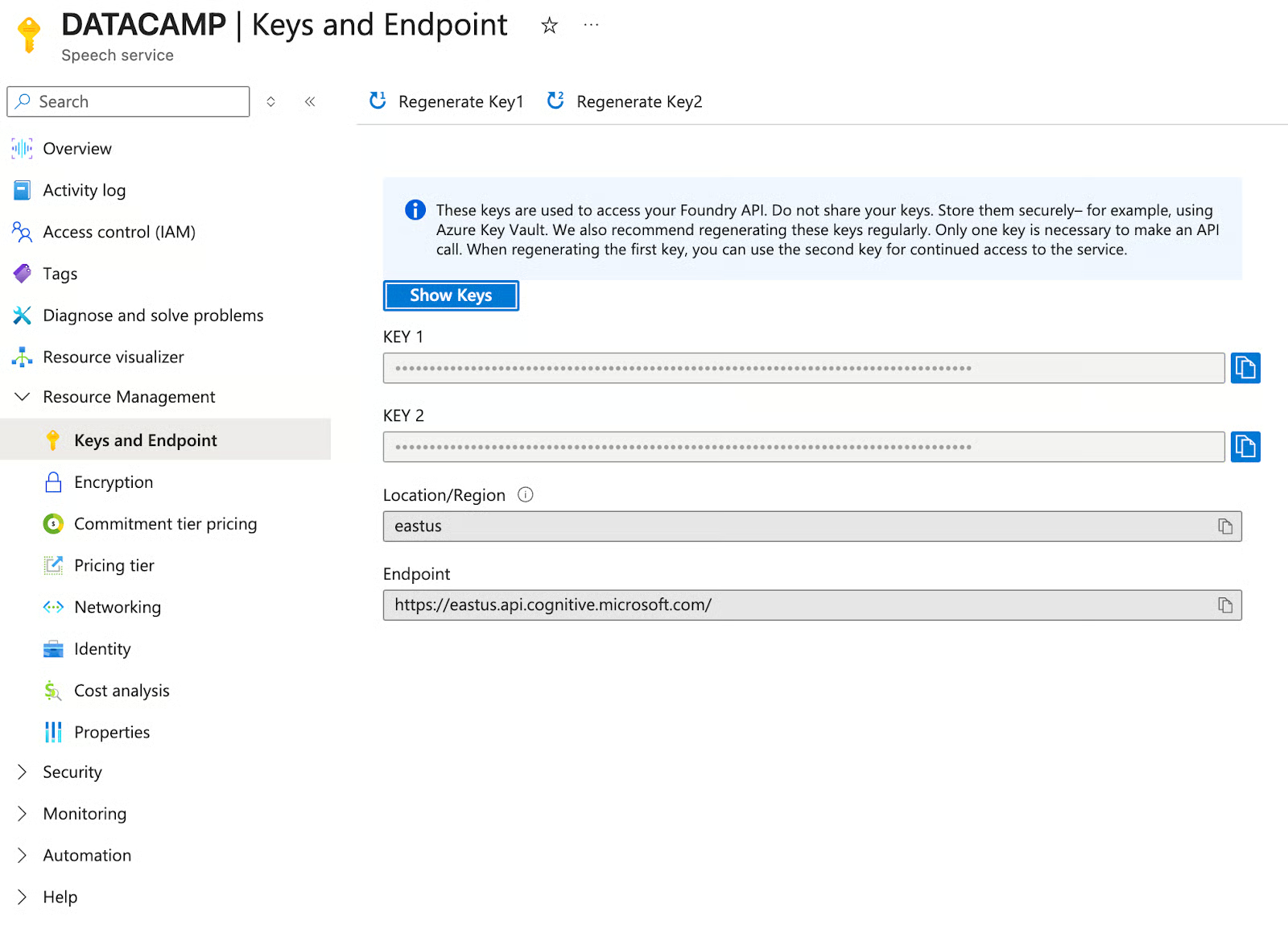
Once deployment completes, go to Keys and Endpoint in the left sidebar and copy Key 1 and note the Region value (eastus).
MAI-Image-2 is accessed through Microsoft Foundry, which is separate from the regular Azure portal.

From the Azure portal homepage, click Foundry in the top services row
Click Create a resource
Next, fill in the following details:
Resource group: Select the same mai-demo-rg from Step 1
Region: East US
Name: mai-image-demo
Default project name: proj-default
Then, click on Review and create, and hit Create
Once the resource is live, click Go to Foundry portal.
Next, in the Foundry interface, click Model catalog in the left sidebar
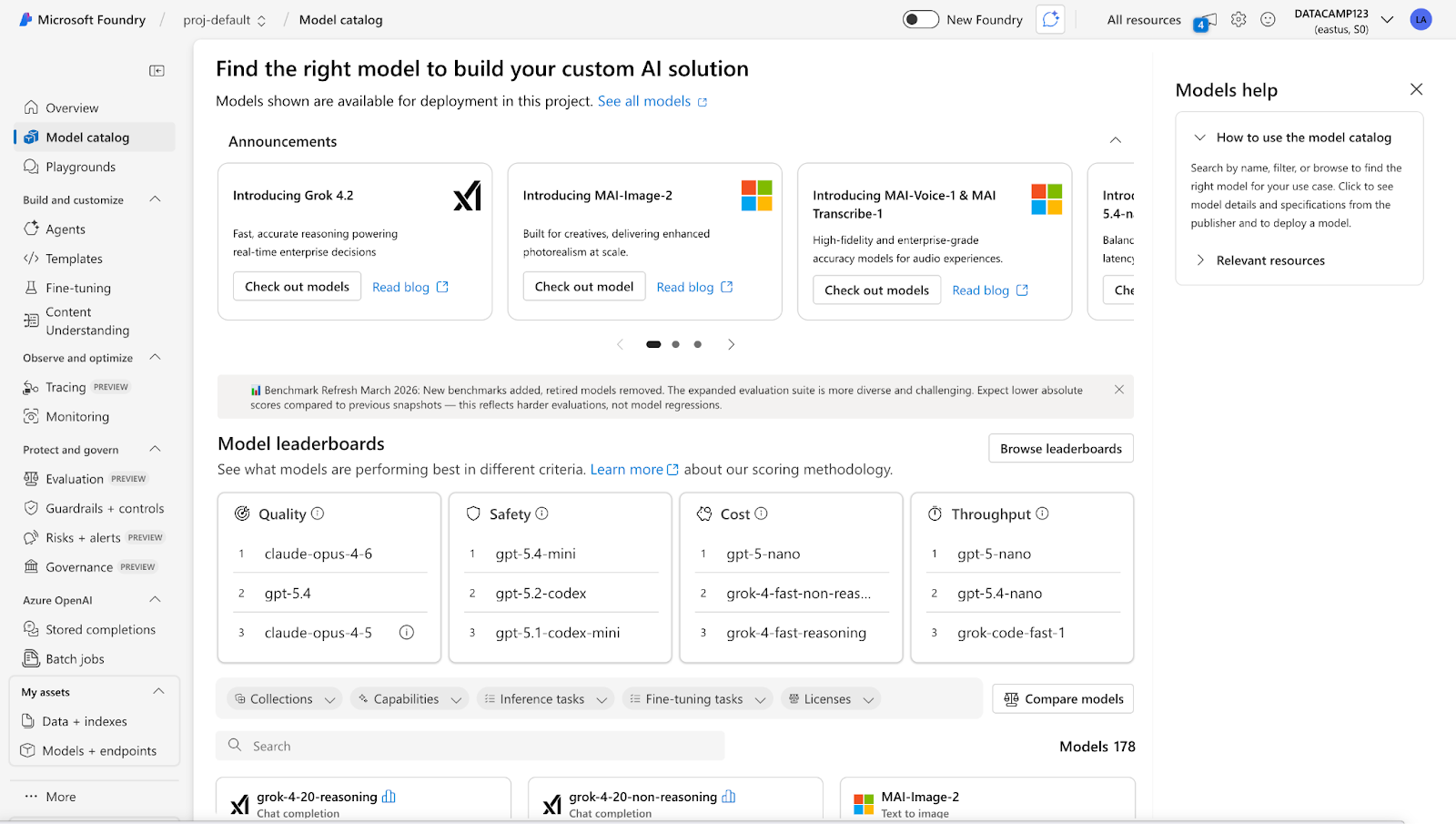
MAI in the search bar, and you'll see all four MAI models listed
Select MAI-Image-2 and click Use this model
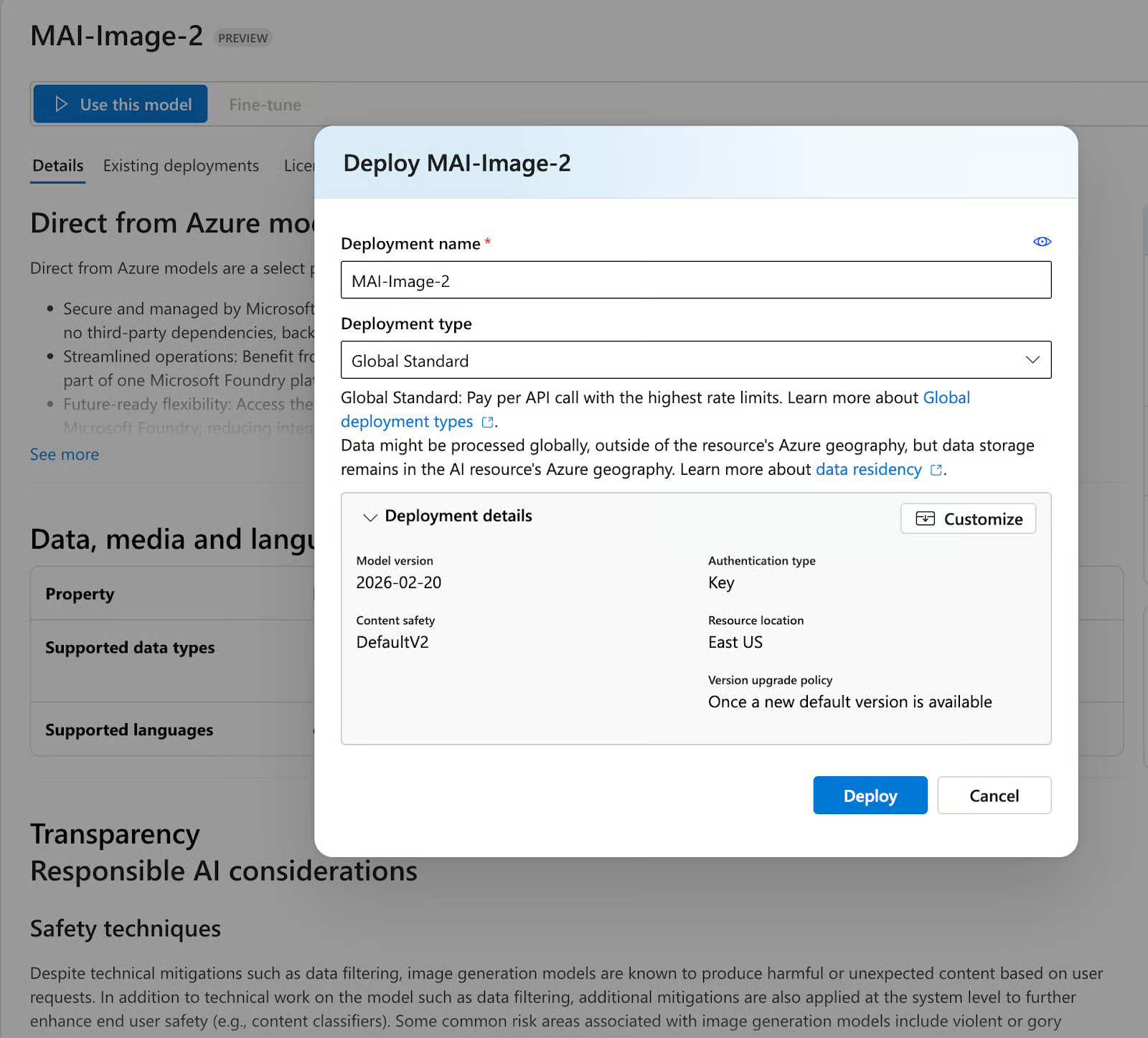
In the deploy dialog, set the:
Deployment name: MAI-Image-2
Deployment type: Global Standard
Finally, click deploy
After deployment, you'll land on the deployment details page. Copy the Target URI (something like https://mai-image-demo.services.ai.azure.com/models) and the Key.
Create a .env file in your local project directory and add the details we got from the previous two steps:
AZURE_SPEECH_KEY=your_speech_key_1_here
AZURE_SPEECH_REGION=eastus
AZURE_IMAGE_ENDPOINT=https://your-resource-name.services.ai.azure.com/models
AZURE_IMAGE_KEY=your_foundry_key_here
AZURE_IMAGE_DEPLOYMENT=MAI-Image-2
Important Note: AZURE_IMAGE_DEPLOYMENT is case-sensitive. Use MAI-Image-2 exactly as it appears in Foundry, as lowercase mai-image-2 will return an unknown_model error.
In this section, we'll build a three-tab Streamlit app that calls all three MAI models via live Azure API calls. At a high level, here's what the app does:
Here is the file setup:
mai_demo/
├── app.py            # Streamlit UI
├── mai_clients.py    # Azure API wrappers
├── requirements.txt
└── .env
The app is split into two files: mai_clients.py, which handles all Azure API calls and returns structured result dicts, and app.py, which handles the Streamlit UI. Let's build it step by step.
Unlike a local model setup, this app connects to live Azure cloud APIs, so the dependency list includes both the Azure Speech SDK and supporting HTTP and image libraries.
pip install -r requirements.txtThe requirements.txt file contains:
.txt
streamlit>=1.35.0
azure-cognitiveservices-speech>=1.38.0
requests>=2.31.0
pillow>=10.0.0
python-dotenv>=1.0.0
openai>=1.30.0
In this project, we'll use:
streamlit for the three-tab UI, file uploaders, audio players, and inline image rendering
azure-cognitiveservices-speech for the Azure Speech SDK, used to communicate with MAI-Transcribe-1 and MAI-Voice-1
requests to make direct REST API calls to all three Azure endpoints
pillow to decode and display the image bytes returned by MAI-Image-2
python-dotenv to load Azure keys and endpoint URLs from the .env file at runtime
openai for the Azure OpenAI-compatible SDK, which supports Foundry image generation endpoints
Once installed, make sure the .env file is in the same directory as app.py before running the app. All credential loading happens automatically at startup via python-dotenv.
All Azure API calls live in mai_clients. py ', where each function returns a simple {"success": bool, ...}` dictionary so the UI layer never crashes on an error.
MAI-Transcribe-1 is accessed via the Azure Speech REST API's LLM Speech endpoint. The key detail is that it takes a multipart form request in the form of an audio file and a JSON definition object.
def transcribe_audio(audio_bytes: bytes, filename: str = "audio.wav") -> dict:
    url = (
        f"https://{speech_region}.api.cognitive.microsoft.com"
        f"/speechtotext/transcriptions:transcribe?api-version=2024-11-15"
    )
    headers = {"Ocp-Apim-Subscription-Key": speech_key}
    definition = '{"locales":["en-US"],"profanityFilterMode":"None"}'
    files = {
        "audio": (filename, audio_bytes, _mime_type(filename)),
        "definition": (None, definition, "application/json"),
    }
    resp = requests.post(url, headers=headers, files=files, timeout=60)
    data = resp.json()
    combined = " ".join(
        p.get("text", "") for p in data.get("combinedPhrases", [])
    ).strip()
    return {"success": True, "transcript": combined, "raw": data, ...}
The response from the above code snippet comes back as a JSON object with combinedPhrases, which is an array of text segments. We join them into a single transcript string. The supported audio formats include WAV, MP3, and FLAC. The API is region-locked to East US and West US for now.
MAI-Voice-1 uses standard Azure Speech TTS via SSML. The key is constructing the <mstts:express-as> block for emotion control and referencing the right voice name format (en-us-Jasper:MAI-Voice-1).
def _build_ssml(text: str, emotion: str, voice_name: str) -> str:
    style_map = {
        "neutral": None,
        "joy": "joy",
        "excitement": "excitement",
        "empathy": "empathy",
    }
    style = style_map.get(emotion)
    text_block = (
        text if style is None
        else f"<mstts:express-as style='{style}'>{text}</mstts:express-as>"
    )
    return f"""<speak version='1.0' xml:lang='en-US'
        xmlns='http://www.w3.org/2001/10/synthesis'
        xmlns:mstts='http://www.w3.org/2001/mstts'>
      <voice name='{voice_name}'>
        {text_block}
      </voice>
    </speak>"""
The available voice names for MAI-Voice-1 follow the pattern en-us-{Name}:MAI-Voice-1. The current roster includes Jasper, June, Grant, Iris, Reed, and Joy.
MAI-Image-2 uses a Foundry-specific endpoint, which is not the standard Azure OpenAI /openai/deployments/ path. The correct endpoint format is:
url = f"{base_endpoint}/mai/v1/images/generations"Here, the base_endpoint is the root of our Foundry resource URL (e.g. https://your-resource.services.ai.azure.com), with any trailing /models path stripped out before constructing the request. The request body has two requirements: first, you must explicitly pass the model field set to your deployment name, unlike standard OpenAI endpoints, where the model is inferred from the URL path:
payload = { "model": deployment, # "MAI-Image-2" "prompt": prompt, "width": width, "height": height, }Second, the image dimensions have hard constraints: both width and height must be at least 768 pixels, and their product cannot exceed 1,048,576, which works out to a maximum of 1024×1024 for square images. Passing 512×512 or omitting dimensions entirely will return a 400 Bad Request.
The response follows the standard OpenAI image generation shape. Each item in the data array will contain either a url pointing to a hosted image or a b64_json field with the raw base64-encoded bytes. The client handles both:
image_url = row.get("url")
b64 = row.get("b64_json")
if b64:
    img_bytes = base64.b64decode(b64)
elif image_url:
    img_resp = requests.get(image_url, timeout=30)
    img_bytes = img_resp.content
Note that url responses are time-limited, which means we need to fetch and cache the bytes immediately rather than storing the URL for later use.
The app is organized into three tabs, one per model. Here's the structure:
import streamlit as st
from mai_clients import transcribe_audio, synthesize_speech, generate_image
tab1, tab2, tab3 = st.tabs([
    "🎙 MAI-Transcribe-1",
    "🔊 MAI-Voice-1",
    "🖼 MAI-Image-2",
])
Each tab follows the same pattern: inputs → button → spinner → result display → cost metrics.
The first tab handles audio upload and transcription. It accepts WAV, MP3, and FLAC files, plays back the audio inline so you can verify what you're testing, and sends the bytes directly to transcribe_audio() on button click.
with tab1:
    audio_file = st.file_uploader("Upload audio file", type=["wav", "mp3", "flac"])
    if audio_file:
        st.audio(audio_file)
        if st.button("Transcribe", type="primary"):
            with st.spinner("Calling MAI-Transcribe-1..."):
                result = transcribe_audio(audio_file.read(), audio_file.name)
            if result["success"]:
                st.text_area("Transcript", value=result["transcript"], height=140)
                m1, m2, m3 = st.columns(3)
                m1.metric("Latency", f"{result['latency_s']}s")
                m2.metric("Audio duration", f"{result['duration_ms']/1000:.1f}s")
                m3.metric("Est. cost", f"${result['duration_ms']/3_600_000 * 0.36:.5f}")
On a successful response, the transcript appears in an editable text area followed by three metrics: API latency in seconds, the audio duration extracted from the response's durationMilliseconds field, and an estimated cost calculated as duration_in_hours × $0.36.
A 7-second clip costs roughly $0.0000007, so you can run dozens of test files without meaningfully touching your Azure credit.
The second tab handles text-to-speech synthesis. It exposes the three controls that matter most for testing MAI-Voice-1: the text input, the emotion style, and the voice selection, which all are passed directly into synthesize_speech() function.
with tab2:
    text_input = st.text_area("Text to synthesize", value="The quarterly results exceeded...")
    emotion = st.selectbox("Emotion / style", ["neutral", "joy", "excitement", "empathy"])
    voice_name = st.selectbox("Voice", ["en-us-Jasper:MAI-Voice-1", "en-us-June:MAI-Voice-1", ...])
    if st.button("Synthesize", type="primary"):
        with st.spinner("Calling MAI-Voice-1..."):
            result = synthesize_speech(text_input, emotion=emotion, voice_name=voice_name)
        if result["success"]:
st.audio(result["audio_bytes"], format="audio/mp3")The emotion selector maps to SSML <mstts:express-as> styles under the hood; neutral omits the tag entirely for clean baseline output, while joy, excitement, and empathy selectors produce noticeably different pacing and pitch profiles. The voice dropdown covers the six MAI-Voice-1 voices currently available: Jasper, June, Grant, Iris, Reed, and Joy.
On success, the returned MP3 bytes are passed directly to st.audio() for inline playback. At 113 characters, the estimated cost is $0.000002, which means you can run multiple tests without exhausting too many credits.
The third tab handles text-to-image generation. The MAI-Image-2's current API exposes two input parameters, including prompt and resolution. There are no quality tiers or style controls, the model handles those internally.
with tab3:
    prompt = st.text_area("Image prompt", value="A worn paperback book on a café table...")
    size = st.selectbox("Resolution", ["1024x1024", "1365x768", "768x1365"])
    if st.button("Generate", type="primary"):
        with st.spinner("Calling MAI-Image-2..."):
            result = generate_image(prompt, size=size)
        if result["success"]:
            img = Image.open(io.BytesIO(result["image_bytes"]))
            st.image(img, use_container_width=True)
The three resolution options cover the main aspect ratios: square (1024×1024), landscape (1365×768), and portrait (768×1365). The size string is parsed into separate width and height integers before being sent to the API, since the Foundry endpoint takes them as individual fields rather than a combined string.
On success, the raw image bytes from the API response are wrapped in a BytesIO buffer, opened with Pillow, and rendered inline at full container width. Image generation typically takes 2–4 seconds, which is noticeably faster than MAI-Image-1 in the same environment.
With your .env file configured and dependencies installed, you're ready to run the app.
streamlit run app.pyStreamlit will start a local server and automatically open the app in your browser at http://localhost:8501. You should see the three-tab interface with MAI-Transcribe-1 active by default.
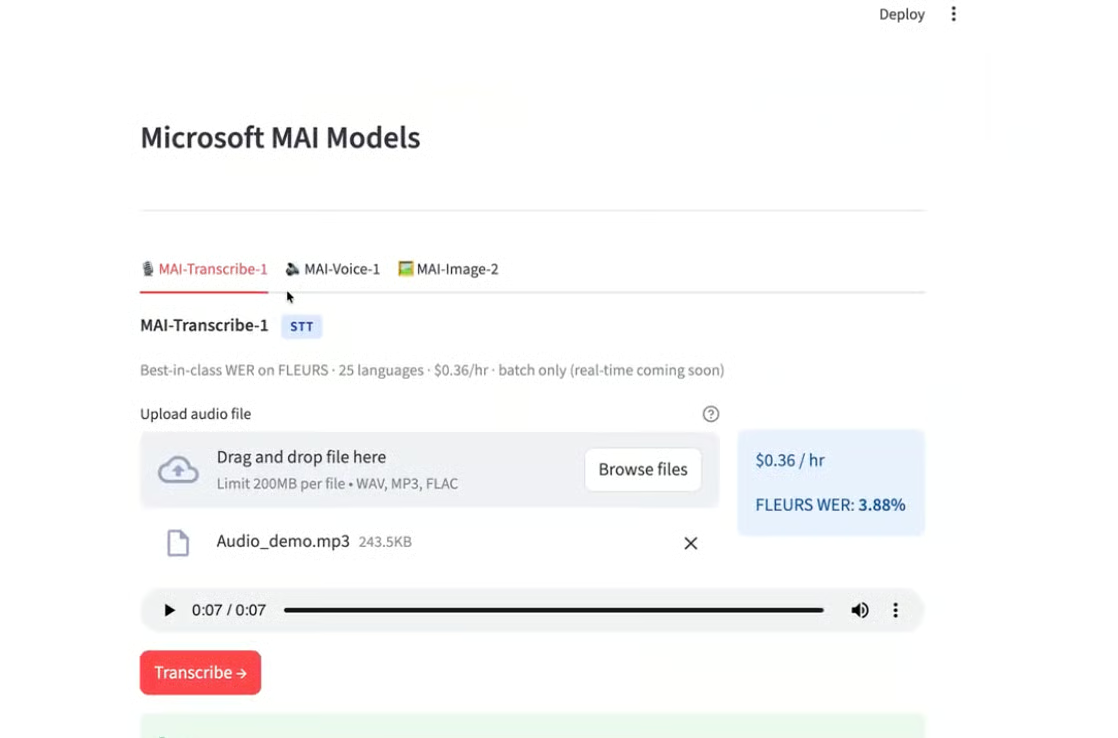
Here's what the models actually produced when we ran them.
I tested MAI-Transcribe-1 with a 7-second audio clip recorded in an optimal noisy environment with an Indian accent. The model returned a clean, accurate transcript in under 2 seconds.
Takeaway: The result held up well on accented speech, which is where Whisper-large-v3 typically struggles most. That said, per-language numbers tell a different story, like for Arabic, which sits at 10.1% and Danish at 13.2%, both well above the headline figure. If your use case involves a specific language or regional accent distribution, test it against your actual audio before committing to the model in production.
I synthesized a 113-character sentence with the excitement style using the en-us-Jasper:MAI-Voice-1 voice model, and it returned a 6-second MP3 in under 1 second. The emotion was clearly present in the output with more energetic pacing and higher pitch variance.
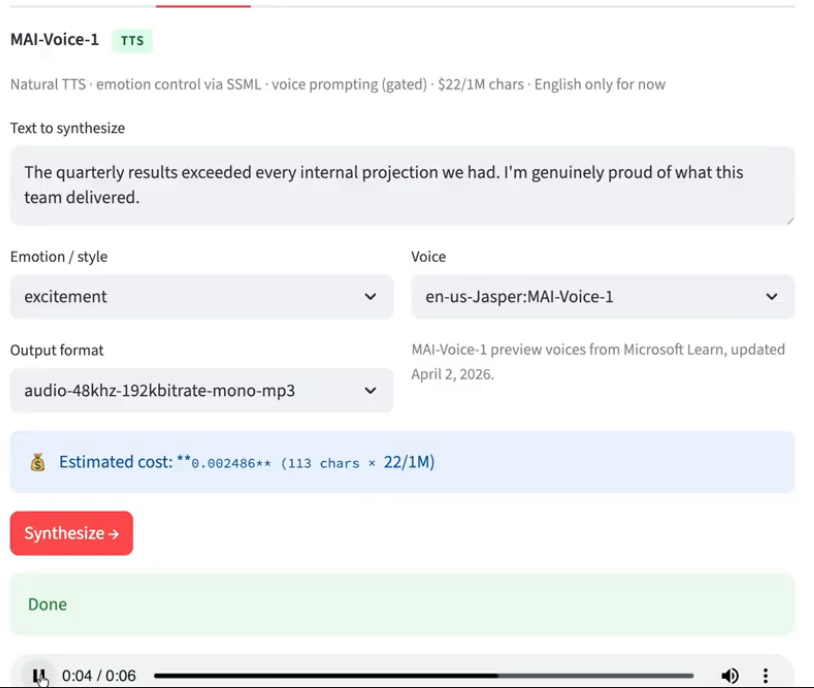
Takeaway: A 6-second clip generated in under 1 second is impressive. The SSML emotion control works but is limited to four styles: neutral, joy, excitement, and empathy. So, don't expect the full range of expression you'd get from ElevenLabs' style library.
This is the most interesting test because I deliberately chose a prompt that combines two things: photorealistic scene composition and in-image text. Most diffusion models fail at least one of these.
Prompt: "A worn paperback book on a café table, natural window light, steam rising from an espresso cup beside it. The book cover reads: INFERENCE AT SCALE — text clearly legible, not warped."
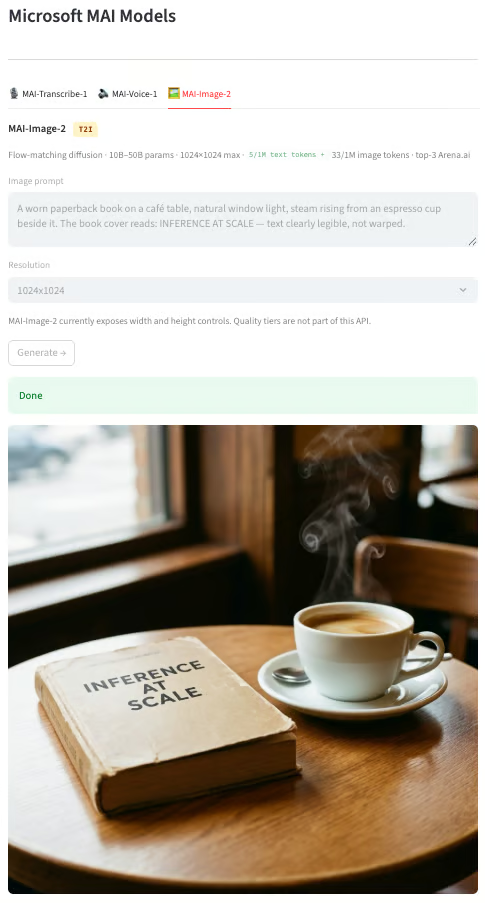
Takeaway: The photorealism is genuinely strong with natural window lighting, convincing steam, and believable texture on the book and cup. The text "INFERENCE AT SCALE" also rendered correctly and legibly.
However, the text rendering is inconsistent across runs. In multiple test generations with similar prompts, the model occasionally produced misspelled or garbled text. This is a known failure mode for all current diffusion models, and MAI-Image-2 is better than most but not immune. Also, the current maximum resolution is 1024×1024 pixels, which, for most web and content use cases, is sufficient, but it rules out print-quality output or large-format creative work without an upscaling step. If you're generating images where text accuracy is critical, make sure to always add a human review step.
Microsoft's MAI model family is genuinely impressive, where MAI-Transcribe-1's FLEURS numbers are the most objectively verifiable of the three, as they hold up 3.88% average WER, which is best-in-class as of this writing.
MAI-Voice-1 is impressive for speed and voice quality but constrained by English-only support and a limited emotion palette. MAI-Image-2 produces strong photorealistic output, but with an important caveat that text hallucinations still happen and require human review in production.
The complete code for this tutorial is available on GitHub.
Learn with DataCamp
Program
Program
Kursus
blogs
Khalid Abdelaty
9 mnt
Tutorials
Aashi Dutt
12 mnt
Tutorials
Aashi Dutt
9 mnt
Tutorials
Bhavishya Pandit
7 mnt
Tutorials
Zoumana Keita
12 mnt
Tutorials
Aashi Dutt
12 mnt


