본문으로 바로가기
Excel

EOMONTH(): Calculate End-of-Month Dates in Excel

Calculate the last day of any month with Excel's EOMONTH() function. Use it to streamline financial schedules, reporting periods, and monthly workflows.
Josef Waples's photo
Josef Waples
· 3분 읽기

AI와 탐험해 보세요

ChatGPTClaudePerplexity

무료 계정 만들기

실습 문제하고 트랙하세요.

Google로 계속하기
계속 진행하시면 당사의 이용약관 및 개인정보처리방침에 동의하고 및 귀하의 데이터가 미국에 저장되는 것에 동의하게 됩니다.

You probably don’t think about month-end dates much, at least until you need to calculate them for your financial reports. 

In this article, we’ll look at how EOMONTH() works, and why it’s so handy for building financial models, setting up schedules, or planning some other kind of report that depends on the last day of the month.

Understanding the Excel EOMONTH() Function

The EOMONTH() function returns the serial number for the last day of the month that is the indicated number of months before or after a specified date. This makes it easy to automate calculations involving month-end dates.

Here is the syntax for the EOMONTH() function:

=EOMONTH(start_date, months)
  • start_date: The initial date from which to calculate.

  • months: The number of months before (negative) or after (positive) the start date.

Excel EOMONTH() in Practice

To use the EOMONTH() function, follow these steps:

  • Enter your starting date in a cell (for example, A1).

  • In another cell, enter the EOMONTH() formula referencing your start date and the number of months.

For example, to find the last day of the month three months after January 15, 2024:

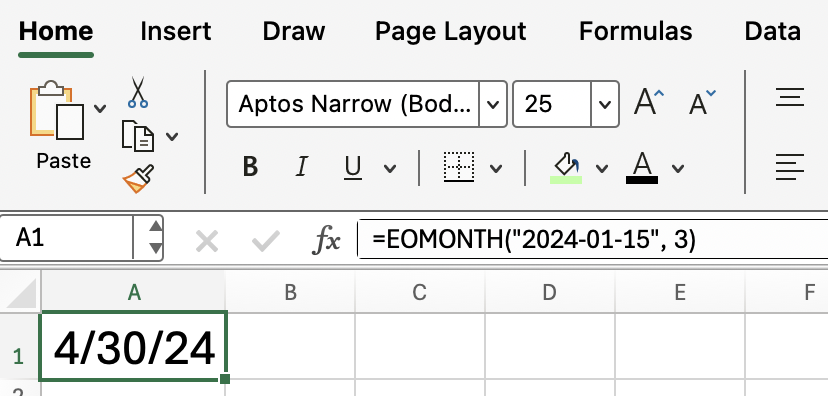
=EOMONTH("2024-01-15", 3)

This formula returns April 30, 2024.

Excel EOMONTH function simple example

Remember that you have to format as a date, otherwise the output will look off.

Excel EOMONTH() Common Scenarios

The EOMONTH() function is commonly used in the following scenarios:

  • Calculating due dates that fall on the last day of the month
  • Determining reporting periods for financial statements
  • Scheduling recurring monthly events

Excel EOMONTH() with Other Functions

You can (and in some cases you really should) combine EOMONTH() with other Excel functions to create more dynamic formulas. For example, to calculate the first day of the next month, add 1 to the result of EOMONTH():

=EOMONTH(A1, 0) + 1
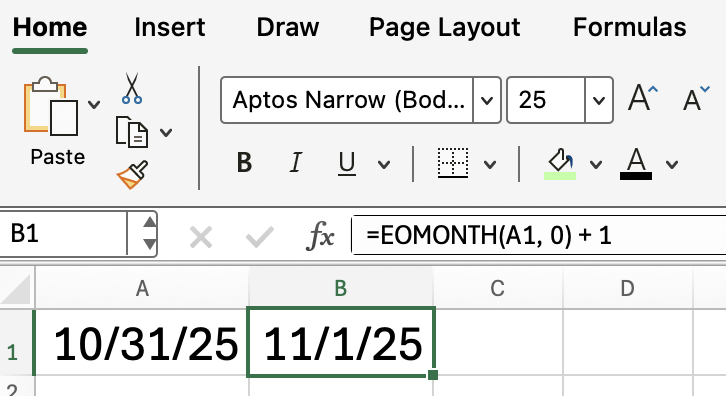
Using Excel EOMONTH + 1 to find the first day in the month

This formula returns the first day of the month following the date in cell A1.

Troubleshooting Excel EOMONTH() Errors

If you encounter errors with EOMONTH(), consider the following solutions:

  • Ensure the start date is a valid Excel date.
  • Check that the months argument is a whole number.
  • Format the result cell as a date so that the output is something you, as a person, can easily read.

For this last point, which is a common issue, follow these steps:
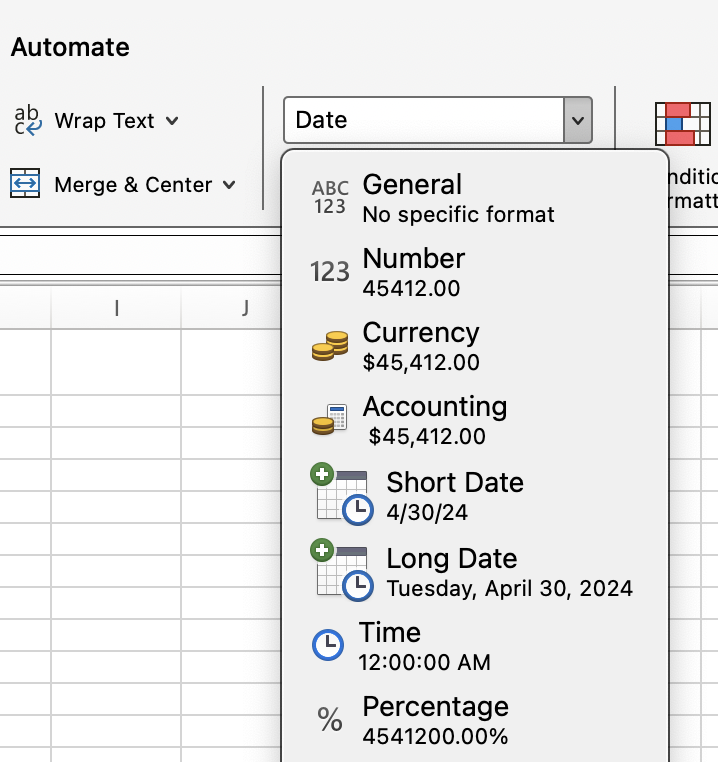
  • Select the cell with the formula.
  • Go to the Home tab.
  • Click on the Number Format dropdown and select Date.

Formatting EOMONTH result as a Date

Conclusion

If you find yourself working with dates in Excel, don't forget to study up on the EOMONTH() function, especially if you are someone working with dates in a financial and project management context.

Don't forget to take our Financial Modeling in Excel course to keep learning about things like cash flow, or else take our Advanced Excel Functions course to learn about new and interesting and helpful Excel functions.

Financial Modeling in Excel

Become a proficient financial analyst using Excel.
Learn Financial Modeling

Josef Waples's photo
Author
Josef Waples

I'm a data science editor with contributions to research articles in scientific journals. I'm especially interested in linear algebra, statistics, R, and the like.

주제
Excel

Learn Excel with DataCamp

강의

Excel 데이터 준비

3시간
96.4K
논리 함수, 중첩 수식, 조회 함수, 피벗 테이블을 활용해 Excel 데이터를 준비하는 방법을 배워 보세요.
자세히 보기강의 시작

무료 계정 만들기

실습 문제하고 트랙하세요.

Google로 계속하기
계속 진행하시면 당사의 이용약관 및 개인정보처리방침에 동의하고 및 귀하의 데이터가 미국에 저장되는 것에 동의하게 됩니다.
더 보기
관련

튜토리얼

Excel Time Formulas: Calculate, Format, and Manipulate Time in Excel

Master Excel time formulas to calculate durations, handle time over 24 hours, and format time values for clear, accurate reporting.
Samuel Shaibu's photo

Samuel Shaibu

9분

튜토리얼

How to Add Days to a Date in Excel: All Methods Explained

Learn how to add days to a date in Excel using simple arithmetic and functions like DATE(), EDATE(), and WORKDAY(), with practical examples and pitfalls to avoid.
Allan Ouko's photo

Allan Ouko

12분

튜토리얼

NPER() Excel: Understanding Payment Period Calculations

Learn how the NPER() function in Excel calculates the number of periods required to pay off a loan or reach an investment goal. Discover its syntax, use cases, and practical examples.
Vinod Chugani's photo

Vinod Chugani

7분

튜토리얼

How to Calculate Days Between Dates in Excel: The 5 Best Ways

Explore simple subtraction for quick and effortless date calculations. Apply the DAYS() and DATEDIF() functions to achieve precise date intervals. Use NETWORKDAYS() and TODAY() to track working days and automatically exclude weekends and holidays.
Laiba Siddiqui's photo

Laiba Siddiqui

5분

튜토리얼

PMT() Excel: Calculate Loan Payments and Savings Contributions

Learn how to use Excel's essential financial function to determine periodic payments for loans, mortgages, and investments. Discover proper syntax and advanced applications for financial modeling.
Vinod Chugani's photo

Vinod Chugani

8분

튜토리얼

Excel NOW(): Get the Current Date and Time

Get the current date and time instantly in Excel with the NOW() function. Learn how to use NOW(), its syntax, and practical examples for dynamic spreadsheets.
Josef Waples's photo

Josef Waples

3분

더 보기