
Our biggest-ever sale. 60% off AI & data skills
Buy Now

Oefen en volg je voortgang.
Ga verder met GoogleDoor verder te gaan, accepteer je ons Gebruiksvoorwaarden, onze Privacybeleid en dat je gegevens in de VS worden opgeslagen.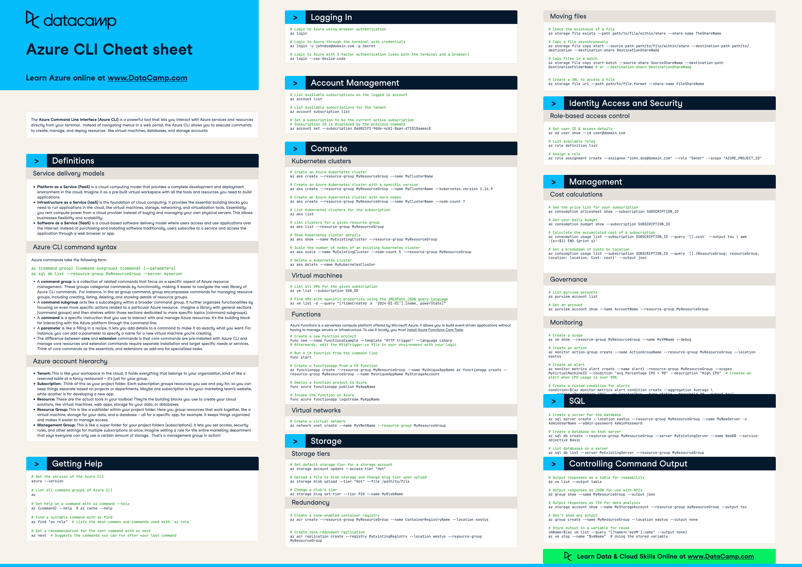
Houd deze cheatsheet bij de hand
PDF downloadenThe Azure Command Line Interface (Azure CLI) is a powerful tool that lets you interact with Azure services and resources directly from your terminal. Instead of navigating menus in a web portal, the Azure CLI allows you to execute commands to create, manage, and deploy resources like virtual machines, databases, and storage accounts.
Azure commands take the following form.
az {command group} {command subgroup} {command} {--parameters}
az sql db list --resource-group MyResourceGroup --server myserver# Get the version of the Azure CLI
azure --version
# List all command groups of Azure CLI
az
# Get help on a command with az command --help
az {command} --help # az cache --help
# Find a suitable command with az find
az find "az role" # Lists the most-common sub-commands used with az role
# Get a recommendation for the next command with az next
az next # Suggests the commands you can run after your last command# Login to Azure using browser authentication
az login
# Login to Azure through the terminal with credentials
az login -u [email protected] -p Secret
# Login to Azure with 2-factor authentication (uses both the terminal and a browser)
az login --use-device-code# List available subscriptions on the logged in account
az account list
# List available subscriptions for the tenant
az account subscription list
# Set a subscription to be the current active subscription
# Subscription ID is displayed by the previous command
az account set --subscription 0ad021f2-9dde-4cb1-8aa4-d71018aaeec8 # Create an Azure Kubernetes cluster
az aks create --resource-group MyResourceGroup --name MyClusterName
# Create an Azure Kubernetes cluster with a specific version
az aks create --resource-group MyResourceGroup --name MyClusterName --kubernetes-version 1.16.9
# Create an Azure Kubernetes cluster with more nodes
az aks create --resource-group MyResourceGroup --name MyClusterName --node-count 7
# List Kubernetes clusters for the subscription
az aks list
# List clusters for a given resource group
az aks list --resource-group MyResourceGroup
# Show Kubernetes cluster details
az aks show --name MyExistingCluster --resource-group MyResourceGroup
# Scale the number of nodes of an existing Kubernetes cluster
az aks scale --name MyExistingCluster --node-count 5 --resource-group MyResourceGroup
# Delete a Kubernetes cluster
az aks delete --name MyKubernetesCluster# List all VMs for the given subscription
az vm list --subscription SUB_OD
# Find VMs with specific properties using the JMESPath JSON query language
az vm list -d --query "[?timeCreated >= '2024-01-01'].[name, powerState]"Azure Functions is a serverless compute platform offered by Microsoft Azure. It allows you to build event-driven applications without having to manage servers or infrastructure. To use it locally, you must install Azure Functions Core Tools.
# Create a new function project
func new --name FunctionsExample --template "HTTP trigger" --language csharp
# Afterwards, edit the HttpTrigger.cs file in your environment with your logic
# Run a C# function from the command line
func start
# Create a functionapp from a C# function
az functionapp create --resource-group MyResourceGroup --name MyUniqueAppName az functionapp create --resource-group MyResourceGroup --name MyUniqueAppName MyStorageAccount
# Deploy a function project to Azure
func azure functionapp publish MyAppName
# Invoke the function on Azure
func azure functionapp logstream MyAppName# Create a virtual network
az network vnet create --name MyVNetName --resource-group MyResourceGroup# Set default storage tier for a storage account
az storage account update --access-tier "Hot"
# Upload a file to blob storage and change blog tier upon upload
az storage blob upload --tier "Hot" --file /path/to/file
# Change a blob's tier
az storage blog set-tier --tier P10 --name MyBlobName# Create a zone-enabled container registry
az acr create --resource-group MyResourceGroup --name ContainerRegistryName --location eastus
# Create zone-redundant replication
az acr replication create --registry MyExistingRegistry --location westus --resource-group MyResourceGroup# Check the existence of a file
az storage file exists --path path/to/file/within/share --share-name TheShareName
# Copy a file asynchronously
az storage file copy start --source-path path/to/file/within/share --destination-path path/to/destination --destination-share DestinationShareName
# Copy files in a batch
az storage file copy start-batch --source-share SourceShareName --destination-path DestinationFolderName # or --destination-share DestinationShareName
# Create a URL to access a file
az storage file url --path path/to/file.format --share-name FileShareName# Get user ID & access details
az ad user show --id [email protected]
# List available roles
az role definition list
# Assign a role
az role assignment create --assignee "[email protected]" --role "Owner" --scope "AZURE_PROJECT_ID"# See the price list for your subscription
az consumption pricesheet show --subscription SUBSCRIPTION_ID
# Get your daily budget
az consumption budget show --subscription SUBSCRIPTION_ID
# Calculate the accumulated cost of a subscription
az consumption usage list --subscription SUBSCRIPTION_ID --query '[].cost' --output tsv | awk '{s+=$1} END {print s}'
# Get a breakdown of costs by location
az consumption usage list --subscription SUBSCRIPTION_ID --query '[].{ResourceGroup: resourceGroup, Location: location, Cost: cost}' --output json# List purview accounts
az purview account list
# Get an account
az purview account show --name AccountName --resource-group MyResourceGroup# Create a scope
az vm show --resource-group MyResourceGroup --name MyVMName --debug
# Create an action
az monitor action-group create --name ActionGroupName --resource-group MyResourceGroup --location eastus
# Create an alert
az monitor metrics alert create --name alert1 -resource-group MyResourceGroup --scopes MyVirtualMachineID --condition "avg Percentage CPU > 90" --description "High CPU" # Creates an alert when CPU usage is over 90%
# Create a custom condition for alerts
condition=$(az monitor metrics alert condition create --aggregation Average \
--metric "Percentage CPU" --op GreaterThan --type static --threshold 90 --output tsv)
az monitor metrics alert create --name alert2 --resource-group MyResourceGroup --condition $condition # Using the above condition# Create a server for the database
az sql server create --location eastus --resource-group MyResourceGroup --name MyNewServer -u AdminUserName --admin-password AdminPassword
# Create a database on that server
az sql db create --resource-group MyResourceGroup --server MyExistingServer --name NewDB --service-objective Basic
# List databases on a server
az sql db list --server MyExistingServer --resource-group MyResourceGroup# Output responses as a table for readability
az vm list --output table
# Output responses as JSON for use with APIs
az group show --name MyResourceGroup --output json
# Output responses as TSV for data analysis
az storage account show --name MyStorageAccount --resource-group myResourceGroup --output tsv
# Don't show any output
az group create --name MyResourceGroup --location eastus --output none
# Store output in a variable for reuse
vmName=$(az vm list --query "[?name=='myVM'].name" --output none)
az vm stop --name "$vmName" # Using the stored variable
kort overzicht
 Richie Cotton• 17 min
kort overzicht
Richie Cotton• 6 min
Tutorial
 Florin Angelescu• 8 min
Continue Your Azure Learning Journey Today!
Cursus
Leer hoe Microsoft Azure en cloudcomputersoftware je helpen je data-engineeringsvaardigheden te verbeteren.
Cursus
Deze cursus gaat dieper in op de basis van Azure door onderwerpen als containers, virtuele machines en nog veel meer te behandelen.
Oefen en volg je voortgang.
Ga verder met GoogleDoor verder te gaan, accepteer je ons Gebruiksvoorwaarden, onze Privacybeleid en dat je gegevens in de VS worden opgeslagen.


