
Our biggest-ever sale. 60% off AI & data skills
Buy Now
Pixtral Large features a 123B multimodal decoder and 1B parameter vision encoder (124B parameters), which makes it able to deal effectively with multimodal inputs. It has demonstrated unmatched capabilities in diverse scenarios such as:
Pixtral Large shows good results on quite a few benchmarks—here are the ones that caught my attention:
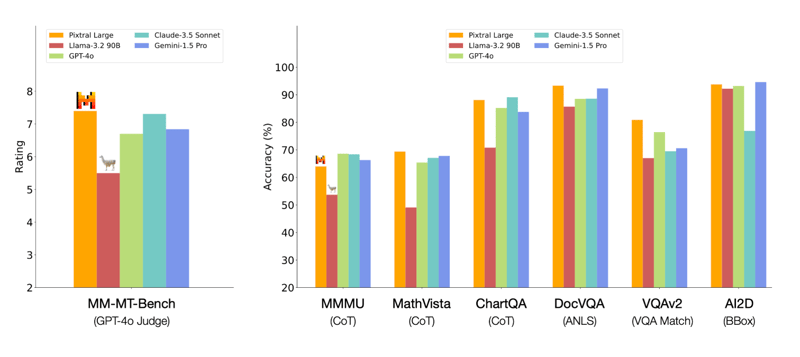
Source: Mistral AI
Pixtral Large 124B and Pixtral 12B share some architectural foundations but are not identical. While Pixtral Large builds on the foundations laid by Pixtral 12B, its features are significant in architecture, context window size, and multimodal integration, leading to superior performance in various tasks. Here are a few differences between the two models.
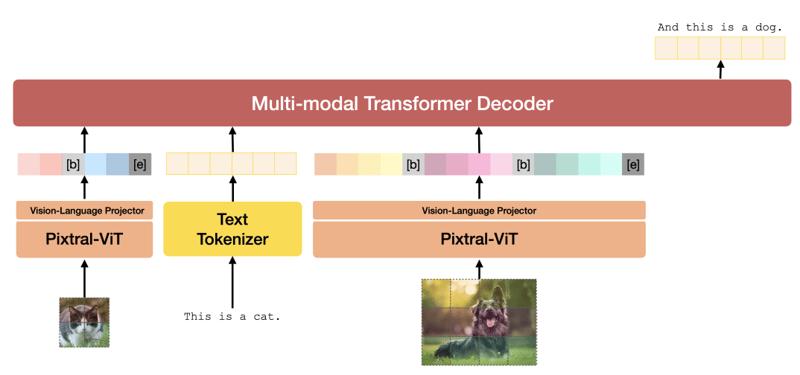
Pixtral Architecture. Source: Pixtral 12B technical report.
If you want to explore the model architecture more deeply, check out the Pixtral 12B technical report. The Pixtral Large technical report is currently unavailable.
Le Chat offers a chat-based interface, much like the popular ChatGPT.
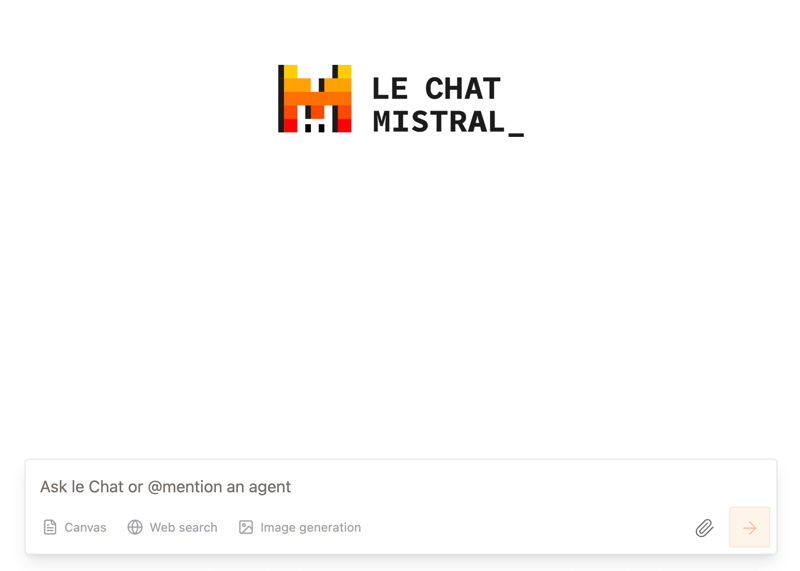
Although we can’t select the Pixtral Large model specifically, the announcement article makes it clear that “state of the art document and image understanding” is powered by the new multimodal Pixtral Large.
I first tried Pixtral Large on a research paper on Transformer-Lite, which has plenty of text and graphs. I asked the model to provide me with a summary of the document:
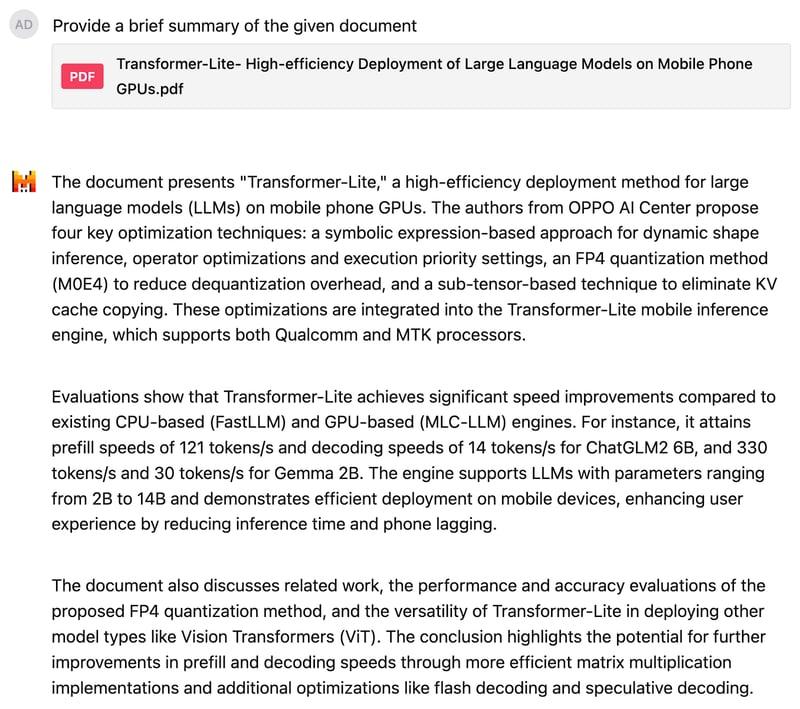
I was fairly satisfied with the result. Next, I asked Pixtral to explain this pie chart of smartphone brands distribution, but I was careful to keep my prompt vague and not give away what the pie chart is about.
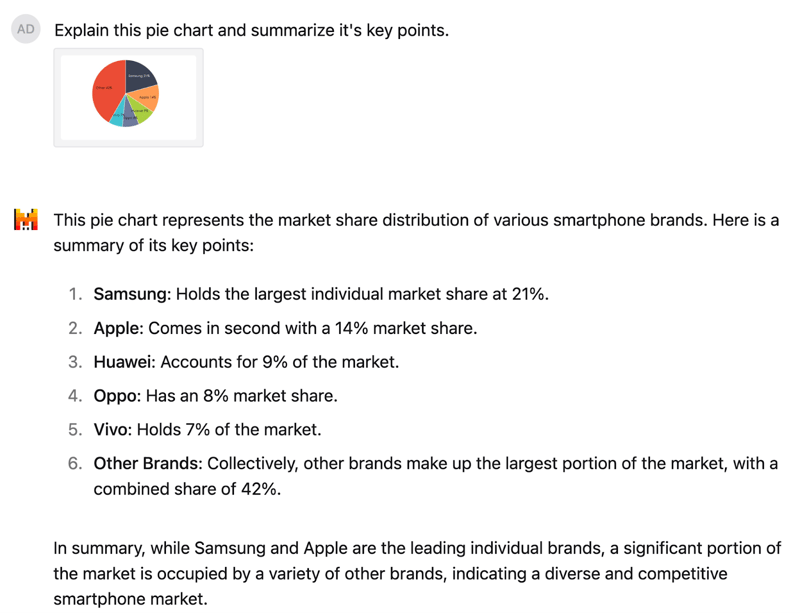
The model understood the pie chart and identified the numbers correctly. The response is well structured and also gives an accurate interpretation, saying that while Samsung and Apple lead the market, a significant portion is occupied by a variety of other brands.
For most everyday use cases, Le Chat is a great option, but if we want to use Pixtral Large programmatically, we need to connect through its API. I’ll first show you how to connect to the API through La Plateforme, and then I’ll test Pixtral Large on my own drawings.
To use Pixtral Large through the API, we can take the following steps:
1. Log in to La Plateforme.
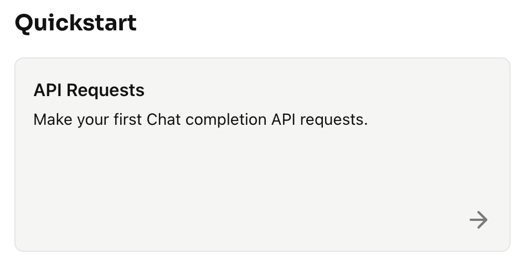
2. Click on Quickstart → API Requests
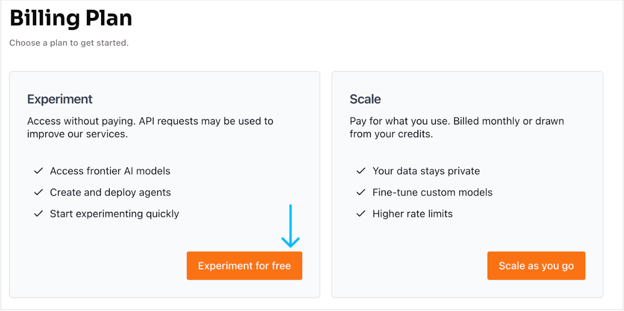
3. Select the free account option. Click on Experiment for free, which takes us to another page for verifying the account using our mobile number using an OTP and setting up a new account.
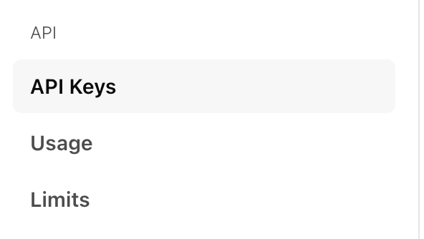
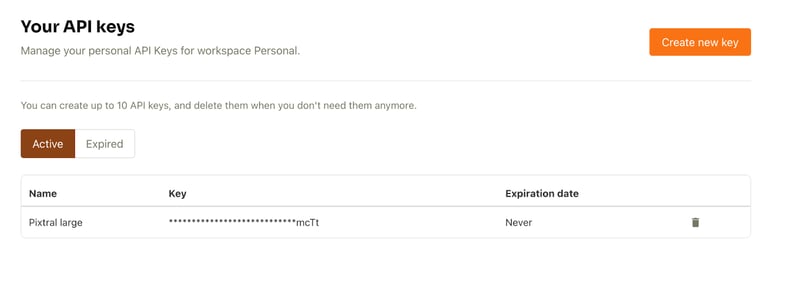
4. Once the account is set up, select API keys from the API tab (left side).
5. Next, click on Create new key. We may fill in the optional details and click on Create key.
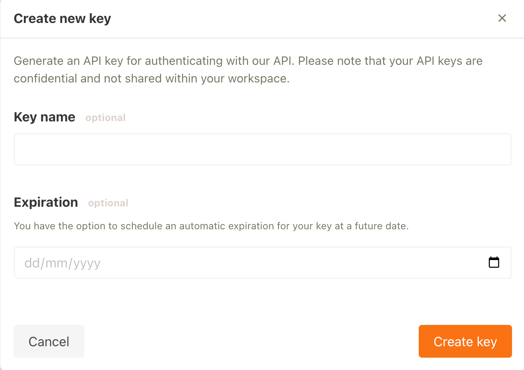
The API key is now ready for use.
Let’s now create an image description generator using the API. The goal is to pass any image to the model along with a question in the prompt (e.g., “Provide a detailed description of the given image”) and receive a response.
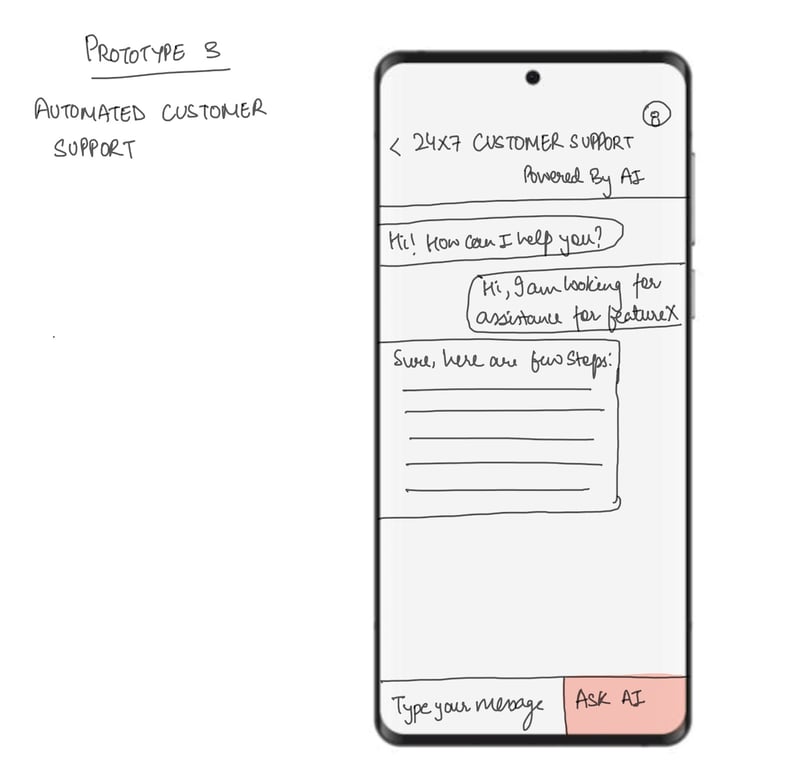
I’ll test this by generating a description for one of my drawings, which is shown below. The image depicts a mobile framework for a 24/7 customer support chatbot application.
Before we get started, make sure you have the following setup:
Let’s begin:
Next, we set up our imports. For this tutorial we will use the following libraries:
import base64from io import BytesIOfrom PIL import Imagefrom mistralai import MistralNext, use the API key. To set up the API key in Google Colab, go to the Secrets tab. Click on the key icon in the left sidebar, then paste your API key and assign a name to the secret. Afterward, toggle the button to enable the secret for use in your code. This will allow us to use the following code in our application.
from google.colab import userdatauserdata.get('secretName') # pass in your secretName hereOnce the secret key is in place, we set up a variable with the name API_KEY and pass it in our secret name, as shown in the code below. Next, we pass the API key to the Mistral function and set up the client.
from google.colab import userdataAPI_KEY = userdata.get('secretName') # Replace with your actual secret nameclient = Mistral(api_key=API_KEY) Note: We can optionally pass the API key directly but it is not recommended for safety and privacy reasons.
Once we have the client set up, we start to process the image that will be the input to the Pixtral Large model.
# Helper function to encode an image to base64def encode_image(image_obj): if isinstance(image_obj, Image.Image): # Check if it's already a PIL Image img = image_obj else: # Otherwise, try opening it as a path img = Image.open(image_obj) buffered = BytesIO() img.save(buffered, format="PNG") return base64.b64encode(buffered.getvalue()).decode("utf-8")The primary goal of the above function is to take an image, either as a file path or a preloaded PIL.Image.Image object and return its Base64 string representation. This is useful for:
Once we have the image, we want to generate its description with the Pixtral Large API. The workflow includes encoding the image, crafting a prompt, sending a request to the Pixtral API, and receiving a descriptive response. Here is how the following code works:
Note: Make sure that under client.chat.complete, the model is set to "pixtral-large-latest" which is currently the only Pixtral Large model available to the public.
# Function to perform inference for image descriptiondef describe_image(image_path): # Load and encode the image image_base64 = encode_image(image_path) # Prompt for the Pixtral model prompt = "Please provide a detailed description of the given image." # Prepare input for the Pixtral API messages = [ { "role": "user", "content": [ {"type": "text", "text": prompt}, {"type": "image_url", "image_url": {"url": f"data:image/png;base64,{image_base64}"}} ] } ] # Perform inference response = client.chat.complete( model="pixtral-large-latest", messages=messages, max_tokens=300 ) # Return the model's output return response.choices[0].message.content# Usageif __name__ == "__main__": # Provide the path to your image file image_path = "image.png" # Replace with the path to your image # Get the description of the image description = describe_image(image_path) # Print the result print("Image Description:") print(description)Image Description:The image is a sketch of a mobile app prototype for automated customer support. The sketch depicts a smartphone screen with a customer support interface.At the top of the screen, there is a header that reads "24x7 Customer Support Powered By AI." Below the header, there is a chat window where a conversation between a user and an AI-powered support system is taking place.The conversation starts with the AI greeting the user: "Hi! How can I help you?" The user responds: "Hi, I am looking for assistance for featureX." The AI then provides a response: "Sure, here are a few steps:" followed by a placeholder for the steps, which are represented by horizontal lines.At the bottom of the screen, there is a text input box labeled "Type your message" and a button labeled "Ask AI." The button is highlighted in red, indicating it is an actionable element for the user to interact with.Overall, the sketch illustrates a user-friendly interface for automated customer support, utilizing AI to provide assistance and guidance to users.Here’s another example of a Christmas tree I’ve also drawn and below the image is what Pixtral Large thought of it.
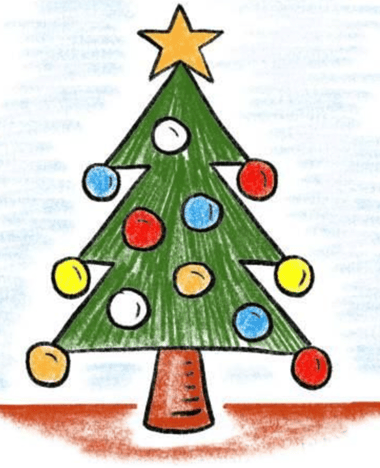
Image Description:The image presents a charming scene of a Christmas tree, standing tall and proud. ..This description is based on the visible content of the image and does not include any speculative or imaginary elements.Pixtral Large looks like a step forward in multimodal AI, with better image understanding and text processing. Through this guide, we explored the model’s capabilities through both Le Chat and La Plateforme, and I hope this guide will be helpful to you.
I am a Google Developers Expert in ML(Gen AI), a Kaggle 3x Expert, and a Women Techmakers Ambassador with 3+ years of experience in tech. I co-founded a health-tech startup in 2020 and am pursuing a master's in computer science at Georgia Tech, specializing in machine learning.

articol de blog
 Khalid Abdelaty• 9 min.

Tutorial
 François Aubry• 8 min.

Tutorial
 Josep Ferrer• 12 min.
Learn AI with these courses!
Curs
Învață metode de ultimă generație pentru integrarea datelor externe cu LLM-uri folosind Retrieval Augmented Generation (RAG) cu LangChain.
Traseu de învățare
Descoperiți fundamentele IA, învățați să valorificați eficient IA în activitatea profesională și aprofundați modelele de IA pentru a vă orienta în peisajul dinamic al inteligenței artificiale.
Curs
Pune-ți AI Act-ul în ordine! Înțelege obligațiile, riscurile și cerințele Actului UE privind IA.


Mistral AI recently announced Pixtral Large, a multimodal model that is a more powerful version of Pixtral 12B, which was released earlier this year.
Pixtral Large is a 124B multimodal model that can tackle advanced image understanding tasks while preserving the exceptional text-processing capabilities of Mistral Large 2. With a massive 128K context window, this model can analyze up to 30 high-resolution images alongside text, making it ideal for documents, charts, and natural images.
In this tutorial, I’ll walk you through various examples and provide detailed, step-by-step instructions on how to use Pixtral Large through both the Le Chat web interface and the API. Before diving into the hands-on steps, let’s first explore the key theoretical concepts behind Pixtral Large.