课程
面向开发者的 AI 辅助编码
1 小时 30 分钟
10.4K
Unsloth Studio has received a major upgrade with Unsloth Desktop, which lets you run everything locally as a desktop application. This is especially useful if you don't want to spend time installing packages, configuring different tools, or constantly running commands in the terminal.
Unsloth Desktop is basically an all-in-one solution for local AI workflows. You can run and fine-tune LLMs, test vision models, generate images and videos, train image models, work with audio, use AI coding tools, manage models, and run a local API, all from the same application.
In this guide, we will install Unsloth Desktop on Linux, run local LLMs, connect it with OpenCode, and use a local model to build a Python project. We will also explore some of its other features and see how much you can do locally from one application.
Before installing Unsloth Desktop, it is a good idea to quickly check that your NVIDIA GPU is detected and CUDA is working properly. This will help avoid issues later when you start running or fine-tuning models locally.
First, open the terminal and run:
nvidia-smi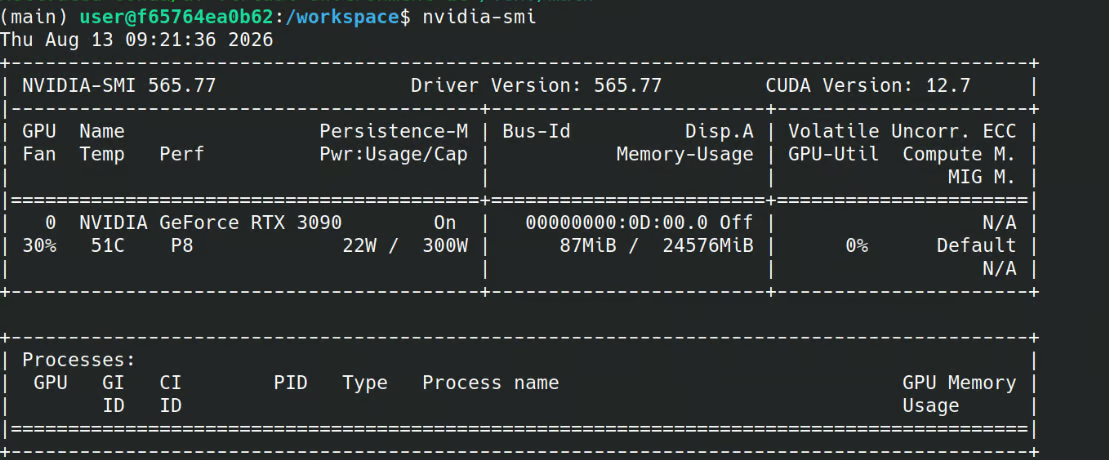
This should display your NVIDIA GPU, driver version, available GPU memory, and CUDA compatibility information.
Next, check the CUDA compiler installed on your system:
nvcc --versionYou should see an output similar to this:
nvcc: NVIDIA (R) Cuda compiler driver
Copyright (c) 2005-2025 NVIDIA Corporation
Built on Tue_May_27_02:21:03_PDT_2025
Cuda compilation tools, release 12.9, V12.9.86
Build cuda_12.9.r12.9/compiler.36037853_0
If both commands work and your GPU is detected correctly, your system is ready for Unsloth Desktop.
Next, go to the official Unsloth website and download Unsloth Desktop. Make sure you select the correct package for your operating system.
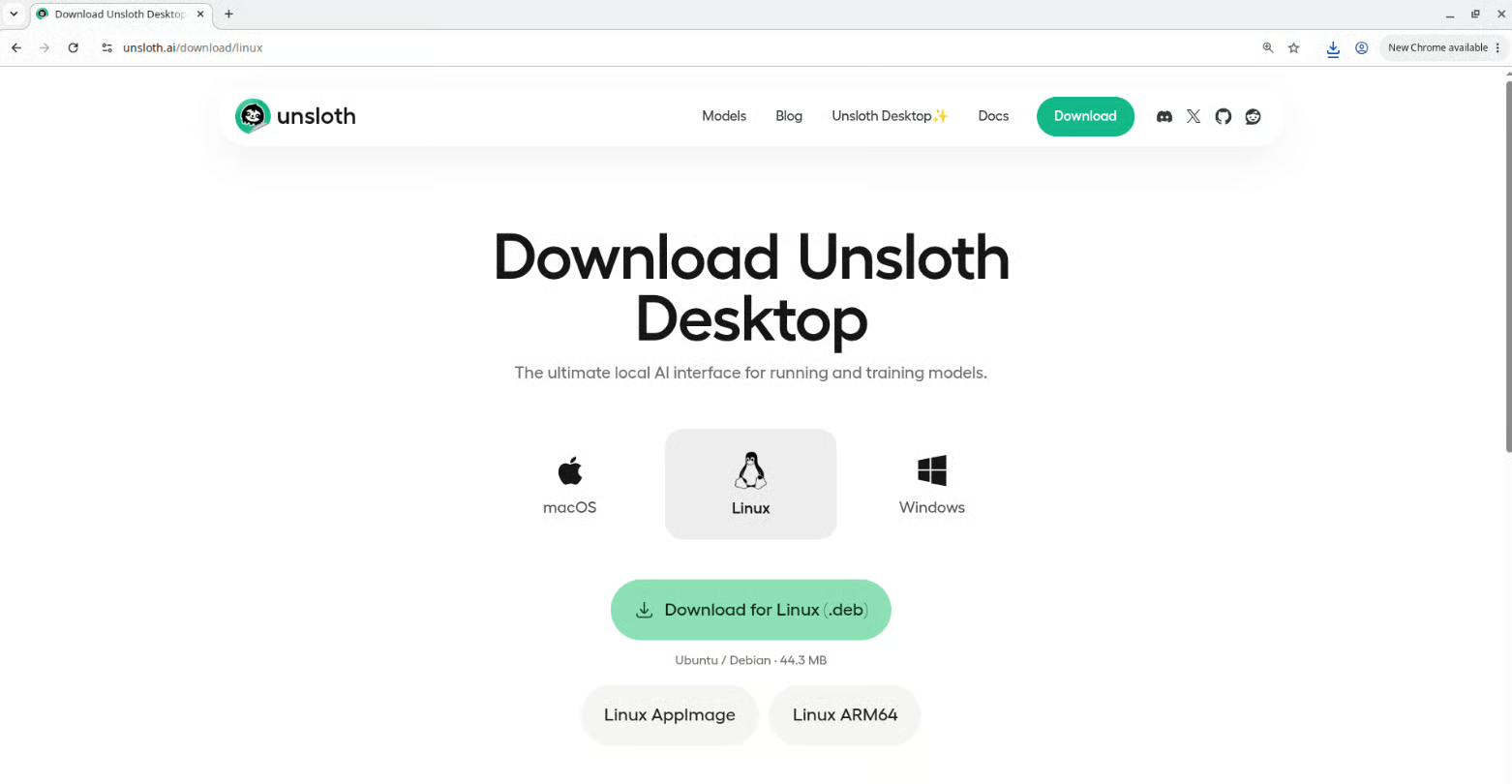
Source: Download Unsloth Desktop for Linux
After the download is complete, install the package like you would any other desktop application. On Linux, this may be a .deb package depending on your distribution.
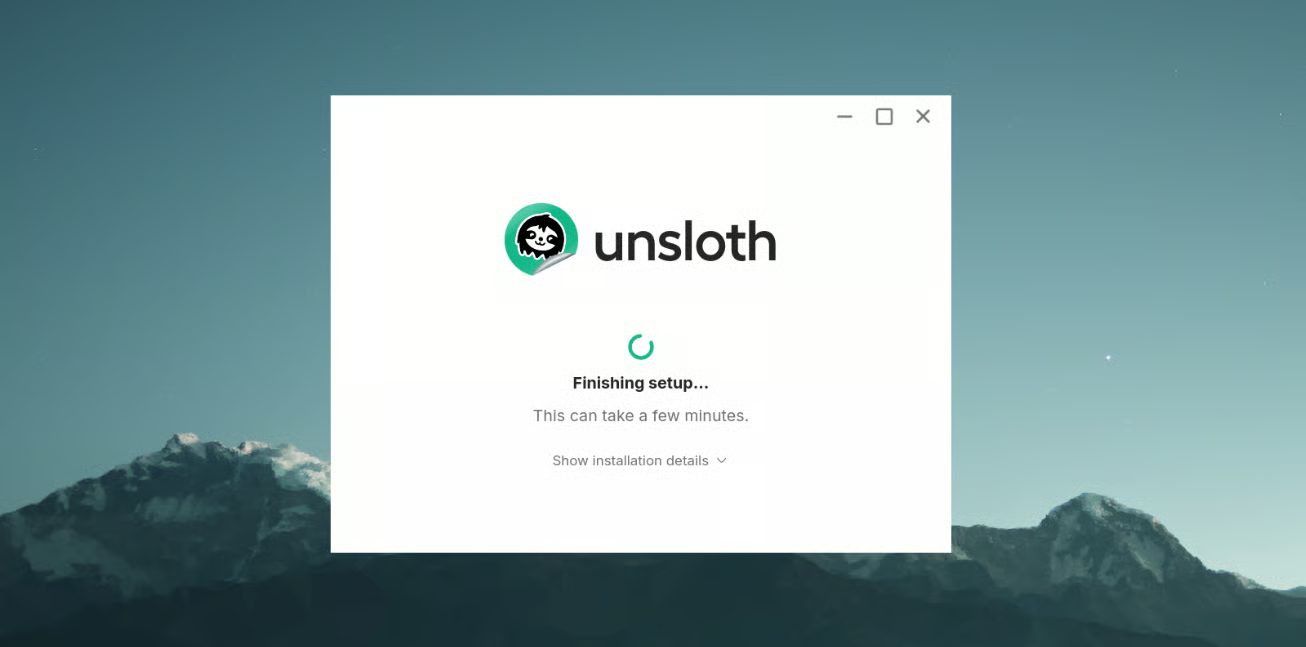
Once the installation is complete, launch Unsloth Desktop. The application should automatically detect your available hardware and give you access to the main interface.
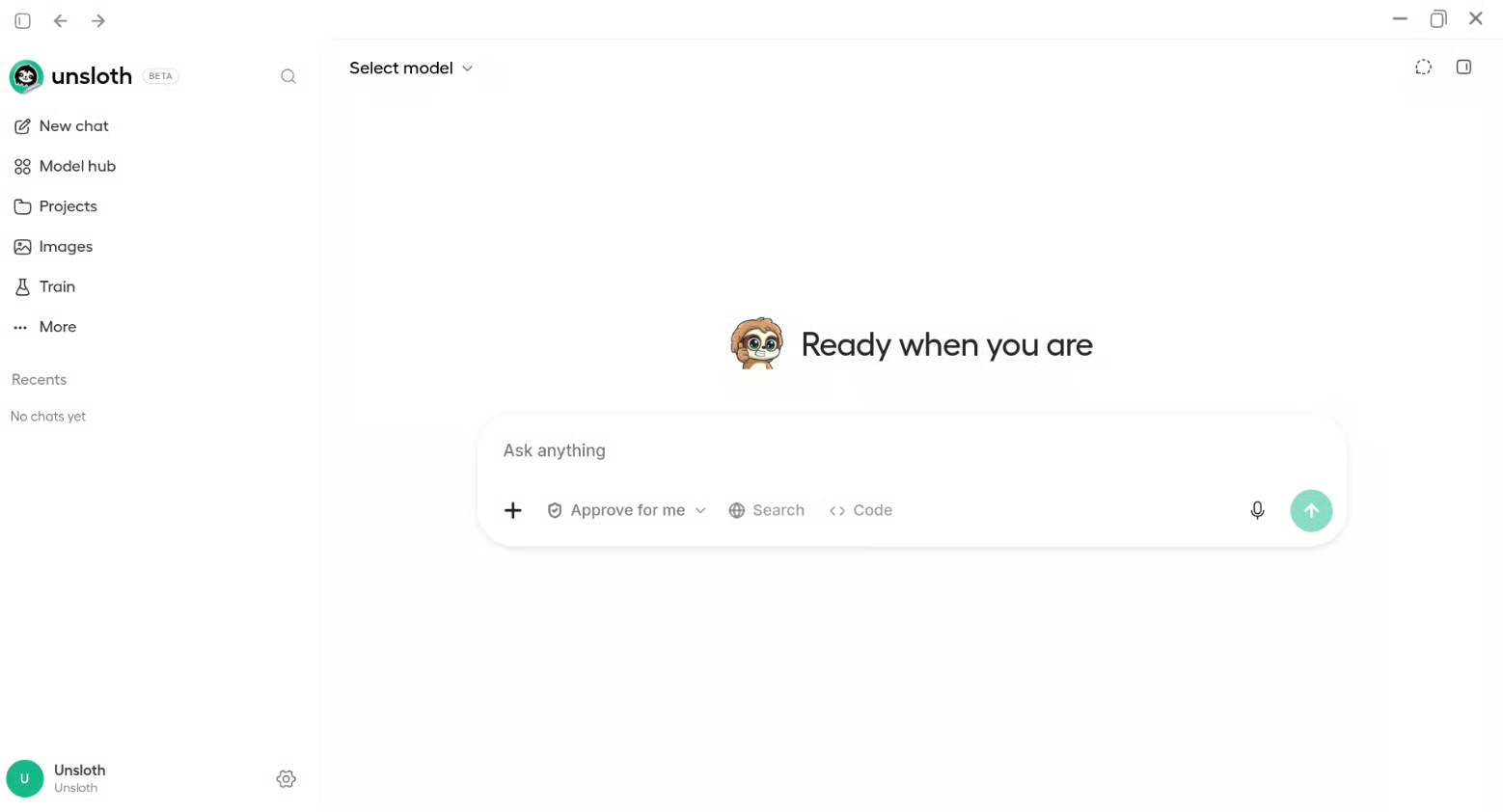
From here, you can browse and download models, run LLMs locally, fine-tune models, work with images and other modalities, manage your local models, and access the other tools available inside Unsloth Desktop.
Open the Model hub in Unsloth Desktop and search for the model you want to run. For this test, I used one of my favorite small models:
empero-ai/Qwythos-9B-Claude-Mythos-5-1M-GGUF · Hugging Face
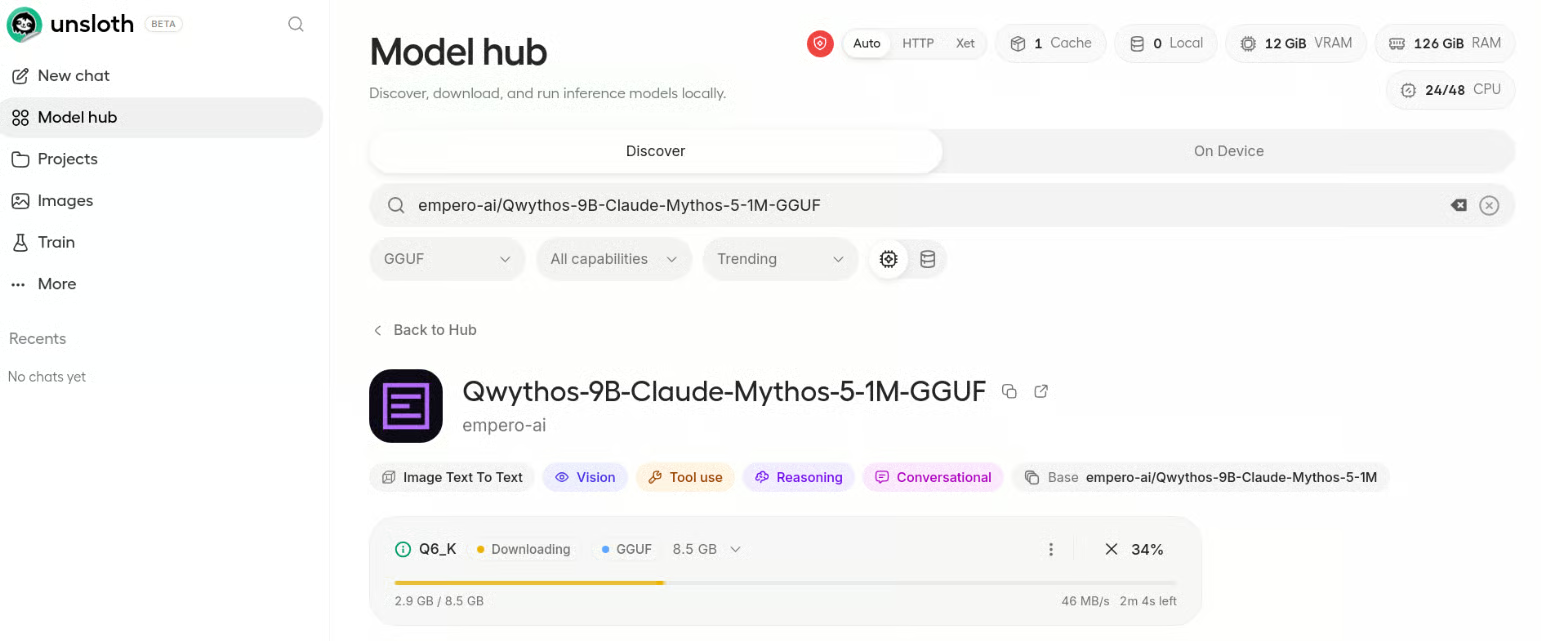
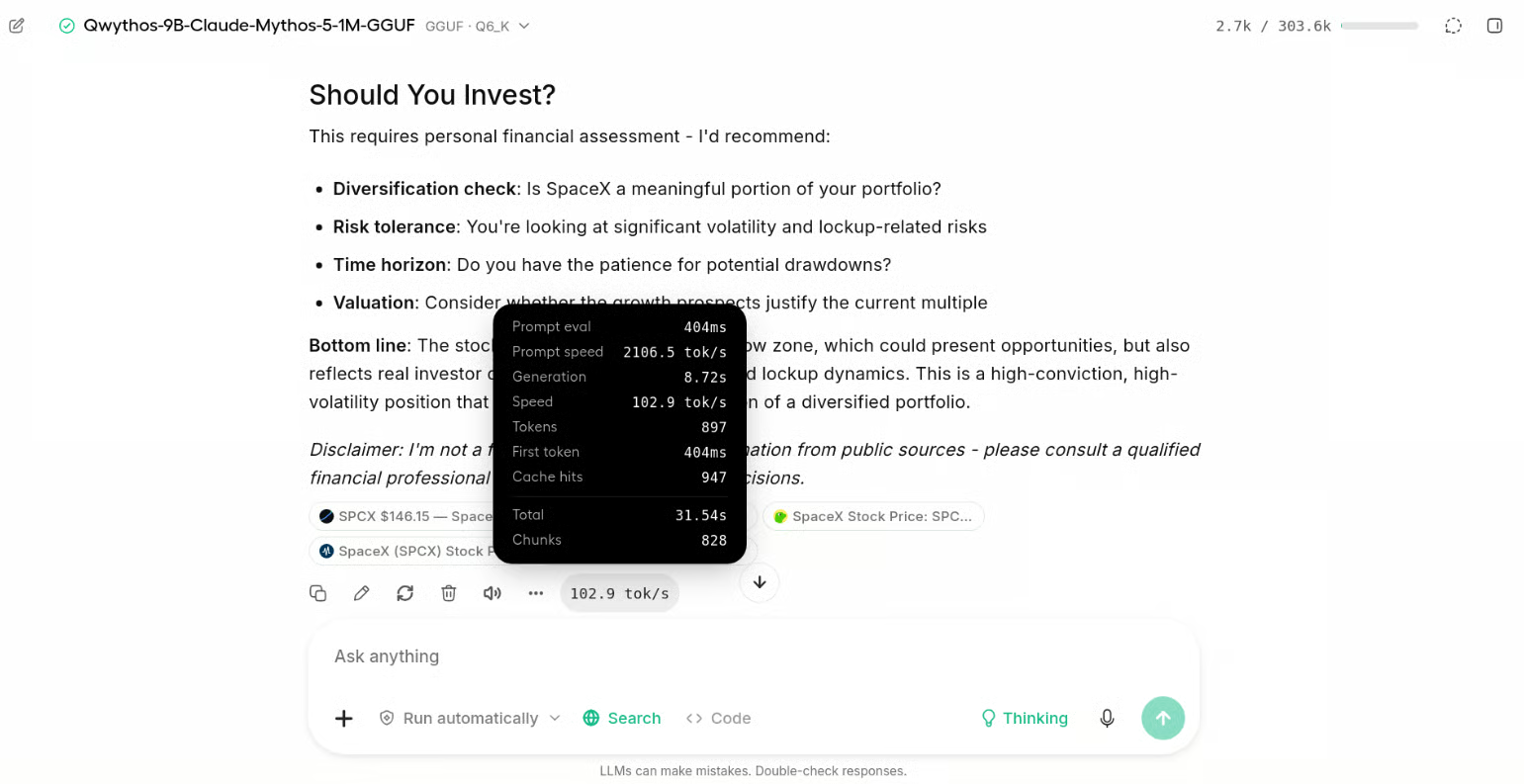
After downloading the model, you can load it and start chatting with it directly inside Unsloth Desktop. On my system, I was getting around 102 tokens per second on average, which increased to around 125 tokens per second for some coding-related queries.
I also enabled web access and asked the model questions about the latest stock market news. This makes the local chat experience much more useful when you need information beyond what is already inside the model.
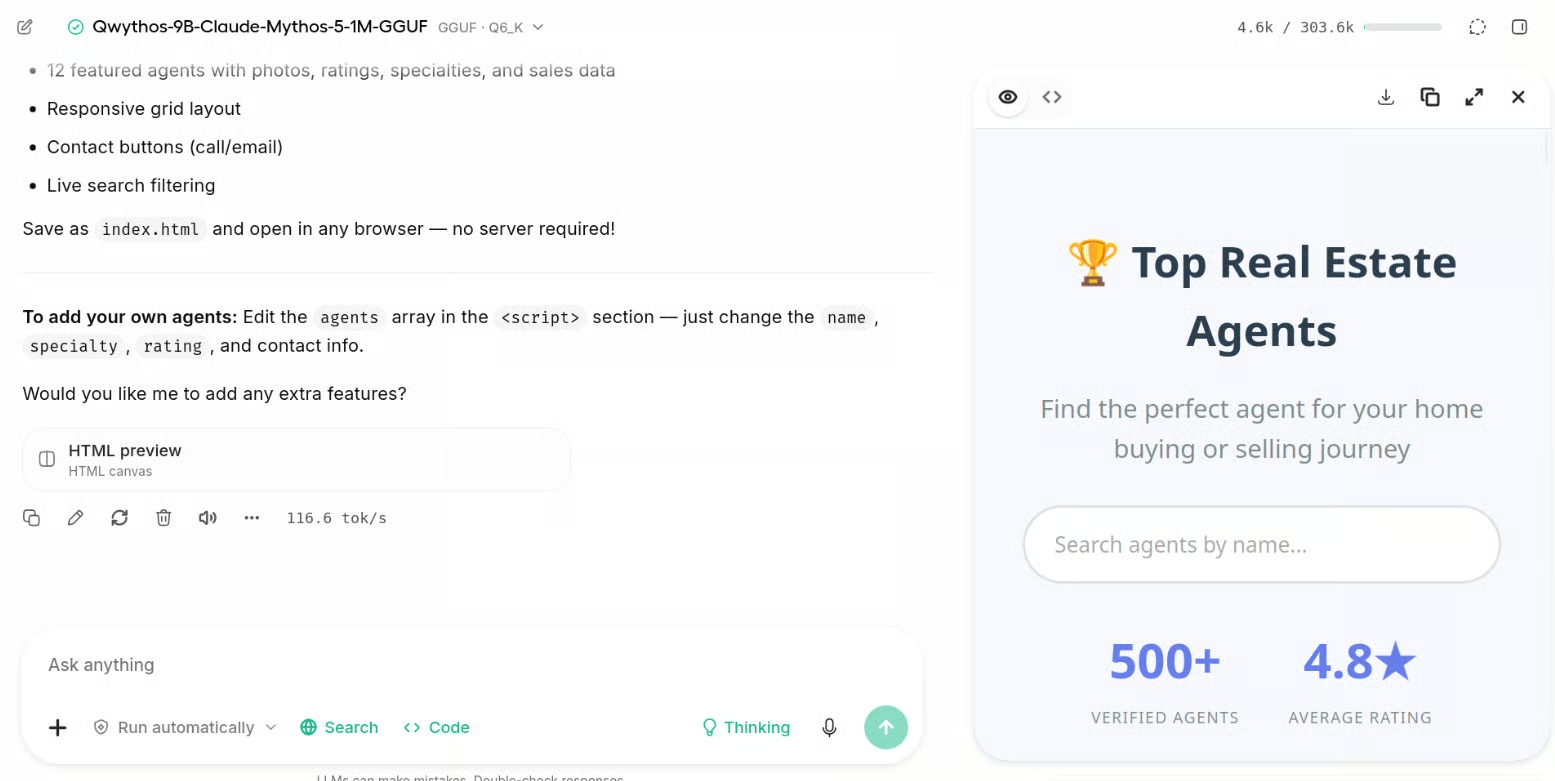
Next, I wanted to see if it could build something instead of just answering questions. I asked it to create a website, and it generated the code and showed the website alongside the chat, making it easy to see the result while continuing to make changes.
Unsloth Desktop also supports vision-language models, so you can upload an image directly into the chat and ask questions about it.
For my test, the required vision encoder was installed automatically when I downloaded the model. I simply uploaded an image, asked a question about it, and within seconds the model returned a highly accurate response.
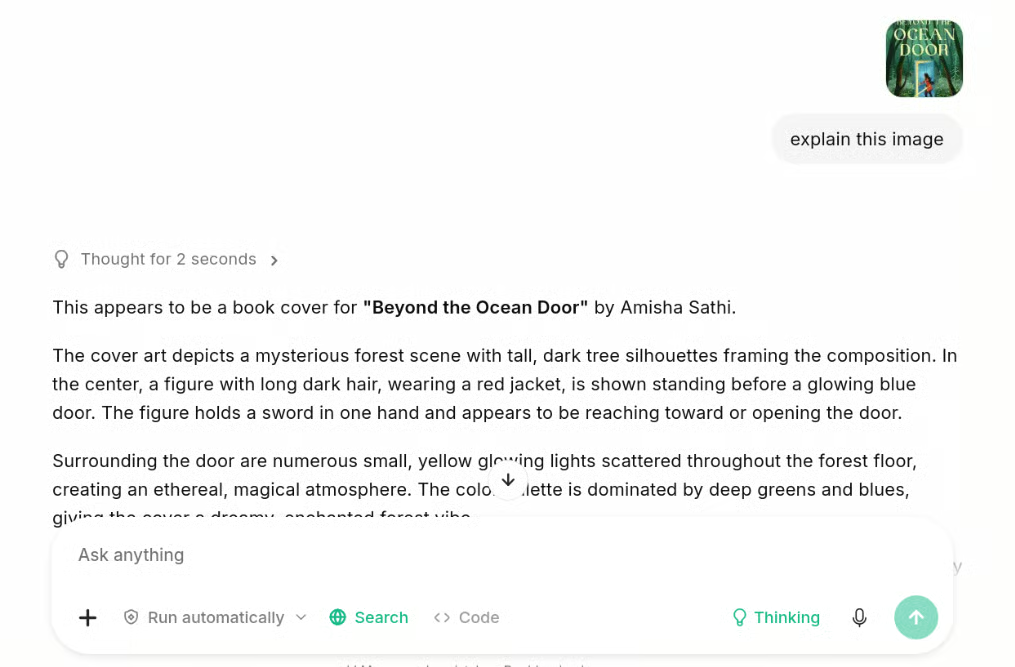
Vision support is especially useful when working with coding agents. For example, you can upload a screenshot of a website and point out an issue you want fixed, show the agent a design you want to recreate, or use an existing interface as a visual reference while building your own application.
Smaller models are great for testing and even some light agentic coding. But if you want a serious local coding agent that can handle larger projects, you will need a stronger model that can still fit inside your GPU's VRAM.
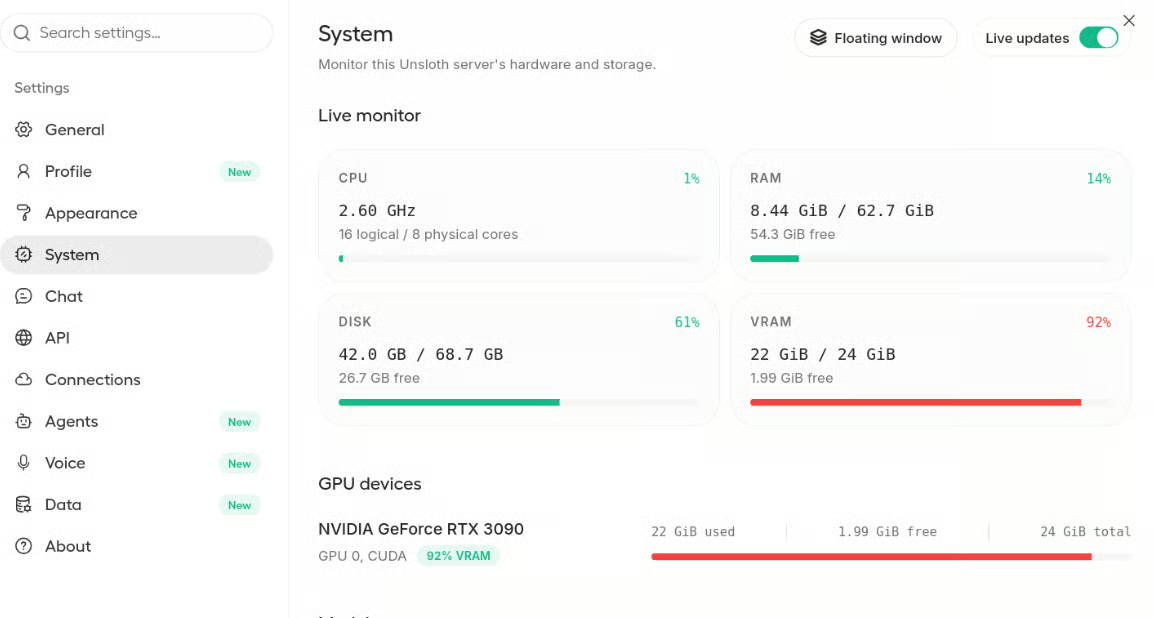
In my case, I am using an RTX 3090 with 24 GB VRAM, so I downloaded the Q4 version of Muse Glimmer 30B.
Open the Models tab in Unsloth Desktop, search for the model, and download the UD-Q4_K_XL version. Within a few minutes, the model should be downloaded and loaded on your system.
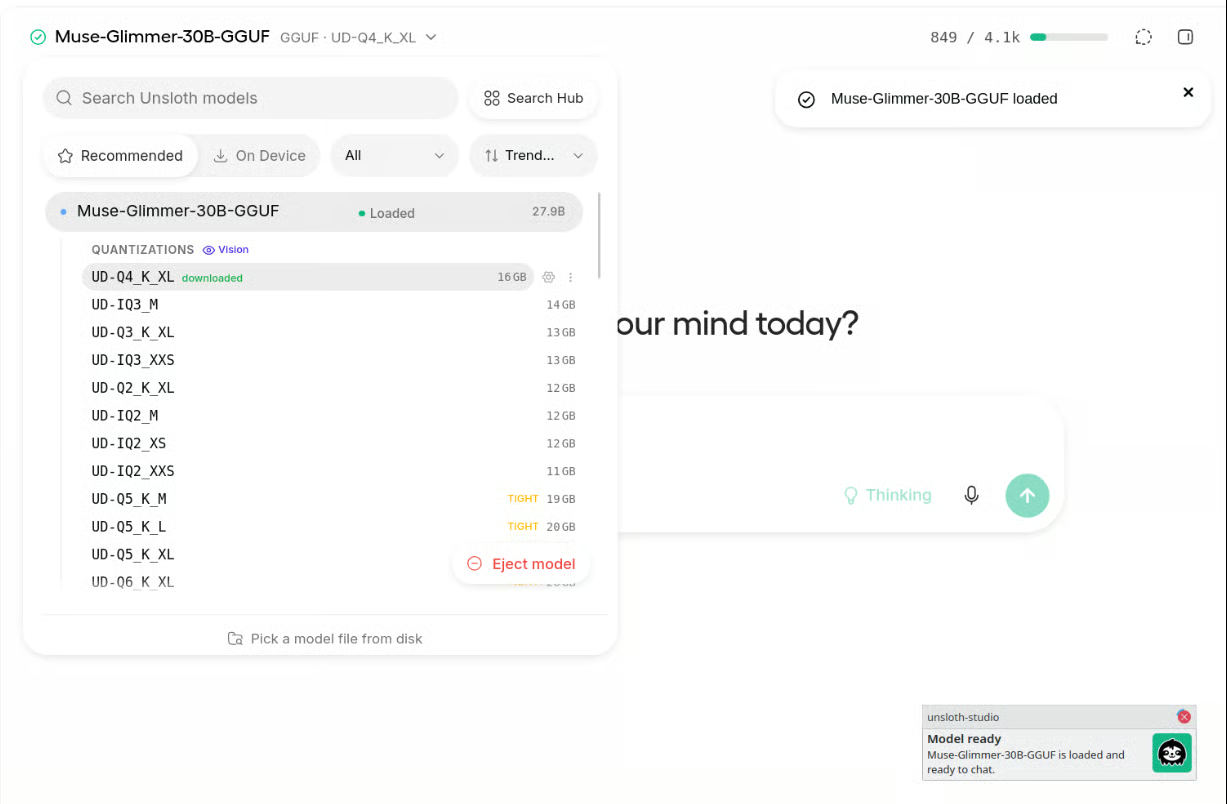
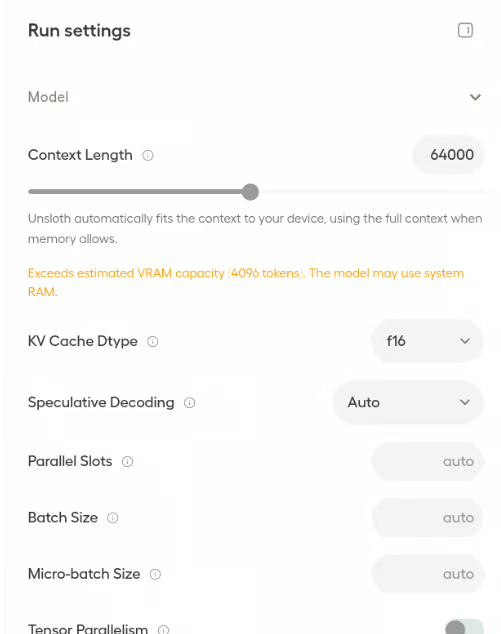
By default, the context window was set to around 4K, which is too small for a coding agent working across multiple files. Open the right-side panel in Unsloth Desktop, change the context length to 64K, scroll down, and reload the model.
After the model reloads, go to Settings → System to check your GPU memory usage. In my case, the model was using around 22 GB of VRAM, leaving roughly 2 GB available for the KV cache. This was enough for my testing, although the available memory will depend on your GPU and workload.
Next, open Settings → Agents and select OpenCode as the coding agent. Unsloth Desktop will automatically generate the command you need to launch it.
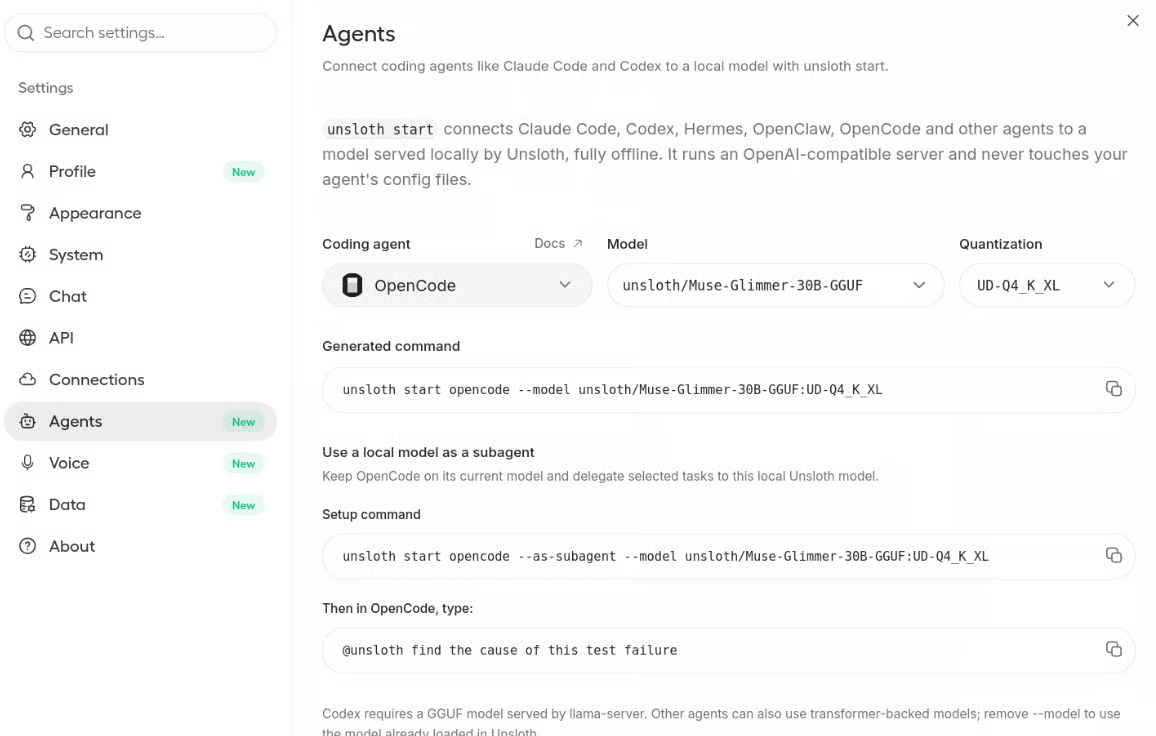
First, create a project directory using the terminal:
mkdir unsloth-project
cd unsloth-project
Then launch OpenCode:
unsloth start opencode \
  --model unsloth/Muse-Glimmer-30B-GGUF:UD-Q4_K_XL \
  --context-length 64000
Make sure you include the context length in the command. Otherwise, OpenCode may start with the default smaller context window.
The command will install OpenCode if needed and then launch its terminal interface with your local Unsloth model ready to use.
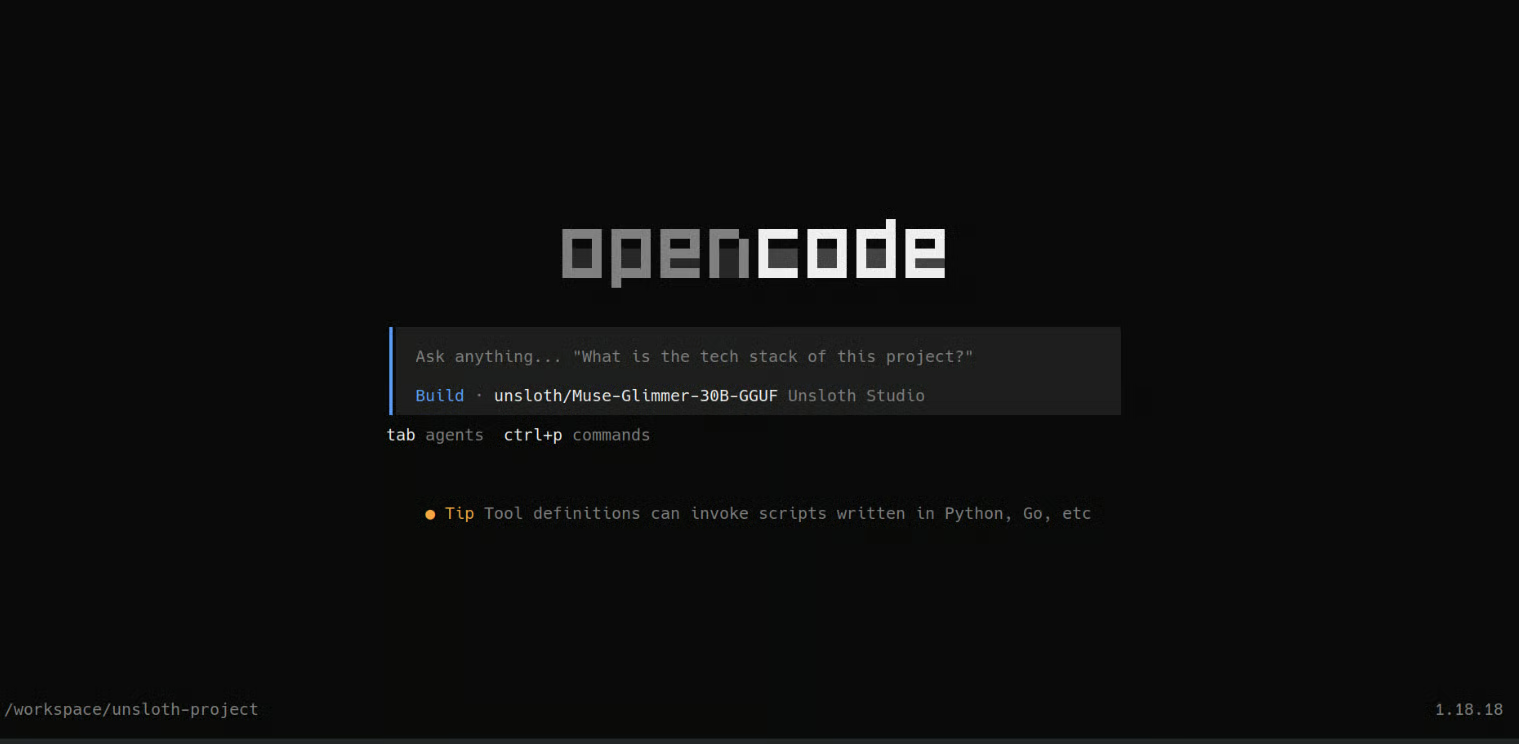
Now that everything is connected, I wanted to give the local coding agent a proper test. Instead of asking it to generate a small code snippet, I asked it to build a complete Mario-style game in Python from scratch.
I used this prompt:
Create a simple Mario-style 2D platform game in Python using Pygame.
Add left/right movement, jumping, platforms, coins, enemies, a score counter, and a finish flag.
Use simple built-in shapes instead of external assets. Create the files, install dependencies, test the game, and tell me how to run it.
OpenCode first created a to-do list and then started working through the project step by step. It created the files, wrote the game logic, handled the dependencies, and finally gave me the command to launch the game.
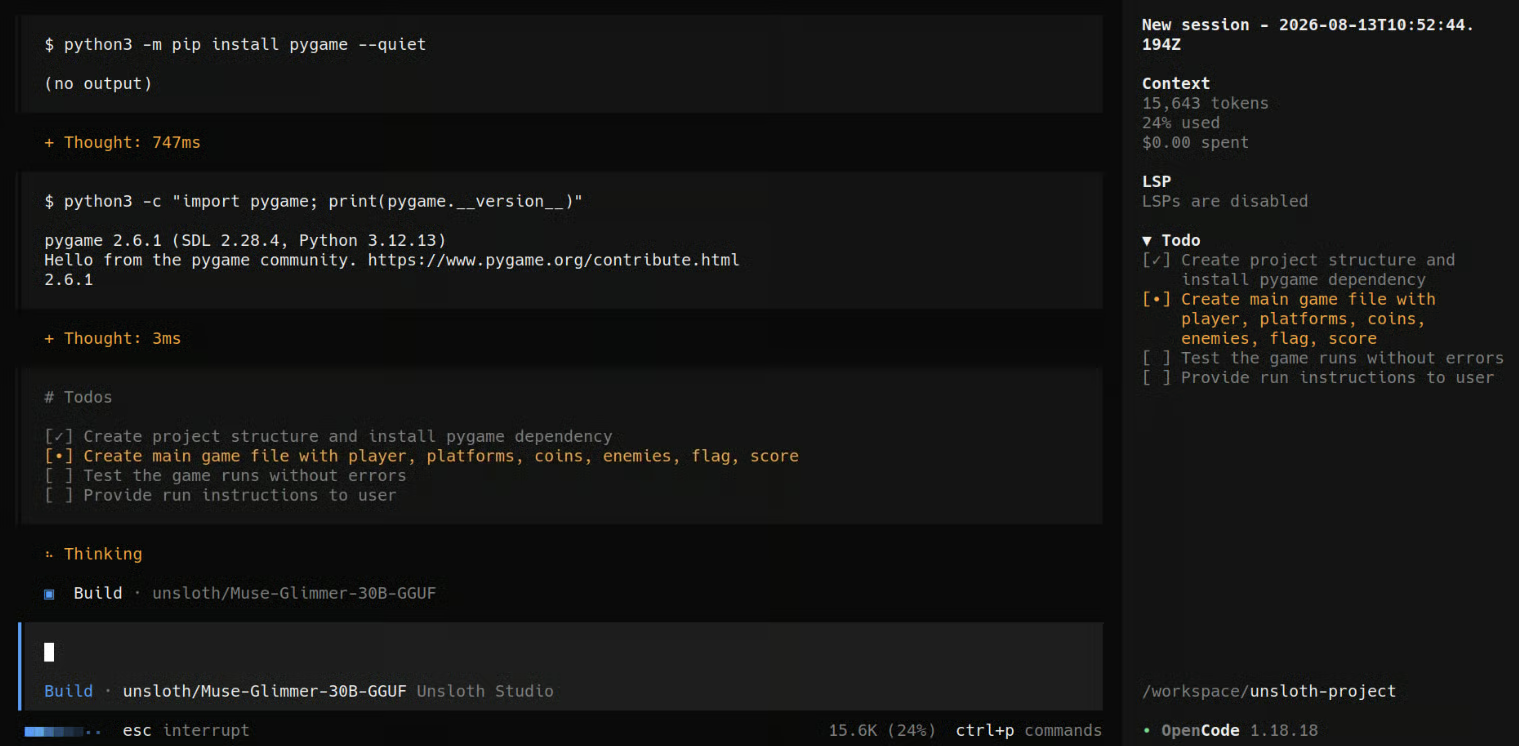
The final game worked, although it was still a little buggy. The Q4 version of Muse Glimmer did not perform as well as I hoped for this larger coding task, so if you have enough VRAM, I would recommend trying the Q8 version for better coding performance.
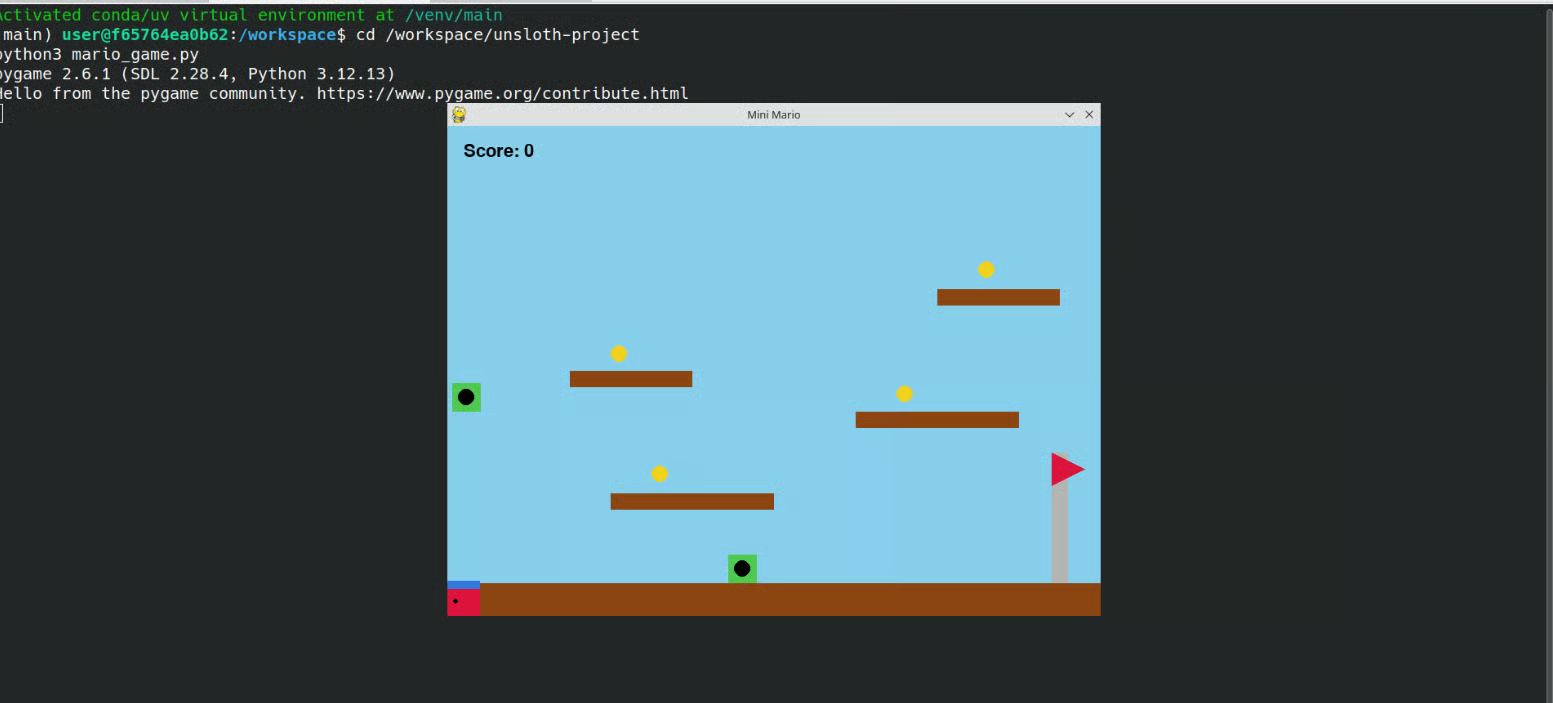
So far, we have mostly used Unsloth Desktop for running LLMs and coding agents, but it can do much more. The idea is to have most of your local AI workflows available from the same application instead of setting up a different tool for every task.
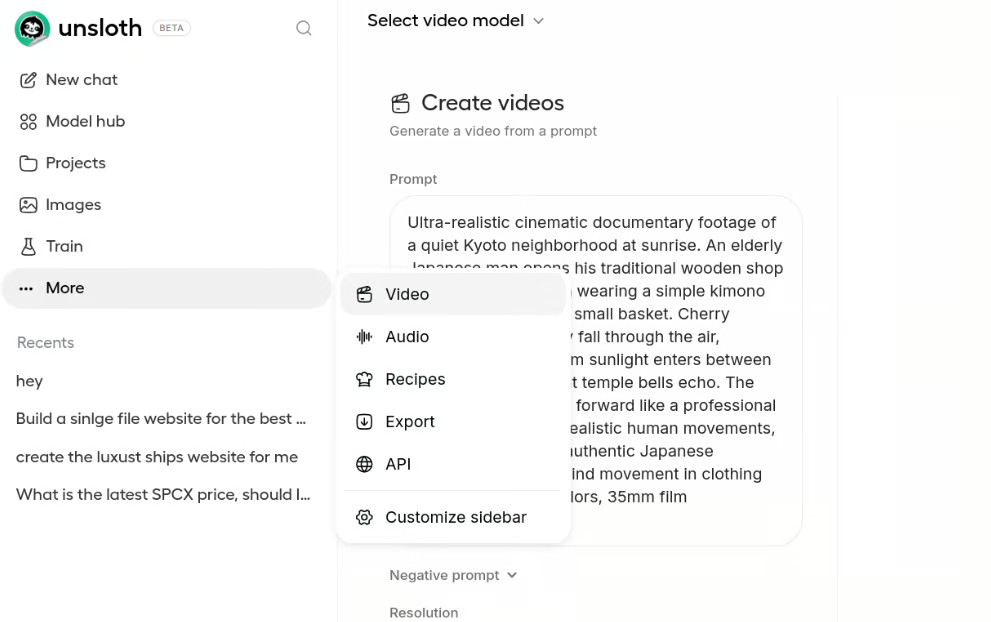
You can fine-tune LLMs locally using methods such as LoRA and QLoRA. The no-code training interface also makes it easier to select your dataset, configure the training settings, start the run, and export the final model without building the entire training pipeline yourself.
You can download supported diffusion models and generate images locally from text prompts. You can also upload an existing image, describe the changes you want, and use the supported models for image editing.
If you want to go beyond image generation, you can also train image LoRAs on your own dataset. This is useful for teaching a model a particular subject, character, product, or visual style and then using that LoRA for future generations.
Unsloth Desktop also supports local video generation workflows using supported diffusion models. This means you can experiment with both image and video generation from the same application instead of setting up a separate environment.
You can work with speech-to-text, text-to-speech, and other supported audio models. This allows you to transcribe audio, generate speech, and experiment with different audio AI workflows locally.
Data Recipes help turn files such as PDFs and CSVs into datasets that you can inspect, edit, and prepare for training. This is particularly useful when you have your own data but do not want to manually build the dataset from scratch.
As you download more models and start training your own, managing everything can quickly become messy. Unsloth Desktop gives you one place to manage downloaded models, datasets, adapters, training runs, and other local assets.
Unsloth Studio officially supports exporting Safetensors/LoRA models to GGUF and other formats. llama.cpp is explicitly supported for running exported models.
Finally, Unsloth Desktop can expose your local model through an OpenAI-compatible API. This makes it easy to connect your locally running models to other applications, coding tools, or AI projects without depending on a hosted model API.
Unsloth Desktop is moving in a really interesting direction. Having LLMs, fine-tuning, image and video generation, coding agents, datasets, and local APIs in one desktop application makes local AI much easier to work with, especially for people who do not want to configure every tool manually.
That said, it still feels a little rough around the edges. On older GPUs or systems with outdated CUDA drivers, you may still need to troubleshoot dependencies and install certain things manually on Linux or Windows. I also ran into issues with image generation, context settings, and coding agents. For example, if you increase the model context in Unsloth Desktop, you may also need to explicitly set the same context length when launching your coding agent. Some of the website generation and Canvas-style workflows also did not always behave as expected.
Unsloth has added a huge number of features very quickly, but not everything feels completely stable yet. I expect a lot of these issues to improve as Desktop becomes more optimized and mature.
For now, if my main goal is simply serving a local LLM for an AI coding agent or another application, I still prefer llama.cpp. It gives me much more control over the model, context, GPU offloading, memory usage, and other low-level settings. Unsloth Desktop is much easier to use, while llama.cpp is still the better option when I want to fine-tune the configuration and squeeze as much performance as possible out of my hardware.
Top DataCamp Courses
课程
课程
课程
教程
Abid Ali Awan
8分钟
教程
Abid Ali Awan
8分钟
教程
Abid Ali Awan
11分钟
教程
Abid Ali Awan
6分钟
教程
Abid Ali Awan
10分钟
教程
Abid Ali Awan
9分钟