Corso
Programmazione assistita dall'AI per sviluppatori
1 ore 30 min
10.5K
Unsloth Studio ha ricevuto un importante aggiornamento con Unsloth Desktop, che ti permette di eseguire tutto in locale come applicazione desktop. È particolarmente utile se non vuoi perdere tempo a installare pacchetti, configurare strumenti diversi o lanciare continuamente comandi nel terminale.
Unsloth Desktop è sostanzialmente una soluzione tutto-in-uno per workflow di IA in locale. Puoi eseguire e fare fine-tuning di LLM, testare modelli di visione, generare immagini e video, addestrare modelli di immagini, lavorare con l’audio, usare strumenti di coding con IA, gestire i modelli ed esporre una API locale, tutto dalla stessa applicazione.
In questa guida installeremo Unsloth Desktop su Linux, eseguiremo LLM locali, lo collegheremo con OpenCode e useremo un modello locale per costruire un progetto Python. Esploreremo anche alcune delle altre funzionalità per vedere quanto si può fare in locale da un’unica applicazione.
Prima di installare Unsloth Desktop, è una buona idea controllare rapidamente che la tua GPU NVIDIA sia rilevata e che CUDA funzioni correttamente. Questo aiuterà a evitare problemi in seguito quando inizierai a eseguire o fare fine-tuning dei modelli in locale.
Per prima cosa, apri il terminale ed esegui:
nvidia-smi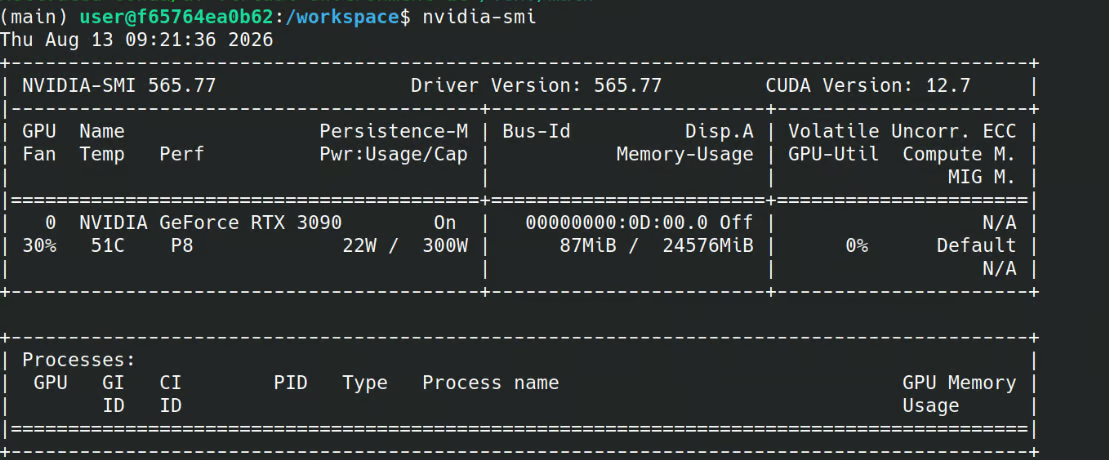
Dovrebbe mostrare la tua GPU NVIDIA, la versione del driver, la memoria GPU disponibile e le informazioni di compatibilità CUDA.
Poi, controlla il compilatore CUDA installato sul sistema:
nvcc --versionDovresti vedere un output simile a questo:
nvcc: NVIDIA (R) Cuda compiler driver
Copyright (c) 2005-2025 NVIDIA Corporation
Built on Tue_May_27_02:21:03_PDT_2025
Cuda compilation tools, release 12.9, V12.9.86
Build cuda_12.9.r12.9/compiler.36037853_0
Se entrambi i comandi funzionano e la tua GPU viene rilevata correttamente, il sistema è pronto per Unsloth Desktop.
Poi vai sul sito ufficiale di Unsloth e scarica Unsloth Desktop. Assicurati di selezionare il pacchetto corretto per il tuo sistema operativo.
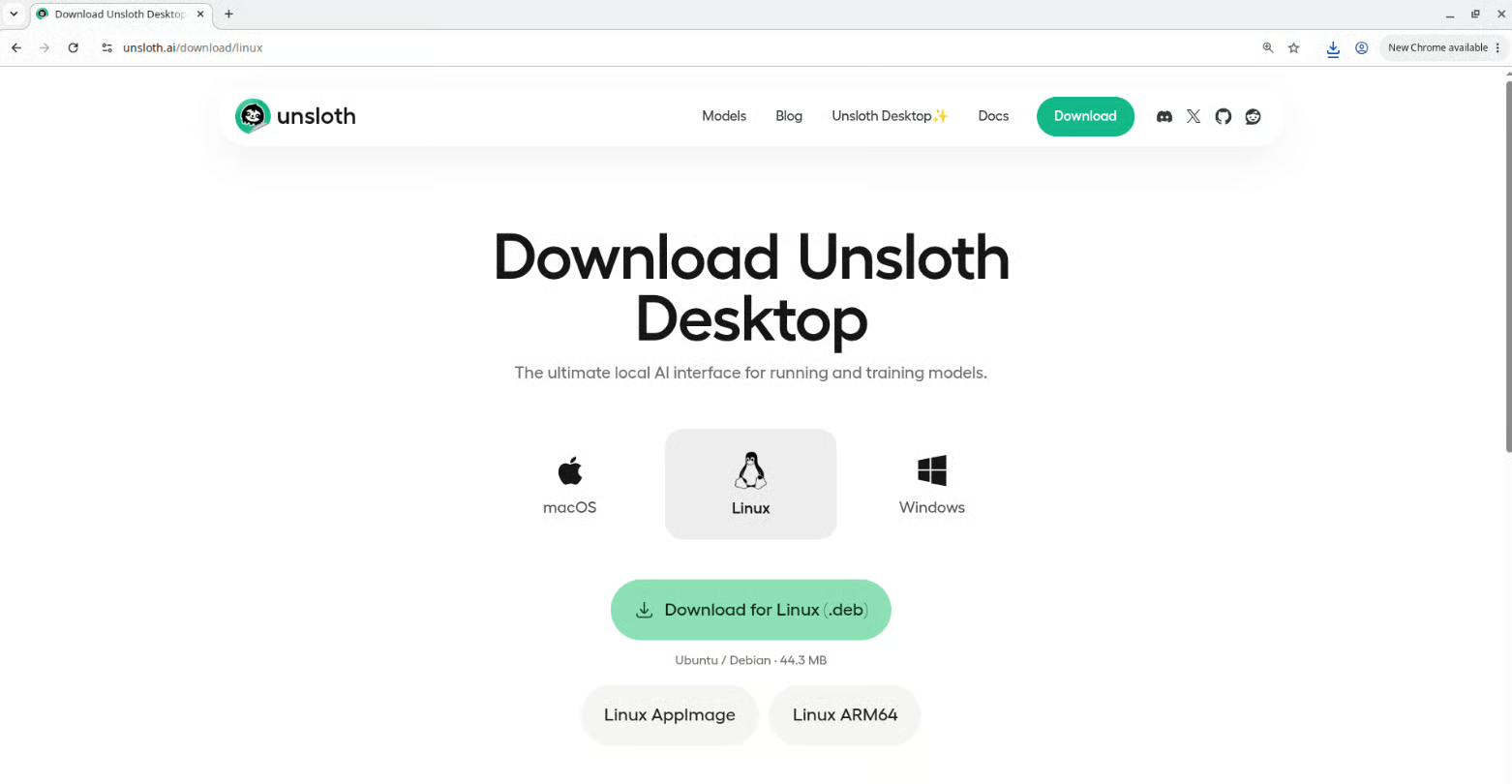
Fonte: Scarica Unsloth Desktop per Linux
Dopo il download, installa il pacchetto come faresti con qualsiasi altra applicazione desktop. Su Linux, a seconda della distribuzione, potrebbe essere un pacchetto .deb.
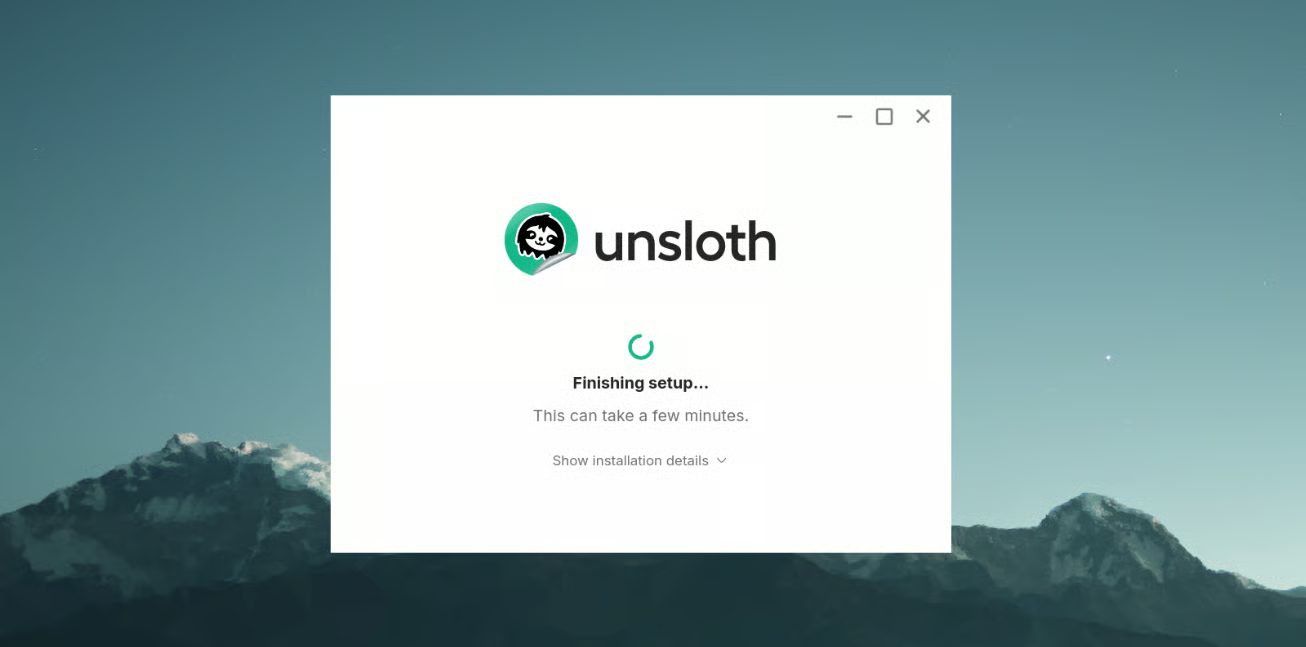
Una volta completata l’installazione, avvia Unsloth Desktop. L’applicazione dovrebbe rilevare automaticamente l’hardware disponibile e darti accesso all’interfaccia principale.
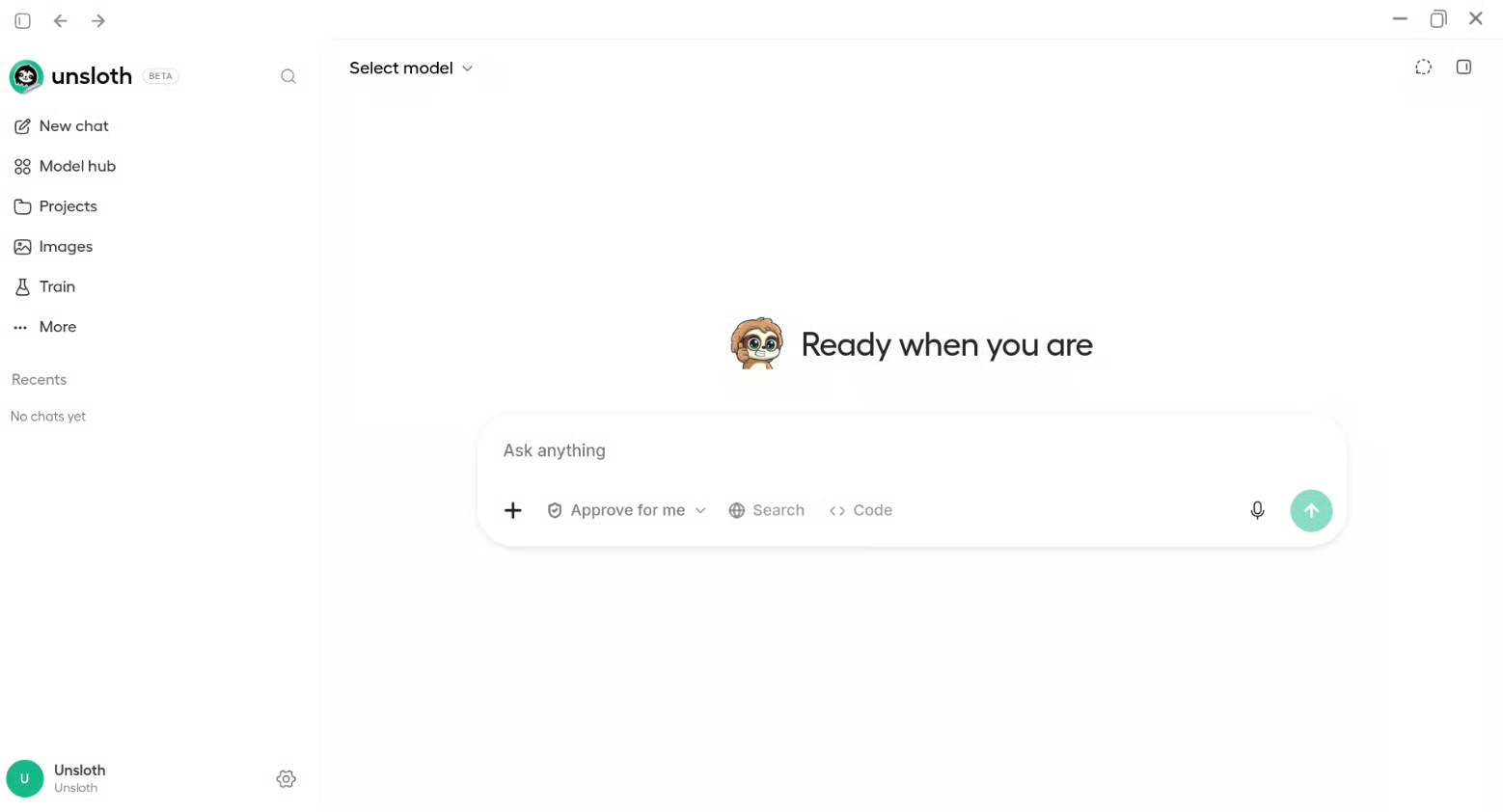
Da qui puoi sfogliare e scaricare modelli, eseguire LLM in locale, fare fine-tuning, lavorare con immagini e altre modalità, gestire i tuoi modelli locali e accedere agli altri strumenti disponibili in Unsloth Desktop.
Apri il Model hub in Unsloth Desktop e cerca il modello che vuoi eseguire. Per questo test, ho usato uno dei miei modelli piccoli preferiti:
empero-ai/Qwythos-9B-Claude-Mythos-5-1M-GGUF · Hugging Face
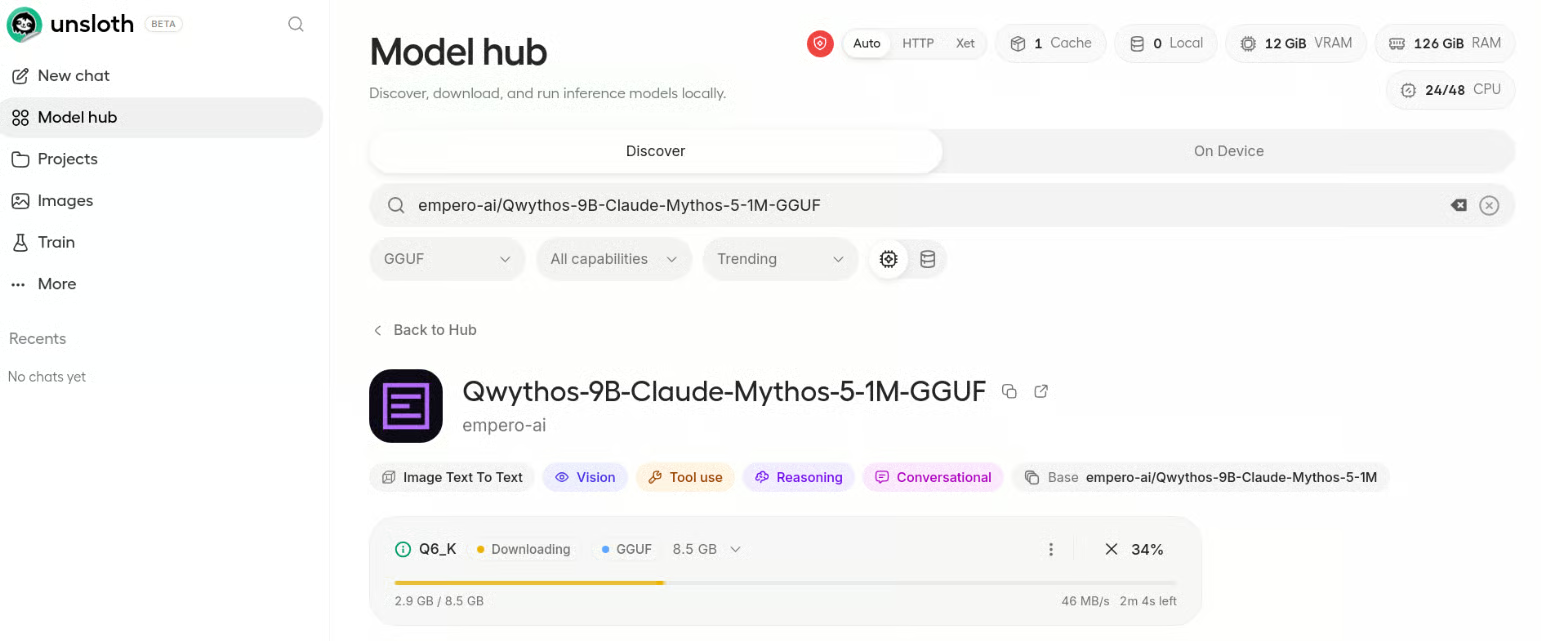
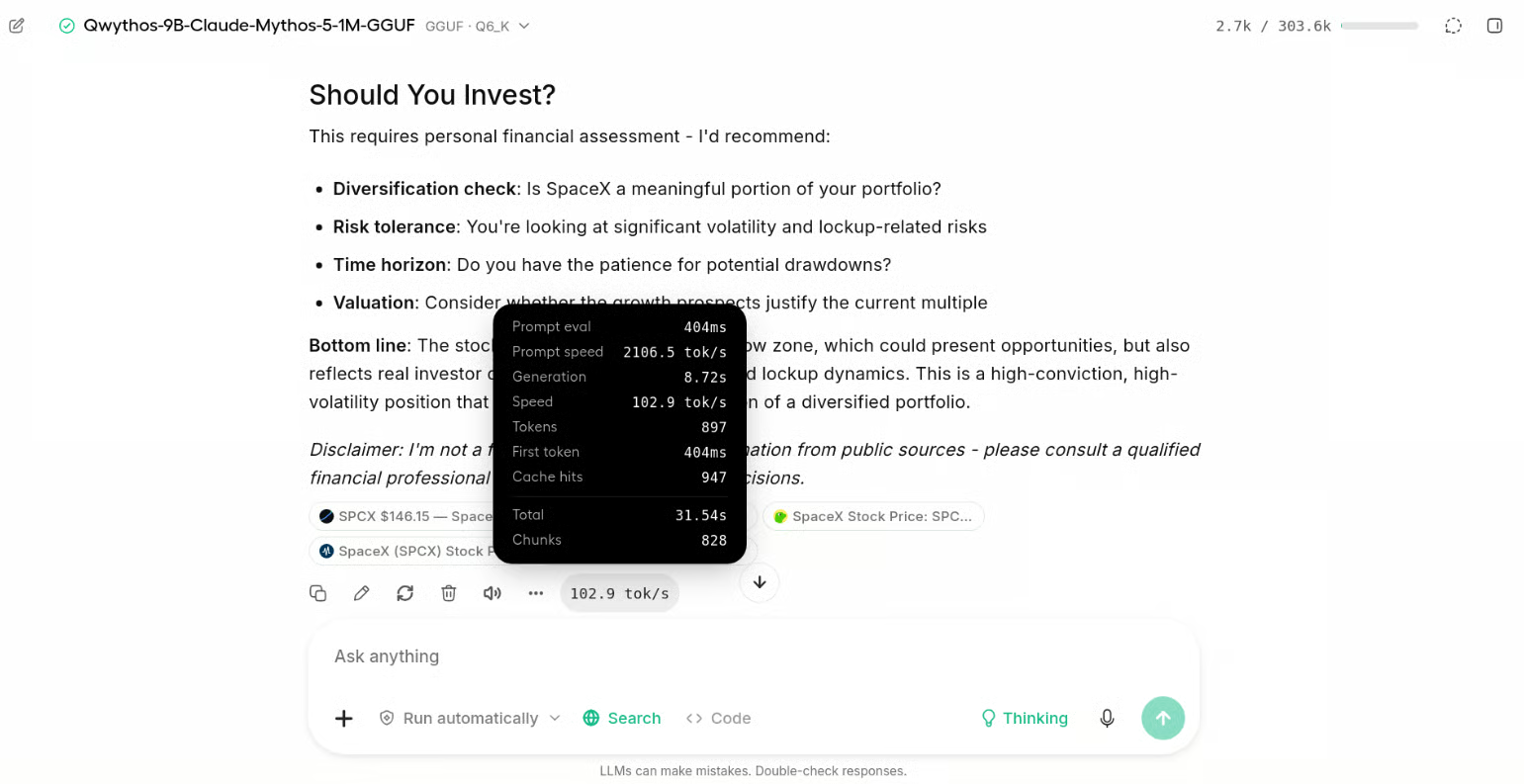
Dopo aver scaricato il modello, puoi caricarlo e iniziare a chattare direttamente dentro Unsloth Desktop. Sul mio sistema, ottenevo circa 102 token al secondo in media, che sono saliti a circa 125 token al secondo per alcune richieste legate al coding.
Ho anche abilitato l’accesso al web e chiesto al modello domande sulle ultime notizie di borsa. Questo rende l’esperienza di chat locale molto più utile quando ti serve informazione oltre a ciò che è già nel modello.
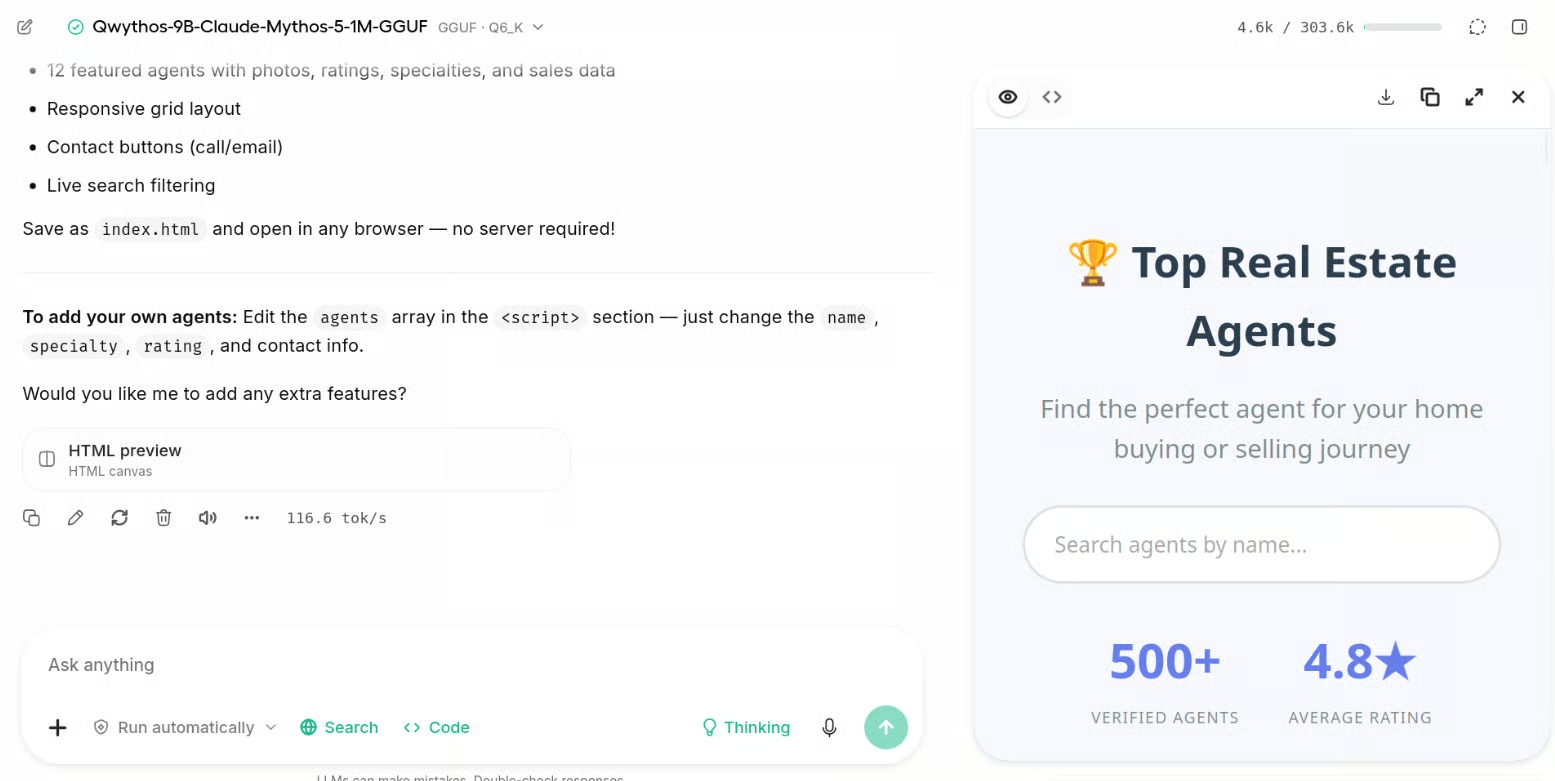
Poi ho voluto vedere se potesse costruire qualcosa invece di limitarsi a rispondere. Gli ho chiesto di creare un sito web e ha generato il codice mostrando il sito accanto alla chat, rendendo facile vedere il risultato mentre continuavo a fare modifiche.
Unsloth Desktop supporta anche modelli vision-language, quindi puoi caricare un’immagine direttamente nella chat e porre domande a riguardo.
Nel mio test, l’encoder di visione richiesto è stato installato automaticamente quando ho scaricato il modello. Ho semplicemente caricato un’immagine, fatto una domanda e in pochi secondi il modello ha restituito una risposta molto accurata.
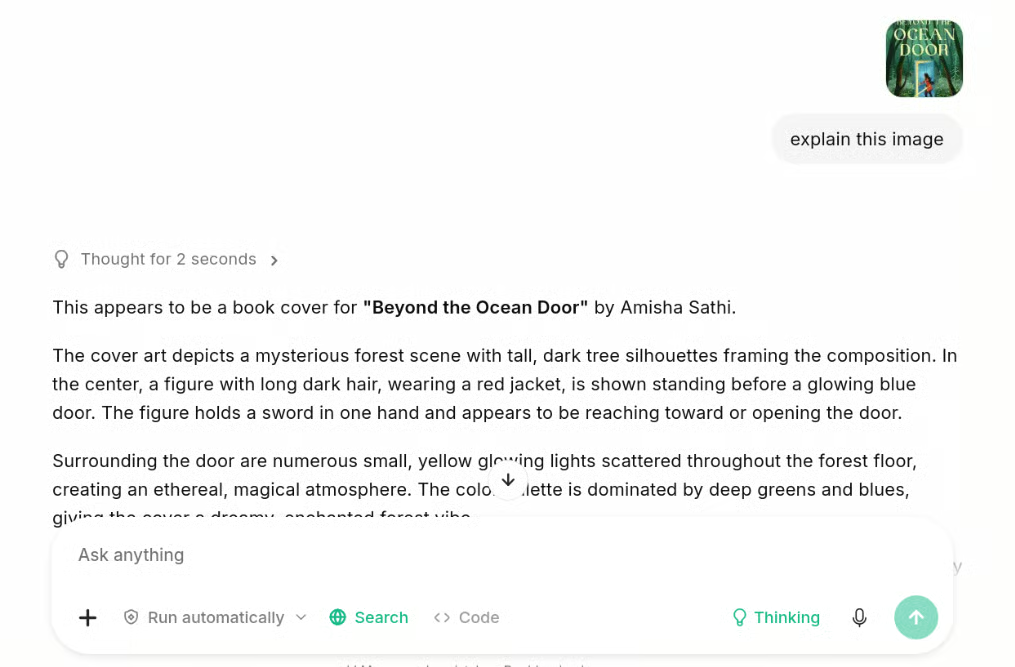
Il supporto alla visione è particolarmente utile quando lavori con agenti di coding. Per esempio, puoi caricare uno screenshot di un sito e indicare un problema da risolvere, mostrare all’agente un design da replicare o usare un’interfaccia esistente come riferimento visivo mentre costruisci la tua applicazione.
I modelli più piccoli sono ottimi per test e anche per un po’ di coding agentico leggero. Ma se vuoi un agente di coding locale serio che gestisca progetti più grandi, ti servirà un modello più potente che stia comunque nella VRAM della tua GPU.
Nel mio caso, uso una RTX 3090 con 24 GB di VRAM, quindi ho scaricato la versione Q4 di Muse Glimmer 30B.
Apri la scheda Models in Unsloth Desktop, cerca il modello e scarica la versione UD-Q4_K_XL. In pochi minuti, il modello dovrebbe essere scaricato e caricato sul tuo sistema.
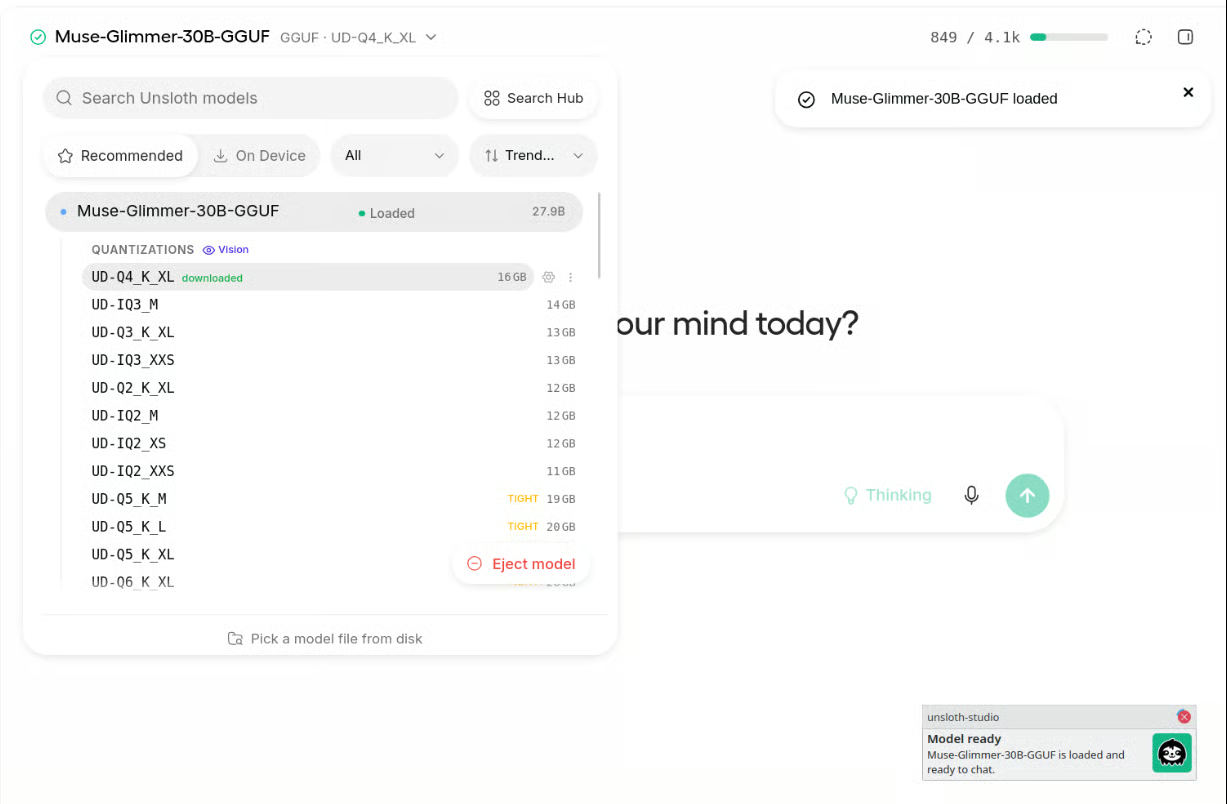
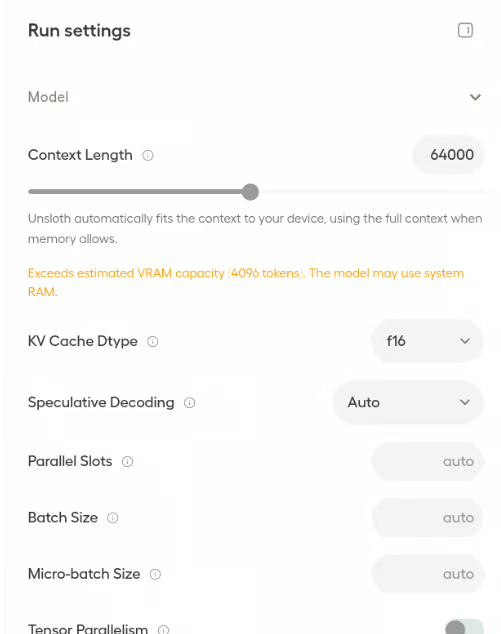
Di default, la finestra di contesto era impostata a circa 4K, troppo piccola per un agente di coding che lavora su più file. Apri il pannello a destra in Unsloth Desktop, cambia la lunghezza del contesto a 64K, scorri in basso e ricarica il modello.
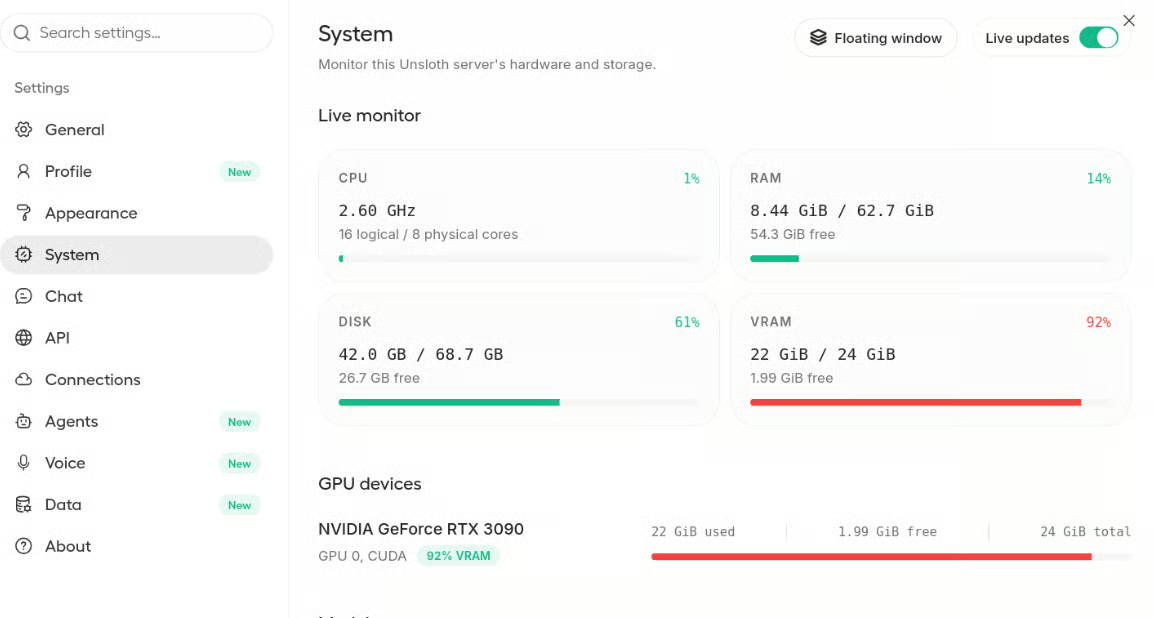
Dopo il reload del modello, vai su Settings → System per controllare l’uso della memoria GPU. Nel mio caso, il modello usava circa 22 GB di VRAM, lasciando circa 2 GB disponibili per la cache KV. È bastato per i miei test, anche se la memoria disponibile dipenderà dalla tua GPU e dal carico di lavoro.
Poi apri Settings → Agents e seleziona OpenCode come agente di coding. Unsloth Desktop genererà automaticamente il comando necessario per avviarlo.
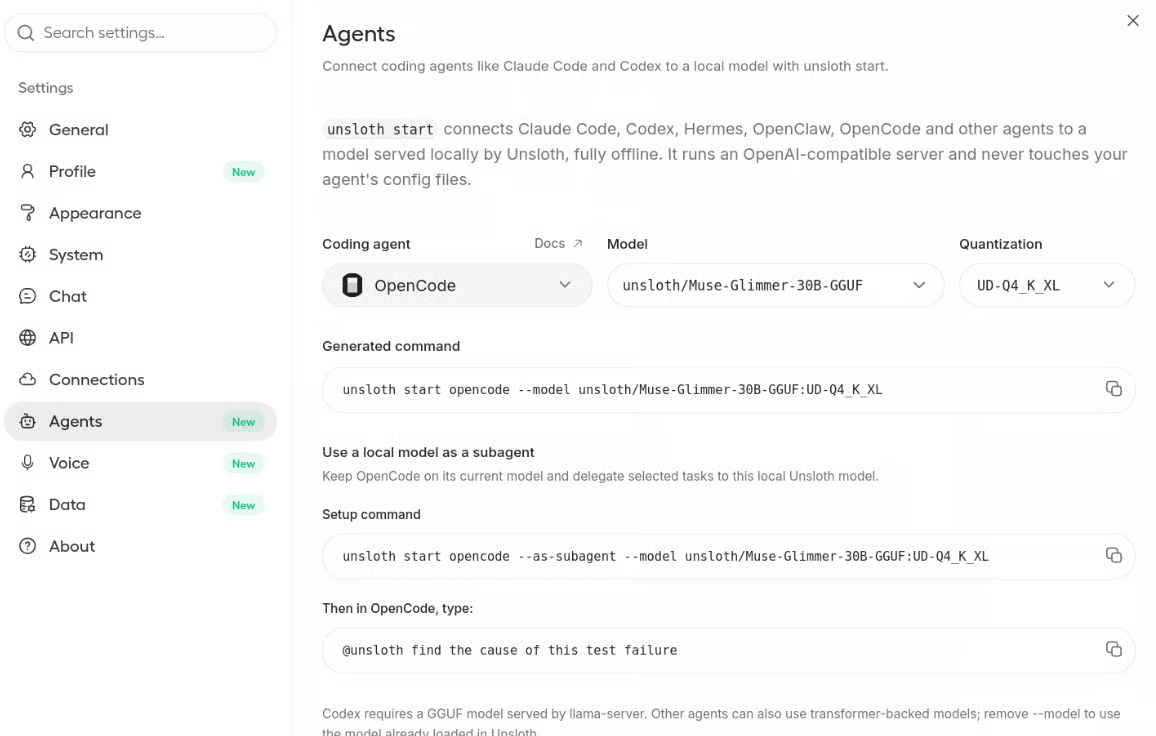
Per prima cosa, crea una directory di progetto usando il terminale:
mkdir unsloth-project
cd unsloth-project
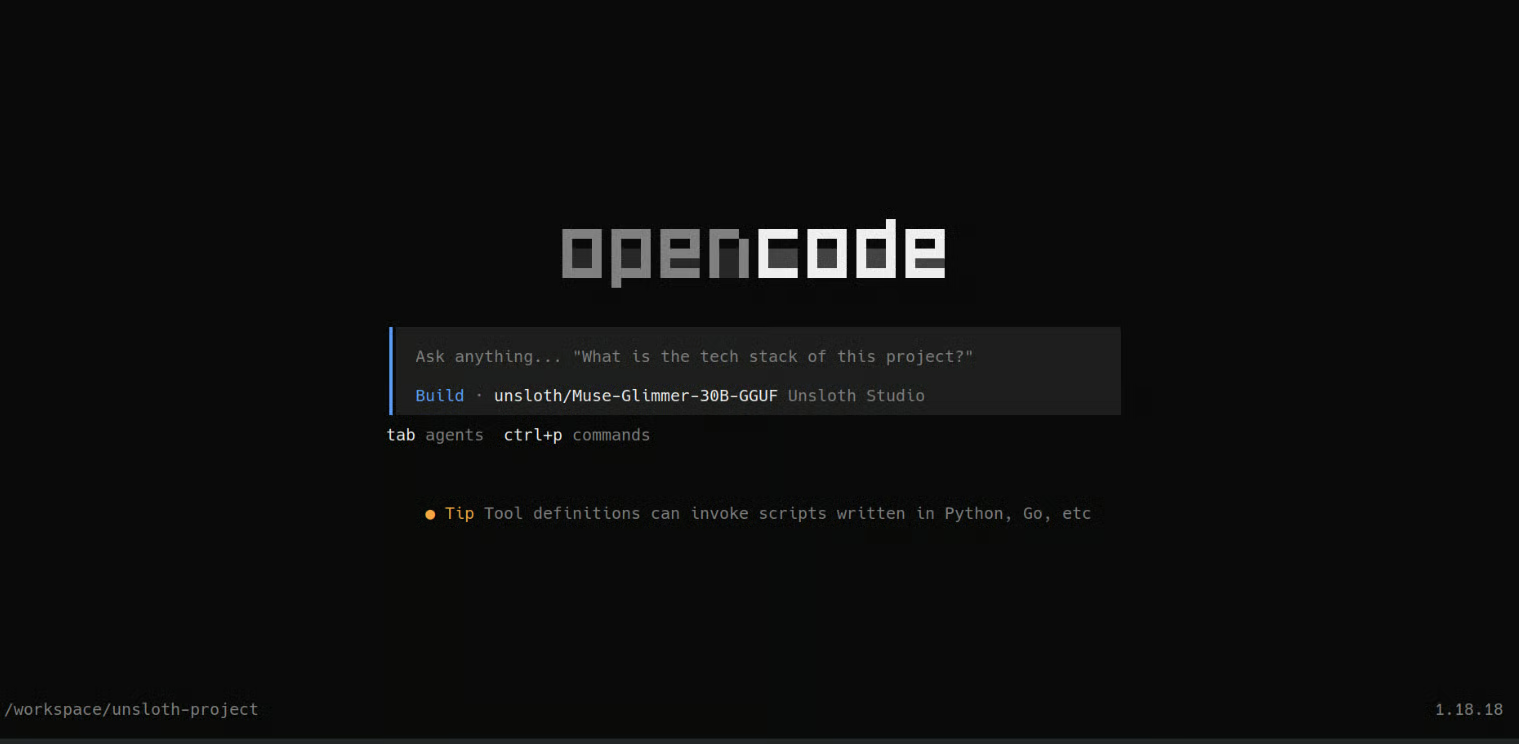
Poi avvia OpenCode:
unsloth start opencode \
  --model unsloth/Muse-Glimmer-30B-GGUF:UD-Q4_K_XL \
  --context-length 64000
Assicurati di includere la lunghezza del contesto nel comando. Altrimenti, OpenCode potrebbe avviarsi con la finestra di contesto predefinita più piccola.
Il comando installerà OpenCode se necessario e poi avvierà la sua interfaccia da terminale con il tuo modello Unsloth locale pronto all’uso.
Ora che tutto è collegato, volevo mettere alla prova l’agente di coding locale. Invece di chiedergli un piccolo snippet, gli ho chiesto di costruire da zero un gioco in stile Mario in Python.
Ho usato questo prompt:
Create a simple Mario-style 2D platform game in Python using Pygame.
Add left/right movement, jumping, platforms, coins, enemies, a score counter, and a finish flag.
Use simple built-in shapes instead of external assets. Create the files, install dependencies, test the game, and tell me how to run it.
OpenCode ha prima creato una to-do list e poi ha iniziato a lavorare al progetto passo dopo passo. Ha creato i file, scritto la logica di gioco, gestito le dipendenze e infine mi ha dato il comando per lanciare il gioco.
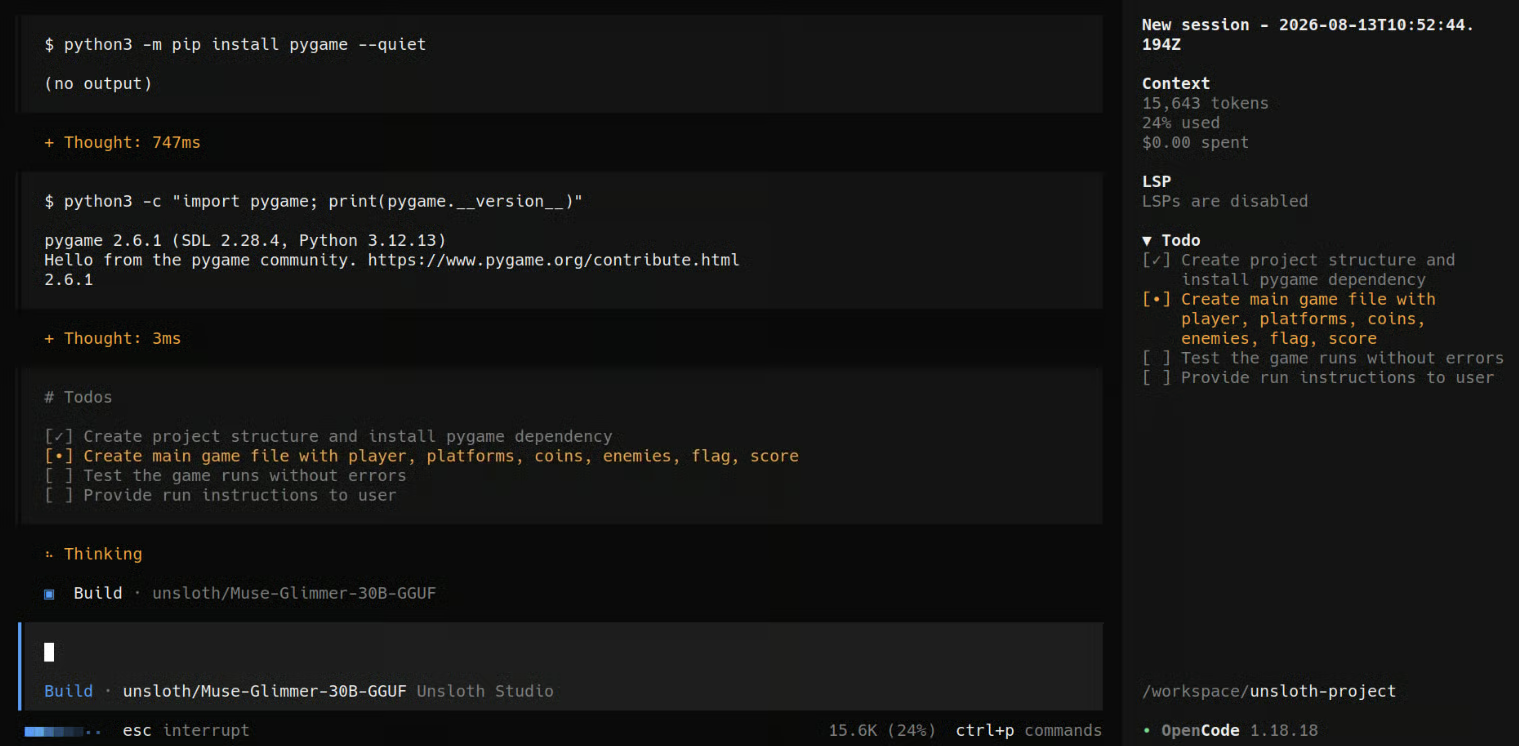
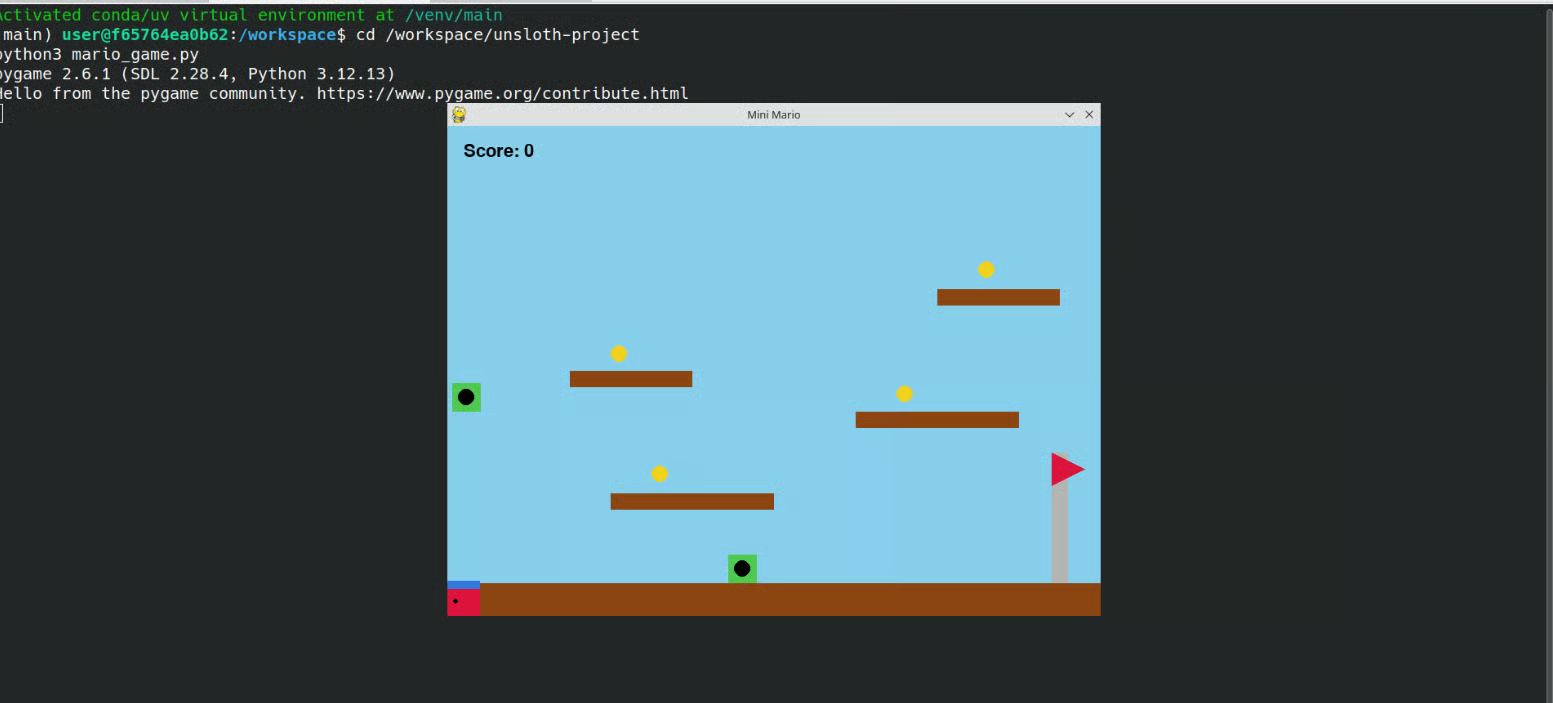
Il gioco finale funzionava, anche se era ancora un po’ buggato. La versione Q4 di Muse Glimmer non ha reso quanto speravo per questo compito di coding più ampio, quindi se hai abbastanza VRAM ti consiglio di provare la versione Q8 per prestazioni migliori nel coding.
Finora abbiamo usato soprattutto Unsloth Desktop per eseguire LLM e agenti di coding, ma può fare molto di più. L’idea è avere la maggior parte dei workflow di IA in locale disponibili dalla stessa applicazione, invece di configurare uno strumento diverso per ogni attività.
Puoi fare fine-tuning degli LLM in locale usando metodi come LoRA e QLoRA. L’interfaccia di training no-code semplifica anche la selezione del dataset, la configurazione del training, l’avvio dell’esecuzione e l’esportazione del modello finale senza dover costruire tu l’intera pipeline di training.
Puoi scaricare modelli di diffusione supportati e generare immagini in locale a partire da prompt testuali. Puoi anche caricare un’immagine esistente, descrivere le modifiche desiderate e usare i modelli supportati per l’editing.
Se vuoi andare oltre la generazione di immagini, puoi anche addestrare LoRA di immagini sul tuo dataset. È utile per insegnare a un modello un soggetto, un personaggio, un prodotto o uno stile visivo specifico e poi usare quella LoRA per generazioni future.
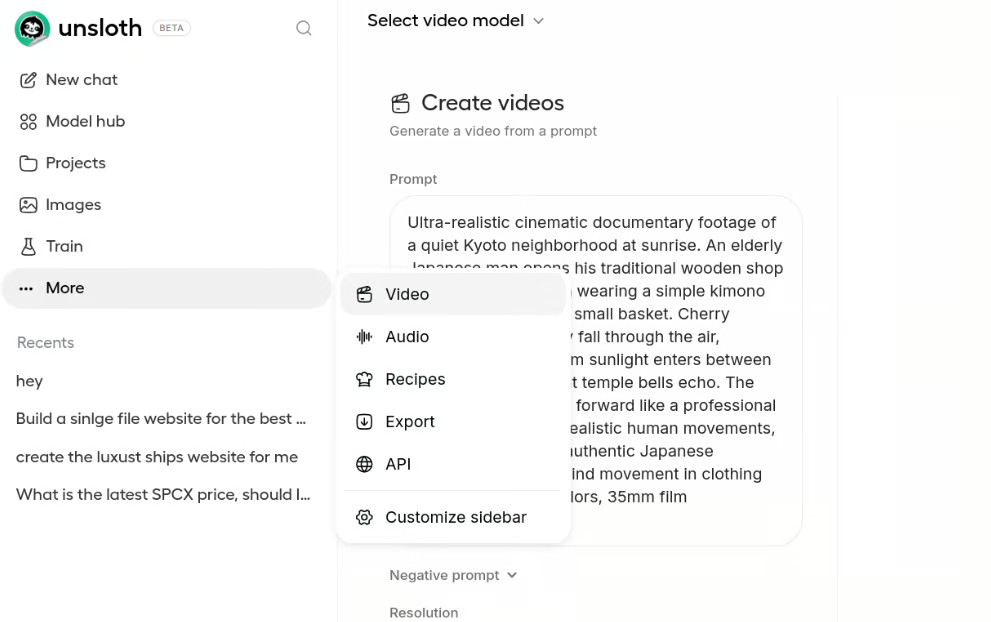
Unsloth Desktop supporta anche workflow locali di generazione video usando modelli di diffusione supportati. Significa che puoi sperimentare sia con immagini che con video dalla stessa applicazione, invece di configurare un ambiente separato.
Puoi lavorare con speech-to-text, text-to-speech e altri modelli audio supportati. Questo ti consente di trascrivere audio, generare parlato e sperimentare diversi workflow di IA per l’audio in locale.
Le Data Recipes aiutano a trasformare file come PDF e CSV in dataset che puoi ispezionare, modificare e preparare per il training. È particolarmente utile quando hai dati tuoi ma non vuoi costruire manualmente il dataset da zero.
Man mano che scarichi più modelli e inizi ad addestrare i tuoi, gestire tutto può diventare rapidamente caotico. Unsloth Desktop ti offre un unico posto per gestire modelli scaricati, dataset, adapter, run di training e altre risorse locali.
Unsloth Studio supporta ufficialmente l’esportazione di modelli Safetensors/LoRA in GGUF e altri formati. llama.cpp è esplicitamente supportato per l’esecuzione dei modelli esportati.
Infine, Unsloth Desktop può esporre il tuo modello locale tramite una API compatibile con OpenAI. Questo semplifica il collegamento dei modelli in esecuzione locale ad altre applicazioni, strumenti di coding o progetti di IA senza dipendere da una API di modelli ospitata.
Unsloth Desktop si sta muovendo in una direzione davvero interessante. Avere LLM, fine-tuning, generazione di immagini e video, agenti di coding, dataset e API locali in un’unica applicazione desktop rende l’IA in locale molto più facile da gestire, soprattutto per chi non vuole configurare manualmente ogni strumento.
Detto questo, sembra ancora un po’ grezzo in alcuni punti. Su GPU più vecchie o sistemi con driver CUDA obsoleti, potresti dover comunque risolvere dipendenze e installare manualmente certe cose su Linux o Windows. Ho anche riscontrato problemi con la generazione di immagini, le impostazioni del contesto e gli agenti di coding. Ad esempio, se aumenti il contesto del modello in Unsloth Desktop, potresti dover impostare esplicitamente la stessa lunghezza del contesto anche all’avvio del tuo agente di coding. Alcuni workflow di generazione di siti e in stile Canvas inoltre non si sono sempre comportati come previsto.
Unsloth ha aggiunto un numero enorme di funzionalità molto rapidamente, ma non tutto sembra ancora completamente stabile. Mi aspetto che molti di questi problemi migliorino man mano che Desktop diventa più ottimizzato e maturo.
Per ora, se il mio obiettivo principale è semplicemente servire un LLM locale per un agente di coding o un’altra applicazione, preferisco ancora llama.cpp. Mi dà molto più controllo su modello, contesto, offloading su GPU, uso della memoria e altre impostazioni di basso livello. Unsloth Desktop è molto più facile da usare, mentre llama.cpp resta l’opzione migliore quando voglio ottimizzare la configurazione e spremere il massimo delle prestazioni dall’hardware.
I migliori corsi DataCamp
Corso
Corso
Corso
blog
Abid Ali Awan
15 min
blog
Abid Ali Awan
10 min
blog
Tim Lu
12 min