Kurs
Unlike compiled languages such as C++ or Java, which must be translated into machine code before execution, Python is interpreted and runs instructions directly. This makes the REPL environment a natural fit for experimentation, whether you’re testing snippets, exploring new concepts, or debugging line by line. Its advantage is that it comes built into every Python installation, so it’s ready whenever you are.
In this tutorial, I will show you how to use the Python REPL environment using examples, explore its features, and alternative REPLs to improve your workflow. If you are getting started in Python, I recommend taking our Introduction to Python course, which covers skills like data types, lists, basic functions, and packages.
What Is a Python REPL?
The REPL session stands for Read-Eval-Print Loop, describing its four fundamental stages:
- Read: The REPL environment reads the user's input, which can be a single line of code or a multi-line statement.
- Evaluate: It evaluates the code, executes the statement or expression, and calculates its result.
- Print: This function prints the evaluation result to the console. If the code doesn't produce an output, like an assignment statement, it doesn't print anything.
- Loop: The REPL loops back to the start, ready for the next line of input.
These stages work together continuously, creating an interactive environment where you can type code and see the output instantly. Python’s REPL presents a primary prompt >>> for new statements and a secondary prompt ... for continued lines, such as inside loops or function definitions. Using examples in the sections below, we will look at how these prompts work.
The terms "Interactive shell," "interpreter session," and "REPL" are often used interchangeably to describe this environment.
Why Use a Python REPL
You can use a Python REPL for the following tasks:
Quickly test code snippets and library functions: You can try small pieces of code instantly without creating a script file.
>>> import math
>>> math.sqrt(16)
4.0
Explore syntax and experiment with ideas: Think of the REPL environment as your personal sandbox. You can try out new things, such as different data types, operators, and control flow structures, to see exactly how they behave without any risk of messing up a bigger program.
>>> [x**2 for x in range(5)]
[0, 1, 4, 9, 16]
Debug and inspect variables: You can use the REPL session to check the values and states of your variables step-by-step, making it much easier to understand and troubleshoot issues.
>>> x = 42
>>> type(x)
<class 'int'>
>>> x / 7
6.0
Use it as a calculator or learning tool: Its immediate results make it useful for performing calculations or learning Python basics.
>>> 10 * (5 + 2)
70
How to Start and Exit a REPL Session
To start a Python REPL session, open your terminal or command prompt. Then type python or python3, and press Enter. This launches the interactive shell.
You can also start an interactive session after running a script using the -i flag command. For example, python -i calc_tax.py will execute calc_tax.py and then drop you into the REPL environment with the script's variables still loaded in memory.
To exit the REPL, you can use one of several commands:
-
Type
quit()orexit()then press Enter. -
On Unix/Linux/macOS, press Ctrl+D.
-
On Windows, press Ctrl+Z and then press Enter.
Running Code in the REPL Environment
You can run code in Python’s REPL sessions in different ways depending on its complexity. Let’s look at the following type of code you can run in REPL.
Simple statements and expressions
The REPL environment can evaluate simple expressions and statements instantly. For example, you can perform arithmetic operations, assign variables, and evaluate Boolean expressions. The result of an expression is automatically printed.
>>> 5 + 4
9
>>> name = "Allan"
>>> name
'Allan'
>>> 10 > 5
TrueIf a statement, like a variable assignment, doesn't produce an output, the REPL interpreter doesn't print anything. If you make a mistake, the REPL provides immediate feedback by raising an error.
Compound statements
Python REPL environment also handles multi-line compound statements like if statements and for loops. It automatically switches to the secondary prompt (...) after you type a line ending in a colon (:) and press Enter, indicating it's waiting for the indented block of code.
Take note that you'll need to indent your code manually; the REPL environment does not auto-indent. To signal the end of the compound statement, press Enter on an empty line.
Explicit and implicit line continuations
You can also write multi-line statements in Python REPL session using line continuations. An explicit line continuation uses a backslash \ at the end of a line to indicate the statement continues on the next line.
Implicit line continuations occur automatically when the code is enclosed in parentheses (), brackets [], or braces {}.
Printing vs evaluating
The REPL's auto-printing feature only works on expressions with a return value. For example, if you have a list and append an item using temp.append(45), it will not produce any output. To see the new list, you need to explicitly evaluate the list variable on the next line. For the functions that return None. You need to use print() to see their output.
Useful REPL Features
The Python REPL environment has several built-in features that make it more productive to use and learn. I will discuss some of these features I have found useful.
Special variable _
The underscore (_) is a special variable in the REPL session that stores the result of the last expression. This is useful when you want to reuse results without retyping them.
In the example below, _ stores the value 30, which results from the expression 6*5.
Introspection tools
Python provides several built-in functions for interactively exploring objects and your environment. The table below summarizes the use of each function with examples.
|
Tool |
Purpose |
Example |
|
|
Returns a list of all names (attributes and methods) in the current local scope or of a specified object. |
|
|
|
Launches the built-in help system for an object, module, or function, showing its documentation (docstrings). |
|
|
|
Returns the |
|
|
|
Returns a dictionary representing the current local symbol table (variables in the current scope). |
|
|
|
Returns a dictionary representing the current global symbol table (variables accessible everywhere). |
|
Code history and tab completion
The REPL speeds up coding with the following history and auto-completion features:
- Code history: You can navigate through previously entered commands using the Up Arrow and Down Arrow keys. This allows you to quickly re-run, modify, or correct past lines.
- Tab completion: This helps complete variable names, module names, and object attributes. For example, typing
importhen pressing Tab will autocomplete toimport, or typingstr..followed by Tab will list string methods.
Keyboard shortcuts
The following are some common keyboard shortcuts that make navigating the REPL more efficient.
|
Shortcut |
Action |
|
Ctrl+C |
Interrupts the currently executing command, such as a long loop, and raises a |
|
Ctrl+D (Unix) |
Exit REPL (same as |
|
Ctrl+Z + Enter (Win) |
Exit REPL |
|
Ctrl+L |
Clears the screen (like the |
|
Up / Down Arrow |
Browse command history |
|
Ctrl+A |
Move the cursor to the beginning of the line |
|
Ctrl+E |
Move the cursor to the end of the line |
|
Ctrl+K |
Delete from the cursor to the end of the line |
|
Ctrl+U |
Delete from the cursor to the beginning of the line |
Customizing the REPL
The standard Python REPL can be customized to fit your workflow and preferences.
Startup file
Set the PYTHONSTARTUP environment variable to the path of a Python script that runs automatically whenever the REPL starts. This script can pre-import commonly used modules, define functions, or change prompt strings.
For example, create a file ~/.pystartup with the following content:
import sys, os, math, random
print("Custom REPL ready. Pre-imported: sys, os, math, random")
# Change the prompt strings
import sys
sys.ps1 = ">>> "
sys.ps2 = "... "
If you are using Windows, you can set up the environment using the following command:
setx PYTHONSTARTUP "C:\path\to\pystartup.py"
Rich output with rich
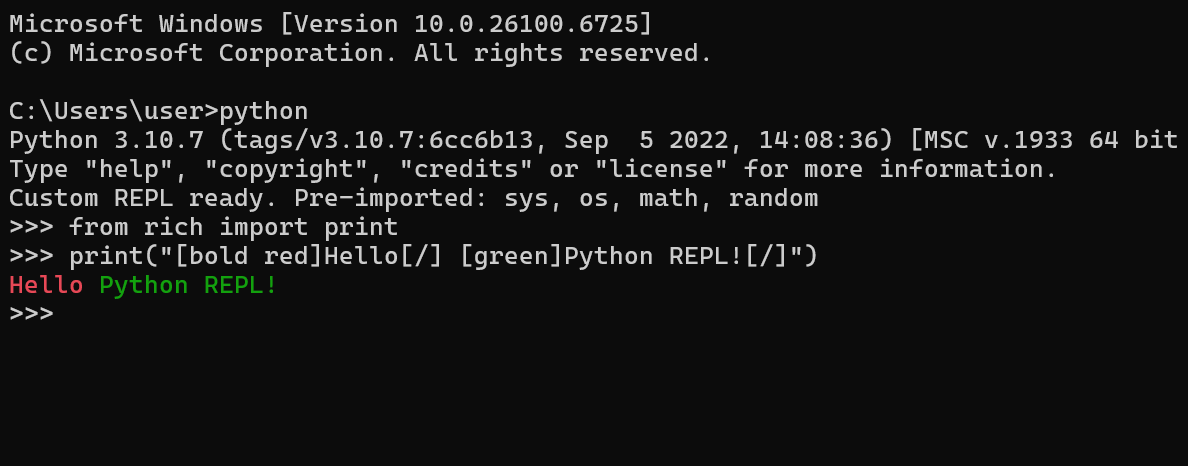
You can use the rich library to enhance and color the output in the REPL. You need to first install the rich module via pip.
pip install rich
Then enable rich using import and use in your Python REPL sessions. In the example below, I have used the library to print words in different font colors.

Example REPL Commands to Try
As you can see, Python’s REPL session is easy to use. Try out the following commands to practice your skills
|
Command |
Purpose |
Output/Description |
|
|
Introspection: See all methods and attributes available on the built-in |
|
|
|
Documentation: Display the docstring for the append method of the list object, explaining how it works. |
A detailed description of what |
|
|
Import a module: Load the standard |
No output (but the module is now available). |
|
|
Calculation: Get the value of π. |
|
|
|
Calculation: Compute sin(π/2). |
|
|
|
Quick Test: Select a random item from a list. |
|
|
|
Error Handling/Exiting: Start an infinite loop, then press Ctrl+C to interrupt and exit it. |
|
Limitations of the Standard REPL Environment
While the standard Python’s REPL environment is great for quick tasks, it often feels limited compared to a modern IDE. You'll quickly notice a few missing features, including the following:
- No syntax highlighting: All your code appears in plain text. This makes it difficult to quickly distinguish keywords, strings, and comments visually, forcing you to read carefully.
- Minimal auto-indentation: While it handles the continuation prompt (
...), you have to manually enter the correct indentation for compound statements, like if and for blocks. - Basic code completion: The built-in tab completion is functional but doesn't offer the context-aware suggestions, inline documentation, or fuzzy matching found in advanced shells.
- Poor multi-line editing: Editing complex, multi-line blocks of code is cumbersome.
- Once a block is submitted, it cannot be easily edited or recalled from history.
Alternative REPLs
To overcome the above limitations of the standard interpreter, several enhanced REPLs and environments built on Python’s interactive model offer additional features that improve productivity and learning. I recommend trying out any of the following to find one that suits your needs.
- IDLE: A simple GUI-based Python environment bundled with Python itself. It offers syntax highlighting, an integrated editor, and a debugger, making it user-friendly for beginners.
- IPython: A powerful REPL with rich tab completion, syntax highlighting, magic commands (special commands starting with %), extensive history, and easy access to shell commands. Widely used in data science and scientific computing.
- bpython: This is a terminal-based REPL with inline syntax highlighting, auto-suggestions, and quick access to documentation. It’s lightweight but adds significant usability over the default REPL.
- ptpython: Designed for experienced users, this is an advanced REPL offering features like true multi-line editing, robust syntax highlighting, and even mouse support, giving you enhanced control in the terminal.
- Online REPLs: Browser-based environments like Python.org’s interactive shell and Python Morsels REPL are perfect for quick testing, sharing code, or practicing on the go.
Conclusion
The Python REPL session provides a fast, interactive environment for experimenting with code, making it invaluable for testing, learning, and exploring ideas. Mastering its built-in features gives you a powerful tool for everyday programming tasks. For more complex workflows or enhanced usability, experimenting with advanced REPL alternatives can further improve the interactive coding experience.
For a thorough understanding of Python, you can learn more from our Python Data Fundamentals and Python Programming Fundamentals skill tracks. The Python Cheat Sheet for Beginners also comes in handy when you want to have a glance at how to split a list in Python.
FAQs
How do I start the Python REPL?
Open your terminal and type python or python3, depending on your system.
How do I exit the REPL?
Type quit() or exit(), or use Ctrl+D on Unix or Ctrl+Z + Enter on Windows.
What’s the difference between the REPL and running a script?
The REPL runs code interactively line by line, while a script executes all code in a file at once.
What is the _ variable in the REPL?
_ holds the result of the last evaluated expression so that you can reuse it quickly.
What are the >>> and ... prompts?
>>> is the primary prompt while ... is the secondary prompt for multi-line input.