Kursus
Pengantar Visualisasi Data dengan ggplot2
4 jam
191.3K
Dalam tutorial ini, saya akan memandu Anda membuat dan menyesuaikan histogram dalam bahasa pemrograman R. Kita akan membahas apa itu histogram, cara menyiapkan data, cara membuat histogram dasar, serta cara menyesuaikan warna, label, bin, dan batas sumbu.
Kita akan menggunakan base R tanpa paket tambahan. Pendekatan ini sangat berguna ketika paket tambahan tidak dapat digunakan atau saat Anda mencari analisis eksploratif cepat. Dalam kasus lain, Anda dapat mempertimbangkan menggunakan ggplot2, seperti yang dibahas dalam tutorial Cara Membuat Histogram ggplot2 di R.
Gunakan hist(x) untuk membuat histogram dasar di base R tanpa paket tambahan
Sesuaikan tampilan dengan col (warna isian), border (garis tepi), main (judul), xlab, dan ylab
Kendalikan pembagian bin dengan argumen breaks: berikan angka, vektor titik batas, atau nama metode ("Sturges", "Scott", "Freedman-Diaconis")
Overlay statistik deskriptif menggunakan abline() untuk mean dan lines(density()) untuk kurva densitas
Untuk histogram berkelompok atau berkualitas publikasi, beralihlah ke ggplot2
Histogram adalah grafik yang menampilkan distribusi frekuensi pada variabel kontinu (numerik). Histogram memungkinkan kita melihat jumlah pengamatan dalam rentang nilai yang dicakup variabel.
Histogram terlihat mirip dengan bagan batang. Perbedaan kunci di antara keduanya adalah bagan batang memiliki nilai yang terkait dengan kategori atau variabel diskret tertentu, sementara histogram memvisualisasikan frekuensi untuk variabel kontinu.
Kita akan menggunakan dataset perumahan yang mencakup detail tentang berbagai listing rumah, termasuk ukuran rumah, jumlah kamar, harga, dan informasi lokasi. Kita dapat membaca data menggunakan fungsi read.csv(), baik langsung dari URL atau dengan mengunduh file csv ke sebuah direktori dan membacanya dari penyimpanan lokal. Kita juga dapat menentukan bahwa kita hanya ingin menyimpan kolom yang relevan untuk tutorial ini: price dan condition.
home_data <- read.csv("https://raw.githubusercontent.com/rashida048/Datasets/master/home_data.csv")[ ,c('price', 'condition')]Mari kita lihat beberapa baris pertama data menggunakan fungsi head().
head(home_data, 5)
Selanjutnya, kita akan membuat histogram menggunakan fungsi hist() untuk melihat distribusi harga dalam dataset.
hist(home_data$price)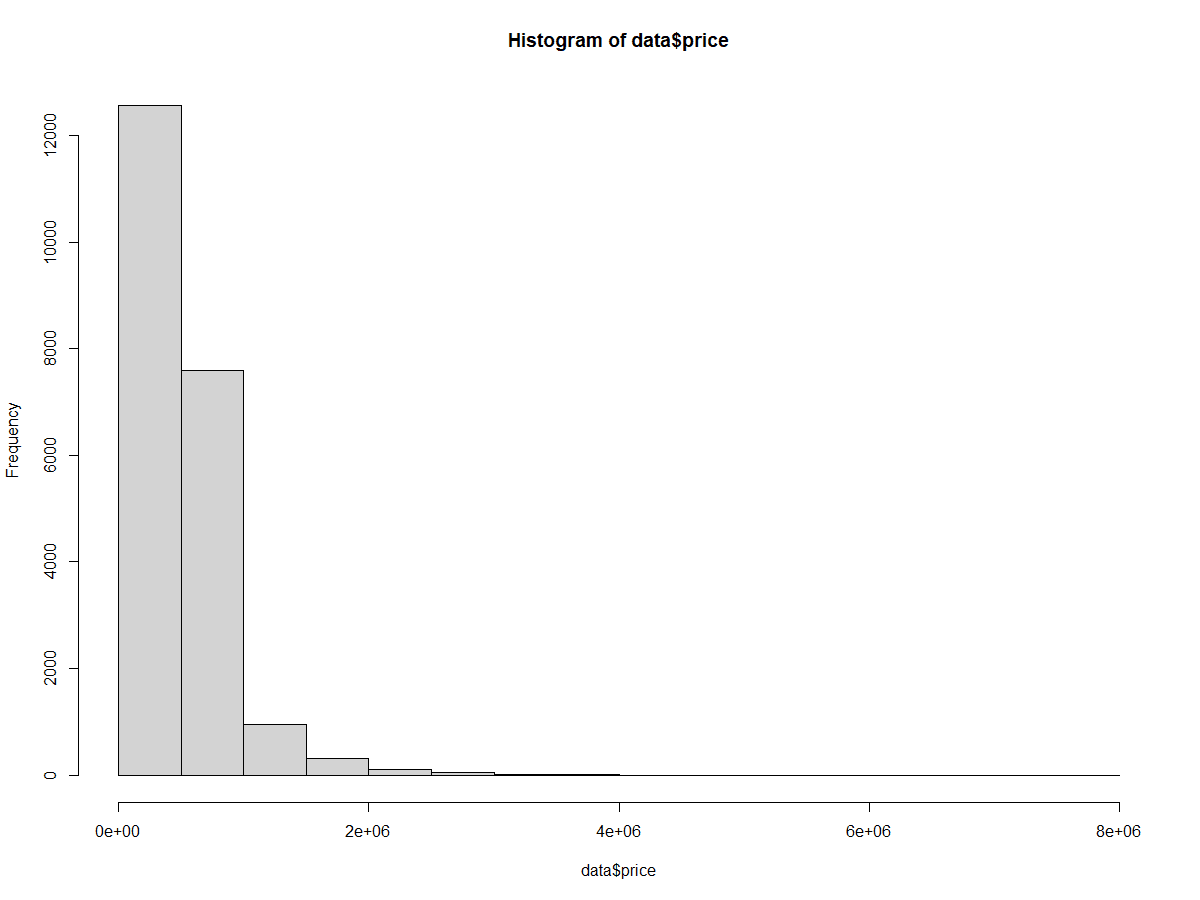
Histogram dasar harga rumah. Gambar oleh Penulis.
Kita dapat menambahkan statistik deskriptif ke histogram menggunakan fungsi abline(). Ini menambahkan garis vertikal pada plot.
Atur argumen v ke posisi pada sumbu x untuk garis vertikal. Di sini, kita mendapatkan harga rumah rata-rata menggunakan mean().
Argumen col mengatur warna garis, dalam hal ini merah.
Argumen lwd mengatur lebar garis. Nilai 3 meningkatkan ketebalan garis agar lebih mudah terlihat.
hist(home_data$price)

abline(v = mean(home_data$price), col='red', lwd = 3)Untuk menambahkan garis densitas probabilitas ke histogram, pertama-tama kita ubah sumbu y menjadi berskala densitas. Dalam pemanggilan hist(), kita setel argumen probability ke TRUE.
Garis densitas probabilitas dibuat dengan kombinasi density(), yang menghitung posisi kurva densitas probabilitas, dan lines(), yang menambahkan garis ke plot yang ada.
hist(home_data$price, probability = TRUE)
abline(v = mean(home_data$price), col='red', lwd = 3)
lines(density(home_data$price), col = 'green', lwd = 3)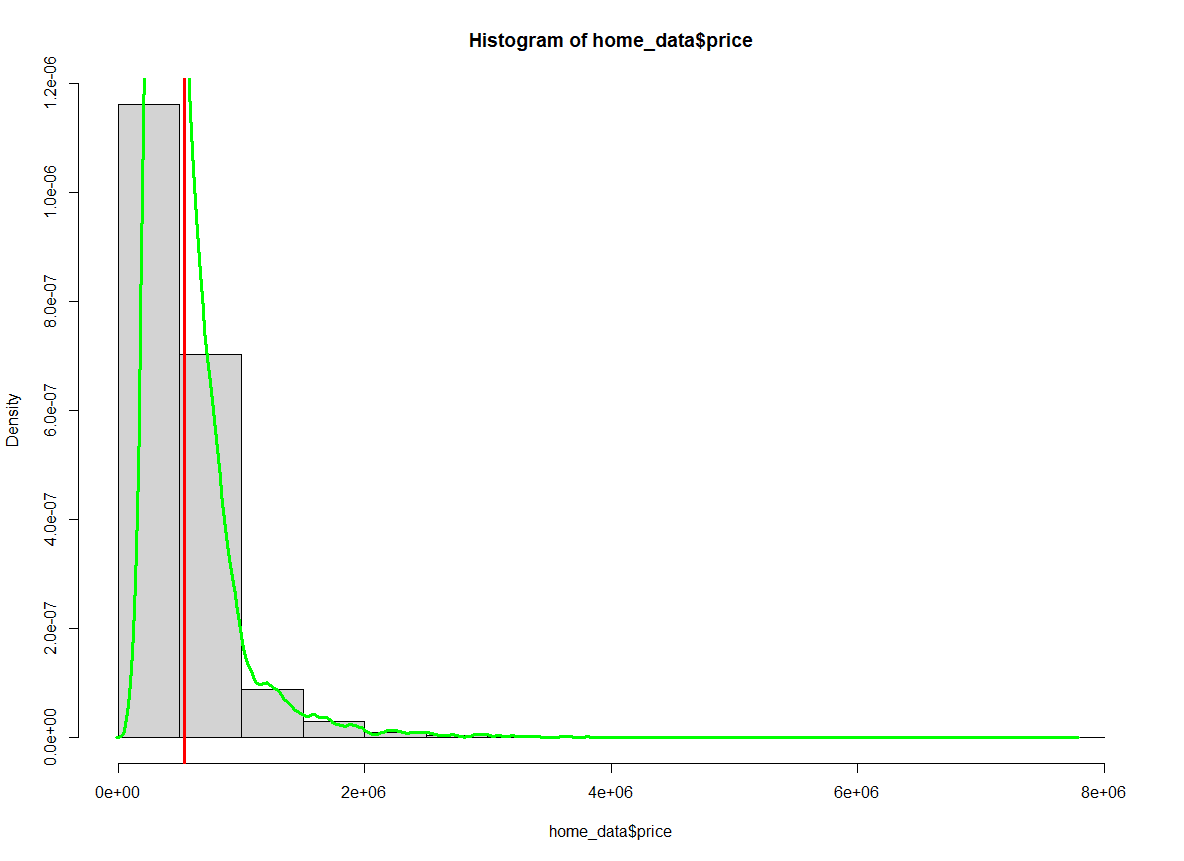
Histogram harga rumah dengan nilai rata-rata disorot. Gambar oleh Penulis.
Perhatikan bahwa angka pada sumbu y telah berubah.
Parameter col pada hist() mengatur warna isian batang, dan border mengatur warna garis tepinya. Di sini saya akan mengatur isian menjadi biru dan garis tepi menjadi putih.
hist(home_data$price, col = 'blue', border = "white")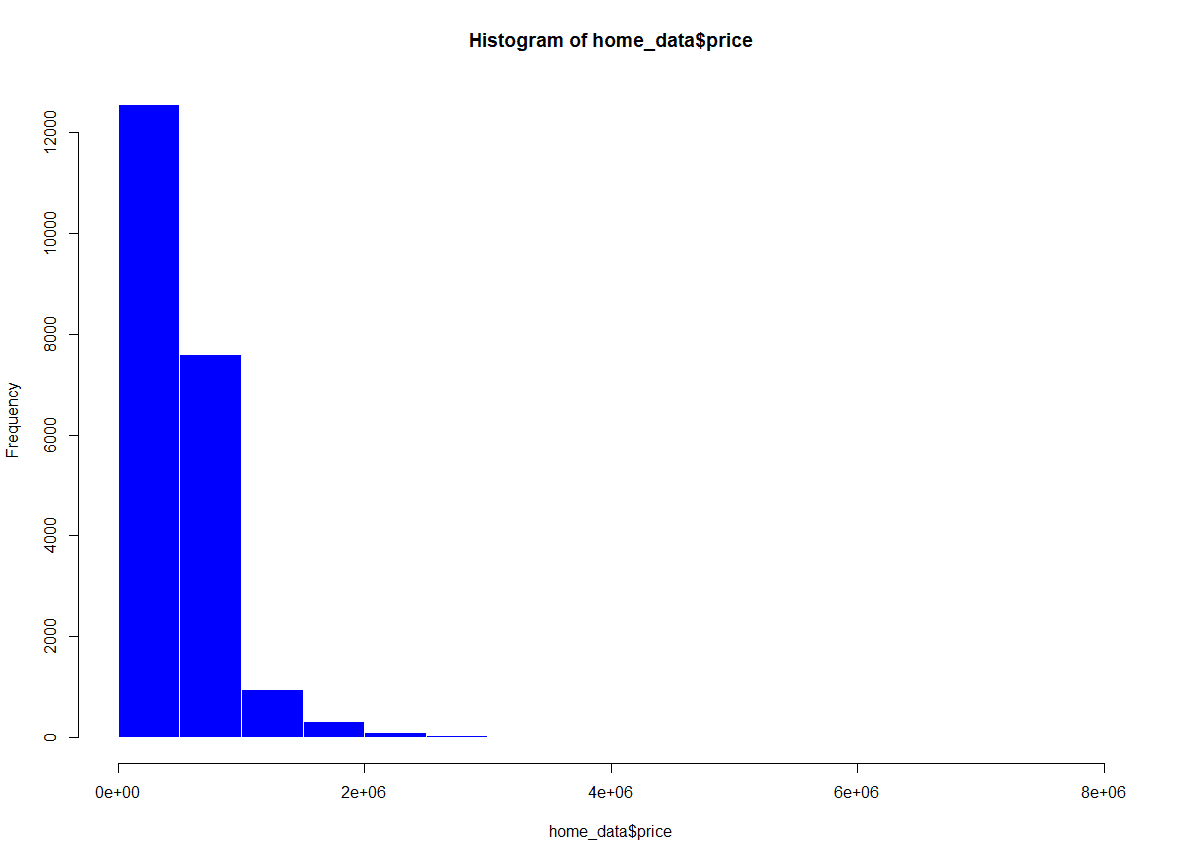 Histogram harga rumah dengan warna ditambahkan. Gambar oleh Penulis.
Kita dapat mengubah label pada plot agar lebih mudah dibaca dan dipresentasikan. Ini berguna jika Anda membagikan plot dengan orang lain.
xlab mengatur label sumbu x
ylab mengatur label sumbu y
main mengatur judul plot
hist(home_data$price, xlab = 'Price (USD)', ylab = 'Number of Listings', main = 'Distribution of House Prices')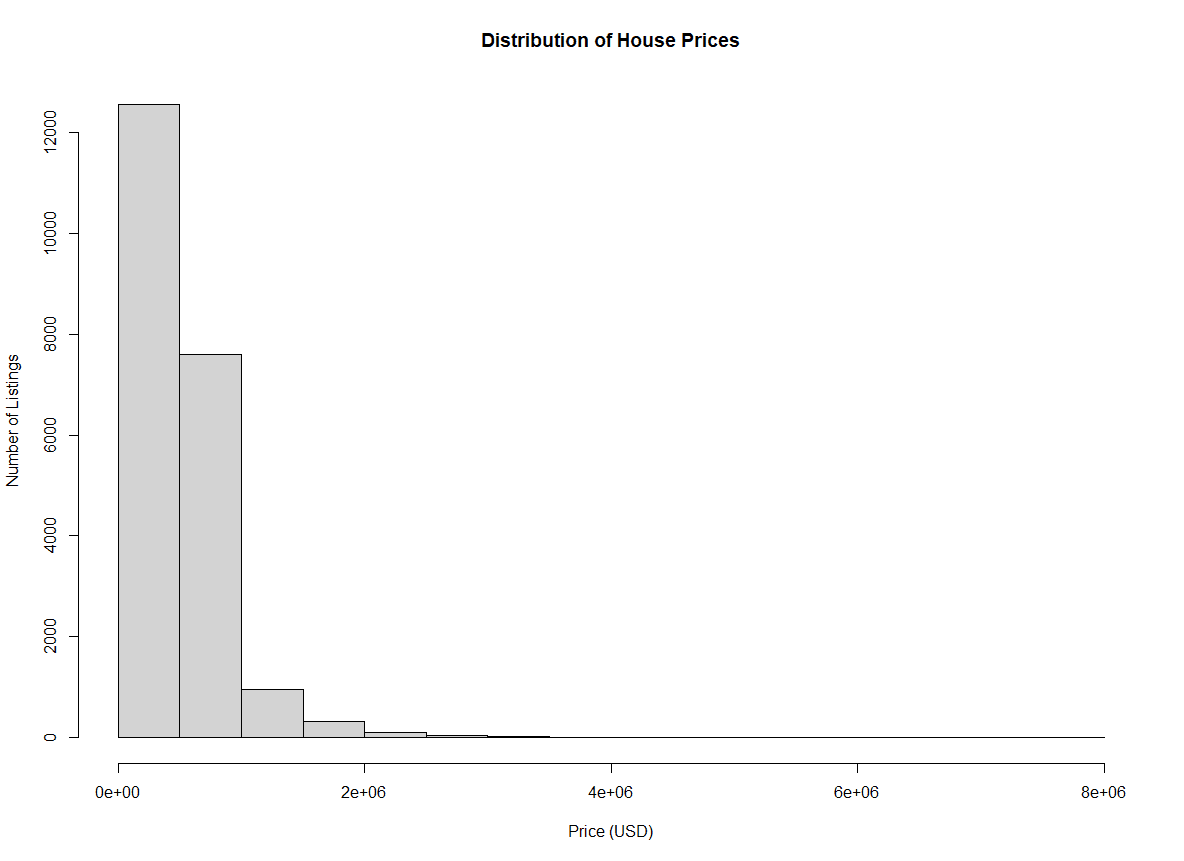 Histogram harga rumah dengan label sumbu. Gambar oleh Penulis.
Dengan argumen default, sulit untuk melihat keseluruhan distribusi harga rumah di seluruh rentang harga. Kita dapat melihat harganya terpusat di beberapa bin pertama, tetapi tidak terlalu deskriptif.
Kita dapat menambah jumlah bin menggunakan parameter breaks. Dengan argumen ini, kita dapat memberikan vektor titik batas spesifik yang akan digunakan, fungsi untuk menghitung titik batas, jumlah breaks yang diinginkan, atau fungsi untuk menghitung jumlah sel.
Untuk contoh ini, kita akan memberikan jumlah bin yang kita inginkan. Angka ini bersifat kontekstual tergantung pada apa yang ingin Anda tunjukkan dalam grafik.
hist(home_data$price, breaks = 100) Histogram harga rumah dengan lebar bin diubah. Gambar oleh Penulis.
Dengan breaks diatur ke 100, kita mendapatkan visibilitas yang jauh lebih baik terhadap distribusi pada beberapa bucket pertama.
Kita juga dapat menentukan jumlah breaks menggunakan nama perhitungan umum untuk menghitung breaks optimal dalam histogram. Secara default, hist() menggunakan metode “Sturges”. Di sini kita sebutkan metodenya secara eksplisit.
hist(home_data$price, breaks = "Sturges") Histogram harga rumah menggunakan metode Sturges. Gambar oleh Penulis.
Kita juga dapat memberikan “Scott” sebagai argumen untuk atribut breaks guna menggunakan Metode Scott.
hist(home_data$price, breaks = "Scott")
Histogram harga rumah menggunakan metode Scott. Gambar oleh Penulis.
Terakhir, kita juga dapat menggunakan metode Freedman-Diaconis (FD).
hist(home_data$price, breaks = "Freedman-Diaconis") Histogram harga rumah menggunakan metode Freedman-Diaconis. Gambar oleh Penulis.
Tabel di bawah merangkum tiga metode breaks bernama yang tersedia di hist(). Default-nya adalah Sturges.
| Metode | Cara kerja | Paling cocok untuk |
|---|---|---|
| Sturges | Bins = 1 + log₂(n). Mengasumsikan data kira-kira normal. | Dataset kecil hingga menengah dengan distribusi mendekati normal |
| Scott | Lebar bin = 3,49 × sd × n⁻¹ᐟ³. Meminimalkan integrated mean squared error. | Data berdistribusi normal di mana varians penting |
| Freedman-Diaconis | Lebar bin = 2 × IQR × n⁻¹ᐟ&sup³;. Menggunakan rentang interkuartil alih-alih simpangan baku. | Data miring atau distribusi dengan pencilan |
Kita dapat mengatur batas sumbu x pada plot menggunakan argumen xlim untuk memperbesar data yang kita minati. Misalnya, terkadang lebih membantu untuk berfokus pada bagian tengah distribusi, bukan pada ekor panjang yang saat ini kita lihat ketika melihat seluruh plot.
Mengubah batas sumbu y juga dimungkinkan (menggunakan argumen ylim), namun ini kurang berguna untuk histogram karena nilai yang dihitung otomatis hampir selalu ideal.
Kita akan memperbesar harga antara $0 hingga $2M.
hist(home_data$price, breaks = 100, xlim = c(0, 2000000)) Histogram harga rumah dengan batas sumbu diubah. Gambar oleh Penulis.
Seiring Anda semakin terbiasa dengan R, Anda dapat mencoba paket visualisasi khusus yang menawarkan lebih banyak kendali atas estetika, tata letak, dan interaktivitas. Pustaka yang sangat populer dan mudah digunakan untuk plotting di R adalah ggplot2. Di bawah ini kita membuat tampilan menarik dari distribusi harga berdasarkan jumlah kamar tidur di rumah.
 Histogram harga rumah menggunakan ggplot2. Gambar oleh Penulis.
ggplot2 adalah paket visualisasi yang paling banyak digunakan di R. Anda dapat mempelajari cara membuat histogram dengannya dalam tutorial Cara Membuat Histogram ggplot2 di R, atau menjelajahi tutorial Graphics with ggplot2 untuk pengenalan yang lebih luas. Lihat juga kursus Introduction to ggplot2 dan kursus Intermediate ggplot2 untuk pendalaman lebih lanjut.
Dalam tutorial ini, kita mempelajari bahwa histogram adalah visualisasi yang sangat baik untuk melihat distribusi variabel kontinu. Kita mempelajari cara membuat histogram di R, cara memplot statistik ringkasan di atas histogram, cara menyesuaikan fitur plot seperti judul sumbu, warna, cara kita melakukan binning pada sumbu x, dan cara menetapkan batas pada sumbu. Terakhir, kita mendemonstrasikan sebagian kekuatan pustaka ggplot2.
Untuk bacaan dan sumber daya DataCamp lebih lanjut, lihat kursus interaktif kami:
Belajar R dengan DataCamp
Kursus
Kursus
Kursus
blogs
David Woods
13 mnt
blogs
Hugo Bowne-Anderson
13 mnt
blogs
Dario Radečić
15 mnt
blogs
Javier Canales Luna
14 mnt