Cursus
Introductie tot datavisualisatie met ggplot2
4 uur
191.2K
In deze tutorial neem ik je stap voor stap mee in het maken en aanpassen van histogrammen in de programmeertaal R. We behandelen wat een histogram is, hoe je je data voorbereidt, hoe je een basis-histogram maakt en hoe je kleuren, labels, bins en aslimieten aanpast.
We gebruiken de basisfunctionaliteit van R, zonder extra packages. Deze aanpak is vooral handig wanneer je geen extra packages kunt gebruiken of als je snel verkennende analyses wilt doen. In andere gevallen kun je overwegen om ggplot2 te gebruiken, zoals behandeld in onze tutorial How to Make a ggplot2 Histogram in R.
Gebruik hist(x) om een basis-histogram te maken in base R zonder extra packages
Pas de weergave aan met col (vulkleur), border (omlijning), main (titel), xlab en ylab
Beheer de binning met het argument breaks: geef een getal, een vector met breekpunten of een methodenaam ("Sturges", "Scott", "Freedman-Diaconis") door
Leg beschrijvende statistieken eroverheen met abline() voor het gemiddelde en lines(density()) voor een dichtheidskromme
Voor gegroepeerde of publicatiewaardige histogrammen, stap over op ggplot2
Een histogram is een grafiek die frequentieverdelingen toont over continue (numerieke) variabelen. Histogrammen laten ons het aantal observaties zien binnen bereiken waarover de variabele zich uitstrekt.
Histogrammen lijken op staafdiagrammen. Een belangrijk verschil is dat staafdiagrammen een waarde koppelen aan een specifieke categorie of discrete variabele, terwijl een histogram frequenties voor continue variabelen visualiseert.
We gebruiken deze woningdataset met details over verschillende woningaanbiedingen, waaronder de grootte van het huis, het aantal kamers, de prijs en locatie-informatie. We kunnen de data inlezen met de functie read.csv(), rechtstreeks vanaf de URL of door het csv-bestand te downloaden en lokaal in te lezen. We kunnen ook aangeven dat we alleen de kolommen willen opslaan die voor deze tutorial relevant zijn: price en condition.
home_data <- read.csv("https://raw.githubusercontent.com/rashida048/Datasets/master/home_data.csv")[ ,c('price', 'condition')]Laten we met de functie head() naar de eerste paar rijen van de data kijken.
head(home_data, 5)
Vervolgens maken we een histogram met de functie hist() om naar de verdeling van prijzen in onze dataset te kijken.
hist(home_data$price)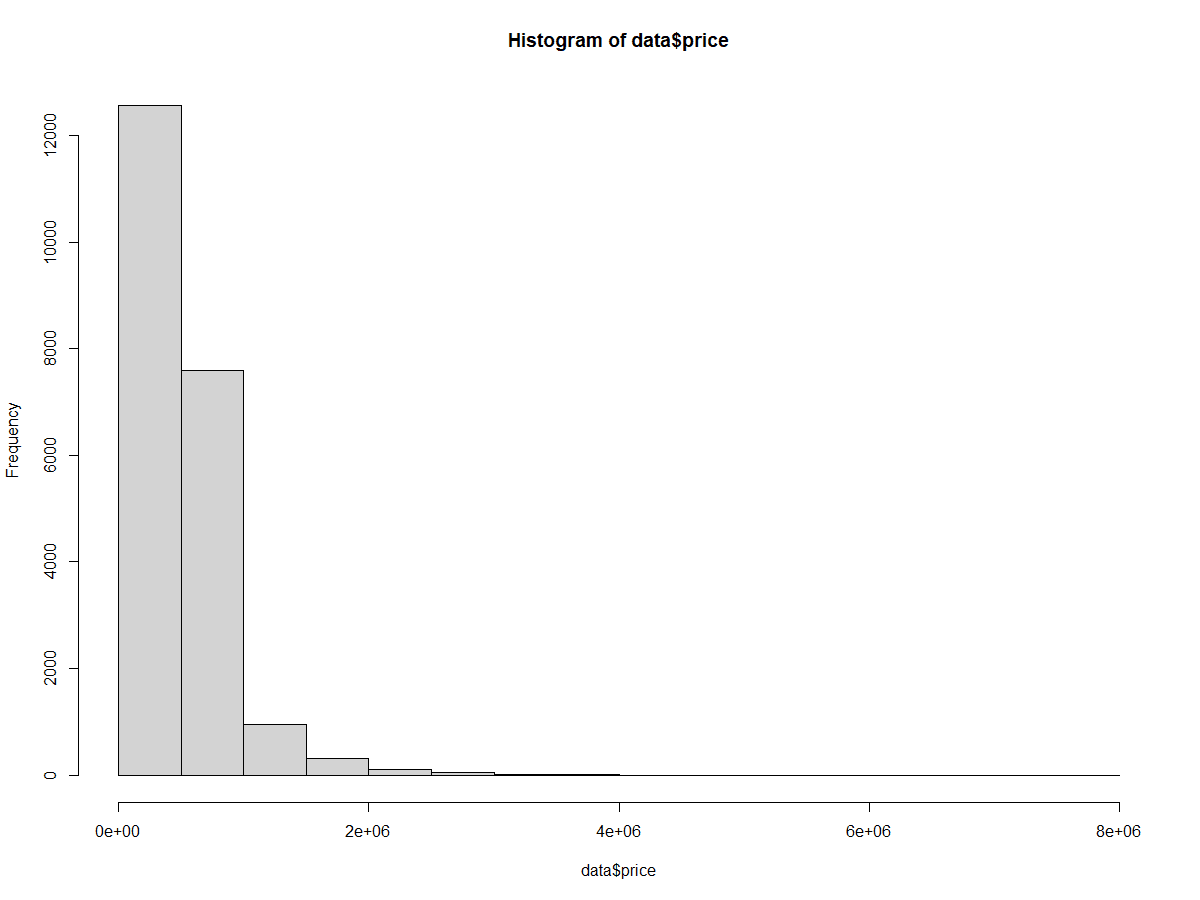
Basis-histogram van woningprijzen. Afbeelding door de auteur.
We kunnen beschrijvende statistieken aan het histogram toevoegen met de functie abline(). Dit voegt een verticale lijn toe aan de plot.
Zet het argument v op de positie op de x-as voor de verticale lijn. Hier halen we de gemiddelde woningprijs op met mean().
Het argument col bepaalt de lijnkleur, in dit geval rood.
Het argument lwd bepaalt de lijndikte. Een waarde van 3 maakt de lijn dikker en beter zichtbaar.
hist(home_data$price)

abline(v = mean(home_data$price), col='red', lwd = 3)Om een waarschijnlijkheidsdichtheidslijn toe te voegen aan het histogram, schalen we eerst de y-as naar dichtheid. In de aanroep naar hist() zetten we het argument probability op TRUE.
De dichtheidslijn maken we met een combinatie van density(), dat de positie van de dichtheidskromme berekent, en lines(), dat de lijn aan de bestaande plot toevoegt.
hist(home_data$price, probability = TRUE)
abline(v = mean(home_data$price), col='red', lwd = 3)
lines(density(home_data$price), col = 'green', lwd = 3)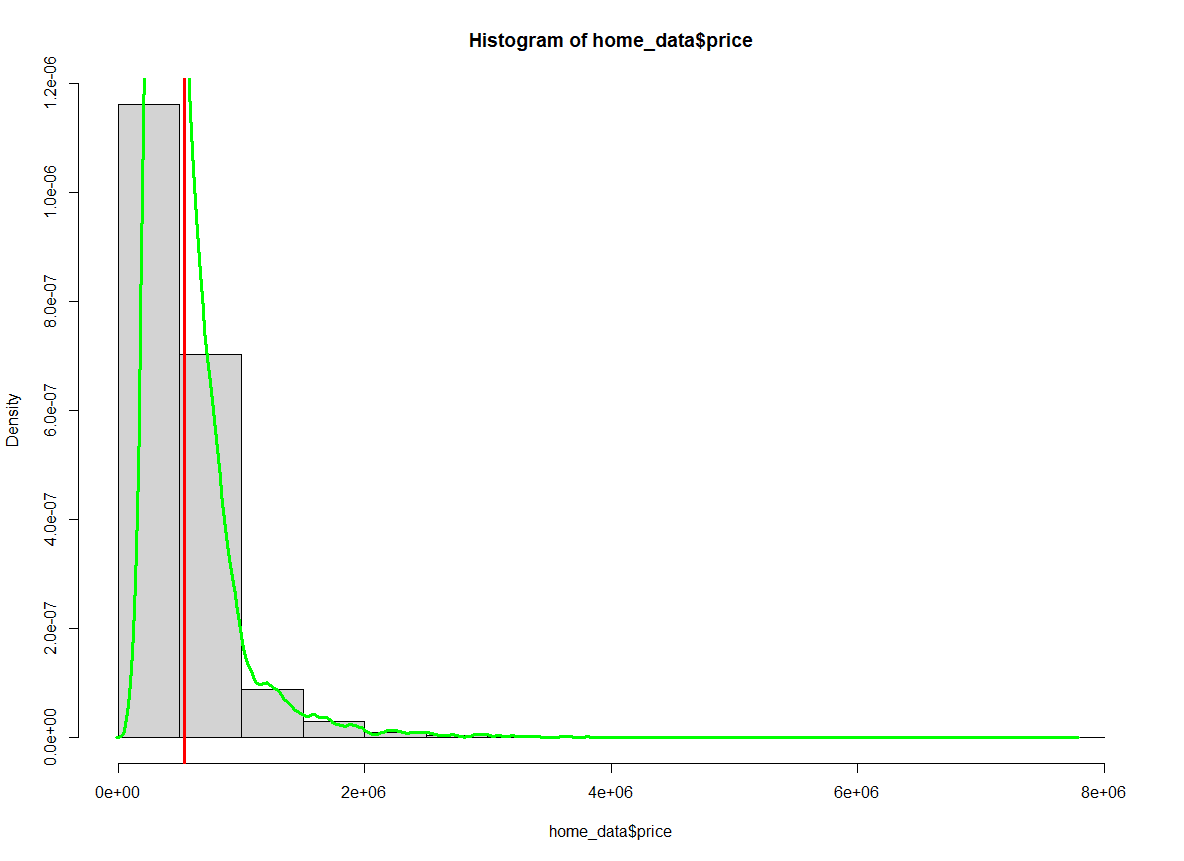
Histogram van woningprijzen met het gemiddelde gemarkeerd. Afbeelding door de auteur.
Merk op dat de getallen op de y-as zijn veranderd.
De parameter col van hist() stelt de vulkleur van de balken in, en border bepaalt de randkleur. Hier zet ik de vulling op blauw en de randen op wit.
hist(home_data$price, col = 'blue', border = "white")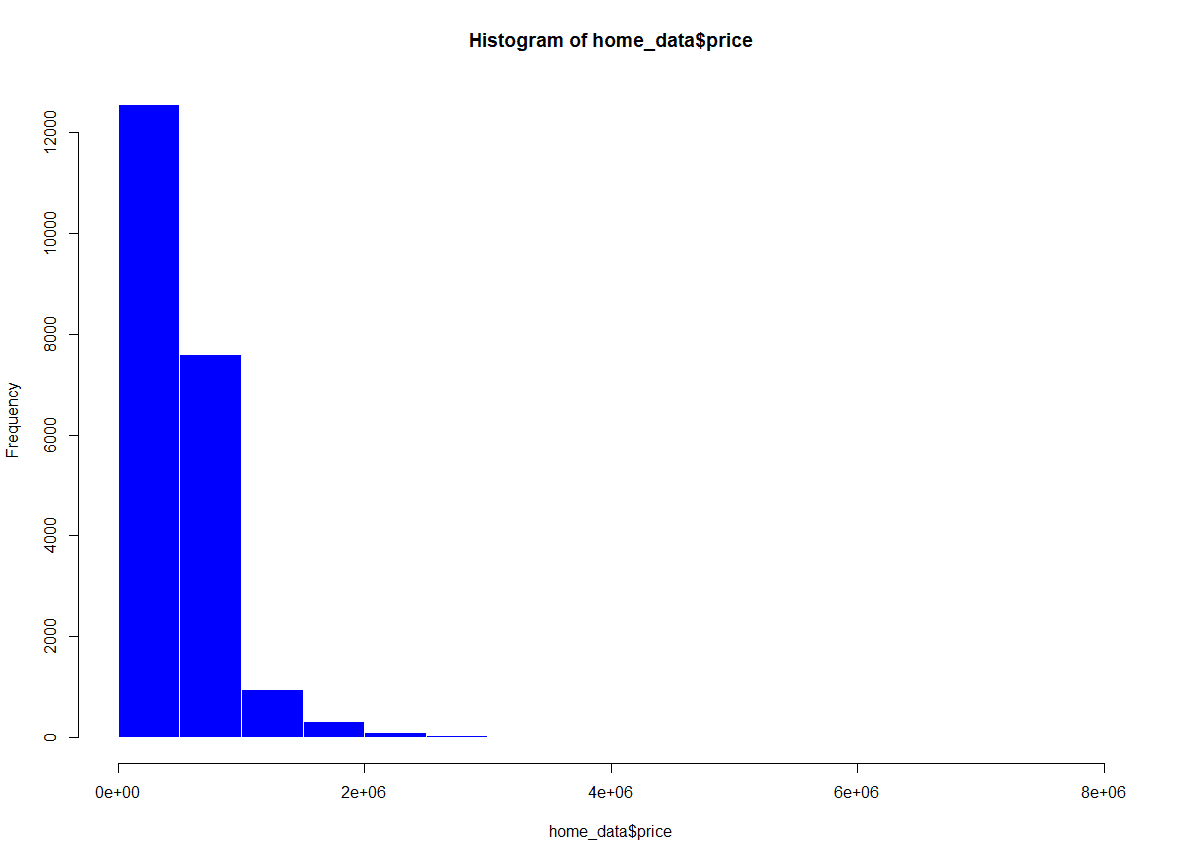 Histogram van woningprijzen met kleur toegevoegd. Afbeelding door de auteur.
We kunnen de labels op de plot aanpassen om deze leesbaarder en representatiever te maken. Dit is handig als je de plot met anderen deelt.
xlab stelt het label van de x-as in
ylab stelt het label van de y-as in
main stelt de plottitel in
hist(home_data$price, xlab = 'Price (USD)', ylab = 'Number of Listings', main = 'Distribution of House Prices')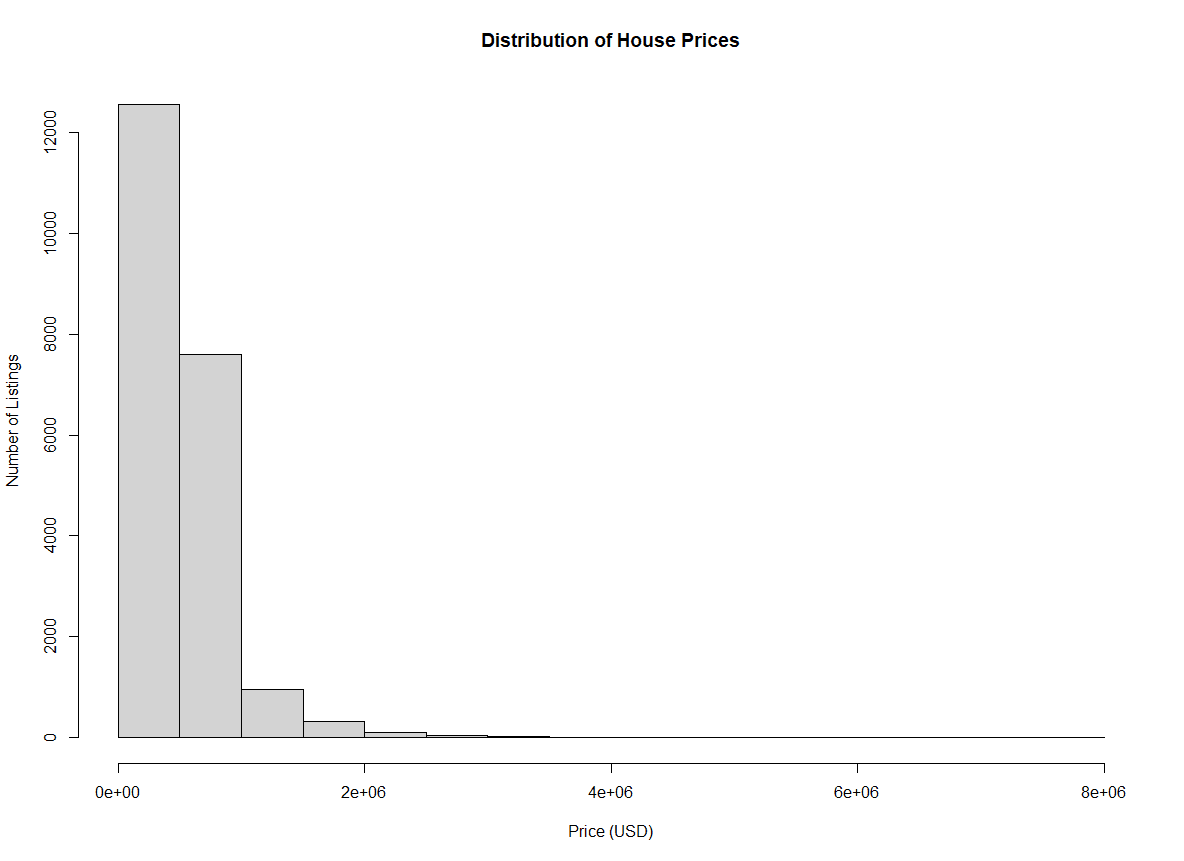 Histogram van woningprijzen met aslabels. Afbeelding door de auteur.
Met de standaardargumenten is het lastig om de volledige verdeling van de woningprijzen over het prijsbereik te zien. We zien dat ze geconcentreerd zijn in de eerste paar bins, maar die zeggen nog niet veel.
We kunnen meer bins toevoegen met de parameter breaks. Met dit argument kunnen we een vector met specifieke breekpunten meegeven, een functie om de breekpunten te berekenen, een gewenst aantal breaks, of een functie om het aantal cellen te berekenen.
Voor dit voorbeeld geven we het aantal gewenste bins door. Dit aantal is contextspecifiek, afhankelijk van wat je met je grafiek wilt laten zien.
hist(home_data$price, breaks = 100) Histogram van woningprijzen met aangepaste binbreedte. Afbeelding door de auteur.
Met breaks op 100 hebben we aanzienlijk meer zicht op de verdeling in de eerste paar buckets.
We kunnen het aantal breaks ook opgeven met de namen van gangbare methoden voor het bepalen van optimale breaks in een histogram. Standaard gebruikt hist() de “Sturges”-methode. Hier specificeren we de methode expliciet.
hist(home_data$price, breaks = "Sturges") Histogram van woningprijzen met de Sturges-methode. Afbeelding door de auteur.
We kunnen ook “Scott” doorgeven als argument voor het attribuut breaks om de Scott-methode te gebruiken.
hist(home_data$price, breaks = "Scott")
Histogram van woningprijzen met de Scott-methode. Afbeelding door de auteur.
Tot slot kunnen we ook de Freedman-Diaconis (FD)-methode gebruiken.
hist(home_data$price, breaks = "Freedman-Diaconis") Histogram van woningprijzen met de Freedman-Diaconis-methode. Afbeelding door de auteur.
De tabel hieronder vat de drie benoemde break-methoden samen die beschikbaar zijn in hist(). De standaard is Sturges.
| Methode | Werkwijze | Beste keuze voor |
|---|---|---|
| Sturges | Bins = 1 + log₂(n). Gaat uit van ongeveer normale data. | Kleine tot middelgrote datasets met (bijna) normale verdeling |
| Scott | Binbreedte = 3,49 × sd × n⁻¹ᐟ³. Minimaliseert geïntegreerde gemiddelde kwadratische fout. | Normaal verdeelde data waar variantie ertoe doet |
| Freedman-Diaconis | Binbreedte = 2 × IQR × n⁻¹ᐟ³. Gebruikt interkwartielafstand in plaats van standaarddeviatie. | Scheve data of verdelingen met uitschieters |
We kunnen de limieten van de x-as instellen met het argument xlim om in te zoomen op de data waarin we geïnteresseerd zijn. Het is bijvoorbeeld soms handig om te focussen op het centrale deel van de verdeling, in plaats van op de lange staart die we nu zien als we de hele plot bekijken.
De y-aslimieten aanpassen is ook mogelijk (met het argument ylim), maar dit is minder nuttig voor histogrammen, omdat de automatisch berekende waarden bijna altijd ideaal zijn.
We zoomen in op prijzen tussen $0 en $2M.
hist(home_data$price, breaks = 100, xlim = c(0, 2000000)) Histogram van woningprijzen met aangepaste aslimieten. Afbeelding door de auteur.
Naarmate je vertrouwder raakt met R, kun je gespecialiseerde visualisatiepackages proberen die meer controle bieden over vormgeving, lay-out en interactiviteit. Een zeer populaire en gebruiksvriendelijke bibliotheek voor plotten in R is ggplot2. Hieronder maken we een interessante weergave van de prijsverdelingen op basis van het aantal slaapkamers in het huis.
 Histogram van woningprijzen met ggplot2. Afbeelding door de auteur.
ggplot2 is de meest gebruikte visualisatiepackage in R. Je kunt leren hoe je er histogrammen mee maakt in onze tutorial How to Make a ggplot2 Histogram in R, of bekijk de tutorial Graphics with ggplot2 voor een bredere introductie. Bekijk onze Introduction to ggplot2-cursus en Intermediate ggplot2-cursus om dieper te gaan.
In deze tutorial hebben we geleerd dat histogrammen uitstekende visualisaties zijn om naar verdelingen van continue variabelen te kijken. We hebben geleerd hoe je een histogram in R maakt, hoe je samenvattende statistieken over je histogram heen plaatst, hoe je eigenschappen van de plot aanpast, zoals astitels en kleur, hoe je de x-as indeelt in bins en hoe je aslimieten instelt. Tot slot hebben we een deel van de kracht van de ggplot2-bibliotheek laten zien.
Voor meer DataCamp-materiaal, bekijk onze interactieve cursussen:
Leer R met DataCamp
Cursus
Cursus
Cursus
blog
Adel Nehme
15 min