Cursus
Introductie tot MongoDB in Python
3 Hr
24.3K
MongoDB Atlas requires multi-factor authentication (MFA) for all accounts. MFA helps prevent unauthorized access, even if someone steals your password, by requiring an additional verification step beyond your password. If you are new to Atlas, you will need to configure MFA during account setup.
This guide explains the available MFA options, including authenticator apps, Okta Verify, security keys and biometrics, and email verification. You will learn:
Your MongoDB Atlas database contains sensitive information that attackers can target. Relying on a single password leaves your account vulnerable because a compromised password gives an attacker complete access to your data.
To reduce this risk, MFA strengthens your security by adding an additional verification step. This additional verification step protects you from common threats such as credential stuffing, where attackers try passwords leaked from other services to access your MongoDB Atlas account. It also helps prevent phishing attacks, since a stolen password alone is not enough to sign in.
Beyond security, MFA is also important for compliance. Many industry standards require multi-factor authentication for systems that store or process sensitive information. Using MFA on your MongoDB Atlas account helps you meet these requirements.
Lastly, the consequences of unauthorized access can be severe. Attackers can delete collections, modify or steal records, expose customer data, or even hold your information for ransom. They may also misuse your database resources to launch attacks on other systems, which can leave you with unexpected costs and legal risks.
How you configure MFA in Atlas depends on the sign-up method you used. Different authentication methods manage MFA settings in different places.
MongoDB Atlas supports two authentication methods:
Your MFA setup for federated login depends on which login method you use with MongoDB Atlas.
If you signed up and subsequently log in using Google, your MFA is managed through your Google account settings, not MongoDB Atlas. Any two-step verification methods you configure in Google automatically apply to your Atlas login.
To configure Google's two-step verification, see Turn on 2-Step Verification.
If you signed up and subsequently log in using GitHub, your MFA is managed through your GitHub account settings, not MongoDB Atlas.
To configure GitHub's two-factor authentication, see Configuring two-factor authentication.
If you signed up with an email and password, you can configure MFA directly through the MongoDB Atlas UI. Atlas provides multiple MFA options.
To configure MFA, follow these steps:
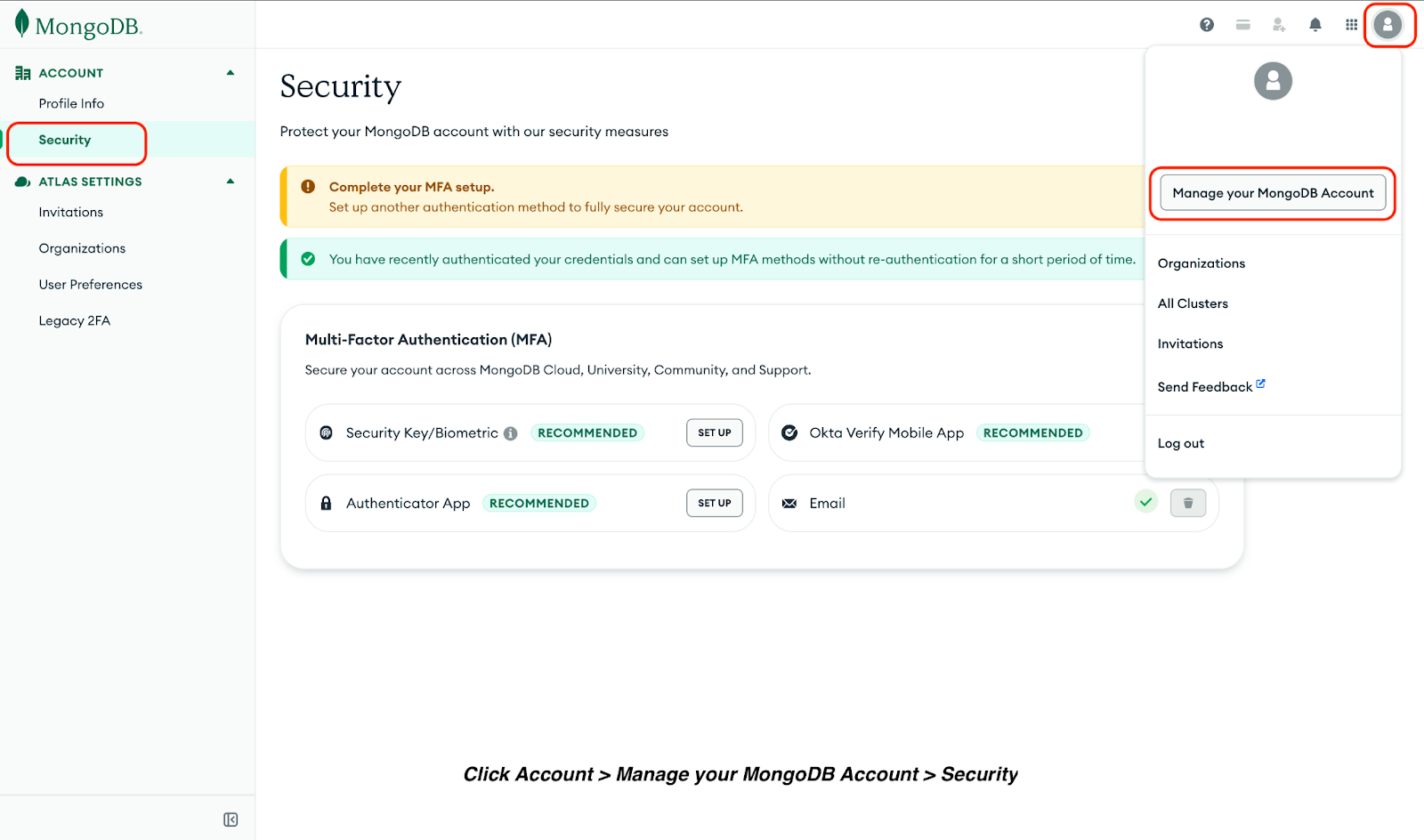
Security Key/Biometric authentication includes Fast IDentity Online 2 (FIDO2) compliant MFA methods such as Windows Hello or Apple Touch ID.
To set up Security Key/Biometric MFA:
Okta Verify is a mobile authentication app that generates time-based one-time password (TOTP) and sends push notifications to approve login attempts.
To set up the Okta Verify Mobile App:
Authenticator apps, such as Google Authenticator, Microsoft Authenticator, and Authy, generate TOTP on your mobile device. To set up an authenticator app:
MongoDB Atlas sends a one-time code to your registered email address each time you log in.
This method provides basic security without requiring additional apps or devices. When using this method, set up MFA for your email inbox access to maintain strong security.
Configure at least two MFA methods other than email to maintain access if one becomes unavailable or you lose access to it. This prevents you from being locked out of your account.
Also, your authenticator app provides recovery codes after setting them up. Download these codes and store them securely in a password manager, encrypted location, or cloud backup. Also, never save them in plain text files or share them with others.
Verification codes and recovery codes are single-use credentials. Treat them like passwords and never share them via email, chat, or phone.
Note: MongoDB support will never ask for your verification codes at login time.
Finally, update your MFA settings immediately when you change devices. Remove old devices from your account and re-register your new phone or security key to prevent unauthorized access through lost or stolen devices.
Top Courses
Cursus
Cursus
Cursus
Tutorial
Karen Zhang
10 min
Tutorial
Damilola Oladele
12 min
Tutorial
Nic Raboy
4 min
Tutorial
Samuel Molling
6 min
Tutorial
Afi Gbadago
5 min
Tutorial
Nilesh Soni
8 min