
Cours
Introduction à MongoDB en Python
3 h
24.3K
MongoDB Atlas exige l’authentification multifacteur (MFA) pour tous les comptes. La MFA empêche les accès non autorisés, même si quelqu’un dérobe votre mot de passe, en imposant une étape de vérification supplémentaire. Si vous découvrez Atlas, vous devrez configurer la MFA lors de la création de votre compte.
Ce guide présente les options de MFA disponibles, notamment les applications d’authentification, Okta Verify, les clés de sécurité et la biométrie, ainsi que la vérification par e‑mail. Vous apprendrez :
Votre base de données MongoDB Atlas contient des informations sensibles ciblées par les attaquants. Se reposer sur un mot de passe unique rend votre compte vulnérable, car un mot de passe compromis donne à un attaquant un accès complet à vos données.
Pour réduire ce risque, la MFA renforce votre sécurité en ajoutant une étape de vérification supplémentaire. Cette étape protège contre des menaces courantes comme le credential stuffing, où des attaquants testent des mots de passe divulgués par d’autres services pour accéder à votre compte MongoDB Atlas. Elle aide aussi à prévenir le phishing, puisqu’un mot de passe volé ne suffit pas pour se connecter.
Au‑delà de la sécurité, la MFA est également importante pour la conformité. De nombreuses normes sectorielles exigent une authentification multifacteur pour les systèmes qui stockent ou traitent des informations sensibles. L’utilisation de la MFA sur votre compte MongoDB Atlas vous aide à répondre à ces exigences.
Enfin, les conséquences d’un accès non autorisé peuvent être graves. Des attaquants peuvent supprimer des collections, modifier ou voler des enregistrements, exposer des données clients, voire rançonner vos informations. Ils peuvent aussi détourner les ressources de votre base pour lancer des attaques contre d’autres systèmes, entraînant des coûts imprévus et des risques juridiques.
La façon dont vous configurez la MFA dans Atlas dépend de votre méthode d’inscription. Différentes méthodes d’authentification gèrent les paramètres MFA à des endroits différents.
MongoDB Atlas prend en charge deux méthodes d’authentification :
La configuration MFA pour une connexion fédérée dépend de la méthode de connexion utilisée avec MongoDB Atlas.
Si vous vous êtes inscrit puis vous connectez via Google, votre MFA est gérée dans les paramètres de votre compte Google, et non dans MongoDB Atlas. Toute méthode de vérification en deux étapes configurée dans Google s’applique automatiquement à votre connexion Atlas.
Pour configurer la vérification en deux étapes de Google, consultez Activer la validation en 2 étapes.
Si vous vous êtes inscrit puis vous connectez via GitHub, votre MFA est gérée dans les paramètres de votre compte GitHub, et non dans MongoDB Atlas.
Pour configurer l’authentification à deux facteurs de GitHub, consultez Configuring two-factor authentication.
Si vous vous êtes inscrit avec une adresse e‑mail et un mot de passe, vous pouvez configurer la MFA directement dans l’interface MongoDB Atlas. Atlas propose plusieurs options de MFA.
Pour configurer la MFA, procédez comme suit :
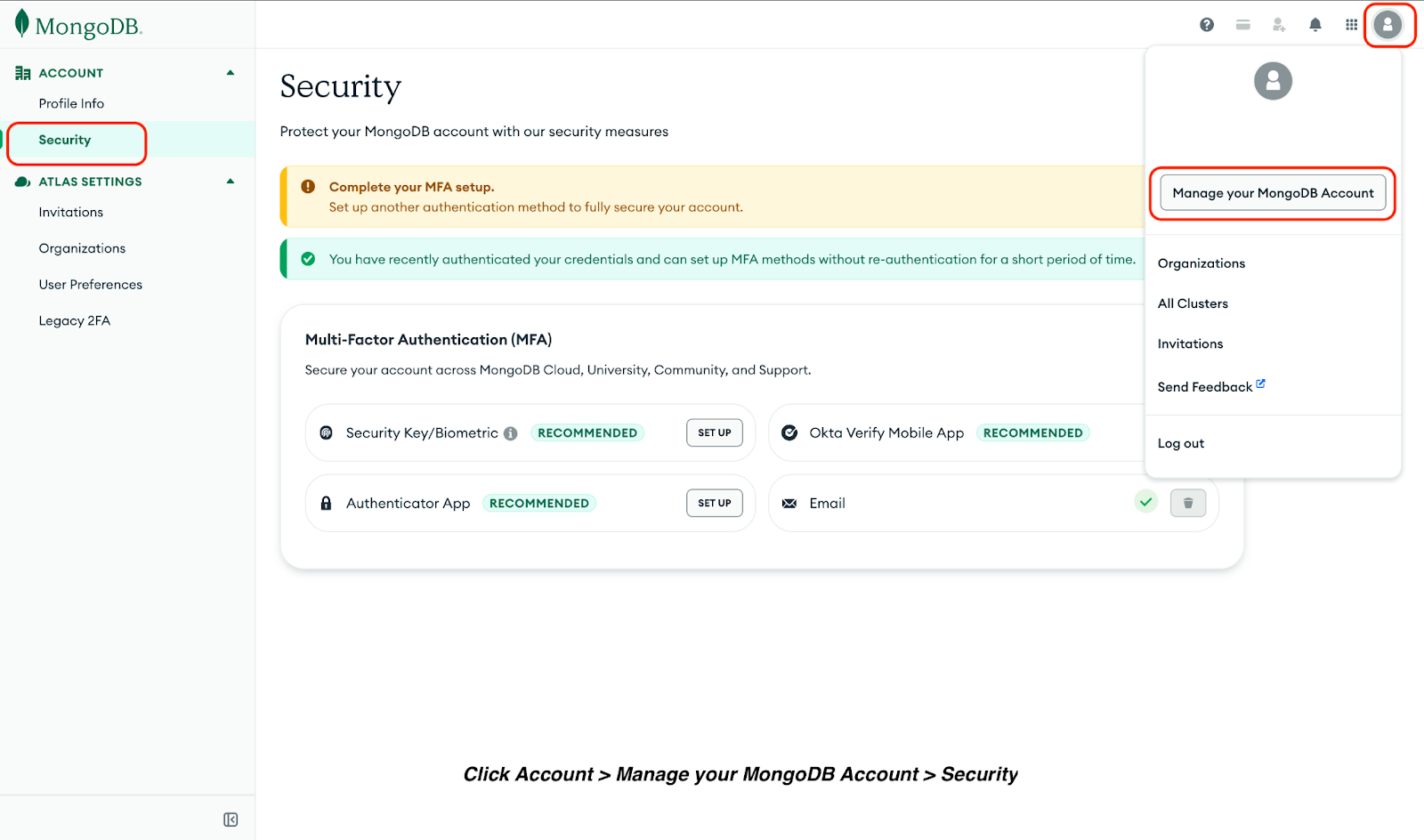
L’authentification Security Key/Biometric inclut les méthodes MFA conformes à FIDO2 (Fast IDentity Online 2) comme Windows Hello ou Apple Touch ID.
Pour configurer la MFA par clé de sécurité/biométrie :
Okta Verify est une application d’authentification mobile qui génère des mots de passe à usage unique temporisés (TOTP) et envoie des notifications push pour approuver les tentatives de connexion.
Pour configurer l’application mobile Okta Verify :
Les applications d’authentification, comme Google Authenticator, Microsoft Authenticator et Authy, génèrent des TOTP sur votre appareil mobile. Pour configurer une application d’authentification :
MongoDB Atlas envoie un code à usage unique à votre adresse e‑mail enregistrée à chaque connexion.
Cette méthode offre une sécurité de base sans nécessiter d’applications ou d’appareils supplémentaires. Si vous l’utilisez, activez également la MFA pour l’accès à votre boîte de réception afin de maintenir un haut niveau de sécurité.
Configurez au moins deux méthodes MFA autres que l’e‑mail pour conserver l’accès si l’une devient indisponible ou si vous la perdez. Cela évite d’être bloqué hors de votre compte.
De plus, votre application d’authentification fournit des codes de récupération lors de la configuration. Téléchargez ces codes et stockez‑les en lieu sûr dans un gestionnaire de mots de passe, un emplacement chiffré ou une sauvegarde cloud. Ne les enregistrez jamais en clair ni ne les partagez.
Les codes de vérification et de récupération sont des justificatifs à usage unique. Traitez‑les comme des mots de passe et ne les partagez jamais par e‑mail, chat ou téléphone.
Remarque : le support MongoDB ne vous demandera jamais vos codes de vérification lors de la connexion.
Enfin, mettez à jour vos paramètres MFA immédiatement lorsque vous changez d’appareil. Supprimez les anciens appareils de votre compte et réenregistrez votre nouveau téléphone ou votre clé de sécurité pour empêcher tout accès non autorisé via des appareils perdus ou volés.
Cours phares
Cours
Cours
Cours