

课程
Introduction to Google Workspace with Gemini
30 分钟
2.6K
实践并学习路径你的进步。
使用 Google 继续AI 代理功能强大,但常见的一个根本缺陷是:它们与我们实际开展日常工作的场所相脱节——邮件、日历和文档。没有对您实时数据的访问,LLM 充其量只是一个表达能力很强的头脑风暴工具。
在本教程中,我将向您展示如何通过配置 Google Workspace MCP 服务器、了解最新的安全控制并构建一个自动化助手,来弥合 AI 模型与企业数据之间的鸿沟。
完成后,您将能够:
Google Workspace MCP 服务器是模型上下文协议(MCP)的标准化实现,使任何兼容的 AI 客户端(如 Claude Desktop、Gemini CLI 或自定义代理)都能与 Google Workspace 应用安全交互。
开发者无需为每个新 AI 项目为 Gmail、Google Docs、Drive 和 Calendar 编写定制的 REST API 封装,MCP 服务器会将这些能力以标准化的“工具”形式暴露出来,LLM 能够原生理解。
建议您查看 模型上下文协议(MCP)入门课程,获取上手体验。
通常,跨应用工作流意味着编写脆弱的集成代码。有了 MCP,您只需把工具交给 LLM。代理就能自行读取邮件线程,通过检查日历发现日程冲突,并在 Google Docs 中起草摘要。
当为 AI 模型开放对企业邮件和文件的访问时,企业数据安全是 AI 采纳的最大障碍。
Workspace MCP 服务器从底层设计即为解决这一问题。
它完全依赖 OAuth 2.0 和严格的 Google Cloud IAM 进行身份验证。
不存在通用的“主密钥”。代理始终仅以明确完成认证的用户身份行事,并严格遵守现有的 Google Workspace 共享权限和文档 ACL。
此外,它还提供了强大的管理控制。
Workspace 管理员可以将特定 MCP 工具列入允许清单、监控全组织的 API 使用情况,并执行数据丢失防护(DLP)规则,确保代理不会将敏感的 Drive 文档或邮件意外泄露到未授权的外部域。
在编写代码前,这里的“配置”指的是设置 Google Cloud 权限以访问远程服务器。
首先,您必须在 Google Cloud 项目中启用标准的 Workspace API 以及专用的 MCP 服务。
由于 Workspace 数据特定于用户,远程 MCP 端点需要带有 Authorization: Bearer <TOKEN> 的请求头来表示真实用户。
转到 APIs & Services > Credentials,创建一个 OAuth 2.0 Client ID(Desktop Application 类型)。
下载 JSON 凭据文件。它将用于通过浏览器登录流程获取所需的 OAuth 2.0 访问令牌。
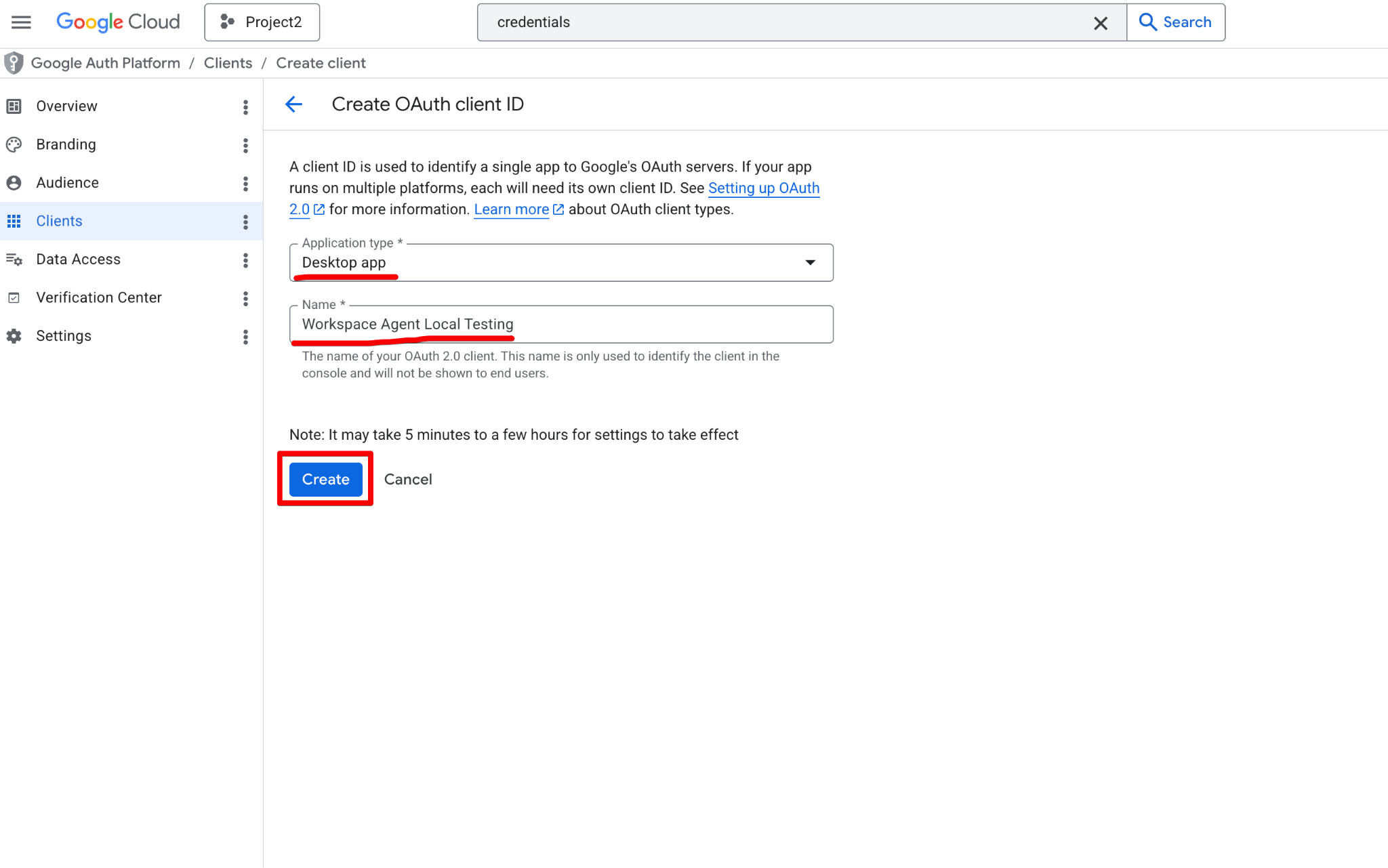
单击 Create 并复制 Client ID 和 Client Secret。下一步将用到它们。
在编写任何复杂的 Python 代理代码之前,强烈建议先进行一次“Hello World”测试,以验证您的凭据并确保可访问远程 MCP 端点。
在简化环境中测试连接有助于将认证问题与应用逻辑隔离。
虽然我们可以使用 Gemini CLI 和 Google Antigravity UI 来测试连接,但此处我们先专注于 Gemini CLI。
测试连通性的最快方式是使用 Gemini CLI。
由于 Workspace 需要严格认证,您需要在 ~/.gemini/settings.json 文件中配置端点和 OAuth 凭据:
{
  "mcpServers": {
    "calendar": {
      "httpUrl": "https://calendarmcp.googleapis.com/mcp/v1",
      "oauth": {
        "enabled": true,
        "clientId": "<YOUR_CLIENT_ID>",
        "clientSecret": "<YOUR_CLIENT_SECRET>",
        "scopes": [
          "https://www.googleapis.com/auth/calendar.calendarlist.readonly",
          "https://www.googleapis.com/auth/calendar.events.freebusy",
          "https://www.googleapis.com/auth/calendar.events.readonly"
        ]
      }
    },
    "drive": {
      "httpUrl": "https://drivemcp.googleapis.com/mcp/v1",
      "oauth": {
        "enabled": true,
        "clientId": "<YOUR_CLIENT_ID>",
        "clientSecret": "<YOUR_CLIENT_SECRET>",
        "scopes": [
          "https://www.googleapis.com/auth/drive.readonly",
          "https://www.googleapis.com/auth/drive.file"
        ]
      }
    },
    "gmail": {
      "httpUrl": "https://gmailmcp.googleapis.com/mcp/v1",
      "oauth": {
        "enabled": true,
        "clientId": "<YOUR_CLIENT_ID>",
        "clientSecret": "<YOUR_CLIENT_SECRET>",
        "scopes": [
          "https://www.googleapis.com/auth/gmail.readonly",
          "https://www.googleapis.com/auth/gmail.compose"
        ]
      }
    }
  }
}
更新设置文件后,您可以启动 Gemini CLI 并运行 /mcp list 命令。
您将看到新配置的 Workspace 服务器状态为“Ready”,但显示“(OAuth not authenticated)”。
这表明 CLI 已成功读取您的配置,并识别了远程工具。
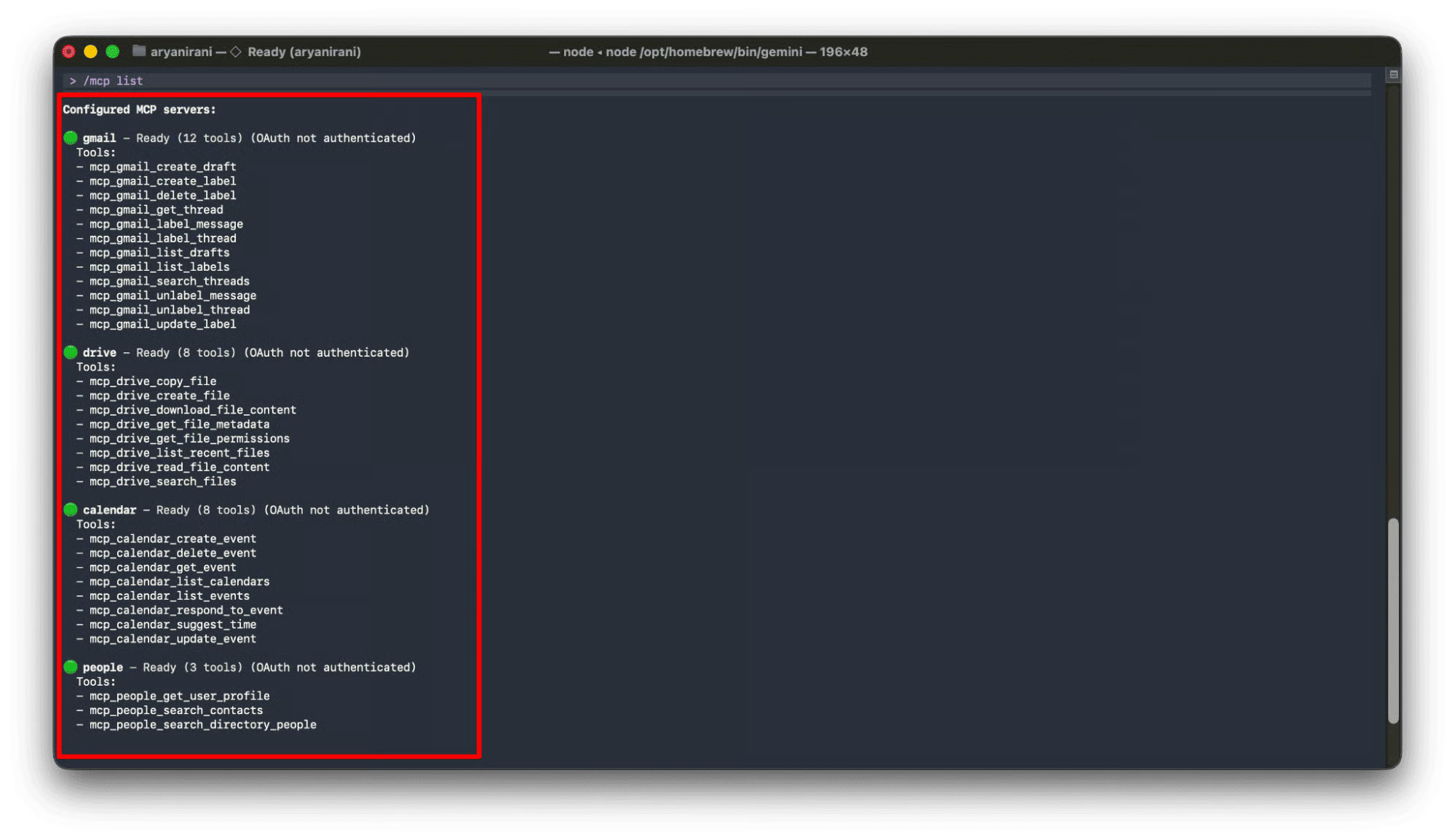
既然服务器已被识别,在使用前您必须完成认证。先为 Gmail 端点运行认证命令:
/mcp auth gmail这将启动基于浏览器的 OAuth 2.0 流程。
CLI 会尝试自动打开您的默认浏览器,提示您使用 Google Workspace 账户登录并授予所请求的权限。
如果浏览器未自动打开,CLI 会提供一个安全的 URL,您可以手动复制粘贴。完成登录流程后,CLI 会确认认证成功,并为该服务器重新加载工具。
完成认证后,您现在可以通过自然语言提示测试连接:
my email for any messages containing the word 'Invoice'.CLI 将在后台执行工具,从收件箱检索数据,并由代理将其整理为有用的响应:
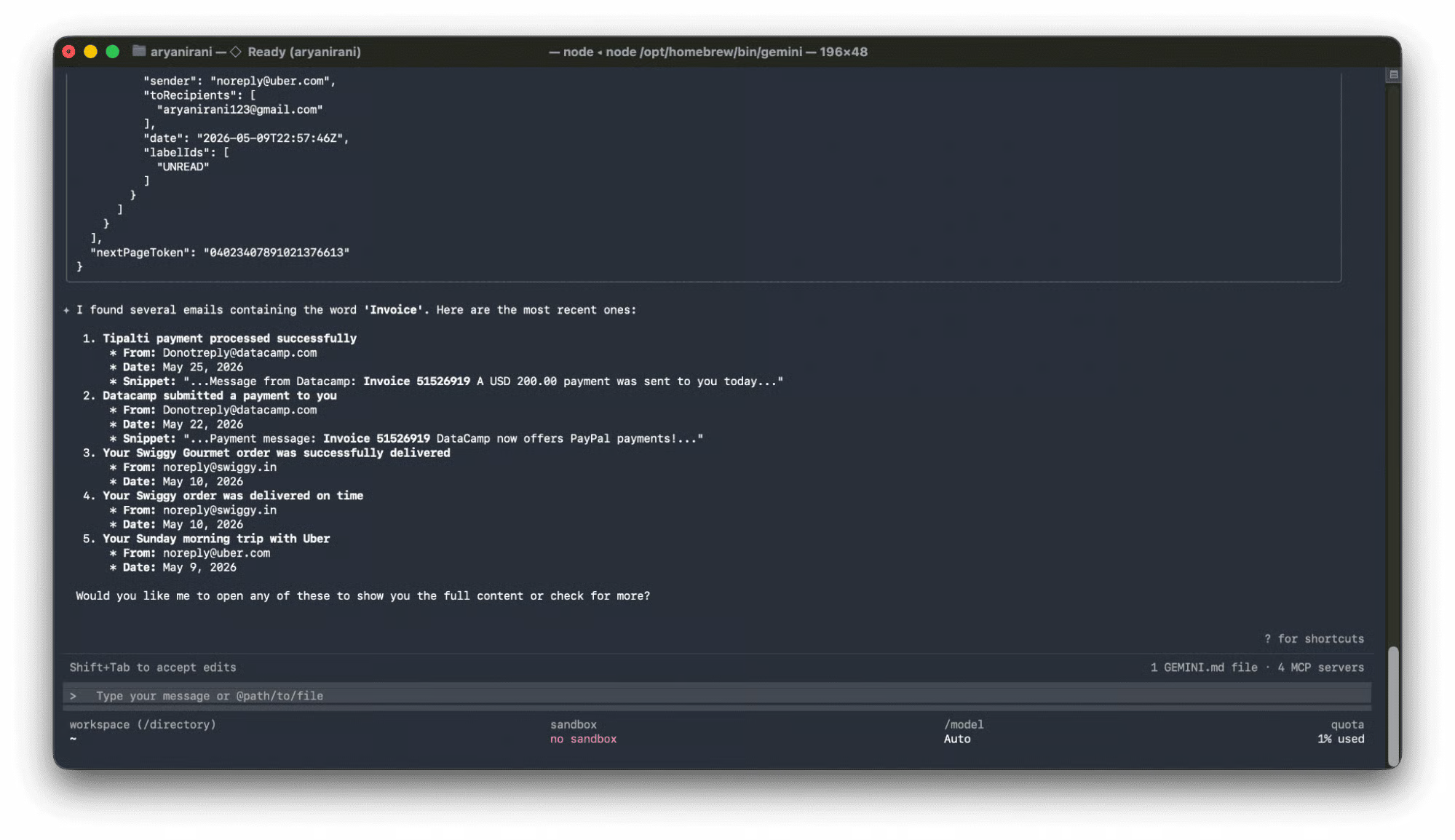
让我们构建一个连接五项服务(Calendar、Chat、Drive、Gmail、People)并安全处理认证的 Workspace 代理。
在代理运行前,它需要一个 OAuth 令牌以传递给 MCP 端点。
Gemini CLI 可通过 /mcp auth 自动处理,但对于 Python 应用,我们需要自行生成令牌并将其保存为应用默认凭据(ADC)。
在项目根目录创建名为 auth.py 的文件。确保下载的 client_secret.json 位于同一目录。
该脚本使用官方的 google-auth-oauthlib 生成认证 URL、用授权码换取刷新令牌,并将其写入标准路径 ~/.config/gcloud/application_default_credentials.json,ADK 将从此处读取。
import json
import os
from urllib.parse import urlparse, parse_qs
import google.auth
from google_auth_oauthlib.flow import InstalledAppFlow
CLIENT_SECRET_FILE = 'client_secret.json'
SCOPES = [
   "https://www.googleapis.com/auth/cloud-platform",
   "https://www.googleapis.com/auth/calendar",
   "https://www.googleapis.com/auth/chat.spaces.readonly",
   "https://www.googleapis.com/auth/chat.messages",
   "https://www.googleapis.com/auth/drive.readonly",
   "https://www.googleapis.com/auth/gmail.readonly",
   "https://www.googleapis.com/auth/gmail.compose",
   "https://www.googleapis.com/auth/directory.readonly",
   "https://www.googleapis.com/auth/contacts.readonly"
]
# Initialize the flow
flow = InstalledAppFlow.from_client_secrets_file(
   CLIENT_SECRET_FILE,
   scopes=SCOPES,
   redirect_uri='http://localhost:8085/'
)
# Generate Auth URL
auth_url, expected_state = flow.authorization_url(prompt='consent', access_type='offline')
print("Copy this link and paste it into your browser:\\n", auth_url)
redirected_url = input("\\nPaste the full localhost URL here: ").strip()
# Exchange code for tokens
parsed_url = urlparse(redirected_url)
code = parse_qs(parsed_url.query).get('code', [None])[0]
flow.fetch_token(code=code)
# Save ADC
adc_data = {
   "client_id": flow.credentials.client_id,
   "client_secret": flow.credentials.client_secret,
   "refresh_token": flow.credentials.refresh_token,
   "type": "authorized_user"
}
adc_path = os.path.expanduser("~/.config/gcloud/application_default_credentials.json")
os.makedirs(os.path.dirname(adc_path), exist_ok=True)
with open(adc_path, "w") as f:
   json.dump(adc_data, f, indent=2)
print(f"Success! ADC saved to: {adc_path}")在终端运行:python3 auth.py
执行后,您需要完成一个手动认证流程:
脚本会用该代码换取 OAuth 令牌,将其保存到 ~/.config/gcloud/application_default_credentials.json,并在 workspace_agent 目录中生成包含 Google Cloud 项目设置的 .env 文件。
您的本地环境现已完成认证!
现在,创建名为 agent.py 的文件。
由于 Workspace 数据高度敏感,MCP 服务器要求我们为每个请求将刚生成的访问令牌注入到 HTTP 头中。
我们还需要安全地配置 ADK 环境。
下面逐步解析代码:
首先,加载上一步生成的用户应用默认凭据(ADC)。
企业级代理的关键在于高效缓存令牌。如果每次工具执行都刷新令牌,可能会触发 API 限制或在重试时引发无限刷新循环。
这个 TokenRelay 类在内存中缓存令牌,仅在距离过期 5 分钟内才刷新。
import os
import datetime
import google.auth
from google.auth.transport.requests import Request
from google.adk.agents.llm_agent import LlmAgent
from google.adk.tools.mcp_tool.mcp_toolset import McpToolset
from google.adk.tools.mcp_tool.mcp_session_manager import StreamableHTTPConnectionParams
# Enable graceful error handling so timeouts return as tool outputs
os.environ["ADK_ENABLE_MCP_GRACEFUL_ERROR_HANDLING"] = "1"
# Inject User ADC path globally
_adc_path = os.path.expanduser("~/.config/gcloud/application_default_credentials.json")
if not os.path.exists(_adc_path):
   raise FileNotFoundError("Please run 'python3 auth.py' first to generate credentials.")
os.environ["GOOGLE_APPLICATION_CREDENTIALS"] = _adc_path
creds, _ = google.auth.default()
class TokenRelay:
   """Manages in-memory caching of Google OAuth access tokens."""
   def __init__(self, credentials):
       self._creds = credentials
       self._cached_token = None
       self._expiry = None
   def get_token(self) -> str:
       now = datetime.datetime.now()
       if (self._cached_token is None or self._expiry is None
           or now >= (self._expiry - datetime.timedelta(minutes=5))):
           self._creds.refresh(Request())
           self._cached_token = self._creds.token
           self._expiry = now + datetime.timedelta(minutes=50)
       return self._cached_token or ""
token_relay = TokenRelay(creds)
token_relay.get_token()
def auth_header_provider(tool_context=None) -> dict[str, str]:
   return {"Authorization": f"Bearer {token_relay.get_token()}"}
令牌缓存就绪后,配置 5 个 MCP 连接。我们使用 StreamableHTTPConnectionParams 连接到 Server-Sent Events(SSE)端点。
McpToolset 的强大之处在于它会动态探测远程端点,自动获取可用工具和 JSON 模式。您无需对任何工具进行硬编码!
# Initialize the 5 GWS MCP servers with dynamic runtime provider
calendar_mcp = McpToolset(
   connection_params=StreamableHTTPConnectionParams(url="https://calendarmcp.googleapis.com/mcp/v1"),
   header_provider=auth_header_provider
)
chat_mcp = McpToolset(
   connection_params=StreamableHTTPConnectionParams(url="https://chatmcp.googleapis.com/mcp/v1"),
   header_provider=auth_header_provider
)
drive_mcp = McpToolset(
   connection_params=StreamableHTTPConnectionParams(url="https://drivemcp.googleapis.com/mcp/v1"),
   header_provider=auth_header_provider
)
gmail_mcp = McpToolset(
   connection_params=StreamableHTTPConnectionParams(url="https://gmailmcp.googleapis.com/mcp/v1"),
   header_provider=auth_header_provider
)
people_mcp = McpToolset(
   connection_params=StreamableHTTPConnectionParams(url="https://people.googleapis.com/mcp/v1"),
   header_provider=auth_header_provider
)最后,我们实例化 LlmAgent。我们使用 gemini-2.5-flash 模型,将当前日期动态注入系统提示,让 LLM 理解相对时间(“本周”“今天”),并传入 5 个工具集。
current_date = datetime.datetime.now().strftime("%Y-%m-%d")
root_agent = LlmAgent(
   model="gemini-2.5-flash",
   name='gws_adk_agent',
   instruction=f"""You are a helpful assistant grounded in the user's Google Workspace data.
   Today's current date is {current_date}. Always calculate relative dates (like 'this week' or 'upcoming meetings') using this reference.
   Use the provided MCP tools to answer questions about their Calendar, Chat, Drive, Gmail, and Contacts.
   If a tool returns an error indicating a timeout, inform the user that the service took too long to respond.""",
   tools=[calendar_mcp, chat_mcp, drive_mcp, gmail_mcp, people_mcp]
)我们无需编写自定义 Python 循环,即可使用内置的 ADK Web 界面立即测试并运行该代理。在终端启动 Web 服务器:
adk web 这将启动本地开发服务器。在浏览器中访问 http://localhost:8080。
您将看到代理已加载并可以使用。
在该界面中,您可以直接与代理对话,并观察其在 Gmail、Calendar 与 Drive 之间无缝切换以满足您的请求!
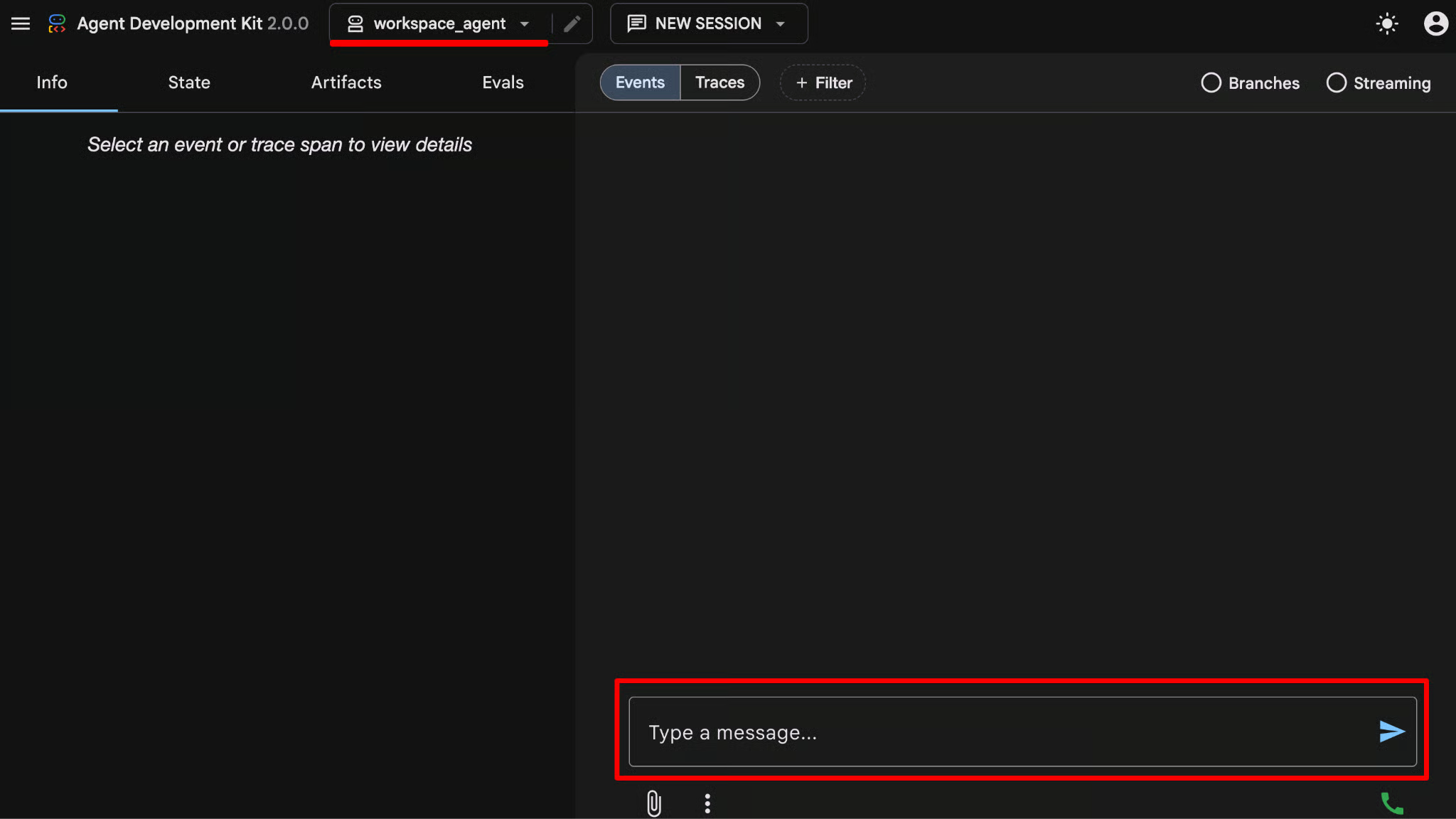
既然代理已在运行,尝试提出一些复杂、跨职能的问题,这通常需要您打开三个不同的标签页。
例如:
提示 1: 查看我明天的日历并总结会议主题。我的 Drive 中是否有与之相关的文档?
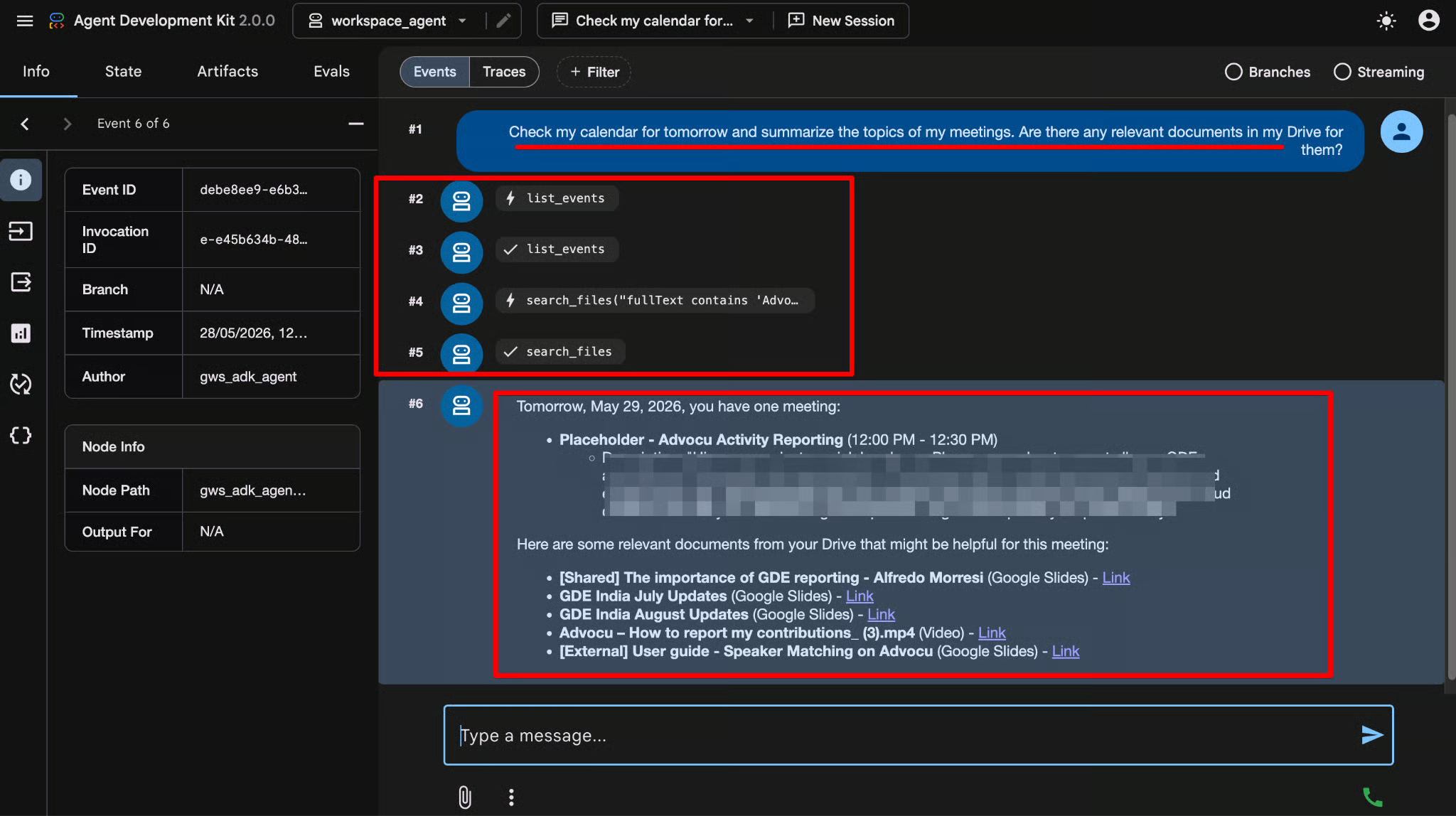
幕后发生了什么:
您无需编写自定义 API 封装与集成逻辑,只需提出问题,LLM 就能自行完成多步编排。
提示 2: 查找过去 7 天内由[插入邮箱]发送的所有邮件。
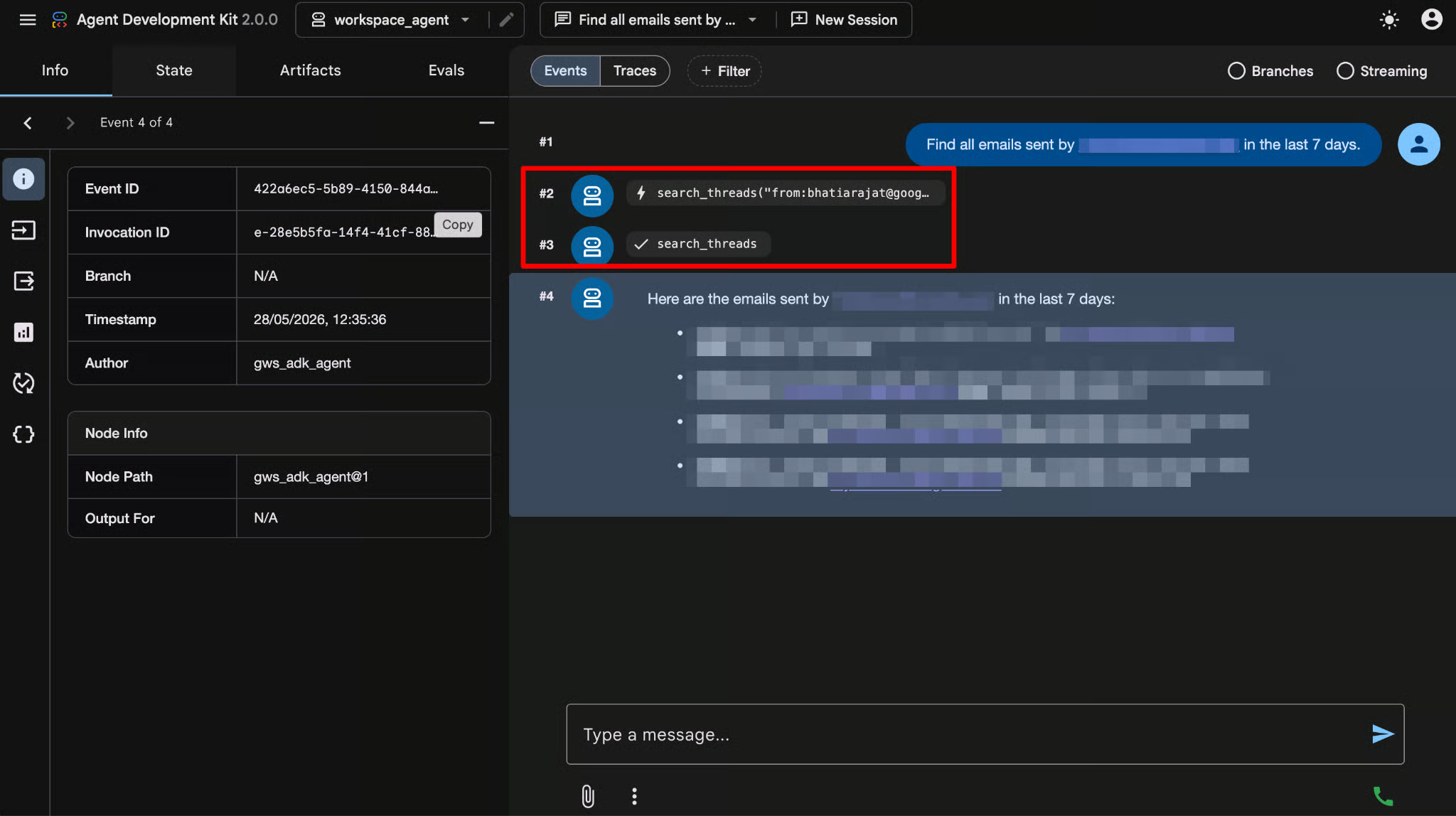
幕后发生了什么:
当所有企业数据都连接到一个推理引擎时,可能性将变得无限。
在本地环境中尝试以下提示:
将 Google 的代理开发工具包与标准化的 Workspace MCP 服务器相结合,您在不到百行代码中就构建了一个企业级助手。
但这仅仅是开始。
以下是该架构为开发者和企业带来的可能性:
Google Workspace MCP 服务器消除了将 AI 连接到企业生产力应用所需的“胶水代码”。通过提供一个安全、全托管的远程端点,它使开发者能够构建深度集成的代理式工作流,并在开箱即用的情况下遵循用户权限和企业安全标准。
最佳实践提醒:始终遵循最小权限原则。
在为 AI 代理分配 OAuth 范围时,如果代理仅需要读取数据,切勿授予写权限(例如 https://www.googleapis.com/auth/drive.file)。
继续通过我们的 DataCamp 引导式课程深入学习:
热门 DataCamp 课程
课程
课程
实践并学习路径你的进步。
使用 Google 继续