Courses
Matplotlib 数据可视化入门
4小时
234.8K
海龟绘图是学习 Python 最有趣的方法之一。它是一个简单的 Python 脚本,通过“指挥”一只海龟在屏幕上移动,让您创作艺术性的图形和动画。海龟绘图最初用于向低龄学习者教授编程,如今也逐渐流行,成为初学者上手编码理念的动手实践途径。
使用 Turtle,您可以在学习Python 基础(如循环、函数和条件语句)的同时,从简单形状到复杂几何图案都能构建出来。无论您是刚接触编程,还是想把已有技能用于更具创意的事情,海龟绘图都能帮到您。
本文将介绍海龟绘图的基础,并带您动手完成一些有趣的项目。我们会从简单的正方形一路构建到精巧的螺旋,为探索更复杂的设计打下基础。除了玩转海龟绘图,我们的Python 入门课程也是很好的补充,助您持续精进技能。
海龟绘图(Turtle Graphics)是一个 Python 模块,通过在屏幕上控制一只虚拟“海龟”来绘制和制作动画。它提供直观有趣的代码交互方式,您可以给海龟下达“前进”“向左转”或“画一个圆”等指令,并实时看到其响应。 turtle 模块已随所有当前的 Python 3 版本(至 Python 3.14)一同提供。
海龟绘图中的“海龟”其实是一个光标或画笔,会按照您的命令在屏幕上移动。它在前进时可以留下轨迹,根据您的指令绘制线条、形状或更精细的图画。其核心思想是通过可视化反馈,更容易掌握基础却重要的编程原则。特别是,您可以学习循环(用于重复绘制形状)、函数(用于创建可复用代码)和条件语句(用于决定海龟接下来执行什么)。For instance, if we wanted to draw a star, we could use a loop to repeat the turtle's forward and turning movements four times. Note that, since turtle graphics is part of the standard Python library, no additional installations are required.
import turtle

star = turtle.Turtle()

star.right(75)
star.forward(100)

for i in range(4):
    star.right(144)
    star.forward(100)

turtle.done()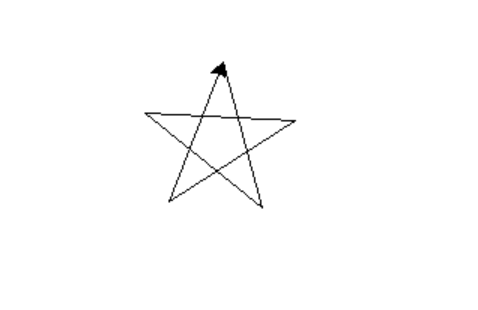
Drawing a star with turtle graphics. Image by Author
Drawing shapes and patterns with turtle graphics is pretty entertaining, and it has many real-world uses, particularly in teaching. Here are a few typical applications:
Turtle graphics is a popular tool for teaching basic programming concepts in tutorials and classroom settings. Beginners find learning to program less scary thanks to the straightforward, visible method. We will look at some more detailed examples below.
With turtle graphics, you can create complicated patterns and animations, or you can make simple forms like squares and circles. You can begin with basic designs and work your way up to more complex ones. You can also customize the turtle's movement, direction, line thickness, and color.
Turtle graphics can be used to make simple interactive projects or games. You may make simple games, like a maze solver or a basic Pong game, by combining turtle commands with human input (such as mouse clicks or keyboard inputs).
Maybe surprisingly, turtle graphics is actually good for visualizing algorithms. You can use it to demonstrate sorting algorithms, fractals, or recursive patterns.
Let's familiarize ourselves with some basic turtle graphics commands to help you create your first designs. We will start with the most simple operations to control the turtle's movement and drawing actions.
Before drawing, you must import the turtle graphics module using this command. It allows you to access all the turtle functions.
import turtleThis command moves the turtle forward by a specified number of units, in this case, 100 units. The turtle draws a line as it moves.
turtle.forward(100)The turtle rotates 90 degrees to the right in place (it changes facing direction without moving forward). Use this to set up the next forward movement.
turtle.right(90)This command draws a circle with a radius of 50 units. You can modify the radius to draw bigger or smaller circles.
turtle.circle(50)This lifts the pen, meaning the turtle will move without drawing anything. It's helpful to reposition the turtle without leaving a trail.
turtle.penup()This lowers the pen, allowing the turtle to start drawing again after a penup() command.
turtle.pendown()Let's move on to some real Python turtle graphics examples that you can attempt for yourself. Simply copy and paste the provided code to get going, then modify it to fit your own aesthetic.
I recommend starting with simple shapes like squares and triangles. These shapes involve moving the turtle forward and turning it at specific angles.
import turtle

t = turtle.Turtle()

for _ in range(4):
    t.forward(100)
    t.right(90)

turtle.done()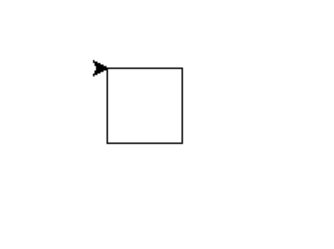
Drawing a square with turtle graphics. Image by Author
Geometric patterns can be created by repeating simple shapes with loops. You can generate designs such as spirals or stars using loops and functions. Patterns like these show how repetition and symmetry create complexity from simplicity.
import turtle

t = turtle.Turtle()

for _ in range(36):
    for _ in range(5):
        t.forward(100)
        t.right(144)
    t.right(10)

turtle.done()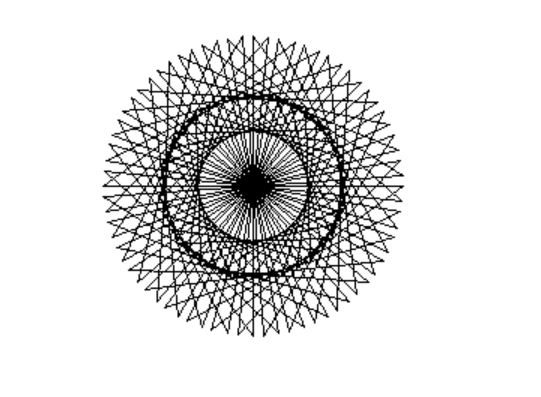
Drawing a spiral star pattern with turtle graphics. Image by Author
The key here is to experiment with the number of loops and angles to see how the patterns evolve. By adjusting the parameters, you can create endless variations.
Fractals are recursive patterns that repeat themselves at different scales. They are a self-similar shape, which means they look the same at any scale and can have infinite perimeter within a finite area. Fractals are good for learning ideas of recursion. A famous fractal in turtle graphics is the Sierpiński triangle, a series of smaller triangles that form a larger triangle.
import turtle

def sierpinski(t, order, size):
    if order == 0:
        for _ in range(3):
            t.forward(size)
            t.left(120)
    else:
        sierpinski(t, order-1, size/2)
        t.forward(size/2)
        sierpinski(t, order-1, size/2)
        t.backward(size/2)
        t.left(60)
        t.forward(size/2)
        t.right(60)
        sierpinski(t, order-1, size/2)
        t.left(60)
        t.backward(size/2)
        t.right(60)

t = turtle.Turtle()
sierpinski(t, 3, 200)
turtle.done()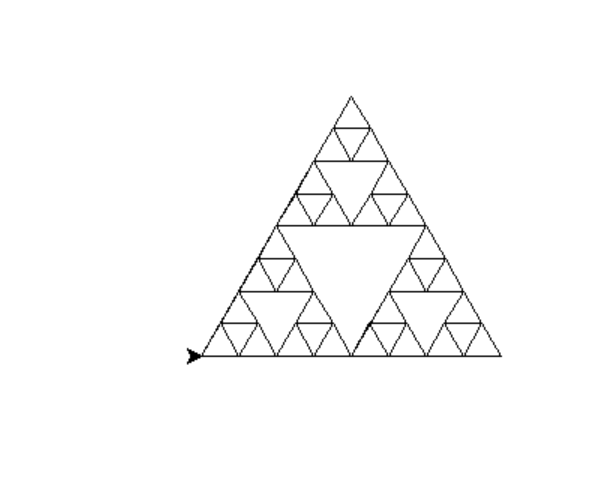
Drawing a Sierpinski triangle with turtle graphics. Image by Author
You can also control the turtle's movements using the keyboard or mouse, which creates an even more dynamic experience. You can create projects like a digital Etch-A-Sketch, where you control the turtle with arrow keys to draw on the screen. You can also enhance the following code by adding options to change colors or clear the screen.
import turtle

t = turtle.Turtle()

def move_up():
    t.setheading(90)
    t.forward(10)

def move_down():
    t.setheading(270)
    t.forward(10)

def move_left():
    t.setheading(180)
    t.forward(10)

def move_right():
    t.setheading(0)
    t.forward(10)

screen = turtle.Screen()
screen.listen()
screen.onkey(move_up, "Up")
screen.onkey(move_down, "Down")
screen.onkey(move_left, "Left")
screen.onkey(move_right, "Right")
screen.mainloop()Turtle graphics isn't limited to shapes and patterns. Combining loops, recursions, and conditionals can create unique and beautiful designs. Artistic creations like mandalas or abstract shapes are achievable with some practice. In this example, the turtle draws a colorful mandala pattern by continuously changing direction and color.
import turtle

t = turtle.Turtle()
t.speed(0)

colors = ['red', 'purple', 'blue', 'green', 'orange', 'yellow']

for x in range(360):
    t.pencolor(colors[x % 6])
    t.width(x // 100 + 1)
    t.forward(x)
    t.left(59)

turtle.done()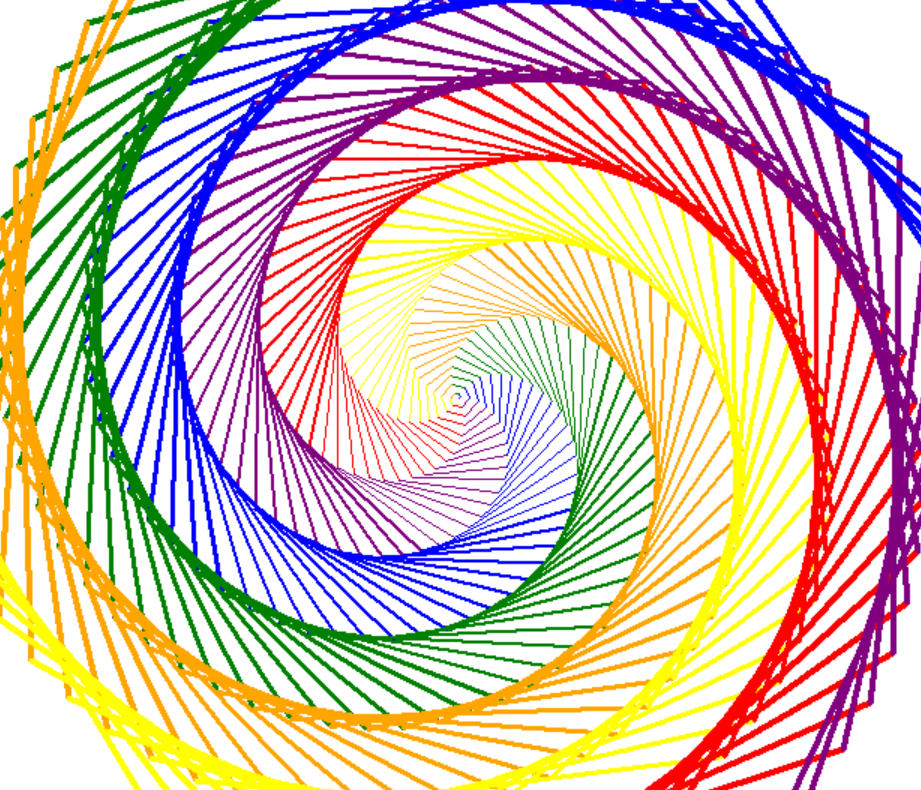
Drawing a mandala design with turtle graphics. Image by Author
Here are some tips to help you use Python turtle graphics most effectively:
Experiment with colors and pen size: Turtle graphics lets you change the turtle's pen size, speed, and color. Use turtle.pensize(), turtle.speed(), and turtle.color() to make your drawings more interesting.
Beyond the shapes we've created in this article—like squares, stars, spirals, and the Sierpiński triangle—turtle graphics lets you experiment with others, such as pentagons or complex floral patterns. As you grow more confident, turtle graphics grows with you, allowing you to tackle increasingly more difficult projects. Keep experimenting and trying new ideas. Also, remember to take the next step by trying our introductory Python course to continue improving your skills!
在 DataCamp 学习 Python
Courses
Courses
Tracks