
Curso
Análisis de datos en Excel
3 h
151.7K
Si alguna vez has tenido que automatizar un informe mensual o crear un panel interactivo que se actualice con un clic, seguramente has deseado que Excel hiciera algo más que lo que permiten sus funciones estándar.
Ahí es donde entra la pestaña Developer. Es la puerta de entrada de Excel a la automatización, la personalización y la integración avanzada de datos. En esta guía, te explicaré cómo activar la pestaña Developer, entender sus componentes y aplicar sus funciones en distintos casos de uso.
La pestaña Developer es una cinta especializada en Excel que da acceso a herramientas avanzadas que no encontrarás en la interfaz estándar. Aunque la mayoría se queda en pestañas como Inicio, Insertar y Fórmulas, la pestaña Developer está pensada para quien necesita ampliar lo que Excel puede hacer mediante automatización, controles personalizados e integraciones externas.
La pestaña Developer incluye cuatro grupos principales: Código (para macros y VBA), Complementos (para ampliar funcionalidades), Controles (para interfaces interactivas) y XML (para gestión de datos estructurados). Convierte Excel de una simple hoja de cálculo en una plataforma de desarrollo para crear soluciones a medida.
Entender qué ofrece la pestaña Developer es una cosa; reconocer cuándo y por qué usarla marca la diferencia en tu productividad con Excel.
La pestaña Developer ofrece funciones que pueden ahorrarte horas de trabajo manual, y capacidades que la mayoría de usuarios nunca toca. Mientras que las pestañas estándar permiten dar formato y crear fórmulas, la pestaña Developer te permite grabar flujos de trabajo completos como macros, crear funciones personalizadas con VBA e integrar fuentes de datos externas mediante XML.
Los casos de uso más comunes incluyen automatizar tareas repetitivas como el formateo de informes mensuales, crear paneles interactivos con menús desplegables y botones, desarrollar complementos personalizados de Excel para compartir con tu equipo e integrar Excel con bases de datos o APIs externas. Estas capacidades son especialmente valiosas cuando gestionas grandes conjuntos de datos, procesos recurrentes o herramientas para compañeros que necesitan interfaces más sencillas.
Ahora que sabes qué ofrece la pestaña Developer y por qué es útil para automatizar y personalizar, hagámosla visible en tu espacio de trabajo. La pestaña Developer no aparece por defecto, pero activarla lleva solo unos segundos. El proceso varía ligeramente entre Windows y macOS, así que veremos ambos. Ten en cuenta que estas herramientas solo están disponibles en las versiones de escritorio de Excel, no en Excel para la web.
Antes de activar la pestaña Developer, verifica que tu versión de Excel la admite. Está disponible en Microsoft 365, Excel 2019, Excel 2016, Excel 2013 y en la mayoría de versiones de escritorio anteriores. Para comprobar tu versión, abre Excel y ve a Archivo > Cuenta (Windows) o Excel > Acerca de Excel (macOS).
Aunque la función principal es consistente entre versiones, hay limitaciones importantes según la plataforma. Los controles ActiveX solo funcionan en Excel para Windows en escritorio. Las herramientas XML están disponibles principalmente en Excel para Windows, con funcionalidades limitadas en Mac. Excel para la web no admite controles ActiveX, herramientas XML ni macros VBA.
Haz clic derecho en cualquier parte de la cinta de Excel y elige Personalizar la cinta de opciones. Verás un cuadro de diálogo con dos columnas: la izquierda muestra las pestañas disponibles y la derecha las visibles. En la columna derecha, busca Developer y marca la casilla. Haz clic en Aceptar para aplicar los cambios. También puedes acceder a este diálogo desde Archivo > Opciones > Personalizar cinta de opciones. Una vez activada, la pestaña Developer permanecerá visible en todos tus libros de Excel hasta que la ocultes manualmente.
En macOS, el proceso usa la barra de menú de Excel en lugar del clic derecho. Haz clic en Excel en la barra superior y elige «Preferencias». En la ventana de Preferencias, haz clic en Cinta de opciones y barra de herramientas (en versiones recientes) o Ver (en versiones antiguas). Verás una lista de opciones de personalización con casillas junto a cada pestaña. Marca Developer y cierra Preferencias. Igual que en Windows, este ajuste se mantiene en todos los libros, incluso tras cerrar y abrir Excel.
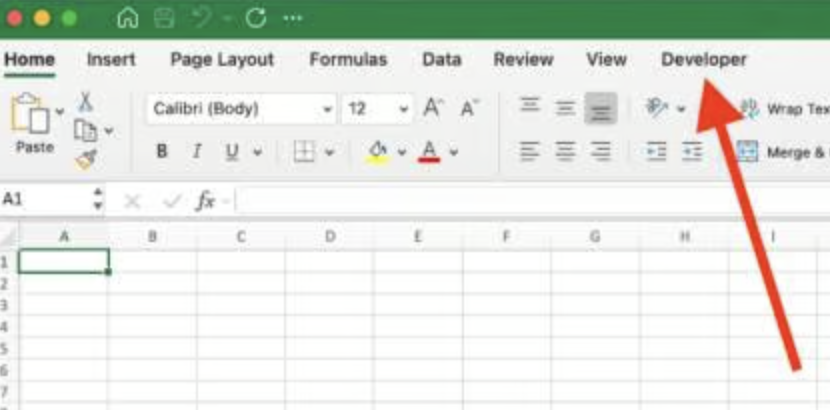
La pestaña Developer a la derecha de la cinta de Excel en Mac. Imagen del autor.
Si la pestaña Developer no aparece tras seguir estos pasos, prueba primero a cerrar y volver a abrir Excel por completo. A veces, las opciones de personalización de la cinta aparecen en gris. Esto ocurre cuando Excel está en modo restringido o cuando las directivas de grupo (en entornos corporativos) impiden personalizar la cinta. En esos casos, consulta con tu equipo de TI sobre los permisos.
Otro problema habitual es que la pestaña Developer aparezca pero funciones como Visual Basic o las macros estén deshabilitadas por seguridad. Puedes ajustarlo en Archivo > Opciones > Centro de confianza > Configuración del Centro de confianza > Configuración de macros.
Una vez activada, puedes ajustar la posición y visibilidad de la pestaña Developer según tus preferencias.
En Windows: haz clic derecho en la cinta y selecciona Personalizar la cinta de opciones. En la columna derecha de pestañas visibles, selecciona Developer y usa las flechas hacia arriba o abajo para cambiar su posición. Muchos la colocan cerca de la pestaña Vista para acceder rápido, o al extremo derecho para agrupar las más usadas. Los cambios se aplican de inmediato a todos los libros.
En macOS: haz clic en Excel en la barra de menú, luego en Preferencias y después en Cinta de opciones y barra de herramientas. Selecciona Developer en la lista y usa las flechas para reubicarla. Cierra la ventana de Preferencias para aplicar los cambios.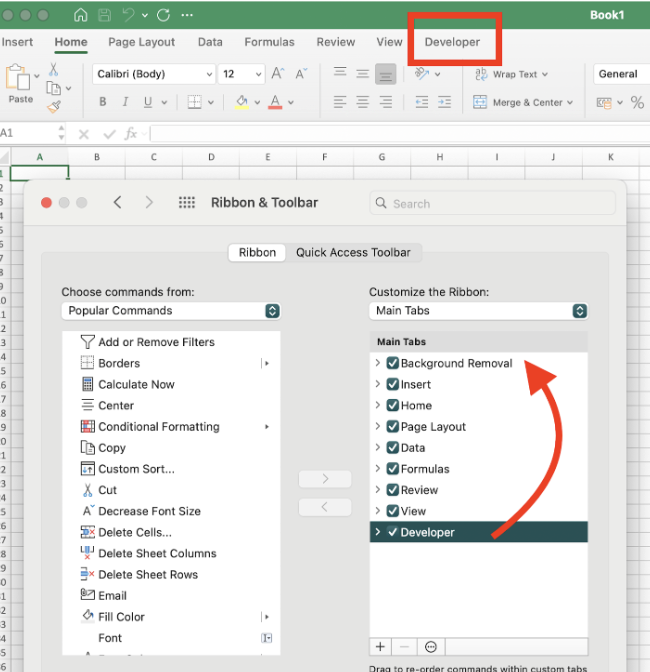
Marca la casilla Developer en las preferencias de Cinta de opciones y barra de herramientas en Mac. Imagen del autor.
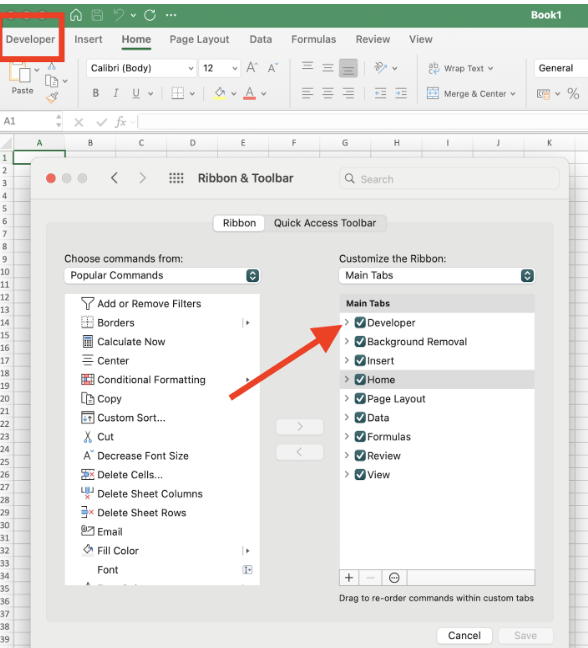
La pestaña Developer movida a la primera posición de la cinta. Imagen del autor.
Si ya no necesitas la pestaña Developer, puedes ocultarla sin perder las macros ni el código VBA que hayas creado.
En Windows: haz clic derecho en la cinta, selecciona Personalizar la cinta de opciones y desmarca la casilla de Developer.
En macOS: ve a Excel > Preferencias > Cinta de opciones & barra de herramientas y desmarca la casilla de Developer.
Tus macros y proyectos VBA permanecen en el libro y seguirán ejecutándose; simplemente no tendrás acceso rápido a las herramientas de edición. Puedes volver a activar la pestaña cuando quieras siguiendo los mismos pasos.
Con la pestaña Developer ya visible y en su sitio, veamos qué contiene. Entender estos cuatro grupos principales te ayudará a identificar qué herramientas usar según el reto en Excel.
La pestaña Developer está organizada en cuatro grupos, cada uno con un fin distinto.
El grupo Código reúne las herramientas de automatización de Excel, empezando por el botón Visual Basic, que abre el editor de VBA para escribir y editar macros. El botón Macros permite ejecutar, editar o eliminar macros existentes, mientras que Grabar macro captura tus acciones para crear una nueva macro automáticamente.
«Usar referencias relativas» es un interruptor que define si las macros grabadas usan direcciones fijas (como A1) o posiciones relativas (como «dos celdas abajo»), lo que afecta a su comportamiento con distintos rangos. El botón Seguridad de macros controla qué macros pueden ejecutarse en tus libros. Estos ajustes te protegen de código potencialmente malicioso en libros de orígenes no confiables. Las opciones van desde deshabilitar todas las macros hasta permitirlas todas, con puntos intermedios que te piden confirmación antes de ejecutarlas.
Nota sobre la plataforma: en Excel para Mac, el botón Seguridad de macros puede no aparecer en la cinta. Para acceder a estos ajustes en Mac, ve a Excel > Preferencias > Seguridad.
El grupo Complementos te permite activar y gestionar herramientas adicionales que amplían las capacidades de Excel. Los complementos de Excel son archivos que añaden funciones, cintas o características personalizadas. Ejemplos: Analysis ToolPak o herramientas internas de tu organización. Los complementos COM son extensiones Windows-only basadas en Component Object Model (COM) que integran Excel con bibliotecas de código externas. No están disponibles en macOS.
Para activar un complemento, haz clic en «Complementos de Excel» o «Complementos COM», marca la casilla del complemento y pulsa Aceptar. También puedes buscar nuevos complementos en AppSource (el marketplace de Microsoft) o cargar complementos personalizados desde archivos locales con la opción «Examinar».
El grupo Controles ofrece herramientas para crear elementos interactivos en tus hojas. El botón «Insertar» muestra dos tipos: controles de formulario (elementos sencillos y compatibles como botones y casillas) y controles ActiveX (más avanzados y con amplias opciones de personalización).
El Modo diseño permite editar las propiedades de los controles sin ejecutar sus acciones. Al activarlo, al hacer clic en un botón se abren sus propiedades en lugar de ejecutar la macro asignada. El botón Propiedades abre una configuración detallada del control seleccionado, Ver código abre el editor de VBA para escribir o editar el código del control y Ejecutar diálogo ejecuta los cuadros de diálogo que hayas creado. Estos controles son esenciales para crear paneles donde el usuario filtra datos, actualiza gráficos o lanza cálculos sin tocar fórmulas.
Nota para Mac: es posible que los botones de Modo diseño, Propiedades, Ver código y Ejecutar diálogo no aparezcan como botones independientes en la pestaña Developer de Excel para Mac. Para editar propiedades en Mac, haz clic derecho en el control y elige «Formato de control» o usa el botón Visual Basic para abrir el editor y trabajar con el código.
El grupo XML incluye herramientas para trabajar con datos en Extensible Markup Language (XML) en Excel, disponibles principalmente en Windows. El botón Origen abre un panel donde puedes cargar esquemas XML y asignarlos a celdas, definiendo cómo se estructura el XML en tu hoja. Propiedades de asignación permite configurar opciones de importación/exportación, reglas de validación y comportamiento de actualización para tus asignaciones XML.
Los botones Importar y Exportar sirven para traer datos XML a Excel o guardar datos de la hoja como archivos XML, mientras que Actualizar datos renueva las celdas asignadas con la información más reciente del archivo de origen. En versiones antiguas de Excel (2003–2010), los Expansion Packs eran descargas aparte que añadían funciones XML extra. En Microsoft 365 y Office 2021/2019, esta función ya está integrada y no requiere descargas.
Importante: el grupo XML y sus funciones están muy limitados o pueden no estar disponibles en Excel para Mac. La asignación, importación/exportación y herramientas relacionadas están pensadas para Excel en Windows. Si usas Mac y necesitas XML, plantéate usar Excel para Windows mediante virtualización o la nube, o bien métodos alternativos como archivos CSV o Power Query.
Tras recorrer los componentes de la pestaña Developer, veamos cómo resuelven problemas reales. Estos ejemplos muestran cuándo y por qué usar cada grupo de funciones. Ten en cuenta que algunos requieren características disponibles principalmente en Excel para Windows.
Imagina que recibes un informe de ventas mensual que siempre exige lo mismo: poner cabeceras en negrita, aplicar formato de moneda y añadir una tabla resumen. En lugar de repetir los pasos a mano, haz clic en Grabar macro en el grupo Código, realiza las acciones de formato y detén la grabación. Excel captura cada clic como código VBA que podrás reproducir al instante.
Para ejecutar la macro más tarde, haz clic en Macros, selecciona tu macro guardada y pulsa Ejecutar. También puedes asignarla a atajos de teclado o a botones para acceder más rápido. Si cambian tus necesidades, abre la macro en el editor de Visual Basic y modifica el código grabado: por ejemplo, qué columnas se formatean o qué fórmulas usa la tabla resumen. Para eliminar una macro, ve a Macros, selecciona su nombre y haz clic en Eliminar. Si trabajas sobre todo con Excel para la web, valora usar Office Scripts: esta función en la nube te permite grabar y ejecutar scripts en Excel Online y es una alternativa moderna a las macros VBA tradicionales.
A partir de la automatización, puedes diseñar interfaces para que otros interactúen con los datos sin conocer fórmulas o VBA. Los controles de formulario y ActiveX convierten hojas estáticas en herramientas interactivas. En un panel de ventas, por ejemplo, puedes insertar un cuadro combinado (desplegable) para elegir regiones, y que gráficos y tablas dinámicas se actualicen automáticamente. Los controles de formulario son más sencillos y funcionan en todas las versiones, incluido macOS. Los controles ActiveX solo están disponibles en Excel para Windows y no aparecen ni funcionan en Mac.
Para crearlo, haz clic en Insertar en el grupo Controles, arrastra un cuadro combinado a la hoja, entra en Modo diseño para vincularlo a tu lista de regiones (o en Mac, haz clic derecho para acceder a las propiedades) y usa fórmulas o VBA para filtrar los datos según la selección. Así, cualquiera puede explorar distintas vistas sin tocar fórmulas ni código.
Cuando necesitas intercambiar datos con sistemas externos de forma periódica, la integración XML aporta estructura y complementa la automatización y la interactividad que ya hayas creado. Nota: disponible principalmente en Excel para Windows.
XML es útil si, por ejemplo, el sistema de inventario exporta productos como archivos XML y necesitas importarlos en Excel para analizarlos. En el grupo XML, haz clic en Origen para cargar el esquema XML (la definición de estructura) y arrastra los elementos XML a las columnas de la hoja para crear el mapeo. Pulsa Importar para traer los datos, que se rellenarán según tu asignación.
Cuando el sistema de origen se actualice, puedes hacer clic en Actualizar datos para actualizar la hoja sin volver a importar. Para el proceso inverso, asigna datos de Excel a un esquema XML y haz clic en Exportar para crear archivos XML que otros sistemas puedan consumir. Así evitas copiar y pegar y aseguras la coherencia entre sistemas.
Usuarios de Mac: considera alternativas para integrar datos estructurados, como CSV con Power Query o conexiones directas a bases de datos si tu Excel lo admite.
La pestaña Developer transforma Excel de una hoja de cálculo en una plataforma de automatización y desarrollo. Has aprendido a activarla en Windows y macOS, has explorado sus cuatro grupos principales y has visto aplicaciones prácticas desde automatizar con macros hasta integrar XML.
Como siguiente paso, explora nuestro curso Advanced Excel Functions para llevar tus fórmulas más lejos, o consulta el curso Intermediate Power Query in Excel para aprender otra manera de transformar datos. Si quieres ir más allá, descubre nuestro itinerario Data Analysis with Excel Power Tools, que cubre Power Query y Power Pivot en detalle.
Adquiere los conocimientos necesarios para sacar el máximo partido a Excel, sin necesidad de experiencia.
Aprende Excel con DataCamp
Curso
programa
Curso