Program
Dasar-Dasar Agen Kecerdasan Buatan
6 jam
Agen AI otonom mengubah cara orang bekerja dengan perangkat lunak. Alih-alih berpindah antar aplikasi dan alat, Anda bisa memberi perintah teks sederhana dan membiarkan agen menangani tugas untuk Anda. Ini dapat mencakup menyetel pengingat, membantu email, mendukung manajemen proyek, atau membantu pengkodean dan penulisan.
Alat seperti OpenClaw membuat gagasan ini jauh lebih praktis. Mereka menunjukkan apa yang mungkin ketika agen AI selalu tersedia di laptop atau ponsel Anda. Di saat yang sama, sistem agen yang lebih besar bisa terasa berat, kompleks, dan sulit dikelola. Mereka dapat menimbulkan kekhawatiran keamanan, membutuhkan lebih banyak penyiapan, dan mungkin melebihi kebutuhan Anda untuk alur kerja lokal pribadi.
Di sinilah NanoClaw hadir. NanoClaw adalah alternatif local-first yang lebih ringan dan lebih mudah dijalankan serta dieksperimenkan di mesin Anda sendiri. Ia juga dirancang dengan mempertimbangkan keamanan, menggunakan isolasi berbasis Docker untuk menjaga lingkungan Anda tetap tertutup dan data Anda terlindungi.
Dalam tutorial ini, Anda akan menyiapkan NanoClaw di Windows menggunakan WSL dan menyiapkan lingkungannya selangkah demi selangkah. Anda akan memasang alat sistem yang diperlukan, menyiapkan Node.js, mengklon repositori NanoClaw, menghubungkan autentikasi, dan menjalankan proyek secara lokal.
Untuk perbandingan dua alat agenik tersebut, saya sarankan membaca panduan NanoClaw vs OpenClaw kami.
Sebelum memulai, Anda memerlukan PC Windows 10/11 yang cukup baru yang mendukung WSL 2 dan virtualisasi perangkat keras, memiliki RAM yang cukup (setidaknya 4 GB, idealnya 8 GB atau lebih) dan ruang penyimpanan (sekitar 20–30 GB kosong) untuk menjalankan Docker Desktop dan lingkungan WSL Ubuntu.
Mulailah dengan memasang WSL di Windows. Buka PowerShell sebagai Administrator dan jalankan:
wsl --installSetelah instalasi, mulai ulang jika diperlukan, lalu periksa penyiapan Anda:
wsl --statusAnda menginginkan distribusi Anda berjalan di WSL 2. Ini penting karena Claude Code mendukung WSL di Windows, dan Anthropic mencatat bahwa sandboxing berfungsi dengan WSL 2 sementara WSL 1 tidak didukung.
Setelah WSL siap, luncurkan Ubuntu:
wsl
Di dalam Ubuntu, perbarui sistem dan pasang alat pengembangan dasar:
sudo apt update && sudo apt upgrade -y
sudo apt install -y build-essential curl git wget
Ini memberi Anda lingkungan Linux yang bersih dengan alat inti yang dibutuhkan untuk langkah penyiapan berikutnya.
Sebelum Anda memasang NanoClaw itu sendiri, Anda perlu menyiapkan alat yang menjadi dependensinya.
Pada bagian ini, Anda akan memasang Node.js agar proyek dapat menjalankan tooling JavaScript-nya, memastikan Docker tersedia di dalam WSL agar NanoClaw dapat menggunakan kontainer terisolasi, dan memasang Claude Code, yang akan Anda gunakan untuk menjalankan penyiapan terpandu NanoClaw.
Cara termudah memasang Node.js di WSL adalah dengan NVM, Node Version Manager. Ini memberi Anda cara yang bersih dan fleksibel untuk mengelola versi Node tanpa bergantung pada manajer paket sistem.
Jalankan perintah berikut di dalam terminal Ubuntu Anda:
curl -o- https://raw.githubusercontent.com/nvm-sh/nvm/v0.40.4/install.sh | bash
\. "$HOME/.nvm/nvm.sh"
nvm install 24
node -v
npm -v
Setelah itu, Anda akan melihat keluaran serupa dengan:
v24.14.1
11.11.0
Node.js diperlukan karena NanoClaw menggunakan alur penyiapan dan dependensi berbasis JavaScript. Memasangnya melalui NVM bermanfaat karena membuat lingkungan Anda lebih mudah dikelola nanti. Jika Anda perlu beralih versi atau memasang ulang Node, Anda dapat melakukannya tanpa memengaruhi sisa penyiapan Linux Anda.
NanoClaw berjalan dengan cara yang lebih aman dan terkontrol menggunakan isolasi kontainer berbasis Docker. Artinya Docker perlu dipasang di Windows dan dihubungkan dengan benar ke lingkungan WSL Anda.
Pertama, unduh Docker Desktop dari situs web Docker dan pasang di Windows. Lalu buka Docker Desktop, pergi ke Settings, pastikan opsi Use the WSL 2-based engine diaktifkan, dan di bawah Resources → WSL Integration, aktifkan integrasi untuk distro Ubuntu Anda.
Setelah itu selesai, kembali ke terminal Ubuntu Anda dan jalankan:
docker --version
docker ps
Anda akan melihat keluaran serupa berikut:
Docker version 29.1.3, build f52814d
CONTAINER ID   IMAGE     COMMAND   CREATED   STATUS    PORTS     NAMES
Ini pertanda baik. Artinya Docker tersedia di dalam WSL dan siap digunakan oleh NanoClaw.
Dengan Node dan Docker siap, langkah berikutnya adalah memasang Claude Code di dalam WSL. Ini adalah antarmuka yang akan Anda gunakan untuk menyelesaikan penyiapan terpandu NanoClaw.
Jalankan:
curl -fsSL https://claude.ai/install.sh | bash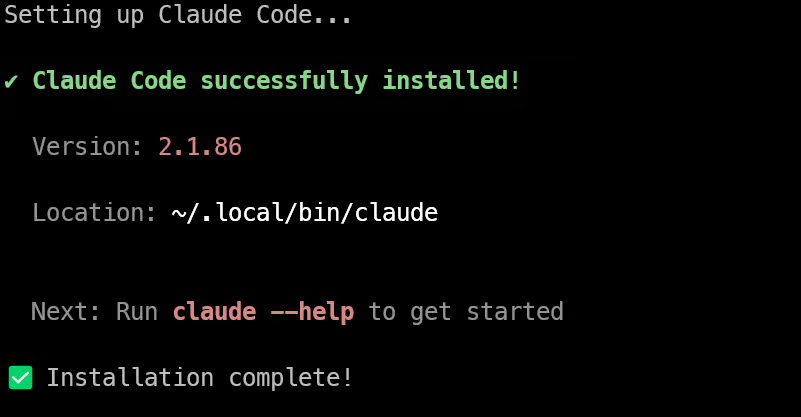
Ini memasang Claude Code langsung ke lingkungan Ubuntu Anda.
Sekarang lingkungan Anda sudah siap, saatnya mengunduh NanoClaw dan membukanya di Claude Code.
Mulailah dengan mengklon repositori dan masuk ke folder proyek:
git clone https://github.com/qwibitai/nanoclaw.git
cd nanoclaw
Jika Anda berencana menyesuaikan NanoClaw nanti, Anda dapat fork repositorinya terlebih dahulu dan mengklon salinan Anda sendiri. Untuk penyiapan pertama, mengklon repositori utama sudah sepenuhnya baik.
Setelah Anda berada di folder nanoclaw, jalankan:
claudeSaat pertama kali meluncurkan Claude Code, Anda akan dipandu melalui alur masuk dan konfigurasi awal. Anda dapat masuk dengan akun Claude.ai, atau menggunakan akses API Anthropic langsung dengan kunci API.
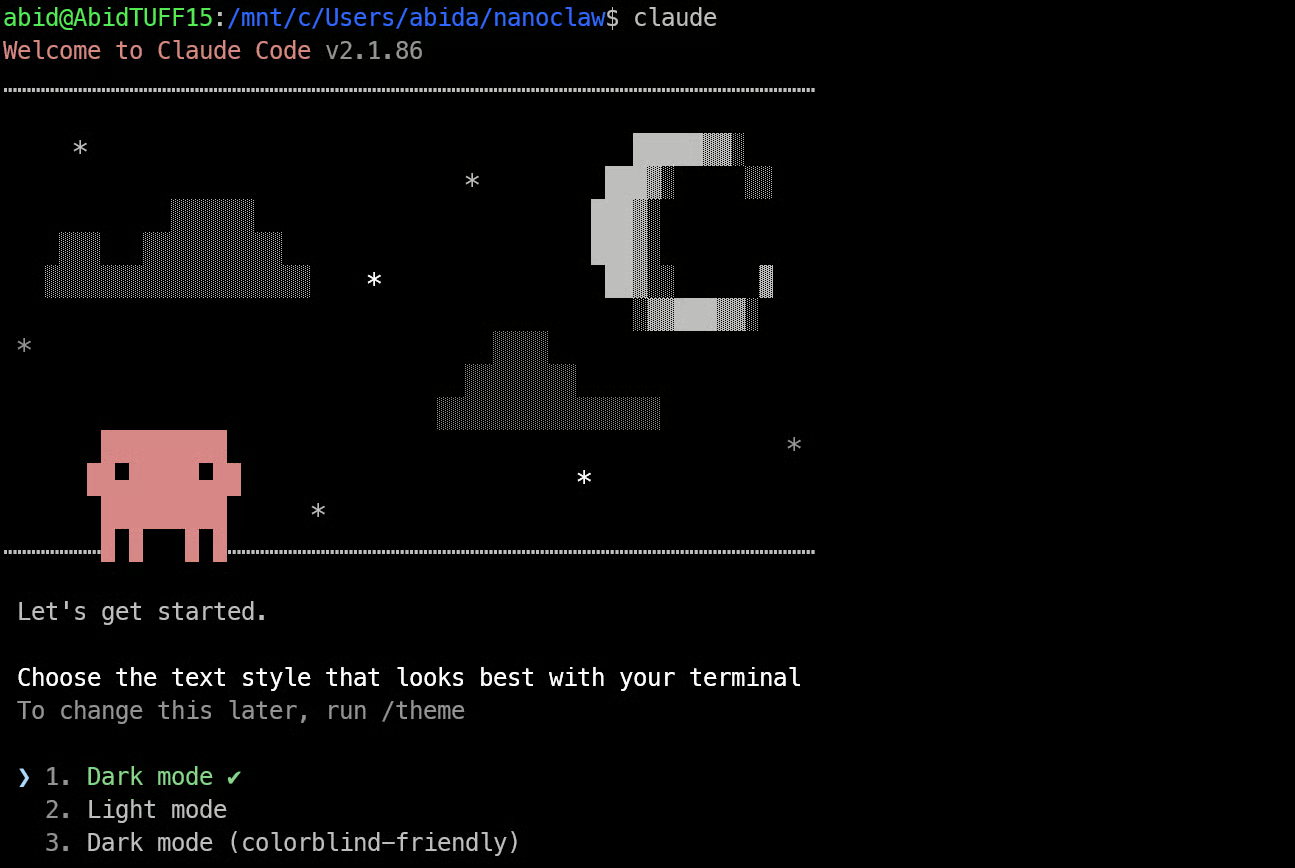
Jika Anda sudah memiliki langganan Claude Pro atau Max, proses masuk biasanya rute yang paling sederhana. Jika Anda bekerja dengan penagihan API, Claude Code juga dapat dikonfigurasi untuk menggunakan kunci API Anthropic Anda.
Setelah proses masuk selesai, Claude Code akan terbuka di dalam proyek NanoClaw Anda dan Anda siap melanjutkan penyiapan.
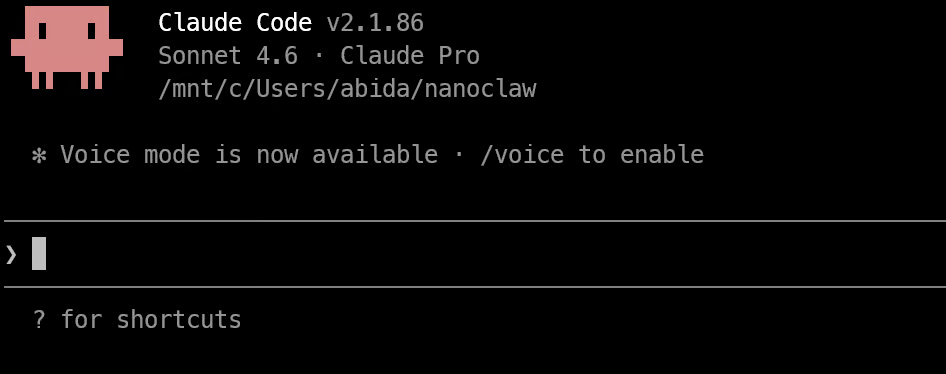
Dengan Claude Code terbuka di dalam folder nanoclaw, Anda sekarang dapat memulai penyiapan penuh.
Jalankan:
/setupIni memulai alur penyiapan terpandu NanoClaw.
Setelah Anda menjalankan /setup, Claude Code mulai menyiapkan NanoClaw untuk Anda. Bagian ini dapat memakan waktu, jadi biarkan ia menyelesaikan setiap tahap.
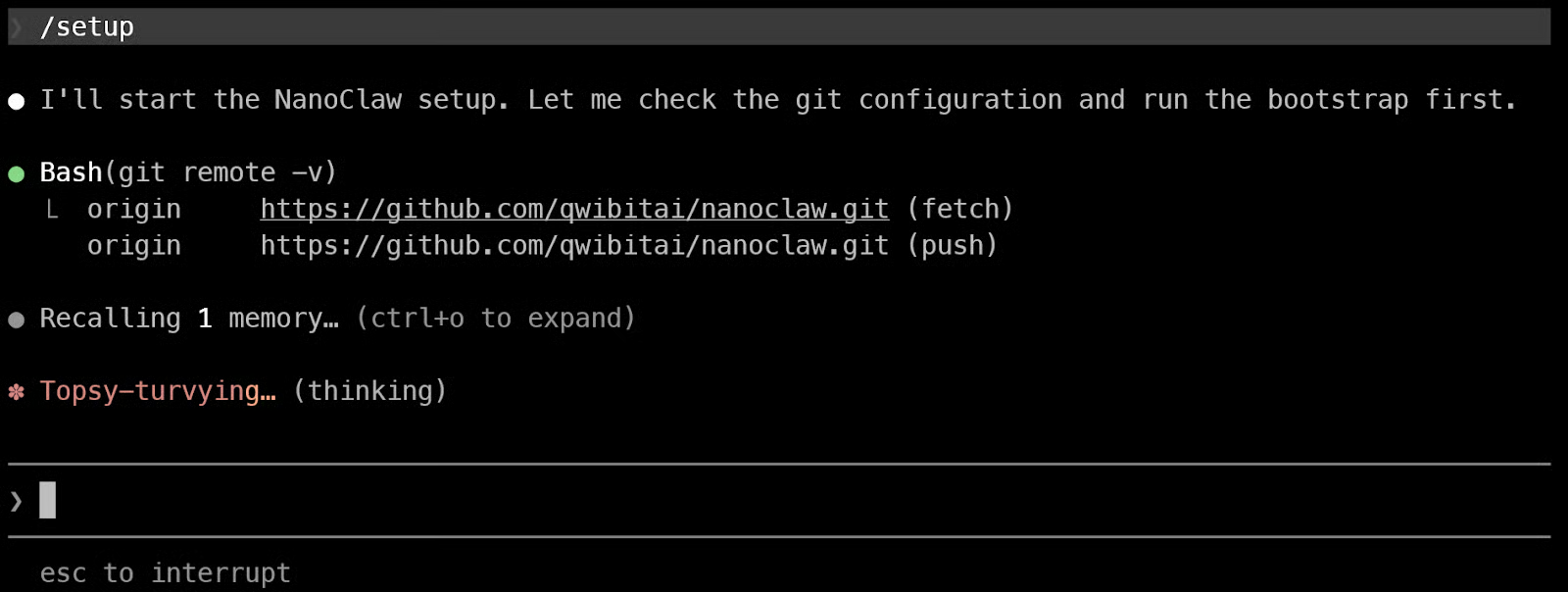
Pertama, ia memasang dependensi proyek dan memeriksa apakah lingkungan lokal Anda siap.
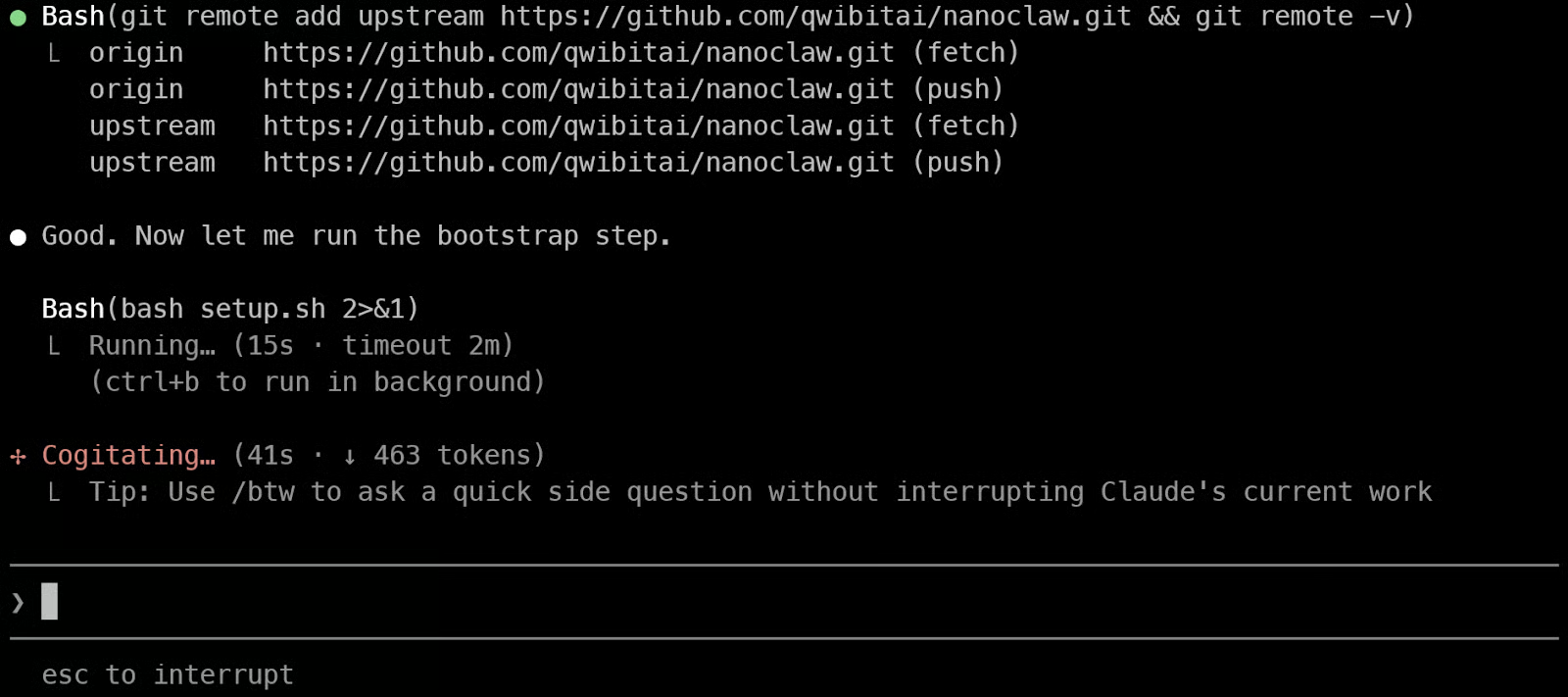
Setelah itu, ia beralih ke tahap penyiapan kontainer, di mana ia menjalankan perintah Docker yang diperlukan untuk membangun kontainer khusus NanoClaw dan menguji bahwa kontainer tersebut dapat berjalan dengan benar.
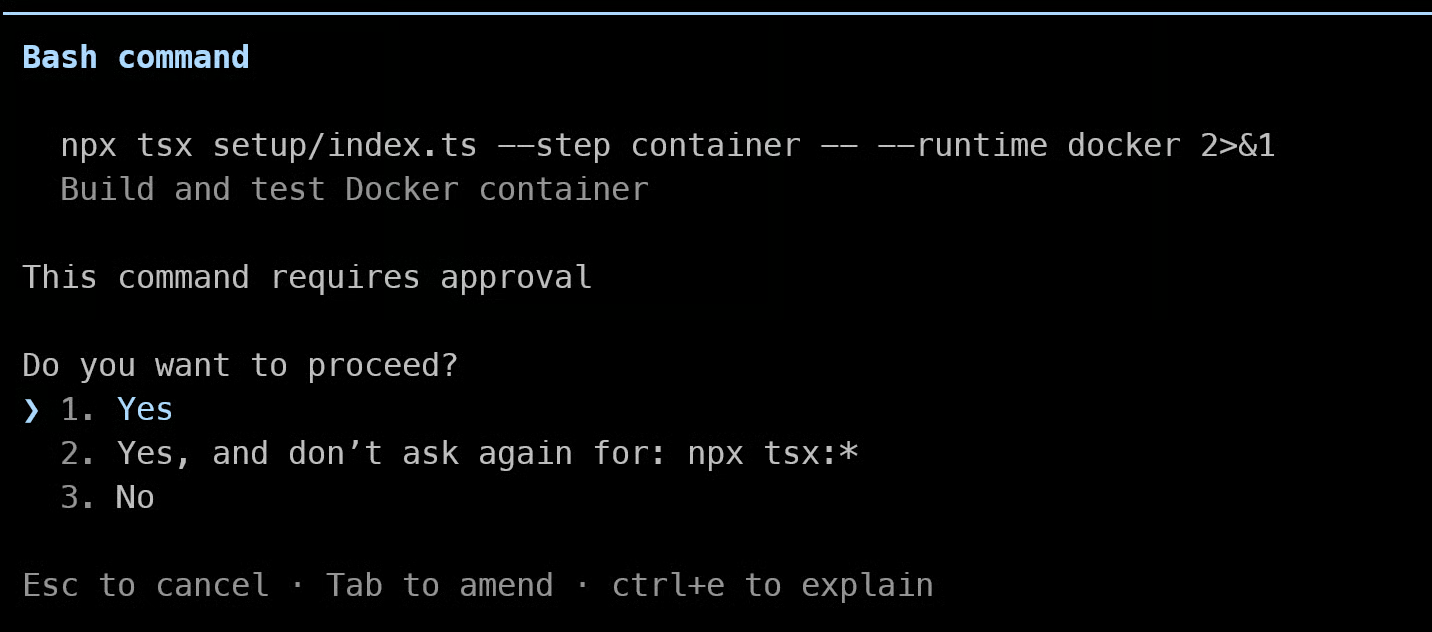
Setelah kontainer dibuat dan diverifikasi, penyiapan berlanjut dengan memasang OneCLI. Ini adalah bagian penting dari tumpukan NanoClaw karena membantu mengelola rahasia dan akses kontainer dengan lebih aman.
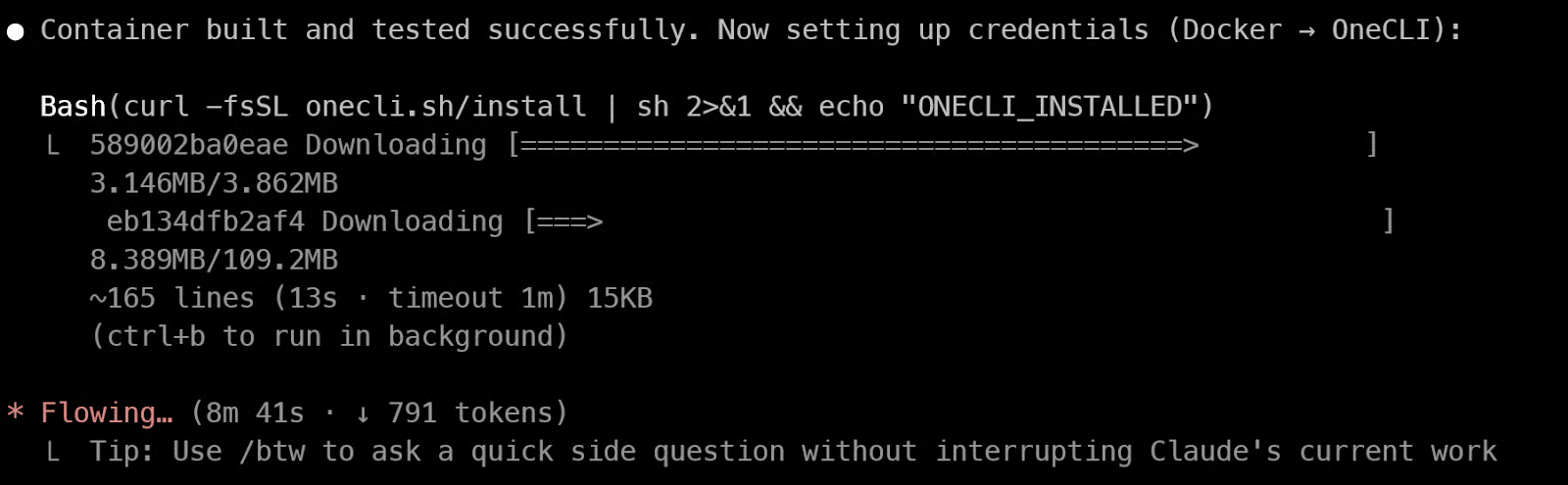
Setelah ini selesai, Anda dapat membuka dasbor Docker Desktop dan memastikan bahwa kontainer berjalan. Pada titik ini, Anda akan melihat layanan NanoClaw muncul di sana, termasuk kontainer aplikasi dan layanan pendukung seperti PostgreSQL.
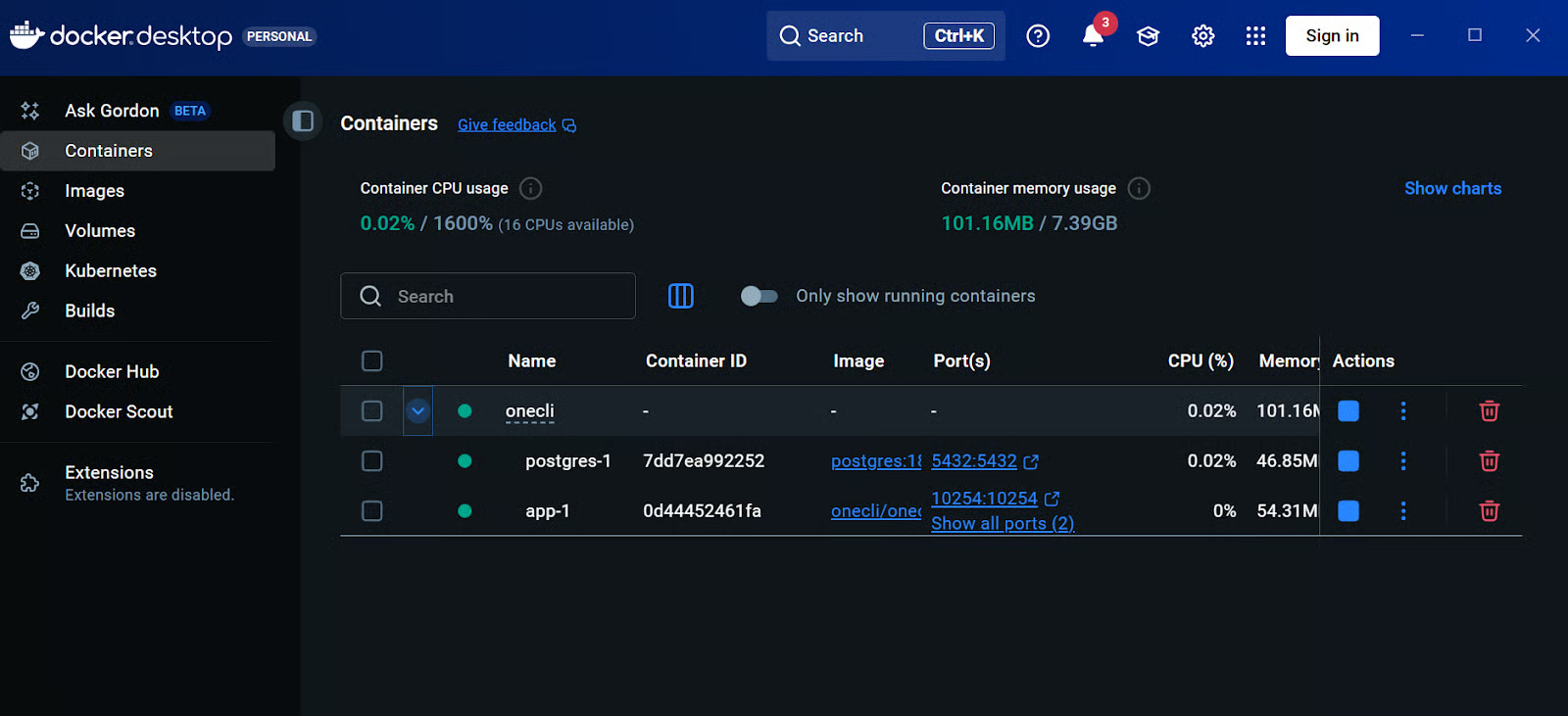
Meskipun Claude Code sudah masuk di dalam WSL, kontainer NanoClaw membutuhkan cara aman tersendiri untuk mengakses Claude. Untuk itu, Anda perlu menghasilkan token dan mendaftarkannya dengan OneCLI.
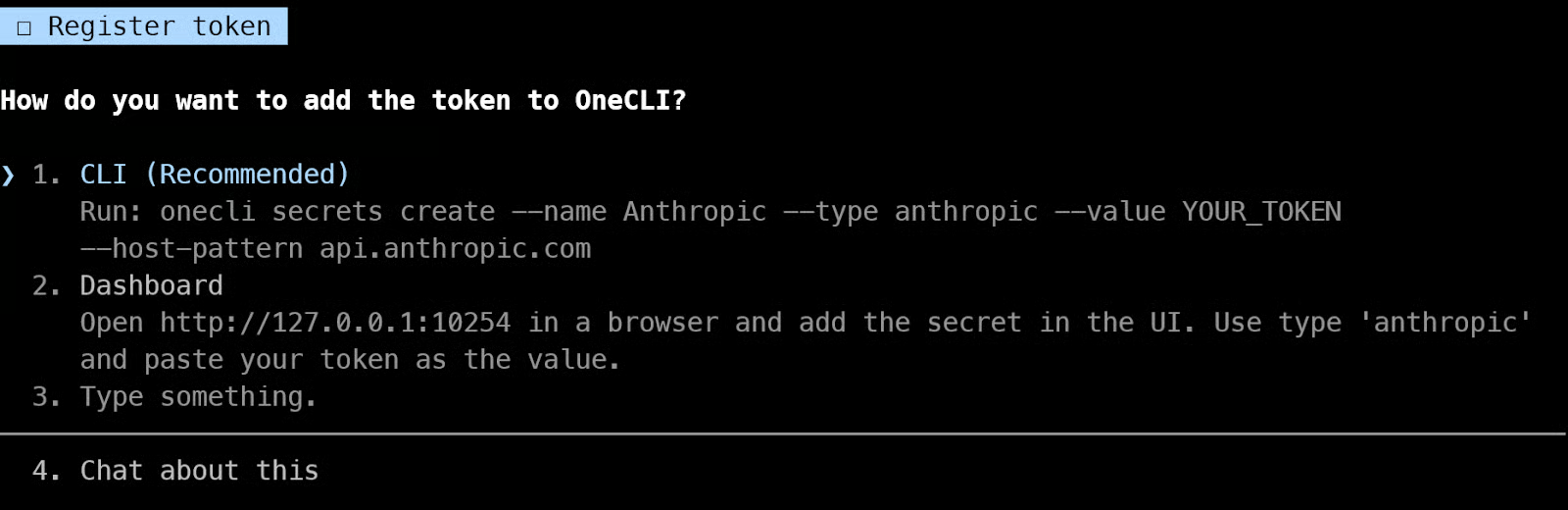
Buka terminal baru dan jalankan:
claude setup-tokenPerintah ini akan menghasilkan tautan untuk Anda buka di browser. Masuk, setujui permintaan, lalu tempelkan kode yang dikembalikan ke terminal. Setelah itu, Claude Code akan memberikan token kepada Anda.
Salin token tersebut, lalu jalankan perintah berikut di terminal Anda, ganti YOUR_TOKEN dengan token yang baru saja Anda buat:
onecli secrets create --name Anthropic --type anthropic --value YOUR_TOKEN --host-pattern api.anthropic.comLangkah ini memberikan akses aman ke Claude bagi kontainer NanoClaw tanpa mengekspos kredensial Anda secara langsung di dalam kontainer. Setelah selesai, penyiapan siap ke tahap berikutnya.
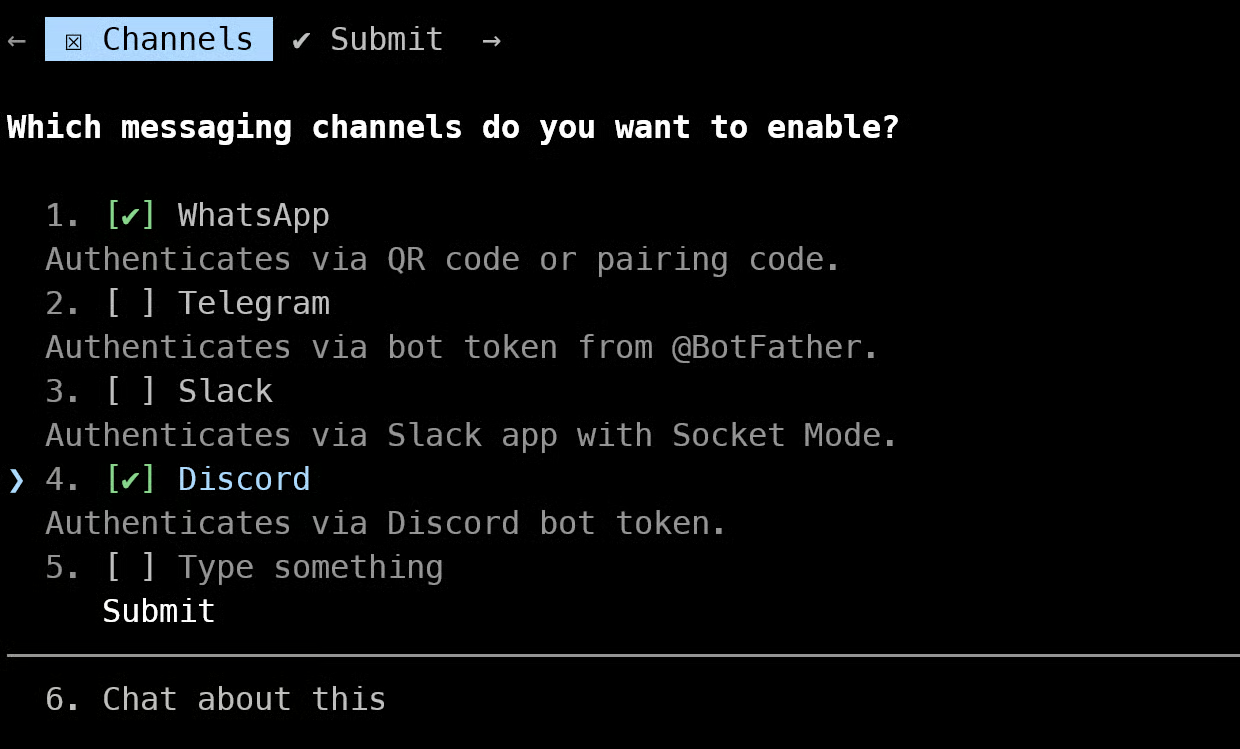
Setelah penyiapan utama selesai, Claude Code akan berpindah ke tahap penyiapan kanal. Di sinilah Anda memilih cara berinteraksi dengan NanoClaw.
Pilih WhatsApp (Anda juga dapat memilih kanal lain yang didukung seperti Discord, Telegram, atau Slack untuk nanti, tetapi untuk saat ini kita fokus pada WhatsApp), lalu lanjutkan.
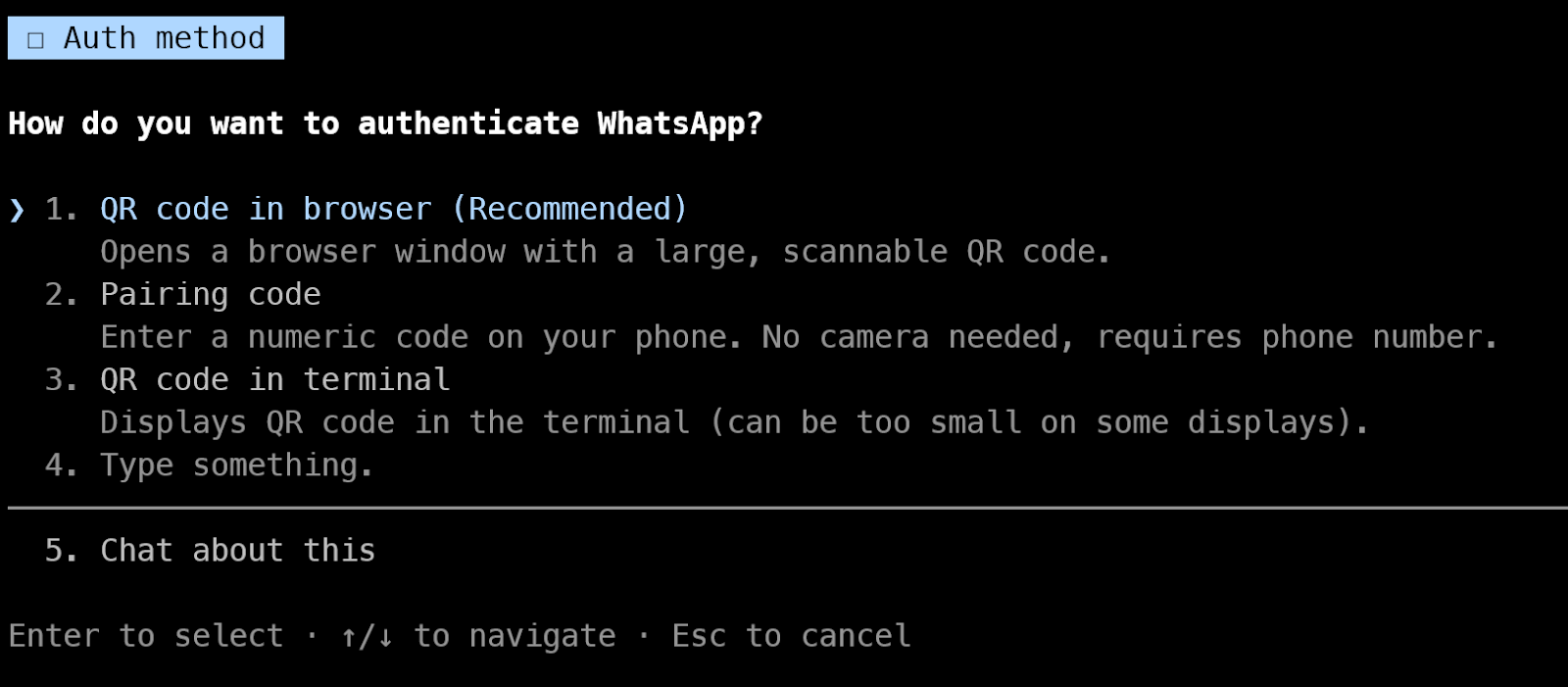
Entah kenapa, kode QR di browser tidak berfungsi bagi saya. Ini tampaknya disebabkan oleh masalah jaringan antara WSL dan browser, kemungkinan terkait cara port lokal diakses. Karena itu, kita akan menggunakan opsi kode QR di terminal sebagai gantinya.
Claude Code akan mencoba menampilkan kode QR di terminal. Dalam beberapa kasus, kode QR ini mungkin terpotong atau tidak tampil dengan benar.
Untuk memperbaikinya, buka terminal baru, lalu jalankan:
cd nanoclaw
npm run auth
Ini akan menghasilkan kode QR yang bersih di terminal Anda.
Sekarang buka WhatsApp di ponsel Anda dan ikuti langkah-langkah ini:
Setelah pemindaian berhasil, akun WhatsApp Anda akan terhubung ke NanoClaw.
Setelah dipasangkan, Anda akan melihat pesan sukses di terminal.
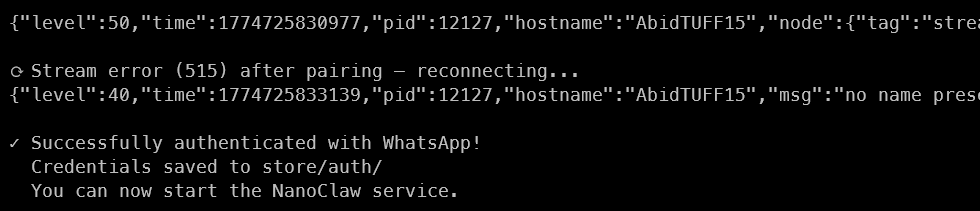
Kembali ke terminal Claude Code asli Anda dan lanjutkan penyiapan.
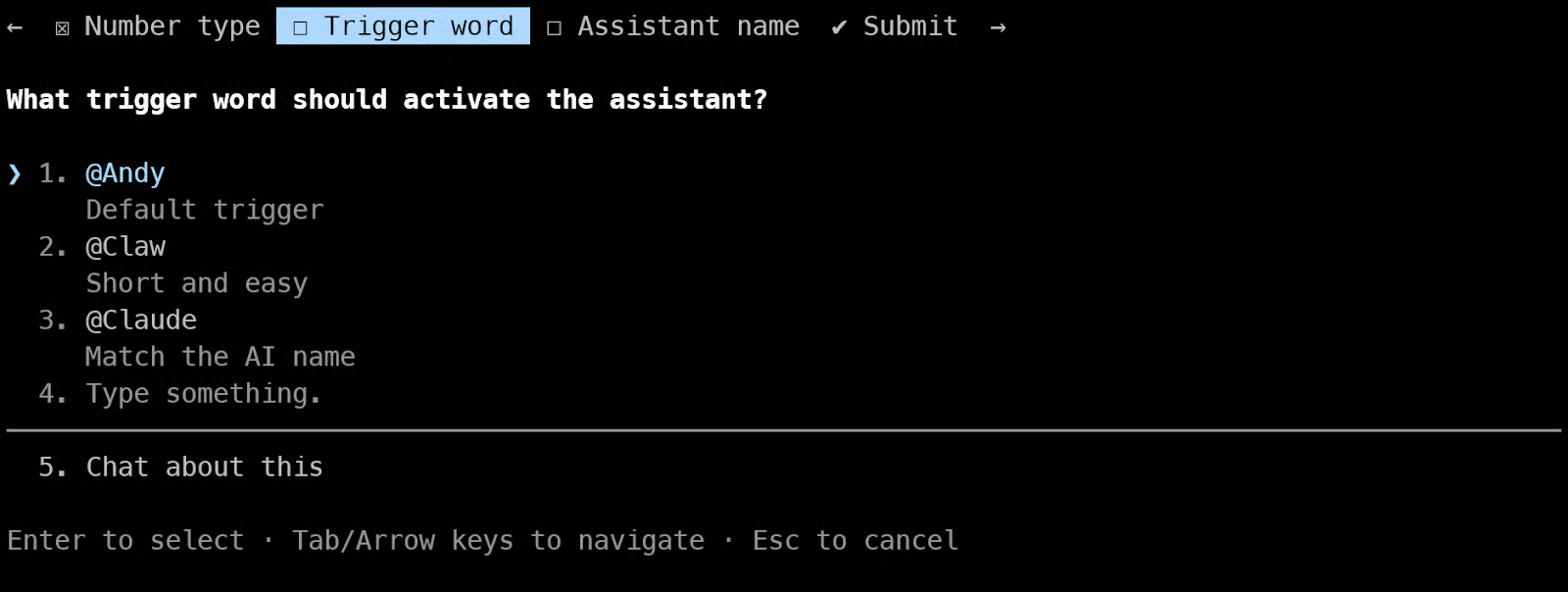
Anda akan ditanya beberapa pertanyaan konfigurasi. Untuk saat ini, Anda dapat memilih opsi yang direkomendasikan.
Mode self-chat berarti NanoClaw hanya akan merespons Anda di chat WhatsApp Anda sendiri. Ini berguna untuk pengujian, karena tidak ada orang lain yang bisa berinteraksi dengan agen Anda.
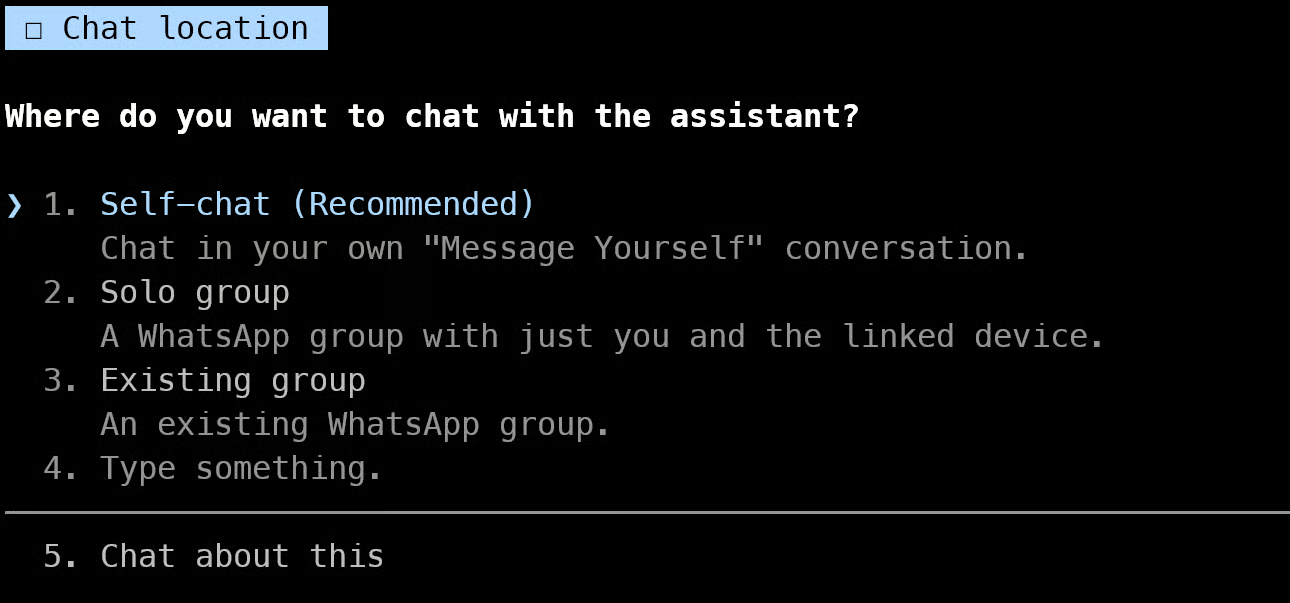
Setelah semuanya dikonfigurasi, NanoClaw akan membangun ulang kontainer dengan pengaturan baru Anda. Ini mungkin memakan waktu sebentar.
Setelah itu, Anda akan melihat instruksi tentang cara menggunakan NanoClaw.
Untuk mengujinya:
@Andy helloJika semuanya berfungsi dengan benar, NanoClaw akan merespons di chat Anda.
Sekarang semuanya sudah disiapkan, Anda dapat menguji NanoClaw langsung dari WhatsApp.
Buka WhatsApp di ponsel Anda dan buka chat Anda sendiri. Ini akan muncul sebagai nomor Anda dengan “(You)” dalam tanda kurung. Mulailah dengan pesan sederhana seperti:
@Andy how are you?Dalam beberapa detik, NanoClaw akan merespons di chat. Ini mengonfirmasi bahwa penyiapan Anda berfungsi dengan benar dan agen terhubung ke WhatsApp.
Anda juga dapat menguji bagaimana pemicu bekerja. Cobalah mengirim pesan tanpa kata pemicu, seperti:
How are you?Anda akan melihat bahwa NanoClaw tidak merespons. Ini adalah perilaku yang diharapkan. Kata pemicu memastikan agen hanya aktif ketika Anda memanggilnya secara eksplisit.
Setelah perpesanan dasar berfungsi, Anda dapat mencoba tugas yang lebih lanjut. Misalnya, minta:
@Andy Tell me the latest gold and silver prices and should i buy it or notNanoClaw akan melakukan tugas dan mengembalikan respons terstruktur. Ini menunjukkan bahwa agen Anda tidak sekadar membalas pesan, tetapi juga dapat menjalankan tugas multi-langkah dan memberikan keluaran yang berguna ketika dikonfigurasi dengan alat yang tepat, seperti penelusuran web.
Pada titik ini, penyiapan NanoClaw Anda berfungsi penuh dan siap untuk kasus penggunaan yang lebih lanjut.
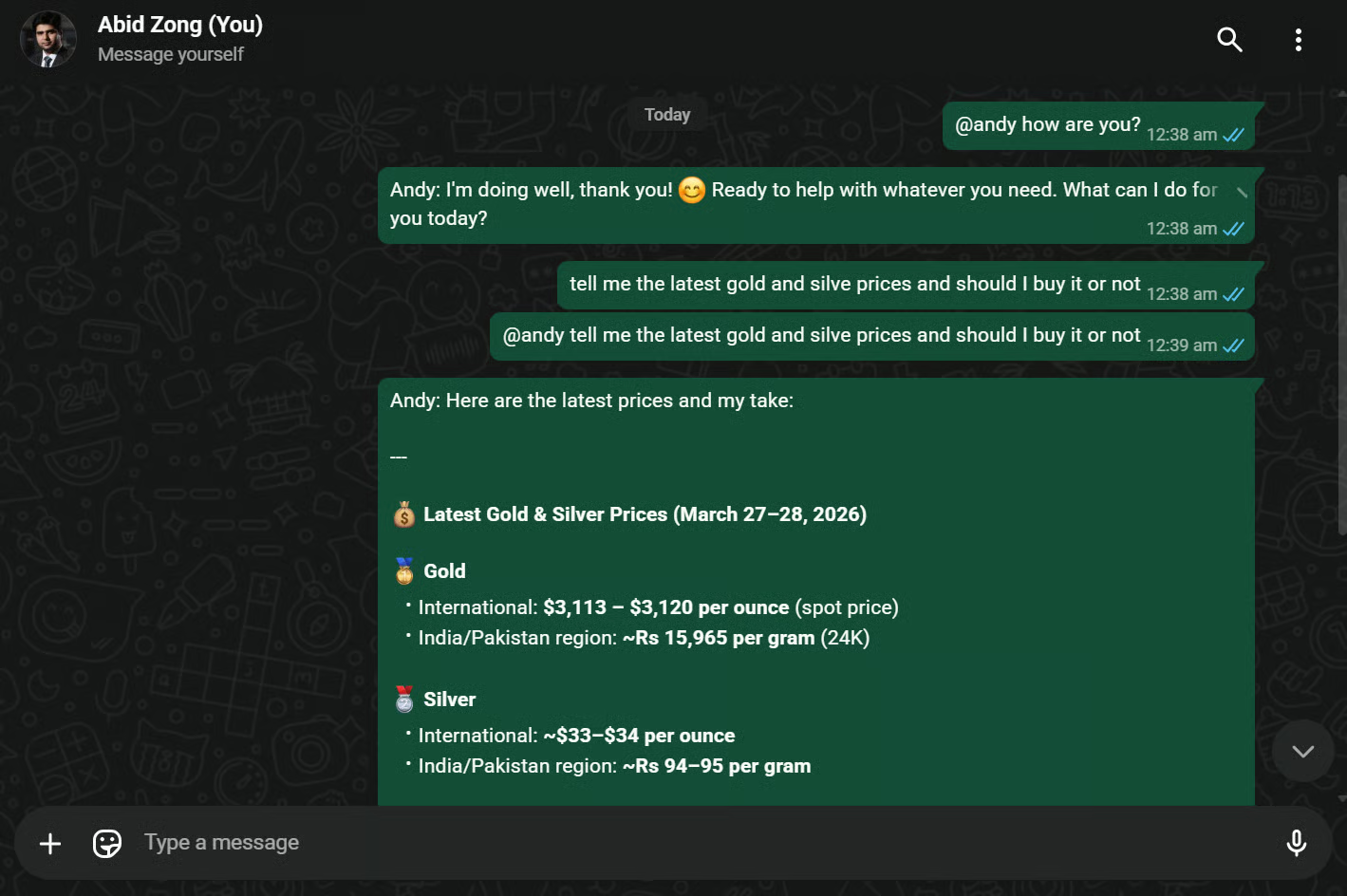
Harga emas dan perak tersebut tidak akurat, yang menunjukkan bahwa ia sebenarnya tidak melakukan penelusuran web dan malah mengandalkan informasi usang dari pengetahuan bawaan model.
Menyiapkan NanoClaw memakan waktu lebih lama dari yang saya perkirakan, terutama di Windows dengan WSL. Antara Docker, penyiapan kontainer, banyak layanan pendukung, dan banyaknya izin yang harus saya setujui di dalam Claude Code, prosesnya terasa lebih berat daripada yang seharusnya untuk agen lokal yang ringan. Setelah beberapa saat, permintaan dan persetujuan yang terus-menerus menjadi melelahkan, dan pengalaman penyiapan secara keseluruhan tidak terasa ramah bagi pemula.
Alur instalasinya juga tidak semulus yang saya harapkan. Di beberapa titik, Claude Code meminta saya membuka terminal baru, menjalankan perintah autentikasi tambahands, menghasilkan token, dan mendaftarkannya secara manual dengan OneCLI. Jika Anda baru dalam alat AI, kontainer, atau alur kerja baris perintah, bagian ini bisa cepat membingungkan. Ini bisa dilakukan, tetapi membutuhkan upaya manual lebih banyak daripada yang saya kira akan diharapkan banyak pengguna.
Karena itu, saya pribadi lebih menyukai Nanobot. Saya hanya memerlukan beberapa menit untuk mulai berkirim pesan dengan agen saya dari WhatsApp, dan pengalamannya terasa jauh lebih cepat dan langsung. Dengan NanoClaw, rasio upaya terhadap hasil tidak terasa sekuat itu.
Pengalaman WhatsApp itu sendiri juga perlu ditingkatkan. Balasan memang berfungsi, tetapi interaksinya terasa kasar. Tidak ada indikator mengetik atau membalas yang jelas, dan gelembung respons terlihat sama seperti pesan saya sendiri, yang membuat percakapan terasa kurang alami. Pembedaan visual yang lebih jelas dan umpan balik bahwa agen sedang bekerja akan sangat membantu, terutama ketika respons memakan waktu.
Secara keseluruhan, saya masih berpikir ide di balik NanoClaw kuat. Agen yang aman, local-first, dan ringan adalah arah yang sangat berguna. Namun dalam praktiknya, penyiapannya lebih kompleks dari yang diharapkan, dan pengalaman akhirnya terasa agak kurang memuaskan dibandingkan jumlah upaya yang diperlukan untuk mencapainya.
Kursus AI Agentic
Program
Kursus
Program
blogs
Javier Canales Luna
14 mnt
blogs
Dario Radečić
15 mnt
blogs
Hugo Bowne-Anderson
13 mnt
blogs
David Woods
13 mnt