Course
Introduction to Claude Models
3 hr
14.3K
You're grabbing coffee when a Slack message asks for that quarterly report. It's on your desktop at home. You text on WhatsApp: "Find the Q4 report PDF on my desktop." Thirty seconds later, you have the path and can point your coworker to the shared drive. That's OpenClaw.
OpenClaw runs a local gateway that connects messaging apps to a coding agent powered by Claude. You send messages through WhatsApp, Telegram, or the terminal, and the agent responds by running commands on your machine: searching files, executing scripts, and reading logs. The gateway stays running on your computer and handles the translation between chat and shell.
In this tutorial, we'll set up OpenClaw from scratch and explore the wide range of tasks you can do with it. We'll also cover what to watch out for when an AI like this has unrestricted terminal access.
Note: As we were in the middle of writing this article, Anthropic issued a trademark request because "Clawd" sounded too similar to "Claude." The project rebranded from Clawdbot to Moltbot (keeping the lobster mascot). Then, on January 29, 2026, the name changed again to OpenClaw. Some screenshots, config paths, and code snippets in this tutorial may still reference "Clawdbot", "clawd", or "moltbot".
If you’re interested in learning more about the Claude ecosystem, I recommend checking out our guides on Claude Cowork, Claude Code, Claude Opus 4.6, and our Introduction to Claude Models course. You can also find our guide on Using OpenClaw with Ollama and our guide to Moltbook.
Peter Steinberger, a macOS developer known for Apple tooling, released this project in late 2025, originally calling it Clawdbot. The pitch: a fully self-hosted AI agent where your prompts and files never leave your hardware except when sent to whatever model API you configure.
This privacy-first approach resonated with developers tired of routing everything through cloud providers. The repo passed 60,000 GitHub stars within weeks.
Everything flows through a single daemon called the Gateway. It stays running in the background, holds your messaging connections open, and coordinates the AI agent. Here's the sequence when you send a message:
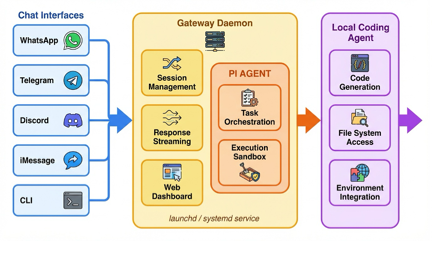
The Gateway handles session management, response streaming, and a local web dashboard for configuration. It installs as a system service (launchd on macOS, systemd on Linux) and survives reboots automatically.
Now, let's learn how to set up OpenClaw.
OpenClaw needs Node.js 22 or higher and runs on macOS and Linux natively. Windows users need WSL2 (the Windows Subsystem for Linux), which works fine but adds a layer of setup.
Hardware requirements are minimal. The Gateway idles at low CPU and memory usage. Any machine that can run a modern browser can run OpenClaw.
OpenClaw itself is free and open source (MIT license). The cost comes from API tokens. Anthropic charges per million tokens: roughly $3 for input and $15 for output with Claude Sonnet, more for Opus. What does that mean in practice?
These numbers vary based on prompt verbosity and context size. If you have a Claude Pro or Max subscription, you can generate a setup token via the Claude Code CLI and use your subscription instead of paying per token.
Run the installer script:
curl -fsSL https://molt.bot/install.sh | bash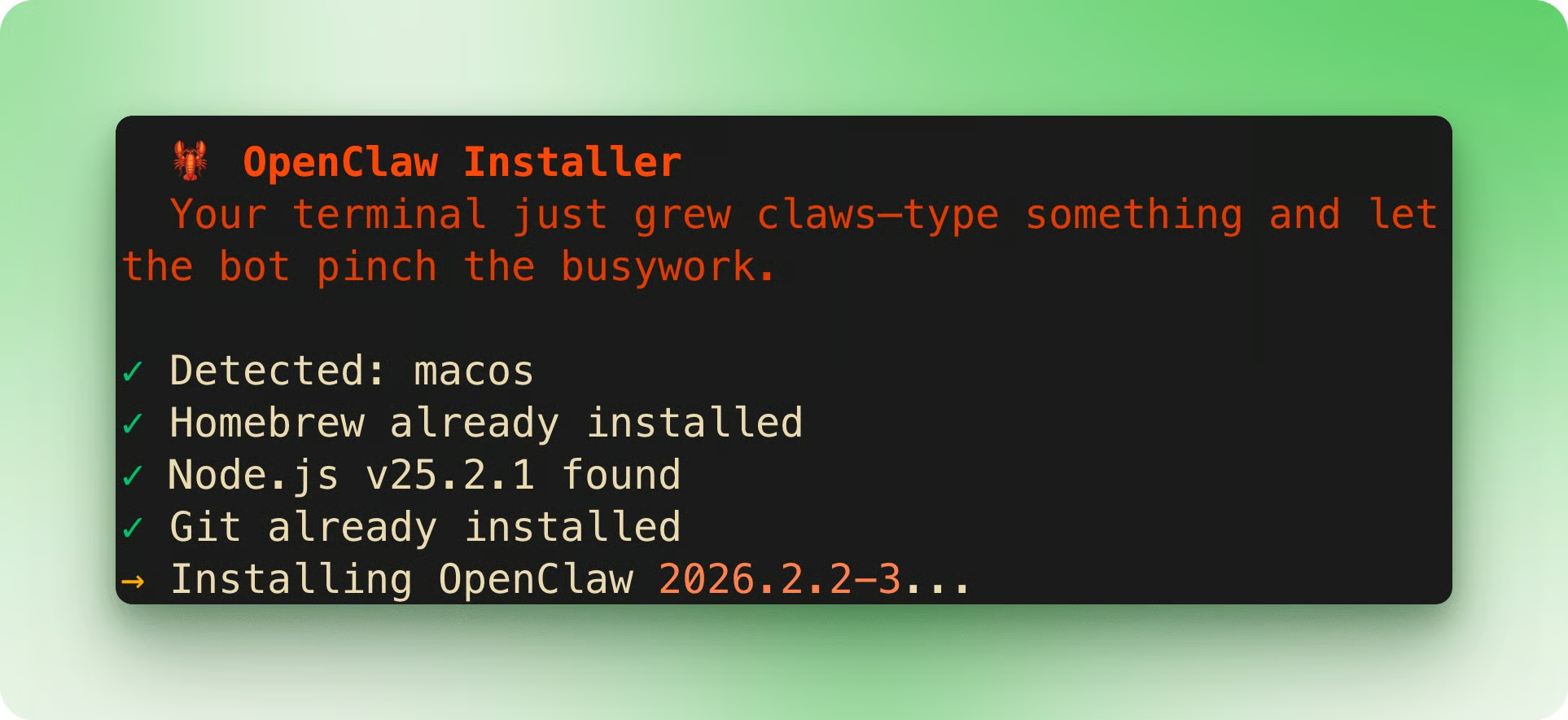
Once installed, the onboarding wizard launches automatically. First thing you'll see is a security warning. The wizard links to documentation on sandboxing if you want to limit what the agent can do.
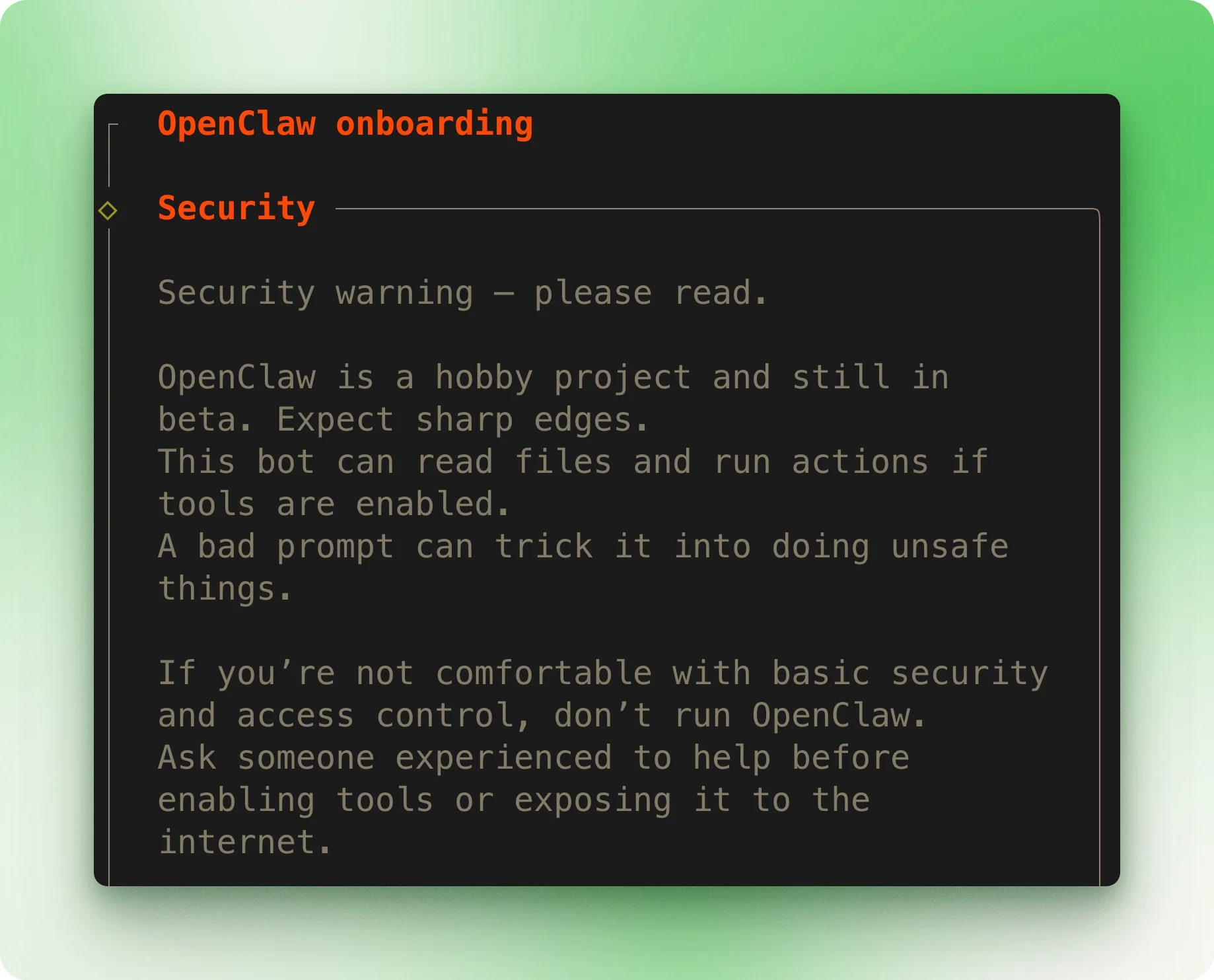
The wizard offers QuickStart (sensible defaults) or Advanced (full control). QuickStart works for most people.
Next, choose your model provider. If you have a Claude Max or Pro subscription, select the setup-token option. Open a separate terminal and run claude setup-token, then paste the generated token into the wizard.
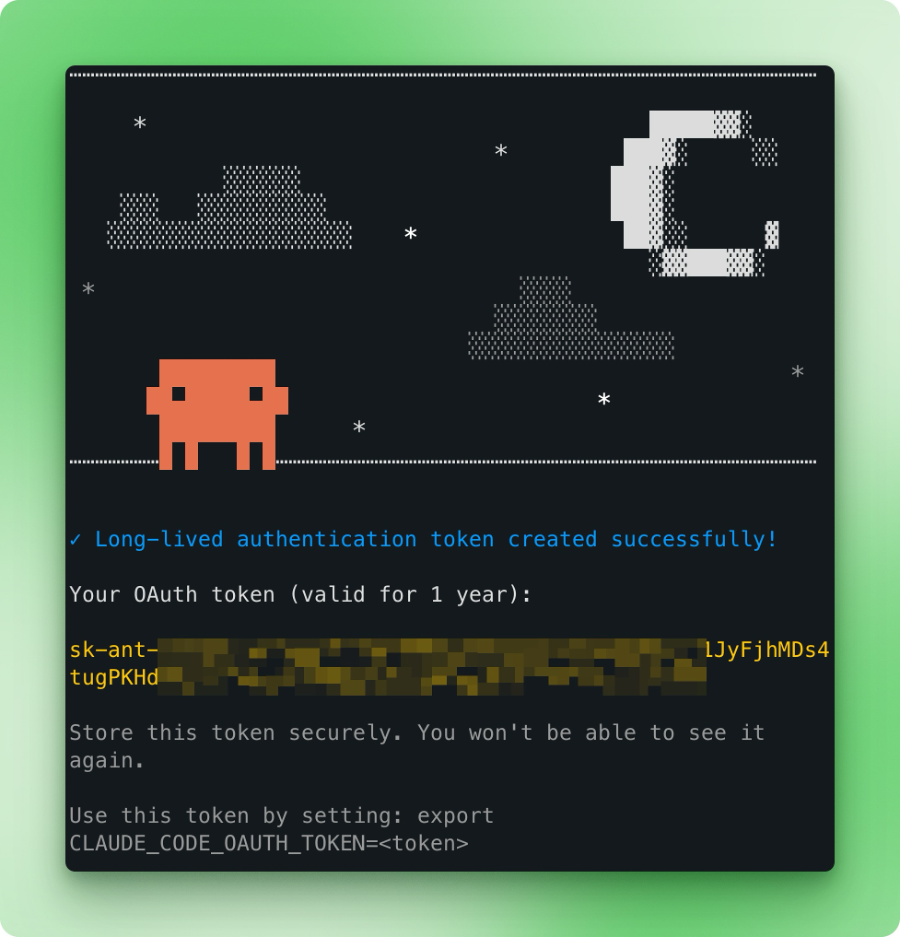
For channel setup, select WhatsApp and scan the QR code with your phone (Settings → Linked Devices → Link a Device). Other channels like Telegram and Discord are available too.
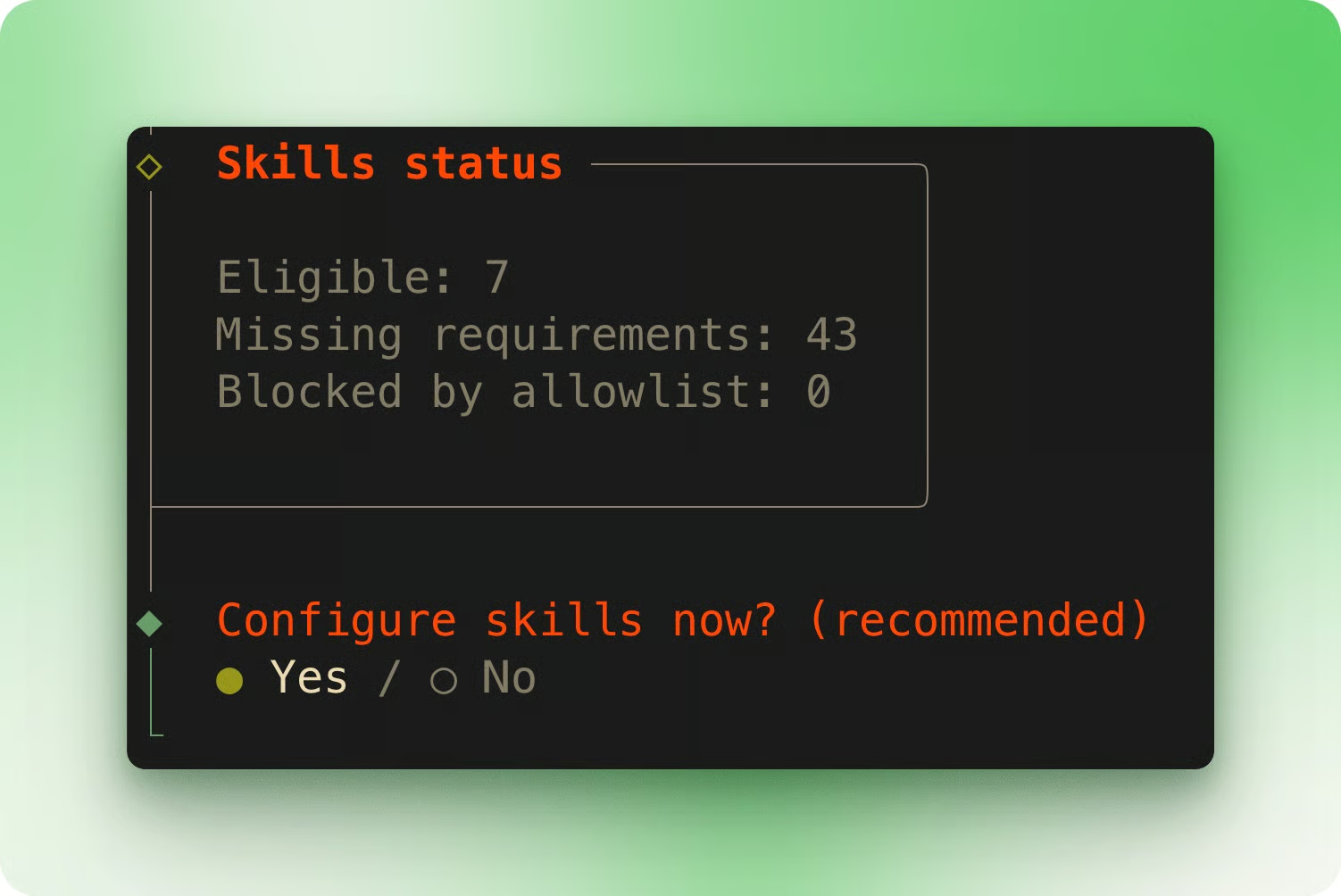
The wizard then asks about skills configuration. Skills extend what OpenClaw can do, but they require additional dependencies.
Skip this for now to keep the initial setup simple. Note: Use Space to toggle options, then Enter to confirm.
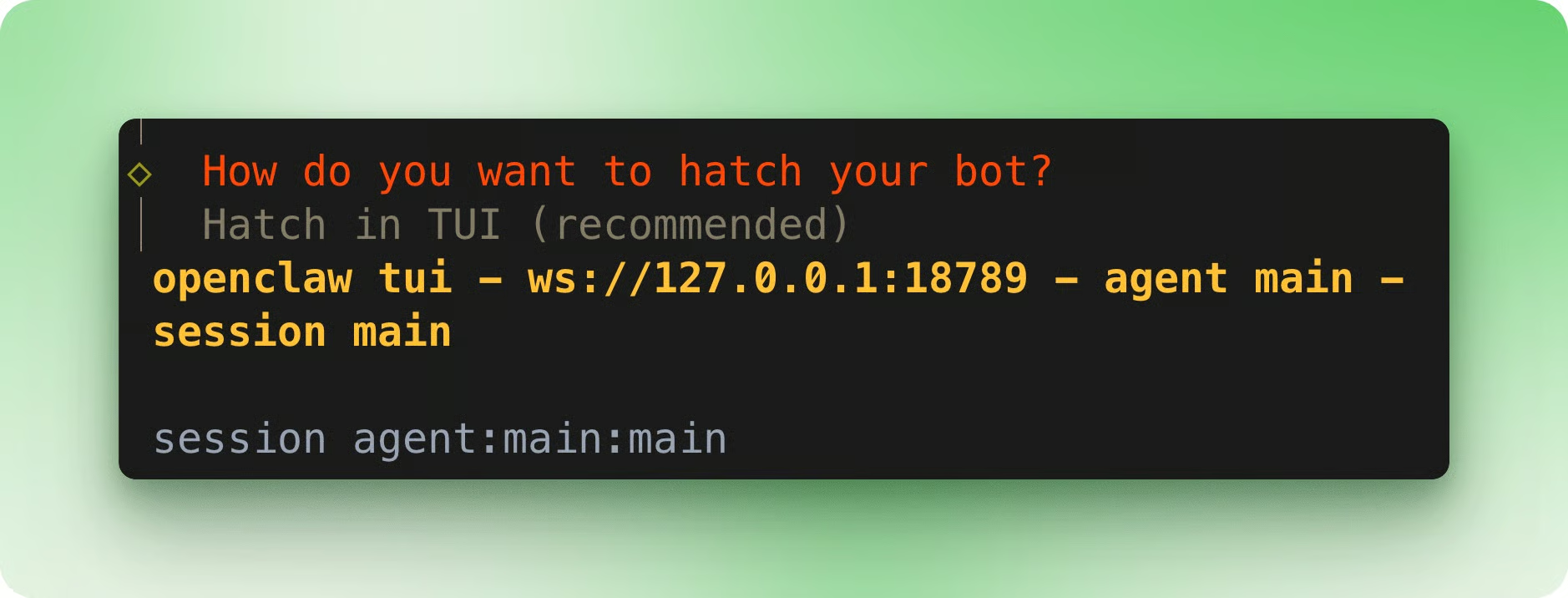
After skipping hooks configuration, the Gateway service installs automatically. The wizard asks how you want to "hatch" your bot. The TUI (Terminal User Interface) option opens both a terminal chat interface and the web dashboard.
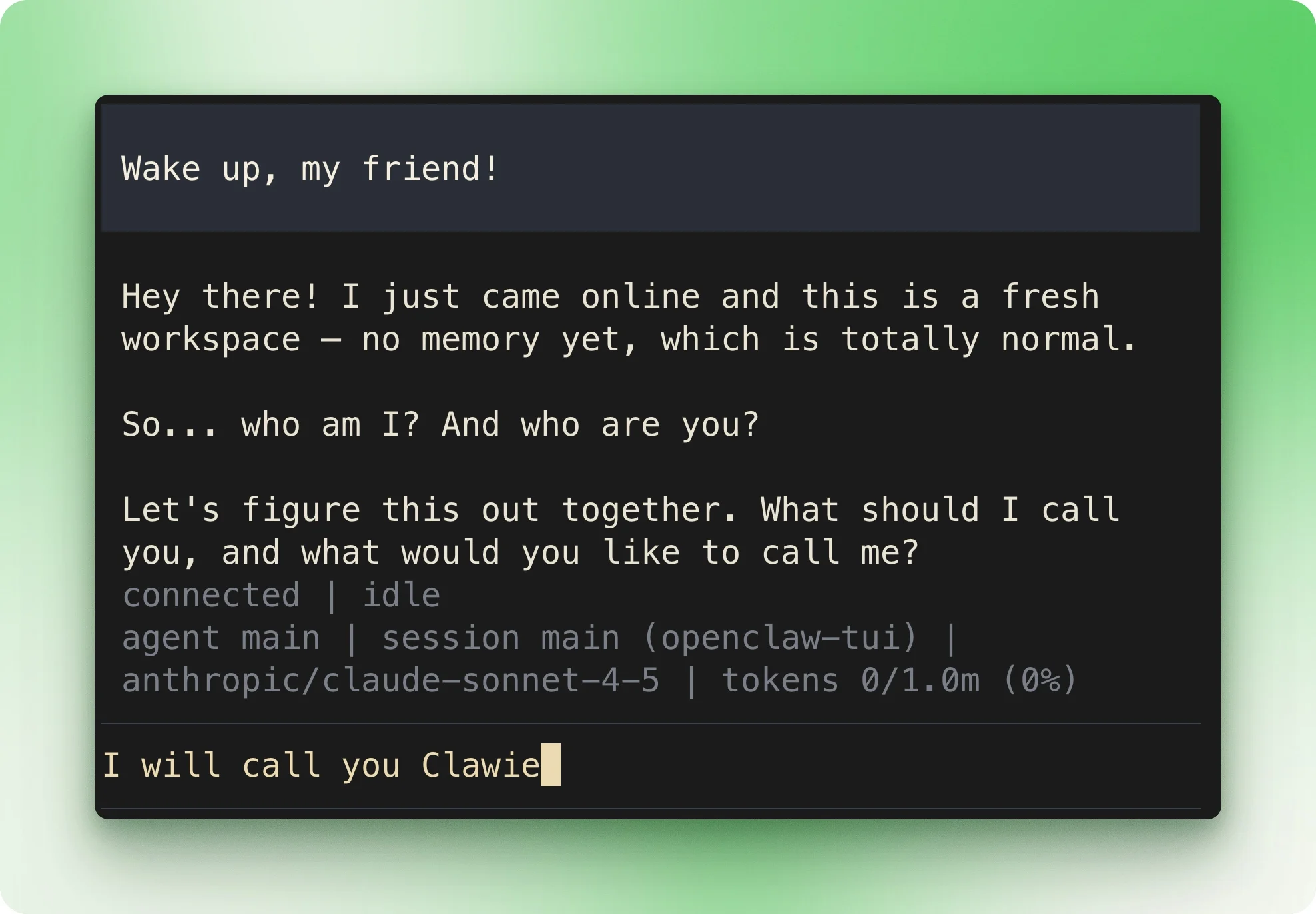
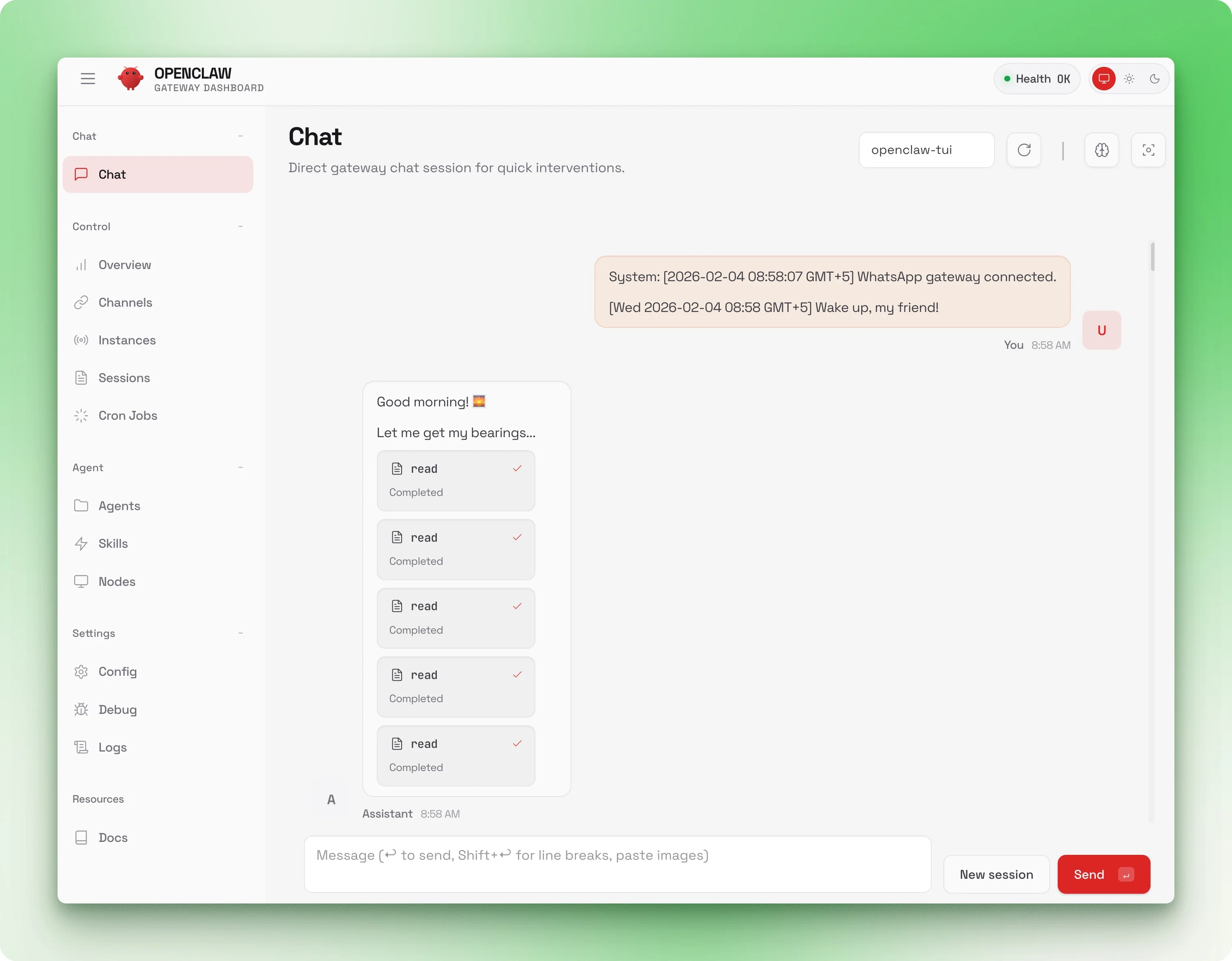
Now test WhatsApp. Send a message to yourself. Your query and OpenClaw's response appear in all three places: the terminal, the web UI, and WhatsApp.
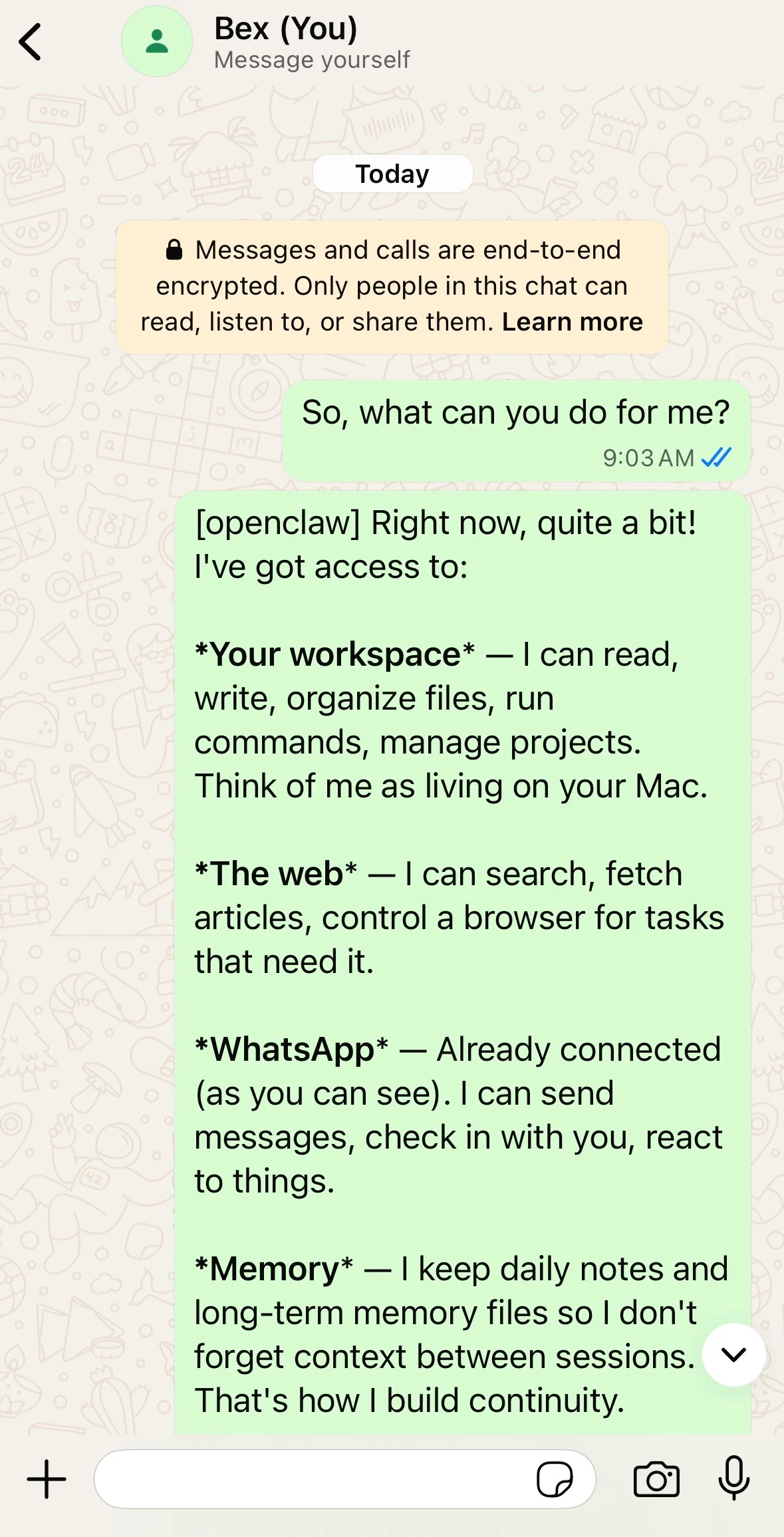
If you see responses in all three interfaces, you're live.
Ten minutes of setup and you already have a working agent. The following examples show what OpenClaw can do out of the box.
Let’s say you're out of the house when you realize you forgot to send yourself a file. It's sitting on your laptop at home.
I tested this scenario using the screenshot I'd taken during setup, the one showing OpenClaw's first response. The file had a generic name, buried among dozens of other images in my Downloads folder.
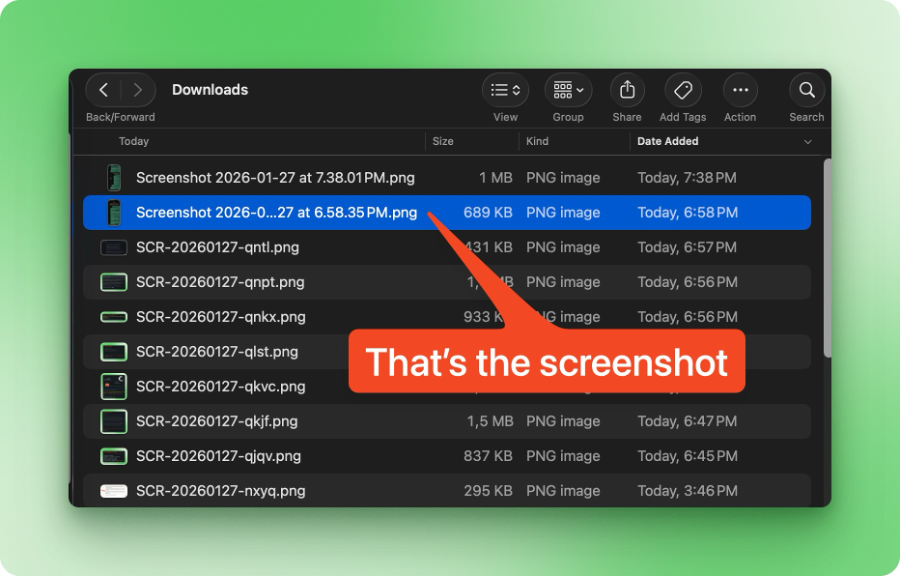
My message to OpenClaw: "I had a screenshot in my Downloads folder of a WhatsApp conversation. Can you find that and send it here?"
The agent parsed images one by one. When it found the right file, it sent it back through the chat.
When the agent first accessed my Downloads folder, macOS prompted for permission. If you plan to use OpenClaw remotely, grant Full Disk Access ahead of time (see the Security section for details).
Next, let’s imagine a colleague is about to send you a large asset via Dropbox. Before they do, you want to make sure your machine has room to download it. You could dig through Finder or run terminal commands, but you're on your phone on a weekend trip and want a quick answer.
Your message to OpenClaw: "Check my disk space and generate a PDF report with charts (generated with Python) showing usage by folder."
This task requires multiple steps: scan the filesystem, aggregate sizes by directory, write Python code to generate charts, and export everything to PDF.
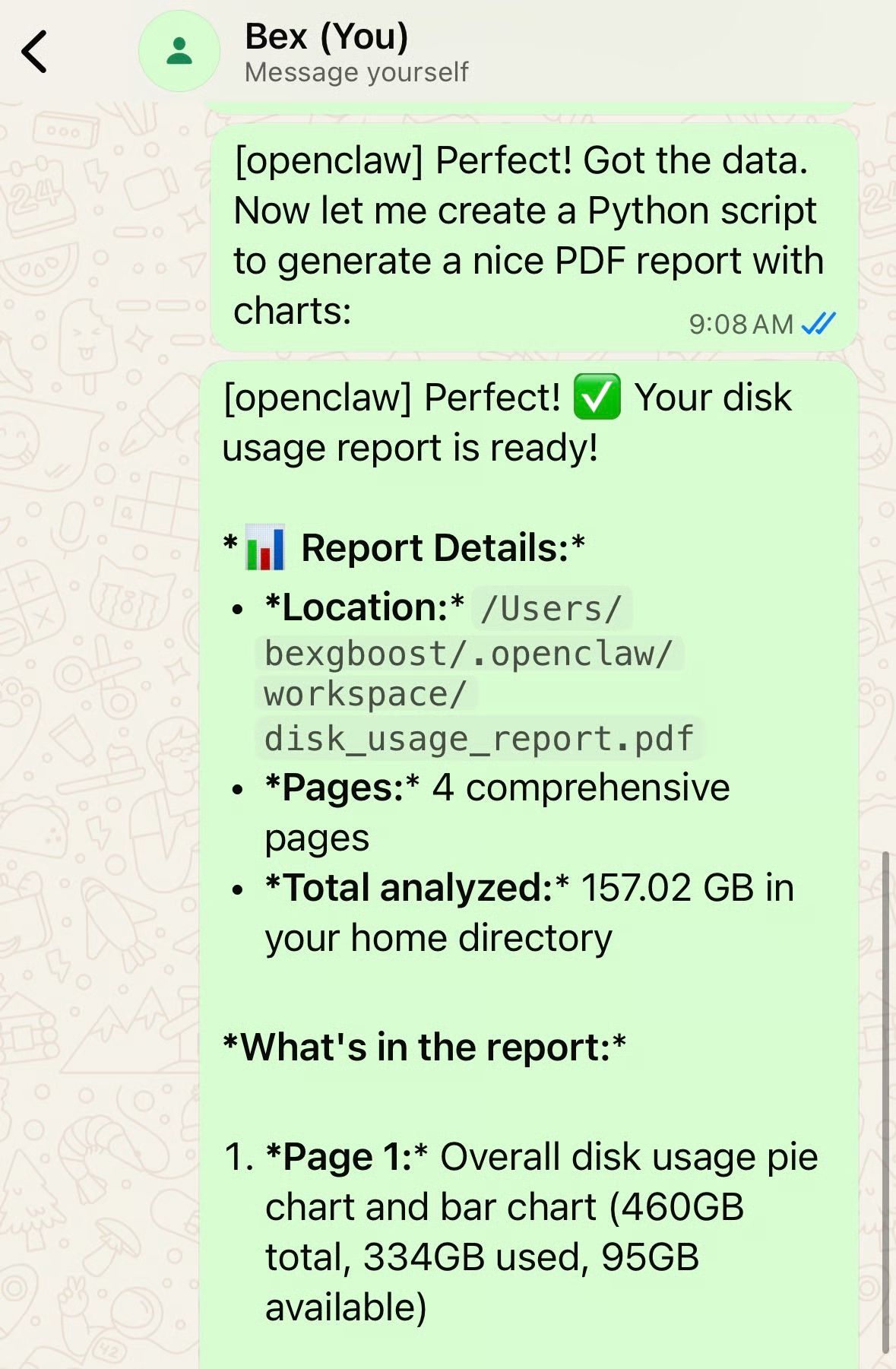
The answer you needed: 94 GB free. The PDF included a pie chart and a bar chart showing the breakdown. OpenClaw also flagged that Library was the biggest offender at ~300 GB.
One thing I observed is that OpenClaw tends to be conservative. Give the same prompt to Claude Code or another coding agent, and they will go to town. You might get a dozen charts with deep directory breakdowns.
Here, OpenClaw matched the brevity of my prompt: two charts, top-level folders, done. If you want more detail, ask for it explicitly.
You probably have workflows you run through regularly: checking your calendar before a meeting, searching your notes app, posting to social media, controlling smart home devices. These tasks follow patterns.
Skills let you teach OpenClaw those patterns once, so it can handle them going forward.
A skill is a folder containing a SKILL.md file and optionally scripts, configs, or other resources. The markdown has YAML frontmatter (name, description, requirements) and step-by-step instructions that get loaded into the agent's context.
When your request matches a skill, the agent follows those instructions instead of figuring things out from scratch. Skills can also bundle helper scripts for complex workflows, so everything the agent needs lives in one place.
The format follows the AgentSkills spec, an open standard originally developed by Anthropic and now adopted across the ecosystem: Claude Code, Cursor, VS Code, OpenAI Codex, Gemini CLI, GitHub Copilot, and others.
If you're familiar with the Claude Agent SDK, you'll recognize the pattern. Build a skill for OpenClaw, and it works in any AgentSkills-compatible tool.
Here's what the frontmatter looks like for the GitHub skill:
---
name: github
description: Interact with GitHub using the gh CLI.
metadata: {"openclaw":{"requires":{"bins":["gh"]}}}
---
The requires.bins field means this skill only loads if gh is installed. Skills can also require environment variables (API keys) or specific config flags. If a requirement isn't met, the skill stays dormant until you install the dependency.
OpenClaw ships with 49 bundled skills covering common workflows. Run openclaw skills list to see which ones are ready on your system.
gog CLI. Requires OAuth setup but then you can ask "what's on my calendar tomorrow" or "draft a reply to that email from Sarah."Most skills wrap existing CLI tools. If the underlying binary is missing, the skill shows as unavailable until you install it.
Built-in skills handle the common stuff, but the real payoff comes when you build skills for your own workflows. Image editing is a good case: you take photos on your phone, but resizing and watermarking usually means sitting at a computer. A custom skill lets you run that workflow from WhatsApp while you're out.
I asked OpenClaw to create a skill that resizes images to any resolution and adds a generic logo at ~/Documents/logo.png. It used its bundled skill-creator to write a Python script with PIL, generate the folder structure, and produce a SKILL.md with usage examples.
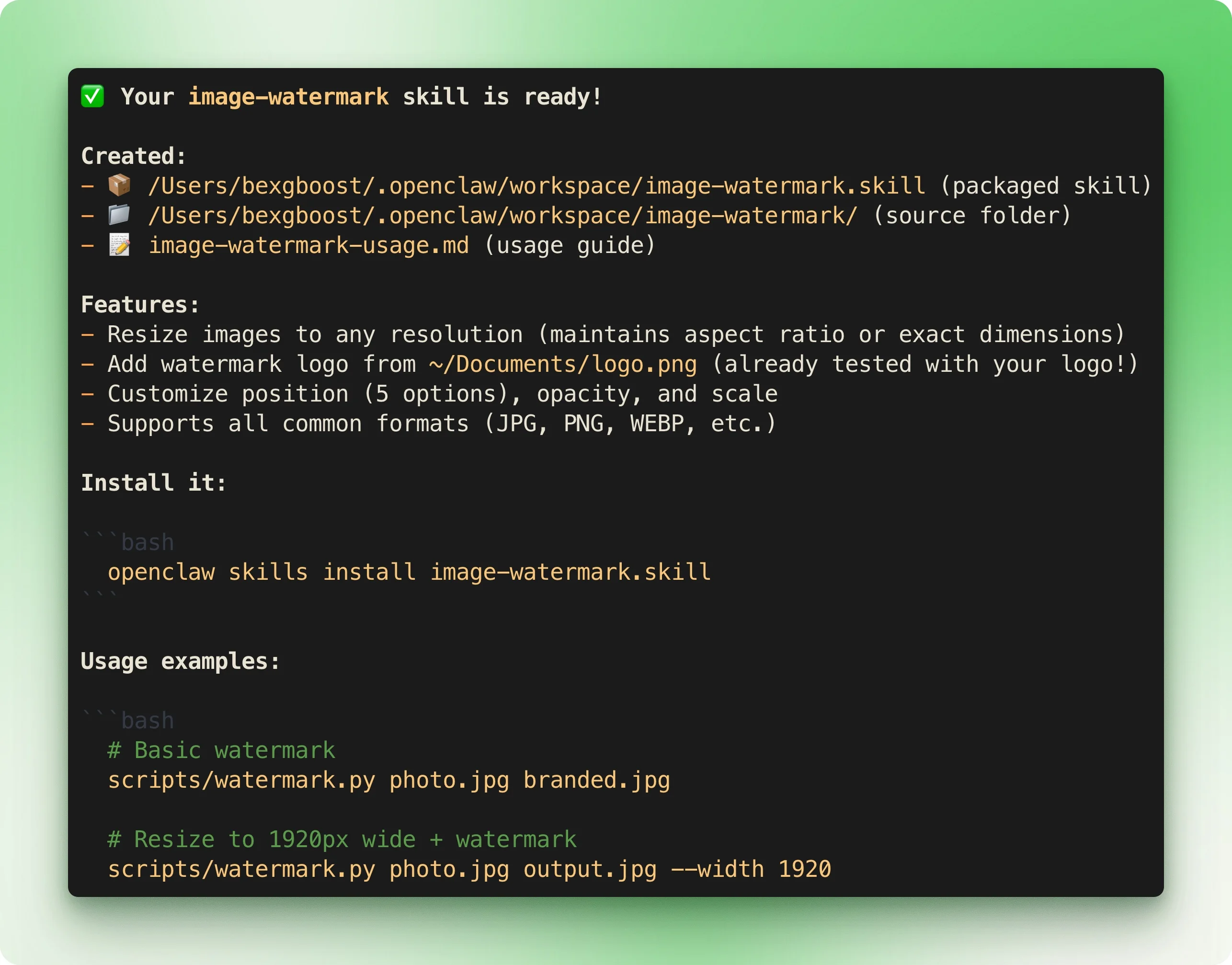
The skill landed in my workspace's skills/ folder and loaded on the next session. To test it, I sent a screenshot of the OpenClaw homepage and asked OpenClaw to resize it for LinkedIn with the watermark.
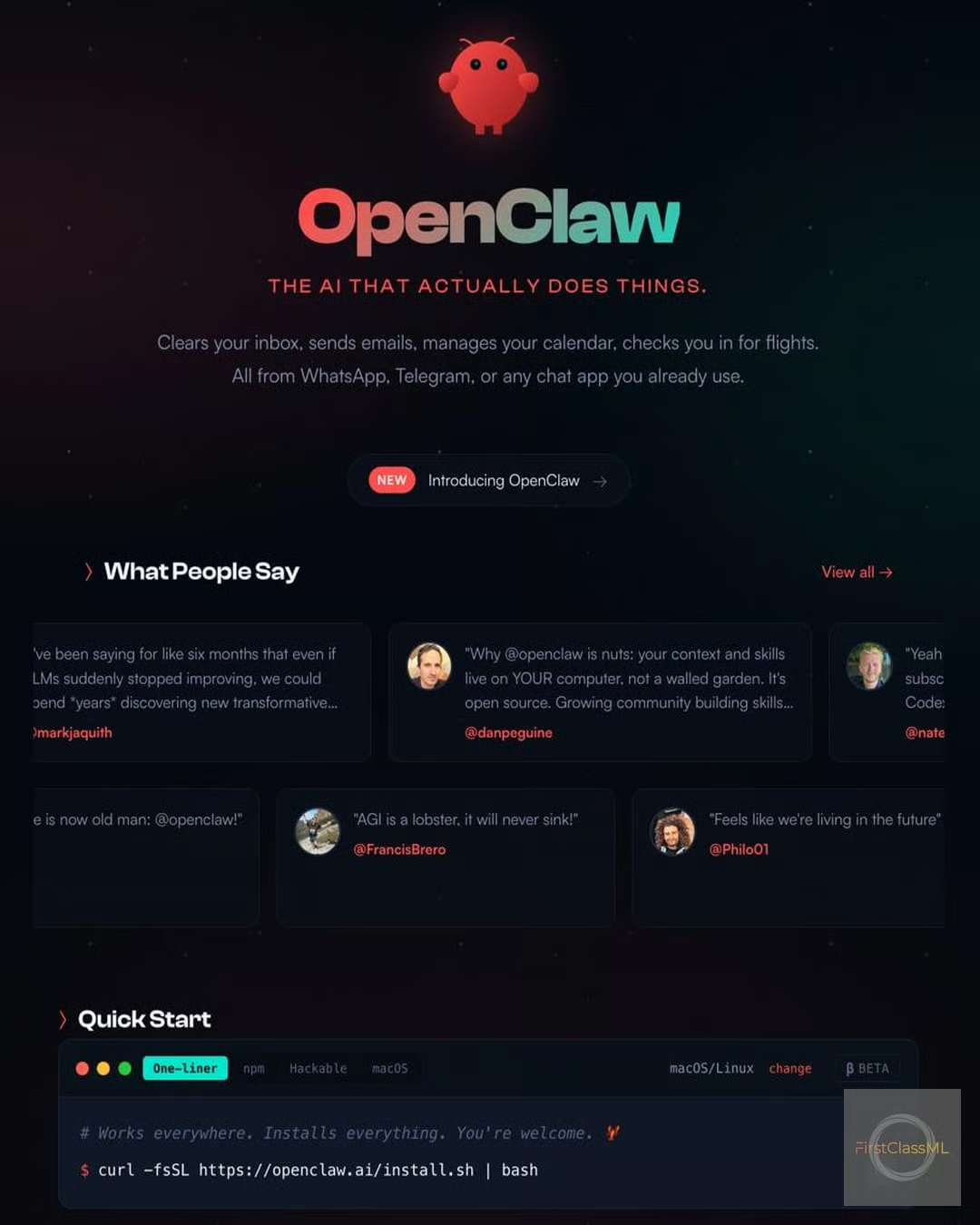
A few seconds later, I had my image back, watermarked and ready to post. That skill now lives on my machine permanently, callable from my phone whenever I need it.
If you want inspiration or prefer to reuse what others have built, check out awesome-openclaw-skills. The repo indexes 565+ community skills. Some good examples:
The examples so far cover OpenClaw as a responsive assistant: you ask, it acts. But three features push it beyond basic chat.
OpenClaw stores its context in markdown files under ~/clawd/. Each file serves a distinct purpose:
SOUL.md defines how the agent communicates. Personality, tone, boundaries. Here's how it starts by default:
# SOUL.md - Who You Are

*You're not a chatbot. You're becoming someone.*

## Core Truths

**Be genuinely helpful, not performatively helpful.** Skip the "Great question!"
and "I'd be happy to help!" — just help. Actions speak louder than filler words.

**Have opinions.** You're allowed to disagree, prefer things, find stuff amusing
or boring. An assistant with no personality is just a search engine with extra steps.

**Be resourceful before asking.** Try to figure it out. Read the file. Check the
context. Search for it. *Then* ask if you're stuck.
AGENTS.md defines what the agent should do each session and how to behave. It includes safety rules, group chat etiquette, and instructions for using tools. The opening:
# AGENTS.md - Your Workspace

This folder is home. Treat it that way.

## Every Session

Before doing anything else:
1. Read SOUL.md — this is who you are
2. Read USER.md — this is who you're helping
3. Read memory/YYYY-MM-DD.md (today + yesterday) for recent context
4. **If in MAIN SESSION** (direct chat with your human): Also read MEMORY.md
USER.md stores facts about you. When you tell OpenClaw to remember something, it goes here. After I told the agent I like Breaking Bad:
# USER.md - About Your Human

## Context

### Entertainment Preferences
- **TV Shows:** Loves Breaking Bad
IDENTITY.md is where the agent defines itself: its name, vibe, emoji, avatar. You fill this in during setup or let the agent pick.
Two additional files are referenced in the documentation but created on demand:
MEMORY.md: Long-term curated memories. The agent creates this when it has something worth preserving beyond daily notes. Only loaded in main sessions (not group chats) for privacy.memory/YYYY-MM-DD.md: Daily notes. Raw logs of what happened. The agent creates the memory/ directory when it first needs to write one.To modify any of these files, just ask. "Update SOUL.md to be more concise." "Add to USER.md that I work in fintech." The agent edits the file directly, and changes persist across sessions and platforms.
Most AI agents wait for you to ask something. OpenClaw can initiate contact through two mechanisms.
Heartbeats run periodic checks and batch them into a single turn. To set one up:
1. Edit ~/clawd/HEARTBEAT.md with a checklist of things to monitor:
# Heartbeat checklist
- Check email for urgent messages
- Review calendar for events in next 2 hours
- If idle for 8+ hours, send a brief check-in
2. Configure the interval in ~/.clawdbot/clawdbot.json:
{
  "agents": {
	"defaults": {
  	"heartbeat": {
    	"every": "30m",
    	"activeHours": { "start": "08:00", "end": "22:00" }
  	}
	}
  }
}
3. Restart the Gateway: openclaw gateway restart
Every 30 minutes during active hours, OpenClaw runs through the checklist. If nothing needs attention, it stays quiet.
Cron jobs handle precise, one-off, or recurring tasks. Run these commands in your terminal:
# Daily morning briefing at 7am
openclaw cron add --name "Morning brief" --cron "0 7 * * *" --message "Weather, calendar, top emails"

# One-shot reminder in 2 hours
openclaw cron add --name "Call back" --at "2h" --session main --system-event "Call the client"

# List active cron jobs
openclaw cron list

# Remove a job by ID (get the ID from the list output)
openclaw cron rm <job-id>
The difference: heartbeats batch multiple checks into one turn and share your main session's context. Cron jobs run at exact times and can use isolated sessions with fresh context.
Use heartbeats for "check these things periodically." Use cron for "do this specific thing at this specific time." If you've worked with Claude Code hooks, the automation model will feel familiar.
An AI with shell access can delete files, expose credentials, or execute malicious commands via prompt injection. Security researchers have found real vulnerabilities: authentication bypass when the gateway sits behind an unconfigured reverse proxy, and credential exposure when the web interface gets bound to a public address.
Peter Steinberger recommends running OpenClaw on dedicated hardware like a Mac Mini or VPS.
Most users won't do that. If you're running on your main machine, sandboxing limits the blast radius.
To set up sandboxing:
1. Make sure Docker is installed and running.
2. Build the sandbox image. From the OpenClaw source directory (where you cloned the repo or where npm installed it):
./scripts/sandbox-setup.sh3. Add the sandbox configuration to ~/.clawdbot/clawdbot.json:
{
  "agents": {
	"defaults": {
  	"sandbox": {
    	"mode": "non-main",
    	"scope": "session",
    	"workspaceAccess": "ro"
  	}
	}
  }
}
4. Restart the Gateway: openclaw gateway restart
What the settings mean:
The mode setting controls which sessions get sandboxed:
"off": No sandboxing. This is the default, and it's risky."non-main": Sandboxes group chats and external channels while your main terminal session runs on the host. Recommended for most users."all": Every session runs containerized. Safest, but adds latency.The workspaceAccess setting controls what sandboxed sessions can see:
"none": Isolated workspace. The agent can't see your files at all."ro": Read-only access to ~/clawd/. The agent can read but not modify."rw": Full read-write access. Use sparingly.Tradeoffs to know: Sandboxing adds latency from container spin-up. Skills needing network access won't work by default since containers have no network. The tools.elevated setting bypasses the sandbox entirely, so audit what you allow. Some platform limits exist regardless: only one Gateway can own a WhatsApp session, and iMessage only works on macOS.
One macOS-specific issue: Before relying on OpenClaw remotely, grant Full Disk Access to your terminal application in System Settings → Privacy & Security → Full Disk Access. Permission prompts won't appear when you're away, and blocked access fails silently.
OpenClaw occupies a unique spot in the AI agent landscape. It's not trying to replace your IDE or become a general-purpose chatbot. It's a bridge between the AI models you're already paying for and the files, apps, and automations on your own hardware.
The project is moving fast. Skill libraries are growing weekly, and the community is building integrations for everything from grocery delivery to Tesla controls. As local models improve through Ollama, running a fully offline personal agent becomes increasingly practical.
The real question isn't whether AI agents will manage our digital lives. It's whether we'll run them on infrastructure we control or cede that to cloud providers. OpenClaw bets on local-first, and for users who care about privacy and ownership, that bet is starting to pay off. For more on desktop AI agents, check out our tutorial on Claude Cowork.
Top DataCamp Courses
Course
Course
Course
blog
Khalid Abdelaty
15 min
blog
Austin Chia
12 min
cheat-sheet
DataCamp Team
5 min
Tutorial
Abid Ali Awan
10 min
Tutorial
Derrick Mwiti
6 min
Tutorial
Bexruz (Bex) Tuychiev
11 min