Excel may not be built for writing, but that hasn’t stopped us from using it for everything from to-do lists to project plans. If you work with lots of text in a spreadsheet, bullet points can help keep things readable.
Although Excel doesn’t have a built-in bullet list feature like Word, this doesn’t mean you’re out of options. In this post, I’ll walk you through a few simple ways to add bullet points to your Excel sheets.
How to Insert a Bullet Point in a Cell
Let’s explore three easy ways to add a single bullet point in an Excel cell.
Use Alt key shortcuts
The easiest way is to use the shortcut keys: Click on a cell, then press Alt + 7 or Alt + 0149 to insert a solid bullet, or Alt + 9 for a hollow one.
But these only work if your keyboard has a numeric keypad. On many laptops, you’ll need to turn on Num Lock first using Shift + Num Lock or Fn + Num Lock. Without a numeric keypad or active Num Lock, the shortcuts may not work.
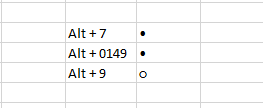
Insert bullets using the shortcut keys. Image by Author.
Use the CHAR() function
You can also use the CHAR() function. I use it when I have to add bullets in multiple cells in one go. Select the cells where you want the bullets, then enter: =CHAR(149). This inserts a bullet in each selected cell.
You can also combine a bullet with text using a formula like: =CHAR(149) & "Fruits", or use a cell reference such as: =CHAR(149) & C3. Then drag the formula down to apply it across multiple cells.
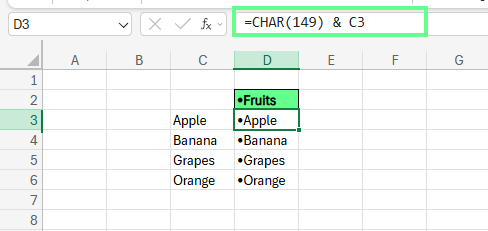
Add bullets using the CHAR() function. Image by Author.
You can also insert a bullet using Excel’s built-in Symbol tool. Go to the Insert tab, select Symbol, and in the pop-up box, type 2022 (Unicode for bullet) in the character code field. You can change the font to Wingdings or Arial to pick different bullet styles. Click Insert, and you're done.
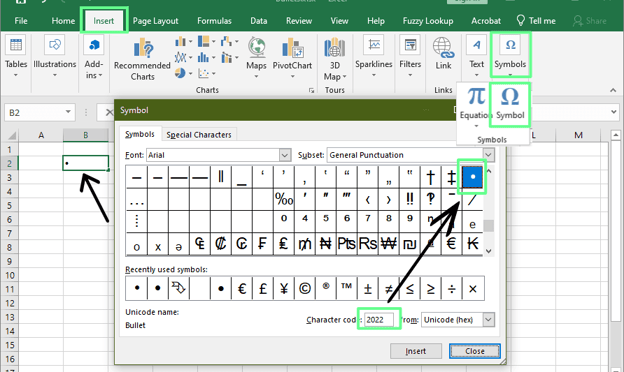
Add bullets using the Symbol method. Image by Author.
How to Make a Bulleted List in a Single Cell
Let’s say you want more than just a single bullet. Maybe you’re making a checklist or organizing a few points in the same cell. Here are two simple ways to add a bulleted list inside one cell in Excel:
Manual method with line breaks
Add multiple bullets to a single cell using any of the methods above (Symbol option is usually the easiest). Once they’re in, place your cursor between two bullets and press Alt + Enter to insert a line break. This creates a clean, stacked list, all within one cell.
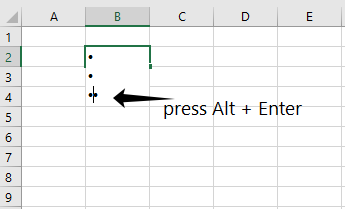
Insert bullets into multiple lines. Image by Author.
Copy and paste from Word
If you already have a bulleted list in Microsoft Word, no need to recreate it in Excel.
Copy the list from Word using Ctrl + C. To keep all the bullets in one Excel cell, double-click the cell to enter edit mode, then press Ctrl + V to paste. If you want each bullet on a separate row, click once on a blank cell, press Ctrl + V, and Excel will automatically drop each item into its cell.
Sometimes the formatting might need a quick tidy-up, but it’s a handy shortcut.
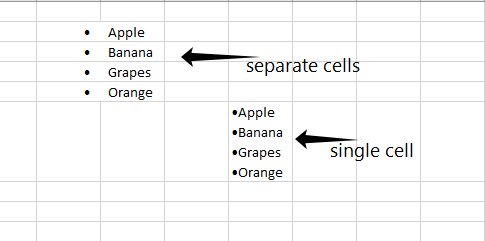
Copy and paste the bullets from Word to Excel. Image by Author.
Alternative Methods for Adding Bullet Points
Besides typing bullets directly into cells, let’s look at a few other ways to create bullet-style formatting in Excel.
If you add bullets repeatedly, custom formatting can save time by automatically applying a bullet to any cell you type in.
To set it up:
-
Select a cell and press Ctrl + 1 (or right-click and choose Format Cells).
-
Go to the Number tab and select Custom.
-
In the Type field, press Alt + 7 or Alt + 9 to add a bullet, then add a space, type @, and click OK.
Now, anything you type in that cell will start with a bullet. Use the Format Painter from the Home tab to quickly apply this to other cells.
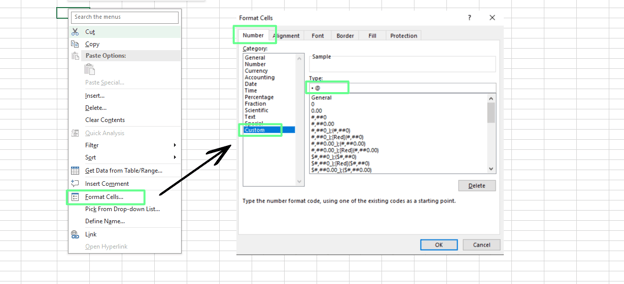
Add bullets using the formatting cells option. Image by Author.
Use special fonts like Wingdings
You can also switch to a symbol-based font like Wingdings. After changing the font, certain letters become bullet symbols.
For example:
- Typing
l gives a solid bullet.
- Typing
n gives a hollow bullet.
This method is quick and doesn’t require formulas or menus.
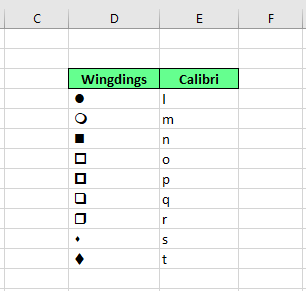
Add different bullets using the Wingdings font. Image by Author.
Insert a Text Box
Text boxes offer more design control and are great for visual layouts. Here’s how to add one:
- Go to the Insert tab, click Text, then choose Text Box.
- Click and drag to place it on your sheet.
- Type your list into the box, then highlight the text.
- Right-click and select Bullets to choose your preferred style.
This is helpful if you're designing dashboards or annotated sheets.
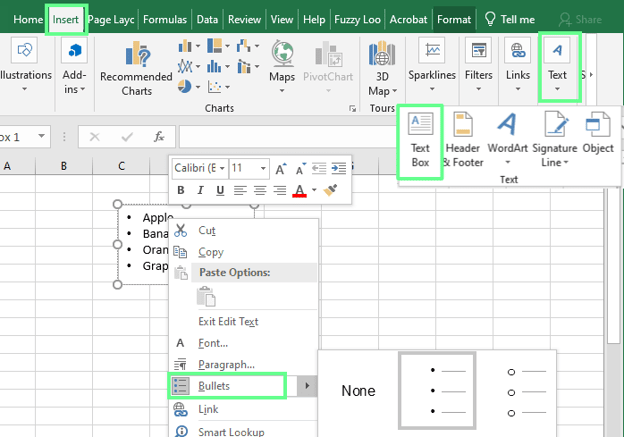
Insert bullets using a Text box. Image by Author.
Use SmartArt graphics
SmartArt is perfect for visual presentations or polished dashboards. But SmartArt is over the grid; it’s not part of your cell data and can’t be used in formulas or sorting.
To use it: Go to the Insert tab, find SmartArt under the Illustration group, and select a style from the List section (like Horizontal Bullet List).
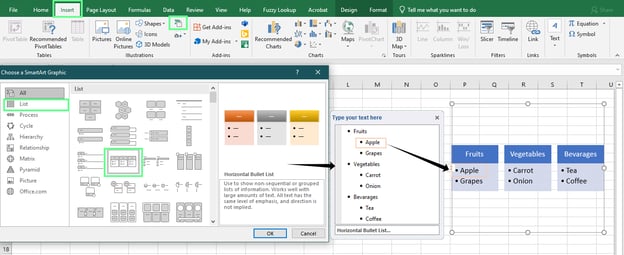
Insert bullets using a SmartArt graphic tool. Image by Author.
Once added, play around with styles to make it fit your sheet’s look. You can customize it using the Format or Design tabs under SmartArt Tools.
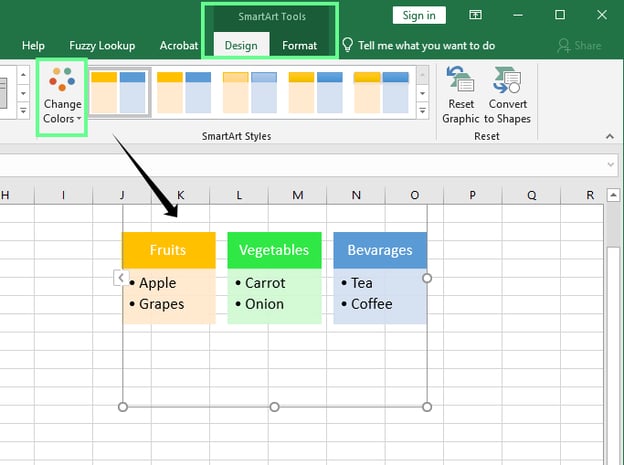
Customizing bullets in the SmartArt Tools section. Image by Author.
Common Issues and Workarounds
Adding bullet points in Excel is pretty simple, but a few common problems may get in your way. Here's how to spot them and what you can do to fix them.
Bullets not showing up
If your bullets aren't appearing, one of these could be the reason:
-
Keyboard layout: Some international keyboards don’t support standard Alt key shortcuts. So, Alt + 7 may not work if your system uses a different input method.
-
Unsupported font: Not all fonts include bullet characters. Fonts like Calibri Light or Courier may not display bullets correctly. Try switching to Arial, Calibri, or Wingdings instead.
-
Incorrect character code: Typing the wrong code, like Alt + 150 instead of Alt + 0149 might insert a different character or nothing at all. Similarly, a typo in =CHAR(149) could cause issues.
If none work, try using the Symbol menu method or copy and paste a bullet from a reliable source online. This can help you bypass font and keyboard limitations entirely.
Editing long bulleted lists
Multi-line bullet lists inside a single cell can be tricky to manage. You may notice:
- Text doesn’t wrap unless Wrap Text is turned on.
- Bullets appear misaligned if the line lengths vary.
- Excel doesn’t support indenting within a cell, which makes formatting more difficult.
Here are some ways around it:
- Use two columns, one for bullet symbols and one for the text. This gives you more control over spacing and alignment.
- Insert a Word object into your Excel sheet. This lets you use Word’s built-in bullet and list formatting tools, all inside Excel.
Pros and Cons of Each Method
Here's a quick overview of the discussed methods — what each one’s suitable for, and where they might fall short.
|
Method
|
Pros
|
Cons
|
|
Alt Key
|
Quick and easy; no formulas needed
|
Needs a numeric keypad; may not work on all laptops
|
|
CHAR() Formula
|
Flexible for combining with other text; can be used in formulas
|
Not beginner-friendly
|
|
Symbol Menu
|
Simple to use and good for styling
|
Manual and has limited styles.
|
|
Custom Number Formatting
|
Automatically applies bullets; easy to reuse with Format Painter
|
Doesn’t change actual content; just appearance
|
|
Wingdings Font
|
A fast way to insert bullet symbols
|
Requires changing font
|
|
Text Box
|
Best for clean formatting
|
Not tied to cells; can float and shift position
|
|
SmartArt
|
Looks professional. Good for presentations and dashboards
|
Not ideal for data manipulation
|
|
Copy from Word
|
Fast when a list is already made; keeps formatting
|
Formatting may not carry over perfectly
|
Key Takeaways
Excel doesn’t have a built-in bullet list tool but that doesn’t mean you’re stuck. There are plenty of easy ways to add bullet points, depending on what you’re after.
If you want something quick, keyboard shortcuts or the Symbol menu do the job. For more control or dynamic lists, go with the CHAR() function or custom formatting. And if you're aiming for a more visual or polished look, text boxes and SmartArt give you extra flexibility.
If you want to keep building your Excel skills, here are a few resources I’d recommend:


Excel may not be built for writing, but that hasn’t stopped us from using it for everything from to-do lists to project plans. If you work with lots of text in a spreadsheet, bullet points can help keep things readable.
Although Excel doesn’t have a built-in bullet list feature like Word, this doesn’t mean you’re out of options. In this post, I’ll walk you through a few simple ways to add bullet points to your Excel sheets.
How to Insert a Bullet Point in a Cell
Let’s explore three easy ways to add a single bullet point in an Excel cell.
Use Alt key shortcuts
The easiest way is to use the shortcut keys: Click on a cell, then press
Alt + 7orAlt + 0149to insert a solid bullet, orAlt + 9for a hollow one.But these only work if your keyboard has a numeric keypad. On many laptops, you’ll need to turn on Num Lock first using
Shift + Num LockorFn + Num Lock. Without a numeric keypad or active Num Lock, the shortcuts may not work.Insert bullets using the shortcut keys. Image by Author.
Use the CHAR() function
You can also use the
CHAR()function. I use it when I have to add bullets in multiple cells in one go. Select the cells where you want the bullets, then enter:=CHAR(149). This inserts a bullet in each selected cell.You can also combine a bullet with text using a formula like:
=CHAR(149) & "Fruits", or use a cell reference such as:=CHAR(149) & C3. Then drag the formula down to apply it across multiple cells.Add bullets using the CHAR() function. Image by Author.
Use the Symbol menu
You can also insert a bullet using Excel’s built-in Symbol tool. Go to the Insert tab, select Symbol, and in the pop-up box, type
2022(Unicode for bullet) in the character code field. You can change the font to Wingdings or Arial to pick different bullet styles. Click Insert, and you're done.Add bullets using the Symbol method. Image by Author.
How to Make a Bulleted List in a Single Cell
Let’s say you want more than just a single bullet. Maybe you’re making a checklist or organizing a few points in the same cell. Here are two simple ways to add a bulleted list inside one cell in Excel:
Manual method with line breaks
Add multiple bullets to a single cell using any of the methods above (Symbol option is usually the easiest). Once they’re in, place your cursor between two bullets and press
Alt + Enterto insert a line break. This creates a clean, stacked list, all within one cell.Insert bullets into multiple lines. Image by Author.
Copy and paste from Word
If you already have a bulleted list in Microsoft Word, no need to recreate it in Excel.
Copy the list from Word using
Ctrl + C. To keep all the bullets in one Excel cell, double-click the cell to enter edit mode, then pressCtrl + Vto paste. If you want each bullet on a separate row, click once on a blank cell, pressCtrl + V, and Excel will automatically drop each item into its cell.Sometimes the formatting might need a quick tidy-up, but it’s a handy shortcut.
Copy and paste the bullets from Word to Excel. Image by Author.
Alternative Methods for Adding Bullet Points
Besides typing bullets directly into cells, let’s look at a few other ways to create bullet-style formatting in Excel.
Use custom number formatting
If you add bullets repeatedly, custom formatting can save time by automatically applying a bullet to any cell you type in.
To set it up:
Select a cell and press
Ctrl + 1(or right-click and choose Format Cells).Go to the Number tab and select Custom.
In the Type field, press
Alt + 7orAlt + 9to add a bullet, then add a space, type@, and click OK.Now, anything you type in that cell will start with a bullet. Use the Format Painter from the Home tab to quickly apply this to other cells.
Add bullets using the formatting cells option. Image by Author.
Use special fonts like Wingdings
You can also switch to a symbol-based font like Wingdings. After changing the font, certain letters become bullet symbols.
For example:
lgives a solid bullet.ngives a hollow bullet.This method is quick and doesn’t require formulas or menus.
Add different bullets using the Wingdings font. Image by Author.
Insert a Text Box
Text boxes offer more design control and are great for visual layouts. Here’s how to add one:
This is helpful if you're designing dashboards or annotated sheets.
Insert bullets using a Text box. Image by Author.
Use SmartArt graphics
SmartArt is perfect for visual presentations or polished dashboards. But SmartArt is over the grid; it’s not part of your cell data and can’t be used in formulas or sorting.
To use it: Go to the Insert tab, find SmartArt under the Illustration group, and select a style from the List section (like Horizontal Bullet List).
Insert bullets using a SmartArt graphic tool. Image by Author.
Once added, play around with styles to make it fit your sheet’s look. You can customize it using the Format or Design tabs under SmartArt Tools.
Customizing bullets in the SmartArt Tools section. Image by Author.
Common Issues and Workarounds
Adding bullet points in Excel is pretty simple, but a few common problems may get in your way. Here's how to spot them and what you can do to fix them.
Bullets not showing up
If your bullets aren't appearing, one of these could be the reason:
Keyboard layout: Some international keyboards don’t support standard
Altkey shortcuts. So,Alt + 7may not work if your system uses a different input method.Unsupported font: Not all fonts include bullet characters. Fonts like Calibri Light or Courier may not display bullets correctly. Try switching to Arial, Calibri, or Wingdings instead.
Incorrect character code: Typing the wrong code, like
Alt + 150instead ofAlt + 0149might insert a different character or nothing at all. Similarly, a typo in=CHAR(149)could cause issues.If none work, try using the Symbol menu method or copy and paste a bullet from a reliable source online. This can help you bypass font and keyboard limitations entirely.
Editing long bulleted lists
Multi-line bullet lists inside a single cell can be tricky to manage. You may notice:
Here are some ways around it:
Pros and Cons of Each Method
Here's a quick overview of the discussed methods — what each one’s suitable for, and where they might fall short.
Method
Pros
Cons
Alt Key
Quick and easy; no formulas needed
Needs a numeric keypad; may not work on all laptops
CHAR() Formula
Flexible for combining with other text; can be used in formulas
Not beginner-friendly
Symbol Menu
Simple to use and good for styling
Manual and has limited styles.
Custom Number Formatting
Automatically applies bullets; easy to reuse with Format Painter
Doesn’t change actual content; just appearance
Wingdings Font
A fast way to insert bullet symbols
Requires changing font
Text Box
Best for clean formatting
Not tied to cells; can float and shift position
SmartArt
Looks professional. Good for presentations and dashboards
Not ideal for data manipulation
Copy from Word
Fast when a list is already made; keeps formatting
Formatting may not carry over perfectly
Key Takeaways
Excel doesn’t have a built-in bullet list tool but that doesn’t mean you’re stuck. There are plenty of easy ways to add bullet points, depending on what you’re after.
If you want something quick, keyboard shortcuts or the Symbol menu do the job. For more control or dynamic lists, go with the
CHAR()function or custom formatting. And if you're aiming for a more visual or polished look, text boxes and SmartArt give you extra flexibility.If you want to keep building your Excel skills, here are a few resources I’d recommend: