%22%3E%3Cpath%20d%3D%22m-369%200h408v79h-408z%22%20fill%3D%22%237933ff%22%2F%3E%3Cpath%20d%3D%22m-148%200h306v45h-306z%22%20fill%3D%22%23974dff%22%2F%3E%3C%2Fg%3E%3C%2Fsvg%3E)
%22%2F%3E%3C%2FclipPath%3E%3Cg%20clip-path%3D%22url(%23a)%22%3E%3Cpath%20d%3D%22m76%200h484v36h-484z%22%20fill%3D%22%23974dff%22%2F%3E%3Cpath%20d%3D%22m0%200h384v24h-384z%22%20fill%3D%22%2306bdfc%22%20transform%3D%22matrix(1%200%200%20-1%200%2060)%22%2F%3E%3C%2Fg%3E%3C%2Fsvg%3E)
Use the Kimi K3.1 Pro API to Build an Image-to-CAD Agent
An image-to-CAD agent turns pictures of a part into a CAD model you can edit.
Why Kimi K3.1 Pro and CadQuery fit image-to-CAD
Kimi K3.1 Pro can read four images and then react to what its own code produces. The same Moonshot blog I mentioned earlier reports 92.7% with tools and 72.8% without on BenchCAD's Vision2Code task, which scores CAD code written from rendered views of a part. Those numbers come from a 1,000-case subset at max effort, and the score with tools used the Claude Code harness, so some of that score may belong to the harness.
The benchmark also sends all four views in one image and scales every part to the same size before scoring. Mine sends four separate views plus one real dimension at high effort, so take Moonshot's number as a reason to run the test instead of its result. When I ran these trials, the open weights weren't downloadable yet.
CadQuery is the output format because a CadQuery script is itself a parametric model. A hole is a call with a diameter and a position, so a later edit changes one number and the solid rebuilds. An STL file gives you triangles, and there's no slot_width to change.
What the agent sees and what stays hidden
Kimi gets the four reference images, the 60 mm width, and a system prompt. That prompt fixes millimeters and the axes, centers the part on X and Y with its bottom at Z=0, and asks for named dimensions and a final solid in result.
After that, Kimi only knows what its tools report. The Kimi API doesn't run CadQuery, so all four tools live in the application:
-
execute_cadruns a program in a Docker container with no network and saves the result as a candidate -
inspect_cadreports validity, solid count, bounding box, volume, and cylindrical faces -
render_caddraws the candidate from the same four cameras as the reference -
submit_cadends a phase with one candidate
Kimi never sees the reference code or any score. The evaluator only reads saved STEP files after the agent finishes, so a score can't steer or stop the agent.
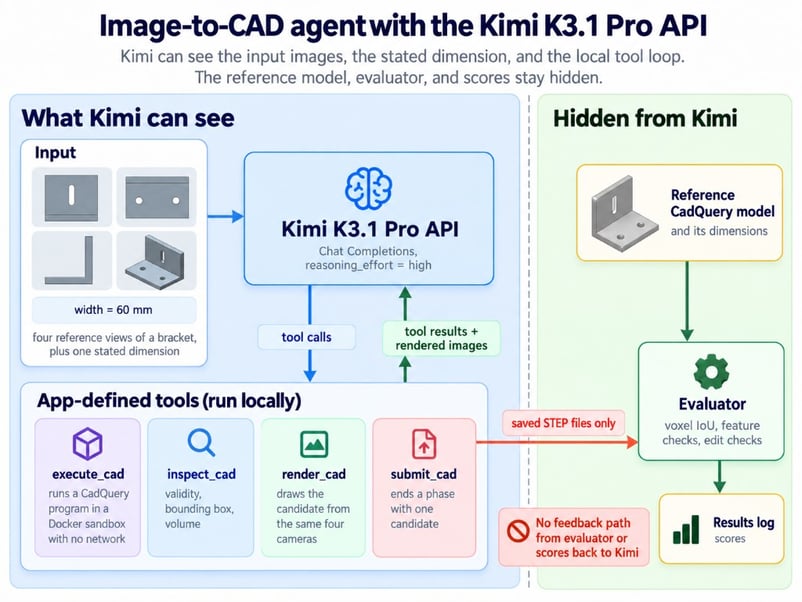 Scores never flow back to Kimi. Image by Author.
Set Up the Kimi K3.1 Pro API in Python
To use the Kimi K3.1 Pro API in Python, you need four things. I tested everything on Linux x86_64 with these versions:
-
A Kimi API key with at least $1 of top-up, per the K3.1 Pro quickstart
-
Python 3.12.3 with
openai3.39.0, the OpenAI SDK -
cadquery2.8.0 for building and checking solids -
Docker 29.9.2 for the sandbox
The snippets below are excerpts from the full project in this GitHub repository, which you'll clone next.
Install CadQuery and build the Docker sandbox
CadQuery's installation guide prefers conda, though pip on Python 3.12 works too. Clone the repository and set it up:
git clone https://github.com/KhalidAbdelaty/Kimi_K3.1_Pro_API_Tutorial.git
cd Kimi_K3.1_Pro_API_Tutorial
python -m venv .venv
source .venv/bin/activate        # Windows: .venv\Scripts\Activate.ps1
pip install -r requirements.txt
cp .env.example .env             # then add your MOONSHOT_API_KEY
docker build -t cad-sandbox:2.8.0 sandbox/The sandbox image installs the same CadQuery version and runs as a regular user. Docker sets no CPU or memory limits by default, per its resource constraints docs, so the runner sets them. The repository's front page lists the commands to run and score the experiment, including a path with no API key or Docker.
Before Kimi's code ever reaches the container, try to break it yourself. My test program tried to read the API key, reach the network, and write outside its scratch folder, and all three attempts failed.
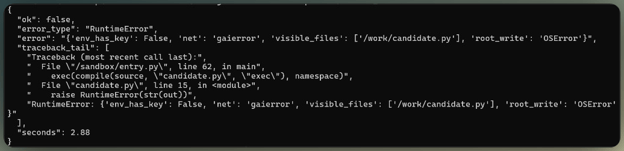
Three blocked operations in the sandbox. Image by Author.
Make your first Kimi K3.1 Pro API call
This is the regular OpenAI SDK pointed at Moonshot's endpoint. Set reasoning_effort on every request, because leaving it out gives you max, and you can't turn thinking off.
client = OpenAI(api_key=os.environ["MOONSHOT_API_KEY"], base_url="https://api.moonshot.ai/v1")

response = client.chat.completions.create(
    model="kimi-k3.1-pro",
    reasoning_effort="high",        # low, high, or max; the API default is max
    max_completion_tokens=2048,     # reasoning and answer share this cap
    messages=[{"role": "user", "content": "In one sentence, what does a STEP file store?"}],
)
print(response.choices[0].message.content)
print("usage:", response.usage.model_dump(exclude_none=True))Leave out temperature, top_p, n, and both penalties, which the quickstart lists as fixed. Even a one-sentence answer like this one spends most of its completion tokens on reasoning, so size the cap with that in mind.

One request confirms key and model. Image by Author.
If the Kimi API is new to you, my earlier Kimi K3 tutorial covers streaming, tool calling, caching, and vision input.
Create a Reference CAD Model and Four Test Views
A reference CAD model is your answer key, so every score has something exact to compare against. I locked mine before the first request, from the cameras to the scoring rules, and didn't change any of it after seeing results.
Define the bracket dimensions
The bracket is an L, with the upright joined at the back of the base. Its origin sits at the center of the bottom face, with X across the width, the front toward −Y, and Z up:
|
Feature |
Value |
Shown to Kimi? |
|
Overall width (X) |
60 mm |
Yes |
|
Base depth (Y) |
40 mm |
No |
|
Overall height (Z) |
45 mm |
No |
|
Plate thickness |
6 mm |
No |
|
Mounting holes |
2 × Ø6.5 mm, 34 mm apart, at Y = −3 mm |
No |
|
Upright slot |
6 mm wide, 20 mm end to end, centered at X = 0, Z = 25.5 mm |
No |
I put the hole row and the slot in the middle of their faces and used 6.5 mm holes, a common M6 clearance size, because a real bracket would. That choice turned out to be this bracket's weak spot, and we'll get to why.
Inside the build function, w, dep, h, and t hold the width, depth, height, and thickness. It joins the two plates and cuts the features:
base = cq.Workplane("XY").box(w, dep, t, centered=(True, True, False))
upright = cq.Workplane("XY").center(0, dep / 2 - t / 2).box(w, t, h, centered=(True, True, False))
holes = cq.Workplane("XY").pushPoints([(-17, -3), (17, -3)]).circle(3.25).extrude(t)
slot = (cq.Workplane("XZ", origin=(0, dep / 2 - t / 2, 0)).center(0, 25.5)
        .slot2D(20, 6, 90)            # end-to-end length, width, angle
        .extrude(t, both=True))
result = base.union(upright).cut(holes).cut(slot)The script checks for one valid solid of the expected size before exporting a STEP file.
Render four views with fixed cameras
A small NumPy renderer draws front, top, right, and isometric views with the same fixed framing for the reference and every candidate. At 512 px, one pixel covers about 0.19 mm, though a reading from the image can be off by more than that. Fixed framing also makes a candidate that's too big or misplaced look wrong instead of re-centered.
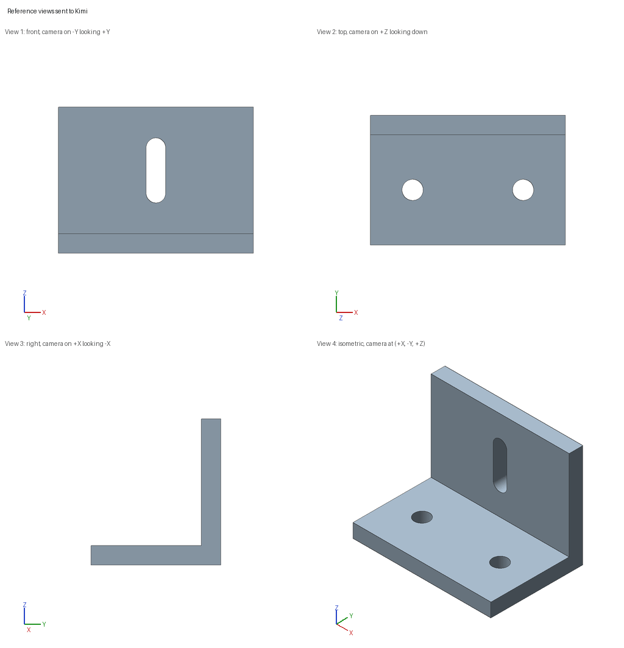
The four images sent to Kimi. Image by Author.
Set the evaluation rules before running the agent
The evaluator measures the exported solid, so parameter names can't fool it. It slices each STEP file to find the holes, the slot, and both plate thicknesses, and it computes voxel IoU, the share of volume two solids have in common, on a 0.5 mm grid at real size. Tolerances follow the pixel scale: ±0.5 mm for thicknesses, hole diameters, and slot width, and ±1 to ±1.5 mm for lengths and positions read from images.
IoU alone isn't enough. I find it a blunt number, and I keep using it because nothing simpler compares two solids. A plain L with no holes and no slot still scores above 0.96, and the right part made 20% too big scores a perfect 1.0 once both are scaled to the same size.
That's why every score here comes with 13 pass or fail checks. Even a perfect 1.0 only means two solids match on that grid, not to every micron, and none of these numbers is a manufacturing guarantee.
Generate CadQuery Code From Images With Kimi K3.1 Pro
The first candidate comes from one request with no tools, and it runs exactly as returned.
Send four reference views to the Kimi K3.1 Pro API
Kimi's vision input takes base64 data URLs inside a content array, and it doesn't accept public image URLs. The system prompt holds the frame and naming rules I described earlier, and the user message carries the four PNGs and this prompt:
These four images show one mechanical part, a bracket. Each view uses orthographic
projection, and all four use the same scale. The camera for each view is written at the
top of the image, and a small axis triad sits in the lower-left corner.

The overall width of the part along X is 60 mm. No other dimension is given, so estimate
the rest from the images.

Write one CadQuery program that rebuilds this part as an editable parametric model.
Return the complete program in a single python code block.The request itself is short:
images = [image_part(path) for path in view_paths]   # four PNGs as base64 data URLs
messages.append({"role": "user", "content": images + [{"type": "text", "text": BASELINE_PROMPT}]})
response = client.chat.completions.create(
    model="kimi-k3.1-pro", reasoning_effort="high",
    max_completion_tokens=32_768, messages=messages,
)To check the input size before paying, send the same messages to the token estimate endpoint, whose estimate matched the bill almost exactly. Four 512 px images come to under 2,000 input tokens.
Run the first CadQuery program in a sandbox
The runner writes the code to a scratch folder and starts a throwaway container with the docker run command:
cmd = ["docker", "run", "--rm", "--network", "none", "--read-only",
       "--tmpfs", "/tmp:size=64m", "--cap-drop", "ALL",
       "--security-opt", "no-new-privileges",
       "--memory", "1g", "--cpus", "1", "--pids-limit", "128",
       "-v", f"{work}:/work", "cad-sandbox:2.8.0"]
subprocess.run(cmd, capture_output=True, text=True, timeout=60)In the first trial, Kimi's reply took about a minute. Its program named every dimension in the hidden reference, from bracket_depth = 40.0 to slot_center_z = 25.5. It produced a valid solid and passed every check.
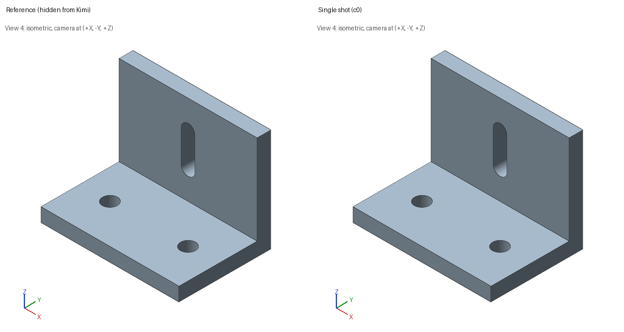
Same camera, same scale, matching parts. Image by Author.
A perfect first try made me check for a leak, but the PNGs carry no metadata, and no prompt contains a hidden value. Kimi's code explains the result. As I mentioned when I defined the bracket, the features sit where a designer would put them, and so did Kimi.
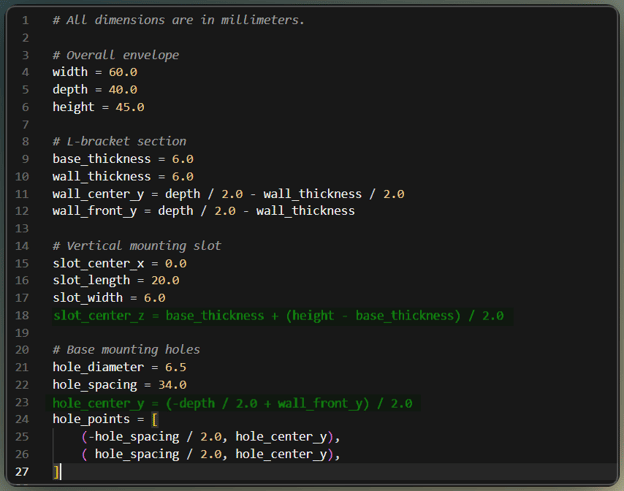
Kimi derives feature positions from midpoints. Image by Author.
Build a Self-Checking Tool-Calling Agent With Kimi K3.1 Pro
A tool-calling agent runs in a loop. Kimi asks for a tool, your code runs it, and the result goes back as a tool message until Kimi is done.
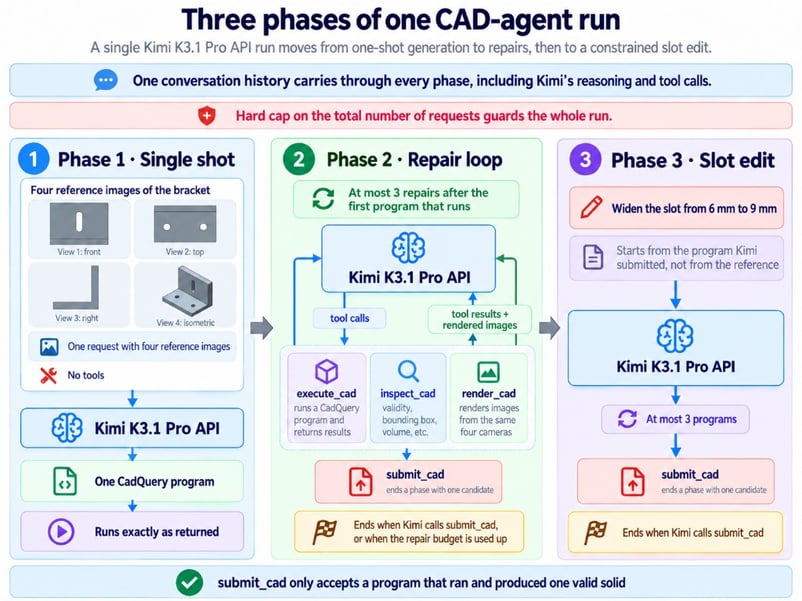
Three phases, each with hard limits. Image by Author.
Define tools to execute, inspect, and render CAD
Here's execute_cad as a schema. It returns a short result in a fixed format, with the last few traceback lines when a program fails:
{"type": "function", "function": {
    "name": "execute_cad",
    "description": "Run a complete CadQuery program in an isolated sandbox. Returns a "
                   "candidate id, whether it ran, and a short error if it did not.",
    "parameters": {"type": "object", "properties": {
        "code": {"type": "string",
                 "description": "The complete program. It must assign the final solid to result."}},
"required": ["code"]}}}render_cad returns its four images inside the tool message itself, the same look-again pattern our agentic vision tutorial uses with Gemini. Kimi's docs don't show an example of this, so treat it as observed behavior. In all three trials, a role: "tool" message carried image_url parts, and the model read them.
Keep the full assistant message in the tool loop
Three details matter here, and the first two come from Kimi's thinking models guide and quickstart:
-
Send the complete assistant message back on every turn,
reasoning_contentandtool_callsincluded -
Add one tool message per tool call, with the matching
tool_call_id -
Serialize the message with
model_dump(), because the OpenAI SDK has no typedreasoning_contentfield
The loop below follows all three:
message = response.choices[0].message.model_dump(exclude_none=True)
messages.append(message)        # all of it, or the next turn quietly loses its reasoning
for call in message.get("tool_calls") or []:
    content = run_tool(call["function"]["name"], json.loads(call["function"]["arguments"]))
messages.append({"role": "tool", "tool_call_id": call["id"], "content": content})Don't count on the API to catch a mistake here. A request with reasoning_content removed from the history still succeeds, though the docs require the field and dropping it may change how later turns continue. I'd prefer a 400 to a bug that fails silently.
The budget lives in the loop's code, where Kimi can't change it. Once the 3 repairs are used, execute_cad answers with an error, and submit_cad refuses anything that isn't one valid solid.
What happened in the repair phase
Not much, and I almost cut this section for that reason. I built the repair loop expecting it to do most of the work, and Kimi barely touched it. It inspected its first candidate, rendered it, wrote a confident summary saying it matched all four reference views, and submitted the same program it started with.
That summary wasn't always right. In one trial, inspect_cad reported a 3.0 mm hole radius, so 6.0 mm holes where the reference has 6.5 mm, and Kimi submitted anyway. Half a millimeter is under 3 pixels in these views (I wouldn't trust my own eyes at that size either), and nothing in the feedback said what the right diameter was.
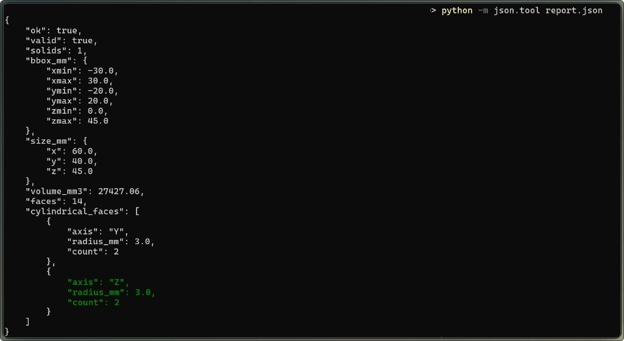
The tool reported 3.0 mm radii. Image by Author.
Edit a Parametric CAD Model With Kimi K3.1 Pro
With the repair loop idle, the design change became the more telling test. It's a gentle test, though, and a change that moves two features at once would push much harder.
Ask Kimi to widen the slot
The edit continues the same conversation and starts from the candidate Kimi submitted, not from my reference code:
Increase the width of the vertical slot in the upright plate from 6 mm to 9 mm.
Keep the slot's center position and its end-to-end length as they are in your model.
Do not change the mounting holes, the plate thickness, or the outer dimensions.Kimi used one of its 3 allowed programs. The diff is one line, slot_width = 6.0 to slot_width = 9.0, then one turn to inspect and render and a submit.
Check the edit on the exported geometry
A new number in the code doesn't prove the solid changed. The evaluator compared the solids before and after the edit voxel by voxel, ignoring only the space the wider slot is allowed to take:
- The slot is 9 mm wide, with the same length and center
- Holes, plate thickness, and outer size are unchanged
- No material changed outside the slot area
Every edit check passed, every time.
The edit worked cleanly because slot2D() treats its length as end to end, so the slot stayed 20 mm long and the straight part got shorter. A program that stored the distance between the two arc centers would have made the slot 3 mm longer.
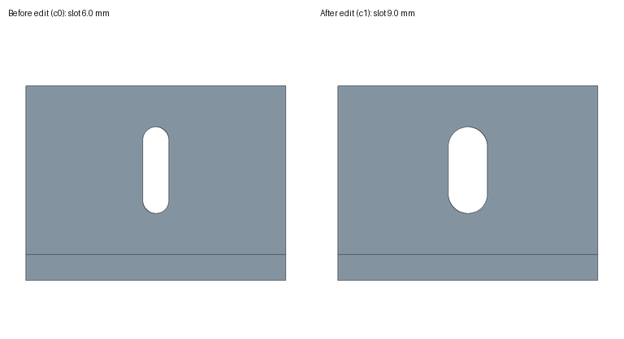
The edit changed only the slot. Image by Author.
How Accurate Was the Kimi K3.1 Pro CAD Agent?
The agent passed every hidden check in all three trials, within the tolerances I fixed in advance. Read the table as a recap:
|
Check |
Result across three trials |
|
Hidden geometry checks passed |
13 of 13 every time |
|
Voxel IoU against the reference (0.5 mm grid) |
0.998 to 1.0 |
|
Hole diameter (true value 6.5 mm) |
6.5 mm twice, 6.0 mm once, which Kimi's review let through |
|
Repairs used (3 allowed) |
0 |
|
Edit checks passed |
8 of 8 every time |
Three trials aren't a success rate, only a sign that the result held on one bracket. The 6.0 mm holes from the repair phase passed only because they sat exactly on the ±0.5 mm hole tolerance, so a stricter limit would have failed that trial.
Self-correction had nothing to fix
The test that would show whether the loop improves a model is a fault-injection run, which starts the agent from a program with a known error. I'd report that apart from these trials.
Token cost and run time per trial
Each trial cost 6.3 to 7.3 cents for six requests and seven tool calls. That's API charges only, since rendering and Docker ran on my machine.
Price each request from its usage fields at the published rates for kimi-k3.1-pro. Per million tokens, that's $2.00 for input, $10.00 for output, $0.20 for cache hits, and $2.00 for 5-minute cache writes.
|
Phase |
Requests |
Share of cost |
|
First request |
1 |
About half |
|
Repair review |
2 |
About a quarter |
|
Edit |
3 |
About a quarter |
The first request costs the most because that's where Kimi reasons. Output is more than half of the bill and cache writes 23% to 35%, while cache hits cost almost nothing. Here's how the three input fields add up, per the Chat Completions reference I linked earlier, and you can skip it if your tracker already splits cache writes:
uncached = u.prompt_tokens - cached - written   # the three parts sum to prompt_tokens
cost = (uncached * 2.00 + cached * 0.20 + written * 2.00 + u.completion_tokens * 10.00) / 1e6Reasoning tokens are already inside completion_tokens, so don't add them a second time. A 5-minute cache write costs the same as uncached input, so prompt caching pays off only when a prefix is read back. Tool loops resend the same history every turn, and here caching cut the input bill to under 40% of the plain rate.
A trial takes about three minutes, mostly waiting, because the client spaces requests 21 seconds apart for the rate limit I'll cover in the FAQs.
Where AI CAD Generation From Images Falls Short
The main limit is that images can't carry every dimension. My test adds a few more:
- Renders can't show details smaller than a pixel. If a dimension matters, give it as text or measure it with a tool.
- The bracket was easy to guess. Off-center holes and odd sizes would test whether Kimi reads the pixels or the design habits.
- Docker flags only block what they name. They stopped the misbehaving program from the setup section, but model code can still burn its full minute of CPU. Our guide to securing AI agents in containers covers the next layers.
- Passing these checks says nothing about strength. Load, material, the rounded inner corner a real part would need, bolt fit, and how tolerances add up are outside this test.
The easy bracket is a limit of my test more than of Kimi.
Final Thoughts
We built an agent that writes parametric CadQuery code from four images, checks its own solid with tools, and edits one feature on request. For this bracket, the answer to my opening question is yes. All three trials passed on the first request within the tolerances I set, and the slot edit left the rest of the part alone.
The repair loop is the part I can't vouch for, since Kimi never found anything to repair. Its review let the one 0.5 mm error through because it saw pixels, never the true diameter. I wouldn't generalize the result to an odd-sized part or to photos of a real one.
What carries over is the method of hiding the reference, freezing the scoring rules before the first request, and scoring the exported solid instead of the code. Kimi said its candidate matched three times, and only the evaluator could tell it was right twice and close once. That evaluator is what I'd keep, and a fault-injection run would be my first extension.
For more on connecting models to your own tools, our Developing AI Systems with the OpenAI API course covers function calling with the same SDK this agent uses.
FAQs
Which image formats and sizes can I send to the Kimi K3.1 Pro API?
PNG, JPEG, GIF, WebP, BMP, HEIC, and HEIF work as base64 data URLs, while SVG is rejected even when encoded, so send an SVG drawing's XML as text. A request can carry any number of images within a 100 MB body, and the vision guide I linked earlier suggests staying under 4096×2160. I'd avoid animated GIF and WebP files, which Kimi may decode and bill as video.
Can Kimi's 3D Make replace a CAD agent like this one?
Not for parametric work, going by the launch blog. 3D Make lives in the Kimi app and website, where you edit a model and download it for 3D printing. The blog mentions no API access or STEP export, so a slot_width you can change still needs your own tool loop.
Why does my Kimi K3.1 Pro agent get HTTP 429 errors?
Read error.type first, because Kimi uses 429 for three different problems. rate_limit_reached_error means you passed your tier's rate limits, which rise from 3 requests per minute at $1 to 200 at $10. exceeded_current_quota_error means your balance ran out, while engine_overloaded_error means busy servers, so back off and retry instead of topping up.
How can I cut the cost of a Kimi K3.1 Pro CAD agent?
The default 5-minute cache already suits this loop, since every hit renews it for free and my requests landed 21 seconds apart. If a person reviews renders between turns and gaps can pass 5 minutes, the context caching guide shows how to set a 1-hour TTL, and its $4.00 write per million tokens pays off after two hits. I'd skip Highspeed if cost is the worry, because it doubles both prices for 2 to 3 times the speed.
Should I use high or max reasoning effort for CAD reconstruction?
Start with high, which I used throughout. If you try max (I didn't on this bracket), stream the response, because the gateway returns a 504 when a non-streaming request stays silent for 900 seconds. The completion cap defaults to 131,072 tokens and includes reasoning, so my 32,768 cap kept any single reply under about 33 cents of output.
I’m a data engineer and community builder who works across data pipelines, cloud, and AI tooling while writing practical, high-impact tutorials for DataCamp and emerging developers.
%22%3E%0A%20%20%20%20%20%20%20%20%3Crect%20fill%3D%22%23EFEBE4%22%20height%3D%22180%22%20width%3D%22336%22%20%2F%3E%0A%20%20%20%20%20%20%20%20%3Crect%0A%20%20%20%20%20%20%20%20%20%20fill%3D%22%23DD3400%22%0A%20%20%20%20%20%20%20%20%20%20height%3D%22106.6%22%0A%20%20%20%20%20%20%20%20%20%20transform%3D%22rotate(-30%20-208.588%20220.18)%22%0A%20%20%20%20%20%20%20%20%20%20width%3D%22456.125%22%0A%20%20%20%20%20%20%20%20%20%20x%3D%22-208.588%22%0A%20%20%20%20%20%20%20%20%20%20y%3D%22220.18%22%0A%20%20%20%20%20%20%20%20%2F%3E%0A%20%20%20%20%20%20%20%20%3Crect%0A%20%20%20%20%20%20%20%20%20%20fill%3D%22%23FFEC3C%22%0A%20%20%20%20%20%20%20%20%20%20height%3D%2235.875%22%0A%20%20%20%20%20%20%20%20%20%20transform%3D%22rotate(-30%20-208.588%20220.18)%22%0A%20%20%20%20%20%20%20%20%20%20width%3D%22347.576%22%0A%20%20%20%20%20%20%20%20%20%20x%3D%22-208.588%22%0A%20%20%20%20%20%20%20%20%20%20y%3D%22220.18%22%0A%20%20%20%20%20%20%20%20%2F%3E%0A%20%20%20%20%20%20%20%20%3Crect%0A%20%20%20%20%20%20%20%20%20%20fill%3D%22%23FF931E%22%0A%20%20%20%20%20%20%20%20%20%20height%3D%2235.875%22%0A%20%20%20%20%20%20%20%20%20%20transform%3D%22rotate(-30%20-226.525%20189.111)%22%0A%20%20%20%20%20%20%20%20%20%20width%3D%22347.576%22%0A%20%20%20%20%20%20%20%20%20%20x%3D%22-226.525%22%0A%20%20%20%20%20%20%20%20%20%20y%3D%22189.111%22%0A%20%20%20%20%20%20%20%20%2F%3E%0A%20%20%20%20%20%20%20%20%3Crect%0A%20%20%20%20%20%20%20%20%20%20fill%3D%22%23DD3400%22%0A%20%20%20%20%20%20%20%20%20%20height%3D%22106.6%22%0A%20%20%20%20%20%20%20%20%20%20transform%3D%22rotate(-30%2085.5879%20256.055)%22%0A%20%20%20%20%20%20%20%20%20%20width%3D%22456.125%22%0A%20%20%20%20%20%20%20%20%20%20x%3D%2285.5879%22%0A%20%20%20%20%20%20%20%20%20%20y%3D%22256.055%22%0A%20%20%20%20%20%20%20%20%2F%3E%0A%20%20%20%20%20%20%20%20%3Crect%0A%20%20%20%20%20%20%20%20%20%20fill%3D%22%23FFEC3C%22%0A%20%20%20%20%20%20%20%20%20%20height%3D%2235.875%22%0A%20%20%20%20%20%20%20%20%20%20transform%3D%22rotate(-30%2085.5879%20256.055)%22%0A%20%20%20%20%20%20%20%20%20%20width%3D%22184.5%22%0A%20%20%20%20%20%20%20%20%20%20x%3D%2285.5879%22%0A%20%20%20%20%20%20%20%20%20%20y%3D%22256.055%22%0A%20%20%20%20%20%20%20%20%2F%3E%0A%20%20%20%20%20%20%20%20%3Crect%0A%20%20%20%20%20%20%20%20%20%20fill%3D%22%23FF931E%22%0A%20%20%20%20%20%20%20%20%20%20height%3D%2235.875%22%0A%20%20%20%20%20%20%20%20%20%20transform%3D%22rotate(-30%20227.432%20132.736)%22%0A%20%20%20%20%20%20%20%20%20%20width%3D%22271.625%22%0A%20%20%20%20%20%20%20%20%20%20x%3D%22227.432%22%0A%20%20%20%20%20%20%20%20%20%20y%3D%22132.736%22%0A%20%20%20%20%20%20%20%20%2F%3E%0A%20%20%20%20%20%20%3C%2Fg%3E%0A%20%20%20%20%20%20%3Cdefs%3E%0A%20%20%20%20%20%20%20%20%3CclipPath%20id%3D%22clip%22%3E%0A%20%20%20%20%20%20%20%20%20%20%3Crect%20fill%3D%22white%22%20height%3D%22180%22%20width%3D%22336%22%20%2F%3E%0A%20%20%20%20%20%20%20%20%3C%2FclipPath%3E%0A%20%20%20%20%20%20%3C%2Fdefs%3E%0A%20%20%20%20%3C%2Fsvg%3E)



%22%3E%0A%20%20%20%20%20%20%20%20%3Crect%20fill%3D%22%2305192D%22%20height%3D%22180%22%20width%3D%22336%22%20%2F%3E%0A%20%20%20%20%20%20%20%20%3Crect%0A%20%20%20%20%20%20%20%20%20%20fill%3D%22%23B08EFF%22%0A%20%20%20%20%20%20%20%20%20%20height%3D%22106.6%22%0A%20%20%20%20%20%20%20%20%20%20transform%3D%22rotate(-30%20-208.588%20220.18)%22%0A%20%20%20%20%20%20%20%20%20%20width%3D%22456.125%22%0A%20%20%20%20%20%20%20%20%20%20x%3D%22-208.588%22%0A%20%20%20%20%20%20%20%20%20%20y%3D%22220.18%22%0A%20%20%20%20%20%20%20%20%2F%3E%0A%20%20%20%20%20%20%20%20%3Crect%0A%20%20%20%20%20%20%20%20%20%20fill%3D%22%237933FF%22%0A%20%20%20%20%20%20%20%20%20%20height%3D%2235.875%22%0A%20%20%20%20%20%20%20%20%20%20transform%3D%22rotate(-30%20-208.588%20220.18)%22%0A%20%20%20%20%20%20%20%20%20%20width%3D%22347.576%22%0A%20%20%20%20%20%20%20%20%20%20x%3D%22-208.588%22%0A%20%20%20%20%20%20%20%20%20%20y%3D%22220.18%22%0A%20%20%20%20%20%20%20%20%2F%3E%0A%20%20%20%20%20%20%20%20%3Crect%0A%20%20%20%20%20%20%20%20%20%20fill%3D%22%2372E5FE%22%0A%20%20%20%20%20%20%20%20%20%20height%3D%2235.875%22%0A%20%20%20%20%20%20%20%20%20%20transform%3D%22rotate(-30%20-226.525%20189.111)%22%0A%20%20%20%20%20%20%20%20%20%20width%3D%22347.576%22%0A%20%20%20%20%20%20%20%20%20%20x%3D%22-226.525%22%0A%20%20%20%20%20%20%20%20%20%20y%3D%22189.111%22%0A%20%20%20%20%20%20%20%20%2F%3E%0A%20%20%20%20%20%20%20%20%3Crect%0A%20%20%20%20%20%20%20%20%20%20fill%3D%22%235EB1FF%22%0A%20%20%20%20%20%20%20%20%20%20height%3D%22106.6%22%0A%20%20%20%20%20%20%20%20%20%20transform%3D%22rotate(-30%2085.5879%20256.055)%22%0A%20%20%20%20%20%20%20%20%20%20width%3D%22456.125%22%0A%20%20%20%20%20%20%20%20%20%20x%3D%2285.5879%22%0A%20%20%20%20%20%20%20%20%20%20y%3D%22256.055%22%0A%20%20%20%20%20%20%20%20%2F%3E%0A%20%20%20%20%20%20%20%20%3Crect%0A%20%20%20%20%20%20%20%20%20%20fill%3D%22%23B08EFF%22%0A%20%20%20%20%20%20%20%20%20%20height%3D%2235.875%22%0A%20%20%20%20%20%20%20%20%20%20transform%3D%22rotate(-30%2085.5879%20256.055)%22%0A%20%20%20%20%20%20%20%20%20%20width%3D%22184.5%22%0A%20%20%20%20%20%20%20%20%20%20x%3D%2285.5879%22%0A%20%20%20%20%20%20%20%20%20%20y%3D%22256.055%22%0A%20%20%20%20%20%20%20%20%2F%3E%0A%20%20%20%20%20%20%20%20%3Crect%0A%20%20%20%20%20%20%20%20%20%20fill%3D%22%2372E5FE%22%0A%20%20%20%20%20%20%20%20%20%20height%3D%2235.875%22%0A%20%20%20%20%20%20%20%20%20%20transform%3D%22rotate(-30%20227.432%20132.736)%22%0A%20%20%20%20%20%20%20%20%20%20width%3D%22271.625%22%0A%20%20%20%20%20%20%20%20%20%20x%3D%22227.432%22%0A%20%20%20%20%20%20%20%20%20%20y%3D%22132.736%22%0A%20%20%20%20%20%20%20%20%2F%3E%0A%20%20%20%20%20%20%3C%2Fg%3E%0A%20%20%20%20%20%20%3Cdefs%3E%0A%20%20%20%20%20%20%20%20%3CclipPath%20id%3D%22clip%22%3E%0A%20%20%20%20%20%20%20%20%20%20%3Crect%20fill%3D%22white%22%20height%3D%22180%22%20width%3D%22336%22%20%2F%3E%0A%20%20%20%20%20%20%20%20%3C%2FclipPath%3E%0A%20%20%20%20%20%20%3C%2Fdefs%3E%0A%20%20%20%20%3C%2Fsvg%3E)

%22%3E%0A%20%20%20%20%20%20%20%20%3Crect%20fill%3D%22%23F7F3EB%22%20height%3D%22180%22%20width%3D%22336%22%20%2F%3E%0A%20%20%20%20%20%20%20%20%3Crect%0A%20%20%20%20%20%20%20%20%20%20fill%3D%22%23000820%22%0A%20%20%20%20%20%20%20%20%20%20height%3D%22106.6%22%0A%20%20%20%20%20%20%20%20%20%20transform%3D%22rotate(-30%20-208.588%20220.18)%22%0A%20%20%20%20%20%20%20%20%20%20width%3D%22456.125%22%0A%20%20%20%20%20%20%20%20%20%20x%3D%22-208.588%22%0A%20%20%20%20%20%20%20%20%20%20y%3D%22220.18%22%0A%20%20%20%20%20%20%20%20%2F%3E%0A%20%20%20%20%20%20%20%20%3Crect%0A%20%20%20%20%20%20%20%20%20%20fill%3D%22%2300C74E%22%0A%20%20%20%20%20%20%20%20%20%20height%3D%2235.875%22%0A%20%20%20%20%20%20%20%20%20%20transform%3D%22rotate(-30%20-208.588%20220.18)%22%0A%20%20%20%20%20%20%20%20%20%20width%3D%22347.576%22%0A%20%20%20%20%20%20%20%20%20%20x%3D%22-208.588%22%0A%20%20%20%20%20%20%20%20%20%20y%3D%22220.18%22%0A%20%20%20%20%20%20%20%20%2F%3E%0A%20%20%20%20%20%20%20%20%3Crect%0A%20%20%20%20%20%20%20%20%20%20fill%3D%22%23FF931E%22%0A%20%20%20%20%20%20%20%20%20%20height%3D%2235.875%22%0A%20%20%20%20%20%20%20%20%20%20transform%3D%22rotate(-30%20-226.525%20189.111)%22%0A%20%20%20%20%20%20%20%20%20%20width%3D%22347.576%22%0A%20%20%20%20%20%20%20%20%20%20x%3D%22-226.525%22%0A%20%20%20%20%20%20%20%20%20%20y%3D%22189.111%22%0A%20%20%20%20%20%20%20%20%2F%3E%0A%20%20%20%20%20%20%20%20%3Crect%0A%20%20%20%20%20%20%20%20%20%20fill%3D%22%23D87300%22%0A%20%20%20%20%20%20%20%20%20%20height%3D%22106.6%22%0A%20%20%20%20%20%20%20%20%20%20transform%3D%22rotate(-30%2085.5879%20256.055)%22%0A%20%20%20%20%20%20%20%20%20%20width%3D%22456.125%22%0A%20%20%20%20%20%20%20%20%20%20x%3D%2285.5879%22%0A%20%20%20%20%20%20%20%20%20%20y%3D%22256.055%22%0A%20%20%20%20%20%20%20%20%2F%3E%0A%20%20%20%20%20%20%20%20%3Crect%0A%20%20%20%20%20%20%20%20%20%20fill%3D%22%23000820%22%0A%20%20%20%20%20%20%20%20%20%20height%3D%2235.875%22%0A%20%20%20%20%20%20%20%20%20%20transform%3D%22rotate(-30%2085.5879%20256.055)%22%0A%20%20%20%20%20%20%20%20%20%20width%3D%22184.5%22%0A%20%20%20%20%20%20%20%20%20%20x%3D%2285.5879%22%0A%20%20%20%20%20%20%20%20%20%20y%3D%22256.055%22%0A%20%20%20%20%20%20%20%20%2F%3E%0A%20%20%20%20%20%20%20%20%3Crect%0A%20%20%20%20%20%20%20%20%20%20fill%3D%22%2300C74E%22%0A%20%20%20%20%20%20%20%20%20%20height%3D%2235.875%22%0A%20%20%20%20%20%20%20%20%20%20transform%3D%22rotate(-30%20227.432%20132.736)%22%0A%20%20%20%20%20%20%20%20%20%20width%3D%22271.625%22%0A%20%20%20%20%20%20%20%20%20%20x%3D%22227.432%22%0A%20%20%20%20%20%20%20%20%20%20y%3D%22132.736%22%0A%20%20%20%20%20%20%20%20%2F%3E%0A%20%20%20%20%20%20%3C%2Fg%3E%0A%20%20%20%20%20%20%3Cdefs%3E%0A%20%20%20%20%20%20%20%20%3CclipPath%20id%3D%22clip%22%3E%0A%20%20%20%20%20%20%20%20%20%20%3Crect%20fill%3D%22white%22%20height%3D%22180%22%20width%3D%22336%22%20%2F%3E%0A%20%20%20%20%20%20%20%20%3C%2FclipPath%3E%0A%20%20%20%20%20%20%3C%2Fdefs%3E%0A%20%20%20%20%3C%2Fsvg%3E)
%22%3E%0A%20%20%20%20%20%20%20%20%3Crect%20fill%3D%22%2372E5FE%22%20height%3D%22180%22%20width%3D%22336%22%20%2F%3E%0A%20%20%20%20%20%20%20%20%3Crect%0A%20%20%20%20%20%20%20%20%20%20fill%3D%22%237933FF%22%0A%20%20%20%20%20%20%20%20%20%20height%3D%22106.6%22%0A%20%20%20%20%20%20%20%20%20%20transform%3D%22rotate(-30%20-208.588%20220.18)%22%0A%20%20%20%20%20%20%20%20%20%20width%3D%22456.125%22%0A%20%20%20%20%20%20%20%20%20%20x%3D%22-208.588%22%0A%20%20%20%20%20%20%20%20%20%20y%3D%22220.18%22%0A%20%20%20%20%20%20%20%20%2F%3E%0A%20%20%20%20%20%20%20%20%3Crect%0A%20%20%20%20%20%20%20%20%20%20fill%3D%22%235EB1FF%22%0A%20%20%20%20%20%20%20%20%20%20height%3D%2235.875%22%0A%20%20%20%20%20%20%20%20%20%20transform%3D%22rotate(-30%20-208.588%20220.18)%22%0A%20%20%20%20%20%20%20%20%20%20width%3D%22347.576%22%0A%20%20%20%20%20%20%20%20%20%20x%3D%22-208.588%22%0A%20%20%20%20%20%20%20%20%20%20y%3D%22220.18%22%0A%20%20%20%20%20%20%20%20%2F%3E%0A%20%20%20%20%20%20%20%20%3Crect%0A%20%20%20%20%20%20%20%20%20%20fill%3D%22%23000820%22%0A%20%20%20%20%20%20%20%20%20%20height%3D%2235.875%22%0A%20%20%20%20%20%20%20%20%20%20transform%3D%22rotate(-30%20-226.525%20189.111)%22%0A%20%20%20%20%20%20%20%20%20%20width%3D%22347.576%22%0A%20%20%20%20%20%20%20%20%20%20x%3D%22-226.525%22%0A%20%20%20%20%20%20%20%20%20%20y%3D%22189.111%22%0A%20%20%20%20%20%20%20%20%2F%3E%0A%20%20%20%20%20%20%20%20%3Crect%0A%20%20%20%20%20%20%20%20%20%20fill%3D%22%237933FF%22%0A%20%20%20%20%20%20%20%20%20%20height%3D%22106.6%22%0A%20%20%20%20%20%20%20%20%20%20transform%3D%22rotate(-30%2085.5879%20256.055)%22%0A%20%20%20%20%20%20%20%20%20%20width%3D%22456.125%22%0A%20%20%20%20%20%20%20%20%20%20x%3D%2285.5879%22%0A%20%20%20%20%20%20%20%20%20%20y%3D%22256.055%22%0A%20%20%20%20%20%20%20%20%2F%3E%0A%20%20%20%20%20%20%20%20%3Crect%0A%20%20%20%20%20%20%20%20%20%20fill%3D%22%235EB1FF%22%0A%20%20%20%20%20%20%20%20%20%20height%3D%2235.875%22%0A%20%20%20%20%20%20%20%20%20%20transform%3D%22rotate(-30%2085.5879%20256.055)%22%0A%20%20%20%20%20%20%20%20%20%20width%3D%22184.5%22%0A%20%20%20%20%20%20%20%20%20%20x%3D%2285.5879%22%0A%20%20%20%20%20%20%20%20%20%20y%3D%22256.055%22%0A%20%20%20%20%20%20%20%20%2F%3E%0A%20%20%20%20%20%20%20%20%3Crect%0A%20%20%20%20%20%20%20%20%20%20fill%3D%22%23000820%22%0A%20%20%20%20%20%20%20%20%20%20height%3D%2235.875%22%0A%20%20%20%20%20%20%20%20%20%20transform%3D%22rotate(-30%20227.432%20132.736)%22%0A%20%20%20%20%20%20%20%20%20%20width%3D%22271.625%22%0A%20%20%20%20%20%20%20%20%20%20x%3D%22227.432%22%0A%20%20%20%20%20%20%20%20%20%20y%3D%22132.736%22%0A%20%20%20%20%20%20%20%20%2F%3E%0A%20%20%20%20%20%20%3C%2Fg%3E%0A%20%20%20%20%20%20%3Cdefs%3E%0A%20%20%20%20%20%20%20%20%3CclipPath%20id%3D%22clip%22%3E%0A%20%20%20%20%20%20%20%20%20%20%3Crect%20fill%3D%22white%22%20height%3D%22180%22%20width%3D%22336%22%20%2F%3E%0A%20%20%20%20%20%20%20%20%3C%2FclipPath%3E%0A%20%20%20%20%20%20%3C%2Fdefs%3E%0A%20%20%20%20%3C%2Fsvg%3E)

%22%3E%0A%20%20%20%20%20%20%20%20%3Crect%20fill%3D%22%23EFEBE4%22%20height%3D%22180%22%20width%3D%22336%22%20%2F%3E%0A%20%20%20%20%20%20%20%20%3Crect%0A%20%20%20%20%20%20%20%20%20%20fill%3D%22%2372E5FE%22%0A%20%20%20%20%20%20%20%20%20%20height%3D%22106.6%22%0A%20%20%20%20%20%20%20%20%20%20transform%3D%22rotate(-30%20-208.588%20220.18)%22%0A%20%20%20%20%20%20%20%20%20%20width%3D%22456.125%22%0A%20%20%20%20%20%20%20%20%20%20x%3D%22-208.588%22%0A%20%20%20%20%20%20%20%20%20%20y%3D%22220.18%22%0A%20%20%20%20%20%20%20%20%2F%3E%0A%20%20%20%20%20%20%20%20%3Crect%0A%20%20%20%20%20%20%20%20%20%20fill%3D%22%23000820%22%0A%20%20%20%20%20%20%20%20%20%20height%3D%2235.875%22%0A%20%20%20%20%20%20%20%20%20%20transform%3D%22rotate(-30%20-208.588%20220.18)%22%0A%20%20%20%20%20%20%20%20%20%20width%3D%22347.576%22%0A%20%20%20%20%20%20%20%20%20%20x%3D%22-208.588%22%0A%20%20%20%20%20%20%20%20%20%20y%3D%22220.18%22%0A%20%20%20%20%20%20%20%20%2F%3E%0A%20%20%20%20%20%20%20%20%3Crect%0A%20%20%20%20%20%20%20%20%20%20fill%3D%22%235EB1FF%22%0A%20%20%20%20%20%20%20%20%20%20height%3D%2235.875%22%0A%20%20%20%20%20%20%20%20%20%20transform%3D%22rotate(-30%20-226.525%20189.111)%22%0A%20%20%20%20%20%20%20%20%20%20width%3D%22347.576%22%0A%20%20%20%20%20%20%20%20%20%20x%3D%22-226.525%22%0A%20%20%20%20%20%20%20%20%20%20y%3D%22189.111%22%0A%20%20%20%20%20%20%20%20%2F%3E%0A%20%20%20%20%20%20%20%20%3Crect%0A%20%20%20%20%20%20%20%20%20%20fill%3D%22%23000820%22%0A%20%20%20%20%20%20%20%20%20%20height%3D%22106.6%22%0A%20%20%20%20%20%20%20%20%20%20transform%3D%22rotate(-30%2085.5879%20256.055)%22%0A%20%20%20%20%20%20%20%20%20%20width%3D%22456.125%22%0A%20%20%20%20%20%20%20%20%20%20x%3D%2285.5879%22%0A%20%20%20%20%20%20%20%20%20%20y%3D%22256.055%22%0A%20%20%20%20%20%20%20%20%2F%3E%0A%20%20%20%20%20%20%20%20%3Crect%0A%20%20%20%20%20%20%20%20%20%20fill%3D%22%23D87300%22%0A%20%20%20%20%20%20%20%20%20%20height%3D%2235.875%22%0A%20%20%20%20%20%20%20%20%20%20transform%3D%22rotate(-30%2085.5879%20256.055)%22%0A%20%20%20%20%20%20%20%20%20%20width%3D%22184.5%22%0A%20%20%20%20%20%20%20%20%20%20x%3D%2285.5879%22%0A%20%20%20%20%20%20%20%20%20%20y%3D%22256.055%22%0A%20%20%20%20%20%20%20%20%2F%3E%0A%20%20%20%20%20%20%20%20%3Crect%0A%20%20%20%20%20%20%20%20%20%20fill%3D%22%235646A5%22%0A%20%20%20%20%20%20%20%20%20%20height%3D%2235.875%22%0A%20%20%20%20%20%20%20%20%20%20transform%3D%22rotate(-30%20227.432%20132.736)%22%0A%20%20%20%20%20%20%20%20%20%20width%3D%22271.625%22%0A%20%20%20%20%20%20%20%20%20%20x%3D%22227.432%22%0A%20%20%20%20%20%20%20%20%20%20y%3D%22132.736%22%0A%20%20%20%20%20%20%20%20%2F%3E%0A%20%20%20%20%20%20%3C%2Fg%3E%0A%20%20%20%20%20%20%3Cdefs%3E%0A%20%20%20%20%20%20%20%20%3CclipPath%20id%3D%22clip%22%3E%0A%20%20%20%20%20%20%20%20%20%20%3Crect%20fill%3D%22white%22%20height%3D%22180%22%20width%3D%22336%22%20%2F%3E%0A%20%20%20%20%20%20%20%20%3C%2FclipPath%3E%0A%20%20%20%20%20%20%3C%2Fdefs%3E%0A%20%20%20%20%3C%2Fsvg%3E)
Say you have four pictures of a metal mounting bracket, the L-shaped kind that bolts a shelf to a wall, and no computer-aided design (CAD) file for it. Engineers edit CAD files and send them to workshops because a CAD file stores exact sizes. You can move a hole or widen a slot in one and still get a correct part, which you can't do with a picture.
What you want is a short Python program that builds the bracket from named sizes, such as
hole_diameter = 6.5, and saves it as a STEP file, the standard format CAD tools share. Moonshot's technical blog says Kimi K3.1 Pro is good at this kind of spatial work, so I put that to one test. Can Kimi K3.1 Pro turn four pictures into a CAD model you can edit, check its own work with tools, and then change one feature without breaking the rest?To keep it fair, I built the bracket myself in CadQuery, a Python library for building CAD models. I rendered the four pictures from it and kept the original CAD file away from Kimi. In this Kimi K3.1 Pro API tutorial, Kimi writes the program from those pictures, and my code runs it and measures what it built.
You don't need CAD experience to follow along, though the code assumes you're comfortable with Python and Docker, and I'll explain the geometry as it comes up. We'll cover how to:
Our Kimi K3.1 Pro overview covers the launch, benchmarks, pricing, and access, so I'll stay on the agent here.
TL;DR
I asked Kimi K3.1 Pro three times to turn four pictures of a metal bracket into an editable 3D model using
reasoning_effort="high", and it gave the same result each time, with one small exception: