
Curso
Procesamiento del lenguaje hablado en Python
4 h
9.3K
Si alguna vez has usado el modo de voz de ChatGPT, ya sabes lo impresionante que resulta. Hablar con una IA que escucha, entiende y responde casi como una persona puede sentirse sorprendentemente natural. Se percibe conversacional, inteligente y ágil. Aun así, queda una brecha: pequeños retrasos, interrupciones poco fluidas y la sensación de que sigues hablando con un sistema, no con alguien.
Ahora imagina algo mejor. Ahí es exactamente donde entra PersonaPlex.
Imagina un asistente de voz en tiempo real que responde al instante, te deja interrumpir con naturalidad, se adapta a mitad de frase y se acerca mucho más a una conversación humana real. Sin latencia perceptible. Sin pausas raras. Sin depender de la nube. Solo un diálogo local, fluido y en tiempo real que se siente vivo.
PersonaPlex es un sistema local de interacción por voz en tiempo real desarrollado por NVIDIA. Está diseñado para llevar la IA por voz más allá de los típicos pipelines de speech-to-text y text-to-speech. En su lugar, permite conversaciones en streaming y con baja latencia en las que el asistente puede hablar, escuchar y adaptarse continuamente, como haría una persona en una charla cara a cara.
En este tutorial, te guiaré paso a paso por PersonaPlex. Empezaremos entendiendo qué es y por qué se siente tan distinto a los asistentes de voz típicos. Luego configuraremos el entorno local, instalaremos PersonaPlex desde el código fuente y lanzaremos el servidor de la WebUI. Después interactuaremos con el sistema desde la interfaz web y, por último, probaremos conversaciones de voz en tiempo real con un script de Python.
Te recomiendo echar un vistazo al curso Spoken Language Processing in Python para aprender algunos de los fundamentos detrás de PersonaPlex.
PersonaPlex es un nuevo sistema de IA conversacional que hace que las interacciones por voz se sientan realmente naturales, manteniendo al mismo tiempo una voz y una personalidad totalmente personalizables.
En lugar de sonar como un asistente típico, con pausas y turnos rígidos, permite conversaciones fluidas en tiempo real donde interrupciones, tiempos y tono resultan humanos.
En esencia, PersonaPlex usa una arquitectura full‑duplex, lo que significa que puede escuchar y hablar a la vez.
En lugar de encadenar modelos separados para reconocimiento de voz, comprensión del lenguaje y generación de voz, se basa en un único modelo unificado que se actualiza continuamente mientras hablas.
Los prompts de voz definen cómo suena el asistente, mientras que los prompts de texto definen quién es y cómo debe comportarse. Esta combinación permite a PersonaPlex mantener una personalidad coherente mientras responde al instante y con naturalidad.
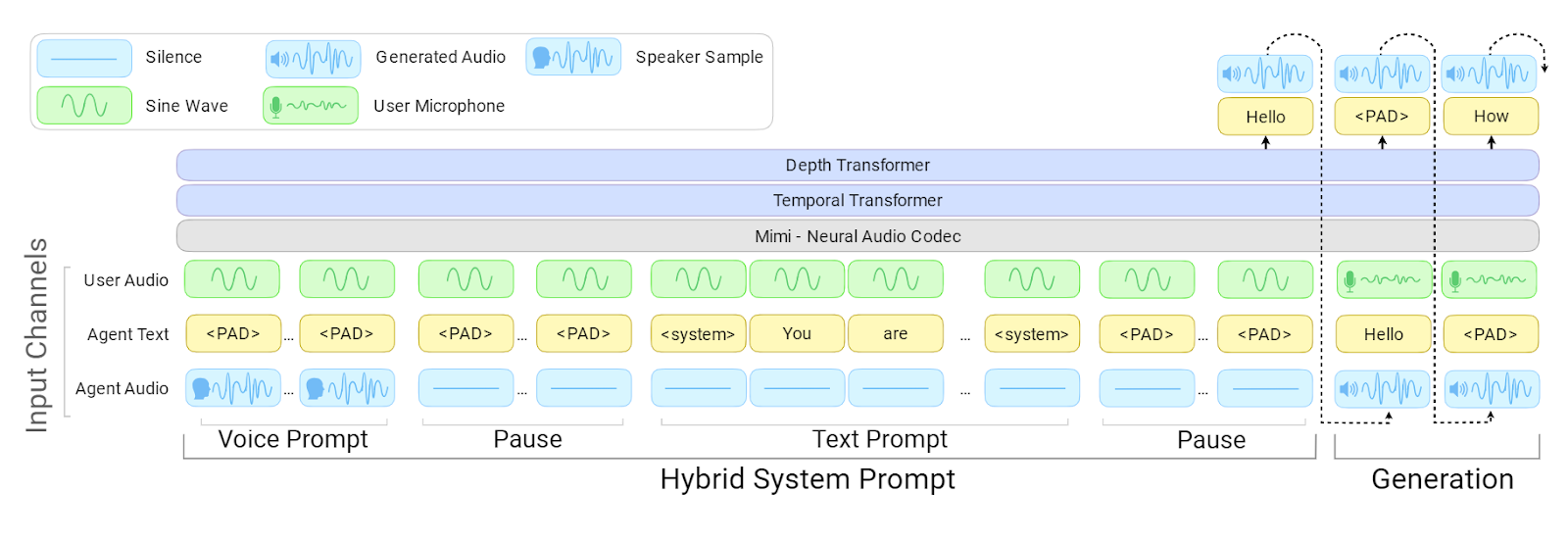
Arquitectura de PersonaPlex | Fuente: NVIDIA PersonaPlex
PersonaPlex se evalúa con FullDuplexBench y un benchmark ampliado de atención al cliente llamado ServiceDuplexBench.
Supera a otros sistemas open source y comerciales en dinámica conversacional, baja latencia, manejo de interrupciones y cumplimiento de tareas, tanto en escenarios de asistente como de atención al cliente.
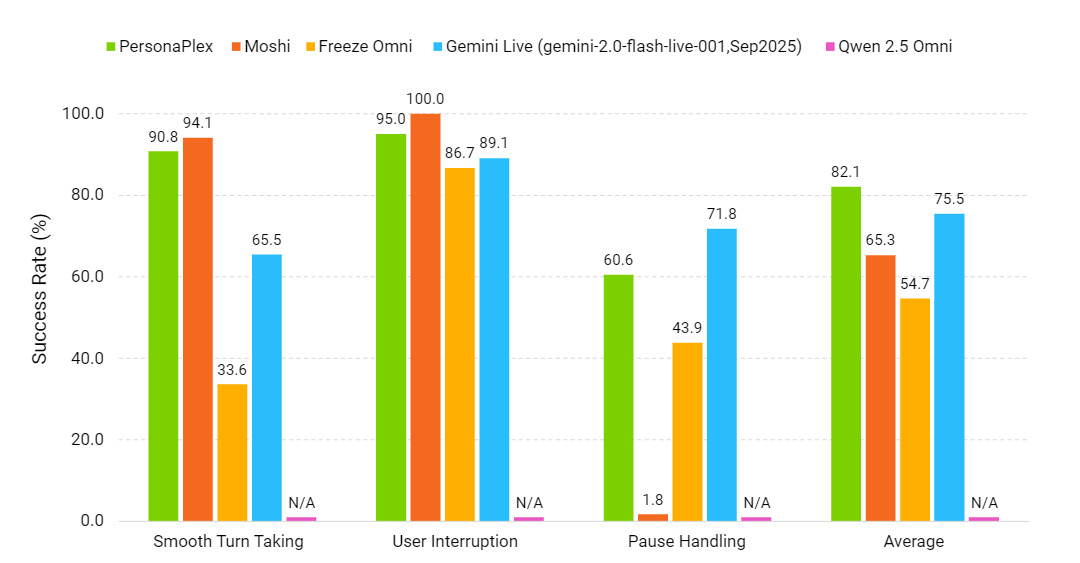
Dinámica conversacional (cuanto más alto, mejor) | Fuente: NVIDIA PersonaPlex
En el vídeo de demostración de abajo, puedes ver claramente a la persona manteniendo una conversación fluida con el modelo, con bromas y réplicas en tiempo real.
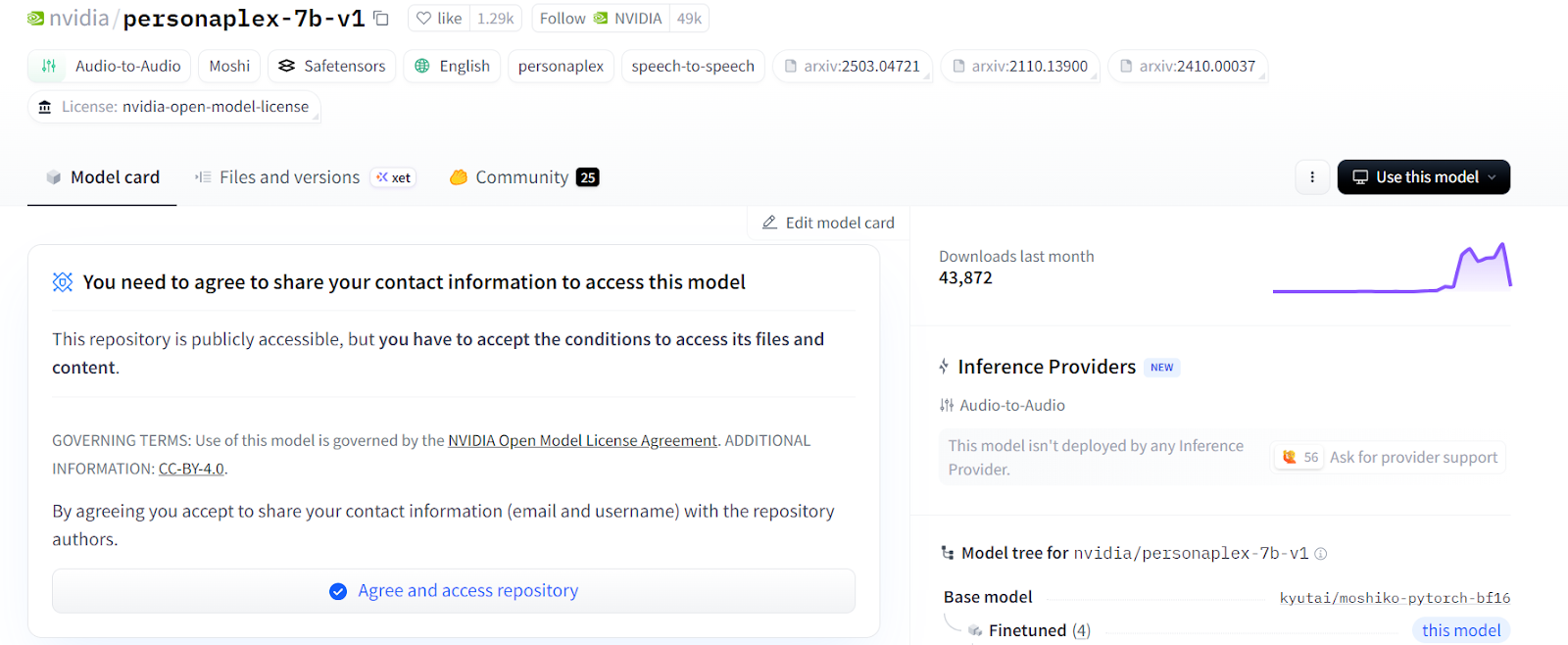
Antes de empezar, visita la página del modelo en Hugging Face de nvidia/personaplex-7b-v1 y acepta las condiciones de uso del modelo.
PersonaPlex es un modelo con acceso restringido, así que necesitarás un token de la API de Hugging Face. Genéralo desde tu cuenta y tenlo a mano, porque lo añadiremos a las variables de entorno más adelante para poder acceder al modelo.
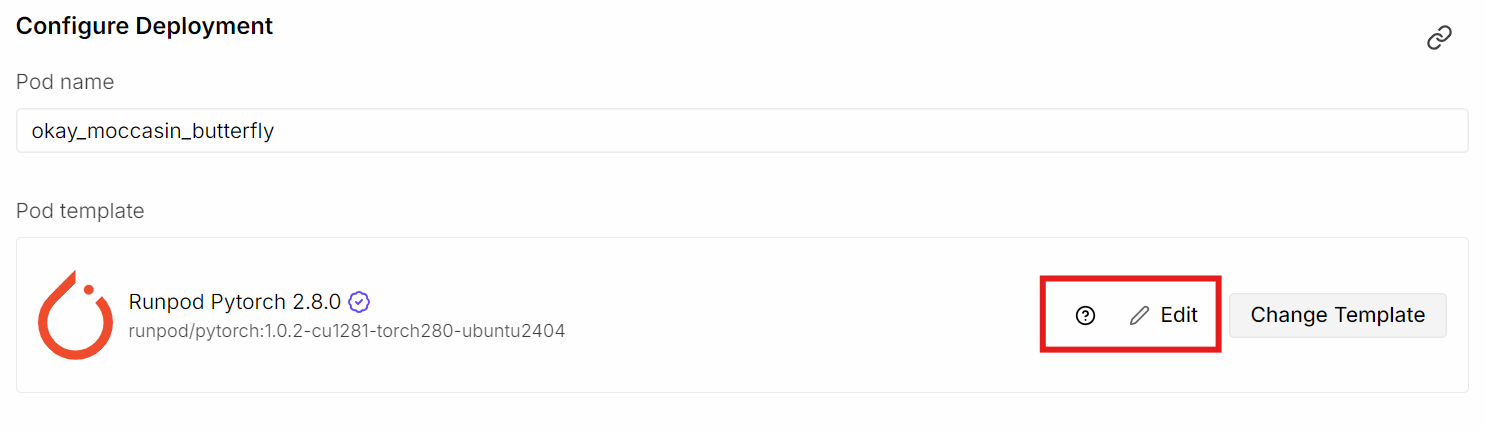
Después, ve a RunPod y lanza un nuevo pod con GPU A40. Selecciona la última imagen de PyTorch y haz clic en Edit para personalizar el entorno.
Aumenta el tamaño de disco del contenedor a 50 GB, ya que el modelo ocupa unos 20 GB y también se descargarán dependencias adicionales. En los puertos HTTP expuestos, añade el puerto 8998. En variables de entorno, añade HF_TOKEN y pega tu token de Hugging Face.
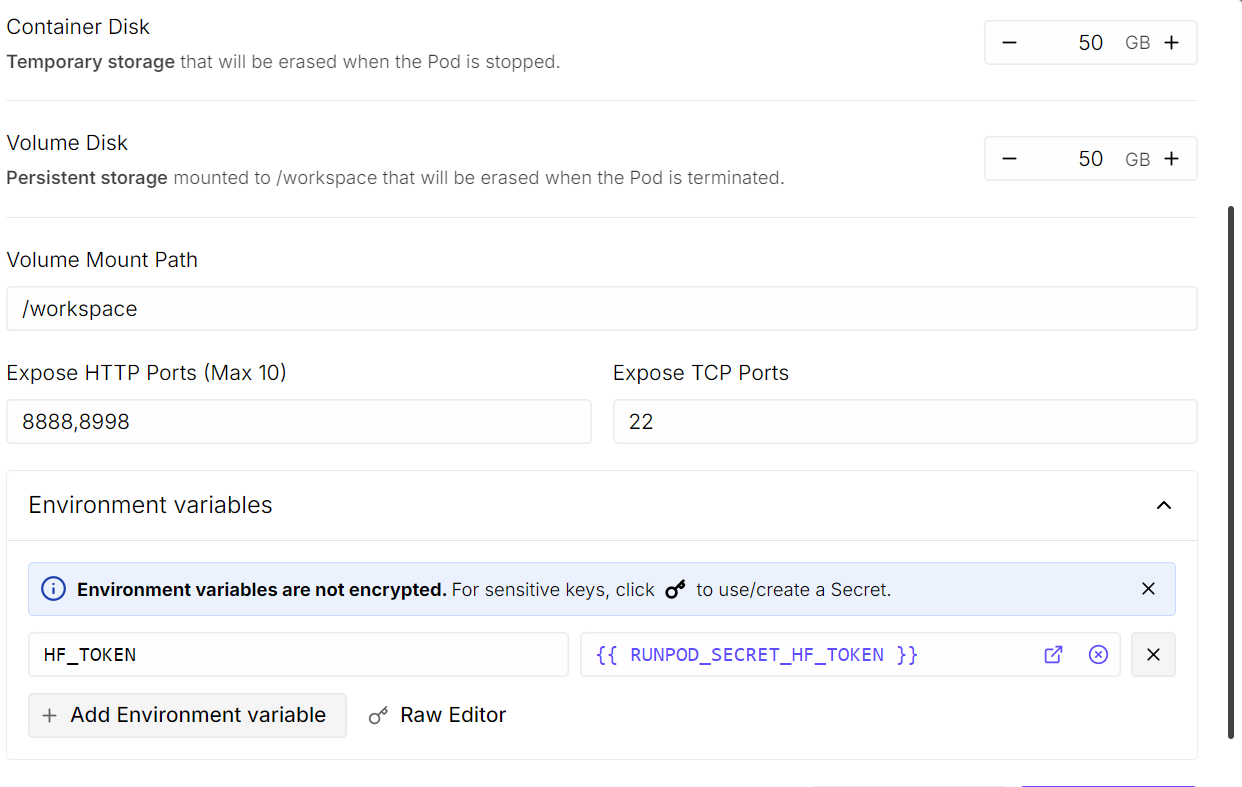
Cuando termines, guarda los cambios y despliega el pod.
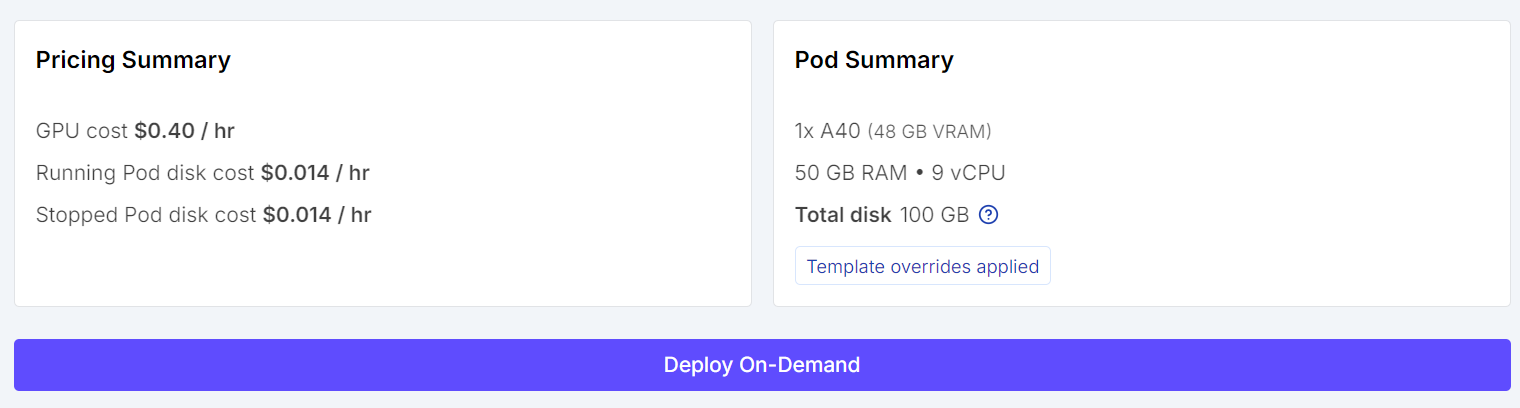
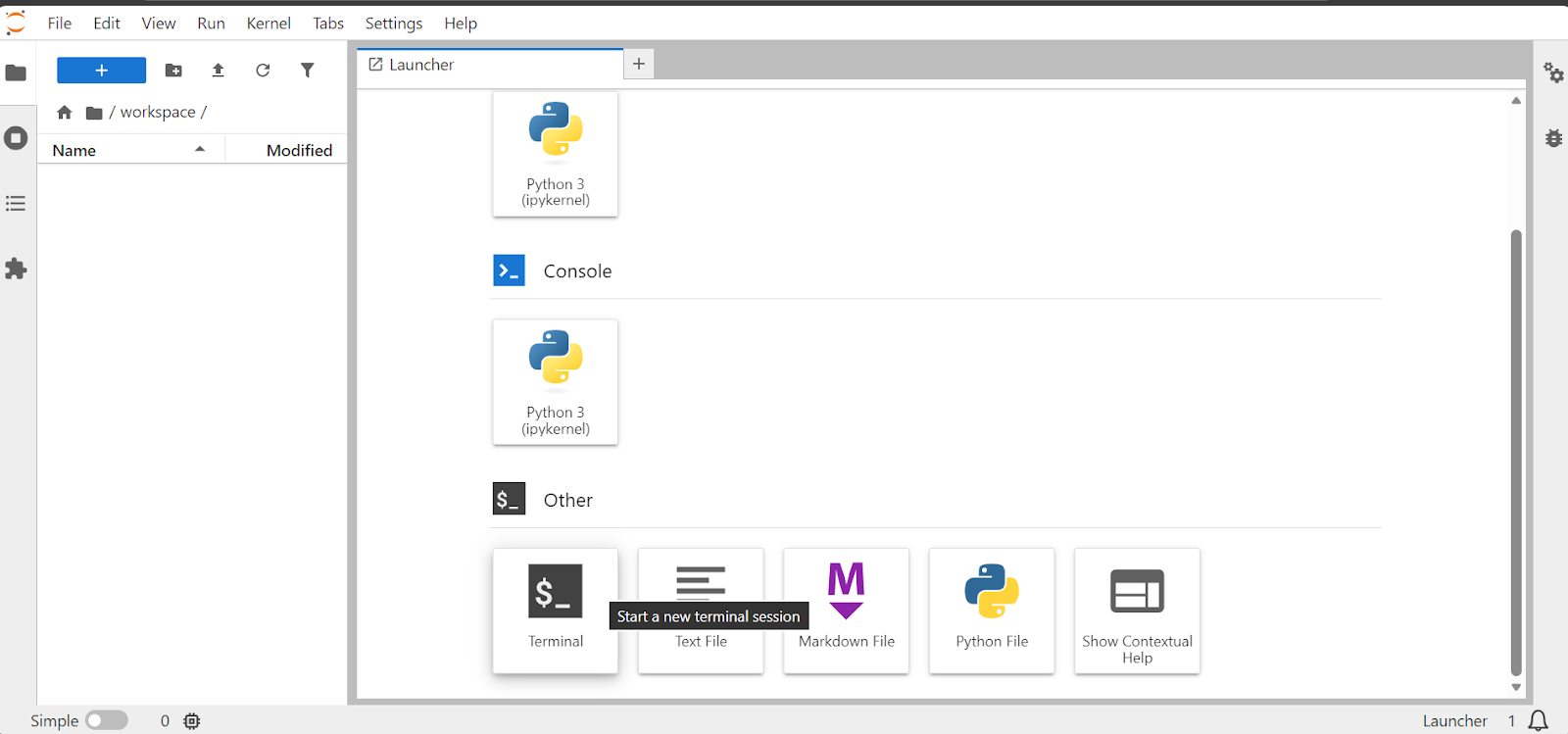
Cuando el pod arranque, verás un enlace a la instancia de JupyterLab. Ábrela y lanza un terminal. Puedes acceder por SSH o desde la terminal web, pero la terminal de Jupyter es la opción más sencilla.
En la terminal, instala la biblioteca de desarrollo del códec de audio Opus, necesaria para el procesamiento de audio:
sudo apt update
sudo apt install libopus-dev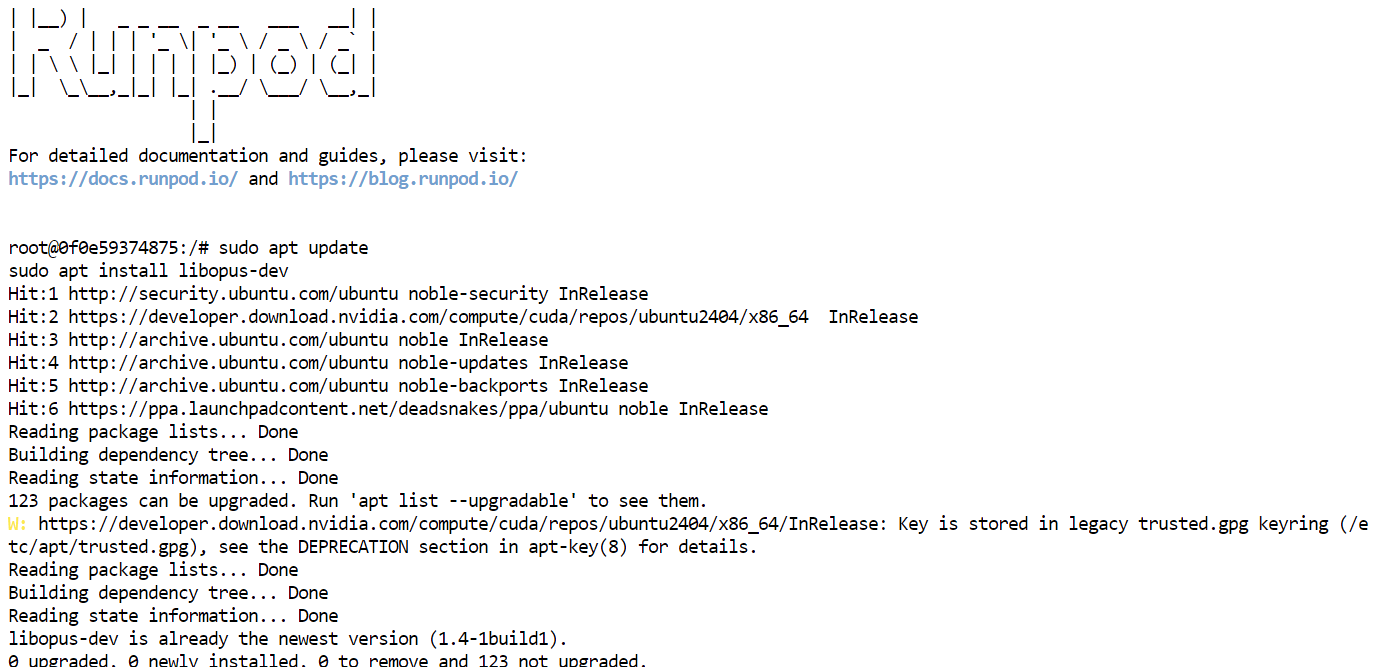
El repositorio de PersonaPlex está publicado por NVIDIA en GitHub (NVIDIA/personaplex: PersonaPlex code), lo que facilita explorarlo, personalizarlo y ejecutarlo en local.
Instalar desde fuente te da control total sobre la configuración y asegura compatibilidad con las últimas actualizaciones del repositorio.
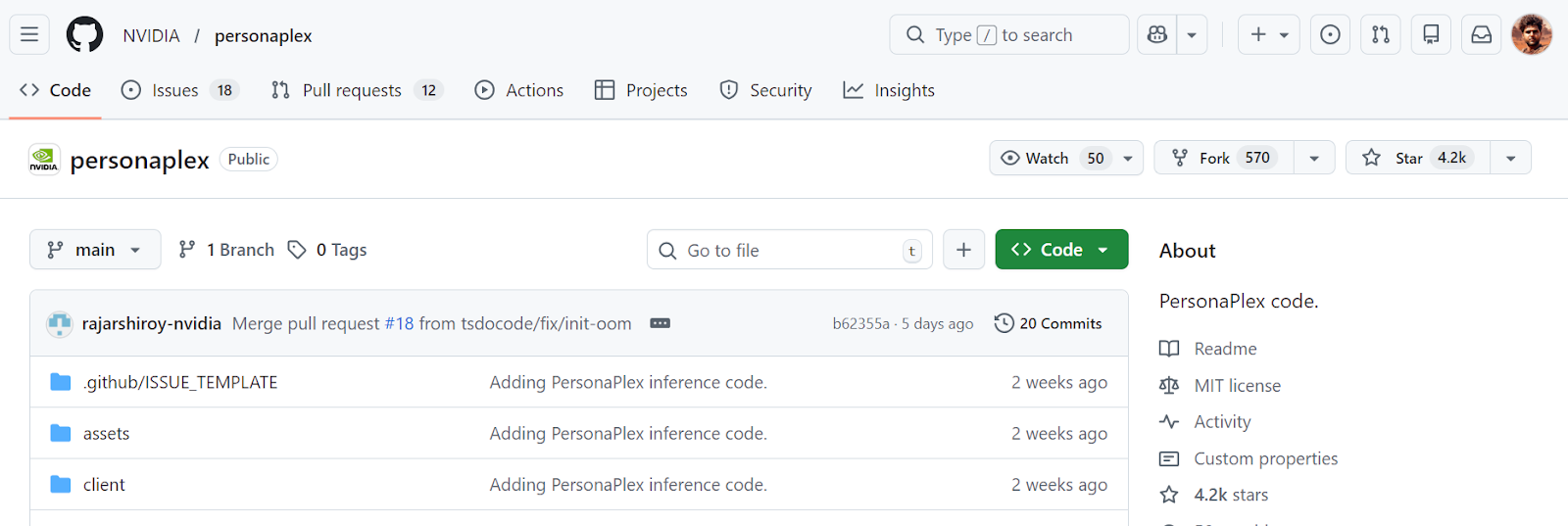
Para empezar, clona el repositorio de PersonaPlex:
git clone https://github.com/NVIDIA/personaplex.git
cd personaplex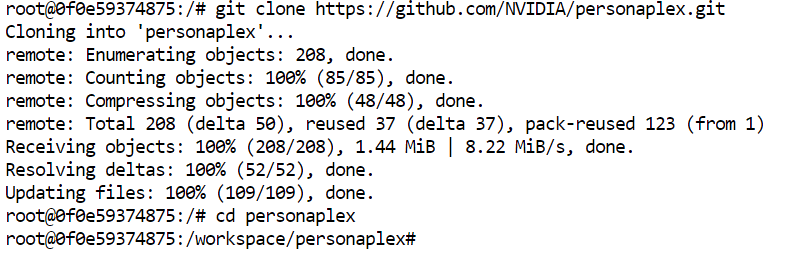
Después instala Moshi, el modelo de voz full‑duplex en el que se basa PersonaPlex.
Moshi se encarga de escuchar y hablar en tiempo real, permitiendo que PersonaPlex gestione interrupciones, pausas y un ritmo de conversación natural sin depender de un pipeline ASR → LLM → TTS tradicional.
Instalarlo desde el código fuente garantiza que todos los componentes de audio, streaming y conversación queden bien configurados para ejecutarse en local.
pip install moshi/.Una vez instalado Moshi, tu entorno estará listo para iniciar el servidor de PersonaPlex e interactuar con el modelo en tiempo real.
Con el entorno y las dependencias en su sitio, ya puedes arrancar el servidor WebUI de PersonaPlex. En la terminal, ejecuta el siguiente comando para lanzar el servidor de Moshi que impulsa PersonaPlex:
python -m moshi.server --host 0.0.0.0 --port 8998La primera vez que lo ejecutes, el servidor descargará automáticamente el modelo de PersonaPlex y otros archivos necesarios. Este paso puede tardar unos minutos, según tu conexión, porque el modelo es bastante grande.
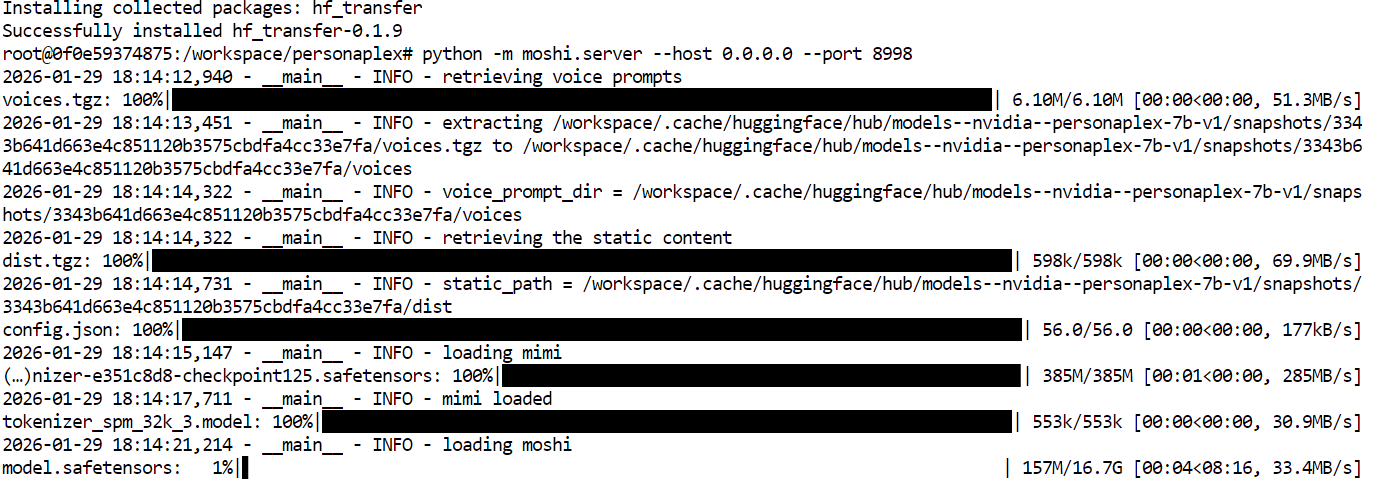
Cuando termine la descarga, el servidor empezará a escuchar en el puerto 8998.

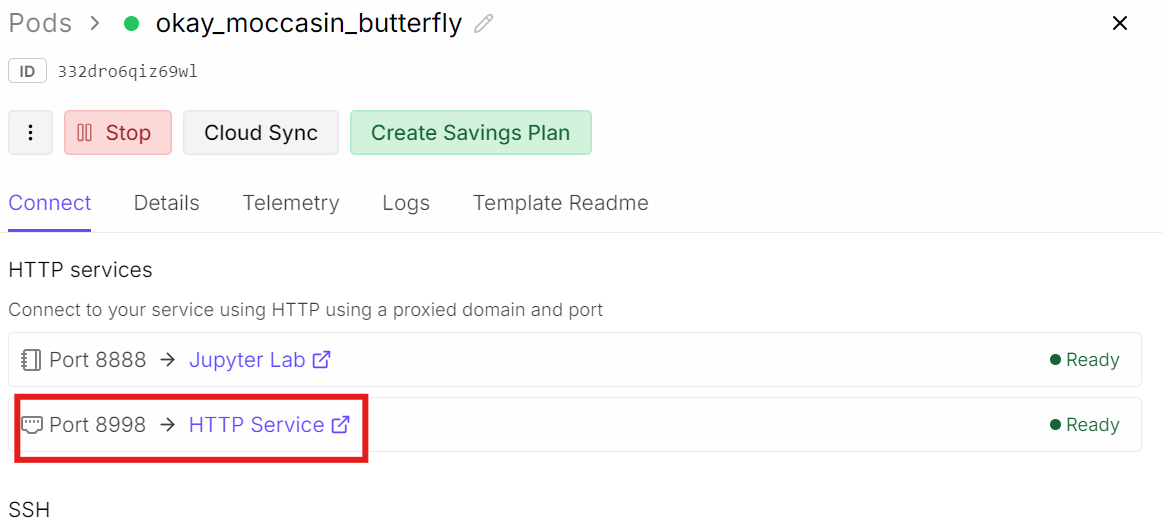
Para acceder a la WebUI, vuelve a tu panel de RunPod.
En la sección Connect, busca el puerto 8998 expuesto y haz clic en el enlace. Se abrirá la WebUI de PersonaPlex en tu navegador, donde podrás empezar a conversar por voz en tiempo real con el modelo.
La WebUI de PersonaPlex incluye varios prompts de ejemplo para que empieces, y también puedes crear un prompt personalizado para definir el rol y el comportamiento del asistente.
Puedes seleccionar una voz antes de conectar, lo que determina cómo suena la persona durante la conversación.
Para este tutorial, lo mejor es empezar con la configuración por defecto para familiarizarte con el sistema.
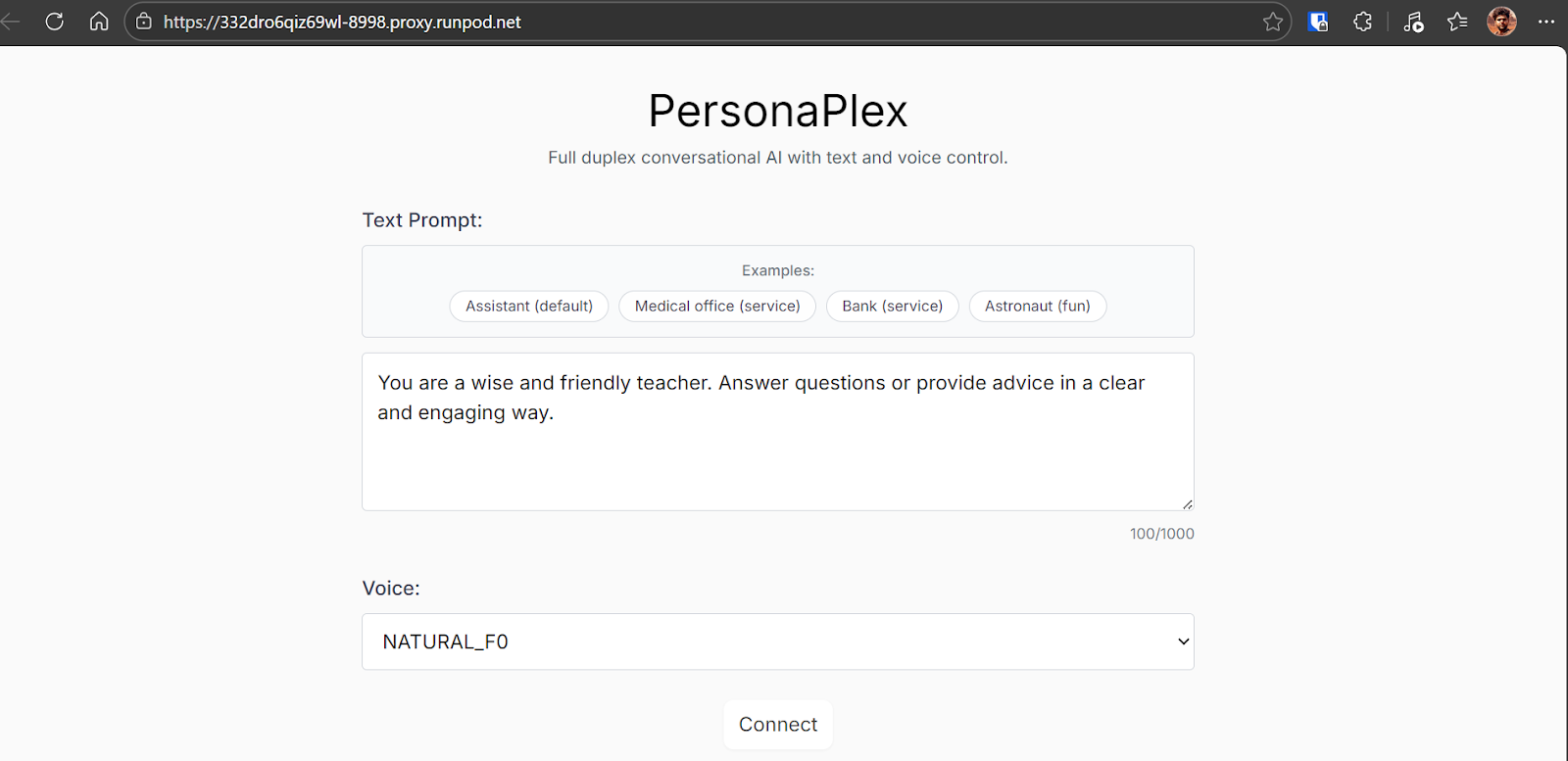
Tras hacer clic en Connect, entrarás en la sesión interactiva. Aquí podrás hablar directamente con el modelo, escuchar sus respuestas en tiempo real y ver una transcripción en vivo de la conversación a medida que sucede.
La experiencia se siente fluida, con tiempos naturales y la posibilidad de interrumpir o responder rápido.
En mis pruebas, la interacción me resultó sorprendentemente natural y atractiva.
Noté algún tartamudeo ocasional, probablemente por carga del navegador o del sistema más que por el modelo en sí. Aparte de eso, la conversación se acercó mucho a hablar con una persona real.
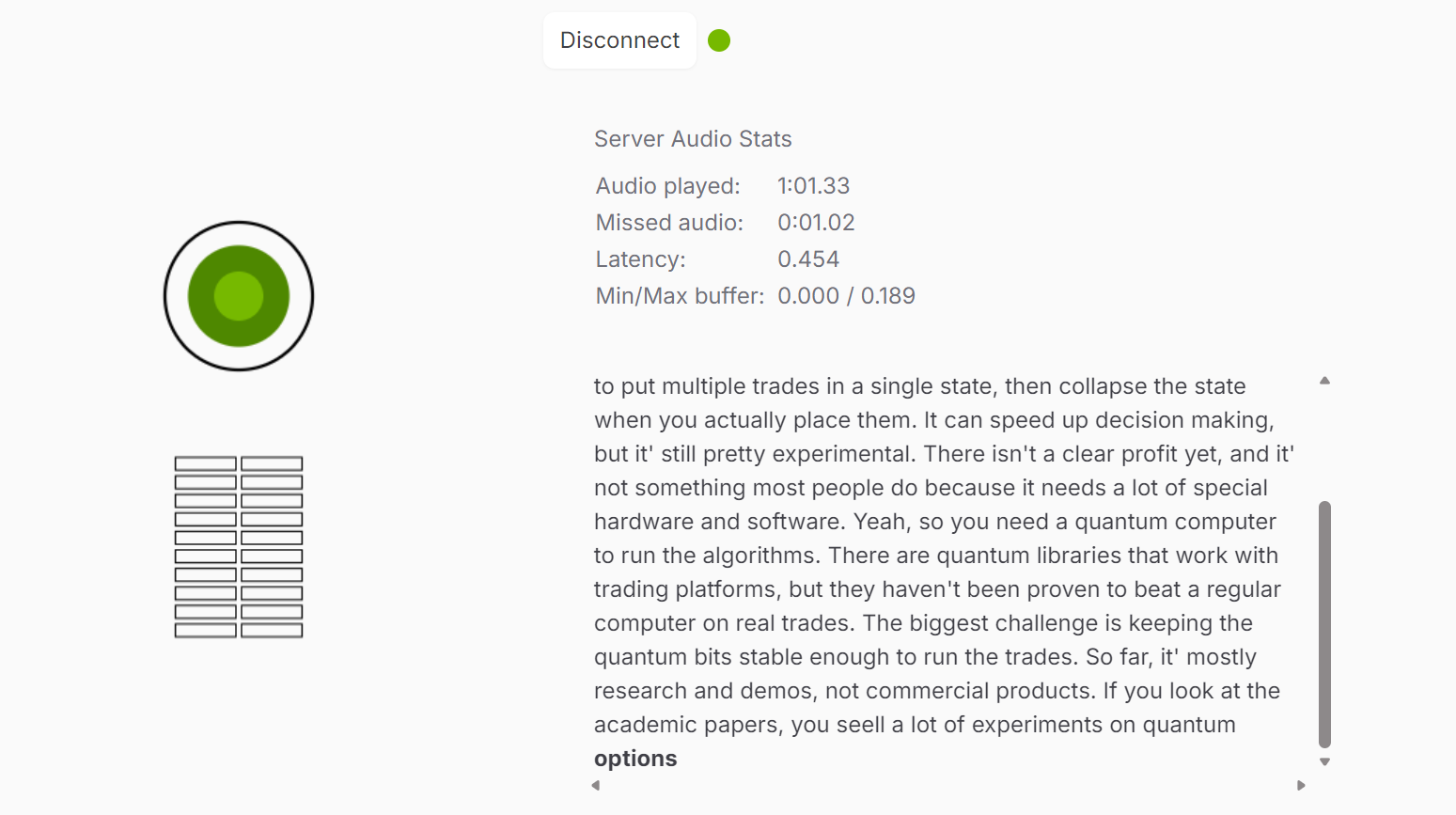
Cuando te sientas cómodo, prueba distintas voces y prompts. PersonaPlex incluye una gran variedad de embeddings de voz preempaquetados, desde voces más naturales y conversacionales hasta variantes más expresivas:
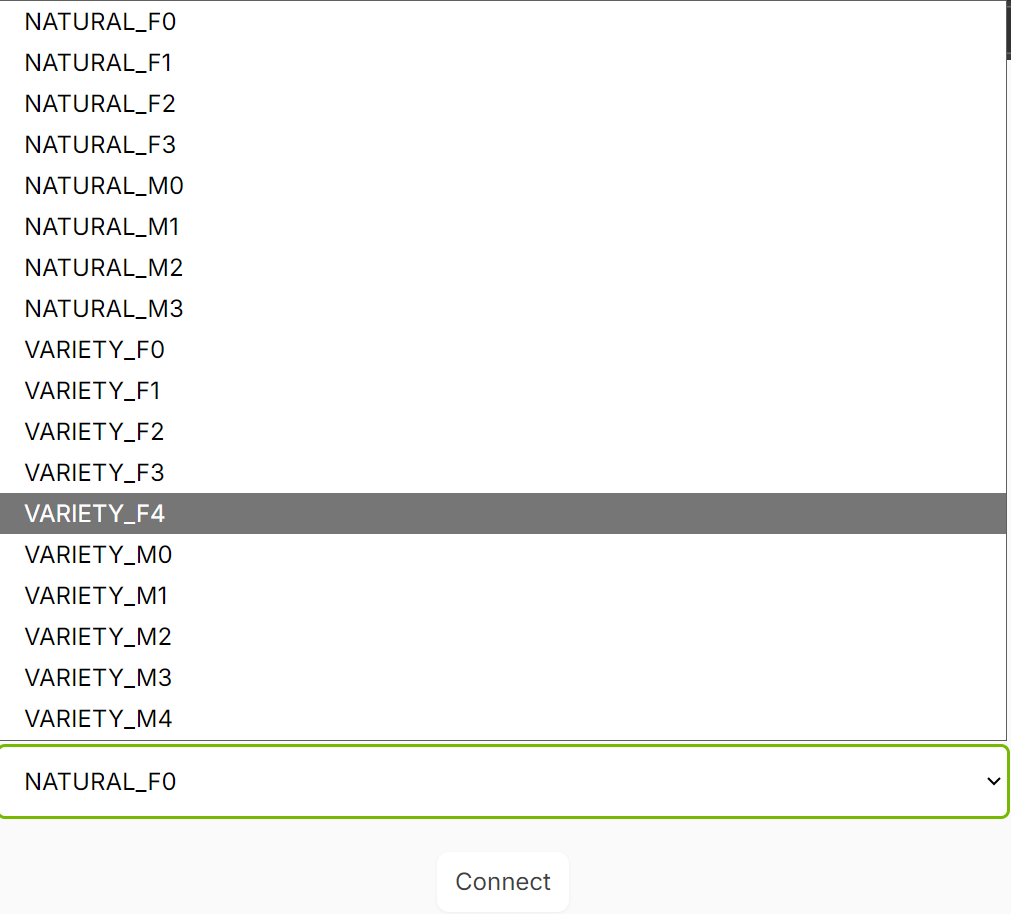
Cambiar de voz y de prompt es una gran forma de explorar cómo PersonaPlex mantiene la personalidad, el tono y la fluidez conversacional en distintos roles y estilos de habla.
La WebUI es ideal para conversaciones en tiempo real, pero también puedes ejecutar PersonaPlex sin conexión desde Python. Es útil cuando quieres salidas reproducibles, probar prompts rápidamente o generar archivos de audio para reutilizarlos en demos y pruebas.
El flujo offline es sencillo: proporcionas (1) un prompt de voz, (2) un prompt de texto y (3) un archivo WAV de entrada. PersonaPlex genera una respuesta de audio y un archivo JSON con la transcripción del modelo.
Abre un cuaderno nuevo en Jupyter y cambia al directorio del repositorio clonado:
%cd personaplexEjecuta lo siguiente en una celda nueva. Llama al runner offline y guarda tanto el audio generado como la transcripción en disco:
%%capture
!python -m moshi.offline \
  --voice-prompt "NATF2.pt" \
  --text-prompt "You are a wise and friendly teacher. Answer questions in a clear, engaging way." \
  --input-wav "assets/test/input_assistant.wav" \
  --seed 42424242 \
  --output-wav "out_teacher.wav" \
  --output-text "out_teacher.json"
Qué hace cada flag:
--voice-prompt selecciona el embedding de voz (en este caso, una voz femenina natural).--text-prompt define el rol y el comportamiento del asistente.--input-wav es el audio grabado del usuario al que responderá el modelo.--seed hace que la salida sea más reproducible entre ejecuciones.--output-wav es la respuesta hablada generada.--output-text guarda la transcripción en formato JSON.Cuando termine el comando, puedes reproducir el audio de respuesta directamente:
from IPython.display import Audio

Audio("out_teacher.wav")
Deberías oír una respuesta clara y natural con la voz seleccionada, acorde a la personalidad definida en tu prompt de texto.

La transcripción en JSON a veces puede contener artefactos de tokenización, como espacios extra alrededor de signos de puntuación o palabras partidas. El helper siguiente carga el JSON y lo limpia para obtener un texto legible.
import json
import re

with open("out_teacher.json") as f:
    data = json.load(f)

def detokenize(tokens):
    # 1) drop padding-like tokens
    drop = {"PAD", "EPAD", "<pad>", "</s>", "<s>"}
    toks = [t for t in tokens if t not in drop]

    # 2) join with spaces first
    s = " ".join(toks)

    # 3) fix spacing around punctuation
    s = re.sub(r"\s+([.,!?;:])", r"\1", s)

    # 4) fix common split contractions: "it ' s" -> "it's"
    s = s.replace(" ' s", "'s").replace(" n't", "n't").replace(" 're", "'re").replace(" 'm", "'m").replace(" 've", "'ve").replace(" 'd", "'d")

    # 5) fix stray spaces around apostrophes
    s = re.sub(r"\s+'\s+", "'", s)

    # 6) fix cases like "for k" -> "fork" and "fl uff" -> "fluff"
    # (general rule: merge single-letter fragments if they look like split wordpieces)
    s = re.sub(r"\b([A-Za-z])\s+([A-Za-z]{1,3})\b", r"\1\2", s)

    # 7) collapse multiple spaces
    s = re.sub(r"\s{2,}", " ", s).strip()

    return s

clean_text = detokenize(data)  # replace with your list variable
clean_text
Ahora deberías ver una cadena de texto legible que coincide con el audio generado. Si tu salida aún contiene cortes raros (por ejemplo, “fl uff” o “afor k”), es normal en algunas ejecuciones y se puede limpiar más con reglas adicionales, pero el contenido principal ya debería ser comprensible.
"Hey, let me know if you have any questions.
Hmm, first rinse the rice a couple of times until the water runs clear, that cuts down on starch, then use apot with a tight fitting lid, bring to a boil,
give it a quick stir, then turn the heat down low and cover, let it s immer without lifting it, and when it'done fl uff it with afor k, that usually
You could to ss the hot rice with a nice handful of chopped fresh herbs like basil or par sley, or you could sprinkle a little g rated cheese,
a squeeze of lemon or lime, adr izzle of olive oil, some chopped fresh herbs, or even some to ast ed nuts, that adds color and flavor."Probar PersonaPlex me sorprendió de verdad. Desde la primera interacción, se sintió menos como experimentar con un modelo y más como mantener una conversación real. Poder interrumpir con naturalidad, recibir respuestas instantáneas y conservar una personalidad coherente lo sitúa por delante de la mayoría de sistemas de voz que he probado. Ejecutarlo todo en local hizo la experiencia aún más impactante, sin retrasos apreciables ni pérdida de control.
Aún hay puntos mejorables. Noté algún tartamudeo ocasional y, cuando la conversación avanza, no siempre retoma con suavidad temas anteriores.
Tampoco comprende del todo los acentos no ingleses todavía, lo que puede llevar a nombres mal pronunciados o transcripciones imperfectas. Son más bien casos límite que problemas de base, y confío en que mejoren rápido.
Estoy convencido de que en el futuro se resolverán estos aspectos y tendremos una IA conversacional aún mejor, completamente local y en tiempo real, que combine el razonamiento de GPT-5.2 con la calidad de voz de ElevenLabs.
Los mejores cursos de DataCamp
Curso
programa
Curso