Kurs
Verarbeitung gesprochener Sprache in Python
4 Std.
9.3K
Wenn du ChatGPT im Sprachmodus genutzt hast, weißt du, wie beeindruckend das sein kann. Mit einer KI zu sprechen, die zuhört, versteht und fast wie ein echter Mensch reagiert, fühlt sich überraschend natürlich an. Es wirkt dialogisch, intelligent und reaktionsschnell. Doch eine Lücke bleibt: kleine Verzögerungen, eingeschränkte Unterbrechungen — und das Gefühl, doch eher mit einem System als mit einer Person zu reden.
Stell dir nun etwas Besseres vor. Genau hier setzt PersonaPlex an.
Stell dir einen Echtzeit-Sprachassistenten vor, der sofort reagiert, natürliche Unterbrechungen zulässt, mitten im Satz adaptiv wird und sich einer echten Unterhaltung viel näher anfühlt. Keine spürbare Latenz. Keine peinlichen Pausen. Keine Cloud-Abhängigkeit. Einfach ein flüssiger, lokaler Dialog in Echtzeit, der lebendig wirkt.
PersonaPlex ist ein lokales Echtzeit-Sprachinteraktionssystem von NVIDIA. Es bringt sprachbasierte KI über einfache Speech-to-Text- und Text-to-Speech-Pipelines hinaus. Stattdessen ermöglicht es latenzarme, gestreamte Gespräche, in denen der Assistent kontinuierlich sprechen, zuhören und sich anpassen kann — so, wie es auch Menschen im Gespräch tun.
In diesem Tutorial führe ich dich Schritt für Schritt durch PersonaPlex. Wir klären zuerst, was PersonaPlex ist und warum es sich grundlegend anders anfühlt als übliche Sprachassistenten. Dann richten wir die lokale Umgebung ein, installieren PersonaPlex aus dem Quellcode und starten den PersonaPlex WebUI-Server. Anschließend interagieren wir über die Weboberfläche und testen zum Schluss Echtzeit-Sprachgespräche mit einem Python-Skript.
Ich empfehle dir den Kurs Spoken Language Processing in Python, um einige der Grundlagen hinter PersonaPlex zu verstehen.
PersonaPlex ist ein neues Konversations-KI-System, das Sprachinteraktionen wirklich natürlich wirken lässt — und dir gleichzeitig volle Kontrolle über Stimme und Persona gibt.
Statt wie ein typischer Assistent mit Pausen und starrem Sprecherwechsel zu klingen, ermöglicht es flüssige Echtzeitgespräche, in denen Unterbrechungen, Timing und Tonführung menschlich wirken.
Im Kern nutzt PersonaPlex eine Full-Duplex-Architektur, das heißt, es kann gleichzeitig zuhören und sprechen.
Anstatt getrennte Modelle für Spracherkennung, Sprachverstehen und Sprachsynthese zu verketten, setzt es auf ein einheitliches Modell, das sich während des Sprechens des Nutzers kontinuierlich aktualisiert.
Voice Prompts legen fest, wie der Assistent klingt, während Text-Prompts definieren, wer er ist und wie er sich verhalten soll. Diese Kombination sorgt für eine konsistente Persona — und trotzdem für sofortige, natürliche Reaktionen.
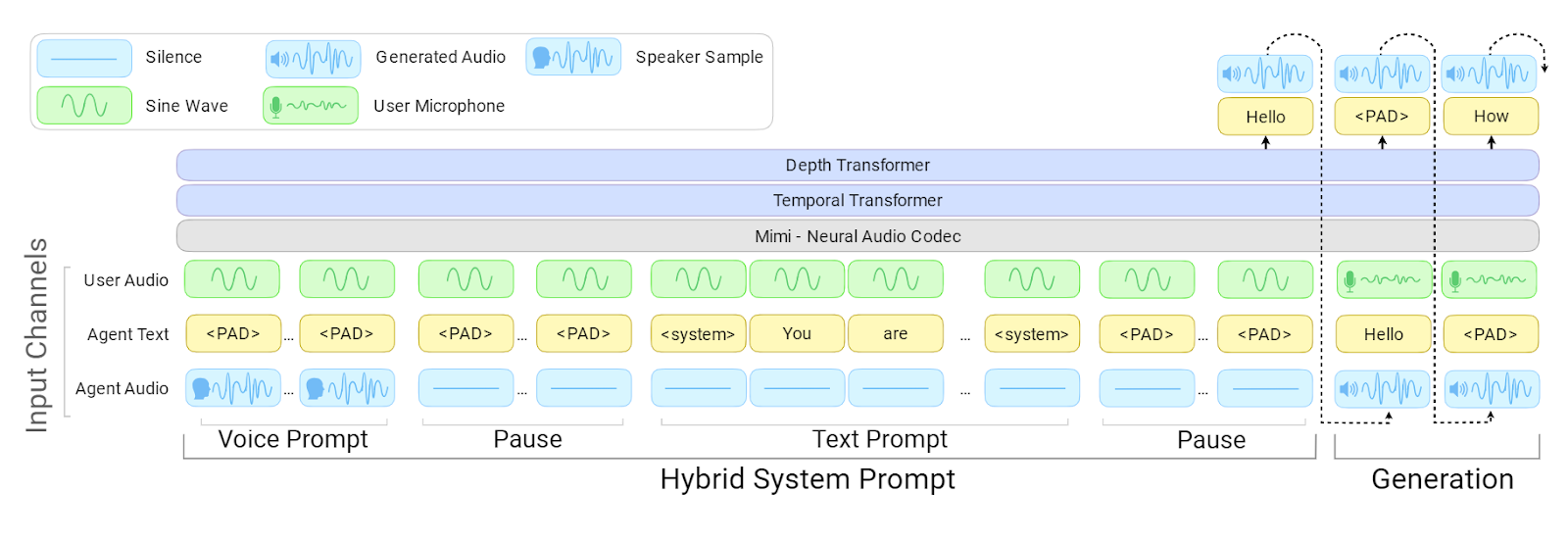
PersonaPlex Architektur | Quelle: NVIDIA PersonaPlex
PersonaPlex wird mit FullDuplexBench und einem erweiterten Kundendienst-Benchmark namens ServiceDuplexBench bewertet.
Es übertrifft andere Open-Source- und kommerzielle Systeme bei Konversationsdynamik, geringer Latenz, Unterbrechungshandling und Aufgabentreue — sowohl im Assistenten- als auch im Customer-Service-Szenario.
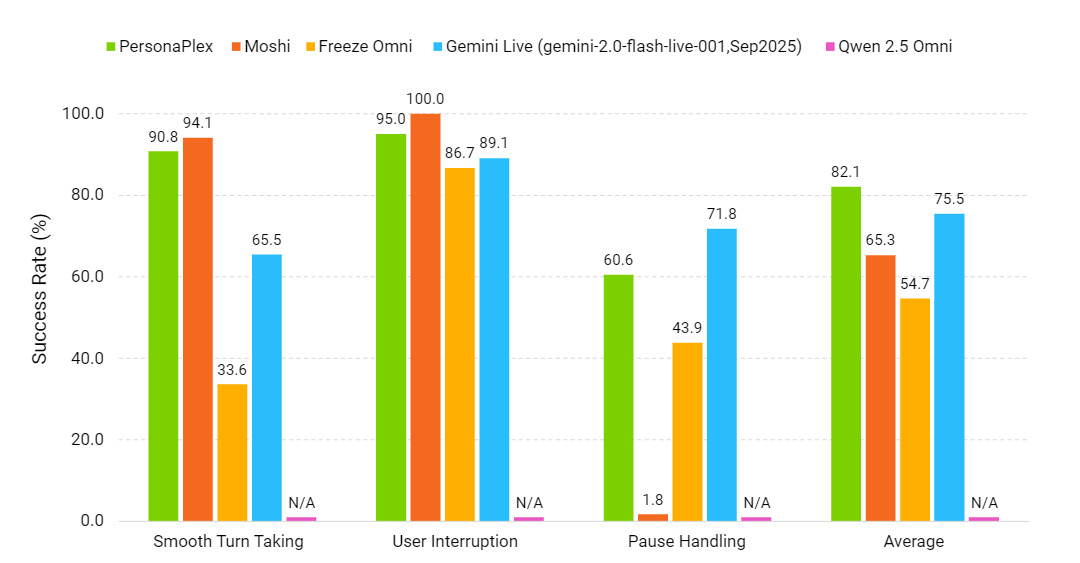
Konversationsdynamik (je höher, desto besser) | Quelle: NVIDIA PersonaPlex
Im folgenden Video-Demo siehst du, wie jemand flüssig mit dem Modell plaudert, in Echtzeit scherzt und wechselseitig reagiert.
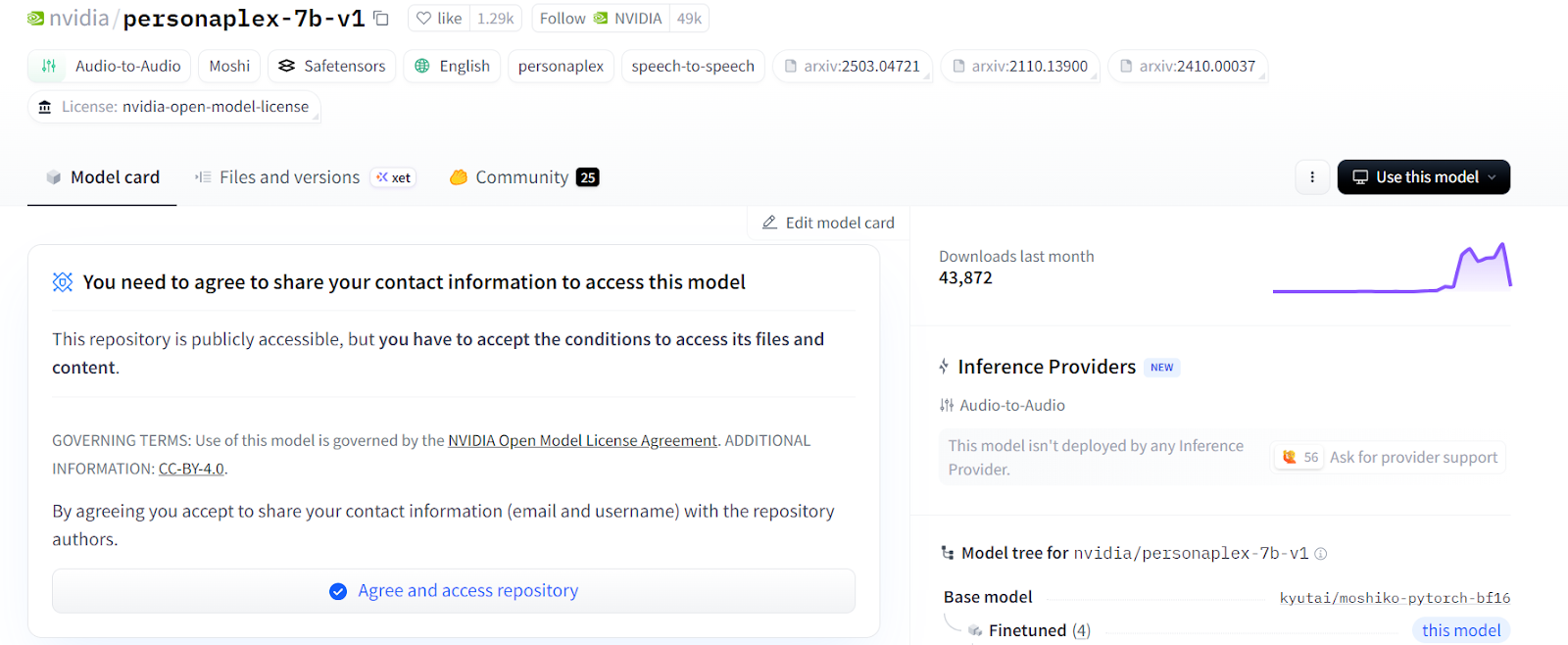
Bevor wir starten, besuche die Hugging Face Modellseite für nvidia/personaplex-7b-v1 und akzeptiere die Nutzungsbedingungen.
PersonaPlex ist ein geschütztes Modell, daher brauchst du ein Hugging Face API-Token. Erzeuge das Token in deinem Hugging Face Konto und halte es bereit — wir fügen es später als Umgebungsvariable hinzu, um Zugriff auf das Modell zu erhalten.
Als Nächstes gehe zu RunPod und starte ein neues A40 GPU-Pod. Wähle das neueste PyTorch-Image und klicke dann auf Edit, um die Umgebung anzupassen.
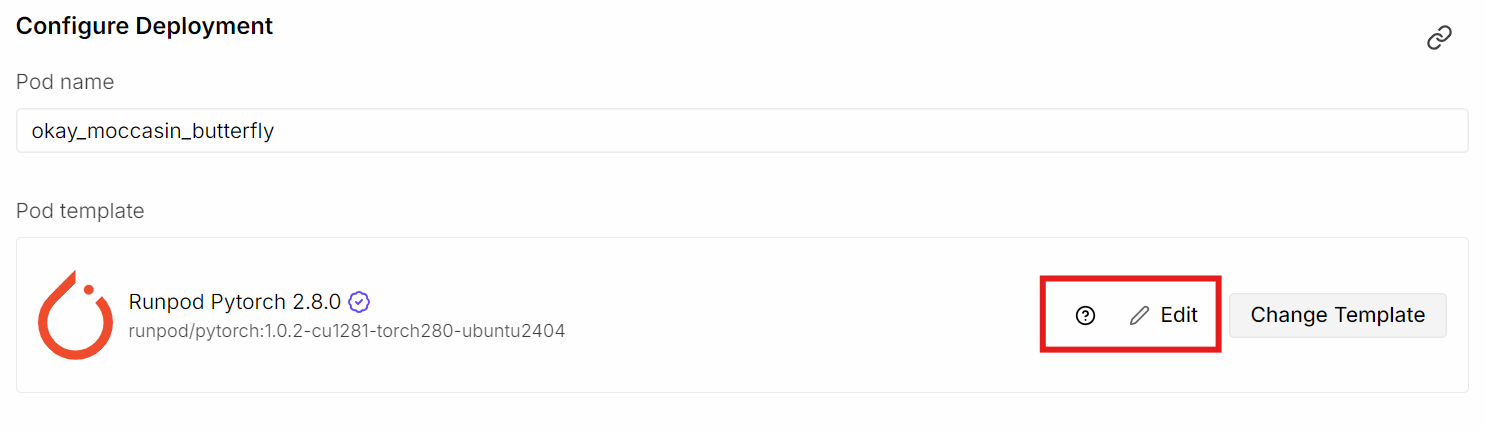
Erhöhe die Container-Disk-Größe auf 50 GB, da das Modell selbst rund 20 GB umfasst und weitere Abhängigkeiten heruntergeladen werden. Füge bei den freigegebenen HTTP-Ports Port 8998 hinzu. Unter Umgebungsvariablen ergänze HF_TOKEN und füge dein Hugging Face API-Token ein.
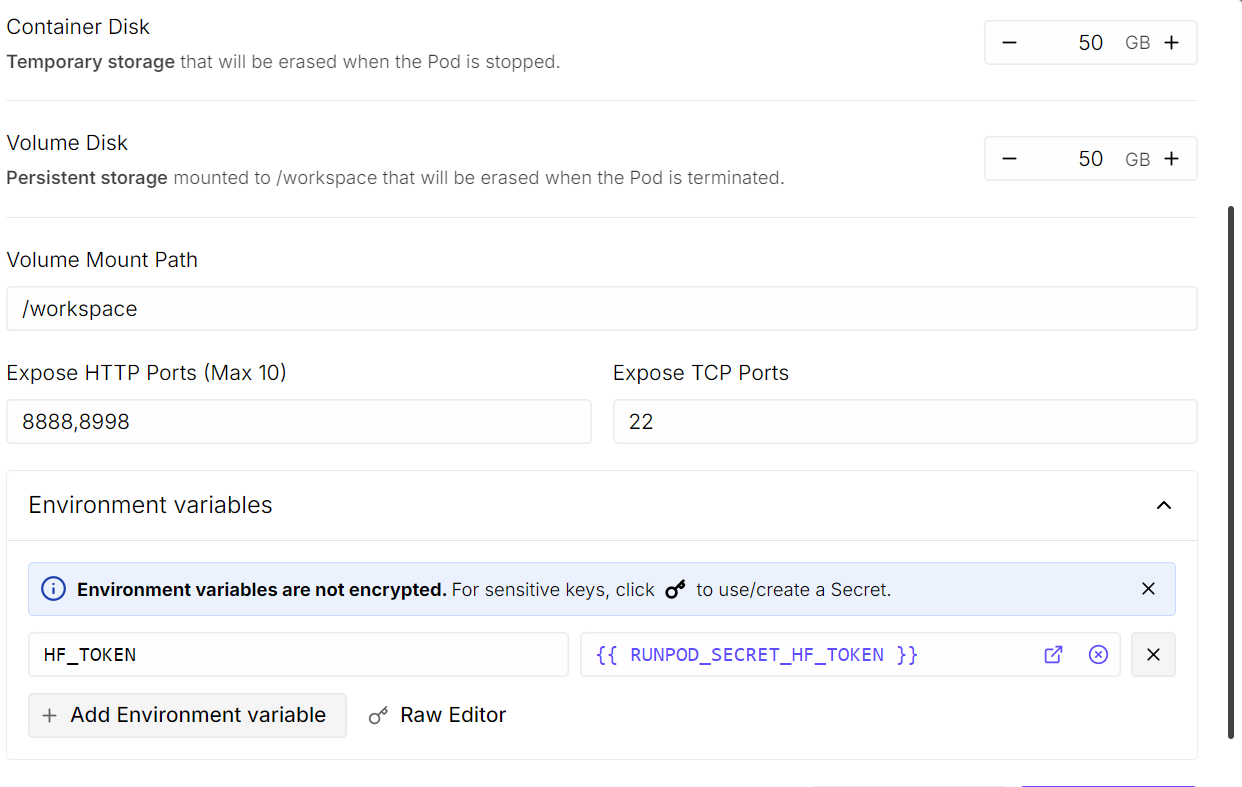
Wenn alles konfiguriert ist, speichere die Overrides und deploye den Pod.
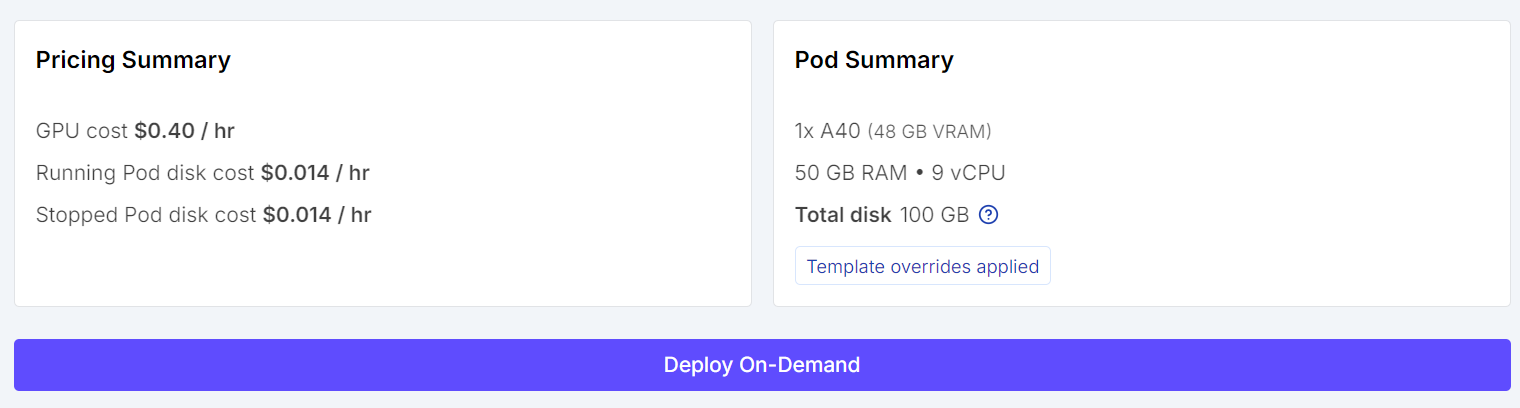
Nach dem Start siehst du einen Link zur JupyterLab-Instanz. Öffne sie und starte ein Terminal. Du kannst die Maschine per SSH oder Web-Terminal nutzen, am einfachsten ist das Jupyter-Terminal.
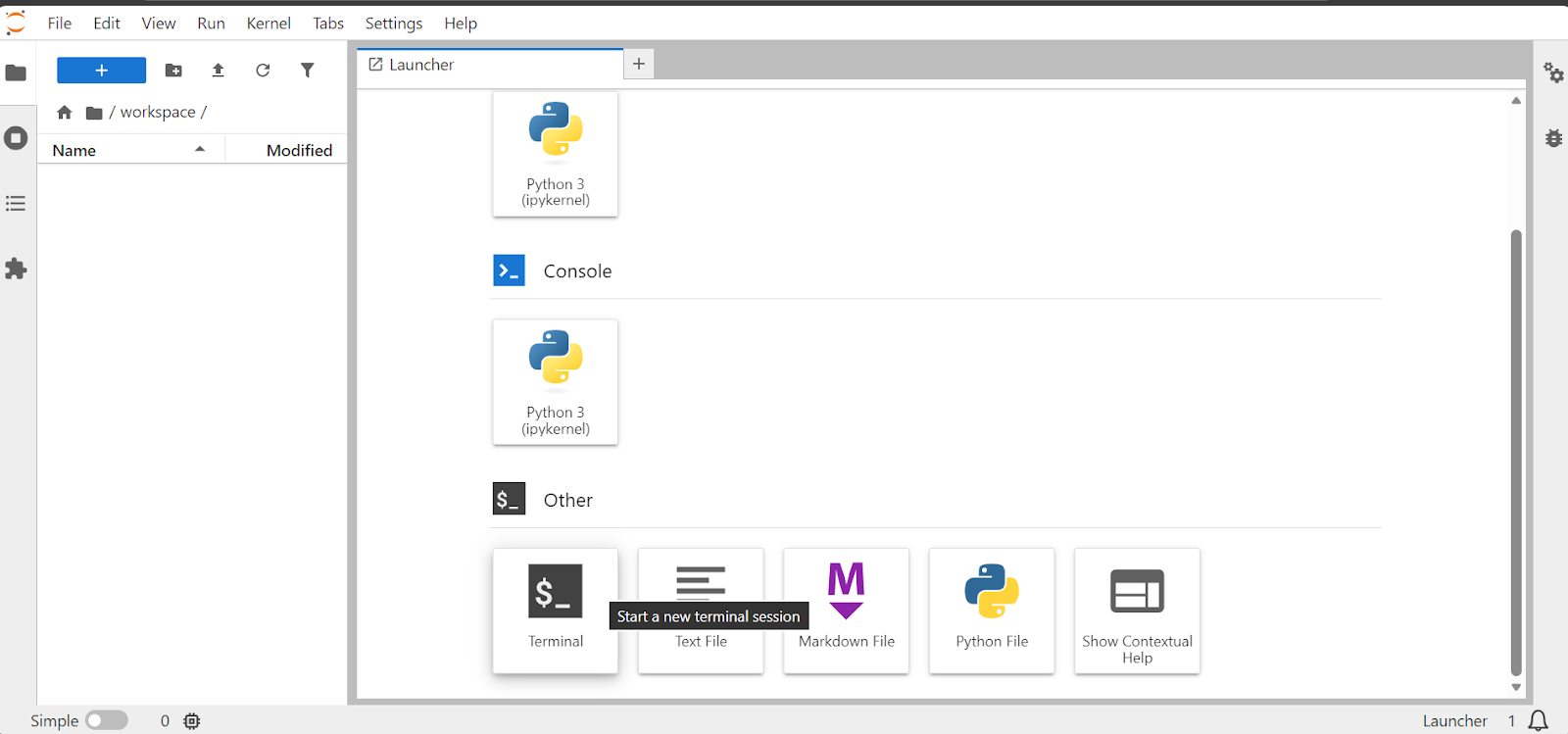
Installiere im Terminal die Entwicklungsbibliothek des Opus-Audiocodecs, die für die Audiobearbeitung benötigt wird:
sudo apt update
sudo apt install libopus-dev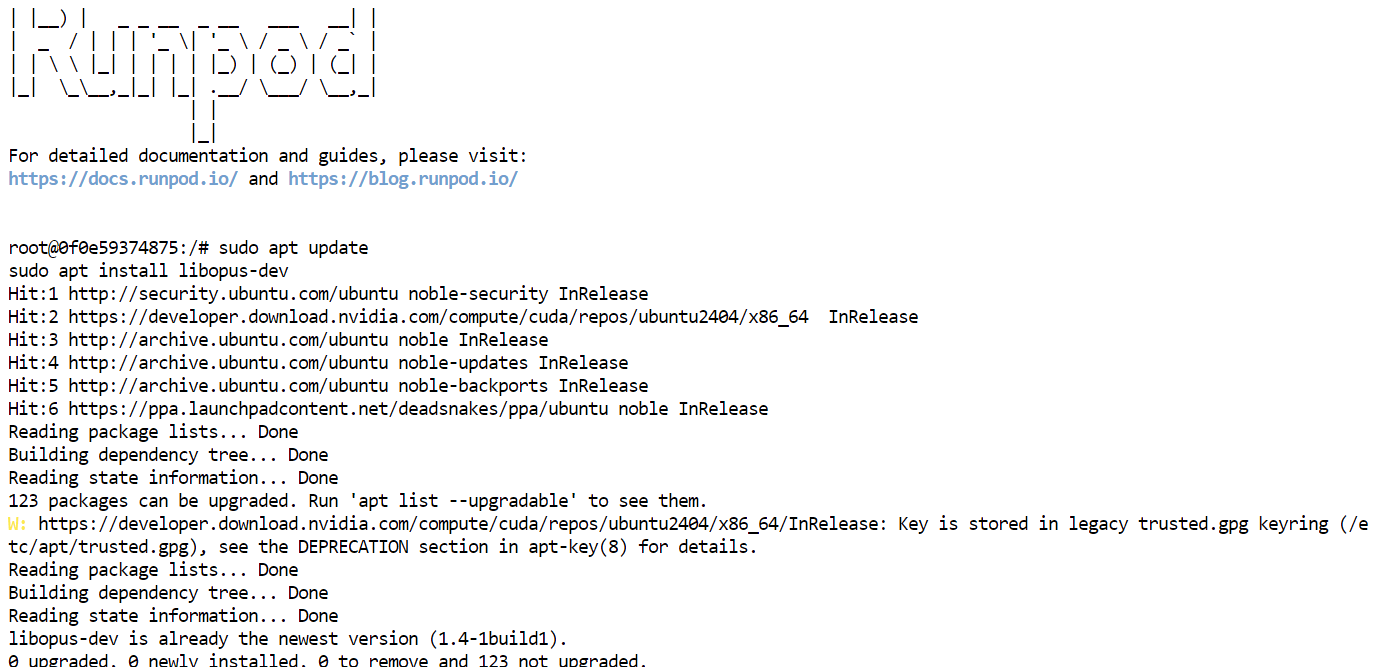
Der PersonaPlex-Code ist von NVIDIA als Open Source auf GitHub verfügbar (NVIDIA/personaplex: PersonaPlex code) — ideal, um ihn lokal zu erkunden, anzupassen und auszuführen.
Die Installation aus dem Quellcode gibt dir volle Kontrolle über das Setup und stellt die Kompatibilität mit den neuesten Änderungen im Repository sicher.
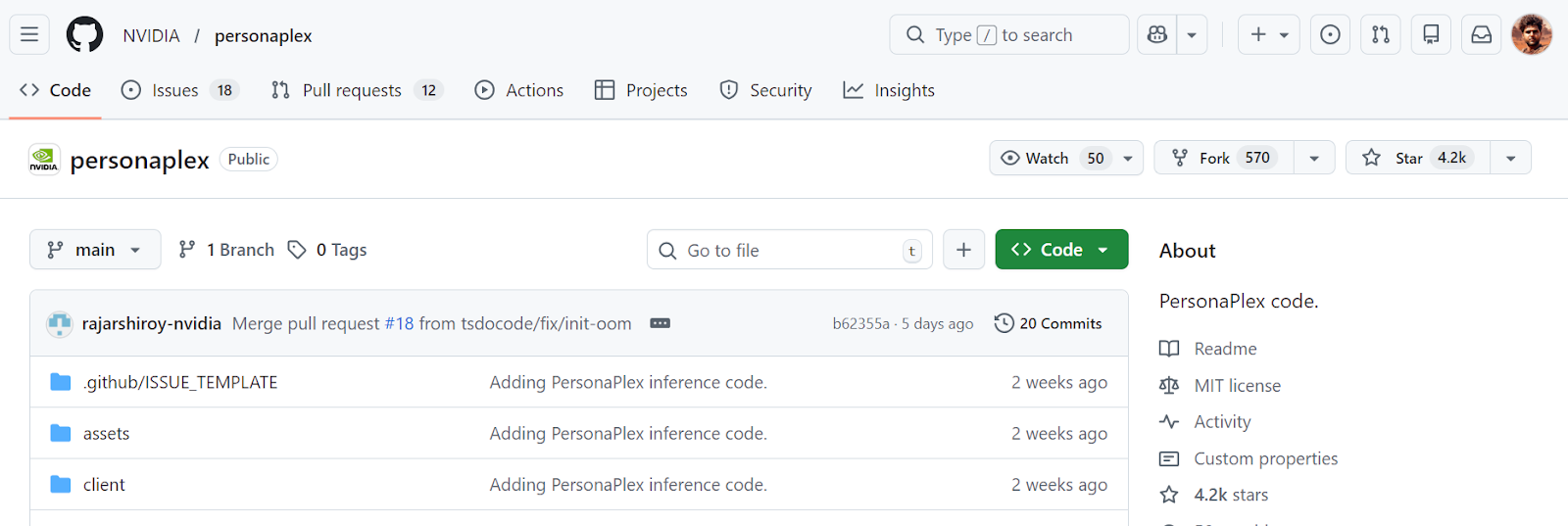
Klonen wir zuerst das PersonaPlex-Repository:
git clone https://github.com/NVIDIA/personaplex.git
cd personaplex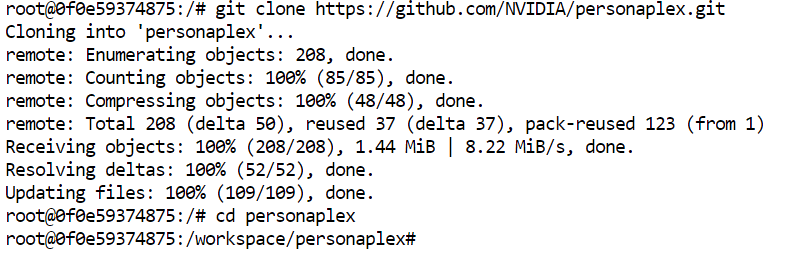
Installiere dann Moshi, das zentrale Full-Duplex-Sprachmodell, auf dem PersonaPlex basiert.
Moshi ist für das gleichzeitige Zuhören und Sprechen in Echtzeit zuständig. So kann PersonaPlex Unterbrechungen, Pausen und natürliches Timing handhaben — ohne die klassische ASR → LLM → TTS-Pipeline.
Die Installation aus dem Quellcode stellt sicher, dass alle Audio-, Streaming- und Dialogkomponenten korrekt für die lokale Ausführung eingerichtet sind.
pip install moshi/.Sobald Moshi installiert ist, ist deine Umgebung bereit, den PersonaPlex-Server zu starten und in Echtzeit mit dem Modell zu interagieren.
Mit der eingerichteten Umgebung kannst du nun den PersonaPlex WebUI-Server starten. Führe im Terminal folgenden Befehl aus, um den Moshi-Server zu starten, der PersonaPlex antreibt:
python -m moshi.server --host 0.0.0.0 --port 8998Beim ersten Start lädt der Server automatisch das PersonaPlex-Modell und weitere benötigte Dateien herunter. Das kann je nach Netzwerkgeschwindigkeit einige Minuten dauern, da das Modell recht groß ist.
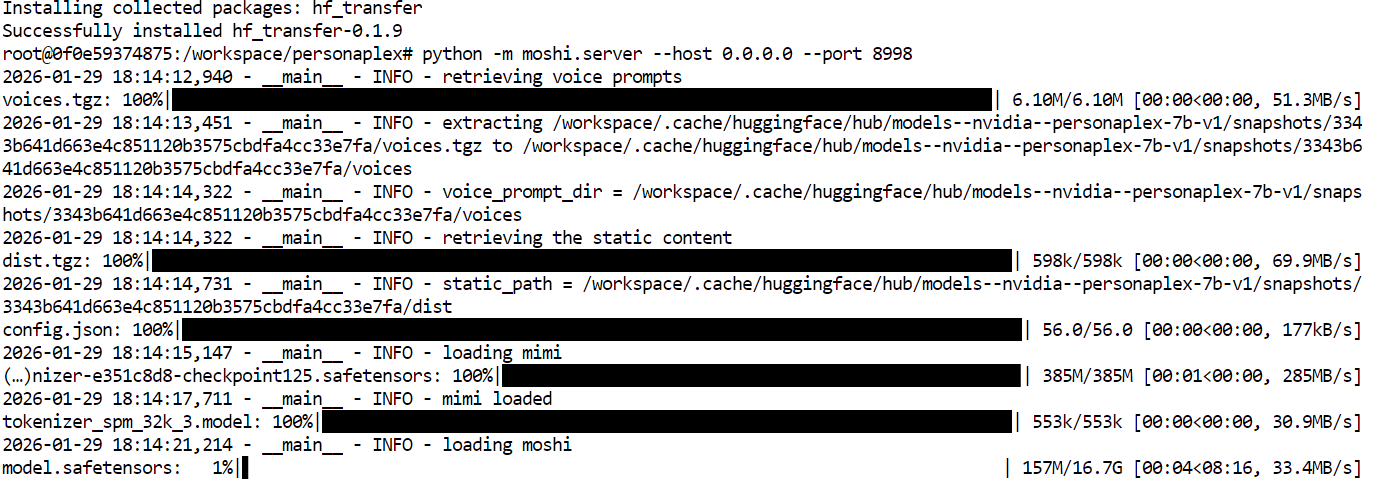
Nach Abschluss startet der Server und hört auf Port 8998.

Um die WebUI aufzurufen, gehe zurück zu deinem RunPod-Dashboard.
Im Bereich Connect findest du den freigegebenen Port 8998. Klicke auf den Link, um die PersonaPlex WebUI im Browser zu öffnen und mit Echtzeit-Sprachgesprächen zu starten.
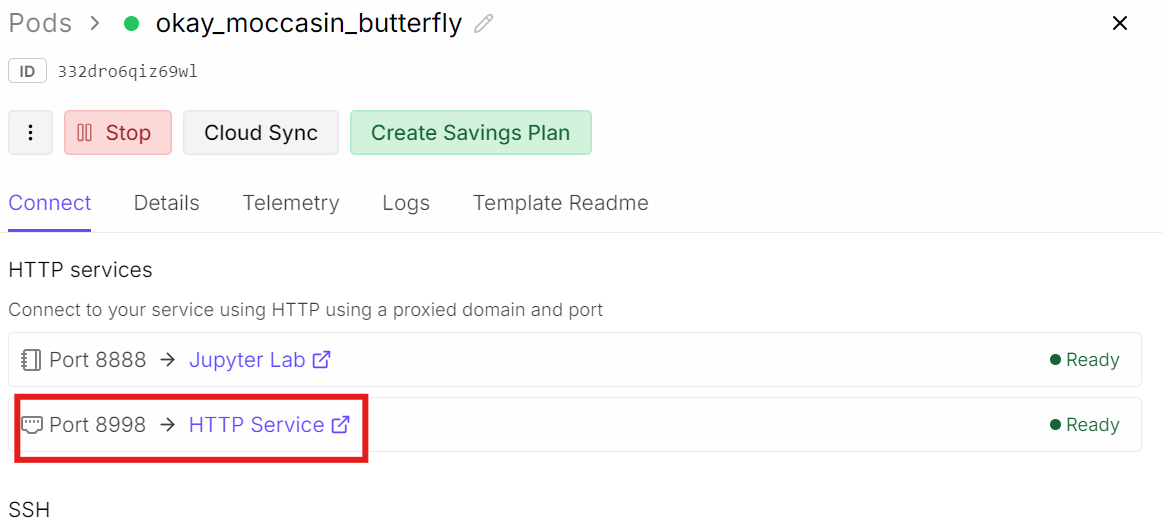
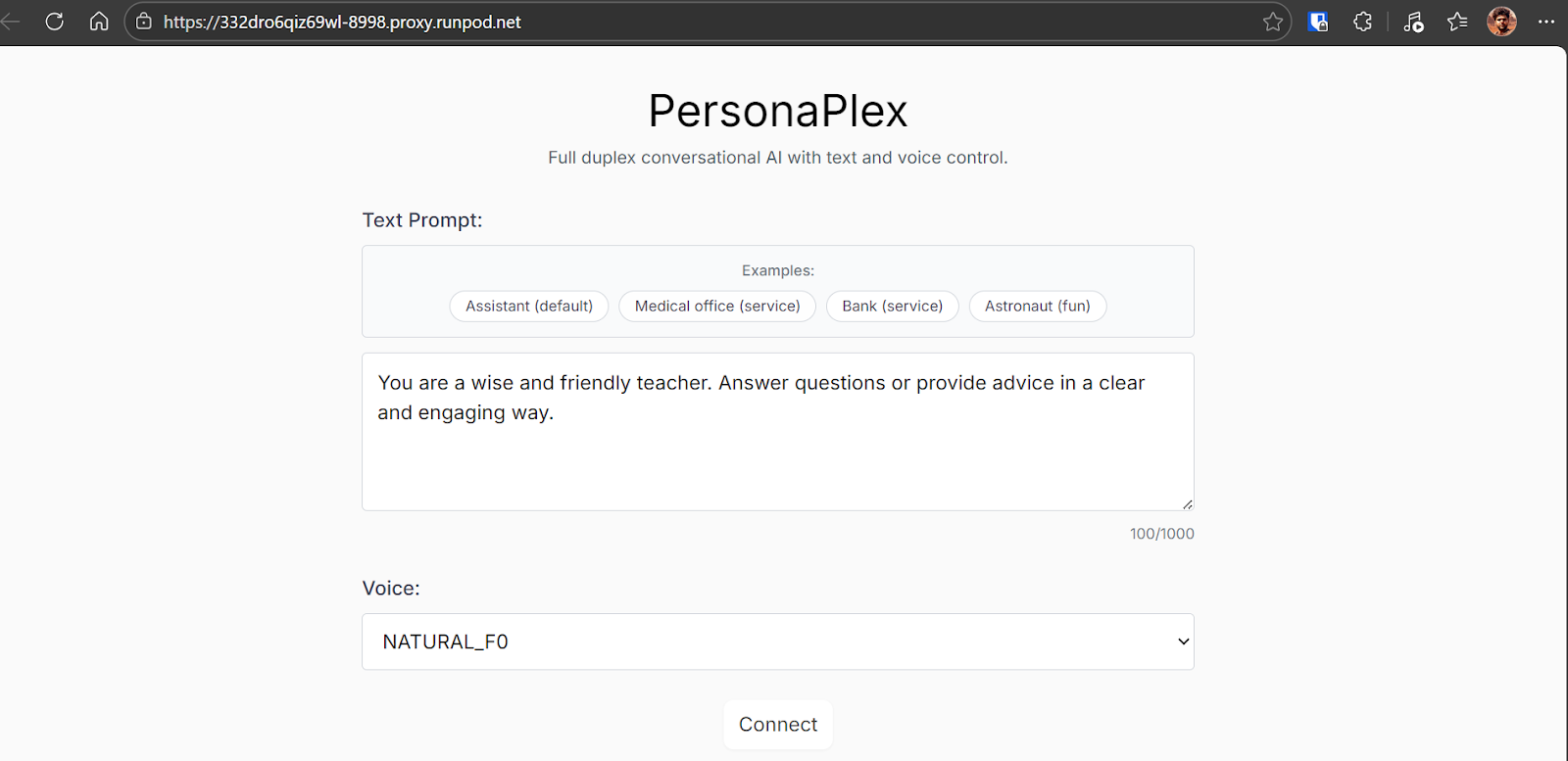
Die PersonaPlex WebUI enthält mehrere Beispiel-Prompts für den Einstieg. Du kannst auch eigene Prompts erstellen, um Rolle und Verhalten des Assistenten festzulegen.
Vor dem Verbinden kannst du eine Stimme auswählen, die den Klang der Persona im Gespräch bestimmt.
Für dieses Tutorial ist es am besten, mit den Standardeinstellungen zu beginnen, um ein Gefühl für das System zu bekommen.
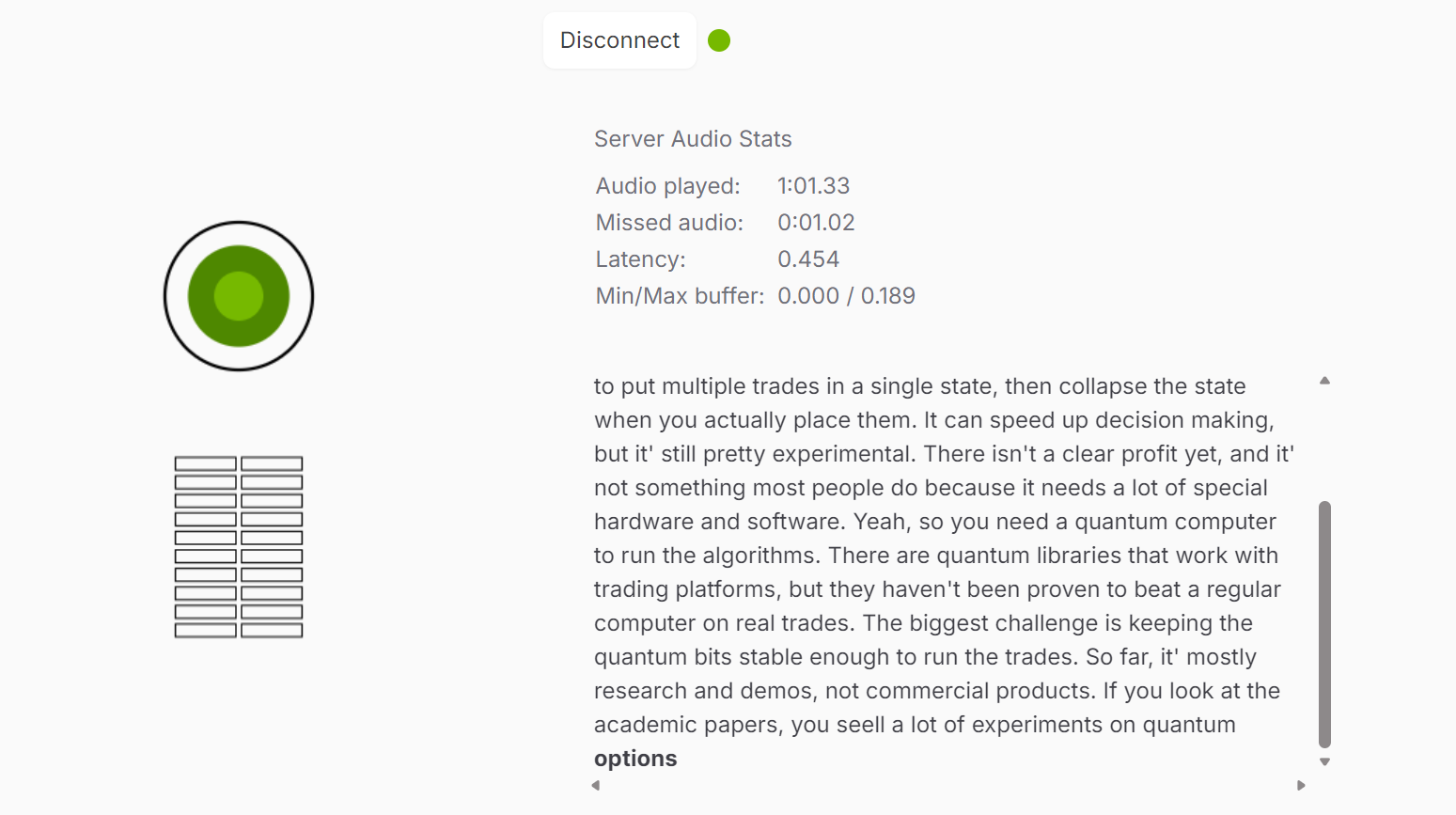
Nach einem Klick auf Connect gelangst du in die interaktive Session. Dort kannst du direkt mit dem Modell sprechen, Antworten in Echtzeit hören und live das Transkript des Gesprächs verfolgen.
Die Erfahrung ist flüssig, mit natürlichem Timing und der Möglichkeit, schnell zu unterbrechen oder zu reagieren.
In meinen Tests fühlte sich die Interaktion überraschend natürlich und fesselnd an.
Gelegentlich kam es zu leichtem Stottern — vermutlich eher durch Browser- oder Systemlast als durch das Modell selbst. Abgesehen davon war das Gespräch sehr nah an einem echten Dialog.
Wenn du dich sicher fühlst, probiere verschiedene Prompts und Stimmen aus. PersonaPlex unterstützt zahlreiche vorgefertigte Voice-Embeddings — von natürlich-konversationell bis ausdrucksstärker:
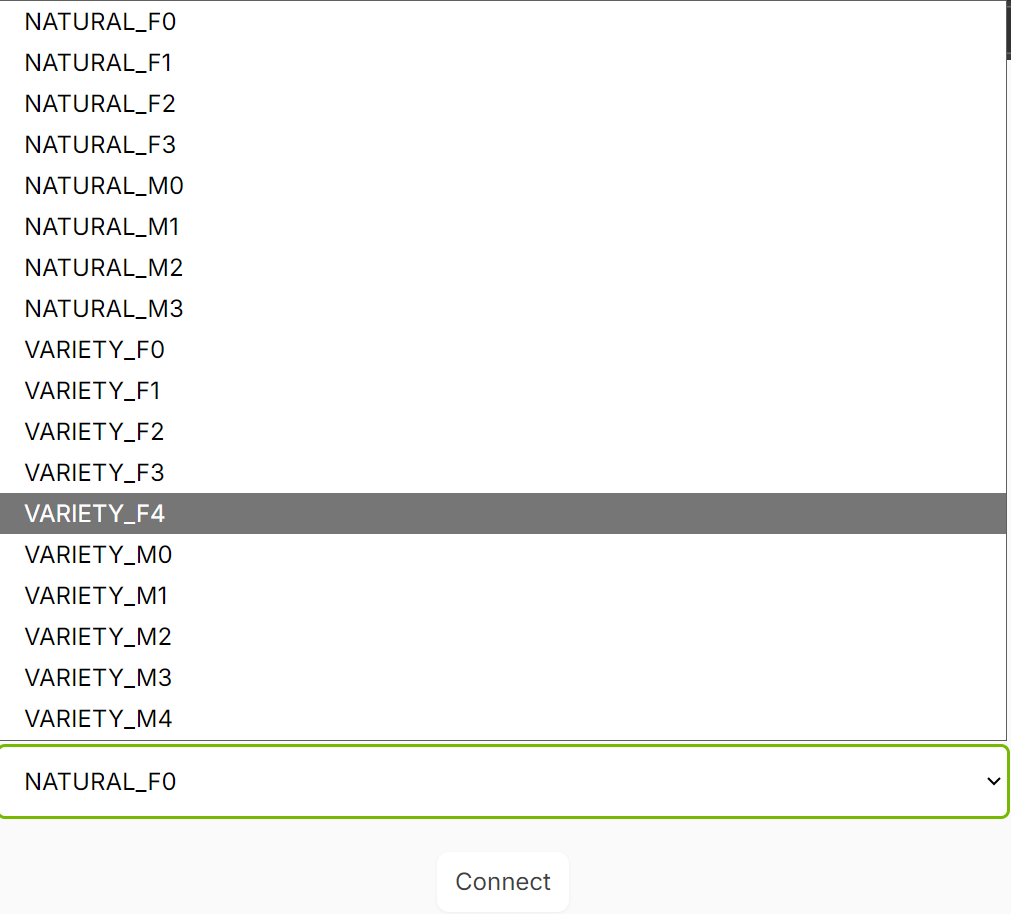
Das Wechseln von Stimmen und Prompts ist ideal, um zu erleben, wie PersonaPlex Persönlichkeit, Ton und Dialogfluss über unterschiedliche Rollen und Sprechstile hinweg beibehält.
Die WebUI ist für Echtzeitgespräche großartig, aber du kannst PersonaPlex auch offline aus Python heraus betreiben. Das ist hilfreich für reproduzierbare Ausgaben, schnelles Testen verschiedener Prompts oder um Audiodateien für Demos und Experimente zu generieren.
Der Offline-Flow ist einfach: Du gibst (1) ein Voice Prompt, (2) ein Text-Prompt und (3) eine WAV-Eingabedatei an. PersonaPlex erzeugt daraus eine Audioantwort und eine JSON-Datei mit dem Transkript des Modells.
Starte ein neues Notebook in Jupyter und wechsle in das geklonte Repository:
%cd personaplexFühre Folgendes in einer neuen Zelle aus. Der Aufruf startet den Offline-Runner und schreibt sowohl das generierte Audio als auch das Transkript auf die Festplatte:
%%capture
!python -m moshi.offline \
  --voice-prompt "NATF2.pt" \
  --text-prompt "You are a wise and friendly teacher. Answer questions in a clear, engaging way." \
  --input-wav "assets/test/input_assistant.wav" \
  --seed 42424242 \
  --output-wav "out_teacher.wav" \
  --output-text "out_teacher.json"
Bedeutung der Flags:
--voice-prompt wählt das Voice-Embedding (hier: eine natürliche weibliche Stimme).--text-prompt definiert Rolle und Verhalten des Assistenten.--input-wav ist die aufgezeichnete Nutzereingabe, auf die das Modell reagiert.--seed macht die Ausgabe zwischen Läufen reproduzierbarer.--output-wav ist die generierte gesprochene Antwort.--output-text speichert das Transkript als JSON.Nach Abschluss kannst du die Antwort direkt abspielen:
from IPython.display import Audio

Audio("out_teacher.wav")
Du hörst eine klare, natürliche Antwort in der gewählten Stimme — passend zur im Text-Prompt definierten Persona.

Das JSON-Transkript kann gelegentlich Tokenisierungsartefakte enthalten, etwa zusätzliche Leerzeichen vor Satzzeichen oder geteilte Wortstücke. Der folgende Helfer lädt das JSON und bereinigt es zu gut lesbarem Text.
import json
import re

with open("out_teacher.json") as f:
    data = json.load(f)

def detokenize(tokens):
    # 1) drop padding-like tokens
    drop = {"PAD", "EPAD", "<pad>", "</s>", "<s>"}
    toks = [t for t in tokens if t not in drop]

    # 2) join with spaces first
    s = " ".join(toks)

    # 3) fix spacing around punctuation
    s = re.sub(r"\s+([.,!?;:])", r"\1", s)

    # 4) fix common split contractions: "it ' s" -> "it's"
    s = s.replace(" ' s", "'s").replace(" n't", "n't").replace(" 're", "'re").replace(" 'm", "'m").replace(" 've", "'ve").replace(" 'd", "'d")

    # 5) fix stray spaces around apostrophes
    s = re.sub(r"\s+'\s+", "'", s)

    # 6) fix cases like "for k" -> "fork" and "fl uff" -> "fluff"
    # (general rule: merge single-letter fragments if they look like split wordpieces)
    s = re.sub(r"\b([A-Za-z])\s+([A-Za-z]{1,3})\b", r"\1\2", s)

    # 7) collapse multiple spaces
    s = re.sub(r"\s{2,}", " ", s).strip()

    return s

clean_text = detokenize(data)  # replace with your list variable
clean_text
Jetzt solltest du ein gut lesbares Transkript sehen, das zur generierten Audioausgabe passt. Falls noch seltsame Trennungen vorkommen (z. B. „fl uff“ oder „afor k“), ist das für manche Läufe normal und kann mit zusätzlichen Regeln weiter bereinigt werden. Der Inhalt sollte dennoch verständlich sein.
"Hey, let me know if you have any questions.
Hmm, first rinse the rice a couple of times until the water runs clear, that cuts down on starch, then use apot with a tight fitting lid, bring to a boil,
give it a quick stir, then turn the heat down low and cover, let it s immer without lifting it, and when it'done fl uff it with afor k, that usually
You could to ss the hot rice with a nice handful of chopped fresh herbs like basil or par sley, or you could sprinkle a little g rated cheese,
a squeeze of lemon or lime, adr izzle of olive oil, some chopped fresh herbs, or even some to ast ed nuts, that adds color and flavor."PersonaPlex hat mich wirklich positiv überrascht. Schon die erste Interaktion fühlte sich weniger nach einem Modelltest an und mehr wie ein echtes Gespräch. Natürlich unterbrechen, sofortige Antworten erhalten und eine konsistente Persona beibehalten — das wirkte deutlich weiter als die meisten Sprachsysteme, die ich ausprobiert habe. Alles lokal auszuführen, hat den Eindruck verstärkt: keine spürbare Verzögerung, volle Kontrolle.
Es gibt noch Schwachstellen. Ich habe gelegentliches Stottern bemerkt, und wenn das Gespräch weiter fortgeschritten ist, klappt das Zurückspringen zu früheren Themen nicht immer reibungslos.
Nicht alle nicht-englischen Akzente werden bereits vollständig verstanden, was zu falsch ausgesprochenen Namen oder nicht perfekten Transkripten führen kann. Das wirkt eher wie Randfälle als wie Grundsatzprobleme, und ich bin zuversichtlich, dass sich das schnell verbessert.
Ich bin sicher, dass diese Punkte in Zukunft gelöst werden — und wir eine noch bessere, voll lokale Konversations-KI in Echtzeit bekommen, die das Reasoning von GPT-5.2 mit der Sprachqualität von ElevenLabs kombiniert.
Top-DataCamp-Kurse
Kurs
Lernpfad
Kurs
Blog
Blog
Hesam Sheikh Hassani
15 Min.
Tutorial
Matt Crabtree
5 Min.
Tutorial
Sejal Jaiswal
9 Min.
Tutorial
Adel Nehme
3 Min.