TL;DR
-
git resetverplaatst de branch-pointer terug en verwijdert commits uit de geschiedenis. Gebruik dit voor lokale opschoning vóór het pushen. -
git reset --softhoudt wijzigingen gestaged,--mixed(standaard) unstaget ze, en--hardgooit ze volledig weg. -
git revertmaakt een nieuwe commit die een eerdere commit ongedaan maakt. Gebruik dit voor wijzigingen die al naar een gedeelde branch zijn gepusht. -
Gebruik nooit
git resetop gedeelde branches. Als iets al gepusht is, gebruik dangit revert. -
Als je per ongeluk
git reset --harduitvoert, controleergit reflogom verloren commits te herstellen.
Wat is Git?
Git is een open-source versiebeheertool, in 2005 gemaakt door Linus Torvalds. Het wordt vooral gebruikt om wijzigingen in projectbestanden efficiënt bij te houden, zodat teamleden een volledig overzicht hebben van alle veranderingen en wijzigingen kunnen mergen zonder waardevolle informatie te verliezen. Onze
Daarnaast behandelt de Introduction to GitHub Concepts-cursus de belangrijkste GitHub-functies, het navigeren door de interface en het succesvol uitvoeren van alledaagse samenwerkingstaken.
Git revert en Git reset zijn twee commando’s in Git om wijzigingen in de code en geschiedenis van een project ongedaan te maken, maar dan op verschillende manieren. Voordat we in het proces duiken, maken we eerst een Git-project.
Maak een Git-project
Hieronder staan de instructies om een git-project te maken en het te initialiseren met een paar bestanden:
mkdir git_revert_reset
cd git_revert_reset
git init .-
mkdir git_revert_resetmaakt een map met de naamgit_revert_reset. -
cd git_revert_resetgaat naar de map. -
git init .initialeert de map als een git-repository.
We beschouwen dit als een data science-project. We kunnen de volgende bestanden maken voor data-acquisitie, datapreprocessing en modeltraining met dit touch-commando:
touch data_acquisition.py data_preprocessing.py model_training.pyDit is de uiteindelijke inhoud van de projectmap.
git_revert_reset
      |---------- data_acquisition.py
      |---------- data_preprocessing.py
      |---------- model_training.py
Git Reset
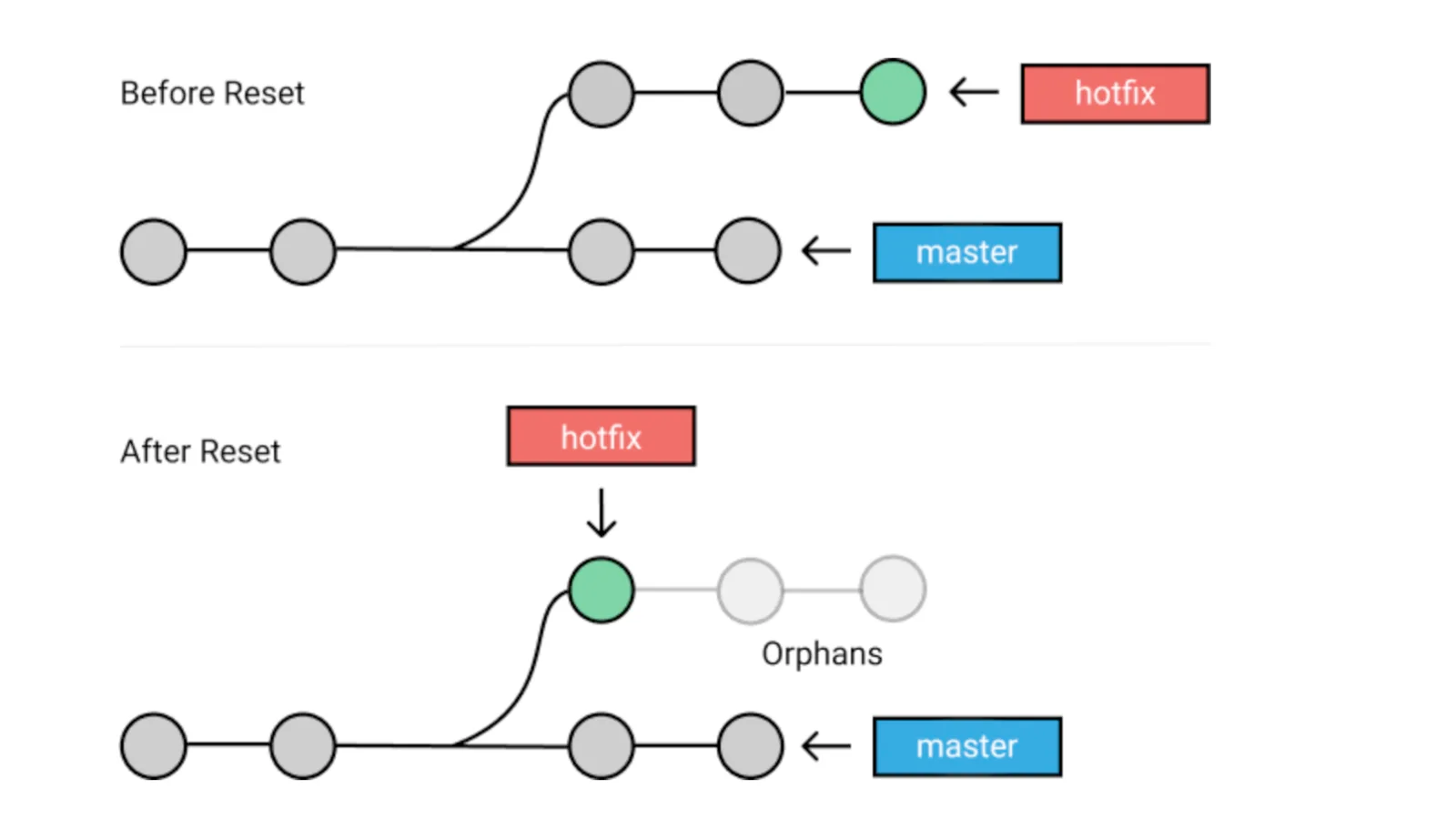
Git Reset-diagram (Bron)
Met het commando git reset maak je wijzigingen in je working directory ongedaan en ga je terug naar een specifieke commit, terwijl alle commits daarna worden verworpen.
Stel bijvoorbeeld dat je tien commits hebt gemaakt. Als je git reset uitvoert op de eerste commit, verwijder je alle negen daaropvolgende commits en ga je terug naar de staat van de eerste commit.
Voordat je git reset gebruikt, is het belangrijk om na te denken over het type wijzigingen dat je wilt doen; anders richt je meer schade aan dan goed.
Je kunt meerdere opties gebruiken met git reset, maar dit zijn de belangrijkste. Elke optie is geschikt voor een specifieke situatie: git reset --soft, git reset --mixed en git reset --hard
git reset --soft
De optie --soft verandert de referentie van HEAD (waar de laatste commit zich op je lokale machine bevindt) naar een specifieke commit. Als we bijvoorbeeld merken dat we een bestand vergaten toe te voegen aan de commit, kunnen we teruggaan met --soft volgens het volgende format:
-
git reset --soft HEAD~nom terug te gaan naar de commit met een specifieke referentie (n).git reset --soft HEAD~1gaat terug naar de laatste commit. -
git reset --soft <commit ID>gaat terug naar de head met de<commit ID>.
Laten we wat voorbeelden bekijken.
git add data_acquisition.py data_preprocessing.py

git commit -m "added data acquisition and preprocessing scripts"
Dit is het resultaat van het vorige commando.
[master (root-commit) faf864e] added data acquisition and preprocessing scripts
2 files changed, 0 insertions(+), 0 deletions(-)
create mode 100644 data_acquisition.py
create mode 100644 data_preprocessing.py
We kunnen de status van de commit als volgt controleren:
git status

On branch master
Untracked files:
(use "git add <file>..." to include in what will be committed)
model_training.py

nothing added to commit but untracked files present (use "git add" to track)
Maar we zijn vergeten het script model_training.py aan de commit toe te voegen.
Aangezien de laatste commit zich op HEAD bevindt, kunnen we dit oplossen met de volgende drie stappen.
-
Maak de laatste commit ongedaan terwijl je de wijzigingen gestaged houdt met
git reset --soft HEAD~1. -
Voeg het vergeten bestand toe met
git add. -
Leg de wijzigingen vast met een laatste commit via
git commit.
git reset --soft HEAD~1

git add model_training.py

git commit -m "added all the python scripts"
Het volgende resultaat maakte git reset naar master na alle voorgaande stappen:
[master (root-commit) faf864e] added all the python scripts
3 files changed, 0 insertions(+), 0 deletions(-)
create mode 100644 data_acquisition.py
create mode 100644 data_preprocessing.py
create mode 100644 model_training.py
Voor een uitgebreidere walkthrough van soft resets, zie onze Git Reset Soft: Complete Guide. Als je alleen het laatste commitbericht wilt aanpassen of vergeten bestanden wilt toevoegen, is git commit --amend vaak een snellere oplossing dan resetten.
git reset --mixed
Dit is het standaardargument voor git reset. Het uitvoeren van dit commando heeft twee effecten: (1) alle wijzigingen worden ongecommit en (2) ze worden ook ge-unstaged. Stel dat we per ongeluk het bestand model_training.py hebben toegevoegd en het willen verwijderen omdat de modeltraining nog niet af is. Zo pak je dat aan:
- Unstage de bestanden die in de commit zaten met git reset HEAD
- Voeg alleen de bestanden toe die we voor de commit nodig hebben
git reset HEAD

git status

On branch master
Untracked files:
(use "git add <file>..." to include in what will be committed)
model_training.py
data_acquisition.py
data_preprocessing.py

nothing added to commit but untracked files present (use "git add" to track)
Nu kunnen we alleen de laatste twee bestanden toevoegen en de commit maken.
git add data_acquisition.py data_preprocessing.py

git commit -m "Removed the model_training.py from the commit"
git reset --hard
Deze optie kan potentieel gevaarlijk zijn. Wees dus voorzichtig met het gebruik!
In essentie: als je een hard reset uitvoert naar een specifieke commit, dwing je HEAD terug naar die commit en verwijder je alles wat daarna kwam.
Voordat we de hard reset uitvoeren, kijken we naar de inhoud van de map.
ls
data_acquisition.py data_preprocessing.py model_training.py

git reset --hard
HEAD is now at 97159bc added data acquisition and preprocessing scripts
Laten we nu de inhoud van de map controleren:
ls
data_acquisition.py data_preprocessing.py
We zien dat het ongetrackte bestand model_training.py is verwijderd. Begrijp dus goed wat je doet met reset, want de consequenties kunnen groot zijn!
Als je per ongeluk een hard reset uitvoert, is git reflog je reddingsboei. Git houdt ongeveer 30 dagen een log bij van alle referentiewijzigingen, waardoor je vaak "verloren" commits kunt herstellen via git reflog en daarna git reset --hard HEAD@{n} om terug te springen naar de staat vóór de reset. Let op: niet-gecommit of niet-gestagede wijzigingen kun je hiermee niet herstellen.
Git Revert
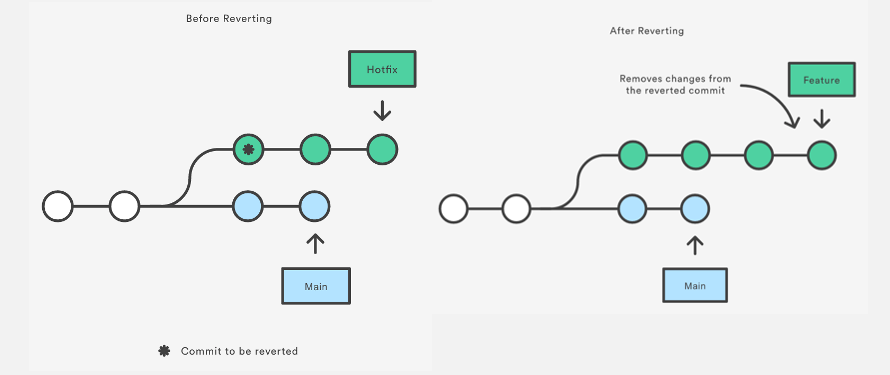
Voor en na Revert (Bron)
Git revert lijkt op git reset, maar de aanpak verschilt. In plaats van alle commits in de weg te verwijderen, maakt revert ALLEEN één specifieke commit ongedaan door je terug te brengen naar de gestagede bestanden van vóór die commit.
Dus in plaats van een commit te verwijderen, draait git revert de veranderingen van de oorspronkelijke commit om door een nieuwe commit te maken met de inverse inhoud. Dit is een veilige manier om een commit terug te draaien, omdat je geschiedenis behouden blijft.
Belangrijk om te weten: revert heeft geen effect tenzij je de commit-hash of referentie opgeeft.
Laten we een paar veelgebruikte git revert-opties bekijken.
git revert --no-edit <commit ID>
Met de optie --no-edit hoef je het bericht van de commit die je wilt terugdraaien niet te wijzigen, en hiermee laat je git revert naar de masterbranch schrijven.
Om dit te illustreren, maken we twee nieuwe bestanden die we willen toevoegen.
touch model_monitoring.py data_monitoring.pyNadat we die bestanden hebben gemaakt, moeten we ze toevoegen aan de staging area voor gewijzigde versies.
git add model_monitoring.pyVoordat we doorgaan, kijken we naar de status met het volgende commando.
git status
Changes to be committed:
(use "git rm --cached <file>..." to unstage)
new file:   data_monitoring.py
new file:   model_monitoring.py
We zien dat de twee bestanden zijn toegevoegd. Nu kunnen we de wijzigingen committen.
git commit -m "Added the monitoring script files"
[master (root-commit) eae84e7] Added the monitoring script files
2 files changed, 0 insertions(+), 0 deletions(-)
create mode 100644 data_monitoring.py
create mode 100644 model_monitoring.py
Vervolgens kunnen we met het volgende commando de commit-hash opvragen. Dit is handig als je een actie op deze specifieke commit wilt uitvoeren.
git reflog
eae84e7 (HEAD -> master) HEAD@{0}: commit (initial): Added the monitoring script files
Stel nu dat de vorige commit niet de bedoeling was en we er vanaf willen.
git revert --no-edit eae84e7

[master c61ef6b] Revert "Added the monitoring script files"
Date: Sat Nov 12 20:14:17 2022 -0600
2 files changed, 0 insertions(+), 0 deletions(-)
delete mode 100644 data_monitoring.py
delete mode 100644 model_monitoring.py
Laten we de log van de commits bekijken:
git log

commit c61ef6b4e86f41f47c8c77de3b5fca3945a7c075 (HEAD -> master)
Author: Zoumana Keita <keitnekozou@gmail.com>
Date:   Sat Nov 12 20:14:17 2022 -0600

  Revert "Added the monitoring script files"

  This reverts commit eae84e7669af733ee6c1b854f2fcd9acfea9d4a3.

commit eae84e7669af733ee6c1b854f2fcd9acfea9d4a3
Author: Zoumana Keita <keitnekozou@gmail.com>
Date:   Sat Nov 12 20:05:57 2022 -0600

  Added the monitoring script files
Uit de log zien we dat er een nieuwe commit is gemaakt met ID c61ef6b4e86f41f47c8c77de3b5fca3945a7c075 om de oorspronkelijke commit met ID eae84e7669af733ee6c1b854f2fcd9acfea9d4a3 terug te draaien.
In dit voorbeeld, omdat we één commit hebben, hadden we ook git revert HEAD kunnen gebruiken, wat hetzelfde effect heeft. Voor meer voorbeelden, zie onze gids voor het terugdraaien van de laatste commit.
git revert <commit hash>
Dit verwijdert alleen de wijzigingen die horen bij deze commit-hash en heeft geen invloed op andere commits.
Welke git revert denk je dat effect zal hebben, gegeven de eerder gegenereerde ID?
Als je antwoord c61ef6b4e86f41f47c8c77de3b5fca3945a7c075 was, dan klopt dat. eae84e7669af733ee6c1b854f2fcd9acfea9d4a3 zal geen effect hebben, want die is vervangen door een nieuwe.
Laten we zien wat er gebeurt als we de revert uitvoeren.
git revert c61ef6b4e86f41f47c8c77de3b5fca3945a7c075

[master aaead40] Revert "Revert "Added the monitoring script files""

 2 files changed, 0 insertions(+), 0 deletions(-)

 create mode 100644 data_monitoring.py

 create mode 100644 model_monitoring.py
Zoals je ziet, zijn de twee bestanden die we aanvankelijk hebben gemaakt en gecommit, weer teruggebracht!
git revert --no-commit <commit ID>
Het doel van de optie --no-commit of -n is te voorkomen dat git de revert automatisch commit. Dit is handig als je de wijzigingen die door de revert zijn aangebracht eerst wilt bekijken voordat je commit.
Beschouw het volgende voorbeeld:
git revert --no-commit c61ef6b4e86f41f47c8c77de3b5fca3945a7c075Dit draait de wijzigingen terug die zijn gemaakt door de commit met ID c61ef6b4e86f41f47c8c77de3b5fca3945a7c075, maar maakt niet automatisch een nieuwe commit aan om de revert vast te leggen. In plaats daarvan worden de inverse wijzigingen gestaged, zodat je ze kunt bekijken en beslissen of je de revert handmatig wilt committen.
Git Revert vs. Reset
git reset en git revert maken allebei wijzigingen ongedaan, maar werken verschillend en zijn geschikt voor andere situaties.
| Criteria | git reset | git revert |
|---|---|---|
| Werking | Verplaatst de branch-pointer terug en verwijdert commits uit de geschiedenis | Maakt een nieuwe commit die de wijzigingen van een eerdere commit omkeert |
| Commithistorie | Schrijft geschiedenis over (commits worden verwijderd) | Behoudt volledige geschiedenis (voegt een nieuwe revert-commit toe) |
| Veilig voor gedeelde branches? | Nee (samenwerkers krijgen conflicten als ze de verwijderde commits hebben gepulld) | Ja (geschiedenis blijft consistent voor alle samenwerkers) |
| Reikwijdte | Kan meerdere commits tegelijk terugdraaien | Draait één commit per keer terug (gebruik --no-commit om te bundelen) |
| Beste gebruiksscenario | Opschonen van lokale of privé-branches vóór het pushen | Wijzigingen terugdraaien die al naar een remote zijn gepusht |
| Risiconiveau | Hoog met --hard (verwijdert niet-gecommit werk permanent) |
Laag (er gaat nooit data verloren) |
Vuistregel: gebruik git reset om ongepusht lokale geschiedenis op te schonen, en git revert om veilig iets ongedaan te maken dat anderen mogelijk al hebben gepulld. Voor specifieke informatie over het terugdraaien van merge-commits, zie onze gids Git Revert Merge Commit.
Conclusie
De kern: gebruik git reset om lokale geschiedenis op te schonen die je nog niet hebt gepusht, en git revert om veilig wijzigingen op gedeelde branches ongedaan te maken. Wees extra voorzichtig met git reset --hard, want dit verwijdert niet-gecommitte wijzigingen permanent uit je working directory.
Wil je je Git-skills verder uitbouwen? Bekijk dan deze gerelateerde DataCamp-tutorials: