Courses
Giới thiệu về Git
2 giờ
96.9K
For a long time, git checkout handled almost everything related to moving around a repository, switching branches, restoring files, and inspecting old commits. That flexibility created ambiguity. The same syntax could mean different things depending on context.
A small typo could switch branches when you intended to restore a file. A quick history check using git checkout <commit-hash> could leave you in a detached HEAD state without realizing it. The command worked, but it required constant awareness of its multiple behaviors.
That’s when Git 2.23 introduced git switch, which is a more specialized command to handle branch operations.
In this guide, I’ll show you how git switch differs from git checkout. We will also break down where each command fits in modern workflows and take a look at their scopes.
If Git is still fairly new to you, I recommend learning the basics in our Introduction to Git course.
git switch is a dedicated command introduced in Git 2.23 to manage branch navigation and creation. It makes moving between branches cleaner, safer, and less error-prone.
Before its introduction, developers used git checkout to switch branches. The issue was that git checkout handled multiple unrelated tasks:
This made the command overloaded and easier to misuse.
Git addressed this by splitting responsibilities. git switch now handles branch switching and creation, and git restore handles file restoration. This separation reduces ambiguity and lowers the risk of accidental file changes.
In practice, git switch branch-name moves your current HEAD pointer to the specified branch name. You can also use git switch -c new-branch to create and switch to a new branch.
Now that you understand why git switch was introduced, let’s look at how it actually differs from git checkout under the hood.
Before Git 2.23, git checkout handled both branch navigation and file restoration. That design worked, but it mixed two fundamentally different concepts. It moves HEAD, restores files, and checks out commits. Depending on how you use it, it manipulates the HEAD pointer, the index, and the working tree.
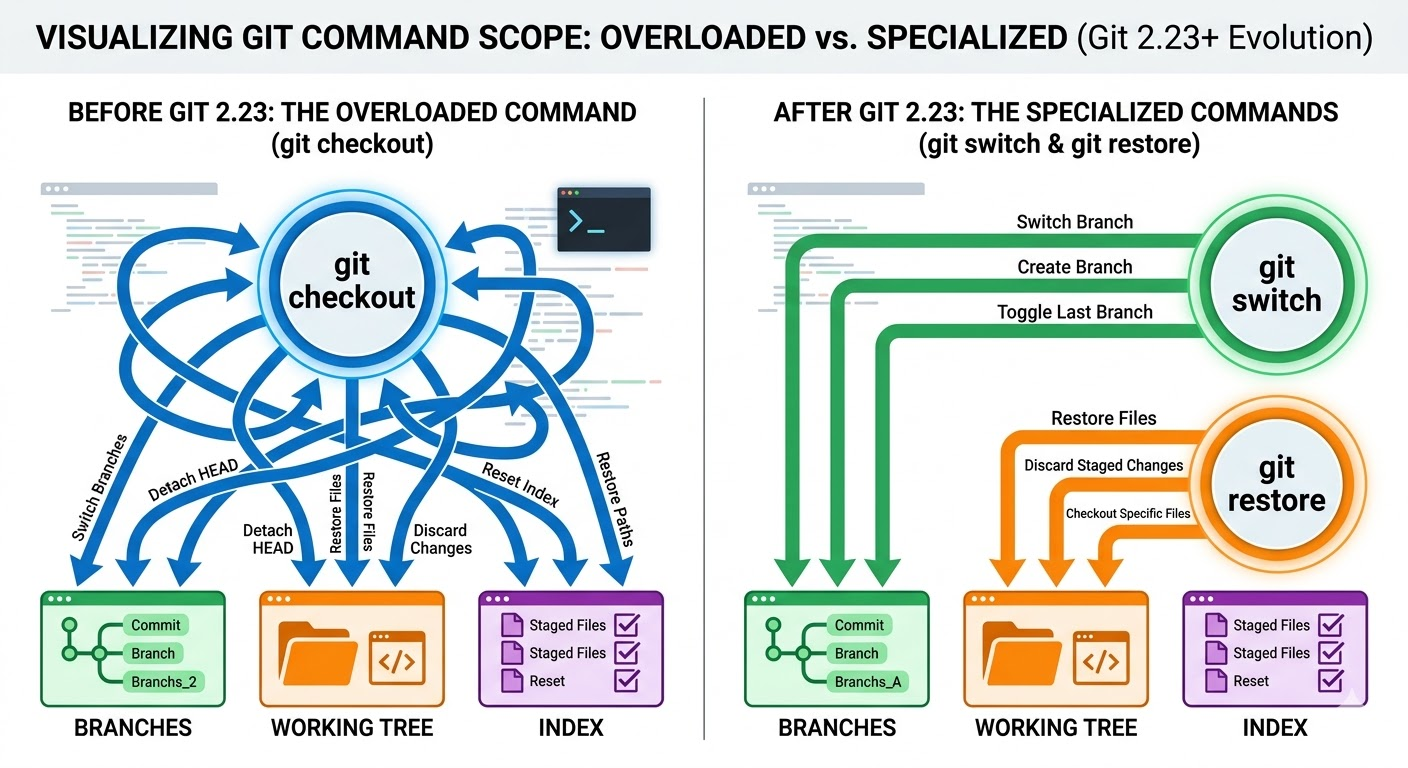
git switch focuses exclusively on moving the HEAD pointer between branches. When you run git switch branch-name, Git updates HEAD to point to that branch and adjusts the working directory to match it. So this command exists specifically for branch navigation and creation. With git switch and git restore, the responsibilities are cleanly divided:
git switch moves HEAD between branches.
git restore modifies files in the working tree or index.
For example, restoring a file previously required: git checkout HEAD -- file.txt. Today, the recommended approach is: git restore file.txt.
Here, you are restoring a file, not navigating branches. In scripts and team documentation, this distinction improves readability and reduces mistakes.
Git 2.23 separates responsibilities by introducing git switch for branch operations and git restore for file restoration.
Before that release, git checkout functioned as a multipurpose tool. It could change branches, restore files, or move to arbitrary commits. However, this created confusion, especially for new users. Hence, by splitting the command, Git reduced ambiguity and made common workflows clearer.
In Git, HEAD normally points to a branch. That branch, in turn, points to the latest commit. When you create a new commit, Git moves the branch forward. This is the standard workflow.
A detached HEAD happens when HEAD points directly to a commit instead of a branch. In that state, you are no longer on a branch. If you make a new commit, Git creates it, but no branch name references it. Unless you explicitly create a branch, those commits remain unreferenced and can become difficult to locate later.
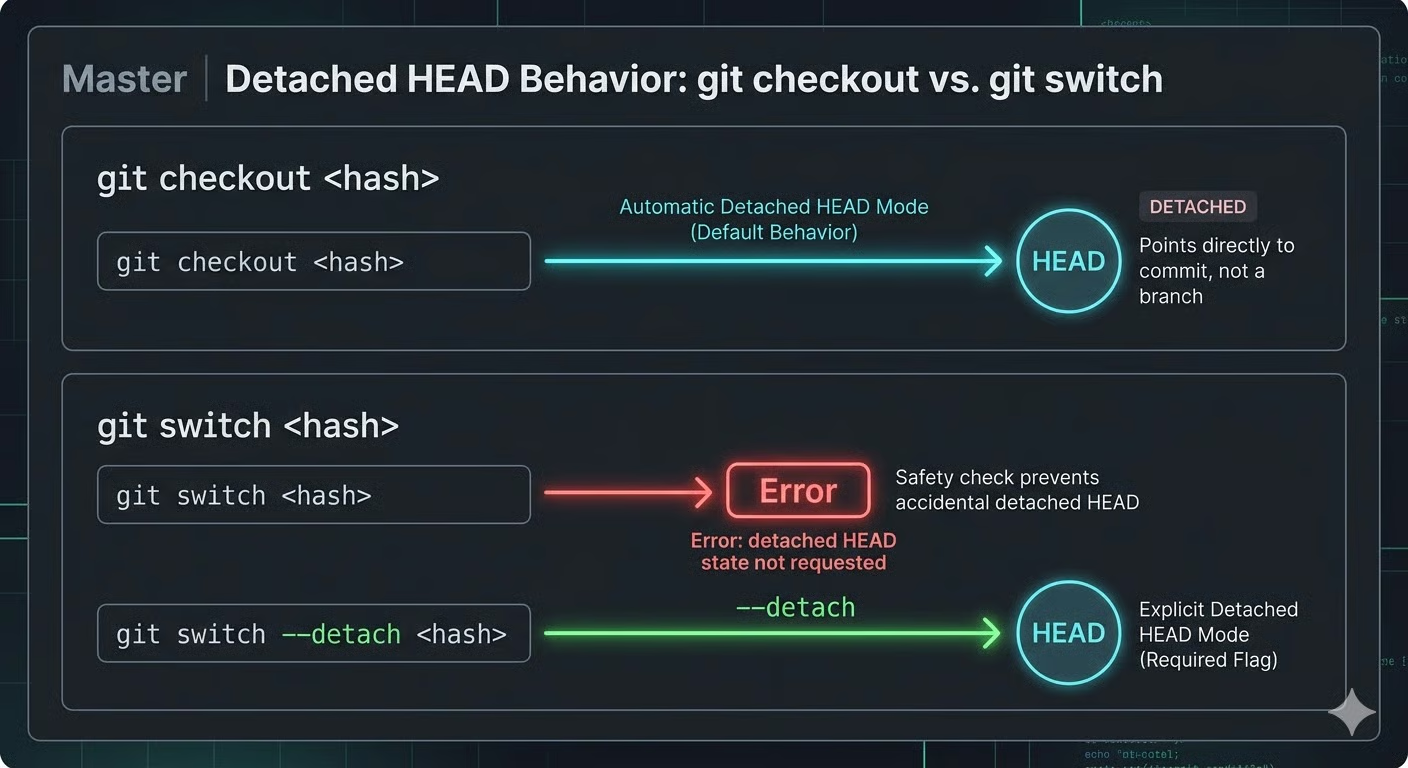
When you run git checkout <commit-hash>, Git automatically enters detached HEAD mode. Git switches to that commit and detaches HEAD without requiring extra confirmation. This behavior is valid, but it easily enters detached mode automatically.
On the other hand, git switch requires explicit mention. To detach HEAD, you must use git switch --detach <commit-hash>. Without the --detach flag, git switch only operates on branches. This design reduces accidental detached states and makes branch workflows safer and more predictable.
Now that we have covered the high-level differences between the two commands, let’s take a look at syntax, scope, and safety considerations.
To create and switch to a new branch with git switch, you run git switch -c <branch-name>. With git checkout, the equivalent command is git checkout -b <branch-name>.
Both commands create a new branch and switch to it, but the difference is in how clearly the command expresses its intent. In git switch, the -c flag directly signals that you are creating a branch, while in git checkout, -b historically means “branch,” but it is less explicit in intent.
git switch also introduces the -C flag: git switch -C <branch-name>. Its effect is stronger than that of the -c flag: It forcefully creates the branch, or resets it if it already exists. This behavior is explicit and branch-focused. In git checkout, similar force behavior exists, but the semantics are less clearly separated because the command serves multiple purposes.
git switch only works with branches. It cannot restore files, unstage changes, or check out specific paths from previous commits. Basically, it doesn’t support file-level operations.
In contrast, git checkout can operate at the file level. For example, git checkout <commit> -- <file> restores a specific file from a past commit.
However, modern Git documentation suggests using git restore for this purpose instead. The key point is that git switch deliberately excludes file manipulation to keep its scope narrow and predictable.
One common issue with git checkout is ambiguity. If a branch name and a file name are identical, depending on context, it may switch branches or restore a file. git switch avoids this ambiguity entirely. It only operates on branches. If you don’t provide a valid branch name, Git clearly fails instead of guessing.
git switch also provides clearer error handling when local changes conflict with the target branch. If switching branches would overwrite uncommitted work, Git stops the operation and displays a direct error message, like the following ones:
If the branch does not exist: fatal: invalid reference: feature/login
If local changes would be overwritten: error: Your local changes to the following files would be overwritten by checkout
If the branch already exists when using -c: fatal: a branch named 'feature/login' already exists
Clear error messages like these reduce accidental state changes.
Understanding git switch becomes much easier once you see it in real workflows. These examples show how it behaves in everyday branch management and why it feels safer and more predictable than git checkout.
In daily development, you mostly move between branches or create new ones.
To switch to an existing local branch, use: git switch <branch_name>. Here, git moves HEAD to the mentioned branch name and updates your working directory to match that branch.
To create a new branch for a new feature named “new_ui” and switch to it in one step, use git switch -c feature/new-ui. This creates the branch from your current commit and immediately moves the HEAD to it.
If you need to reset or overwrite an existing branch, use: git switch -C feature/new-ui. The capital -C forces creation or resets the branch pointer. This makes destructive intent explicit.
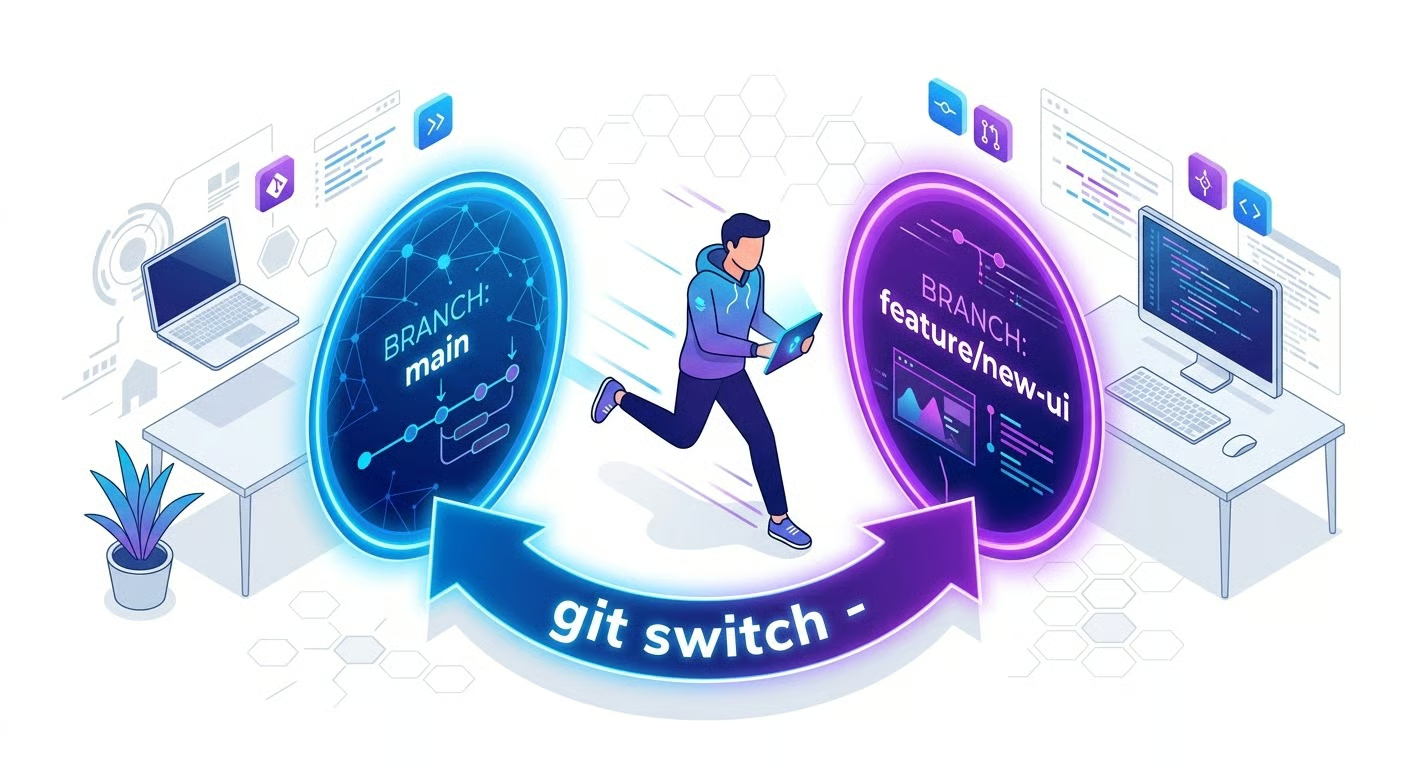
You can also quickly toggle between your last two branches using git switch -. This is very handy when reviewing code on one branch and returning to your feature branch repeatedly.
Often, a branch exists on the remote but not locally. For example, someone pushes origin/bugfix, but you have not created it yet.
If you run: git switch bugfix, Git will create a local bugfix branch and set it to track the remote branch origin/bugfix, assuming there is a clear match in origin. This simplifies collaboration because you do not need to manually set upstream tracking.
If you want to prevent Git from guessing, use: git switch --no-guess bugfix. Now Git fails if the branch does not exist locally. This is useful in stricter workflows where automatic tracking could create confusion.
If you prefer to be explicit when creating a tracking branch, use git switch -c bugfix --track origin/bugfix. This makes the tracking relationship clear in the command itself.
Sometimes you just want to look at an old commit. Maybe you want to test a previous version or verify when a bug was introduced. In that case, you want to move to that point in history temporarily.
With git switch, you must say that explicitly: git switch --detach <commit-hash>.
The --detach flag tells Git: move HEAD directly to this commit, not to a branch. You can now explore the code, run tests, or build the project. If you make new commits in this state, they are not attached to any branch unless you create one.
With git checkout <commit-hash>, the same action happens automatically without an extra flag. This makes it easy to enter detached mode unintentionally, while requiring the --detach flag in git switch prevents accidental detached HEAD states.
Next, let’s see how you can integrate git switch into typical Git workflows.
In modern development workflows, git switch should handle all branch-related work. That includes
Because git switch focuses only on branch management, it communicates intent clearly.
git checkout still has a role, but it is narrower now. Legacy automation scripts written before Git 2.23 often rely on it. Certain file-level reversion tasks may also still use it, although git restore is the preferred replacement going forward.
There are two distinct scenarios that can cause trouble while using git switch.
One common issue that appears when you try to switch branches with local changes present is “error: Your local changes would be overwritten”. Here, Git blocks the operation because switching would overwrite uncommitted work. You have two safe options to overcome this:
If you want to keep the changes for later, run git stash before you switch to the target branch. After switching, you can restore them using git stash pop.
If you intentionally want to discard local changes, use: git switch --discard-changes target-branch. This option tells Git to throw away local changes and reset the index and working tree to match the target branch (it does not remove untracked files).
Another scenario is accidentally entering a detached HEAD state. If you realize you are not on a branch but have work you want to keep, create a new branch immediately: git switch -c recovery-branch. This attaches your current commit history to a named branch and preserves your changes.
Adopting git switch is not just a command preference. It is a small structural upgrade to how teams think about Git workflows. The benefits compound when adoption is consistent across documentation, onboarding, and automation.
Start with your internal documentation. If your “Getting Started” guides still teach git checkout for branch switching, update them to git switch. Keep checkout only where it is truly required.
Training also plays a role. Modern Git commands provide clearer error messages, especially when local changes conflict with a branch switch. Encourage developers to read and understand these messages instead of treating them as generic failures. The newer command set is more explicit, and recognizing that improves confidence and reduces mistakes.
In shell scripts, CI pipelines, and Git aliases, prefer git switch for branch navigation because it communicates intent immediately. A script that uses git switch main is easier to interpret than one that relies on git checkout, which may carry multiple meanings.
If you define Git aliases, update them to reflect modern usage. For example, an alias for creating feature branches should wrap git switch -c, not git checkout -b.
Finally, verify Git versions across environments. git switch requires Git 2.23 or later. Ensure local developer machines, CI runners, and build servers meet this requirement before standardizing on the new command. A simple version check prevents subtle compatibility issues.
If you step back and look at the bigger picture, the real advantage of git switch is simple. It makes branch management clearer, safer, and more intentional. When you run the command, there’s no ambiguity about what it’s doing. You’re switching branches. That’s it. And that small level of clarity removes a surprising amount of friction from everyday development.
However, git checkout hasn’t been deprecated; you can still use it to restore files, move between branches, or handle more complex scenarios. But for daily branch navigation, Git encourages you to use git switch.
As a next step, I recommend taking our Intermediate Git course, which focuses on collaboration using Git.
Git Courses
Courses
Courses
Courses
blogs
Oluseye Jeremiah
9 phút
Tutorials
François Aubry
8 phút
Tutorials
Austin Chia
10 phút
Tutorials
Dario Radečić
15 phút
Tutorials
Allan Ouko
9 phút
Tutorials
Bexruz (Bex) Tuychiev
9 phút