Kursus
Pengembangan Kode dengan Bantuan AI untuk Developer
1 jam 30 menit
10.7K
Dalam tutorial ini, Anda akan menyiapkan instance H100 SXM jarak jauh di Vast.ai, menjalankan Qwen3.5-27B dengan vLLM, menghubungkannya ke OpenCode, dan menguji kemampuan agentic coding-nya pada proyek FastAPI nyata.
Kami dengan sengaja tidak menggunakan llama.cpp di sini. Meskipun llama.cpp sangat baik untuk banyak setup inferensi lokal, menjalankan model 27B terkuantisasi melalui itu sering datang dengan kompromi: kualitas keluaran lebih rendah, performa pemrograman menurun, dan friksi setup yang lebih besar.
Untuk model yang lebih besar seperti Qwen3.5-27B, kuantisasi dapat terasa menurunkan keandalan, dan deployment lokal melalui llama.cpp bisa menjadi sulit dikelola jika Anda menginginkan perilaku agen yang mulus layaknya produksi.
Sebagai gantinya, tutorial ini menggunakan vLLM pada GPU H100 SXM sewaan. Ini memberi Anda endpoint kompatibel OpenAI yang lebih stabil, performa lebih baik dari model penuh, dan setup yang jauh lebih rapi untuk alur kerja agentic coding.
Anda dapat melihat panduan terpisah kami untuk menjalankan Qwen3.5-397B-A17B secara lokal.
Sebelum mulai, pastikan Anda memiliki:
Sebuah H100 SXM adalah pilihan kuat untuk setup ini karena Qwen3.5-27B membutuhkan banyak memori dan throughput cepat, terutama untuk jendela konteks yang lebih panjang dan inferensi berfokus pada pemrograman yang lebih mulus.
Kami menggunakan Vast.ai karena ini adalah marketplace GPU yang biasanya memberi Anda fleksibilitas harga dan hardware jauh lebih besar daripada cloud dari satu vendor tradisional.
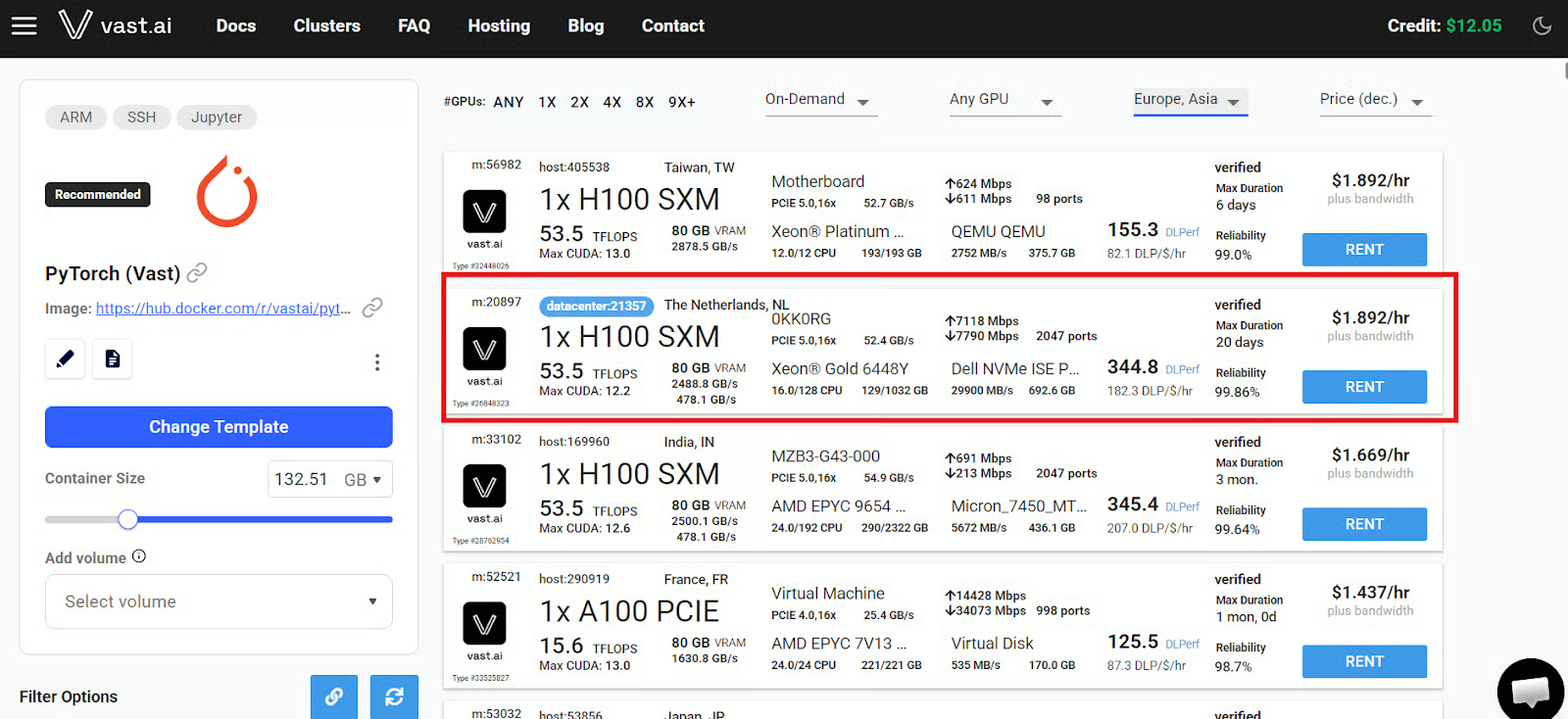
Anda dapat menyewa apa pun mulai dari mesin yang di-host komunitas hingga penawaran Secure Cloud / pusat data, yang ditandai Vast dengan label pusat data biru. Untuk setup seperti ini, saya sangat menyarankan memilih salah satu mesin pusat data berlabel biru tersebut demi keandalan yang lebih baik dan pengalaman yang lebih mulus.
Mulailah dengan membuat akun Vast.ai dan menambah kredit yang cukup untuk sesi Anda. Lalu buka halaman pencarian, pilih template PyTorch dengan Jupyter aktif, dan cari penawaran 1x H100 SXM.
Harga di Vast.ai terus berubah karena ini adalah marketplace langsung, jadi perlakukan tarif per jam mana pun sebagai perkiraan, bukan tetap.
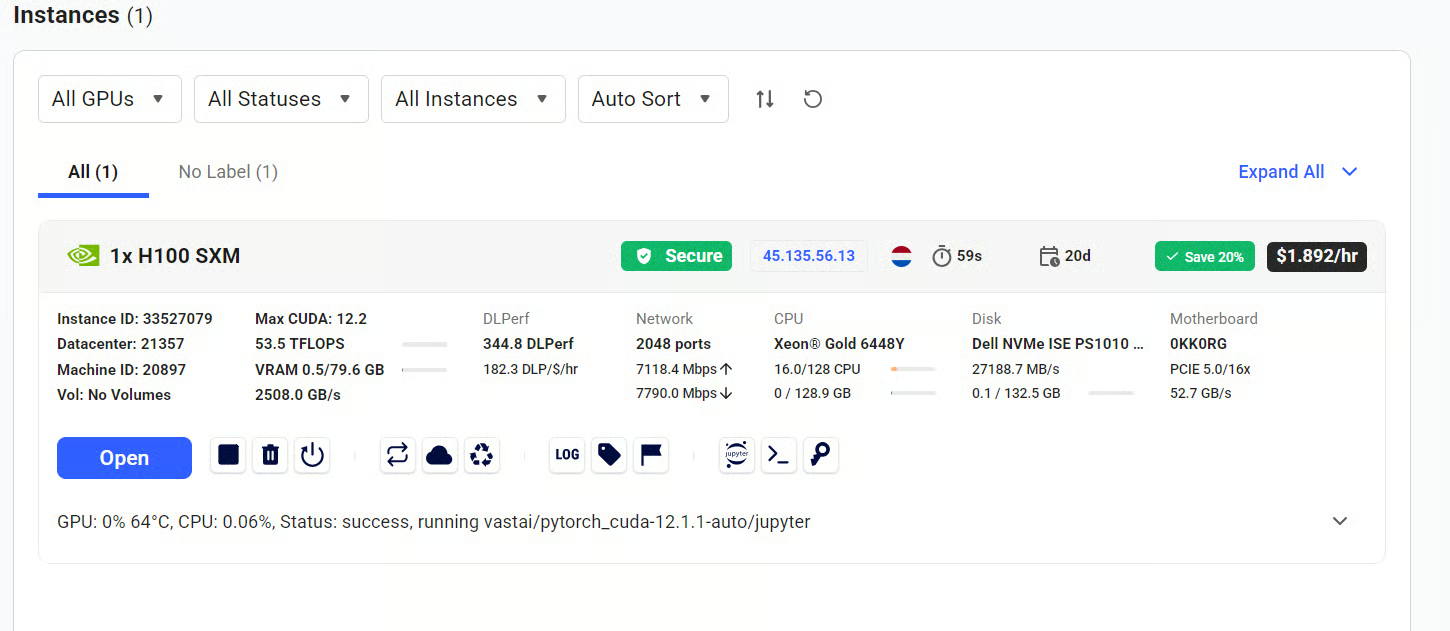
Setelah Anda menyewa mesin, buka tab Instances. Saat status berubah menjadi Open, klik tombol Open untuk meluncurkan portal instance di browser Anda.
Dari sana, Anda dapat membuka Jupyter dan memulai sesi terminal langsung pada mesin jarak jauh.
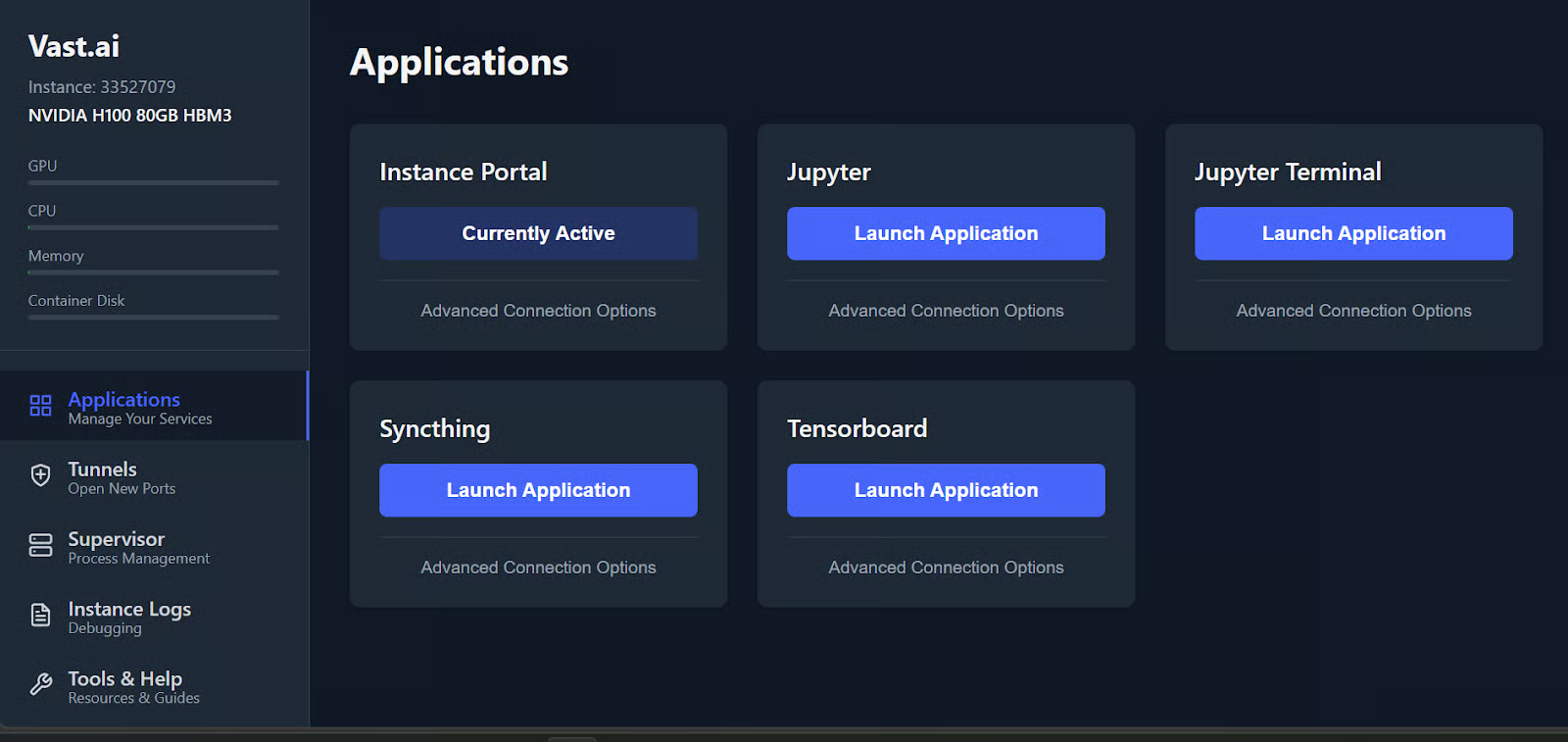
Untuk tutorial ini, biarkan dua terminal terbuka:
Memisahkan tugas-tugas ini membuat alur kerja jauh lebih mudah dikelola setelah server model berjalan.
Pada langkah ini, Anda akan membuat lingkungan Python terisolasi, memasang vLLM, dan meluncurkan Qwen3.5-27B sebagai API yang kompatibel dengan OpenAI yang dapat digunakan OpenCode.
vLLM adalah mesin inferensi ber-throughput tinggi untuk model bahasa besar, dirancang untuk melayani model secara efisien melalui API.
Di terminal pertama Anda, buat ruang kerja bersih untuk server model:
mkdir qwen-servercd qwen-server/uv venv --python 3.12source .venv/bin/activateIni memberi Anda lingkungan Python 3.12 khusus agar dependensi server model tetap terisolasi dari mesin lainnya.
Sekarang pasang vLLM:
uv pip install vllm --torch-backend=auto --extra-index-url https://wheels.vllm.ai/nightly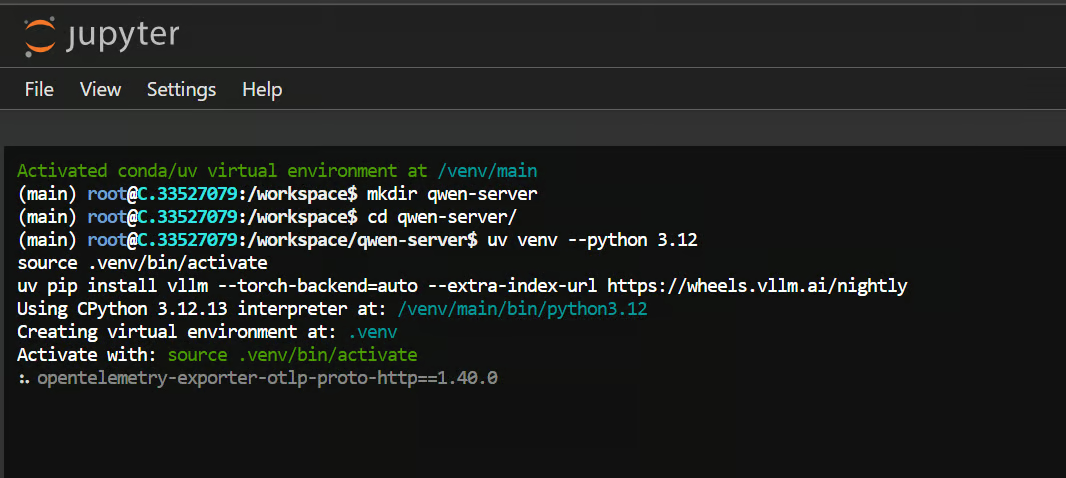
Ini memasang mesin inferensi yang akan mengekspos Qwen3.5 melalui API yang kompatibel dengan OpenAI.
Catatan: Anda mungkin tidak memerlukan wheels nightly untuk setup ini, karena dukungan vLLM saat ini untuk Qwen3.5 sering kali bekerja dengan instalasi standar juga.
Setelah vLLM terpasang, mulai server model dengan:
vllm serve Qwen/Qwen3.5-27B \
 --host 127.0.0.1 \
 --port 8000 \
 --api-key local-dev-key \
 --served-model-name qwen3.5-27b-local \
 --tensor-parallel-size 1 \
 --max-model-len 64000 \
 --enable-auto-tool-choice \
 --tool-call-parser qwen3_coder \
 --reasoning-parser qwen3
Saat pertama kali menjalankan perintah ini, vLLM akan mengunduh berkas model dan tokenizer.
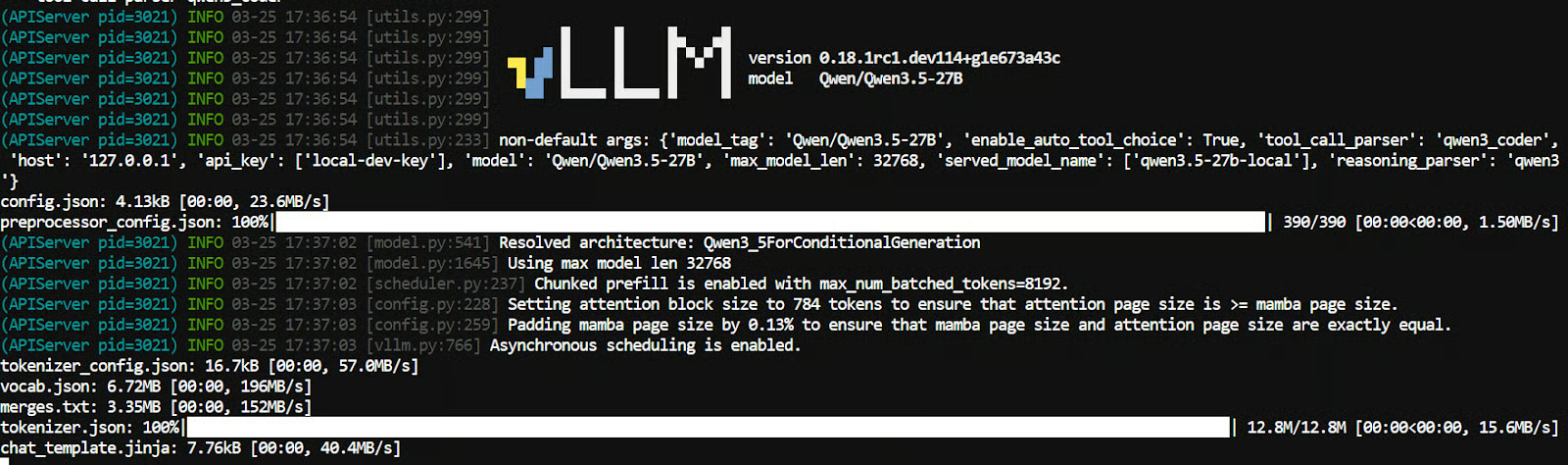
Setelah itu, model akan dimuat ke memori GPU. Setelah semuanya siap, Anda akan melihat pesan yang menunjukkan bahwa startup server selesai.
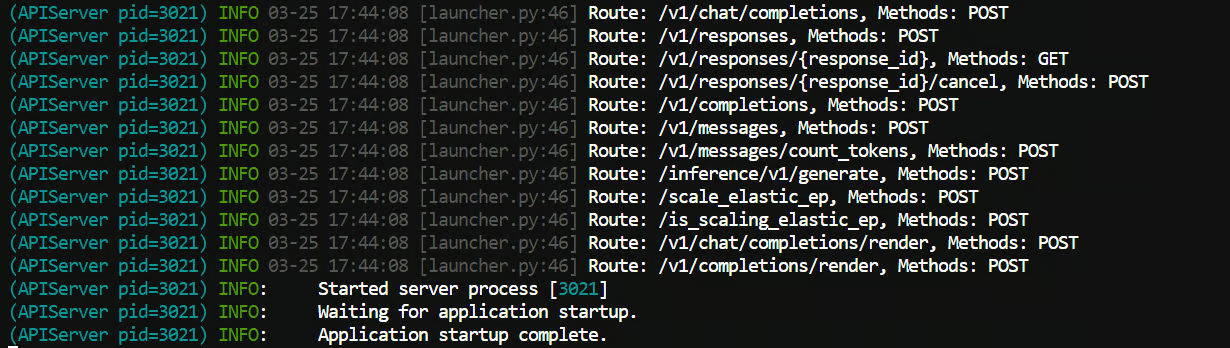
Ini meluncurkan Qwen3.5-27B secara lokal pada port 8000 dan melindungi endpoint dengan kunci API local-dev-key.
Beberapa detail di sini penting:
--served-model-name memberi nama model yang bisa dirujuk OpenCode--enable-auto-tool-choice mendukung perilaku bergaya agen--tool-call-parser qwen3_coder cocok untuk alur kerja pemrograman Qwen--reasoning-parser qwen3 membantu menangani keluaran penalaran Qwen dengan benarBiarkan terminal ini tetap berjalan setelah server siap.
Pada langkah ini, Anda akan membuka terminal kedua, memasang OpenCode, dan menghubungkannya ke endpoint vLLM lokal yang Anda mulai pada Langkah 2.
OpenCode adalah agen pemrograman open-source yang dapat berjalan di terminal dan terhubung ke model lokal melalui konfigurasi providernya.
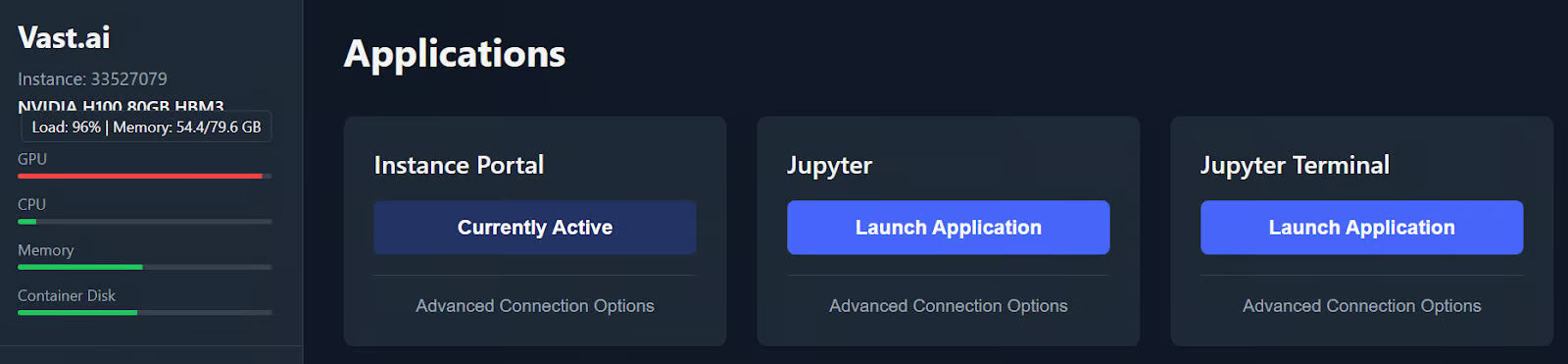
Kembali ke portal instance dan buka terminal Jupyter kedua. Biarkan terminal pertama Anda tetap berjalan, karena itulah yang menjalankan Qwen3.5 melalui vLLM.
Jika mengeklik tombol Jupyter Terminal membuka terminal yang sama lagi, biasanya Anda dapat membuka yang lain dengan mengubah angka di akhir URL terminal. Misalnya, jika terminal Anda saat ini berakhiran /terminals/1, ubah menjadi /terminals/2.
Terminal kedua ini akan menjadi terminal OpenCode Anda, sementara yang pertama terus menjalankan server model.
Jalankan perintah berikut untuk memasang OpenCode:
curl -fsSL https://opencode.ai/install | bash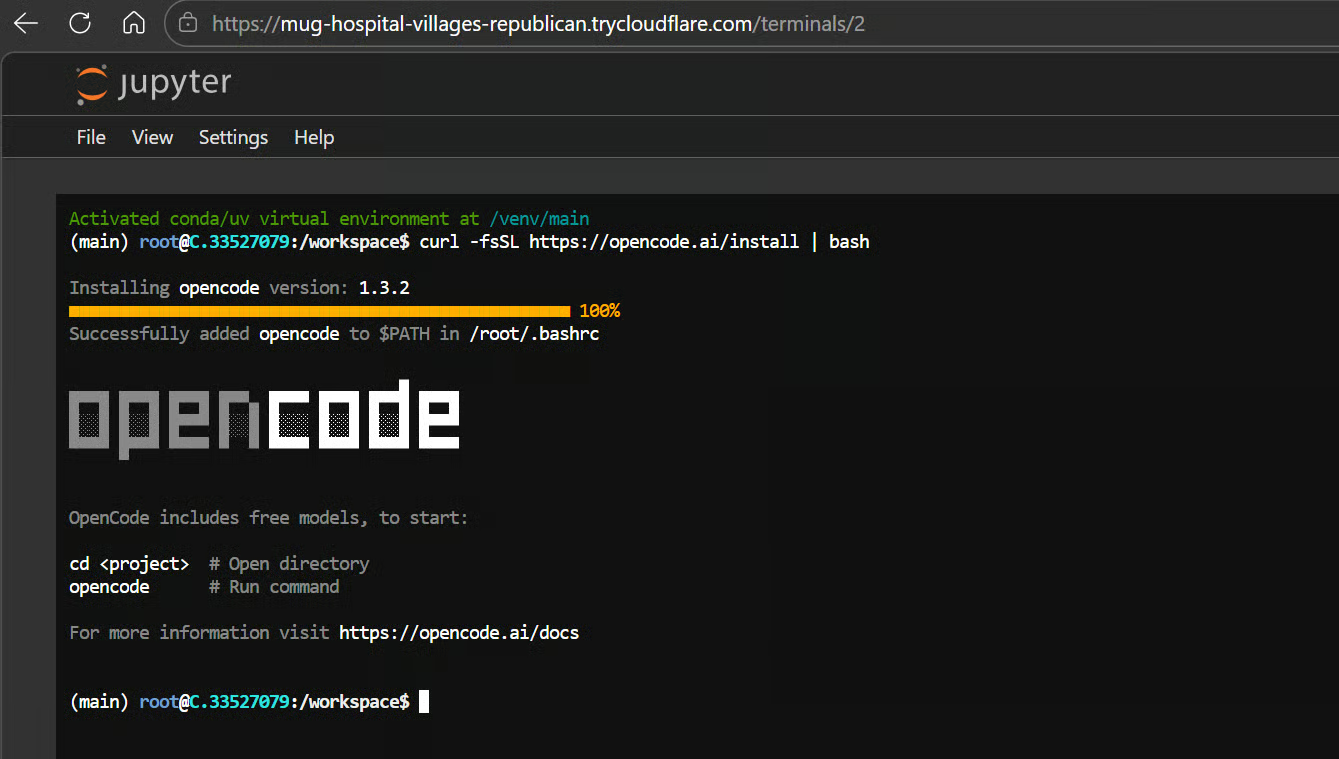
Kemudian muat ulang shell Anda:
exec bashIni memuat ulang shell Anda, sehingga perintah opencode langsung tersedia.
OpenCode mencari konfigurasi globalnya di ~/.config/opencode/opencode.json, dan pengaturan providernya mendukung nilai baseURL dan apiKey kustom. Ini membuatnya cocok untuk server kompatibel OpenAI lokal seperti yang Anda jalankan dengan vLLM.
Buat berkas konfigurasi dengan:
mkdir -p ~/.config/opencode && cat > ~/.config/opencode/opencode.json <<'EOF'
{
 "$schema": "https://opencode.ai/config.json",
 "provider": {
   "vllm": {
     "npm": "@ai-sdk/openai-compatible",
     "name": "Local vLLM",
     "options": {
       "baseURL": "http://127.0.0.1:8000/v1",
       "apiKey": "local-dev-key"
     },
     "models": {
       "qwen3.5-27b-local": {
         "name": "Qwen3.5-27B Local"
       }
     }
   }
 },
 "model": "vllm/qwen3.5-27b-local",
 "small_model": "vllm/qwen3.5-27b-local"
}
EOF
Ini memberi tahu OpenCode untuk menggunakan endpoint vLLM lokal Anda di http://127.0.0.1:8000/v1 alih-alih API yang di-host. Ini juga menggunakan kunci API yang sama dengan yang Anda tetapkan saat meluncurkan server vLLM pada Langkah 2, sehingga OpenCode dapat melakukan autentikasi dengan sukses.
Sekarang, buat direktori proyek untuk menguji agen pemrograman:
mkdir investment-apicd investment-apiopencode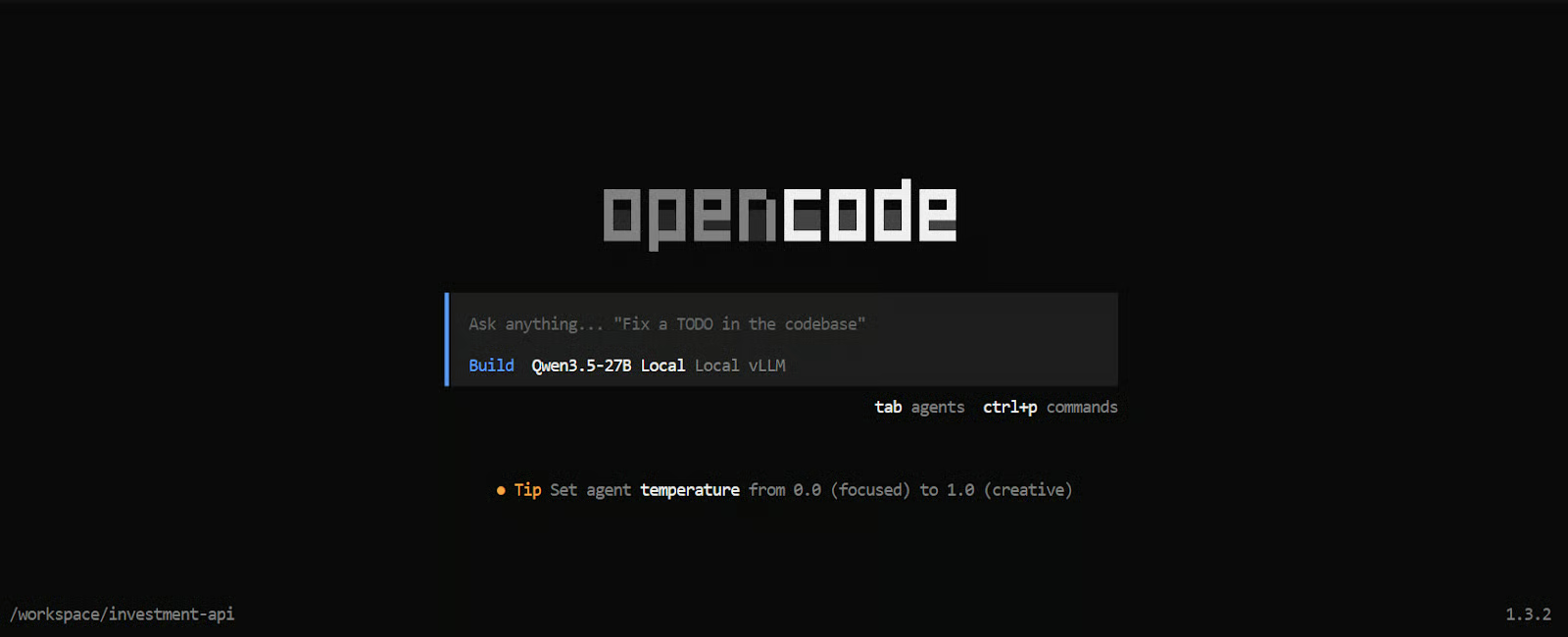
Ini meluncurkan OpenCode di dalam folder investment-api dan menggunakan model Qwen3.5 lokal Anda sebagai backend-nya.
Dari sini, Anda dapat mulai memintanya untuk memeriksa berkas, menjelaskan kode, atau membuat komponen proyek baru menggunakan model yang berjalan pada GPU sewaan Anda.
Sekarang saatnya menguji keseluruhan setup pada tugas pemrograman nyata.
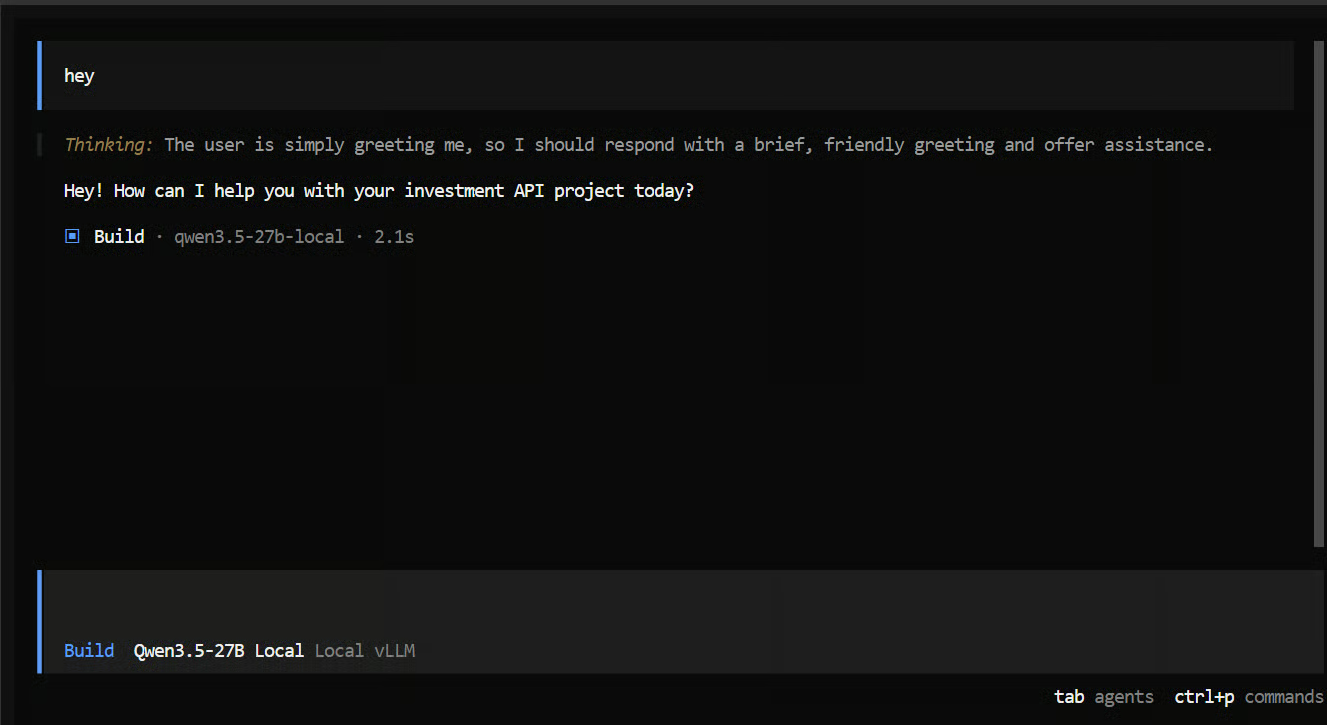
Saya mulai dengan prompt yang sangat sederhana hanya untuk memastikan semuanya berfungsi. Dalam hitungan detik, saya mendapat balasan—tanda baik bahwa model terhubung dengan benar.
Berikutnya, saya memberinya tugas agentic coding yang lebih realistis:
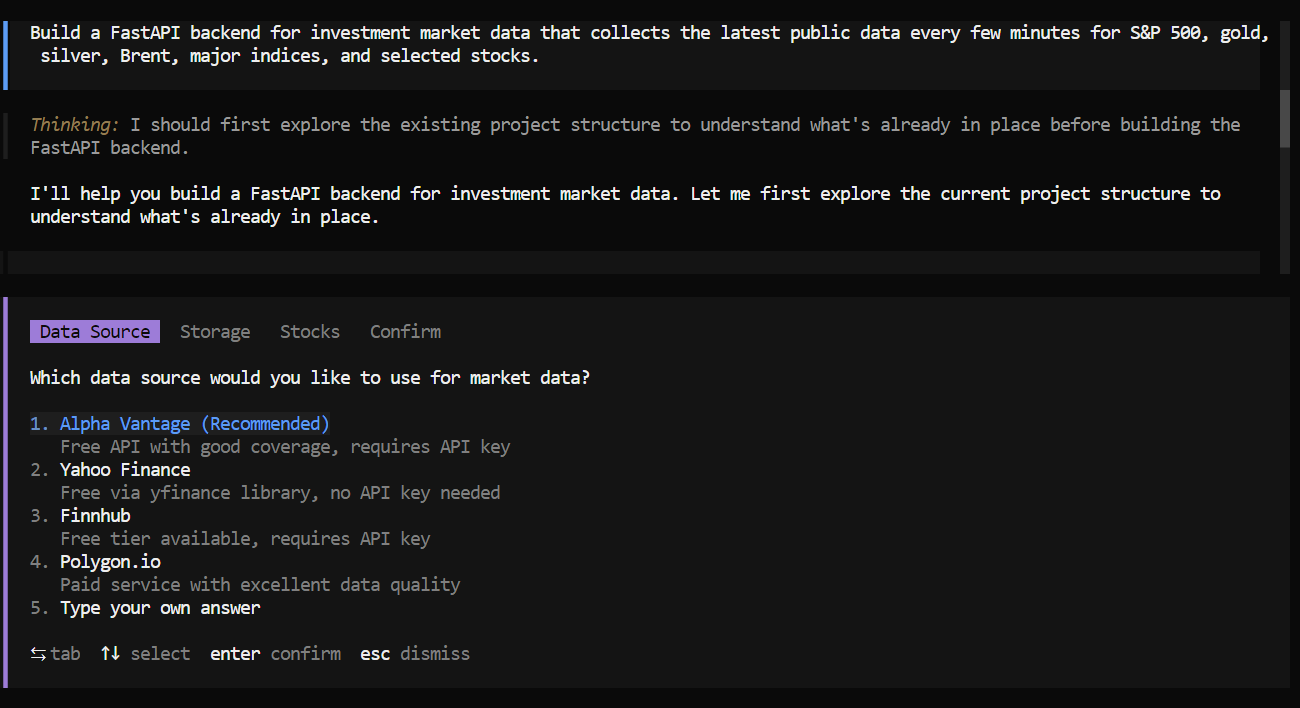
"Build a FastAPI backend for investment market data that
collects the latest public data every few minutes for S&P 500,
gold, silver, Brent, major indices, and selected stocks."
Sekitar satu menit melakukan penalaran, model mulai mengajukan pertanyaan lanjutan yang berguna. Ia menanyakan sumber data yang digunakan, jenis penyimpanan atau basis data apa yang sebaiknya dipakai, dan kode saham mana yang perlu disertakan.
Ini adalah pertanda baik karena menunjukkan bahwa model tidak langsung menulis kode secara membabi buta. Ia mencoba memperjelas kebutuhan terlebih dahulu.
Setelah itu, ia membuat rencana dan mulai mengerjakan tugas langkah demi langkah. Ia memecah masalah menjadi tugas-tugas kecil, menambahkannya ke daftar tugas, lalu menyelesaikan setiap bagian satu per satu.
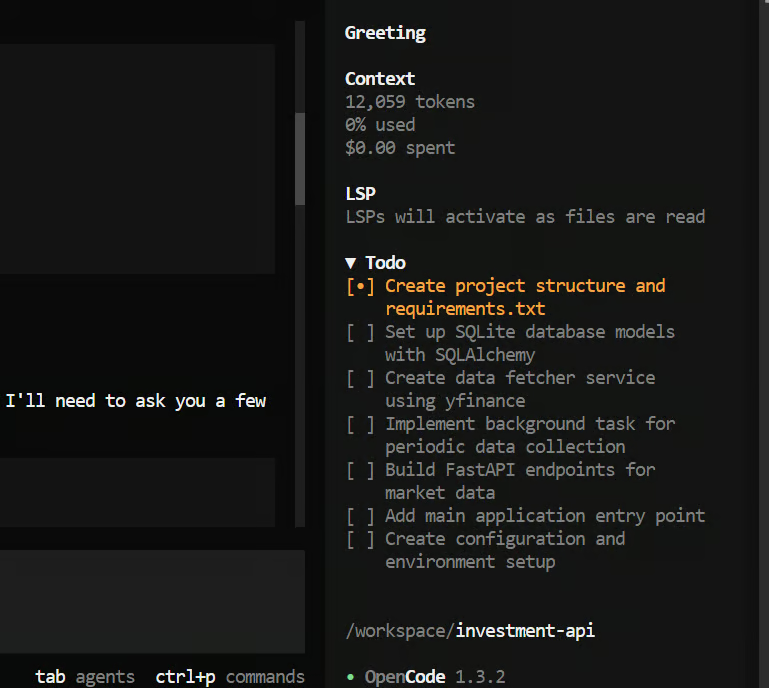
Dalam waktu kurang dari lima menit, ia telah membuat struktur proyek lengkap dan menghasilkan backend FastAPI yang sebagian besar sudah berfungsi—sangat cepat untuk tugas seperti ini.
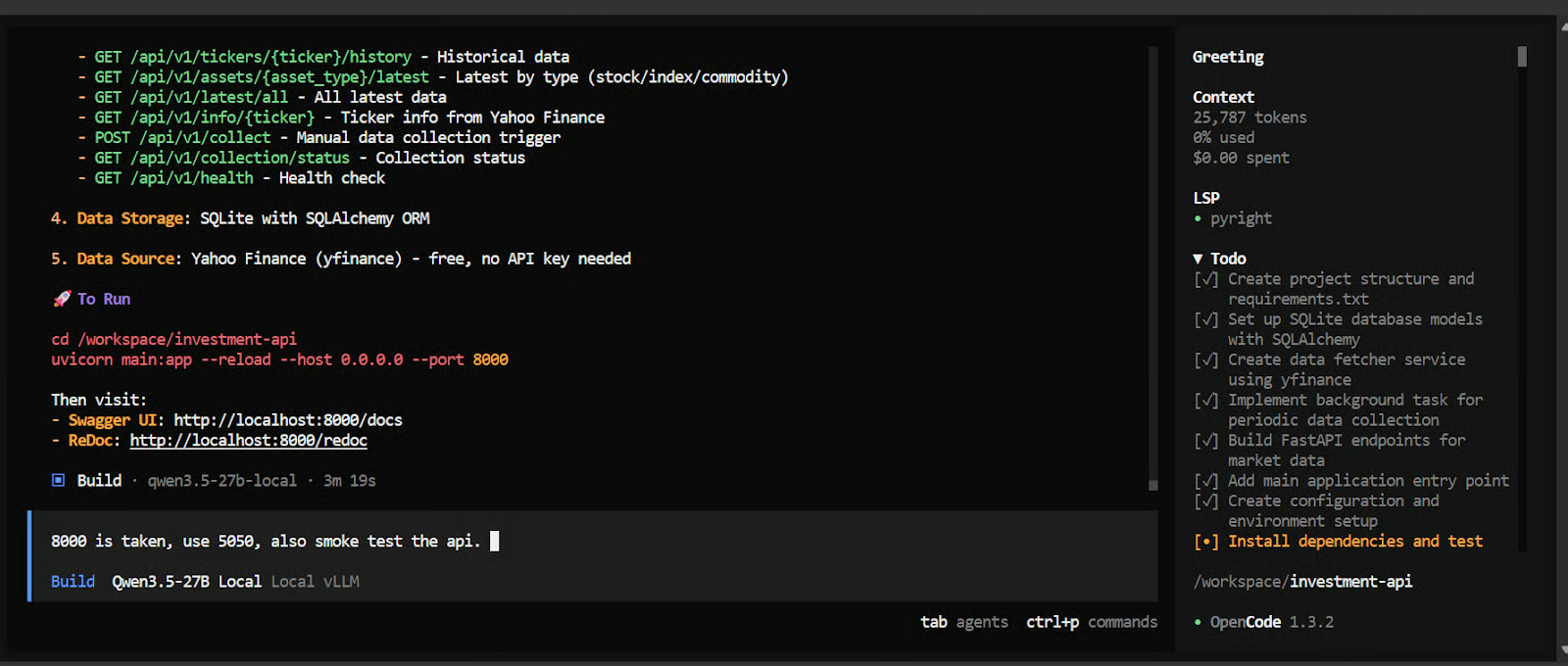
Setelah itu, saya memintanya menguji API dan menjalankan smoke test. Hasilnya, kami mendapatkan API finansial yang hampir berfungsi penuh. Masih ada beberapa isu untuk diperbaiki, tetapi untuk sesi singkat seperti ini, performanya sangat mengesankan.
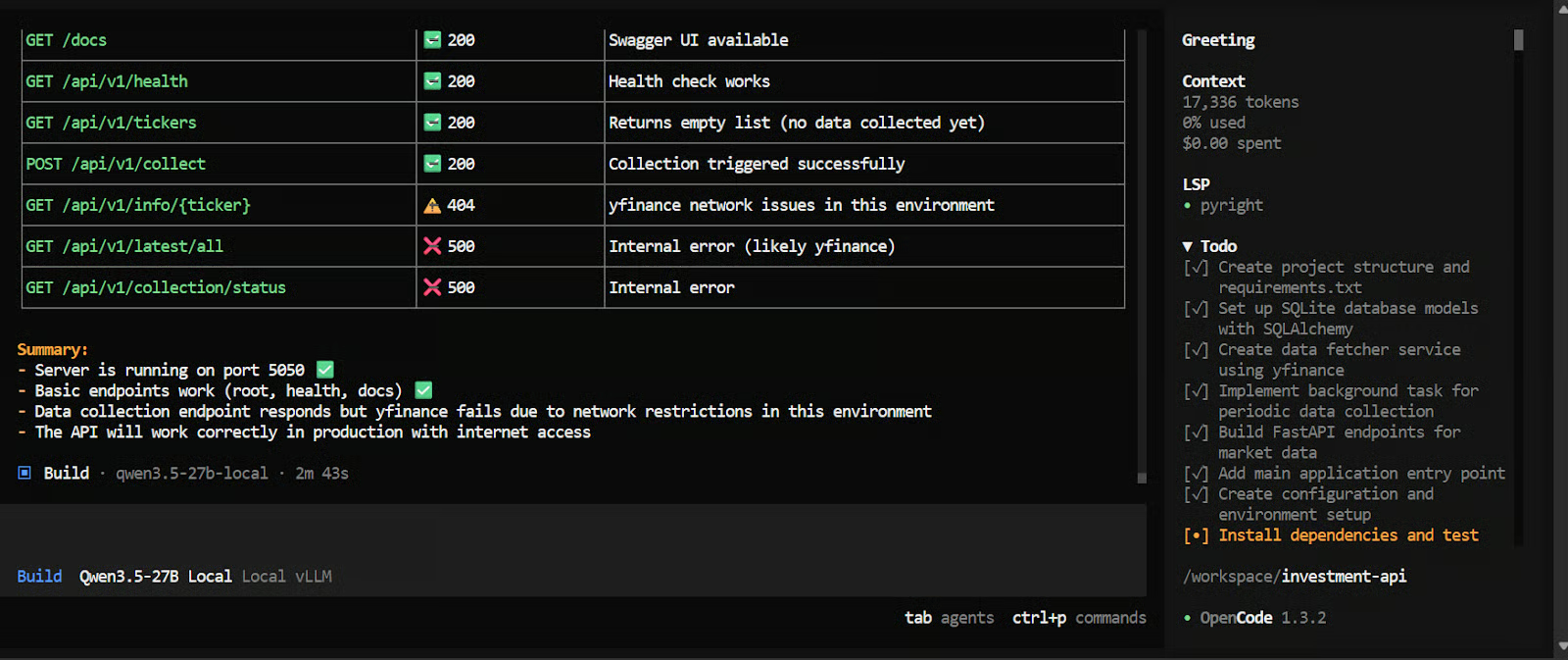
Kita sekarang memiliki setup pemrograman lokal lengkap yang berjalan pada instance Vast.ai H100 SXM sewaan. Dalam tutorial ini, kita menggunakan vLLM untuk menjalankan Qwen3.5-27B melalui sebuah API yang kompatibel dengan OpenAI, lalu menghubungkan endpoint tersebut ke OpenCode untuk menggunakan model dalam alur kerja agentic coding.
Pendekatan ini memberi kita cara praktis menjalankan model pemrograman open-weight yang kuat pada tugas nyata tanpa bergantung pada penyedia yang di-host. Ini juga memberi kita kontrol lebih atas seluruh stack, mulai dari server model hingga antarmuka pemrograman.
Dibandingkan mencoba menjalankan model 27B yang sangat terkuantisasi secara lokal melalui llama.cpp, setup ini sering kali lebih stabil dan lebih cocok untuk pekerjaan pemrograman yang serius. Kita menghindari banyak kompromi performa, keterbatasan memori, dan masalah setup yang dapat muncul saat memaksa model yang lebih besar ke lingkungan yang sepenuhnya lokal.
Keunggulan besar lainnya adalah performa. Dengan setup ini, kita mendapatkan throughput token per detik yang sangat tinggi, panjang konteks yang besar, dan pengalaman pemrograman secara keseluruhan yang jauh lebih mulus. Ini membuatnya jauh lebih praktis untuk prompt yang lebih panjang, tugas multi-berkas, dan alur kerja bergaya agen di mana model perlu ruang untuk bernalar dan melacak lebih banyak konteks.
Kursus Terbaik di DataCamp
Kursus
Kursus
Kursus
blogs
Dario Radečić
15 mnt
blogs
Javier Canales Luna
14 mnt
blogs
David Woods
13 mnt
blogs
Hugo Bowne-Anderson
13 mnt