{count, plural, one {Course} other {Courses}}
Designing Agentic Systems with LangChain
{hours} hr
14.8K
Qwen3.5 is Alibaba’s latest Qwen model series and builds on the strong performance of earlier Qwen models across reasoning, coding, and multimodal tasks.
Independent benchmark evaluations show that the Qwen3.5-397B-A17B model delivers high scores on widely used tests such as LiveCodeBench and AIME26, often outperforming leading models like GPT-5.2 and Claude Opus 4.5 on a majority of evaluated categories, and delivering significantly higher throughput than prior Qwen generations.
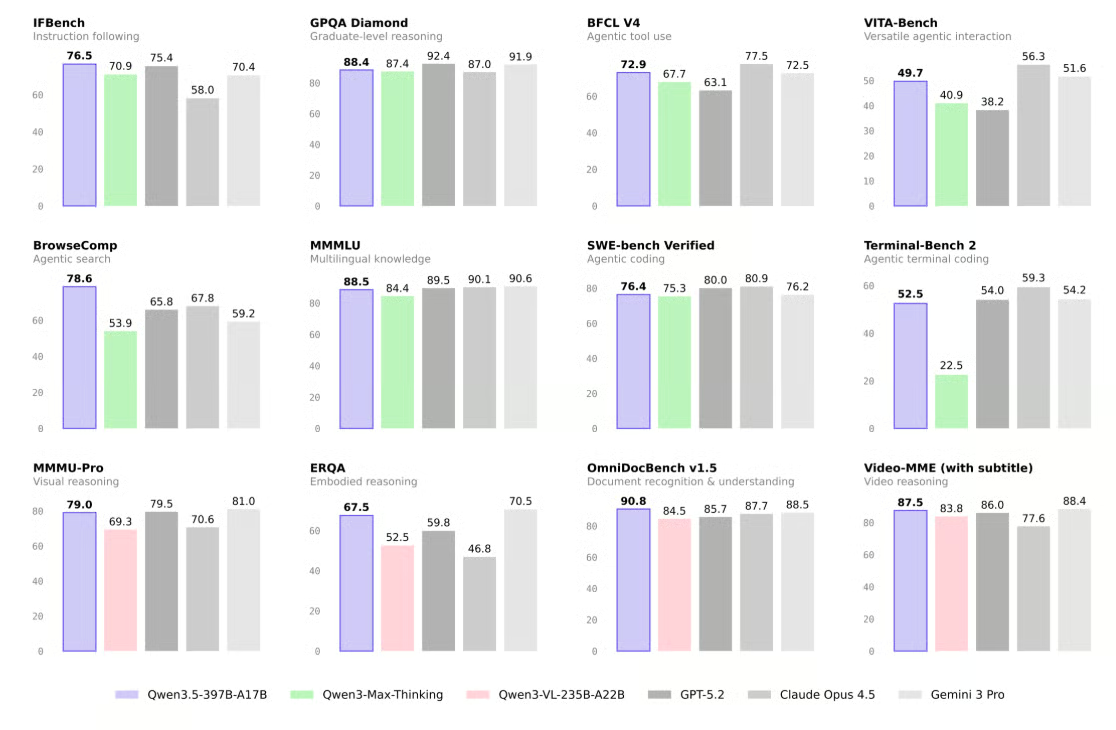
Source: Qwen/Qwen3.5-397B-A17B · Hugging Face
In this tutorial, we will:
Qwen has moved on since this guide was written. If you're on a Blackwell card, Qwen3.8-27B on an RTX 5090 is the faster setup, using NVFP4 and the model's built-in MTP draft head.
Before running Qwen3.5 locally, you need to make sure your setup meets both the hardware and software requirements for smooth inference. In this tutorial, we are using an NVIDIA H200 GPU with 141GB of VRAM, paired with 240GB of system RAM, which gives us more than enough memory to run the MXFP4_MOE version of Qwen3.5 efficiently with MoE offloading.
As a reference point, the Unsloth 4-bit dynamic quant UD-Q4_K_XL uses around 214GB of disk space. It can fit directly on a 256GB M3 Ultra, and it also runs well on a single 24GB GPU with 256GB RAM, achieving 25+ tokens per second with MoE offloading. Smaller 3-bit quants can fit within 192GB RAM, while higher precision 8-bit versions may require up to 512GB of combined RAM and VRAM.
In general, for the best performance, your VRAM + RAM combined should roughly match the size of the quantized model you download. If not, llama.cpp can offload to SSD storage, but inference will be slower.
On the software side, you should have the latest NVIDIA GPU drivers installed, along with a recent CUDA Toolkit, to ensure full compatibility with llama.cpp and CUDA-accelerated inference.
Now that you have the prerequisites in place, let’s walk through a step-by-step guide on how to use Qwen 3.5 locally:
To run Qwen3.5 locally, you need access to a powerful GPU machine. Since most laptops and desktop PCs do not have enough VRAM or memory to handle models of this size, we will use a cloud GPU virtual machine instead.
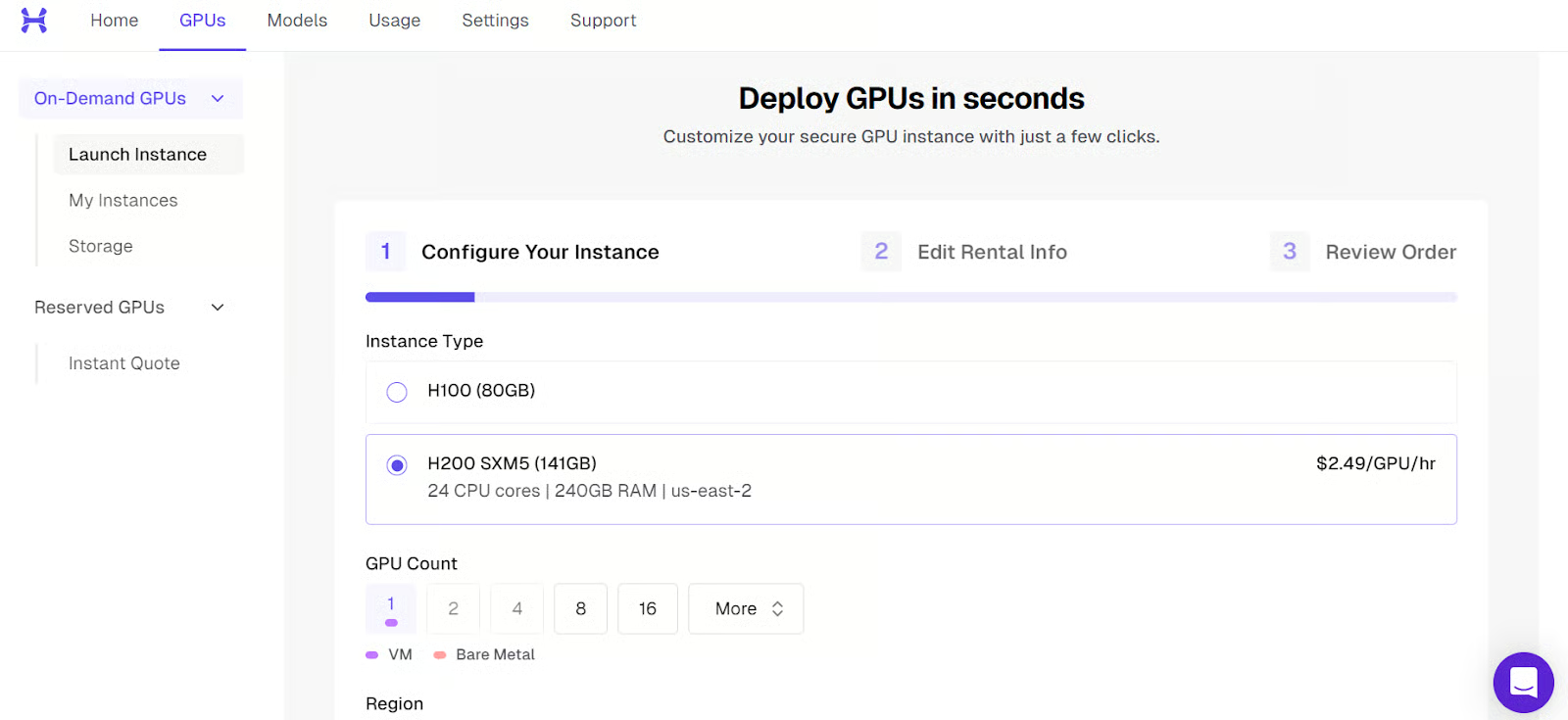
In this tutorial, we are using Hyperbolic to run the model privately. You can also use other providers such as RunPod, Vast.ai, or any GPU VM platform you prefer. We chose Hyperbolic because it currently offers some of the most cost-effective GPU instances available.
Start by launching a new instance with a single H200 GPU.
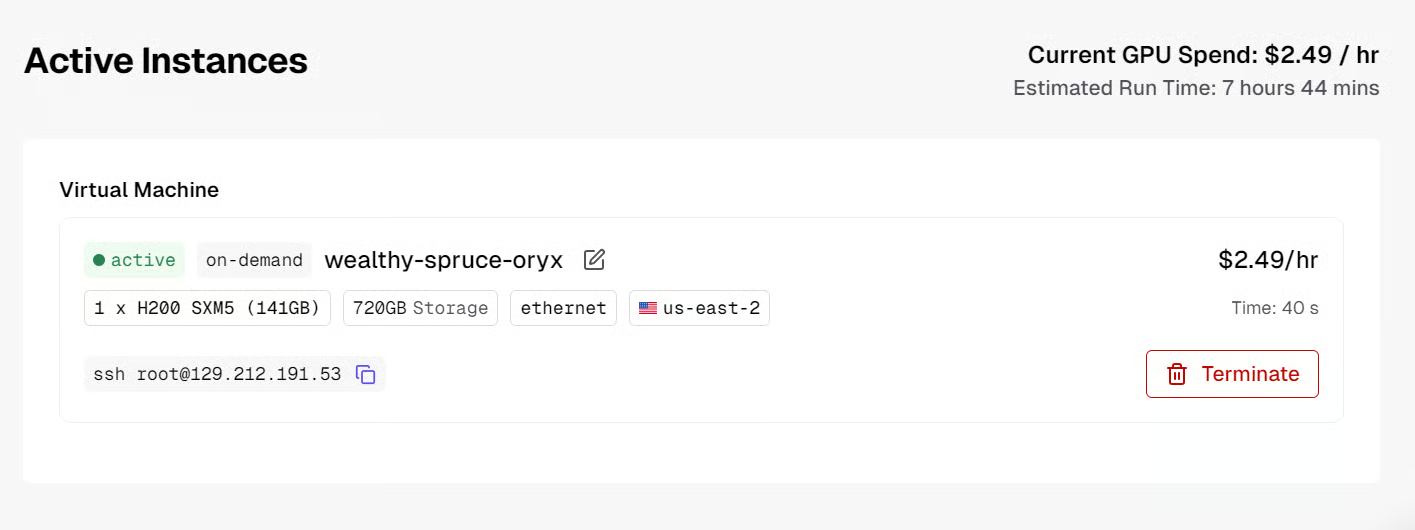
After the machine boots up, you will see the public IP address and the SSH command needed to connect from your local terminal.
Before connecting, make sure you have SSH set up locally and that you added your public SSH key when creating the virtual machine.
Once the instance is ready, connect to it using SSH with port forwarding. This is important because we want to access the llama.cpp inference server locally through port 8080:
ssh -L 8080:localhost:8080 root@129.212.191.53The first time you connect, type yes to confirm, and then authenticate using your SSH key.
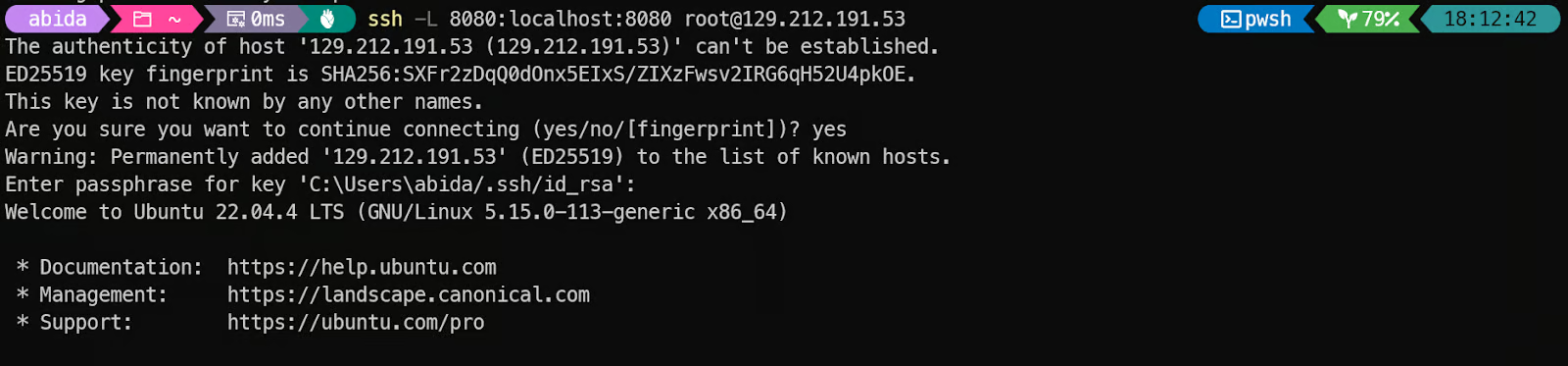
After logging in, verify that the GPU is detected correctly:
nvidia-smi You should see the NVIDIA H200 listed in the output.
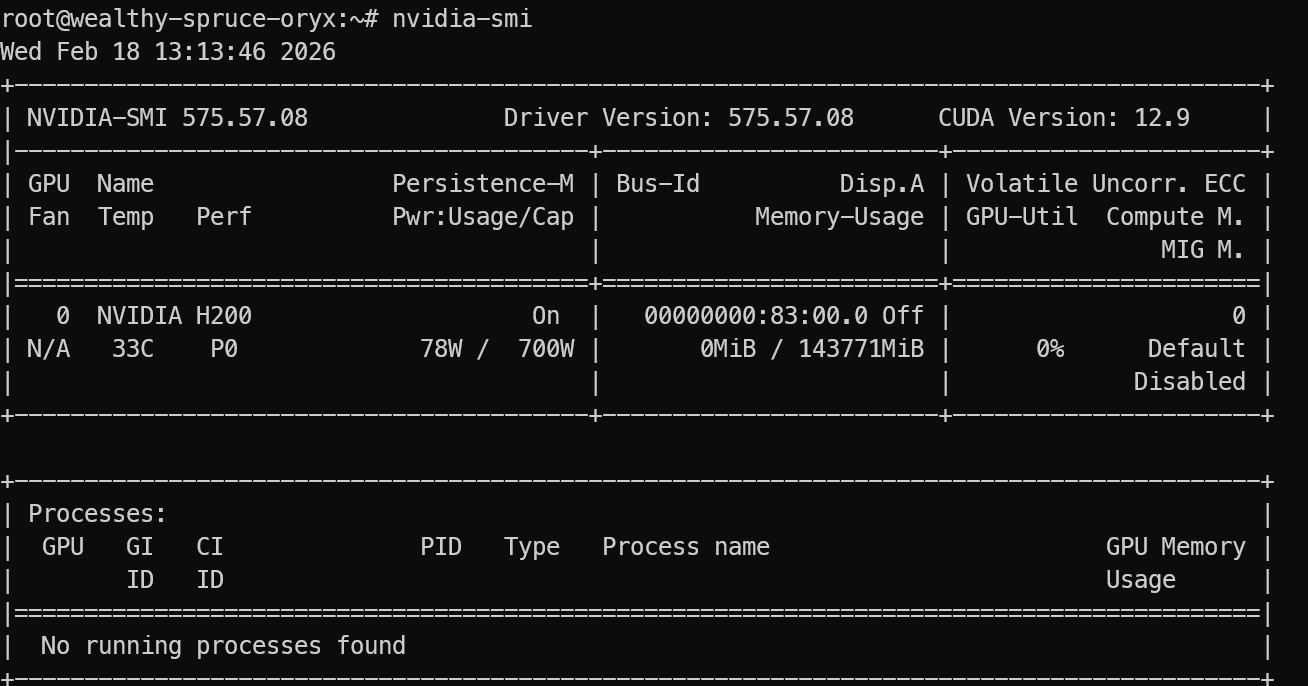
Finally, install the required Linux packages needed to download, build, and run llama.cpp:
sudo apt update
sudo apt install pciutils build-essential cmake curl libcurl4-openssl-dev -y
Once this is complete, your environment is ready for installing llama.cpp and running Qwen3.5 locally.
llama.cpp is an open-source C and C++ inference engine that lets you run large language models locally with minimal setup, and it supports both CPU and GPU acceleration.
First, clone the llama.cpp repository:
git clone https://github.com/ggml-org/llama.cppNext, configure a CUDA-enabled build with CMake. We enable CUDA with -DGGML_CUDA=ON, and we set the CUDA architecture to 90a because we are using an NVIDIA H200 (Hopper class). This helps the build generate GPU code optimized for Hopper features.
cmake llama.cpp -B llama.cpp/build \
  -DGGML_CUDA=ON \
  -DCMAKE_BUILD_TYPE=Release \
  -DCMAKE_CUDA_ARCHITECTURES="90a"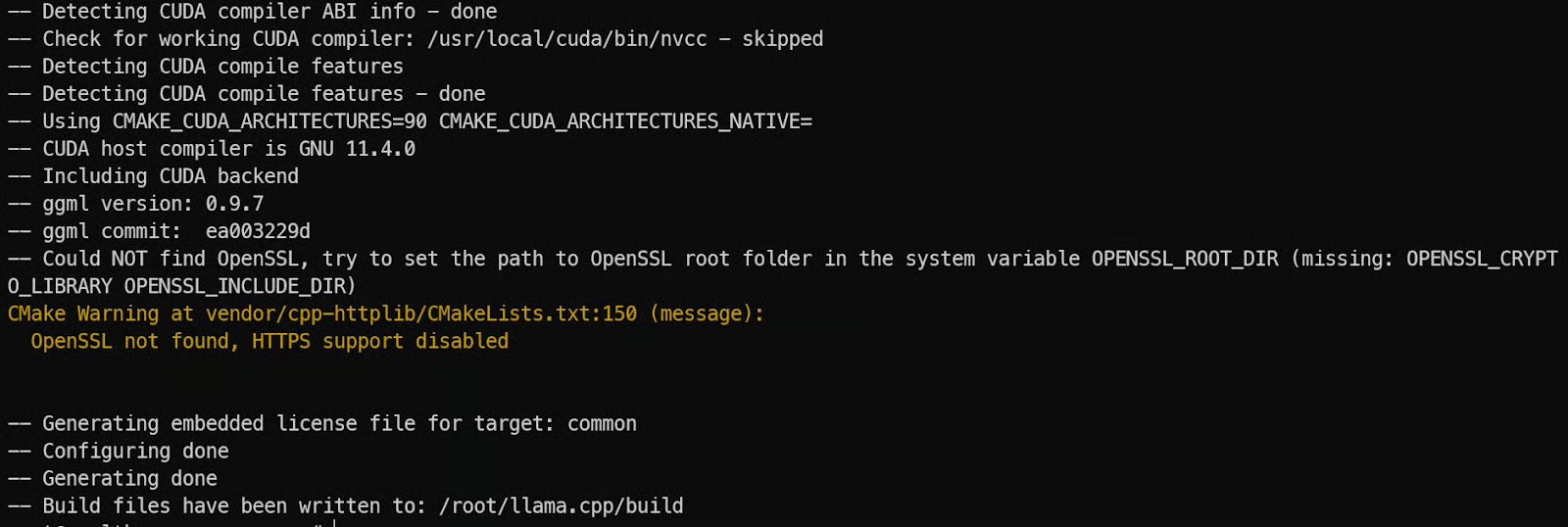
Now compile the server binary. llama-server is the built-in REST server that lets you expose llama.cpp as an API endpoint:
cmake --build llama.cpp/build --config Release -j --clean-first --target llama-server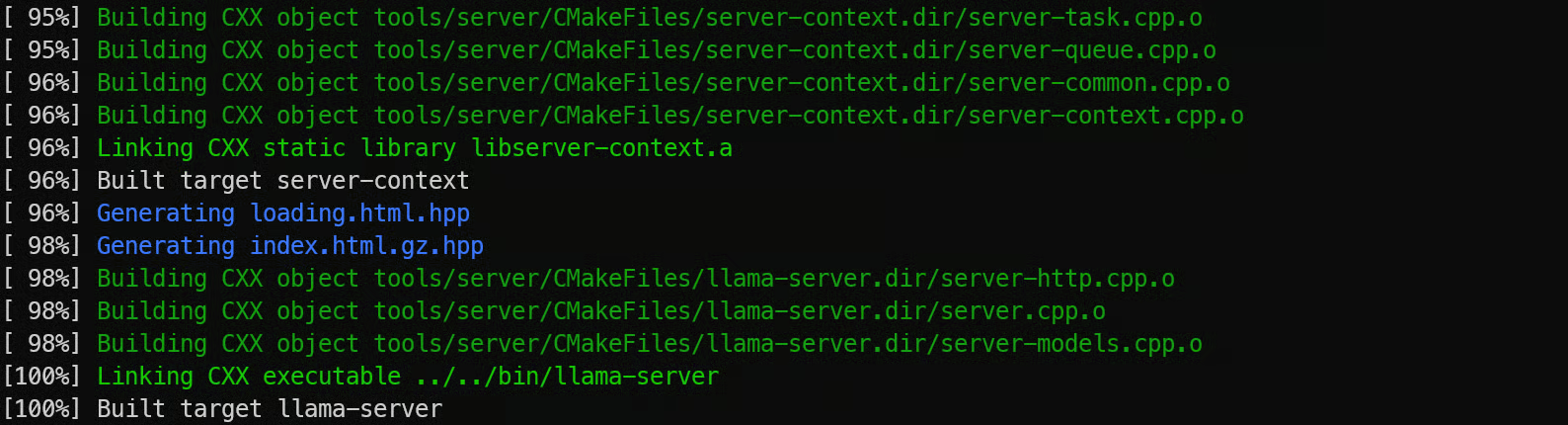
Finally, copy the compiled binaries into the main folder so they are easy to run:
cp llama.cpp/build/bin/llama-* llama.cppNow that llama.cpp is installed, the next step is downloading the actual Qwen3.5 model weights in GGUF format. These files are large, so using the Hugging Face CLI is the most reliable way to fetch them directly onto your GPU machine.
We install Python first because the Hugging Face download tools and authentication utilities are distributed as Python packages. Even though llama.cpp itself is written in C++, Python makes it much easier to manage model downloads and transfers.
Start by installing pip:
sudo apt install python3-pipNext, install the Hugging Face Hub client along with performance helpers. hf_transfer and hf-xet speed up downloads significantly, which is important when pulling hundreds of gigabytes of model files:
pip -q install -U huggingface_hub hf-xet
pip -q install -U hf_transfer
Now download the Qwen3.5 model from Hugging Face. In this tutorial, we only fetch the MXFP4_MOE variant, which is optimized for efficient MoE inference:
hf download unsloth/Qwen3.5-397B-A17B-GGUF \
   --local-dir models/Qwen3.5 \
   --include "*MXFP4_MOE*"
Once the download completes, the model files will be stored inside models/Qwen3.5, ready to be loaded into llama.cpp for local inference.
Now we can start Qwen3.5 using llama-server. This gives us an OpenAI-compatible API endpoint that we can call from local tools and apps.
We have optimized the server for a single GPU setup by doing three key things. First, we enable --fit on so llama.cpp automatically balances the model across GPU VRAM and system RAM, instead of failing when the model does not fully fit in VRAM.
Second, we use a larger context window with --ctx-size 16384 so the server can handle longer prompts. Third, we enable --jinja and pass --chat-template-kwargs to control chat formatting and disable thinking mode for faster, more direct responses.
Run the server with:
./llama.cpp/llama-server \
    --model models/Qwen3.5/MXFP4_MOE/Qwen3.5-397B-A17B-MXFP4_MOE-00001-of-00006.gguf \
    --alias "Qwen3.5" \
  --host 0.0.0.0 \
  --port 8080 \
  --fit on \
  --jinja \
   --ctx-size 16384 \
   --temp 0.7 \
   --top-p 0.8 \
   --top-k 20 \
   --min-p 0.00 \
   --chat-template-kwargs "{\"enable_thinking\": false}"
While the model is loading, you will notice it uses both GPU VRAM and system memory, which is expected for a large MoE model.

Once loading completes, the server will be reachable on:
0.0.0.0:8080 on the VMhttp://127.0.0.1:8080 on your local machine after SSH port forwarding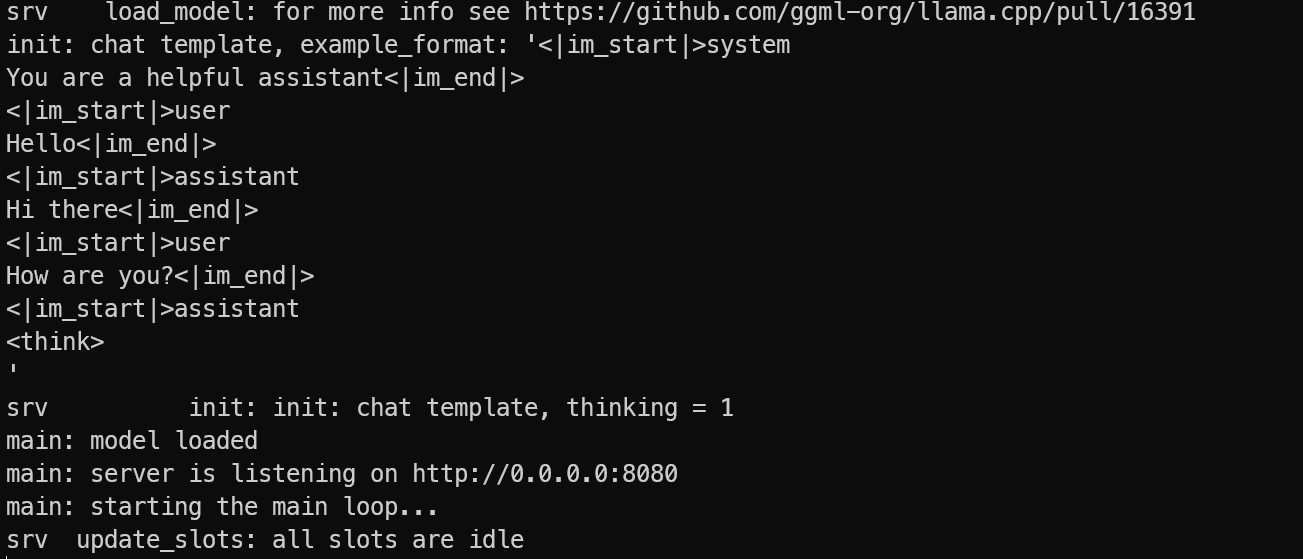
Keep the server running. On your local PC, open a new terminal and reconnect with SSH port forwarding:
ssh -L 8080:localhost:8080 root@129.212.191.53Then test the server by listing available models:
curl -s http://127.0.0.1:8080/v1/modelsIf you see Qwen3.5 in the response, your server is running correctly, and you are ready to call it from the OpenAI SDK and your local apps.

Now that the Qwen3.5 inference server is running, the next step is verifying that it works correctly with real client applications. One of the biggest advantages of llama.cpp is that llama-server exposes an OpenAI-compatible API, which means you can use the official OpenAI SDK without changing your code structure.
First, install the OpenAI Python package on your local machine (or inside the VM if you prefer):
pip install openai Now run a simple test script. This connects to your locally forwarded endpoint at http://127.0.0.1:8080/v1 instead of OpenAI’s cloud servers.
python3 - <<'PY'
from openai import OpenAI

client = OpenAI(
    base_url="http://127.0.0.1:8080/v1",
    api_key="sk-no-key-required"
)

response = client.chat.completions.create(
    model="Qwen3.5",
    messages=[
        {"role": "user", "content": "Write one sentence about AI agents."}
    ]
)

print(response.choices[0].message.content)
PY
A few important details to understand here:
base_url points to your local Qwen3.5 server, not OpenAI’s API.api_key is still required by the SDK, but llama.cpp does not enforce authentication, so any placeholder value works.model="Qwen3.5" name matches the alias we set when starting the server.If everything is configured correctly, you will get a fast, clean response from the model.
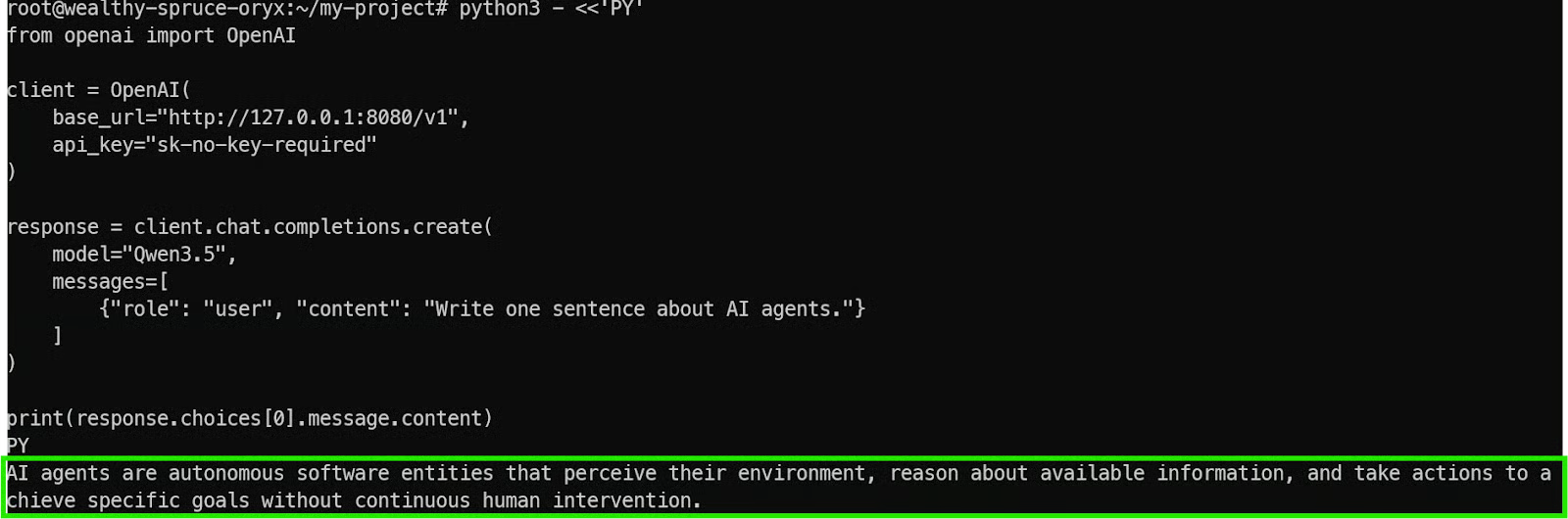
This confirms that:
At this point, you can integrate Qwen3.5 into any local tool, agent workflow, or application that already supports the OpenAI API format.
llama.cpp includes a built-in, ChatGPT-style WebUI that you can use to chat with the model directly in your browser. This is useful for quick testing, prompt iteration, and generating code without needing to write any client scripts first.
Since we already set up SSH port forwarding, you can open the WebUI on your local machine, and it will behave as if the server is running on your laptop.
By default, the WebUI is available at:
http://127.0.0.1:8080If this page loads, it confirms two things. Your SSH tunnel is working correctly, and the Qwen3.5 server is reachable locally while still running privately on the GPU VM.
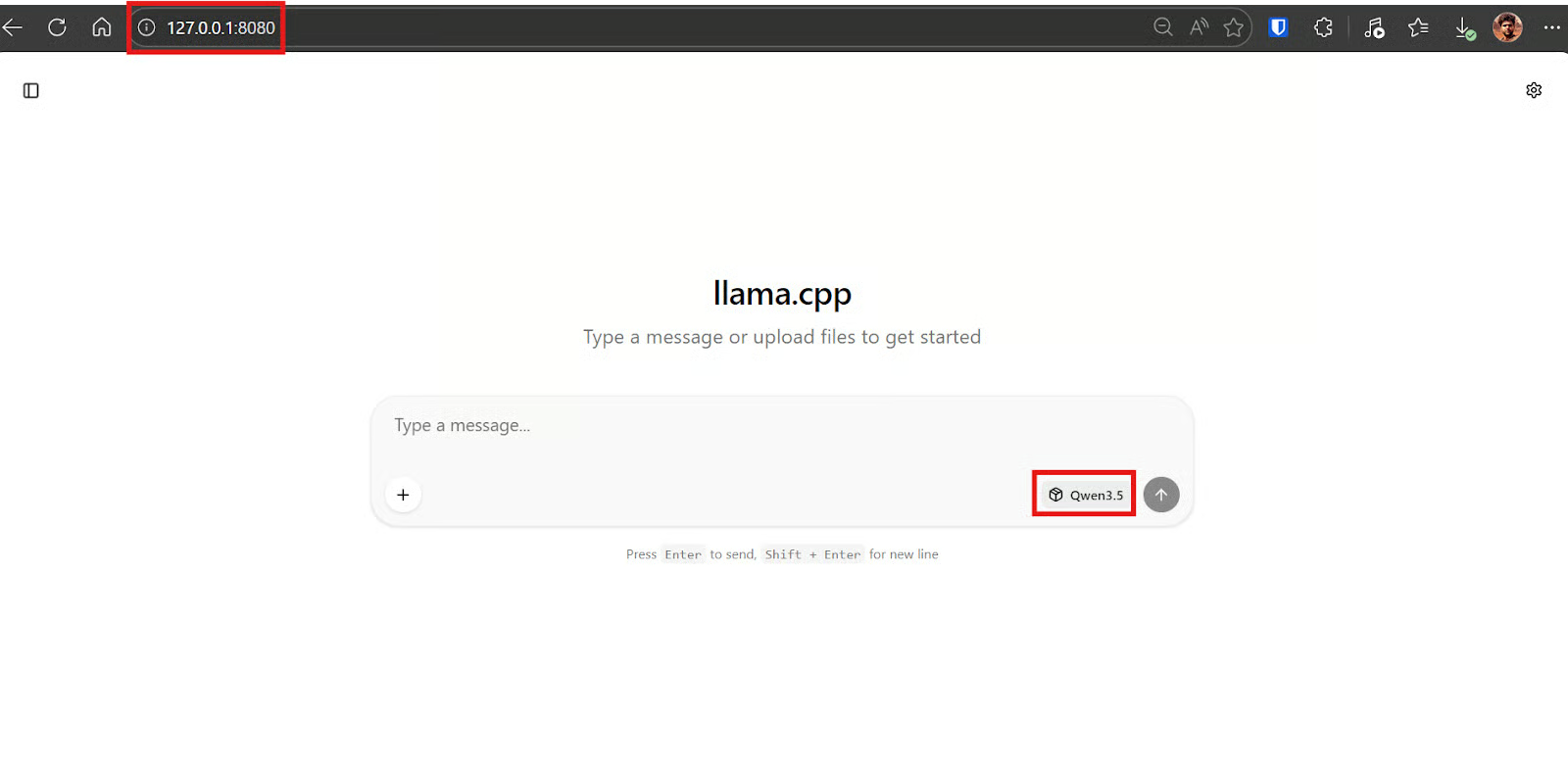
Once you are in the WebUI, paste this prompt. The goal is to have the model generate both the Python code and a short usage guide.
Within a few seconds, Qwen3.5 should generate an app.py file and usually a quick explanation of how to run it.
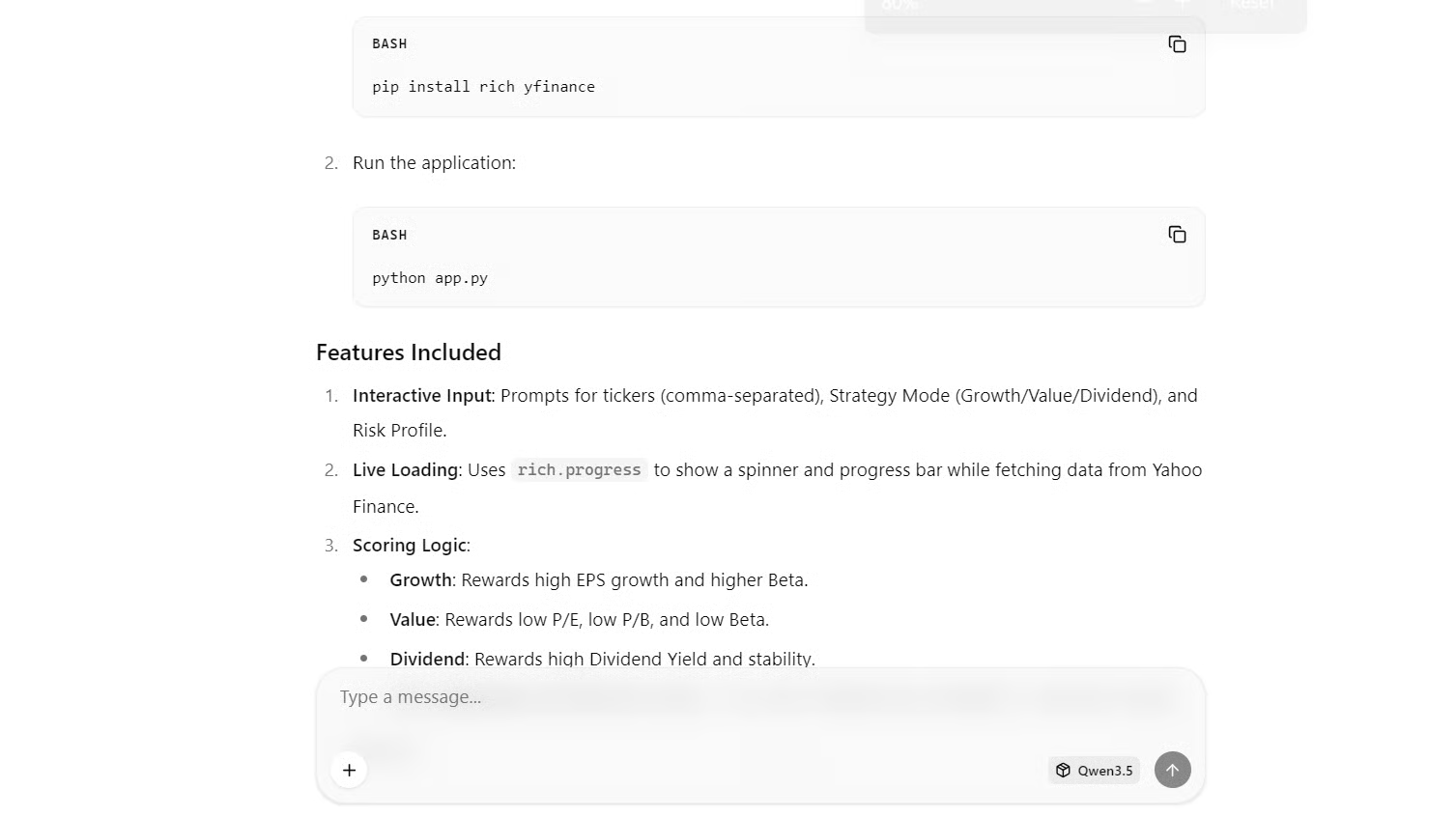
Now switch to your local terminal (your laptop). Install the dependencies the generated app needs:
pip install rich yfinanceThis installs:
rich for the TUI layout, tables, prompts, and progress indicatorsyfinance for pulling free, public stock metricsCreate a file named app.py, paste the code the model generated, and run:
python3 app.pyOnce you run the script, you should see the TUI launch correctly in your terminal. The app will prompt you to enter the stock tickers you want to analyze, along with your preferred screening mode and risk level.
For example, we tested it with three popular stocks.
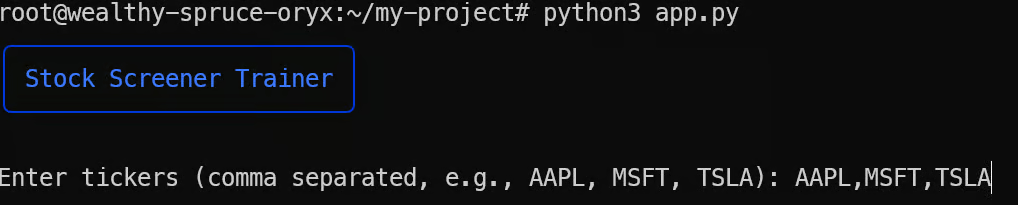
After a short loading phase, the tool returns a full table of stock metrics, highlights the results based on the scoring rules, and saves everything to a results.csv file.
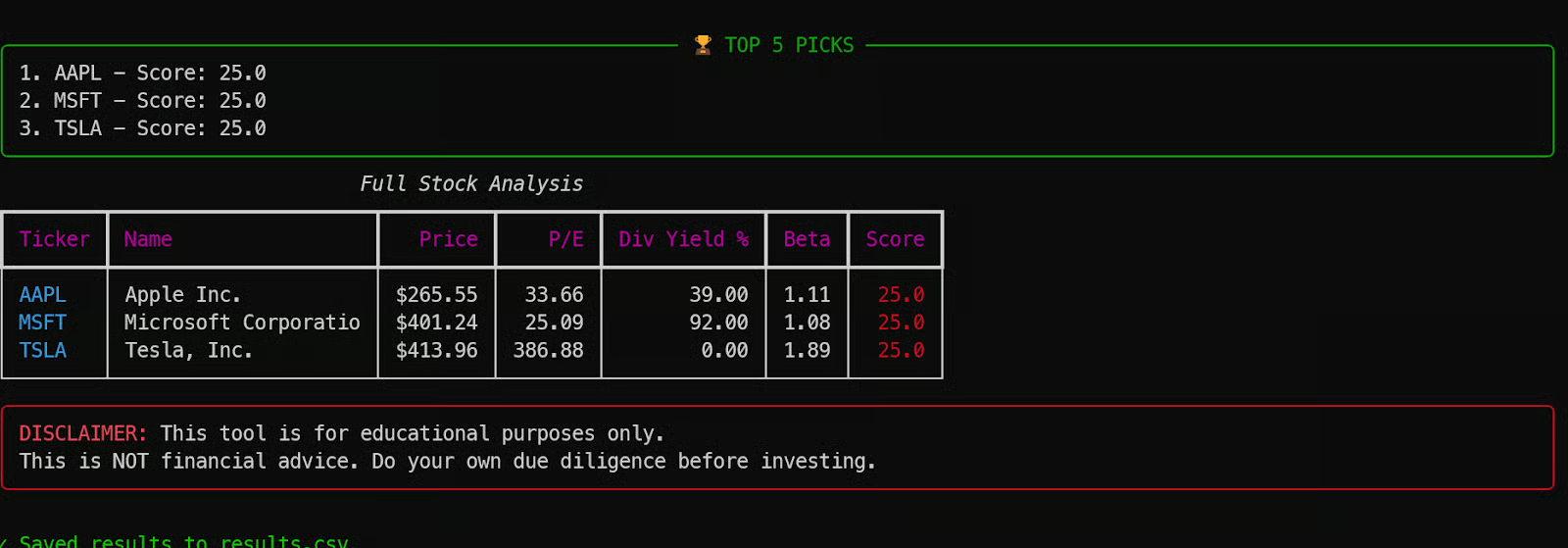
This is a great example of how Qwen3.5 can generate a complete working application in one shot, using only a 4-bit quantized model endpoint and a simple prompt.
Running Qwen3.5 locally is a powerful way to access a frontier-scale model while keeping everything private and fully under your control. In this tutorial, the model was hosted on a single H200 GPU VM, accessed securely from a local machine using SSH port forwarding, and served through an optimized llama.cpp OpenAI-compatible endpoint.
That said, there are a few practical limitations worth keeping in mind. Because everything depends on an active SSH tunnel, the connection needs to stay stable. If your internet drops or the session disconnects, you lose access to the local port and often need to reconnect and restart parts of the workflow.
Another common issue is building llama.cpp correctly. If you do not specify the right CUDA architecture flag for your GPU, the compilation can take much longer and may not fully optimize for the hardware. Setting the correct architecture upfront makes a noticeable difference in build time and performance.
Finally, while the 4-bit MXFP4_MOE quant is excellent for running large models efficiently, it is not always ideal for agentic coding workflows. In testing with tools like Qwen Code CLI, Kilo Code CLI, and OpenCode, the model struggled with deeper reasoning and often failed during longer generation loops, sometimes even triggering GPU instability.
Higher precision quants or smaller reasoning-focused models may work better for reliable agent-based coding.
To learn more about agentic coding, check out our AI-Assisted Coding for Developers course. I also recommend our guide on running GLM-5 locally for agentic coding.
Top DataCamp Courses
{count, plural, one {Course} other {Courses}}
{count, plural, one {Course} other {Courses}}
{count, plural, one {Course} other {Courses}}
{count, plural, one {Tutorial} other {Tutorials}}
Abid Ali Awan
7 min
{count, plural, one {Tutorial} other {Tutorials}}
Abid Ali Awan
6 min
{count, plural, one {Tutorial} other {Tutorials}}
Aashi Dutt
12 min
{count, plural, one {Tutorial} other {Tutorials}}
Abid Ali Awan
10 min
{count, plural, one {Tutorial} other {Tutorials}}
Abid Ali Awan
8 min
{count, plural, one {Tutorial} other {Tutorials}}
Abid Ali Awan
6 min

