
Last chance! 50% off DataCamp Premium
Sale ends in
Buy Now
While Excel doesn't natively support RegEx, you can enable it by writing your own custom definition using a VBA script (for Windows) or enabling add-ins (for Mac). Let's walk through how to enable a regex function to extract text from a column in Excel.
To get started, press Alt+F11 to open the Visual Basic Editor. You can also navigate to it via Tools > Macro > Visual Basic Editor. Then, click Insert > Module.
Paste the following function in the module:
Public Function CustomRegExpExtract(inputText As String, regexPattern As String, Optional instanceNumber As Integer = 0, Optional matchCase As Boolean = True) As Variant
    Dim textMatches() As String
    Dim matchesIndex As Integer
    Dim regex As Object
    Dim matches As Object

    On Error GoTo ErrHandler

    CustomRegExpExtract = ""

    ' Create a regular expression object
    Set regex = CreateObject("VBScript.RegExp")
    regex.Pattern = regexPattern
    regex.Global = True
    regex.MultiLine = True

    ' Set case sensitivity
    If matchCase Then
        regex.IgnoreCase = False
    Else
        regex.IgnoreCase = True
    End If

    ' Execute the regex pattern on the input text
    Set matches = regex.Execute(inputText)

    If matches.Count > 0 Then
        If instanceNumber = 0 Then
            ' If instanceNumber is 0, return all matches in an array
            ReDim textMatches(matches.Count - 1, 0)
            For matchesIndex = 0 To matches.Count - 1
                textMatches(matchesIndex, 0) = matches.Item(matchesIndex)
            Next matchesIndex
            CustomRegExpExtract = textMatches
        Else
            ' If instanceNumber is specified, return the match at that instance
            CustomRegExpExtract = matches.Item(instanceNumber - 1)
        End If
    End If

    Exit Function

ErrHandler:
    ' Handle errors by returning an error value
    CustomRegExpExtract = CVErr(xlErrValue)
End Function

' Modified from an original script by Patrick Matthews
Save the function and navigate back to the spreadsheet. Now, save the workbook as a macro-enabled one, with a .xlsm file extension.
By enabling macros in your Excel workbook, you can now use the CustomRegExpExtract function like a regular function in Excel to parse complex string patterns, where:
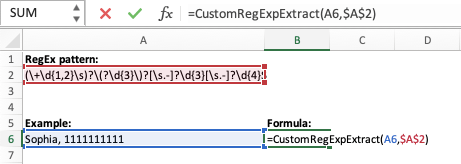
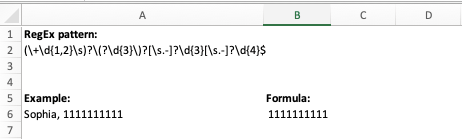
inputText is the original string to parse;regexPattern is the regular expression pattern used to parse the inputText;instanceNumber returns all instances of the pattern, by default, but an integer can be entered to specify the number of instances to return; andmatchCase specifies whether to consider text case during matching (TRUE or omitted) or to disregard it (FALSE).Let's say we're interested in extracting phone numbers from a field. We can type the regex pattern in any cell (in the case below, it appears in cell A2). In cell A6 is your free-form string example, "Sophia, 1111111111". In cell B6, we type =CustomRegExpExtract(A6,$A$2). The function extracts the phone number by matching the string against the regex pattern in cell A2 and returns "1111111111", as expected.
Unfortunately, Mac OS doesn't recognize the MS VBScript Regular Expressions 5.5 library. To enable complex pattern matching in Excel on a Mac, there are two options: make use of advanced filters or install packages.
Advanced filters in Excel help perform complex data filtering operations based on a set of multiple criteria. This feature can be particularly useful when dealing with large datasets. Here's how to use advanced filters in Excel:
Suppose you have a dataset with columns Name, Age, City. You want to filter to show people aged over 30 in New York or anyone in Los Angeles. Your criteria range might look like this:
|
Name |
Age |
City |
|
>30 |
New York | |
|
Los Angeles |
Some add-ins can be found directly in Excel through the Insert tab > Get Add-ins.
Others need to be downloaded from an external source and follow their installation instructions.
A few considerations:
In most cases, native functions like FIND, SEARCH, and REPLACE will help with 90% of your text manipulation needs in Excel. However, for the remaining 10%, in cases involving more complex string patterns, regex can help tremendously. To learn more about applying regular expressions using popular programming languages, check out our courses on Regular Expressions in Python and Intermediate Regular Expressions in R.
To get up to speed with all things Excel, check out our Excel Fundamentals skill track, which takes you through the essential skills needed to become proficient with the tool.

著者
Chloe Lubin
Data analyst by day, storyteller by night. I love using my knowledge to bridge the data literacy gap and help newcomers transition into the field. My philosophy is to learn every day, if only for 5 minutes!
チートシート
 Richie Cotton

チュートリアル
 Sejal Jaiswal• 14 分

チュートリアル
 Khalid Abdelaty• 14 分
Start Your Excel Journey Today!





Have you ever needed to standardize a list of phone numbers in different formats? What about extracting keywords from free-form text fields? Introducing: RegEx! RegEx, short for Regular Expressions, are powerful and flexible patterns used to match strings within blocks of text. In this article, we'll talk about common regex syntax, how to enable regex in Excel, and finally, how to use them effectively.
What are Regular Expressions?
Regular expressions, often abbreviated as "regex" or "regexp," are a way to define a search pattern, which can be used for various text manipulation tasks such as searching, parsing, and/or replacing text. Regular expressions are widely used in programming, text editors, and other software for tasks that involve pattern matching. The regex flavor, or syntax, in Excel is based on the .NET regular expression engine.
Common Regular Expressions
Regular expressions can be grouped based on the characteristics that define them. Below are common regular expressions you'll encounter.
Literal characters
Regular expressions can contain literal characters that match themselves. For example, the regex "
hello" would match the string "hello" exactly.Metacharacters
Regular expressions also include metacharacters, which have special meanings. Some common metacharacters include:
.(dot): Matches any single character except a linebreak.*: Matches zero or more occurrences of the preceding character or group.+: Matches one or more occurrences of the preceding character or group.?: Matches zero or one occurrence of the preceding character or group.|(pipe): Acts as a logical OR and allows you to specify alternatives.()(parentheses): Groups characters or subpatterns together.[](square brackets): Defines a character class, allowing you to match any one character from a set of characters.^(caret): Matches the start of a line or string.$: Matches the end of a line or string.\(backslash): Escapes a metacharacter to match it literally.Character classes
Character classes in regular expressions (regex) are special notations that allow you to match any one out of a set of characters. They are used to simplify regex patterns by providing a concise way to specify a group of characters that should be matched. You can use square brackets
[...]to define character classes. For example,[aeiou]matches any vowel.[A-Z]matches any uppercase letter.Quantifiers
Quantifiers are constructs that specify how many times a particular pattern, character, or character class must occur in the target string to achieve a match. In other words, they specify how many times a character or group should be repeated. For example,
a{3}matches exactly three consecutive "a" characters.ab?matches either "a" or "ab".Anchors
Anchors are special characters that do not match any character in the string. Instead, they match a position before, after, or between characters. Anchors are used to ensure that the regex pattern occurs in a specific place in the text. ^ anchors the pattern to the start of the string, and $ anchors it to the end, for example.
Modifier
Modifiers are characters that change how the regex engine interprets the pattern. They are used to adjust the behavior of the regex match, allowing for more flexibility and control. Modifiers can affect various aspects of the matching process, such as case sensitivity, multiline matching, and how special characters are interpreted. For example,
imakes the pattern case-insensitive, andgmakes it global, so it matches all occurrences in the input.Applications of Regular Expressions in Excel
RegEx are useful in various scenarios:
Data validation
In most cases, you'll need to validate the data to ensure that you're looking at the right information. A classic example is phone numbers. In the US, the standard format is (
###) ###-####. However, they can also be formatted as such:###-###-####, (+#) ### ### ####, ##########, etc. RegEx can help identify that the information contained in the file is indeed phone numbers. The following regular expression will return a match on 10-digit phone numbers, with an optional country code between 1 and 2 digits:(\+\d{1,2}\s)?\(?\d{3}\)?[\s.-]?\d{3}[\s.-]?\d{4}$.Text extraction
Long sentences are often hard to parse by a traditional spreadsheet software. To extract specific keywords, you can use RegEx to do just that. For instance, to extract book titles, enclosed with single quotation marks, from an interview transcript, we can use the following regular expression:
'(.*?)'.Text manipulation
Outside of extracting information, you can also transform and standardize it for reporting purposes. Let's say we're interested in extracting the first five digits of US ZIP codes. We can replace all instances of a field containing ZIP codes by using the regular expression
^\d{5}.Tokenization
Tokenization is the process of splitting text into individual tokens or words. Regex patterns can be used to define rules for tokenizing text. For example, you can use
\s+to split text on whitespace characters or\W+to split text on non-word characters like punctuation.For information on additional patterns, check out our Regular Expression in Python cheat sheet.