%22%3E%3Cpath%20d%3D%22m-369%200h408v79h-408z%22%20fill%3D%22%237933ff%22%2F%3E%3Cpath%20d%3D%22m-148%200h306v45h-306z%22%20fill%3D%22%23974dff%22%2F%3E%3C%2Fg%3E%3C%2Fsvg%3E)
%22%2F%3E%3C%2FclipPath%3E%3Cg%20clip-path%3D%22url(%23a)%22%3E%3Cpath%20d%3D%22m76%200h484v36h-484z%22%20fill%3D%22%23974dff%22%2F%3E%3Cpath%20d%3D%22m0%200h384v24h-384z%22%20fill%3D%22%2306bdfc%22%20transform%3D%22matrix(1%200%200%20-1%200%2060)%22%2F%3E%3C%2Fg%3E%3C%2Fsvg%3E)
What is Nano Banana 2 Lite?
Nano Banana 2 Lite (gemini-3.1-flash-lite-image) is Google's fastest and most cost-efficient image generation model to date.
Built specifically for high-velocity developer pipelines and high-throughput applications, it is optimized for scenarios where low latency and tight operational budgets are primary constraints.
For platforms currently using Google's legacy model (gemini-2.5-flash-image), Nano Banana 2 Lite serves as a direct drop-in replacement, delivering immediate improvements in speed, cost, and visual fidelity.
Key performance metrics
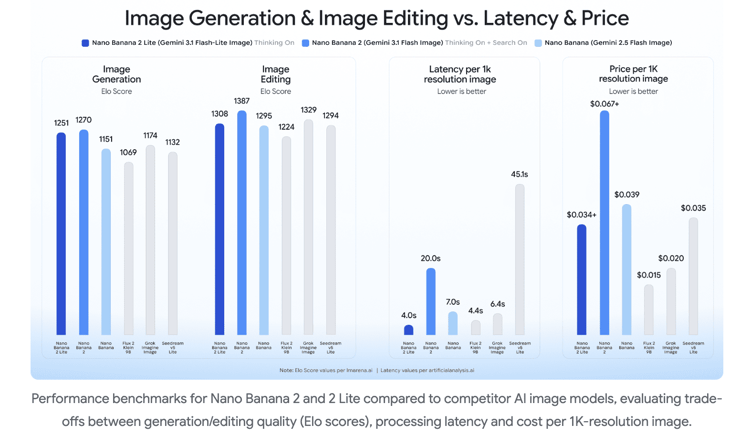
- Ultra-low latency: Delivers text-to-image outputs in approximately 4 seconds, making it ideal for interactive prototyping and real-time user applications.
- Cost-efficiency: Priced at $0.034 per 1K-resolution image, it significantly lowers the barrier for high-volume generation.
- Quality retention: Despite its focus on speed, the model maintains strong prompt adherence, consistent character rendering, and reliable in-image text generation.
What is Gemini Omni Flash?
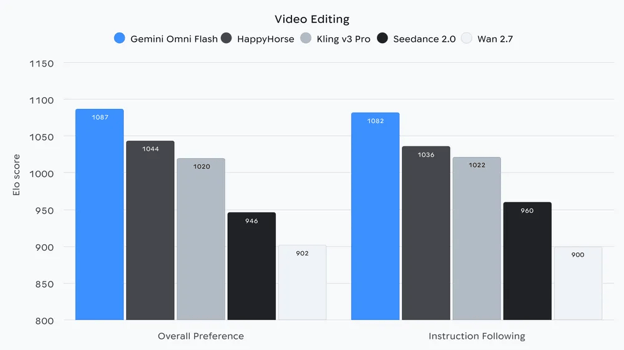
Gemini Omni Flash (gemini-omni-flash-preview) is Google's cost-efficient model for video generation and conversational video editing.
Unlike standalone video generators that rely strictly on static text prompts, Omni Flash brings Gemini’s core multimodal reasoning directly into the video creation process.
It natively accepts combinations of text, image, and video inputs, allowing programmatic control over video generation with unprecedented precision.
Omni Flash’s core capabilities and pricing
- Competitive pricing: Priced at $0.10 per second of video output, matching the rate of Veo 3.1 Fast.
- Conversational video editing: Instead of regenerating videos from scratch for minor adjustments, applications can use natural language instructions to refine existing sequences.
- Multimodal referencing: Text prompts can be combined with reference images or clips to ensure visual consistency and granular control over scene elements.
- Real-world grounding: Leveraging Gemini's foundational knowledge, the model constructs realistic animations based on logic and physics.
- Text & action synchronization: Onscreen text and graphic overlays can be linked directly to video actions through simple prompting.
How to Generate and Set Up a Gemini API Key
Before we can use the Gemini API, we need to create and set up an API key so that our code can communicate with the API.
The simplest way to do this is:
- Visit Google’s AI Studio API key page and log in.
- Click the “Create API key” button in the top-right corner.
- Copy the API key into a file named
.envin the same folder where the Python code will be with the following format:
Note: Using the API incurs costs. To use it, we need to ensure we have a payment method configured on Google’s AI Studio billing page.
How to Generate Images with Nano Banana 2 Lite in Python
Prerequisites for AI Image Generation in Python
Before starting to code our Python AI image generator, ensure the following tools are ready:
- Python 3.9+ is installed on the system.
- Google Gemini API Key: A valid Google Gemini API key to authenticate requests. See the steps above to create and configure the key.
- Required Python Libraries: We will use the official
google-genaiSDK for API integration and Pillow for handling the image output.
The necessary Python packages can be installed using pip:
Step 1: Importing modules and loading environment variables
Create a new file (e.g., generate_image.py) and add the following imports and load sequence to set up the environment:
import io
from dotenv import load_dotenv
from google.genai import types
from PIL import Image
from google.genai import Client

# Load environment variables from the .env file
load_dotenv()Step 2: Initializing the Google GenAI client
To interact with the Nano Banana 2 Lite model, we must first initialize the Google GenAI client.
Since the SDK automatically checks the system environment variables for GEMINI_API_KEY (which was loaded from the .env file in the previous step), we can initialize the client without passing the API key explicitly in the code.
Step 3: Writing the AI image generation function
Now for the core logic of our Python script. We will write a dedicated Python function, generate_image(), that takes the initialized client and a text prompt as inputs.
Nano Banana 2 Lite is invoked by specifying model="gemini-3.1-flash-lite-image". We configure the API request to expect an image modality and specify the desired aspect ratio for the AI image generation.
def generate_image(client, prompt: str, ratio: str = "1:1") -> Image.Image | None:
    """
    Generates an AI image using the Nano Banana 2 Lite model via the Gemini API.
    """
    print(f"Generating AI image for prompt: '{prompt}'...")

    # 1. Call the Nano Banana 2 Lite model
    response = client.models.generate_content(
        model="gemini-3.1-flash-lite-image",
        contents=prompt,
        config=types.GenerateContentConfig(
            response_modalities=[types.Modality.IMAGE],
            image_config=types.ImageConfig(aspect_ratio=ratio),
        ),
    )

    # 2. Extract and convert the generated image data
    if response and response.candidates:
        for part in response.candidates[0].content.parts:
            if part.inline_data:
                # Load the bytes into a PIL Image and convert to RGB
                image = Image.open(io.BytesIO(part.inline_data.data)).convert("RGB")
                return image

return NoneUnderstanding the Python image generation request:
response_modalities: This forces the Google Gemini model to return an image rather than text.inline_data: The Gemini API returns the generated image as raw bytes. We use Python'sio.BytesIOto wrap these bytes so that Pillow (Image.open) can read them as a standard image file.image_config: We set theaspect_ratioto "1:1" (square), but this can be easily adjusted depending on the specific AI application use case.
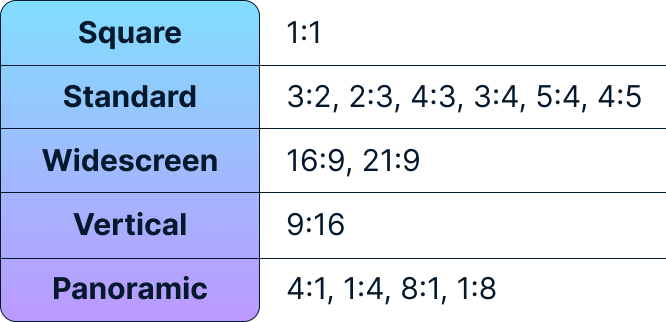
Supported aspect ratios:
Step 4: Running the Python image generation script
Let's put it all together and ask Nano Banana 2 Lite to generate an image!
We will prompt it for something creative, call the show() function on the resulting image to view the AI-generated artwork, and close the client to release resources.
if __name__ == "__main__":
    # Define our creative prompt for the AI model
    my_prompt = "A futuristic city skyline at sunset, cyberpunk style, highly detailed"

    # Generate the AI image
    result_image = generate_image(client, my_prompt)

    # Display the resulting image
    if result_image:
        print("AI Image generated successfully!")
        result_image.show()
    else:
        print("Failed to generate AI image.")

    # Close the client to prevent shutdown exceptions
client.close()Here’s the image generated by Nano Banana 2 Flash:
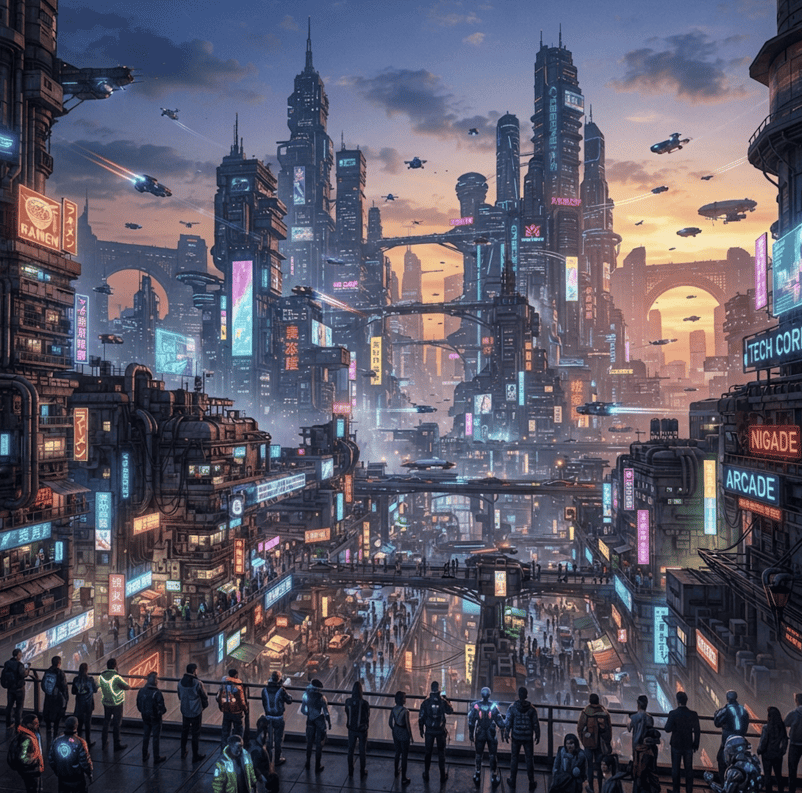
As promised by Google in their announcement, the model took just a few seconds to generate the image. At first glance, it feels much faster than any other model I’ve tried so far.
The full script can be found in the generate_image.py script from this tutorial’s repository.
Extending the script to image editing
Let’s write a function edit_image() that edits an image. The only thing we need to change in the request is to provide the image together with the prompt in the contents parameter as a list [image, prompt].
def edit_image(client, image: Image.Image, prompt: str, aspect_ratio: str = "1:1") -> Image.Image | None:
    """
    Edits an AI image using the Gemini 3.1 Flash Lite model via the Gemini API.
    """
    response = client.models.generate_content(
        model="gemini-3.1-flash-lite-image",
        contents=[image, prompt],
        config=types.GenerateContentConfig(
            response_modalities=[types.Modality.IMAGE],
            image_config=types.ImageConfig(aspect_ratio=aspect_ratio),
        ),
    )
    if response and response.candidates:
        for part in response.candidates[0].content.parts:
            if part.inline_data:
                return Image.open(io.BytesIO(part.inline_data.data)).convert("RGB")
return NoneTesting Nano Banana 2 Flash
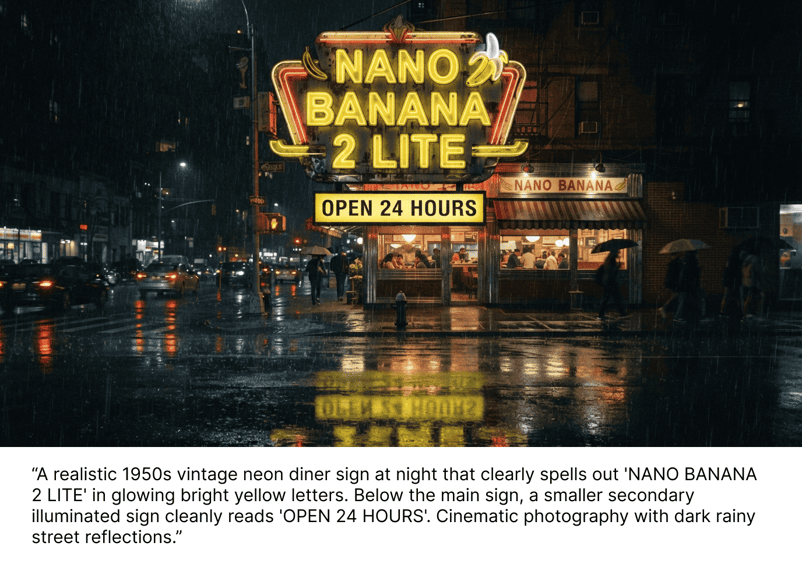
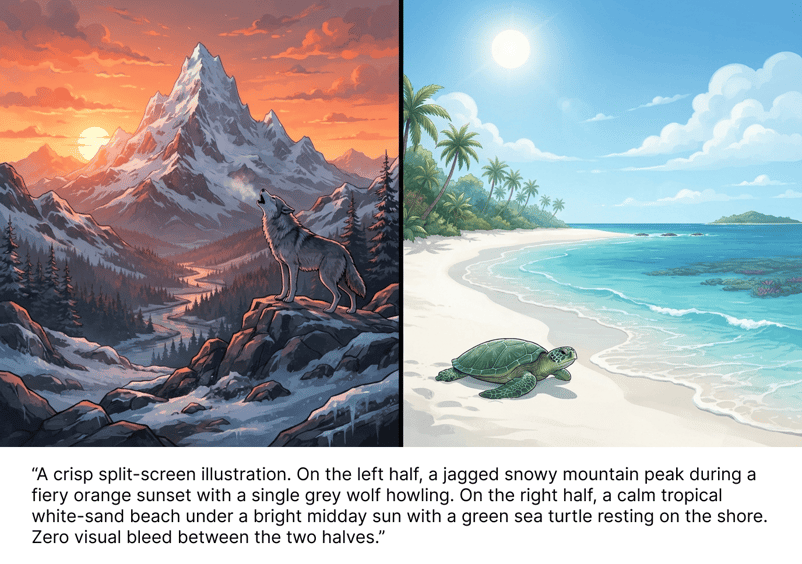
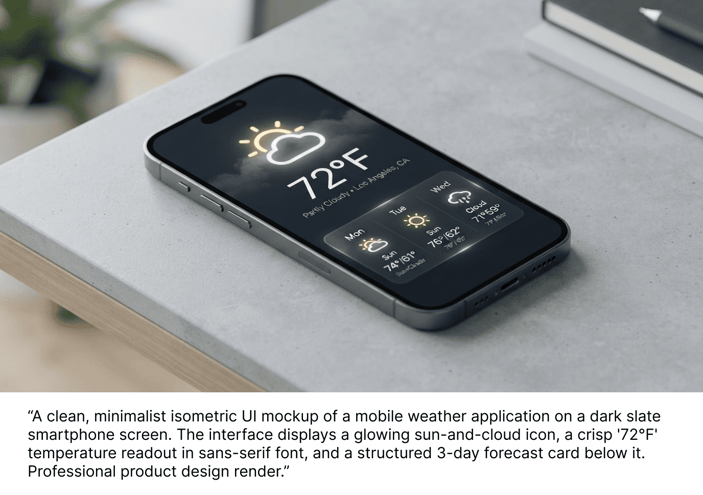
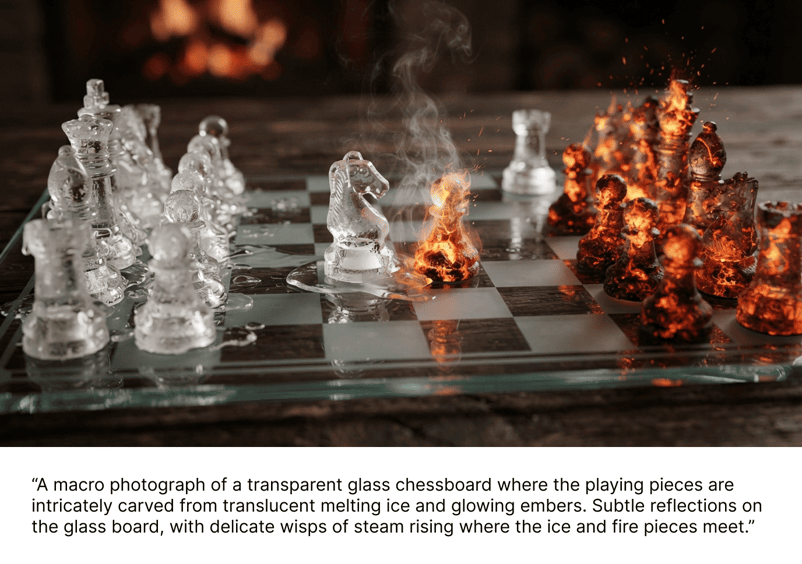
We evaluated the real-world performance of the model by conducting a series of targeted stress tests.
These evaluations focus on the model’s ability to handle complex visual tasks, such as rendering legible text, maintaining strict spatial layout, and ensuring consistency across multi-turn interactions, to determine if it truly delivers on its promise of high-fidelity generation at high speeds.
Testing legible in-image text rendering
Testing strict spatial control and dual-subject adherence
Testing rapid UI prototyping and layout precision
Testing complex material contrasts and lighting
Testing multi-turn character consistency
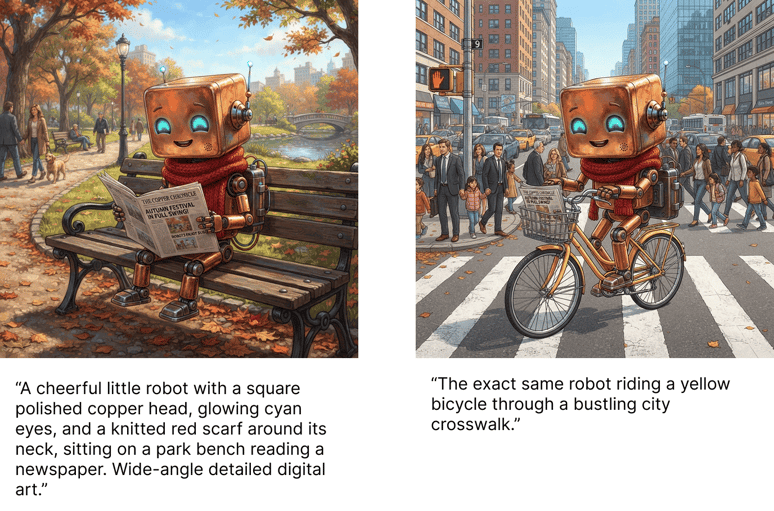
Frankly, I’m quite impressed with the results for such a fast model. In the last example, the model even managed to somewhat maintain the consistency of the text in the newspaper.
In my experience, maintaining consistency is one of the most important aspects an image generation model needs to nail to really be useful.
How to Generate Videos with Gemini Omni Flash in Python
In this section, we will walk through how to build a Python script to generate videos, starting with a simple text-to-video prompt and then expanding it to incorporate reference images.
Unlike standard image generation, generating videos with Gemini Omni Flash is done through the SDK's Interactions API (client.interactions.create). This endpoint is specifically designed to handle rich, multi-turn, and multimodal interactions.
Since the required SDK imports, environment variable setup, and Google GenAI client initialization are identical to the image generation process detailed in the previous section, we can directly focus on writing our video generation functions.
Step 1: Text-to-Video (Simple Prompt-to-Video)
To generate a video from a text prompt alone, we pass a single text input block to the Interactions API. We can write a simple Python function to handle this:
def text_to_video(client, prompt: str, aspect_ratio: str = "16:9", duration: str = "5s"):
    """
    Generates a video from a text prompt using Gemini Omni Flash.
    """
    interaction = client.interactions.create(
        model="gemini-omni-flash-preview",
        input=[{"type": "text", "text": prompt}],
        response_format={
            "type": "video",
            "aspect_ratio": aspect_ratio,
            "duration": duration,
        },
    )
return interactionWe can invoke this function and save the returned video bytes to a file, like so:
if __name__ == "__main__":
    import base64

    # Define a creative video prompt
    text_prompt = """
    Generate a first person view of what daily life would look like in the year
    1000 at this location: 41.89030621184054, 12.492266126772481
    """

    # Call the video generator
    interaction = text_to_video(
        client=client,
        prompt=text_prompt,
        aspect_ratio="16:9",
        duration="5s"
    )

    # Extract and save the generated video file
    if interaction and hasattr(interaction, "output_video") and interaction.output_video:
        # Decode the base64-encoded video data returned by the API
        video_bytes = base64.b64decode(interaction.output_video.data)

        # Save the bytes locally as an MP4 file
        with open("videos/video.mp4", "wb") as f:
            f.write(video_bytes)
    else:
print("Failed to generate video.")The prompt we used was:
Generate a first-person view of what daily life would look like in the year 1000 at this location: 41.89030621184054, 12.492266126772481That specific location is the Roman Colosseum. I used coordinates to test the model’s world knowledge. This is the video that was generated:
In contrast, here’s what the model generated when I replaced the year 1000 with the year 1980:
Quite interesting in my opinion. Check the text_to_video.py file to see the full script.
Step 2: Implementing Image-to-Video capabilities
To animate a static image or just use it as a reference to drive the video generation, we must pass both the image and a text prompt to the model.
Because the Interactions API expects image inputs to be base64-encoded, we first define a helper function to convert PIL Image objects to base64 strings:
import io
from PIL import Image
import base64

def _image_to_base64(img: Image.Image) -> str:
    """
    Converts a PIL Image object to a base64-encoded string.
    """
    buffered = io.BytesIO()
    img.save(buffered, format="PNG")
return base64.b64encode(buffered.getvalue()).decode()Now, we can build a more general function, generate_video(), that handles both optional images and the text prompt.
from google.genai import types

def generate_video(client, valid_images: list[Image.Image], animation_prompt: str, aspect_ratio: str):
    """
    Generates a commercial-quality AI video using Google's Gemini Omni Flash model.
    Supports image-to-video and text-to-video multimodal inputs using the Gemini API.
    """
    omni_inputs = []

    # 1. Base64 encode and append any input images
    for img in valid_images:
        img_b64 = _image_to_base64(img)
        omni_inputs.append({
            "type": "image",
            "data": img_b64,
            "mime_type": "image/png",
        })

    # 2. Append the text animation prompt
    omni_inputs.append({"type": "text", "text": animation_prompt})

    # 3. Request video generation from the interactions endpoint
    interaction = client.interactions.create(
        model="gemini-omni-flash-preview",
        input=omni_inputs,
        response_format={
            "type": "video",
            "aspect_ratio": aspect_ratio,
        },
    )
return interactionFinally, here’s how we can use these functions to generate a video that animates this beetle image I generated with Gemini:
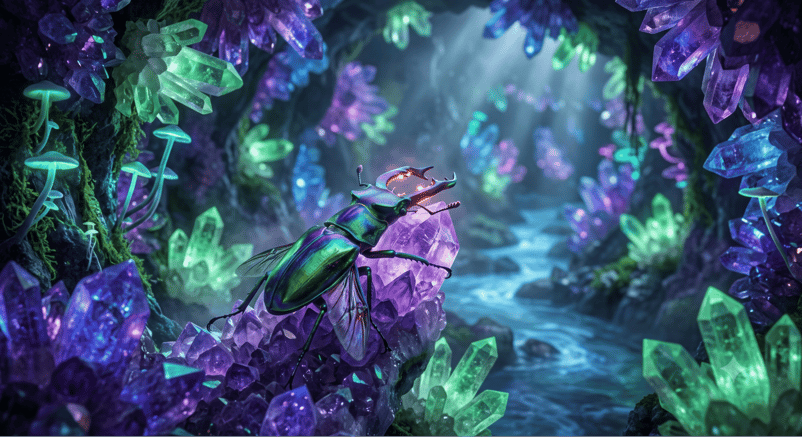
if __name__ == "__main__":
    # Load our reference image
    reference_image = Image.open("images/beetle.png").convert("RGB")

    # Describe how we want the image to be animated
    animation_prompt = """
    A detailed, close-up photograph of an iridescent biomechanical stag beetle,
    shimmering with metallic green, blue, and violet hues, as it traverses a
    rugged amethyst crystal formation in a subterranean grotto.
    The cavern walls are lined with a dense matrix of glowing crystals emitting
    deep purple, blue, and green light. The air is misty, with bioluminescent
    flora clinging to the rock. As the camera maintains focus, the beetle
    subtly activates a soft internal orange glow from its mandibles, begins
    vibrating its wings, and slowly crawls upward across the crystalline
    surface, reflecting the surrounding light.
    """

    # Call the generator with the reference image
    interaction = generate_video(
        client=client,
        valid_images=[reference_image],
        animation_prompt=animation_prompt,
        aspect_ratio="16:9"
    )

    # Extract and save the animated video
    if interaction and hasattr(interaction, "output_video") and interaction.output_video:
        video_bytes = base64.b64decode(interaction.output_video.data)
        with open("videos/video.mp4", "wb") as f:
f.write(video_bytes)This was the video it generated:
The full script is available here.
Step 3: Implementing video editing with Video-to-Video
Editing a video conversationally with Gemini Omni Flash API is made incredibly easy by its use of interactions. When we generate a video, we get an interaction identifier which can be accessed as interaction.id.
To edit a video, we can then provide a prompt and the identifier of the previous interaction. If it’s the first edit, we provide the identifier of the interaction used to generate the video. For subsequent edits, we provide the identifier of the previous edit.
client.interactions.create(
        model="gemini-omni-flash-preview",
        input=edit_prompt,
        previous_interaction_id=previous_interaction_id,
)Building an Interactive AI Video Studio: Architecture and Multi-Model Synergy
In the previous sections, we learned how to programmatically generate images using Nano Banana 2 Lite and videos using Gemini Omni Flash. Now, we are going to see how to bring these capabilities together into a single, cohesive, interactive web application: an AI Video Studio.
The AI Video Studio Architecture
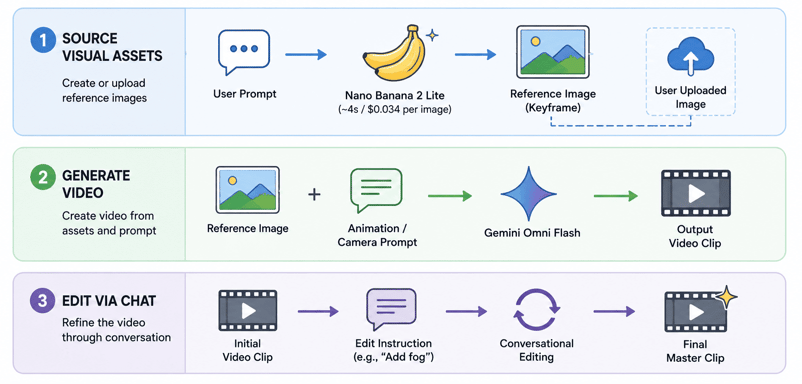
Creating high-quality AI videos usually involves a high degree of trial and error. The AI Video Studio solves this by implementing a two-stage, multi-model pipeline that leverages the unique strengths of two distinct models:
- Asset Sourcing: Powered by Nano Banana 2 Lite, users can quickly generate resources and reference images for the video to combine them with existing images they have.
- Video Generation: We use Gemini Omni Flash to generate a video based on those assets.
- Video Edition: After a video is generated, we can edit it conversationally.
Stage 1: Fast prototyping with Nano Banana 2 Lite
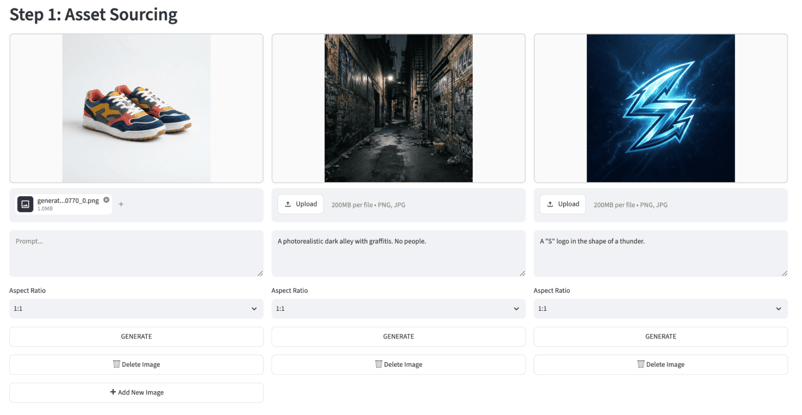
In the first stage, the application lets us source reference images (keyframes). We can either upload a local image or generate one on the fly.
This is where Nano Banana 2 Lite shines.
With a latency of under 4 seconds and costing only a fraction of a cent per image, it serves as an ultra-fast sandbox. We can rapidly prototype dozens of different visual styles, compositions, and subjects until we get the perfect keyframe.
Stage 2: Multimodal generation with Gemini Omni Flash
Once we have the perfect reference image, we move to the video production stage.
The reference image and our animation prompt (e.g., describing camera motion, lighting changes, or action) are base64-encoded and sent to Gemini Omni Flash using the SDK's Interactions API.
Gemini Omni Flash processes these inputs and returns a high-fidelity video clip in widescreen (16:9) or vertical (9:16) format.
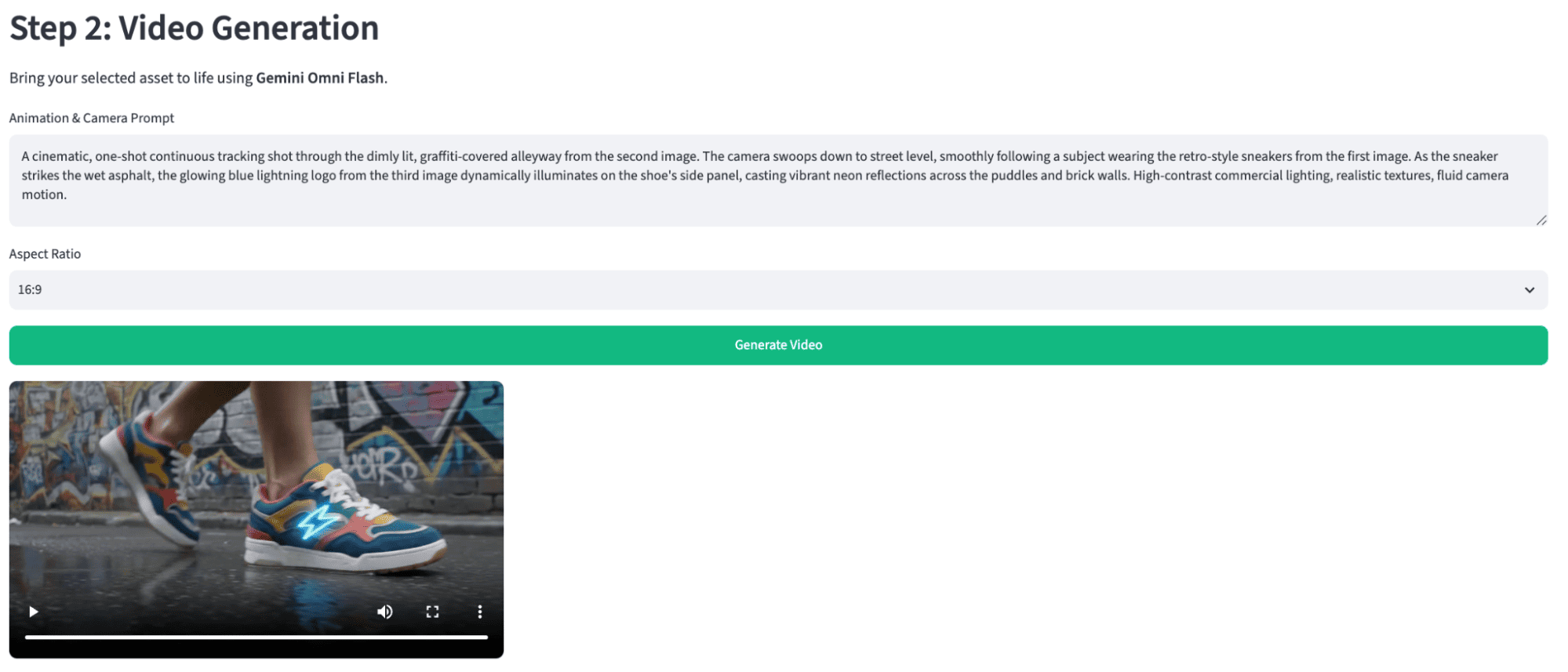
Here’s the video we got:
Streamlit video generation app implementation
To build the user interface, we use Streamlit, a popular open-source Python framework that makes it incredibly easy to build shareable web apps for machine learning and data science.
If you are new to Streamlit or want a refresher on how it works, we highly recommend reading this Python Streamlit Tutorial.
We won't focus on the Streamlit UI code itself, but rather look at the architecture of the video generation pipeline and explore the creative possibilities of combining these two powerful models.
The gemini_api.py script contains the functions we implemented above to generate images and videos. The user interface is implemented with Streamlit in the app.py script.
If you want to run it locally and experiment with it, do the following:
git clone [email protected]:fran-aubry/nano-banana-2-flash-tutorial.git
pip install -r requirement.txt
streamlit run app.pyHere’s a full workflow example that combines an existing image of an imaginary tea brand with a generated tea plantation image to make a commercial shot for that tea can.
Then we edit the video using a prompt.
The video was sped up during the video generation because these can take a few minutes to finish.
Conclusion
The speed claims made by Google about their new Nano Banana 2 Lite model are true.
3The model is incredibly fast and getting closer to something that could generate images in real time. While the images it generates are good, they are not quite revolutionary. The model's primary innovation is undoubtedly its impressive speed rather than its groundbreaking image quality.
When paired together, the Gemini Omni Flash and Nano Banana 2 Lite models create a powerful pipeline. The Omni model is particularly effective at maintaining fidelity to the reference material.
To learn more about Nano Banana 2, check this article: Nano Banana 2: A Full Guide With Python.
For a deeper dive into the Gemini Omni series, I recommend reading Gemini Omni: One Model for Text, Image, Audio, and Video.
FAQs
How do Nano Banana 2 Lite and Gemini Omni Flash differ in purpose?
Nano Banana 2 Lite is optimized for high-speed, cost-effective image generation (ideal for rapid prototyping), while Gemini Omni Flash is designed for multimodal video generation and conversational video editing.
Can I edit a video without regenerating it from scratch?
Yes. Gemini Omni Flash allows for conversational video editing. By providing a prompt along with the previous interaction ID, you can refine existing video sequences using natural language.
Is Nano Banana 2 Lite suitable for real-time user applications?
With an ultra-low latency of approximately 4 seconds per image, it is specifically built for interactive applications where speed and budget constraints are primary.
What are the primary cost considerations for these models?
Both models prioritize cost-efficiency. Nano Banana 2 Lite costs $0.034 per 1K-resolution image, and Gemini Omni Flash is priced at $0.10 per second of video output, making them viable for high-volume pipelines.




%22%3E%0A%20%20%20%20%20%20%20%20%3Crect%20fill%3D%22%2305192D%22%20height%3D%22180%22%20width%3D%22336%22%20%2F%3E%0A%20%20%20%20%20%20%20%20%3Crect%0A%20%20%20%20%20%20%20%20%20%20fill%3D%22%23B08EFF%22%0A%20%20%20%20%20%20%20%20%20%20height%3D%22106.6%22%0A%20%20%20%20%20%20%20%20%20%20transform%3D%22rotate(-30%20-208.588%20220.18)%22%0A%20%20%20%20%20%20%20%20%20%20width%3D%22456.125%22%0A%20%20%20%20%20%20%20%20%20%20x%3D%22-208.588%22%0A%20%20%20%20%20%20%20%20%20%20y%3D%22220.18%22%0A%20%20%20%20%20%20%20%20%2F%3E%0A%20%20%20%20%20%20%20%20%3Crect%0A%20%20%20%20%20%20%20%20%20%20fill%3D%22%237933FF%22%0A%20%20%20%20%20%20%20%20%20%20height%3D%2235.875%22%0A%20%20%20%20%20%20%20%20%20%20transform%3D%22rotate(-30%20-208.588%20220.18)%22%0A%20%20%20%20%20%20%20%20%20%20width%3D%22347.576%22%0A%20%20%20%20%20%20%20%20%20%20x%3D%22-208.588%22%0A%20%20%20%20%20%20%20%20%20%20y%3D%22220.18%22%0A%20%20%20%20%20%20%20%20%2F%3E%0A%20%20%20%20%20%20%20%20%3Crect%0A%20%20%20%20%20%20%20%20%20%20fill%3D%22%2372E5FE%22%0A%20%20%20%20%20%20%20%20%20%20height%3D%2235.875%22%0A%20%20%20%20%20%20%20%20%20%20transform%3D%22rotate(-30%20-226.525%20189.111)%22%0A%20%20%20%20%20%20%20%20%20%20width%3D%22347.576%22%0A%20%20%20%20%20%20%20%20%20%20x%3D%22-226.525%22%0A%20%20%20%20%20%20%20%20%20%20y%3D%22189.111%22%0A%20%20%20%20%20%20%20%20%2F%3E%0A%20%20%20%20%20%20%20%20%3Crect%0A%20%20%20%20%20%20%20%20%20%20fill%3D%22%235EB1FF%22%0A%20%20%20%20%20%20%20%20%20%20height%3D%22106.6%22%0A%20%20%20%20%20%20%20%20%20%20transform%3D%22rotate(-30%2085.5879%20256.055)%22%0A%20%20%20%20%20%20%20%20%20%20width%3D%22456.125%22%0A%20%20%20%20%20%20%20%20%20%20x%3D%2285.5879%22%0A%20%20%20%20%20%20%20%20%20%20y%3D%22256.055%22%0A%20%20%20%20%20%20%20%20%2F%3E%0A%20%20%20%20%20%20%20%20%3Crect%0A%20%20%20%20%20%20%20%20%20%20fill%3D%22%23B08EFF%22%0A%20%20%20%20%20%20%20%20%20%20height%3D%2235.875%22%0A%20%20%20%20%20%20%20%20%20%20transform%3D%22rotate(-30%2085.5879%20256.055)%22%0A%20%20%20%20%20%20%20%20%20%20width%3D%22184.5%22%0A%20%20%20%20%20%20%20%20%20%20x%3D%2285.5879%22%0A%20%20%20%20%20%20%20%20%20%20y%3D%22256.055%22%0A%20%20%20%20%20%20%20%20%2F%3E%0A%20%20%20%20%20%20%20%20%3Crect%0A%20%20%20%20%20%20%20%20%20%20fill%3D%22%2372E5FE%22%0A%20%20%20%20%20%20%20%20%20%20height%3D%2235.875%22%0A%20%20%20%20%20%20%20%20%20%20transform%3D%22rotate(-30%20227.432%20132.736)%22%0A%20%20%20%20%20%20%20%20%20%20width%3D%22271.625%22%0A%20%20%20%20%20%20%20%20%20%20x%3D%22227.432%22%0A%20%20%20%20%20%20%20%20%20%20y%3D%22132.736%22%0A%20%20%20%20%20%20%20%20%2F%3E%0A%20%20%20%20%20%20%3C%2Fg%3E%0A%20%20%20%20%20%20%3Cdefs%3E%0A%20%20%20%20%20%20%20%20%3CclipPath%20id%3D%22clip%22%3E%0A%20%20%20%20%20%20%20%20%20%20%3Crect%20fill%3D%22white%22%20height%3D%22180%22%20width%3D%22336%22%20%2F%3E%0A%20%20%20%20%20%20%20%20%3C%2FclipPath%3E%0A%20%20%20%20%20%20%3C%2Fdefs%3E%0A%20%20%20%20%3C%2Fsvg%3E)

%22%3E%0A%20%20%20%20%20%20%20%20%3Crect%20fill%3D%22%23F7F3EB%22%20height%3D%22180%22%20width%3D%22336%22%20%2F%3E%0A%20%20%20%20%20%20%20%20%3Crect%0A%20%20%20%20%20%20%20%20%20%20fill%3D%22%23000820%22%0A%20%20%20%20%20%20%20%20%20%20height%3D%22106.6%22%0A%20%20%20%20%20%20%20%20%20%20transform%3D%22rotate(-30%20-208.588%20220.18)%22%0A%20%20%20%20%20%20%20%20%20%20width%3D%22456.125%22%0A%20%20%20%20%20%20%20%20%20%20x%3D%22-208.588%22%0A%20%20%20%20%20%20%20%20%20%20y%3D%22220.18%22%0A%20%20%20%20%20%20%20%20%2F%3E%0A%20%20%20%20%20%20%20%20%3Crect%0A%20%20%20%20%20%20%20%20%20%20fill%3D%22%2300C74E%22%0A%20%20%20%20%20%20%20%20%20%20height%3D%2235.875%22%0A%20%20%20%20%20%20%20%20%20%20transform%3D%22rotate(-30%20-208.588%20220.18)%22%0A%20%20%20%20%20%20%20%20%20%20width%3D%22347.576%22%0A%20%20%20%20%20%20%20%20%20%20x%3D%22-208.588%22%0A%20%20%20%20%20%20%20%20%20%20y%3D%22220.18%22%0A%20%20%20%20%20%20%20%20%2F%3E%0A%20%20%20%20%20%20%20%20%3Crect%0A%20%20%20%20%20%20%20%20%20%20fill%3D%22%23FF931E%22%0A%20%20%20%20%20%20%20%20%20%20height%3D%2235.875%22%0A%20%20%20%20%20%20%20%20%20%20transform%3D%22rotate(-30%20-226.525%20189.111)%22%0A%20%20%20%20%20%20%20%20%20%20width%3D%22347.576%22%0A%20%20%20%20%20%20%20%20%20%20x%3D%22-226.525%22%0A%20%20%20%20%20%20%20%20%20%20y%3D%22189.111%22%0A%20%20%20%20%20%20%20%20%2F%3E%0A%20%20%20%20%20%20%20%20%3Crect%0A%20%20%20%20%20%20%20%20%20%20fill%3D%22%23D87300%22%0A%20%20%20%20%20%20%20%20%20%20height%3D%22106.6%22%0A%20%20%20%20%20%20%20%20%20%20transform%3D%22rotate(-30%2085.5879%20256.055)%22%0A%20%20%20%20%20%20%20%20%20%20width%3D%22456.125%22%0A%20%20%20%20%20%20%20%20%20%20x%3D%2285.5879%22%0A%20%20%20%20%20%20%20%20%20%20y%3D%22256.055%22%0A%20%20%20%20%20%20%20%20%2F%3E%0A%20%20%20%20%20%20%20%20%3Crect%0A%20%20%20%20%20%20%20%20%20%20fill%3D%22%23000820%22%0A%20%20%20%20%20%20%20%20%20%20height%3D%2235.875%22%0A%20%20%20%20%20%20%20%20%20%20transform%3D%22rotate(-30%2085.5879%20256.055)%22%0A%20%20%20%20%20%20%20%20%20%20width%3D%22184.5%22%0A%20%20%20%20%20%20%20%20%20%20x%3D%2285.5879%22%0A%20%20%20%20%20%20%20%20%20%20y%3D%22256.055%22%0A%20%20%20%20%20%20%20%20%2F%3E%0A%20%20%20%20%20%20%20%20%3Crect%0A%20%20%20%20%20%20%20%20%20%20fill%3D%22%2300C74E%22%0A%20%20%20%20%20%20%20%20%20%20height%3D%2235.875%22%0A%20%20%20%20%20%20%20%20%20%20transform%3D%22rotate(-30%20227.432%20132.736)%22%0A%20%20%20%20%20%20%20%20%20%20width%3D%22271.625%22%0A%20%20%20%20%20%20%20%20%20%20x%3D%22227.432%22%0A%20%20%20%20%20%20%20%20%20%20y%3D%22132.736%22%0A%20%20%20%20%20%20%20%20%2F%3E%0A%20%20%20%20%20%20%3C%2Fg%3E%0A%20%20%20%20%20%20%3Cdefs%3E%0A%20%20%20%20%20%20%20%20%3CclipPath%20id%3D%22clip%22%3E%0A%20%20%20%20%20%20%20%20%20%20%3Crect%20fill%3D%22white%22%20height%3D%22180%22%20width%3D%22336%22%20%2F%3E%0A%20%20%20%20%20%20%20%20%3C%2FclipPath%3E%0A%20%20%20%20%20%20%3C%2Fdefs%3E%0A%20%20%20%20%3C%2Fsvg%3E)
%22%3E%0A%20%20%20%20%20%20%20%20%3Crect%20fill%3D%22%2372E5FE%22%20height%3D%22180%22%20width%3D%22336%22%20%2F%3E%0A%20%20%20%20%20%20%20%20%3Crect%0A%20%20%20%20%20%20%20%20%20%20fill%3D%22%237933FF%22%0A%20%20%20%20%20%20%20%20%20%20height%3D%22106.6%22%0A%20%20%20%20%20%20%20%20%20%20transform%3D%22rotate(-30%20-208.588%20220.18)%22%0A%20%20%20%20%20%20%20%20%20%20width%3D%22456.125%22%0A%20%20%20%20%20%20%20%20%20%20x%3D%22-208.588%22%0A%20%20%20%20%20%20%20%20%20%20y%3D%22220.18%22%0A%20%20%20%20%20%20%20%20%2F%3E%0A%20%20%20%20%20%20%20%20%3Crect%0A%20%20%20%20%20%20%20%20%20%20fill%3D%22%235EB1FF%22%0A%20%20%20%20%20%20%20%20%20%20height%3D%2235.875%22%0A%20%20%20%20%20%20%20%20%20%20transform%3D%22rotate(-30%20-208.588%20220.18)%22%0A%20%20%20%20%20%20%20%20%20%20width%3D%22347.576%22%0A%20%20%20%20%20%20%20%20%20%20x%3D%22-208.588%22%0A%20%20%20%20%20%20%20%20%20%20y%3D%22220.18%22%0A%20%20%20%20%20%20%20%20%2F%3E%0A%20%20%20%20%20%20%20%20%3Crect%0A%20%20%20%20%20%20%20%20%20%20fill%3D%22%23000820%22%0A%20%20%20%20%20%20%20%20%20%20height%3D%2235.875%22%0A%20%20%20%20%20%20%20%20%20%20transform%3D%22rotate(-30%20-226.525%20189.111)%22%0A%20%20%20%20%20%20%20%20%20%20width%3D%22347.576%22%0A%20%20%20%20%20%20%20%20%20%20x%3D%22-226.525%22%0A%20%20%20%20%20%20%20%20%20%20y%3D%22189.111%22%0A%20%20%20%20%20%20%20%20%2F%3E%0A%20%20%20%20%20%20%20%20%3Crect%0A%20%20%20%20%20%20%20%20%20%20fill%3D%22%237933FF%22%0A%20%20%20%20%20%20%20%20%20%20height%3D%22106.6%22%0A%20%20%20%20%20%20%20%20%20%20transform%3D%22rotate(-30%2085.5879%20256.055)%22%0A%20%20%20%20%20%20%20%20%20%20width%3D%22456.125%22%0A%20%20%20%20%20%20%20%20%20%20x%3D%2285.5879%22%0A%20%20%20%20%20%20%20%20%20%20y%3D%22256.055%22%0A%20%20%20%20%20%20%20%20%2F%3E%0A%20%20%20%20%20%20%20%20%3Crect%0A%20%20%20%20%20%20%20%20%20%20fill%3D%22%235EB1FF%22%0A%20%20%20%20%20%20%20%20%20%20height%3D%2235.875%22%0A%20%20%20%20%20%20%20%20%20%20transform%3D%22rotate(-30%2085.5879%20256.055)%22%0A%20%20%20%20%20%20%20%20%20%20width%3D%22184.5%22%0A%20%20%20%20%20%20%20%20%20%20x%3D%2285.5879%22%0A%20%20%20%20%20%20%20%20%20%20y%3D%22256.055%22%0A%20%20%20%20%20%20%20%20%2F%3E%0A%20%20%20%20%20%20%20%20%3Crect%0A%20%20%20%20%20%20%20%20%20%20fill%3D%22%23000820%22%0A%20%20%20%20%20%20%20%20%20%20height%3D%2235.875%22%0A%20%20%20%20%20%20%20%20%20%20transform%3D%22rotate(-30%20227.432%20132.736)%22%0A%20%20%20%20%20%20%20%20%20%20width%3D%22271.625%22%0A%20%20%20%20%20%20%20%20%20%20x%3D%22227.432%22%0A%20%20%20%20%20%20%20%20%20%20y%3D%22132.736%22%0A%20%20%20%20%20%20%20%20%2F%3E%0A%20%20%20%20%20%20%3C%2Fg%3E%0A%20%20%20%20%20%20%3Cdefs%3E%0A%20%20%20%20%20%20%20%20%3CclipPath%20id%3D%22clip%22%3E%0A%20%20%20%20%20%20%20%20%20%20%3Crect%20fill%3D%22white%22%20height%3D%22180%22%20width%3D%22336%22%20%2F%3E%0A%20%20%20%20%20%20%20%20%3C%2FclipPath%3E%0A%20%20%20%20%20%20%3C%2Fdefs%3E%0A%20%20%20%20%3C%2Fsvg%3E)

%22%3E%0A%20%20%20%20%20%20%20%20%3Crect%20fill%3D%22%23EFEBE4%22%20height%3D%22180%22%20width%3D%22336%22%20%2F%3E%0A%20%20%20%20%20%20%20%20%3Crect%0A%20%20%20%20%20%20%20%20%20%20fill%3D%22%2372E5FE%22%0A%20%20%20%20%20%20%20%20%20%20height%3D%22106.6%22%0A%20%20%20%20%20%20%20%20%20%20transform%3D%22rotate(-30%20-208.588%20220.18)%22%0A%20%20%20%20%20%20%20%20%20%20width%3D%22456.125%22%0A%20%20%20%20%20%20%20%20%20%20x%3D%22-208.588%22%0A%20%20%20%20%20%20%20%20%20%20y%3D%22220.18%22%0A%20%20%20%20%20%20%20%20%2F%3E%0A%20%20%20%20%20%20%20%20%3Crect%0A%20%20%20%20%20%20%20%20%20%20fill%3D%22%23000820%22%0A%20%20%20%20%20%20%20%20%20%20height%3D%2235.875%22%0A%20%20%20%20%20%20%20%20%20%20transform%3D%22rotate(-30%20-208.588%20220.18)%22%0A%20%20%20%20%20%20%20%20%20%20width%3D%22347.576%22%0A%20%20%20%20%20%20%20%20%20%20x%3D%22-208.588%22%0A%20%20%20%20%20%20%20%20%20%20y%3D%22220.18%22%0A%20%20%20%20%20%20%20%20%2F%3E%0A%20%20%20%20%20%20%20%20%3Crect%0A%20%20%20%20%20%20%20%20%20%20fill%3D%22%235EB1FF%22%0A%20%20%20%20%20%20%20%20%20%20height%3D%2235.875%22%0A%20%20%20%20%20%20%20%20%20%20transform%3D%22rotate(-30%20-226.525%20189.111)%22%0A%20%20%20%20%20%20%20%20%20%20width%3D%22347.576%22%0A%20%20%20%20%20%20%20%20%20%20x%3D%22-226.525%22%0A%20%20%20%20%20%20%20%20%20%20y%3D%22189.111%22%0A%20%20%20%20%20%20%20%20%2F%3E%0A%20%20%20%20%20%20%20%20%3Crect%0A%20%20%20%20%20%20%20%20%20%20fill%3D%22%23000820%22%0A%20%20%20%20%20%20%20%20%20%20height%3D%22106.6%22%0A%20%20%20%20%20%20%20%20%20%20transform%3D%22rotate(-30%2085.5879%20256.055)%22%0A%20%20%20%20%20%20%20%20%20%20width%3D%22456.125%22%0A%20%20%20%20%20%20%20%20%20%20x%3D%2285.5879%22%0A%20%20%20%20%20%20%20%20%20%20y%3D%22256.055%22%0A%20%20%20%20%20%20%20%20%2F%3E%0A%20%20%20%20%20%20%20%20%3Crect%0A%20%20%20%20%20%20%20%20%20%20fill%3D%22%23D87300%22%0A%20%20%20%20%20%20%20%20%20%20height%3D%2235.875%22%0A%20%20%20%20%20%20%20%20%20%20transform%3D%22rotate(-30%2085.5879%20256.055)%22%0A%20%20%20%20%20%20%20%20%20%20width%3D%22184.5%22%0A%20%20%20%20%20%20%20%20%20%20x%3D%2285.5879%22%0A%20%20%20%20%20%20%20%20%20%20y%3D%22256.055%22%0A%20%20%20%20%20%20%20%20%2F%3E%0A%20%20%20%20%20%20%20%20%3Crect%0A%20%20%20%20%20%20%20%20%20%20fill%3D%22%235646A5%22%0A%20%20%20%20%20%20%20%20%20%20height%3D%2235.875%22%0A%20%20%20%20%20%20%20%20%20%20transform%3D%22rotate(-30%20227.432%20132.736)%22%0A%20%20%20%20%20%20%20%20%20%20width%3D%22271.625%22%0A%20%20%20%20%20%20%20%20%20%20x%3D%22227.432%22%0A%20%20%20%20%20%20%20%20%20%20y%3D%22132.736%22%0A%20%20%20%20%20%20%20%20%2F%3E%0A%20%20%20%20%20%20%3C%2Fg%3E%0A%20%20%20%20%20%20%3Cdefs%3E%0A%20%20%20%20%20%20%20%20%3CclipPath%20id%3D%22clip%22%3E%0A%20%20%20%20%20%20%20%20%20%20%3Crect%20fill%3D%22white%22%20height%3D%22180%22%20width%3D%22336%22%20%2F%3E%0A%20%20%20%20%20%20%20%20%3C%2FclipPath%3E%0A%20%20%20%20%20%20%3C%2Fdefs%3E%0A%20%20%20%20%3C%2Fsvg%3E)
Google recently released Nano Banana 2 Lite and Gemini Omni Flash, two models designed to redefine speed and multimodal capabilities in AI development.
These models offer a powerful combination of ultra-low latency image generation and versatile conversational video editing.
In this article, I explore the core capabilities of these models and build a full AI video editor pipeline that lets users select and generate images with Nano Banana 2 Lite, then combine them into a video.
Here’s a demo video of the app we’ll build: