Even though image generation models have become extremely powerful recently, they have always lacked in one area: image editing. Making precise changes to text, replacing colors, transforming style, using different camera angles, or consistent characters across generations ; these were highly desirable applications that no image model was universally good at. Until, that is, Google released the Gemini 2.5 Flash Image model and changed the game with its conversational editing approach.
In this tutorial, you’ll learn how to set up and use Gemini 2.5 Flash Image through Python, master specific prompt engineering techniques for different visual styles, and work with advanced features like multi-image composition and character consistency. By the end, you’ll have practical tools for professional image generation workflows.
Update: In the meantime, Google has released the updated version of the model. I highly recommend checking out our Nano Banana 2 guide to see what's new!
If you’re interested in exploring other Google AI image generation tools, you might also want to check out our comprehensive guide to Imagen 3, which covers Google’s alternative image generation API with different strengths and pricing models. You can also see our guide to Gemini 2.5 Computer Use, to see how the model can see your screen and act within it autonomously, and see the latest on Gemini 3 Pro.
Finally, you can also check out our guide to ChatGPT Images, a new competitor to Nano Banana Pro.
What Is Gemini 2.5 Flash Image?
Most image generation models create great visuals from text prompts. But they struggle with editing. If you want to change the lighting in a photo, you usually have to start over. If you need the same character in different scenes, most models can’t keep them looking consistent. This makes these tools harder to use for real projects that need tweaks and revisions.
Gemini 2.5 Flash Image solves these editing problems. Google built this model with specific features to handle the tasks that other models struggle with:
- Conversational editing: Tell the model what to change using normal language, without starting over.
- Multi-image composition: Mix up to three different images to create something new.
- Character consistency: Keep characters looking the same across multiple images.
- High-fidelity text rendering: Add clear, readable text directly inside images.
- Real-world reasoning: Make smart edits that understand how objects and scenes actually work.
These features work together to create a more flexible image generation system. Here’s how the character consistency feature works in practice:
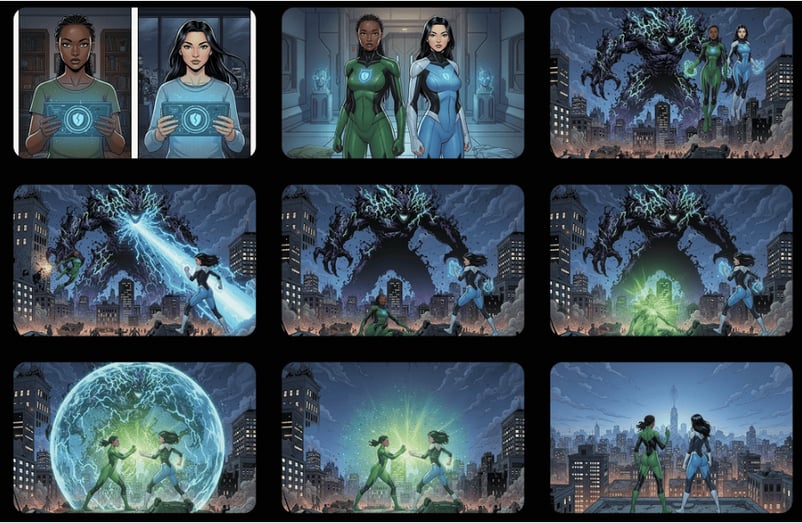
Character consistency feature in action: The same cartoon characters appear consistently across different scenes, maintaining visual identity while adapting to new environments and contexts.
Google tested this model on LMArena benchmarks, where the team internally referred to it as “nano banana.” The results show it performs better than other leading models, especially for image editing tasks. The model also generates images faster than most competitors. Speed can vary based on how complex your image is and what edits you’re making.
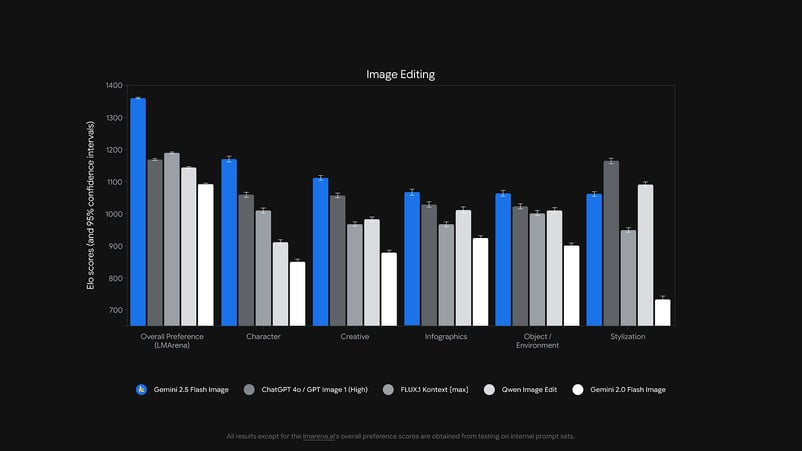
Performance benchmarks: Gemini 2.5 Flash Image demonstrates superior performance in image editing tasks compared to other leading AI image generation models.
The pricing works differently from other image models. Instead of paying for each image, you pay for tokens. Each image uses about 1,290 tokens, which costs roughly $0.039. The full rate is $30 per million tokens. Both generating new images and editing existing ones use the same token amount, so the cost stays predictable whether you’re creating from scratch or making changes.
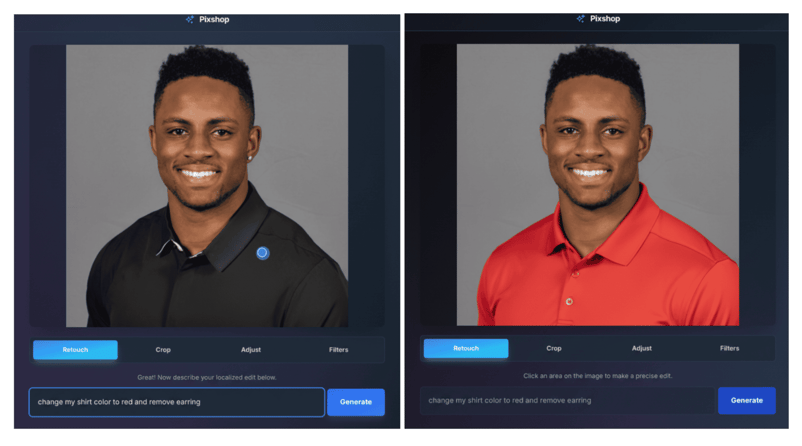
Conversational editing workflow: Examples of precise image modifications achieved through natural language prompts, showing the model’s ability to make targeted changes without full regeneration.
Now that you understand what makes Gemini 2.5 Flash Image different, we can move on to getting your hands on the technology. The next step is setting up your development environment so you can start using it.
How to Access Nano Banana For Free
Although this guide deals primarily with accessing Gemini 2.5 Flash Image via the API, you can also generate images with the tool using just your Google account.
After logging in, you can choose to access the Nano Banana model through either Gemini or in the Google AI studio. However, when using via Gemini, you will have a watermark on your images.
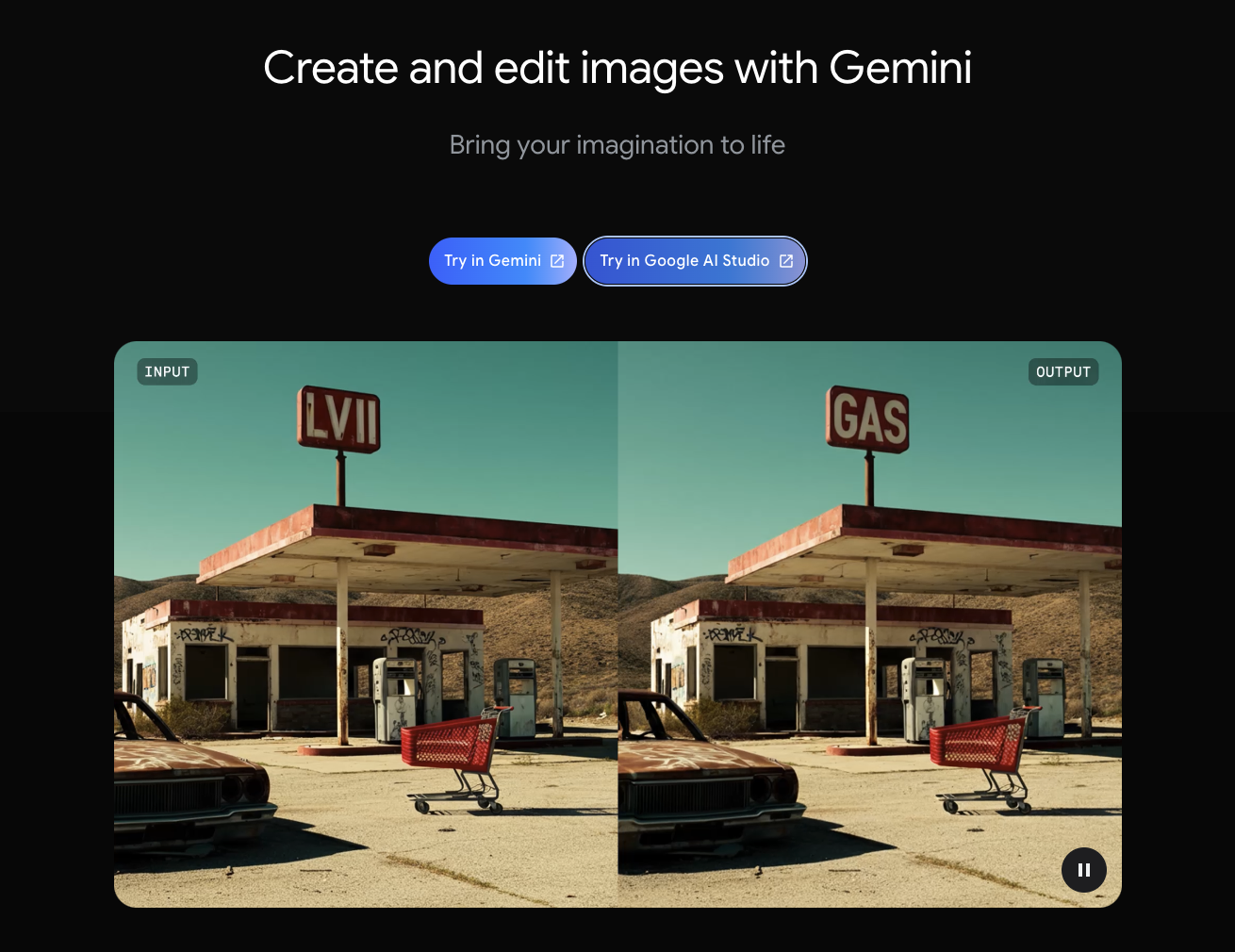
Getting Started With Gemini 2.5 Flash Image: Environment Setup
Before you can start generating images with Gemini 2.5 Flash Image, you need to set up your development environment. The process is straightforward, but getting the authentication right is important for security.
Prerequisites
You’ll need a few things before we start:
- Python 3.9 or newer: Check your version with
python --version
- UV package manager: This handles Python dependencies
- Google account: For accessing Google AI Studio
Getting your API key
To use Gemini 2.5 Flash Image, you need an API key from Google. This key acts like your password to access the service. Here’s how to get one:
- Go to Google AI Studio
- Sign in with your Google account
- Click “Get API Key” in the left panel
At this point, Google AI Studio will ask you to choose a project. Projects help organize your API usage and track your quotas. You have two options:
- “Create API key in new project” (best for first-time users)
- “Create API key in existing project” (if you already have Google Cloud projects)
Most people should choose the new project option. Click it, and Google will create both a project and your API key automatically.
4. Copy the generated key immediately — you won’t see the full key again
5. Store it somewhere safe — you’ll need it in the next steps
Security note: Treat your API key like a password. Don’t share it publicly or save it in code that others can see.
Setting up your development environment
Now that you have your API key, let’s set up your Python environment. Create a new directory for this tutorial and install the packages you’ll need:
mkdir gemini-image-tutorial
cd gemini-image-tutorial
uv init
uv add google-genai python-dotenv pillow
Here’s what each package does:
google-genai: Official client for talking to Geminipython-dotenv: Keeps your API key securepillow: Handles image files
Securing your API key
You need to store your API key in a way that keeps it safe but lets your code access it. The best way is using environment variables with a .env file.
Create a .env file in your project directory:
Open the .env file in any text editor and add your API key:
GEMINI_API_KEY=your_api_key_here
Replace your_api_key_here with the key you copied from Google AI Studio.
Next, create a .gitignore file so you don't accidentally share your API key if you use Git:
echo ".env" >> .gitignore
echo "__pycache__/" >> .gitignore
echo "*.pyc" >> .gitignore
Testing your setup
Let’s make sure everything works by creating a simple test. Make a file called test_setup.py:
import os
from dotenv import load_dotenv
from google import genai
load_dotenv()
client = genai.Client(apikey=os.getenv("GEMINIAPI_KEY"))
try:
response = client.models.generate_content(
model="gemini-2.5-flash",
contents="Say hello in exactly 3 words"
)
print("✅ Setup successful!")
print(f"Response: {response.text}")
except Exception as e:
print("❌ Setup failed:")
print(f"Error: {e}")
Now run your test script to make sure everything works:
uv run python test_setup.py
If everything is set up correctly, you should see a success message and a short response from the model. The output should look something like:
✅ Setup successful!
Response: Hello there everyone.
If you get an error instead, here are the most common fixes:
- “API key not found”: Check that your
.env file has GEMINI_API_KEY=your_actual_key
- “Invalid API key”: Copy the key again from Google AI Studio — make sure you got the whole thing
- “Quota exceeded”: You’ve hit your daily limit. Wait a bit or check your usage in Google AI Studio
Understanding your usage limits
Your free API key comes with these limits:
- 2 requests per minute for most models
- 32,000 tokens per minute (tokens are like words — this is plenty for most uses)
- 50 requests per day (generous for learning and small projects)
These limits are perfect for this tutorial and small projects. You can always check how much you’ve used by going back to Google AI Studio and looking at your usage dashboard.
With your environment set up and tested, you’re ready to start generating images. The next section will walk you through creating your first image with Gemini 2.5 Flash Image.
Your First Nano Banana Image Generation
Now that your environment is ready, let’s create your first image with Gemini 2..5 Flash Image. We’ll start simple and build up your understanding step by step.
Setting up the basic code
First, let’s load the libraries we need and set up our connection to Gemini:
import os
from dotenv import load_dotenv
from google import genai
from PIL import Image
from io import BytesIO
load_dotenv()
client = genai.Client(apikey=os.getenv("GEMINIAPI_KEY"))
Let’s break down what each import does:
os: Helps us work with environment variablesload_dotenv(): Reads your API key from the .env filegenai: The main library for talking to GeminiPIL Image and BytesIO: Help us save the image files that come back
The client object is how we'll send requests to Gemini. Think of it as your connection to Google's servers.
Generating your first image
Now let’s create a simple image with a clear, descriptive prompt:
prompt = "A cozy coffee shop with wooden furniture and warm lighting"
response = client.models.generate_content(
model="gemini-2.5-flash-image-preview",
contents=[prompt]
)
The generate_content() function is the main way to talk to Gemini. Here's what each part means:
model="gemini-2.5-flash-image-preview": This tells Gemini which model to use for image generationcontents=[prompt]: This is where you put your text description
Getting the image from the response
When Gemini sends back a response, the image comes as raw data that we need to convert into a proper image file. Here’s how to extract and save it:
for part in response.candidates[0].content.parts:
if part.inline_data is not None:
image = Image.open(BytesIO(part.inline_data.data))
image.save("myfirstimage.png")
print("Image saved!")
This code does a few important things:
response.candidates[0]: Gets the first (and usually only) response from Geminicontent.parts: Gemini can send back multiple pieces - text, images, etc.part.inline_data: This is where the actual image data livesBytesIO(): Converts the raw bytes into something PIL can readimage.save(): Saves the final image to your computer
Let’s put it all together and run the complete code. When you execute these commands in sequence, you should see output like this:
✅ Image saved as https://cdn-images-1.medium.com/proxy/1*Hhy7vMKOurXDOPVQ6Ps0gQ.png
📏 Image size: (1024, 1024)
🎨 Image mode: RGB
Here’s the actual image that gets generated from our coffee shop prompt:
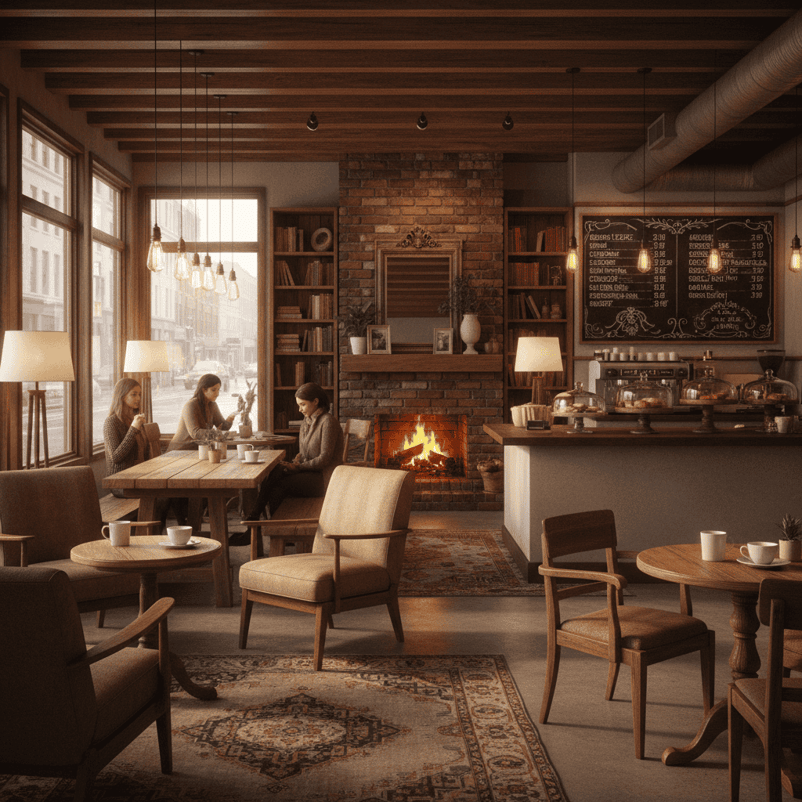
A cozy coffee shop interior featuring wooden beams, warm lighting, comfortable seating, and a welcoming atmosphere exactly as described in the prompt.
Understanding what you get back
Every time you generate an image, Gemini gives you:
- A PNG image file (1024x1024 pixels)
- High-quality results that look professional
- An invisible watermark (you won’t see it, but it’s there)
The response might also include text if Gemini wants to explain something about the image it created.
Trying different prompts
Now that you’ve seen the basic workflow, let’s try a few different prompts to see how the model responds to various descriptions:
# Simple object descriptions work great
"A red bicycle in a sunny park"

# You can add details about style and mood
"A modern kitchen with clean white cabinets and natural light"

# Describe the setting and atmosphere
"A peaceful lake surrounded by mountains at sunset"
Let’s see what these prompts actually generate when you run them:
Red bicycle in a sunny park:

A red bicycle perfectly positioned in a beautiful park with golden sunlight, lush greenery, and a peaceful bench setting. Notice the shadows — like a real image, the shadows are distorted when the surface changes from ground to grass.
Modern kitchen with clean white cabinets:
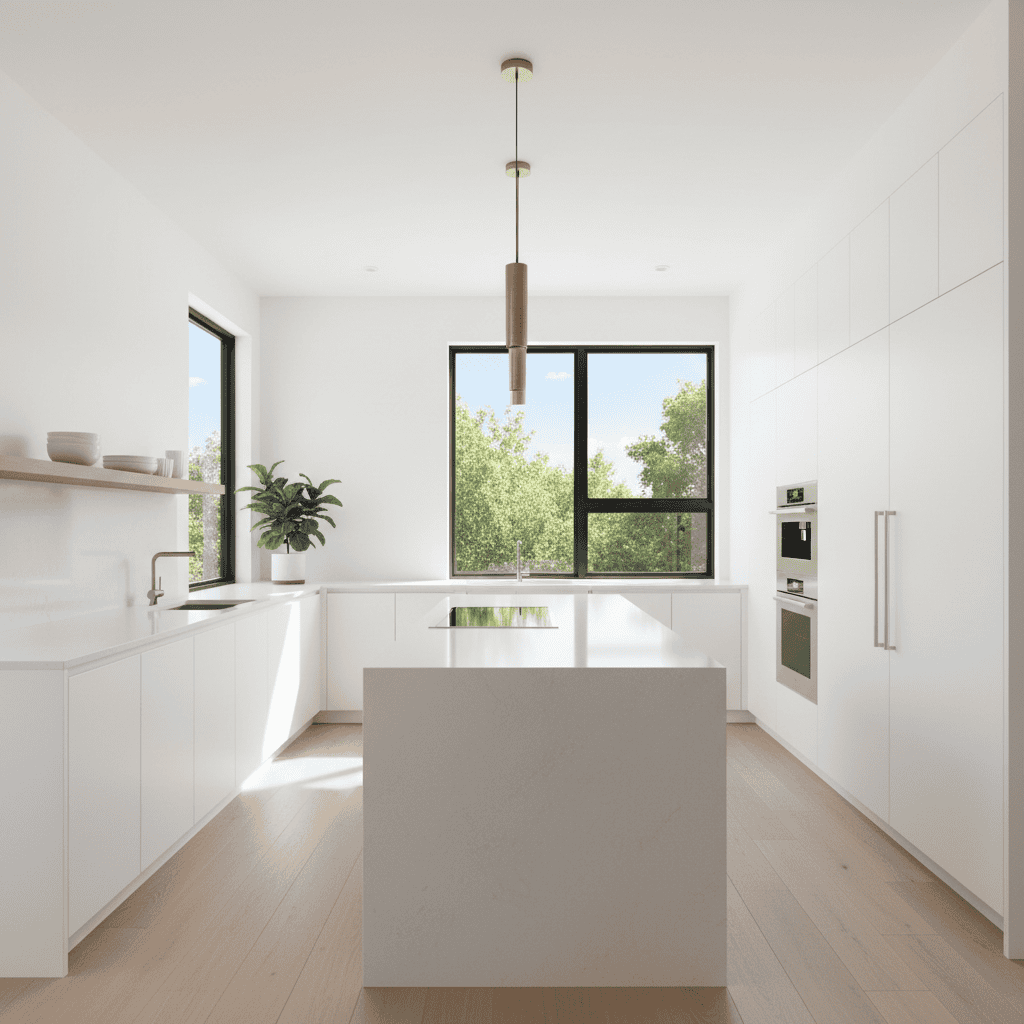
A sleek, contemporary kitchen design with pristine white cabinets, modern fixtures, and natural light streaming through large windows. Notice the reflections of the window on the clear surface of the table in the center.
Peaceful lake surrounded by mountains:
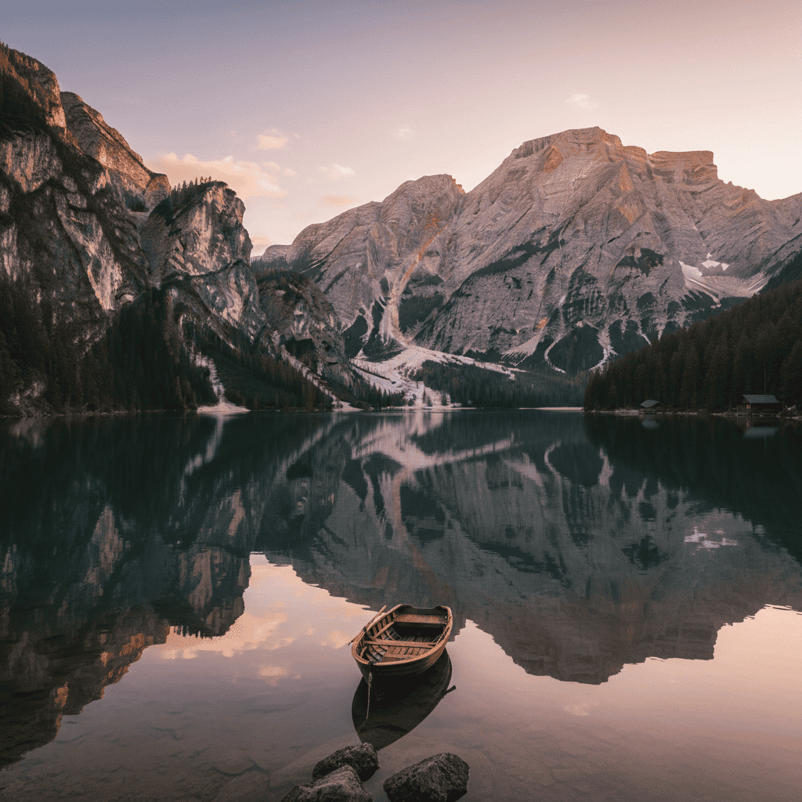
A tranquil mountain lake at sunset with perfect reflections, surrounded by dramatic peaks and featuring a charming wooden boat in the foreground. Again, exceptional detail in the reflections on the water’s surface.
Start with clear, simple descriptions. You can always make them more detailed as you get comfortable with how the model works.
What happens if something goes wrong
These examples show the typical workflow, but you might encounter some issues along the way. Here’s how to handle the most common problems:
- No image appears: Check that your prompt is clear and describes something visual.
- Error messages: Make sure your API key is working and you haven’t hit your daily limit.
- Unexpected results: Try rewording your prompt to be more specific.
The next section will teach you how to write better prompts that give you more control over your results.
Mastering Prompt Engineering For Gemini 2.5 Flash Image
Now that you can generate basic images, let’s learn how to write prompts that give you more control over your results. The key is being specific about what you want while understanding how different techniques affect the final image.
For a deeper dive into the fundamentals of prompt engineering across all AI models, our comprehensive guide to prompt engineering for 2025 covers the latest techniques and strategies that apply to both text and visual AI.
Creating a reusable function
The manual process we used in the previous section works fine for learning, but repeating all that code for each image gets tedious. Before diving into techniques, let’s create a helper function that streamlines the process:
def generateandsave_image(prompt, filename):
"""
Generate an image and save it to the images folder
Args:
prompt (str): Description of what you want to create
filename (str): Name for the saved image file
Returns:
bool: True if successful, False otherwise
"""
try:
response = client.models.generate_content(
model="gemini-2.5-flash-image-preview",
contents=[prompt]
)
for part in response.candidates[0].content.parts:
if part.inline_data is not None:
image = Image.open(BytesIO(part.inline_data.data))
image.save(f"images/{filename}")
print(f"✅ Image saved as images/{filename}")
return True
except Exception as e:
print(f"❌ Error: {e}")
return False
return False
This function handles the image generation and saving process for us. Now we can focus on writing better prompts instead of repeating the same code.
Here’s how to use it:
generateandsave_image("A cozy reading nook", "readingnook.png")
Much cleaner than writing the full code every time!
Being specific vs being generic
The biggest improvement you can make to your prompts is adding specific details. Let’s see the difference between generic and detailed prompts.
Here’s a generic prompt:
generateandsave_image("A kitchen", "generickitchen.png")
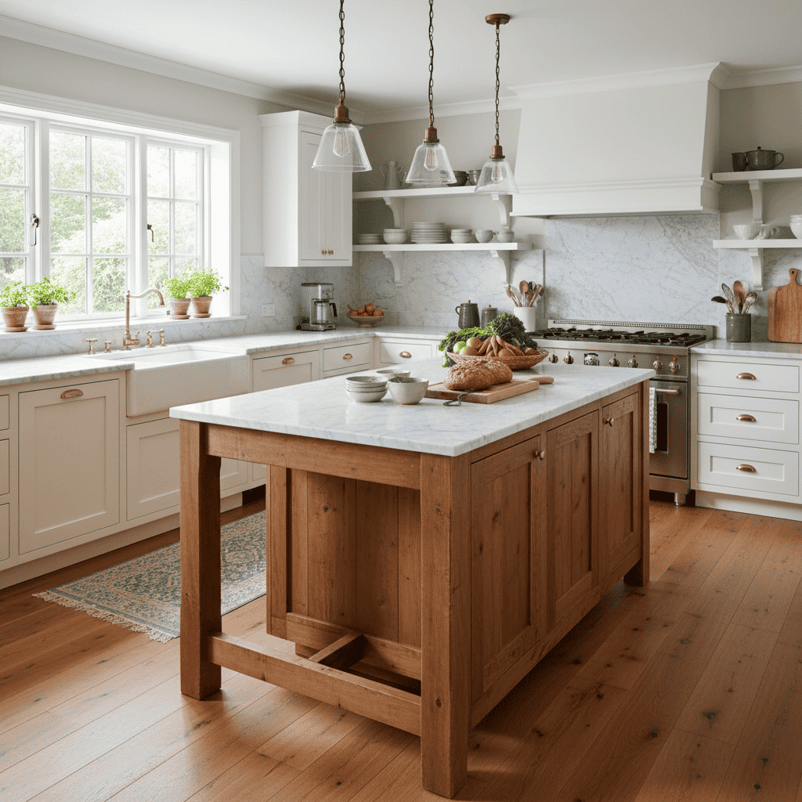
Generic prompt result: A basic kitchen that could be anywhere, with standard features but no distinctive character.
Now let’s try the same concept with specific details:
generateandsave_image(
   "Modern minimalist kitchen, white quartz countertops, stainless steel appliances, pendant lights, natural oak floors",
   "specific_kitchen.png"
)
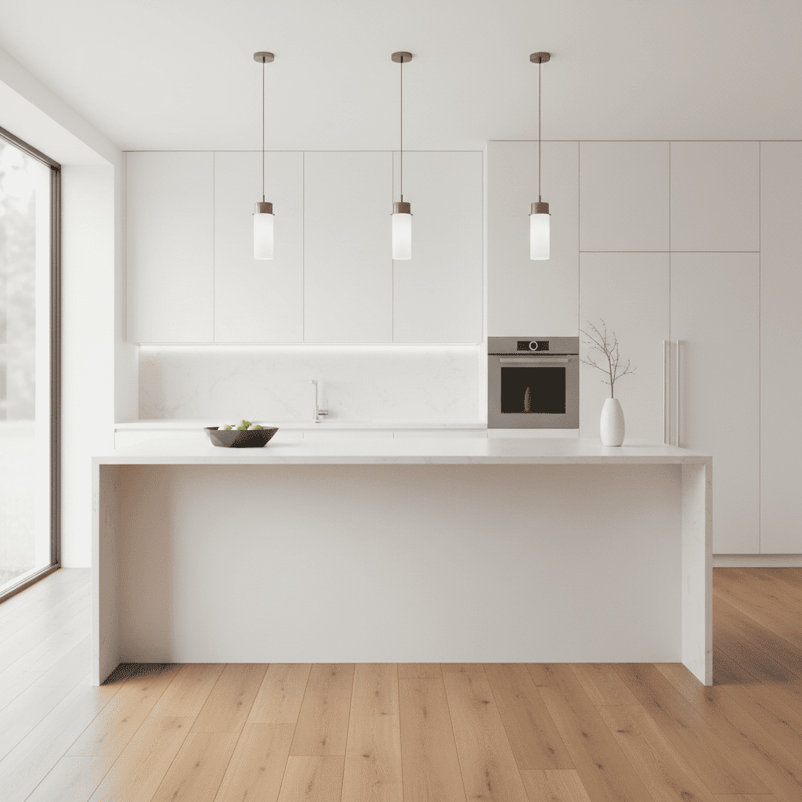
Specific prompt result: A precisely designed kitchen with exactly the elements we requested, creating a cohesive modern aesthetic.
The difference is dramatic. The specific prompt gives you a professional-looking kitchen that matches exactly what you described. The generic one is fine, but much more unpredictable.
If you’re also working with other image generation models, our guide to Stable Diffusion techniques covers complementary prompting strategies that can improve your results across different AI platforms.
Controlling the camera
You can control how the image is framed using photography terms. This gives you precise control over the composition and perspective.
Wide angle shots capture more of the scene:
generateandsave_image(
   "Wide angle shot of modern living room, leather sofa, glass coffee table, floor to ceiling windows",
   "wideangleroom.png"
)
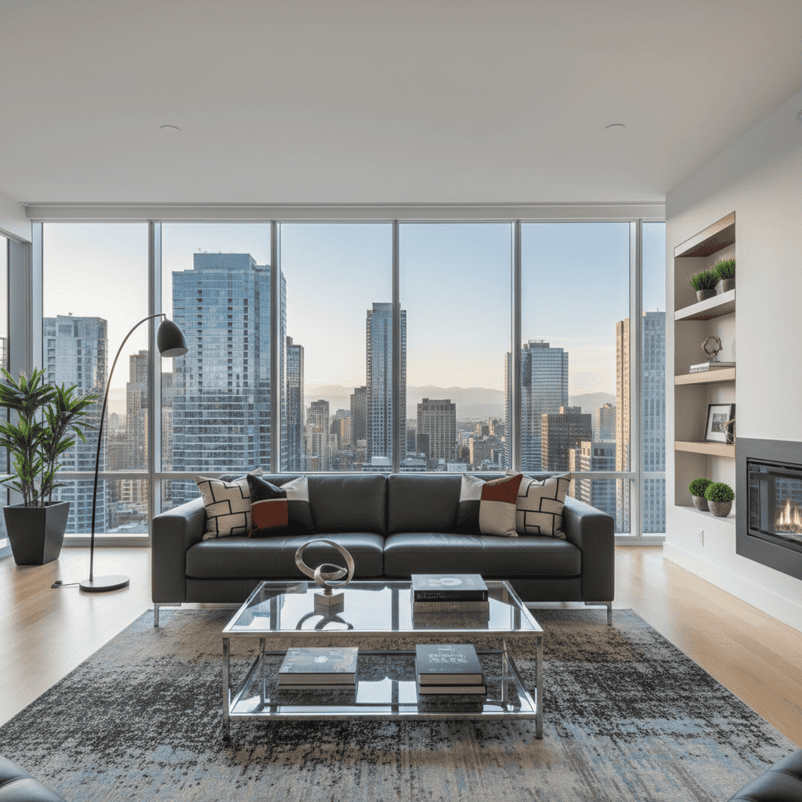
A wide-angle perspective captures the spacious room and impressive city view, making the space feel larger and more dramatic.
Macro shots focus on small details:
generateandsave_image(
   "Macro shot of vintage pocket watch on mahogany desk, brass details, Roman numerals, soft lighting",
   "macro_watch.png"
)

Macro photography reveals intricate details of the watch face, chain, and surrounding vintage books, creating an intimate and detailed composition.
Other useful camera terms:
"Low angle shot" - Looking up at the subject"Bird's eye view" - Looking down from above"85mm portrait lens" - Creates shallow depth of field"Dutch angle" - Tilted perspective for drama
Controlling lighting and mood
Lighting descriptions can completely change the feel of your images. Here’s how to use lighting to create specific moods.
Golden hour lighting creates warmth:
generateandsave_image(
   "Empty park bench at golden hour, warm sunlight, long shadows, autumn leaves scattered, peaceful atmosphere",
   "goldenhourbench.png"
)

Golden hour lighting creates a simple park bench into a warm, inviting scene perfect for contemplation.
Dramatic lighting adds intensity:
generateandsave_image(
   "Dark stormy sky over empty lighthouse, dramatic lighting, waves crashing on rocks, moody atmosphere",
   "dramatic_lighthouse.png"
)
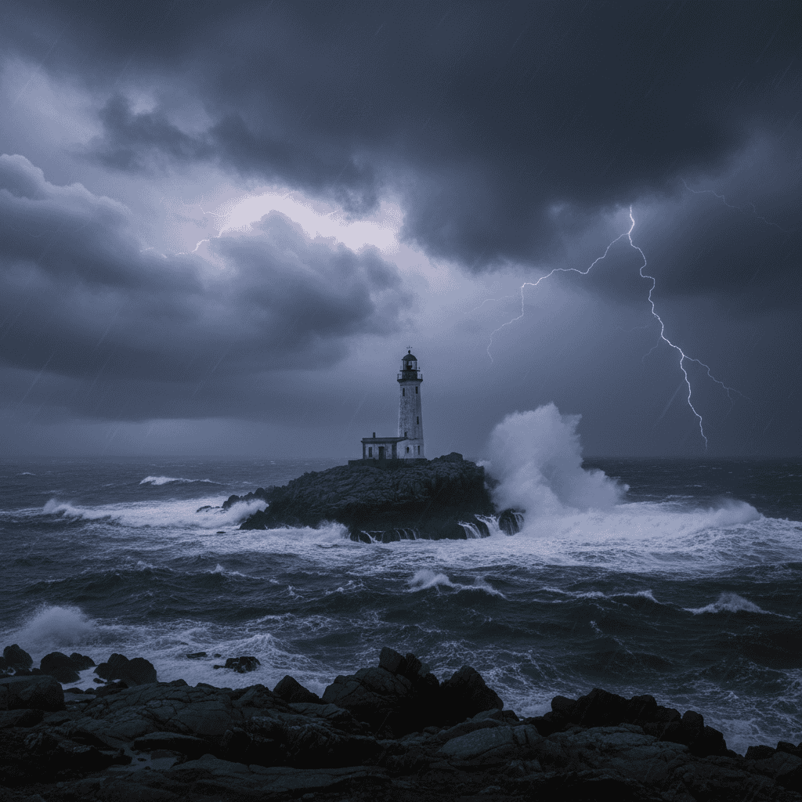
Dramatic lighting and stormy weather create a powerful, moody scene that evokes strength and solitude.
Useful lighting terms:
"Soft natural light" - Gentle, even illumination"Harsh shadows" - Strong contrast and drama"Backlit" - Light coming from behind the subject"Studio lighting" - Clean, professional setup
Directing style and aesthetics
You can guide the artistic style by including specific aesthetic descriptions in your prompts.
Minimalist style:
generateandsave_image(
   "Minimalist bedroom design, white walls, simple wooden bed frame, single potted plant, clean lines, natural light",
   "minimalist_bedroom.png"
)
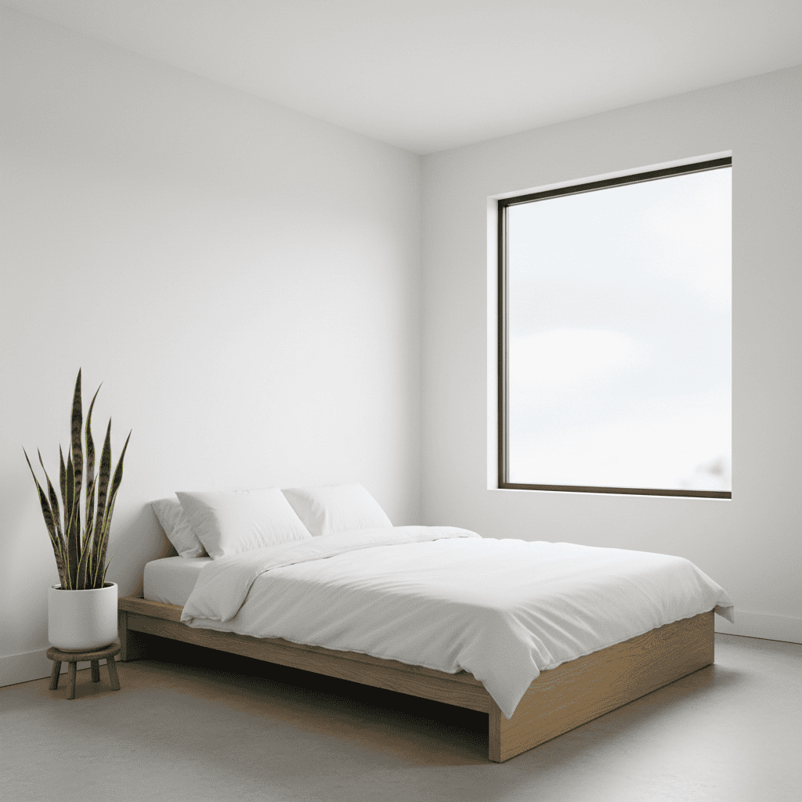
Minimalist design principles create a calm, uncluttered space that feels both modern and timeless.
Vintage style:
generateandsave_image(
   "Vintage coffee shop interior, exposed brick walls, antique furniture, Edison bulb lighting, weathered wood tables, nostalgic atmosphere",
   "vintagecoffeeshop.png"
)
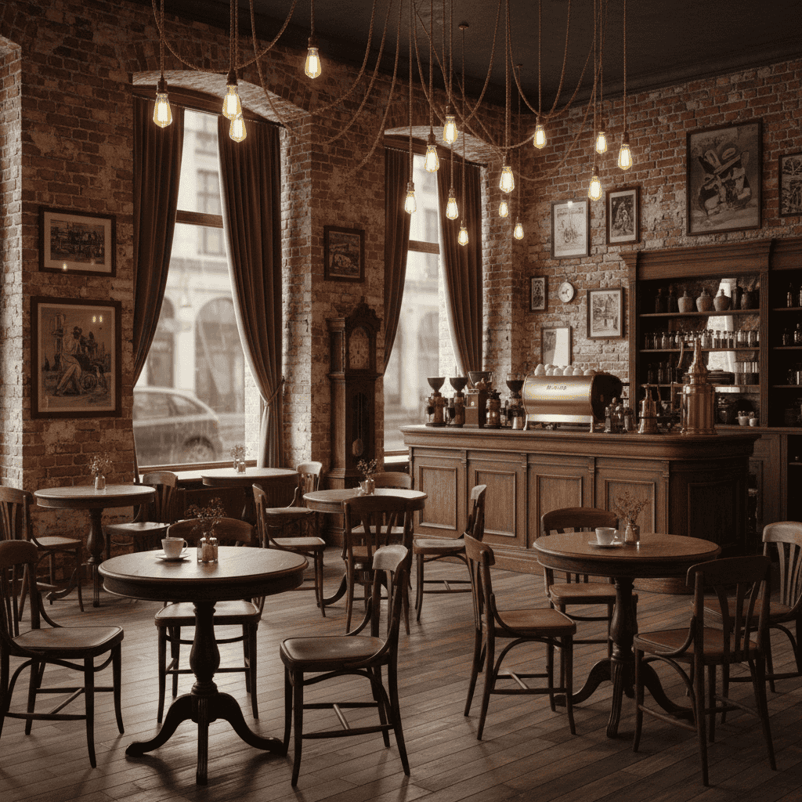
Vintage styling elements combine to create a nostalgic coffee shop that feels lived-in and authentic.
Popular style directions:
"Industrial design" - Raw materials, exposed elements"Scandinavian style" - Light woods, clean lines, cozy textures"Art deco" - Geometric patterns, metallic accents"Rustic charm" - Natural materials, worn textures
Adding text to images
Gemini 2.5 Flash Image excels at adding readable text directly into images. Keep text short (under 25 characters works best) for clean results.
generateandsave_image(
   "Restaurant menu board with 'DAILY SPECIALS' text, chalk lettering on black board, wooden frame, warm lighting",
   "menuboardtext.png"
)
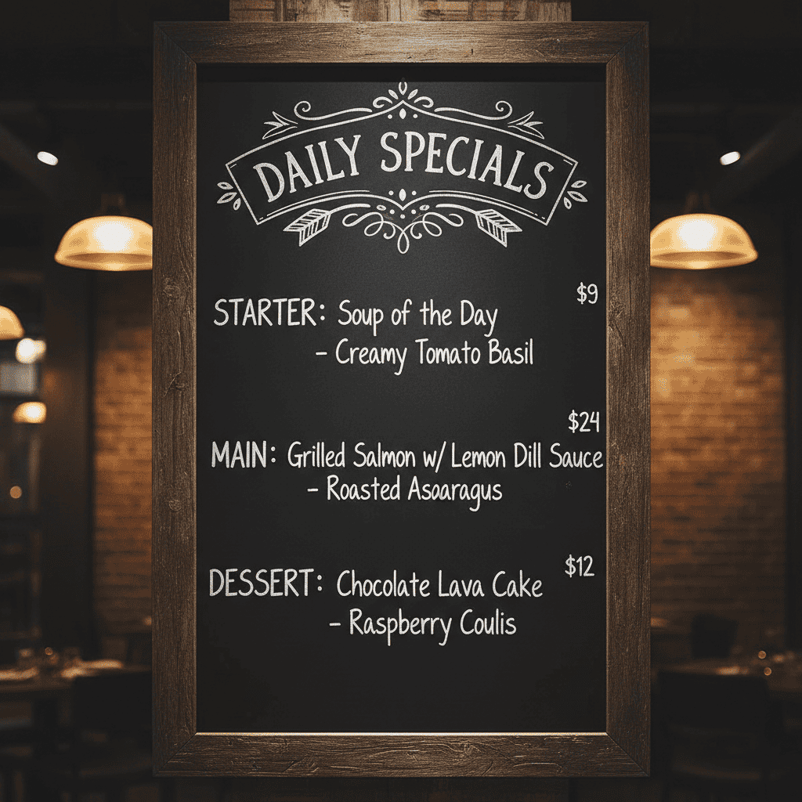
Perfect text integration with decorative elements and pricing, showing how the model handles both typography and menu layout naturally.
The model automatically added menu items and prices to make the scene more realistic. This shows how Gemini understands context and creates logical, complete compositions.
Putting techniques together
The most powerful prompts combine multiple techniques. Here’s how to layer different elements:
generateandsave_image(
"Low angle shot of modern office lobby, dramatic uplighting, marble floors, geometric ceiling, professional atmosphere",
"professional_lobby.png"
)
Here’s the resulting image that shows all these techniques working together:

This prompt combines:
- Camera control: “Low angle shot”
- Lighting: “Dramatic uplighting”
- Style: “Modern”, “professional atmosphere”
- Specific details: “Marble floors”, “geometric ceiling”
Remember that you can always refine your images by describing changes you want to make. Gemini excels at iterative improvements, which brings us to the advanced features that make this model special.
For readers interested in understanding how Gemini 2.5 Flash Image compares to other Google AI tools, our Gemini 2.0 Flash tutorial explores the broader capabilities of Google’s latest multimodal AI system.
Gemini 2.5 Flash Image Advanced Features and Capabilities
The prompt engineering techniques you just learned form the foundation for more advanced operations. Now we can apply these skills to Gemini’s most powerful features that set it apart from other models:
Multi-Image composition
One of the most powerful features is combining multiple images to create something new. This works differently from simple image blending — Gemini understands the objects and contexts in each image and can intelligently merge them.
For this example, we’ll assume you’ve already generated the base components using the techniques from the previous sections. Here’s how to combine them:
gemstone_img = Image.open("https://cdn-images-1.medium.com/proxy/1*zy36GlKisNwsmJ0PwwHODw.png")
setting_img = Image.open("https://cdn-images-1.medium.com/proxy/1*fpNU31VkSznr1NTHbUx-mA.png")
response = client.models.generate_content(
model="gemini-2.5-flash-image-preview",
contents=[
"Mount the rare tanzanite gemstone perfectly into the platinum Art Nouveau setting, creating an exquisite luxury engagement ring, professional jewelry photography with dramatic lighting",
gemstone_img,
setting_img
]
)
Base images used for composition:
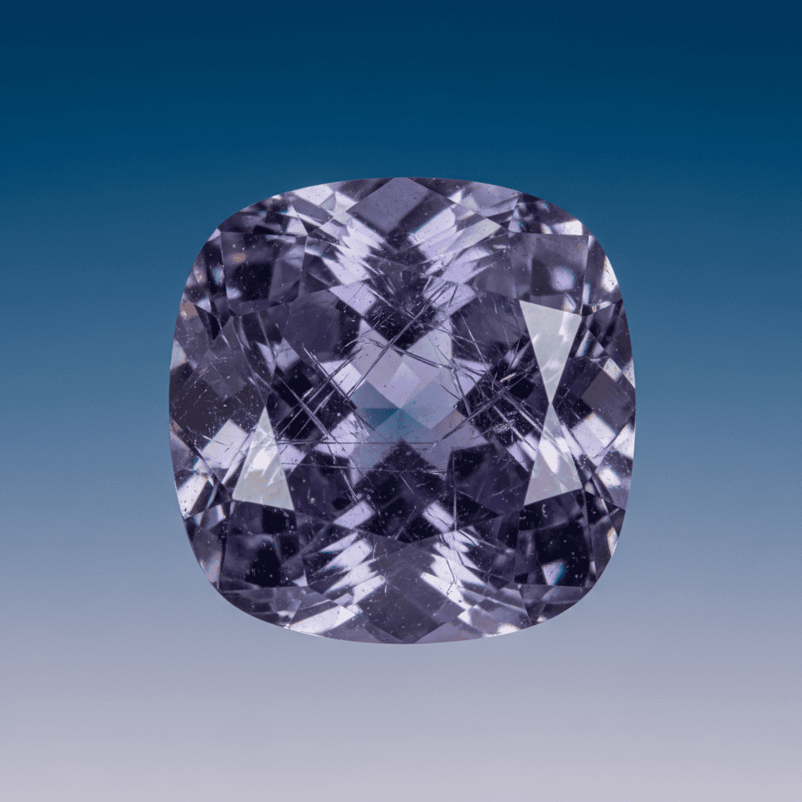
Base component 1: Rare tanzanite gemstone with exceptional clarity and prismatic internal structures.
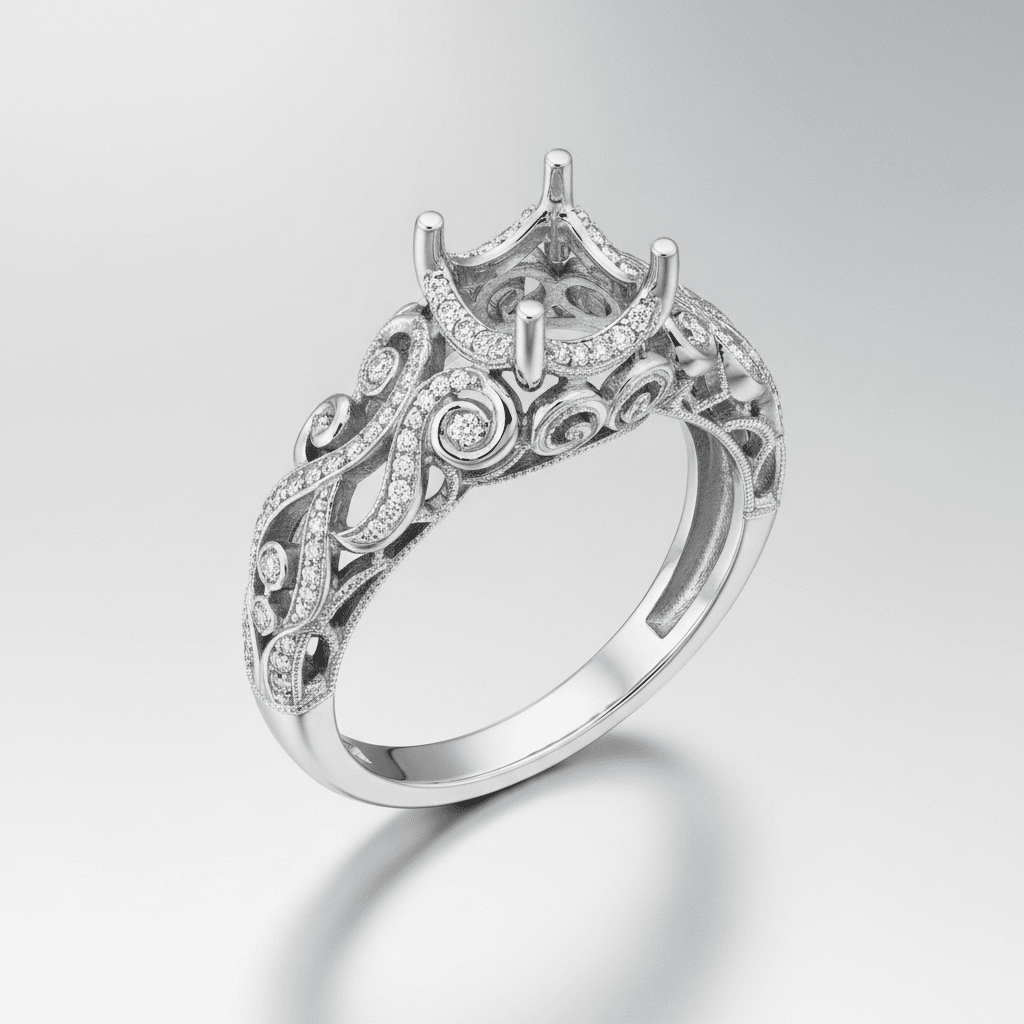
Base component 2: Platinum Art Nouveau setting with masterful filigree craftsmanship.
The composed result:
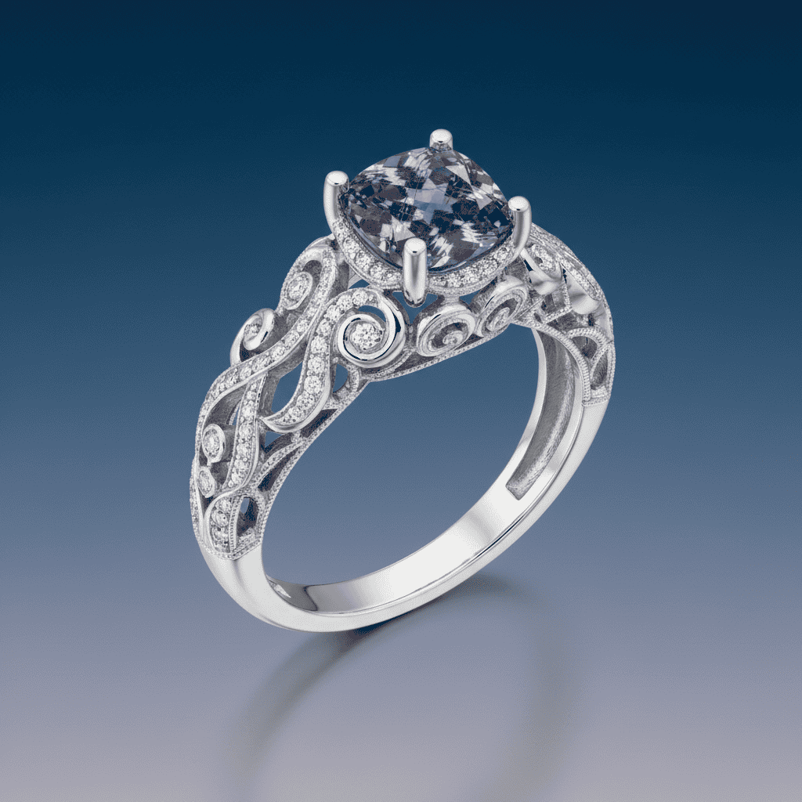
Final composition: The gemstone and setting are seamlessly combined into a luxury piece with perfect lighting that highlights both elements.
The secret to professional composition is being specific about:
- Integration quality: “Mount perfectly”, “seamlessly combine”.
- Lighting consistency: “Professional jewelry photography with dramatic lighting”.
- Final presentation: “Luxury engagement ring”, “exquisite”.
This technique works well for:
- High-end product photography: Combining product elements with premium backgrounds.
- Luxury brand marketing: Merging brand assets with sophisticated contexts.
- Architectural visualization: Combining building elements with environmental settings.
Iterative image refinement
Unlike most image models that require starting over for changes, Gemini 2.5 Flash Image lets you make progressive improvements through conversation. This makes it perfect for professional design workflows where you need to develop concepts.
Let’s work through premium audio equipment development:
concept_img = Image.open("https://cdn-images-1.medium.com/proxy/1*2qw1o9vPjUMHCwYnvHiYbA.png")
response1 = client.models.generate_content(
model="gemini-2.5-flash-image-preview",
contents=[
"Refine this speaker with premium ebony wood veneer finish, hand-polished surfaces, subtle gold accent lines, maintaining same proportions",
concept_img
]
)
luxuryimg = Image.open("https://cdn-images-1.medium.com/proxy/1*kytHi4QRCmbor1e35Nyyw.png")
response2 = client.models.generate_content(
model="gemini-2.5-flash-image-preview",
contents=[
"Add sophisticated LED indicators, premium fabric grille, wireless connectivity features, maintaining all luxury finishes",
luxury_img
]
)
Step 1: Concept design
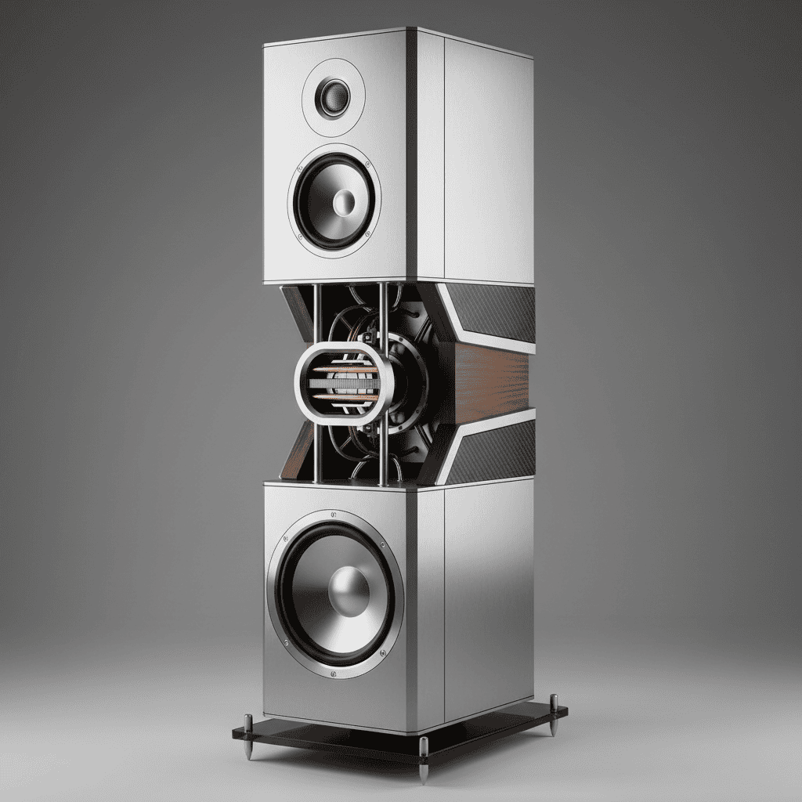
Starting concept: Clean geometric design showing sophisticated engineering and premium material foundations.
Step 2: Luxury materials refinement
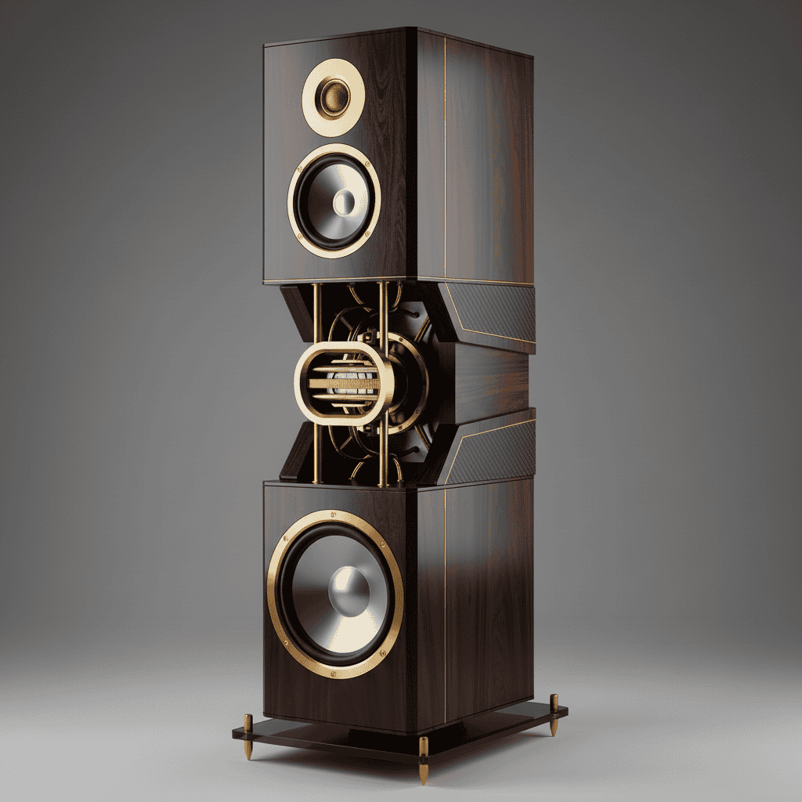
First iteration: Added luxury ebony wood veneer and hand-polished gold accents while preserving the original proportions.
Step 3: High-tech integration
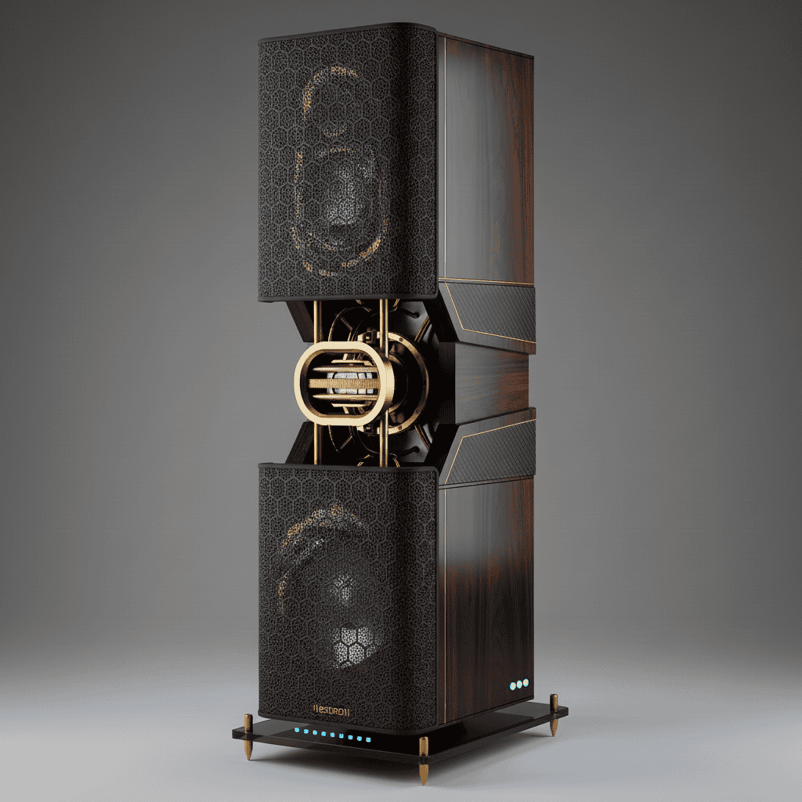
Final iteration: Integrated sophisticated LED indicators and premium fabric grille while maintaining all luxury finishes.
Best practices for professional iterative refinement:
- Preserve structural elements: “Maintaining same proportions”
- Build on previous changes: “Maintaining all luxury finishes”
- Make targeted improvements: Focus on one aspect per iteration
- Use professional terminology: “Premium”, “sophisticated”, “hand-polished”
Character consistency
Maintaining consistent characters across multiple contexts is important for luxury brand development and sophisticated marketing campaigns. Gemini handles this by understanding the visual DNA of characters and preserving it across different professional applications.
Here’s how to develop a sophisticated brand mascot:
basemascot = Image.open("https://cdn-images-1.medium.com/proxy/1*Szx9SZ9UPl7zsa5NKUDVg.png")
response1 = client.models.generate_content(
model="gemini-2.5-flash-image-preview",
contents=[
"Show this exact crystal mascot in an upscale jewelry boutique, maintaining identical facets and rose-gold glow",
base_mascot
]
)
response2 = client.models.generate_content(
model="gemini-2.5-flash-image-preview",
contents=[
"Show this exact crystal mascot on luxury packaging design, maintaining identical geometric form and internal glow",
base_mascot
]
)
Step 1: Establish the brand character
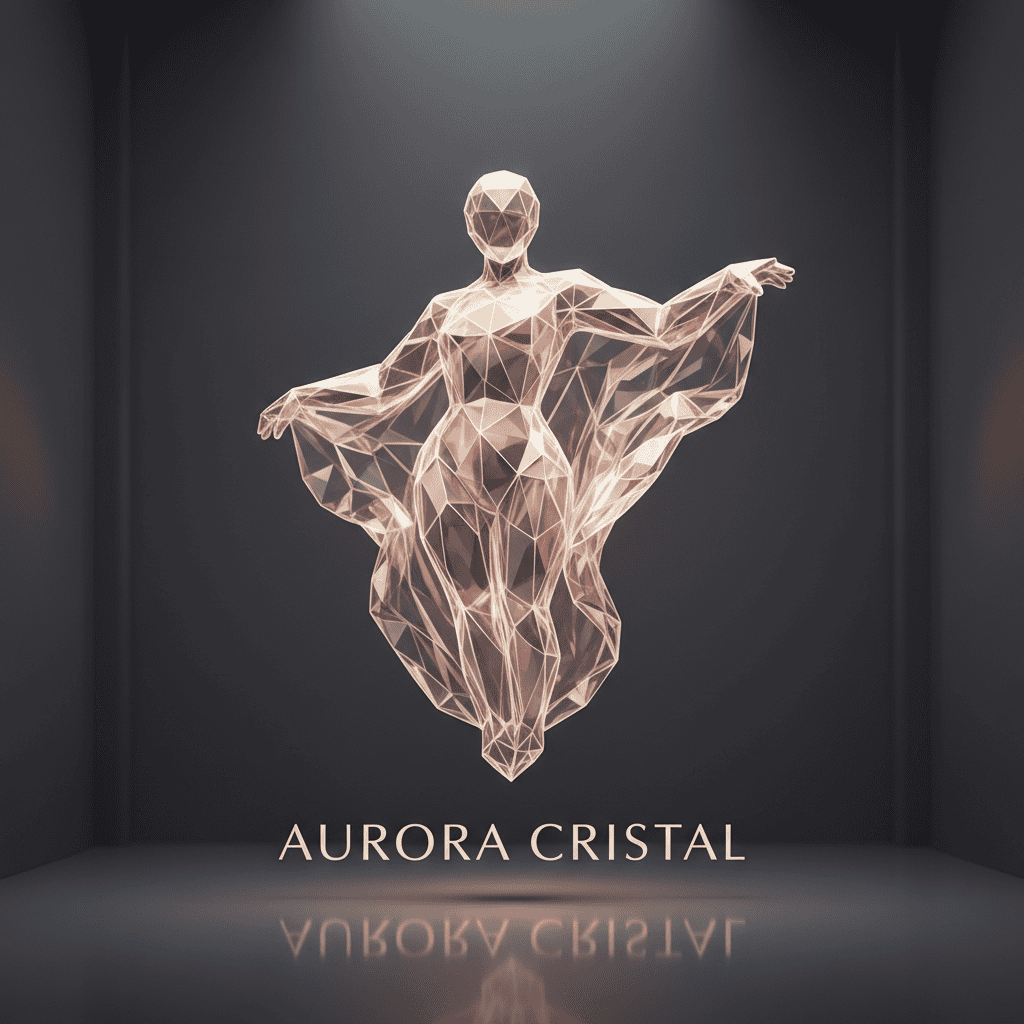
Brand character foundation: Sophisticated crystal being with distinctive geometric facets and rose-gold internal luminescence.
Step 2: Retail environment application
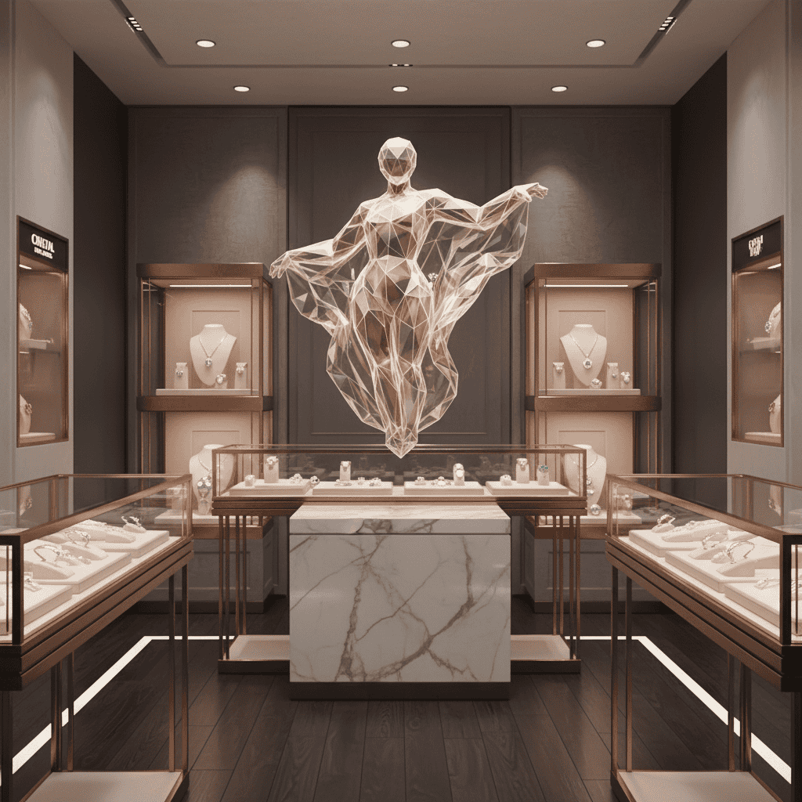
Boutique application: Character maintains exact geometric facets and glow while adapting to luxury retail context.
Step 3: Packaging design integration

Packaging integration: Identical character adapted to premium packaging aesthetic with consistent visual identity.
Step 4: Digital interface presence

Digital application: Character consistency maintained across digital platforms with identical geometric properties.
The phrase for professional consistency is “this exact [character]” combined with specific feature callouts: “maintaining identical facets”, “same geometric form”, “identical rose-gold glow”.
Professional character consistency works best when you:
- Create distinctive, memorable visual elements in your base character.
- Use specific technical descriptors: “geometric facets”, “internal luminescence”.
- Reference precise visual properties: “rose-gold glow”, “prismatic surfaces”.
- Maintain brand-appropriate sophistication across all applications.
This feature is valuable for:
- Luxury brand development: Consistent mascots across premium touchpoints.
- High-end marketing campaigns: Characters that maintain sophistication across media.
- Corporate identity systems: Professional brand elements that scale consistently.
Beyond editing content, you can change the entire aesthetic style of objects while maintaining their core structure. This is powerful for testing different design directions quickly.
Base object for style testing:
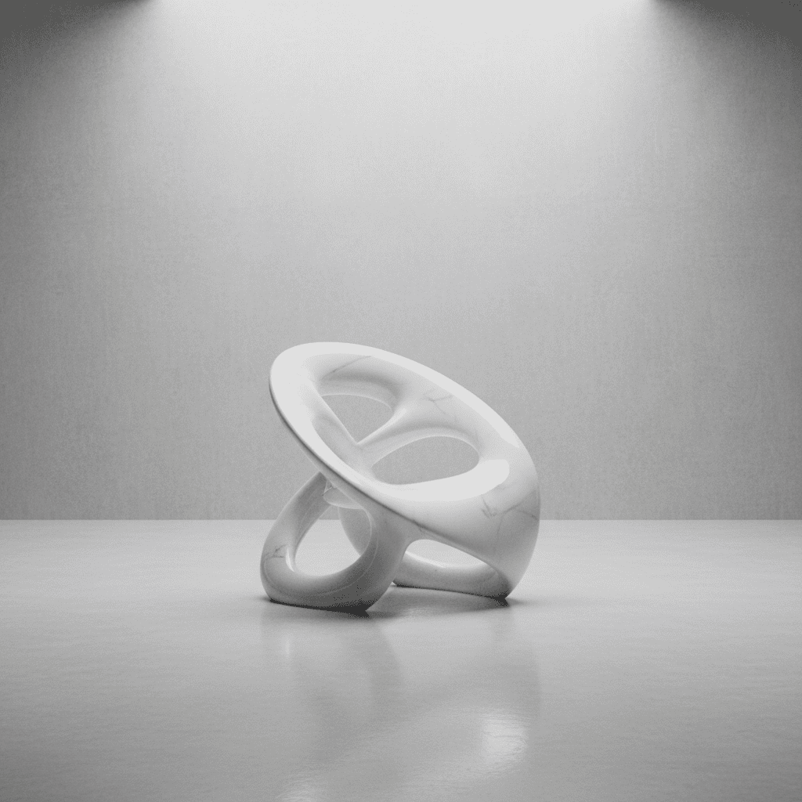
Starting point: A sophisticated sculptural chair design that we’ll change into completely different styles.
Cyberpunk transformation:
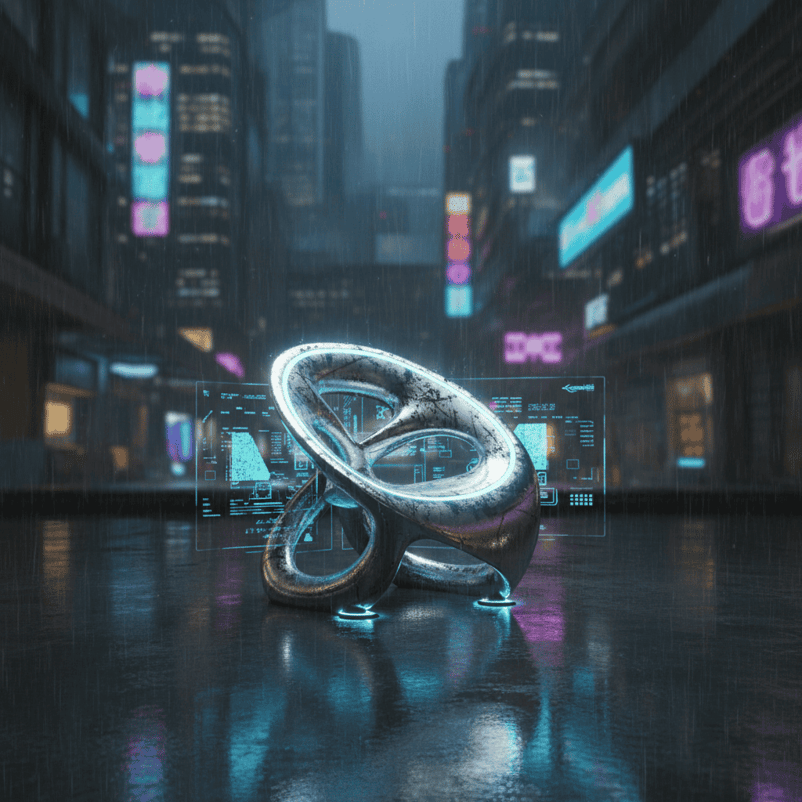
Cyberpunk version: Futuristic high-tech aesthetic with neon accents and metallic finishes, while preserving the chair’s basic form.
Victorian Baroque transformation:

Baroque style: Rich, ornate classical design with luxurious materials and intricate details, maintaining the same underlying structure.
The pattern for style transfer:
base_object = Image.open("https://cdn-images-1.medium.com/proxy/1*TWO2meqMNnS1-6XSO6yv7Q.png")
response = client.models.generate_content(
model="gemini-2.5-flash-image-preview",
contents=[
"Change this chair into cyberpunk style with neon LED strips, chrome frame, futuristic aesthetic",
base_object
]
)
Style transfer applications:
- Product design: Testing aesthetic directions for client presentations.
- Interior design: Testing furniture styles in different room themes.
- Brand development: Adapting visual elements to different market segments.
These advanced features , multi-image composition, iterative refinement, character consistency, and style transfer, represent the core advantages that make Gemini 2.5 Flash Image particularly powerful for professional workflows.
Conclusion
Gemini 2.5 Flash Image takes a different approach to image generation. You can edit images through conversation rather than starting over each time you need changes. The character consistency feature keeps visual elements looking the same across different scenes, and multi-image composition lets you combine elements in ways that feel natural rather than forced.
The token-based pricing structure gives you predictable costs for project planning. When you’re ready to go beyond these basics, the official documentation covers additional features and stays current with new releases. The techniques in this tutorial should give you a solid foundation for incorporating conversational image generation into your workflow.
For those interested in expanding their AI toolkit beyond Gemini, our practical guide to image editing with Gemini explores additional editing capabilities, while our DALL-E 3 tutorial covers OpenAI’s alternative approach to AI image generation.
%22%3E%3Cpath%20d%3D%22m-369%200h408v79h-408z%22%20fill%3D%22%237933ff%22%2F%3E%3Cpath%20d%3D%22m-148%200h306v45h-306z%22%20fill%3D%22%23974dff%22%2F%3E%3C%2Fg%3E%3C%2Fsvg%3E)
%22%2F%3E%3C%2FclipPath%3E%3Cg%20clip-path%3D%22url(%23a)%22%3E%3Cpath%20d%3D%22m76%200h484v36h-484z%22%20fill%3D%22%23974dff%22%2F%3E%3Cpath%20d%3D%22m0%200h384v24h-384z%22%20fill%3D%22%2306bdfc%22%20transform%3D%22matrix(1%200%200%20-1%200%2060)%22%2F%3E%3C%2Fg%3E%3C%2Fsvg%3E)

%22%3E%0A%20%20%20%20%20%20%20%20%3Crect%20fill%3D%22%23EFEBE4%22%20height%3D%22180%22%20width%3D%22336%22%20%2F%3E%0A%20%20%20%20%20%20%20%20%3Crect%0A%20%20%20%20%20%20%20%20%20%20fill%3D%22%23DD3400%22%0A%20%20%20%20%20%20%20%20%20%20height%3D%22106.6%22%0A%20%20%20%20%20%20%20%20%20%20transform%3D%22rotate(-30%20-208.588%20220.18)%22%0A%20%20%20%20%20%20%20%20%20%20width%3D%22456.125%22%0A%20%20%20%20%20%20%20%20%20%20x%3D%22-208.588%22%0A%20%20%20%20%20%20%20%20%20%20y%3D%22220.18%22%0A%20%20%20%20%20%20%20%20%2F%3E%0A%20%20%20%20%20%20%20%20%3Crect%0A%20%20%20%20%20%20%20%20%20%20fill%3D%22%23FFEC3C%22%0A%20%20%20%20%20%20%20%20%20%20height%3D%2235.875%22%0A%20%20%20%20%20%20%20%20%20%20transform%3D%22rotate(-30%20-208.588%20220.18)%22%0A%20%20%20%20%20%20%20%20%20%20width%3D%22347.576%22%0A%20%20%20%20%20%20%20%20%20%20x%3D%22-208.588%22%0A%20%20%20%20%20%20%20%20%20%20y%3D%22220.18%22%0A%20%20%20%20%20%20%20%20%2F%3E%0A%20%20%20%20%20%20%20%20%3Crect%0A%20%20%20%20%20%20%20%20%20%20fill%3D%22%23FF931E%22%0A%20%20%20%20%20%20%20%20%20%20height%3D%2235.875%22%0A%20%20%20%20%20%20%20%20%20%20transform%3D%22rotate(-30%20-226.525%20189.111)%22%0A%20%20%20%20%20%20%20%20%20%20width%3D%22347.576%22%0A%20%20%20%20%20%20%20%20%20%20x%3D%22-226.525%22%0A%20%20%20%20%20%20%20%20%20%20y%3D%22189.111%22%0A%20%20%20%20%20%20%20%20%2F%3E%0A%20%20%20%20%20%20%20%20%3Crect%0A%20%20%20%20%20%20%20%20%20%20fill%3D%22%23DD3400%22%0A%20%20%20%20%20%20%20%20%20%20height%3D%22106.6%22%0A%20%20%20%20%20%20%20%20%20%20transform%3D%22rotate(-30%2085.5879%20256.055)%22%0A%20%20%20%20%20%20%20%20%20%20width%3D%22456.125%22%0A%20%20%20%20%20%20%20%20%20%20x%3D%2285.5879%22%0A%20%20%20%20%20%20%20%20%20%20y%3D%22256.055%22%0A%20%20%20%20%20%20%20%20%2F%3E%0A%20%20%20%20%20%20%20%20%3Crect%0A%20%20%20%20%20%20%20%20%20%20fill%3D%22%23FFEC3C%22%0A%20%20%20%20%20%20%20%20%20%20height%3D%2235.875%22%0A%20%20%20%20%20%20%20%20%20%20transform%3D%22rotate(-30%2085.5879%20256.055)%22%0A%20%20%20%20%20%20%20%20%20%20width%3D%22184.5%22%0A%20%20%20%20%20%20%20%20%20%20x%3D%2285.5879%22%0A%20%20%20%20%20%20%20%20%20%20y%3D%22256.055%22%0A%20%20%20%20%20%20%20%20%2F%3E%0A%20%20%20%20%20%20%20%20%3Crect%0A%20%20%20%20%20%20%20%20%20%20fill%3D%22%23FF931E%22%0A%20%20%20%20%20%20%20%20%20%20height%3D%2235.875%22%0A%20%20%20%20%20%20%20%20%20%20transform%3D%22rotate(-30%20227.432%20132.736)%22%0A%20%20%20%20%20%20%20%20%20%20width%3D%22271.625%22%0A%20%20%20%20%20%20%20%20%20%20x%3D%22227.432%22%0A%20%20%20%20%20%20%20%20%20%20y%3D%22132.736%22%0A%20%20%20%20%20%20%20%20%2F%3E%0A%20%20%20%20%20%20%3C%2Fg%3E%0A%20%20%20%20%20%20%3Cdefs%3E%0A%20%20%20%20%20%20%20%20%3CclipPath%20id%3D%22clip%22%3E%0A%20%20%20%20%20%20%20%20%20%20%3Crect%20fill%3D%22white%22%20height%3D%22180%22%20width%3D%22336%22%20%2F%3E%0A%20%20%20%20%20%20%20%20%3C%2FclipPath%3E%0A%20%20%20%20%20%20%3C%2Fdefs%3E%0A%20%20%20%20%3C%2Fsvg%3E)

%22%3E%0A%20%20%20%20%20%20%20%20%3Crect%20fill%3D%22%23EFEBE4%22%20height%3D%22180%22%20width%3D%22336%22%20%2F%3E%0A%20%20%20%20%20%20%20%20%3Crect%0A%20%20%20%20%20%20%20%20%20%20fill%3D%22%23FF931E%22%0A%20%20%20%20%20%20%20%20%20%20height%3D%22106.6%22%0A%20%20%20%20%20%20%20%20%20%20transform%3D%22rotate(-30%20-208.588%20220.18)%22%0A%20%20%20%20%20%20%20%20%20%20width%3D%22456.125%22%0A%20%20%20%20%20%20%20%20%20%20x%3D%22-208.588%22%0A%20%20%20%20%20%20%20%20%20%20y%3D%22220.18%22%0A%20%20%20%20%20%20%20%20%2F%3E%0A%20%20%20%20%20%20%20%20%3Crect%0A%20%20%20%20%20%20%20%20%20%20fill%3D%22%23F7F3EB%22%0A%20%20%20%20%20%20%20%20%20%20height%3D%2235.875%22%0A%20%20%20%20%20%20%20%20%20%20transform%3D%22rotate(-30%20-208.588%20220.18)%22%0A%20%20%20%20%20%20%20%20%20%20width%3D%22347.576%22%0A%20%20%20%20%20%20%20%20%20%20x%3D%22-208.588%22%0A%20%20%20%20%20%20%20%20%20%20y%3D%22220.18%22%0A%20%20%20%20%20%20%20%20%2F%3E%0A%20%20%20%20%20%20%20%20%3Crect%0A%20%20%20%20%20%20%20%20%20%20fill%3D%22%23000820%22%0A%20%20%20%20%20%20%20%20%20%20height%3D%2235.875%22%0A%20%20%20%20%20%20%20%20%20%20transform%3D%22rotate(-30%20-226.525%20189.111)%22%0A%20%20%20%20%20%20%20%20%20%20width%3D%22347.576%22%0A%20%20%20%20%20%20%20%20%20%20x%3D%22-226.525%22%0A%20%20%20%20%20%20%20%20%20%20y%3D%22189.111%22%0A%20%20%20%20%20%20%20%20%2F%3E%0A%20%20%20%20%20%20%20%20%3Crect%0A%20%20%20%20%20%20%20%20%20%20fill%3D%22%23000820%22%0A%20%20%20%20%20%20%20%20%20%20height%3D%22106.6%22%0A%20%20%20%20%20%20%20%20%20%20transform%3D%22rotate(-30%2085.5879%20256.055)%22%0A%20%20%20%20%20%20%20%20%20%20width%3D%22456.125%22%0A%20%20%20%20%20%20%20%20%20%20x%3D%2285.5879%22%0A%20%20%20%20%20%20%20%20%20%20y%3D%22256.055%22%0A%20%20%20%20%20%20%20%20%2F%3E%0A%20%20%20%20%20%20%20%20%3Crect%0A%20%20%20%20%20%20%20%20%20%20fill%3D%22%23D87300%22%0A%20%20%20%20%20%20%20%20%20%20height%3D%2235.875%22%0A%20%20%20%20%20%20%20%20%20%20transform%3D%22rotate(-30%2085.5879%20256.055)%22%0A%20%20%20%20%20%20%20%20%20%20width%3D%22184.5%22%0A%20%20%20%20%20%20%20%20%20%20x%3D%2285.5879%22%0A%20%20%20%20%20%20%20%20%20%20y%3D%22256.055%22%0A%20%20%20%20%20%20%20%20%2F%3E%0A%20%20%20%20%20%20%20%20%3Crect%0A%20%20%20%20%20%20%20%20%20%20fill%3D%22%23FF931E%22%0A%20%20%20%20%20%20%20%20%20%20height%3D%2235.875%22%0A%20%20%20%20%20%20%20%20%20%20transform%3D%22rotate(-30%20227.432%20132.736)%22%0A%20%20%20%20%20%20%20%20%20%20width%3D%22271.625%22%0A%20%20%20%20%20%20%20%20%20%20x%3D%22227.432%22%0A%20%20%20%20%20%20%20%20%20%20y%3D%22132.736%22%0A%20%20%20%20%20%20%20%20%2F%3E%0A%20%20%20%20%20%20%3C%2Fg%3E%0A%20%20%20%20%20%20%3Cdefs%3E%0A%20%20%20%20%20%20%20%20%3CclipPath%20id%3D%22clip%22%3E%0A%20%20%20%20%20%20%20%20%20%20%3Crect%20fill%3D%22white%22%20height%3D%22180%22%20width%3D%22336%22%20%2F%3E%0A%20%20%20%20%20%20%20%20%3C%2FclipPath%3E%0A%20%20%20%20%20%20%3C%2Fdefs%3E%0A%20%20%20%20%3C%2Fsvg%3E)

%22%3E%0A%20%20%20%20%20%20%20%20%3Crect%20fill%3D%22%2305192D%22%20height%3D%22180%22%20width%3D%22336%22%20%2F%3E%0A%20%20%20%20%20%20%20%20%3Crect%0A%20%20%20%20%20%20%20%20%20%20fill%3D%22%23B08EFF%22%0A%20%20%20%20%20%20%20%20%20%20height%3D%22106.6%22%0A%20%20%20%20%20%20%20%20%20%20transform%3D%22rotate(-30%20-208.588%20220.18)%22%0A%20%20%20%20%20%20%20%20%20%20width%3D%22456.125%22%0A%20%20%20%20%20%20%20%20%20%20x%3D%22-208.588%22%0A%20%20%20%20%20%20%20%20%20%20y%3D%22220.18%22%0A%20%20%20%20%20%20%20%20%2F%3E%0A%20%20%20%20%20%20%20%20%3Crect%0A%20%20%20%20%20%20%20%20%20%20fill%3D%22%237933FF%22%0A%20%20%20%20%20%20%20%20%20%20height%3D%2235.875%22%0A%20%20%20%20%20%20%20%20%20%20transform%3D%22rotate(-30%20-208.588%20220.18)%22%0A%20%20%20%20%20%20%20%20%20%20width%3D%22347.576%22%0A%20%20%20%20%20%20%20%20%20%20x%3D%22-208.588%22%0A%20%20%20%20%20%20%20%20%20%20y%3D%22220.18%22%0A%20%20%20%20%20%20%20%20%2F%3E%0A%20%20%20%20%20%20%20%20%3Crect%0A%20%20%20%20%20%20%20%20%20%20fill%3D%22%2372E5FE%22%0A%20%20%20%20%20%20%20%20%20%20height%3D%2235.875%22%0A%20%20%20%20%20%20%20%20%20%20transform%3D%22rotate(-30%20-226.525%20189.111)%22%0A%20%20%20%20%20%20%20%20%20%20width%3D%22347.576%22%0A%20%20%20%20%20%20%20%20%20%20x%3D%22-226.525%22%0A%20%20%20%20%20%20%20%20%20%20y%3D%22189.111%22%0A%20%20%20%20%20%20%20%20%2F%3E%0A%20%20%20%20%20%20%20%20%3Crect%0A%20%20%20%20%20%20%20%20%20%20fill%3D%22%235EB1FF%22%0A%20%20%20%20%20%20%20%20%20%20height%3D%22106.6%22%0A%20%20%20%20%20%20%20%20%20%20transform%3D%22rotate(-30%2085.5879%20256.055)%22%0A%20%20%20%20%20%20%20%20%20%20width%3D%22456.125%22%0A%20%20%20%20%20%20%20%20%20%20x%3D%2285.5879%22%0A%20%20%20%20%20%20%20%20%20%20y%3D%22256.055%22%0A%20%20%20%20%20%20%20%20%2F%3E%0A%20%20%20%20%20%20%20%20%3Crect%0A%20%20%20%20%20%20%20%20%20%20fill%3D%22%23B08EFF%22%0A%20%20%20%20%20%20%20%20%20%20height%3D%2235.875%22%0A%20%20%20%20%20%20%20%20%20%20transform%3D%22rotate(-30%2085.5879%20256.055)%22%0A%20%20%20%20%20%20%20%20%20%20width%3D%22184.5%22%0A%20%20%20%20%20%20%20%20%20%20x%3D%2285.5879%22%0A%20%20%20%20%20%20%20%20%20%20y%3D%22256.055%22%0A%20%20%20%20%20%20%20%20%2F%3E%0A%20%20%20%20%20%20%20%20%3Crect%0A%20%20%20%20%20%20%20%20%20%20fill%3D%22%2372E5FE%22%0A%20%20%20%20%20%20%20%20%20%20height%3D%2235.875%22%0A%20%20%20%20%20%20%20%20%20%20transform%3D%22rotate(-30%20227.432%20132.736)%22%0A%20%20%20%20%20%20%20%20%20%20width%3D%22271.625%22%0A%20%20%20%20%20%20%20%20%20%20x%3D%22227.432%22%0A%20%20%20%20%20%20%20%20%20%20y%3D%22132.736%22%0A%20%20%20%20%20%20%20%20%2F%3E%0A%20%20%20%20%20%20%3C%2Fg%3E%0A%20%20%20%20%20%20%3Cdefs%3E%0A%20%20%20%20%20%20%20%20%3CclipPath%20id%3D%22clip%22%3E%0A%20%20%20%20%20%20%20%20%20%20%3Crect%20fill%3D%22white%22%20height%3D%22180%22%20width%3D%22336%22%20%2F%3E%0A%20%20%20%20%20%20%20%20%3C%2FclipPath%3E%0A%20%20%20%20%20%20%3C%2Fdefs%3E%0A%20%20%20%20%3C%2Fsvg%3E)

%22%3E%0A%20%20%20%20%20%20%20%20%3Crect%20fill%3D%22%23F7F3EB%22%20height%3D%22180%22%20width%3D%22336%22%20%2F%3E%0A%20%20%20%20%20%20%20%20%3Crect%0A%20%20%20%20%20%20%20%20%20%20fill%3D%22%23000820%22%0A%20%20%20%20%20%20%20%20%20%20height%3D%22106.6%22%0A%20%20%20%20%20%20%20%20%20%20transform%3D%22rotate(-30%20-208.588%20220.18)%22%0A%20%20%20%20%20%20%20%20%20%20width%3D%22456.125%22%0A%20%20%20%20%20%20%20%20%20%20x%3D%22-208.588%22%0A%20%20%20%20%20%20%20%20%20%20y%3D%22220.18%22%0A%20%20%20%20%20%20%20%20%2F%3E%0A%20%20%20%20%20%20%20%20%3Crect%0A%20%20%20%20%20%20%20%20%20%20fill%3D%22%2300C74E%22%0A%20%20%20%20%20%20%20%20%20%20height%3D%2235.875%22%0A%20%20%20%20%20%20%20%20%20%20transform%3D%22rotate(-30%20-208.588%20220.18)%22%0A%20%20%20%20%20%20%20%20%20%20width%3D%22347.576%22%0A%20%20%20%20%20%20%20%20%20%20x%3D%22-208.588%22%0A%20%20%20%20%20%20%20%20%20%20y%3D%22220.18%22%0A%20%20%20%20%20%20%20%20%2F%3E%0A%20%20%20%20%20%20%20%20%3Crect%0A%20%20%20%20%20%20%20%20%20%20fill%3D%22%23FF931E%22%0A%20%20%20%20%20%20%20%20%20%20height%3D%2235.875%22%0A%20%20%20%20%20%20%20%20%20%20transform%3D%22rotate(-30%20-226.525%20189.111)%22%0A%20%20%20%20%20%20%20%20%20%20width%3D%22347.576%22%0A%20%20%20%20%20%20%20%20%20%20x%3D%22-226.525%22%0A%20%20%20%20%20%20%20%20%20%20y%3D%22189.111%22%0A%20%20%20%20%20%20%20%20%2F%3E%0A%20%20%20%20%20%20%20%20%3Crect%0A%20%20%20%20%20%20%20%20%20%20fill%3D%22%23D87300%22%0A%20%20%20%20%20%20%20%20%20%20height%3D%22106.6%22%0A%20%20%20%20%20%20%20%20%20%20transform%3D%22rotate(-30%2085.5879%20256.055)%22%0A%20%20%20%20%20%20%20%20%20%20width%3D%22456.125%22%0A%20%20%20%20%20%20%20%20%20%20x%3D%2285.5879%22%0A%20%20%20%20%20%20%20%20%20%20y%3D%22256.055%22%0A%20%20%20%20%20%20%20%20%2F%3E%0A%20%20%20%20%20%20%20%20%3Crect%0A%20%20%20%20%20%20%20%20%20%20fill%3D%22%23000820%22%0A%20%20%20%20%20%20%20%20%20%20height%3D%2235.875%22%0A%20%20%20%20%20%20%20%20%20%20transform%3D%22rotate(-30%2085.5879%20256.055)%22%0A%20%20%20%20%20%20%20%20%20%20width%3D%22184.5%22%0A%20%20%20%20%20%20%20%20%20%20x%3D%2285.5879%22%0A%20%20%20%20%20%20%20%20%20%20y%3D%22256.055%22%0A%20%20%20%20%20%20%20%20%2F%3E%0A%20%20%20%20%20%20%20%20%3Crect%0A%20%20%20%20%20%20%20%20%20%20fill%3D%22%2300C74E%22%0A%20%20%20%20%20%20%20%20%20%20height%3D%2235.875%22%0A%20%20%20%20%20%20%20%20%20%20transform%3D%22rotate(-30%20227.432%20132.736)%22%0A%20%20%20%20%20%20%20%20%20%20width%3D%22271.625%22%0A%20%20%20%20%20%20%20%20%20%20x%3D%22227.432%22%0A%20%20%20%20%20%20%20%20%20%20y%3D%22132.736%22%0A%20%20%20%20%20%20%20%20%2F%3E%0A%20%20%20%20%20%20%3C%2Fg%3E%0A%20%20%20%20%20%20%3Cdefs%3E%0A%20%20%20%20%20%20%20%20%3CclipPath%20id%3D%22clip%22%3E%0A%20%20%20%20%20%20%20%20%20%20%3Crect%20fill%3D%22white%22%20height%3D%22180%22%20width%3D%22336%22%20%2F%3E%0A%20%20%20%20%20%20%20%20%3C%2FclipPath%3E%0A%20%20%20%20%20%20%3C%2Fdefs%3E%0A%20%20%20%20%3C%2Fsvg%3E)
%22%3E%0A%20%20%20%20%20%20%20%20%3Crect%20fill%3D%22%2372E5FE%22%20height%3D%22180%22%20width%3D%22336%22%20%2F%3E%0A%20%20%20%20%20%20%20%20%3Crect%0A%20%20%20%20%20%20%20%20%20%20fill%3D%22%237933FF%22%0A%20%20%20%20%20%20%20%20%20%20height%3D%22106.6%22%0A%20%20%20%20%20%20%20%20%20%20transform%3D%22rotate(-30%20-208.588%20220.18)%22%0A%20%20%20%20%20%20%20%20%20%20width%3D%22456.125%22%0A%20%20%20%20%20%20%20%20%20%20x%3D%22-208.588%22%0A%20%20%20%20%20%20%20%20%20%20y%3D%22220.18%22%0A%20%20%20%20%20%20%20%20%2F%3E%0A%20%20%20%20%20%20%20%20%3Crect%0A%20%20%20%20%20%20%20%20%20%20fill%3D%22%235EB1FF%22%0A%20%20%20%20%20%20%20%20%20%20height%3D%2235.875%22%0A%20%20%20%20%20%20%20%20%20%20transform%3D%22rotate(-30%20-208.588%20220.18)%22%0A%20%20%20%20%20%20%20%20%20%20width%3D%22347.576%22%0A%20%20%20%20%20%20%20%20%20%20x%3D%22-208.588%22%0A%20%20%20%20%20%20%20%20%20%20y%3D%22220.18%22%0A%20%20%20%20%20%20%20%20%2F%3E%0A%20%20%20%20%20%20%20%20%3Crect%0A%20%20%20%20%20%20%20%20%20%20fill%3D%22%23000820%22%0A%20%20%20%20%20%20%20%20%20%20height%3D%2235.875%22%0A%20%20%20%20%20%20%20%20%20%20transform%3D%22rotate(-30%20-226.525%20189.111)%22%0A%20%20%20%20%20%20%20%20%20%20width%3D%22347.576%22%0A%20%20%20%20%20%20%20%20%20%20x%3D%22-226.525%22%0A%20%20%20%20%20%20%20%20%20%20y%3D%22189.111%22%0A%20%20%20%20%20%20%20%20%2F%3E%0A%20%20%20%20%20%20%20%20%3Crect%0A%20%20%20%20%20%20%20%20%20%20fill%3D%22%237933FF%22%0A%20%20%20%20%20%20%20%20%20%20height%3D%22106.6%22%0A%20%20%20%20%20%20%20%20%20%20transform%3D%22rotate(-30%2085.5879%20256.055)%22%0A%20%20%20%20%20%20%20%20%20%20width%3D%22456.125%22%0A%20%20%20%20%20%20%20%20%20%20x%3D%2285.5879%22%0A%20%20%20%20%20%20%20%20%20%20y%3D%22256.055%22%0A%20%20%20%20%20%20%20%20%2F%3E%0A%20%20%20%20%20%20%20%20%3Crect%0A%20%20%20%20%20%20%20%20%20%20fill%3D%22%235EB1FF%22%0A%20%20%20%20%20%20%20%20%20%20height%3D%2235.875%22%0A%20%20%20%20%20%20%20%20%20%20transform%3D%22rotate(-30%2085.5879%20256.055)%22%0A%20%20%20%20%20%20%20%20%20%20width%3D%22184.5%22%0A%20%20%20%20%20%20%20%20%20%20x%3D%2285.5879%22%0A%20%20%20%20%20%20%20%20%20%20y%3D%22256.055%22%0A%20%20%20%20%20%20%20%20%2F%3E%0A%20%20%20%20%20%20%20%20%3Crect%0A%20%20%20%20%20%20%20%20%20%20fill%3D%22%23000820%22%0A%20%20%20%20%20%20%20%20%20%20height%3D%2235.875%22%0A%20%20%20%20%20%20%20%20%20%20transform%3D%22rotate(-30%20227.432%20132.736)%22%0A%20%20%20%20%20%20%20%20%20%20width%3D%22271.625%22%0A%20%20%20%20%20%20%20%20%20%20x%3D%22227.432%22%0A%20%20%20%20%20%20%20%20%20%20y%3D%22132.736%22%0A%20%20%20%20%20%20%20%20%2F%3E%0A%20%20%20%20%20%20%3C%2Fg%3E%0A%20%20%20%20%20%20%3Cdefs%3E%0A%20%20%20%20%20%20%20%20%3CclipPath%20id%3D%22clip%22%3E%0A%20%20%20%20%20%20%20%20%20%20%3Crect%20fill%3D%22white%22%20height%3D%22180%22%20width%3D%22336%22%20%2F%3E%0A%20%20%20%20%20%20%20%20%3C%2FclipPath%3E%0A%20%20%20%20%20%20%3C%2Fdefs%3E%0A%20%20%20%20%3C%2Fsvg%3E)
Even though image generation models have become extremely powerful recently, they have always lacked in one area: image editing. Making precise changes to text, replacing colors, transforming style, using different camera angles, or consistent characters across generations ; these were highly desirable applications that no image model was universally good at. Until, that is, Google released the Gemini 2.5 Flash Image model and changed the game with its conversational editing approach.
In this tutorial, you’ll learn how to set up and use Gemini 2.5 Flash Image through Python, master specific prompt engineering techniques for different visual styles, and work with advanced features like multi-image composition and character consistency. By the end, you’ll have practical tools for professional image generation workflows.
Update: In the meantime, Google has released the updated version of the model. I highly recommend checking out our Nano Banana 2 guide to see what's new!
If you’re interested in exploring other Google AI image generation tools, you might also want to check out our comprehensive guide to Imagen 3, which covers Google’s alternative image generation API with different strengths and pricing models. You can also see our guide to Gemini 2.5 Computer Use, to see how the model can see your screen and act within it autonomously, and see the latest on Gemini 3 Pro.
Finally, you can also check out our guide to ChatGPT Images, a new competitor to Nano Banana Pro.
What Is Gemini 2.5 Flash Image?
Most image generation models create great visuals from text prompts. But they struggle with editing. If you want to change the lighting in a photo, you usually have to start over. If you need the same character in different scenes, most models can’t keep them looking consistent. This makes these tools harder to use for real projects that need tweaks and revisions.
Gemini 2.5 Flash Image solves these editing problems. Google built this model with specific features to handle the tasks that other models struggle with:
These features work together to create a more flexible image generation system. Here’s how the character consistency feature works in practice:
Character consistency feature in action: The same cartoon characters appear consistently across different scenes, maintaining visual identity while adapting to new environments and contexts.
Google tested this model on LMArena benchmarks, where the team internally referred to it as “nano banana.” The results show it performs better than other leading models, especially for image editing tasks. The model also generates images faster than most competitors. Speed can vary based on how complex your image is and what edits you’re making.
Performance benchmarks: Gemini 2.5 Flash Image demonstrates superior performance in image editing tasks compared to other leading AI image generation models.
The pricing works differently from other image models. Instead of paying for each image, you pay for tokens. Each image uses about 1,290 tokens, which costs roughly $0.039. The full rate is $30 per million tokens. Both generating new images and editing existing ones use the same token amount, so the cost stays predictable whether you’re creating from scratch or making changes.
Conversational editing workflow: Examples of precise image modifications achieved through natural language prompts, showing the model’s ability to make targeted changes without full regeneration.
Now that you understand what makes Gemini 2.5 Flash Image different, we can move on to getting your hands on the technology. The next step is setting up your development environment so you can start using it.
How to Access Nano Banana For Free
Although this guide deals primarily with accessing Gemini 2.5 Flash Image via the API, you can also generate images with the tool using just your Google account.
After logging in, you can choose to access the Nano Banana model through either Gemini or in the Google AI studio. However, when using via Gemini, you will have a watermark on your images.
Getting Started With Gemini 2.5 Flash Image: Environment Setup
Before you can start generating images with Gemini 2.5 Flash Image, you need to set up your development environment. The process is straightforward, but getting the authentication right is important for security.
Prerequisites
You’ll need a few things before we start:
python --versionGetting your API key
To use Gemini 2.5 Flash Image, you need an API key from Google. This key acts like your password to access the service. Here’s how to get one:
At this point, Google AI Studio will ask you to choose a project. Projects help organize your API usage and track your quotas. You have two options:
Most people should choose the new project option. Click it, and Google will create both a project and your API key automatically.
4. Copy the generated key immediately — you won’t see the full key again
5. Store it somewhere safe — you’ll need it in the next steps
Security note: Treat your API key like a password. Don’t share it publicly or save it in code that others can see.
Setting up your development environment
Now that you have your API key, let’s set up your Python environment. Create a new directory for this tutorial and install the packages you’ll need:
Here’s what each package does:
google-genai: Official client for talking to Geminipython-dotenv: Keeps your API key securepillow: Handles image filesSecuring your API key
You need to store your API key in a way that keeps it safe but lets your code access it. The best way is using environment variables with a
.envfile.Create a
.envfile in your project directory:Open the
.envfile in any text editor and add your API key:Replace
your_api_key_herewith the key you copied from Google AI Studio.Next, create a
.gitignorefile so you don't accidentally share your API key if you use Git:Testing your setup
Let’s make sure everything works by creating a simple test. Make a file called
test_setup.py:Now run your test script to make sure everything works:
If everything is set up correctly, you should see a success message and a short response from the model. The output should look something like:
If you get an error instead, here are the most common fixes:
.envfile hasGEMINI_API_KEY=your_actual_keyUnderstanding your usage limits
Your free API key comes with these limits:
These limits are perfect for this tutorial and small projects. You can always check how much you’ve used by going back to Google AI Studio and looking at your usage dashboard.
With your environment set up and tested, you’re ready to start generating images. The next section will walk you through creating your first image with Gemini 2.5 Flash Image.
Your First Nano Banana Image Generation
Now that your environment is ready, let’s create your first image with Gemini 2..5 Flash Image. We’ll start simple and build up your understanding step by step.
Setting up the basic code
First, let’s load the libraries we need and set up our connection to Gemini:
Let’s break down what each import does:
os: Helps us work with environment variablesload_dotenv(): Reads your API key from the .env filegenai: The main library for talking to GeminiPIL ImageandBytesIO: Help us save the image files that come backThe
clientobject is how we'll send requests to Gemini. Think of it as your connection to Google's servers.Generating your first image
Now let’s create a simple image with a clear, descriptive prompt:
The
generate_content()function is the main way to talk to Gemini. Here's what each part means:model="gemini-2.5-flash-image-preview": This tells Gemini which model to use for image generationcontents=[prompt]: This is where you put your text descriptionGetting the image from the response
When Gemini sends back a response, the image comes as raw data that we need to convert into a proper image file. Here’s how to extract and save it:
This code does a few important things:
response.candidates[0]: Gets the first (and usually only) response from Geminicontent.parts: Gemini can send back multiple pieces - text, images, etc.part.inline_data: This is where the actual image data livesBytesIO(): Converts the raw bytes into something PIL can readimage.save(): Saves the final image to your computerLet’s put it all together and run the complete code. When you execute these commands in sequence, you should see output like this:
Here’s the actual image that gets generated from our coffee shop prompt:
A cozy coffee shop interior featuring wooden beams, warm lighting, comfortable seating, and a welcoming atmosphere exactly as described in the prompt.
Understanding what you get back
Every time you generate an image, Gemini gives you:
The response might also include text if Gemini wants to explain something about the image it created.
Trying different prompts
Now that you’ve seen the basic workflow, let’s try a few different prompts to see how the model responds to various descriptions:
Let’s see what these prompts actually generate when you run them:
Red bicycle in a sunny park:
A red bicycle perfectly positioned in a beautiful park with golden sunlight, lush greenery, and a peaceful bench setting. Notice the shadows — like a real image, the shadows are distorted when the surface changes from ground to grass.
Modern kitchen with clean white cabinets:
A sleek, contemporary kitchen design with pristine white cabinets, modern fixtures, and natural light streaming through large windows. Notice the reflections of the window on the clear surface of the table in the center.
Peaceful lake surrounded by mountains:
A tranquil mountain lake at sunset with perfect reflections, surrounded by dramatic peaks and featuring a charming wooden boat in the foreground. Again, exceptional detail in the reflections on the water’s surface.
Start with clear, simple descriptions. You can always make them more detailed as you get comfortable with how the model works.
What happens if something goes wrong
These examples show the typical workflow, but you might encounter some issues along the way. Here’s how to handle the most common problems:
The next section will teach you how to write better prompts that give you more control over your results.
Mastering Prompt Engineering For Gemini 2.5 Flash Image
Now that you can generate basic images, let’s learn how to write prompts that give you more control over your results. The key is being specific about what you want while understanding how different techniques affect the final image.
For a deeper dive into the fundamentals of prompt engineering across all AI models, our comprehensive guide to prompt engineering for 2025 covers the latest techniques and strategies that apply to both text and visual AI.
Creating a reusable function
The manual process we used in the previous section works fine for learning, but repeating all that code for each image gets tedious. Before diving into techniques, let’s create a helper function that streamlines the process:
This function handles the image generation and saving process for us. Now we can focus on writing better prompts instead of repeating the same code.
Here’s how to use it:
Much cleaner than writing the full code every time!
Being specific vs being generic
The biggest improvement you can make to your prompts is adding specific details. Let’s see the difference between generic and detailed prompts.
Here’s a generic prompt:
Generic prompt result: A basic kitchen that could be anywhere, with standard features but no distinctive character.
Now let’s try the same concept with specific details:
Specific prompt result: A precisely designed kitchen with exactly the elements we requested, creating a cohesive modern aesthetic.
The difference is dramatic. The specific prompt gives you a professional-looking kitchen that matches exactly what you described. The generic one is fine, but much more unpredictable.
If you’re also working with other image generation models, our guide to Stable Diffusion techniques covers complementary prompting strategies that can improve your results across different AI platforms.
Controlling the camera
You can control how the image is framed using photography terms. This gives you precise control over the composition and perspective.
Wide angle shots capture more of the scene:
A wide-angle perspective captures the spacious room and impressive city view, making the space feel larger and more dramatic.
Macro shots focus on small details:
Macro photography reveals intricate details of the watch face, chain, and surrounding vintage books, creating an intimate and detailed composition.
Other useful camera terms:
"Low angle shot"- Looking up at the subject"Bird's eye view"- Looking down from above"85mm portrait lens"- Creates shallow depth of field"Dutch angle"- Tilted perspective for dramaControlling lighting and mood
Lighting descriptions can completely change the feel of your images. Here’s how to use lighting to create specific moods.
Golden hour lighting creates warmth:
Golden hour lighting creates a simple park bench into a warm, inviting scene perfect for contemplation.
Dramatic lighting adds intensity:
Dramatic lighting and stormy weather create a powerful, moody scene that evokes strength and solitude.
Useful lighting terms:
"Soft natural light"- Gentle, even illumination"Harsh shadows"- Strong contrast and drama"Backlit"- Light coming from behind the subject"Studio lighting"- Clean, professional setupDirecting style and aesthetics
You can guide the artistic style by including specific aesthetic descriptions in your prompts.
Minimalist style:
Minimalist design principles create a calm, uncluttered space that feels both modern and timeless.
Vintage style:
Vintage styling elements combine to create a nostalgic coffee shop that feels lived-in and authentic.
Popular style directions:
"Industrial design"- Raw materials, exposed elements"Scandinavian style"- Light woods, clean lines, cozy textures"Art deco"- Geometric patterns, metallic accents"Rustic charm"- Natural materials, worn texturesAdding text to images
Gemini 2.5 Flash Image excels at adding readable text directly into images. Keep text short (under 25 characters works best) for clean results.
Perfect text integration with decorative elements and pricing, showing how the model handles both typography and menu layout naturally.
The model automatically added menu items and prices to make the scene more realistic. This shows how Gemini understands context and creates logical, complete compositions.
Putting techniques together
The most powerful prompts combine multiple techniques. Here’s how to layer different elements:
Here’s the resulting image that shows all these techniques working together:
This prompt combines:
Remember that you can always refine your images by describing changes you want to make. Gemini excels at iterative improvements, which brings us to the advanced features that make this model special.
For readers interested in understanding how Gemini 2.5 Flash Image compares to other Google AI tools, our Gemini 2.0 Flash tutorial explores the broader capabilities of Google’s latest multimodal AI system.
Gemini 2.5 Flash Image Advanced Features and Capabilities
The prompt engineering techniques you just learned form the foundation for more advanced operations. Now we can apply these skills to Gemini’s most powerful features that set it apart from other models:
Multi-Image composition
One of the most powerful features is combining multiple images to create something new. This works differently from simple image blending — Gemini understands the objects and contexts in each image and can intelligently merge them.
For this example, we’ll assume you’ve already generated the base components using the techniques from the previous sections. Here’s how to combine them:
Base images used for composition:
Base component 1: Rare tanzanite gemstone with exceptional clarity and prismatic internal structures.
Base component 2: Platinum Art Nouveau setting with masterful filigree craftsmanship.
The composed result:
Final composition: The gemstone and setting are seamlessly combined into a luxury piece with perfect lighting that highlights both elements.
The secret to professional composition is being specific about:
This technique works well for:
Iterative image refinement
Unlike most image models that require starting over for changes, Gemini 2.5 Flash Image lets you make progressive improvements through conversation. This makes it perfect for professional design workflows where you need to develop concepts.
Let’s work through premium audio equipment development:
Step 1: Concept design
Starting concept: Clean geometric design showing sophisticated engineering and premium material foundations.
Step 2: Luxury materials refinement
First iteration: Added luxury ebony wood veneer and hand-polished gold accents while preserving the original proportions.
Step 3: High-tech integration
Final iteration: Integrated sophisticated LED indicators and premium fabric grille while maintaining all luxury finishes.
Best practices for professional iterative refinement:
Character consistency
Maintaining consistent characters across multiple contexts is important for luxury brand development and sophisticated marketing campaigns. Gemini handles this by understanding the visual DNA of characters and preserving it across different professional applications.
Here’s how to develop a sophisticated brand mascot:
Step 1: Establish the brand character
Brand character foundation: Sophisticated crystal being with distinctive geometric facets and rose-gold internal luminescence.
Step 2: Retail environment application
Boutique application: Character maintains exact geometric facets and glow while adapting to luxury retail context.
Step 3: Packaging design integration
Packaging integration: Identical character adapted to premium packaging aesthetic with consistent visual identity.
Step 4: Digital interface presence
Digital application: Character consistency maintained across digital platforms with identical geometric properties.
The phrase for professional consistency is “this exact [character]” combined with specific feature callouts: “maintaining identical facets”, “same geometric form”, “identical rose-gold glow”.
Professional character consistency works best when you:
This feature is valuable for:
Style transfer and transformation
Beyond editing content, you can change the entire aesthetic style of objects while maintaining their core structure. This is powerful for testing different design directions quickly.
Base object for style testing:
Starting point: A sophisticated sculptural chair design that we’ll change into completely different styles.
Cyberpunk transformation:
Cyberpunk version: Futuristic high-tech aesthetic with neon accents and metallic finishes, while preserving the chair’s basic form.
Victorian Baroque transformation:
Baroque style: Rich, ornate classical design with luxurious materials and intricate details, maintaining the same underlying structure.
The pattern for style transfer:
Style transfer applications:
These advanced features , multi-image composition, iterative refinement, character consistency, and style transfer, represent the core advantages that make Gemini 2.5 Flash Image particularly powerful for professional workflows.
Conclusion
Gemini 2.5 Flash Image takes a different approach to image generation. You can edit images through conversation rather than starting over each time you need changes. The character consistency feature keeps visual elements looking the same across different scenes, and multi-image composition lets you combine elements in ways that feel natural rather than forced.
The token-based pricing structure gives you predictable costs for project planning. When you’re ready to go beyond these basics, the official documentation covers additional features and stays current with new releases. The techniques in this tutorial should give you a solid foundation for incorporating conversational image generation into your workflow.
For those interested in expanding their AI toolkit beyond Gemini, our practical guide to image editing with Gemini explores additional editing capabilities, while our DALL-E 3 tutorial covers OpenAI’s alternative approach to AI image generation.