Ever been stuck typing sudo before every Docker command? This is the article for you.
By default, Docker locks down access to its daemon, letting only root and docker group members run commands. This keeps your system safer, but it's annoying when you're working with containers all day. The docker group exists for exactly this reason - to let you use Docker without sudo passwords slowing you down.
When you add yourself to the docker group, you'll notice the difference right away. You can run docker build, docker run, and other commands without those permission errors or password prompts.
In this article, you'll learn exactly how to add users to the docker group on different systems, what security risks to watch for, and how to protect your system while making Docker easier to use.
> LLMs are getting all the hype in 2025. Follow this step-by-step guide for LLM application deployment using Docker.
Understanding The Docker Group
When you start working with Docker, you'll soon bump into permission issues if you haven't set things up right.
Let's break down what the docker group actually is and why it matters for your workflow.
Definition and functionality
The docker group is a system user group that gives members permission to use the Docker daemon without needing sudo privileges.
When you install Docker on Linux systems, this group is usually created automatically. Docker's socket file (/var/run/docker.sock) is owned by root but has group permissions set to the docker group, which is how this access control works.
Users in this group can build images, run containers, manage networks, and perform other Docker operations without prefixing commands with sudo. This means less typing and no password prompts when you're working with containers. If you try to run Docker commands without being in this group, you'll get "permission denied" errors, ultimately leading to slowing down your progress.
Security implications of group membership
Adding users to the docker group comes with real security risks you shouldn't ignore.
Members of the docker group can gain root privileges on the host system. This happens because Docker allows you to mount host directories into containers, including sensitive system directories. A user with Docker access can create a container that mounts the entire root filesystem and modify any file on the host.
Container breakout vulnerabilities pose another risk, as they might allow attackers to escape container isolation.
You should only add trusted users to the docker group, and even then, consider it equivalent to giving them root access. Many security professionals recommend limiting docker group membership to only those users who absolutely need it for their daily work.
Step-By-Step Implementation
Now that you understand what the docker group is and its implications, let's get your hands dirty with the actual setup.
Creating the docker group
In most cases, you won't need to create the docker group manually since it's automatically created during Docker installation. You can check if the group exists by running:
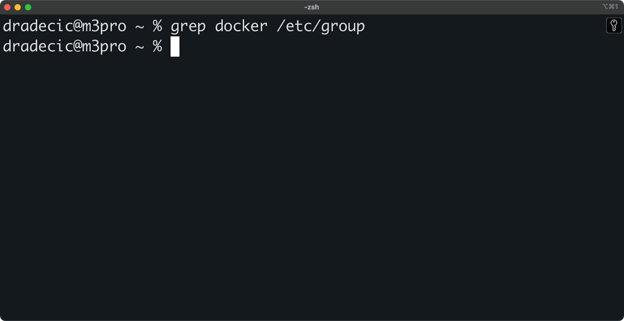
Image 1 - Checking if the docker group exists
If, for some reason, the group doesn't exist (like in my case), you can create it with this command (for Linux only):
This command creates the docker group on your system, but is limited to Linux operating systems.
For macOS, you can follow official instructions from Apple, as the group is created through GUI. The process is similar for Windows operating systems.
After following the steps, you should see your group created:
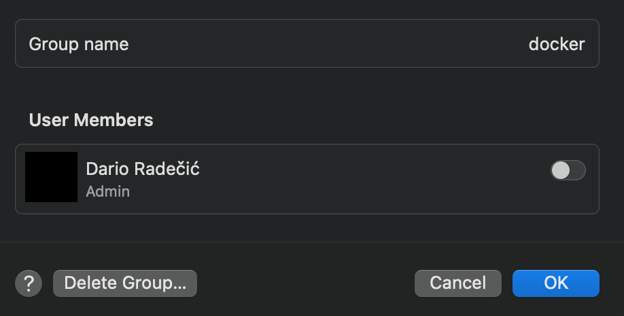
Image 2 - Checking if the docker group exists (2)
Adding users to the group
To add your current user to the docker group, run this command on Linux operating systems:
sudo usermod -aG docker $USER
The -a flag means "append" and -G specifies the group you want to add the user to. The $USER variable automatically uses your current username.
For macOS and Windows, you can add users to the group through System settings or Control panel - just toggle a switch to add all the users you wish:
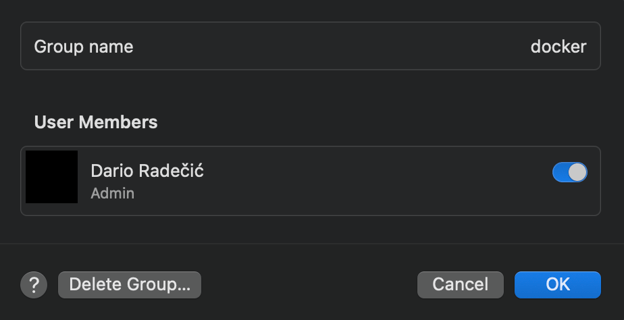
Image 3 - Adding users to the group
After adding yourself to the group, you must log out and back in for the changes to take effect. Your current session won't recognize the new group membership until you log out completely. For some systems, you might need to restart:
To verify your user is now part of the docker group, run:
You should see "docker" listed among your group memberships:
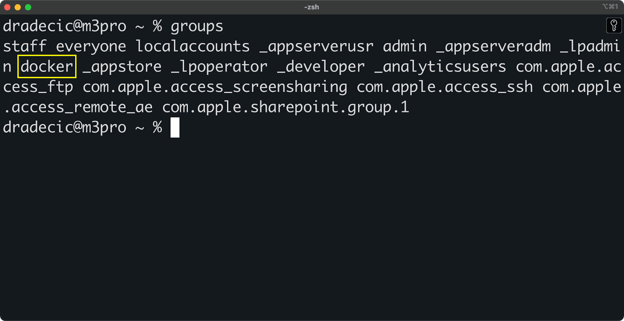
Image 4 - Viewing user groups
Troubleshooting common issues
If you still get "permission denied" errors after adding yourself to the group, you might need to fix the Docker socket permissions:
sudo chown root:docker /var/run/docker.sock
sudo chmod 660 /var/run/docker.sock
Another common issue happens when the Docker service restarts, which can reset socket permissions. If Docker was started after you made group changes, try restarting the Docker service:
sudo systemctl restart docker
For persistent permission problems, check that your Docker service configuration is correct. On some systems, Docker might be configured to use a different group name or socket location. You can check the Docker daemon configuration file at /etc/docker/daemon.json or service files in /lib/systemd/system/docker.service.
Remember that any permission changes you make will apply to your current login session only after you log out and back in. This is the number one cause of "I made the changes, but it's still not working" problems.
Security Considerations And Mitigations
Adding users to the docker group can create security risks, which you need to be aware of. Let's examine these risks and what you can do to protect your systems.
Risks of docker group membership
Docker group membership is practically the same as having root access to your system. This isn't an exaggeration – it's the reality of how Docker works.
When you're in the docker group, you can run containers that mount sensitive parts of your host filesystem. For example, this simple command gives you complete access to modify any file on your host:
docker run -it --rm -v /:/hostroot alpine chroot /hostroot
You can also change Docker daemon settings, create privileged containers, or use host network mode to bypass network isolation. These capabilities let malicious users (or compromised applications with Docker access) completely take over your host system.
There are a couple of other potential risks you must know:
- Running containers that access hardware devices directly.
- Binding to low-numbered network ports.
- Starting containers with custom seccomp profiles that disable security controls.
- Creating containers that use the host's process namespace.
Each of these can be abused to gain elevated privileges or disrupt system operations.
Best practices for risk mitigation
To reduce these risks, follow the principle of least privilege—only grant docker group membership to users who absolutely need it. If multiple people need to use a shared system, consider creating a separate user account just for Docker operations.
Docker's rootless mode offers a more secure alternative to the docker group approach. Rootless mode lets you run the Docker daemon and containers as a non-root user, without requiring membership in any special group:
dockerd-rootless-setuptool.sh install
systemctl --user start docker
User namespaces provide another layer of security by mapping container UIDs to a different range on the host. This means even if a container runs as root (UID 0), that process maps to an unprivileged user on the host:
{
"userns-remap": "default"
}
Consider using static UID/GID allocation for container users to maintain consistent identity mapping. In your Dockerfiles, create specific users with predetermined IDs:
RUN groupadd -g 10001 appgroup && \
useradd -u 10000 -g appgroup -s /bin/bash appuser
USER appuser
Regularly audit who has docker group membership with commands like:
And remove users who no longer need access:
sudo gpasswd -d username docker
In combination, these approaches give you and your team the convenience of docker group membership while minimizing the security risks it introduces.
Advanced Configuration And Alternatives
If you're looking for different ways to manage Docker access beyond the standard group membership approach, you've got options. Let's explore some advanced configurations and alternatives that might better fit your security requirements.
Dockerfile security hardening
You can build security directly into your Dockerfiles to reduce the risks even when users have docker group access.
In the example below, I'll be using multi-stage builds to keep your Python images small and reduce attack surface.
To follow along, create these files:
app.py:
from flask import Flask, jsonify

app = Flask(__name__)


@app.route("/api/health")
def health():
    return jsonify({"status": "healthy"})


if __name__ == "__main__":
    app.run(host="0.0.0.0", port=8000, debug=True)
requirements.txt:
Dockerfile:
FROM python:3.13-slim AS builder
WORKDIR /app
COPY requirements.txt .
RUN pip install --no-cache-dir -r requirements.txt

FROM python:3.13-slim
WORKDIR /app
COPY --from=builder /usr/local/lib/python3.13/site-packages /usr/local/lib/python3.13/site-packages
COPY . .
RUN useradd -r -u 1000 -g users appuser
USER appuser
CMD ["python", "app.py"]
In a nutshell, this Dockerfile includes a USER instruction with a non-root user and copies relevant content (Python packages) from a previous build step.
> If you're new to containerizing applications, fear not - our complete guide has you covered.
You can build and run such a container with the following commands:
docker build -t my-python-app .
docker run --cap-drop=ALL --cap-add=NET_BIND_SERVICE my-python-app
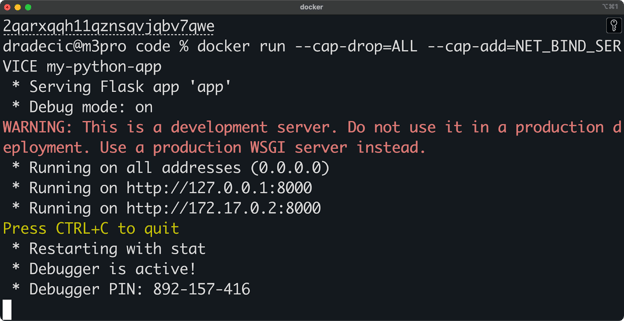
Image 5 - Running a container with minimal privileges
The newly added command - --cap-drop=ALL - drops all Linux capabilities from the container (restricts privileges), while the --cap-add=NET_BIND_SERVICE command adds back the NET_BIND_SERVICE capability which allows the container to bind to low-numbered ports.
These techniques limit what a container can do, even if someone with docker group access tries to misuse it.
sudo as an alternative
If you don't want to add users to the docker group, using sudo is a viable alternative. This approach gives you more control and an audit trail of Docker commands.
You can create a custom sudoers entry that allows specific users to run only Docker commands without a password:
username ALL=(root) NOPASSWD: /usr/bin/docker
For better usability, create aliases in your .bashrc or .zshrc file:
alias docker='sudo docker'
alias docker-compose='sudo docker-compose'
This sudo approach offers better security because:
- You get all Docker commands logged in the system logs.
- You can restrict which Docker subcommands are allowed.
- Users can't modify the Docker daemon configuration.
The downside is slightly more typing and potential issues with tools that expect direct Docker access.
Windows considerations
Windows handles Docker permissions differently than Linux. Instead of the docker group, Windows uses the docker-users group.
To add a user to the docker-users group on Windows, do this:
- Open Computer Management (right-click on Start and select "Computer Management").
- Navigate to System Tools > Local Users and Groups > Groups.
- Double-click on "docker-users".
- Click "Add" and enter the username.
- Click "OK" and close Computer Management.
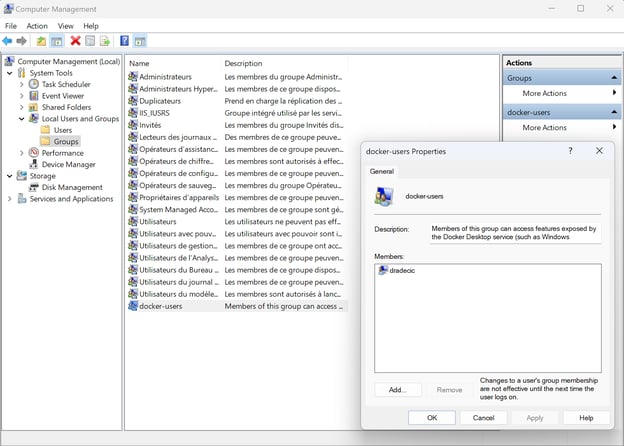
Image 6 - User groups on Windows
Alternatively, you can use PowerShell with administrator privileges:
Add-LocalGroupMember -Group "docker-users" -Member "username"
After adding a user, they'll need to log out and back in for the changes to take effect, just like on Linux.
It's also worth noting that Windows offers additional security features through Windows Defender Application Control and Hyper-V isolation modes that aren't available on Linux. For high-security environments on Windows, you can use these features to create stronger boundaries between containers and the host.
> Data professionals need Docker in 2025, and this guide will show you how to learn it.
Summing up Docker User Groups
You've now got the complete picture of how to add users to the docker group and why it matters. Let's recap what we've covered.
Adding users to the docker group makes working with containers much easier by removing the need for sudo commands. It's a simple process: check if the group exists, add your user with usermod -aG docker $USER, and then log out and back in. If you hit problems, check your socket permissions and restart Docker.
But don't forget that giving someone docker group access is almost the same as handing them the root password. Anyone in this group can mount your entire filesystem, install software, or even modify system files through containers. That's why it's crucial to be selective about who gets this access.
So what's the right approach for your environment?
In general, for developers working on their own machines, docker group membership is fine. For shared servers or production environments, consider alternatives like rootless mode, user namespaces, or using sudo with limited commands. And whatever you do, always follow security best practices in your Dockerfiles by using non-root users and dropping unnecessary capabilities.
Keep an eye on who has docker group access by running regular audits. People change roles, leave teams, or simply stop needing certain permissions over time. A quick check with getent group docker can help you spot users who shouldn't be there anymore.
If you want to learn more about Docker and containerization in general, these DataCamp courses are your best next stop:









Ever been stuck typing sudo before every Docker command? This is the article for you.
By default, Docker locks down access to its daemon, letting only root and docker group members run commands. This keeps your system safer, but it's annoying when you're working with containers all day. The docker group exists for exactly this reason - to let you use Docker without sudo passwords slowing you down.
When you add yourself to the docker group, you'll notice the difference right away. You can run
docker build,docker run, and other commands without those permission errors or password prompts.In this article, you'll learn exactly how to add users to the docker group on different systems, what security risks to watch for, and how to protect your system while making Docker easier to use.
> LLMs are getting all the hype in 2025. Follow this step-by-step guide for LLM application deployment using Docker.
Understanding The Docker Group
When you start working with Docker, you'll soon bump into permission issues if you haven't set things up right.
Let's break down what the docker group actually is and why it matters for your workflow.
Definition and functionality
The docker group is a system user group that gives members permission to use the Docker daemon without needing sudo privileges.
When you install Docker on Linux systems, this group is usually created automatically. Docker's socket file (
/var/run/docker.sock) is owned by root but has group permissions set to the docker group, which is how this access control works.Users in this group can build images, run containers, manage networks, and perform other Docker operations without prefixing commands with sudo. This means less typing and no password prompts when you're working with containers. If you try to run Docker commands without being in this group, you'll get "permission denied" errors, ultimately leading to slowing down your progress.
Security implications of group membership
Adding users to the docker group comes with real security risks you shouldn't ignore.
Members of the docker group can gain root privileges on the host system. This happens because Docker allows you to mount host directories into containers, including sensitive system directories. A user with Docker access can create a container that mounts the entire root filesystem and modify any file on the host.
Container breakout vulnerabilities pose another risk, as they might allow attackers to escape container isolation.
You should only add trusted users to the docker group, and even then, consider it equivalent to giving them root access. Many security professionals recommend limiting docker group membership to only those users who absolutely need it for their daily work.
Step-By-Step Implementation
Now that you understand what the docker group is and its implications, let's get your hands dirty with the actual setup.
Creating the docker group
In most cases, you won't need to create the docker group manually since it's automatically created during Docker installation. You can check if the group exists by running:
Image 1 - Checking if the docker group exists
If, for some reason, the group doesn't exist (like in my case), you can create it with this command (for Linux only):
This command creates the docker group on your system, but is limited to Linux operating systems.
For macOS, you can follow official instructions from Apple, as the group is created through GUI. The process is similar for Windows operating systems.
After following the steps, you should see your group created:
Image 2 - Checking if the docker group exists (2)
Adding users to the group
To add your current user to the docker group, run this command on Linux operating systems:
The
-aflag means "append" and-Gspecifies the group you want to add the user to. The$USERvariable automatically uses your current username.For macOS and Windows, you can add users to the group through System settings or Control panel - just toggle a switch to add all the users you wish:
Image 3 - Adding users to the group
After adding yourself to the group, you must log out and back in for the changes to take effect. Your current session won't recognize the new group membership until you log out completely. For some systems, you might need to restart:
To verify your user is now part of the docker group, run:
You should see "docker" listed among your group memberships:
Image 4 - Viewing user groups
Troubleshooting common issues
If you still get "permission denied" errors after adding yourself to the group, you might need to fix the Docker socket permissions:
Another common issue happens when the Docker service restarts, which can reset socket permissions. If Docker was started after you made group changes, try restarting the Docker service:
For persistent permission problems, check that your Docker service configuration is correct. On some systems, Docker might be configured to use a different group name or socket location. You can check the Docker daemon configuration file at
/etc/docker/daemon.jsonor service files in/lib/systemd/system/docker.service.Remember that any permission changes you make will apply to your current login session only after you log out and back in. This is the number one cause of "I made the changes, but it's still not working" problems.
Security Considerations And Mitigations
Adding users to the docker group can create security risks, which you need to be aware of. Let's examine these risks and what you can do to protect your systems.
Risks of docker group membership
Docker group membership is practically the same as having root access to your system. This isn't an exaggeration – it's the reality of how Docker works.
When you're in the docker group, you can run containers that mount sensitive parts of your host filesystem. For example, this simple command gives you complete access to modify any file on your host:
You can also change Docker daemon settings, create privileged containers, or use host network mode to bypass network isolation. These capabilities let malicious users (or compromised applications with Docker access) completely take over your host system.
There are a couple of other potential risks you must know:
Each of these can be abused to gain elevated privileges or disrupt system operations.
Best practices for risk mitigation
To reduce these risks, follow the principle of least privilege—only grant docker group membership to users who absolutely need it. If multiple people need to use a shared system, consider creating a separate user account just for Docker operations.
Docker's rootless mode offers a more secure alternative to the docker group approach. Rootless mode lets you run the Docker daemon and containers as a non-root user, without requiring membership in any special group:
User namespaces provide another layer of security by mapping container UIDs to a different range on the host. This means even if a container runs as root (UID 0), that process maps to an unprivileged user on the host:
Consider using static UID/GID allocation for container users to maintain consistent identity mapping. In your Dockerfiles, create specific users with predetermined IDs:
Regularly audit who has docker group membership with commands like:
And remove users who no longer need access:
In combination, these approaches give you and your team the convenience of docker group membership while minimizing the security risks it introduces.
Advanced Configuration And Alternatives
If you're looking for different ways to manage Docker access beyond the standard group membership approach, you've got options. Let's explore some advanced configurations and alternatives that might better fit your security requirements.
Dockerfile security hardening
You can build security directly into your Dockerfiles to reduce the risks even when users have docker group access.
In the example below, I'll be using multi-stage builds to keep your Python images small and reduce attack surface.
To follow along, create these files:
app.py:
requirements.txt:
Dockerfile:
In a nutshell, this
Dockerfileincludes aUSERinstruction with a non-root user and copies relevant content (Python packages) from a previous build step.> If you're new to containerizing applications, fear not - our complete guide has you covered.
You can build and run such a container with the following commands:
Image 5 - Running a container with minimal privileges
The newly added command -
--cap-drop=ALL- drops all Linux capabilities from the container (restricts privileges), while the--cap-add=NET_BIND_SERVICEcommand adds back theNET_BIND_SERVICEcapability which allows the container to bind to low-numbered ports.These techniques limit what a container can do, even if someone with docker group access tries to misuse it.
sudo as an alternative
If you don't want to add users to the docker group, using sudo is a viable alternative. This approach gives you more control and an audit trail of Docker commands.
You can create a custom sudoers entry that allows specific users to run only Docker commands without a password:
For better usability, create aliases in your
.bashrcor.zshrcfile:This sudo approach offers better security because:
The downside is slightly more typing and potential issues with tools that expect direct Docker access.
Windows considerations
Windows handles Docker permissions differently than Linux. Instead of the docker group, Windows uses the docker-users group.
To add a user to the docker-users group on Windows, do this:
Image 6 - User groups on Windows
Alternatively, you can use PowerShell with administrator privileges:
After adding a user, they'll need to log out and back in for the changes to take effect, just like on Linux.
It's also worth noting that Windows offers additional security features through Windows Defender Application Control and Hyper-V isolation modes that aren't available on Linux. For high-security environments on Windows, you can use these features to create stronger boundaries between containers and the host.
> Data professionals need Docker in 2025, and this guide will show you how to learn it.
Summing up Docker User Groups
You've now got the complete picture of how to add users to the docker group and why it matters. Let's recap what we've covered.
Adding users to the docker group makes working with containers much easier by removing the need for sudo commands. It's a simple process: check if the group exists, add your user with
usermod -aG docker $USER, and then log out and back in. If you hit problems, check your socket permissions and restart Docker.But don't forget that giving someone docker group access is almost the same as handing them the root password. Anyone in this group can mount your entire filesystem, install software, or even modify system files through containers. That's why it's crucial to be selective about who gets this access.
So what's the right approach for your environment?
In general, for developers working on their own machines, docker group membership is fine. For shared servers or production environments, consider alternatives like rootless mode, user namespaces, or using sudo with limited commands. And whatever you do, always follow security best practices in your Dockerfiles by using non-root users and dropping unnecessary capabilities.
Keep an eye on who has docker group access by running regular audits. People change roles, leave teams, or simply stop needing certain permissions over time. A quick check with
getent group dockercan help you spot users who shouldn't be there anymore.If you want to learn more about Docker and containerization in general, these DataCamp courses are your best next stop: