

Curso
Desarrollo de software con Cursor
1 h 30 min
4.4K
Practica y programa tu progreso.
Continuar Con GoogleLa experiencia central empieza con sugerencias en línea. Mientras tecleas, Copilot genera predicciones como texto fantasma según el contexto del cursor, archivos abiertos y rutas. Aceptas con Tab o descartas con Esc. El modelo por defecto para las completaciones es GPT-4.1 y, en los planes de pago, las completaciones son ilimitadas.
Más allá de las sugerencias en línea, Copilot Chat ofrece una interfaz de chat donde puedes hacer preguntas, generar código, depurar y traducir entre lenguajes. Admite sintaxis con @ para aportar contexto, como @workspace para consultas a nivel de proyecto o #file para archivos concretos.
Copilot dispone de dos capacidades de agente. Agent Mode se ejecuta en tiempo real dentro del IDE, como un colaborador que encuentra archivos relevantes, propone ediciones, ejecuta comandos en terminal y se ajusta cuando algo falla. El Copilot Coding Agent funciona de forma asíncrona a través de GitHub.
Asignas un issue a Copilot y este lanza una VM de GitHub Actions, clona tu repo, implementa los cambios y abre un pull request en borrador para que lo revises; el trabajo ocurre en segundo plano mientras tú sigues programando en otra cosa. Desde febrero de 2026, puedes asignar el mismo issue a Claude, Codex o Copilot a la vez y comparar los PR en borrador de los tres.
Copilot admite instrucciones personalizadas por repositorio mediante el archivo .github/copilot-instructions.md . Escribes Markdown plano sin glob matching ni frontmatter, y la IA lo usa para entender los patrones y convenciones de tu proyecto.
Ahora que ya sabes cómo funciona cada herramienta por separado, veamos en qué áreas se separan.

Cursor indexa toda tu base de código con un modelo de embeddings propio y mantiene ese índice actualizado mientras trabajas.
En equipos, las personas nuevas reutilizan al instante el índice del equipo en lugar de esperar horas a un escaneo completo. El resultado es que, al preguntarle algo a Cursor sobre tu proyecto, puede razonar de forma predeterminada sobre todos tus archivos.
Copilot funciona distinto. Se apoya principalmente en los archivos abiertos y el código adyacente, complementado con indexación del repositorio y la búsqueda de código de GitHub. Mejoró notablemente con la indexación externa añadida en enero de 2026, pero el consenso en la mayoría de comparativas es que Cursor sigue llevando ventaja al entender bases de código grandes porque controla todo el IDE.
La edición multiarchivo es uno de los puntos más mencionados al comparar ambas. En modo agente, Cursor puede editar varios archivos a la vez a partir de un único prompt de texto. Entiende dependencias entre archivos como imports, tipos compartidos y referencias de configuración. Se crean checkpoints en cada iteración, así que puedes deshacer cualquier cambio.
El modo agente de Copilot también puede gestionar cambios multiarchivo, pero la experiencia es más dirigida por el usuario. Normalmente tienes que seleccionar los archivos implicados o iterar los cambios uno a uno. El Coding Agent maneja mejor el trabajo multiarchivo cuando le delegas un issue completo, pero ese flujo es asíncrono, no una sesión de edición en tiempo real.
Cursor está pensado para tareas más grandes y planificadas. El Plan mode te permite describir una tarea compleja, el agente hace preguntas de aclaración, construye un plan paso a paso y lo ejecuta cuando lo apruebas. Todo el ciclo ocurre dentro del editor, contigo mirando y guiando.
Copilot está orientado al trabajo continuo e incremental y a la delegación. En el día a día, las sugerencias en línea te mantienen en flujo sin interrupciones. Para tareas más grandes, el Coding Agent sigue un modelo de "lanzar y olvidar": asignas el issue y vuelves más tarde para revisar el pull request. Esta división entre ayuda en tiempo real y delegación en segundo plano es una decisión de diseño clave.
La interacción por defecto de Cursor es de estilo agente. Sigues en el bucle durante la ejecución, con control preciso de cada paso, y puedes lanzar subagentes que trabajen en diferentes partes del proyecto a la vez.
La interacción por defecto de Copilot es autocomplete-first. Las sugerencias de texto fantasma aparecen mientras escribes y tú decides qué aceptar. Cuando necesitas más, abres Chat o inicias una tarea de agente. La comparación multi‑modelo del agente es algo exclusivo de Copilot: asignas el mismo issue a tres modelos distintos a la vez y eliges el mejor resultado.
La gran pregunta es el rendimiento, pero la respuesta sincera es: depende mucho de la tarea y del modelo que elijas. Hay algunos datos publicados que ayudan a enmarcar la comparación, aunque el panorama es más complejo que una sola puntuación.
Ninguna de las dos publica cifras oficiales de benchmark, y las puntuaciones que circulan suelen reflejar los modelos subyacentes más que las herramientas en sí. Como tanto Cursor como Copilot te permiten cambiar de modelo libremente, un score para una configuración puede verse muy distinto en otra.
Dato relevante: OpenAI retiró SWE-Bench Verified en febrero de 2026 por saturación y posible contaminación. Su sucesor, SWE-Bench Pro, muestra puntuaciones mucho más bajas en todas las herramientas, con los mejores modelos resolviendo en torno al 23% de las tareas. Cualquier cifra de duelo directo que veas online conviene leerla con ese contexto.
Un estudio académico aparte de METR (ensayo controlado aleatorizado con desarrolladores experimentados) encontró que, en bases de código maduras y conocidas, los desarrolladores usando herramientas de IA fueron de hecho más lentos que quienes trabajaron sin IA. Los investigadores señalaron una brecha notable entre productividad percibida y real. Esto encaja con lo que muchos desarrolladores cuentan: la herramienta parece ayudar, pero el tiempo de revisión de sugerencias se acumula sin hacer ruido.
En algo coinciden todas las fuentes: Copilot es más rápido en completaciones en línea. Si escribes código línea a línea y quieres texto fantasma que siga tu tecleo, el autocompletado de Copilot se siente claramente más ágil.
La ventaja de Cursor aparece en tareas complejas y de varios pasos. Cuando la tarea exige leer entre archivos, pensar en la estructura de la base de código y cambiar cosas en distintos puntos, el contexto más profundo y el modo agente de Cursor suelen dar mejores resultados con menos vaivén.
Ninguna herramienta elimina las alucinaciones. Ambas pueden inventar APIs, sugerir patrones obsoletos o producir código que parece correcto pero introduce bugs sutiles. La investigación sugiere que bastante código generado por IA contiene problemas de seguridad, y los nombres de paquetes inventados son un problema recurrente en todas las herramientas de programación con IA.
El fallo más común de Cursor son ediciones agresivas multiarchivo que rompen dependencias de forma no obvia. El de Copilot suele ser la respuesta de archivo único, muy segura pero equivocada. Ambas admiten archivos de instrucciones personalizadas (.cursor/rules/ y .github/copilot-instructions.md) que pueden reducir alucinaciones al darle a la IA una imagen clara de los patrones reales de tu proyecto antes de empezar.
Las funciones y los benchmarks solo cuentan parte de la historia. Lo que importa es cómo se comportan en tus flujos de trabajo diarios. Algunos escenarios habituales muestran dónde se separan.
Ambas herramientas funcionan bien para prototipar, pero lo abordan de forma distinta. En modo agente, Cursor puede crear el armazón de una aplicación multiarchivo a partir de una sola conversación, generando boilerplate, configurando rutas y conectándolo todo de una vez. Copilot rinde mejor en prototipado incremental, cuando construyes archivo a archivo y te apoyas en sugerencias en línea rápidas para mantener el flujo.
El indexado de Cursor aporta una ventaja real aquí. Puedes hacer preguntas en lenguaje natural sobre la arquitectura, y el agente razona sobre toda la base de código. Dicho esto, como mencioné, el estudio de METR probó en repos con más de un millón de líneas y encontró que las ganancias de productividad eran negativas en ese contexto, así que los repositorios muy grandes siguen siendo un reto para la IA en general.
La ventaja de Copilot en legado llega por su integración con GitHub. El análisis entre repos, la búsqueda de código y la capacidad del Coding Agent de trabajar dentro de GitHub Actions lo convierten en buena opción para proyectos heredados grandes alojados en GitHub.
En un refactor que toca muchos archivos, Cursor suele manejarlo mejor. Describes a alto nivel lo que quieres, el agente identifica qué archivos actualizar, sigue las dependencias y aplica los cambios en toda la base de código de una vez. Con los checkpoints, puedes revertir cualquier paso que no te convenza sin empezar de cero.
Copilot encaja mejor en refactors pequeños y acotados, sobre todo dentro de un solo archivo o función. Para algo mayor que abarque el repositorio, el camino es el Coding Agent: describir el refactor en un issue de GitHub, asignárselo a Copilot y revisar el pull request que genere. Funciona, pero requiere más preparación y vaivén que hacerlo en vivo en el editor.
Ambas herramientas generan documentación, aunque de formas distintas. Copilot tiene el comando /doc en Chat que crea comentarios en línea, docstrings y docs a nivel de proyecto a partir de los archivos abiertos. Es uno de los usos más prácticos de su interfaz de chat y funciona muy bien cuando te centras en un archivo o módulo concreto.
Cursor lo hace mediante el modo agente. Le das un prompt describiendo qué quieres documentar y escribe o actualiza documentación en varios archivos en una sola pasada. No hay un comando dedicado como en Copilot, pero con un prompt claro llegas sin fricciones.
Copilot lleva ventaja clara en code review por su integración nativa con GitHub. La revisión con Copilot es agent‑based con soporte de CodeQL, aporta puntuaciones de confianza a los comentarios y puede configurarse para revisar PRs automáticamente. También puedes asignar a Copilot como revisor directamente desde GitHub.
Cursor cuenta con BugBot, un complemento de revisión que ahora incluye Autofix. Cuando BugBot detecta un problema, Autofix lanza un agente en la nube que corre en su propia máquina, prueba el código y abre una corrección sugerida junto al comentario de revisión. Cursor indica que más del 35% de esas correcciones se fusionan, y la proporción de incidencias marcadas que se resuelven antes de fusionar un PR ha pasado del 52% al 76% en los últimos seis meses. Son datos del uso interno de Cursor, por lo que reflejan condiciones reales más que un benchmark controlado. Se conecta a GitHub, pero sigue siendo un add‑on aparte, no algo integrado en el editor.
La historia de la integración se resume en una disyuntiva: profundidad frente a amplitud. El mejor sitio para verlo es en los editores que cada uno soporta.
Cursor es un editor independiente. O te cambias a él o no lo usas. En marzo de 2026, Cursor añadió soporte para IDEs de JetBrains mediante el Agent Context Protocol (ACP), cubriendo IntelliJ IDEA, PyCharm y WebStorm. Es nuevo y aún está madurando.
Copilot funciona en más entornos. Es compatible con VS Code, toda la suite de JetBrains, Neovim, Visual Studio, Xcode y Eclipse. Si tu equipo usa editores diversos, Copilot es la única opción que funciona en todas partes.
Copilot está estrechamente conectado a GitHub de un modo difícil de replicar desde un editor independiente. El Coding Agent crea PRs directamente a partir de issues. La revisión de código está integrada. GitHub Actions alimenta las VMs del agente. Copilot Spaces organiza tu contexto. Incluso puedes revisar código desde GitHub Mobile. Si tu equipo vive en GitHub, ese nivel de integración no lo ofrece hoy Cursor.
Cursor se conecta a GitHub vía operaciones Git estándar. Los agentes en la nube pueden abrir PRs y BugBot se integra para revisión, pero no está tan entrelazado como tener la IA dentro de la propia plataforma.
Ambas herramientas admiten MCP para conectar con herramientas y servicios externos. Cursor tiene un Marketplace de plugins con integraciones oficiales para Figma, Stripe, AWS, Linear, Vercel y Cloudflare, entre otros. Con las MCP Apps introducidas en Cursor 2.6 puedes tener UIs interactivas como gráficos y diagramas directamente en los chats del agente.
Copilot soporta MCP en todos los IDEs y ofrece MCP OAuth para integraciones seguras de terceros. En Enterprise, hay un registro MCP privado. El alcance es mayor, pero la selección está menos curada que en el marketplace de Cursor.
Ambas herramientas ya tienen una CLI que permite ejecutar tareas de agente desde la terminal sin abrir el editor.
Cursor CLI admite Plan y Ask modes, puede leer y escribir archivos, buscar en tu base de código y ejecutar comandos de shell con tu aprobación. Usa los mismos archivos .cursor/rules que el IDE, funciona en entornos remotos y contenedores, y tiene un modo sin prompts que va muy bien para pipelines de CI. Desde enero de 2026, puedes iniciar una tarea en la terminal y cederla a un Cloud Agent para que la termine en segundo plano.
GitHub Copilot CLI llegó a disponibilidad general en febrero de 2026. Tiene dos modos: Plan mode, donde Copilot guía la tarea paso a paso y pregunta antes de actuar, y Autopilot mode, donde ejecuta todo sin parar. Como se conecta a tu cuenta de GitHub, puedes referenciar issues y PRs directamente desde la línea de comandos. Con el prefijo & delegas una tarea al Coding Agent y abres un PR en borrador desde la terminal.
Esta función sigue desplegándose. Cursor tiene Automations, que te permite ejecutar agentes según una programación o cuando pasa algo fuera del editor: un issue nuevo en Linear, un PR fusionado, un mensaje en Slack o una alerta de PagerDuty. Cada ejecución ocurre en un sandbox en la nube con tus herramientas MCP, y el agente puede guardar lo que aprende en cada run para hacerlo mejor la próxima vez.
Algunos ejemplos de lo que están montando los equipos:
GitHub Copilot no tiene un equivalente integrado. Puedes construir algo similar con GitHub Actions y la CLI de Copilot, pero exige más configuración manual y no trae de serie conexiones listas con herramientas como Slack, Linear o Datadog como sí hace Automations de Cursor.
Ambas herramientas tienen certificación SOC 2 Tipo II, así que la base de cumplimiento está cubierta en las dos. Cursor añade SAML/OIDC SSO en el plan Teams y suma SCIM, logs de auditoría y controles de administración detallados en Enterprise.
Copilot iguala esto en sus planes Business y Enterprise y va más allá: indemnización de PI, políticas de exclusión de contenido, un filtro de duplicación para código público y soporte completo para GitHub Enterprise Server si necesitas despliegues self‑hosted. Si el cumplimiento es requisito estricto en tu organización, las funciones de Copilot están más maduras hoy.
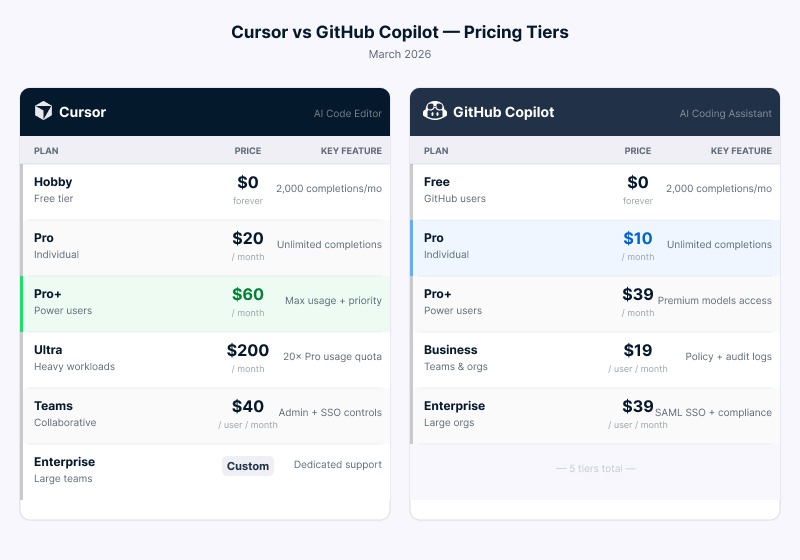
El precio suele ser el primer filtro, especialmente para estudiantes y perfiles junior. Ambas pasaron a modelos basados en uso a mediados de 2025, lo que complica un poco la comparación directa. Este es el resumen de los planes vigentes en marzo de 2026.
Niveles de precio comparados lado a lado. Imagen del autor.
La diferencia salta a la vista al mirar los planes individuales. El plan Hobby de Cursor es gratuito con solicitudes de agente limitadas y 2.000 completaciones con tab al mes. Cursor Pro cuesta 20 $/mes e incluye completaciones ilimitadas con tab, límites de agente ampliados y Cloud Agents. Cursor Pro+ a 60 $/mes triplica el uso de modelos, y Ultra a 200 $/mes ofrece 20 veces más uso con acceso prioritario.
Copilot Free ofrece 2.000 completaciones y 50 solicitudes premium al mes sin límite temporal. Copilot Pro a 10 $/mes da completaciones ilimitadas y 300 solicitudes premium. Copilot Pro+ a 39 $/mes sube a 1.500 solicitudes premium con acceso a todos los modelos.
Para equipos, Cursor Teams cuesta 40 $ por usuario al mes. Copilot Business cuesta 19 $ por usuario al mes. En un equipo de 10 personas, esa diferencia suma más de 2.500 $ al año.
El plan gratuito de Copilot no tiene periodo de prueba ni caducidad, y cubre tanto completaciones como solicitudes premium. El plan gratuito de Cursor es más limitado e incluye una prueba de Pro de dos semanas.
Para estudiantes, Copilot ofrece acceso Pro gratis (valor 10 $/mes) con el GitHub Student Developer Pack, verificado mensualmente. Cursor ofrece un año completo de Pro gratis (valor 240 $) para estudiantes universitarios, de secundaria y bootcamps verificados mediante SheerID.
Ambas herramientas pueden salir caras con uso intensivo. Cursor usa un sistema de créditos donde tu suscripción actúa como bolsa de crédito. Cuando se agotan, los excesos se facturan a tarifas de API. Copilot usa límites fijos de solicitudes premium con excesos a 0,04 $ por solicitud.
Los modelos avanzados en Copilot aplican multiplicadores, así que una sola solicitud con un modelo de gama alta puede consumir varias solicitudes premium de tu cupo mensual. He visto a desarrolladores gastar el presupuesto de una semana en una sola tarde de trabajo con agentes sin darse cuenta hasta ver la factura. Predecir el gasto es un reto en ambas plataformas.
Con el panorama completo, aquí tienes un repaso rápido de lo que hace bien cada herramienta y sus límites.
Pros:
Contras:
Pros:
Contras:
Si no estás dispuesto a cambiar de editor, la decisión ya está tomada. Copilot funciona en lo que uses hoy. Cursor exige pasarte a su editor, y el soporte para JetBrains aún es lo bastante nuevo como para no depender de él al 100%.
Si el editor no es el problema, la siguiente pregunta es cómo trabajas a diario. Copilot encaja mejor si la mayor parte de tu trabajo es incremental: escribir código línea a línea, revisar PRs en GitHub, colaborar en un equipo ya montado alrededor de GitHub. Cursor encaja mejor si asumes con frecuencia tareas grandes que tocan muchos archivos a la vez, o si te gusta delegar algo a un agente y volver luego a un borrador.
El presupuesto también importa. A nivel individual, Copilot cuesta la mitad. A nivel de equipo, la brecha crece. Que Cursor compense o no depende de si el tiempo que te ahorra el modo agente supera la diferencia de precio.
Muchos desarrolladores acaban usando ambos: Copilot para sugerencias del día a día en su editor principal y Cursor para los trabajos grandes.
|
Función |
Cursor |
GitHub Copilot |
|
Enfoque principal |
IDE independiente nativo de IA (fork de VS Code) |
Extensión de IA para IDEs existentes |
|
Soporte de IDE |
VS Code (nativo), JetBrains (nuevo, vía ACP) |
VS Code, JetBrains, Neovim, Visual Studio, Xcode, Eclipse |
|
Conciencia de contexto |
Indexación completa del repositorio con índices compartidos del equipo |
Nivel de archivo más recuperación a nivel de repositorio (RAG) |
|
Edición multiarchivo |
Agente multiarchivo con ejecuciones en paralelo y rollback |
Modo agente más Coding Agent asíncrono |
|
Revisión de código |
BugBot con Autofix (add‑on aparte) |
Revisión de PRs integrada en GitHub con CodeQL |
|
Selección de modelo |
OpenAI, Anthropic, Google, xAI, Cursor Composer, BYOK |
OpenAI, Anthropic, Google (sin BYOK) |
|
Precio Pro |
20 $ al mes |
10 $ al mes |
|
Precio para equipos |
40 $ por usuario al mes |
19 $ por usuario al mes |
|
Acceso gratuito para estudiantes |
1 año de Pro vía SheerID |
Pro gratis vía GitHub Student Developer Pack |
|
Integración CI/CD |
Agentes en la nube (aislados) |
Nativa vía GitHub Actions |
|
Self‑hosting Enterprise |
No disponible |
Compatible (GitHub Enterprise Server) |
Cursor encaja mejor cuando asumes tareas grandes que tocan muchos archivos, quieres controlar al detalle al agente o necesitas contexto profundo en toda tu base de código.
Copilot encaja mejor si buscas algo que se integre en tu editor actual, te mantenga en marcha con sugerencias rápidas en línea y se conecte estrechamente con GitHub.
La elección depende de en qué editor vives, cuánto estás dispuesto a gastar y si trabajas más en cambios incrementales o en tareas planificadas más grandes. Ambas mejoran rápido, y lo que hoy las diferencia puede cambiar en unos meses.
Si quieres ir más allá con herramientas de programación con IA, te recomiendo estos recursos:
Aprende con DataCamp
Curso
Curso
Practica y programa tu progreso.
Continuar Con Googleblog
Abid Ali Awan
10 min
Tutorial
Tutorial
Zoumana Keita
14 min
Tutorial
Dimitri Didmanidze
8 min
Tutorial
Arunn Thevapalan
12 min
Tutorial
Moez Ali
11 min