Yes. GPT-Image-1.5 is available in the OpenAI API and includes the same improvements as ChatGPT Images. Image inputs and outputs are approximately 20% cheaper than GPT Image 1, making it well-suited for applications like marketing, ecommerce, and design workflows.
Looking to get started with Generative AI?
Learn how to work with LLMs in Python right in your browser
What Is ChatGPT Images?
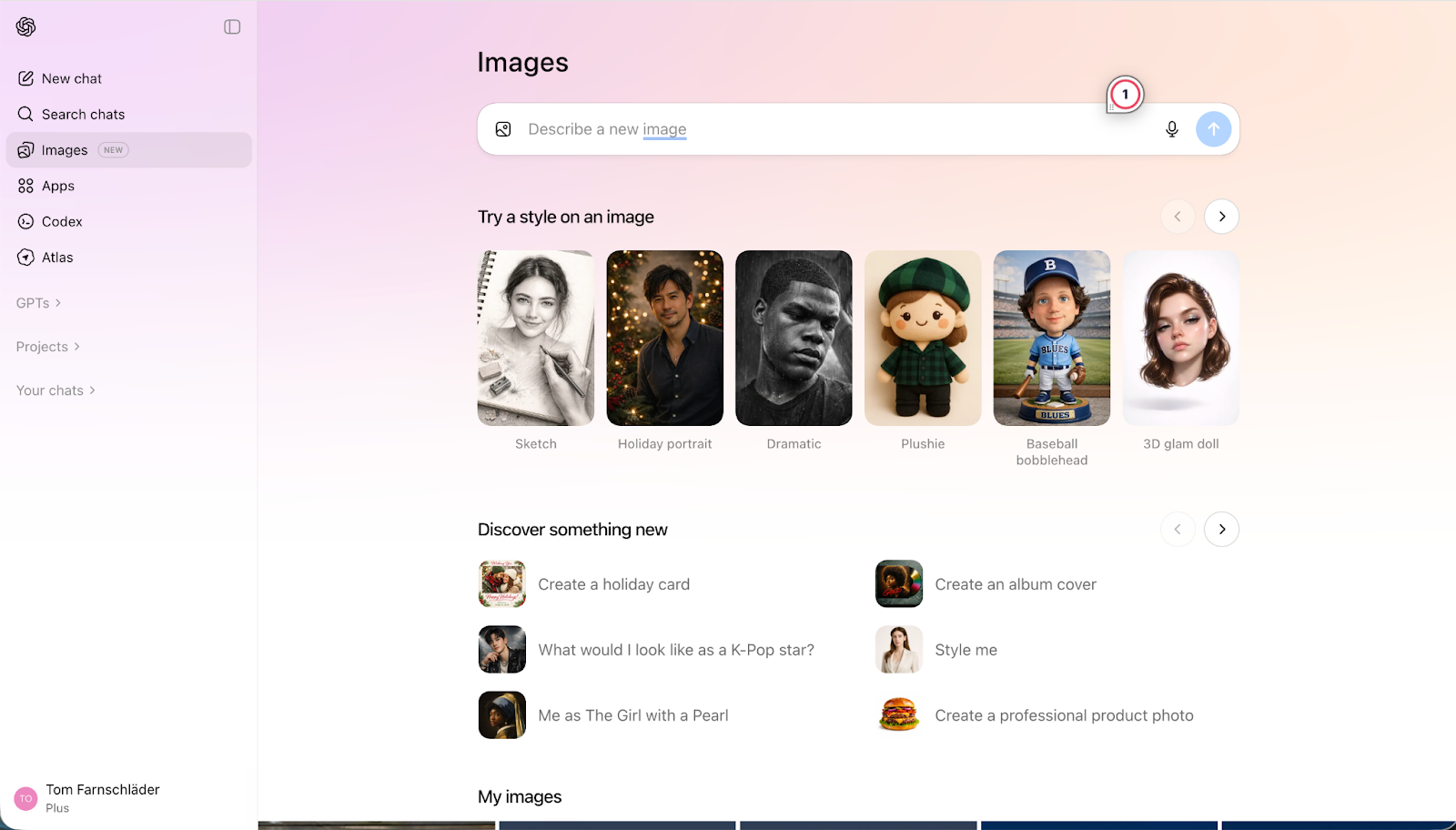
ChatGPT’s new Images tab serves as a creative hub for everything visual within the ChatGPT UI and replaces the personal image library. The most notable change is the integration of direct editing tools that enable targeting specific details within an image while keeping all other details intact.
ChatGPT Images is powered by GPT-Image-1.5, OpenAI’s latest and most advanced text-to-image AI model. It builds on the release of the GPT-Image-1 model in March 2025, which was a big success with over 700 million images generated in the first week.
It offers detail preservation and improved text rendering, and is claimed to be “up to 4x” faster than its predecessor.
The new features have been rolled out for all users, both free and paid tiers, across the web, mobile UI, and API. Only Business and Enterprise accounts still need to wait for access.
Key Features of ChatGPT Images
So, what does ChatGPT Images have to offer compared to its previous model and the competition? OpenAI is especially promoting “precise edits that preserve what matters.” Let’s take a look at the new features to see what they mean.
Dedicated creative workspace
The Images tab was introduced as a visual creation hub within the ChatGPT UI. The idea behind it is to separate image creation and editing from normal chat interactions.
While the previous Library feature stored all generated images as well, it only offered to take you back to the conversation where they were created. It used context from the whole conversation history to generate a new image from scratch, often leading to hallucinations in longer threads.
The new approach, however, is more image-centered: Each edit takes an image as its starting point and only changes selected aspects of it, rather than creating a completely new generation.
Images are persistent artifacts, not buried in a conversation history. This enables faster feedback loops with new variations and encourages experimentation, effectively turning the experience from a chat thread to that of a canvas.
To further this creative flow, the workspace introduces new exploration tools to bridge the gap between idea and execution. Users can apply built-in style presets (such as “sketch” or “dramatic”) or browse trending aesthetics to catch the next “Studio Ghibli.” For inexperienced creators, the UI offers creative suggestions and proactive prompt support to help refine results.
Detail preservation and precision editing
As the arguably most important new feature, the update enables users to select specific parts of an image and modify them directly, all without altering the rest of the composition. The model is context-aware, meaning it understands what should be edited while keeping the surrounding elements consistent.
These kinds of sharp edits are made possible by the new model’s improved detail preservation skills.
It is able to keep objects, lighting, composition, and people’s appearance consistent across outputs and subsequent edits. Also, improved instruction following contributes to the increased precision by helping to preserve relationships between elements better.
Precision editing is perfect for fixing small issues and experimenting with specific details when a full generation isn’t necessary. It also enables creative transformations, such as taking an element from one image into the scene of another.
However, it is worth mentioning that the model has difficulty maintaining the exact identity of every person when there are many people in a single image.
Improved text rendering and realism
One of the major features of the predecessor model GPT-Image-1 was its ability to handle longer text and coherent sentences. The new release builds on top of that foundation and is now capable of handling denser and smaller text than before.
This is especially useful for infographics, where the first results are quite impressive, and opens up new possibilities like markdown of text in an image, e.g., in a newspaper. We will do a test of infographics later on.
However, according to OpenAI’s release statement, the limitations with regard to some specific languages, such as Chinese, Arabic, and Hebrew, seem to still persist.
Even though it was not the main focus of the update, output realism has improved significantly in comparison to the previous model. Two cases in which it shows nicely are reflections, e.g., the glare on a photo, and many small faces in large crowds of people.
Like so often, major upgrades come with some trade-offs in specific areas. In this case, the ability to generate some specific art styles has regressed. OpenAI recommends using preset filters in the Images tab or resorting to the previous model, which is still available as a custom GPT.
Accelerated performance
The targeted edit capabilities are also where most of the increased generation speed comes from. While full image generation is noticeably faster, it does not reach the claim in OpenAI’s release note. GPT-Images-1.5 appears “up to 4x faster” primarily because it regenerates only what changes during edits.
Likewise, the roughly 20% lower API cost comes mainly from partial image regeneration during edits, with additional gains from more efficient inference rather than cheaper full generations.
Overall, the new features enable a more efficient and reliable usage, especially for API workflows.
ChatGPT Images Examples
The announced features certainly sound exciting. I put them to the test using a few simple prompts in combination with the new selection tool.
Testing edit precision
The goal of my first test was to evaluate the model’s ability to handle iterative changes without degrading quality. First, I asked it to create an image of a brown bear that walks through a Finnish forest during the midnight sun.
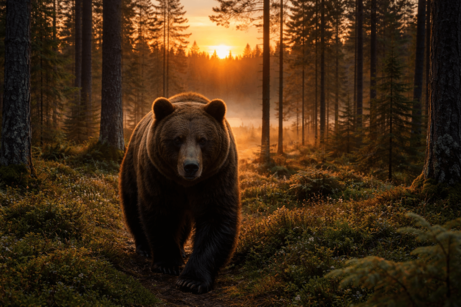
Prompt: “A brown bear walking through a dense Finnish forest during the midnight sun.”
In my opinion, the quality of the first output is very high. The bear looks natural, the type of trees and bushes represent Finnish forests very well (I would know!), and the low position of the sun is in line with what you can expect in Northern Finland during the midnight sun.
Additionally, the lighting and shadows on the bear’s fur, as well as in the background, look pretty realistic. You can still tell it’s AI, somehow, although the details are nice.
Let’s try to change the bear into a polar bear and see what happens. There are no polar bears in Finland, but if everything works as it should, the background should stay the same.
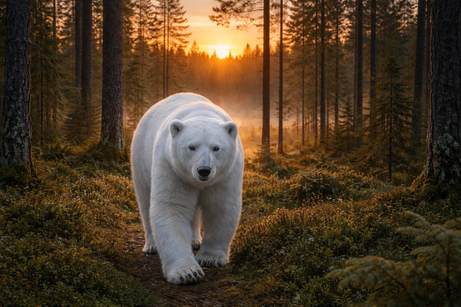
Prompt: “Change the bear to a polar bear.”
As we can see, the background was kept completely intact, just like it was intended.
For my next edit, I selected the polar bear’s head and eyes and made him wear a pair of vintage sunglasses.
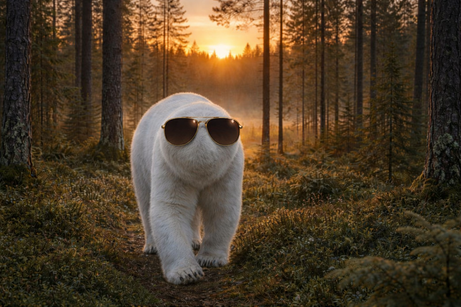
Prompt: “Put a pair of vintage sunglasses on the bear.” (head selected)
Looks like we found out what happens when you select an area that is too big. While the image background and the bear’s body are kept consistent, his head turned into one big pair of sunglasses. Let’s try again, selecting only his eyes.
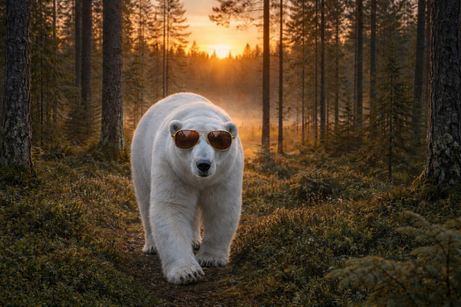
Prompt: “Put a pair of vintage sunglasses on the bear.” (eyes selected)
Very cool, and definitely much better! In this first test, we could see how powerful the detail preservation feature actually is: We only had to state important details about the scenery once, and could iterate over our main character without having to worry about the background. Another important takeaway of the test is that the size of the selection window matters.
Testing transformation consistency
Next, I tested object permanence with regard to different sceneries and the model’s limitations regarding big crowds. For this purpose, I let our polar bear travel a bit and tried moving him into a busy subway scene in Tokyo.
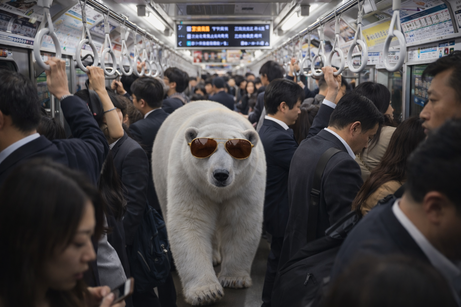
Prompt: “Place this bear into a very busy subway scene in Tokyo.”
First of all, the character consistency is impressive: the model perfectly preserved the bear’s exact posture and identity, and removed the sun glare from its fur.
However, this rigid preservation caused a visual disconnect known as the “sticker effect.” Because the model did not update the lighting context (keeping the directional shadow and forest reflections in the sunglasses), the bear looks like a 2D cutout pasted onto the scene rather than a 3D object inhabiting it.
The perspective further breaks the illusion: the bear floats in front of a bystander who is physically closer to the camera.
Trying to fix the latter issue was quite frustrating. I selected the area of the bystander and his intersection with the bear, and asked ChatGPT to correct the perspective. For each variation, the model inserted a new person close to the camera, just like this:
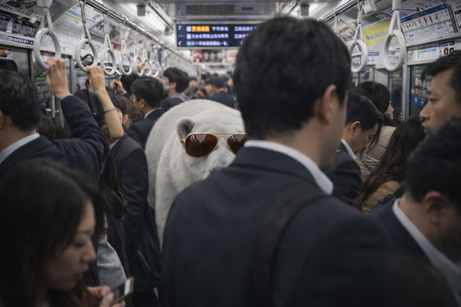
Prompt: “Correct the perspective: The selected bystander’s back is in the foreground and should partially obscure the bear. The bear is standing behind the person’s back.”
It looks like the model was unable to identify the person, even when selected, and therefore required the new character to follow the command in the prompt.
Fixing the shadow and sunglasses reflections was more successful. I used the following iterations:
- Shadow: Select the floor around the bear’s feet and prompt “Instead of the current shadow, cast a soft, diffuse shadow on the subway tile floor consistent with the overhead fluorescent lighting.”
- Sunglasses: Select the sunglasses and prompt “Update the reflections of the sunglasses to match the subway environment.”
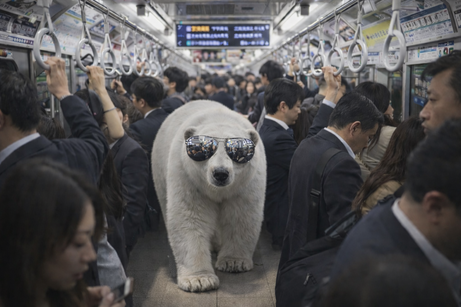
Our polar bear in the Tokyo subway after fixing the shadow and sunglasses reflections
Already much better, although not perfect.
Overall, the second test was not as successful as the first one. While element consistency across different images seems to be working well, character recognition seems to reach its limits in crowded environments.
Testing text rendering
Finally, I wanted to test the new text rendering capabilities, especially when it comes to dense text and edits. Improvements in text rendering would be welcome because, historically, vision models have been better at objects, textures, and scenes, not symbols.
I asked ChatGPT for a complex layout for an infographic on the lifecycle of a star:
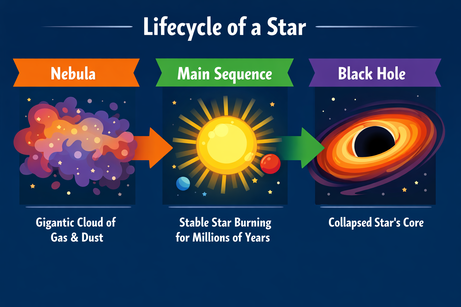
Prompt: "A horizontal infographic explaining the 'Lifecycle of a Star'. Three sections: Nebula, Main Sequence, Black Hole. Use flat vector style."
The output follows the instructions perfectly and renders the text without any errors. The style is accurate and consistent throughout the infographic.
ChatGPT’s output multimodality forces us to be precise when it comes to inserting text. When prompted to add a bullet point “here” (to a selected area in the image), it just gave the bullet point as text output. Adding the clarification “to the image” did the trick:
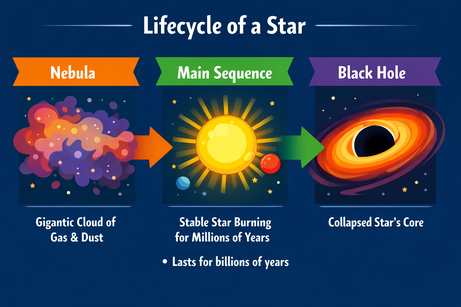
Prompt: “Add a bullet point to the image here that says: 'Lasts for billions of years'.”
After the clarification, the bullet point was inserted in the right position. Font, size, and color match the style of the graphic.
How Can I Access ChatGPT Images?
ChatGPT Images is now available for almost all users across multiple platforms. Only support for users in the Business and Enterprise tiers is still missing and will follow later.
In the UI, you can access the features immediately in the web UI or the mobile app of ChatGPT through the Images tab. Although the exact numbers are not known, strict daily limits apply to Free accounts and progressively higher, more stable allowances on Plus and Pro plans.
For developers, the new GPT-Image-1.5 model can be used through both the OpenAI API and Azure OpenAI Service, where it’s available for image generation and editing. While we expect to see the model integrated into major third-party creative suites soon, developers can already build editing workflows directly into their own applications using the v1/images/generations and v1/images/edits endpoints.
In contrast to its predecessor, GPT-Image-1.5 exposes image output as separately priced tokens, using image-specific API endpoints instead of the unified /v1/responses. You only pay for the tokens required to generate the changes, rather than for an entire new image each time.
This is why the new model is claimed to be about 20% cheaper than its predecessor, although prices per token have not changed compared to GPT-Image-1.
How Good Is ChatGPT Images?
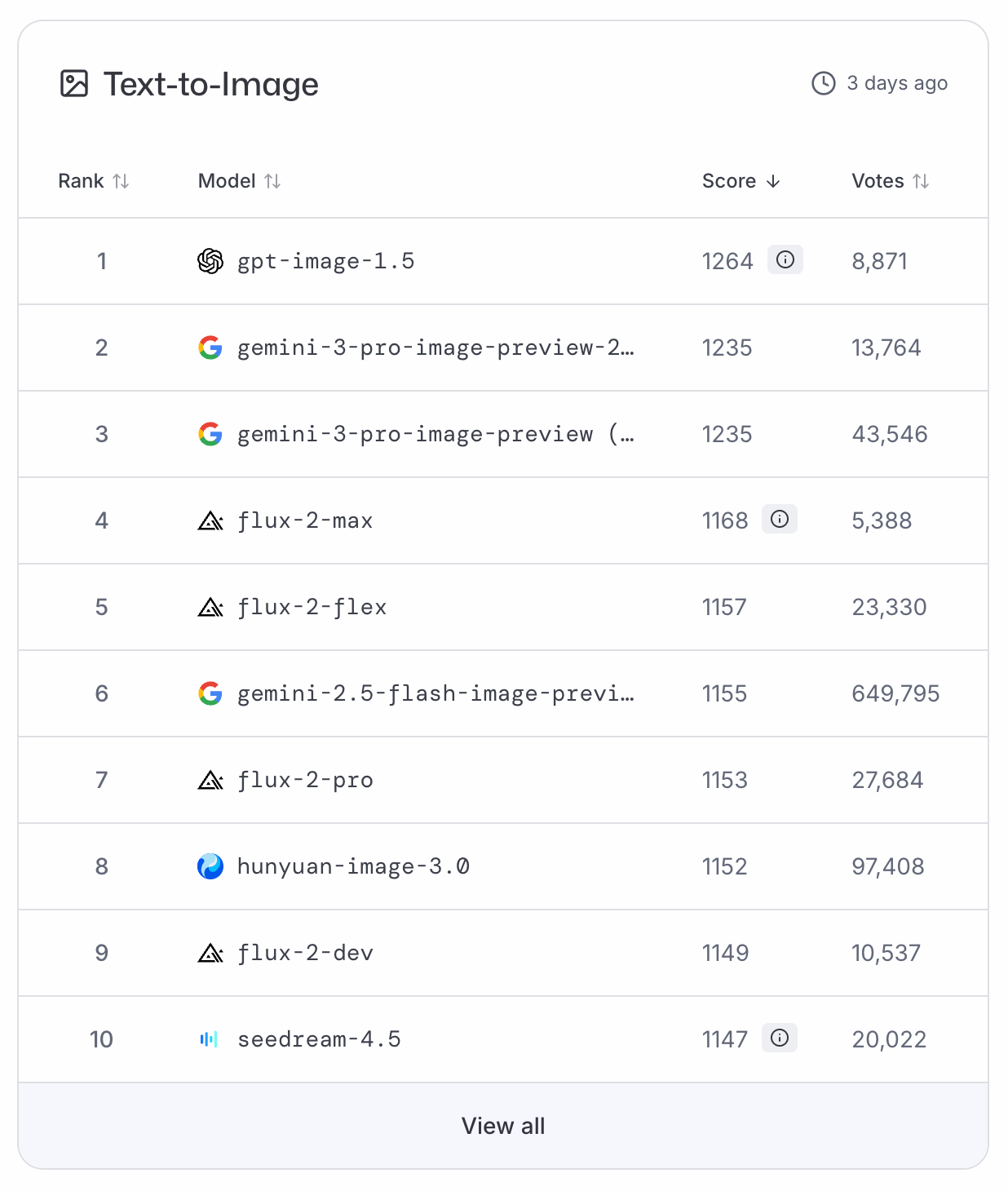
GPT-Image-1.5 immediately climbed to the top of the LMArena and ArtificialAnalysis text-to-image leaderboards, relegating Nano Banana Pro to second place. Since there is currently no benchmark data available, we have to rely on these voting-based rankings for an objective classification.
To paraphrase a famous astronaut: GPT-Image-1.5 is one small step for the industry, but a giant leap for OpenAI.
While precision editing is not completely new, bringing it natively into ChatGPT marks the biggest shift in the release. However, precision is key: remember to select only the necessary areas to avoid glitches like the 'headless polar bear' encountered in testing.
In my experience, the update delivers a significant quality jump, which is also reflected in the leaderboard rankings. Standard images feel more lively, and infographics look far less simplified than before.
Users now have significantly more control over each output, replacing the old workflow of crafting complex follow-up prompts and hoping for the best. This is largely because detail preservation works very well. Across our tests, it kept elements completely intact.
Character consistency is strong, though users should watch out for the 'sticker effect' and logical perspective issues. While targeted edits make fixing these easier, limitations still persist in crowded scenes with many people.
ChatGPT Images vs. Nano Banana Pro
The current top dog that ChatGPT Images needs to beat is clearly Google’s Nano Banana Pro. The following table compares both models:
|
ChatGPT Images |
Nano Banana Pro |
|
|
Editing model |
Precision: Area selection & in-place editing |
Reasoning: Conversational & smart masking |
|
Workflow |
Dedicated creative workspace |
Integrated chat feature |
|
Iteration |
Efficient: Partial regeneration |
Exploratory: Remixing |
|
Consistency |
High layout & detail retention |
High layout & detail retention |
|
Ecosystem |
OpenAI & Azure |
Google / Gemini Stack |
While both GPT-Image-1.5 and Nano Banana Pro offer excellent results, both models differ in their editing philosophies, workflows, and customer focus.
ChatGPT Images focuses on pixel-perfect isolation, which has its strength in manual control: You can select an exact area, and it treats the selection like a canvas for in-painting while the rest of the image is locked. Nano Banana Pro, on the other hand, tries to understand what you are trying to do in order to make the right changes.
Concerning the workflow, both companies chose different paths as well: The Images tab in ChatGPT feels like a creative studio, separated from conversations, whereas Nano Banana Pro is fully integrated into the chat stream.
Update: Google's new version of the non-pro image generation model, Nano Banana 2, has introduced some significant improvements. While Nano Banana Pro still has a slight edge, the new model offers (almost) the same quality at a much faster speed.
When to use ChatGPT Images vs. Nano Banana Pro
I would suggest using ChatGPT Images if you need to fix layouts, edit text, or make precise changes to an existing image without altering the style. Choose Nano Banana Pro in case you need to generate data-heavy visuals, remix multiple pictures, or prefer having a smart assistant guess your intent over manual control.
Using the same prompts as above, I recreated the test images. Personally, I liked Nano Banana Pro’s infographics more, while the bear images were on par.
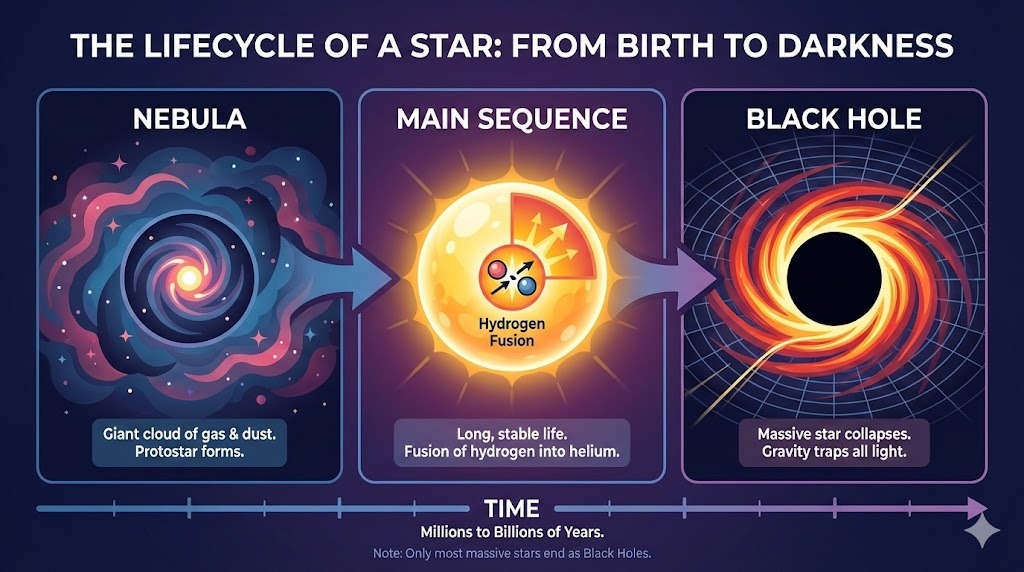
Prompt: "A horizontal infographic explaining the 'Lifecycle of a Star'. Three sections: Nebula, Main Sequence, Black Hole. Use flat vector style." (Nano Banana Pro)
ChatGPT Images Use Cases
Based on our hands-on testing and the specific strengths of GPT-Image-1.5, the model shines when it comes to iterative processes and text editing. Here are a few top use cases:
- Marketing workflow: Creating social media ads or product shots where specific details are subject to change (e.g., “Change the sweater from red to blue”)
- Educational infographics: Generating diagrams for textbooks, presentations, or blogs, like our “lifecycle of a star” example
- Storyboarding: Visualizing a script or comic book where the same character needs to appear in different locations
- Fashion: Using hybrid content creation to visually explore outfit combinations, like in this FLUX.2 wardrobe visualizer tutorial
- Interior design: Combining a rough sketch or photo with prompts to redecorate rooms in a certain style
- UI/UX Mockups: Rapidly visualizing what a website landing page or packaging for a new product could look like
Final Thoughts
Ever since the release of Nano Banana Pro, OpenAI has been under a lot of pressure to keep up. With this promising update, they are back in the race for the most capable text-to-image AI model. It’s not flawless, but by focusing on essentials like crisp typography and precise editing, you can get good results. To get started, try the feature in your ChatGPT UI or in the OpenAI Playground. For inspiration, you can check out the gallery and the prompt guide.
If you want to get started building tools using GPT models, our OpenAI Fundamentals skill track is for you.
What kinds of image edits can ChatGPT Images handle?
How is GPT-Image-1.5 better than the previous image model?
Is ChatGPT Images available to everyone?
Can developers use the new image model through the API?


Author
Josef Waples