Cursus
Introductie tot Google Sheets
2 uur
52.8K
Oefen en volg je voortgang.
Ga Verder Met GoogleVLOOKUP() is een functie in Google Sheets die een waarde in een kolom zoekt en een overeenkomende waarde uit een andere kolom in dezelfde rij retourneert. Je geeft op wat je wilt vinden, waar je moet zoeken, en het haalt de gegevens op die je nodig hebt.
Dit is vooral handig bij grote datasets waarbij handmatig zoeken en matchen te lang zou duren. Maar elke keer dat je twee tabellen met gegevens aan elkaar wilt koppelen op basis van een gedeelde waarde, is VLOOKUP() de aangewezen functie.
In deze gids leer je de syntaxis, hoe je de functie stap voor stap gebruikt, waardoor onjuiste resultaten kunnen ontstaan, en wanneer je beter kunt kiezen voor alternatieven zoals INDEX MATCH() of XLOOKUP().
De syntaxis van VLOOKUP() is:
=VLOOKUP(search_key, range, index, [is_sorted])Hierbij geldt:
search_key is de waarde die je wilt zoeken
range is de tabel waarin gezocht wordt
index is het kolomnummer waaruit je het resultaat wilt terugkrijgen
[is_sorted] bepaalt of je een exacte overeenkomst wilt of niet
Zo voer je een VLOOKUP() uit in Google Sheets:
Bepaal welke waarde je wilt opzoeken: Dit kan een ID, naam of een andere unieke waarde zijn.
Bepaal je tabelbereik: Zorg dat de kolom met je zoekwaarde de eerste kolom in dat bereik is.
Kies welke gegevens je wilt terugkrijgen: Dit is de kolom met het resultaat (bijv. naam, prijs, status).
Voer de VLOOKUP()-formule in een nieuwe cel in: Verwijs naar je zoekwaarde, tabelbereik en de kolom die je wilt retourneren.
Gebruik exacte of benaderende overeenkomst (FALSE of TRUE): In de meeste gevallen wil je een exacte overeenkomst om verkeerde resultaten te voorkomen (daarover later meer).
Als je deze tabel hebt:
|
A (ID) |
B (Naam) |
|
101 |
George |
|
102 |
Sarah |
|
103 |
Lily |
En je wilt de naam bij ID 102 vinden, gebruik dan:
=VLOOKUP(102, A2:B4, 2, FALSE)Dit vertelt Google Sheets om:
Als resultaat krijg je Sarah.
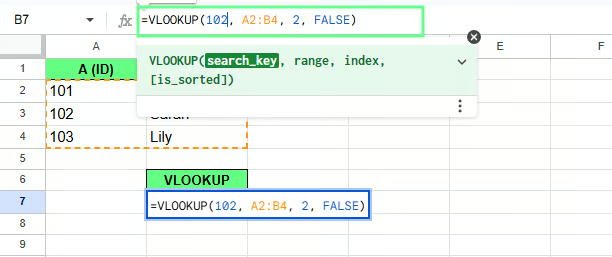
Voorbeeld van VLOOKUP(). Afbeelding door auteur.
VLOOKUP() volgt een eenvoudig verticaal zoekproces. Het begint altijd met de eerste kolom van je geselecteerde bereik en scant vervolgens omlaag, rij voor rij, totdat het de eerste overeenkomst vindt.
Zodra die overeenkomst is gevonden, blijft het in dezelfde rij. Vervolgens gaat het naar de door jou opgegeven kolom en retourneert die waarde.
Zo werkt het stap voor stap:
Stel dat je de functietitel wilt vinden voor medewerker-ID E1007. Gebruik hiervoor de volgende formule:
=VLOOKUP("E1007", A:G, 5, FALSE)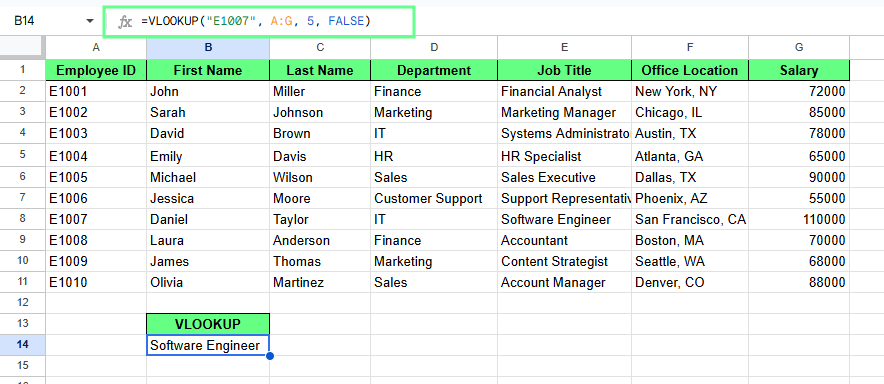
VLOOKUP() in Google Sheets. Afbeelding door auteur.
Deze formule:
Zoekt E1007 in kolom A
Gaat in dezelfde rij opzij
Retourneert kolom 5 (Functietitel)
Geeft als resultaat Software Engineer.
Let op: VLOOKUP() kan alleen van links naar rechts zoeken. Als je zoekkolom niet de eerste kolom in het bereik is, werkt de functie niet. In dat geval moet je je gegevens herschikken of een andere functie gebruiken. Daar komen we later op terug.
Een exacte overeenkomst retourneert alleen een resultaat wanneer de waarde identiek is. Een benaderende overeenkomst retourneert de dichtstbijzijnde beschikbare waarde als er geen exacte overeenkomst is, meestal op basis van gesorteerde gegevens.
In VLOOKUP() wordt dit bepaald door het laatste argument. Dat laatste argument, FALSE of TRUE, is waar de meesten de fout in gaan, omdat TRUE onschuldig lijkt en dat niet is.
Ik zou zeggen: gebruik TRUE alleen voor getrapte opzoekingen, zoals belastingschijven of cijferbanden, waar benaderen per ontwerp het juiste gedrag is. Voor alles daarbuiten: gebruik FALSE.
Dit vertelt VLOOKUP(): “Geef alleen een resultaat terug als je precies deze waarde vindt.” Bijvoorbeeld, deze formule =VLOOKUP("E1005", A:G, 7, FALSE) zoekt naar E1005, retourneert het salaris uit kolom 7 en geeft als resultaat 90000.
Bestaat de waarde niet, dan krijg je een #N/A-fout.
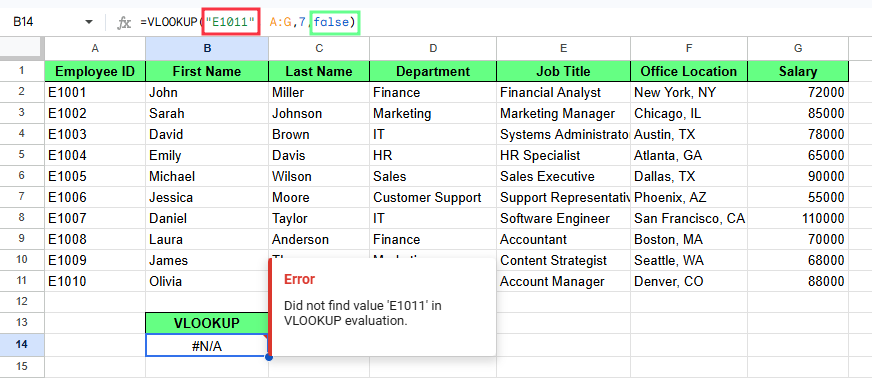
Exacte overeenkomst in VLOOKUP(). Afbeelding door auteur.
Dit vertelt VLOOKUP(): “Als je geen exacte overeenkomst vindt, retourneer de dichtstbijzijnde waarde eronder.” Dat klinkt handig — soms is het dat ook, maar soms geeft het je stilletjes een verkeerd antwoord.
Bijvoorbeeld, E1011 bestaat niet in onze dataset. De laatste medewerker-ID is E1010. Dus als je deze formule gebruikt =VLOOKUP("E1011", A:G, 7, TRUE), zal VLOOKUP() geen fout retourneren. In plaats daarvan geeft het de waarde voor de dichtstbijzijnde lagere overeenkomst, namelijk E1010. De cel toont 88000.
Dus ook al ontbreekt E1011, VLOOKUP() geeft toch een resultaat omdat TRUE een benaderende overeenkomst toestaat.
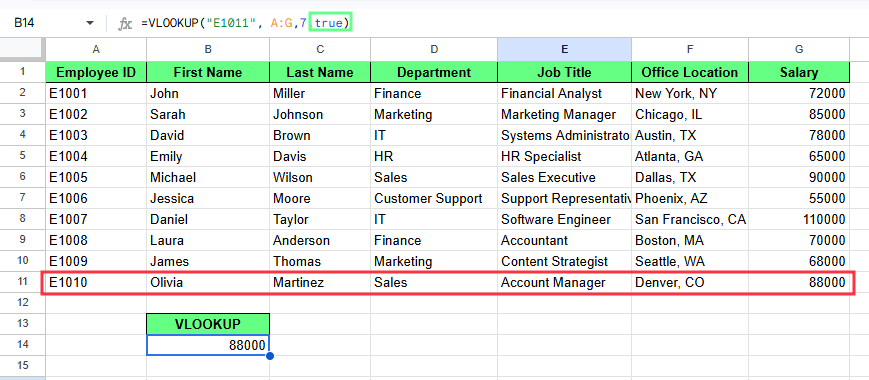
Benaderende overeenkomst in VLOOKUP(). Afbeelding door auteur.
Stel je nu voor dat dezelfde gegevens niet op volgorde staan, en ik voer de beschikbare medewerker-ID in de formule in, zoals: =VLOOKUP("E1011", A:G, 7, TRUE).
Deze keer retourneert de formule een onjuist salaris omdat de zoekkolom niet is gesorteerd, en de benaderende overeenkomst van gesorteerde gegevens afhankelijk is.
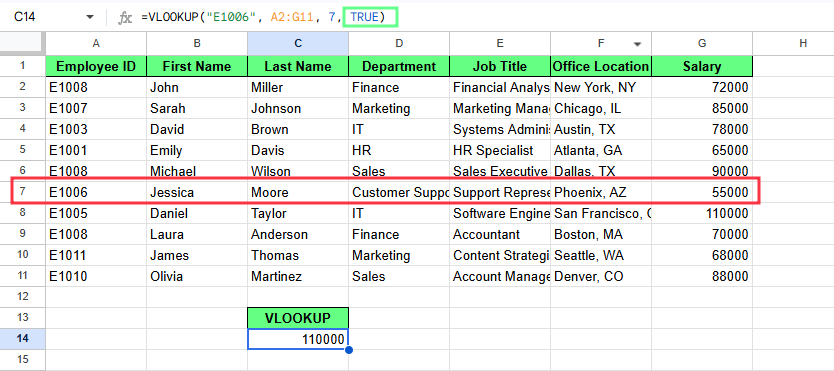
VLOOKUP() met benaderende overeenkomst geeft een fout door een niet-gesorteerde lijst. Afbeelding door auteur.
Laten we enkele van de meest voorkomende problemen met VLOOKUP() bekijken en hoe je ze oplost:
Een #N/A-fout betekent dat VLOOKUP() de gevraagde waarde niet kon vinden.
Stel, je hebt deze formule: =VLOOKUP("E9999", A:G, 7, FALSE)
Als E9999 niet in de eerste kolom van het bereik staat, geeft de formule #N/A terug.
Dit kan ook gebeuren als de waarde anders is getypt in het blad, bijvoorbeeld met extra spaties of problemen met tekstopmaak.
Zo los je het op:
Zorg dat de waarde in de eerste kolom van het bereik staat
Gebruik waar mogelijk de juiste celverwijzing in plaats van de waarde handmatig te typen
Voeg aanhalingstekens toe als je een tekstwaarde hardcodeert
Verwijder spaties aan het begin of einde uit de gegevens
Gebruik FALSE alleen wanneer je een exacte overeenkomst nodig hebt
De kolomindex vertelt VLOOKUP() uit welke kolom binnen het geselecteerde bereik geretourneerd moet worden. Als het indexgetal te groot is, geeft de formule #REF! terug.
Deze =VLOOKUP("E1005", A:G, 8, FALSE) geeft #REF! omdat het bereik A:G slechts 7 kolommen heeft.
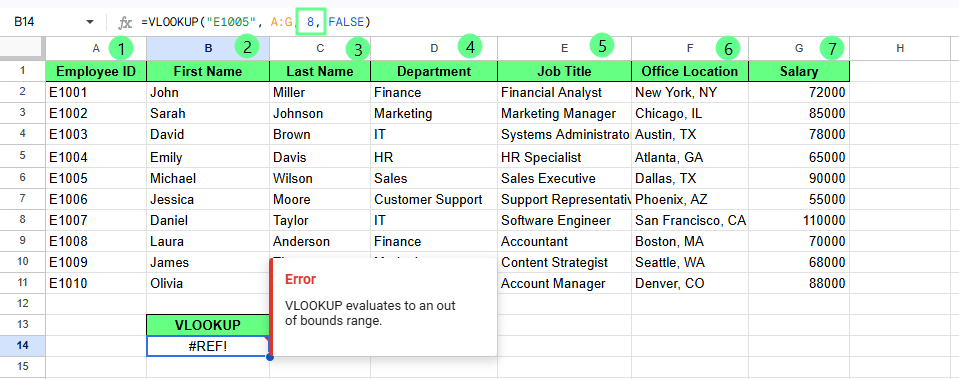
Verkeerde kolomindex geeft een fout. Afbeelding door auteur.
Je kunt ook het verkeerde resultaat krijgen als het kolomnummer wel geldig is maar naar de verkeerde kolom verwijst.
Bijvoorbeeld:
=VLOOKUP("E1005", A:G, 5, FALSE)
Dit retourneert de functietitel, niet het salaris.
Zo los je het op:
Als je TRUE gebruikt, zoekt VLOOKUP() naar de dichtstbijzijnde lagere overeenkomst in plaats van een exacte te vereisen.
Als je =VLOOKUP("E1011", A:G, 7, TRUE) typt en er is geen E1011 in de dataset, dan retourneert de formule in plaats van een fout 88000, wat bij E1010 hoort.
Dat resultaat kan correct lijken, maar het is geen exacte overeenkomst.
Zo los je het op:
Gebruik FALSE als je een exact resultaat nodig hebt
Gebruik TRUE alleen wanneer de gegevens gesorteerd zijn en een benaderend resultaat acceptabel is
VLOOKUP() kan ook ophouden met werken wanneer het geselecteerde bereik niet past bij wat de formule probeert te doen.
Zo geeft =VLOOKUP("E1005", A:C, 7, FALSE) #REF! omdat het bereik A:C slechts 3 kolommen heeft, maar de formule om kolom 7 vraagt.
Een ander veelvoorkomend probleem treedt op wanneer de zoekkolom niet de eerste kolom in het bereik is.
Zie deze formule:
=VLOOKUP("E1005", B:G, 7, FALSE)
Hier is de eerste kolom in het bereik kolom B, niet kolom A. Omdat VLOOKUP() alleen de eerste kolom van het geselecteerde bereik doorzoekt, kan het E1005 niet vinden.
Zo los je het op:
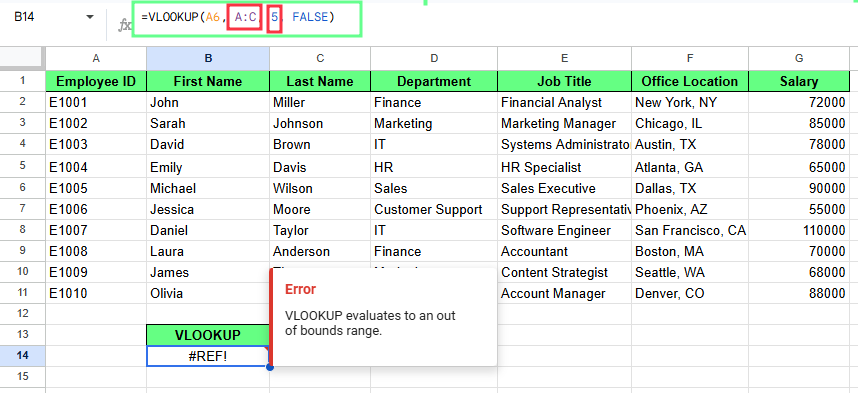
Verkeerd bereik geeft een fout. Afbeelding door auteur.
Je kunt VLOOKUP() gebruiken om gegevens uit een ander tabblad op te halen door de bladnaam vóór het bereik te zetten.
Het formaat ziet er zo uit:
=VLOOKUP(search_key, SheetName!range, index, FALSE)Het deel SheetName! vertelt de formule in welk tabblad moet worden gezocht.
Stel dat je gegevens zijn opgeslagen in een tabblad genaamd Employees en je werkt in een ander tabblad. Om de afdeling voor medewerker-ID E1005 te vinden, gebruik je:
=VLOOKUP("E1005", Employees!A:G, 4, FALSE)
Hier:
Employees!A:G zoekt in het tabblad Employees
4 retourneert de kolom Department
De formule retourneert de afdeling voor E1005.
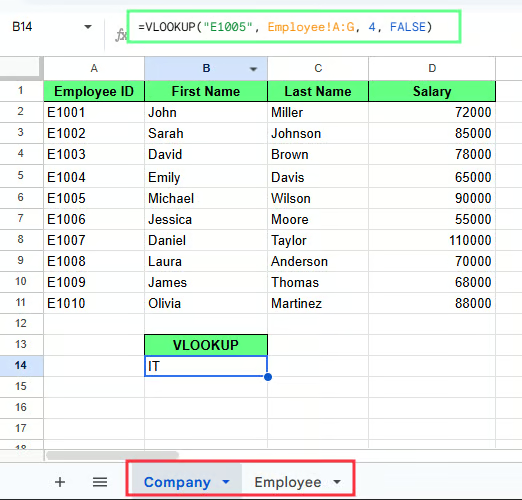
Verwijzen naar een ander tabblad in VLOOKUP(). Afbeelding door auteur.
Als de bladnaam spaties bevat, zet deze dan tussen enkele aanhalingstekens zoals dit:
=VLOOKUP("E1005", 'Employee Data'!A:G, 7, FALSE)Zonder de aanhalingstekens werkt de formule niet.
VLOOKUP() zoekt in een vaste kolom en retourneert gegevens op basis van positie, terwijl INDEX MATCH waarden rechtstreeks vindt met rij- en kolomverwijzingen, waardoor het blijft werken zelfs als de tabelstructuur verandert.
Je zag al dat =VLOOKUP("E1005", A:G, 7, FALSE) het salaris voor E1005 vindt.
Dat werkt goed als:
Problemen ontstaan zodra de structuur verandert.
Bijvoorbeeld:
Nu retourneert die zonder foutmelding de verkeerde waarde.
Bekijk nu dezelfde opzoekactie met INDEX MATCH:
=INDEX(G:G, MATCH("E1005", A:A, 0))Hierbij:
MATCH() vindt de positie van E1005 in kolom A
INDEX() retourneert de waarde uit kolom G op die positie
Deze methode is niet afhankelijk van kolomnummers en blijft dus werken als de tabel verandert.
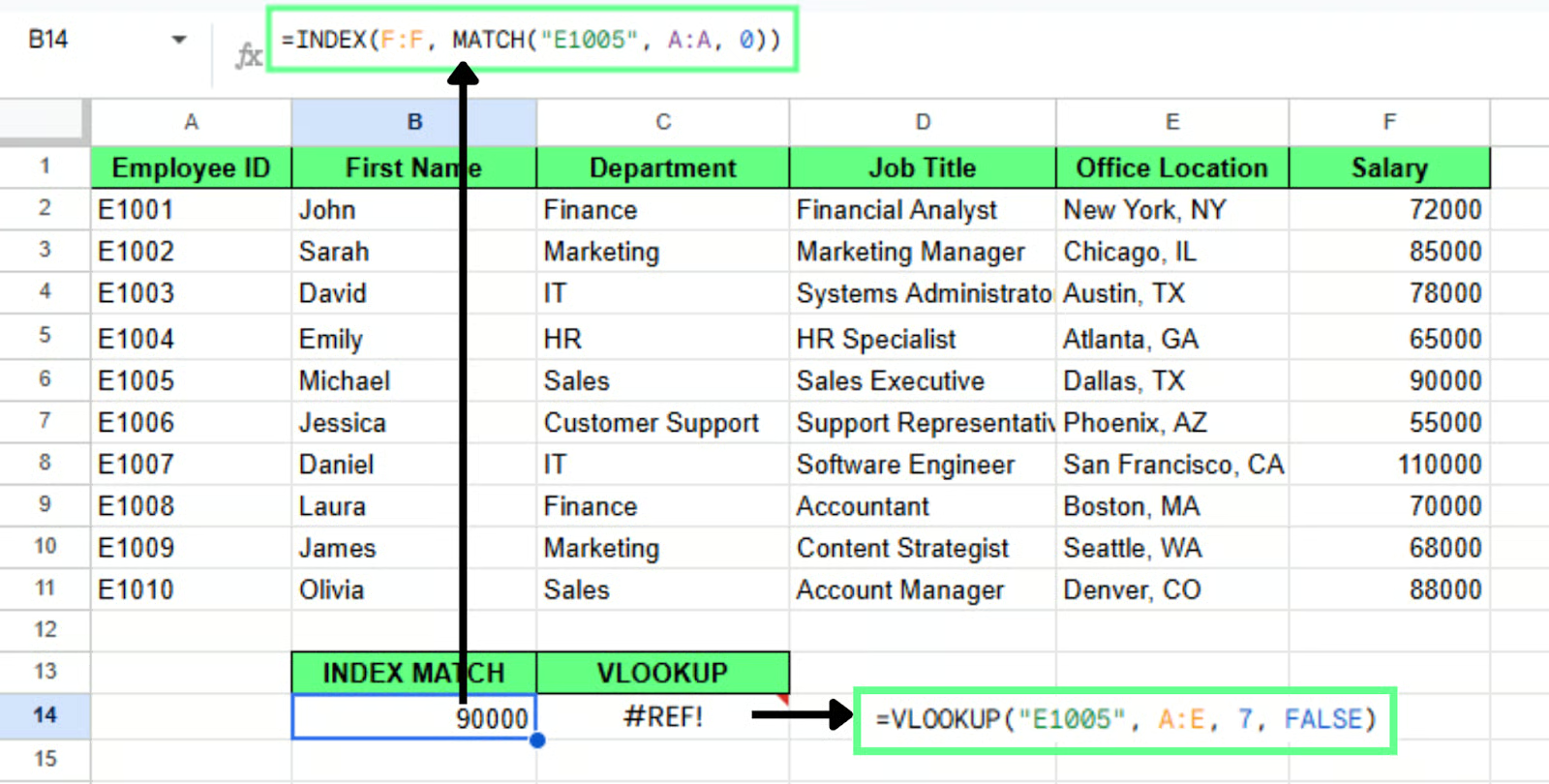
INDEX MATCH gaat beter met de gegevens om dan VLOOKUP(). Afbeelding door auteur.
Gebruik INDEX MATCH wanneer je gegevens niet van links naar rechts geordend zijn. Stel dat kolom A medewerker-ID bevat en kolom C de achternaam. Als je op achternaam wilt zoeken en medewerker-ID wilt retourneren, is dit een zoekactie van rechts naar links.
VLOOKUP() kan dit niet zonder de tabel te wijzigen, maar INDEX MATCH kan het direct afhandelen:
=INDEX(A:A, MATCH("Wilson", C:C, 0))Je hoeft je gegevens niet te herschikken.
VLOOKUP() zoekt binnen een vaste structuur en heeft beperkingen, terwijl XLOOKUP() in elke richting kan zoeken. Deze functie is in 2022 aan Google Sheets toegevoegd en is in veel gevallen nu de betere optie.
Stel dat je de medewerker-ID wilt vinden met de achternaam Wilson. Dit is een zoekactie van rechts naar links. VLOOKUP() kan dit niet zonder de tabel te herschikken, maar XLOOKUP() kan het wel:
=XLOOKUP("Wilson", C:C, A:A)Deze formule:
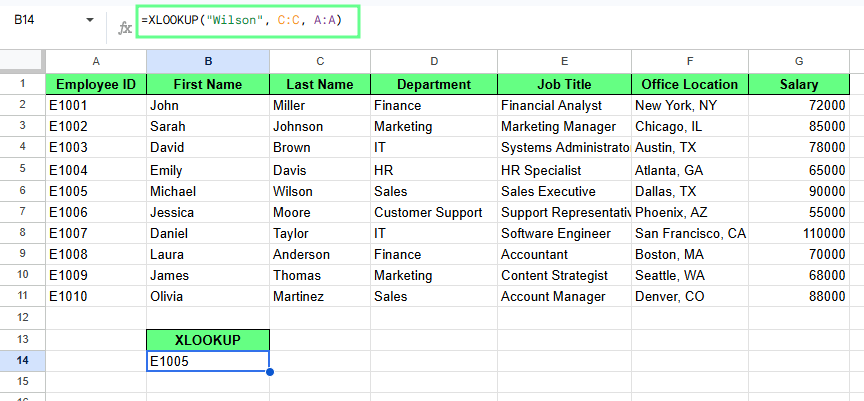
XLOOKUP() in Google Sheets. Afbeelding door auteur.
XLOOKUP() is beter omdat het:
Als ik één advies mocht geven: bouw VLOOKUP() in een echt spreadsheet waar je daadwerkelijk om geeft, in plaats van in een oefenblad. Fouten komen anders binnen wanneer de data belangrijk is. Je herinnert je wel waarom FALSE bestaat zodra TRUE je stilletjes iemands verkeerde salaris geeft.
Als je er eenmaal vertrouwd mee bent, probeer dan verschillende matchtypes, pas je bereiken aan en let op wanneer de resultaten niet meer logisch zijn. Dat is meestal het moment waarop een flexibelere optie zoals INDEX MATCH() of XLOOKUP() meer zin heeft.
Leer Google Sheets met DataCamp
Cursus
Cursus
Oefen en volg je voortgang.
Ga Verder Met Googleblog
Adel Nehme
15 min