
Our biggest-ever sale. 60% off AI & data skills
Buy Now
Goal Seek is used when you know the result you want from a formula but are still determining the input value needed to achieve it. You work backward by setting the desired outcome and letting Excel adjust the input variable to find the solution.
Though Goal Seek is used in different fields or domains, the most common uses are in financial modeling and academic scenarios. Some of these applications are:
Let’s now explore real examples in Microsoft Excel.
Applying Goal Seek for your data models primarily involves three repeatable steps.
Begin by setting up your data and formulas in a way that Excel can interpret them. Ensure the formula you want to solve is correctly linked to the input cell, which will be adjusted.
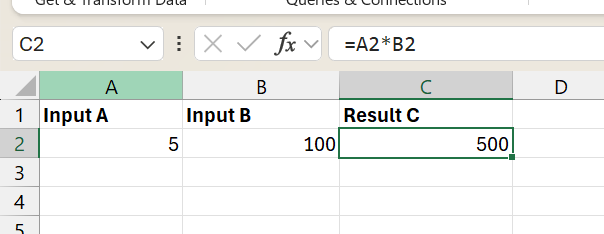 A sample data for Goal Seek calculation. Image by Author.
According to the formula in the image above, since Result C depends on Input A and Input B, we can change either Input A or B.
First, select the cell with the formula whose result you want to adjust (say, C2). Go to the Data tab, click What-If Analysis, and choose Goal Seek.
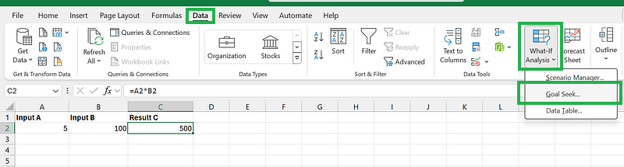 Selecting Goal Seek in Excel. Image by Author.
In the Goal Seek dialog, specify the cell with the formula (Set cell), the desired result (To value), and the input cell to be changed (By changing cell).
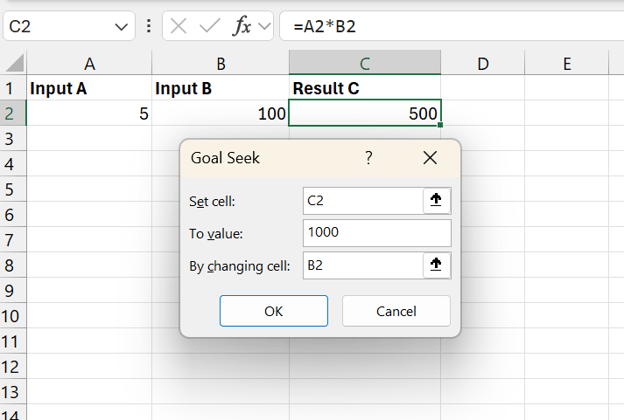 Goal Seek dialog box. Image by Author.
Click OK to allow Excel to find the appropriate input value.
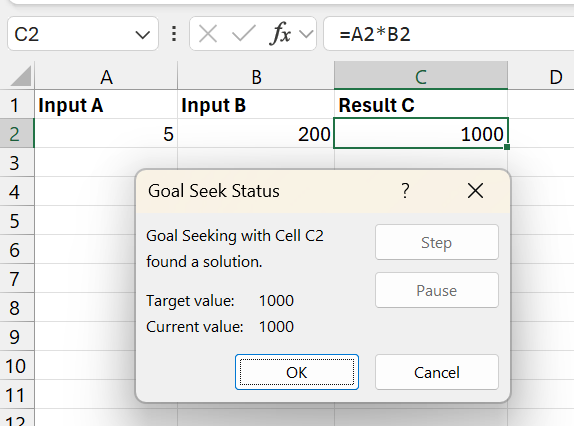 Goal Seek final step. Image by Author.
Alternatively, you can click Cancel to void the Goal Seek operation if you want to keep the original values. This is common when we’re unhappy with the change and wish to run a different Goal Seek operation next.
After running Goal Seek, Excel automatically adjusts the selected input cell to reach the target output. The updated value in the input cell can now be analyzed to understand the outcome of your model.
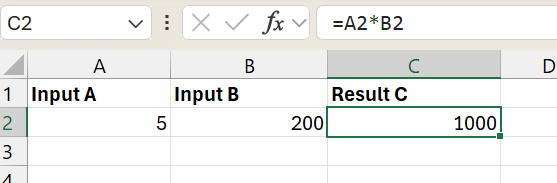 Goal Seek result. Image by Author.
In the image above, by changing the Input B to 200 from 100, we have achieved our target Result C as 1000. These three steps form the standard process for using Goal Seek across different data models.
Let’s explore how these steps apply to real-world problem-solving. These examples demonstrate how Goal Seek can effectively solve common financial problems, such as determining loan payments or achieving sales targets.
Let's take a look at a couple Excel Goal Seek examples that you might encounter in your work.
Imagine you’re planning to buy a house and want to determine the maximum loan amount you can afford with a monthly payment of $1,000. Based on your research on various banks, you have an interest rate and loan term in mind, but you need to figure out the loan principal to request. You can use Goal Seek to solve this.
Open a new Excel worksheet and create the setup, as shown in the image below.
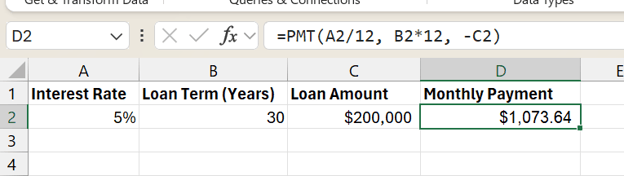 Loan payment dataset. Image by Author.
Enter your researched interest rate (say, 5%) in cell A2, the loan term (say, 30 years) in cell B2, and an initial estimate for the loan amount (say, $200,000) in cell C2. In cell D2, enter the formula for calculating the monthly payment using the PMT function:
This formula divides the annual interest rate by 12 (for monthly interest), multiplies the loan term by 12 (for the total number of payments), and uses the negative loan amount to calculate the monthly payment.
Our goal is to find the loan amount that would make the monthly payment of $1000. In other words, we will modify cell C2 so that D2 is set to $1000. As learned earlier, we will invoke Goal Seek within the What-If Analysis section under the Data tab to get the following dialog box.
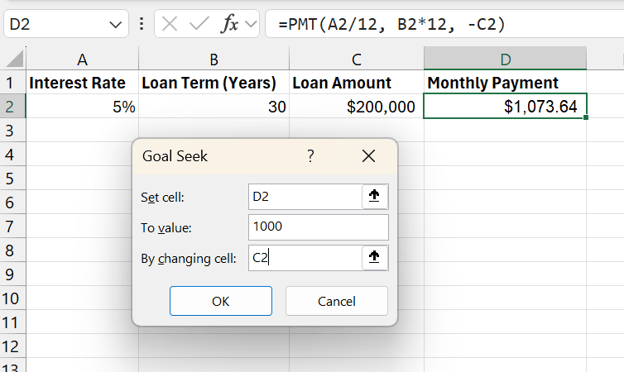 Goal Seek options for the loan payment example. Image by Author.
In the Goal Seek dialog box, we enter the following:
Set Cell: D2, the monthly payment cell.
To Value: Enter 1000 (your desired monthly payment).
By Changing Cell: Enter C2 (the loan amount).
Once we click OK, Excel will adjust the loan amount in cell C2 to determine how much you can borrow while keeping your monthly payment at $1,000.
The Goal Seek operation runs and stops at the below image:
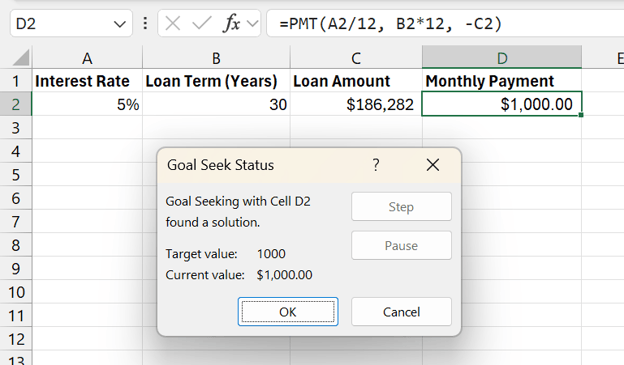 Goal Seek result for the loan payment example. Image by Author.
Once we click OK, Excel will show the adjusted loan amount in cell C2. This is the maximum loan principal you can afford with the given interest rate, loan term, and monthly payment.
The adjusted loan amount is $186,282. We can afford this maximum loan amount with a $1,000 monthly payment. Feel free to experiment with different numbers and run the Goal Seek operation multiple times.
Suppose you’re a sales manager aiming to achieve a revenue target of $500,000 for a specific product. You already know the product's price per unit but are still determining how many units need to be sold to reach this revenue goal. Goal Seek can help you determine the exact number of units required.
Open a new worksheet and enter the data, as shown in the image below.
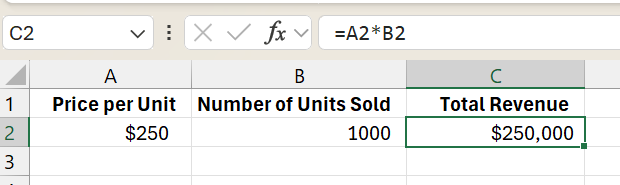 Sales target dataset. Image by Author.
In cell A2, we enter the actual price per unit and an estimate for the number of units in cell B2. We enter the following formula for calculating total revenue in cell C2:
=A2 * B2This formula multiplies the price per unit by the number of units sold to calculate total revenue.
Let’s invoke Goal Seek within the What-If Analysis section under the Data tab to get the following dialog box.
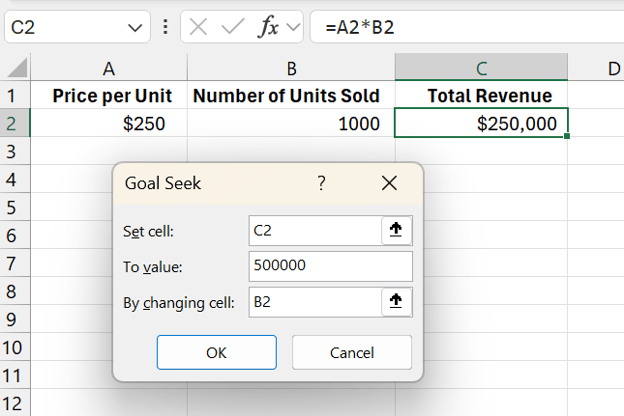 Goal Seek options for the sales target example. Image by Author.
In the Goal Seek dialog box, we enter the following:
Set Cell: Type C2 (your total revenue cell).
To Value: Enter 500000 (your desired revenue target).
By Changing Cell: Enter B2 (the number of units sold).
Excel will adjust the number of units sold in cell B2 to determine the units you need to sell to reach $500,000 in revenue.
The Goal Seek operation runs and stops at the below step:
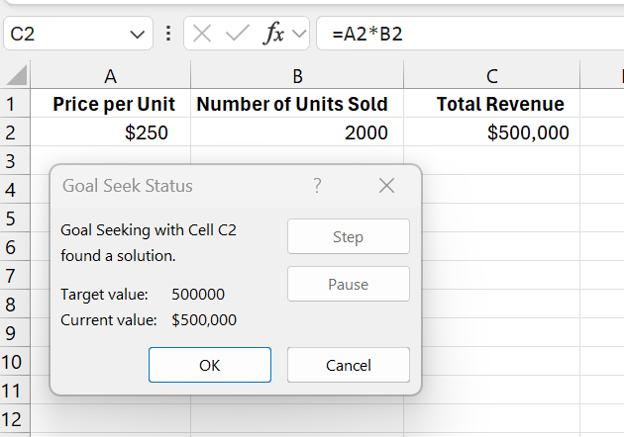 Goal Seek results for the sales target example. Image by Author.
Once you click OK, Excel will show the adjusted number of units in cell B2. As a result, it shows 2,000 units — you need to sell 2,000 units at $250 each to meet your revenue target of $500,000. If the unit price or the revenue target changes later, you can rerun the Goal Seek operation with the updated values.
If you review the two examples above, we follow the same steps in a particular fashion to obtain the results. However, a few common errors can throw off your calculations when using Goal Seek in Excel. Let’s have a look at those.
One of the most frequent problems with Goal Seek is when it can’t find a solution that meets your target. This can happen in two scenarios:
Let’s understand these from the sales target example we saw earlier. Suppose we had mistakenly provided the unit price as $0 instead of $250. The data looks as follows:
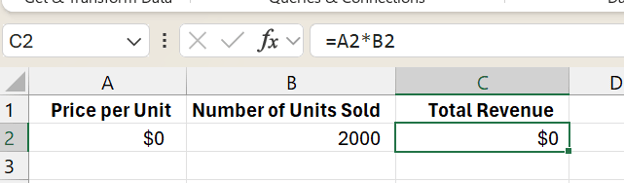 Sales target dataset with error. Image by Author.
We will follow our usual Goal Seek steps to run the operation:
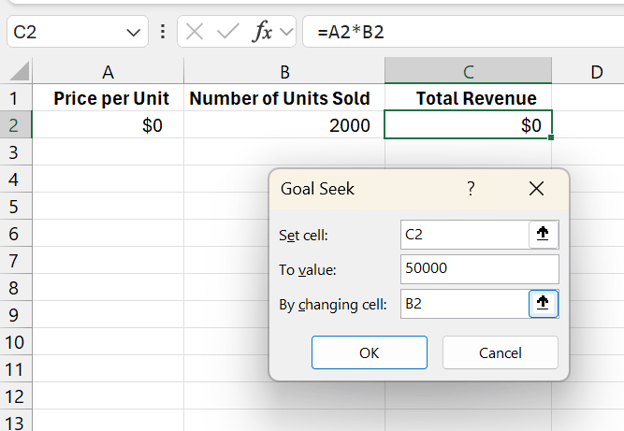 Goal Seek on the sales target dataset with error. Image by Author.
After we click OK, what happens next?
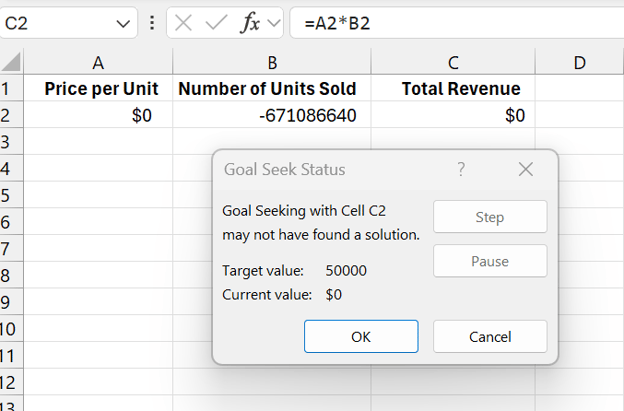 Goal Seek may not have found a solution error. Image by Author.
We see the result as “Goal Seek may not have found a solution.” This error occurred because the equation is not solvable. Before running a Goal Seek operation, it’s essential to check the formula and the input values to ensure it is solvable.
If you’re sure that the solution exists, then it could be that the Goal Seek operation couldn’t converge within the allocated 100 steps. To help Goal Seek converge to a solution:
Checking if the equation is solvable and allowing it to converge within the defined steps will prevent the error of the solution not being found.
Goal Seek expects the cell we change to be a value and throws the “Cell must contain a value” error otherwise. This is a common occurrence when the value in the cell is derived from other cells through an equation.
Let’s understand the error using the same sales target example. Suppose the price per unit is calculated by dividing the total costs by total units. Our data setup would look like below:
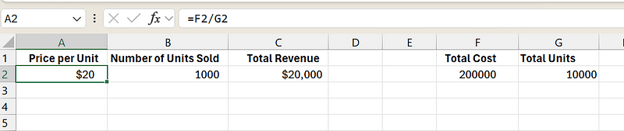 Updated sales target dataset. Image by Author.
As we attempt to run Goal Seek, an error occurs when we select cell A2 for the By changing cell option.
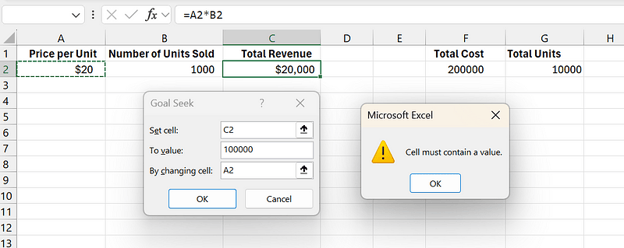 The cell must contain a value error. Image by Author.
This occurred because Goal Seek cannot be run when the cell to be modified does not contain a value. Ensuring that the cell to be modified contains a value would prevent this error.
This article introduced you to a commonly used What-if Analysis tool — Goal Seek. Through multiple example scenarios, we learned how to use it in Excel in simple steps. We also understood the common errors faced during the implementation and how to avoid them.
I encourage you to experiment with Goal Seek in your data models to familiarize yourself with the tool and its applicability. If you’re interested in learning more about financial modeling in Excel using tools similar to Goal Seek, you may want to check out our beginner-friendly Financial Modelling in Excel course.
As a senior data scientist, I design, develop, and deploy large-scale machine-learning solutions to help businesses make better data-driven decisions. As a data science writer, I share learnings, career advice, and in-depth hands-on tutorials.
Goal Seek is one of the What-If Analysis tools in Excel. It helps you find the necessary input value to achieve a specific target output in a formula by adjusting one variable.
Use Goal Seek when you know the desired outcome of a formula and need to determine the specific input value that will achieve that result.
Select the cell with the formula you want to solve, go to the Data tab, click What-If Analysis, choose Goal Seek, and then specify the target value and the input cell to change. Finally, click OK to run Goal Seek.
If you cancel a Goal Seek operation, Excel will revert to the original values before the operation begins.
Goal Seek may fail if the target value is unrealistic or impossible to achieve given the constraints or if the input value can't converge within the allowed iterations.

Samouczek
 Laiba Siddiqui• 13 min

Samouczek
 Khalid Abdelaty• 14 min

Samouczek
Laiba Siddiqui• 10 minLearn Excel with DataCamp
Kurs
Analyze data using PivotTables and intermediate logical functions, then explore what-if analysis and forecasting tools.
Ścieżka
Zdobądź niezbędne umiejętności potrzebne do korzystania z Excela — od przygotowywania danych po pisanie formuł i tworzenie wizualizacji. Nie jest wymagane wcześniejsze doświadczenie.
Kurs
Poznaj modelowanie finansowe w Excelu: przepływy pieniężne, analiza scenariuszy, wartość pieniądza w czasie i budżetowanie kapitałowe.





What-if analysis is a commonly used data analysis technique that allows you to test various scenarios and determine a range of possible outcomes. In other words, it lets you see the impact of making a specific change without changing the real data. Such analysis is helpful in financial modeling, forecasting, and other business applications where backward calculations are required.
This tutorial will focus on one of Excel’s What-If Analysis tools — Goal Seek. We will learn how to use the tool in Microsoft Excel using multiple examples and how to avoid the common errors faced while using it.
What is Goal Seek in Excel?
Goal Seek is an Excel What-If Analysis tool that allows users to find the necessary input value in a formula to achieve a specific target output. While other What-If Analysis tools, like Data Tables or Scenario Manager, consider multiple variables, Goal Seek focuses on adjusting a single variable to meet a desired result. As we consider the unique advantages of using Goal Seek in Excel, consider taking our Excel Fundamentals skill track to learn many of the advanced Excel features as we get started.