
Courses
ทำความเข้าใจปัญญาประดิษฐ์
2 ชม.
423.1K
The best free AI image-to-video generators right now are Runway, Kling AI, and Luma Dream Machine, if you want the strongest tools regardless of limits.
Pika is the easiest to start with if you've never written a motion prompt before, and Adobe Firefly and Canva are your safest bets if commercial risk matters more to you than raw quality.
That said, "best" depends entirely on what your free plan actually lets you keep. Some tools cap you at a handful of credits that never renew. Others watermark everything until you pay.
In this guide, we've listed all 10 worth knowing about, and we'll walk through exactly what each free tier gives you and where it stops before you spend a single credit. You can also see our companion guide to the best free AI text-to-video generators.
Here's how ten free AI image-to-video tools compare at a glance:
|
Tool |
Best For |
Free Plan |
Video Length |
Watermark |
Platforms |
|
Runway |
Editing and creative control |
125 one-time credits, non-renewable |
~5 to 10 sec total (Gen-4 Turbo) |
Yes |
Web, iOS, Android |
|
Kling AI |
Realistic human motion |
No fixed monthly amount |
~5 sec per clip |
Yes |
Web, iOS, Android |
|
Luma Dream Machine |
Realistic movement and physics |
Daily credits (amount not published) |
Short clips, personal use only |
Yes |
Web, iOS |
|
Pika |
Beginners and playful effects |
80 credits a month |
~5 sec, capped at 480p |
Yes |
Web, iOS |
|
Hailuo AI |
Character animation and talking heads |
One-time trial credits only, no monthly refresh |
Up to ~10 sec |
Yes |
Web, iOS, Android |
|
Adobe Firefly |
Commercially safe generation |
Free daily generations, resets each day |
5 sec increments |
No |
Web, iOS, Android |
|
PixVerse AI |
Speed and social content |
60 signup + 30 daily credits |
Short clips, sub-HD |
Yes |
Web, iOS, Android |
|
Higgsfield AI |
Access to many AI models in one place |
Limited use, 1 job at a time |
Short clips |
Yes |
Web |
|
Canva AI |
Marketers already using Canva |
Up to 200 Standard AI uses a year |
4 sec silent (Magic Media) |
No |
Web, iOS, Android |
|
Vidu AI |
Anime and character consistency |
Recurring monthly credits, ~10 to 16 clips |
Up to ~8 sec, capped at 720p |
Yes |
Web, iOS, Android |
Now let's get into what each of these tools actually does well, and where the free plan starts to hold you back.
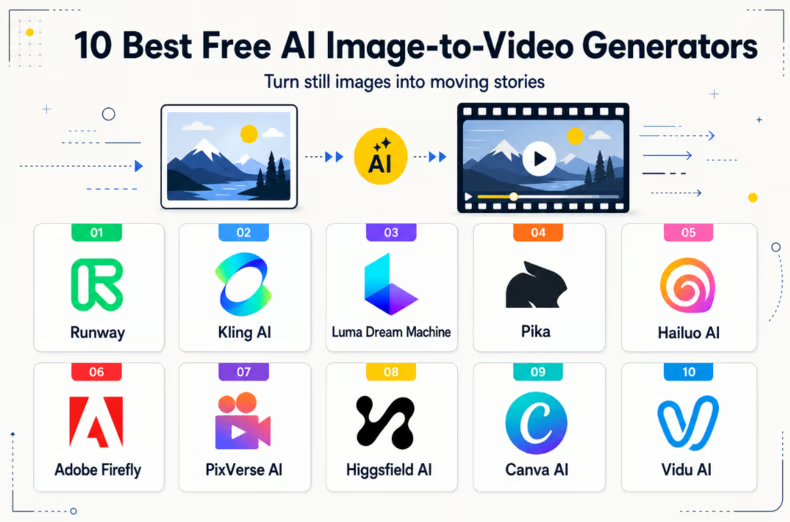
AI image-to-video generators. Image by Author
Runway turns your photo into a short video. You upload your image, type a short description of how you want it to move, and the tool creates a video clip.
Once your clip is ready, edit it right there on the same platform. Most other tools just give you a download button; Runway gives you an editor, too.
It has five plans:
If you want a photo to walk, turn, smile, or even talk, Kling handles that kind of motion better than most competitors.
Upload your image, describe what you want it to do, and Kling animates it while keeping the face and body looking natural.
More than 60 million people have used Kling, who have created over 600 million videos with it so far.
Here is how much that scale actually costs you, plan by plan:
Note: Every paid plan above Basic shows a discounted first-month price with the regular price struck through next to it, so double check what you will actually pay on renewal before subscribing.
Luma built its name on how real motion looks. Water moves the way water should. Hair responds to gravity. Light shifts naturally as the camera or subject moves. If realism is what you want than flashy effects, Dream Machine is your tool.
Luma now runs two separate products with two separate pricing pages:
The Dream Machine plans are:
The Luma Agents plans:
There's no free option on Luma Agents at all. So your actual video count depends on which model you choose. Luma's own Ray3.14 model runs 20 credits per second at 720p, while a premium third-party model like Veo 3.1 runs 140 credits per second at the same resolution, seven times more expensive per second.
Pika takes a different approach than most tools on this list. Instead of chasing realism, it leans into style and play. It works best with clips that lean animated or illustrated, and it handles exaggerated motion well, things like objects squashing, melting, inflating, or morphing in ways that would look broken on a more realistic tool.
You can turn a text prompt into a video, or upload a photo and animate it while keeping its original look and composition.
With Pika, you can also swap out a subject or object in a video for something else, and it has a scene builder called Pikascenes that lets you combine prompts or images into one clip.
It has four plans:
Hailuo AI, built by the Chinese company MiniMax, has built its name on character animation. If you work with human subjects like faces that need to smile, talk, or emote convincingly, Hailuo handles that kind of movement more convincingly than its competitors.
In fact, facial expressions look right when they talk: the mouth movements match the words, and expressions don't glitch out.
That makes Hailuo a strong choice for talking-head content.
It has one free plan and five paid plans:
Every plan, including the free one, includes video upscaling, lip sync, and audio generation tools at no extra cost. The real difference between tiers is how many credits you get and which outside models you can reach.
Adobe Firefly turns an image into a short video, like the other tools here, but its models are trained only on licensed Adobe Stock photos and public domain material.
If you're making a video for a client or a brand, this is the tool that's least likely to get you a copyright complaint later.
There's no monthly free plan, but you get free generations every day for image, video, and audio, and the limit resets daily. So you can use it for free indefinitely, just not in bulk.
Beyond that, there are four paid plans:
PixVerse turns your image into a video fast. A simple, lower-resolution clip can be done in 30 seconds. A longer, higher-resolution one, or a busy time on their servers, can push that closer to a few minutes, but it's still quicker than most tools on this list.
If you're making a lot of short clips for TikTok or Reels in one sitting, PixVerse gets you through them faster than a tool built for one polished shot.
It has one free plan and five paid tiers:
Every plan except Basic and Standard also includes unlimited free image generation for 365 days using several bundled models, on top of your video credits.
Higgsfield turns your image into a video, but instead of running on one model, it gives you access to 15 or more, including Kling, Nano Banana Pro, and Seedance, all from one dashboard. So you can try several tools without signing up for each one separately.
Its few features stand out:
Note: Higgsfield charges in euros, so what you pay depends on the exchange rate at checkout. It has one free plan and three paid plans:
It has one free plan and three paid plans:
Credit costs change depending on which model and resolution you use. A 5-second video at standard quality costs 22 credits, but the same video at higher 1080p quality costs 45 credits, almost double.
So, how many videos you get each month depends a lot on which settings you choose.
Canva AI converts your image into a video through a feature called Magic Media, built into the same design tool millions of people already use. If you already have a Canva account, you can make a short AI video without paying for anything new.
To use it, open a Canva project, go to the Apps panel, pick Magic Media, then the Video tab. Type a prompt or upload an image, and Canva makes a clip in 60 to 90 seconds. Every clip comes out 4 seconds long with no sound, no matter what you ask for.
After that, you can trim it, add text, match your brand colors, and drop it into a template. There are also style presets, like filmic, 3D, or anime, if you want to change how it looks.
It has one free plan and paid plans:
Canva also sells an add-on called AI Pass. You can buy it on top of any paid plan if you run out of AI allowance and want more, without upgrading your whole plan.
Vidu AI is good for two things in particular: anime and 2D styles come out looking better than most tools manage, and you can upload up to 7 reference images to keep the same character or style consistent across a scene.
Its main model, Vidu Q3, generates dialogue, sound effects, and music at the same time as the video, so a character's mouth actually matches real generated speech instead of you dubbing it in later.
Clips can run up to 16 seconds, longer than most tools on this list allow, and it can also place accurate subtitles or titles directly into the clip during generation, so you're not adding them yourself in an editor afterward.
It has one free plan and three paid plans:
Every plan except Free allows commercial use of what you generate.
Let’s now see which tool is perfect for you depending on your needs:
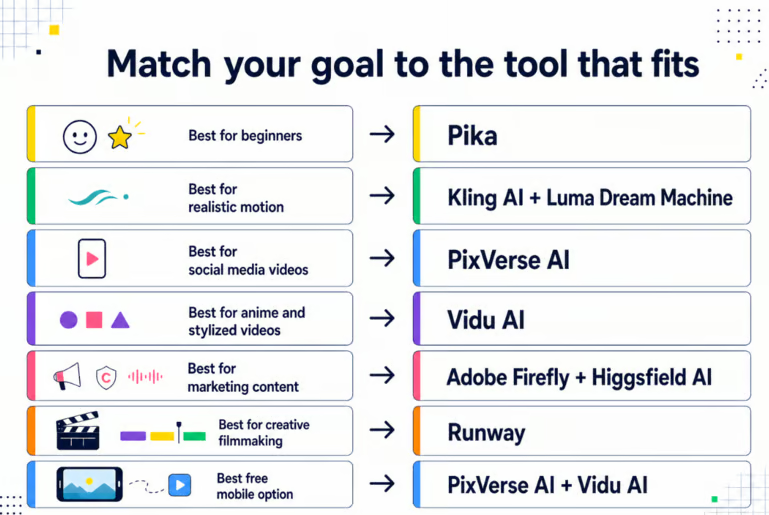
Right AI video generator tool for different use cases. Image by Author
Pika is the easiest tool to start with. You choose a motion from a list instead of writing a prompt, and that’s it.
For example, if you want to animate a still shot of a coffee cup and want steam to rise off it, just select that effect, and Pika will handle the rest.
Kling AI is the best choice when a person's face is the subject. It keeps expressions and features consistent as they move, instead of warping.
If you're turning a headshot into a video of someone nodding and speaking to the camera, Kling won't distort their face mid-motion.
Switch to Luma Dream Machine when the scene matters more than the face. Why? Because it gets physics right — how loose fabric, hair, or water actually move.
If you're animating a shot of a flag rippling in the wind, Luma sells the motion convincingly instead of making it look rigid.
PixVerse renders faster than anything else here.
If you're a small business owner trying to post a new product clip to Instagram every morning before opening, PixVerse is the one that won't eat your whole prep time.
Vidu AI is best for anime and 2D styles, as it keeps a character consistent across multiple clips using reference images.
If you build short anime scenes where the same character has to appear across conversations between two shots, Vidu is perfect.
Adobe Firefly is the safest option if copyright exposure worries you, since it only trains on licensed Adobe Stock content.
So for example, if you're a freelancer producing an ad for a paying client who's specifically asked about IP risk, use Firefly.
On the contrary, Higgsfield AI is the better choice for talking-head content, since it can sync a generated mouth to real audio.
If you're producing a training video with a narrator speaking directly to the viewer, Higgsfield can keep the mouth and voice in sync.
Runway is the only tool here with a full editor built in. If you generate a shot for a short film and the framing needs a small adjustment, you fix it right there instead of exporting to another app first.
PixVerse is built for speed on a phone.
If you're traveling and want to turn a photo from your trip into a shareable clip before you get back to your hotel, try PixVerse. Vidu is a close second, with strong ratings on both app stores.
Before you purchase the right tool, make sure it has the following features:
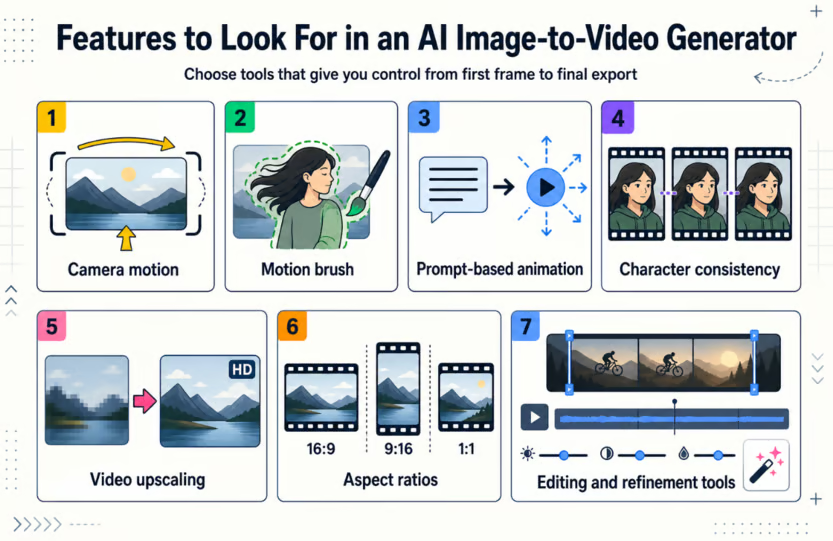
Features of AI image-to-video generators. Image by Author
Camera motion is when the camera itself moves during the clip.
Most tools only move the subject while the frame stays locked in place, which is what makes so many AI clips look flat. So always choose a tool that lets you add a push-in or a pan, which gives you something closer to an actual shot, not just a moving photo.
A motion brush lets you paint over the exact part of the image you want to animate, leaving the rest untouched.
On the contrary, full-image animation may move things you never asked it to, like a logo or a parked car in the background. Painting over just the hair or the sleeve keeps everything else frozen.
Prompt-based animation is how you describe the motion you want in plain language. Your results are only as good as your instructions here. "Make it move" would give you something random, but "Slowly turn her head and smile" may get you closer to what you pictured.
Character consistency keeps a person or character's face, hair, and outfit the same across multiple clips. Without it, small details may drift, and two clips of the "same" person can end up looking like different people side by side.
Video upscaling sharpens a clip after it's generated, without you having to regenerate it from scratch. A lot of free plans cap output at 720p, fine on a phone, soft on anything bigger, so this gets you a cleaner version of a clip you already like.
Aspect ratio is the shape of your video, like 16:9 or 9:16. Make sure to set it before you generate, as this way your subject stays fully in frame. If you set it after, you're stuck cropping the clip, sometimes cutting into your subject only to make it fit.
Editing and refinement tools let you trim, tweak, or fix a clip inside the same platform you generated it on. AI video rarely comes out right on the first try, so make sure you choose a tool that has the editing tools in it. That’s because exporting to another software for every small change costs you time and credits.
If you’re wondering whether paid tools are even worth buying, we prepared a table to help you understand the main differences between free versus paid AI image-to-video tools:
|
Free |
Paid |
|
|
Credits |
A handful, often one-time or a small daily/monthly top-up |
A much larger pool every month, and sometimes credits roll over |
|
Video duration |
Usually 5–10 seconds per clip |
Similar per-clip limits on most tools, but you can generate far more clips overall |
|
Output quality |
Often capped at 480p or 720p |
Usually 1080p or 4K |
|
Watermarks |
Present on 8 of the 10 tools we covered |
Removed on every paid plan, often starting at the first tier |
|
Rendering speed |
Slower, lower priority in the queue |
Faster, with priority processing |
|
Commercial use |
Not allowed on any free plan we reviewed |
Allowed, usually from the first paid tier |
A paid plan is worth it the moment you need to use a clip for anything beyond personal experimenting.
The best AI image-to-video generator depends on what you're making and who it's for. A casual creator posting to Instagram has different needs than a filmmaker storyboarding a scene.
Here's how to match the tool to the person:
|
Who you are |
What matters most |
Look for |
|
Casual creators |
✅ Ease of use ✅ Low cost |
✅ A generous free tier ✅ Simple prompts ✅ No learning curve |
|
Content creators |
✅ Speed ✅ Volume ✅ Consistency |
✅ High monthly credits ✅ Fast rendering ✅ No watermarks |
|
Marketers |
✅ Commercial rights ✅ Brand consistency |
✅ Clear commercial licensing ✅ Batch generation ✅ Brand/style controls |
|
Designers |
✅ Fine control ✅ Output quality |
✅ Aspect ratio and resolution control ✅ Upscaling ✅ Editing tools |
|
Filmmakers |
✅ Duration ✅ Motion quality ✅ Resolution |
✅ Longer clip lengths ✅ Realistic motion ✅ 4K output |
|
Businesses |
✅ Reliability ✅ Scale ✅ Support |
✅ Team seats ✅ API access ✅ Priority rendering ✅ Dedicated support |
Free plans give you the starting point, but they come with trade-offs worth knowing before you build a workflow using them:
None of this means free plans aren't worth using. They're genuinely helpful for testing a tool or learning how it handles prompts. The limitations only become a real problem once you're trying to produce something polished or for someone else's business.
Image-to-video generators take something that already exists such as a photo, an illustration, an AI-generated image and brings it to life with motion. Text-to-video starts with a written prompt and builds the entire clip, visuals and motion together, from scratch.
|
Image-to-Video |
Text-to-Video |
|
|
Starting point |
An existing image |
A text prompt |
|
What it generates |
Motion only; the visual is already set |
Both the visuals and the motion |
|
Best for |
Photos, artwork, and AI-generated images you want to animate |
Original concepts with no starting visual |
|
Creative flexibility |
Limited to what's in the source image |
Greater; the tool has full control over what appears |
If you already have an image you're attached to, such as a product photo, image-to-video is the right fit, since it preserves that exact visual and just adds motion.
If you're starting from an idea rather than an image, text-to-video gives you more room to shape the whole scene, since nothing about the visuals is locked in yet.
You now know all ten tools, what each one is good at, and where the free plan runs out. Try one on your own project next, not just the demo clip you tested it with.
If you find yourself rewriting the same prompt five times to get a decent result, that's not a tool problem. Learn Prompt Engineering next.
Learn AI with DataCamp
Courses
Courses
Courses
blogs
Rajesh Kumar
15 นาที
blogs
Khalid Abdelaty
15 นาที
blogs
Brooke Webber
11 นาที
blogs
Dr Ana Rojo-Echeburúa
9 นาที
blogs
Abid Ali Awan
9 นาที
blogs
Laiba Siddiqui
15 นาที