
Lernpfad
Entwicklung von großen Sprachmodellen
16 Std.
Bist du unsicher, deine Prompts an einen Cloud-Server zu senden? Sicherheit ist für viele ein großes Thema – aus gutem Grund.
Du wählst ChatGPT oder Claude, tippst einen Prompt ein, und die Anfrage läuft über die Infrastruktur eines Dritten. Für die meisten Anwendungsfälle ist das okay. Arbeitest du jedoch mit sensiblen Daten oder proprietärem Code, kann das zum Risiko werden. Außerdem binden dich Cloud-Oberflächen an bestimmte Modelle, Ratenlimits und Preismodelle.
Open WebUI ist eine selbst gehostete, browserbasierte Oberfläche, um mit LLMs zu interagieren. Sie fühlt sich an wie die UI von ChatGPT, läuft aber auf deinem eigenen Rechner. Die Verbindung zu Ollama, OpenAI-kompatiblen APIs und lokalen Modellen sorgt dafür, dass deine Daten dort bleiben, wo du sie ablegst.
In diesem Artikel zeige ich dir, wie du Open WebUI mit Docker installierst, mit einem lokalen Modell verbindest und für echte Aufgaben wie Chat und Codegenerierung nutzt.
Open WebUI ist eine browserbasierte Chat-Oberfläche zur Interaktion mit LLMs – ähnlich wie ChatGPT, aber auf deiner eigenen Maschine.
Die Architektur ist denkbar einfach. Es gibt ein Frontend, das du im Browser aufrufst, und ein Backend, das sich mit Modell-Providern wie Ollama oder jeder OpenAI-kompatiblen API verbindet.
Open WebUI führt also keine Modelle aus – es spricht nur mit dem Backend, das du angibst.
Denk daran als universelle Eingangstür für dein lokales KI-Setup.
Das heißt: Du kannst das Modell-Backend austauschen, ohne an der Oberfläche etwas zu ändern, und die UI auf einer Maschine laufen lassen, während das Modell auf einer anderen läuft.
Mit Open WebUI bekommst du:
Wenn du ChatGPT oder Claude genutzt hast, wirkt die Oberfläche vertraut. Der Unterschied steckt im Backend. Schauen wir uns das an.
Docker ist der schnellste Weg, Open WebUI zum Laufen zu bringen – und isoliert die Anwendung vollständig.
Du brauchst Docker installiert auf deiner Maschine. Falls noch nicht vorhanden, hol es dir von der offiziellen Docker-Website.
Ollama ist an dieser Stelle optional. Wenn du Open WebUI direkt mit einem lokalen Modell verbinden willst, installiere zuerst Ollama und ziehe mindestens ein Modell. Willst du nur die Oberfläche starten und später verbinden, überspringe das vorerst.
Führe diesen Befehl aus, um das Open-WebUI-Image zu ziehen und den Container zu starten:
docker run -d \
  -p 3000:8080 \
  -v open-webui:/app/backend/data \
  --name open-webui \
  --restart always \
  ghcr.io/open-webui/open-webui:main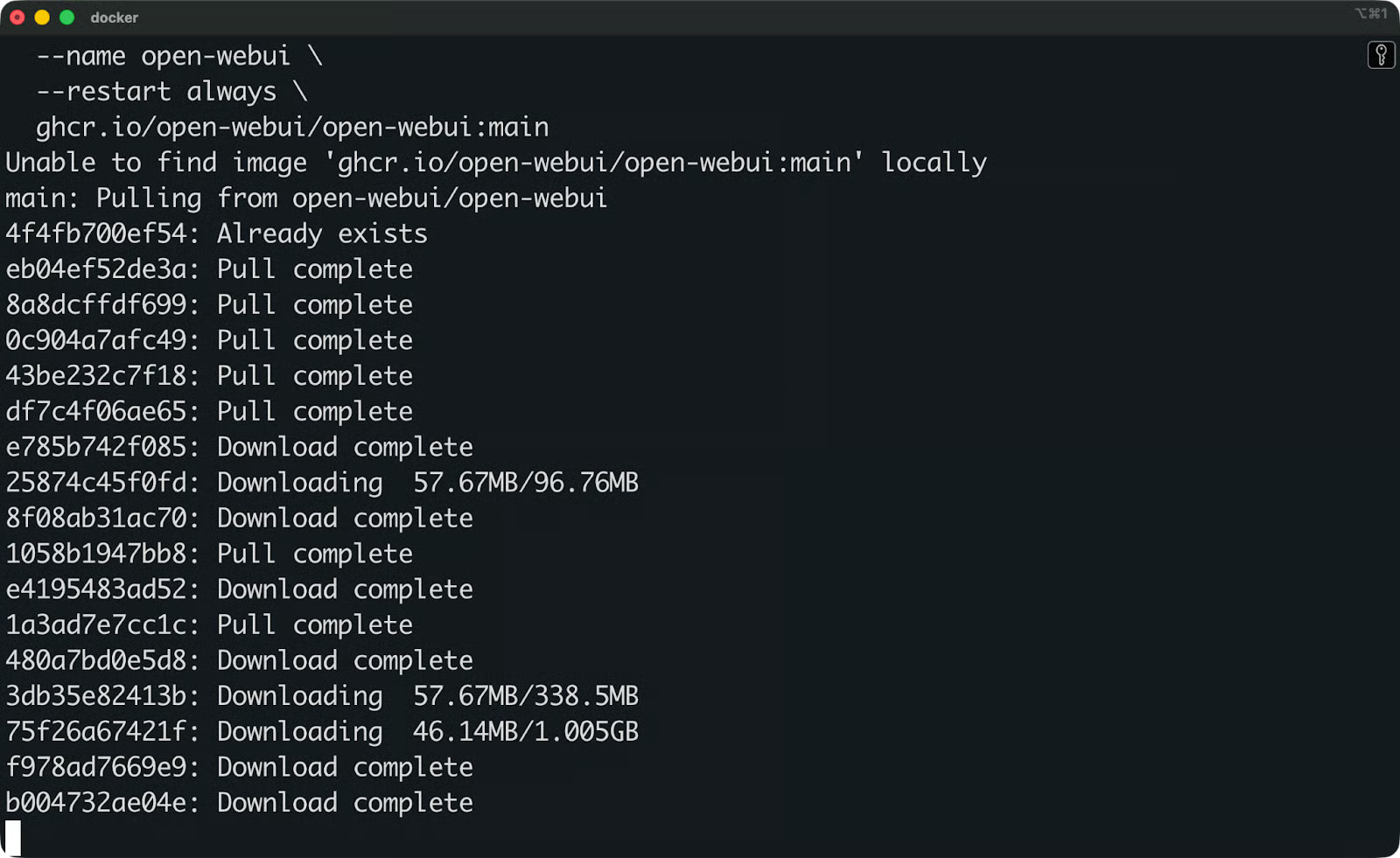
Open WebUI-Image wird heruntergeladen
Das bedeuten die Flags:
d startet den Container im Hintergrund
p 3000:8080 mappt Port 8080 im Container auf Port 3000 deiner Maschine
v open-webui:/app/backend/data erstellt ein Docker-Volume, um deine Daten zu persistieren – Konversationen, Einstellungen und Uploads bleiben auch nach Neustarts erhalten
-restart always startet den Container neu, falls er stoppt oder deine Maschine neu bootet
-name open-webui vergibt einen lesbaren Namen, damit du ihn später referenzieren kannst
Sobald der Container läuft, öffne deinen Browser und gehe zu http://localhost:3000.
Beim ersten Aufruf bittet dich Open WebUI, ein Admin-Konto zu erstellen. Trage Name, E-Mail und Passwort ein.
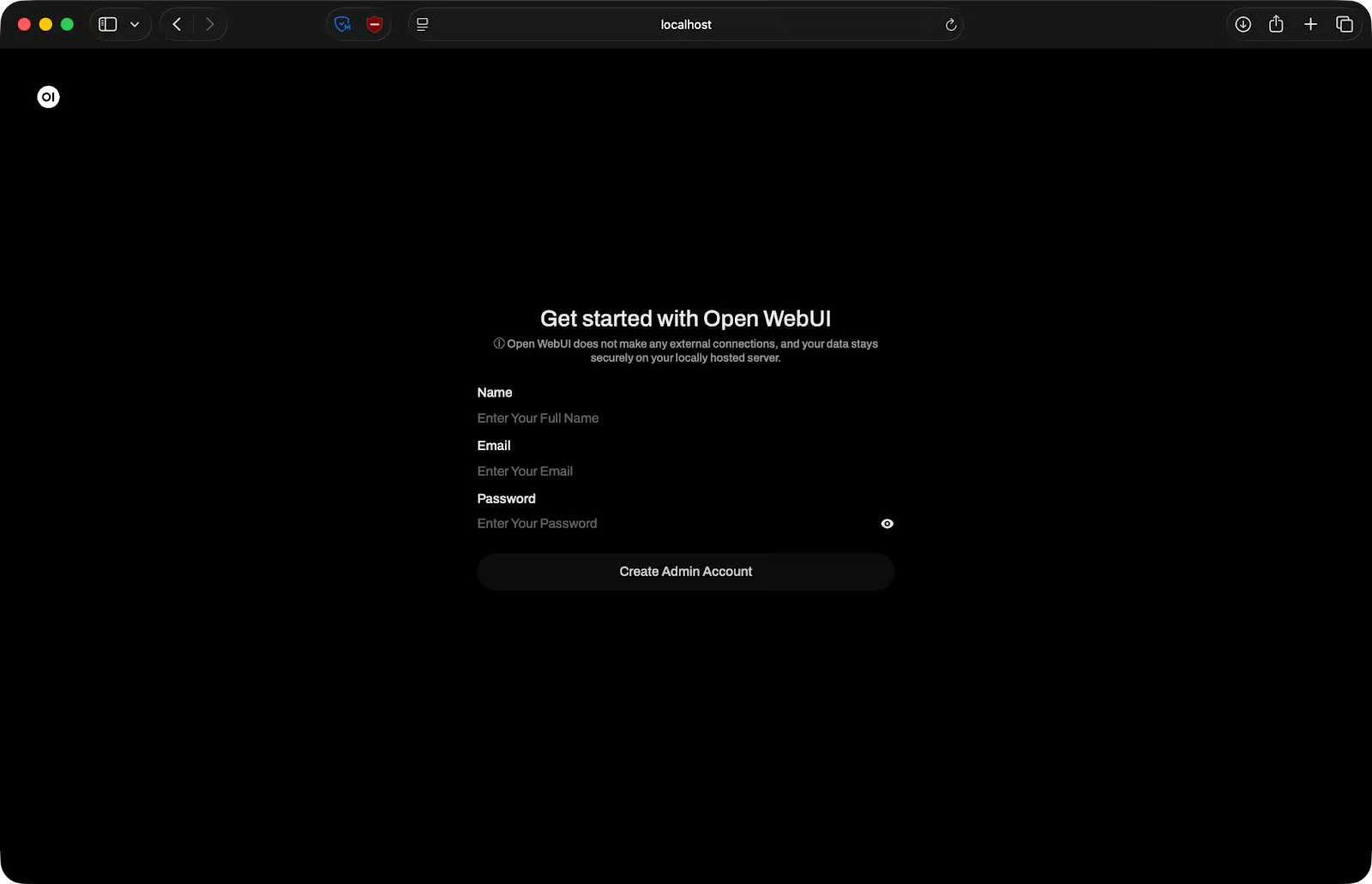
Open WebUI-Einrichtungsseite
Danach bist du drin. Die Oberfläche lädt und du kannst ein Modell verbinden.
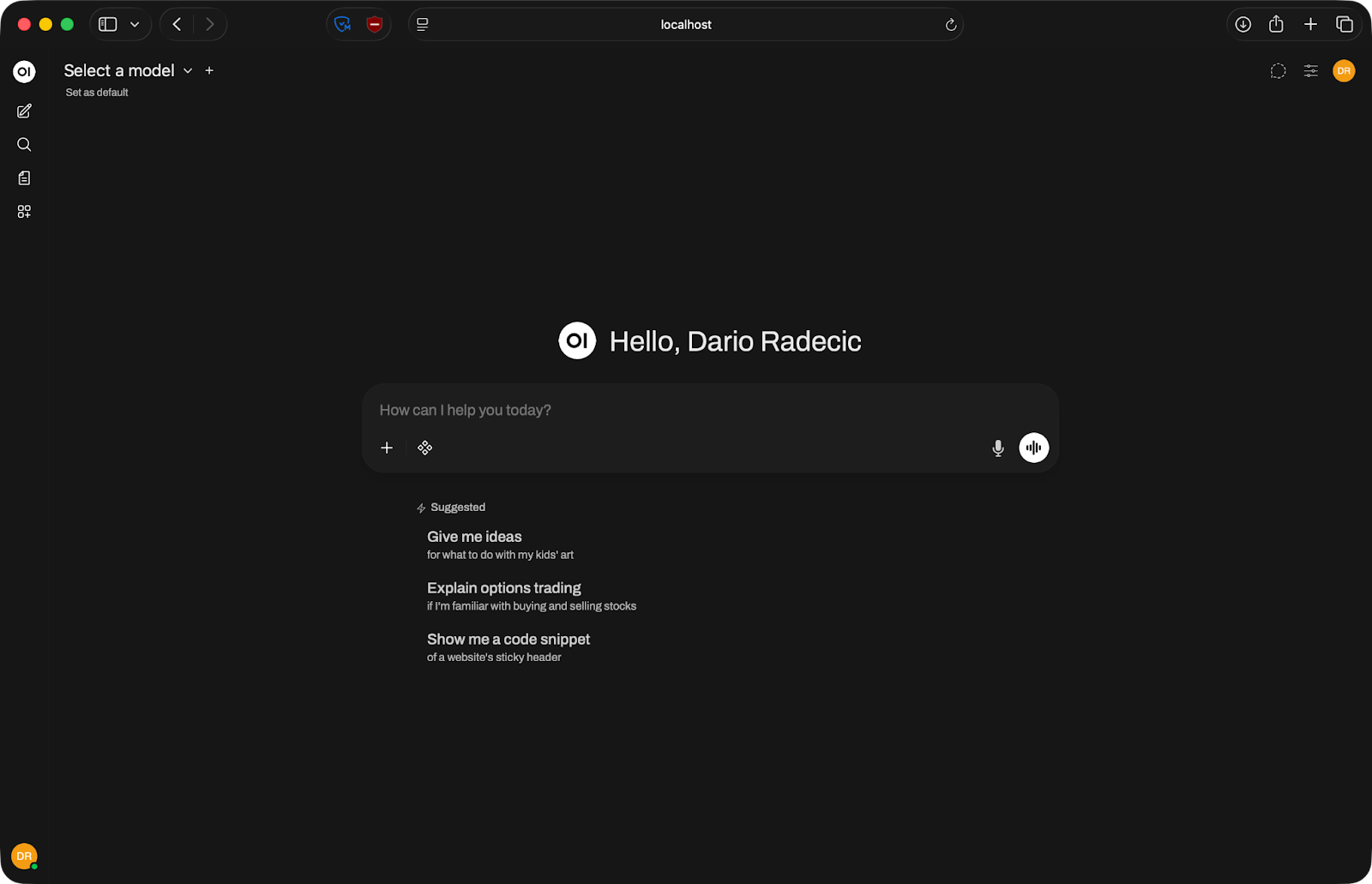
Open WebUI-Startseite
Ollama ist das gängigste Backend für Open WebUI, weil es das Ausführen lokaler Modelle extrem vereinfacht – ein Befehl zum Ziehen eines Modells, ein weiterer zum Starten.
Bevor du verbindest, prüfe, ob Ollama wirklich läuft. Öffne ein Terminal und checke:
ollama serve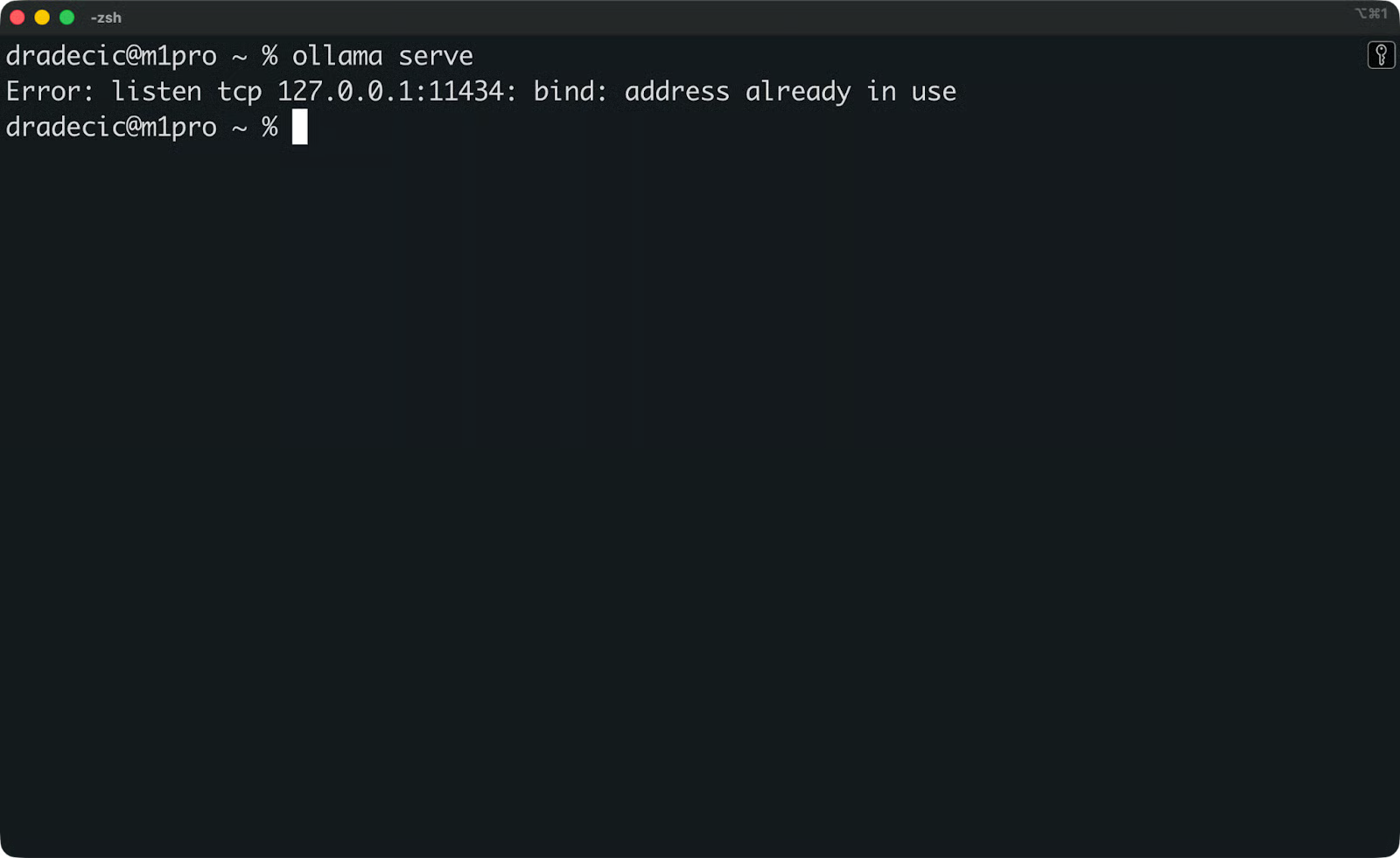
Prüfen, ob Ollama läuft
Wenn Ollama bereits als Hintergrunddienst läuft, siehst du eine Meldung, dass die Adresse schon verwendet wird. Das ist okay – es läuft.
Stelle als Nächstes sicher, dass du mindestens ein Modell gezogen hast. Führe aus:
ollama list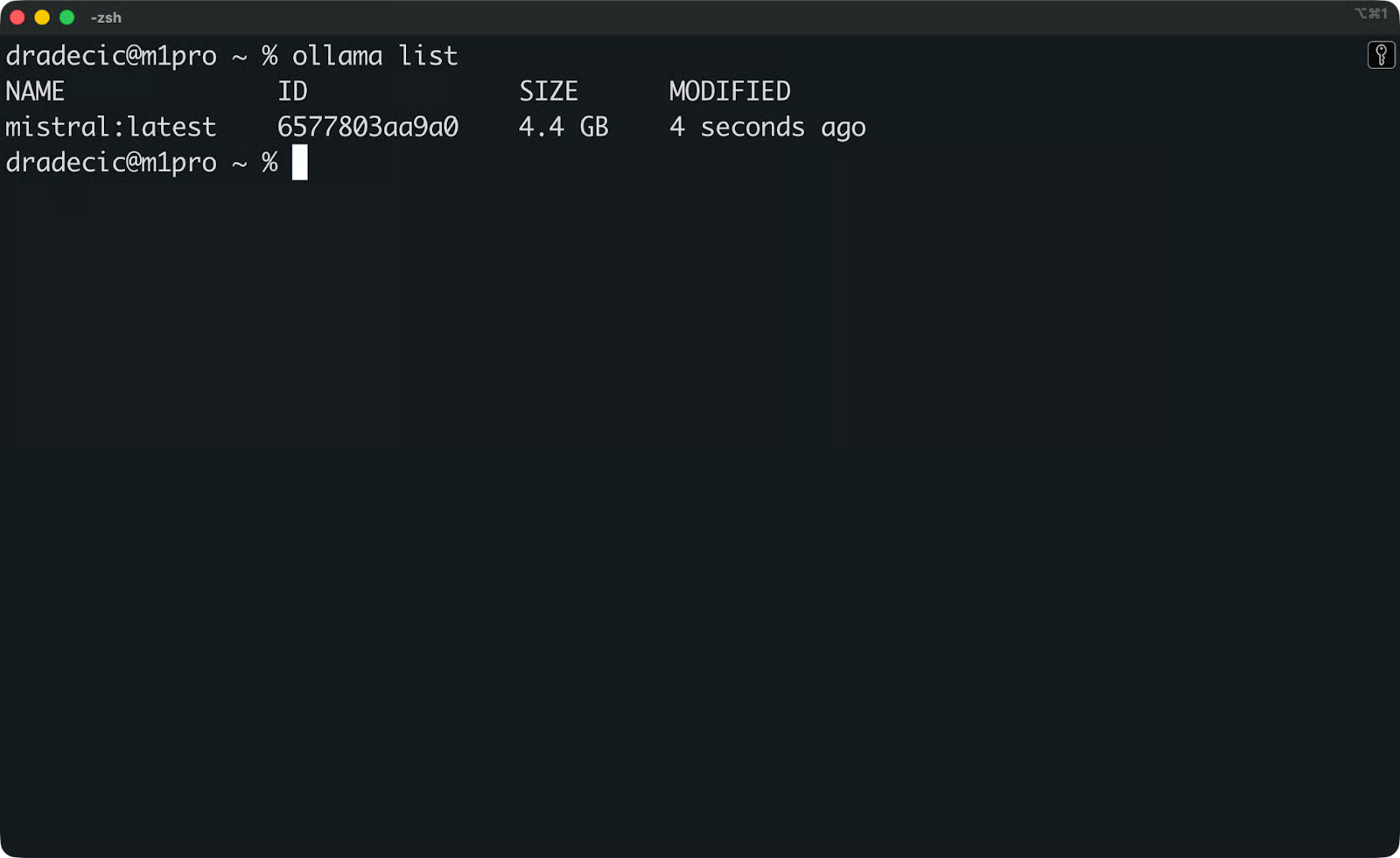
Verfügbare Ollama-Modelle
Wenn die Liste leer ist, ziehe zuerst ein Modell. Mistral ist ein guter Startpunkt:
ollama pull mistral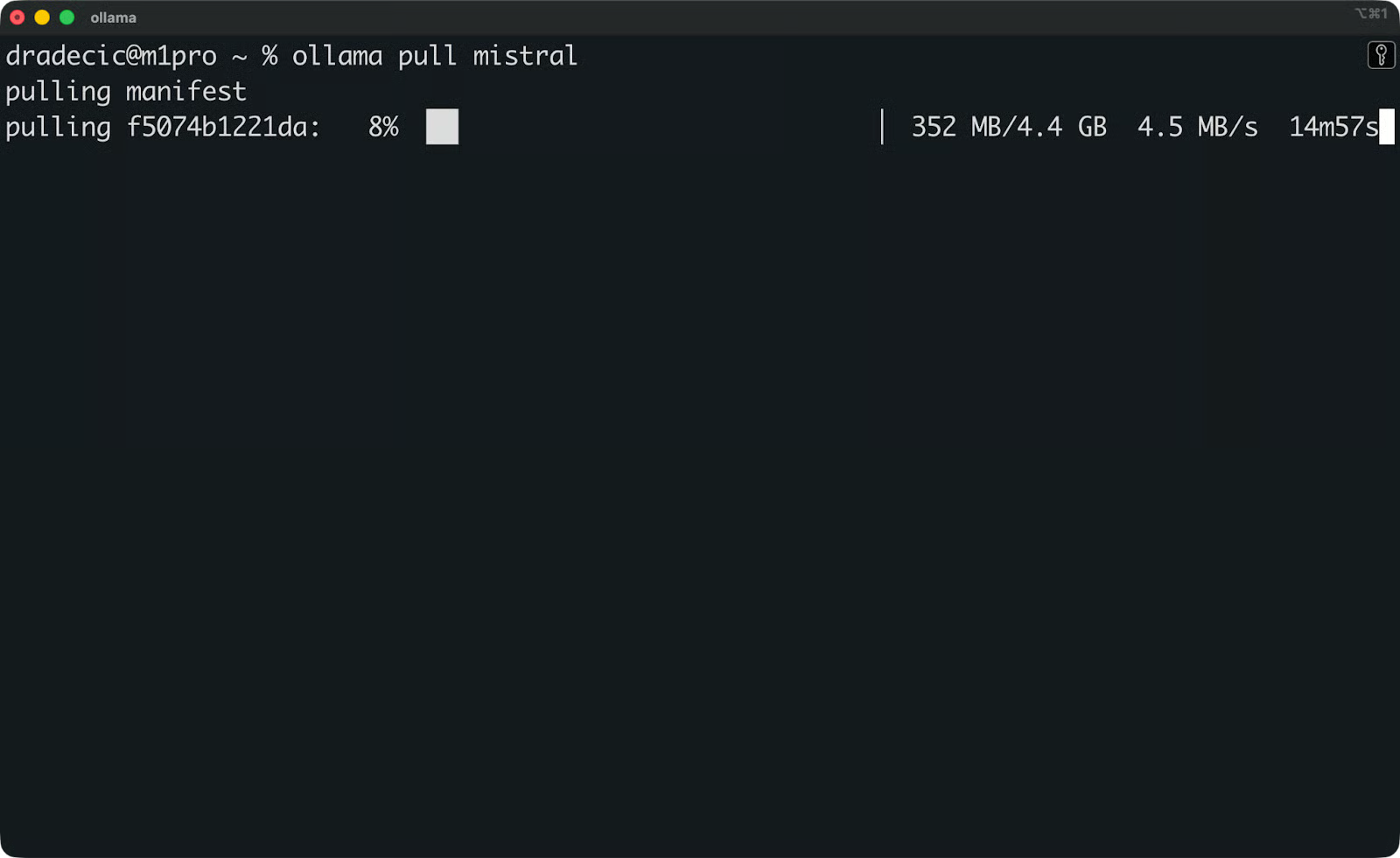
Mistral-Modell wird heruntergeladen
Mistral ist ein solides Allzweckmodell, das auf Consumer-Hardware gut läuft.
Öffne nun Open WebUI im Browser unter http://localhost:3000. Gehe zu Settings - Connections und prüfe die Ollama-API-URL. Standard ist http://host.docker.internal:11434.
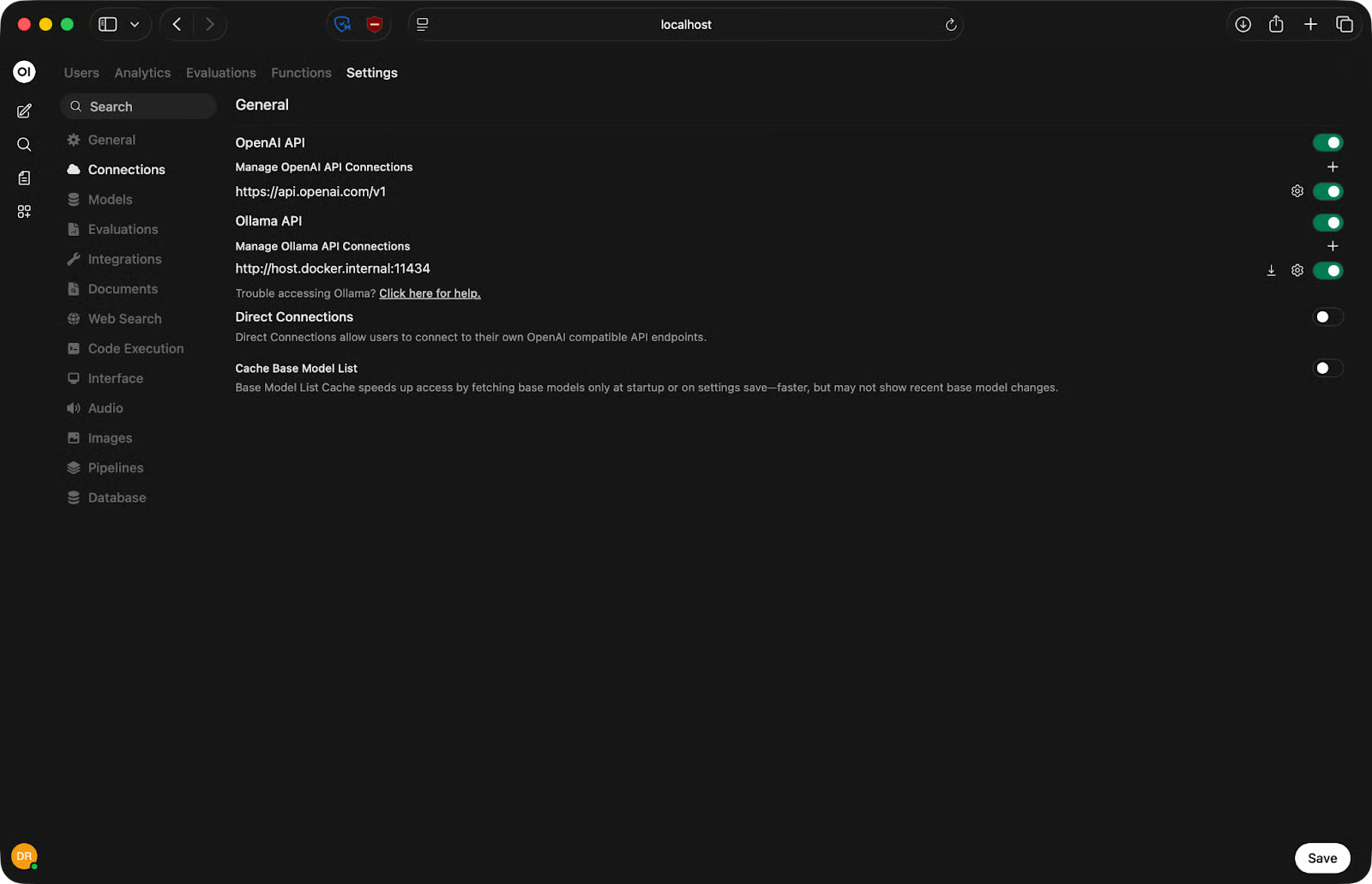
Ollama-API-URL einrichten
Das funktioniert auf Mac und Windows mit Docker Desktop. Unter Linux ersetzt du host.docker.internal durch die tatsächliche Host-IP:
http://<your-ip-address>:11434Klicke auf Save und lade die Seite neu. Wenn die Verbindung steht, erscheinen deine Ollama-Modelle im Modellwähler oben im Chatfenster. Wähle eines aus und leg los.
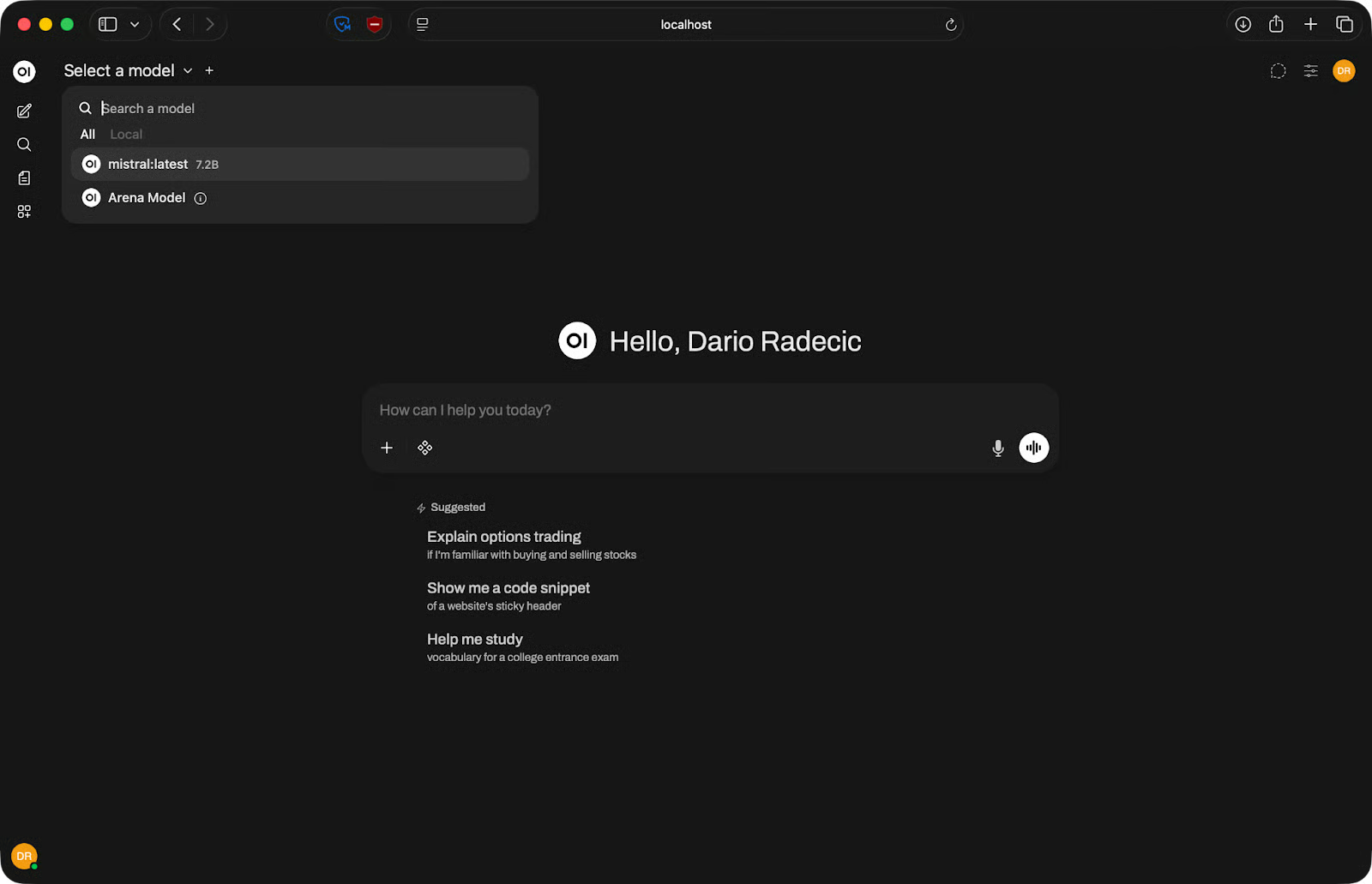
Verfügbare Modelle
Wenn keine Modelle erscheinen, prüfe, ob Ollama läuft und ob die API-URL für dein OS korrekt ist.
Sobald dein Modell verbunden ist, fühlt sich Open WebUI sehr nach ChatGPT an – mit ein paar zusätzlichen, nützlichen Stellschrauben.
Oben im Chatfenster siehst du ein Dropdown zur Modellauswahl. Klicke und wähle das gewünschte Modell. Wenn du mehrere Backends verbunden hast, erscheinen hier alle – Ollama-Modelle, API-Modelle, alles in einer Liste.
Tippe deinen Prompt unten ins Eingabefeld und drücke Enter. Antworten streamen in Echtzeit, du musst nicht auf die komplette Ausgabe warten.
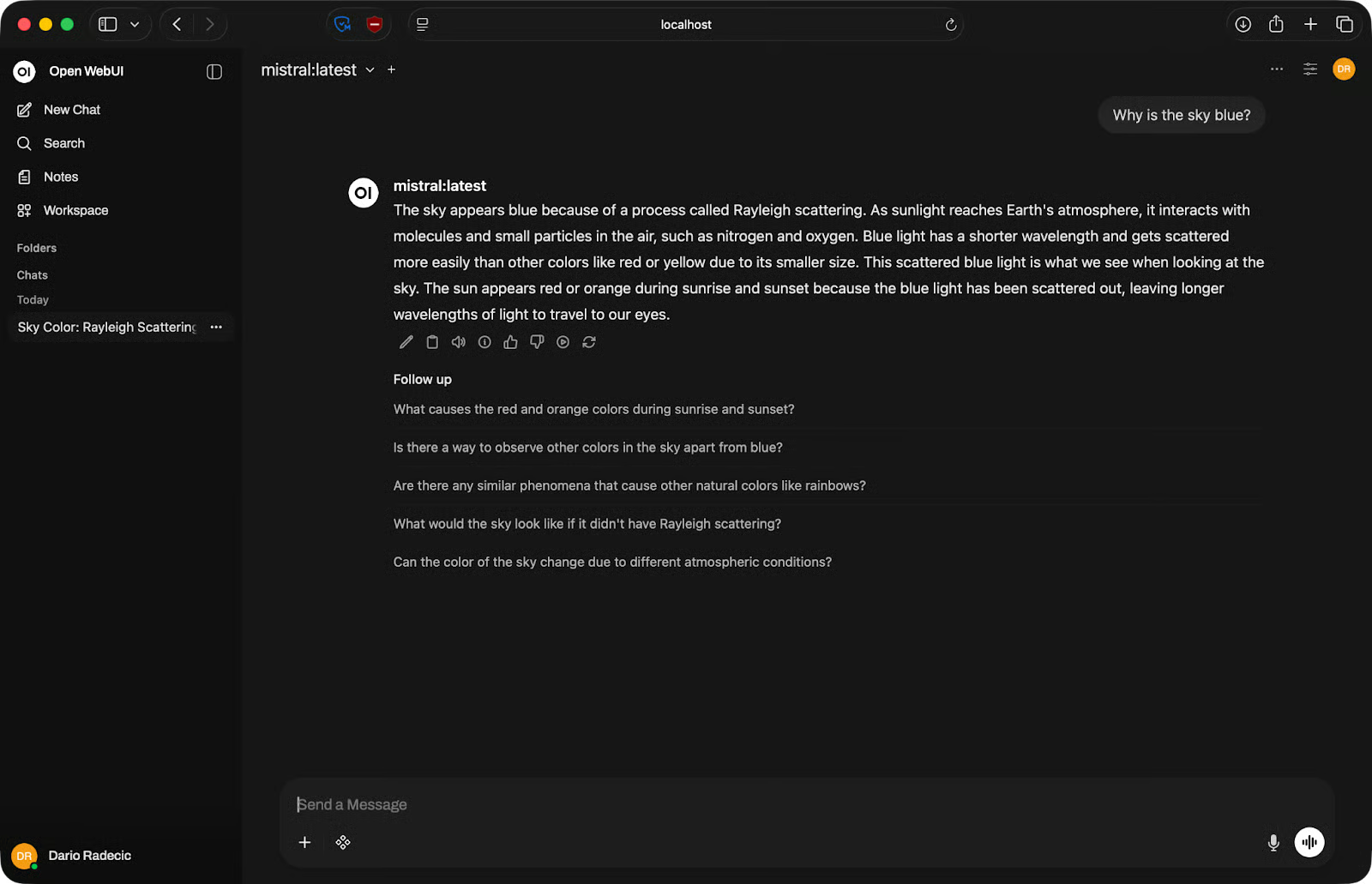
Beispiel für Basis-Chat
Jede Konversation wird in der linken Seitenleiste gespeichert. Du kannst Unterhaltungen umbenennen, um Ordnung zu halten, oder löschen, was du nicht brauchst. Klicke auf eine frühere Unterhaltung, um nahtlos weiterzumachen.
Open WebUI eignet sich gut für Codegenerierung und Debugging. Beschreibe einfach in natürlicher Sprache, was du brauchst, und das Modell liefert dir einen Codeblock zum Kopieren.
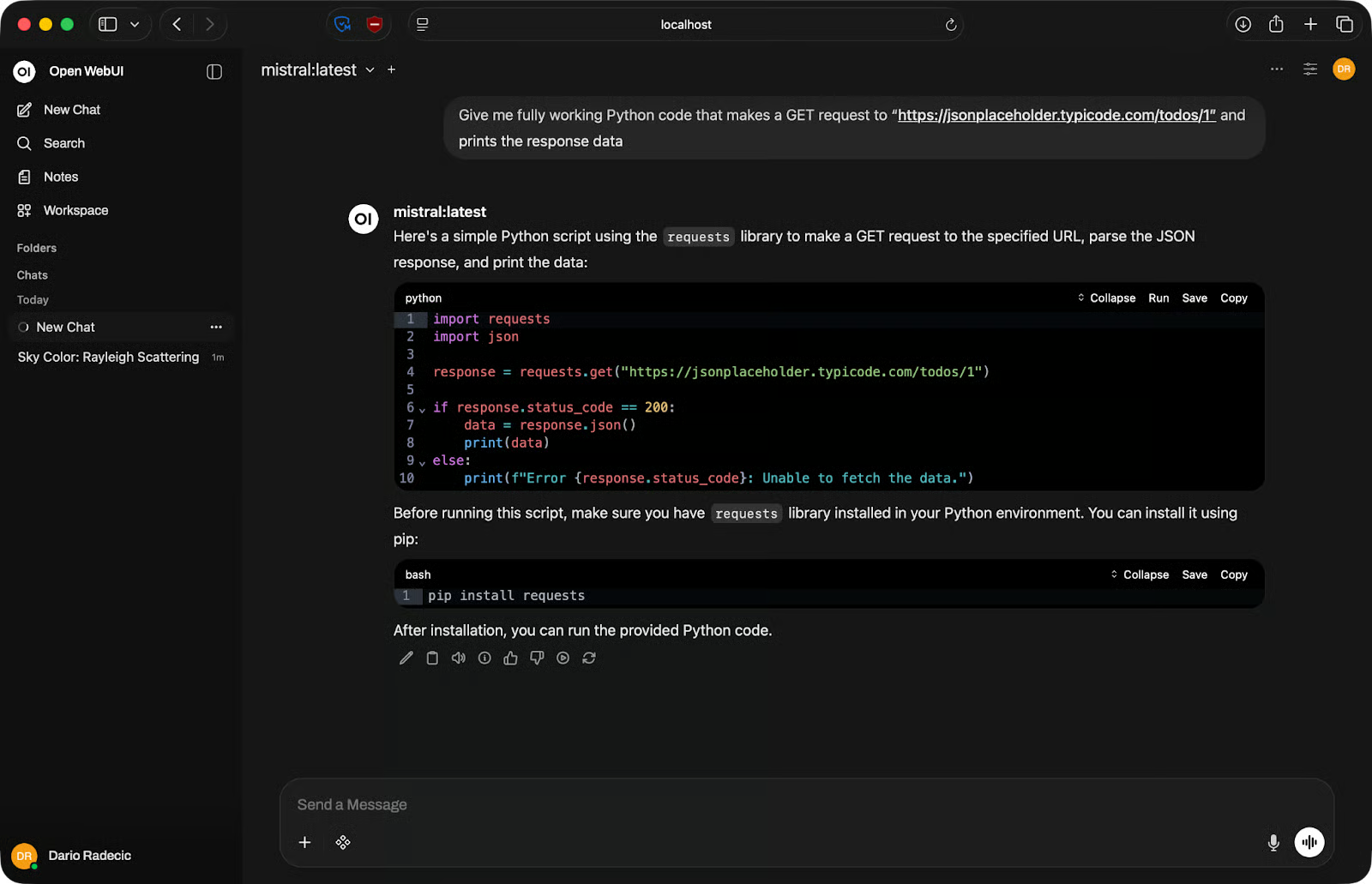
Coding-Beispiel
Zum Debuggen fügst du Code und Fehlermeldung in den Prompt ein. Sei konkret – nenne die vollständige Ausgabe, nicht nur den Fehlertyp. Je mehr Kontext du gibst, desto hilfreicher die Antwort.
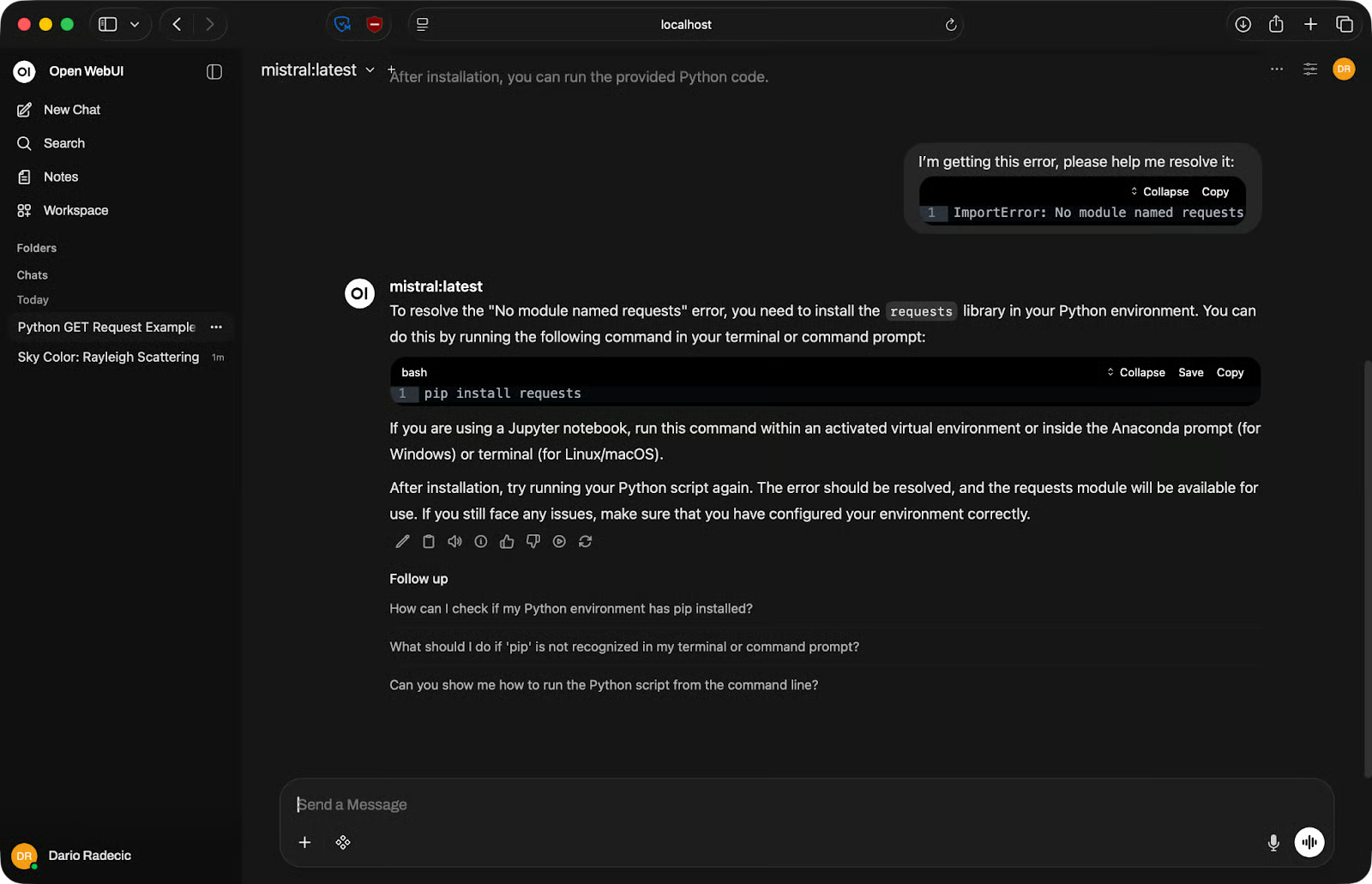
Debugging-Beispiel
Für mehrstufige Aufgaben versuche nicht, alles in einen einzigen Prompt zu pressen. Teile die Aufgabe auf. Bitte das Modell erst um eine Funktion, dann um Fehlerbehandlung, dann um Tests. Kürzere, fokussierte Prompts liefern bessere Resultate als ein langer, der alles auf einmal will.
Open WebUI unterstützt Datei-Uploads direkt im Chat. Klicke auf das Plus-Symbol im Eingabebereich und hänge ein Dokument an – PDF, Textdatei o. Ä.
Nach dem Upload wird der Inhalt Teil des Gesprächskontexts. Du kannst das Modell um eine Zusammenfassung bitten, gezielt Informationen extrahieren lassen oder Fragen auf Basis des Dokuments stellen.
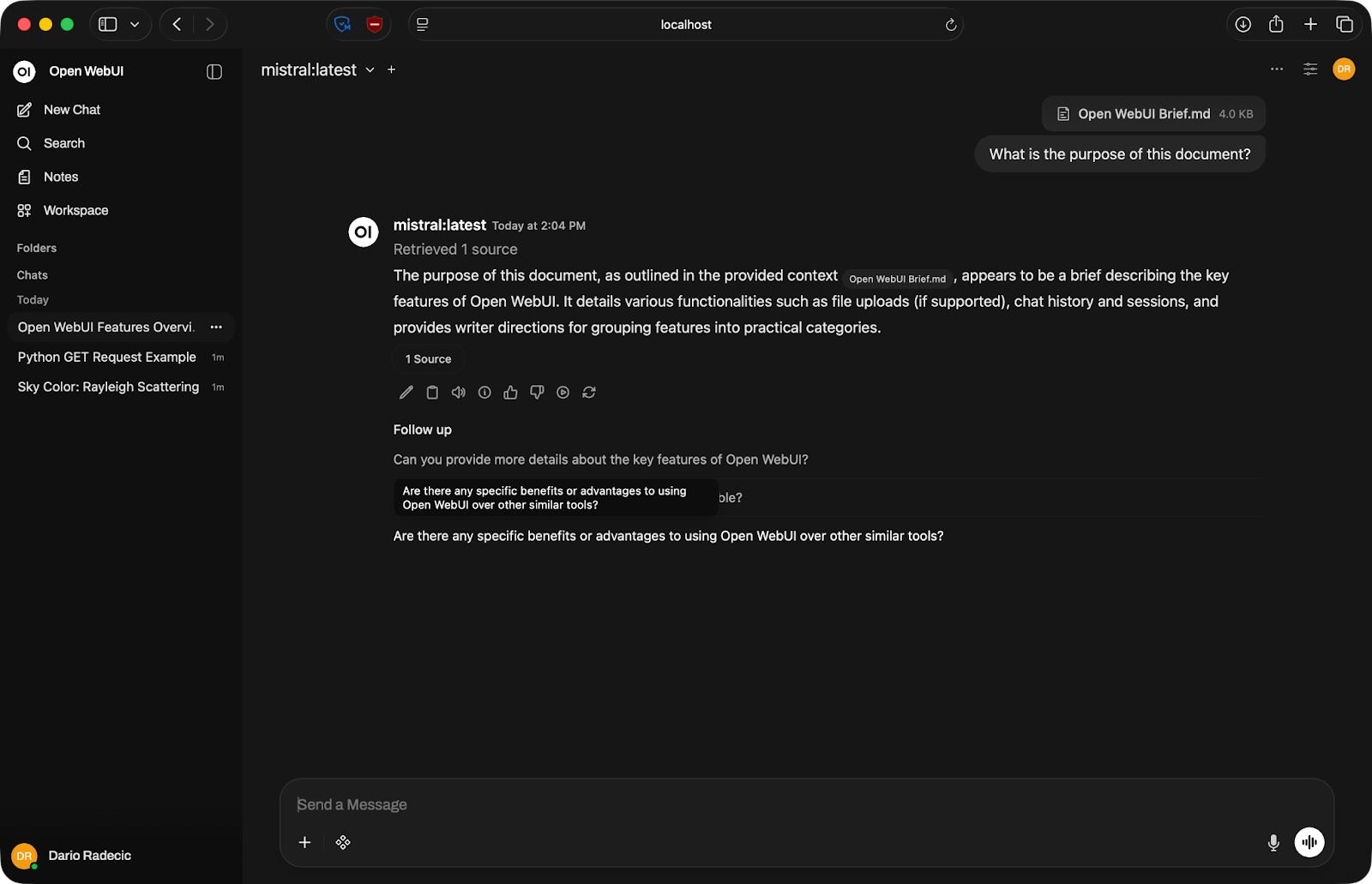
Dokumenten-Konversation
Beachte: Das Modell kann nur mit dem arbeiten, was in sein Kontextfenster passt – also der maximalen Textmenge, die es auf einmal verarbeiten kann. Sehr große Dateien werden ggf. abgeschnitten. Teile lange Dokumente auf.
Open WebUI hat viele Einstellungen. Hier die, die dir wirklich etwas bringen.
Mit dem Modellwähler oben im Chatfenster kannst du das Modell mitten in der Session wechseln, ohne eine neue Unterhaltung zu starten. Praktisch, wenn du denselben Prompt mit verschiedenen Modellen testen willst – schicke ihn durch Llama, dann Mistral und vergleiche die Ergebnisse direkt.
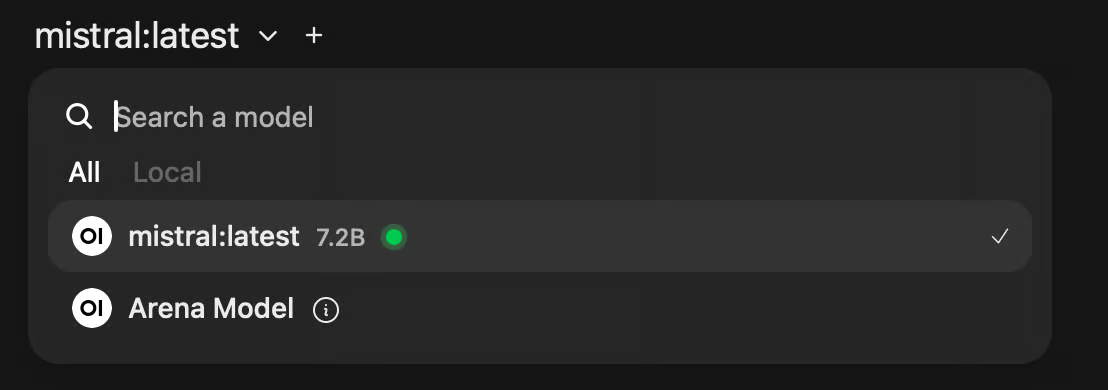
Modellauswahl
Wenn du Modelle für eine konkrete Aufgabe evaluierst, sparst du damit viel Zeit.
Jede Unterhaltung wird gespeichert und in der linken Seitenleiste gelistet. Du kannst Sitzungen sinnvoll umbenennen, damit du später nicht durch eine Liste von „New Chat“-Einträgen scrollst.
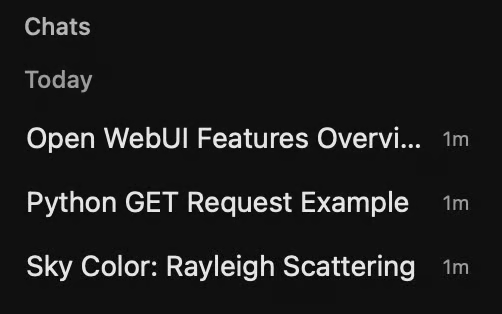
Frühere Chatsitzungen
So wird Open WebUI für laufende Arbeit nützlich. Du kannst zu einer Coding-Session zurückkehren, einen halbfertigen Prompt fortsetzen oder eine Unterhaltung als Referenz wiederverwenden.
Open WebUI ist egal, was dahinter läuft. Du kannst ein lokales Ollama-Modell für private Arbeit verbinden und zusätzlich eine OpenAI-kompatible API für Aufgaben, bei denen du ein Closed-Source-Modell brauchst, das ohnehin nicht in deinen Speicher passen würde.
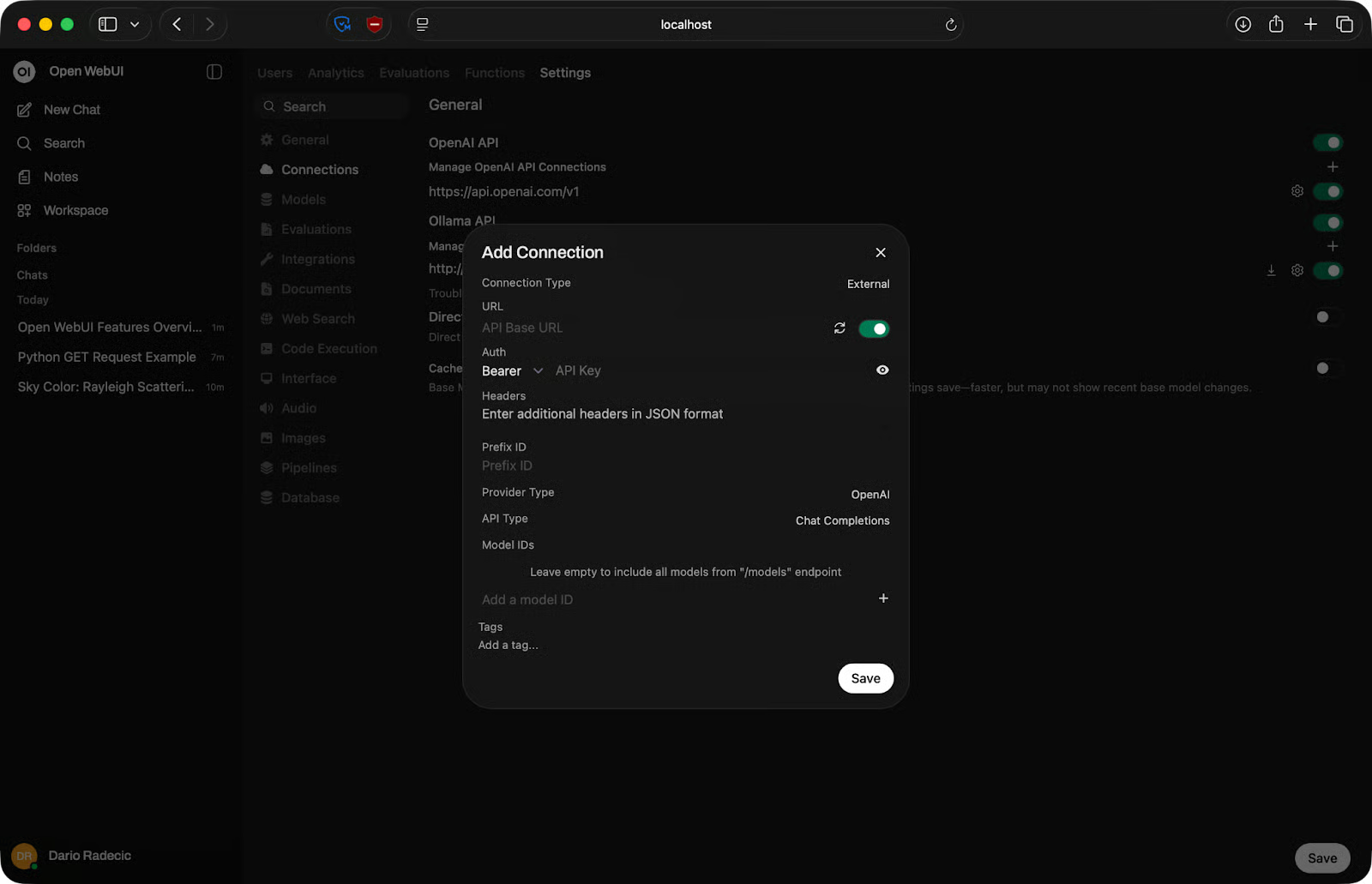
OpenAI-Verbindungen verwalten
Nutze ein kleines lokales Modell für schnelle Aufgaben und ein größeres, API-gestütztes Modell, wenn es nötig (und erlaubt) ist.
Für einzelne LLMs kannst du sehr viel anpassen.
In den Modelleinstellungen kannst du den System-Prompt feinjustieren, eine Wissensbasis (Dokumente) hinzufügen und das Modell mit Tools und Skills verbinden. Außerdem legst du fest, für welche Fähigkeiten das Modell genutzt wird – etwa Vision, Datei-Uploads – und ob es Aufgaben wie Websuche ausführen soll:
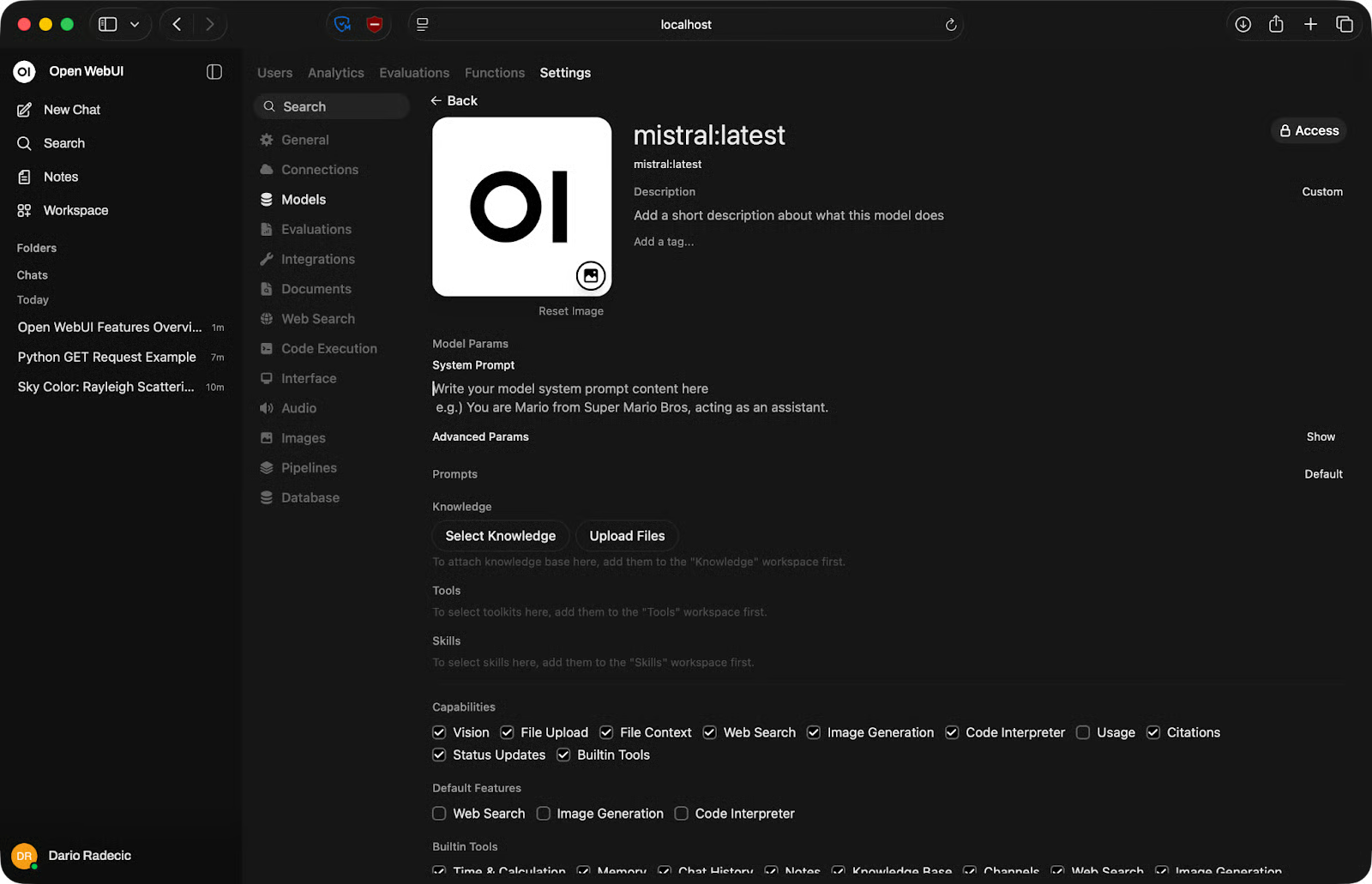
Modelleinstellungen anpassen
Open WebUI will ChatGPT nicht ersetzen. Es löst ein anderes Problem.
Der Kernunterschied ist, wohin deine Daten gehen. Bei ChatGPT landet jeder Prompt auf den Servern von OpenAI. Bei Open WebUI bleibt alles auf deiner Maschine – Oberfläche, Modell und Konversationsverlauf.
Der Trade-off ist die Performance. GPT-5 und ähnliche Cloud-Modelle sind meist leistungsfähiger als das, was du lokal betreiben kannst. Wenn reine Ausgabequalität Priorität hat, ist die Cloud im Vorteil. Wenn Privatsphäre oder Offline-Zugriff wichtiger sind, punktet lokal.
Auch die Kosten spielen mit. ChatGPT Plus kostet monatlich fix. Open WebUI ist kostenlos, aber du bezahlst mit Hardware – idealerweise mit genug RAM und einer GPU.
Die CLI von Ollama ist okay für schnelle Tests, aber nicht für ernsthafte Arbeit. Du tippst einen Prompt, bekommst eine Antwort, das war’s. Es gibt keinen Verlauf, keine Datei-Uploads und keinen bequemen Modellvergleich ohne Terminalwechsel.
Open WebUI gibt Ollama eine richtige Oberfläche. Modelle und Backend bleiben gleich – aber mit Konversationsverwaltung, Einstellungen und einer UI, die nicht verschwindet, wenn du das Terminal schließt.
Wenn du Ollama schon nutzt, kostet dich Open WebUI obendrauf nichts und verbessert das Nutzungserlebnis deutlich.
LM Studio ist eine Desktop-App mit integriertem Modellbrowser und ähnlicher Chat-Oberfläche. Eine gute Option, wenn du eine in sich geschlossene GUI ohne Docker willst. Nachteil: Sie ist an deinen Desktop gebunden – Open WebUI läuft im Browser und ist von anderen Geräten in deinem Netzwerk erreichbar.
text-generation-webui ist eher ein Power-User-Tool. Es unterstützt mehr Modellformate und bietet feinere Kontrolle, die Einrichtung ist jedoch aufwendiger und die UI weniger intuitiv. Open WebUI ist der bessere Startpunkt, außer du brauchst gezielt, was text-generation-webui bietet.
Für einen schnellen Vergleich zwischen Open WebUI und Alternativen kannst du diese Tabelle heranziehen:
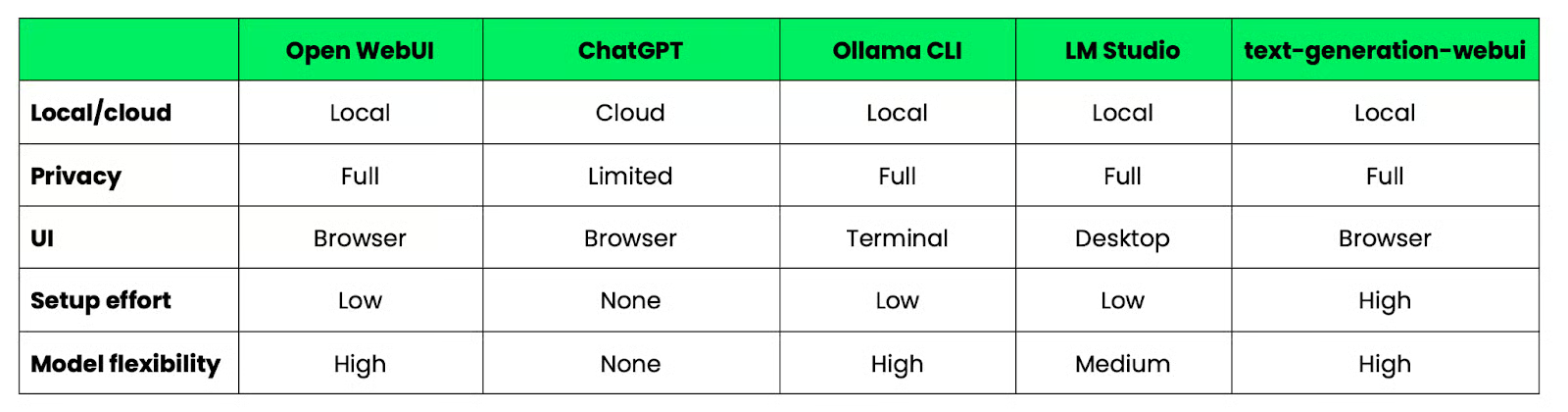
Open WebUI im Vergleich zu Alternativen
Die meisten Open-WebUI-Probleme fallen in fünf Kategorien – und die meisten haben eine schnelle Lösung.
Führe direkt nach dem fehlgeschlagenen Start docker logs open-webui aus. Die Logs zeigen die Ursache. In neun von zehn Fällen ist es ein Portkonflikt oder ein Berechtigungsproblem beim Volume.
Wenn Port 3000 bereits belegt ist, startet der Container nicht. Mappe auf einen anderen Host-Port:
docker run -d -p 3001:8080 ...Rufe Open WebUI dann unter http://localhost:3001 auf.
Bestätige zuerst, dass Ollama läuft:
ollama servePrüfe dann die API-URL unter Settings - Connections. Auf Mac und Windows sollte sie http://host.docker.internal:11434 sein. Unter Linux nutzt du die IP-Adresse deines Host-Rechners. Eine falsche URL ist der häufigste Grund für Verbindungsfehler.
Wenn der Modellwähler leer ist, hat sich Open WebUI mit Ollama verbunden, aber keine Modelle gefunden. Führe ollama list aus, um zu prüfen, ob mindestens ein Modell vorhanden ist. Wenn die Liste leer ist, zieh eines:
ollama pull mistralLade die Open-WebUI-Seite nach dem Pull neu – sie aktualisiert sich nicht automatisch.
Langsame Antworten sind fast immer ein Hardware-Thema, kein Open-WebUI-Problem. Das Modell ist zu groß für deinen verfügbaren RAM oder du hast keine GPU. Wechsle auf ein kleineres Modell – 7B-Parameter-Modelle laufen auf den meisten modernen Maschinen mit 16 GB RAM ordentlich. In CPU-only-Setups sind Antworten unabhängig von der Modellgröße spürbar langsamer.
Ein paar Gewohnheiten machen im Alltag einen großen Unterschied.
Open WebUI passt für bestimmte – nicht alle – Situationen. Hier ein Überblick, wann es sich lohnt:
Nicht das richtige Tool ist Open WebUI hingegen, wenn du die bestmögliche Modellqualität brauchst und Privatsphäre keine Rolle spielt. Dann ist eine Cloud-API die bessere Wahl.
Open WebUI bietet dir eine schlanke, praxistaugliche Oberfläche für lokale Modelle – und du hast die Umgebung komplett unter Kontrolle.
Keine Daten verlassen deinen Rechner, keine Ratenlimits, kein Abo. Du wählst die Modelle, verwaltest die Einstellungen und erweiterst das Setup nach Bedarf.
Starte am besten einfach. Lass den Docker-Container laufen, verbinde ein kleines Modell wie Llama oder Mistral und schicke ein paar Prompts. Wenn das sitzt, kannst du weitere Modelle hinzufügen, System-Prompts konfigurieren, externe APIs anbinden und darauf aufbauen.
Falls du dich fragst: Du kannst Ollama auch mit Docker betreiben – ganz ohne lokale Installation. In unserem aktuellen Guide erfährst du wie.
Lerne mit Datazcamp
Lernpfad
Kurs
Kurs
Blog
Blog
Hesam Sheikh Hassani
15 Min.
Tutorial
Matt Crabtree
5 Min.
Tutorial
Sejal Jaiswal
24 Min.
Tutorial
DataCamp Team
5 Min.
Tutorial
Moez Ali
6 Min.


