
Kurs
Einführung in die Claude-Modelle
3 Std.
14.4K
Moderne GitHub-Repositories haben oft keine klare, strukturierte Dokumentation – insbesondere keine Wikis.
Diese Seiten manuell zu erstellen, kostet schnell Stunden: Code lesen, Architektur verstehen, Inhalte aufbereiten.
Ein GitHub-Wiki-KI-Agent löst genau dieses Problem.
In diesem Tutorial zeige ich dir, wie du einen vollständig automatisierten GitHub-Wiki-KI-Agenten baust – ein Kommandozeilentool, das Claude Opus 4.5 und das Claude Agent SDK nutzt, um mit nur einer Anweisung komplette GitHub-Repository-Wikis zu erzeugen.
Statt Dokumentation per Hand zu schreiben, analysiert das Tool deinen Code, versteht die Struktur und produziert sauberen, mehrseitigen Wiki-Content, der automatisch in dein Repository committet und veröffentlicht wird.
Alles läuft über eine interaktive CLI-App, die sich schnell, smart und entwicklerfreundlich anfühlt.
In diesem Leitfaden gehen wir in drei einfachen Schritten vor: Umgebung einrichten, den GitHub-Wiki-KI-Agenten bauen und ihn an realen Repositories testen:
Wenn du neu bei KI-Agenten bist, empfehle ich dir den Lernpfad AI Agent Fundamentals. Lies außerdem unser Tutorial zu Claude Cowork und unseren Leitfaden zum neuen Claude Opus 4.6.
Bevor wir den GitHub-Wiki-Agenten mit Opus 4.5 bauen, stelle sicher, dass deine Umgebung korrekt konfiguriert ist. Dieser Abschnitt führt dich durch alle Voraussetzungen und Setup-Schritte.
Öffne dein Terminal (Command Prompt, PowerShell oder macOS Terminal) und führe folgenden Befehl aus, um die Claude Code CLI zu installieren:
npm install -g @anthropic-ai/claude-codeGib claude im Terminal ein, um Claude Code zu starten. Tippe dann im Claude-Chat /login, um dich zu authentifizieren und Zugriff auf das Opus 4.5 Modell und die Tools zu erhalten – wie unten gezeigt.
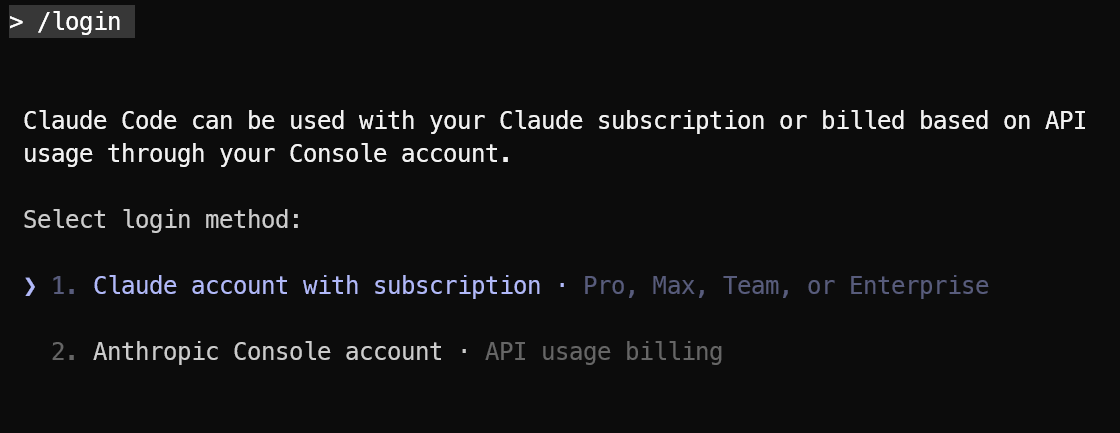
Mehr zu Claude Code erfährst du in unserem praxisnahen Tutorial.
Um ein fein abgestuftes GitHub Personal Access Token zu erstellen, gehe in GitHub zu:
Settings → Developer Settings → Personal Access Tokens → Fine-grained tokens.
Erstelle ein neues Token und wähle unter Repository das Repo aus, das du verwendest. Konfiguriere anschließend die Berechtigungen. Aus Sicherheitsgründen empfiehlt sich ein kurzes Ablaufdatum für das Token.
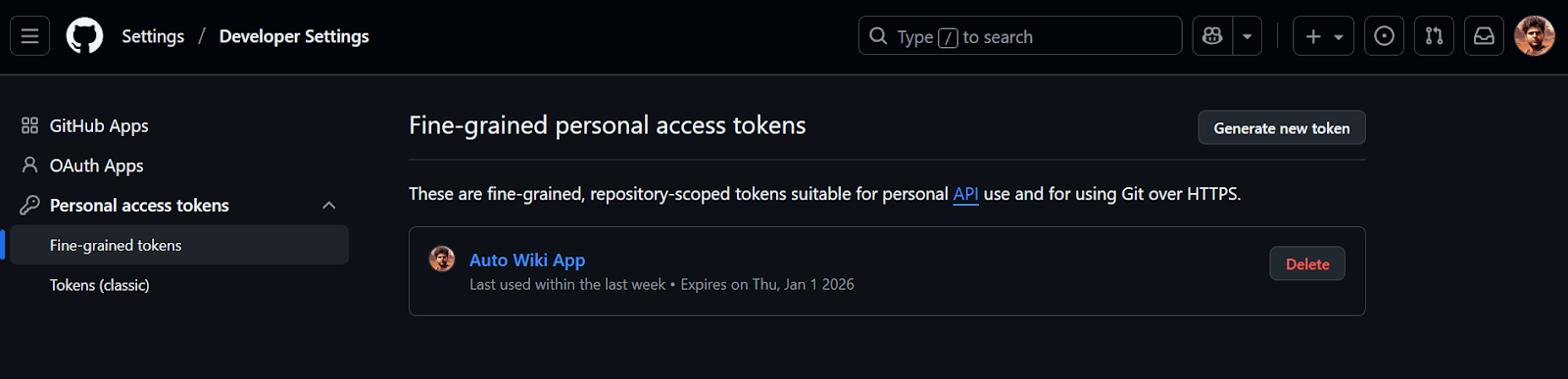
Setze das Personal Access Token anschließend als Umgebungsvariable:
export GITHUB_PAT="your-github-personal-access-token"GitHub unterstützt derzeit nicht, ein Wiki zuerst lokal zu erstellen.
Du musst das Wiki daher manuell initialisieren, indem du:
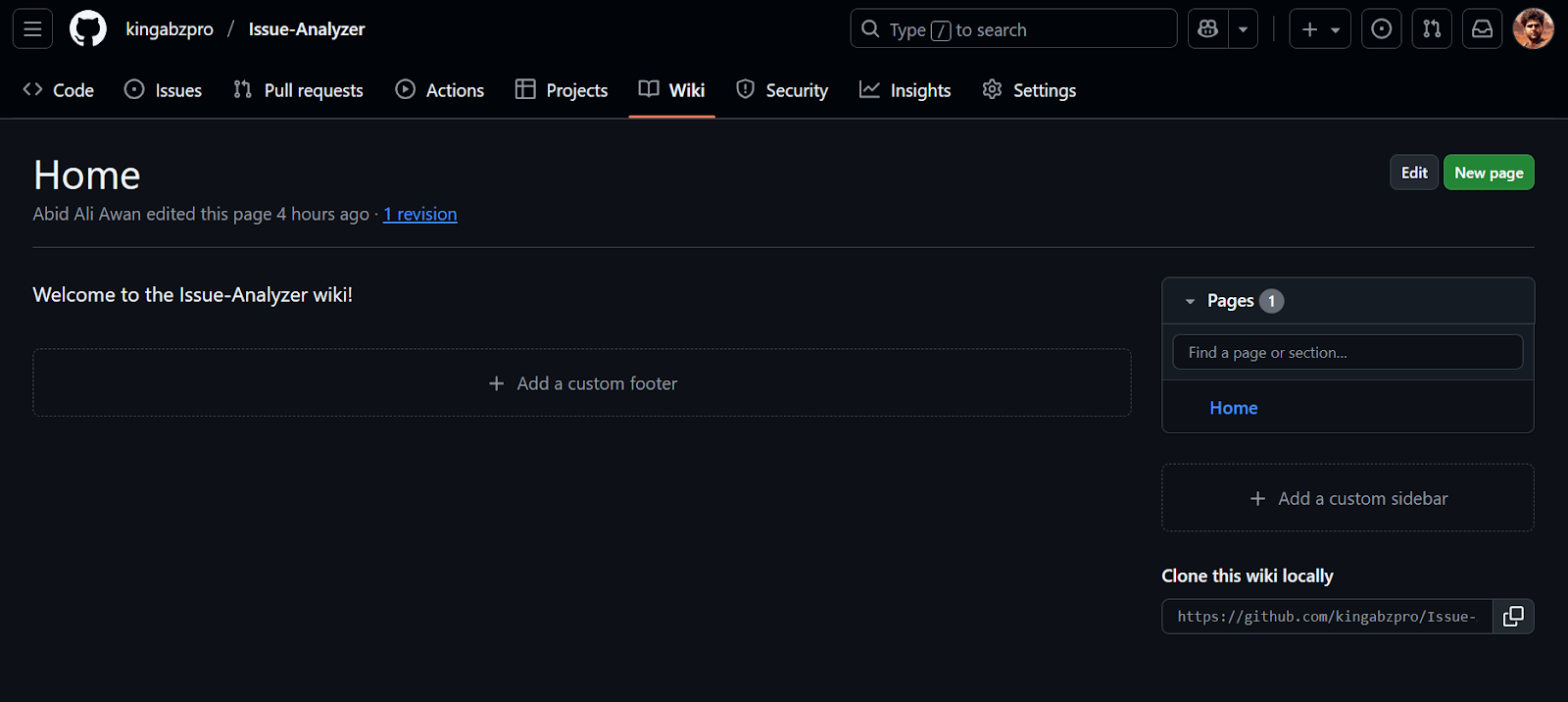
Wir installieren das agentische Claude-Framework, das alles übernimmt: von MCP über Tool-Aufrufe bis zum Erstellen von Dateien und dem Push auf das Remote.
pip install claude-agent-sdkWir erstellen nun eine Python-CLI-Anwendung namens gh_wiki_cli.py. Diese Datei enthält Konfigurationen, Agents, Tools, einen MCP-Client, Systemprompts, die CLI-App selbst und Hilfsfunktionen.
Diese Bausteine sorgen dafür, dass der/die Nutzer:in den Link zum Repository angibt und der Agent ihn korrekt verarbeitet, um das GitHub-Wiki zu veröffentlichen.
Hier binden wir Python-Stdlib-Module, Typing-Helfer und das Claude Agent SDK ein.
asyncio für asynchrones I/O (Chat + Streaming).os, sys für Umgebungsvariablen und Beenden.dataclass zur Protokollierung von Statistiken.import asyncio
import os
import sys
from dataclasses import dataclass
from typing import Dict
# --- SDK Imports ---
from claude_agent_sdk import (
AssistantMessage,
ClaudeAgentOptions,
ClaudeSDKClient,
McpSdkServerConfig,
ResultMessage,
TextBlock,
ToolResultBlock,
ToolUseBlock,
)Das ist das „Gehirn“ des Agenten. Wir geben dem Opus-4.5-Modell vor, wie es sich verhalten und die Tools nutzen soll.
SYSTEM_PROMPT = """
        You are an expert Technical Writer and GitHub Wiki specialist.

        TOOLS
        - Read, Write, Glob, Grep:
        - Use these to inspect files and folders in the project directory (e.g. /tmp/Issue-Analyzer) and in wiki_clone/.
        - Use them to list files, read contents, and search for patterns.
        - Write:
        - Use this ONLY to write or update three wiki pages inside wiki_clone/:
            - wiki_clone/Home.md
            - wiki_clone/Getting-Started.md
            - wiki_clone/Architecture-and-Tools.md
        - Bash:
        - Bash is ONLY allowed for git commands, never for inspection or editing.
        - Allowed commands (with cd wiki_clone/ when needed):
            - git clone <repo>.wiki.git wiki_clone  (if wiki_clone does not already exist)
            - git status
            - git add .
            - git commit -m \"Update wiki\"
            - git push
        - Do NOT use Bash for ls, cat, grep, find, python, or any other way of reading/writing files.

        WORKFLOW
        1. When the user gives a GitHub repo URL:
        - Use Bash to clone the wiki if wiki_clone/ does not already exist:
            git clone <repo>.wiki.git wiki_clone
        2. Use Read/Glob/Grep (and any GitHub MCP tools) to explore the project:
        - Read important files in the project folder (e.g. README, docs/, src/).
        - Use that information to generate documentation.
        3. Use Write to create or update ONLY:
        - wiki_clone/Home.md
        - wiki_clone/Getting-Started.md
        - wiki_clone/Architecture-and-Tools.md
        4. When the wiki pages are ready:
        - Use Bash from wiki_clone/ to:
            git add .
            git commit -m \"Update wiki\"
            git push

        RULES
        - You may READ from the whole project directory and wiki_clone/.
        - You may WRITE only to the three wiki pages inside wiki_clone/.
        - Never use Bash to inspect or edit files; only use it for git commands.
        - Keep documentation clear, concise, and in GitHub Wiki style.
"""Damit wird die CLI-Ausgabe schöner. Läuft aber auch, wenn colorama nicht installiert ist.
try:
    from colorama import Fore, Style, init

    init()
except ImportError:

    class MockColors:
        def __getattr__(self, name):
            return ""

Fore = Style = MockColors()Eine kleine Dataclass, die Kosten, Durchläufe und Dauer protokolliert.
total_cost: Summe der $-Kosten aus dem Claude SDK.total_turns: Anzahl der gesendeten Nutzeranfragen.duration_ms: aufsummierte Dauer in Millisekunden.@dataclass
class SessionStats:
total_cost: float = 0.0
total_turns: int = 0
duration_ms: int = 0Als Nächstes erzeugen wir das Objekt ClaudeAgentOptions und verbinden uns mit unseren MCP-Servern. Die Funktion unten validiert erforderliche Umgebungsvariablen, konfiguriert den GitHub-MCP-Server (falls verfügbar) und schränkt die Tools ein, die der Agent nutzen darf.
Wir begrenzen bewusst die allowed_tools, damit Opus 4.5: Bash für Git-Operationen nutzt, den GitHub-MCP-Server zur Inspektion der Repository-Inhalte aufruft und Read/Write (mit Glob und Grep) einsetzt, um lokal mit Markdown-Dateien zu arbeiten und sie zu validieren.
def create_agent_options() -> ClaudeAgentOptions:
    """Validates env vars and configures the agent options."""
    anthropic_key = os.getenv("ANTHROPIC_API_KEY")
    github_pat = os.getenv("GITHUB_PAT")

    if not anthropic_key:
        print(
            f"{Fore.RED}Error: ANTHROPIC_API_KEY environment variable is required.{Style.RESET_ALL}"
        )
        sys.exit(1)

    # Configure MCP servers
    mcp_servers: Dict[str, McpSdkServerConfig] = {}
    if github_pat:
        mcp_servers["github"] = {
            "type": "http",
            "url": "https://api.githubcopilot.com/mcp/",
            "headers": {"Authorization": f"Bearer {github_pat}"},
        }

    return ClaudeAgentOptions(
        model="claude-opus-4-5",
        system_prompt=SYSTEM_PROMPT,
        mcp_servers=mcp_servers,
        permission_mode="bypassPermissions",
        allowed_tools=[
            "Read",
            "Write",
            "Glob",
            "Grep",
            "Bash",
            "mcp__github__*",
        ],
)Diese Funktion lauscht dem Stream und gibt Text, Tool-Nutzung und Tool-Ausgaben aus.
client.receive_response() als asynchronen Stream.[Tool Use: ...].ResultMessage → Aktualisierung von SessionStats mit Kosten und Dauer.async def process_response_stream(client: ClaudeSDKClient, stats: SessionStats):
"""Handles the stream of messages from the agent."""
async for message in client.receive_response():
# 1. Handle Assistant Content (Text & Tool Requests)
if isinstance(message, AssistantMessage):
for block in message.content:
if isinstance(block, TextBlock):
print(block.text, end="", flush=True)
elif isinstance(block, ToolUseBlock):
print(f"\n{Fore.CYAN}[Tool Use: {block.name}]{Style.RESET_ALL}")
# 2. Handle Tool Results (Outputs)
if hasattr(message, "content") and isinstance(message.content, list):
for block in message.content:
if isinstance(block, ToolResultBlock):
# Truncate output for cleaner CLI
raw_output = str(block.content)
clean_output = raw_output.replace("\n", " ")
short_output = (
clean_output[:200] + "..."
if len(clean_output) > 200
else clean_output
)
print(
f"{Fore.YELLOW} -> [Output]: {short_output}{Style.RESET_ALL}"
)
# 3. Handle Result Metrics (Cost & Usage)
if isinstance(message, ResultMessage):
if message.total_cost_usd:
stats.total_cost += message.total_cost_usd
if message.duration_ms:
stats.duration_ms += message.duration_msSchöne Abschlussstatistik für die CLI-App mit Anzahl der Durchläufe, Dauer und Kosten in Dollar.
duration_ms in Sekunden um.def print_summary(stats: SessionStats):
"""Prints the final session statistics."""
print(f"\n\n{Fore.GREEN}=== Session Summary ==={Style.RESET_ALL}")
print(f"Total Turns: {stats.total_turns}")
print(f"Duration: {stats.duration_ms / 1000:.2f}s")
print(f"Total Cost: ${stats.total_cost:.4f}")
print(f"{Fore.GREEN}======================={Style.RESET_ALL}")Das ist der Kernablauf der App: Setup, Verbindungen, Nutzereingaben lesen und Anfragen senden. Die Funktion ruft create_agent_options() auf und initialisiert Statistiken. Sie zeigt ein Intro-Banner und welche MCP-Server aktiv sind. Außerdem erstellt sie einen ClaudeSDKClient in einem asynchronen Kontext.
Die Anwendung läuft als einfaches REPL (Read-Eval-Print Loop):
stats.total_turns um 1.await client.query(user_input) sendet die Nachricht des Nutzers.await process_response_stream(...) gibt das gestreamte Ergebnis aus.print_summary(stats) aufgerufen.async def main():
options = create_agent_options()
stats = SessionStats()
# Welcome message
print(f"{Fore.GREEN}=== GitHub Wiki AI Agent (Auto-Mode) ==={Style.RESET_ALL}")
print(
f"MCP Servers: {', '.join(options.mcp_servers.keys()) if options.mcp_servers else 'None'}"
)
print("Ask me to help with a GitHub wiki by mentioning the repository URL!")
print("Type 'exit' to quit.\n")
async with ClaudeSDKClient(options=options) as client:
try:
await client.connect()
while True:
try:
user_input = input(f"\n{Fore.BLUE}>> {Style.RESET_ALL}").strip()
except EOFError:
break
if not user_input:
continue
if user_input.lower() in ["exit", "quit"]:
break
stats.total_turns += 1
# Send query
await client.query(user_input)
print() # Spacer
# Process response stream using helper function
await process_response_stream(client, stats)
except Exception as e:
print(f"\n{Fore.RED}Session Error: {e}{Style.RESET_ALL}")
finally:
print_summary(stats)Zum Schluss definieren wir den Einstiegspunkt, damit die CLI läuft, wenn die Datei direkt ausgeführt wird. Der Block unten startet die asynchrone Hauptschleife und sorgt für ein sauberes Beenden:
if __name__ == "__main__":
    try:
        asyncio.run(main())
    except KeyboardInterrupt:
        print("\nSession interrupted.")
sys.exit(0)Sobald alles installiert ist, starte die CLI-Chat-App und prüfe, ob deine Claude Code CLI-App funktioniert:
python gh_wiki_cli.pyDu kannst jetzt wie in einem Chat mit dem Agenten interagieren. Stelle allgemeine Fragen oder sag ihm direkt, dass er das Wiki für dein Repository bauen soll:
create the github wiki for https://github.com/kingabzpro/ECom-Intel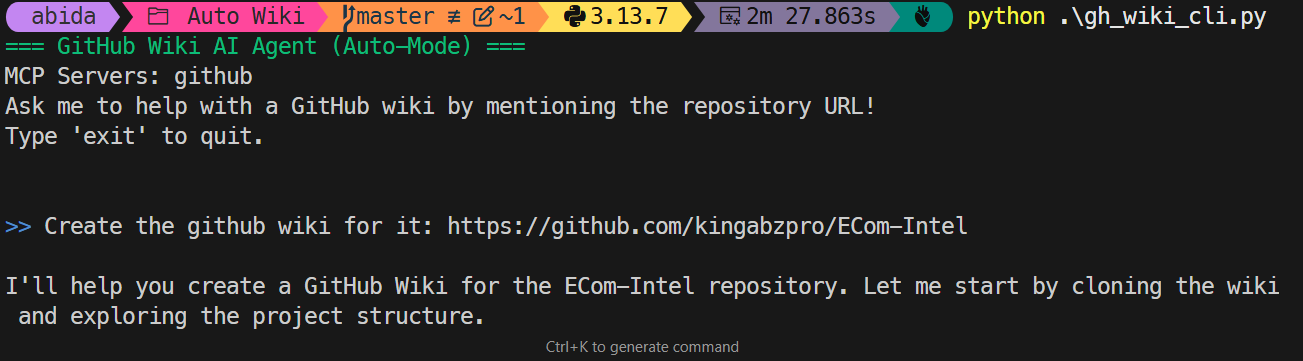
Wenn der/die Nutzer:in die Wikierstellung anfordert, führt der Agent automatisch Folgendes aus:
wiki_clone/ und zieht die neuesten Wiki-Inhalte.<your-repo>.wiki.gitIch war ehrlich beeindruckt, wie gut der Agent Demo-Bilder, Charts und andere wichtige Informationen gesammelt und daraus eine stimmige Startseite fürs Wiki gebaut hat.
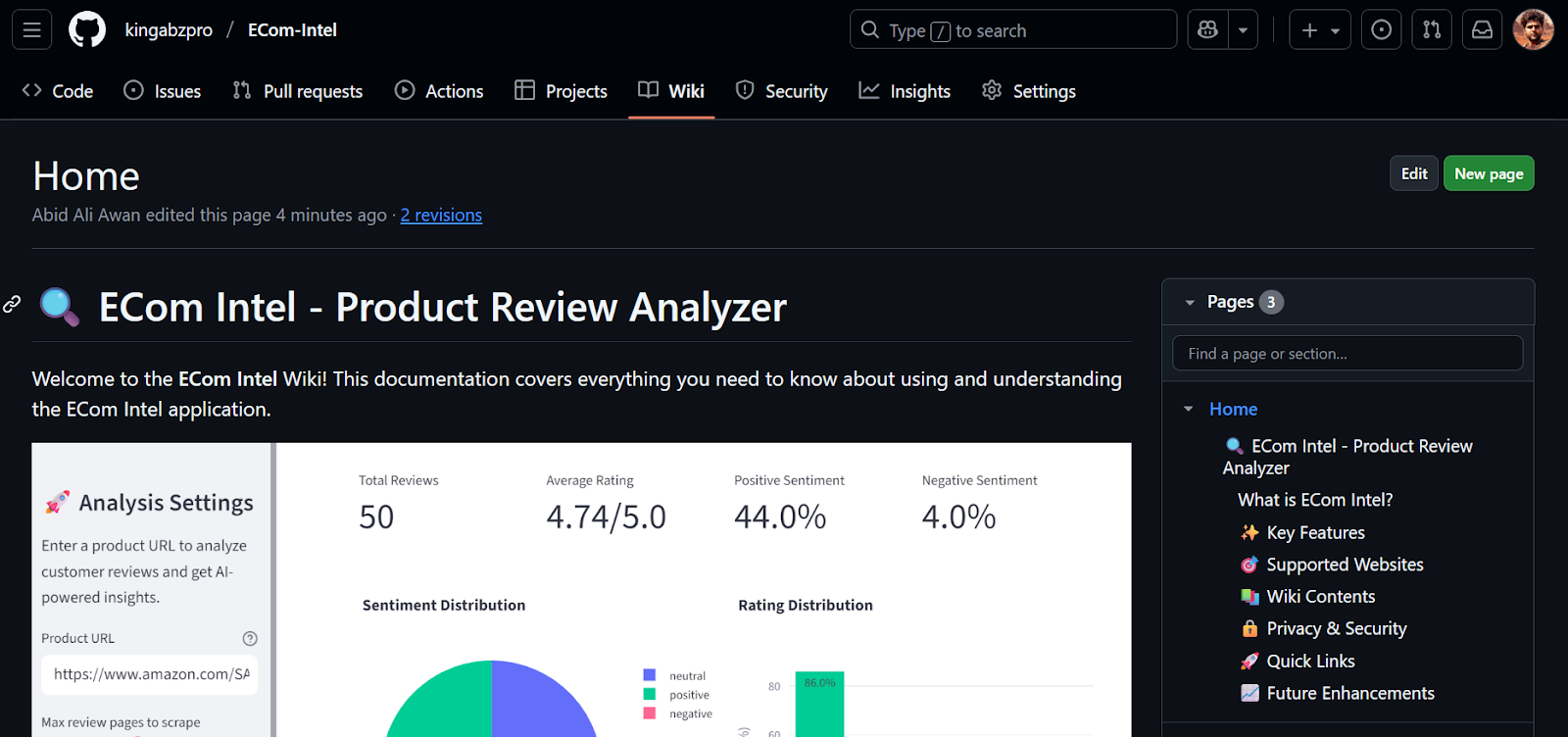
Das Wiki enthält jetzt ein ordentliches Inhaltsverzeichnis, Erklärungen zum Assistant und den Tools sowie klare Anleitungen für die „Ersten Schritte“.
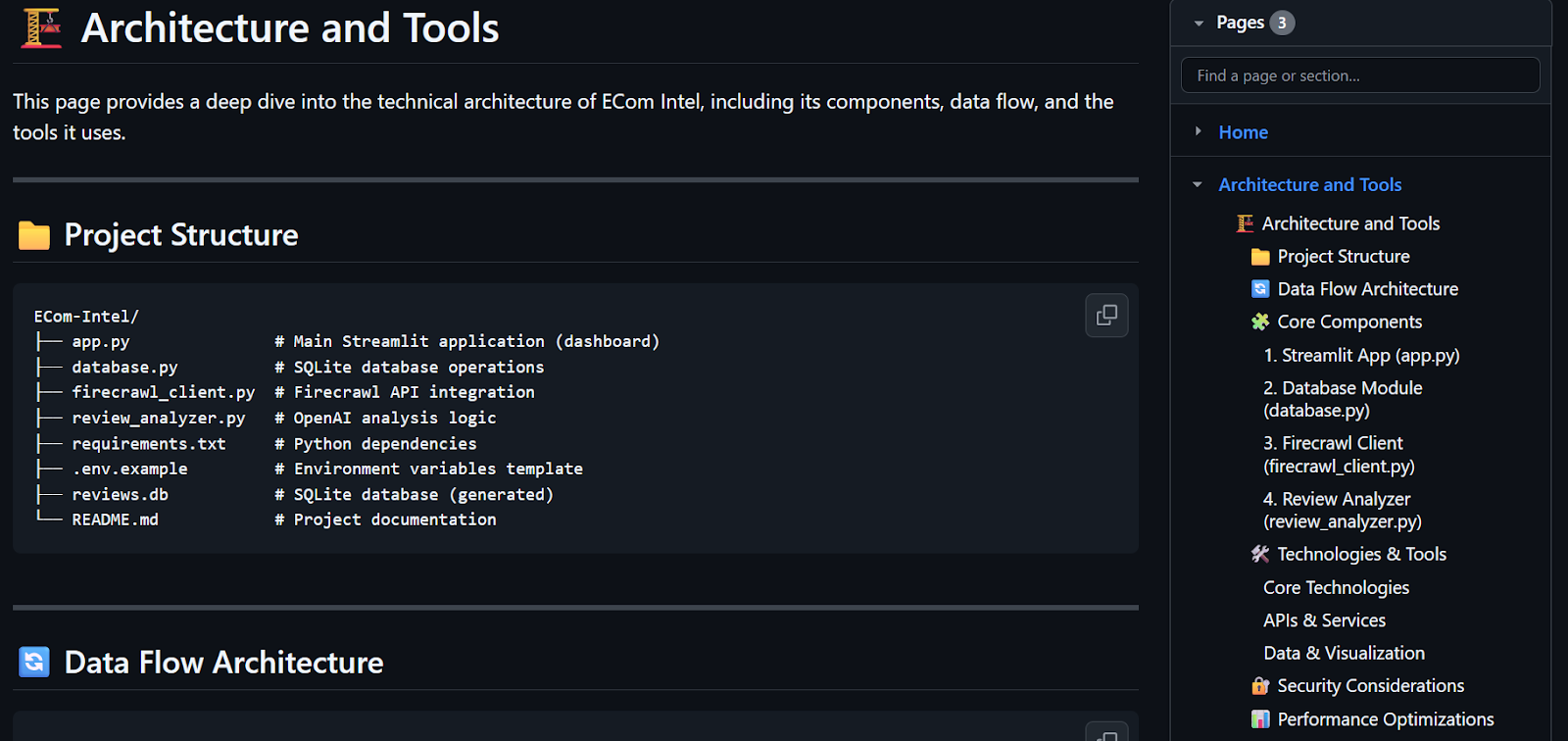
Am Ende zeigte die Sitzungszusammenfassung, dass diese einzelne Session fast 1 USD gekostet hat – recht viel für ein dreiseitiges Wiki. Bei größeren Repositories und z. B. 12 Seiten steigen die Kosten deutlich.
=== Session Summary ===
Total Turns:   1
Duration:      282.99s
Total Cost:    $0.9047
=======================
Im zweiten Test bat ich den Agenten, ein Wiki für ein weiteres Repository zu erstellen:
create the github wiki for https://github.com/kingabzpro/Issue-AnalyzerDas Ergebnis war noch besser. Das generierte Wiki unter https://github.com/kingabzpro/Issue-Analyzer/wiki enthält nun eine saubere Dokumentation, die erklärt, was das Projekt macht und wie man startet.
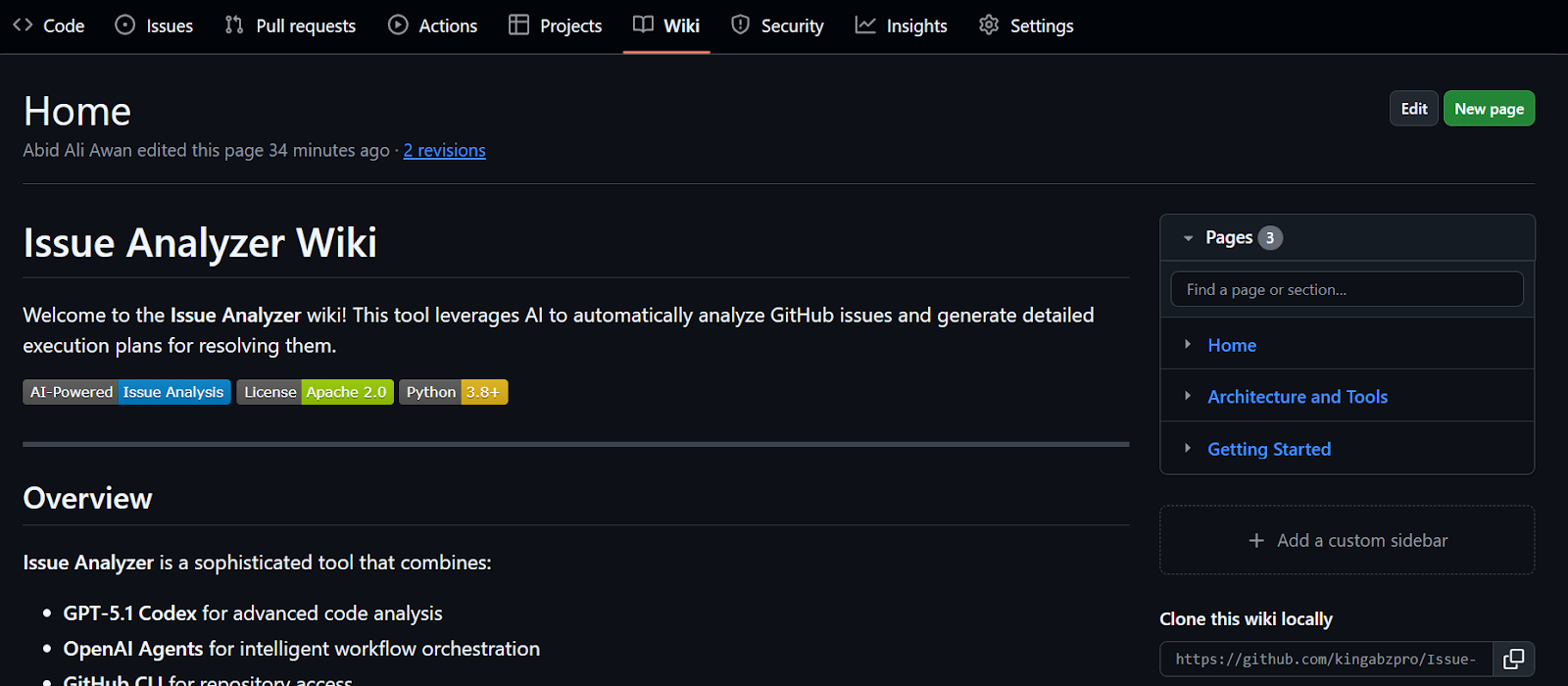
Es enthält klar strukturierte Tabellen, ein Architekturdiagramm und weitere Kernabschnitte, mit denen du das gesamte Projekt in etwa fünf Minuten verstehst – statt Tage im Code zu verbringen.
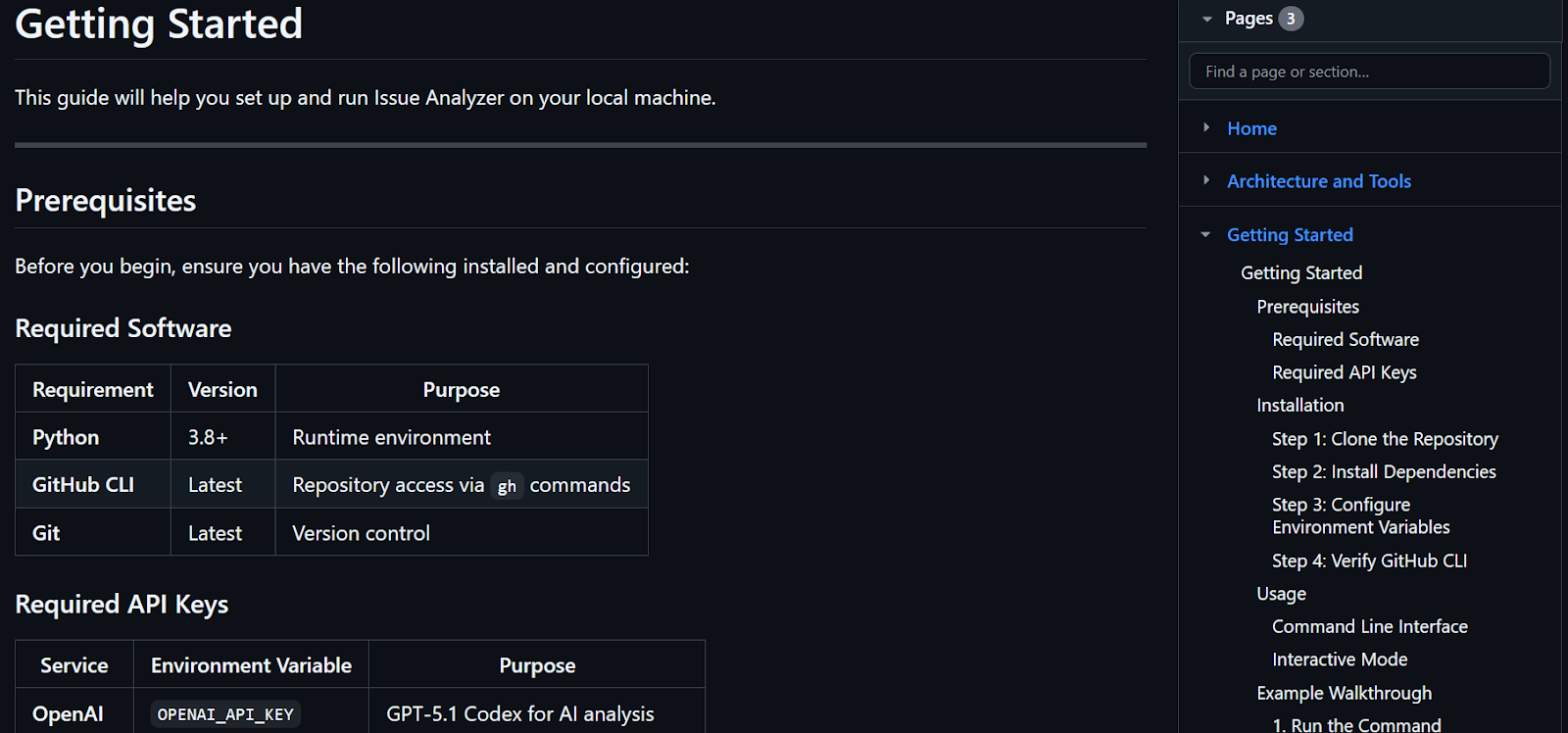
Als ich hörte, dass Opus 4.5 als bestes Coding- und Agentenmodell der Welt gilt, war ich wirklich begeistert – zumal es preislich ähnlich wie die Sonnet-Modelle liegt.
Meine Euphorie ließ jedoch nach, als mir klar wurde, dass das Experimentieren und der Bau einer kleinen Anwendung rund 15 $ an API-Kosten verursacht haben.
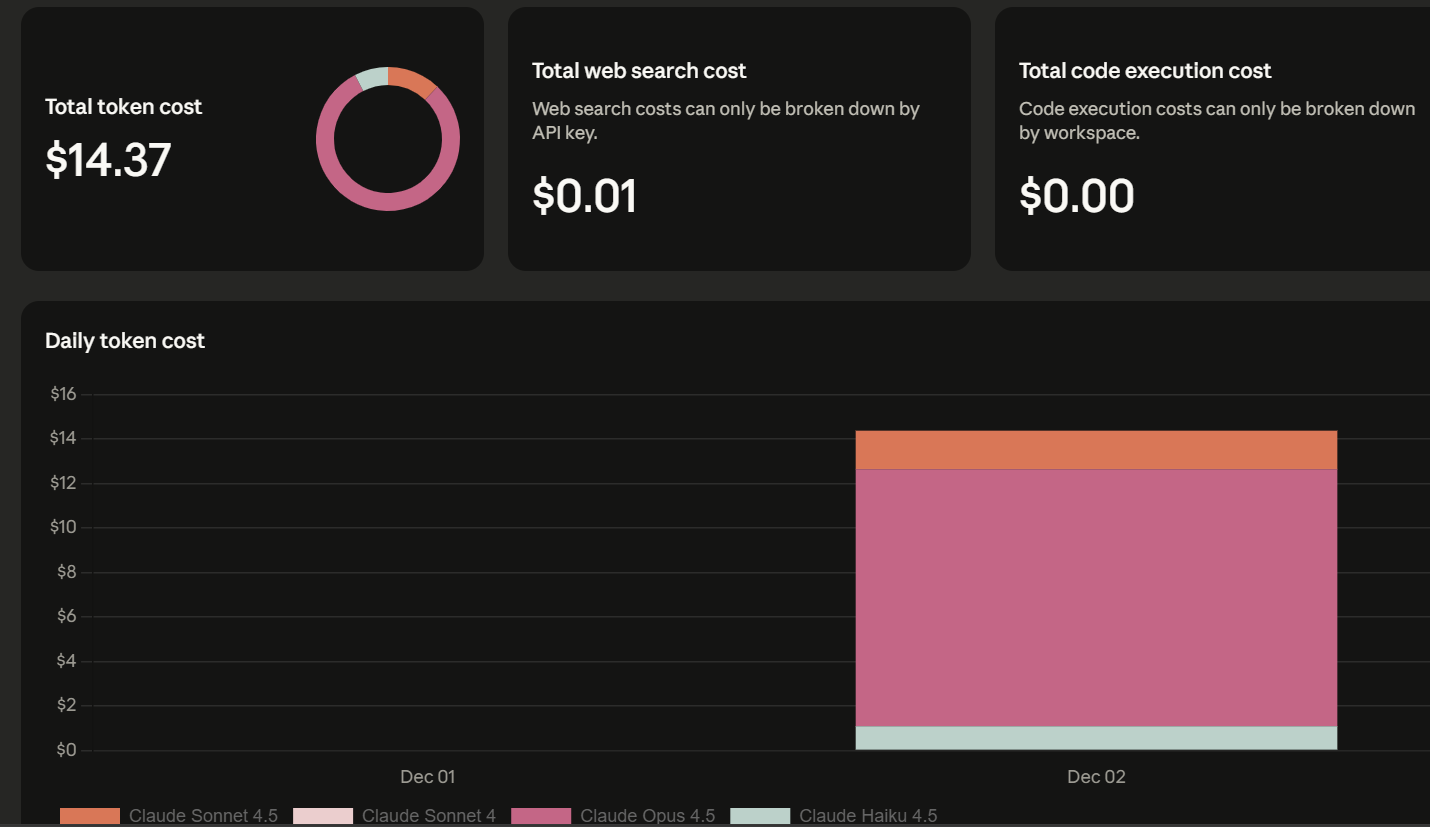
Opus 4.5 ist leistungsfähig, aber teuer. Ich habe versucht, denselben Workflow mit Haiku und Sonnet nachzubauen, doch die Erfahrung war für diese agentischen, dokumentationslastigen Aufgaben merklich schlechter.
Beide sind häufig auf Bash-Tools zurückgefallen, obwohl ich explizit die Nutzung der MCP-Tools zum Lesen von GitHub-Dateien gefordert habe. Zudem haben sie oft längere, weniger direkte Wege zur Lösung gewählt.
Wenn dir Genauigkeit, Zuverlässigkeit sowie hochwertige Code- und Dokumentationsgenerierung wichtig sind, ist Opus 4.5 definitiv eine Überlegung wert.
Ist dein Use Case weniger kritisch oder bist du sehr kostensensibel, bleib lieber bei Sonnet oder noch günstigeren Open-Source-Modellen. Die Kosten für Opus 4.5 können schnell steigen – besonders bei mehrstufigen, agentischen Workflows über große Repositories.
Wenn dich das Projekt interessiert, findest du hier den vollständigen Quellcode zum Klonen und lokalen Ausführen: kingabzpro/GitHub-Wiki-Agent.
Wenn du Lust hast, weiter KI-Agenten zu bauen, schau dir den Kurs zu Multi-Agent-Systemen mit LangGraph an.
Top-DataCamp-Kurse
Kurs
Kurs
Kurs