Curso
Introducción a los modelos Claude
3 h
14.5K
Estás pidiendo un café y te llega un mensaje por Slack pidiéndote el informe trimestral. Está en el escritorio de tu casa. Escribes por WhatsApp: "Encuentra el PDF del informe de Q4 en mi escritorio". Treinta segundos después tienes la ruta y puedes pasar a tu compañero el enlace de la unidad compartida. Eso es OpenClaw.
OpenClaw ejecuta una pasarela local que conecta apps de mensajería con un agente de código impulsado por Claude. Envías mensajes por WhatsApp, Telegram o el terminal, y el agente responde ejecutando comandos en tu máquina: busca archivos, ejecuta scripts y lee logs. La pasarela permanece activa en tu ordenador y traduce entre chat y shell.
En este tutorial, configuraremos OpenClaw desde cero y veremos el amplio abanico de tareas que puedes realizar. También comentaremos en qué fijarte cuando una IA como esta tiene acceso sin restricciones al terminal.
Nota: a mitad de escribir este artículo, Anthropic presentó una solicitud de marca porque "Clawd" sonaba demasiado parecido a "Claude". El proyecto pasó de Clawdbot a Moltbot (manteniendo la langosta como mascota). Luego, el 29 de enero de 2026, el nombre cambió de nuevo a OpenClaw. Algunas capturas, rutas de configuración y fragmentos de código en este tutorial pueden seguir mencionando "Clawdbot", "clawd" o "moltbot".
Si te interesa aprender más sobre el ecosistema de Claude, te recomiendo nuestros tutoriales sobre Claude Cowork, Claude Code, Claude Opus 4.6 y nuestro curso de introducción a los modelos de Claude. También puedes ver nuestra guía para usar OpenClaw con Ollama y nuestra guía de Moltbook.
Peter Steinberger, desarrollador de macOS conocido por su trabajo con herramientas de Apple, lanzó este proyecto a finales de 2025, originalmente con el nombre Clawdbot. La propuesta: un agente de IA totalmente autoalojado en el que tus prompts y archivos no salen de tu hardware salvo cuando se envían al modelo que configures.
Este enfoque de privacidad por defecto caló entre desarrolladores cansados de pasar todo por la nube. El repositorio superó las 60.000 estrellas en GitHub en pocas semanas.
Todo fluye a través de un único daemon llamado Gateway. Se ejecuta en segundo plano, mantiene abiertas las conexiones de mensajería y coordina al agente de IA. Este es el flujo cuando envías un mensaje:
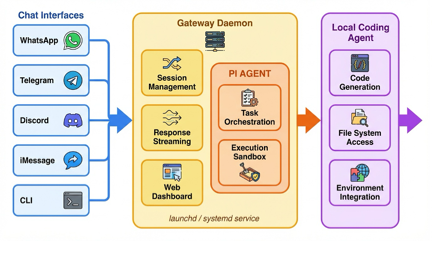
El Gateway gestiona sesiones, streaming de respuestas y un panel web local para la configuración. Se instala como servicio del sistema (launchd en macOS, systemd en Linux) y sobrevive a los reinicios automáticamente.
Vamos a ver cómo configurar OpenClaw.
OpenClaw necesita Node.js 22 o superior y funciona de forma nativa en macOS y Linux. En Windows necesitas WSL2 (Windows Subsystem for Linux), que añade algo de configuración pero funciona bien.
Los requisitos de hardware son mínimos. El Gateway apenas consume CPU y memoria en reposo. Cualquier equipo capaz de ejecutar un navegador moderno puede ejecutar OpenClaw.
OpenClaw es gratuito y de código abierto (licencia MIT). El coste viene de los tokens de API. Anthropic cobra por millón de tokens: aprox. 3 $ de entrada y 15 $ de salida con Claude Sonnet, más con Opus. ¿Qué supone en la práctica?
Estas cifras varían según la verbosidad del prompt y el tamaño de contexto. Si tienes suscripción a Claude Pro o Max, puedes generar un setup token con el CLI de Claude Code y usar tu suscripción en lugar de pagar por token.
Ejecuta el script de instalación:
curl -fsSL https://molt.bot/install.sh | bash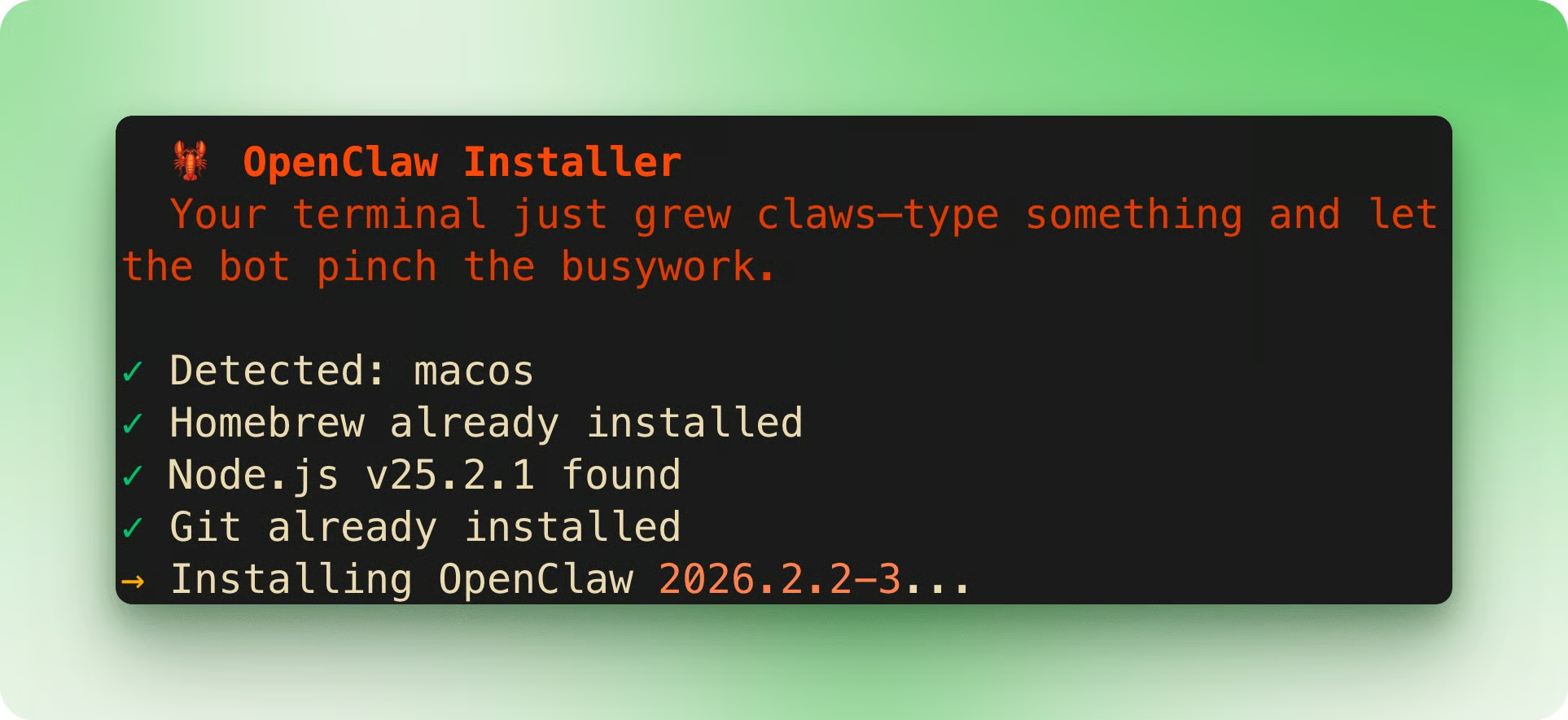
Una vez instalado, el asistente de onboarding se inicia automáticamente. Lo primero que verás es un aviso de seguridad. El asistente enlaza a la documentación sobre sandboxing si quieres limitar lo que puede hacer el agente.
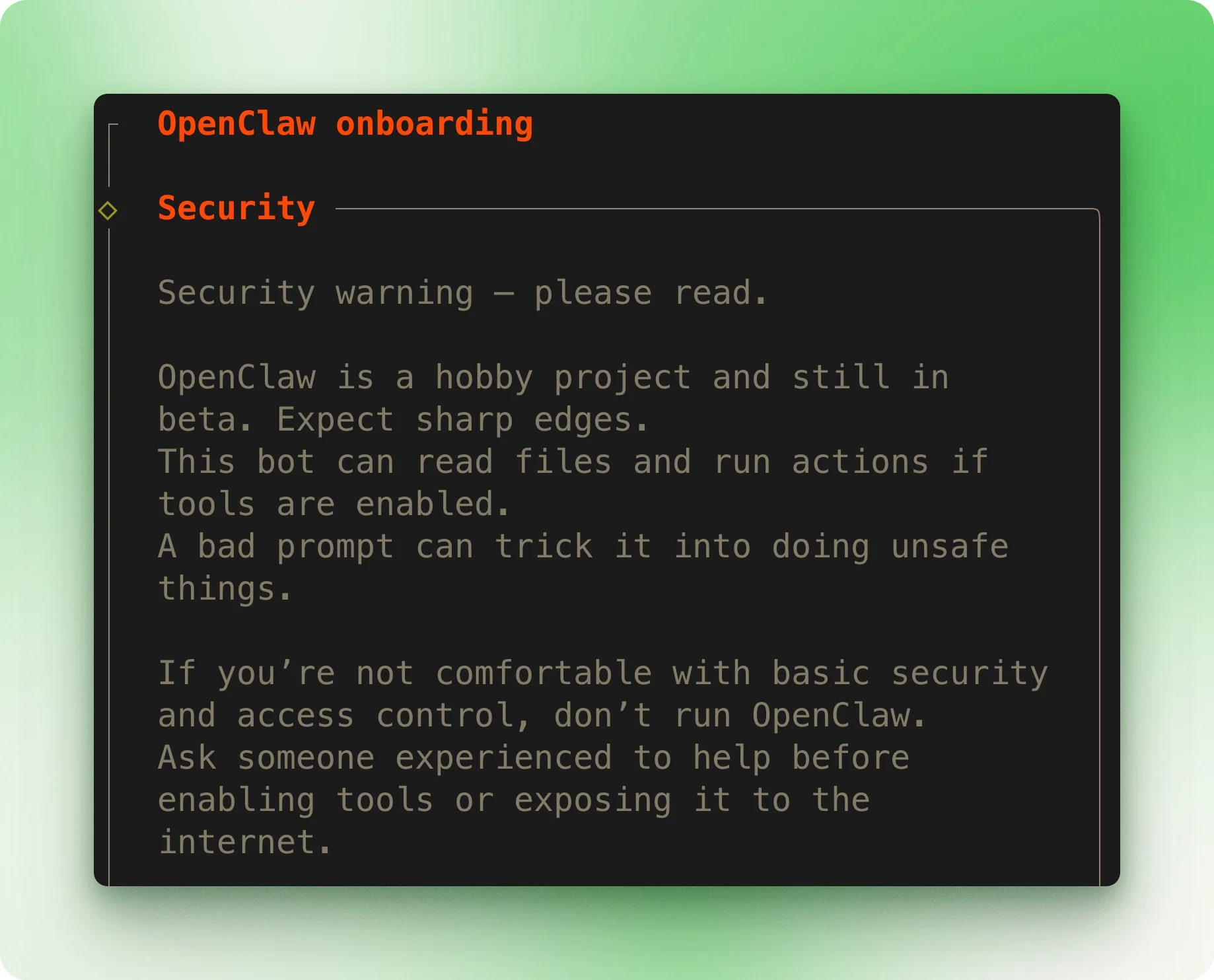
El asistente ofrece QuickStart (valores por defecto sensatos) o Advanced (control total). QuickStart sirve para la mayoría.
Después, elige tu proveedor de modelo. Si tienes suscripción a Claude Max o Pro, selecciona la opción setup-token. Abre otro terminal y ejecuta claude setup-token, luego pega el token generado en el asistente.
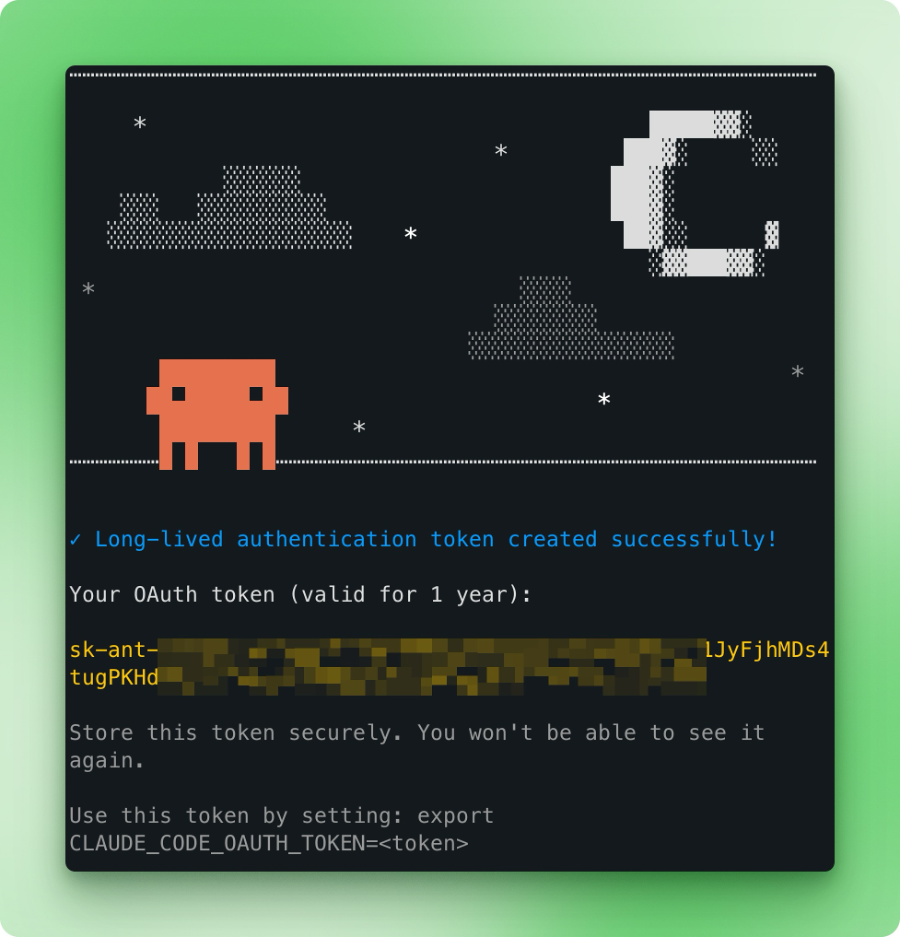
Para configurar los canales, selecciona WhatsApp y escanea el código QR con tu móvil (Ajustes → Dispositivos vinculados → Vincular un dispositivo). También están disponibles otros canales como Telegram y Discord.
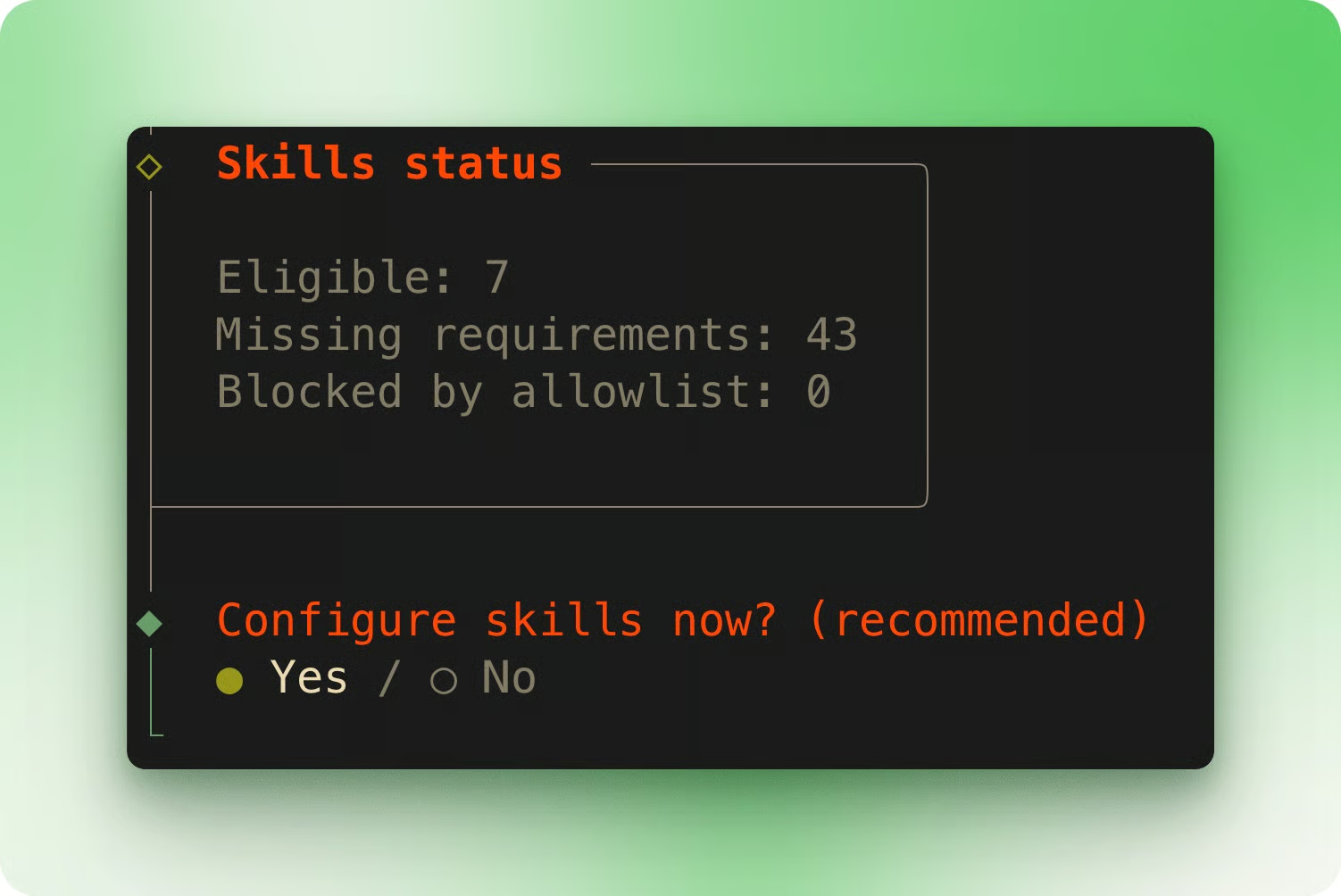
El asistente te preguntará por la configuración de skills. Las skills amplían lo que puede hacer OpenClaw, pero requieren dependencias adicionales.
Sáltalo por ahora para mantener la configuración inicial simple. Nota: usa Espacio para alternar opciones y Enter para confirmar.
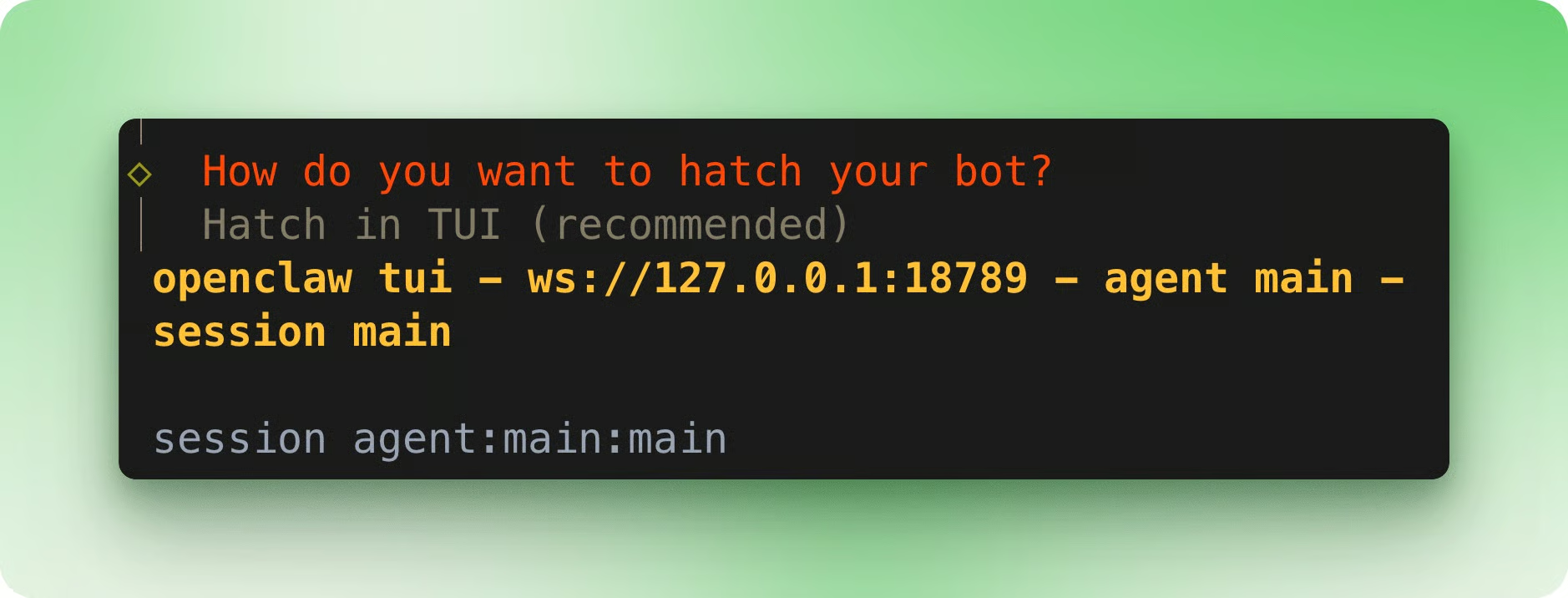
Tras omitir la configuración de hooks, el servicio Gateway se instala automáticamente. El asistente te pregunta cómo quieres "hacer hatch" de tu bot. La opción TUI (Terminal User Interface) abre tanto una interfaz de chat en terminal como el panel web.
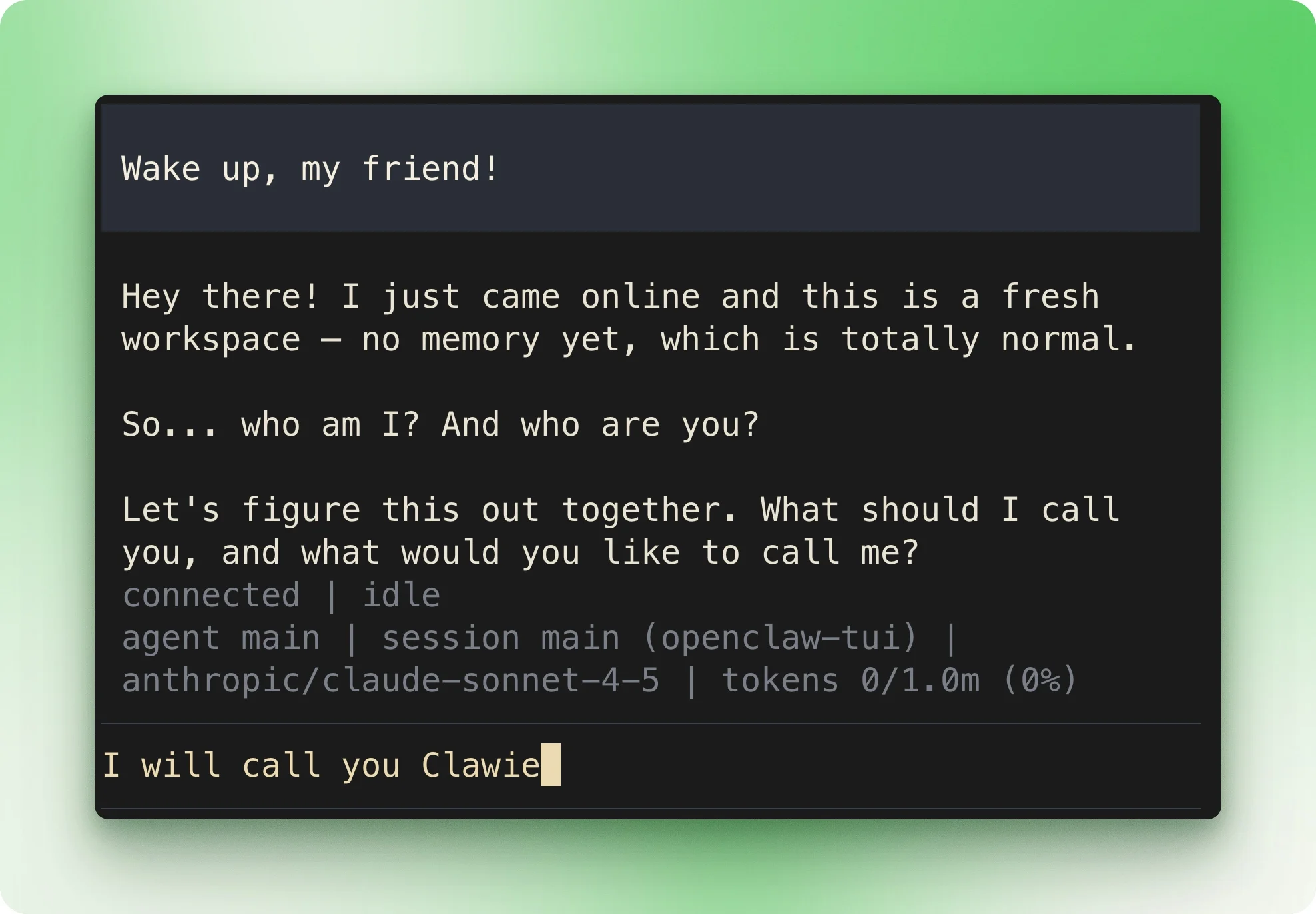
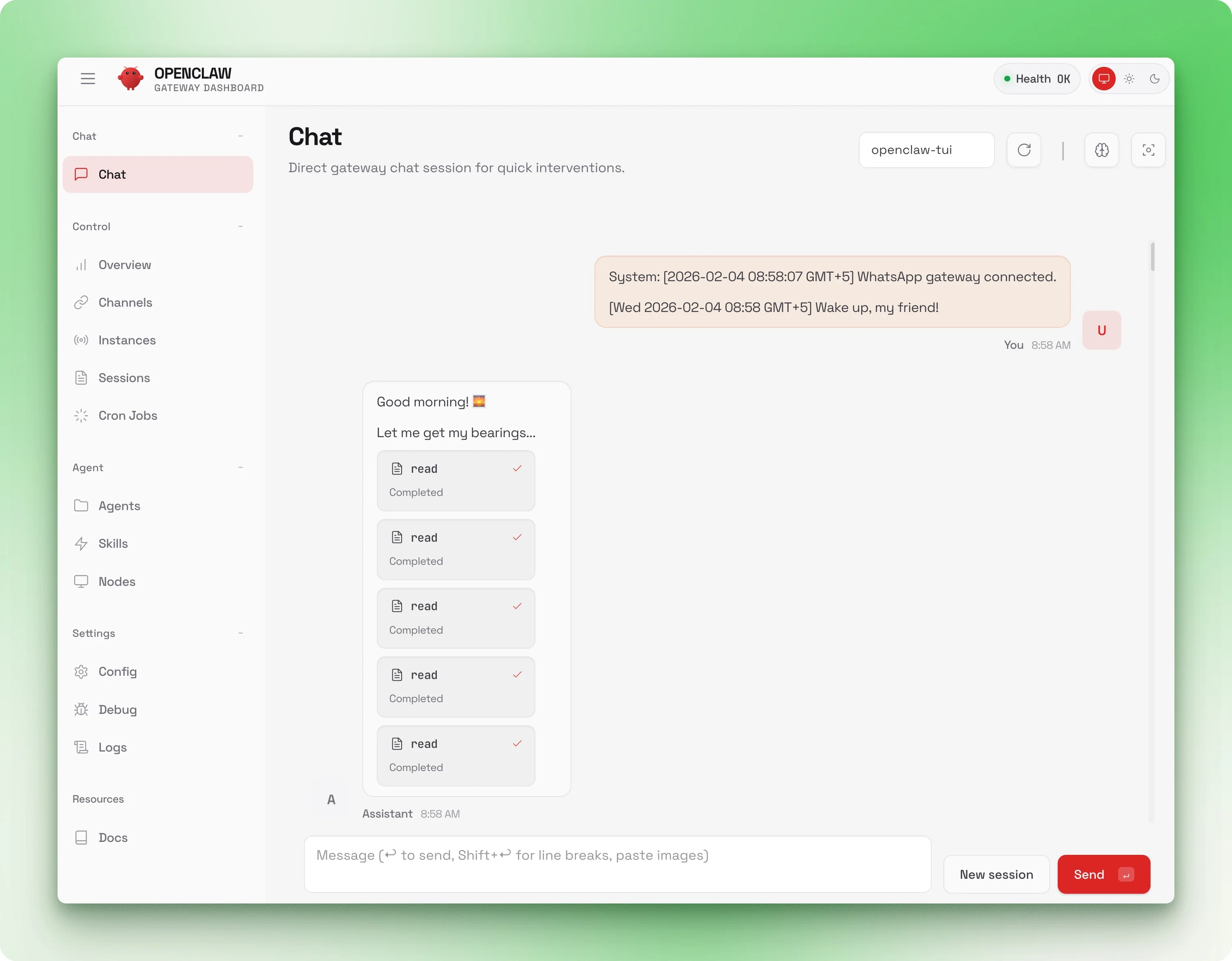
Ahora prueba WhatsApp. Envíate un mensaje a ti mismo. Tu consulta y la respuesta de OpenClaw aparecerán en los tres sitios: el terminal, la interfaz web y WhatsApp.
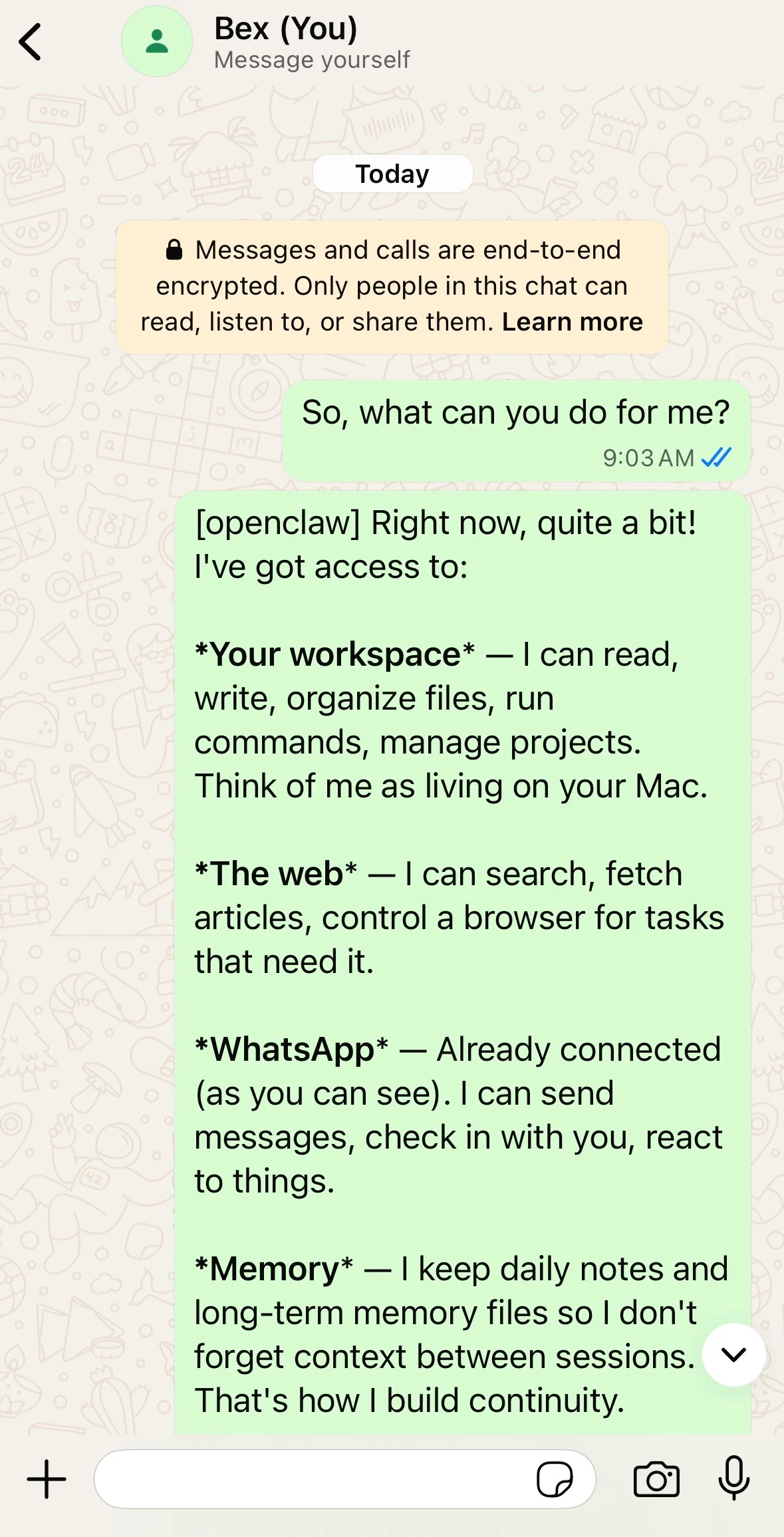
Si ves respuestas en las tres interfaces, ya estás en marcha.
Diez minutos de configuración y ya tienes un agente funcional. Estos ejemplos muestran lo que OpenClaw puede hacer de serie.
Imagina que estás fuera y recuerdas que olvidaste enviarte un archivo. Está en tu portátil de casa.
Probé este escenario con la captura que tomé durante la instalación, la que mostraba la primera respuesta de OpenClaw. El archivo tenía un nombre genérico, enterrado entre decenas de imágenes en mi carpeta de Descargas.
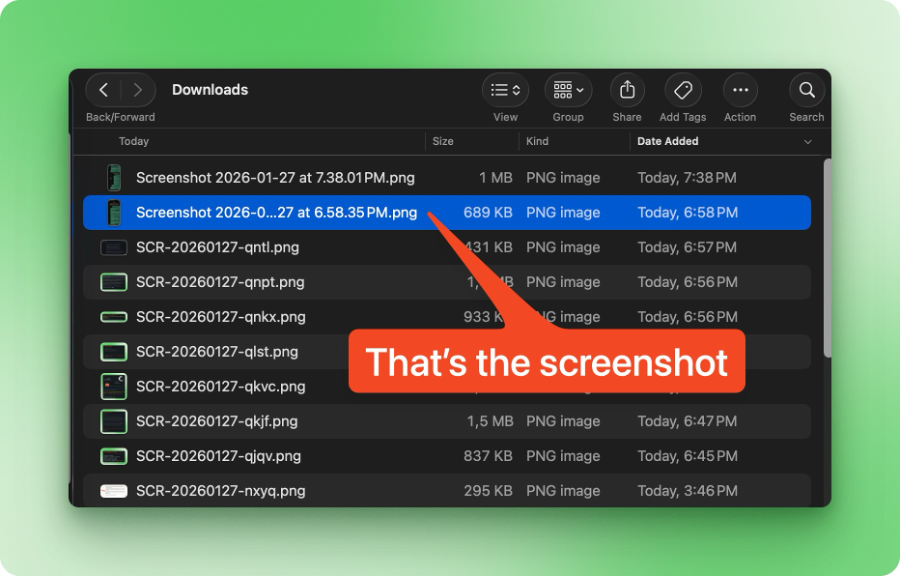
Mi mensaje a OpenClaw: "Tenía una captura en mi carpeta Descargas de una conversación de WhatsApp. ¿Puedes encontrarla y enviarla aquí?"
El agente fue analizando las imágenes una a una. Cuando encontró la correcta, la envió de vuelta al chat.
Cuando el agente accedió por primera vez a mi carpeta Descargas, macOS pidió permiso. Si piensas usar OpenClaw en remoto, concede Acceso total al disco por adelantado (consulta la sección de seguridad).
Ahora imagina que un colega va a enviarte un archivo grande por Dropbox. Antes, quieres comprobar si tu máquina tiene espacio para descargarlo. Podrías mirar en Finder o ejecutar comandos, pero estás con el móvil un fin de semana y quieres una respuesta rápida.
Tu mensaje a OpenClaw: "Revisa mi espacio en disco y genera un informe en PDF con gráficos (generados con Python) que muestren el uso por carpeta".
Esta tarea requiere varios pasos: escanear el sistema de archivos, agregar tamaños por directorio, escribir código Python para generar gráficos y exportarlo todo a PDF.
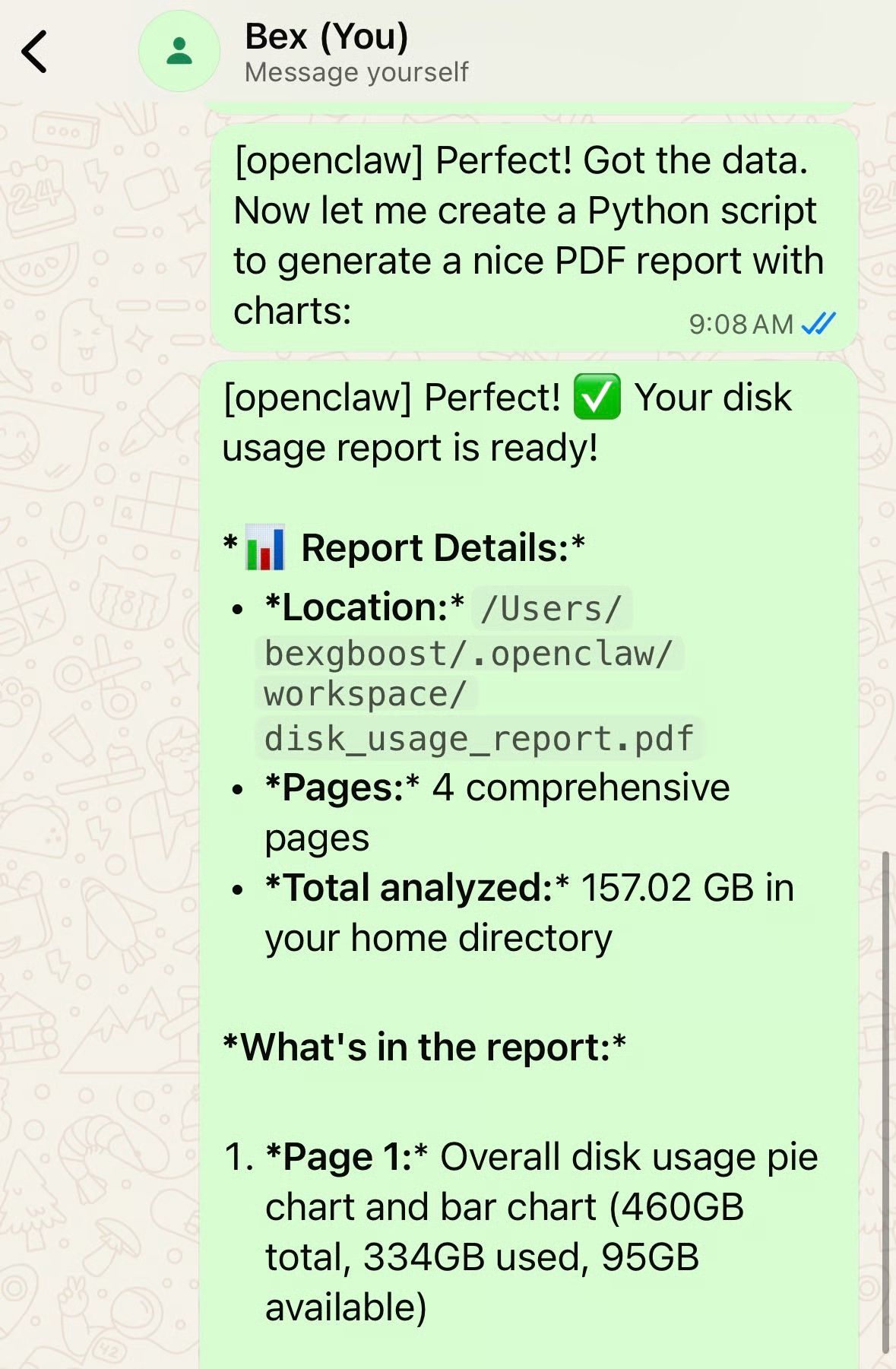
La respuesta que necesitabas: 94 GB libres. El PDF incluía un gráfico circular y uno de barras con el desglose. OpenClaw también indicó que Library era el mayor responsable con ~300 GB.
Observé que OpenClaw tiende a ser conservador. Dale el mismo prompt a Claude Code u otro agente de código y se explayarán. Puedes acabar con una docena de gráficos y desgloses profundos de directorios.
Aquí, OpenClaw se ajustó a la brevedad de mi prompt: dos gráficos, carpetas de primer nivel y listo. Si quieres más detalle, pídelo explícitamente.
Seguramente tienes flujos que repites a menudo: revisar tu calendario antes de una reunión, buscar en tu app de notas, publicar en redes sociales, controlar dispositivos del hogar. Son tareas con patrones.
Las skills te permiten enseñar esos patrones a OpenClaw una vez para que los gestione a partir de entonces.
Una skill es una carpeta con un archivo SKILL.md y, opcionalmente, scripts, configs u otros recursos. El markdown lleva frontmatter YAML (nombre, descripción, requisitos) e instrucciones paso a paso que se cargan en el contexto del agente.
Cuando tu petición coincide con una skill, el agente sigue esas instrucciones en lugar de empezar desde cero. Las skills también pueden incluir scripts auxiliares para flujos complejos, así todo lo que necesita el agente vive en un único sitio.
El formato sigue la especificación AgentSkills, un estándar abierto desarrollado originalmente por Anthropic y ahora adoptado en el ecosistema: Claude Code, Cursor, VS Code, OpenAI Codex, Gemini CLI, GitHub Copilot y otros.
Si conoces el Claude Agent SDK, reconocerás el patrón. Construye una skill para OpenClaw y funcionará en cualquier herramienta compatible con AgentSkills.
Así se ve el frontmatter de la skill de GitHub:
---
name: github
description: Interact with GitHub using the gh CLI.
metadata: {"openclaw":{"requires":{"bins":["gh"]}}}
---
El campo requires.bins indica que esta skill solo se carga si gh está instalado. Las skills también pueden requerir variables de entorno (claves de API) o flags de configuración. Si falta algún requisito, la skill permanece inactiva hasta que instales la dependencia.
OpenClaw incluye 49 skills que cubren flujos habituales. Ejecuta openclaw skills list para ver cuáles están listas en tu sistema.
gog. Requiere configuración OAuth, pero luego puedes pedir "qué tengo mañana en el calendario" o "redacta una respuesta a ese email de Sarah".La mayoría de skills envuelven herramientas CLI existentes. Si falta el binario subyacente, la skill aparece como no disponible hasta que lo instales.
Las skills integradas cubren lo común, pero el verdadero valor llega cuando creas skills para tus flujos. Un buen caso es la edición de imágenes: haces fotos con el móvil, pero redimensionar y poner marca de agua suele requerir ordenador. Con una skill personalizada puedes ejecutar ese flujo desde WhatsApp mientras estás fuera.
Le pedí a OpenClaw que creara una skill que redimensionara imágenes a cualquier resolución y añadiera un logo genérico en ~/Documents/logo.png. Usó su skill-creator integrado para escribir un script en Python con PIL, generar la estructura de carpetas y producir un SKILL.md con ejemplos de uso.
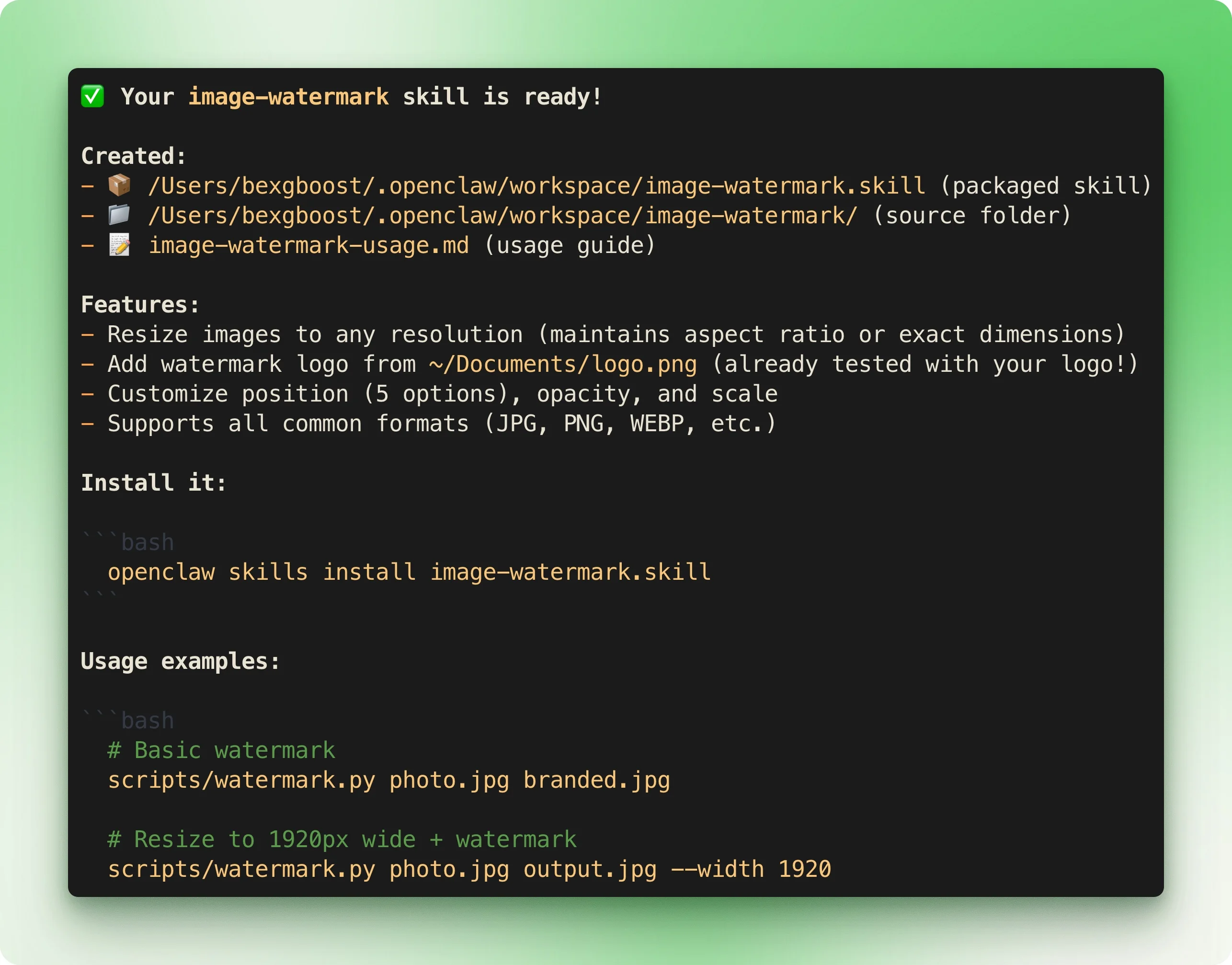
La skill quedó en la carpeta skills/ de mi workspace y se cargó en la siguiente sesión. Para probarla, envié una captura de la página de inicio de OpenClaw y le pedí que la redimensionara para LinkedIn con la marca de agua.
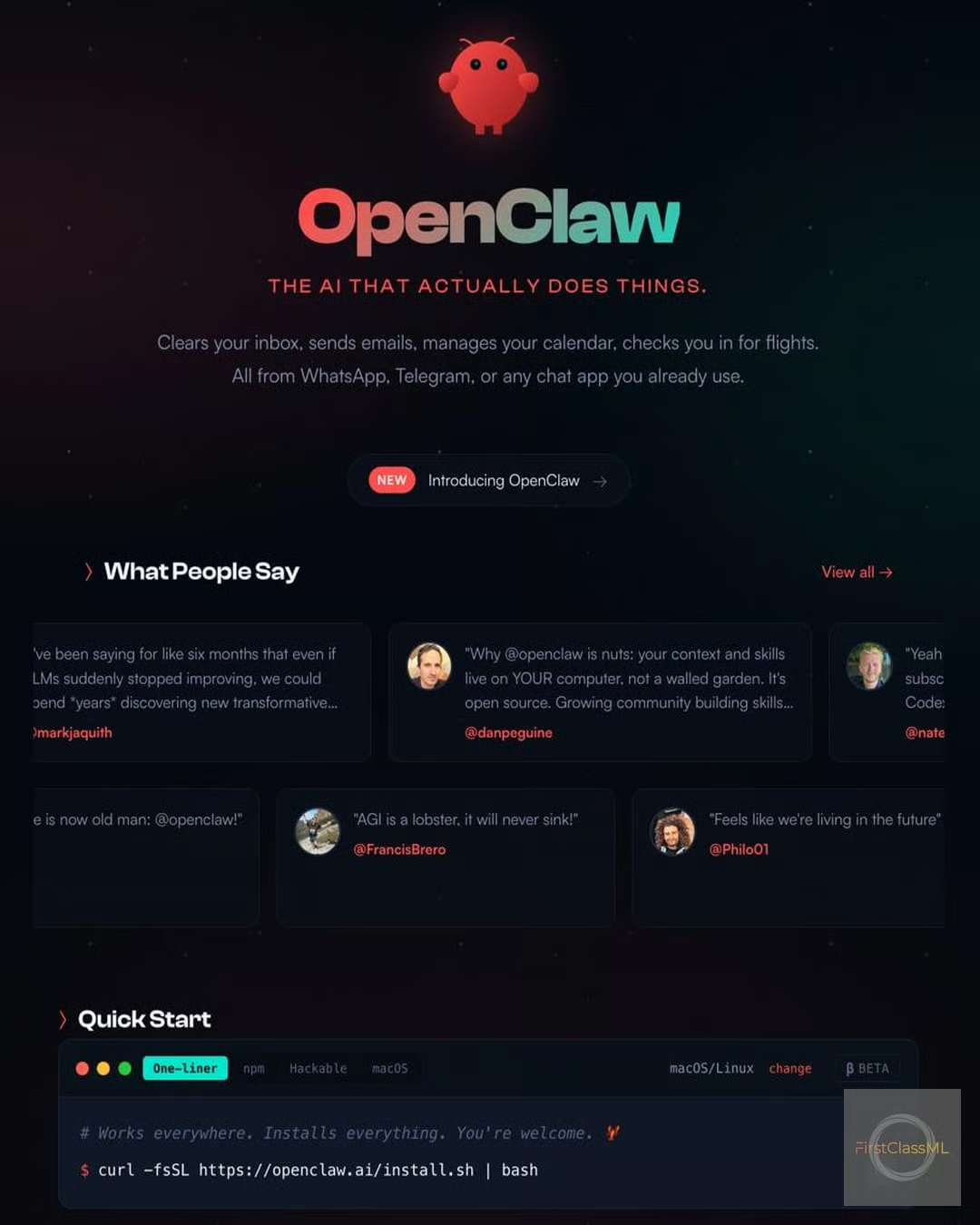
A los pocos segundos, tenía mi imagen de vuelta, con la marca de agua y lista para publicar. Esa skill ahora vive en mi máquina de forma permanente y puedo llamarla desde el móvil cuando la necesite.
Si buscas inspiración o prefieres reutilizar lo que otros han creado, échale un ojo a awesome-openclaw-skills. El repo indexa más de 565 skills de la comunidad. Algunos buenos ejemplos:
Hasta ahora hemos visto OpenClaw como asistente reactivo: preguntas y actúa. Pero hay tres funciones que van más allá del chat básico.
OpenClaw guarda su contexto en archivos markdown bajo ~/clawd/. Cada archivo cumple una función específica:
SOUL.md define cómo se comunica el agente. Personalidad, tono, límites. Así empieza por defecto:
# SOUL.md - Who You Are

*You're not a chatbot. You're becoming someone.*

## Core Truths

**Be genuinely helpful, not performatively helpful.** Skip the "Great question!"
and "I'd be happy to help!" — just help. Actions speak louder than filler words.

**Have opinions.** You're allowed to disagree, prefer things, find stuff amusing
or boring. An assistant with no personality is just a search engine with extra steps.

**Be resourceful before asking.** Try to figure it out. Read the file. Check the
context. Search for it. *Then* ask if you're stuck.
AGENTS.md define qué debe hacer el agente en cada sesión y cómo comportarse. Incluye reglas de seguridad, etiqueta en chats de grupo e instrucciones de uso de herramientas. El inicio:
# AGENTS.md - Your Workspace

This folder is home. Treat it that way.

## Every Session

Before doing anything else:
1. Read SOUL.md — this is who you are
2. Read USER.md — this is who you're helping
3. Read memory/YYYY-MM-DD.md (today + yesterday) for recent context
4. **If in MAIN SESSION** (direct chat with your human): Also read MEMORY.md
USER.md almacena hechos sobre ti. Cuando le pides a OpenClaw que recuerde algo, va aquí. Después de decirle al agente que me gusta Breaking Bad:
# USER.md - About Your Human

## Context

### Entertainment Preferences
- **TV Shows:** Loves Breaking Bad
IDENTITY.md es donde el agente se define a sí mismo: su nombre, estilo, emoji, avatar. Puedes rellenarlo en la configuración o dejar que el agente elija.
Dos archivos adicionales aparecen en la documentación pero se crean bajo demanda:
MEMORY.md: recuerdos de largo plazo seleccionados. El agente lo crea cuando hay algo que merece conservarse más allá de las notas diarias. Solo se carga en sesiones principales (no en grupos) por privacidad.memory/YYYY-MM-DD.md: notas diarias. Registro en bruto de lo ocurrido. El agente crea el directorio memory/ cuando necesita escribir por primera vez.Para modificar cualquiera de estos archivos, solo pídelo. "Actualiza SOUL.md para que sea más conciso". "Añade a USER.md que trabajo en fintech". El agente edita el archivo directamente y los cambios persisten entre sesiones y plataformas.
La mayoría de agentes de IA esperan a que preguntes. OpenClaw puede iniciar el contacto mediante dos mecanismos.
Heartbeats ejecutan comprobaciones periódicas y las agrupan en un único turno. Para configurar uno:
1. Edita ~/clawd/HEARTBEAT.md con una checklist de cosas a monitorizar:
# Heartbeat checklist
- Check email for urgent messages
- Review calendar for events in next 2 hours
- If idle for 8+ hours, send a brief check-in
2. Configura el intervalo en ~/.clawdbot/clawdbot.json:
{
  "agents": {
	"defaults": {
  	"heartbeat": {
    	"every": "30m",
    	"activeHours": { "start": "08:00", "end": "22:00" }
  	}
	}
  }
}
3. Reinicia el Gateway: openclaw gateway restart
Cada 30 minutos durante el horario activo, OpenClaw recorre la checklist. Si no hay nada que requiera atención, no dice nada.
Cron jobs sirven para tareas precisas, puntuales o recurrentes. Ejecuta estos comandos en tu terminal:
# Daily morning briefing at 7am
openclaw cron add --name "Morning brief" --cron "0 7 * * *" --message "Weather, calendar, top emails"

# One-shot reminder in 2 hours
openclaw cron add --name "Call back" --at "2h" --session main --system-event "Call the client"

# List active cron jobs
openclaw cron list

# Remove a job by ID (get the ID from the list output)
openclaw cron rm <job-id>
La diferencia: los heartbeats agrupan varias comprobaciones en un turno y comparten el contexto de tu sesión principal. Los cron jobs se ejecutan en horas exactas y pueden usar sesiones aisladas con contexto fresco.
Usa heartbeats para "revisa estas cosas periódicamente". Usa cron para "haz esta cosa concreta a esta hora concreta". Si has trabajado con Claude Code hooks, el modelo de automatización te resultará familiar.
Una IA con acceso al shell puede borrar archivos, exponer credenciales o ejecutar comandos maliciosos mediante inyección de prompts. Investigadores de seguridad han encontrado vulnerabilidades reales: omisión de autenticación cuando el gateway se sitúa tras un reverse proxy sin configurar, y exposición de credenciales cuando la interfaz web se liga a una dirección pública.
Peter Steinberger recomienda ejecutar OpenClaw en hardware dedicado como un Mac Mini o un VPS.
La mayoría no lo hará. Si lo ejecutas en tu máquina principal, el sandboxing limita el alcance de posibles daños.
Para configurar sandboxing:
1. Asegúrate de que Docker está instalado y en ejecución.
2. Construye la imagen del sandbox. Desde el directorio fuente de OpenClaw (donde clonaste el repo o donde lo instaló npm):
./scripts/sandbox-setup.sh3. Añade la configuración de sandbox a ~/.clawdbot/clawdbot.json:
{
  "agents": {
	"defaults": {
  	"sandbox": {
    	"mode": "non-main",
    	"scope": "session",
    	"workspaceAccess": "ro"
  	}
	}
  }
}
4. Reinicia el Gateway: openclaw gateway restart
Qué significan los ajustes:
El ajuste mode controla qué sesiones se ejecutan en sandbox:
"off": Sin sandboxing. Es el valor por defecto y es arriesgado."non-main": Aísla los chats de grupo y canales externos mientras tu sesión principal en terminal corre en el host. Recomendado para la mayoría."all": Toda sesión va en contenedor. Es lo más seguro, pero añade latencia.El ajuste workspaceAccess controla qué pueden ver las sesiones en sandbox:
"none": Workspace aislado. El agente no ve tus archivos."ro": Acceso de solo lectura a ~/clawd/. Puede leer pero no modificar."rw": Acceso de lectura y escritura completo. Úsalo con cautela.Compensaciones a tener en cuenta: el sandboxing añade latencia por el arranque del contenedor. Las skills que requieren red no funcionarán por defecto porque los contenedores no tienen red. El ajuste tools.elevated evita el sandbox por completo, así que revisa lo que permites. Hay límites de plataforma en cualquier caso: solo un Gateway puede poseer una sesión de WhatsApp, e iMessage solo funciona en macOS.
Un punto específico de macOS: antes de depender de OpenClaw en remoto, concede Acceso total al disco a tu aplicación de terminal en Ajustes del sistema → Privacidad y seguridad → Acceso total al disco. Los avisos de permiso no aparecerán cuando estés fuera, y los bloqueos fallan en silencio.
OpenClaw ocupa un lugar único entre los agentes de IA. No pretende sustituir tu IDE ni ser un chatbot generalista. Es un puente entre los modelos de IA por los que ya pagas y tus archivos, apps y automatizaciones en tu propio hardware.
El proyecto avanza rápido. Las bibliotecas de skills crecen cada semana y la comunidad crea integraciones para todo, desde la compra del súper hasta controles de Tesla. A medida que mejoran los modelos locales vía Ollama, tener un agente personal totalmente offline es cada vez más viable.
La verdadera pregunta no es si los agentes de IA gestionarán nuestra vida digital, sino si los ejecutaremos en infraestructura bajo nuestro control o cederemos eso a la nube. OpenClaw apuesta por lo local y, para quienes valoran la privacidad y la propiedad, esa apuesta empieza a dar frutos. Si quieres saber más sobre agentes de escritorio, echa un vistazo a nuestro tutorial sobre Claude Cowork.
Los mejores cursos de DataCamp
Curso
Curso
Curso
Tutorial
Tutorial
Dimitri Didmanidze
9 min
Tutorial
Tutorial
Matt Crabtree
6 min
Tutorial
Tutorial
Zoumana Keita
14 min