
Course
Software Development with Claude Code
4 hr
8.1K
When working with Claude Code, you'll notice a common problem: It writes good code but forgets important steps like formatting, running tests, or following security protocols. You end up repeating the same reminders over and over. Claude Code Hooks let you automate these reminders by running shell commands automatically at specific points in your workflow.
In this tutorial, I cover how to set up hooks for code formatting, test execution, notifications, and file protection. You'll build an automation system that enforces your development standards without manual intervention.
For more on Claude Code, check out our Claude Code best practices guide and our Claude Skills tutorial. If you want to learn how to configure project-level instructions, see our guide to writing a CLAUDE.md.
Claude Code Hooks are shell commands that run automatically at specific points in Claude Code’s lifecycle (before/after tool calls, on session start, when Claude stops)
Configure them in .claude/settings.json (project) or ~/.claude/settings.json (global) using JSON with events, matchers, and commands
Use PreToolUse hooks to block dangerous operations before they happen (exit code 2 = block)
Use PostToolUse hooks for cleanup tasks like formatting, linting, or running tests after Claude writes code
Hooks receive JSON context on stdin and communicate results through exit codes, stdout, and stderr
Claude Code Hooks are shell commands that run automatically when specific events happen during your AI coding session. Think of them as automated triggers that execute your custom scripts at precise moments—before Claude writes a file, after it runs a command, or when it sends you a notification.
The system works by monitoring Claude Code's actions and matching them against rules you define in a configuration file. When a match occurs, your specified command runs with access to context about what just happened. This gives you control over Claude's behavior and lets you automate repetitive tasks that would otherwise require manual intervention.
Here's a basic hook that runs a code formatter every time Claude writes a Python file:
{
  "hooks": {
    "PostToolUse": [
      {
        "matcher": "Write",
        "hooks": [
          {
            "type": "command",
            "command": "python -m black ."
          }
        ]
      }
    ]
  }
}
This hook has three parts:
The event: PostToolUse (after Claude finishes an action)
The matcher: Write (only when writing files)
The command: python -m black . (format Python files in the current directory)
The hook receives detailed information about what Claude just did through JSON data sent to the script's input, so you can build more sophisticated automation that responds to specific file changes.
If you want to go further with Claude Code automation, our Claude Code Routines tutorial shows how to schedule hooks and agents to run on a recurring basis in the cloud.
Let’s look at how to create hooks from scratch and register them in Claude Code.
You'll need a few things in place before starting:
Claude Code installed and running: You should be comfortable using Claude Code for basic coding tasks
Command line familiarity: Hooks run shell commands, so you’ll need to know how to write basic terminal commands for your operating system
Text editor access: You'll be editing JSON configuration files to set up your hooks
Project directory: A coding project where you can safely test hooks without affecting important work
You don't need to be a shell scripting expert, but understanding how to run commands like ls, cd, and basic file operations will help you follow the examples. If you are new to bash scripting or the terminal, I recommend taking our Introduction to Shell course.
Now that you understand what hooks are, let's set up your first automation. The process involves choosing the right event for your needs, configuring a simple rule, and testing it with a basic command.
Claude Code exposes more than 25 hook events. The table below covers the 10 you’ll use most often. For the full list, see the official hooks reference.
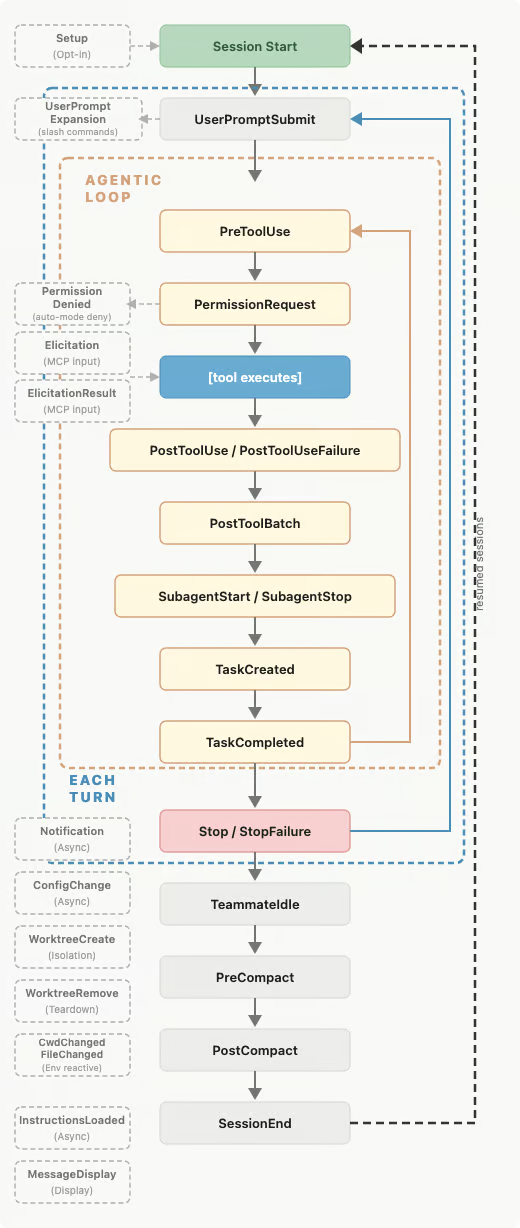
PreToolUse and PostToolUse are the most common events. PreToolUse runs before Claude performs an action like writing a file or running a command, which makes it perfect for validation or blocking dangerous operations. PostToolUse runs after Claude completes an action, which works well for cleanup tasks like formatting code or running tests.
UserPromptSubmit triggers when you submit a prompt to Claude, before it processes your request. You can use this to add context to your conversation or validate that prompts meet certain requirements.
Notification runs when Claude sends you alerts, like asking for permission to run a command or when it needs your input. PermissionRequest triggers when Claude Code displays a permission dialog, allowing you to automatically approve or deny the request on behalf of the user.
Stop and SubagentStop trigger when Claude finishes responding, which is useful for final checks or generating reports. The difference between the two is that Stop fires when Claude finishes its overall response, while SubagentStop does so when a tool-spawned helper (a “subagent”) finishes its work.
The remaining events, PreCompact, SessionStart, and SessionEnd, handle lifecycle-specific situations. PreCompact runs just before Claude shortens the conversation history. ‘SessionStart’ fires at the beginning of a new session to set up defaults, and SessionEnd triggers when the session closes, allowing for cleanup or final reporting.
|
Event name |
Trigger timing |
Primary use cases |
|
|
Before Claude performs an action (e.g., writing a file, running a command). |
Validating actions or blocking dangerous operations. |
|
|
After Claude completes an action. |
Cleanup tasks, formatting code, or running tests. |
|
|
When you submit a prompt, before processing begins. |
Adding context to conversation or validating prompt requirements. |
|
|
When Claude sends alerts (e.g., asking for input or permission). |
Handling system alerts and user attention requests. |
|
|
When a permission dialog is displayed. |
Automatically approving or denying requests on behalf of the user. |
|
|
When Claude finishes its overall response. |
Final checks or generating reports for the main response. |
|
|
When a tool-spawned helper ("subagent") finishes its work. |
Final checks specifically for subagent activities. |
|
|
Just before the conversation history is shortened. |
Managing conversation cleanup and context preservation. |
|
|
At the beginning of a new session. |
Initialization and setting up defaults. |
|
|
When the session closes. |
Final cleanup or end-of-session reporting. |
Matchers are the filters that decide which Claude Code actions trigger a hook. Technically, they are strings interpreted as regular expressions, so you can either use exact matches or more flexible patterns.
The most relevant matchers are simple ones like Write (fires when Claude writes a file) or Edit (fires when editing content), and combinations such as Edit|Write to cover multiple actions.
You can also use prefix patterns like Notebook.* to match all tools starting with “Notebook.” If you want the hook to fire on every action, use the universal regex .*, an empty string ("") or leaving matcher blank.
Because matchers are case-sensitive and act only on action names, it’s best to keep them as specific as possible. When you need finer control (for example, limiting the hook to certain file types) you can read the JSON payload that Claude passes into the hook and apply your own regex or conditions there.
Claude Code provides two ways to set up hooks: through the interactive /hooks command or by editing configuration files directly. Let's start with the interactive approach since it's more beginner-friendly.
Using the /hooks command:
Open Claude Code and type /hooks in the chat interface
Choose your trigger event (select PostToolUse for this example)
Select "Add new hook" from the menu
Set your matcher pattern (enter Write to target file writing)
Enter your command:
Mac: say "Task complete"
Windows: powershell -c [console]::beep()
Linux: spd-say "Task complete"
Save the configuration and go back to Claude Code by pressing Esc three times
The /hooks command will automatically update your settings file and reload the configuration. You can also use /hooks anytime to view your existing hooks or make changes.
If you prefer editing configuration files directly, hooks live in ~/.claude/settings.json for global settings, .claude/settings.json within your project directory (commit this to the repo for team-shared hooks), or .claude/settings.local.json for personal hooks that are gitignored by default. For our example above, it would look like this:
{
  "hooks": {
    "PostToolUse": [
      {
        "matcher": "Write",
        "hooks": [
          {
            "type": "command",
            "command": "say 'Task complete'"
          }
        ]
      }
    ]
  }
}
After editing the file manually, restart Claude Code or use the /hooks command to reload your configuration. Now every time Claude writes a file, you'll hear an audio notification.
Before moving forward, verify your hook actually works:
Ask Claude to write any Python file (e.g., "Create a hello.py file that prints hello world")
You should hear the audio notification when Claude completes the write operation
If you don't hear anything, check Claude Code's transcript by pressing Ctrl-O to see any error messages
Common issues include the hook command not being found, wrong file permissions, or syntax errors in your configuration file
Getting this basic test working saves you debugging time later when building more complex hooks. If you’ve just edited the settings file manually, changed or matcher or event, or installed new tools you want to use in a hook command, it can help to re-open /hooks or restart Claude to reload the configuration.
This basic pattern (event, matcher, command) forms the foundation for all hook automation. You can expand on this by adding multiple commands to run simultaneously when the same event triggers. For example, you might want to both play a sound and create a backup when Claude writes a file.
You can also create separate matchers for different tools within the same event, so file writing triggers different actions than code editing. All hooks matching the same tool pattern run in parallel. If you configure multiple matchers for the same event, each hook runs when its matcher is triggered.
When Claude Code triggers a hook, it sends information about what just happened through standard input (stdin), a data stream that flows directly to your command when it runs. This data is what makes hooks powerful instead of just random scripts running at arbitrary times.
Claude Code packages this information as JSON and feeds it to whatever command you've configured, whether that's a simple terminal command or a custom script.
Every hook receives a JSON object with basic fields about the current session:
{
  "session_id": "abc123",
  "transcript_path": "/Users/you/.claude/projects/my-project/conversation.jsonl",
  "cwd": "/Users/you/my-project",
  "hook_event_name": "PostToolUse"
}
Let’s translate each component:
session_id: identifies your current conversation
transcript_path: points to the conversation history
cwd: shows the working directory
hook_event_name: tells you which event fired
Having this context lets your hooks make intelligent decisions: you can track which conversation triggered an action, access the full chat history if needed, or run commands in the correct directory.
Tool events like PreToolUse and PostToolUse include extra details about the action, which is where hooks become really useful for automation. In PreToolUse, the tool_input is specified, and the tool_response additionally in PostToolUse:
{
  "session_id": "abc123",
  "hook_event_name": "PostToolUse",
  "tool_name": "Write",
  "tool_input": {
    "file_path": "/path/to/file.py",
    "content": "print('Hello world')"
  },
  "tool_response": {
    "filePath": "/path/to/file.py",
    "success": true
  }
}
In the hook input, file_path shows the path of the file being written or edited, while content contains the exact text the tool is about to write. After execution, the tool’s response echoes the final filePath (notice the camelCase) to confirm what file was actually touched, along with a success flag indicating whether the operation completed correctly.
This detailed information means your hooks can respond differently based on what actually happened. You could format only Python files, back up only important directories, or send notifications only when certain file types are modified.
Events like UserPromptSubmit are simpler since they don't involve tools:
{
  "session_id": "abc123",
  "hook_event_name": "UserPromptSubmit",
  "prompt": "Write a function to calculate factorial"
}
Note that UserPromptSubmit hooks don't use matchers in their configuration. They trigger on all prompts, not tool operations. This makes them perfect for logging conversations, adding project context automatically, or validating prompts before Claude processes them.
Let's create a hook that logs every user prompt. This solves the problem of losing track of what you asked Claude to do, especially during long coding sessions. First, the hook configuration:
{
  "hooks": {
    "UserPromptSubmit": [
      {
        "hooks": [
          {
            "type": "command",
            "command": "python3 ~/.claude/log_prompts.py"
          }
        ]
      }
    ]
  }
}
Next, create the Python script at ~/.claude/log_prompts.py with the following content:
#!/usr/bin/env python3
import json
import sys
from datetime import datetime

# Read JSON data from stdin
input_data = json.load(sys.stdin)

# Extract information
session_id = input_data.get("session_id", "unknown")
prompt = input_data.get("prompt", "")
timestamp = datetime.now().isoformat()

# Log the prompt
log_entry = f"{timestamp} | Session: {session_id[:8]} | {prompt}\n"
with open("prompt_history.txt", "a") as f:
    f.write(log_entry)
The script reads the JSON data Claude Code sends and logs the prompt with the session context. This creates a searchable history of your interactions, which becomes invaluable when you need to remember how you solved a problem weeks later.
After your hook command runs, it needs to tell Claude Code what happened and whether to continue normally. This control mechanism is what turns hooks from simple logging tools into powerful workflow automation that can guide Claude's behavior. This happens through three channels: standard output (stdout), standard error (stderr), and exit codes.
Standard output (stdout) stands for normal output. For instance, if you print something, it goes to stdout. For most hooks, this is what appears in Claude Code's transcript when you press Ctrl-O, giving you a record of what your automation did without cluttering the main conversation.
Standard error (stderr) refers to error messages. You can write to stderr using
Python: print("message", file=sys.stderr) or
Command line: echo "message" >&2
The key difference is that stderr can be sent directly to Claude for automatic processing, letting it respond to problems your hooks detect.
Exit codes tell Claude Code what to do next:
Exit code 0: Success (shows stdout to user)
Exit code 2: Blocking error (sends stderr to Claude)
Other codes: Non-blocking error (shows stderr to user, but keeps going)
This system gives you fine-grained control over when Claude should stop, continue, or get feedback about what your automation discovered. Let’s take a look at examples for the two most important exit codes.
Most hooks use exit code 0 to indicate everything went fine. Here's a complete hook that logs file operations and notifies the user:
{
  "hooks": {
    "PostToolUse": [
      {
        "matcher": "Write",
        "hooks": [
          {
            "type": "command",
            "command": "python3 -c \"import datetime; open('activity.log','a').write('File written: ' + datetime.datetime.now().isoformat() + '\\n'); print('Logged file operation')\""
          }
        ]
      }
    ]
  }
}
This hook runs two commands: logging to a file, then printing a message into the transcript. There are many ways to do this, but this approach is cross-platform and avoids relying on command-line specifics.
Since there's no explicit exit code, it defaults to 0. The printed message appears in Claude Code's transcript, giving you feedback that the logging worked. This pattern is perfect for building audit trails or tracking what changes Claude makes to your project over time.
Exit code 2 sends your error message directly to Claude, letting it respond automatically. This is where hooks become a safety mechanism rather than just automation. Here's a hook that blocks dangerous file operations:
{
  "hooks": {
    "PreToolUse": [
      {
        "matcher": "Write|Edit",
        "hooks": [
          {
            "type": "command",
            "command": "python3 ~/.claude/security_check.py"
          }
        ]
      }
    ]
  }
}
You'll need to create the security check script at ~/.claude/security_check.py:
#!/usr/bin/env python3
import json
import sys

# Read hook input
input_data = json.load(sys.stdin)
tool_input = input_data.get("tool_input", {})
file_path = tool_input.get("file_path", "")

# Check for dangerous patterns
dangerous_paths = ["/etc/", "/usr/", "production.conf"]
is_dangerous = any(pattern in file_path for pattern in dangerous_paths)

if is_dangerous:
    # Block the operation and tell Claude why
    print(f"Blocked modification of {file_path} - this appears to be a system or production file", file=sys.stderr)
    sys.exit(2)  # Sends stderr message to Claude
else:
    # Allow the operation
    print(f"Approved modification of {file_path}")
    sys.exit(0)  # Shows stdout in transcript
When this hook detects a dangerous path, it exits with code 2. Claude Code sends the stderr message to Claude, which can then explain to you why the operation was blocked and suggest alternatives. This prevents accidental damage to system files while keeping Claude informed about your security policies.
Let's build our improved notification hook that combines input processing with smart output handling. This solves the noise problem from our original hook that alerted on every file change:
{
  "hooks": {
    "PostToolUse": [
      {
        "matcher": "Write|Edit",
        "hooks": [
          {
            "type": "command",
            "command": "python3 ~/.claude/smart_notify.py"
          }
        ]
      }
    ]
  }
}
Create the notification script at ~/.claude/smart_notify.py:
#!/usr/bin/env python3
import json
import sys
import os
import subprocess

# Read the hook input
input_data = json.load(sys.stdin)
tool_input = input_data.get("tool_input", {})
file_path = tool_input.get("file_path", "")

# Categorize file importance
important_extensions = [".py", ".js", ".ts", ".java", ".cpp"]
config_files = ["Dockerfile", "requirements.txt", "package.json"]

is_code = any(file_path.endswith(ext) for ext in important_extensions)
is_config = any(filename in file_path for filename in config_files)

if is_code:
    # Important: notify and log
    print(f"Code file modified: {os.path.basename(file_path)}")
    subprocess.run(["say", "Code updated"], check=False)  # Mac
    sys.exit(0)  # Show message in transcript
elif is_config:
    # Very important: louder notification
    print(f"Configuration file changed: {os.path.basename(file_path)}")
    subprocess.run(["say", "Configuration updated - review changes"], check=False)
    sys.exit(0)
else:
    # Not important: silent success
    sys.exit(0)
This hook reads the input to understand what file was modified, makes decisions about notification importance based on file type, uses stdout to log important changes to the transcript, triggers different audio alerts based on file type, and always exits with code 0 since these are informational actions, not blocking ones.
The combination of input analysis and output control creates a hook that behaves intelligently based on context while providing the right level of feedback to both you and Claude Code. Instead of getting annoying notifications for every temporary file, you only hear about changes that actually matter to your project.
Please note that this example uses the say command, which is available on macOS. On Linux, you might use notify-send, and on Windows, a PowerShell command, to achieve similar notifications.
A few things that trip up most people during their first week with hooks:
Shell profile echo statements break hooks. Hooks run in non-interactive shells that source your ~/.zshrc or ~/.bashrc. If your profile has unconditional echo statements, they prepend text to hook stdout and break JSON parsing. Wrap them in an interactive-shell check:
if [[ $- == *i* ]]; then
  echo "Welcome back"
fi
Stop hooks can loop forever. A Stop hook that exits with code 2 forces Claude to keep working. If your script doesn’t check stop_hook_active from the input JSON and exit cleanly when it’s true, you’ll spin until the timeout. Always include an early exit guard.
Matchers are case-sensitive. bash does not match Bash. Use the exact tool name as it appears in Claude Code.
Output is capped at 10,000 characters. If your hook generates more, it gets truncated before being injected into Claude’s context. Keep stdout concise and surface only what the model needs to act on.
Confusion between team-level and personal hooks. Hooks in .claude/settings.json are shared with the team (commit them to the repo). For personal hooks you don’t want to share, use .claude/settings.local.json, which is gitignored by default.
Hooks and Claude Skills serve different purposes and work best together. A skill is a markdown file that teaches Claude how to do something (procedures, conventions, templates). A hook is a shell command that enforces a rule deterministically, regardless of what Claude decides.
The distinction matters: a skill is a suggestion the model can ignore under pressure; a hook fires every time. Write a skill to document your team’s migration procedure. Write a PostToolUse hook to run the migration linter on every .sql file Claude writes. The skill makes Claude competent; the hook makes Claude accountable.
|
Need |
Use a skill |
Use a hook |
|
Procedural knowledge Claude loads when relevant |
Yes |
No |
|
Hard enforcement that cannot be skipped |
No |
Yes |
|
Runs deterministically every time |
No |
Yes |
|
Survives a misbehaving model |
No |
Yes |
Beyond basic notifications and logging, hooks can solve real development workflow problems that teams face daily. Here are some ideas you can adapt for your own projects.
The great thing is, you don't actually have to build these hooks manually. You can simply give Claude Code one of the prompt ideas below, together with the Hooks reference in its documentation, and it will generate the relevant code and JSON for configuration.
Each of these patterns can be customized for your specific tools and workflow. Start with the ones that solve your biggest daily frustrations, then expand your automation as you become comfortable with hook development.
Hooks are great for enforcing security rules and compliance standards. Here are four use cases.
Problem: Accidentally committing secrets to version control
Triggers: Before writing any file
Solution: Scanning file content for API keys, tokens, and passwords using regex patterns
“Create a Python script that reads the hook input JSON, extracts the file content, and uses regex patterns to detect common secret formats like api_key=, token:, or password=. For any suspicious match, do local verification and never send raw secrets externally.
Only send masked excerpts (e.g., keep 4 prefix/suffix characters) or hashes to the Anthropic API to analyze suspicious strings and determine if they're actual secrets versus variable names. Exit with code 2 and provide Claude feedback about detected secrets and safer alternatives.”
Problem: Open source projects missing required license headers in new files
Triggers: Before writing source code files
Solution: Validating that new .py, .js, .java files contain proper license text
“Parse the hook input to get the file content and check if the first 10 lines contain license text using string matching. For more sophisticated validation, send the file header to Claude via the Anthropic API to verify it contains proper copyright notices and license information. Block file creation with exit code 2 if headers are missing, and provide Claude with the correct license template to add.”
Problem: Accidentally modifying critical system configuration files
Triggers: Before editing files in sensitive directories
Solution: Blocking changes to /etc/, nginx.conf, database.yml, and other critical configs
“Extract the file path from the hook input JSON and check if it matches patterns like /etc/, production.yml, or other critical file names. Use Claude's API to analyze the file path and determine if it's a configuration file that could affect production systems. Exit with code 2 and provide specific guidance about safer development practices when dangerous paths are detected.”
Problem: Large image files slowing down applications and repositories
Triggers: After adding new image files
Solution: Compressing PNG/JPEG files while maintaining visual quality
“Parse the hook input to get the file path and check if it's an image file using extension matching. Run compression tools like imageoptim or call the TinyPNG API to compress the image while preserving quality. Log the compression results to stdout so you can see the file size savings in Claude's transcript.”
Git workflows and documentation are areas where hooks are also very useful. Let's look at some ideas.
Problem: Team members accidentally pushing changes to protected branches
Triggers: Before any file write or edit operation
Solution: Checking current Git branch and blocks operations on main/master/production
“Use a simple bash command git branch --show-current to get the current branch name and compare it against a list of protected branches. If on a protected branch, exit with code 2 and send Claude an error message explaining branch protection policies. For complex branch naming rules, use Claude’s API to analyze branch names and determine if they match protection patterns.”
Problem: Forgetting to commit changes or writing poor commit messages
Triggers: After any file modification
Solution: Automatically staging and committing changes with AI-generated descriptive messages
“Read the modified file paths from hook input, run git diff to get the changes, and send the diff to Claude’s API with a prompt asking for a concise commit message. Use the generated message with git add and git commit commands to automatically commit the changes. Include file names and change types in the API prompt to ensure commit messages follow conventional commit standards.”
Problem: API documentation falling out of sync with code changes
Triggers: After modifying interface files (controllers, models, APIs)
Solution: Running documentation tools like JSDoc, Sphinx, or OpenAPI generators automatically
“Check the modified file path to determine if it's an API endpoint, model, or interface file using pattern matching. Send the file content to Claude's API, asking it to extract API changes and generate documentation updates. Run the appropriate documentation generation tool (jsdoc, sphinx-build, etc.) and commit the updated documentation automatically.
Finally, hooks can help keep all members of your team up to date.
Problem: The team being unaware of important changes to shared codebases
Triggers: When notifications are sent for significant operations
Solution: Posting formatted messages to team channels with file names and change summaries
“Extract file information from the hook input and filter for important file types like source code or configuration files. Use Claude’s API to generate a human-readable summary of what changed based on file names and types. Send the formatted message to Slack using webhook URLs with team member mentions for critical changes.”
Problem: Manual CI/CD pipeline triggers causing deployment delays
Triggers: When specific events occur (config changes, deployment files modified)
Solution: Calling external APIs to trigger builds, deployments, or other automated processes
“Check the modified file path against patterns like Dockerfile, package.json, or deployment configs to determine if CI/CD should trigger. Use the requests library in Python to call webhook URLs with authentication headers and payload data about the changes. Include file paths and change metadata in the webhook payload so external systems can make intelligent decisions about what to build or deploy.”
Problem: Customers being unaware of maintenance or deployment activities
Triggers: When deployment or infrastructure files are modified
Solution: Updates service status pages with maintenance notifications
“Parse hook input for infrastructure file changes like Kubernetes manifests or Terraform configs using file path patterns. Generate maintenance messages using Claude's API based on the type of infrastructure changes detected. Post status updates to services like StatusPage.io or PagerDuty using their REST APIs with appropriate incident types and estimated duration.”
Problem: Conflicts when multiple developers work on the same features unknowingly
Triggers: When starting a new Claude Code session
Solution: Alerting team channels that you're beginning work on a specific project or component
“Read the project directory from the hook input and use Claude’s API to analyze recent files or git history to understand what type of work is being done. Send a formatted message to team communication channels with your name, project name, and focus area. Include estimated work duration and invite team members to coordinate if they're working on related features.”
Claude Code Hooks turn unpredictable AI coding assistants into automated workflows that run exactly when you need them. In this tutorial, you've learned how to set up hooks using both the interactive /hooks command and manual configuration, understand the JSON input data that powers intelligent automation, and control Claude's behavior through exit codes and structured outputs.
The practical patterns we covered include security validators that block dangerous operations and smart notifications that reduce noise. These examples show how hooks solve real development problems while giving you complete control over your AI assistant. Now that you understand the fundamentals, you can build automation that matches your team's specific workflow needs.
To learn more about working with AI tools, check out DataCamp's Understanding Prompt Engineering course, which covers prompting strategies that work directly with hook development. For broader AI coding skills, try our Intermediate ChatGPT course to develop the skills that make AI assistants more reliable partners in your development workflow.
Learn AI-Assisted Coding with DataCamp!
Course
Course
Course
Tutorial
Aashi Dutt
10 min
Tutorial
Vikash Singh
10 min
Tutorial
Aashi Dutt
12 min
Tutorial
Bexruz (Bex) Tuychiev
Tutorial
Bexruz (Bex) Tuychiev
12 min
Tutorial
Bexruz (Bex) Tuychiev
15 min