For years, AI assistants lived inside chat windows, limited to back-and-forth conversation. Claude Cowork breaks out of that box by giving Claude direct access to your file system.
Cowork launched in January 2026 as a macOS-only research preview limited to Claude Max subscribers. By mid-2026, Anthropic took it generally available on every paid plan, running on macOS and Windows through the Claude Desktop app, with web and mobile access rolling out in beta. You point it at a folder and describe what you need. Maybe that's sorting a chaotic downloads folder, or pulling expense data from a pile of receipt screenshots. Claude figures out the steps and handles it.
In this tutorial, I’ll start with the basics, then move into three practical examples. In later sections, I’ll cover connectors, browser integration, and where Cowork falls short. If you're interested to learn about other ways to automate with Claude, I recommend checking out our OpenClaw tutorial. I also recommend learning about the latest Claude variants, Claude Opus 5 and Sonnet 5.
TL;DR
- Claude Cowork gives Claude direct read/write access to your files and runs multi-step tasks instead of just advising.
- It's now on every paid plan (Pro and up), running on macOS, Windows, web, and mobile.
- I tested it on file organization, format conversion, and spending-report generation, and it handled all three with light supervision.
- Office file skills, Chrome automation, and connectors extend it, though xlsx parsing and Chrome speed remain rough edges.
What is Claude Cowork?
Claude Cowork is an agentic tool built into the Claude desktop app that automates complex, multi-step tasks for non-coders. Unlike a standard chat, Claude Cowork can autonomously plan and execute work directly on your computer. You simply grant it access to a local folder, and it can organize files, turn scattered notes into formatted documents, or analyze data without constant supervision.
If you're new to Claude, our Introduction to Claude Models course covers the fundamentals.
Claude Cowork vs Claude Chat
Regular Claude is conversational. Cowork is operational.
Say you have a downloads folder with 80 files accumulated over months: PDFs, screenshots, installers, and random CSVs.
You want them sorted into subfolders by type and renamed with consistent formatting. In regular Claude chat, you'd hit walls fast. You can only upload a handful of files at a time, each under 30MB.
Claude Chat can suggest a folder structure and naming scheme, but it can't touch your filesystem. You're stuck doing the actual sorting yourself, file by file.
In Claude Cowork, you use the same prompt, but this time, give permission to your Downloads folder as well. Claude reads through the files, creates subfolders, moves each file to the right place, and renames them according to your pattern. You come back to an organized directory.
Regular Claude shows how. Cowork gets it done.
Claude Cowork vs Claude Code
Claude Code launched in November 2024 and became one of Anthropic's most-used products. It runs in a terminal and gives Claude the ability to read codebases, write files, and execute commands. Developers use it to build features, debug issues, and automate programming workflows.
The tool got so good at filesystem operations that tech-savvy non-coders started adopting it for non-coding work: sorting files, compiling research, drafting documents. Anthropic saw an opportunity to bring these capabilities to a broader audience without requiring anyone to touch a terminal. Cowork is that product, built on the same agent architecture but wrapped in the familiar Claude chat interface.
Fun fact: Claude Code itself is so good that the Anthropic team built Cowork using it in just two weeks. If you want to learn how to use Claude Code along with Cowork, check out our Claude Code tutorial.
Claude Cowork comparison
In the table below, you can see how Claude Cowork compares to the chat and Claude Code features:
|
Feature |
Claude Chat (Regular) |
Claude Cowork |
Claude Code |
|
Primary Nature |
Conversational: Best for dialogue, reasoning, and drafting. |
Operational: Best for executing tasks and file management. |
Technical: Best for coding, debugging, and building software. |
|
Interface |
Standard Chat Interface. |
Standard Chat Interface (familiar UI). |
Terminal / Command Line. |
|
Filesystem Access |
None. Can only view uploaded files (limit ~30MB each). |
Direct Access. Can read, write, move, and rename files in local folders. |
Deep Access. Can read codebases, write files, and execute system commands. |
|
Action Capability |
Suggests. It can propose a folder structure or naming scheme. |
Executes. It moves files, creates folders, and renames items for you. |
Builds. It automates programming workflows and fixes bugs. |
|
Target User |
General users. |
General users & non-coders needing automation. |
Developers & tech-savvy users. |
|
The Bottom Line |
“Shows you how.” |
“Gets it done.” |
“Builds it.” |
How to Access Claude Cowork
Cowork no longer requires Max. Anthropic made it generally available on every paid plan, starting with Pro at $17 to $20 a month (Max plans start at $100). It runs through the Claude Desktop app on both macOS and Windows, with web and mobile access rolling out in beta.
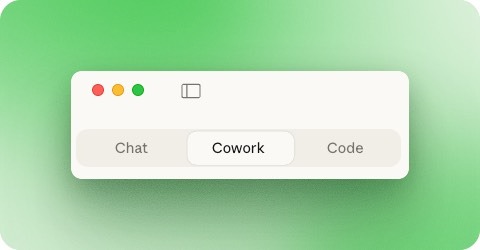
Open the Claude Desktop app, and you'll see three tabs at the top of the window: Chat, Cowork, and Code. Click Cowork to switch modes.
If you're interested in similar tools, I recommend reading our rundown of the best Claude Cowork alternatives.
Claude Cowork Hands-On Tutorial
The best way to understand Cowork is to use it. The following three examples cover different types of tasks: organizing files, batch conversion and compression, and generating reports from raw data. Each one shows a different part of what Cowork can do with local files.
Example 1: Organizing a messy downloads folder
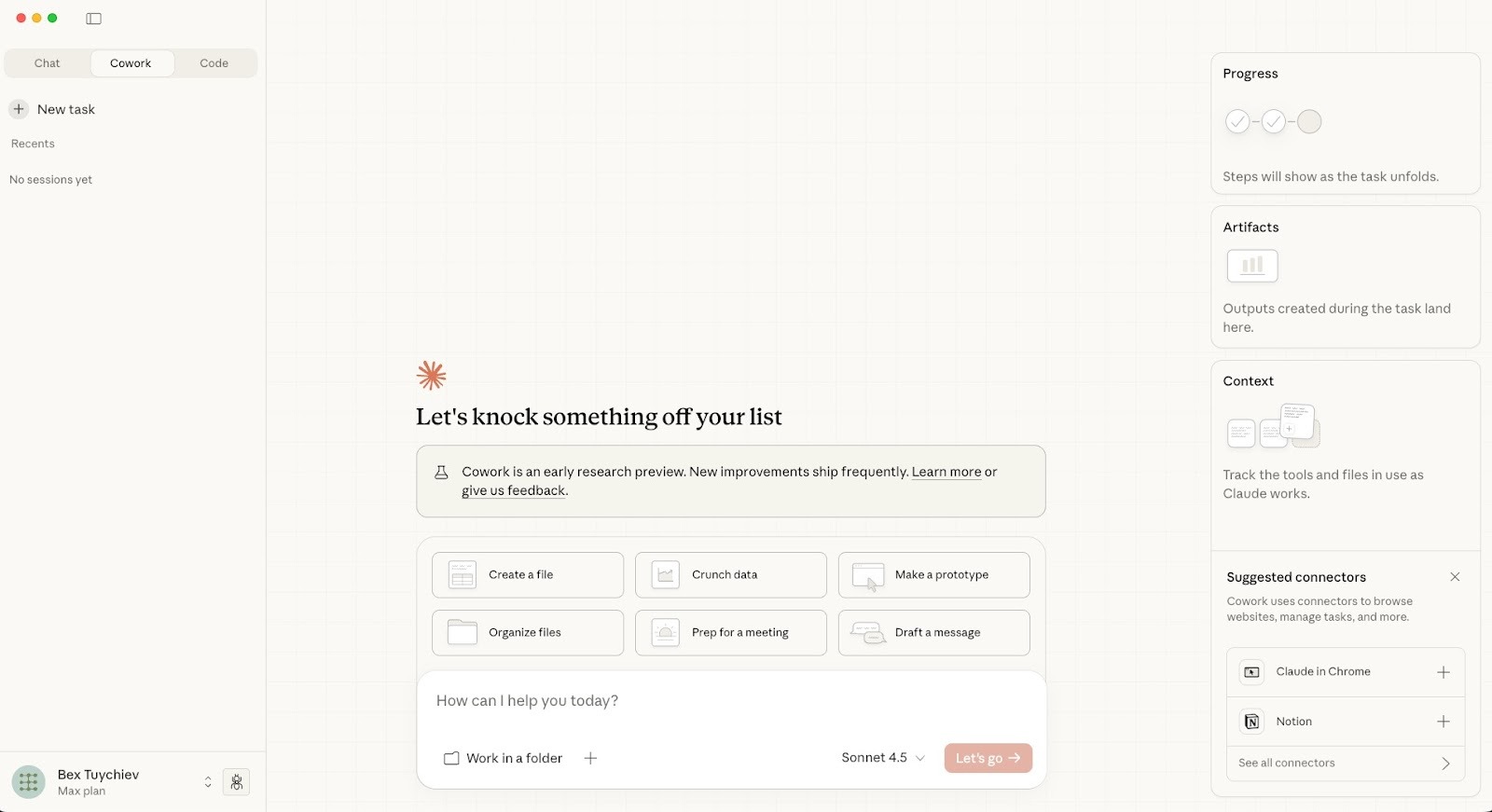
The Cowork interface greets you with task suggestions like "Organize files" and "Crunch data." At the bottom, you'll see a text input with a "Work in a Folder" checkbox. That checkbox is what separates Cowork from regular chat.
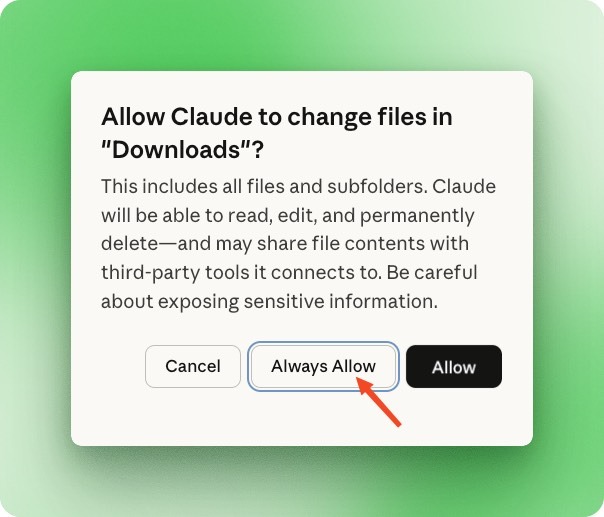
Click the checkbox, then select a folder. A permissions dialog appears asking whether Claude can read, edit, and delete files in that location. You can grant one-time access or choose "Always Allow" for folders you'll use repeatedly.
For this example, I pointed Cowork at my Downloads folder containing 186 files: duplicate PDFs, Word documents, screenshots with generic names, random installers, and the usual debris that accumulates over months. The prompt was simple:
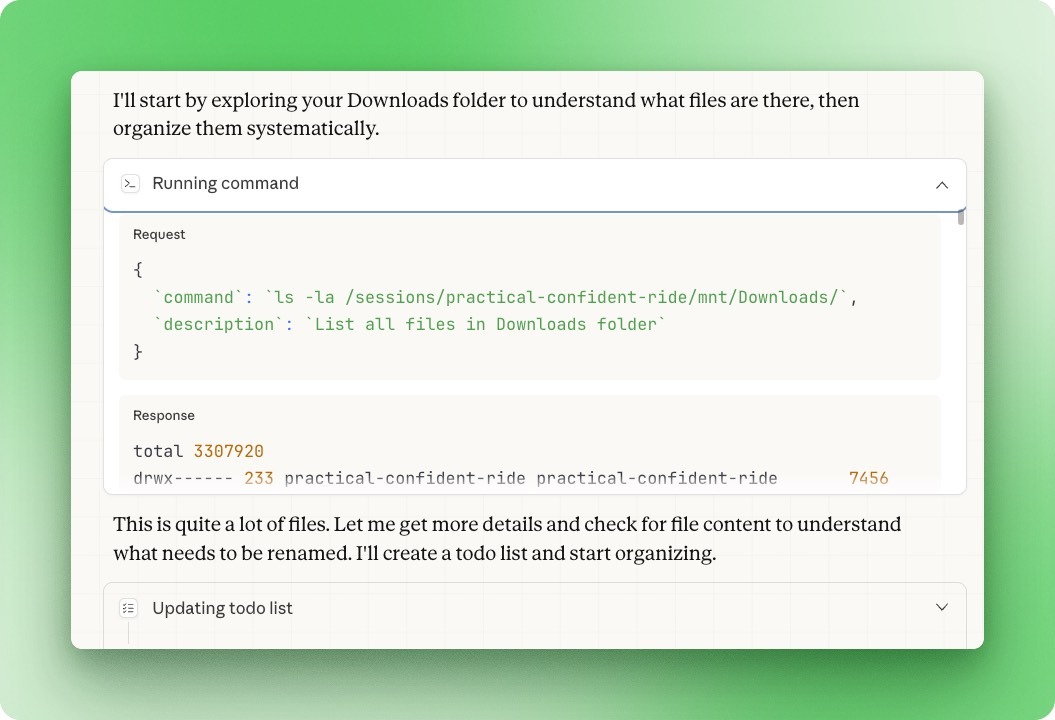
Organize this downloads folder. Sort files into subfolders by type. Rename files that have generic names like "download" or "IMG_" to something descriptive based on their content. Delete any duplicates. Give me a summary when you're done.Once you send a prompt, Claude starts running commands in a sandboxed terminal environment. It listed all 186 files, then announced it would create a to-do list and start organizing.
The right sidebar shows progress in real time. Claude broke the job into multiple steps: analyze files and identify duplicates, create folder structure, move files to appropriate subfolders, and rename generic files based on content.
You can watch each step complete while Claude works.
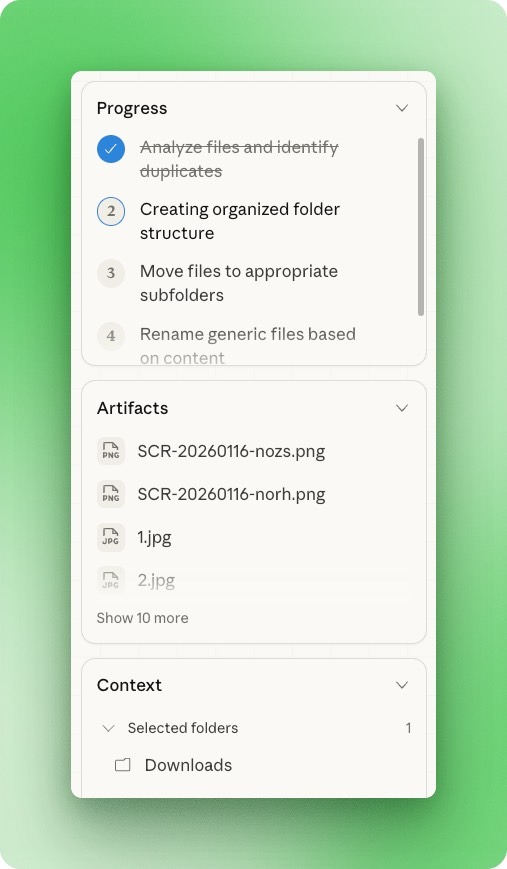
Any files Claude reads or creates appear in the Artifacts pane (you can click on them to preview).
Before deleting anything, Claude stopped to ask permission. It found 30+ duplicate files across several categories: timestamped PDF copies, duplicate folders, empty files, and multiple versions of research articles.
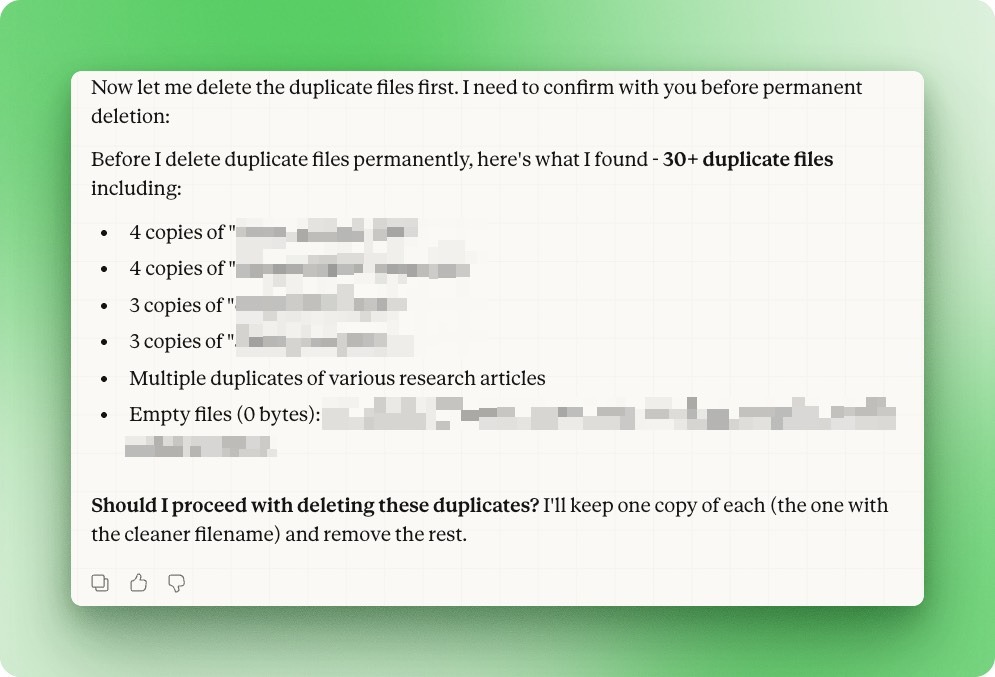
Since Cowork runs terminal commands under the hood, duplicate detection happens programmatically through file hashes rather than filename comparison. That's how it caught duplicates even when the filenames were completely different.
In regular chat, you'd either need to upload each file manually or run out of context trying to process them all.
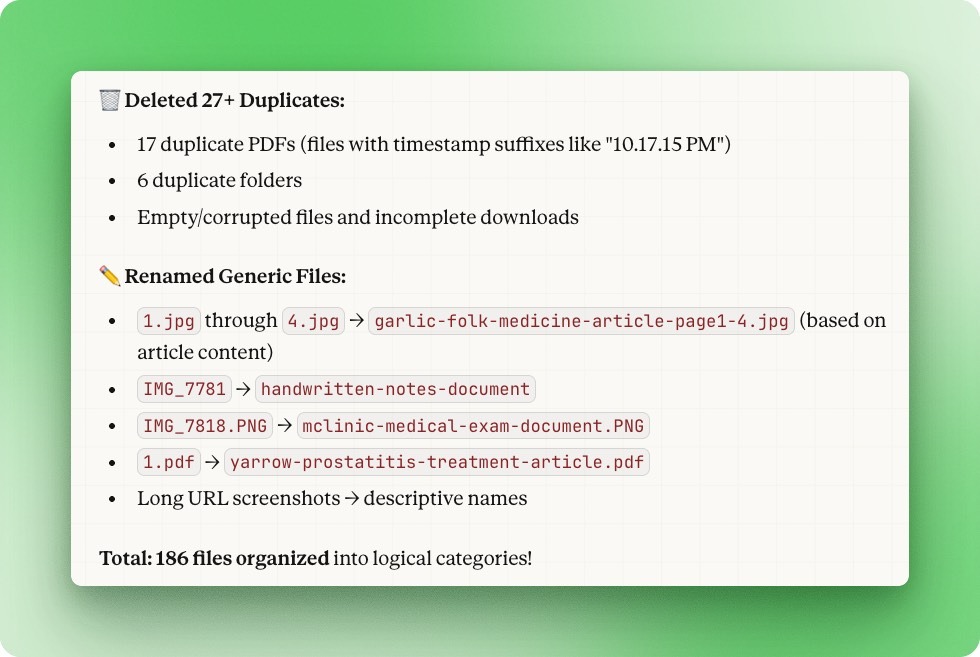
After a few minutes, Claude delivered a summary. It deleted 27 duplicates, including 17 PDFs with timestamp suffixes and 6 duplicate folders. It renamed files like 1.jpg to garlic-folic-medicine-article-page1-a.jpg and IMG_7818.PNG to landslide-after-document.PNG based on their actual content.
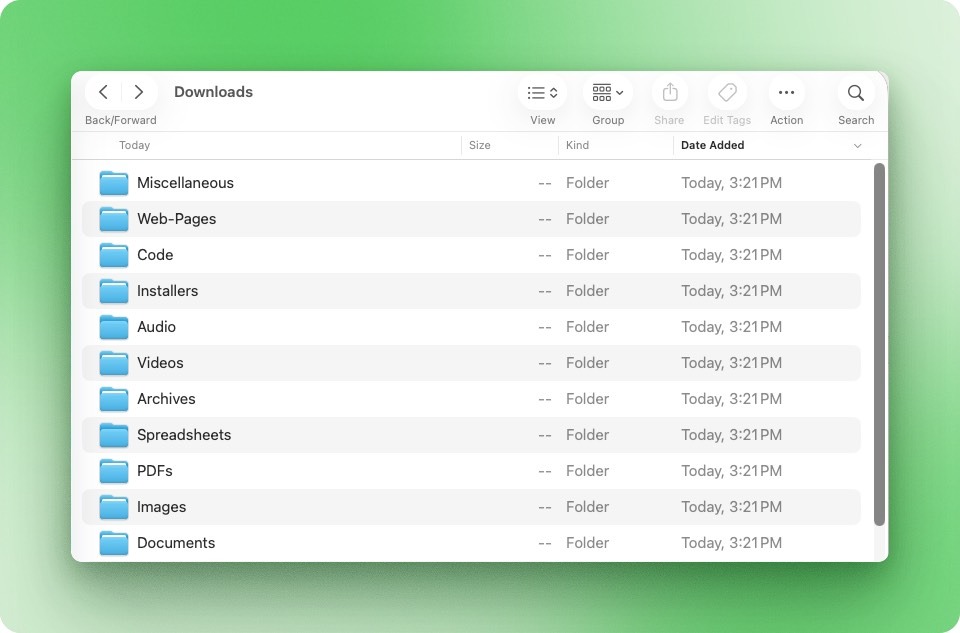
The Downloads folder now has 11 clean subfolders:
Example 2: File conversion and compression
Next, I threw a batch operation at Cowork:
In this folder:

 1. Convert all .docx files to PDF, then move the original .docx files into a single "docx-archive" folder
 2. Compress all PDF files to reduce their size
 3. Convert all images to PNG format and compress them

 Give me a summary of file sizes before and after when you're done.
Cowork found LibreOffice and Ghostscript on my system and started running conversions. These are the same open-source tools behind most online file conversion sites, except here they run locally with no file size limits or batch fees.
If they hadn't been installed, Cowork would have asked permission to add them.
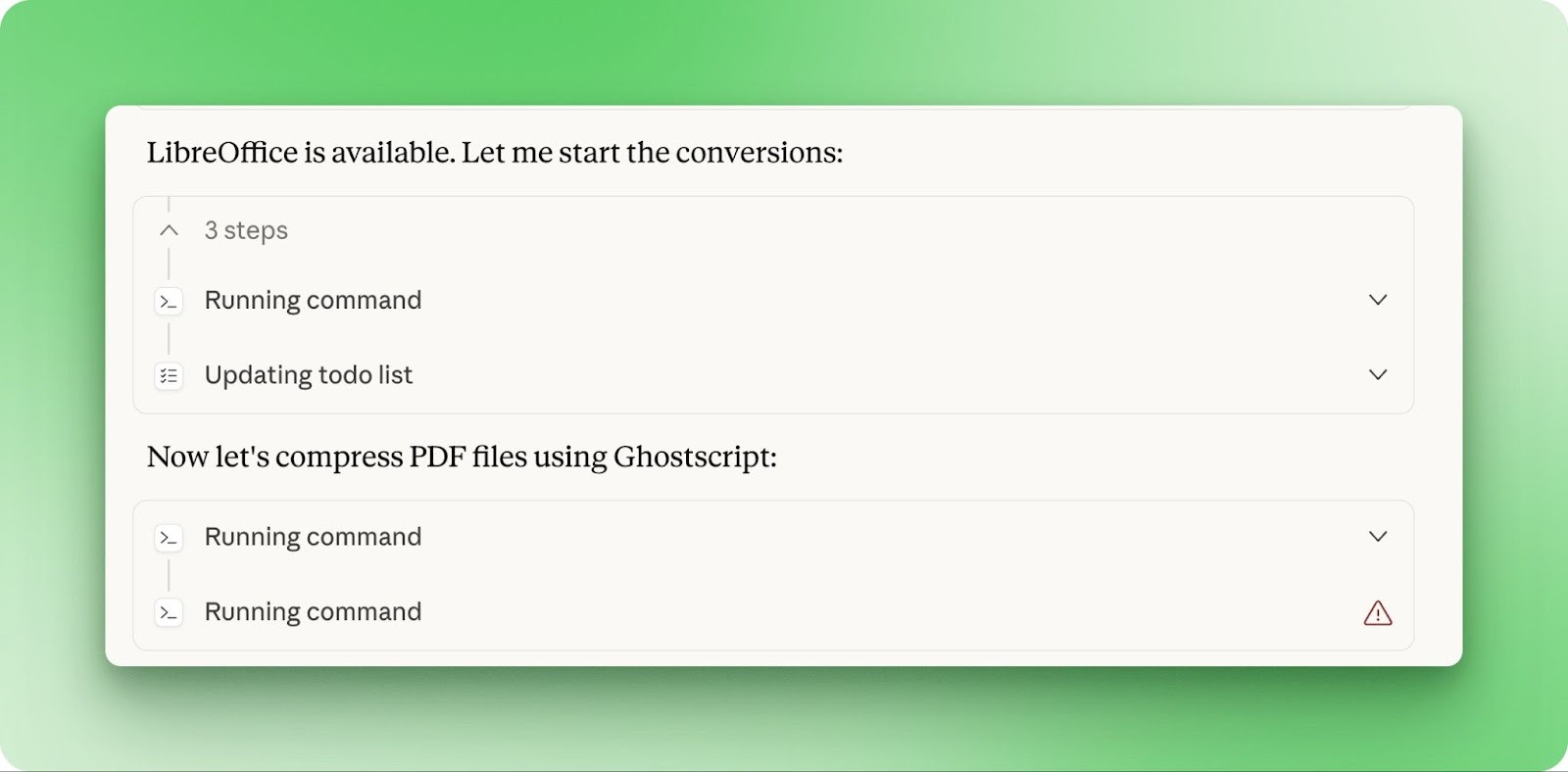
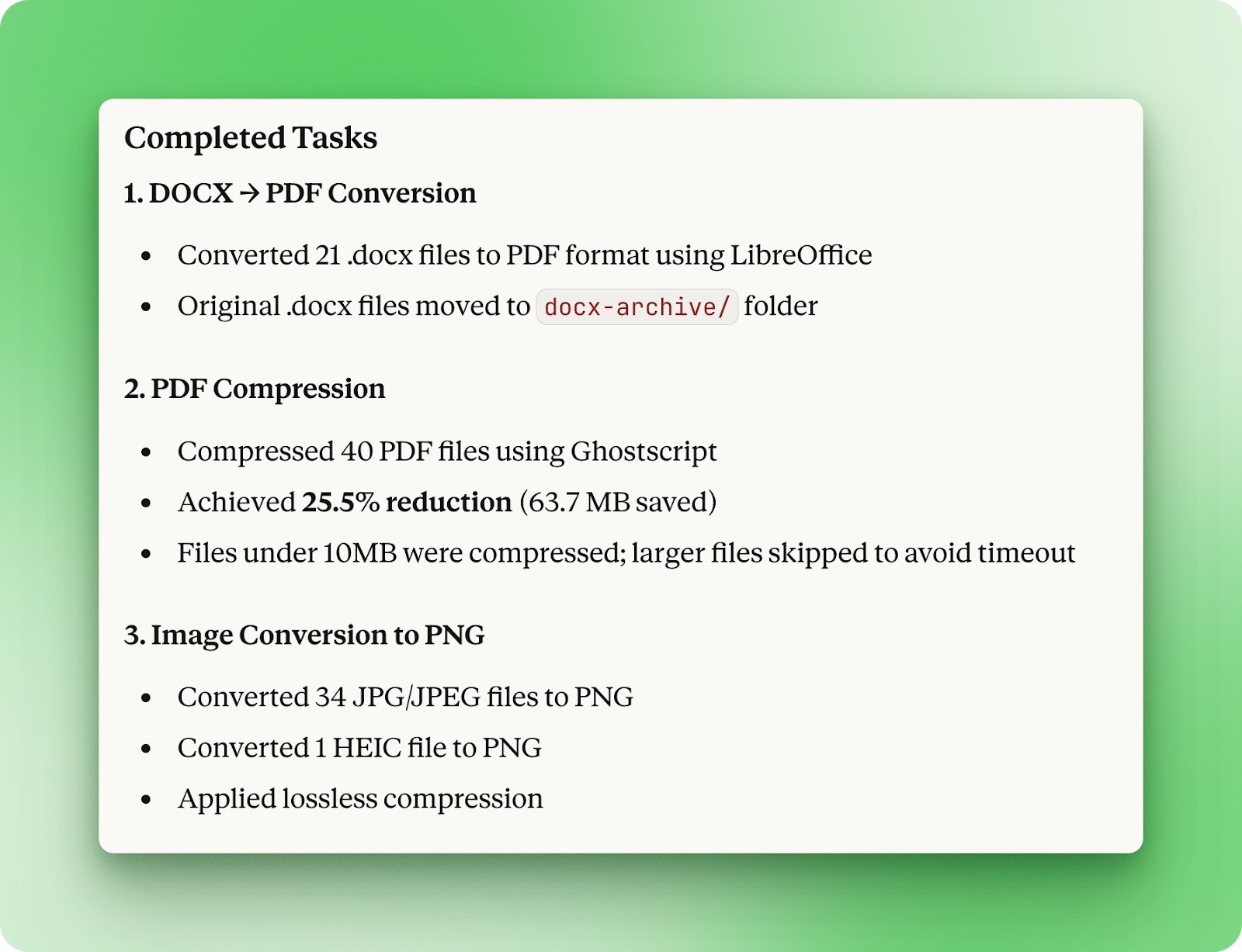
21 Word docs became PDFs. 40 PDFs got compressed, saving 63.7 MB (25.5% reduction). 35 images converted to PNG with lossless compression. Cowork skipped files over 10MB to avoid timeouts. The kind of task that used to mean bouncing between three different websites, done in one prompt.
Example 3: Generating a spending report from app data
For the final example, I gave Cowork a backup file from my finance app and asked it to make sense of the data:
folder contains an mmbackup file from a finance app. Extract it, analyze the inside, and generate a detailed PDF report of my spending habits.

 Include monthly breakdown, spending by category, top merchants, trends over time, and any notable patterns. Make the report visually organized with clear sections and tables.
The mmbackup format is just a renamed zip archive. Cowork extracted it, ran queries against the database inside, and pulled together 14 months of transaction history.
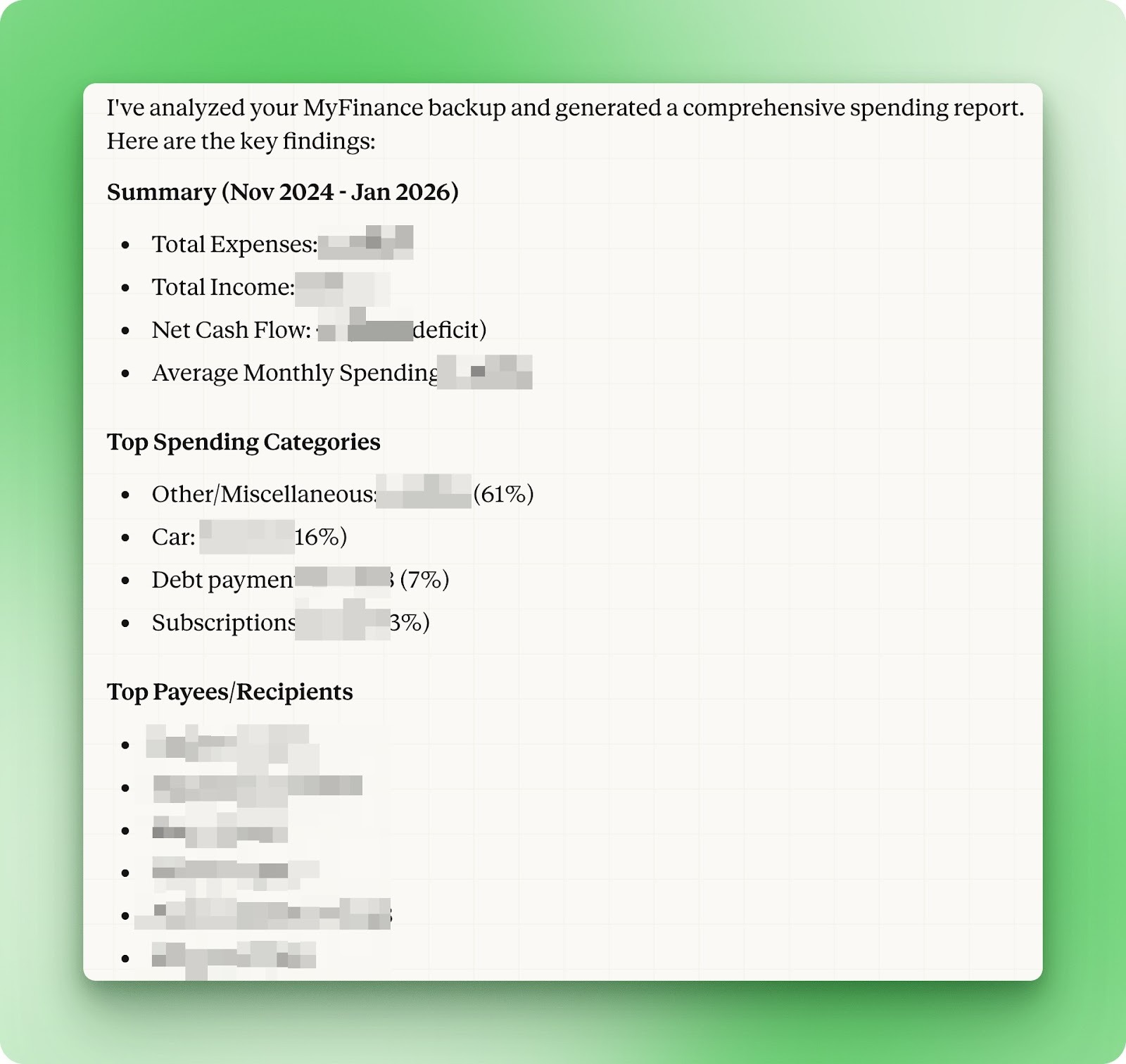
The output was a 10-page PDF with an executive summary, monthly spending breakdowns, category analysis, and trend charts.
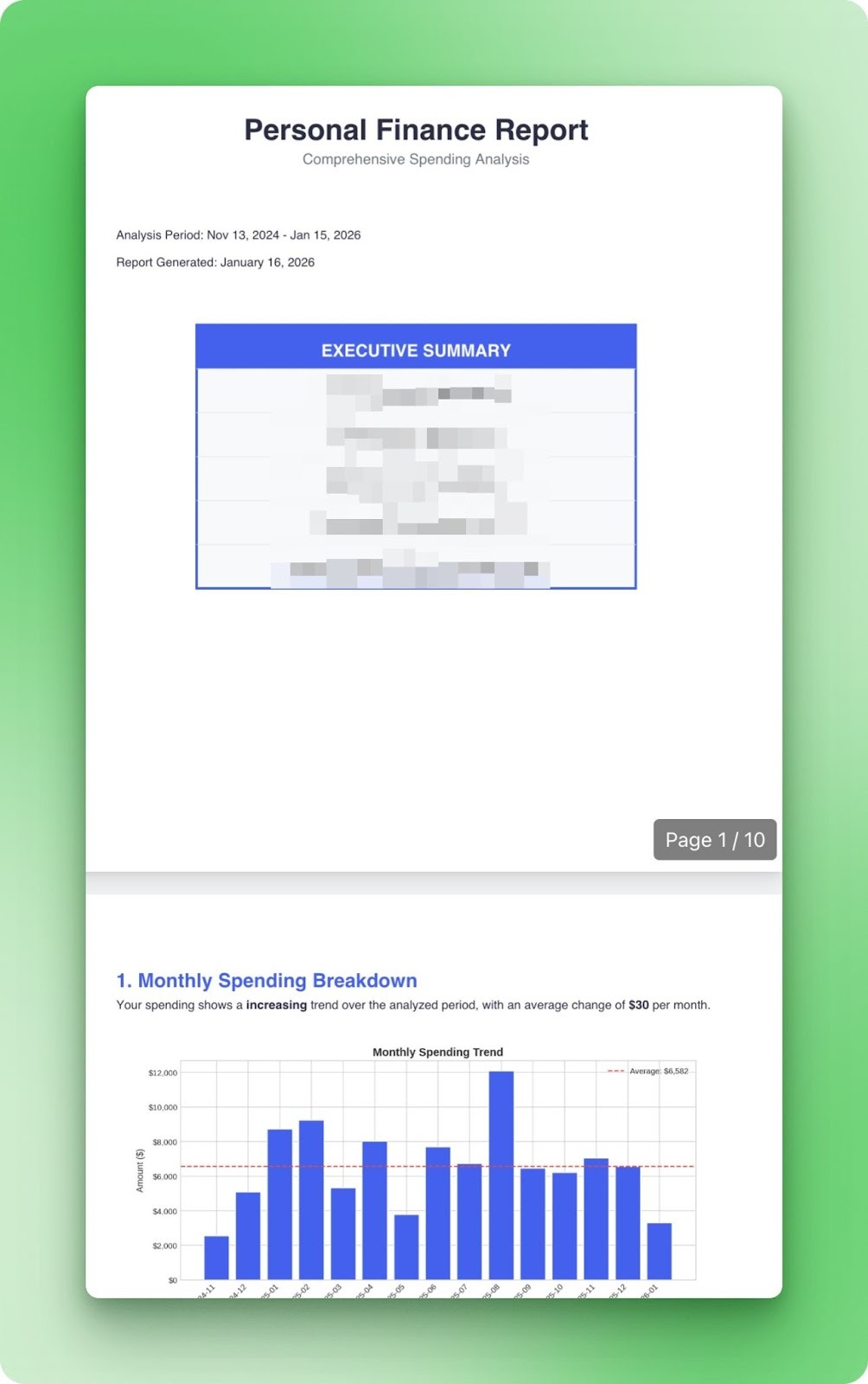
During the task, it used a variety of tools, including custom Python scripts for chart generation and its own built-in PDF skill.
We will talk about such skills in detail in the next section.
Claude Cowork Advanced Features
Let’s look at some of the features that can help take your Cowork experience to the next level.
Using Cowork Skills
Skills give Cowork native handling for office file formats: xlsx, pptx, docx, and pdf. The pdf skill goes beyond basic reading to support merging, splitting, and form-filling. A skill-creator exists for building your own, but we won't cover that here. For a deeper look at how Claude handles skills across its products, see our Claude Skills tutorial.
I tested the xlsx and docx skills together using Lichess's 2025 operating expenses. Lichess is a free, open-source chess platform that publishes its financials publicly. The prompt asked Cowork to analyze the spreadsheet and produce a formatted Word report:
This folder contains Lichess's 2025 operating expenses. Analyze the data and create a Word document report that covers total annual spending, breakdown by category with percentages, the three largest expense categories, and month-over-month trends. Format the report professionally with clear sections, tables where appropriate, and an executive summary at the top.The xlsx skill hit a wall immediately. Lichess's spreadsheet is formatted for human readers, not programmatic parsing. Section headers sit in rows. Multiple data regions share the same sheet. Server specs sprawl across columns meant for display, not extraction.
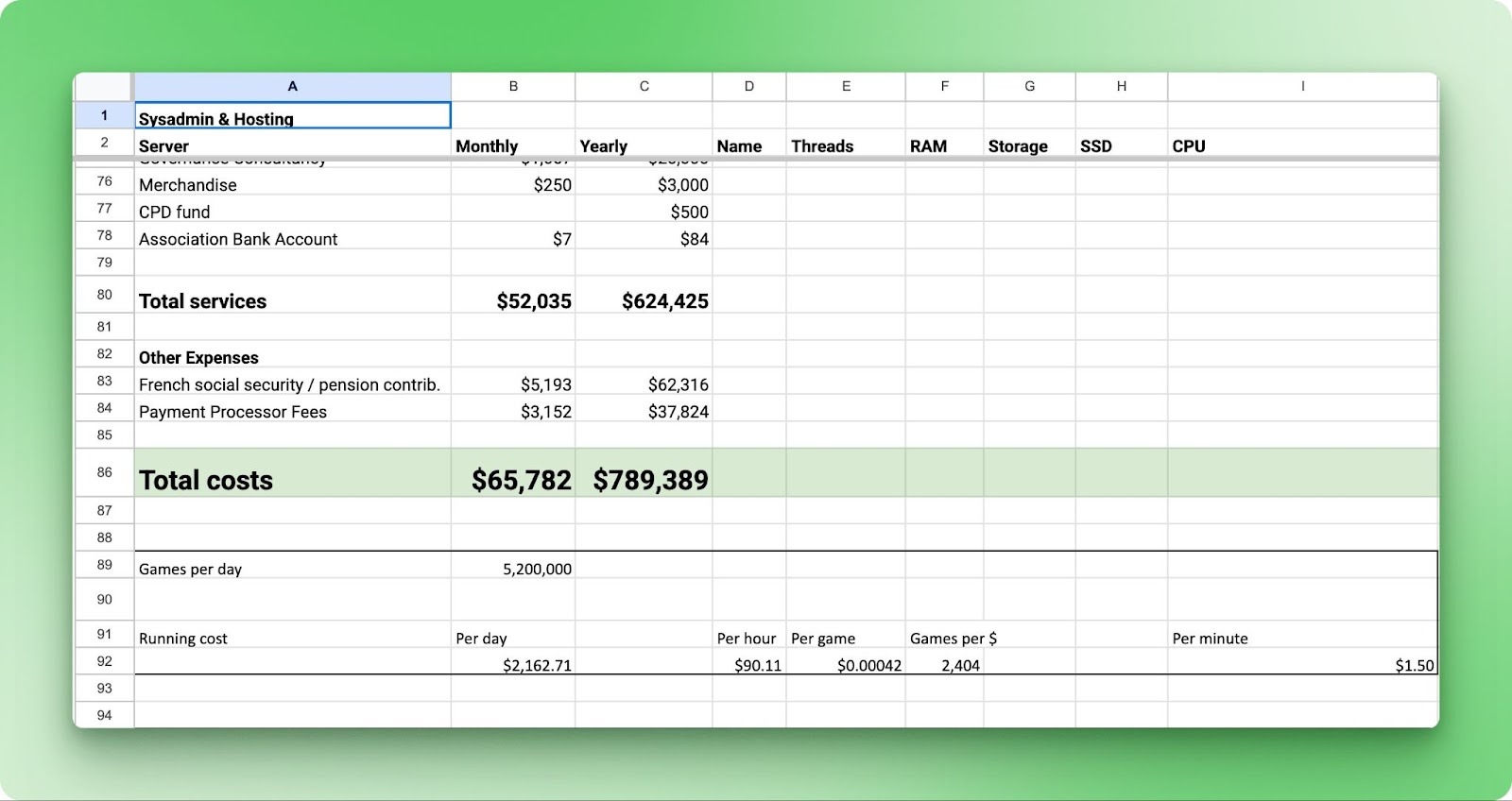
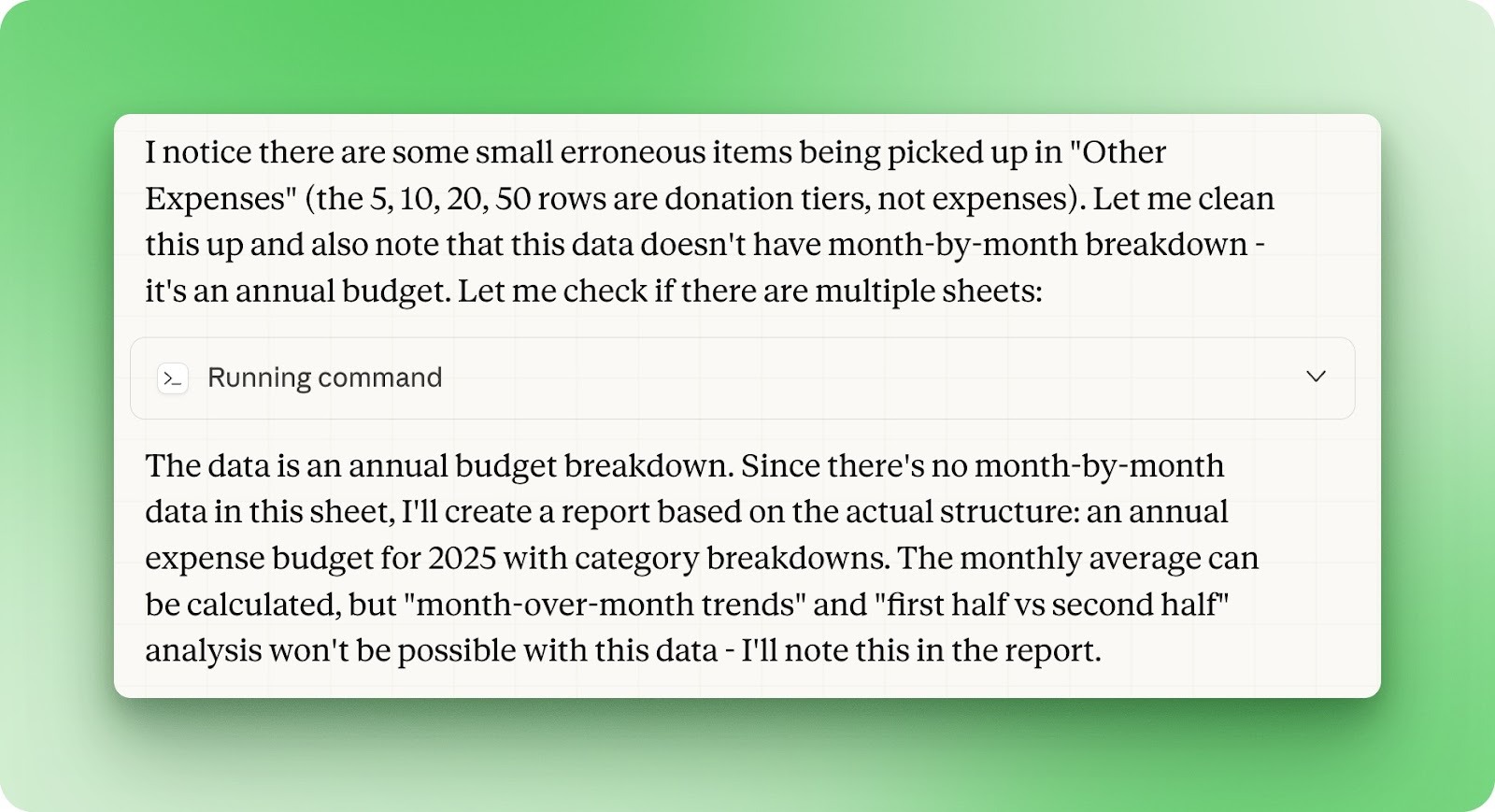
Under the hood, the xlsx skill relies on Python libraries that expect clean columnar data. Feed it a presentation-style spreadsheet and parsing falls apart. That's why Cowork grabbed partial data and treated the file as an annual budget, missing most of the details.
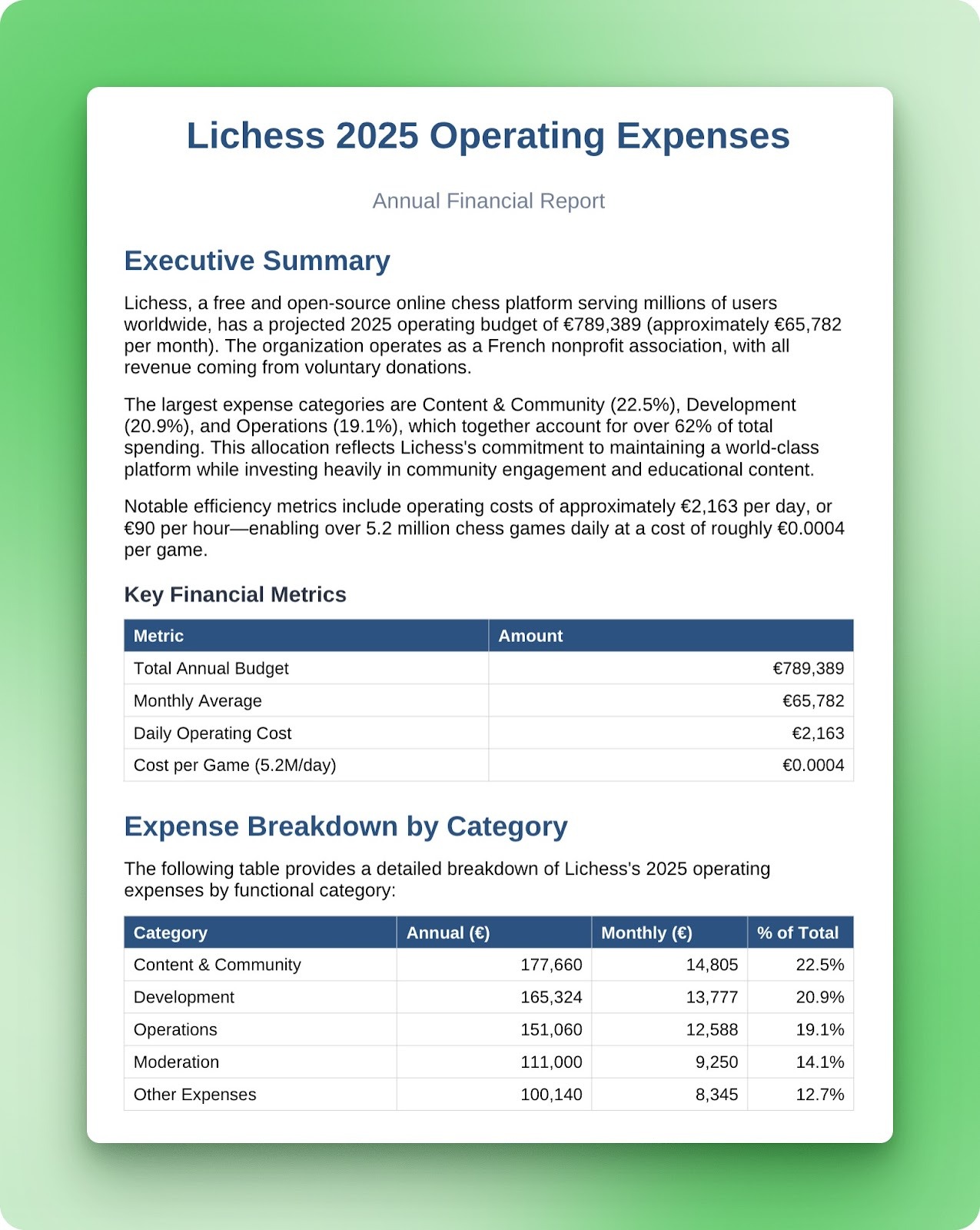
However, the docx output was completely different. Even with incomplete source data, the generated report came out clean: proper heading hierarchy, well-formatted tables, coherent executive summary. Word documents are XML under the hood, and LLMs handle XML well.
Bottom line: xlsx parsing struggles with spreadsheets that aren't structured like database tables. Merged cells, section headers, and multi-region layouts will cause problems. The docx skill is more reliable since the format itself is more predictable.
Browser integration with Claude in Chrome
Claude in Chrome is a browser extension that lets Claude see and interact with web pages. It can click buttons, fill forms, navigate between tabs, and take screenshots. When paired with Cowork, this means tasks can span both local files and web-based workflows.
The extension works through Chrome's side panel. Once installed, Claude can view/create tabs and take actions when you ask. It has built-in familiarity with common platforms like Gmail, Google Docs, Slack, and GitHub, so commands don't need step-by-step instructions.
To turn it on in Cowork, open Settings from the sidebar and toggle on the Chrome connector. If you haven't installed the extension yet, you'll be prompted to grab it from the Chrome Web Store.
For this test, I asked Cowork to clean up my inbox:
Using Chrome, go to my Gmail inbox and do the following for Quora, Pinterest, and Udacity:
 1. Find the most recent email from each sender
 2. Click the unsubscribe link in each email
 3. Complete the unsubscribe process on whatever page it takes you to
 4. Go back to Gmail and delete all emails from that sender

 Confirm each unsubscribe was successful before moving to the next one.
Cowork opened Gmail and started searching for Quora emails using Gmail's from:quora syntax.
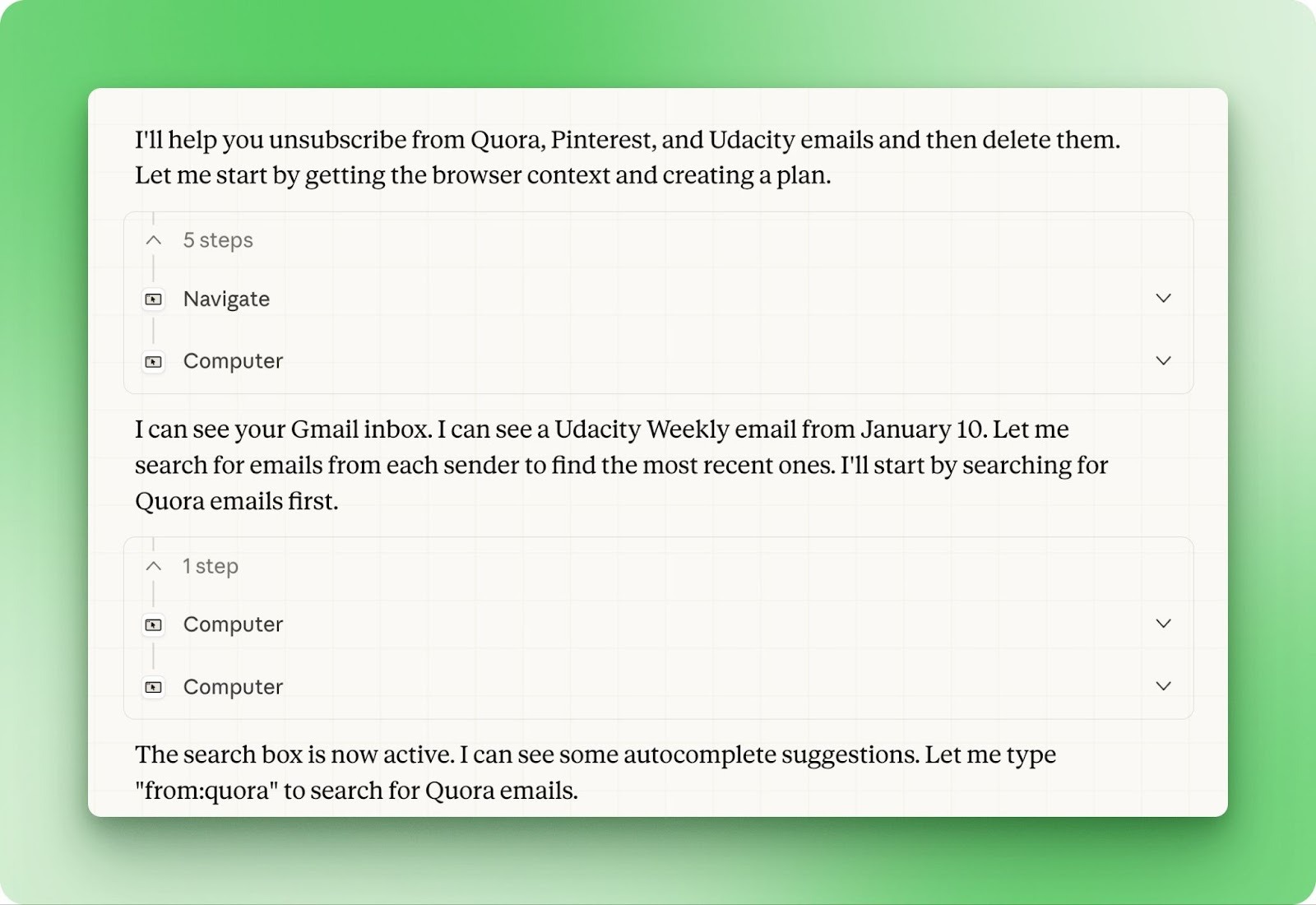
It found a Quora email, clicked through to the unsubscribe page, selected the "Off" radio button, and hit "Save preferences." Once it saw the green confirmation message, it switched back to Gmail to start deleting.
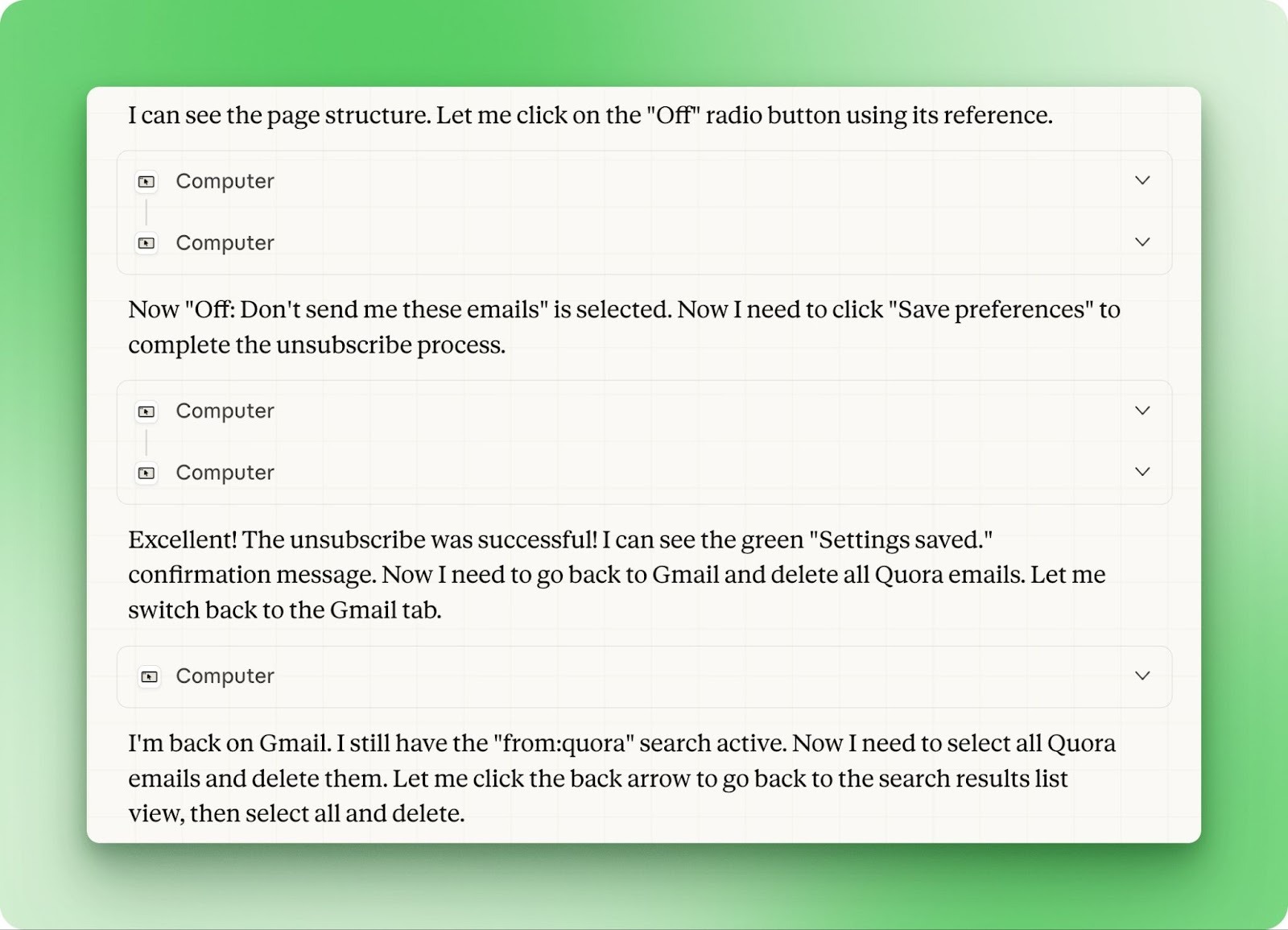
Quora had accumulated years of emails. After deleting around 250, Cowork paused and asked whether to keep going or move on to Pinterest and Udacity. I chose to move on since the unsubscribe was already complete.
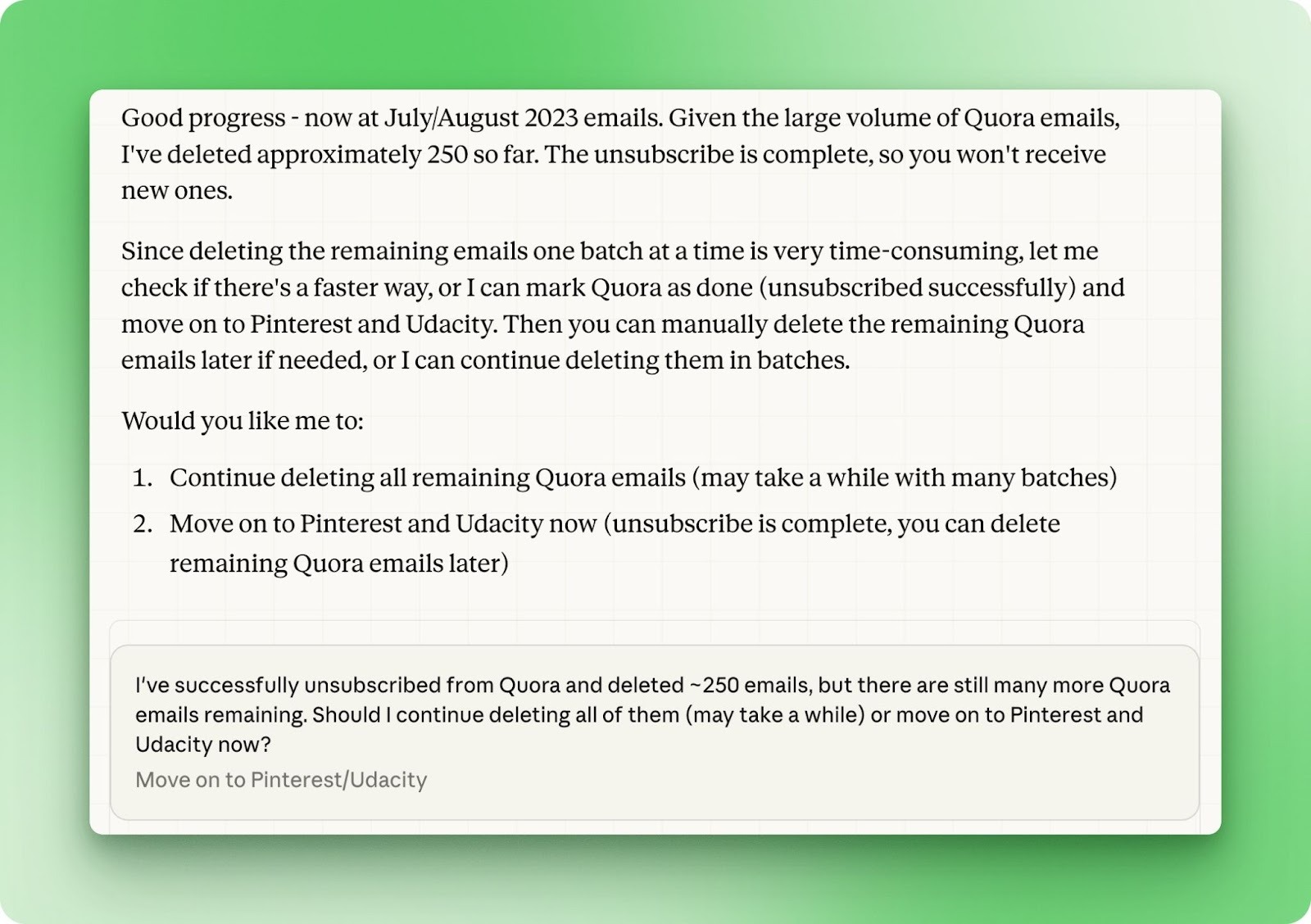
The whole process ran without manual intervention. Cowork handled the tab switching, form interactions, and Gmail search queries on its own. But it was slow. The three newsletters took over 30 minutes to process because every interaction requires a screenshot sent back to Cowork for the next decision.
Mouse movement, button click, page load, and another screenshot. The back-and-forth adds up fast. For repetitive web tasks that require actual clicking rather than just information retrieval, the Chrome integration works, but don't expect it to be quick.
Using connectors
Connectors link Claude to external services and data sources. They've been available in regular Claude chat for a while, but in Cowork, they gain a new dimension: filesystem access.
A connector that pulls data from an external service can now save that data locally, or use local files as input for external actions.
To browse available connectors, go to Settings > Connectors > Browse connectors. The pop-up shows two tabs: Web and Desktop extensions.
Web connectors run through browser-based APIs while desktop extensions run locally on your machine. Both work in Cowork, though desktop extensions tend to have deeper system access.
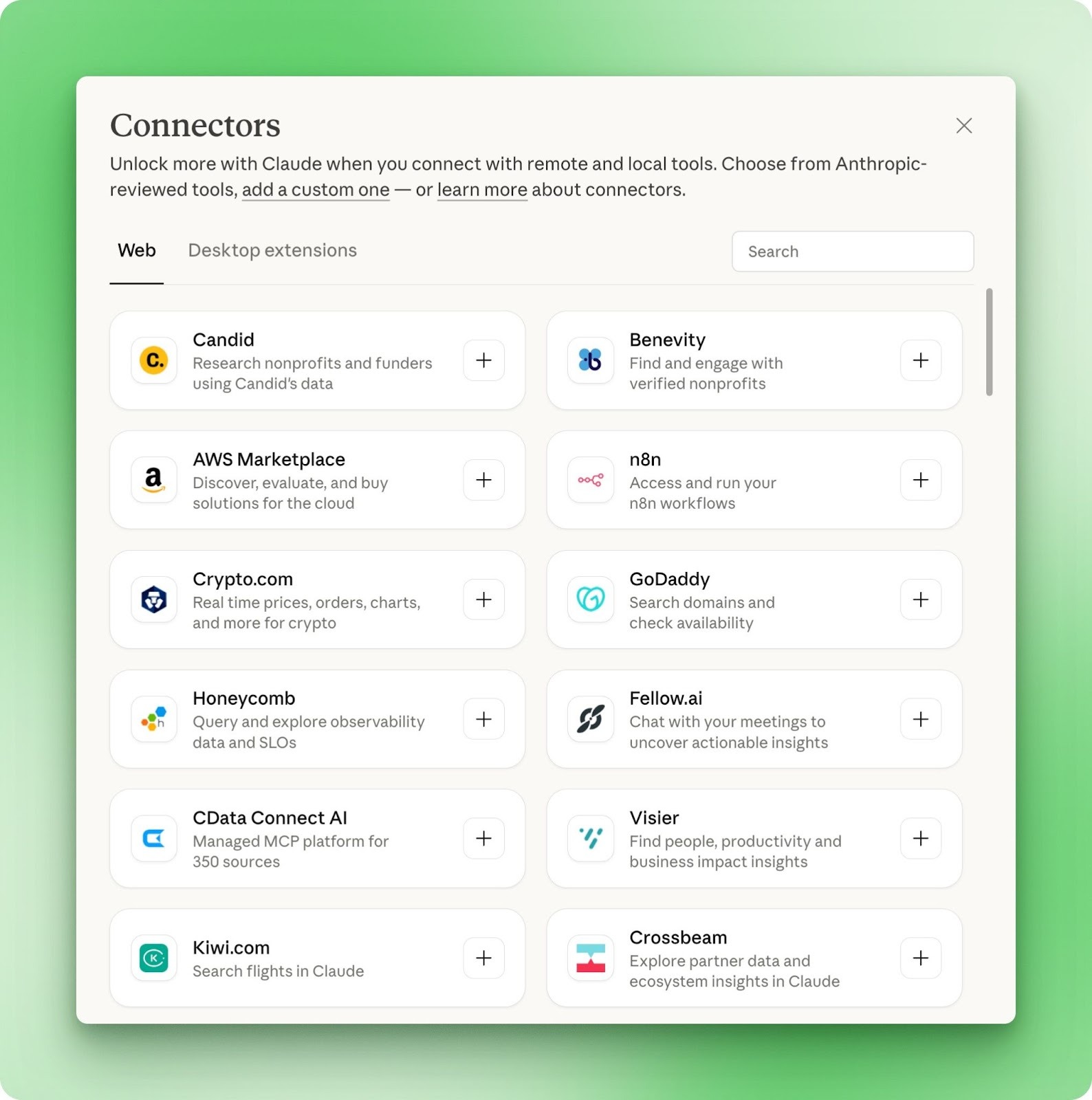
The catalog already has hundreds of options. AWS Marketplace for cloud resources, n8n for workflow automation, Honeycomb for observability data, Fellow.ai for meeting insights. Each connector is Anthropic-reviewed, and you can also add custom ones if your tool isn't listed.
Anthropic's official Gmail, Google Calendar, and Google Drive connectors have since reached general availability, giving Cowork direct read access (and draft-only writes for Gmail) without the Chrome extension workaround described earlier.
The real value here is combination. A connector that queries your CRM can now cross-reference results against local spreadsheets. Meeting notes from Fellow.ai can feed directly into local project folders. The connectors aren't new, but what you can do with them in Cowork is.
Scheduling recurring tasks and plugins
Cowork can now run tasks on a schedule instead of waiting on a manual prompt each time. Typing /schedule in a task, or opening "Scheduled" in the sidebar, sets up recurring jobs, like a weekly Downloads cleanup, that run in the cloud even when the desktop app is closed.
Plugins bundle skills, connectors, and sub-agents into a single package built for a specific role or workflow, so you're not wiring up each piece by hand. For a deeper look at remote scheduling and dispatch, see our Claude Cowork Dispatch tutorial.
Final Thoughts
Cowork brings Claude into your filesystem and lets it do the work rather than just advise on it. This tutorial covered organizing files, batch conversions, report generation, office document skills, browser automation through Chrome, and the growing connector ecosystem.
The research preview label is accurate. Complex spreadsheets confuse the xlsx parser, Chrome automation runs slower than you'd expect, and Google's calendar and drive connectors haven't shipped yet. These are rough edges, not dealbreakers.
What matters more is the trajectory. Anthropic built Cowork because they see agents as the next phase of what Claude becomes, and this release puts that vision in front of paying users for real feedback. Developers looking to build their own agent workflows can explore the Claude Agent SDK tutorial.
The math changes now that Cowork comes with the $17-$20/month Pro plan instead of requiring Max. It's an easy add-on if you regularly lose time to file organization, format conversions, or repetitive browser tasks. Start with a single folder and a straightforward prompt, then expand from there as you learn what Cowork handles well.