
Free access is closing! 700+ free courses are waiting.
Ends in:
Start Now

ฝึกฝนและตรวจสอบความก้าวหน้าของคุณ
ดำเนินการต่อด้วย Googleเมื่อดำเนินการต่อ ถือว่าคุณยอมรับ ข้อกำหนดการใช้งานและ นโยบายความเป็นส่วนตัว และยอมรับว่าข้อมูลของคุณจะถูกจัดเก็บในสหรัฐอเมริกาCurrently, ChatGPT Canvas is available only on the Web and Windows (Mac users can access Canvas through their browser but not via the desktop app). Support for the Mac desktop app and mobile platforms (iOS, Android, and mobile web) is coming soon.
To use ChatGPT Canvas:
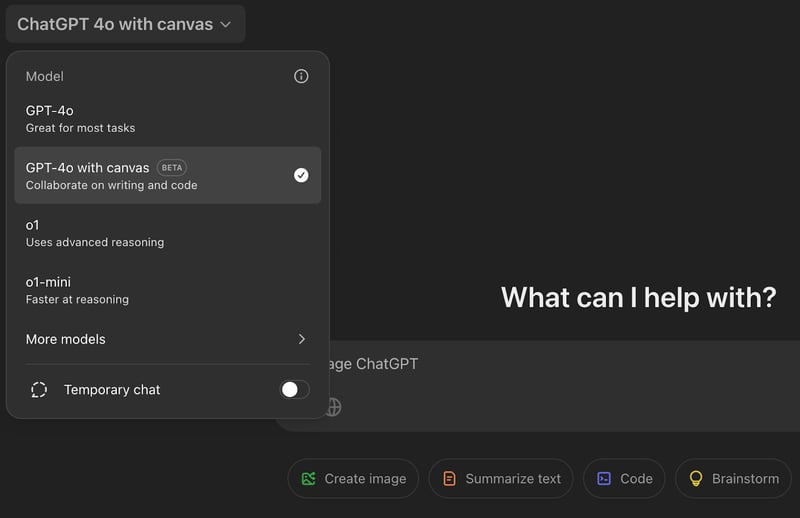
The interface is initially the same as the traditional chat interface. After providing a prompt, the editor will open, and it will be populated with the content generated from the first prompt.
In some situations, the Canvas interface won't trigger automatically. In these cases, we can manually activate it using the "use canvas" prompt.
The initial prompt will determine whether we are working on text content, such as a blog, or working on code. The interface and available commands will be different in each case.
Let’s start by exploring the two main ways we can interact with ChatGPT Canvas (these are available in both text and code mode).
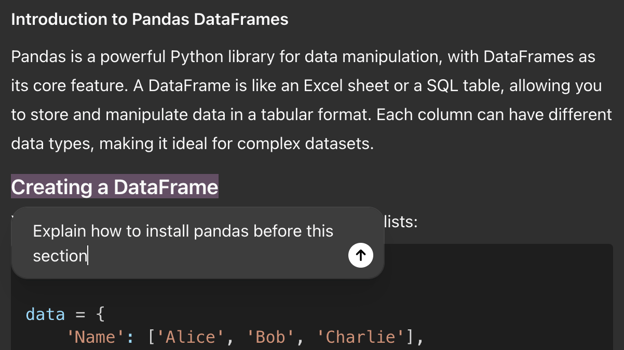
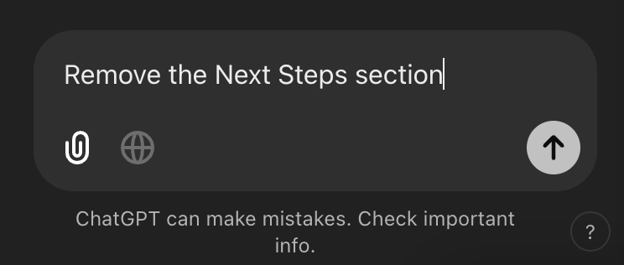
ChatGPT Canvas keeps track of the changes we make. We can easily move between different versions using the arrows in the top right corner (these buttons will only appear after ChatGPT generates the second version).

The first button can be used to show the difference between the current version and the last version.
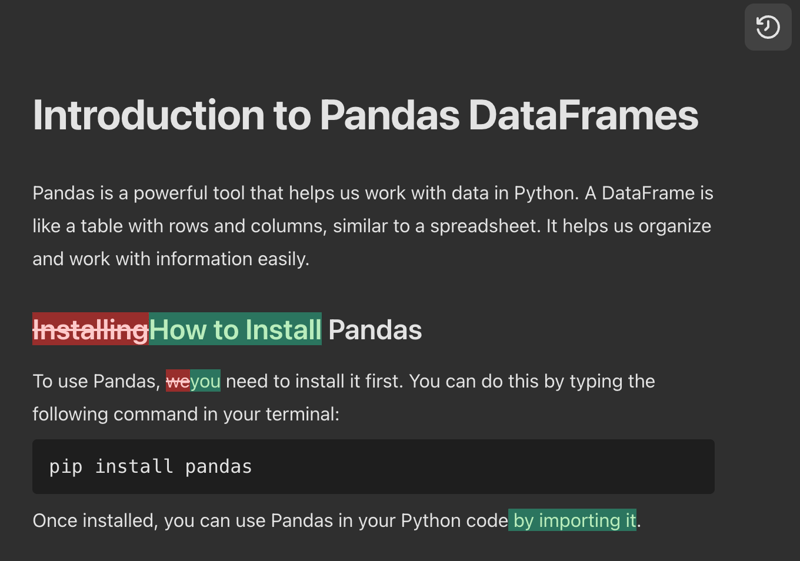
I find this very useful for understanding what the commands do and learning how to improve my writing by seeing the improvements added by ChatGPT.
The last button exports the content. It’s still rudimentary and simply allows us to copy it, which we then have to manually paste wherever we need to.
When ChatGPT determines that the original prompt requests writing a text document, it will open the Canvas editor in text mode. Content with mixed text and code sections will also have this interface.
For example, the text examples shown in this article use the following initial prompt:
“Help me write an article introducing pandas Dataframes.”
The specific editing tools are located in the bottom right corner. When working on a text document, we get the following tools:
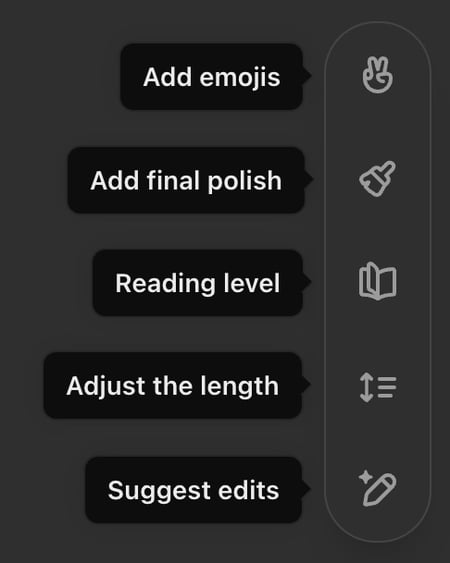
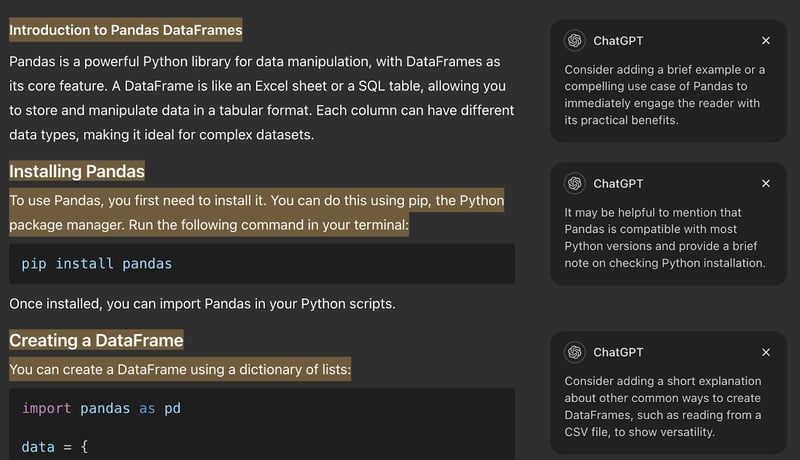

When we click on one of the commands, it is not executed immediately. The icon will change to an arrow, and we need to click it again to execute it.

As we use these tools, keeping an eye on the chat window is important because ChatGPT will explain the changes it made there. This makes it easy to get a quick understanding of what was modified. Another way to see the changes is to use the diff button on the top right corner we mentioned above.
When the initial prompt is about writing a script, ChatGPT Canvas will open a code editor instead of the text editor. To test this, we can use the following prompt:
“Write a Python script that reads and analyzes a CSV using pandas.”
We can identify that we are in the code editor mode by the line numbers on the editor. In this case, we get the following tools:
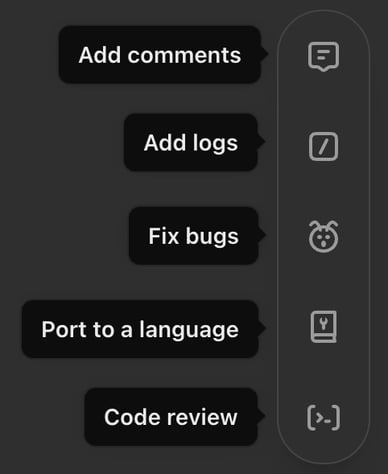
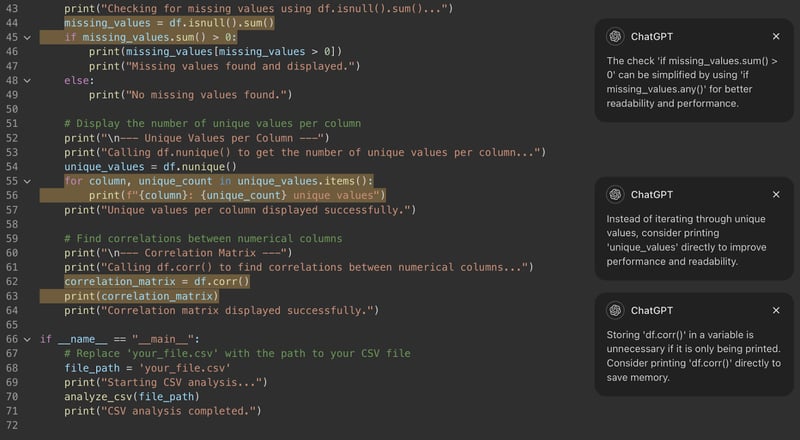
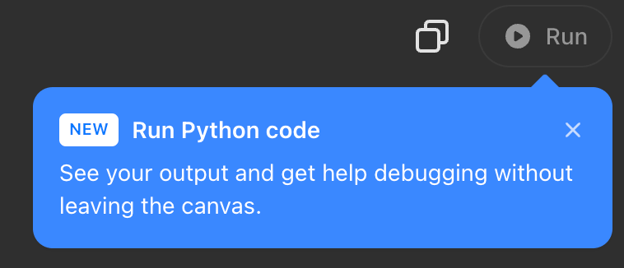
On the newest version of ChatGPT Canvas, we can run Python code directly within the Canvas.
To train GPT-4o to function effectively as a collaborative partner within the Canvas interface, OpenAI's research team focused on developing several core behaviors:
This training involved using novel synthetic data generation techniques, including distilling outputs from other OpenAI models, such as the o1 model. This approach enabled rapid improvement in writing quality and user interactions without relying on human-generated data.
OpenAI utilized over twenty automated internal evaluations to measure progress. However, certain aspects, such as comment quality, required human evaluation due to the difficulty of automated assessment.
Training presented several challenges:
Before ChatGPT Canvas, using ChatGPT to work on a document or piece of code required constantly switching between the editor and ChatGPT, copying the changes proposed with each chat message. We couldn't work on the whole document at once, and ChatGPT didn't easily have the full context of what we were working on or the ability to make changes directly.
ChatGPT Canvas makes it much easier to collaborate with ChatGPT while writing content or code. For writing content, such as a blog post, it is quite powerful.
However, as a software engineer, I still feel it's too limited for writing code involving larger projects. Solutions like Cursor AI, which integrate directly with the code editor, are much more effective because they have context about the entire codebase. I would only use ChatGPT Canvas for writing isolated scripts or functions that don't depend on other code.


บล็อก
 François Aubry• 6 นาที

บล็อก
 Dr Ana Rojo-Echeburúa• 8 นาที
บทแนะนำ
François Aubry• 8 นาทีLearn AI with these courses!
แทร็ก
ค้นพบพื้นฐานของ AI เรียนรู้วิธีใช้ AI อย่างมีประสิทธิภาพในการทำงาน และเจาะลึกโมเดลอย่าง ChatGPT เพื่อรับมือกับภูมิทัศน์ AI ที่เปลี่ยนแปลงอย่างรวดเร็ว
คอร์ส
เรียนรู้บทบาทที่ปัญญาประดิษฐ์เชิงกำเนิดมีในปัจจุบันและจะมีในอนาคตในสภาพแวดล้อมทางธุรกิจ
ฝึกฝนและตรวจสอบความก้าวหน้าของคุณ
ดำเนินการต่อด้วย Googleเมื่อดำเนินการต่อ ถือว่าคุณยอมรับ ข้อกำหนดการใช้งานและ นโยบายความเป็นส่วนตัว และยอมรับว่าข้อมูลของคุณจะถูกจัดเก็บในสหรัฐอเมริกา


It’s day four of the “12 Days of OpenAI” event, and OpenAI has just announced some major updates to a feature they introduced earlier this year: ChatGPT Canvas.
In this blog, I’ll walk you through what ChatGPT Canvas is, explain step-by-step how to use it, and show you through examples how to make the most of it.
What Is ChatGPT Canvas?
Imagine collaborating with ChatGPT on a blog post or a Python script in a more dynamic way. Instead of using the traditional chat interface and piecing together the final output from multiple responses, you work directly in an editor. This is ChatGPT Canvas.
While the standard ChatGPT interface is effective for generating ideas, it can be limiting for tasks that require iterative editing and collaboration. Transforming those ideas into polished content often requires switching between different tools, which can disrupt the creative process.
Canvas provides an interface within ChatGPT designed for enhanced writing and coding workflows. It bridges the gap between chat and content creation, making it easier to organize and iterate on ideas without leaving the conversation.
The right part is a text editor and the left part is a chat interface that allows us to ask ChatGPT to make changes in the document, effectively functioning as an AI collaborator to help refine and polish our ideas.
Key Features of ChatGPT Canvas